

Key Takeaways
- Allows administrators to create an approved list of Microsoft Edge extensions that users can install.
- Helps improve organisational security by preventing the installation of unauthorised or potentially harmful browser extensions.
- Provides centralised management of Edge extension settings through Microsoft Intune.
- Reduces the risk of data leakage and security threats caused by untrusted browser add-ons.
In this post, you will learn Deploy Microsoft Edge Extension Installation Policies with Intune. A Microsoft Edge extension is a small program that we use to add or modify features of Microsoft Edge Chromium. An extension is structured similarly to a regular web app. It is intended to improve a user’s day-to-day browsing experience. Being an IT admin, if you want to control and manage Microsoft Edge extensions, allow specific extensions to be installed and set to the control which extensions users cannot install.
Table of Contents
Table of Contents
Deploy Microsoft Edge Extension Installation Policies with Intune
The Allow specific extensions to be installed policy can be used to create an approved list of Microsoft Edge extensions. When combined with extension blocking policies, administrators can prevent users from installing unauthorized extensions while still allowing business-required extensions.
- Deploy Microsoft Edge Default Search Engine Policy to Manage Browser Search Settings using Intune
- How to Enable Preload of the New Tab Page in Edge for Faster Rendering Using Intune
- Enable Disable Show Home Button in MS Edge Using the Microsoft 365 Admin Center
- Enable Disable Search Bar Allowed in Edge Through Microsoft 365 Admin Center Policy
See More: create a policy with Intune Settings Catalog. Let’s see a list of Intune Settings Catalog Policies.
Get Started with Creating a Profile
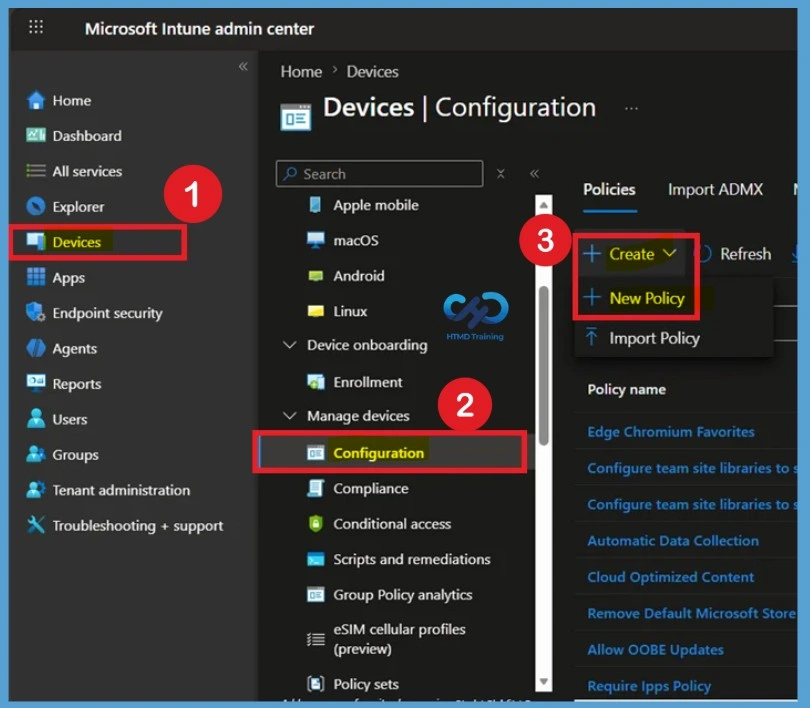
Let’s walk through the process of configuring Microsoft Edge Managed Favorites using Microsoft Intune. Begin by signing in to the Microsoft Intune admin center with an account that has the required administrative permissions. Once signed in, navigate to Devices > Windows > Configuration and select Create > New Policy. For a clear view, the steps are given below.

Let’s follow the steps below to manage Edge Extensions using Intune –
- Sign in to the Microsoft Intune admin center.
- Select Devices > Windows > Configuration profiles > Create profile
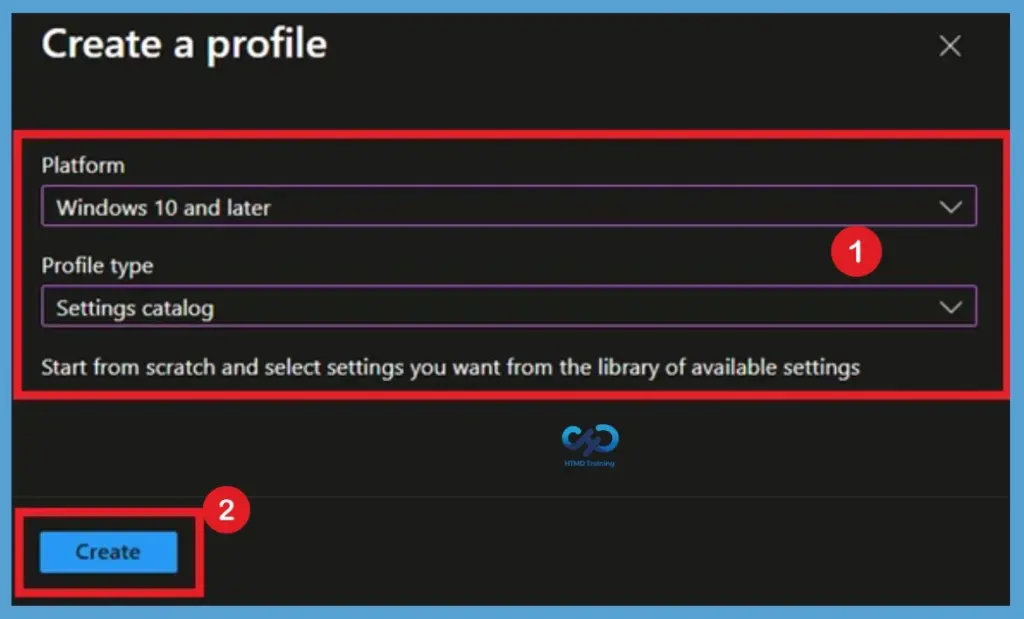
Now you will get the Create Profile, here, Select Platform as Windows 10, and later, Profile type, Select Profile Type as Settings catalog. Then click on the Create button, and the policy creation is done successfully. Now, you can configure the policy.
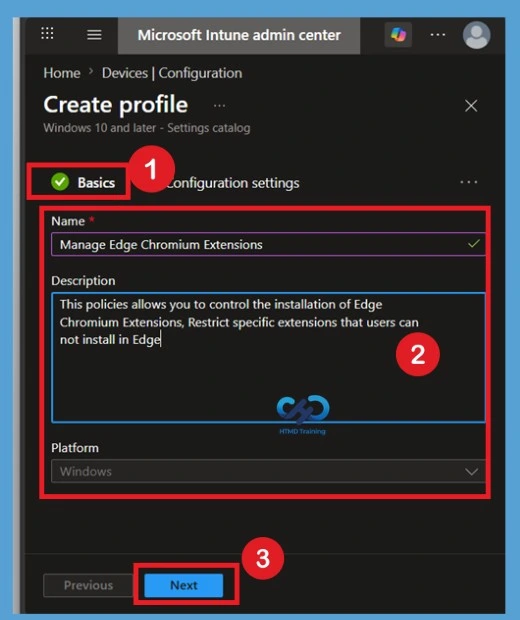
Complete the Basics Tab
You are now on the Basics tab, where you need to provide basic information about the policy. This information helps administrators understand the purpose of the policy and makes it easier to identify later in the Intune portal. Enter the name for the policy, as this is the primary way to identify it among other configuration profiles. You can also add a short Description explaining what the policy does and why it is being deployed.
- The Platform is already set to Windows based on the selection made during profile creation.
- After entering the required details, click Next to continue.
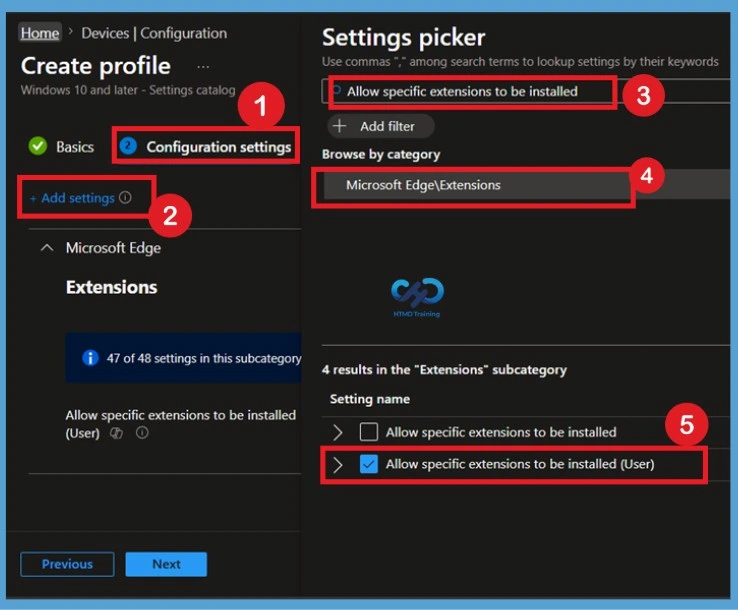
Configure Microsoft Edge Extension Settings
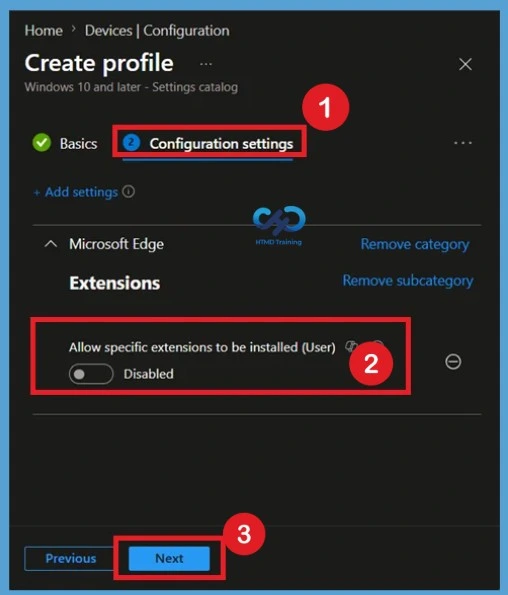
You are now on the Configuration settings page. Click Add settings to open the Settings Picker, where you can search for and select the settings you want to configure. Browse to Microsoft Edge > Extensions and select Allow specific extensions to be installed (User).
Disable the State of the Policy
When you select the policy setting, you will notice that it is disabled by default. In this state, the policy is not configured, and no specific extensions are allowed. If you want to keep the default configuration, you can click Next and continue with the profile creation process. However, to allow specific Microsoft Edge extensions, you must enable the policy and add the required Extension IDs.
- Let’s proceed to the next section to see how to enable and configure the setting
How to Find the Extension ID
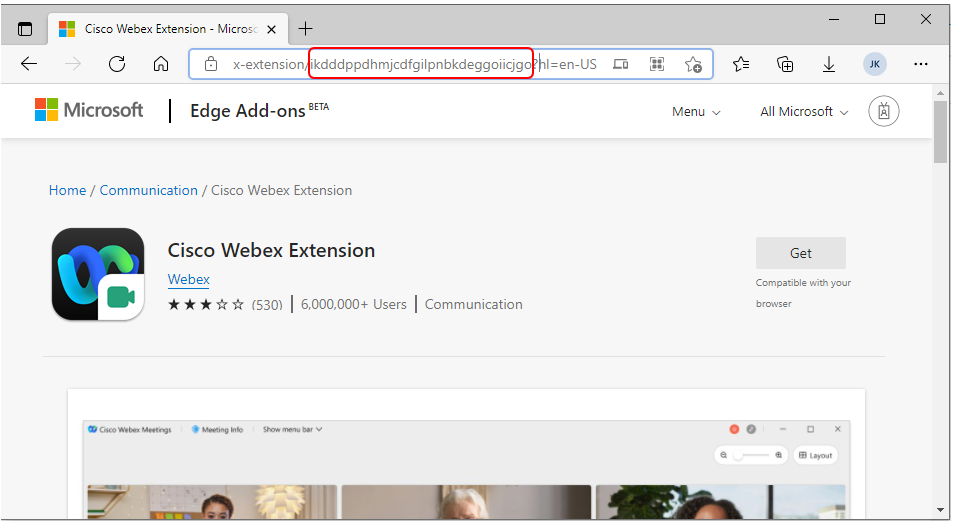
It’s important to find the extension ID of an extension by visiting the Microsoft Store and searching for the extension. Open the Microsoft Edge browser, go to the Microsoft Edge Add-ons Store, and search for an extension you want to allow to collect the Extension ID.
Click on the extension (For Example: “Cisco Webex Extension“) you want to check, and In the address bar, you will get the ID as shown below that will be used to configure policies.
ikdddppdhmjcdfgilpnbkdeggoiicjgo – Cisco
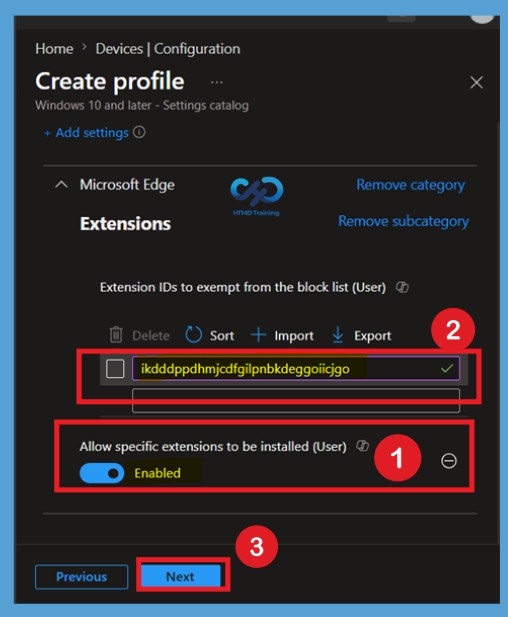
Set the Allow specific extensions to be installed to Enabled and add the extension IDs to exempt from the block list. For example, here I want to allow Cisco Webex Extension. Similarly, if you want to add more to the allowed list, click +Add and provide the Extensions ID.
Set Control which extensions cannot be installed to Enabled, added “*“, to block all extensions.
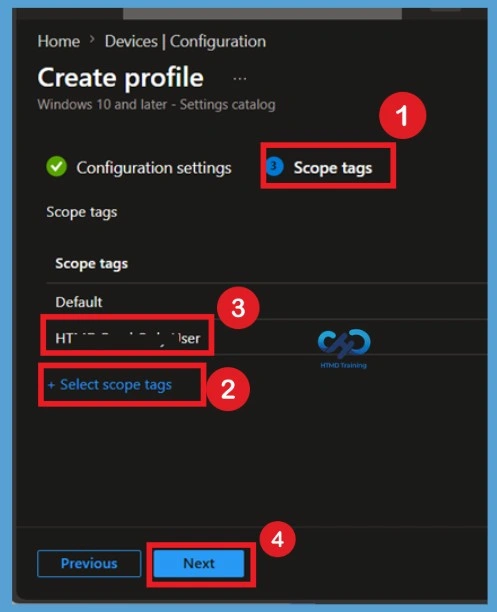
Review the Scope Tags Page
The next page is the Scope tags. Scope tags are used to control which administrators can view and manage the policy. If your organisation does not use scope tags, you can leave the default configuration unchanged. Click Next to move to the assignment stage.
Assign the Policy
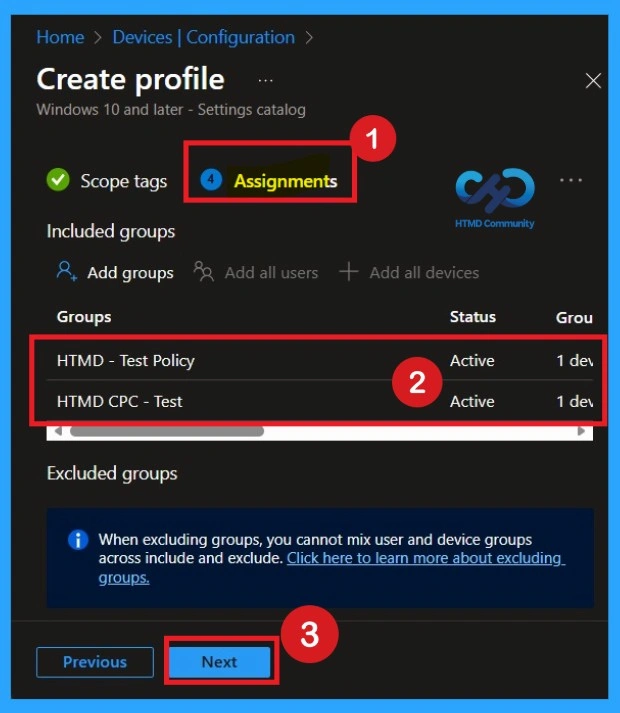
On the Assignments page, choose the user or device groups that should receive this policy. Click Add groups and select the appropriate Microsoft Entra ID groups. Take a moment to review the selected groups before continuing. Once you are satisfied with the assignment configuration, click Next.
Review and Create the Policy
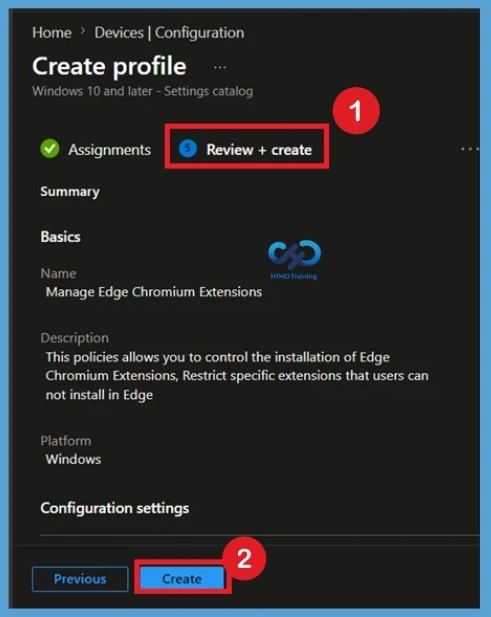
The Review + create page displays a summary of all the settings configured in the previous steps. Review the information carefully to confirm that everything is correct. When you are ready, click Create. Intune will create the policy and begin deploying it to the assigned users or devices.
A notification will appear automatically in the top right-hand corner with a message. Here you can see, Policy “Manage Edge Chromium Extensions” was created successfully. The policy is also shown in the Configuration profiles list.
Monitoring Status
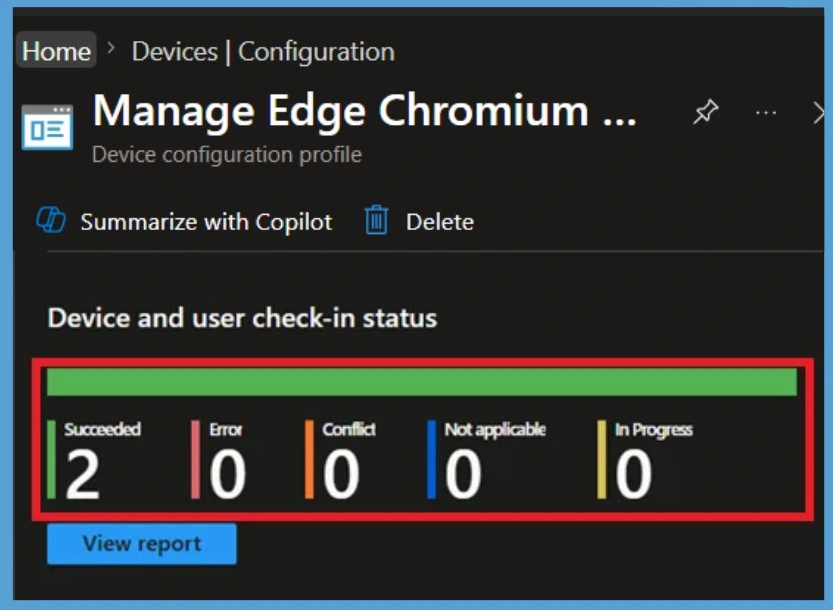
After the policy is deployed, navigate to Devices > Configuration Profiles and select the created profile. Open the Device status or User status report to monitor deployment results. The monitoring page provides detailed information about successful, failed, pending, and not applicable deployments, helping administrators verify whether the policy has been applied correctly.
Once the policy applies to the device, users will not install any other Extensions from the Store except the allowed extension (Cisco Webex Extension).
Verify Policy Deployment Using Event Viewer
After creating and deploying the policy, it is important to verify that the policy has been successfully applied to the target device. This step helps confirm that the device has received the policy from Intune and processed it without any issues. Verifying the deployment status is recommended and should not be skipped.
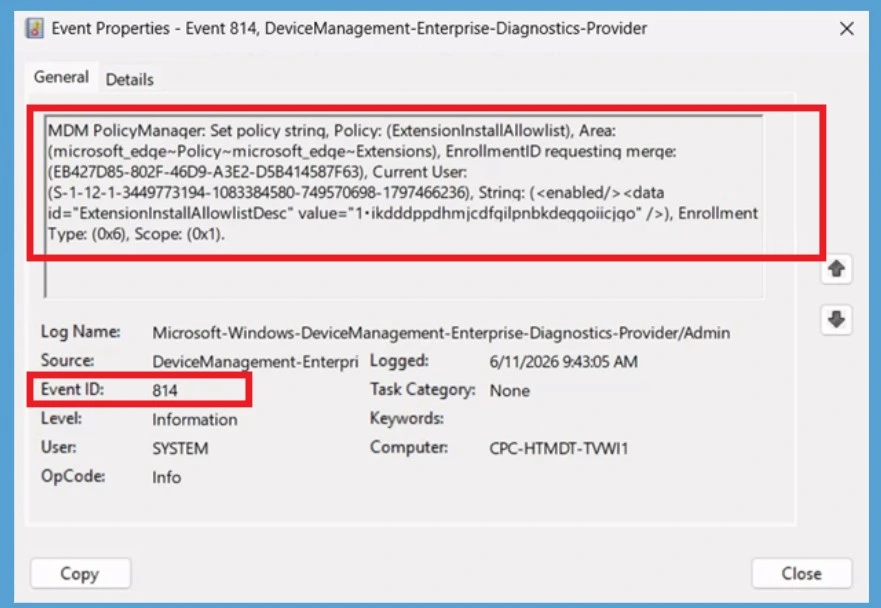
To verify the policy, open Event Viewer on the client device and navigate to Applications and Services Logs > Microsoft > Windows > DeviceManagement-Enterprise-Diagnostics-Provider > Admin. Here, you will find a list of device management events related to Intune policies
- Look for Event ID 813 and Event ID 814 with an Information status, as these events typically indicate that the policy settings were successfully applied.
- If needed, you can use the Filter Current Log option to quickly locate these event IDs and review the deployment details.
| Policy Details |
|---|
| MDM PolicyManager: Set policy strinq, Policy: (ExtensionInstallAllowlist), Area: (microsoft_edqe~Policy~microsoft_edqe~Extensions), EnrollmentID requesting merqe: (EB427D85-802F-46D9-A3E2-D5B414587F63), Current User: (S-1-12-1-3449773194-1083384580-749570698-1797466236), Strinq: (), Enrollment Type: (0x6), Scope: (0x1). |
Remove a Group Assignment from the Policy
If you have deployed the policy to multiple groups and no longer want a specific group to receive it, you can easily remove that group from the policy assignment. There is no need to recreate the policy or make any changes to the configuration settings.
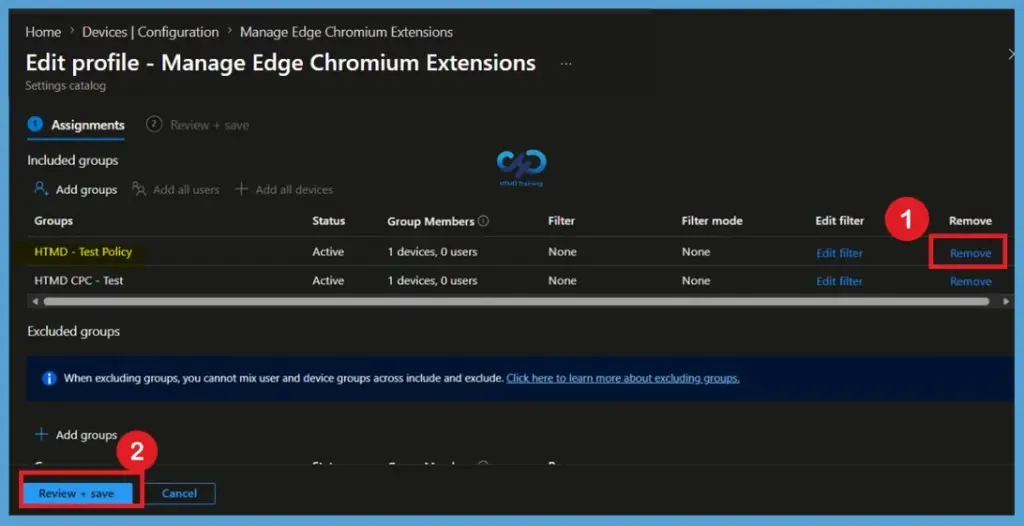
To remove a group, navigate to Devices > Configuration in the Intune Admin Center and open the policy. Then click Edit next to Assignments. On the Assignments page, locate the group you want to remove and delete it from the list of assigned groups. After making the change, click Review + Save to update the policy. Once the devices sync with Intune, the removed group will no longer receive the policy.
- Open the policy from the configuration tab and click on the edit button. Then, click on the Remove button. Click Review + Save after making the changes.
For detailed information, you can refer to our previous post – Learn How to Delete or Remove App Assignment from Intune using by Step-by-Step Guide.
Delete the Policy Permenantly
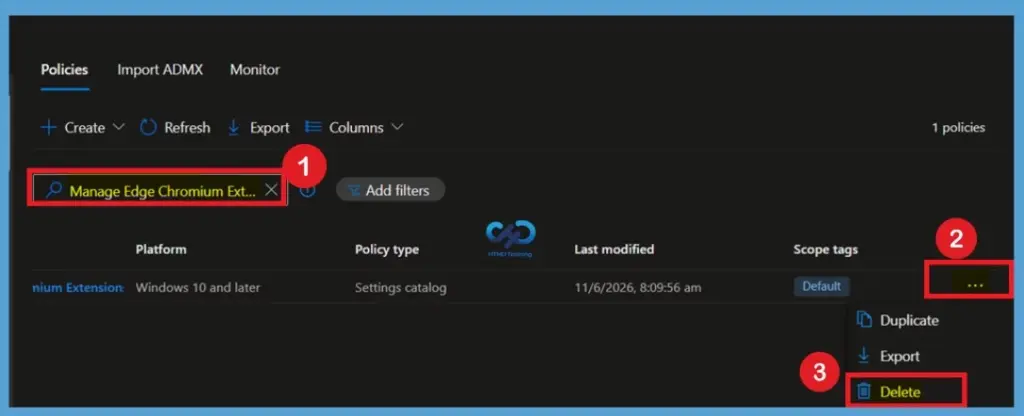
If the policy is no longer needed, you can permanently delete it from your Intune tenant. Before deleting a policy, make sure it is no longer required, as the policy configuration and assignments will be removed and cannot be recovered.
To delete the policy, navigate to Devices > Configuration in the Intune Admin Center and search for the policy by name. Open the policy, click the 3-dot menu (More options), and select Delete. A confirmation prompt will appear asking you to verify the action. Click Yes to continue.
- Once deleted, the policy is permanently removed from the tenant and will no longer be available for management or deployment
For more information, you can refer to our previous post – How to Delete Allow Clipboard History Policy in Intune Step by Step Guide.
Need Further Assistance or Have Technical Questions?
Join the LinkedIn Page and Telegram group to get the latest step-by-step guides and news updates. Join our Meetup Page to participate in User group meetings. Also, join the WhatsApp Community and the WhatsApp channel to get the latest news on Microsoft Technologies. We are there on Reddit as well
Author
About Author – Jitesh, Microsoft MVP, has over six years of working experience in the IT Industry. He writes and shares his experiences related to Microsoft device management technologies and IT Infrastructure management. His primary focus is Windows 10/11 Deployment solution with Configuration Manager, Microsoft Deployment Toolkit (MDT), and Microsoft Intune.
Hi,
Thanks for detailed write up, is there any policy to ensure that in “ingonito mode” user shouldn’t have option to untick the “Allow inPrivate ” & “allow access to file urls” or we have to force this option to be ticked during extension deployment.
Hi,
I am trying to install “my apps – secure sign in extension” silently with Intune on my machine. I have blocked all other extension but it is not installing on my machine. Could you please help what is I am missing:
This is the value I am using in Silent Installation. Although I have already used only Extension ID too.
gaaceiggkkiffbfdpmfapegoiohkiipl;https://edge.microsoft.com/extensionwebstorebase/v1/crx
@Rahul,
You want to try to leave out the update URL. This URL is only needed when the extension is hosted outside of the Add On store.
Can an extension be forced to appear in the toolbar?
and how do i remove it again from the targeted computers?
Windows only it would appear. Extension options are blank if creating policy for macOS.
Hi,
Sorry to be late to the conversation. When you remove an extension from the policy, does it uninstall from the browser? BTW, we are only enforcing extensions to be installed. Not enforcing blocking.
Good morning,
We implement the recommended Security Baselines to our Intune Devices.
To be specific:
Microsoft Edge Security Baseline Dec 2023:
Extensions
Control which extensions cannot be installed = Enabled
Extension IDs the user should be prevented from installing (or * for all) (Device) = *
I take it we have to turn off that piece of the Security Baseline and then create/add a specific Edge policy?
Kind regards,
Chris.
Good morning,
We are looking to implement a configuration profile PER extension.
This so we can control more which group can install what extension.
When I set it up I get conflicts on my Configuration profiles.
Any ideas or guide on how to set this up properly?
Hi !
Thanks for the great article!
I have a question, my users could install any extensions. We have blocked the installation of extensions by Intune except those on a whitelist.
Other extensions are now disabled.
Is there a way to remove them?