

Key Takeaways
- Microsoft Intune allows administrators to configure third-party cookie restrictions in Microsoft Edge.
- The Block third-party cookies setting is available in the Windows Settings Catalog.
- Enabling this policy helps prevent external website elements from setting cookies.
- Blocking third-party cookies can help reduce cross-site tracking and protect user privacy.
In this post, you’ll learn Block Third Party Cookies in Microsoft Edge using Intune to Improve Browser Privacy. Cookies are small files that websites put on your PC to store info about your preferences. It can improve your browsing experience by allowing sites to remember your preferences or by letting you avoid signing in each time you visit certain sites. However, some cookies may put your privacy at risk by tracking sites you visit. Third-party cookies allow advertisers to track a person’s browsing history across the web on any site that contains their ads.
Table of Contents
Table of Contents
Block Third Party Cookies in Microsoft Edge using Intune to Improve Browser Privacy
All cookies are allowed by default in every web browser, and You can adjust the setting to allow or block cookies for all sites and set exceptions for specific sites. Third-party cookies belong to domains different from the one shown in the address bar. These cookies typically appear when web pages feature content, such as banner advertisements, from external websites. This opens up the potential for tracking the user’s browsing history and is often used by advertisers to serve relevant advertisements to each user.
- Manage Google Chrome Settings Using Intune Administrative Template | Settings Catalog
- Intune Logs Event IDs IME Logs Details for Windows Client Side Troubleshooting
- Configure Enterprise Mode Site List to Use IE Mode Using Intune
- How to Block Third-Party Cookies Policy for Enhanced Security and Privacy in Google Chrome using Intune
- Limit Cookies from Specific Websites to the Current Session using Intune Policy
Block Cookies in Microsoft Edge Using Intune
This policy prevents third-party website elements from setting cookies, helping organizations reduce cross-site tracking and apply consistent browser privacy settings across their environment. Let’s follow the steps below to Block third-party cookies to prevent third-party websites from saving and reading cookie data.
- Sign in to Microsoft Endpoint Manager Admin Center
- Select Devices > Windows > Configuration profiles > Create profile.
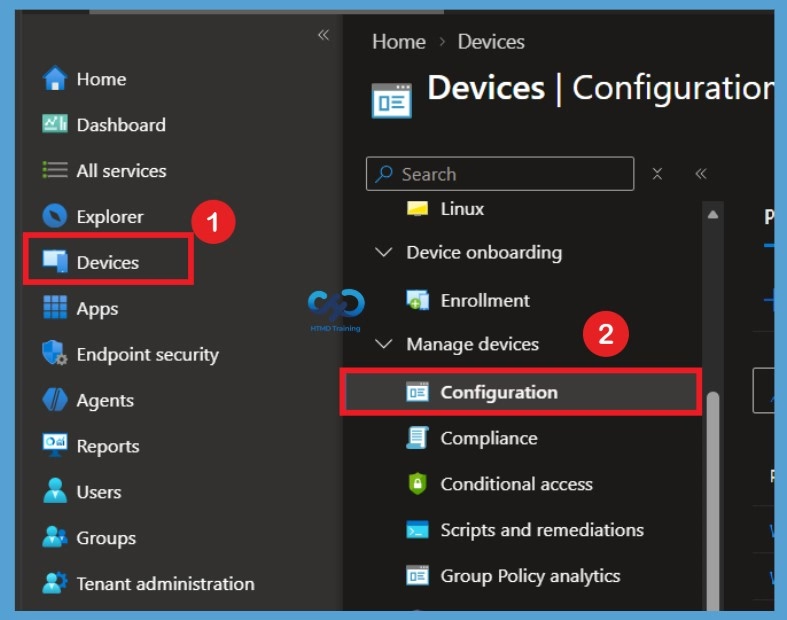
Create Profile
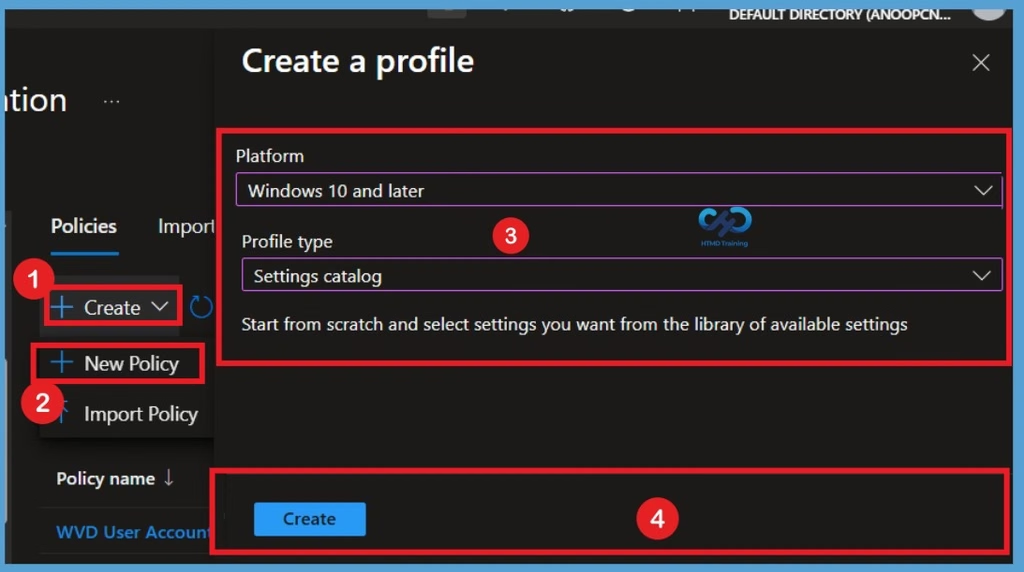
After selecting Configuration, click on the + Create option and select + New policy. The Create a profile window will appear, where you need to select Windows 10 and later as the platform and Settings catalog as the profile type. Once you have selected these options, click on Create to continue with the policy configuration.

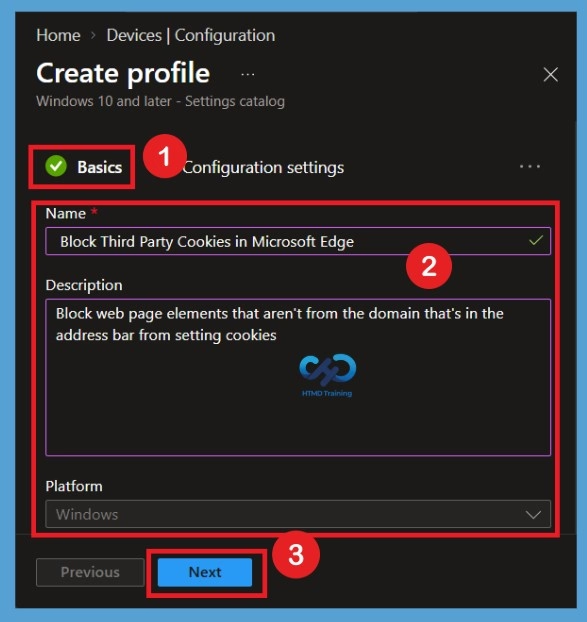
Basics Tab Creation
After creating the profile, you will be taken to the Basics tab, where you need to enter the policy name and description. For the name, you can enter Block third-party cookies in Microsoft Edge. For the description, enter Blocks third-party cookies to help prevent websites from tracking users across different websites. The platform is already selected, so you don’t need to make any changes. You can use any suitable name and description for the policy. Once you have entered the details, click Next to continue.
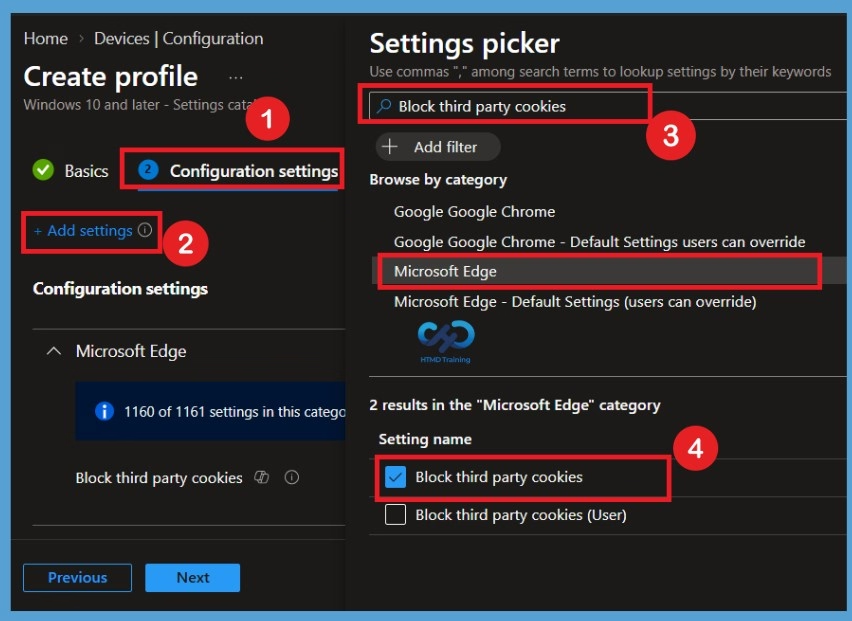
Configuration Settings
In Configuration settings, click Add settings to browse or search the catalog for the settings you want to configure. On the Settings Picker window, use the search box and type block third-party cookies, and click Search. Now select Microsoft Edge. This will display all the available settings related to third-party cookies for Microsoft Edge. Note – If you want to allow or block cookies for specific sites.
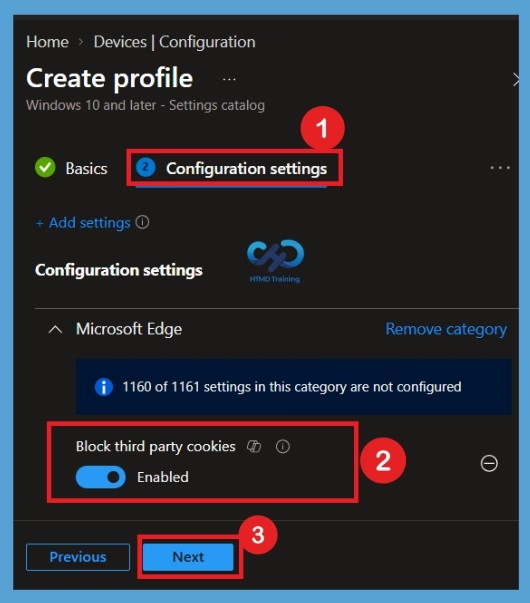
You can add the settings from Microsoft Edge > Content settings – Allow cookies on specific sites: Define a list of sites, based on URL patterns, that are allowed to set cookies. The setting is shown and configured with a default value Disabled. Set Block third party cookies to Enabled and Click Next.
Defaulted State of Policy
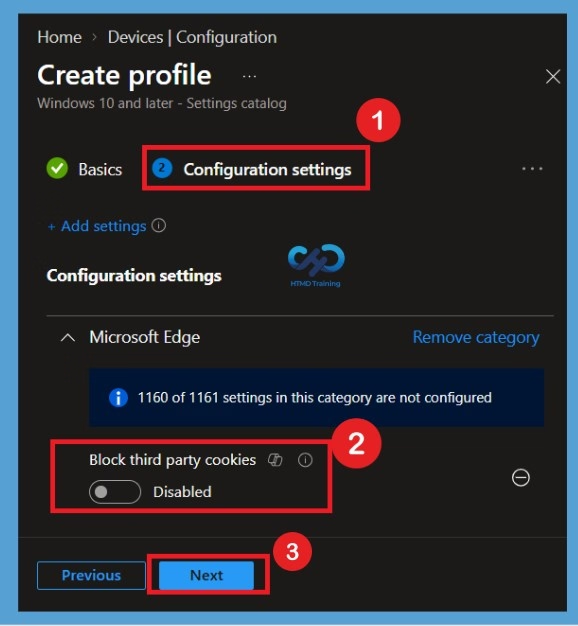
After selecting the Block third-party cookies setting, it will appear under Configuration settings. By default, the setting is marked as Disabled. This means that third-party website elements are allowed to set cookies in Microsoft Edge. You can review the selected setting here before proceeding to the next configuration step.
Enable the Block third Party Cookies Policy
Block third party cookies – Enabled Block web page elements that aren’t from the domain that’s in the address bar from setting cookies. If you enable this policy, web page elements that are not from the domain that is in the address bar can’t set cookies. If you disable this policy, web page elements from domains other than in the address bar can set cookies.
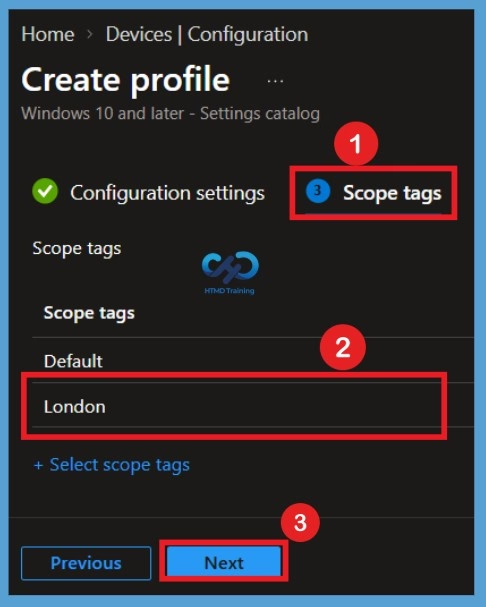
Scope tags
In the Scope tags section, you can select a scope tag to determine which administrators can manage the policy based on their assigned permissions. Here, I have selected the London scope tag as an example. You can choose an existing scope tag or add a new one if needed. Once you have selected the appropriate scope tag, click Next to proceed to the Assignments section.
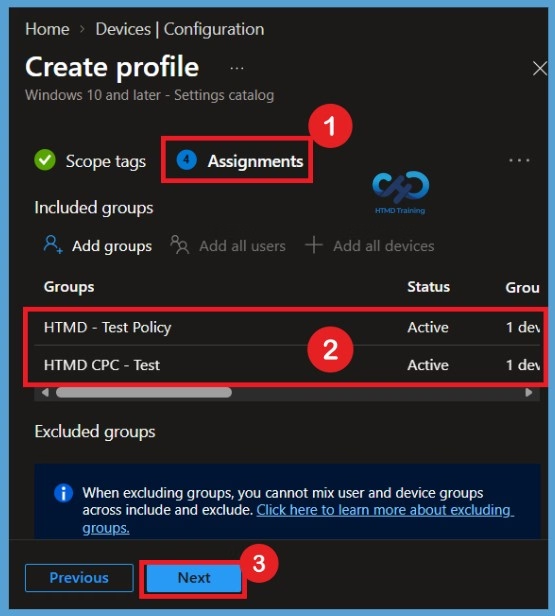
Assignments
In the Assignments section, you can select the groups to which you want to deploy the policy. This is an important step because the policy will be applied to the targeted groups. Here, I have selected the HTMD CPC test and HTMD test policy groups as examples. You can choose the appropriate groups based on your deployment requirements. After adding the required groups, click Next to continue.
Review + Create
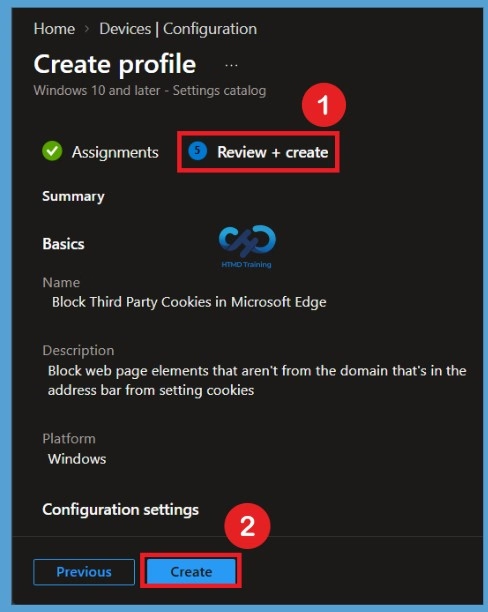
In Review + create, review your settings. When you select Create, your changes are saved, and the profile is assigned. A notification will appear automatically in the top right-hand corner with a message. The Policy “Block Third Party Cookies in Microsoft Edge” created successfully. The policy is also shown in the Configuration profiles list. Your groups will receive your profile settings when the devices check in with the Intune service the policy applies to the devices.
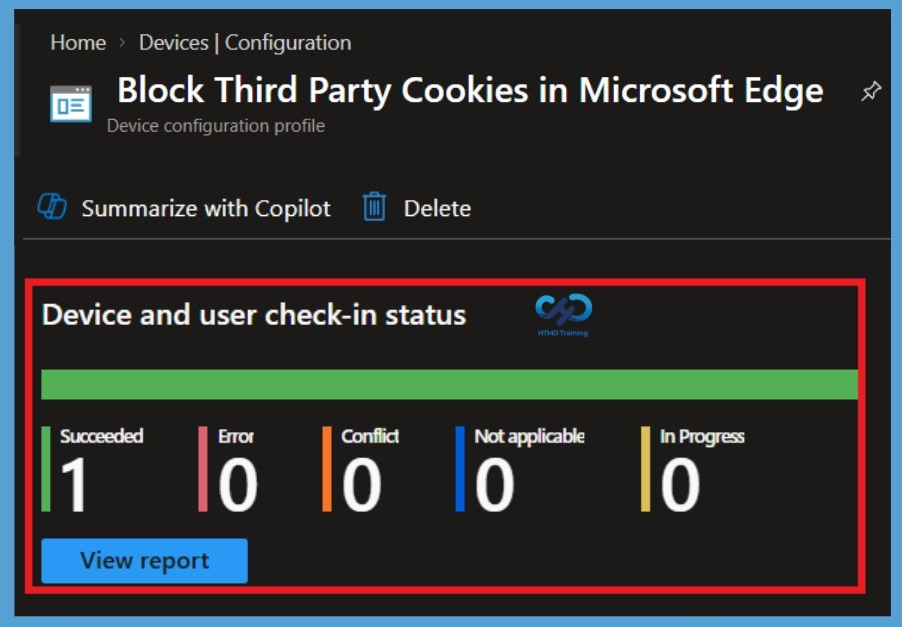
Intune Reporting – Block Cookies in Microsoft Edge
You can check Intune settings catalog profile report from Intune Portal, which provides an overall view of device configuration policies deployment status. To monitor the policy assignment, from the list of Configuration Profiles, select the policy, and here you can check the device and user check-in status. If you click View Report, additional details are displayed. Additionally, you can quickly check the update as devices/users check in status reports.
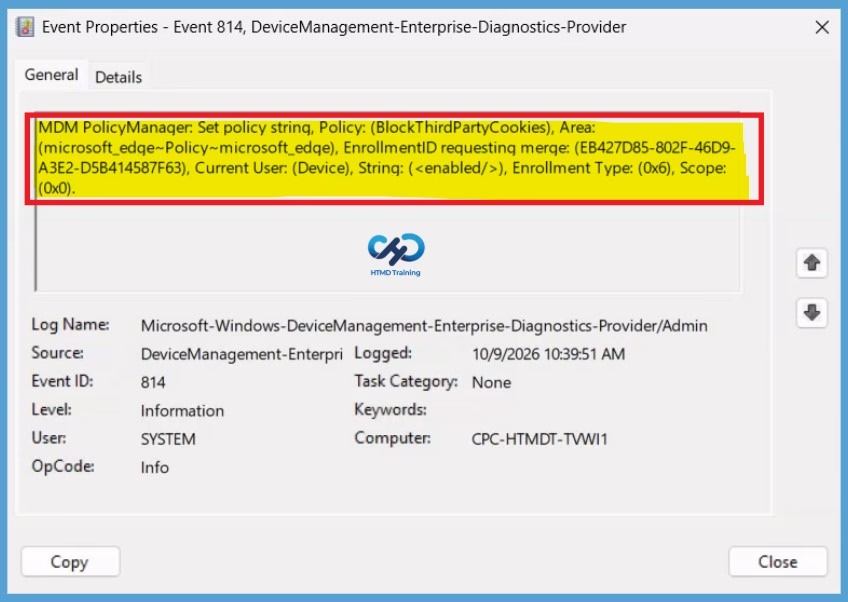
Intune MDM Event Log
Event logs are the extended type of Intune Logs in Windows. The Intune event ID 814 indicates that a string policy is applied on Windows 11 or 10 devices. You can also see the exact value of the policy being applied on those devices.
| Policy Info |
|---|
| MDM PolicyManager: Set policy string, Policy: (BlockThirdPartyCookies), Area: (microsoft_edge~Policy~microsoft_edge), EnrollmentID requesting merge: (78BF73E9-4EBB-4575-9EF5-21B30DB3FD4E), Current User: (Device), String: (), Enrollment Type: (0x6), Scope: (0x0). |
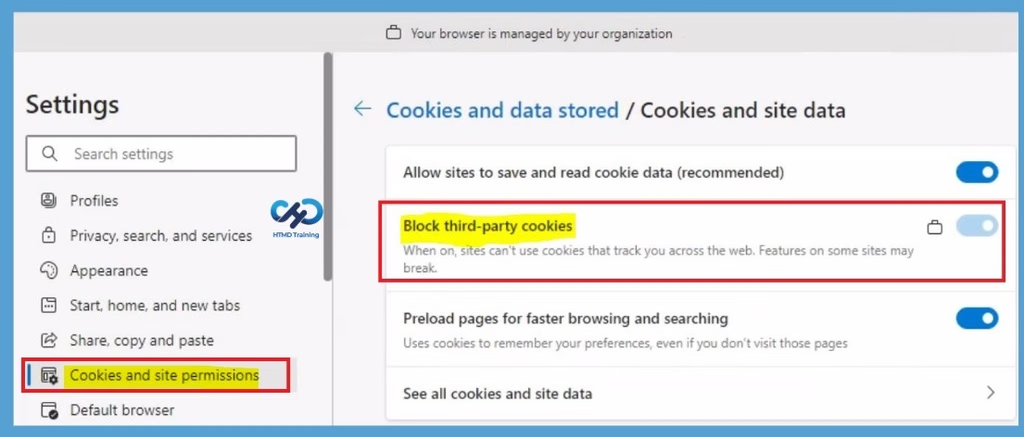
End User Experience – Block Cookies in Microsoft Edge
Open Microsoft Edge, Go to Settings and more > Settings. In the Settings tab, select “Cookies and site permissions” on the left sidebar. On the right panel, click on “Manage and delete cookies and site data.” Here you can see “Block third-party cookies” is turned off.
Need Further Assistance or Have Technical Questions?
Join the LinkedIn Page and Telegram group to get the latest step-by-step guides and news updates. Join our Meetup Page to participate in User group meetings. Also, join the WhatsApp Community and the Whatsapp channel to get the latest news on Microsoft Technologies. We are there on Reddit as well.
Author
Anoop C Nair is Workplace Technology solution architect with 25+ years of experience in global enterprise organizations such as JP Morgan, Capgemini, etc. He is Microsoft Certified Trainer. Microsoft MVP from 2015 onwards for consecutive 11 years! He also conducts Intune and modern workplace tech training for enterprise organizations. He is Blogger, Speaker, and Founder of HTMD Community and HTMD Conference. His focus is on Device Management technologies such as Intune, Windows, Cloud PC. He writes about technologies like Intune, SCCM, Windows, Cloud PC, Windows, Entra, Microsoft Security.
Any idea how to allow 3rd party cookies on select approved sites when doing this?
In the Edge / Chrome GUI, there is a check box for this when allowing cookies on a site. There does not seem to be such an option in GPO or Intune as far as I can tell.
Good question Joe, You can manage the settings for the Microsoft Edge\Content subcategory and choose the option Allow cookies on specific sites
It seems as though the allow cookies on specific sites doesn’t include third-party cookies.
Well from my experience and what I’ve seen online, unless another setting is conflicting.
I just removed all policies excluding blocking third party cookies and allow cookies on specific sites.
The allow cookies on specific sites does not enable third party cookies on that site.
So where as this policy is great, it’s just missing the final piece to the puzzle to make it fully usable
To enable third party cookies on a site, enter the site “owning” the cookieyou want to allow in the “allow cookies on specific sites” list. – Should work.
Regarding third party cookies, documentation for what he has said is here.
https://learn.microsoft.com/en-us/deployedge/microsoft-edge-policies#example-value-8:~:text=To%20allow%20third,value%20does%20not
Essentially you can pick which third party site you want to allow on the top level-site. Eg, the below would allow Google cookies whilst browsing reddit.com.
“https://ww.Google.com,https://www.Reddit.com”
Alternatively, just pop a wildcard to allow all third-party cookies on reddit.com
“*,https://www.Reddit.com”
I’m sure this is a change as I never used to do this and it stopped working at my old company.
# I tried BlockThirdPartyCookies works like charm but it does not seems to be working in combination with CookiesAllowedForUrls (Allow cookies on specific sites)
# I see respective registries printed on the end point while all registries being blocked * and I see Allow cookies on specific sites being listed at ComputerHKEY_LOCAL_MACHINESOFTWAREPoliciesMicrosoftEdgeCookiesAllowedForUrls
# Still Cookies are getting blocked for all sites as well as for URLS in CookiesAllowedForUrls