
Key Takeaways
- Bluetooth devices may not appear in Settings or Quick Settings, even though they are connected and working.
- Users might face issues adding new Bluetooth devices, as available devices may not show during pairing.
- The issue affects only hotpatch-enabled Windows 11 Enterprise devices, not all Windows systems.
- Microsoft identified this issue internally, with limited impact across environments.
How to Fix Bluetooth Devices not Showing Windows Hotpatch Issue! Microsoft has identified an issue affecting hotpatch-enabled Windows 11 Enterprise devices where Bluetooth devices may not appear in the Bluetooth & devices section of Settings or in Quick Settings, even though they are connected and functioning properly. This can also prevent users from discovering and pairing new Bluetooth devices.
Table of Content
Table of Contents
How to Fix Bluetooth Devices Not Showing Windows Hotpatch Issue
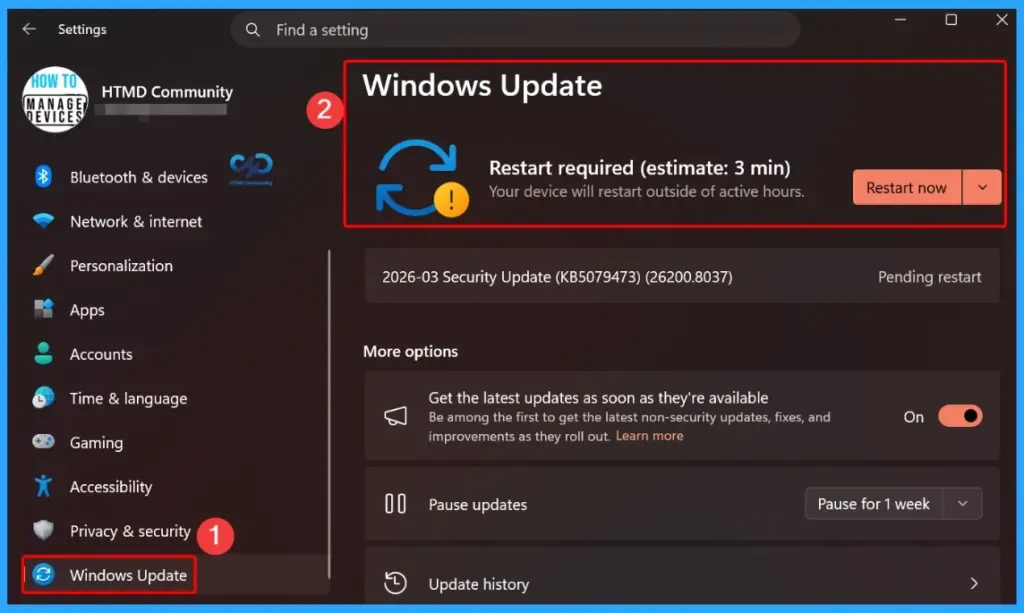
To fix the issue where Bluetooth devices are not showing in Settings, make sure your device has received the latest hotpatch update (KB5084897), which Microsoft has already released. This update usually installs automatically on affected devices, but you can also check manually by going to Settings > Windows Update > Check for updates.
| Category | Details |
|---|---|
| Issue | Bluetooth devices not visible in Settings or Quick Settings |
| Affected Devices | Hotpatch-enabled Windows 11 Enterprise devices |
| Versions | 24H2 and 25H2 |
| Root Cause | Identified internally in hotpatch environment |
| Fix | Out-of-band (OOB) hotpatch update (KB5084897) |
| Release Date | March 16, 2026 |
| Update Type | Cumulative (includes March 10 & 13 updates) |
- Take Control of Your Browser Security Manage Web Bluetooth in Edge Browser with Intune Policy
- How to Enable or Disable Bluetooth Allow Preparing using Intune Policy Settings Catalog
- Allow or Block Bluetooth Advertising Policy using Intune
KB5084897 Fix Applies to Windows 11 Enterprise 24H2 & 25H2
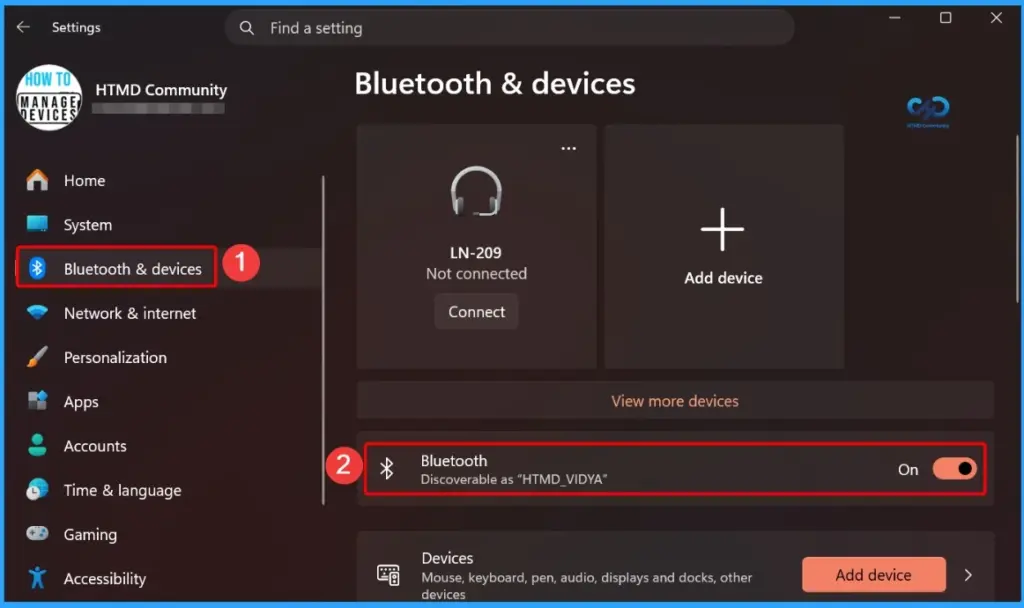
Keep in mind that this fix is only for Windows 11 Enterprise devices running versions 24H2 and 25H2 with hotpatch enabled. The update works in the background and does not require a restart. After the update is installed, go to Settings > Bluetooth & devices and confirm that your Bluetooth devices are now visible.
- Controlling Bluetooth Access on Supervised iPhones and iPads using Intune
- How to Stop Bluetooth and Cloud Device Sync using CDP Policy in Intune
- Set Minimum Encryption Key Size for Bluetooth in Intune via Setting Catalog
- Enable Disable Allow Discoverable Mode in Bluetooth using Intune Policy Settings Catalog
- Set Local Bluetooth Device Name with Intune Policy
- Easily Disable Bluetooth using Intune How to Guide
- How to Allow Adding Non Microsoft Accounts Manually Using Intune Setting Catalog
- How to Allow Importing of Autofill Form Data in Microsoft Edge Via Setting Catalog in Intune
Need Further Assistance or Have Technical Questions?
Join the LinkedIn Page and Telegram group to get the latest step-by-step guides and news updates. Join our Meetup Page to participate in User group meetings. Also, join the WhatsApp Community and the Whatsapp channel to get the latest news on Microsoft Technologies. We are there on Reddit as well.

Author
Anoop C Nair is a Workplace Technology solution architect with 25+ years of experience. Microsoft Certified Trainer. Microsoft MVP from 2015 onwards for consecutive 11+ years! He is a blogger, Speaker, and Founder of HTMD Community and HTMD Conference. His main focus is on Device Management technologies like Intune, Windows, and Cloud PC. He writes about technologies like Intune, SCCM, Windows, Cloud PC, Entra, and Microsoft Security.