
Key Takeaways
- Improves Windows device security by preventing unauthorized access to Command Prompt.
- Reduces the risk of malicious command execution and unauthorized system modifications.
- Helps prevent users from running potentially harmful scripts and commands through Cmd.exe.
- Provides better control over batch file execution (.cmd and .bat) on managed Windows devices.
Here’s a step-by-step guide on how to Restrict Command Prompt Access to Enhance Windows Device Security using Intune. You can Prevent access to the command prompt from running the interactive command prompt, Cmd.exe. This setting also determines whether batch files (.cmd and .bat) can run on the device. Preventing access to the Command Prompt (cmd.exe) is a security measure frequently implemented in organizations to enhance the overall security of their Windows-based systems. This restriction is especially important in environments where unauthorized access to the Command Prompt can pose risks, such as data breaches or the execution of malicious scripts.
Restrict Command Prompt Access to Enhance Windows Device Security using Intune
Admins can configure Intune cloud policy, and Group Policies to disable Command Prompt access for specific user accounts or groups. This policy effectively blocks users from running Command Prompt sessions, helping prevent unintended or unauthorized use of command-line tools. However, it’s important to carefully plan and implement this policy, as legitimate system administration tasks often require Command Prompt access. Administrators should ensure that necessary exceptions are made for IT staff or users who require such access for their roles.
- Enforce Users To Enroll Devices With Intune Conditional Access Policies
- Disable Stay Signed In To All Your Apps Prompt Using Intune While Accessing Windows 365 AVD
- 13 Hidden Tricks of Windows 11 Command Prompt
- How to Open Elevated Command Prompt in Windows 11
Disable Command Prompt Access using Intune
By following these steps, you can effectively disable command prompt access on devices managed by Microsoft Intune. This allows you to maintain control over the script execution process by preventing the user.
- Sign in to the Microsoft Intune Admin portal.
- Select Devices > Configuration profiles > Create profile.
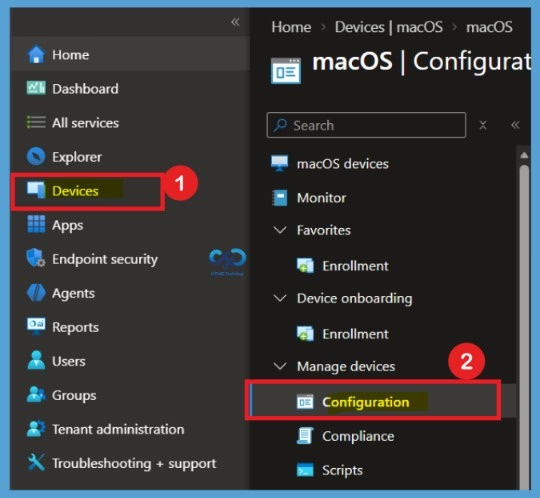
Creating a New Configuration Profile
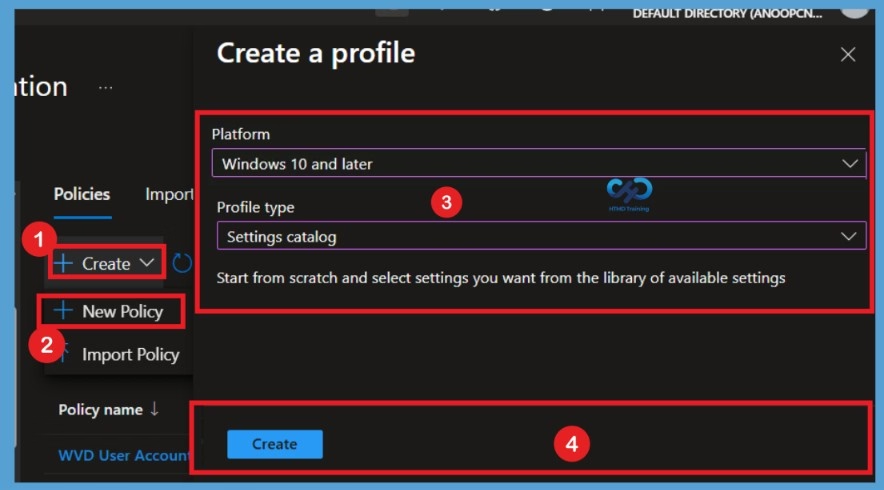
Once you click on Configuration settings, you will see the + Create option. Click on it and select + New policy. This will open the Create a profile window. Here, select Windows 10 and later as the platform and Settings catalog as the profile type. Once you have selected both options, click on Create to continue with the policy configuration.

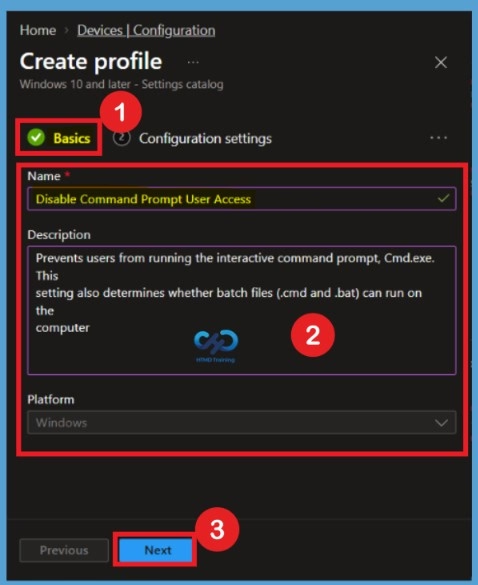
Basics
In Basics, enter the descriptive name for the new profile. For example, Disable Command Prompt Access or Prevent users access to command prompt, and add a description for the profile to understand the policy usage and Select Next.
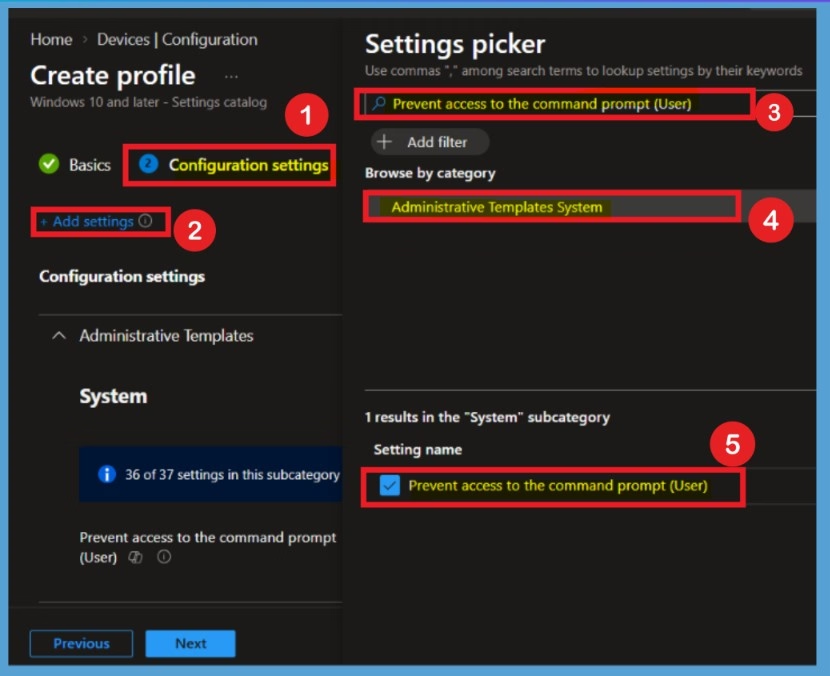
On the Configuration settings tab, With the settings catalog, you can choose which settings you want to configure. Click on Add Settings to browse or search the catalog for the settings you want to configure. Search for “Command Prompt” or “Prevent access to the command prompt”. Select the “Administrative Templates\System” from the search result. Select “Prevent access to the command prompt” and close the pane.If you enable this setting and the user tries to open a command window; the system displays a message explaining that a setting prevents the action.
Disable State of Policy
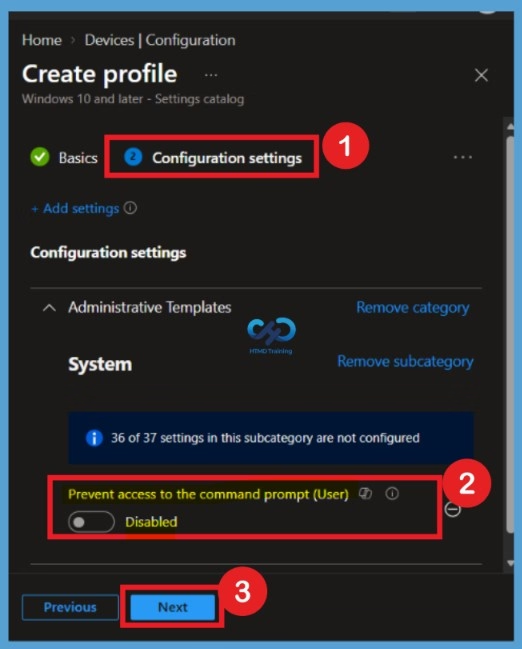
After selecting the Prevent access to the command prompt setting, close the Settings Picker window. You will now see the selected policy setting displayed on the configuration page. Here, you can observe that the policy is Disabled by default. This means that users are allowed to access the Command Prompt until you change the setting to enable the restriction.
Enable the Command Prompt Access
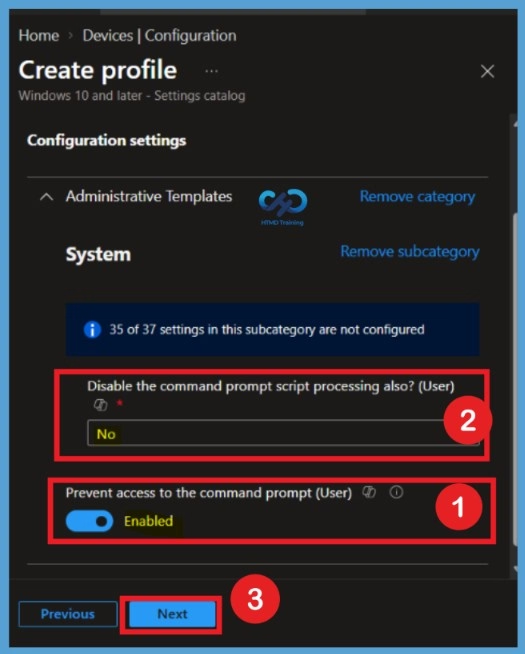
The next step is to toggle “Prevent access to the command prompt” to Enabled. Once you enable the option, the selected setting will appear and click on Next. This policy setting prevents users from running the interactive command prompt, Cmd.exe. This policy setting also determines whether batch files (.cmd and .bat) can run on the computer. If you enable this policy setting and the user tries to open a command window, the system displays a message explaining that a setting prevents the action.
If you disable this policy setting or do not configure it, users can run Cmd.exe and batch files normally. You also have an option to configure the command prompt script processing, which I set to No.
Note: Do not prevent the computer from running batch files if the computer uses logon, logoff, startup, or shutdown batch file scripts, or for users that use Remote Desktop Services.
Scope Tag of the Disable Command Prompt Access Policy
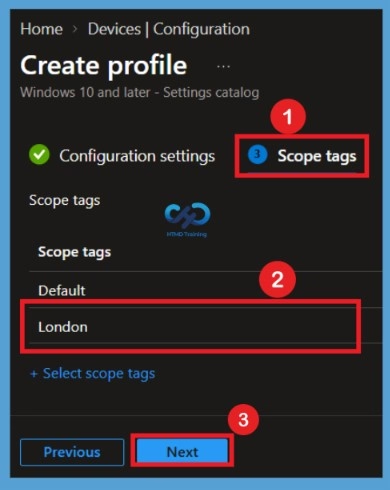
The next step is the Scope tags tab, where you can add scope tags to control which IT administrators can access and manage this policy. Here, I have added London as an example scope tag. You can add the required scope tags depending on your organization’s needs. Once completed, click Next to continue.
Assignments of the Disable Command Prompt Access Policy
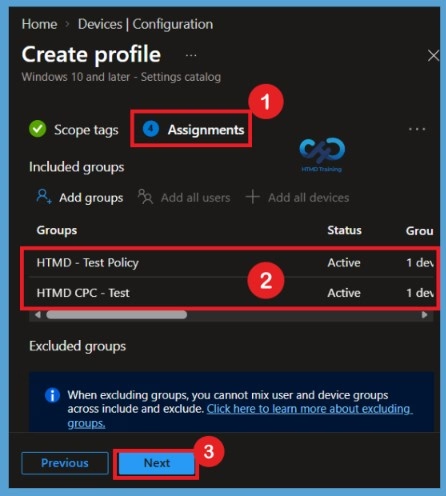
Next, you will be directed to the Assignments tab, where you can select the user or device groups that should receive this configuration profile. Here, I have selected 2 groups, HTMD Test Policy and HTMD CPC Test as examples. After selecting the required groups, click Next.
Review + Create
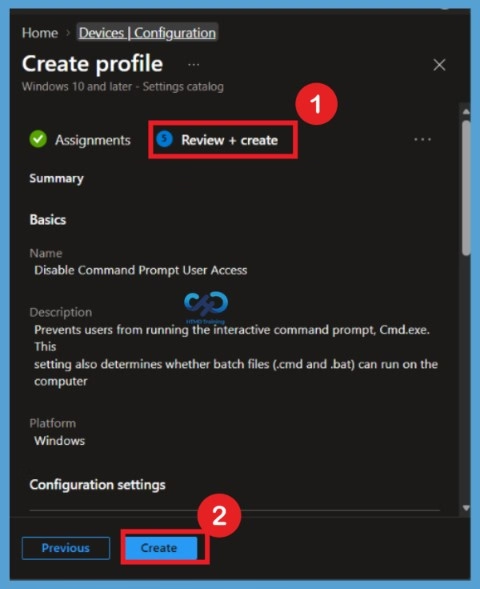
In the Review + Create tab, you need to review your settings. After clicking Create, your changes are saved, and the profile will be assigned to the added devices group. A notification will appear automatically if you see it in the top right-hand corner. One can easily see that the Policy “Disable Command Prompt User Access” was created successfully. Also, if you check the Configuration Profiles list, the Policy is visible there with the tag NEW.
Monitor Command Prompt User Access Policy Deployment
Intune provides several features to monitor and manage device configuration profiles. Once the configuration profile is applied, Command prompt access should be disabled on the targeted devices.
Note! The device groups will receive your profile settings when the devices check in with the Intune service. The Policy applies to the device.
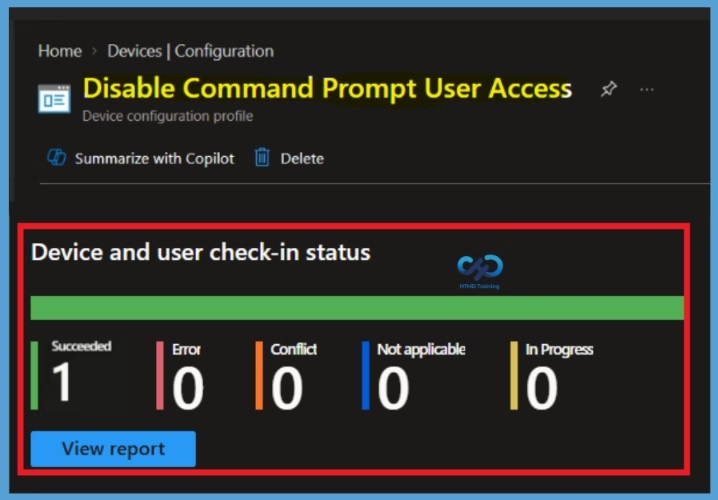
To monitor Intune policy assignment, from the list of Configuration Profiles, select the policy you targeted, and here you can check the device and user check-in status. If you click View Report, additional details are displayed. Additionally, you can quickly check the update as devices/users check-in status reports:
Track Event Log for Intune Policy Deployment
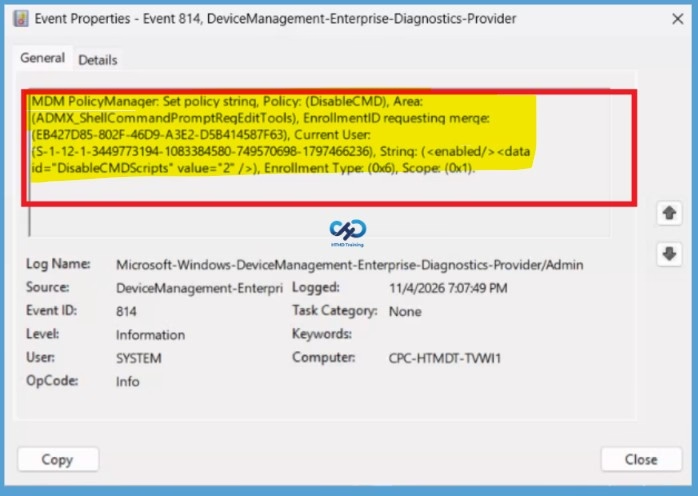
Intune event IDs 813 or 814 can indicate that a string policy has been applied to Windows 10 or 11 devices. These event IDs can provide valuable information about the policy that has been applied, including the exact value of the policy enforced on those devices. In the case of the policy mentioned earlier, which enforces idle session time limits, event ID 814 would be used to indicate that the string policy has been applied, and you can view the specific value of the policy.
To confirm this, check the Event log path > Applications and Services Logs > Microsoft > Windows > Devicemanagement-Enterprise-Diagnostics-Provider > Admin.
| Policy Information |
|---|
| MDM PolicyManager: Set policy string, Policy: (DisableCMD), Area: (ADMX_ShellCommandPromptRegEditTools), EnrollmentID requesting merge: (5B88AEF1-09E8-43BB-B144-7254ACBBDF3E), Current User: (S-1-12-1-3186897695-1137825691-1845872004-278613382), String: (), Enrollment Type: (0x6), Scope: (0x1). |
Need Further Assistance or Have Technical Questions?
Join the LinkedIn Page and Telegram group to get the latest step-by-step guides and news updates. Join our Meetup Page to participate in User group meetings. Also, join the WhatsApp Community and the Whatsapp channel to get the latest news on Microsoft Technologies. We are there on Reddit as well.
Author
About Author – Jitesh, Microsoft MVP, has over six years of working experience in the IT Industry. He writes and shares his experiences related to Microsoft device management technologies and IT Infrastructure management. His primary focus is Windows 10/11 Deployment solution with Configuration Manager, Microsoft Deployment Toolkit (MDT), and Microsoft Intune.