
Key Takeaways
- Configure the Company Portal device enrollment experience from Tenant administration > Customization in the Intune admin center.
- Choose whether users receive enrollment prompts, can enroll without prompts, or cannot enroll through the Company Portal.
- Available, with prompts provides the default enrollment experience and prompts users in supported locations.
- Available, no prompts keeps enrollment available but does not actively prompt users to enroll.
Let’s learn how to set up different device enrollment option from Company Portal using Intune admin center. You can customize setup experience in Company portal for Android and iOS/iPadOS. Device enrollment specifies if and how users should be prompted to enroll in mobile device management. You can easily install and use the Microsoft Intune company portal app on your computer and mobile devices. The Microsoft Intune company portal app helps users search, browse and install apps made available by their company.
Table of Contents
Table of Contents
Configure Device Enrollment Options in Intune Company Portal to Control How Users Enroll Devices
Intune company portal application is there for almost all the platforms that Microsoft Intune supports. Company Portal helps and allows you, as an employee or student in your organization, to securely access those resources and install, uninstall apps, and view, edit, add and remove your enrolled devices. You can configure the Company Portal experience specifically for enrollment, privacy, notifications, app sources, and self-service actions. Device enrollment setting options support for the device enrollment setting requires end users have these Company Portal versions:
| Company Portal versions |
|---|
| Company Portal on iOS/iPadOS: version 4.4 or later |
| Company Portal on Android: version 5.0.4715.0 or later |
- Configure Organizational Messages From Intune Portal
- Intune Company Portal Branding Customization Options
Device Enrollment Option from Intune Company Portal
Open the Microsoft Intune admin center and sign in using an account with sufficient Intune administrative permissions. The Intune admin center provides the management interface where administrators can configure device management, applications, enrollment, policies, and Company Portal customization settings.
- Sign in to the Microsoft Intune admin center
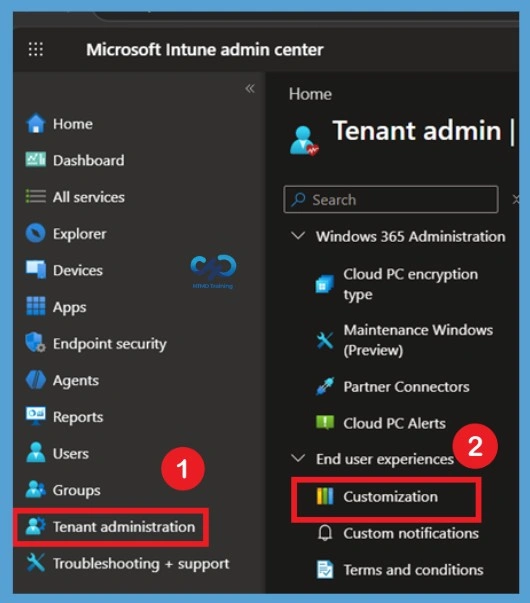
- Navigate to Tenant Administration > Customization.
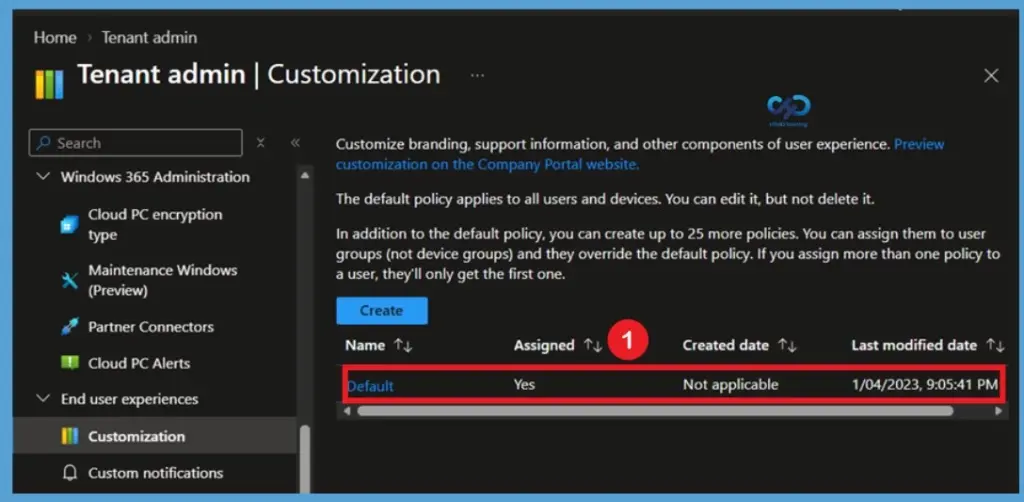
Under Customization, you can either edit the default policy or create up to 10 group targeted policies. Here I will edit an existing policy, Click on Edit under Settings. These settings will apply to the Company Portal apps, Company Portal website, and Intune app on Android.

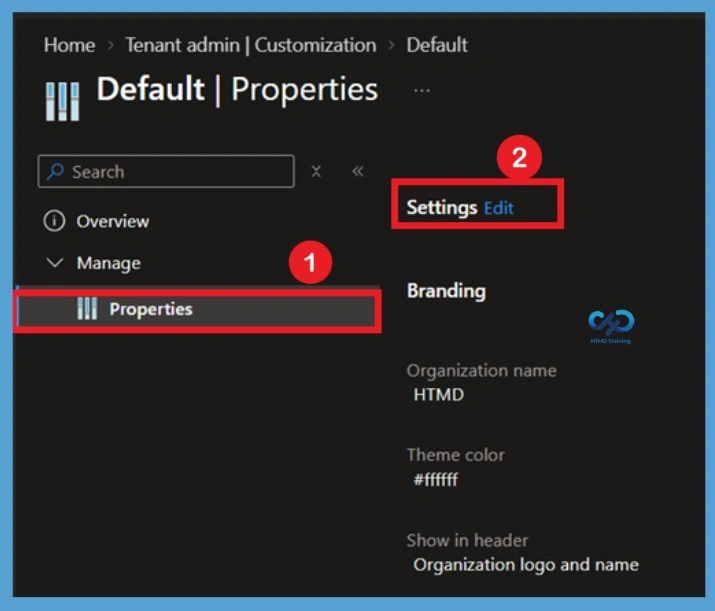
Navigate to Properties and Edit Settings
From the left navigation pane under Manage, select Properties. Once the policy details load in the main pane, locate the Settings option and click the Edit link next to it to open the policy editor where changes to device configuration and user experiences can be made.
Configure Device Enrollment and Save Changes
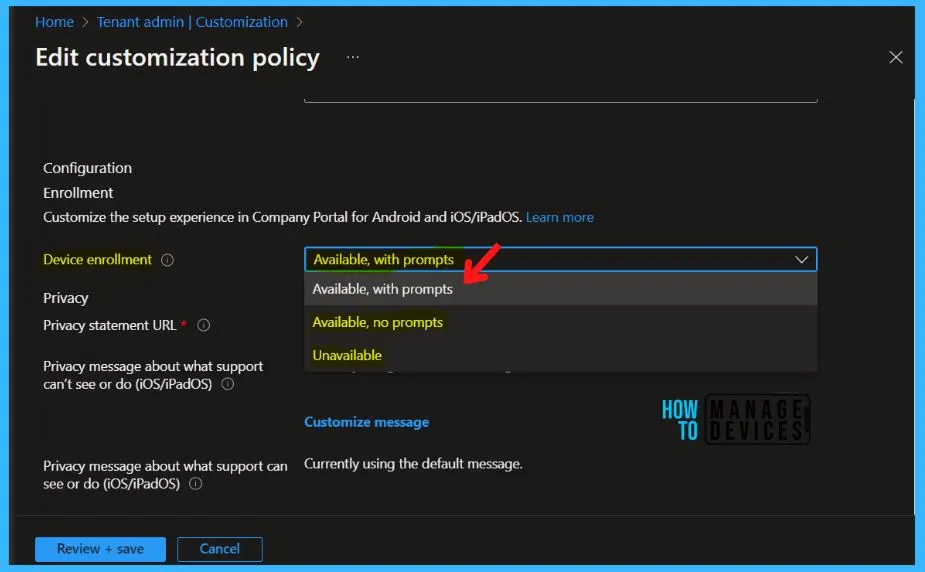
Within the Edit customization policy window, under the Enrollment configuration section, locate the Device enrollment dropdown setting. Select Available, with prompts from the dropdown menu to control how users encounter enrollment during Company Portal setup on Android and iOS/iPadOS devices. After selecting your preferred enrollment behavior and adjusting any necessary privacy or category settings, click the Review + save button and apply the customization policy updates across your tenant.
| Device enrollment options | Description | Checklist prompts | Notification | Device details status | App visibility (for an app that requires enrollment) |
|---|---|---|---|---|---|
| Available, with prompts | The default experience with prompts to enroll in all possible locations. | Yes | Yes | Yes | Yes |
| Available, no prompts | User can enroll via the status in device details for their current device or from apps that require enrollment. | No | No | Yes | Yes |
| Unavailable | There is no way for users to enroll. Apps requiring enrollment will be hidden. | No | No | No | No |
- Intune Company Portal App For Windows 11 Android | Install And Uninstall
- Block Android Device Manufacturer Enrollment In Intune
Install Company Portal App On Your Android Phone
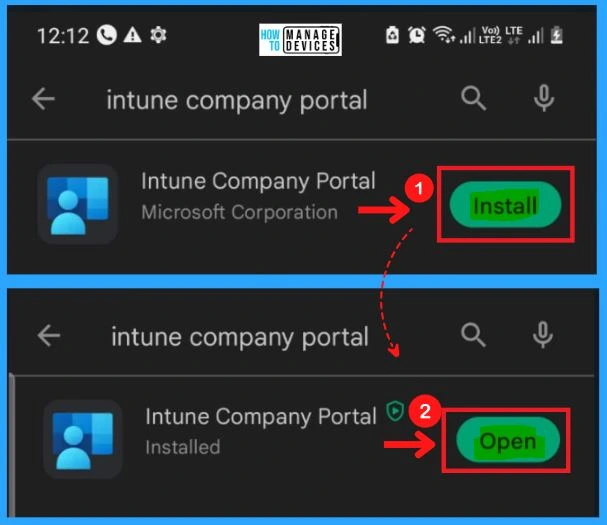
You can easily install the Company Portal app on your Android phone to start the enrollment process. For this, first, you should have to enable the secure start-up on your phone, and You should enable the Software update. The following are the steps to install the Company Portal App In Your Android Phone.
- Go to Google Play and Download the Intune Company Portal app
- Click the Install button from the below screenshot
- Click the Open button to open the Company Portal app on your Mobile.
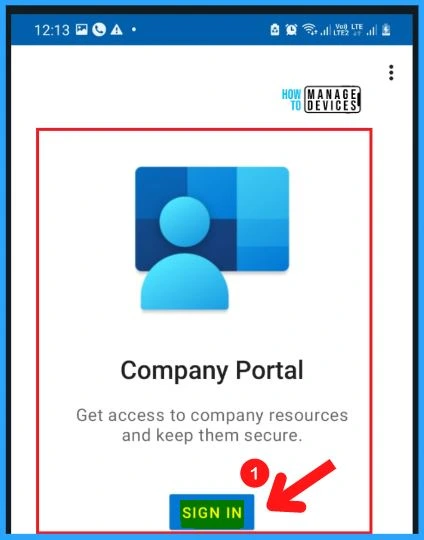
After clicking the Open, you should sign in to your Company portal. The Company portal helps you access company resources and keep them secure. Select SIGN IN from the Company portal Window.
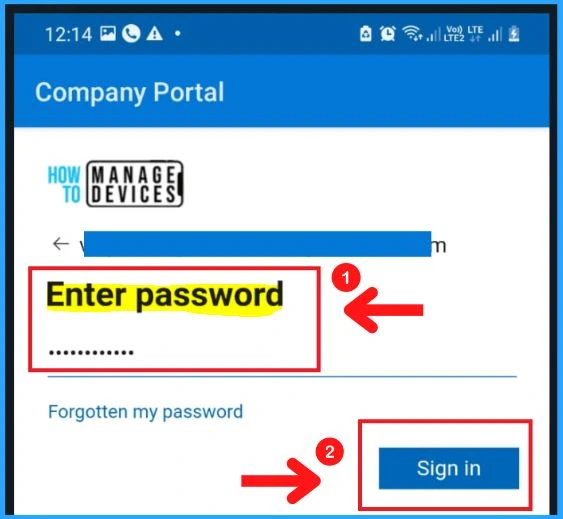
When you click on the Sign in option you will get a box for entering password and email. Enter your Email address and password to Sign in to the Company Portal app on your Mobile. After entering password click on the Sign in.
User Experience – Device Enrollment Options Available, with Prompts
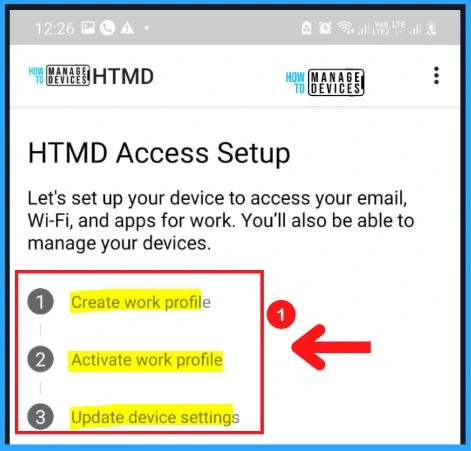
Once you sign in successfully to Intune Company portal, Here’s how your user experience will be for Device enrollment Available, with prompts. The default experience prompts you to enroll in all possible locations.
The below screenshot shows the Company’s access setup. It helps you to set up your device to access your email, Wi-fi, and apps for work. You will also be able to manage your devices. The Company’s access setup includes the following.
- Create work profile
- Activate work profile
- Update device settings
User Experience – Device Enrollment Options Available, no Prompts
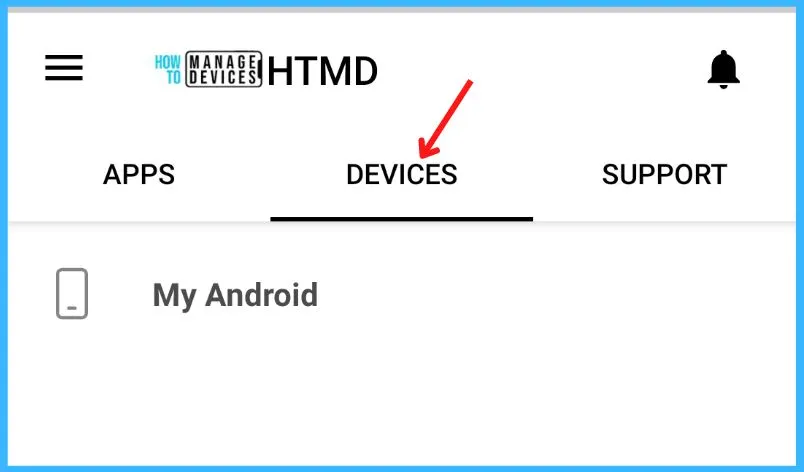
After entering your work account, you may land on the Company Portal App without asking to set up your device to access it. Here you need to switch to the DEVICES tab to see, the available enrollment.
In the Company Portal for Android app to make it easier for users to recognize when device enrollment is available but not required. The iconography appears in scenarios where the device enrollment availability is set to Available, no prompts in the Microsoft Intune admin center.
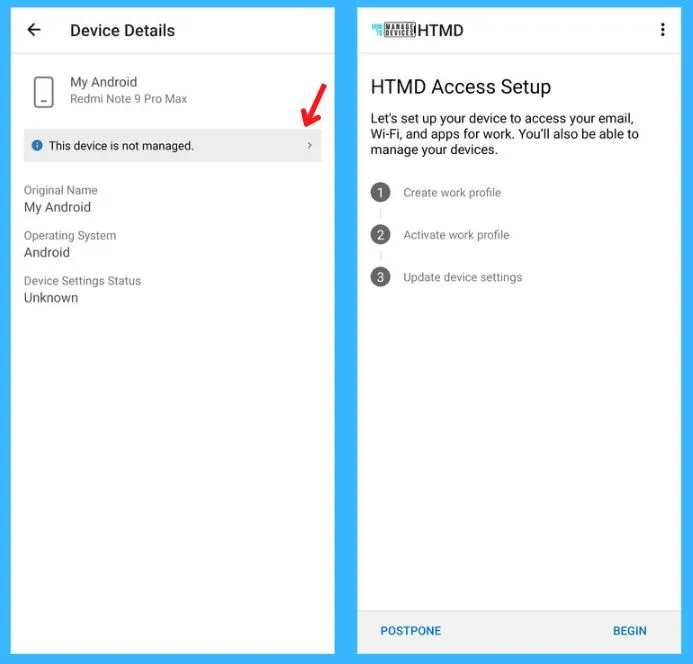
Device Details
On the Device Details screen, users will the info (i) icon next to the enrollment message. Clicking on the arrow button you will navigate to setting up the account. You can refer to the post on how to Install and Use the Microsoft Intune Company Portal app on Android for enrolling in Intune.
Need Further Assistance or Have Technical Questions?
Join the LinkedIn Page and Telegram group to get the latest step-by-step guides and news updates. Join our Meetup Page to participate in User group meetings. Also, join the WhatsApp Community and the Whatsapp channel to get the latest news on Microsoft Technologies. We are there on Reddit as well.
Author
About Author – Jitesh, Microsoft MVP, has over six years of working experience in the IT Industry. He writes and shares his experiences related to Microsoft device management technologies and IT Infrastructure management. His primary focus is Windows 10/11 Deployment solution with Configuration Manager, Microsoft Deployment Toolkit (MDT), and Microsoft Intune.