
Key Takeaways
- Learn how to block macOS device enrollment using Microsoft Intune.
- Understand how Device Platform Restrictions control which platforms can enroll in Intune.
- Learn how to block personally owned macOS devices from enrolling in the organization.
- Understand the difference between Device Platform Restrictions and Device Limit Restrictions.
Hello everyone, in this post, let’s go through the process of how to block macOS enrollment using Intune, reviewing each step that needs to be performed using device enrollment restriction settings in Microsoft Intune Portal. If you are an IT administrator who wants to manage devices enrolled in Intune, you may want to prevent macOS devices from being enrolled in your organization. To do this, you can use the device platform restriction feature in Intune.
Configure macOS Enrollment Restrictions in Intune to Improve Device Control
In this guide, we will walk through how to block macOS enrollment using Microsoft Intune Device Platform Restrictions. This configuration is useful for organizations that do not want users to enroll macOS devices, particularly personally owned devices, into Intune. Device enrollment restrictions let us restrict devices from enrolling in Intune based on certain device attributes.
Each restriction set comes with a default policy that can be edited and customized. Intune applies this policy to all users and user less enrolments until we assign a higher-priority policy/setting. Here you can learn how to create enrollment notifications in Intune Admin portal. Set up enrollment notifications in Microsoft Intune to notify users of newly enrolled devices, Configure Device Enrollment Notifications In Intune.
- Enroll macOS in Intune with Step by Step Guide
- Configure Device Restriction Settings For MacOS Devices Using Intune
How to Set Device Limit Restriction in Intune
The key feature of Intune is the ability to configure device limits and platform restrictions, which can help organizations ensure that their mobile devices are being used securely and effectively. We can configure Device limits, Device platform restrictions in Intune. Device limit configuration in Intune allows administrators to specify how many devices a user can enroll in the Intune service. This helps organizations control the number of devices that can access their corporate resources and data, In this policy, IT Admins can set device enrollment limits for single users.

- Sign in to the Microsoft Intune admin center
- Select Devices > Enroll devices > Enrollment device limit restriction.
- Click on Create restriction.
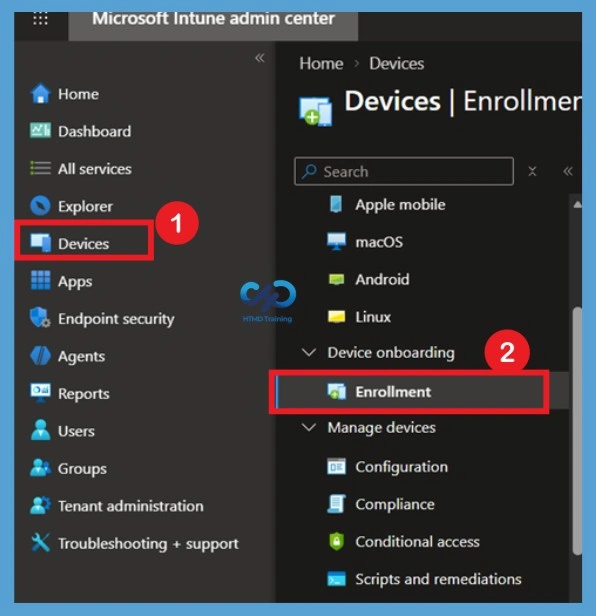
Navigating to Device Limit Restrictions
Navigate to Devices > Enrollment > Device Limit Restriction. In Microsoft Intune, go to the Devices | Enrollment menu under Device onboarding in the left sidebar and choose Enrollment. From the enrollment options listed on the main panel, select Device limit restriction, which opens the control settings used to specify the maximum number of devices a user can register within the platform.
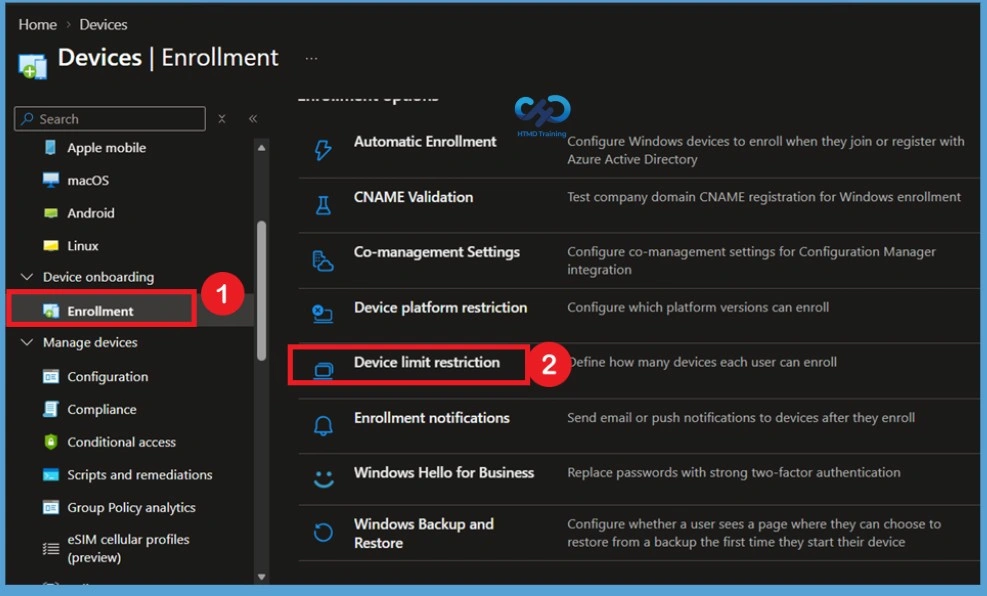
Device Limit Restriction Creation
Under the Enrollment device limit restrictions page, click the + Create restriction button located on the top command bar. This interface allows administrators to set new enrollment threshold policies, prioritize them over existing user rules, and view currently assigned device limits across the environment.
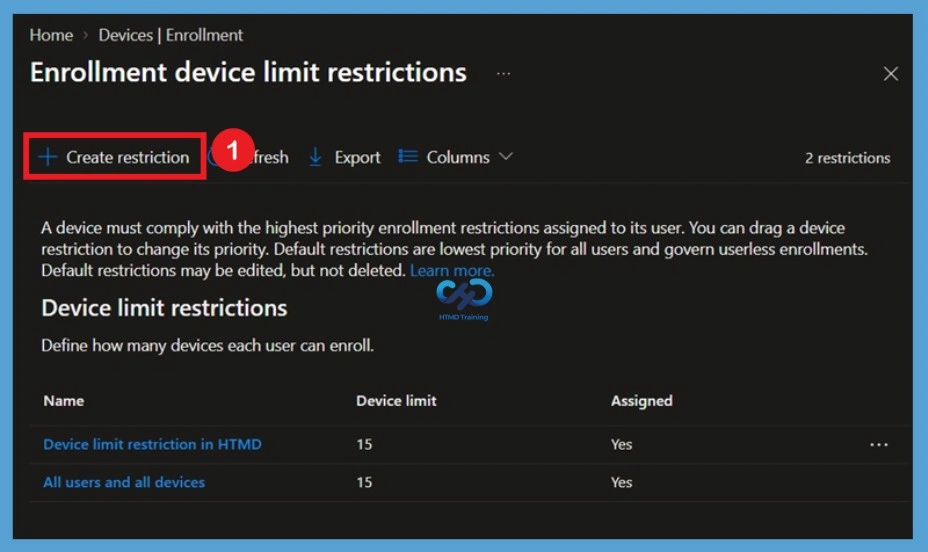
Basic Information for Device Limit Restriction
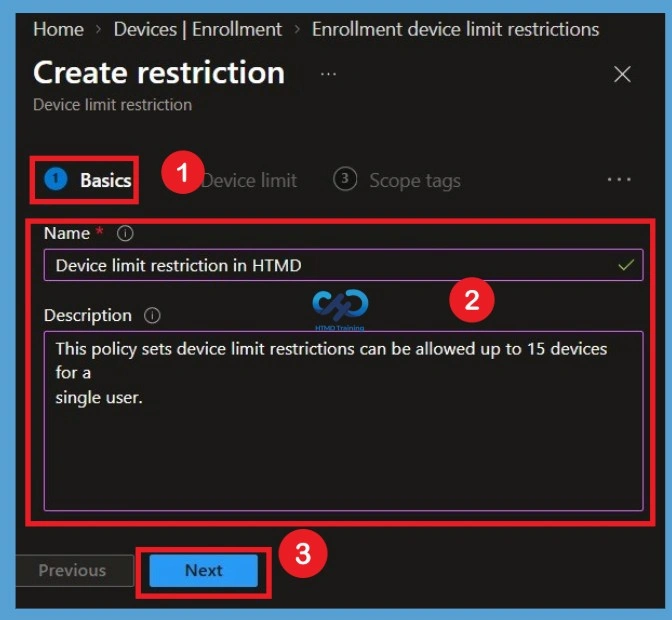
In the Basics tab of the restriction setup wizard, enter a clear Name such as “Device limit restriction in HTMD” along with a detailed Description explaining the policy’s intent e.g., allowing up to 15 devices per user. Once these administrative identifiers are configured, select the Next button to move to the device configuration stage.
Setting the Maximum Device Limit
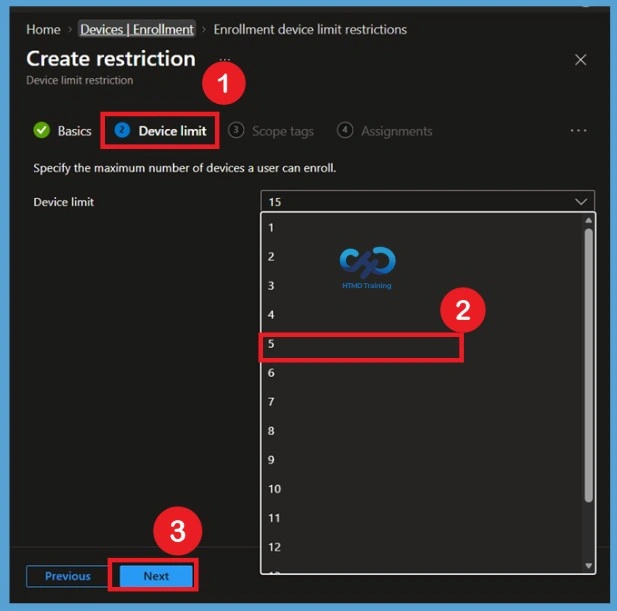
On the Device limit tab, expand the drop-down menu under the device limit option and choose the maximum threshold of allowable enrolled devices per user such as 5. After selecting the desired numerical value from the list, click Next to proceed to the scope tagging configuration step.
Intune device limit restrictions can be allowed up to 15 devices for a single user.
Configuring Scope Tags
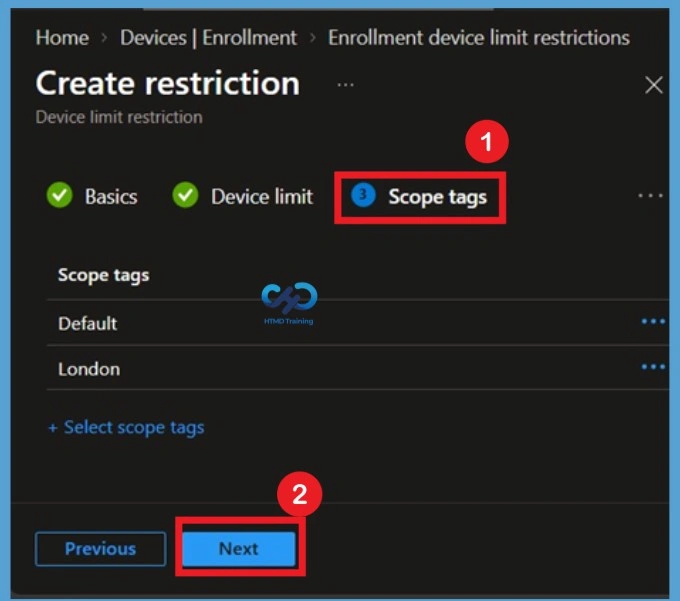
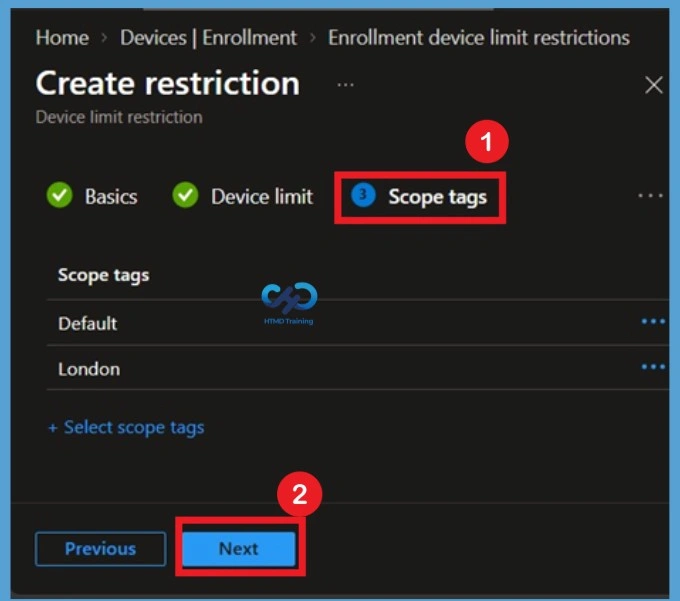
The Scope tags tab allows administrators to assign specific organizational access tags such as “Default” or location-based tags like “London” to ensure only authorized administrators can view or manage this policy. After confirming or adding the required scope tags, select Next to proceed to target assignments.
Assigning Groups to the Policy
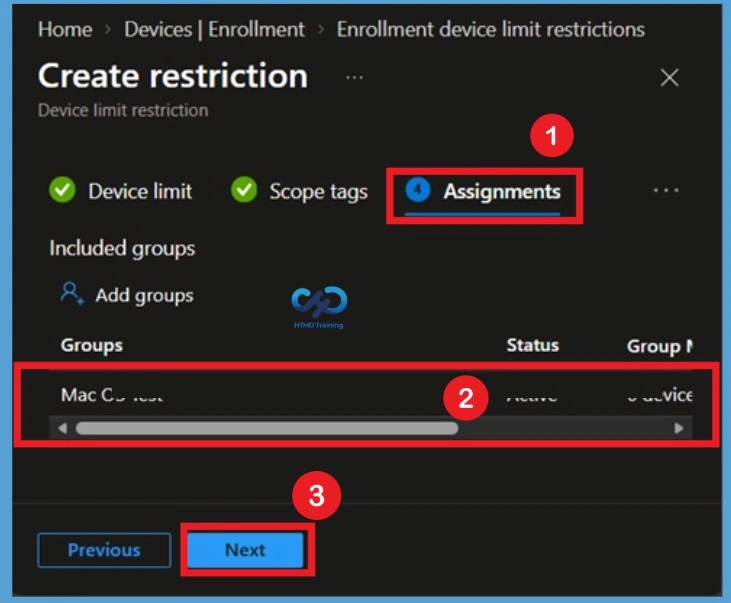
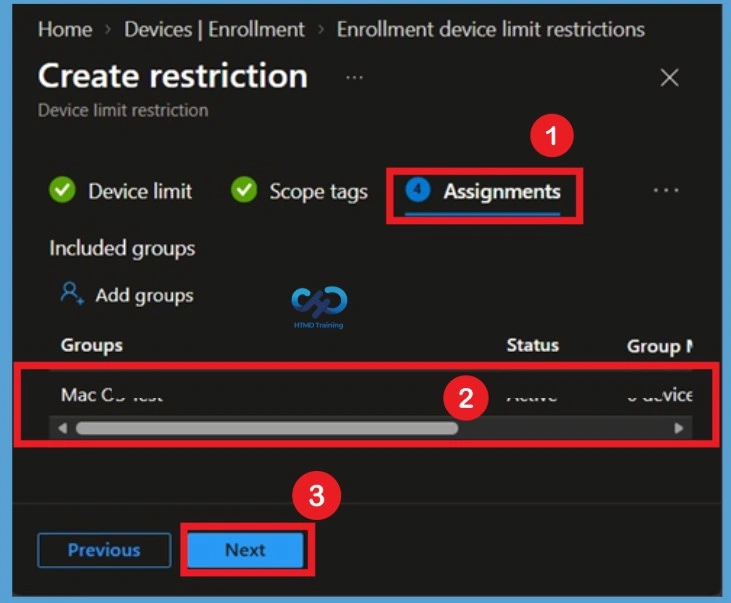
Within the Assignments tab, select the intended user or device groups such as “Mac CS Test” under the Included groups section to determine who this restriction applies to. Once the active target groups have been selected, click Next to navigate to the final review screen.
Reviewing and Creating the Policy
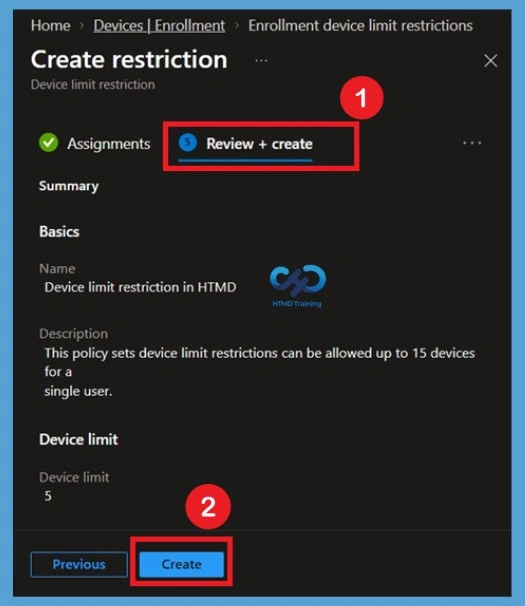
The Review + create step provides a summary of all configured properties, including the policy name, description, assigned device limit, and targeted groups. Carefully verify all entered parameters and then click the Create button at the bottom of the screen to finalize and deploy the device limit restriction policy.
How to Set Device Platform Settings in Intune
Device platform restrictions in Intune allow administrators to specify which mobile device platforms are allowed or blocked from accessing corporate resources and data. This helps organizations ensure that only approved devices are used to access their sensitive data and applications In this policy, IT Admins can block personal device enrollment in Intune.
- Sign in to the Microsoft Intune admin center.
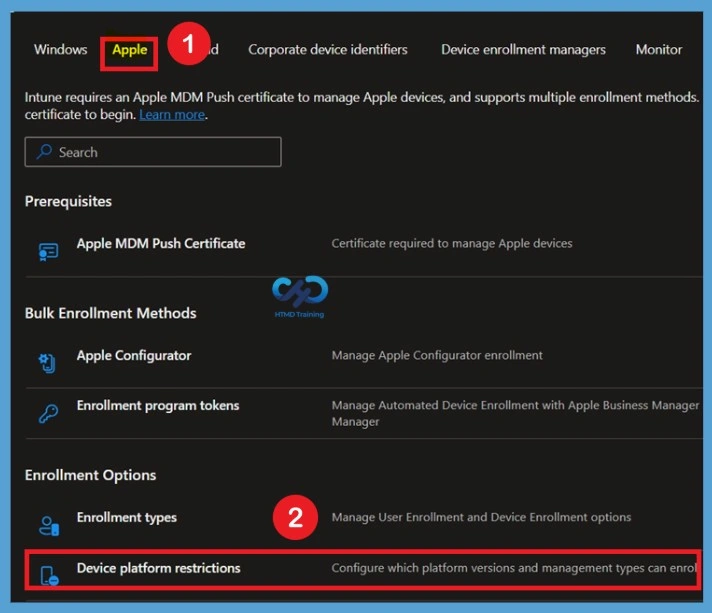
- On the left sidebar, select Devices > Enroll devices > Enrollment device platform restrictions.
- Select Apple platform.
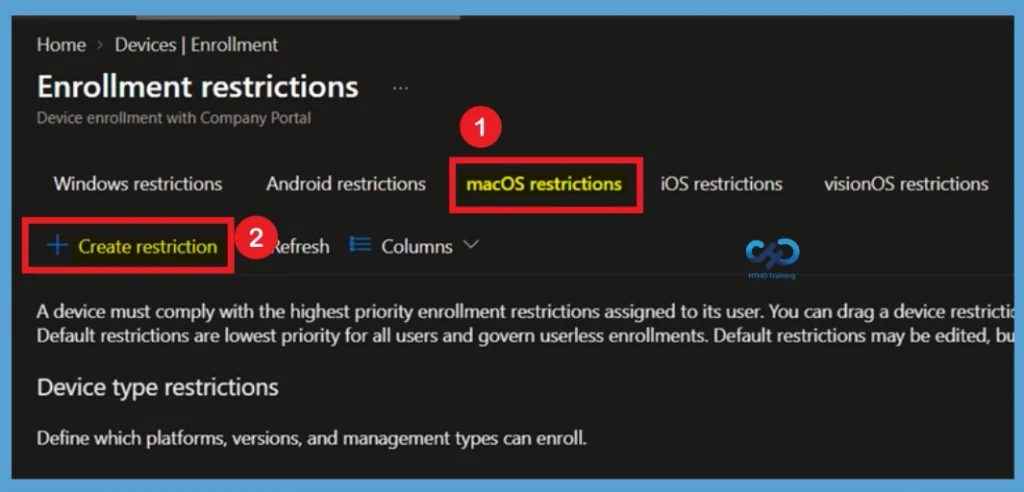
On the Enrollment restrictions page, select the macOS restrictions tab from the top navigation choices to view platform-level controls for Apple computers. Next, click the + Create restriction button to establish a new set of conditions governing which macOS devices can enroll into Company Portal.
Defining macOS Enrollment Restriction Basics
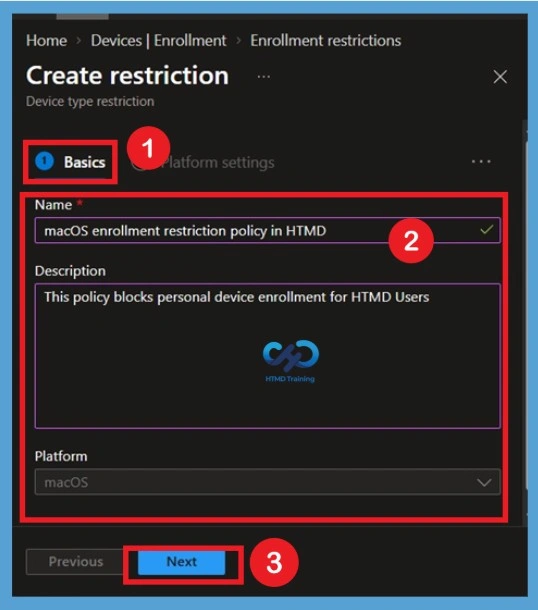
In the Basics section of the restriction configuration, enter the Name for the policy e.g., “macOS enrollment restriction policy in HTMD” and provide a descriptive summary detailing its rule e.g., blocking personal device enrollment. Confirm that macOS is specified as the targeted Platform, then click the Next button to define specific platform settings.
Configuring Platform Settings for macOS Restrictions
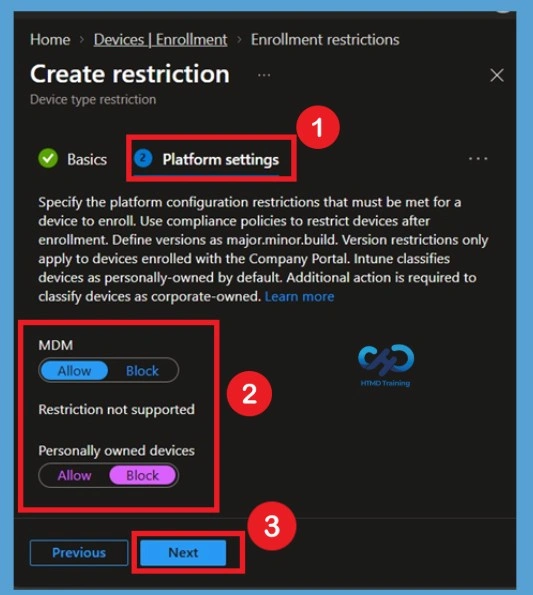
In the Platform settings section of the device type restriction wizard, configure the specific enrollment rules that devices must meet before joining the management environment. Set MDM to Allow to permit corporate-owned device enrollments while toggling Personally owned devices to Block to prevent users from enrolling personal Mac hardware. Once these toggles match the security requirements, click Next to move forward through the remaining wizard steps.
- MDM: Select Allow to permit a platform to enroll, and Block to restrict it.
- Personally owned: Select Allow to permit devices to enroll and operate as personal devices.
In the scope tag section, you will get an option to configure scope tags for the policy. Once your tags are selected, click Next to move on to targeting users.
Assignments
Under the Assignments step, pick the user or device groups such as “Mac CS Test” that must follow this policy. This step controls exactly who gets affected by the new rules. After selecting your groups, click Next to move to the next step.
Reviewing and Creating the macOS Restriction Policy
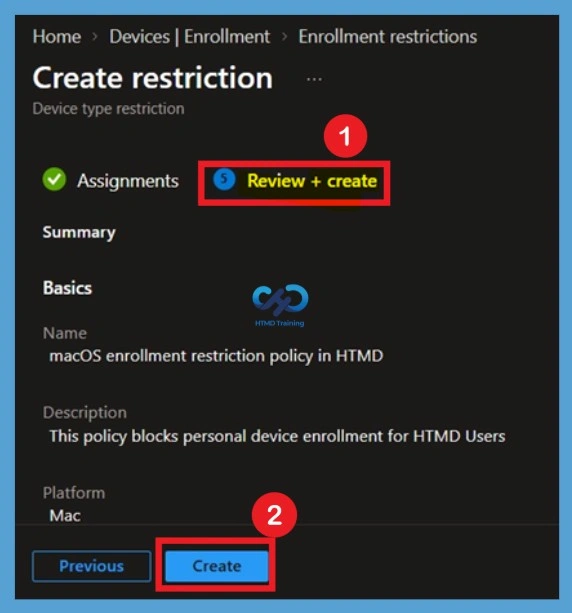
The final Review + create tab displays a summary of the configured macOS device type restriction policy, including its designated name macOS enrollment restriction policy in HTMD, description, and platform type Mac. After verifying that all the basic and platform block settings are correct, select the Create button at the bottom of the screen to save and apply the policy.
Need Further Assistance or Have Technical Questions?
Join the LinkedIn Page and Telegram group to get the latest step-by-step guides and news updates. Join our Meetup Page to participate in User group meetings. Also, join the WhatsApp Community and the Whatsapp channel to get the latest news on Microsoft Technologies. We are there on Reddit as well.
Author
Snehasis Pani is currently working as a JAMF Admin. He loves to help the community by sharing his knowledge on Apple Mac Devices Support. He is an M.Tech graduate in System Engineering.