
Key Takeaways
- Intune lets you create app categories in the Company Portal.
- Categories help users quickly find and identify apps while browsing the Company Portal.
- You can organise apps into categories such as Productivity, Developer, and Communication.
- You can assign one app to one or more categories based on its purpose.
- App categories, icons, and additional app information make the Company Portal easier and more user-friendly.
- Intune also provides branding options to create a more consistent and personalized Company Portal experience.
Let’s learn how you can create App Categories in Intune Company Portal. Categories make it easier for users to find the app when browsing through the company portal. Users can see all the available applications in the company portal with additional information, product icons, and categories, ensuring users are familiar with the interface when accessing applications.
Table of Content
Table of Contents
Create App Categories in Intune Company Portal
App categories can help you sort apps to make them easier for users. You can assign one or more categories to an app, for example, Productivity, Developer, or Communication apps. There are several ways to do this. If you want to provide a better end-user experience from Company Portal, let’s look at the steps to configure Intune company portal branding.
- Enable Device Restart Grace Period for Intune Win32 App
- Intune Win32 App Failure Log Collection Backend Secrets
- Intune Win32 App Issues Troubleshooting
Create App Categories in Intune
To create or manage App Categories in Microsoft Intune, sign in to the Microsoft Intune admin center and go to Apps > App categories. The App categories pane displays the categories currently available in your tenant. You can create custom categories to organize applications, such as Productivity, Communication, or Developer, making it easier for users to browse and find apps in the Company Portal.
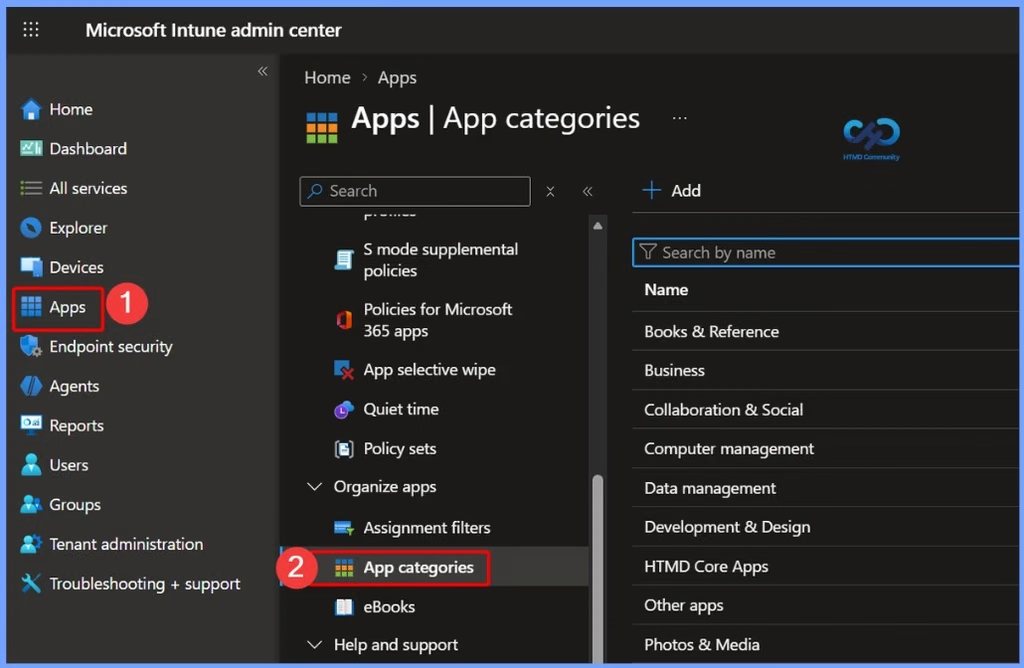
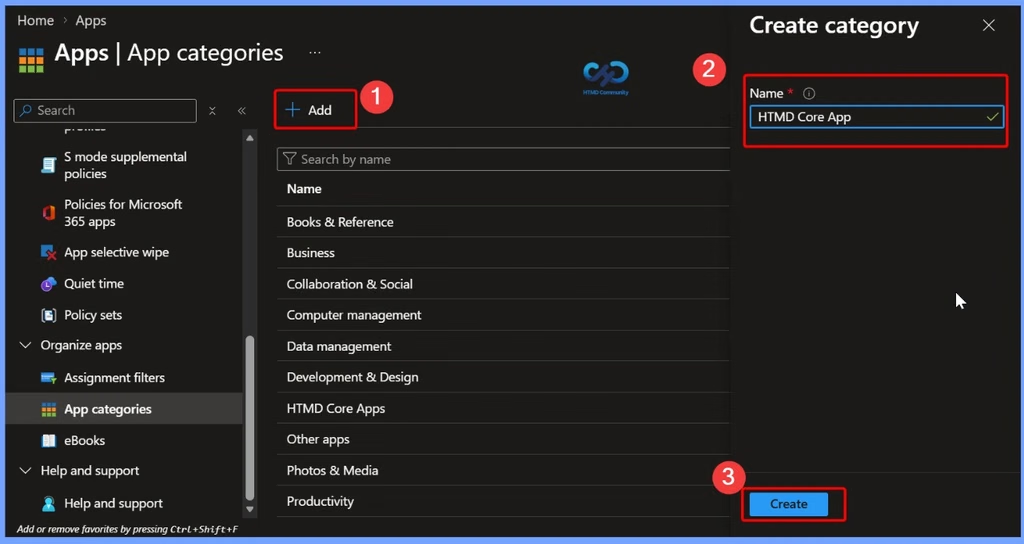
Add and Enter a Name for the New App Category
In the Create category pane, select Add and enter a name for the new app category, then select Create. To manage an existing category, select the ellipsis (…) next to it and choose the available action, such as Delete. App categories help organize applications and make them easier for users to find in the Company Portal. Category names can be entered in one language only, and Intune does not automatically translate them. You can create up to 200 app categories in an Intune tenant.

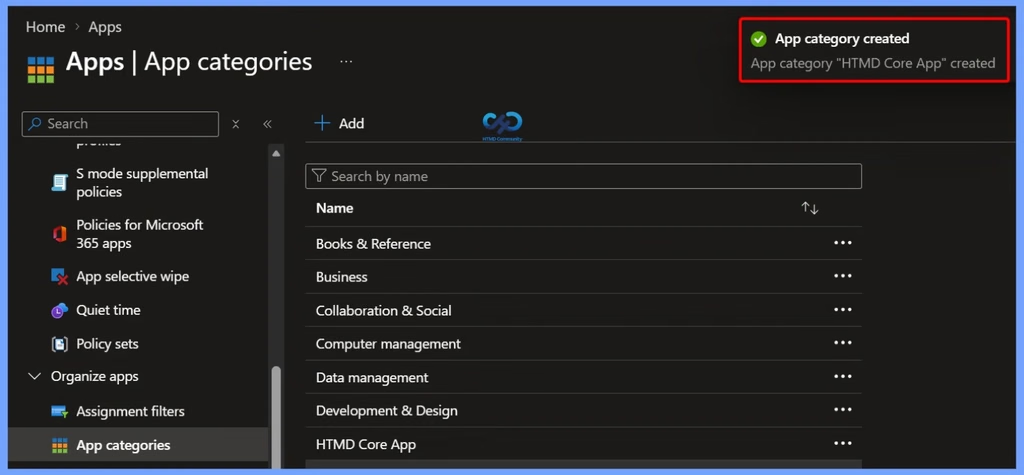
Category Creation Confirmation
Once the category is created successfully, Intune displays a notification automatically in the top-right corner of the admin center. The notification confirms the action with a message such as “App category ‘HTMD Core App’ created.” This confirms that the new app category has been successfully added and is ready to be assigned to applications.
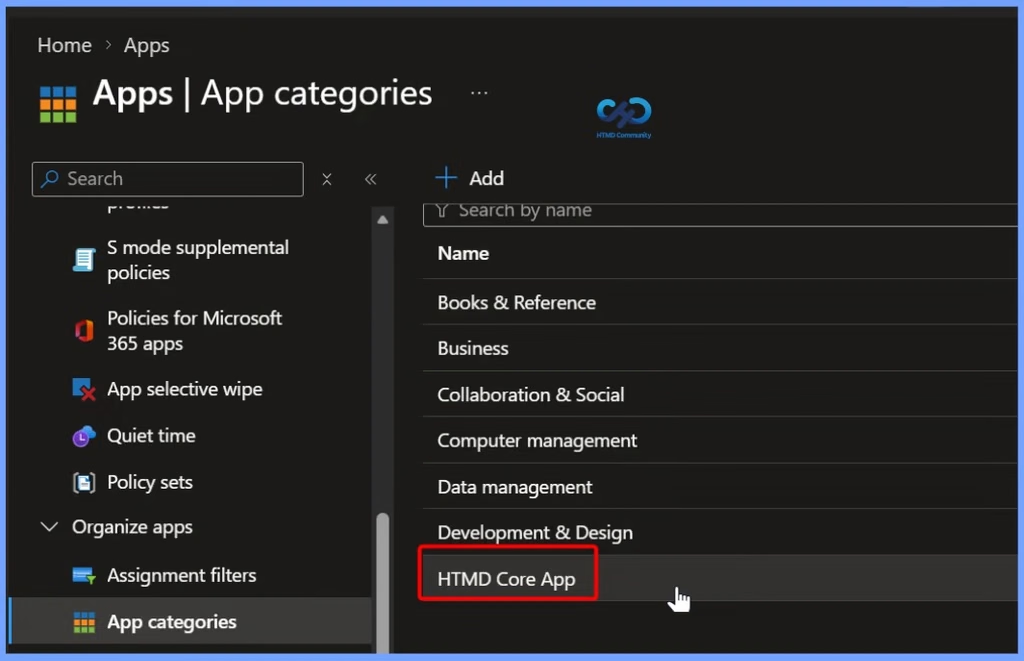
Newly Created App Category
After successfully creating the category, you can see the newly created category listed in the App categories pane. This confirms that the category has been added successfully and is now available to assign to your Intune applications.
| App Category |
|---|
| HTMD Core App |
Assign or Change an App Category
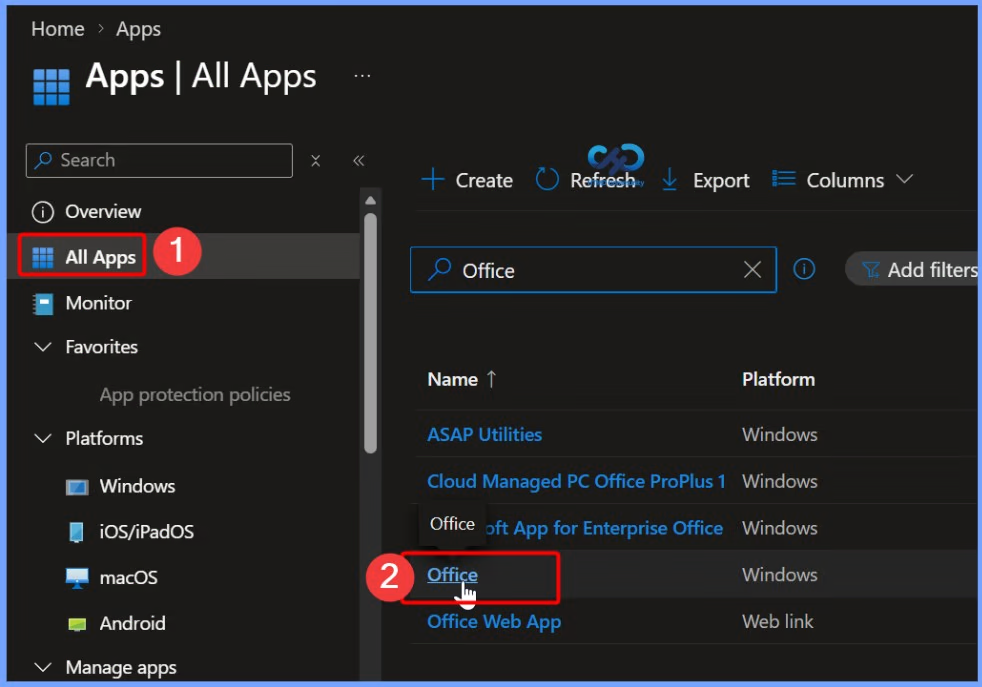
To assign or change a category for an existing application, open the Microsoft Intune admin center and navigate to Apps > Windows > Windows apps. From the list of available applications, select the existing Win32 app that you want to update. You can then edit the app properties and modify its assigned category as required.
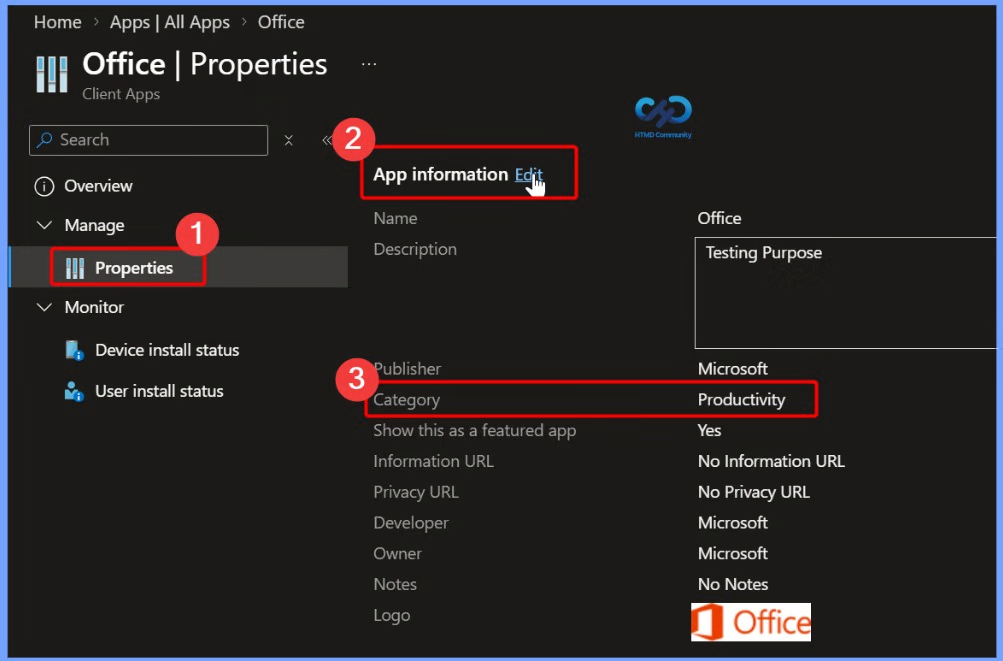
Edit App Information
Select the required application from the Windows apps list and open its Properties. Under App information, scroll down and select Edit. This opens the app information settings, where you can update the application details, including its assigned App category.
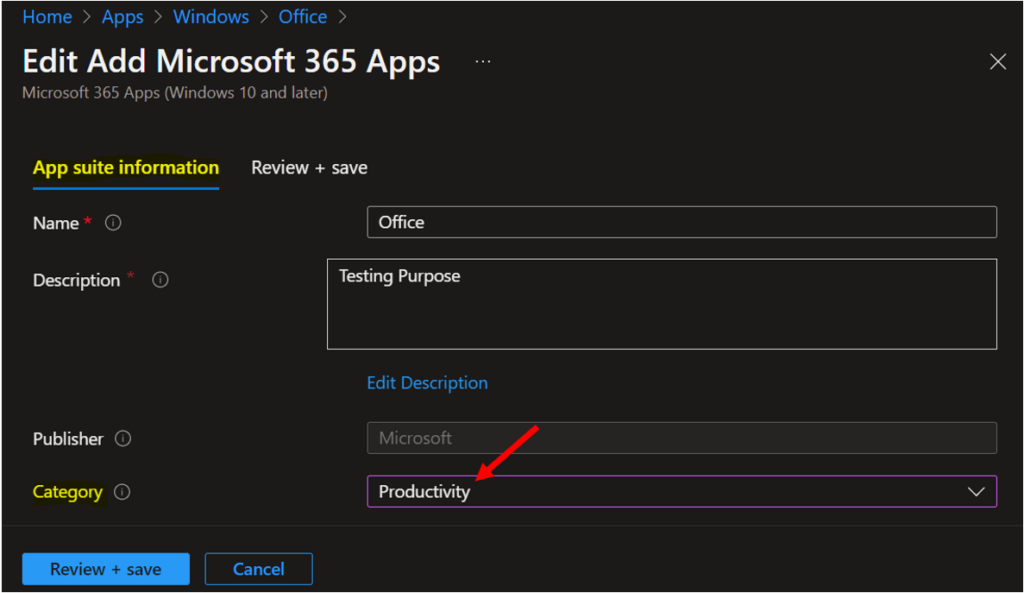
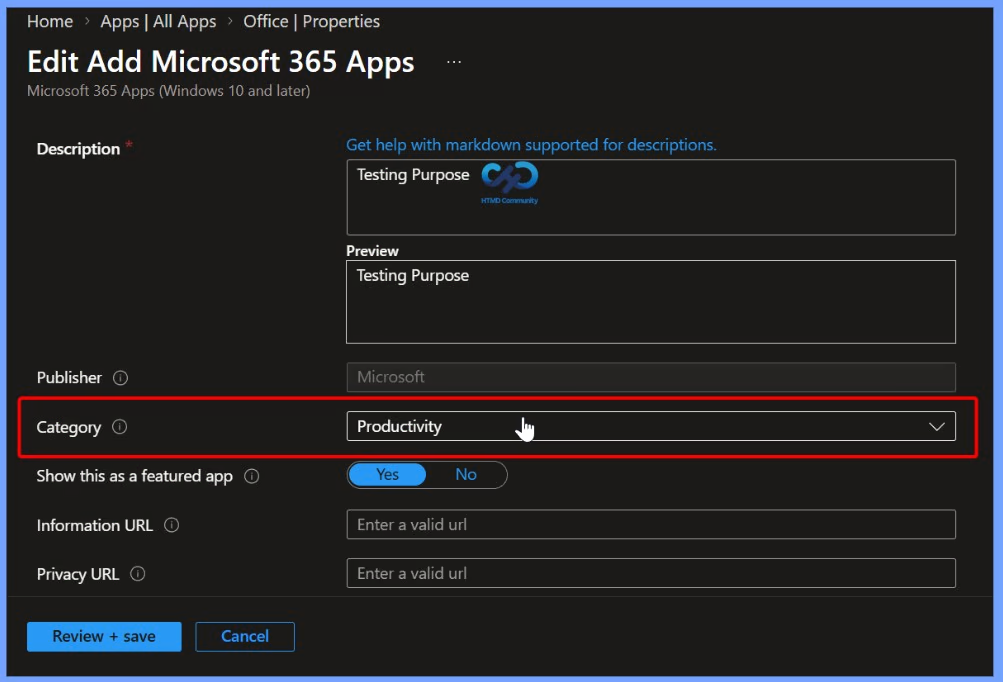
Depending on the app that you chose, On the App information page, you can also add the details for your app. Select Category to pick one or more of the built-in app categories, or select a category you created from the drop-down list. Here I selected the built-in category “Productivity”. Once you have chosen the category, click Review + save.
Note – Categories make it easier for users to find the app when browsing through the company portal.
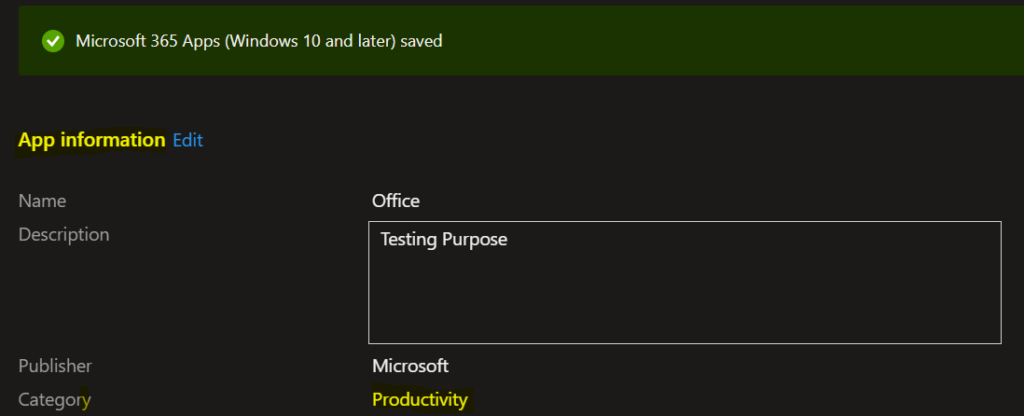
Once you have selected the summary screen will appear. Click Review + save. A notification will appear automatically in the top right-hand corner with a message Application “Office” saved successfully. Depending on the app type you choose, Here you can see the status message “Microsoft 365 Apps (Windows 10 and later) saved”
Select App Category
In the Microsoft Intune admin center, select Apps and choose the required app type, such as Microsoft Store app. On the App information page, enter the required details for the app. From the Category drop-down list, select the appropriate category, and then complete the remaining steps in the application wizard to finish adding the app.
End Users Experience – Company Portal
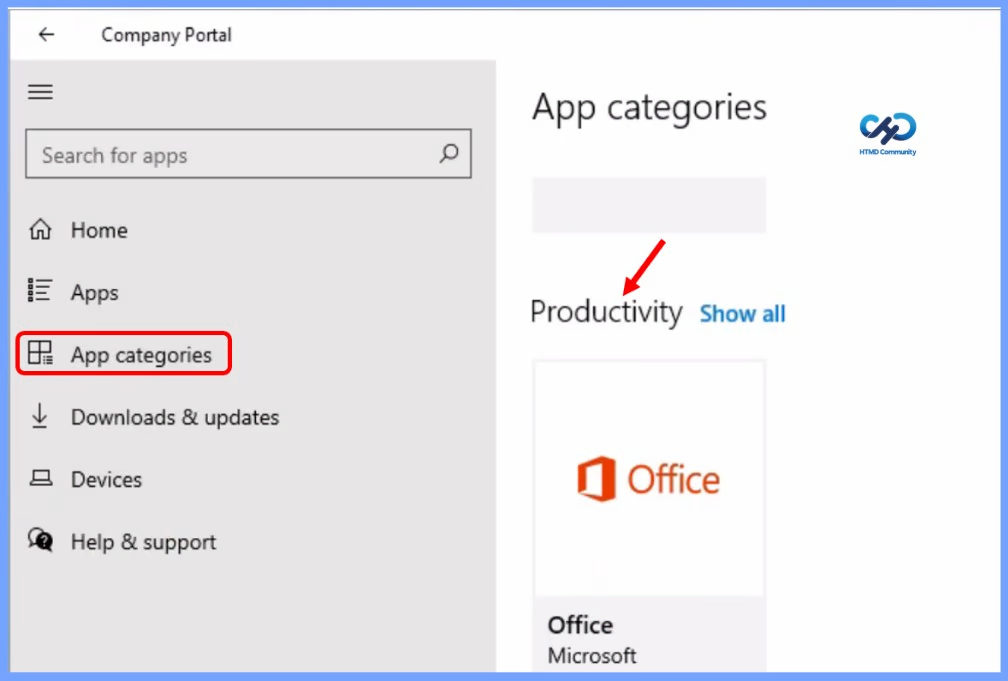
To verify the user experience, open the Company Portal app on a managed device. Users can browse available applications and use the configured app categories to find apps more easily. For example, an application assigned to the Productivity category will appear under that category, helping users quickly identify and access the apps they need.
Microsoft Intune company portal provides a lot of branding options for Applications to provide a better user experience. Learn how to configure Intune Company Portal Icon of an Application. You can also check Intune company portal branding options. These are the options to add more info when a user opens the company portal app.
Need Further Assistance or Have Technical Questions?
Join the LinkedIn Page and Telegram group to get the latest step-by-step guides and news updates. Join our Meetup Page to participate in User group meetings. Also, join the WhatsApp Community and the Whatsapp channel to get the latest news on Microsoft Technologies. We are there on Reddit as well.
Author
Jitesh, Microsoft MVP, has over six years of working experience in the IT Industry. He writes and shares his experiences related to Microsoft device management technologies and IT Infrastructure management. His primary focus is Windows 10/11 Deployment solution with Configuration Manager, Microsoft Deployment Toolkit (MDT), and Microsoft Intune.