
Key Takeaways
- Enforce organizational policies by requiring users to accept Terms and Conditions before accessing corporate resources.
- Ensure employees understand their responsibilities and obligations when using company-managed devices.
- Improve organizational compliance by presenting mandatory legal disclaimers and usage guidelines.
- Control access to Company Portal enrollment and work resources through user acceptance.
Let’s learn how to Strengthen Device Enrollment Compliance with Intune Terms and Conditions. The terms and conditions policy requires targeted users to accept organization terms in Company Portal app before enrolling devices. You can deploy Intune terms and conditions to user groups to explain how enrollment, access to work resources, and the Company Portal app affect devices and users. Users must accept the terms and conditions before they can use the Company Portal to enroll and access their work.
Table of Contents
Table of Contents
Strengthen Device Enrollment Compliance with Intune Terms and Conditions
You can also use an Intune terms and conditions policy to present relevant disclaimers for legal or compliance requirements to device users. You can create and deploy multiple policies containing different terms and conditions. As an Intune admin, you can require that users accept your company’s terms and conditions before using the Company Portal to enroll devices, access resources for example, work apps and email. Here’s how you can configure organizational messages from Intune portal. Microsoft offers organizational messages for Windows 11 through Microsoft Intune to provide IT admins the ability to reach people within their organization with key messages delivered natively on Windows 11.
- 10 Super Useful End User Portals From Microsoft 365 Intune Azure AD
- 32 Privacy Settings for Windows 11 | 99 Intune Privacy Settings Policies
- Intune Company Portal App for Windows 11 Android | Install and Uninstall
- Block Android Device Manufacturer Enrollment In Intune
Create Intune Terms and conditions for Device Enrollment
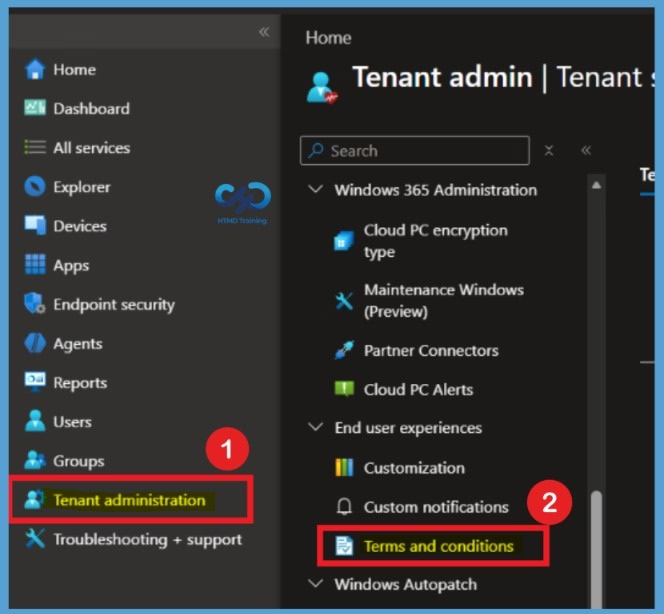
The below steps help you how to create Intune terms and conditions policy and get started with the terms and conditions in Company Portal app. Sign in to the Microsoft Intune admin center. Navigate to Tenant administration > Terms and conditions and Select Create.
Create Intune terms and Conditions Policy
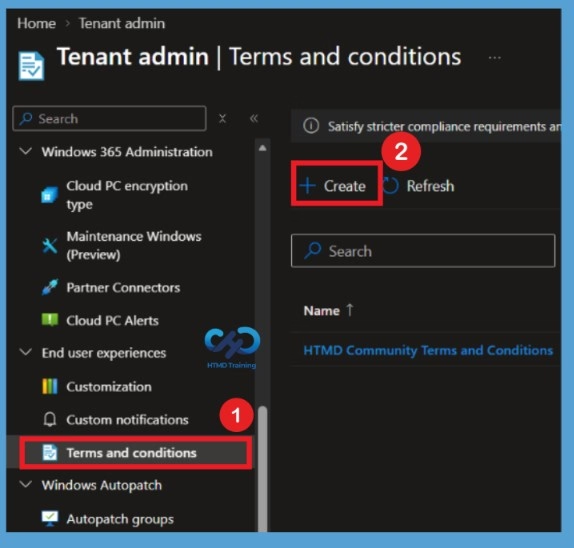
Navigate to Tenant administration > Terms and conditions. You will find the + Create option in the left pane of the Intune admin center. Select Create to start configuring a new Terms and Conditions policy. This option allows administrators to define a new set of organizational terms that users must review and accept before accessing company resources.

Basics
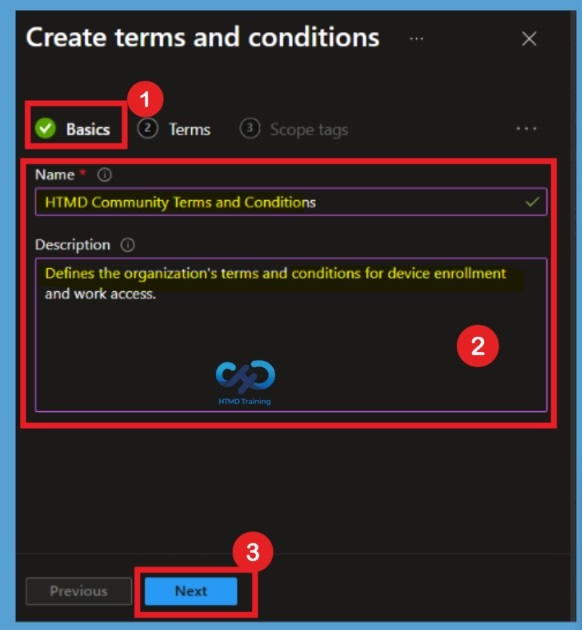
On the Basics page, enter the basic details of the Terms and Conditions policy, including the policy name and description. In this example, I used HTMD Community Terms and Conditions as the policy name and added the description: Defines the organization’s terms and conditions for device enrollment and work access. Select Next to continue.
Policy Terms
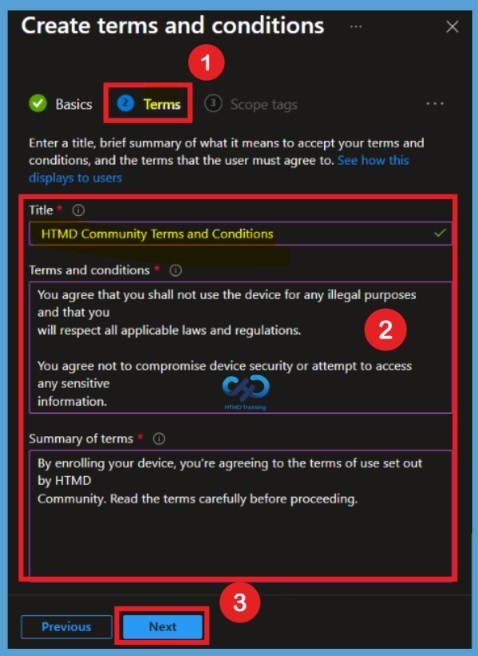
On the Terms page, provide the following information and select Next. You can also produce versions of the same terms and conditions in different languages and then deploy these to their appropriate groups.
- Title: The display name for your terms. Users see the title in the Company Portal app.
- Terms and conditions: The terms and conditions that users see and must either accept or reject.
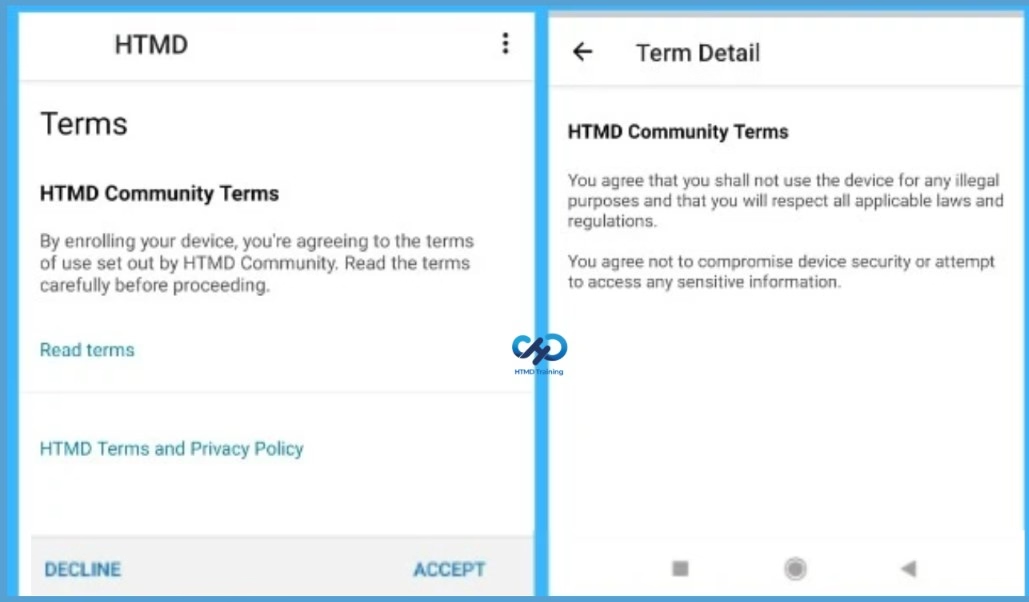
- Summary of Terms: Enter a brief, high-level explanation of what the user is agreeing to. This text is visible to device users. Example message: By enrolling your device, you’re agreeing to the terms of use set out by HTMD Community. Read the terms carefully before proceeding.
Scope Tags
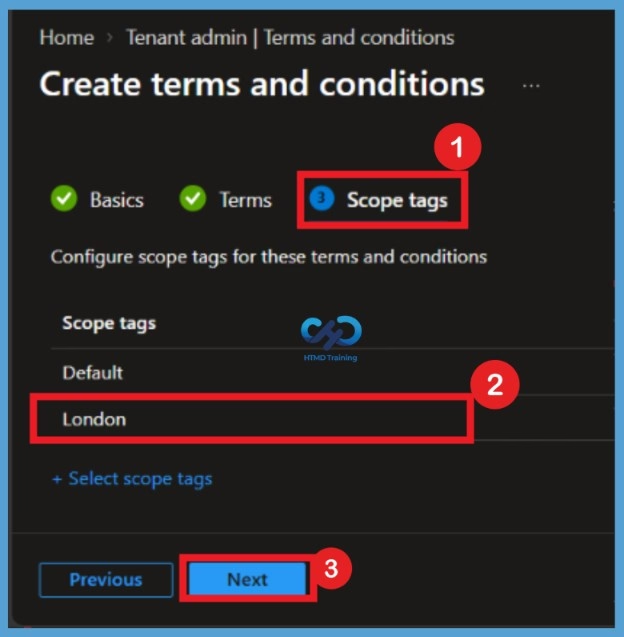
On the Select scope tags page, choose the appropriate scope tag for the policy. In this example, I selected London as the scope tag to control administrative access to the Terms and Conditions policy. Scope tags help administrators organize and manage policies based on their assigned administrative responsibilities. They also ensure that only administrators with the appropriate scope permissions can manage the policy. Select Next to continue.
Assignments
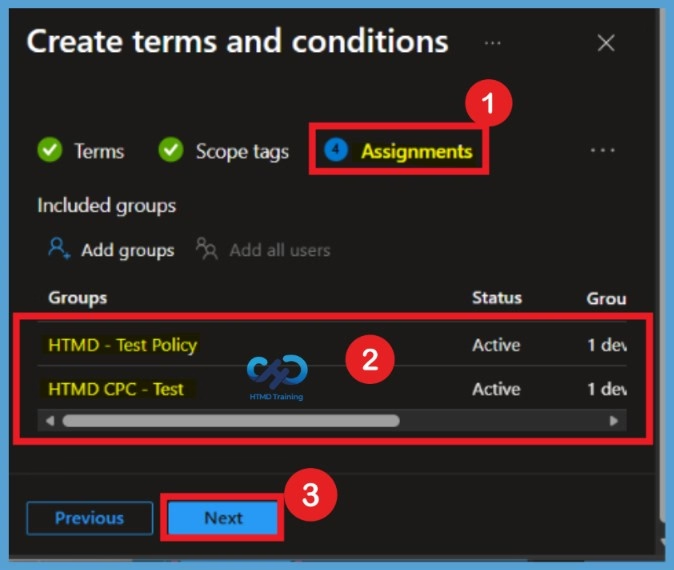
On the Assignments page, you can assign the Terms and Conditions policy to all users or specific user groups within your organization. In this example, I selected the HTMD Test Policy and HTMD CPC Test groups to target the required users. This ensures that the configured terms are presented to users belonging to the assigned groups when they access the Company Portal.
- Add all users: Choose this option to assign these terms and conditions to all device users.
- Add groups: Choose this option to assign these terms and conditions to users in select groups.
Review + Create
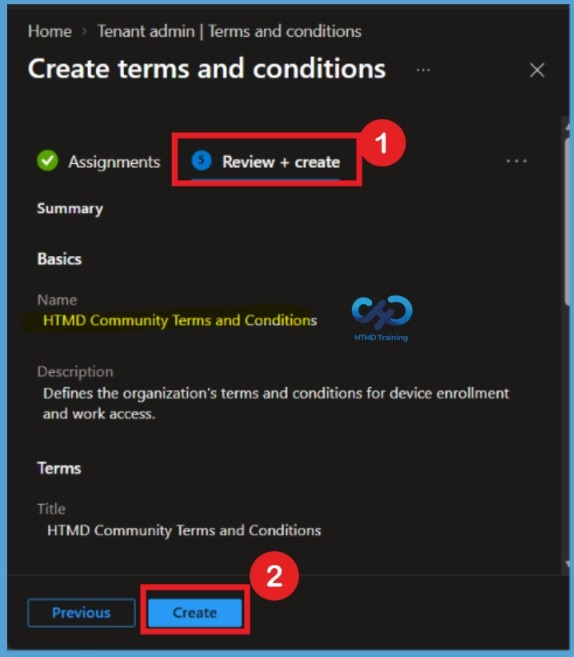
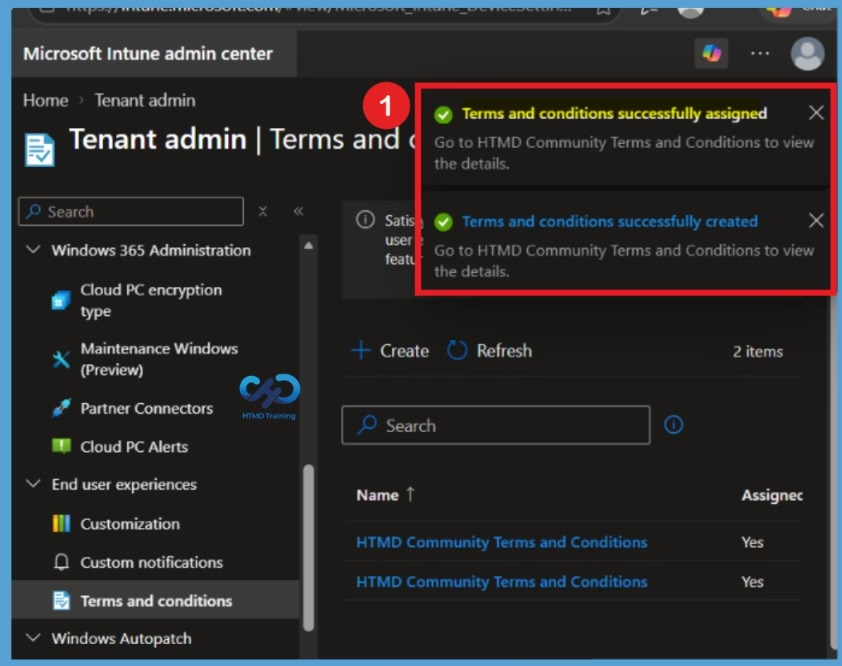
On the Review + create page, carefully review all the configured settings, including the policy details, terms, scope tags, and assignments. Once you have verified the configuration, select Create to complete the policy creation. Intune will display a notification confirming that the Terms and Conditions policy has been successfully created and assigned.
After selecting Create, Intune will start creating the Terms and Conditions policy. Once the process is completed successfully, a notification window appears confirming that the Terms and Conditions policy was successfully created and assigned. This confirms that the policy is ready and has been deployed to the selected user groups.
Monitor Acceptance of Terms from Intune
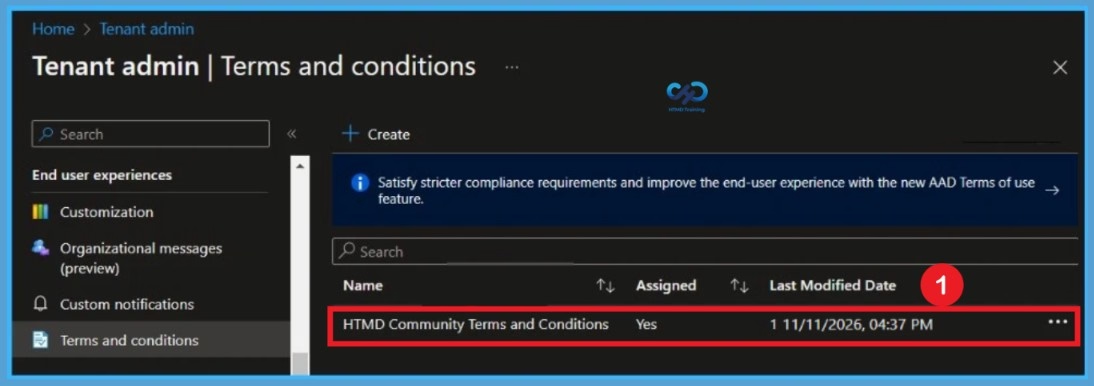
To view and export acceptance reports, In Intune Portal Navigate to Tenant administration > Terms and conditions. Select your created terms. Under the Terms and conditions, Select Acceptance Reporting to view available reports. You can also Export to save the reports to your device. An acceptance report provides the details of an individual’s agreement to your terms and conditions. Intune reports the following details:
| details | Info |
|---|---|
| Username | The name of the user who accepted the terms. |
| Accepted version | The version that was accepted. |
| Accepted time | The date and time of acceptance. |
| Accepted latest | Shows whether device user accepted the latest terms and conditions available. |
| UPN | The user principal name assigned to the device user. |
Note – Report data is updated every 24 hours and can take up to 12 hours to finish generating. Because of this, data in the report can have up to a 36 hour latency.
End Users Experience – Company Terms
Targeted users can see the terms and conditions in the Intune Company Portal app. The following image shows what the title and summary of terms appears in the Company portal app. Device users tap Read terms to expand the terms and conditions to full-view. The below image shows what the terms and conditions set by your organization. Users must accept the terms and conditions before they can use the Company Portal to enroll and access their work.
Need Further Assistance or Have Technical Questions?
Join the LinkedIn Page and Telegram group to get the latest step-by-step guides and news updates. Join our Meetup Page to participate in User group meetings. Also, join the WhatsApp Community and the Whatsapp channel to get the latest news on Microsoft Technologies. We are there on Reddit as well.
Author
Anoop C Nair is Workplace Technology solution architect with 25+ years of experience in global enterprise organizations such as JP Morgan, Capgemini, etc. He is Microsoft Certified Trainer. Microsoft MVP from 2015 onwards for consecutive 11 years! He also conducts Intune and modern workplace tech training for enterprise organizations. He is Blogger, Speaker, and Founder of HTMD Community and HTMD Conference. His focus is on Device Management technologies such as Intune, Windows, Cloud PC. He writes about technologies like Intune, SCCM, Windows, Cloud PC, Windows, Entra, Microsoft Security.
Awesome! An excellent feature that is a must for companies serious about compliance.
Does this require a conditional access policy?