
Key Takeaways
- Enable Contact Sharing via Bluetooth for work-profile contacts.
- Supports Bluetooth devices, including car infotainment systems.
- Not configured means Intune doesn’t change the OS setting.
- Bluetooth devices may cache work contacts after syncing.
- Disabling the policy later may not remove cached contacts.
Allow Bluetooth Devices to Access Work Profile Contacts on Android using Intune! Bluetooth contact sharing allows work profile contacts to be shared with paired Bluetooth devices, such as a car. By default, Android may not share work contacts. Enabling this setting in Microsoft Intune allows users to access their work contacts through compatible Bluetooth devices.
Table of Content
Table of Contents
Allow Bluetooth Devices to Access Work Profile Contacts on Android using Intune
Enabling this setting may allow certain Bluetooth devices to cache work contacts upon first connection. Disabling this policy after an initial pairing/sync may not remove work contacts from a Bluetooth device. When Contact sharing via Bluetooth is set to Not configured (default), Intune doesn’t change or update this setting. By default, the OS might not share work contacts.
- Deploy Private LOB Apps To Android Devices Using Intune
- Publish Sensitivity Labels In Microsoft 365 To Protect Corporate Data
Enable Contact Sharing on Android using Intune
Here’s how you can enable contact sharing with work profile contacts on Android using Intune. Let’s review the steps to see which policies apply. Enabling contact sharing via Bluetooth allows you to share and access work profile contacts on personally owned devices from another device, including a car, that’s paired via Bluetooth.
- Sign in to Microsoft Intune Admin Centre: https://intune.microsoft.com/
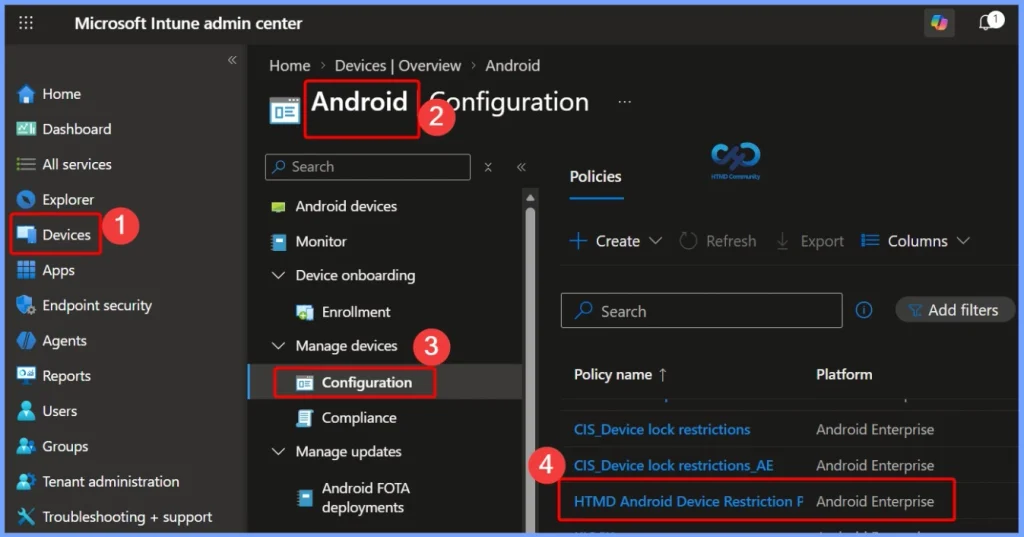
- Click on Devices > Android > Configuration Policies. I selected the existing configuration profile (Device Restriction) for modification.
You can check more details if you want to create device restriction policies from scratch. Enforcing Screen Lock For Android Devices In Intune

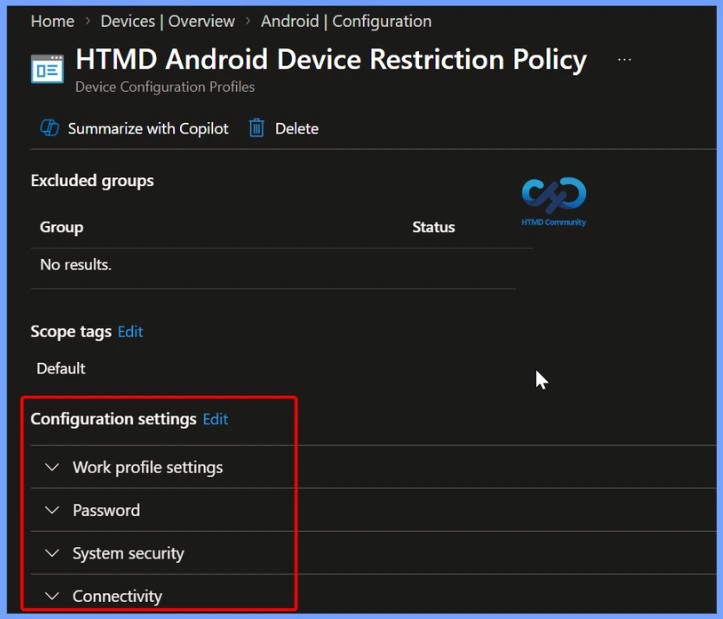
You can see the different categories of applied configuration in the configuration settings for Android Enterprise personally owned devices with a work profile (BYOD). The Work profile settings allow you to configure the policy to control contact sharing from Bluetooth.
Control Bluetooth Access to Work Profile Contacts
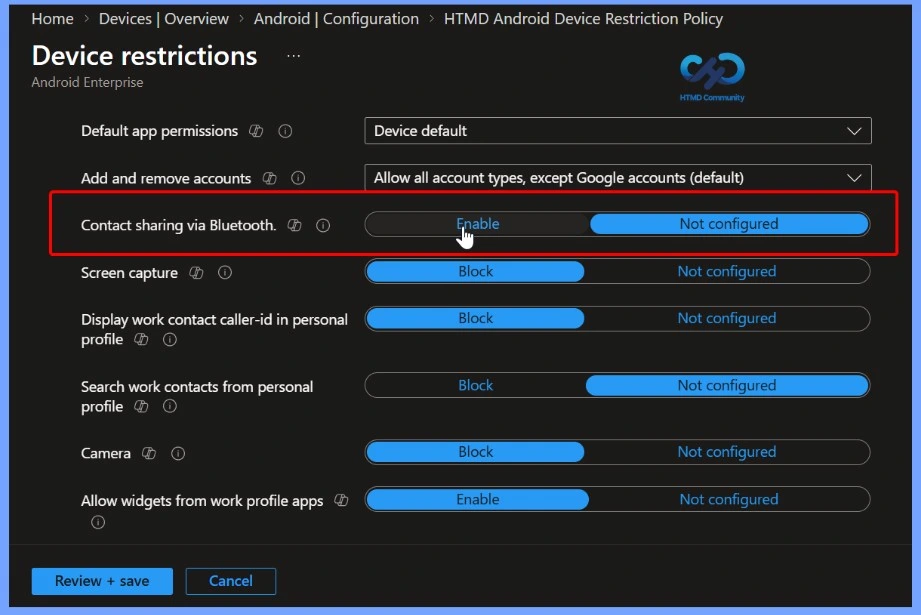
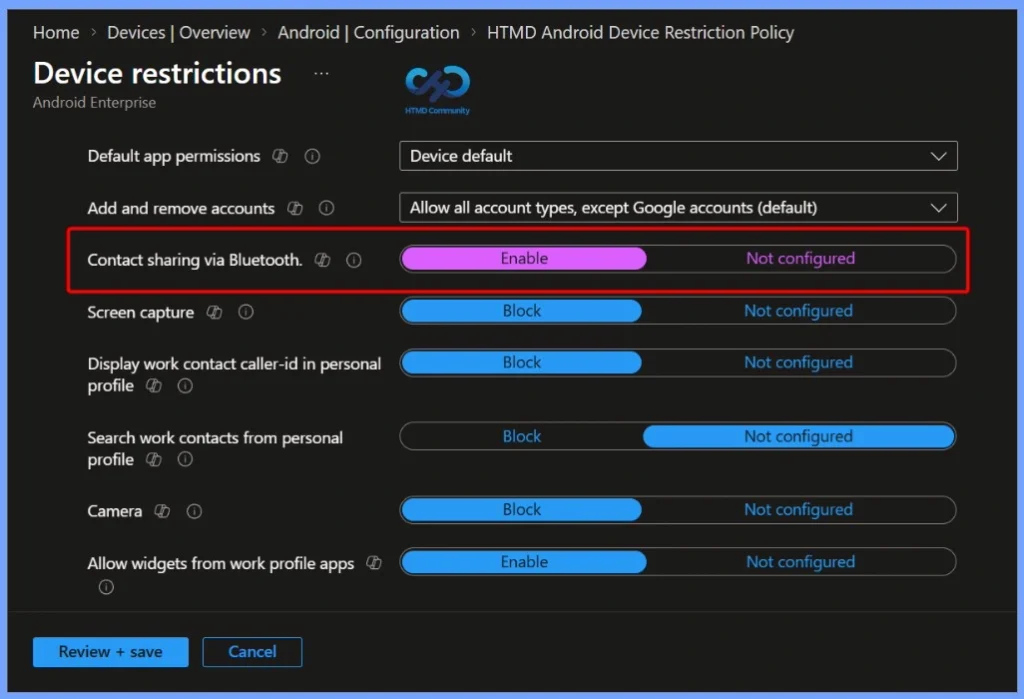
The Allow Bluetooth devices to access enterprise contacts in the work profile setting controls whether Bluetooth devices can access work-profile contacts on Android devices managed with Microsoft Intune. When this setting is not enabled, work contacts may not be shared with paired Bluetooth devices.
Configure Work Profile Contact Sharing Settings
Under Work profile settings, you can review and customise the available restriction options based on your requirements. In this step, I will toggle the Allow Bluetooth devices to access enterprise contacts setting to enable sharing of work profile contacts with paired Bluetooth devices.
| Settings | Description |
|---|---|
| Contacts sharing via Bluetooth | Enable allows sharing and access to personally owned devices with a work profile contacts from another device, including a car, that’s paired using Bluetooth. |
Review and Save the Android Device Restriction Policy
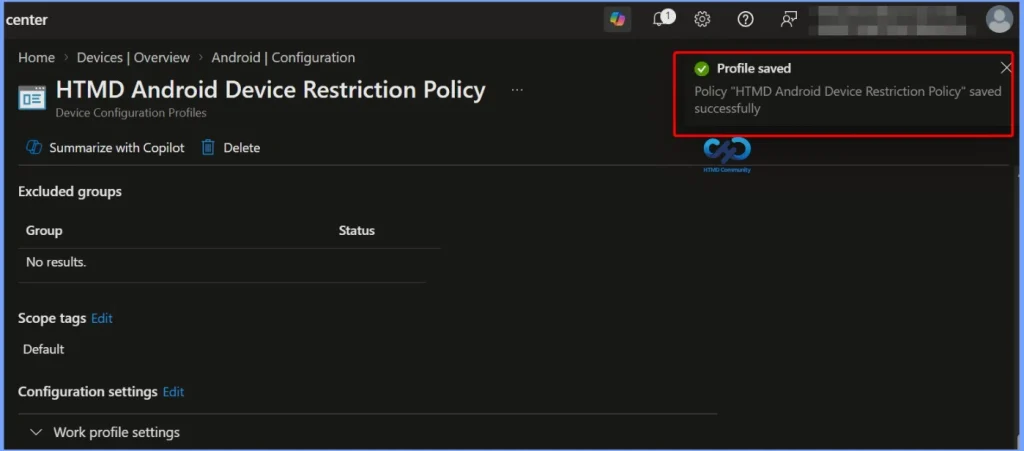
The next step is to review the setup policy and save. A notification prompt will appear when you save the profile: Profile “HTMD Android Device Restriction Policy” saved successfully. Once the configuration is applied to the device, you will share your work contacts on a personally owned profile if accessing from Bluetooth, allowing sharing and access to personally owned devices with work profile contacts from another device, including a car, that’s paired using Bluetooth. Monitor the devices to ensure that the restriction is successfully enforced.
- Intune Company Portal App For Windows 11 Android | Install And Uninstall
- How To Add Android Managed Google Play App In Intune
Need Further Assistance or Have Technical Questions?
Join the LinkedIn Page and Telegram group to get the latest step-by-step guides and news updates. Join our Meetup Page to participate in User group meetings. Also, join the WhatsApp Community and the Whatsapp channel to get the latest news on Microsoft Technologies. We are there on Reddit as well.
Author
Jitesh, Microsoft MVP, has over six years of working experience in the IT Industry. He writes and shares his experiences related to Microsoft device management technologies and IT Infrastructure management. His primary focus is Windows 10/11 Deployment solution with Configuration Manager, Microsoft Deployment Toolkit (MDT), and Microsoft Intune.