

Key Takeaways
- Microsoft Intune is cloud-based, so admins cannot access backend server logs. only Microsoft support can check them for deep troubleshooting.
- Microsoft Intune provides policy status, deployment results, device/user troubleshooting, and remote diagnostic log collection.
- Most issue analysis happens on the Windows device using IME logs for apps/scripts, and MDM event logs for policies, compliance, and enrollment.
- MDM diagnostics tool collects detailed diagnostics into a CAB file, including logs, registry, and device configuration, and is commonly used for advanced analysis and escalation.
Intune Logs Event Logs Registry and Autopilot Details for Top-Level Troubleshooting! Microsoft Intune is a cloud-based SaaS solution, so administrators do not have direct access to backend server logs, and deep server-side troubleshooting is handled by Microsoft support. However, admins can use Intune to view reports, deployment status, and collect remote diagnostics for basic troubleshooting.
Table of Content
Table of Contents
Intune Logs Event Logs Registry and Autopilot Details for Top-Level Troubleshooting
For detailed issue analysis, client-side logs on Windows 11 devices remain the primary source, including IME logs and MDM event logs. In more complex scenarios, network tracing using tools like Fiddler can be used to analyze device-to-service communication, though this is considered advanced, last-level troubleshooting.
Some of the Intune server-side details are available through various reporting nodes in Intune portal. You can perform the basic Intune user policy deployment troubleshooting from the MEM admin center portal. You can directly collect Intune logs from the MEM Admin center portal using the Collect Intune Logs from the MEM Portal Diagnostic Data guide.
One example is given below How To Start Troubleshooting Intune Issues from the server-side. The next level of troubleshooting is with MDM Diagnostics Tool to collect the log and information from the client side.

We can divide Intune logs into two parts. One is the logs related to Intune Management Extension (IME), and the other section of the logs is related to Windows MDM event logs. Moreover, you can’t compare SCCM logs with Intune logging options.
- Prohibit Access to Control Panel and PC Settings to Prevent Users from Modifying System Settings using Intune Policy
- Configure Windows Drive Access Restrictions using Intune Policy
- How to Configure Auto-Restart Warning Reminder Policy in Windows using Intune
- Intune User Policy Troubleshooting Tips For Prevent Changing Theme
- Intune Win32 App Deployment Troubleshooting Help Guide
- Intune Security Baseline Microsoft Defender Policy Troubleshooting Tips
- Troubleshoot Microsoft Edge Security Policy Deployment Issues
Collect Intune Diagnostic Report from Windows 11
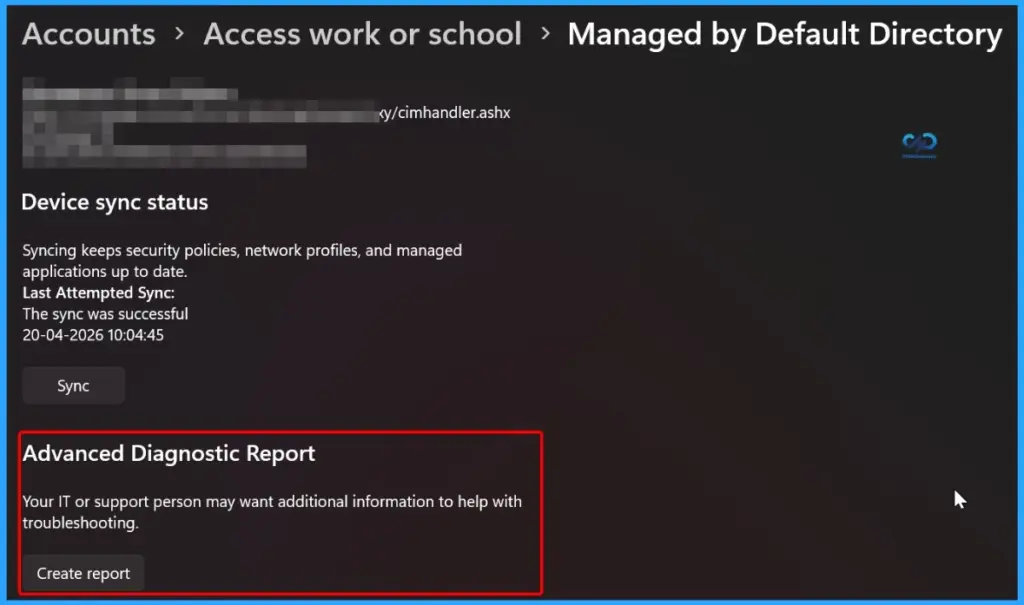
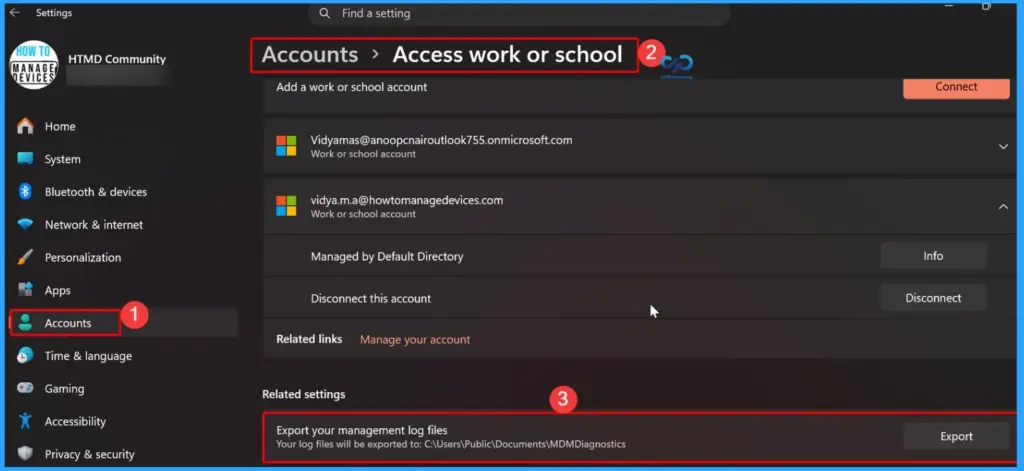
You can easily collect Intune logs from the Windows Settings app on devices managed by Microsoft Intune. This report shows important details like applied policies, certificates, and device configuration status. To collect the report, open Settings, go to Accounts, select Access work or school, choose your connected account, and generate the diagnostic report. This is a quick and useful way to troubleshoot issues along with the Intune.
Diagnostic Report will be stored -> C:\Users\Public\Documents\MDMDiagnostics
Collect Intune Management Logs from Windows
You can collect all Intune-related logs from a Windows 11 device managed by Microsoft Intune using the built-in Settings app. Go to Settings → Accounts → Access work or school, select your connected account, and click Export your management log files. This will generate a diagnostics file that includes important Intune data like enrollment details, policies, and device configuration status.
The logs are saved at:
C:\Users\Public\Documents\MDMDiagnostics
as a file named MDMDiagReport.cab, which you can extract to view the logs.
NOTE! – Command line option for getting Intune MDM Diag Log –
mdmdiagnosticstool.exe -area DeviceEnrollment;DeviceProvisioning;Autopilot -zip c:\users\public\documents\MDMDiagReport.zip
AgentExecutor.log, AutopilotConciergeFile.json, AutopilotDDSZTDFile.json, ClientHealth.log, DeviceHash_DESKTOP-EQI637E.csv, DiagnosticLogCSP_Collector_Autopilot_2020_11_10_16_17_18.etl, DiagnosticLogCSP_Collector_DeviceProvisioning_2021_7_5_17_44_24.etl, IntuneManagementExtension-20210623-103112.log, IntuneManagementExtension-20210630-185736.log, IntuneManagementExtension.log, MDMDiagHtmlReport.html, MdmDiagLogMetadata.json,MDMDiagReport.xml, MdmDiagReport_RegistryDump.reg, MdmLogCollectorFootPrint.txt.microsoft-windows-aad-operational.evtx, microsoft-windows-appxdeploymentserver-operational.evtx, microsoft-windows-assignedaccess-admin.evtx, microsoft-windows-assignedaccess-operational.evtx, microsoft-windows-assignedaccessbroker-admin.evtx, microsoft-windows-assignedaccessbroker-operational.evtx, microsoft-windows-crypto-ncrypt-operational.evtx, microsoft-windows-devicemanagement-enterprise-diagnostics-provider-admin.evtx, microsoft-windows-devicemanagement-enterprise-diagnostics-provider-debug.evtx, microsoft-windows-devicemanagement-enterprise-diagnostics-provider-operational.evtx, microsoft-windows-moderndeployment-diagnostics-provider-autopilot.evtx, microsoft-windows-moderndeployment-diagnostics-provider-managementservice.evtx, microsoft-windows-provisioning-diagnostics-provider-admin.evtx, microsoft-windows-shell-core-operational.evtx, microsoft-windows-user device registration-admin.evtx, Sensor.log, setupact.log
Intune Management Extension Logs
The Intune Management Extension (IME) is a agent used by Microsoft Intune to handle advanced tasks on Windows devices, such as deploying Win32 apps, running PowerShell scripts, and executing remediation actions. IME logs are the most important client-side logs for troubleshooting these operations and are often compared to SCCM logs because they are detailed and easy to read.
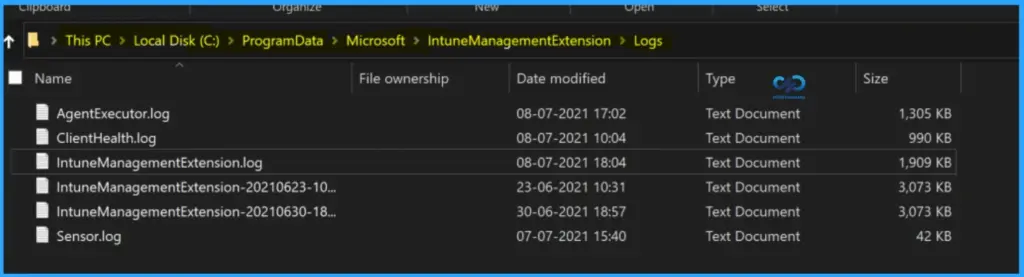
These logs are stored locally on the device at:
C:\ProgramData\Microsoft\IntuneManagementExtension\Logs
and are a primary source for diagnosing application deployment and script-related issues in modern Intune environments.
| While writing this post, we have four (4) IME logs inside the IntuneManagementExtension\Logs folder. |
|---|
| AgentExecutor.log ClientHealth.log IntuneManagementExtension.log Sensor.log |
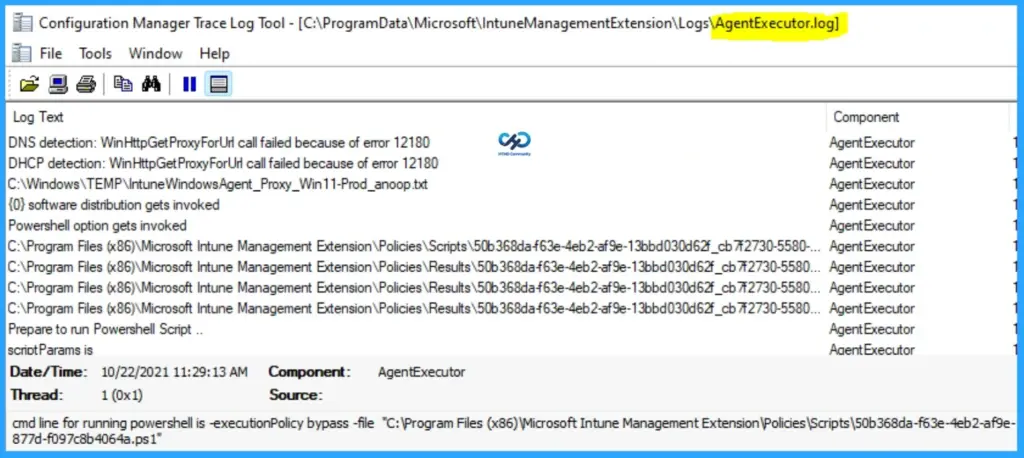
AgentExecutor.log in Intune (IME Logs)
The AgentExecutor.log is an important log file within the Intune Management Extension (IME) used by Microsoft Intune. It helps troubleshoot issues related to PowerShell script execution and Proactive Remediation script deployments on Windows 11 devices.
This log provides detailed information about how scripts are processed, executed, and whether they succeed or fail, making it a key resource for diagnosing script-related problems in Intune-managed environments.
C:\Program Files (x86)\Microsoft Intune Management Extension\Policies\Scripts\50b368da-f63e-4eb2-af9e-13bbd030d62f_cb7f2730-5580-4652-877d-f097c8b4064a.ps1
C:\Program Files (x86)\Microsoft Intune Management Extension\Policies\Results\50b368da-f63e-4eb2-af9e-13bbd030d62f_cb7f2730-5580-4652-877d-f097c8b4064a.output
cmd line for running powershell is -executionPolicy bypass -file “C:\Program Files (x86)\Microsoft Intune Management Extension\Policies\Scripts\50b368da-f63e-4eb2-af9e-13bbd030d62f_cb7f2730-5580-4652-877d-f097c8b4064a.ps1”
ClientHealth.log in Intune (IME Health Monitoring)
The ClientHealth.log is part of the Intune Management Extension (IME) logs used by Microsoft Intune to track the health status of the IME agent on Windows 11 devices. This log records details about health checks and any remediation actions performed to keep the agent working properly. It works along with IME health evaluation processes to identify and fix issues automatically, making it useful for troubleshooting agent health and stability problems.
More details on the Intune Management Extension health check-related activities are explained in Intune Management Extension Health Evaluation | IME Health Issue | ClientHealthEval.exe | Task Scheduler.
Summary: rule Verify/Remediate Intune Management Extension Service startup type. with ID 05980f21-0099-4ac4-8ba7-c9f5f0cd0b7f, result = Pass, details = N/A
Start processing rule Verify/Remediate Intune Management Extension service status.
Finish sending health report.
The client health report was sent successfully. Done.
Client Health evaluation completes.
IntuneManagementExtension.log (Application Management Log)
The IntuneManagementExtension.log is the main log file used for application management by the Intune Management Extension (IME) in Microsoft Intune. It provides detailed information about the deployment and installation of IntuneWin (Win32) applications, including download status, execution steps, and error messages. This log is essential for troubleshooting app deployment issues and is one of the most commonly used logs for IME-related analysis.
The log file IntuneManagementExtension.log is Intune Application Management Log File for IntuneWin applications. More details about IME troubleshooting is available – Intune Management Extension Deep Dive.
[Win32App] ===Step=== Check detection without existing AppResult
[StatusService] Unable to get error code and hence returning unknown.
[StatusService] Saved AppInstallStatusReport for user 50b368da-f63e-4eb2-af9e-13bbd030d62f for app 389fa8ca-2cee-4431-907d-2802e7c46a0a in the StatusServiceReports registry.
[AppStatusMgr] downloadTime is 1/1/0001 12:00:00 AM
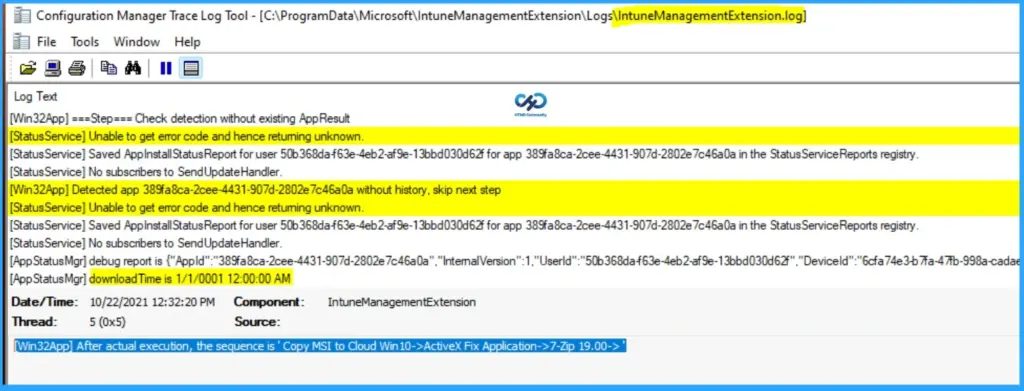
Intune Registry Keys for Troubleshooting User Policies
You can use Windows Registry entries to verify whether user-based policies from Microsoft Intune are applied on a device. One important location is PolicyManager\current\User, which stores details about policies assigned to a specific user. By checking this registry path, you can confirm if the policy has reached the device and identify any issues with user policy deployment, making it a useful step in client-side troubleshooting.
Computer\HKEY_LOCAL_MACHINE\SOFTWARE\Microsoft\PolicyManager\current\S-1-12-1-3186897695-1137825691-1845872004-278613382\microsoft_edge~Policy~microsoft_edge
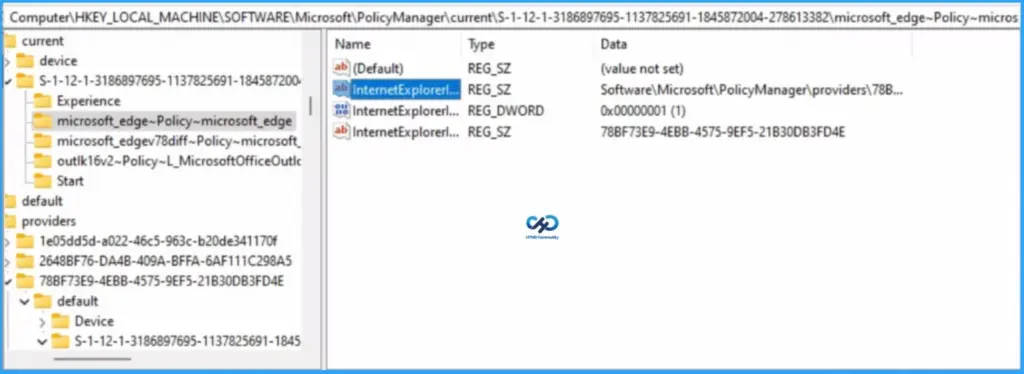
Intune User Policy Registry Path (MDM CSP)
Intune (MDM CSP) User-based policy’s registry path is a bit different from the one that we have for devices. More details are available at Intune User Policy Troubleshooting Tips For Prevent Changing Theme.
NOTE! – Another registry path with string value – Computer\HKEY_LOCAL_MACHINE\SOFTWARE\Microsoft\PolicyManager\Providers\D1E11663-BF69-4DD8-974A-BAD47E6EF433\default\S-1-5-21-2901188661-3025291148-348095268-1124\ADMX_ControlPanelDisplay

Intune Event Logs
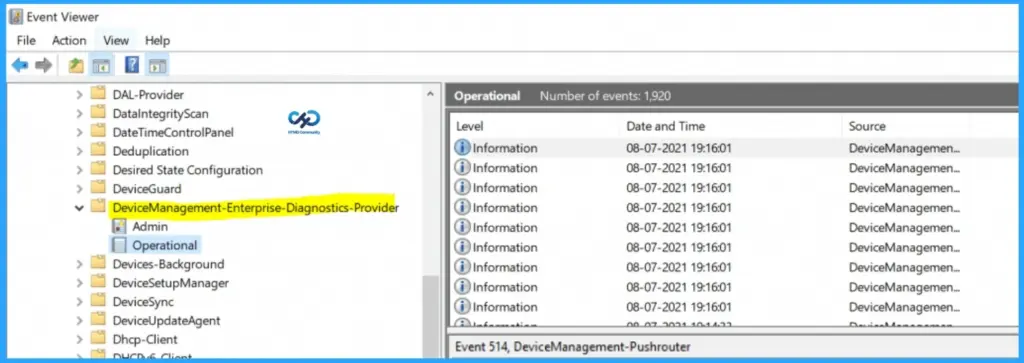
As mentioned above, Intune and Windows MDM-related component logs are available only in event logs. You can collect all the necessary event logs from the MDMDiagReport.cab file as discussed above. Let’s check which are the critical event logs that would be helpful for Intune deployment troubleshooting.
Event logs are the extended type of Intune Logs in Windows. In most of the scenarios, I use the event logs that are highlighted in bold. Those are core MDM event logs and are very helpful in troubleshooting Intune policy deployment issues.
Intune log (event) path is the Applications and Services Logs – Microsoft – Windows – Devicemanagement-Enterprise-Diagnostics-Provider – Admin.
- microsoft-windows-aad-operational
- microsoft-windows-appxdeploymentserver-operational
- microsoft-windows-assignedaccess-admin
- microsoft-windows-assignedaccess-operational
- microsoft-windows-assignedaccessbroker-admin
- microsoft-windows-assignedaccessbroker-operational
- microsoft-windows-crypto-ncrypt-operational
- microsoft-windows-devicemanagement-enterprise-diagnostics-provider-admin (Microsoft-Windows-DeviceManagement-Enterprise-Diagnostics-Provider/Admin)
- microsoft-windows-devicemanagement-enterprise-diagnostics-provider-debug
- microsoft-windows-devicemanagement-enterprise-diagnostics-provider-operational (Microsoft-Windows-DeviceManagement-Enterprise-Diagnostics-Provider/Operational)
- microsoft-windows-moderndeployment-diagnostics-provider-autopilot
- microsoft-windows-moderndeployment-diagnostics-provider-managementservice
- microsoft-windows-provisioning-diagnostics-provider-admin
- microsoft-windows-shell-core-operational
- microsoft-windows-user device registration-admin
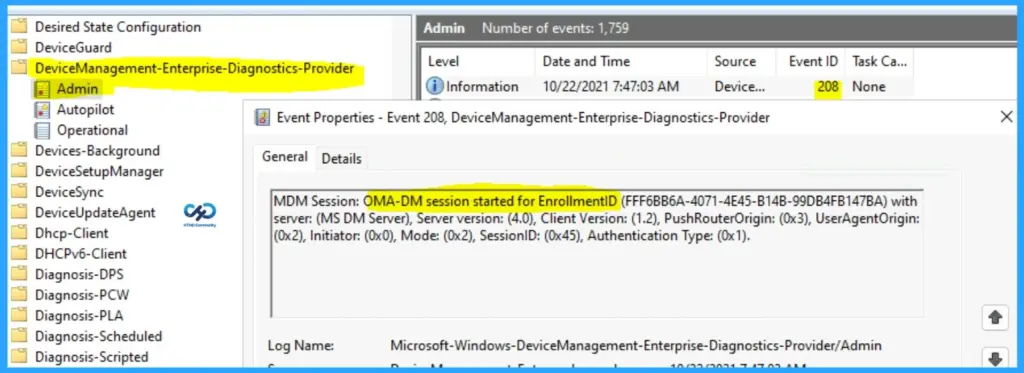
Event ID 208 – Intune Server Sync Initiated
The event ID 208 indicates that the Windows MDM client-initiated policy sync with the MDM server, and in this scenario, it’s Intune. The event log clearly shows that the OMA-DM session started for a particular enrollmentID.
This is the first event ID you should look for when you initiate manual policy sync (Initiate a Manual Intune Policy Sync) from Windows 10 or Windows 11 PCs.
MDM Session: OMA-DM session started for EnrollmentID (FFF6BB6A-4071-4E45-B14B-99DB4FB147BA) with server: (MS DM Server), Server version: (4.0), Client Version: (1.2), PushRouterOrigin: (0x3), UserAgentOrigin: (0x2), Initiator: (0x0), Mode: (0x2), SessionID: (0x45), Authentication Type: (0x1).
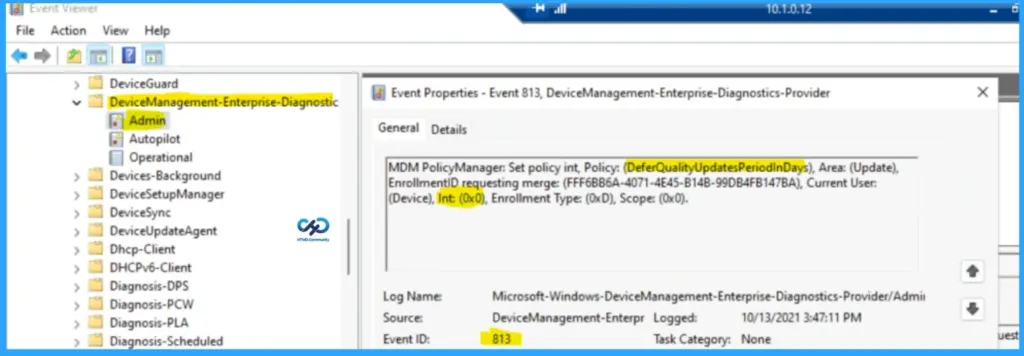
Event ID 813 for Intune Policy Integer
The event ID 813 indicates that the Windows CSP policy is applied on Windows 10 or Windows 11 PC. The Intune policy setting is based on an integer value. The 813 event ID also indicates that this policy setting is successfully applied on the client PCs.
EVENT ID 813 (Integer) – MDM PolicyManager: Set policy int, Policy: (DeferQualityUpdatesPeriodInDays), Area: (Update), EnrollmentID requesting merge: (FFF6BB6A-4071-4E45-B14B-99DB4FB147BA), Current User: (Device), Int: (0x0), Enrollment Type: (0xD), Scope: (0x0).
Intune Event Logs – Event ID 814
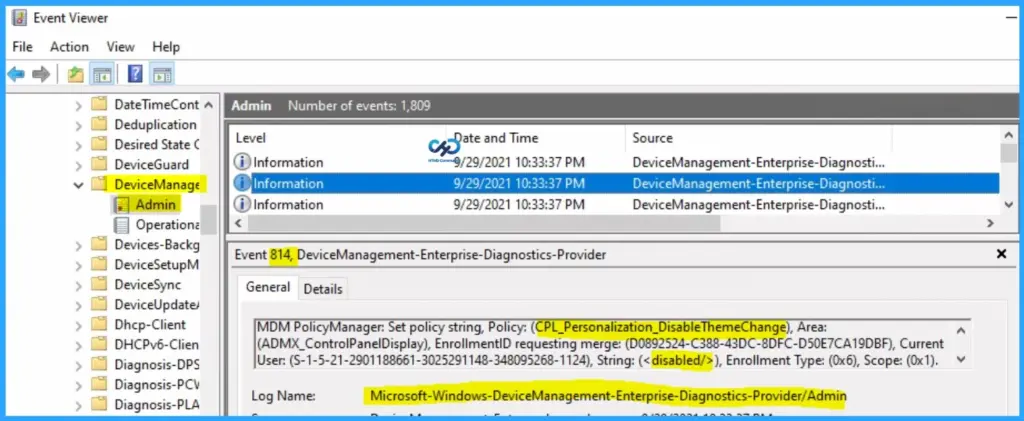
Let’s go through some of the details of important event logs as part of Intune logs post. Event ID 814 means the MDM client received a policy update from the server and successfully applied it on the Windows 10 or Windows 11 client PC.
The event ID 814 signifies the type of Intune policy received as well. This event ID indicates that the policy received is STRING. As you know, there are different types of policy types in Windows CSP. The string is one of those policies.
EVENT ID 814 – MDM PolicyManager: Set policy string, Policy: (CPL_Personalization_DisableThemeChange), Area: (ADMX_ControlPanelDisplay), EnrollmentID requesting merge: (D0892524-8DFC-D50E7CA19DBF), Current User: (S-1-5-21-2901188661-3025291148-348095268-1124), String: (), Enrollment Type: (0x6), Scope: (0x1).
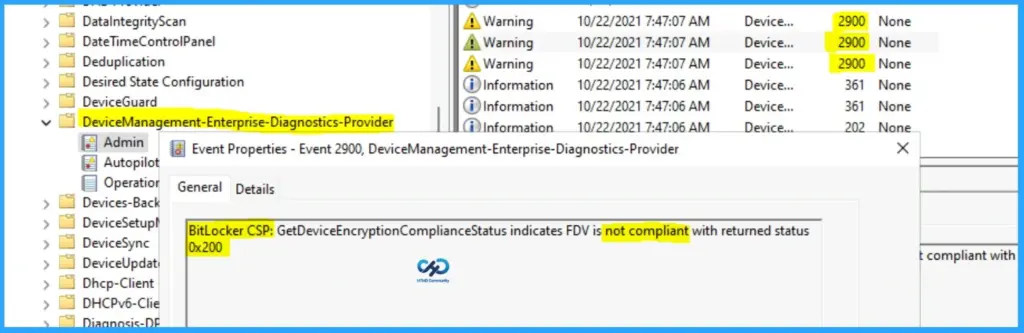
Event ID – 2900 – Warning Not Compliant
The event ID 2900 indicates a warning when the MDM client tries to assess the compliance state of the PC. In the following example, Bitlocker CSP is checking the compliance status on a Cloud PC, and obliviously my lab VMs are not BitLocker enabled.
BitLocker CSP: GetDeviceEncryptionComplianceStatus indicates FDV is not compliant with the returned status 0x200
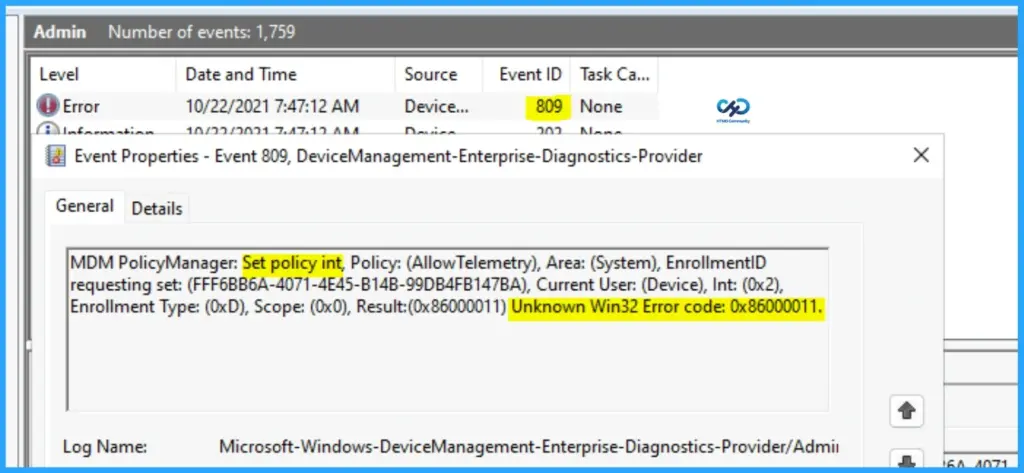
Event ID 809 – Unknown Win32 Error
The event ID 809 indicates an error with Intune policy implementation on Windows 10 or Windows 11 PCs. You will have to evaluate further and troubleshoot the issue. You will need to check the registry entries related to this particular policy and further troubleshoot this issue.
You can search the registry with any of the keywords in the event log below – AllowTelemetry, FFF6BB6A-4071-4E45-B14B-99DB4FB147BA, etc., to understand the issue further. Some further tips are available in Intune User Policy Troubleshooting Tips For Prevent Changing Theme.
MDM PolicyManager: Set policy int, Policy: (AllowTelemetry), Area: (System), EnrollmentID requesting set: (FFF6BB6A-4071-4E45-B14B-99DB4FB147BA), Current User: (Device), Int: (0x2), Enrollment Type: (0xD), Scope: (0x0), Result:(0x86000011) Unknown Win32 Error code: 0x86000011.
The event ID 820 indicates access denied error in the following example. The Windows 10 or Windows 11 MDM client is trying to check the status of RequireRetrieveHealthCertificateOnBoot, and this is not available for Cloud PCs (?) hence it gets the following error (0x80004005) Unspecified error.
Event ID 820 – MDM PolicyManager: Set policy precheck precheck call. Policy: (Security), Area: (RequireRetrieveHealthCertificateOnBoot), int value: (0x1) Result:(0x80004005) Unspecified error.
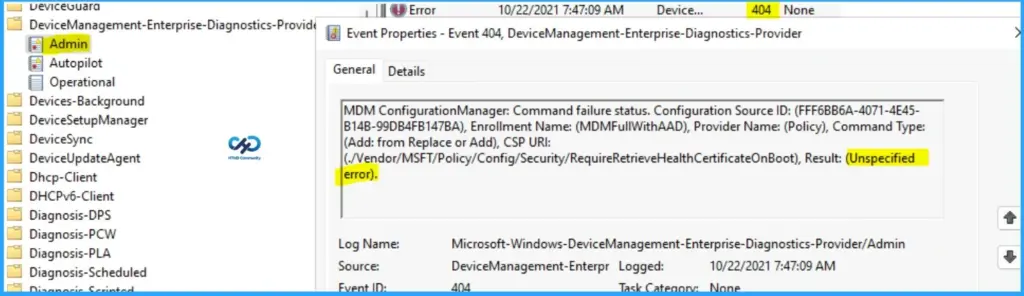
Event ID 404 Unspecified Error
The event ID 404 indicates different types of errors. One of them can be easily ignored, and that is the FakePolicy event log. This is a known bug with Windows 11 and Windows 10.
So you can safely ignore this error The system cannot find the file specified for fake policy OMA-URI.
MDM ConfigurationManager: Command failure status. Configuration Source ID: (FFF6BB6A-4071-4E45-B14B-99DB4FB147BA), Enrollment Name: (MDMFullWithAAD), Provider Name: (Policy), Command Type: (Add: from Replace or Add), CSP URI: (./Device/Vendor/MSFT/Policy/ConfigOperations/ADMXInstall/Receiver/Properties/Policy/FakePolicy/Version), Result: (The system cannot find the file specified.).
The event log 404 error (Unspecified error) for Intune policy assignment related to secure boot and PCHealth etc., could not be applied on most of the Windows 10 and Windows 11 virtual machines.
The RequireRetrieveHealthCertificateOnBoot might not be available for Azure VM/ AVD VMs / Cloud PCs in most of the scenarios. So, you might need to filter out the deployment of these policies to VMs or VDIs.
MDM ConfigurationManager: Command failure status. Configuration Source ID: (FFF6BB6A-4071-4E45-B14B-99DB4FB147BA), Enrollment Name: (MDMFullWithAAD), Provider Name: (Policy), Command Type: (Add: from Replace or Add), CSP URI: (./Vendor/MSFT/Policy/Config/Security/RequireRetrieveHealthCertificateOnBoot), Result: (Unspecified error).
Feedback Hub – Company Portal Log Collection
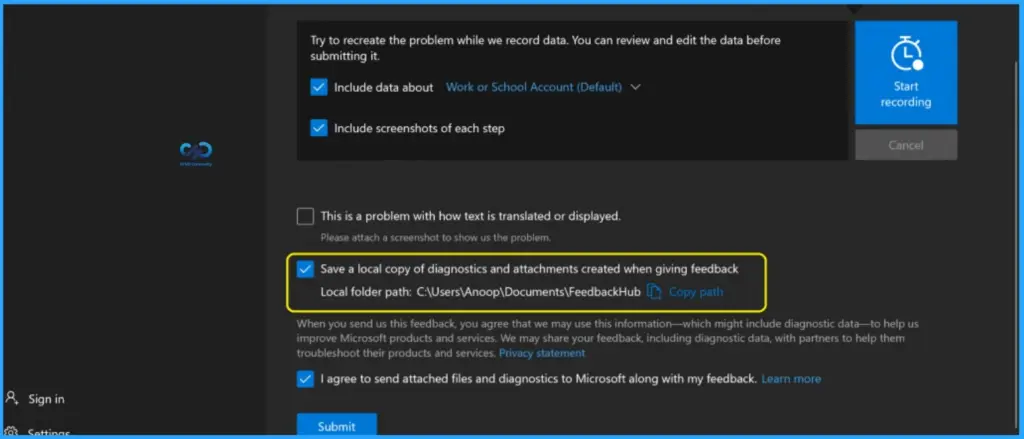
You also can provide feedback or record the issue via feedback hub integration with the Company portal. I have not used this option to give a full experience. However, this seems to collect a lot of data, including screenshots and screen recordings. I’m also not sure whether this type of data collection is allowed from all corporate organization privacy perspectives.
Make sure you save a local copy of the diagnostic and attachments created when giving feedback. The path where it gets stored is C:\Users\Anoop\Documents\FeedbackHub.
Community Tool to Collect Intune Logs
This package is used in conjunction with the Microsoft Support One Data Collector (ODC) tool to gather data from Windows Intune client machines.
The XML file contains data locations and scripts to collect a variety of files, registry keys, and command-line output to assist support engineers in troubleshooting Intune issues.
Resources
- Intune Management Extension Deep Dive – Win32 App Deployment Troubleshooting Help Guide
- How to Start Troubleshooting Intune Issues
Need Further Assistance or Have Technical Questions?
Join the LinkedIn Page and Telegram group to get the latest step-by-step guides and news updates. Join our Meetup Page to participate in User group meetings. Also, join the WhatsApp Community to get the latest news on Microsoft Technologies. We are there on Reddit as well.
Author
Anoop C Nair is a Workplace Technology solution architect with 25+ years of experience. Microsoft Certified Trainer. Microsoft MVP from 2015 onwards for consecutive 11+ years! He is a blogger, Speaker, and Founder of HTMD Community and HTMD Conference. His main focus is on Device Management technologies like Intune, Windows, and Cloud PC. He writes about technologies like Intune, SCCM, Windows, Cloud PC, Entra, and Microsoft Security.
Anoop C Nair is Workplace Technology solution architect with 25+ years of experience in global enterprise organizations such as JP Morgan, Capgemini, etc. He is Microsoft Certified Trainer. Microsoft MVP from 2015 onwards for consecutive 11 years! He also conducts Intune and modern workplace tech training for enterprise organizations. He is Blogger, Speaker, and Founder of HTMD Community and HTMD Conference. His focus is on Device Management technologies such as Intune, Windows, Cloud PC. He writes about technologies like Intune, SCCM, Windows, Cloud PC, Windows, Entra, Microsoft Security.
It will be helpful while learning sir.