

Key Takeaways
- Deploy corporate bookmarks centrally using Microsoft Intune.
- Organize favorites into folders and subfolders using the children setting.
- Managed favorites are not synced to user accounts and cannot be changed by extensions.
- Microsoft Edge automatically completes incomplete URLs during deployment.
Let’s learn how to configure Microsoft Edge Managed Favorites Using Intune for Centralized Bookmark Management. Microsoft Edge Managed Favorites is a policy that allows organizations to centrally deploy and manage bookmarks for users across managed devices. Organizations deploy the Managed Favorites policy to standardize access to business websites and maintain better control over browser configurations. The policy supports custom folder structures, making it easy to organize bookmarks into categories and subfolders.
Table of Contents
Table of Contents
How to Configure Microsoft Edge Managed Favorites Using Intune for Centralized Bookmark Management
This helps ensure a consistent browsing experience while improving productivity and reducing the time users spend searching for essential resources. You can manage your browsing experience more organized while browsing the web by adding favorites sites and keeping track of the websites you frequently visit by adding favorites in Microsoft Edge. If you want to add Favorites manually in Microsoft Edge Chromium, check out the post “Add Favorites in Microsoft Edge Chromium.
You can also visit this post to configure Edge Chromium Home Page Policies Using Intune Administrative Policies.
- Enable Disable MS Edge Browser Saving Passwords to Password Manager option using Intune
- Guide to Enable Efficiency Mode in Microsoft Edge using Intune
- How to Configure Microsoft Edge Favorites using Intune Configuration Profile Step-by-Step Guide
Prerequisites – Edge Favorites
Before you start, it is best to create a custom configuration layout with your favourites. Let’s understand how to configure it. Each favourite contains the key’s name and URL, which hold the favourite’s name and target URL. By default, the folder name is Managed Favourites, but you can change it by adding a dictionary containing the key toplevel_name to the list of favourites with the desired folder name as the value.

Note – Ensure the formatting is correct and added value is in place to ignore issues.
For example, we created a folder called HowToManageDevices favourites and placed three favourites’ names with URLs inside it. One subfolder called HTMD Social Connect also had three favourites.
[
  {
    "toplevel_name": "HowToManageDevices favorites"
  },
  {
    "url": "https://www.anoopcnair.com/",
    "name": "HTMD Blog #1"
  },
  {
    "url": "https://howtomanagedevices.com/",
    "name": "HTMD Blog #2"
  },
  {
    "url": "https://forum.howtomanagedevices.com/",
    "name": "HTMD Forum"
  },
  {
    "name": "HTMD Social Connect",
    "children": [
      {
        "url": "https://www.facebook.com/howtomanagedevicesSCCMIntune",
        "name": "Facebook"
      },
      {
        "url": "https://twitter.com/ManageDevices",
        "name": "Twitter"
      }
     {
        "url": "https://www.anoopcnair.com/subscribe-to-sccm-intune-enterprise-experience-blog/",
        "name": "Subscribe SCCM Intune Enterprise Blog"
      }
    ]
  }
]
How to Configure Edge Chromium Favorites Using Intune
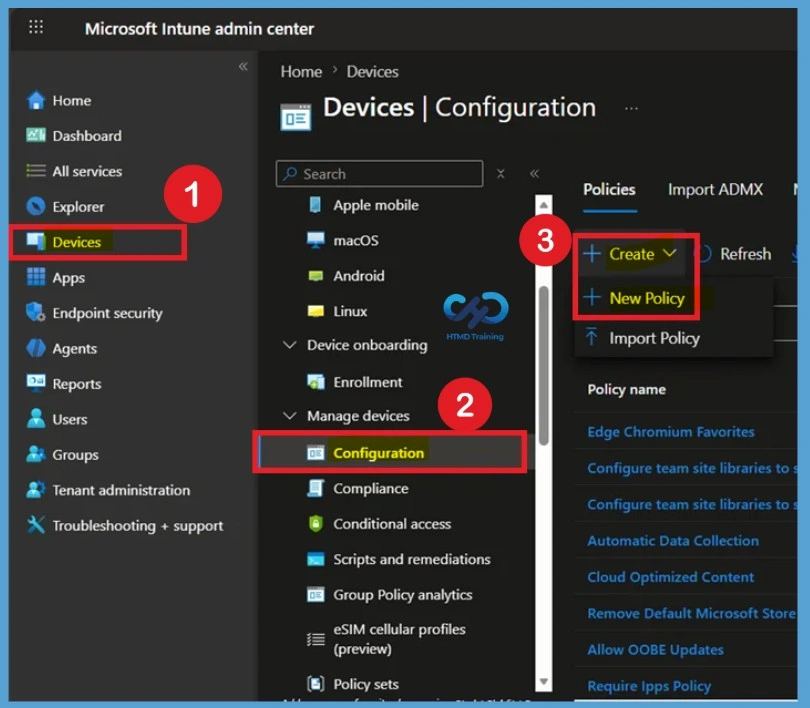
Let’s walk through the process of configuring Microsoft Edge Managed Favorites using Microsoft Intune. Begin by signing in to the Microsoft Intune admin center with an account that has the required administrative permissions. Once signed in, navigate to Devices > Windows > Configuration and select Create > New Policy. For clear view steps are given below
- Sign in to the Microsoft Intune admin center portal.
- Navigate to Devices > Windows > Configuration Profiles >+ Create Profile
- Then select +Create > +New Policy.
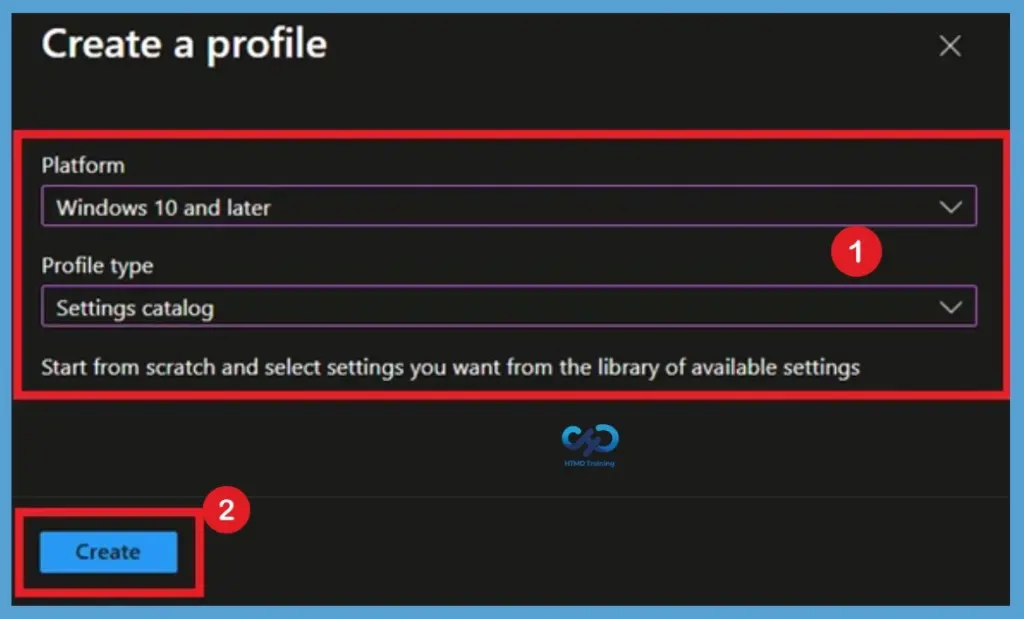
On the Create a profile page, select Windows 10 and later as the platform. For the profile type, choose Settings Catalog, and then click Create to continue.
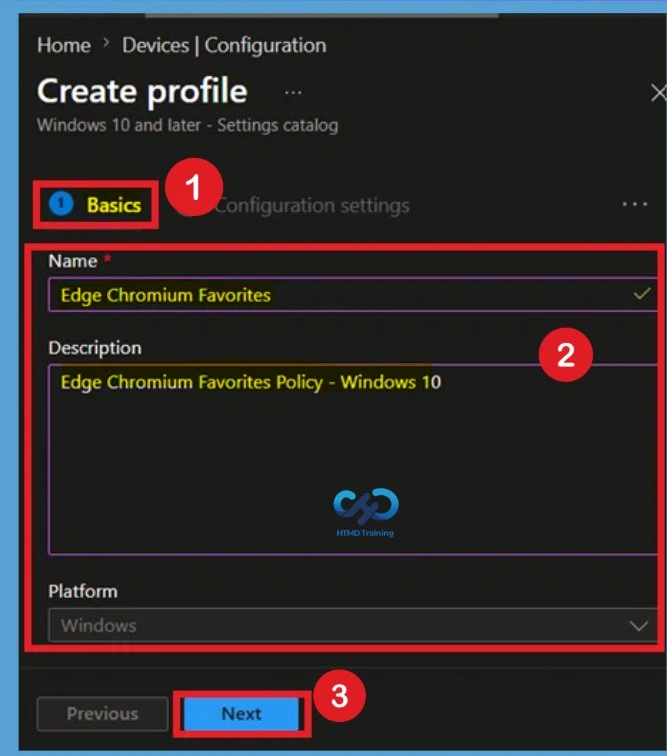
Provide Basic Tab Details
On the Basics page, enter a meaningful Name and Description for the policy, such as Microsoft Edge Managed Favorites Policy. This helps administrators easily identify the policy later. Once completed, click Next to proceed to the configuration settings page.
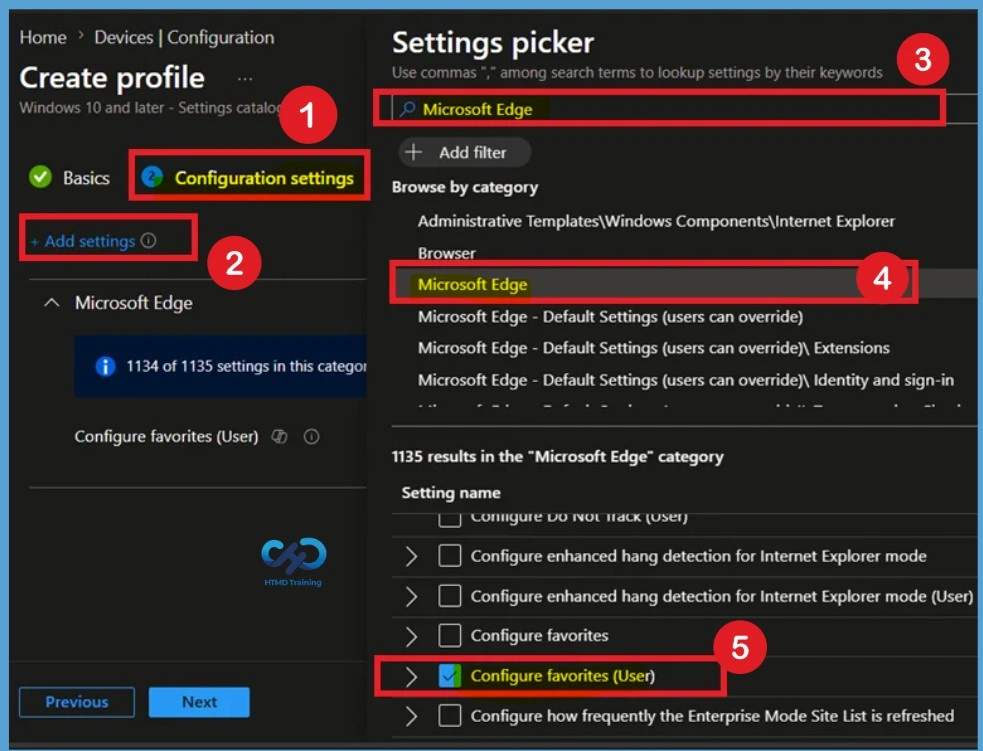
Add the Microsoft Edge Managed Favorites Setting
On the Configuration settings page, click Add settings to open the Settings picker. In the search box, type Microsoft Edge and select the Microsoft Edge category from the search results. Locate and select Configure favorites (User) from the available settings. After selecting the setting, click Next to add it to the policy profile and continue with the configuration.
Defaulted State of a Policy
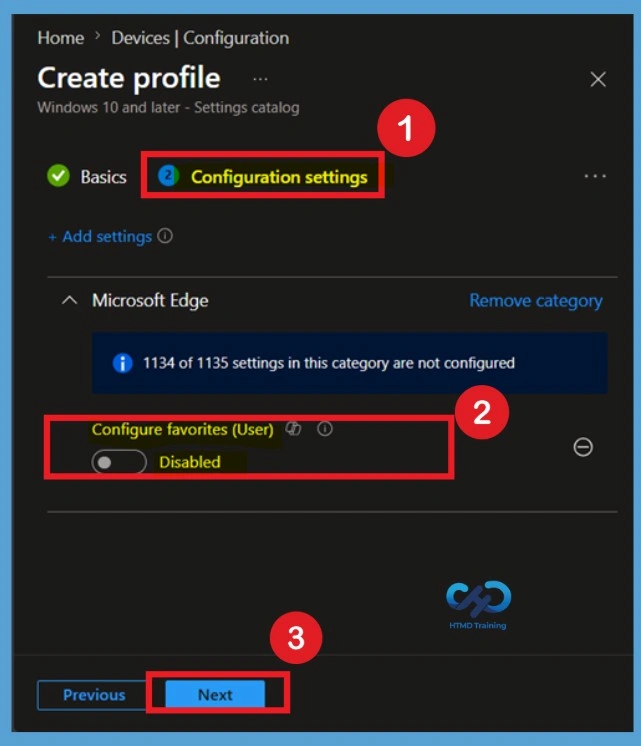
After adding the setting, the Configure favorites (User) policy appears on the Configuration settings page. By default, the setting is disabled. By default the folder name is “Managed favorites” but you can change it by adding to the list of favorites a dictionary containing the key “toplevel_name” with the desired folder name as the value.
- Managed favorites are not synced to the user account and can’t be modified by extensions.
Enable the Configure Favorites Setting
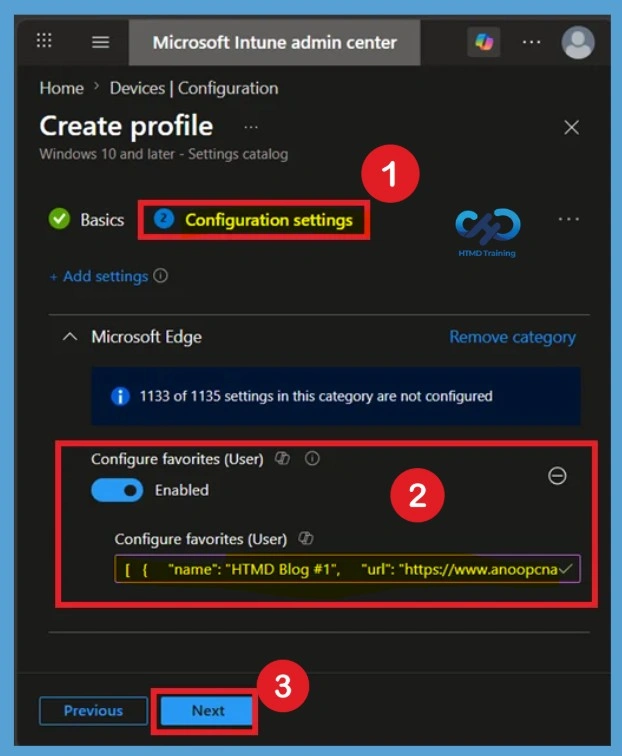
Enable the policy by toggling it to Enabled. This activates the setting and allows you to define the managed favorites that will be deployed to users through Microsoft Edge. Click Next to continue. Here, we are specifying the same settings to the policy which is configured in the above –
[
  {
    "toplevel_name": "HowToManageDevices favorites"
  },
  {
    "url": "https://www.anoopcnair.com/",
    "name": "HTMD Blog #1"
  },
  {
    "url": "https://howtomanagedevices.com/",
    "name": "HTMD Blog #2"
  },
  {
    "url": "https://forum.howtomanagedevices.com/",
    "name": "HTMD Forum"
  },
  {
    "name": "HTMD Social Connect",
    "children": [
      {
        "url": "https://www.facebook.com/howtomanagedevicesSCCMIntune",
        "name": "Facebook"
      },
      {
        "url": "https://twitter.com/ManageDevices",
        "name": "Twitter"
      }
     {
        "url": "https://www.anoopcnair.com/subscribe-to-sccm-intune-enterprise-experience-blog/",
        "name": "Subscribe SCCM Intune Enterprise Blog"
      }
    ]
  }
]
Select the Enabled button and input the configured list of managed favorites. Click OK. The Favorites bar shows URLs to websites you have added to your favourites. This is very useful, allowing users to see all added favourites automatically and browse the site or page with a single click.
Configure Scope Tags
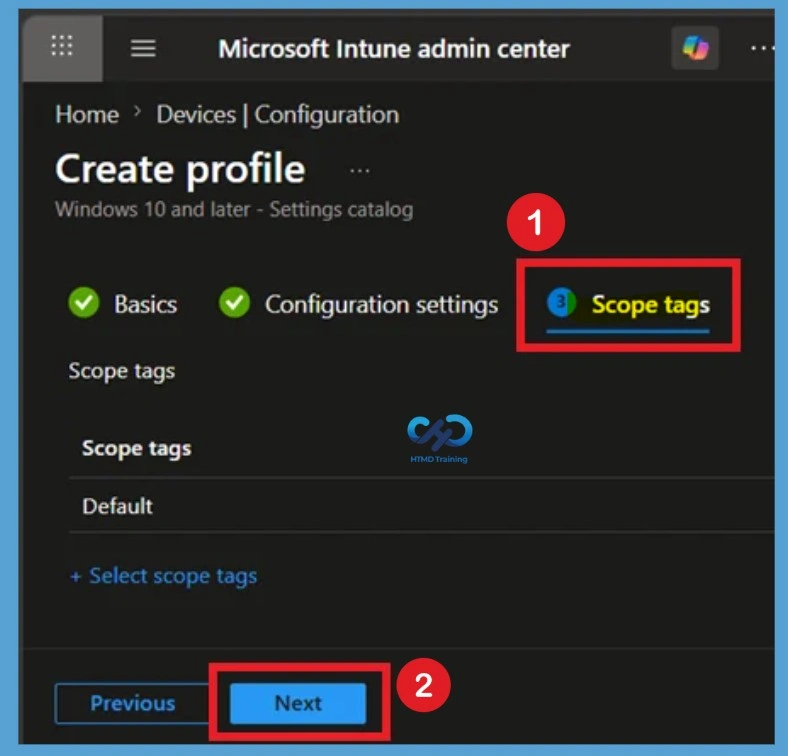
On the Scope tags page, assign scope tags if your organization uses Role-Based Access Control (RBAC) to delegate Intune administration. Scope tags help restrict visibility and management of the policy to specific administrative groups. If scope tags are not required in your environment, you can leave the default configuration unchanged.
- Click Next to continue to the Assignments page, where you will select the target users or devices for the policy deployment.
Assign Policy to the Groups
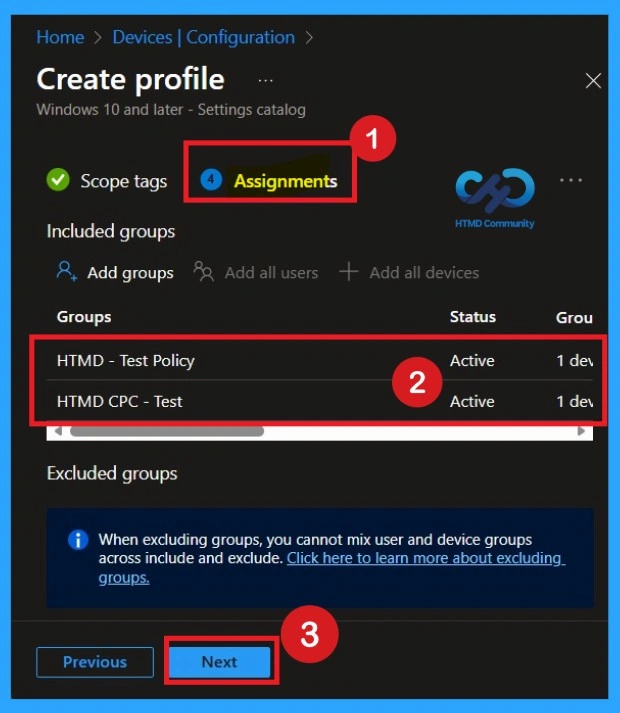
On the Assignments page, select the Microsoft Entra user or device groups that should receive the Microsoft Edge Managed Favorites policy. In this example, the policy is assigned to the HTMD Test Policy Group and HTMD CPC Test Policy. You can add additional groups by selecting Add groups and choosing the required targets based on your deployment requirements.
Review + Create
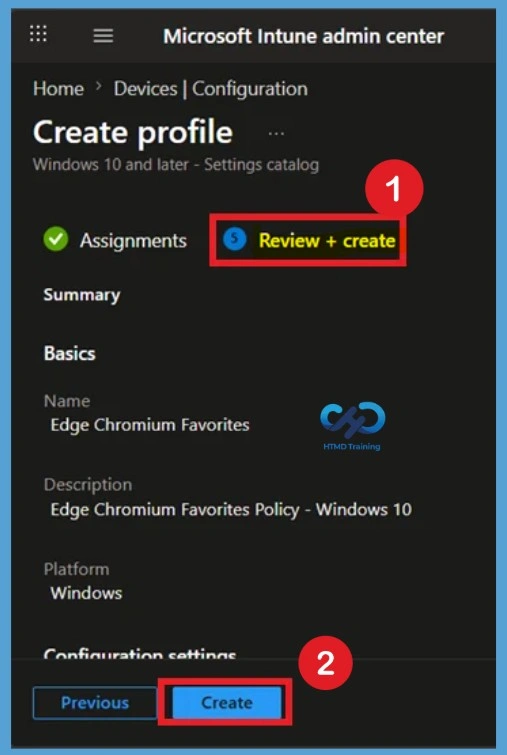
On the Review + Create page, verify all the configured settings, including the policy name, Microsoft Edge Managed Favorites configuration, scope tags, and assigned groups. Review the information carefully to ensure the policy is configured as intended. Once you have confirmed the settings, click Create to deploy the policy. Intune will create the profile and begin distributing the Managed Favorites configuration to the targeted users or devices during the next policy synchronization cycle.
- A notification with a message will appear automatically in the top right-hand corner. Here, you can see that the Profile “Edge Chromium Favorites” was created successfully. Your groups will receive your profile settings when the devices check in with the Intune service.
Monitoring Status
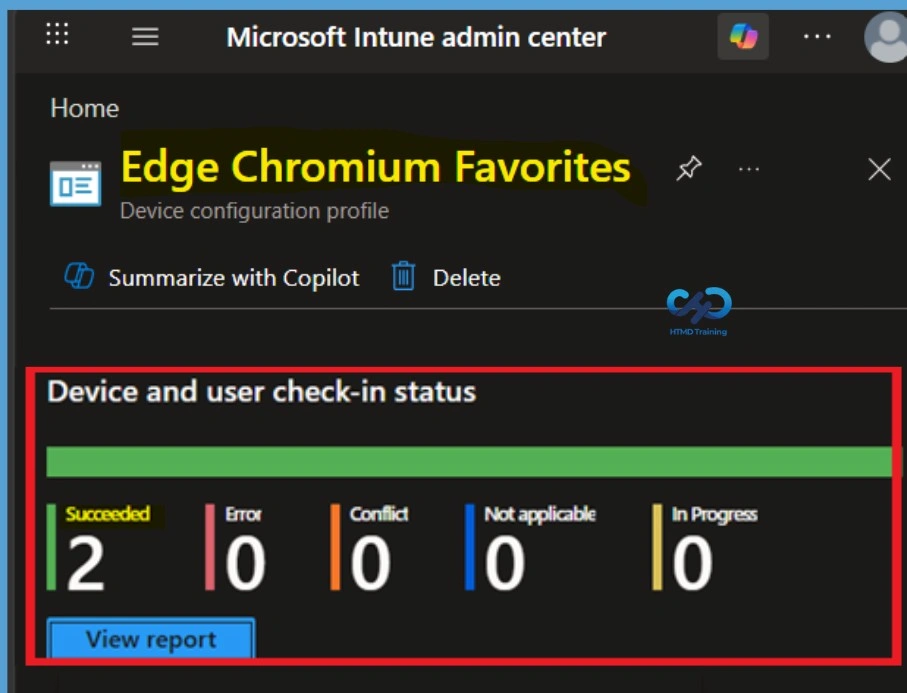
After creating the policy, you can monitor its deployment status from the Microsoft Intune admin center. Navigate to Devices > Configuration > Policies, select the Microsoft Edge Managed Favorites policy, and review the monitoring information. The policy overview provides deployment statistics, including the number of devices or users in Succeeded, Pending, Error, and Conflict states.
The monitoring page helps administrators verify that the policy has been successfully applied and identify any deployment issues. If a device reports an error or conflict, you can select the affected device or user to view additional details and troubleshoot the issue. Here this policy succeeded in 2 Assigned Groups.
End-User Experience – Verify Policy Deployment Using Event Viewer
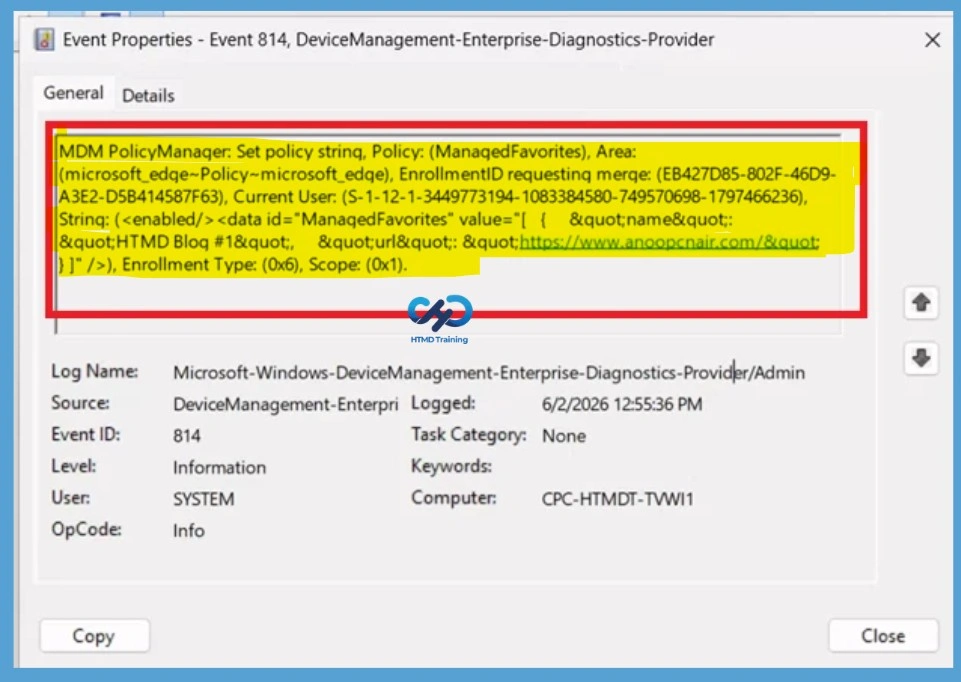
To verify that the Microsoft Edge Managed Favorites policy has been successfully applied on a client device, open Event Viewer and navigate to Applications and Services Logs > Microsoft > Windows > DeviceManagement-Enterprise-Diagnostics-Provider > Admin. This log contains Intune policy processing events and can help confirm whether the policy was received and applied successfully. Look for recent events related to policy synchronization and configuration processing.
- A successful event indicates that the Managed Favorites policy was processed by the device, while error events can provide additional details for troubleshooting deployment issues.
| Policy Information |
|---|
| MDM PolicyManager: Set policy strinq, Policy: (ManagedFavorites), Area: (microsoft_edqe~Policy~microsoft_edqe), EnrollmentID requestinq merqe: (EB427D85-802F-46D9- A3E2-D5B414587F63), Current User: (S-1-12-1-3449773194-1083384580-749570698-1797466236), Strinq: ( ), Enrollment Type: (0x6), Scope: (0x1). |
Delete the Microsoft Edge Managed Favorites Policy
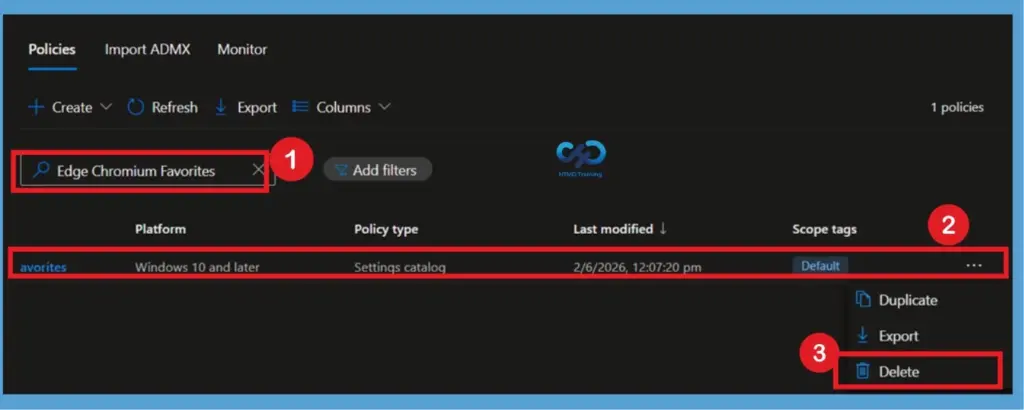
If you no longer need the Microsoft Edge Managed Favorites policy, you can remove it from Intune by navigating to Devices > Windows > Configuration, and then selecting the policy you want to delete. Review the policy details to ensure you have selected the correct profile. On the policy overview page, click Delete and confirm the action when prompted. Once deleted, Intune stops assigning the policy to targeted users and devices. During the next policy synchronization cycle, the managed favorites configuration is removed from devices where the policy was previously applied.
Remove an Assignment Group from the Policy
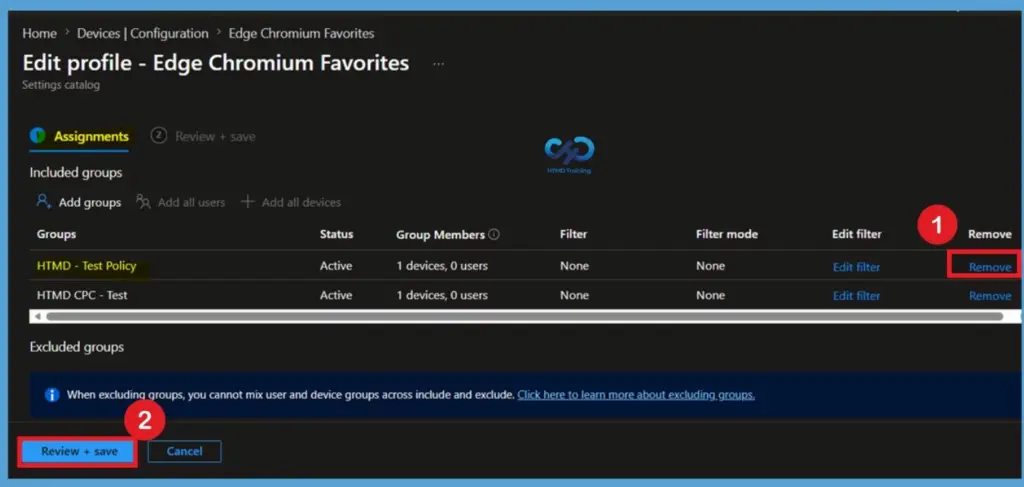
If you want to stop deploying the Microsoft Edge Managed Favorites policy to a specific group without deleting the policy, open the Microsoft Intune admin center and navigate to Devices > Windows > Configuration. Select the policy and open the Properties page. Under Assignments, click Edit to modify the assigned groups. Locate the group you want to remove under Included Groups, select the group, and choose Remove. After removing the group, click Review + Save to apply the changes.
Resources
- Configure Microsoft Edge policy settings with Microsoft Intune
- Disable Internet Explorer Using Intune | Endpoint Manager | Easy Steps
Need Further Assistance or Have Technical Questions?
Join the LinkedIn Page and Telegram group to get the latest step-by-step guides and news updates. Join our Meetup Page to participate in User group meetings. Also, join the WhatsApp Community and the WhatsApp channel to get the latest news on Microsoft Technologies. We are there on Reddit as well
Author
About Author – Jitesh, Microsoft MVP, has over six years of working experience in the IT Industry. He writes and shares his experiences related to Microsoft device management technologies and IT Infrastructure management. His primary focus is Windows 10/11 Deployment solution with Configuration Manager, Microsoft Deployment Toolkit (MDT), and Microsoft Intune.
Hi this works great, but when I add another config policy for a second folder of links, the original folder is removed and the new one doesnt show either… is there a limit of how many you can apply?
Hello Neil, Good to hear! How exactly are you trying to make the folder structure? Could you please add more details that will help us to suggest you further! You can also reach out to us via HTMDForum.com for any help!
This seems to corrupt all the time and often doesnt work.
I have a problem with assigning multiple sets of favorites as well. If i want a group of people to have 2 different sets of favorites, the profile gets status CONFLICT and none of the favorite folders show.
I have explained about Intune Policy Conflict in this post https://www.anoopcnair.com/cloud-pc-rdp-properties-using-intune-policy/
I’ve seen that happen to me as well. It’s as if intune doesn’t like multiple Configuration Profiles doing similar configurations. I’d suggest you’d need to create just 1 containing what you want and assign it to just 1 group.
Does anyone know how to add a link directly to the Favorites Bar instead of adding it to a Top-Level Folder? I’ll need the XML code.
Thanks,
Tek
The problem I’m having is updating a favourites policy. Intially I added the policy to a device, made a change.to the favourites and they never would update. I deleted the policy altogether, and the policy was still active on the endpoint.
Am going to experiment with adding a user policy version, which would make more sense for my scenario, but would like to get rid of the settings configured from the original device based policy
Um… Just for the record.
It’s much easier to export the Managed Favorites directly in the XML notation from Edge than to mess around with that wacky xml-notation in a text- /xml-editor.
It can be done as follows:
1.) Enable “Favorites configuration export for administrators”:
edge://flags/#edge-favorites-admin-export
2.) Build your Folder- / Favorite-Structure:
edge://favorites/
3.) Click on the Three dots and choose “Export favorites configuration” (You only see that option when “Admin export” is Enabled)
4.) Choose a Name, copy the Favorites XML directly to the clipboard and paste it afterwards to your GPO / Intune Configuration Profile, whatever…
Postscript / Reference:
learn.microsoft.com/en-us/deployedge/edge-learnmore-provision-favorites
Same as Mark – https://www.anoopcnair.com/configure-edge-chromium-favorites-using-intune/#comment-561425
Once deployed, no subsequent changes seem to work – is there a fix for this?
I cannot get it to show more than one folder
Trying to create…
School Favourites
GOOGLE
(Sub Folder) Student Favourites
URLS
(Sub Folder) Staff Favourites
URLS
Seems tricky for something that you would think should be a breeze. Any pointers would be great!
Oh and if you wonder about the way I spell “Favourites” it’s because i’m British :).