
Key Takeaways
- Locks the Start screen from user customization, preventing users from making changes to the configured Start experience.
- Prevents layout modifications such as rearranging supported Start items, resizing tiles, and pinning or unpinning supported items.
- Maintains a consistent Start experience across managed Windows devices by reducing user-driven layout changes.
- Provides centralized control through Intune Settings Catalog, allowing administrators to manage the Start screen restriction without relying on individual device configuration
In this post, Prevent Start Screen Customization to Maintain a Consistent Windows Experience using Intune. You will see how you can prevent users from Start Screen Customization using Intune Policy. This policy setting allows you to prevent users from changing their Start screen layout. You can also organize, group, and name categories of apps to how you like on the Start screen. Start layout policy can be used to pin apps to the taskbar based on an XML File you provide. Users can change the order of pinned apps, unpin apps, and pin more apps to the taskbar.
Table of Contents
Table of Contents
Prevent Start Screen Customization to Maintain a Consistent Windows Experience using Intune
You can customize what you see on the Start menu and taskbar, you can pin Store apps, programs, folders, drives, files, and websites to Start accessing what you use most quickly. When a full Start screen layout is imported with Group Policy or MDM, users can’t pin, unpin, or uninstall apps from the Start screen. Users can see and open all apps in all apps view but can’t pin any apps to the Start screen.
Microsoft recommends setting catalog profiles to create and manage security policies for all Intune managed Windows devices. The Intune Settings Catalog is the best place for all the policy settings in Intune.
- Disable Or Enable Windows 11 Context Menu How To Guide
- Remove Search Link From Start Menu Using Intune
- Intune Policy Device Assignment Status Report
- Intune Policy Per Setting Status Report
Prevent Users from Start Screen Customization using Intune Policy
Let’s create an Intune Cloud Policy to prevent users from Start Screen Customization using Intune. You can use Intune cloud policy or Group Policy ADMX template policy setting to prevent users from changing their Start screen layout.

- Sign in to the Microsoft Intune Admin portal
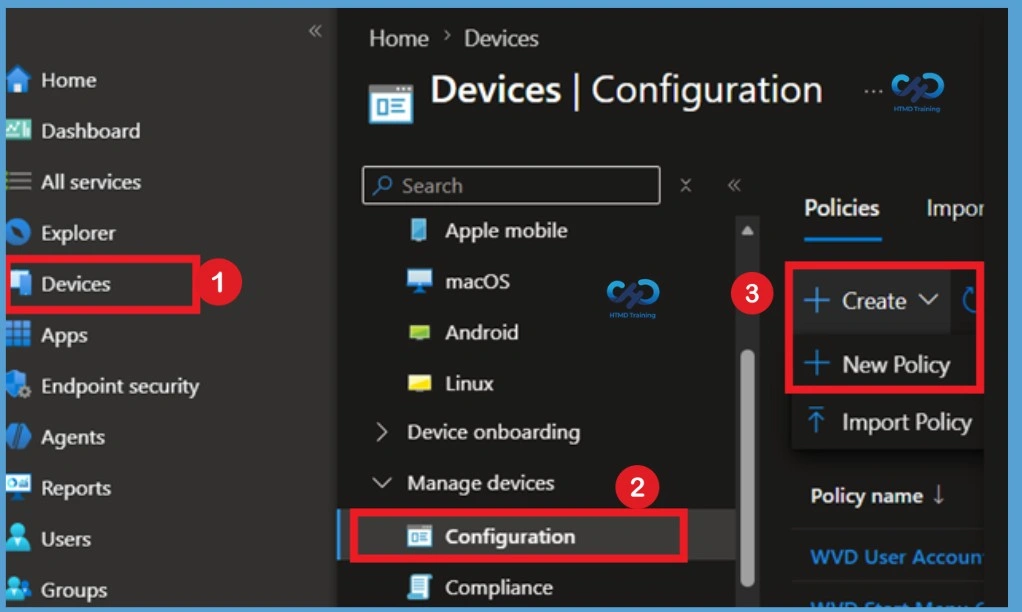
- Select Devices > Windows > Configuration profiles > Create profile.
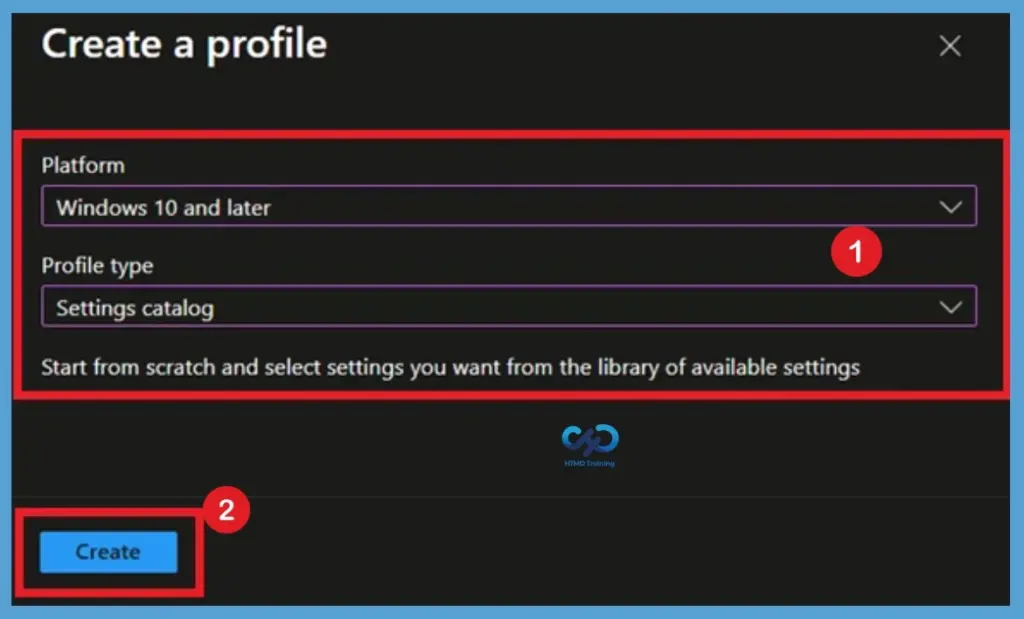
In Create Profile, Select Platform, Windows 10, and later and Profile, Select Profile Type as Settings catalog. Click on Create button.
Basics Tab
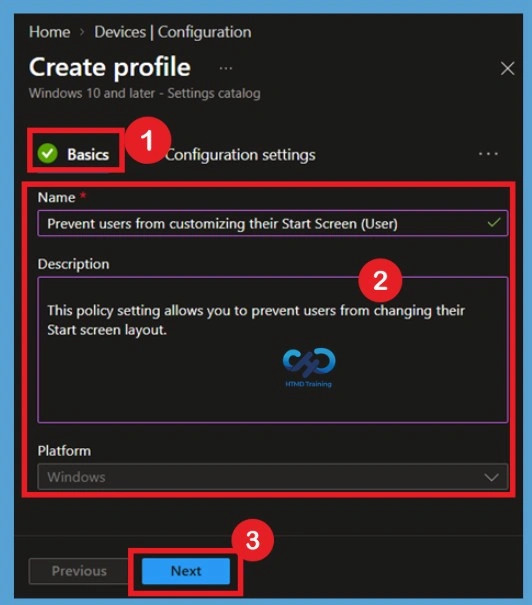
On the Basics page, provide a meaningful name for the configuration profile, such as Prevent Users from Start Screen Customization. A name makes it easier for administrators to identify the purpose of the policy when multiple Windows configuration profiles are available in the Intune admin center. You can also enter an optional description explaining why the policy is being deployed and which users or devices it is intended for. After reviewing the profile information, select Next to proceed to the Configuration settings page.
- Name– Prevent users from customizing their Start Screen (User)
- Description– This policy setting allows you to prevent users from changing their Start screen layout.
Configuration Settings Prevent Users from Customizing their Start Screen
In Configuration settings, click Add settings to browse or search the catalog for the settings you want to configure. On the Settings Picker windows, Select Administrative\Start Menu and Taskbar to see all the settings in this category. Select Prevent users from customizing their Start Screen (User) below. After adding your settings, click the cross mark at the right-hand corner to close the settings picker.
Note! In policy, use the search box to find specific settings. You can search by category or a keyword, such as Start Screen or policy name. It will display the related settings available.
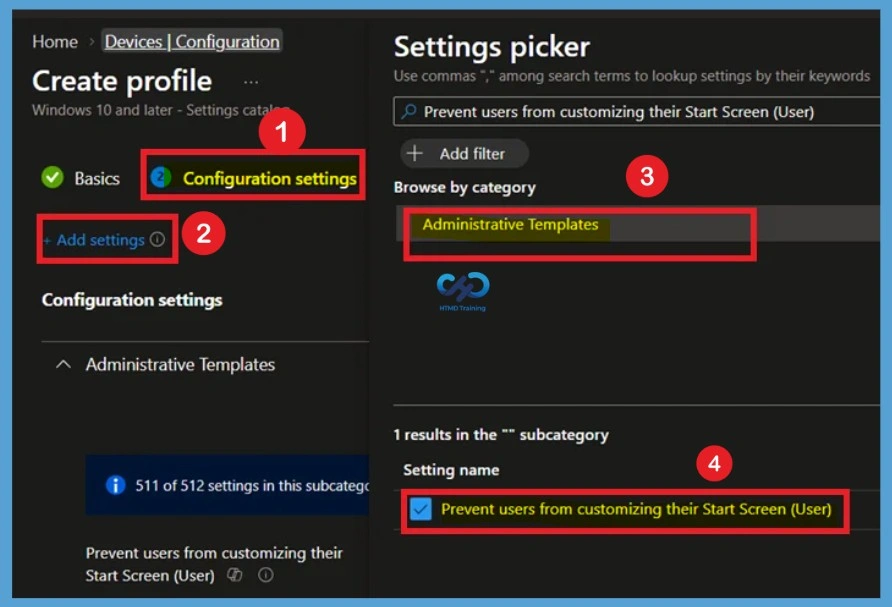
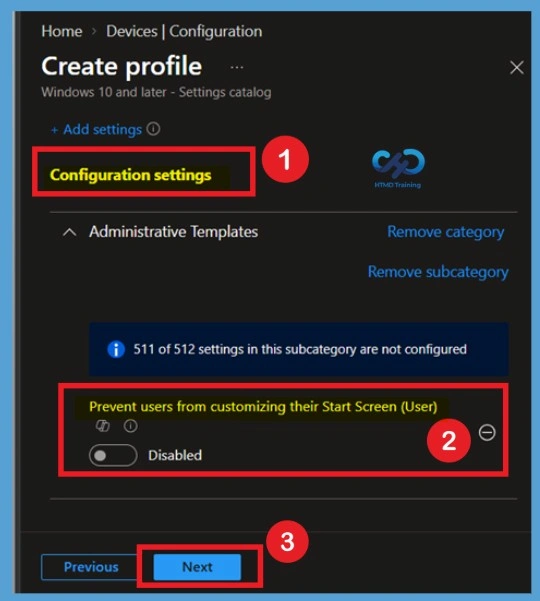
Defaulted State of the Policy
When the Prevent users from customizing their Start Screen (User) policy is not enabled, users are allowed to make the supported Start screen customizations. This is the default behavior when the policy is not configured, allowing users to personalize the Start experience according to their needs.
Keeping the policy disabled or unconfigured is appropriate when the organization does not need to enforce a standardized Start experience. Administrators should therefore enable the policy only when restricting Start screen customization is an intentional organizational requirement.
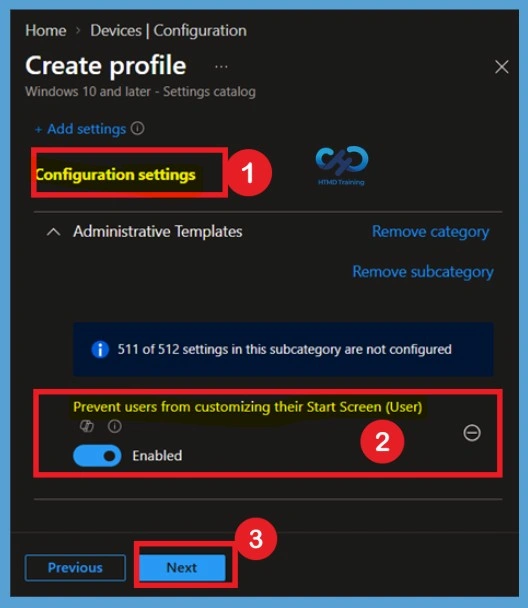
Enable the Policy
Here you need to specify the settings either set to Enabled or Disabled based on your requirements. I am setting up enabled to lock start screen modifications. This policy setting allows you to prevent users from changing their Start screen layout. If you enable this setting, you will prevent a user from selecting an app, resizing a tile, pinning/unpinning a tile or a secondary tile, entering the customize mode and rearranging tiles within Start and Apps.
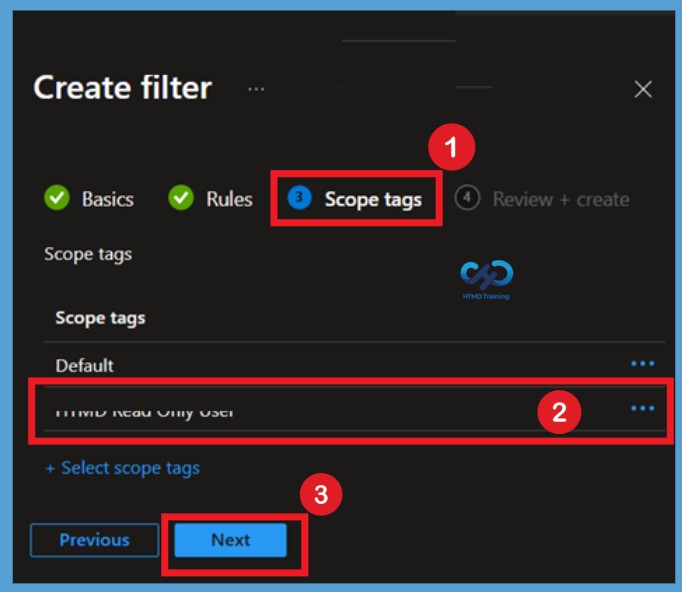
Scope Tag Tab
On the Scope tags page, configure the appropriate scope tags for the policy if your organization uses them. Scope tags determine which Intune administrators can view and manage the policy. If scope tags are not required, keep the default configuration and select Next.
Assignments
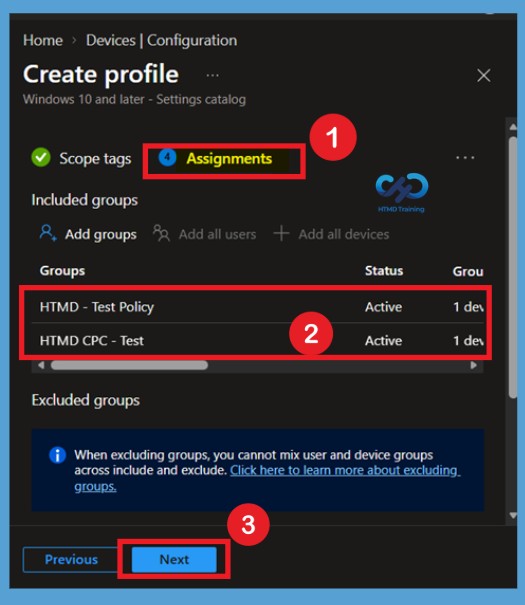
On the Assignments page, select Add groups under Included groups and choose the Microsoft Entra groups containing the users who should receive the Start screen restriction. Because this is a user policy, make sure the assignment targets the appropriate user groups. Before continuing, review the included and excluded groups to ensure that the policy will reach only the intended users. Once the assignments are confirmed, select Next.
Review + Create
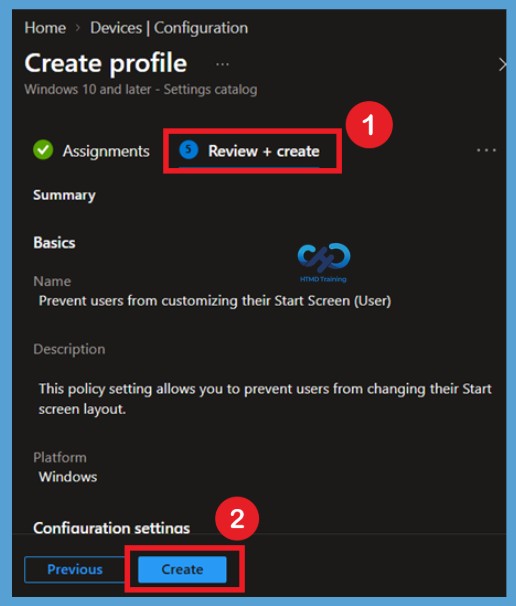
In Review + create, review your settings. When you select Create, your changes are saved, and the profile is assigned. A notification will appear automatically in the top right-hand corner with a message. You can see that Policy “Prevent Users from Customizing Start Screen” created successfully. The policy is also shown in the Configuration profiles list. Your groups will receive your profile settings when the devices check in with the Intune service the policy applies to the device.
Intune Reporting
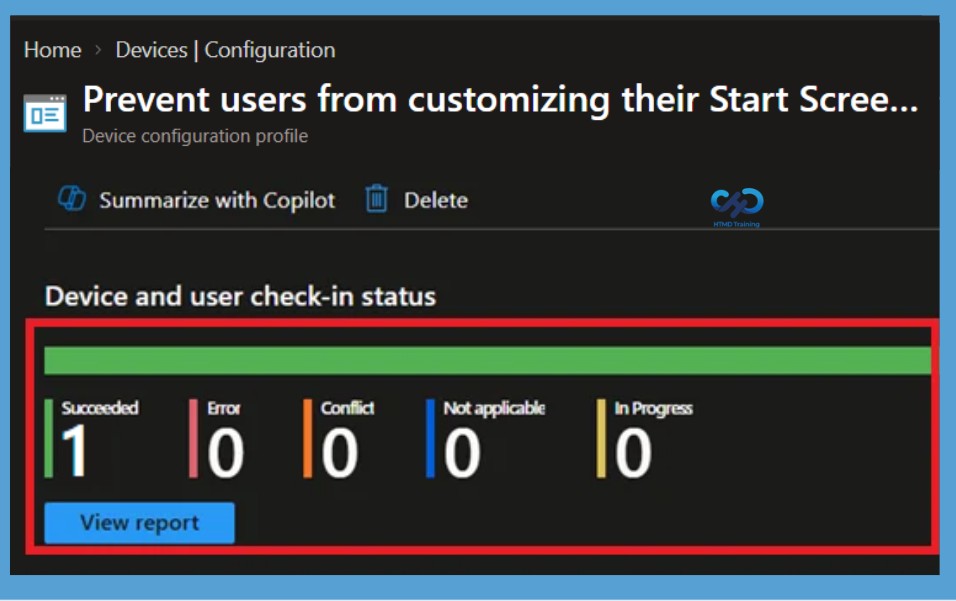
You can check Intune settings catalog profile report from Intune Portal, which provides an overall view of device configuration policies and deployment status. To monitor the policy assignment, from the list of Configuration Profiles, select the policy, and here you can check the device and user check-in status. If you click View Report, additional details are displayed.
Intune MDM Event Log
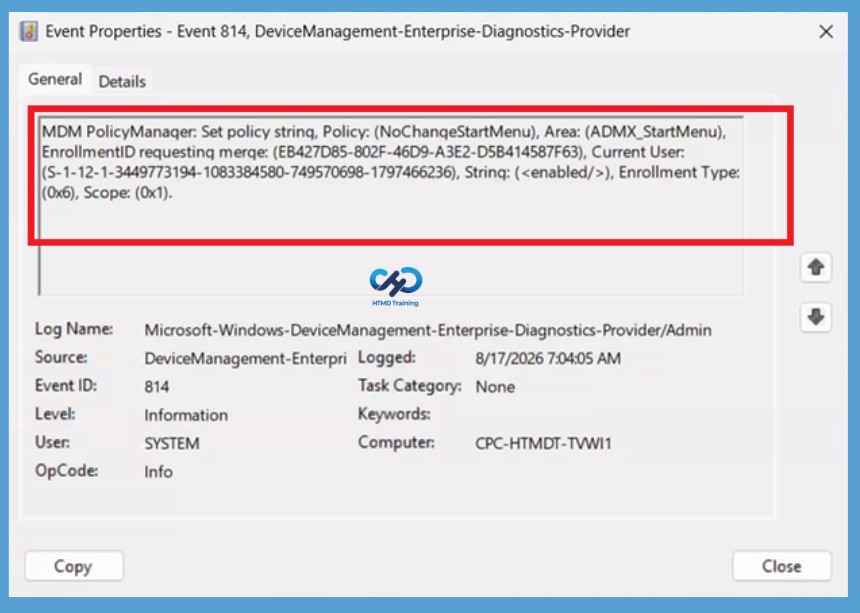
The Intune event ID 814 indicates that a string policy is applied to Windows 11 devices. You can also see the exact value of the policy used on those devices. This is a user-based policy; hence you would be able to see the Current User and user’s SID details. Here you can check the Event log path to confirm this – Applications and Services Logs > Microsoft > Windows > Devicemanagement-Enterprise-Diagnostics-Provider > Admin.
MDM PolicyManager: Set policy string, Policy: (NoChangeStartMenu), Area: (ADMX_StartMenu), EnrollmentID requesting merge: (AA8AFEC1-DFE0-4917-B1A0-5024C7533127), Current User: (S-1-12-1-3186897695-1137825691-1845872004-278613382), String: (), Enrollment Type: (0x6), Scope: (0x1).
End Users Experience
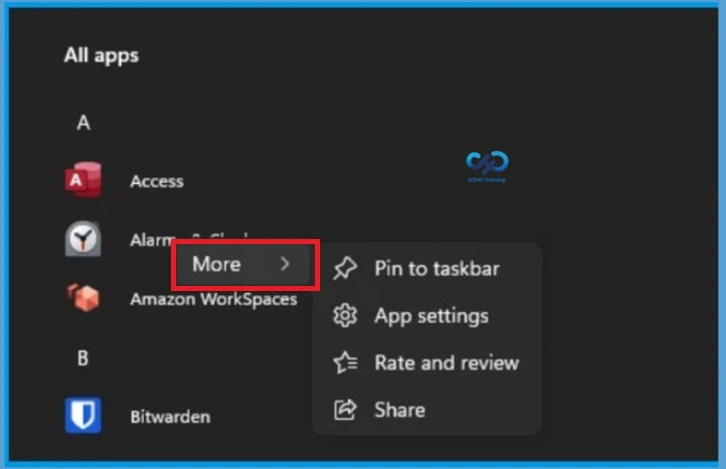
Once the policy is applied, when you log in to the system and click on Start Menu or under All Apps, you will not allow a user to select an app, resize a tile, pin/unpin a tile or a secondary tile, enter the customize mode and rearrange tiles within Start and Apps.
Delete the Policy Permanently
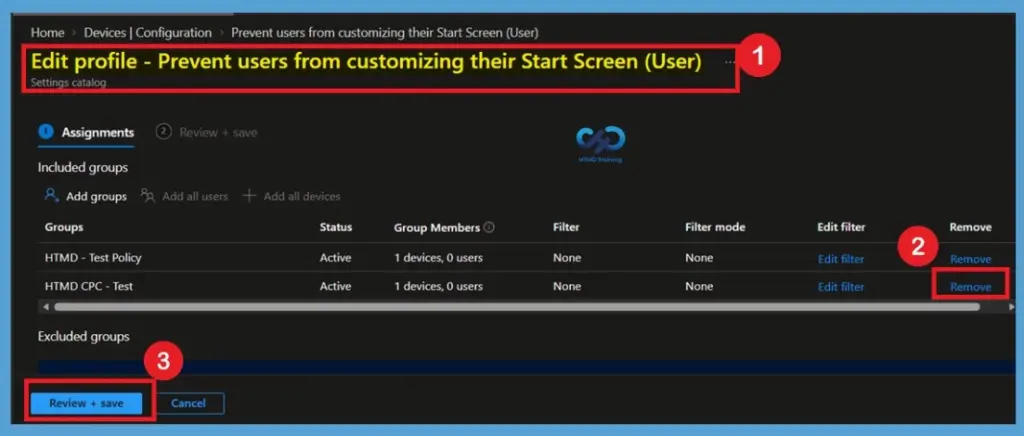
Navigate to Devices > Windows > Configuration profiles in the Microsoft Intune admin center and select the Prevent Users from Start Screen Customization Policy. Open Properties, locate the Assignments section, and select Edit. Under the assigned groups If the Start screen restriction should no longer apply to a particular group, open the configuration profile and navigate to Assignments. Under Included groups, remove the group that should no longer receive the policy, and save the updated assignment.
For detailed information, you can refer to our previous post – Learn How to Delete or Remove App Assignment from Intune using by Step-by-Step Guide.
Remove Assigned Groups
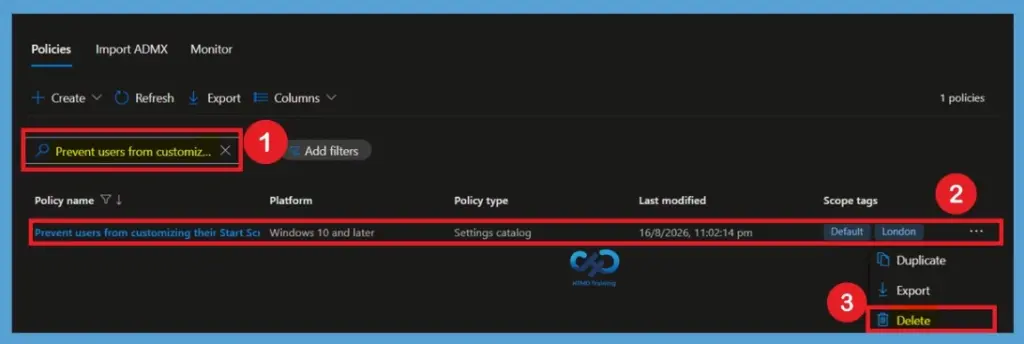
If the Start screen customization restriction is no longer required anywhere in the organization, open the configuration profile from Devices > Windows > Configuration profiles. Before deleting it, remove or review all assignments and confirm that the policy is not still required by any production users. Once you are certain that the profile is no longer required, select Delete and confirm the deletion. Permanently deleting the profile removes the configuration profile from Intune management.
For detailed information, you can refer to our previous post – How to Delete Allow Clipboard History Policy in Intune Step by Step Guide.
Need Further Assistance or Have Technical Questions?
Join the LinkedIn Page and Telegram group to get the latest step-by-step guides and news updates. Join our Meetup Page to participate in User group meetings. Also, join the WhatsApp Community and the Whatsapp channel to get the latest news on Microsoft Technologies. We are there on Reddit as well.
Author
About Author – Jitesh, Microsoft MVP, has over six years of working experience in the IT Industry. He writes and shares his experiences related to Microsoft device management technologies and IT Infrastructure management. His primary focus is Windows 10/11 Deployment solution with Configuration Manager, Microsoft Deployment Toolkit (MDT), and Microsoft Intune.