
Key Takeaways
- Configure compliance settings including Device Health, Password, Encryption, Firewall, Device Security, and Gatekeeper.
- Enforce minimum macOS versions and security requirements before allowing access to company resources.
- Ensures devices meet organizational security standards before accessing corporate resources.
- Deploy compliance policies to selected Microsoft Entra user or device groups.
In this post, let’s Secure macOS Devices with Compliance Policy in Microsoft Intune. We will see a quick overview of creating an Intune compliance policy for Apple macOS devices. Also, we will discuss the options of creating a custom Intune compliance policy. Our blog post discussed that Intune mobile device management (MDM) solution supports macOS. Intune compliance policies are the first step of the protection before providing access to corporate applications, along with Conditional Access policies.
Table of Contents
Table of Contents
Secure macOS Devices with Compliance Policy in Microsoft Intune
The organization creates and pushes compliance policies in Intune portal to prevent access restrictions in case the device is not compliant, which helps an organization to protect data and organization resources usage. The Compliance Policy can be created in different categories, such as: Compliance policy configuration is an important design decision while managing devices with Intune.
We can set min/ max OS version, password policy (Password length, expiry duration), and many more through these compliance settings. Also, please ensure you have the required Administrator access to create device compliance policies in the Intune portal and push them to specific or all user groups.
- Should you upgrade to Mac OS Ventura v13 managed using Intune
- New System Settings in macOS Ventura v13 and Intune Software Update Configs
- Enroll macOS in Intune with Step by Step Guide
- MAC Device Management with SCCM Vs Intune
Create macOS Compliance Policy in Intune
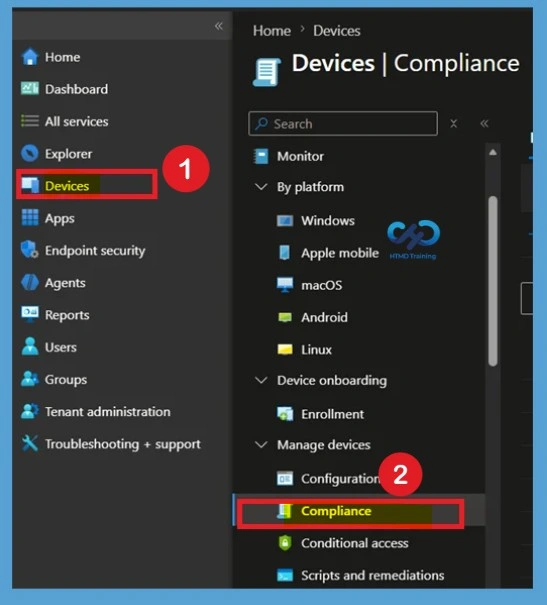
Follow the steps mentioned below to create compliance policies in Intune portal for macOS devices; also, steps can be iterated the same way for other platforms such as Windows, iPadOS/iOS, macOS, Android. First Sign in to the Microsoft Intune admin center and on the left sidebar, select Devices > under the Policy category, select Compliance Policies.

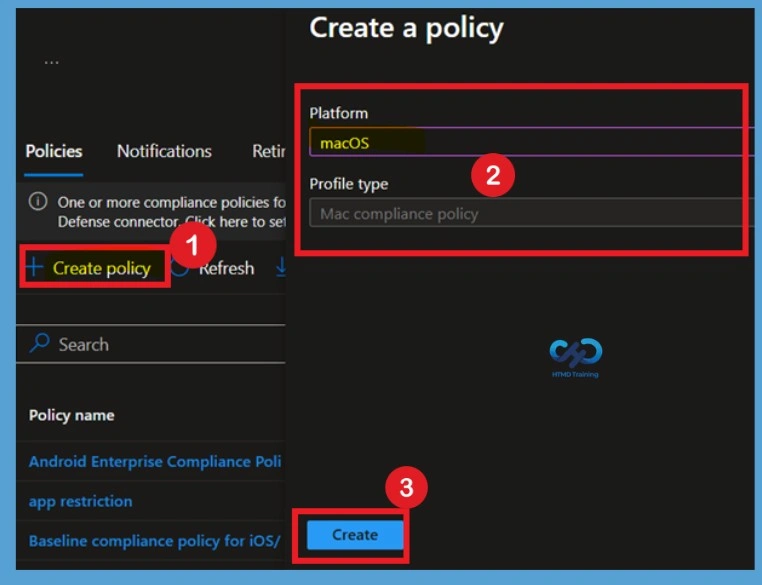
on the Right sidebar you can see that +Create Policy option and click on it. Then you have to deal with the create a Policy option there select Platform as macOS and Profile type as Mac compliance policy. Then click on the Create option to Continue the further steps.
- Platform – macOS
- Profile type – Mac compliance policy, click on Create.
Configure the Policy Basics
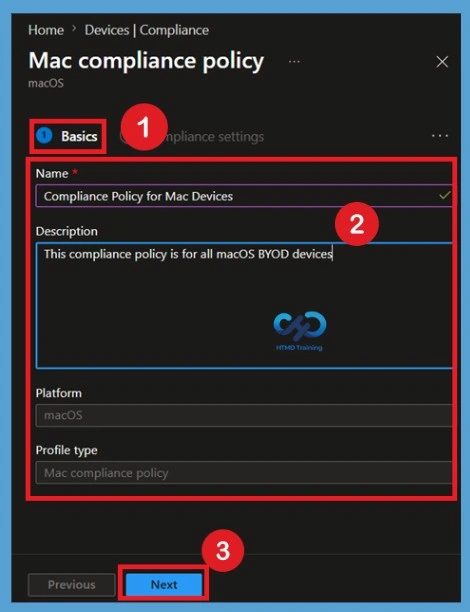
Provide a Policy Name that clearly identifies the purpose of the compliance policy. Optionally, add a description so administrators can easily understand the policy’s objective when reviewing policies later. Using clear naming conventions makes policy management easier, especially in environments with multiple compliance policies for different departments, device types, or security requirements.
Note – This compliance policy will ensure that all the macOS devices are compliant before accessing corporate resources like E-mail, SharePoint, Teams, etc.
Compliance Settings
The Compliance settings tab is where you define the security and compliance requirements that managed macOS devices must meet to be considered compliant in Microsoft Intune. This section includes several categories that allow administrators to evaluate device health, operating system versions, password requirements, encryption, firewall protection, device security, and Gatekeeper settings.
Each configured setting helps determine whether a device satisfies the organization’s security baseline. You may have seen some Compliance Settings that are given to the table.
| Compliance settings | Info |
|---|---|
| Device Health | Ensures the Mac is not compromised (e.g., checks for jailbreak/root, verifies threat level, validates security signals). |
| Device Properties | Defines OS version requirements (e.g., Minimum OS version set to 13.0 or later; other version fields typically left Not configured to allow upgrades). |
| System Security | Enforces password rules (require, block simple, length ≥ 4, expiration 41 days, reuse limit 5), requires FileVault encryption, enables firewall, blocks incoming connections, enables stealth mode, and restricts apps via Gatekeeper (Mac App Store + identified developers). |
Device Health
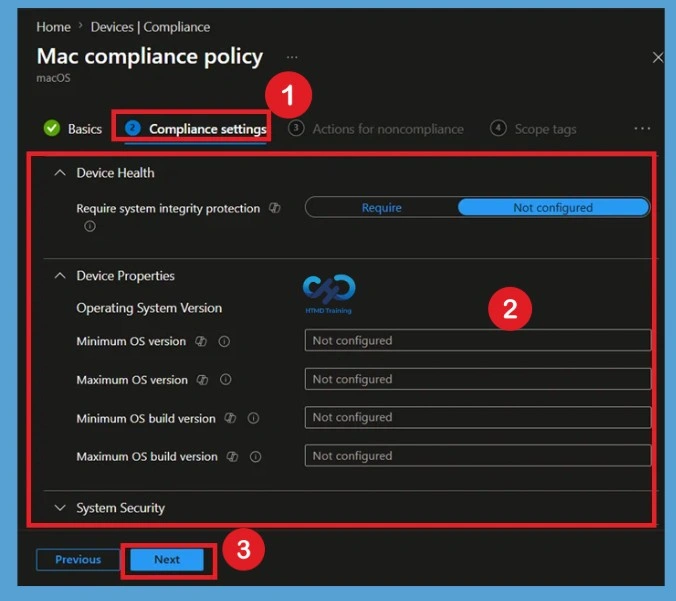
Expand the available categories on the Compliance settings tab and configure your policy settings. The profile type uses settings from the Settings catalog. You will have the following compliance options available for macOS management, select below:
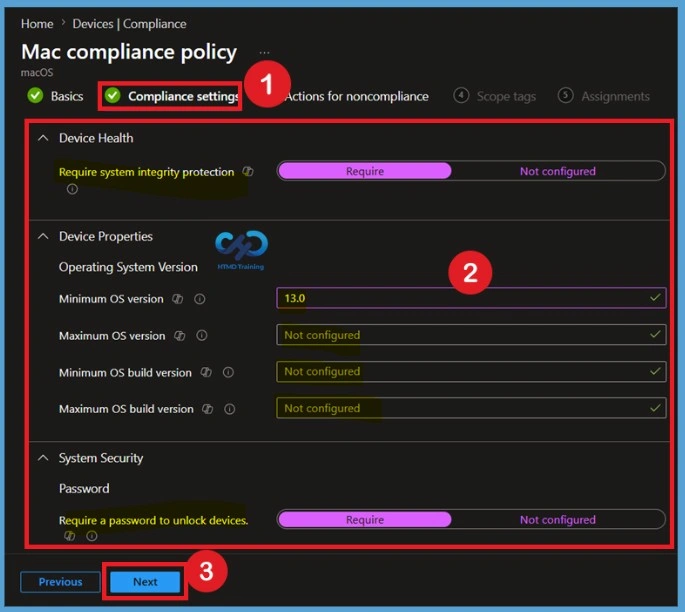
- Device Health
- Require system integrity protection: Require
- Device Properties
- Operating System Version
- Minimum OS version – 13.0
- Maximum OS Version
- Minimum OS build version
- Maximum OS build version
- Operating System Version
System Security
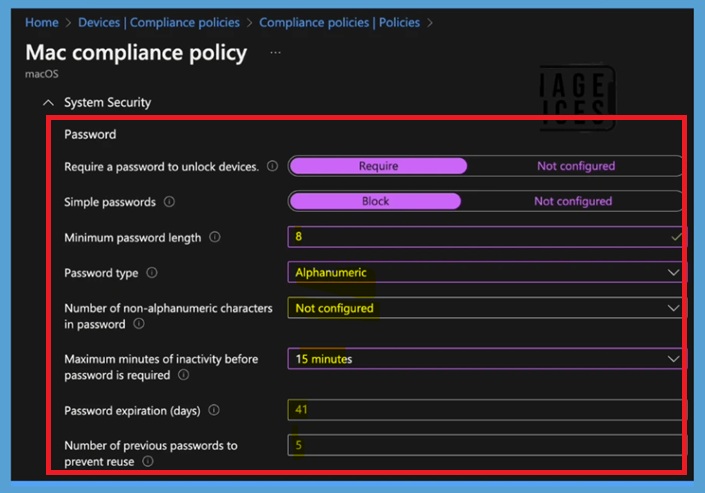
The System Security section allows you to configure password-related compliance settings for managed Mac devices. Select Require a password to unlock devices to enforce authentication before users can access their devices. After configuring the required compliance settings, review the selected values and click Next to continue with the remaining policy configuration. For System security settings under Mac compliance policy, select below:
- System Security – Password
- Require a password to unlock devices (Require/Not Configured)
- Simple Passwords (Block/ Not Configured)
- Minimum Password Length
- Password type: Device default/ Alphanumeric/ Numeric
- Number of non-alphanumeric characters in password: (0-4)
- Maximum minutes of inactivity before password is required (Not required/ 1-5-15 min / 1-4 hour)
- Password expiration days: Select the number of days before the password expires, and they must create a new one.
- Number of previous passwords to prevent reuse: Enter the number of previously used passwords that can’t be used.
Encryption
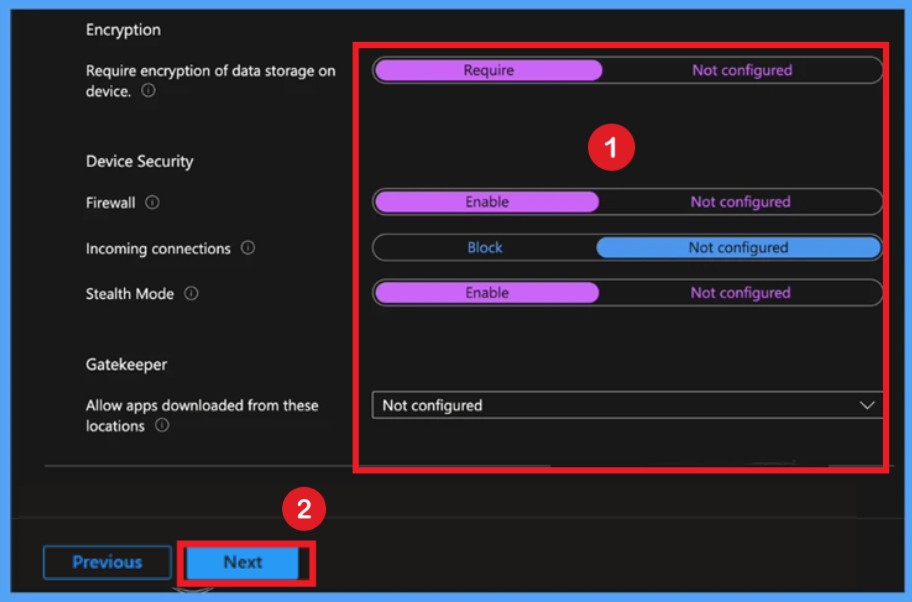
Encryption, firewall protection, and Gatekeeper work together to strengthen the overall security posture of managed macOS devices. These compliance settings help protect sensitive organizational data, reduce the risk of unauthorized network access, and ensure that only trusted applications can run on corporate devices. The next step is configuring an encryption firewall to protect devices from unauthorized network access. You can use a Firewall to control connections on a per-application basis.
- Encryption
- Require encryption of data storage on device ( Require / Not Configured)
- Device Security
- Firewall ( Enable / Not Configured)
- Incoming connections (Block / Not Configured)
- Stealth Mode ( Enable / Not Configured)
- Gatekeeper
- Allow apps downloaded from these locations (Not configured / Mac App Store / Mac App Store and identified developers / Anywhere) and click Next.
Actions for noncompliance
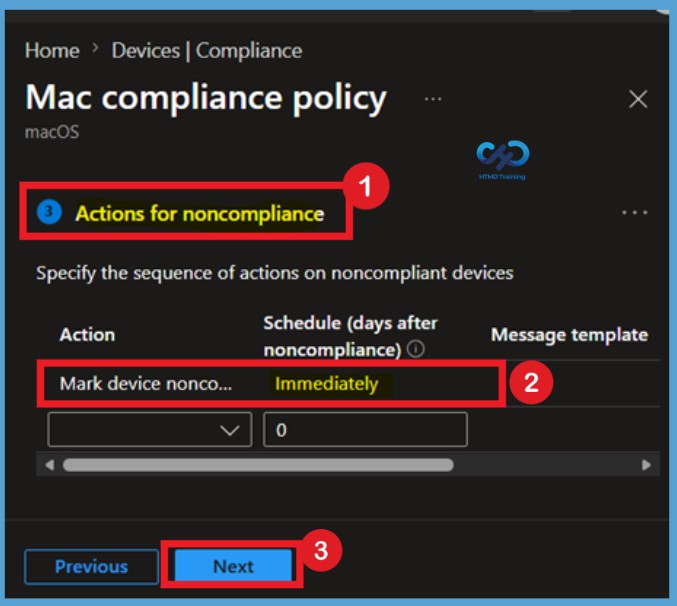
On the Actions for noncompliance tab, specify a sequence of actions to apply automatically to devices that don’t meet this compliance policy (By default, the policy is selected as Mark device noncompliant > Immediately).
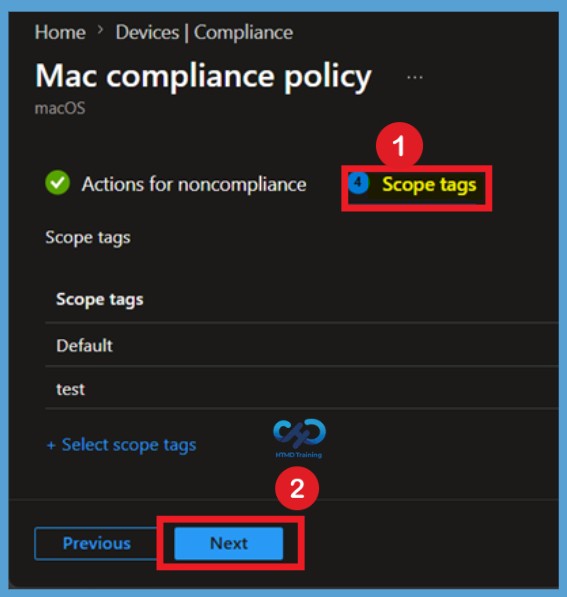
Scope tag for the Policy
Scope tags are filtering options provided in Intune to ease the admin jobs. In the scope tag section, you will get an option to configure scope tags for the policy. Click on Next.
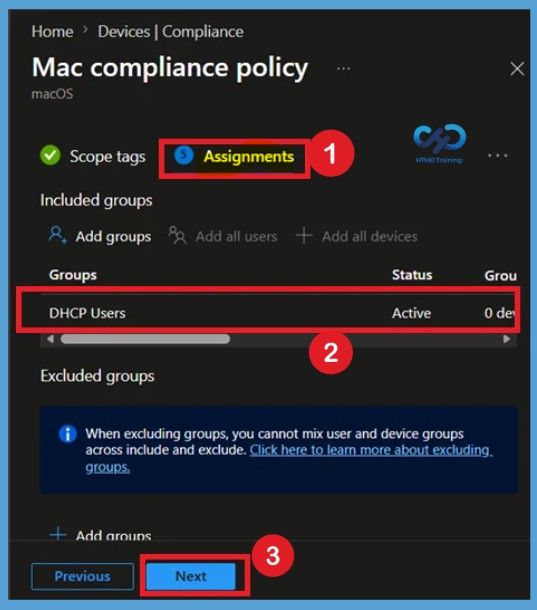
Assignments group
Select the appropriate Included and Excluded Microsoft Entra groups to determine which users or devices receive the compliance policy. Proper group assignments ensure the policy is deployed only to the intended devices while providing flexibility to exclude pilot groups, test users, or exception scenarios when necessary. Select Assignments group (Included groups and Excluded groups) and click Next.
Assignment Group: It determines who has access to any app, policy, or configuration profile by assigning groups of users to include and exclude.
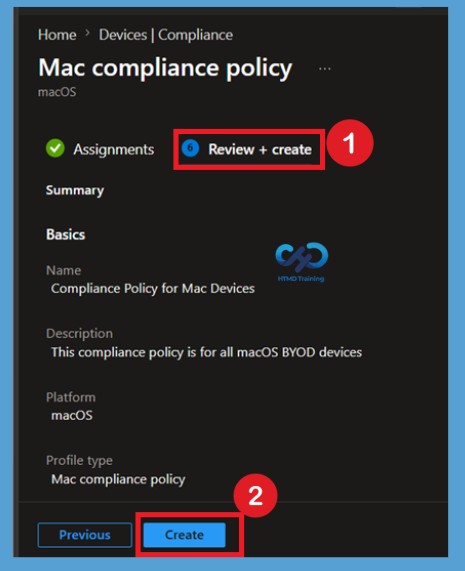
Review Create
On the Review create page, please review if any settings need to be changed, or else go ahead and click on create button. Review every configuration before deployment to verify that all compliance settings align with your organization’s security requirements. Once validation is complete, select Create to publish the compliance policy. Microsoft Intune begins deploying the policy to the assigned groups during the next device check-in.
Monitor Deployment Status
Once the compliance policy is created, it will take a few minutes to get pushed to the mentioned devices in the selected group; also, to view the deployment status on the list of targeted devices, we can check by the below ways.
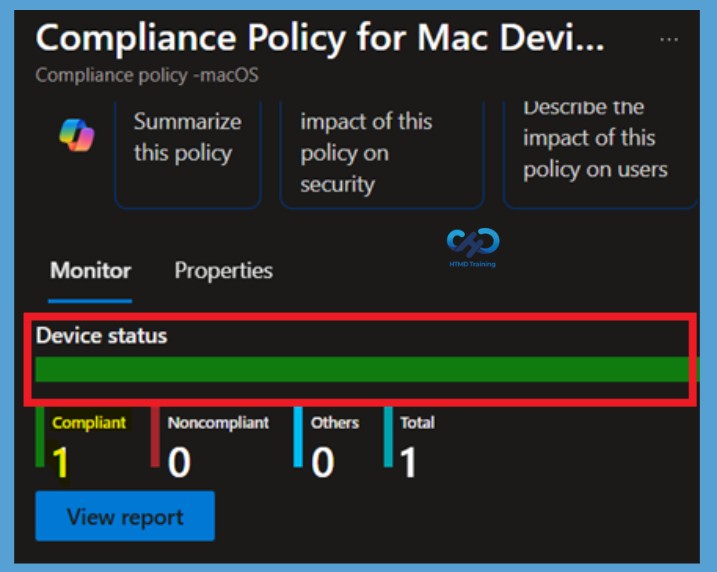
- To see all the device statuses, Navigate to Devices > Compliance Policies > Select the policy name, and on the Overview page, you may see the policy deployment status.
Review Device Compliance Reports
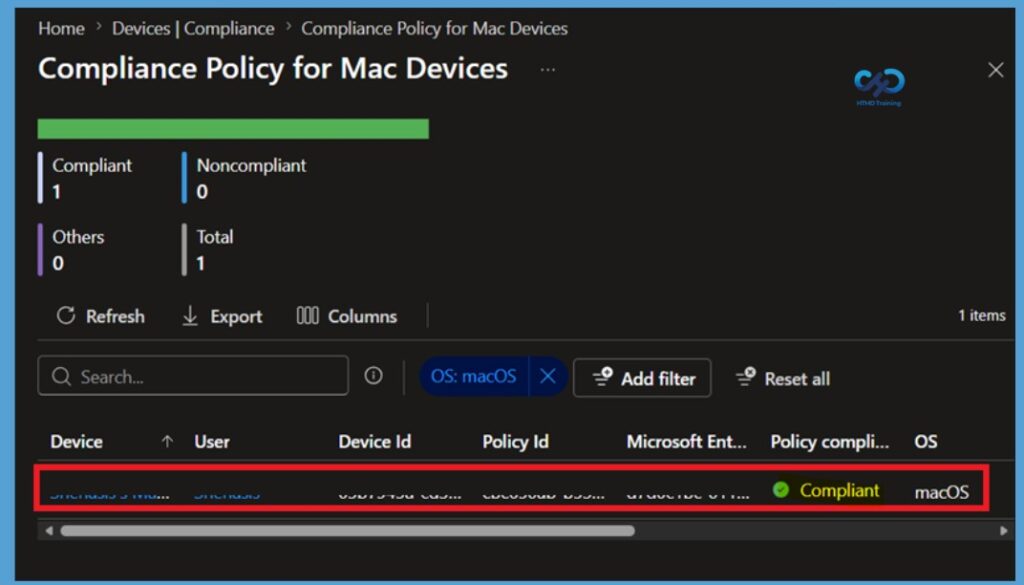
Device compliance reports are meant to be broad and provide a more traditional reporting view of data to identify aggregated metrics. This report is designed to work with large datasets to get a full device compliance picture. In Intune Portal, you will check the mac devices compliance status by going under Devices > macOS > macOS devices. Here you get the Compliance status Compliant for the devices you targeted.
Device Compliance Settings for macOS in Intune
As we know, organizations must push compliance policies to all the devices that exist in their environment, irrespective of platforms, to make them compliant with Organizations’ policies and standards and protect the company’s data and restrict the user environment only to compliant users to access company resources such as M365 apps or MS teams or any other internal domain sites.
Need Further Assistance or Have Technical Questions?
Join the LinkedIn Page and Telegram group to get the latest step-by-step guides and news updates. Join our Meetup Page to participate in User group meetings. Also, join the WhatsApp Community and the Whatsapp channel to get the latest news on Microsoft Technologies. We are there on Reddit as well.
Author
Snehasis Pani has 7+ years of IT Support experience and is currently a macOS Administrator. He loves to help the community by sharing his knowledge of Apple Mac Devices Support. He is an M.Tech graduate in System Engineering. Do check out his profile on Twitter and Linkedin.