
Key Takeaways
- Reduce the risk of unwanted software affecting device performance, security, and user productivity.
- Enable Microsoft Defender SmartScreen to identify and block potentially unwanted downloads in Microsoft Edge.
- Prevent users from bypassing Microsoft Defender SmartScreen warnings for unverified downloads to strengthen browser security.
- Centrally manage and enforce PUA protection across Windows devices using Microsoft Intune.
Configure MS Defender SmartScreen PUA Protection in Edge Browser to Block Potentially Unwanted Apps using Intune. Let’s check how you can configure Microsoft Defender Potentially Unwanted Applications PUA Protection in Microsoft Edge using Intune, aka Endpoint Manager. Potentially unwanted applications aren’t considered viruses or malware, but these apps might perform actions on endpoints that adversely affect endpoint performance or use. PUA can also refer to applications that are deemed to have poor reputations.
Table of Contents
Table of Contents
Configure MS Defender SmartScreen PUA Protection in Edge Browser to Block Potentially Unwanted Apps using Intune
PUA protection aims to safeguard user productivity and ensure enjoyable Windows experiences. This protection helps deliver more productive, performant, and delightful Windows experiences. PUAs are not considered malware. Microsoft uses specific categories and definitions to classify software as potentially unwanted applications (PUA).
There are many other policies available to configure Microsoft Defender SmartScreen to block potentially unwanted apps, as mentioned below.
- Configure Microsoft Defender SmartScreen
- Configure Microsoft Defender SmartScreen to block potentially unwanted apps
- Force Microsoft Defender SmartScreen checks on downloads from trusted sources
- Prevent bypassing of Microsoft Defender SmartScreen warnings about downloads
In this guide, you’ll learn how to configure the Configure Microsoft Defender SmartScreen to block potentially unwanted apps policy using the Intune Settings Catalog.

- Easily Manage Microsoft Edge Extensions using Intune
- Troubleshoot Microsoft Edge Security Policy Deployment issues with Intune
- Learn How to Enable Microsoft Edge Sleeping Tabs using Intune
Create Profile – Microsoft Defender SmartScreen to Block Potentially Unwanted Apps
This section will help you assign the policy set up protection by enabling the potentially unwanted apps to feature in Microsoft Edge using Intune setting catalog policies. You can refer to the following guide to Create Intune Settings Catalog Policy and deploy it only to a set of Intune Managed Windows 11 or Windows 10 devices using Intune Filters.
Let’s follow the steps to configure PUA protection in Microsoft Edge using Intune –
- Sign in to the Microsoft Intune admin center
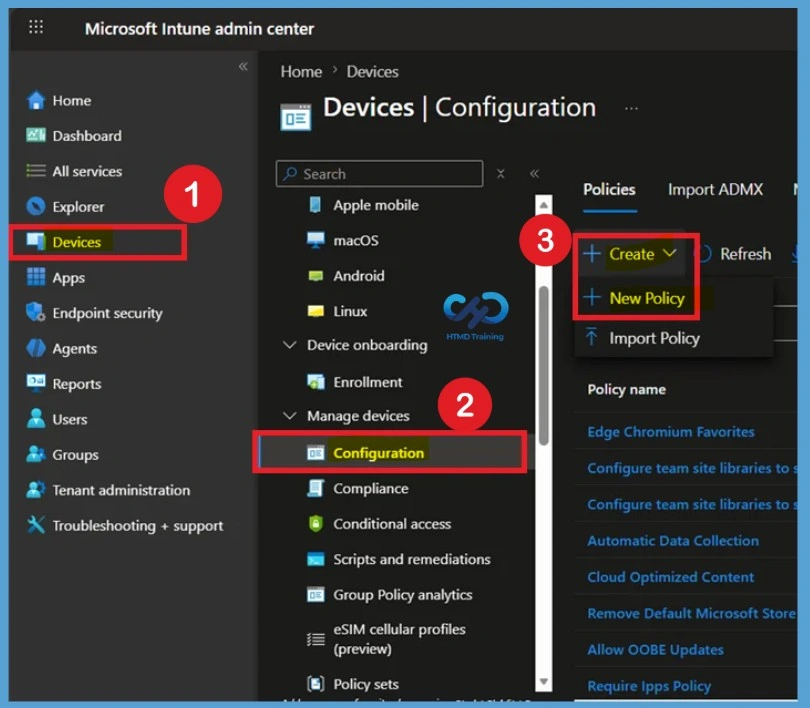
- Select Devices > Windows > Configuration profiles > Create profile
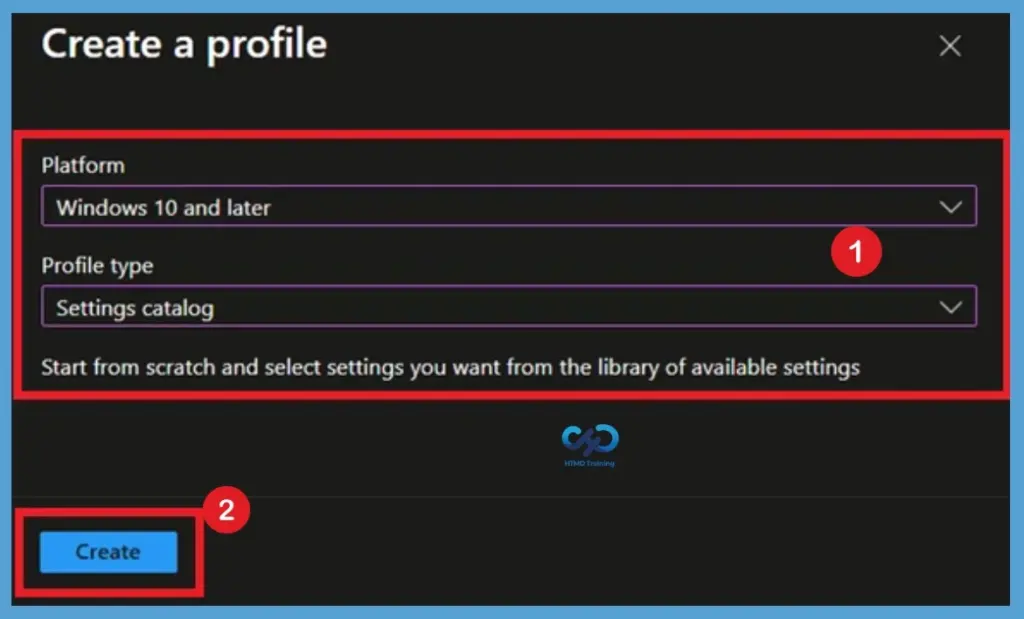
In Create Profile, Select Platform, Windows 10, and later and Profile, Select Profile Type as Settings catalog. Click on Create button.
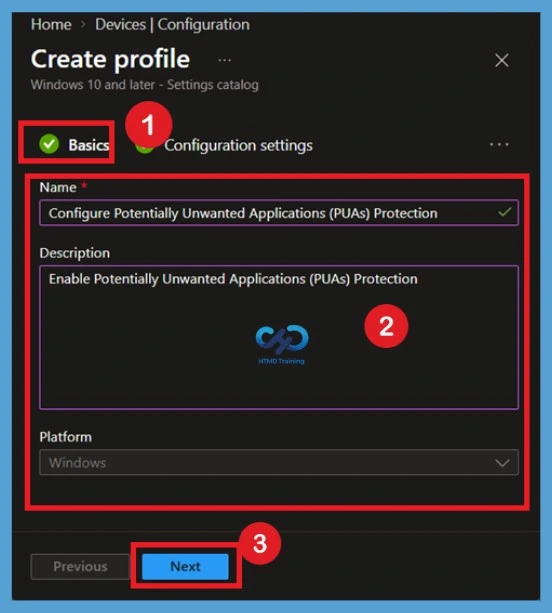
Basics Tab for Microsoft Defender SmartScreen to Block Potentially Unwanted Apps
On the Basics page, enter a descriptive profile name such as Configure Microsoft Defender SmartScreen to Block Potentially Unwanted Apps. Optionally, add a description explaining the purpose of the policy before selecting Next.
Using a policy name and description makes it easier to identify, manage, and troubleshoot the policy when multiple Microsoft Edge or Windows security profiles are deployed in your Intune environment.
Configuration Settings
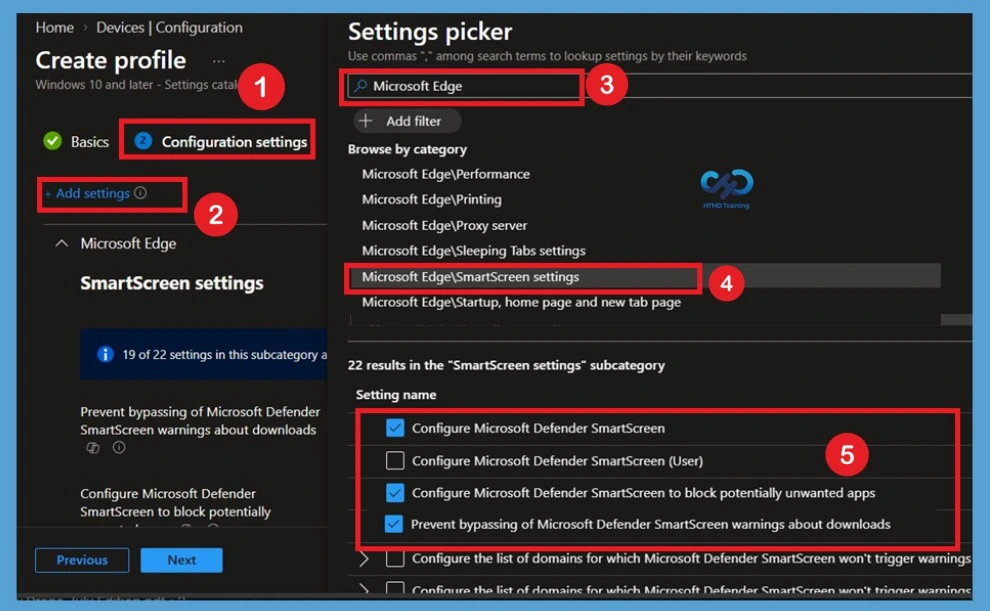
On the Configuration settings page, click Add settings and browse to Microsoft Edge > SmartScreen. Select Configure Microsoft Defender SmartScreen, Configure Microsoft Defender SmartScreen to block potentially unwanted apps, and Prevent bypassing Microsoft Defender SmartScreen warnings about downloads.
These settings work together to enable Microsoft Defender SmartScreen, block potentially unwanted applications, and prevent users from bypassing SmartScreen warnings. After selecting the required settings, close the Settings Picker and continue with the configuration.
Disabled by Default
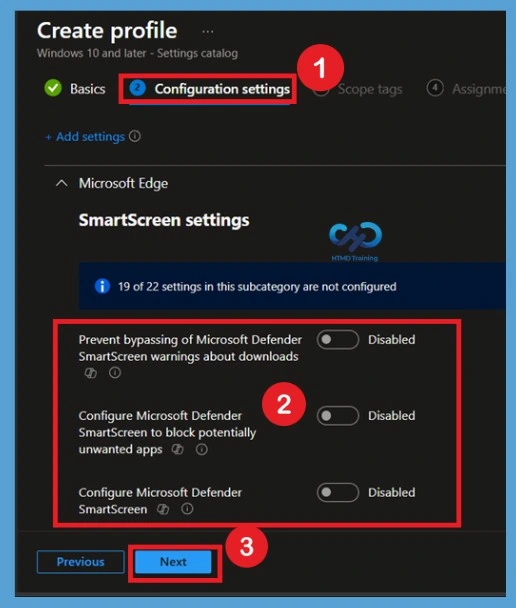
After adding the settings, the Configure Microsoft Defender SmartScreen to block potentially unwanted apps policy is displayed with its default value set to Disabled. When the policy remains disabled, Microsoft Edge doesn’t block potentially unwanted applications, allowing users to download low-reputation software without SmartScreen PUA protection.
| Configure PUA Protection in Microsoft Edge Settings | Info |
|---|---|
| Configure Microsoft Defender SmartScreen | This policy setting lets you configure whether to turn on Microsoft Defender SmartScreen. Microsoft Defender SmartScreen provides warning messages to help protect your users from potential phishing scams and malicious software. |
| Configure Microsoft Defender SmartScreen to block potentially unwanted apps | This policy setting lets you configure whether to turn on blocking for potentially unwanted apps with Microsoft Defender SmartScreen. |
| Prevent bypassing Microsoft Defender SmartScreen warnings about downloads | This policy lets you determine whether users can override Microsoft Defender SmartScreen warnings about unverified downloads. |
Enable the Policy PUA Protection in Microsoft Edge
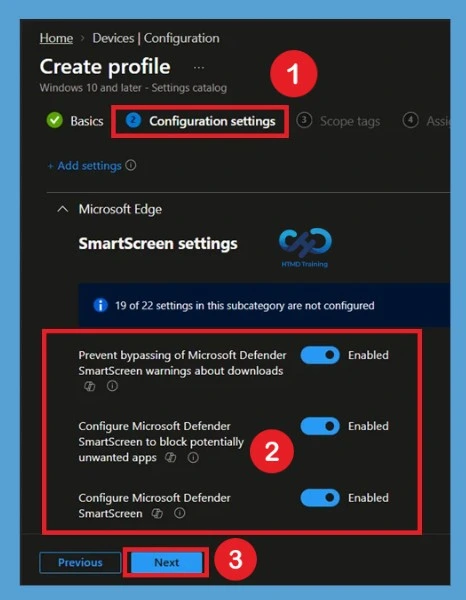
Change the Configure Microsoft Defender SmartScreen to block potentially unwanted apps setting from Disabled to Enabled. It is also recommended to enable Configure Microsoft Defender SmartScreen and Prevent bypassing Microsoft Defender SmartScreen warnings about downloads.
Enabling these policies ensures Microsoft Edge blocks potentially unwanted downloads and displays SmartScreen warnings. If bypass prevention is enabled, users cannot ignore the warning and continue downloading unverified applications.
Scope Tags
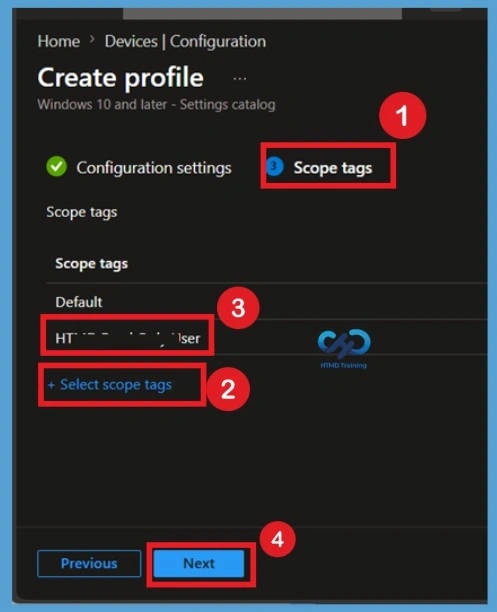
On the Scope tags page, choose an existing scope tag if you use role-based administration in your organization. Scope tags help limit which administrators can view and manage the policy. If your organization doesn’t use scope tags, leave the default setting and continue by selecting Next.
Assignments
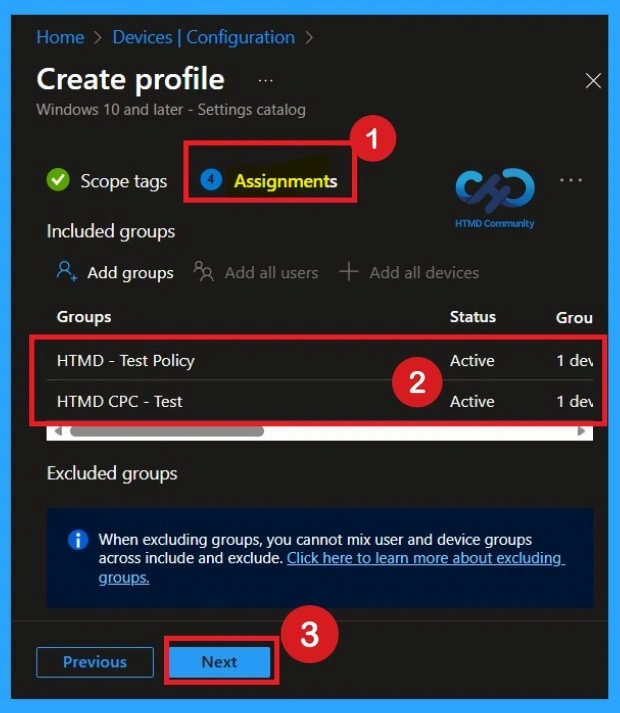
Under Assignments, select Add groups and choose the Microsoft Entra user or device groups that should receive the Configure Microsoft Defender SmartScreen to block potentially unwanted apps policy. Assigning the policy to pilot or production groups allows administrators to control the deployment scope and validate the policy before rolling it out across the organization.
Review + Create
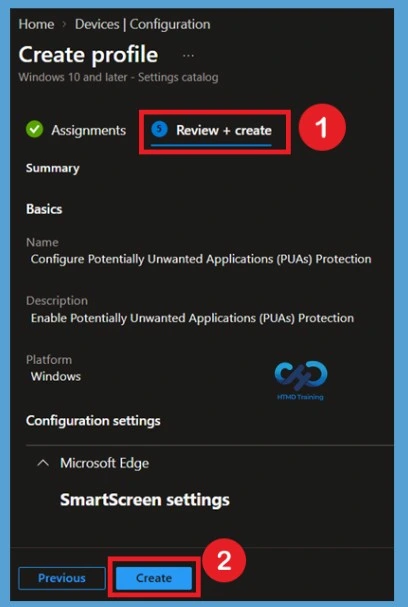
Review all configured settings, scope tags, and group assignments before selecting Create. Verify that the correct Microsoft Edge SmartScreen settings have been configured. After the profile is created, it appears under Configuration profiles in the Intune admin center and is automatically delivered to assigned devices during the next device check-in.
- A notification will appear automatically in the top right-hand corner with a message. Here, Policy “Configure Potentially Unwanted Applications (PUAs) Protection” was created successfully.
Monitoring Status for PUA Protection in Microsoft Edge
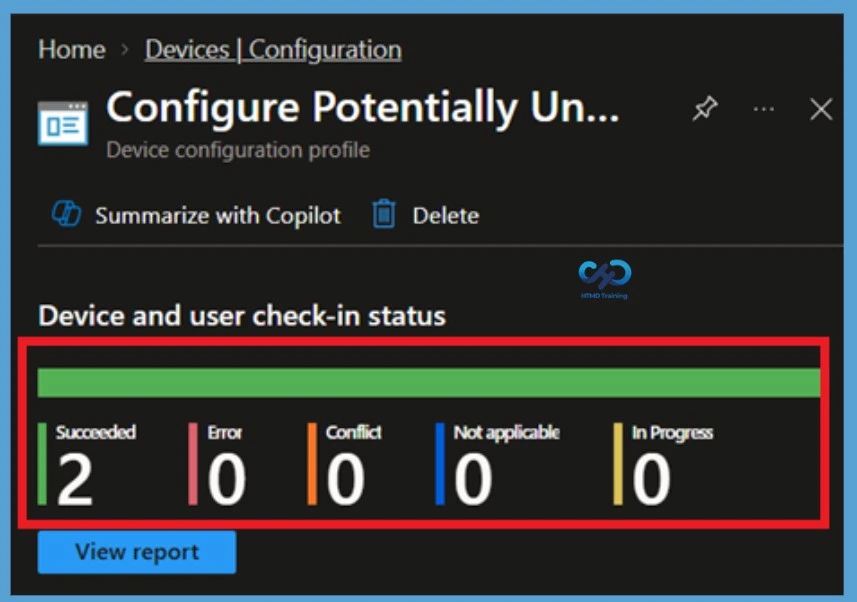
Open the newly created policy and select Device status or User status to monitor the deployment results. Intune displays whether the policy succeeded, is pending, or failed on each managed device. Monitoring deployment status helps administrators quickly identify devices experiencing policy deployment issues and take corrective action before users are affected.
- Here the policy groups assigned successfully under 2 groups.
End Result
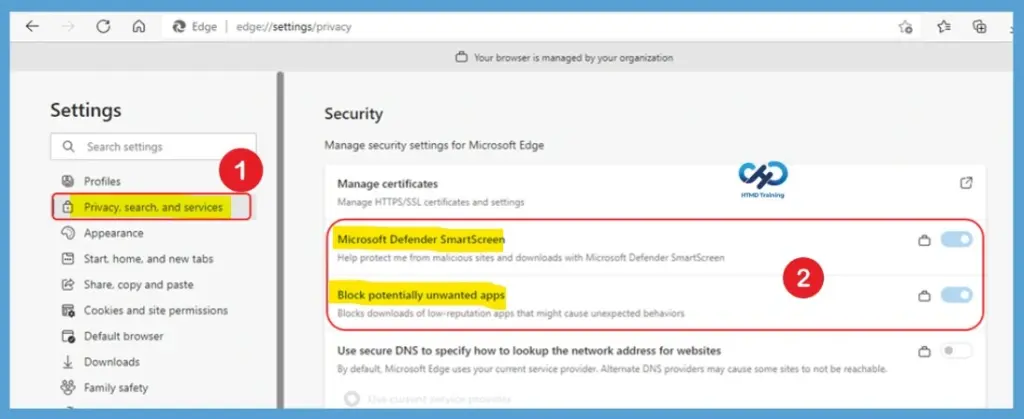
Your groups will receive your profile settings when the devices check-in with the Intune service. Once the policy applies to the devices, Open Settings in the browser and select privacy, search, and services. Check to see that Microsoft Defender SmartScreen is turned on. Under the Security section, turn on Block potentially unwanted apps.
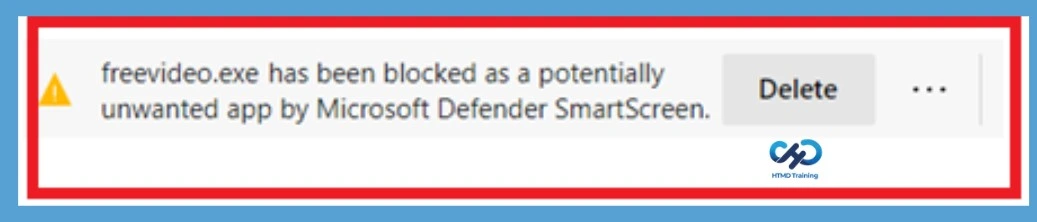
When Microsoft Edge detects a PUA, you will see a message when downloading a potentially unwanted app. Here is what users will know when the feature blocks a download; users can choose to keep it by tapping … in the bottom bar, choosing to Keep, and then choosing to Keep anyway in the dialog that appears.
Delete Policy Permanently
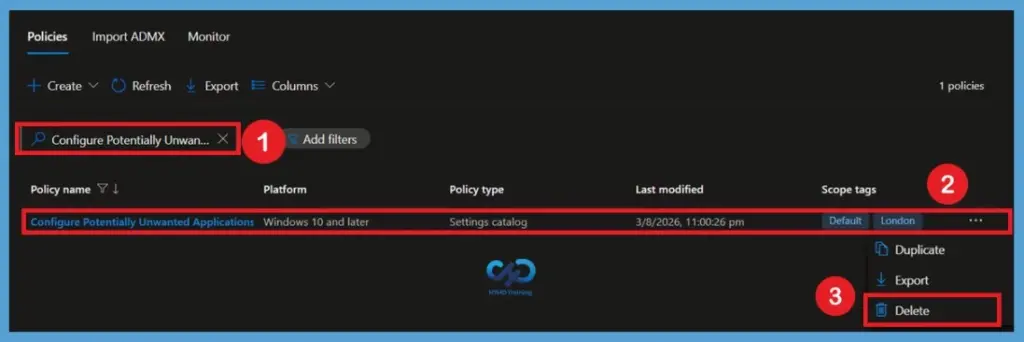
Before deleting the policy, ensure it is no longer assigned to any Microsoft Entra groups. This prevents unintended deployment changes across managed devices. After confirming there are no active assignments, select the policy from Configuration profiles, click Delete, and confirm the action. The Configure Microsoft Defender SmartScreen to block potentially unwanted apps policy is permanently removed from the Intune admin center and won’t be deployed to any devices.
For detailed information, you can refer to our previous post – Learn How to Delete or Remove App Assignment from Intune using by Step-by-Step Guide.
Remove Assigned Groups
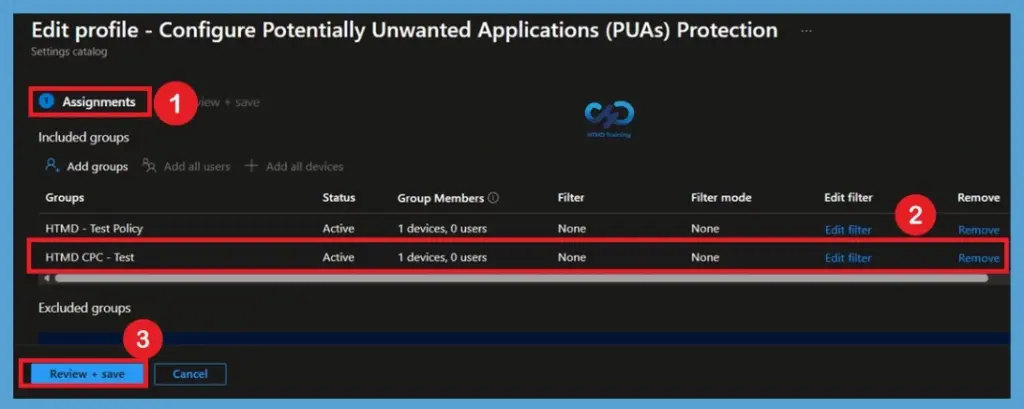
n this case if you think you don’t need the policy group that you assigned for a policy creation, then you can do 1 thing that search for the policy in the Configuration profiles then go to the policy status page. When you scroll down you can see the basic, configuration and assigned tab details there you will get edit option. Click on the edit option near assignment.
- In the edit profile of assignment section, you can remove the group that you want and click on the review and create option.
For detailed information, you can refer to our previous post – How to Delete Allow Clipboard History Policy in Intune Step by Step Guide.
Need Further Assistance or Have Technical Questions?
Join the LinkedIn Page and Telegram group to get the latest step-by-step guides and news updates. Join our Meetup Page to participate in User group meetings. Also, join the WhatsApp Community and the WhatsApp channel to get the latest news on Microsoft Technologies. We are there on Reddit as well
Author
About Author – Jitesh, Microsoft MVP, has over six years of working experience in the IT Industry. He writes and shares his experiences related to Microsoft device management technologies and IT Infrastructure management. His primary focus is Windows 10/11 Deployment solution with Configuration Manager, Microsoft Deployment Toolkit (MDT), and Microsoft Intune.