
Key Takeways
- Flexible Storage Management: Easily adjust storage size for Windows 365 Shared Cloud PCs based on user needs and workload demands.
- Improved User Experience: Increasing storage helps prevent low disk space issues and ensures smoother performance for shared users.
- Cloud-Native Simplicity: Storage updates are managed through Microsoft Intune, eliminating the need for complex on-prem infrastructure changes.
- Minimal Disruption: Storage resizing can be done with little to no impact on end users when planned and executed properly.
In this blog post, let me explain how to update the user storage size for Windows 365 Shared Frontline Cloud PCs using Microsoft Intune. User Experience Sync in Windows 365 Frontline Shared Cloud PCs allows you to define and manage user storage size efficiently. You can choose the amount of storage to assign to each user, which is provisioned and deducted from the policy quota when they sign in. Selecting the right storage size based on application needs and usage scenarios helps ensure optimal performance, better resource utilisation, and a smooth user experience across sessions.
Table of Contents
What is User Experience Sync
User Experience Sync is a feature available for Windows 365 Frontline Cloud PCs (shared mode) and Windows 365 Cloud Apps. It provides a consistent and seamless experience for users across both Cloud PC and Cloud App sessions. As a cloud-native solution, Microsoft handles the underlying infrastructure and platform, helping reduce complexity and costs compared to traditional approaches. This feature retains user personalisation, Windows settings (including accessibility options), application settings, and app data. As a result, users get a familiar and productive experience every time they sign in to their Cloud PC or Cloud App.
- Cloud PCs Get 20% Cheaper Starting May 1st With Improved Entry And Scalable Performance Options
- How to Perform Easy Reprovisioning for Windows 365 Frontline Shared Cloud PCs
- How to Simplify Shift Work with Windows 365 Frontline Cloud PCs
- Windows 365 Flex Enables Cost-Optimised Shared and On-Demand Cloud PC Access for Modern Workforces
User Storage Capacity Details for Frontline Shared Cloud PC
Refer to the table below for a clear breakdown of user storage capacity details in Windows 365 Frontline in Shared mode.
| Storage State | Description |
|---|---|
| Total | The total cloud storage available under this policy. Calculated by multiplying the OS disk size (in GB) by the number of assigned Cloud PC licenses. For example, 10 licenses with 128 GB disks equals 1,280 GB (1.28 TB). |
| Available | The amount of storage currently free for new user files, apps, or system data |
| Used | The total amount of storage allocated for all users to store files, apps, and settings data. This shows the provisioned capacity, not the actual data written. Storage is allocated when a user signs in for the first time after User Experience Sync is turned on. |
Update User Storage Size for Windows 365 Cloud PC in Frontline Shared Mode
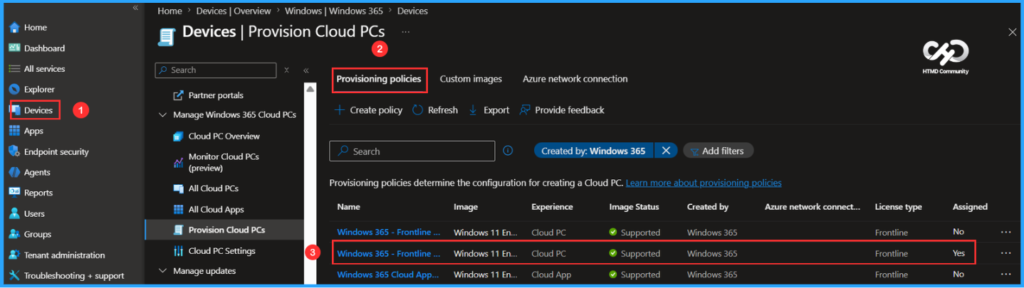
To update the user Storage Size for Windows 365 Shared Cloud PC, log in to the Microsoft Intune Admin Center using your administrator credentials.

- Navigate to > Devices > Manage Windows 365 Cloud PCs > Provision Cloud PCs
- Click on Provisioning policies > Windows 365 – Frontline Shared Provisioning Policy (In this example)
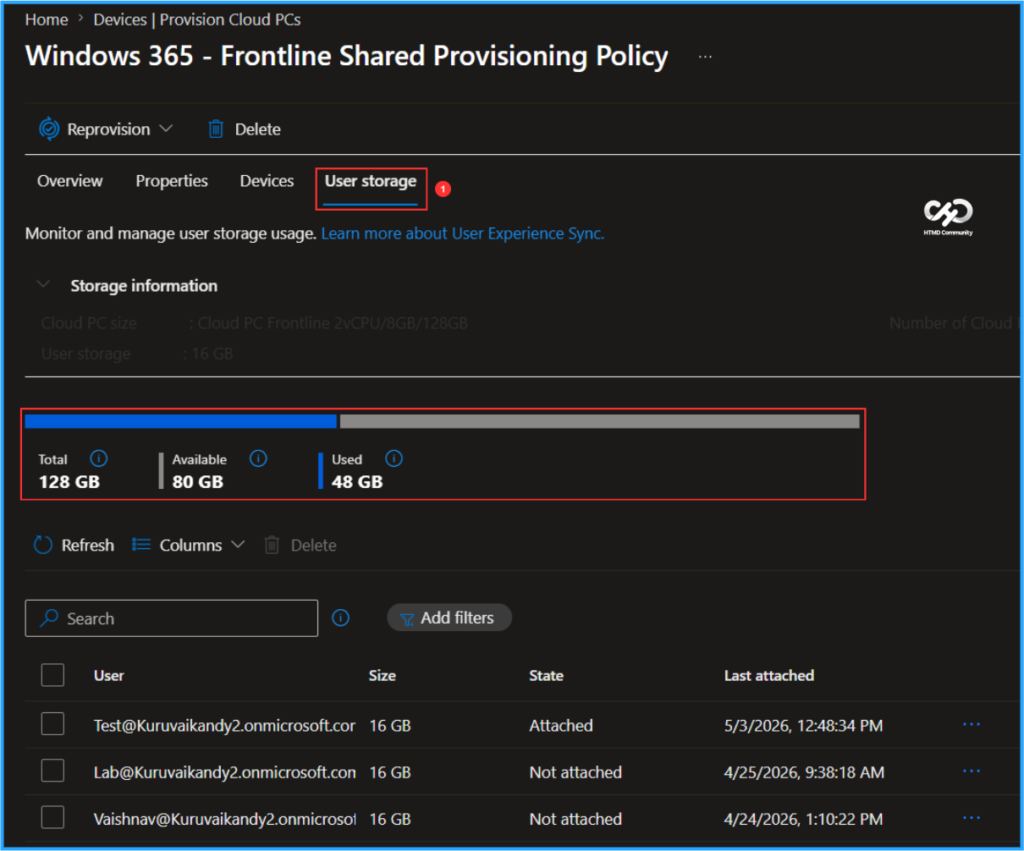
Access the User Storage tab to view the User Storage Size for users enabled with User Experience Sync. According to the settings, the current limit is 16GB per user.
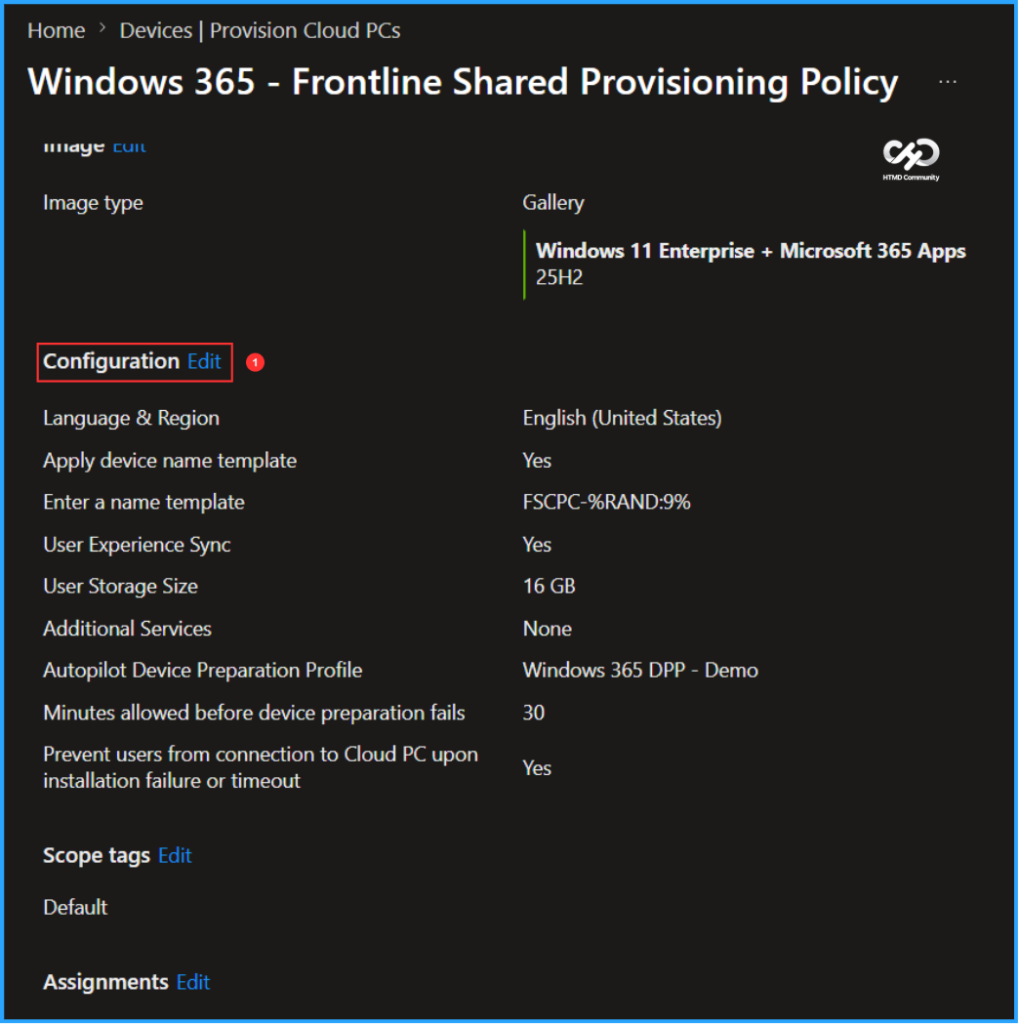
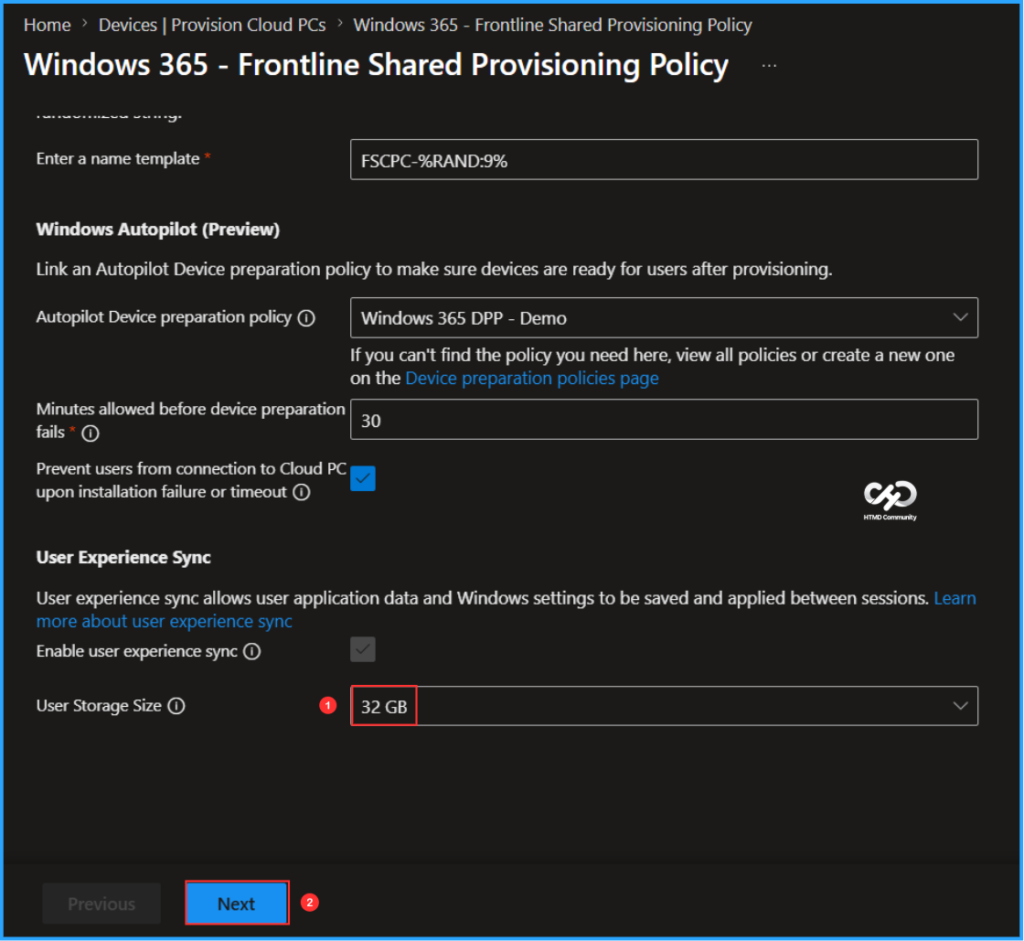
We can now change the User Storage Size to 32 GB. To do this, click on Properties, scroll down to Configuration Settings, and then click on Edit.
In the Configuration section, locate the User Storage Size option, select the drop-down menu, change the value from 16GB to 32GB, and click Next. Disabling user experience sync is not possible from a targeted provisioning policy. The available storage sizes for users are 4 GB, 8 GB, 16 GB, 32 GB, and 64 GB.
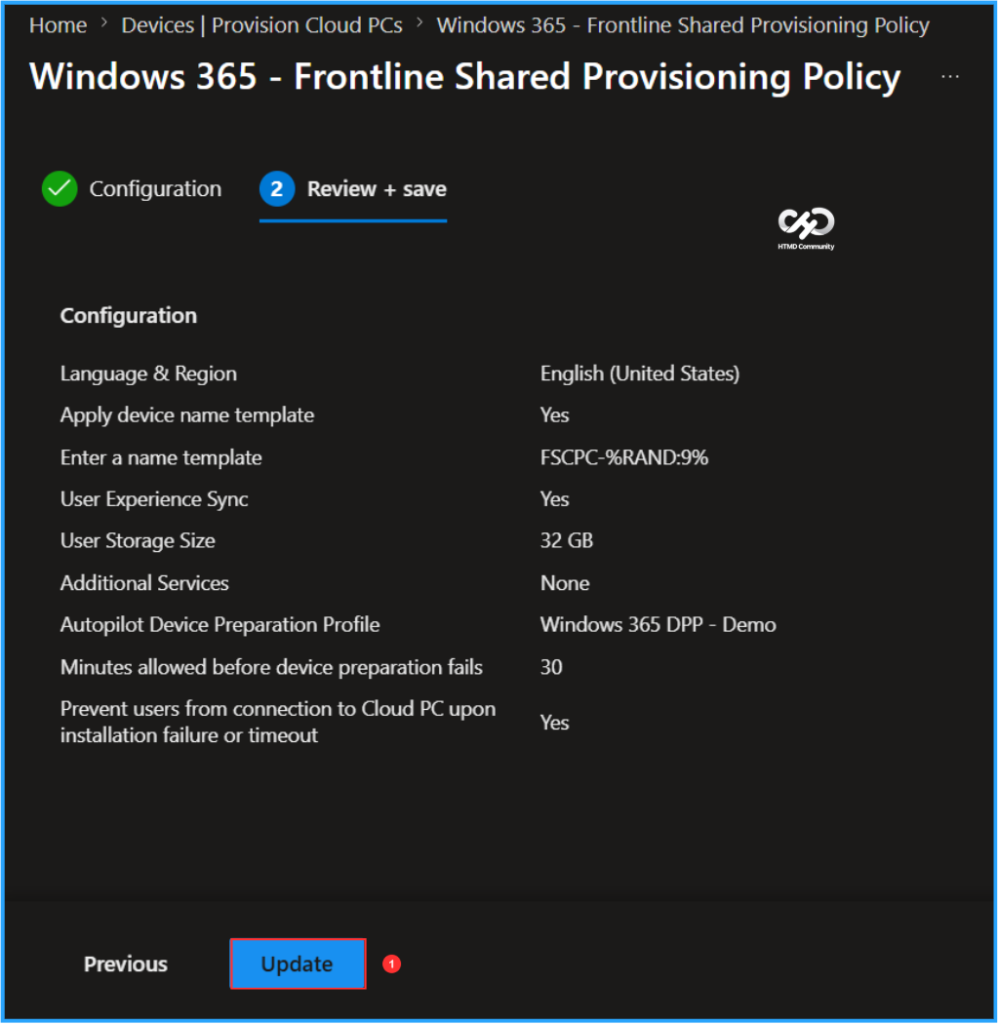
On the Review and Save pane, verify the changed settings again and click on Update to change the User Storage Size.
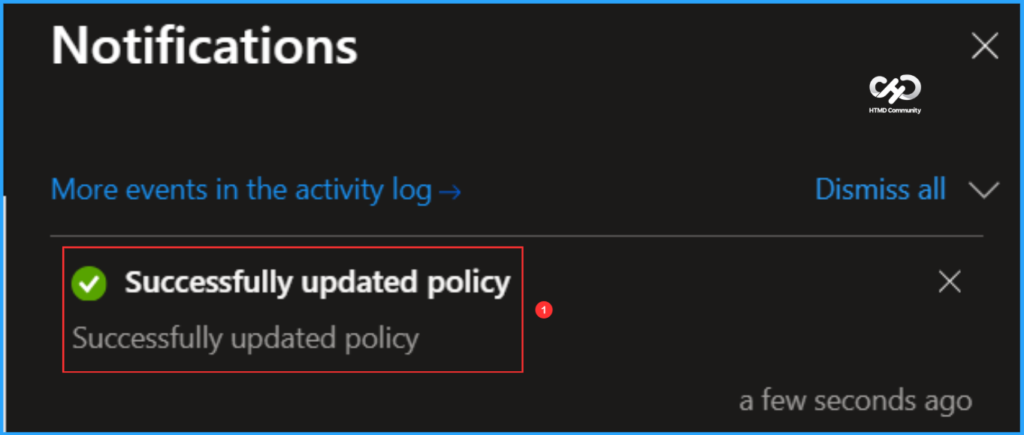
The moment you click on Update, an Intune notification will appear in the top right corner of the portal, stating Successfully updated policy. We can also utilise the More events option in the activity log here.
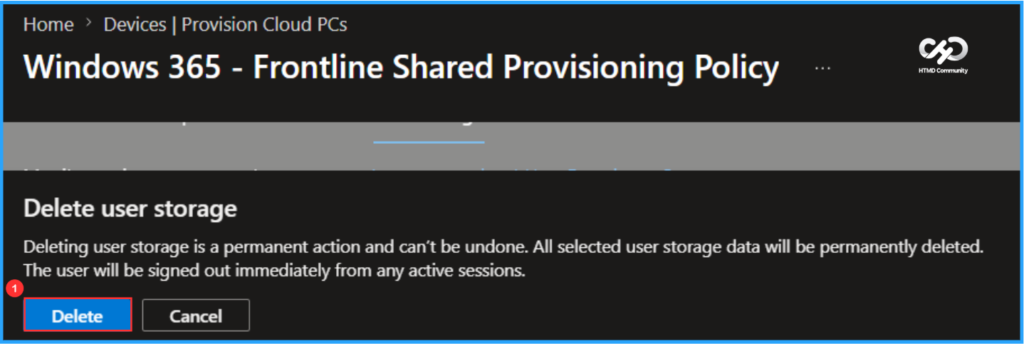
To apply the change immediately, return to the User storage tab in the provisioning policy, remove any existing User Storage, and for each user, click the three dots on the right side of each user and delete it.
- Snapshot-Based Reset for Windows 365 Frontline in Shared Mode
- How to Setup Windows 365 Cloud PCs with Autopilot Device Preparation
- Windows 365 for Agents Brings Secure IT-Managed Cloud PCs for Enterprise AI Workloads
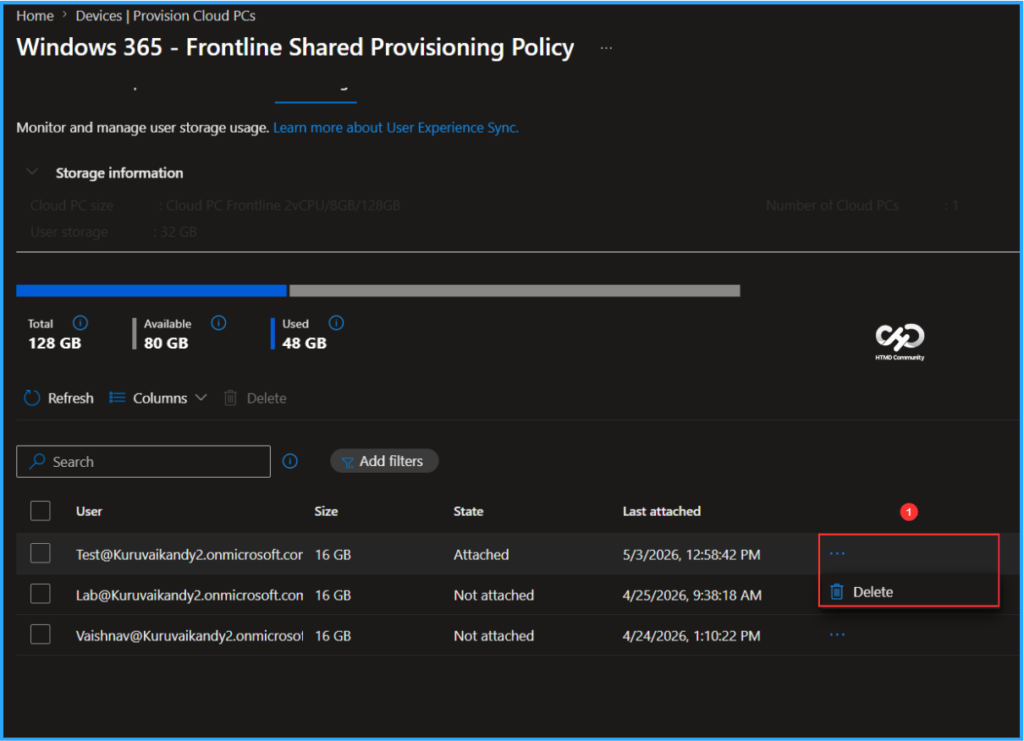
When you click Delete, a pop-up message will appear, stating: “Deleting user storage is a permanent action that cannot be undone. All selected user storage data will be permanently deleted, and the user will be signed out immediately from any active sessions.” Similarly, delete all the user storage.
End Result
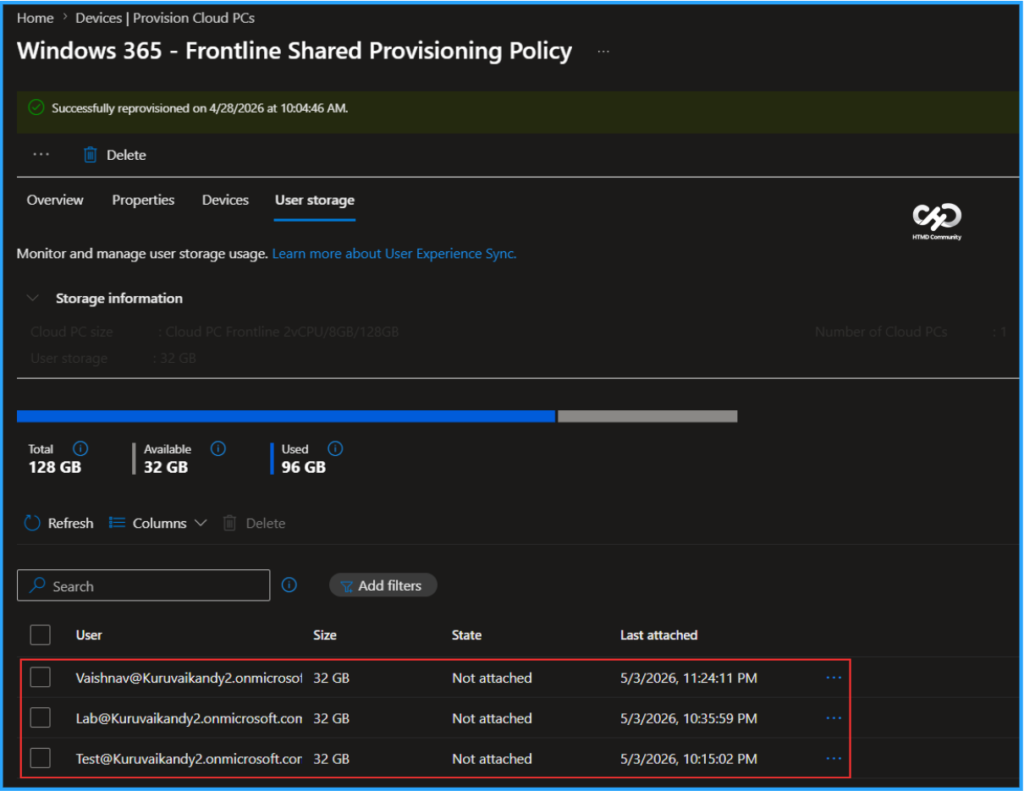
It’s time to check the status of User storage again. In the Intune Portal, navigate to Devices > Manage Windows 365 Cloud PCs > Provision Cloud PCs. Click on Provisioning Policies, and then select the Windows 365 – Frontline Shared Provisioning Policy (as shown in this example). After reconnecting the Cloud PCs, the updated User Storage will be attached, now with a storage size of 32 GB. We can confirm that the change has been successfully implemented.
Need Further Assistance or Have Technical Questions?
Join the LinkedIn Page and Telegram group to get the latest step-by-step guides and news updates. Join our Meetup Page to participate in User group meetings. Also, join the WhatsApp Community to get the latest news on Microsoft Technologies. We are there on Reddit as well.
Author
Vaishnav K has over 12 years of experience in SCCM, Intune, Modern Device Management, and Automation Solutions. He writes and shares knowledge about Microsoft Intune, Windows 365, Azure, Entra, PowerShell Scripting, and Automation. Check out his profile on LinkedIn.