
Key Takeaways
- The Properties Catalog in Intune lets admins collect detailed system data from managed devices
- It helps Intune admins to perform troubleshooting issues quickly
- Application Inventory provides details of applications installed on your Intune-managed Windows devices
- Discovered apps are a separate report from the app installation reports
How to Configure App Inventory for Windows Devices in Microsoft Intune! I’ve been waiting for this feature since the day I started using Intune. Application inventory was never just a nice‑to‑have – it’s been an essential capability that admins have needed for years. And now, it’s finally here. With this release, we can get a unified view of applications across our environment, track versions, and strengthen compliance reporting – all natively within Intune. Microsoft announced the Intune Custom Hardware Inventory option for Windows devices at Ignite 2024 and the feature was released on 2024 December first week. This feature focuses on improving the type of hardware information that can be collected for Windows devices.
Table of Contents
Table of Contents
What is App Inventory for Windows Devices in Microsoft Intune
App Inventory gives admins quicker and more comprehensive visibility into the applications installed on Intune‑managed Windows devices. It captures richer details than the older Discovered apps feature, such as installation paths, uninstall commands, and application sizes. Microsoft has designed App Inventory to eventually replace Discovered apps, though for now, both features continue to run side by side until transition guidance is shared.
- Microsoft Now Allows Up to 25 Apps in Intune Autopilot Deployment Profile Policy Including Windows 365
- Intune Win32 App Supersedence and Auto App Update Explained
- Best Guide to Deploy New Intune Company Portal App on Windows using Intune
By collecting and reporting detailed application data directly from Windows devices, App Inventory strengthens governance and troubleshooting. Admins can use it to detect outdated or unauthorised software, validate compliance with organisational policies, and streamline lifecycle management. In practice, this means faster resolution of deployment issues, improved security posture, and more confidence in managing modern workplaces entirely through Intune.
How Application Inventory Works in Microsoft Intune
App Inventory extends the existing device inventory agent on Windows by adding application data collection and sending it to the Intune service. The agent gathers Win32 applications from registry uninstall keys, including 32‑bit apps on 64‑bit systems and captures Microsoft Store apps through the package manager API.

NOTE! The device inventory agent collects Win32 apps from the Windows registry uninstall keys (HKLM\Software\Microsoft\Windows\CurrentVersion\Uninstall and per-user keys), including 32-bit apps on 64-bit systemsTo optimise performance, it uploads only delta changes rather than full inventories, reducing bandwidth and processing overhead. The collected data is then reported in the All apps view for each device in the Intune admin centre.
- Best Guide to Setup Enhanced Device Hardware Inventory in Microsoft Intune
- Enhancing Security with Administrator Protection in Windows 11 using Intune
- Troubleshoot Remote Desktop Issues in Intune | Finding Registry Value with Query using Copilot
Unlike the older Discovered apps feature, App Inventory requires you to configure and assign a device policy before collection begins, meaning devices won’t report app data until that policy is in place. The table below outlines the prerequisites for enabling Application Inventory in Intune.
| Prerequisites |
|---|
| Devices must be enrolled in Intune and Microsoft Entra joined |
| Windows 10/11 |
Create an Application Inventory Policy
Let’s learn how to create an App Inventory policy in Intune. You must specify the properties they want to collect from devices in a Properties catalog profile policy and deploy this policy to device group(s) or all Windows devices. This policy can be applied to specific device groups or all Windows devices, and it is viewable on each device’s details page.
- Select Devices > Windows > Configuration > Policies> Create > New Policy.
- Sign in to the Microsoft Intune Admin Portal with your credentials.
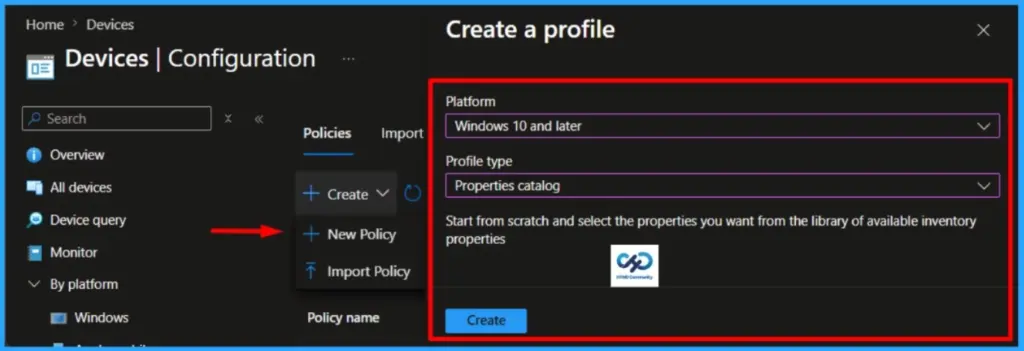
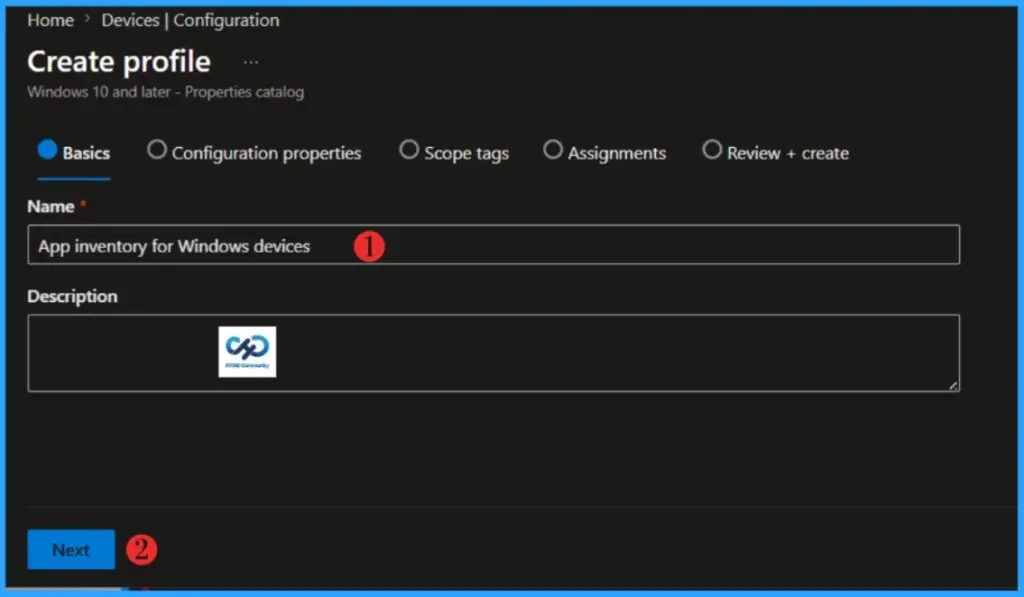
When you click Create and New Policy, a new window will open. In Platform, select Windows 10 and later, select Profile Type as Properties catalog, and click on Create. Add the Policy name and description that you would like to give.
- Windows Device Hardware Inventory in Microsoft Intune Coming in December
- Surface Management Portal in Intune a Simplified Device Management for IT Admins
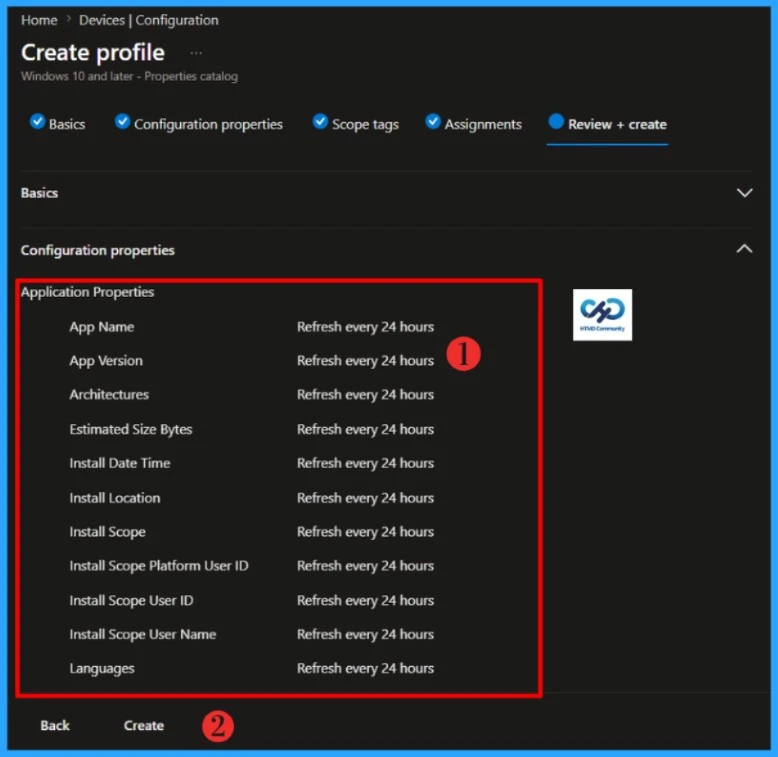
In the Configuration properties section, select Add properties. This opens the Properties picker page, where you can choose the application properties and components to collect. Some properties are required and are automatically selected by default.
- App Name
- App Version
- Publisher
- Architectures
- Install Scope
- Install Scope Platform User ID
- Install Scope User ID
NOTE! According to Microsoft, not all properties will contain data for every application. The availability of information depends on whether it exists in the underlying data source, such as the uninstall registry key or the package manager API on the device.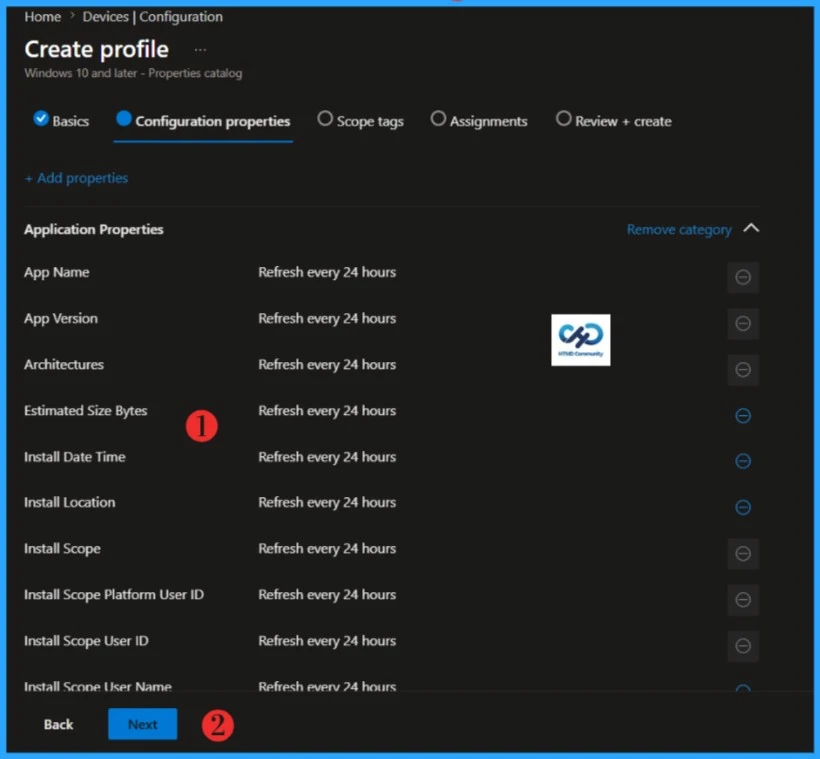
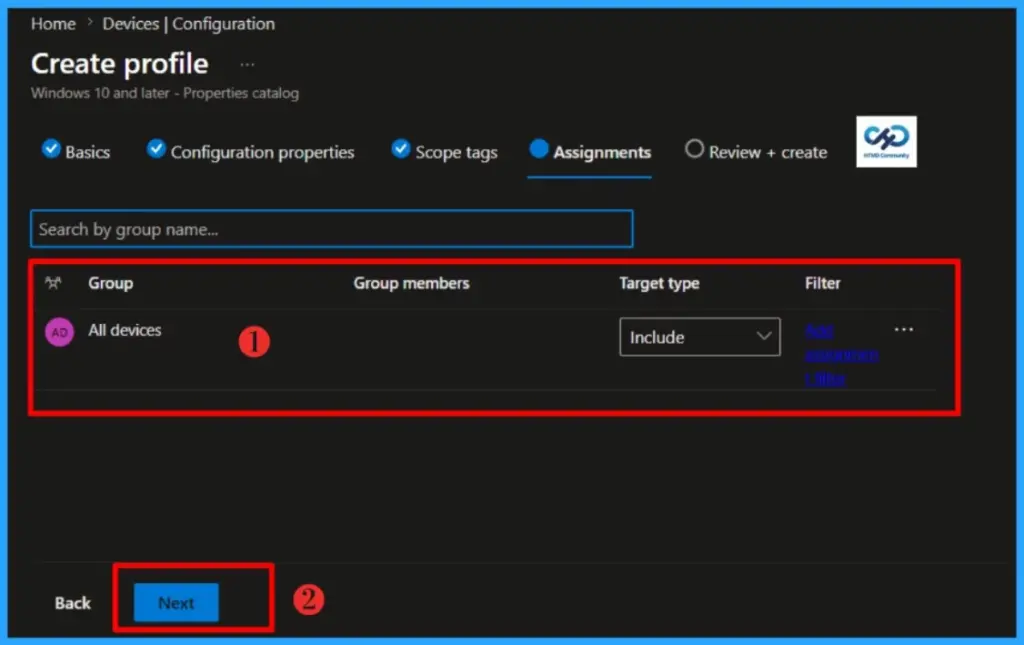
Click Next to display the Scope tags page. Add the Scope tags if you wish, and click Next to assign the policy to computers. I will deploy it to the device Group. You can apply the filters for certain devices from this assignment if you want. Click Next to Continue.
On the Review + Create page, carefully review all the Configuration properties that you’ve defined. You can also see the Scope tags and Assignment details on this page. Select Create to configure the App inventory for Windows devices.
View Application Inventory Data
It took me a couple of hours to replicate the changes, and I was eager to see the final output. Please refer to the screenshot below to view how the results appear.
Read More – Microsoft Intune All Apps Now in Device View Simplifies App Troubleshooting for IT Admins
- Sign in to the Microsoft Intune Admin Portal with your credentials.
- Select Devices > All devices, and then select a device.
- Select All Apps and App Inventory tab.
NOTE! App inventory gathers data more often than the older Discovered apps feature. On active devices, collection runs several times a day, triggered by the MMPC sync and check-in cycle.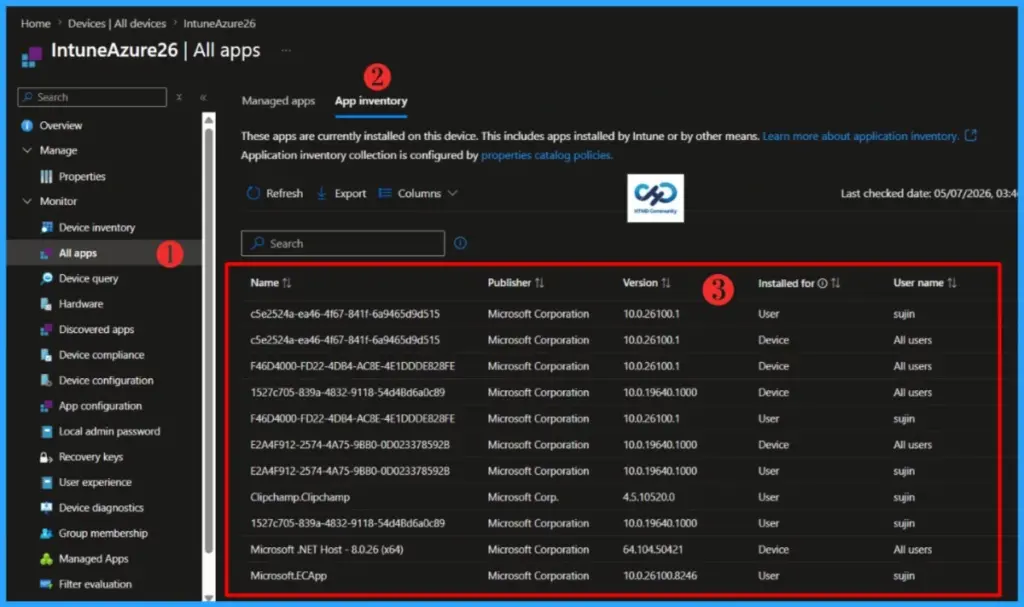
- Enhanced Hardware Inventory Information for macOS iOS iPadOS and Android Devices
- Intune Inventory Options for Mac iOS Android Windows Devices and Custom Inventory
- Intune App Inventory For Android Devices
I trust that this article will significantly benefit you and your organization. I appreciate your patience in reading this post. I look forward to seeing you in the next post. Keep supporting the HTMD Community.
Need Further Assistance or Have Technical Questions?
Join the LinkedIn Page and Telegram group to get the latest step-by-step guides and news updates. Join our Meetup Page to participate in User group meetings. Also, Join the WhatsApp Community to get the latest news on Microsoft Technologies. We are there on Reddit as well.Author
About the Author: Sujin Nelladath, a Microsoft Graph MVP with over 13 years of experience in SCCM device management and Automation solutions, writes and shares his experiences with Microsoft device management technologies, Azure, DevOps and PowerShell automation.