
Key Takeaways
- Provides a consistent browsing experience across all managed Windows devices.
- Gives users quick access to important business websites and corporate resources.
- Reduces manual browser configuration by centrally managing the bookmark bar through Microsoft Intune.
- Prevents users from changing the bookmark bar setting, ensuring organizational compliance
Let’s learn How to Configure Google Chrome Bookmark Bar Policy using Microsoft Intune. Managing browser settings through Microsoft Intune helps organizations provide a consistent browsing experience across managed Windows devices. You can manage your browsing experience more organized while browsing the web by adding favorites sites and keeping track of the websites you frequently visit by enabling bookmarks in Google Chrome.
Table of Contents
Table of Contents
How to Configure Google Chrome Bookmark Bar Policy using Microsoft Intune
The Enable Bookmark Bar policy allows administrators to control whether the Google Chrome bookmarks bar is visible. This is useful for organizations that want users to quickly access corporate websites, internal portals, or frequently used business applications. When this policy is configured, users cannot change the bookmark bar setting in Google Chrome. If the policy isn’t configured, users can choose whether to show or hide the bookmarks bar according to their own preference.
- How to Configure Notifications for Noncompliant Devices in Microsoft Intune
- Manage Google Chrome Settings Using Intune Administrative Template
- Google Chrome Deployment using Intune Line of Business Application
- Intune Logs Event IDs IME Logs Details for Windows Client Side Troubleshooting
How to Configure Google Chrome Bookmarks using Intune
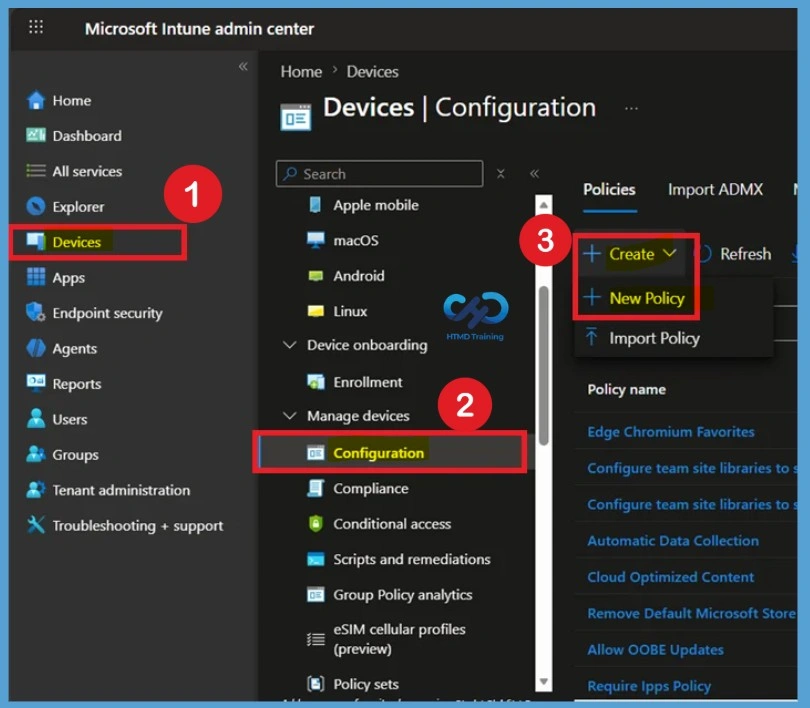
To begin, create a new Settings Catalog profile in Microsoft Intune. This profile will be used to configure Google Chrome Bookmarks using Intune for targeted users or devices. To get started, sign in to the Intune admin portal and navigate to Devices > Windows devices > Configuration > Create profile > New policy.
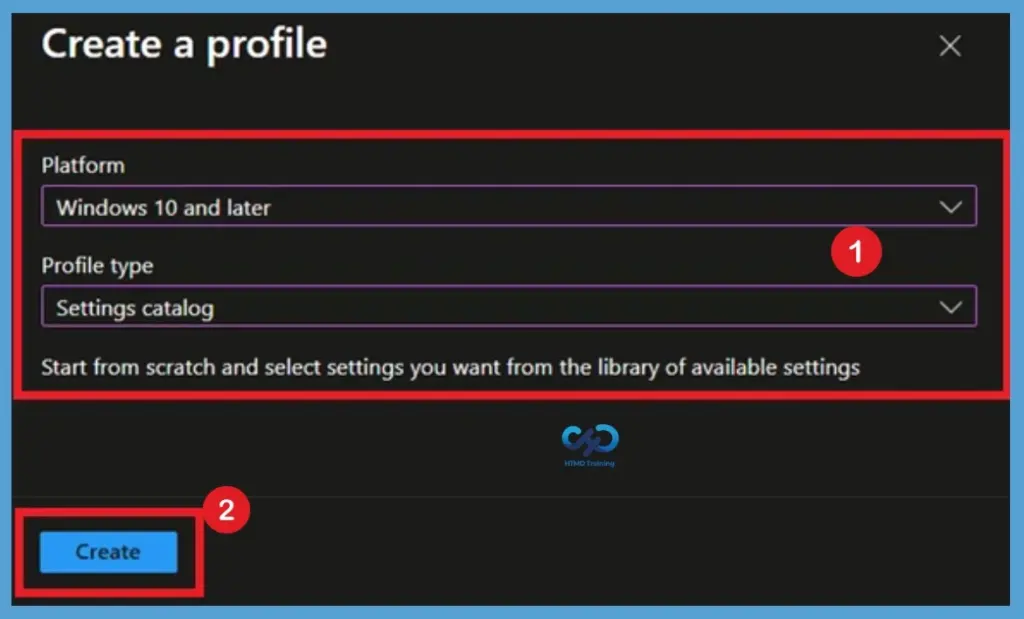
In Create a profile, Select Platform, Windows 10, and later and Profile, Select Profile Type as Settings catalog. Click on Create button.

Basic Tab
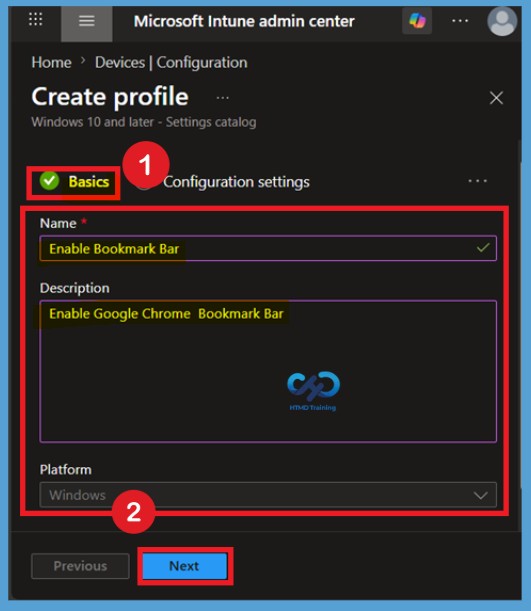
In the Basics tab, provide the necessary details such as the policy name and description to help identify the configuration later. Here for an example i gave the name as Enable Bookmark Bar. After giving name and description click on the Next.
Add the Configuration Setting (Settings Picker)
Next, move to the Configuration settings tab and click + Add settings. In the Settings picker, search for the keyword Google Chrome or Enable Bookmark Bar. Under the Google Chrome section, select the setting Enable Bookmark Bar and then close the Settings picker window.
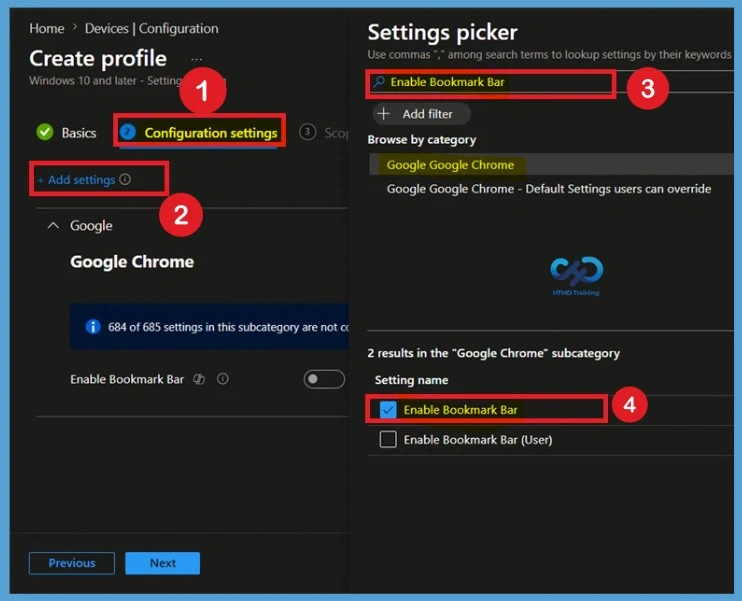
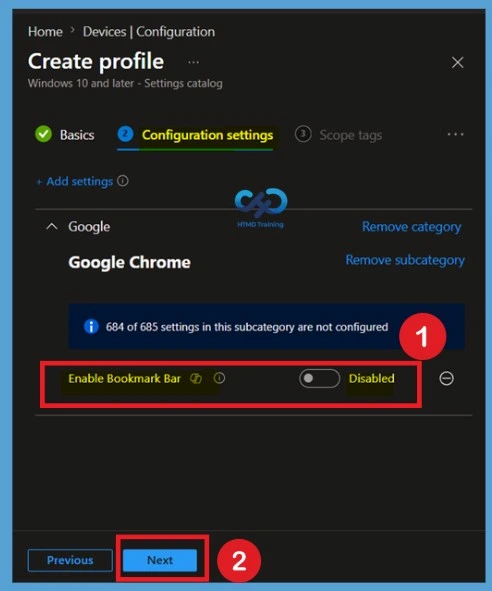
Default State (Disabled)
After adding the setting, the toggle is Disabled by default. This configures the policy to hide the bookmark bar in Google Chrome on managed devices. Once the policy is deployed, users cannot enable the bookmark bar themselves because the setting is enforced by Intune. Click Next after confirming the required configuration.
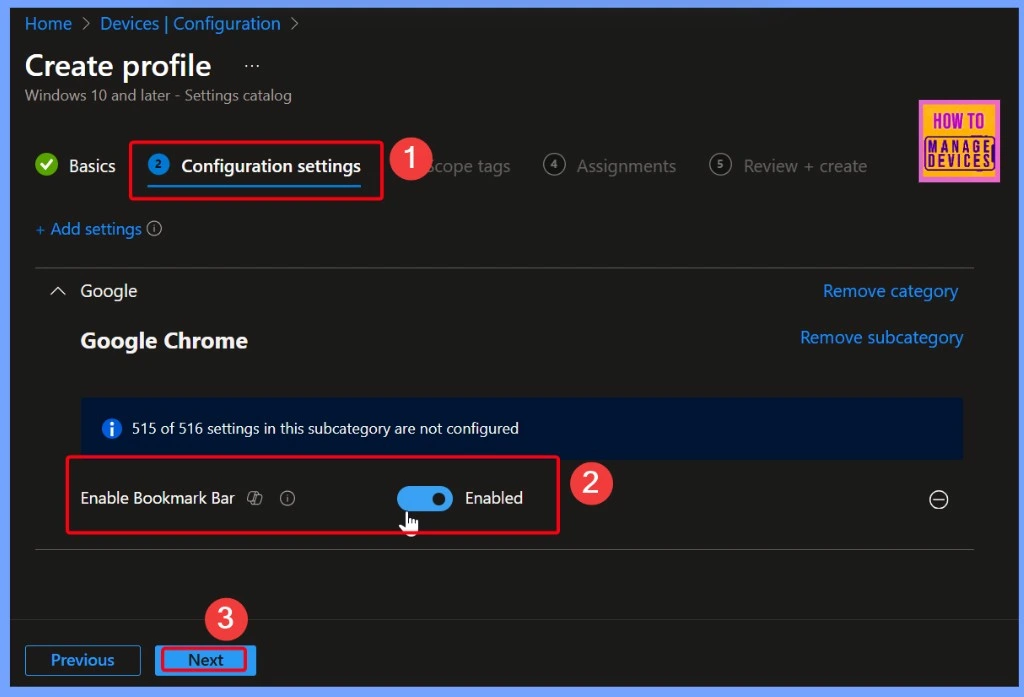
Enable the Bookmark Bar policy
When you configure the Enable Bookmark Bar policy in Intune, setting it to True forces Google Chrome to always display the bookmark bar. If set to False, the bookmark bar will never appear. Once enforced, users cannot change this setting on their own. However, if the policy is left Not Configured, users have the freedom to decide whether or not to enable the bookmark bar.
Here in this guide, I am going to enable this policy, to always display the bookmark bar, turn the Enable Bookmark Bar toggle to Enabled. When enabled, Google Chrome automatically shows the bookmarks bar for all targeted users or devices.
| Policy Name | Enabled | Disabled |
|---|---|---|
| Enable Bookmark Bar | Toggle the pane to the Right side | Toggle the pane to the Left side |
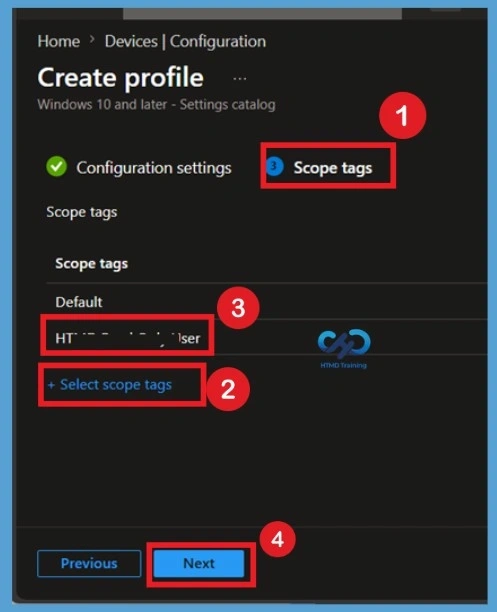
Scope Tag for Chrome Bookmarks
On the Scope tags page, choose an existing scope tag if you use role-based administration in your organization. Scope tags help limit which administrators can view and manage the policy. If your organization doesn’t use scope tags, leave the default setting and continue by selecting Next.
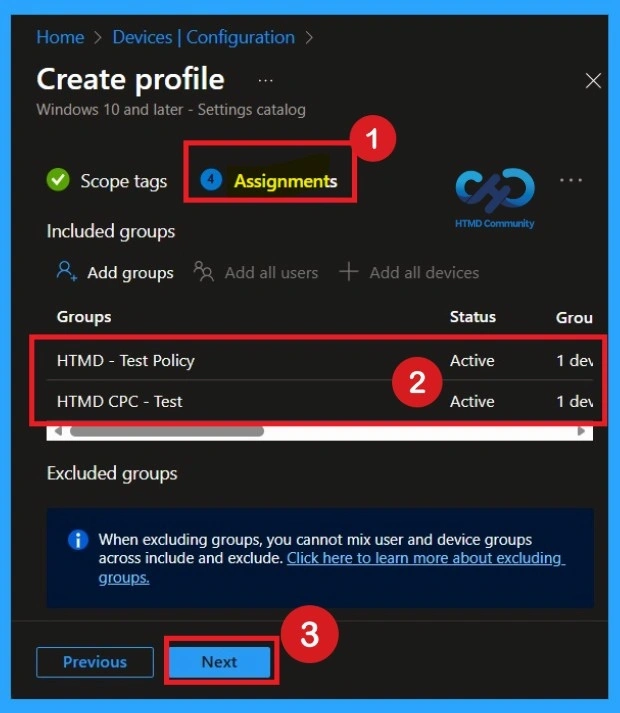
Assignments page
In the Assignments page, select the Microsoft Entra user or device groups that should receive the policy. You can include specific groups and, if necessary, exclude groups that shouldn’t receive the configuration. Review the assignments carefully before moving to the next step.
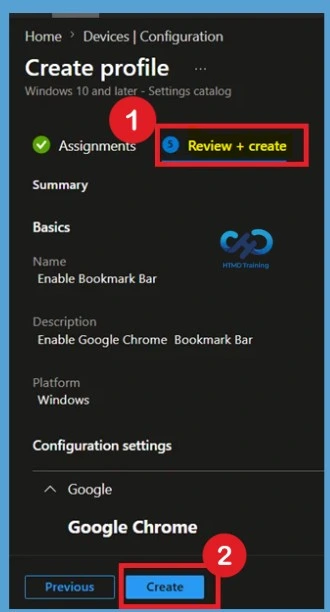
Review and Create
Review all configured settings, including the policy name, platform, selected setting, scope tags, and assignments. If everything is correct, click Create to deploy the policy. The new configuration profile is created and becomes available for deployment to the assigned groups.
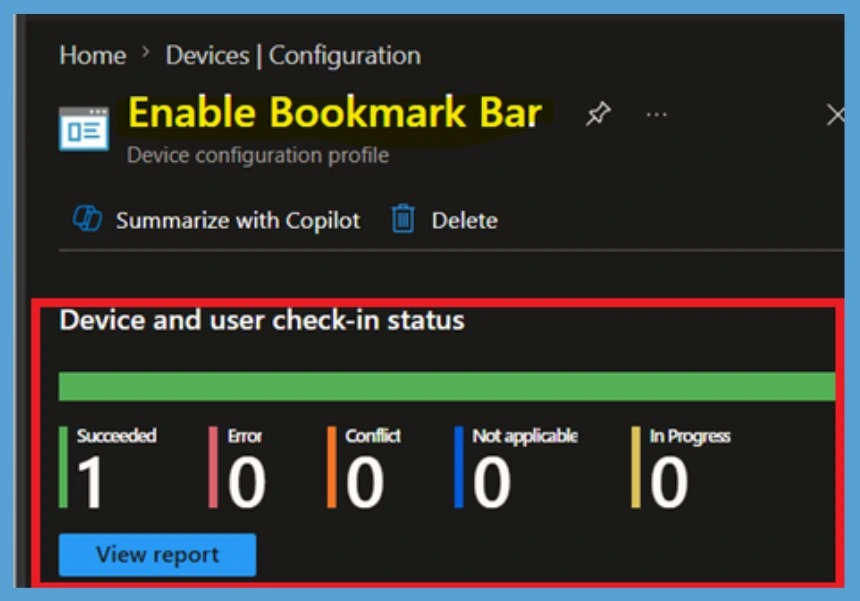
Monitor Policy Status
After creating the policy, open the configuration profile from Devices > Configuration. Review the Device status, User status, and Per-setting status reports to verify successful deployment. These reports help identify devices that successfully received the policy and any devices that deployment or compliance issues.
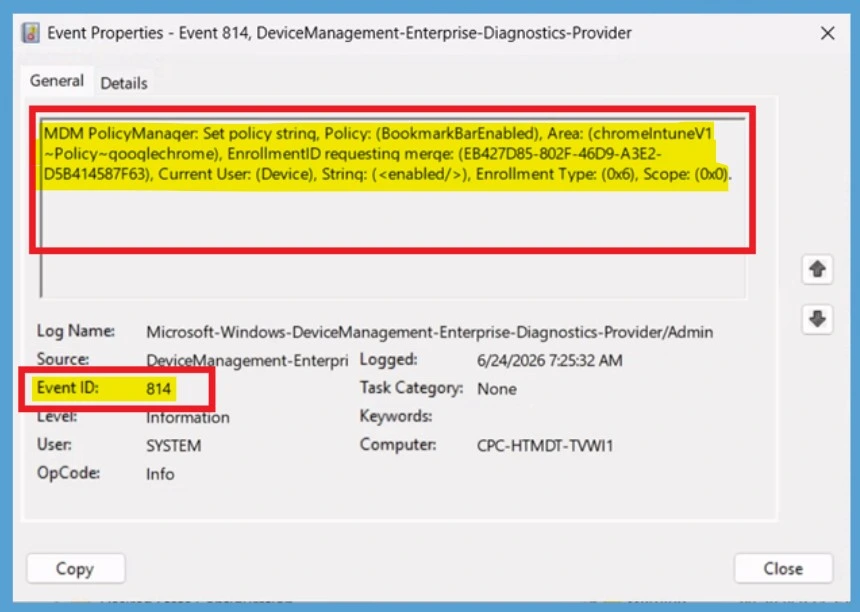
Client-Side Verifications
To verify policy application, open Event Viewer and navigate to Applications and Services Logs > Microsoft > Windows > DeviceManagement-Enterprise-Diagnostics-Provider > Admin. Select Filter Current Log from the Actions pane and search for Event ID 814, which indicates that the Intune policy has been processed successfully.
| Policy Info |
|---|
| MDM PolicyManager: Set policy strinq, Policy: (BookmarkBarEnabled), Area: (chromelntuneV1 ~Policy~gooqlechrome), EnrollmentID requestinq merqe: (EB427D85-802F-46D9-A3E2- D5B414587F63), Current User: (Device), Strinq: (), Enrollment Type: (0x6), Scope: (0x0). |
Delete Chrome Bookmarks Assigned Groups
When the policy is no longer needed, first remove all assigned groups to prevent deployment. Then open the policy, select the 3 -dot (… ) menu (More options) and select Delete option, confirm the deletion, and permanently remove the profile from Intune. The policy is deleted from the tenant and is no longer available for management.
For detailed information, you can refer to our previous post – Learn How to Delete or Remove App Assignment from Intune using by Step-by-Step Guide.
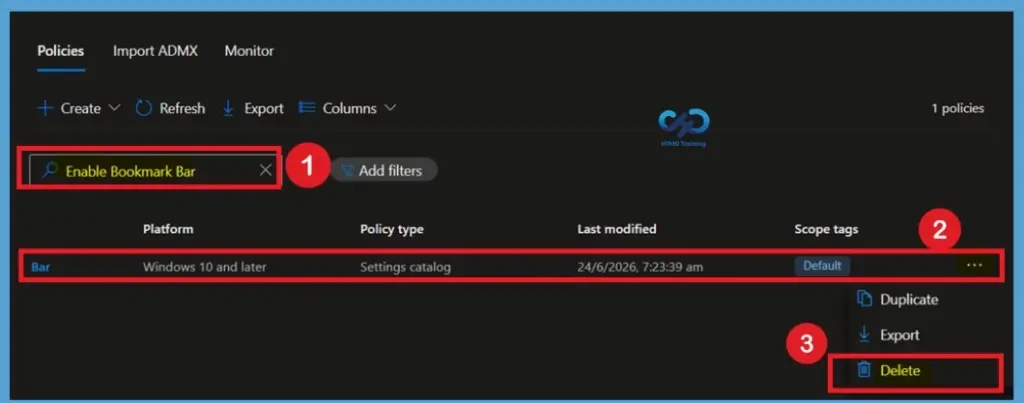
Remove Assigned Group from the Policy
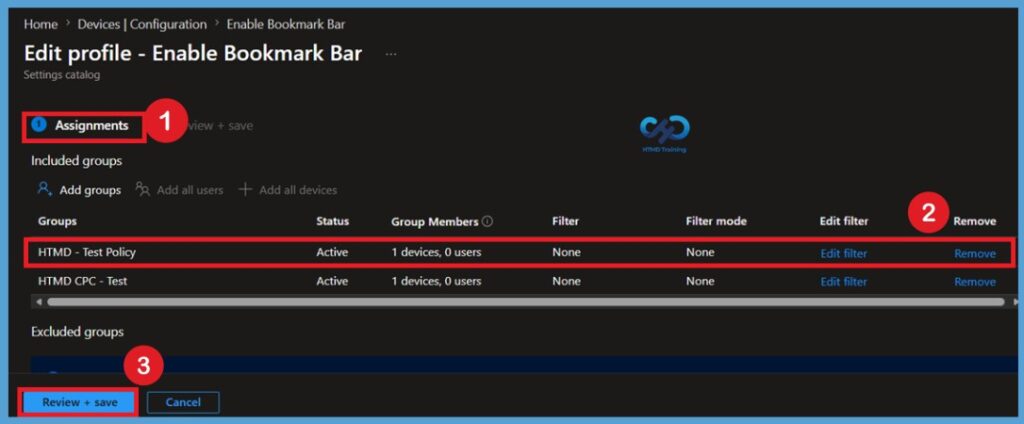
In this case if you think you don’t need the policy group that you assigned for a policy creation, then you can do 1 thing that search for the policy in the Configuration profiles then go to the policy status page. When you scroll down you can see the basic, configuration and assigned tab details there you will get edit option. Click on the edit option near assignment.
- In the edit profile of assignment section, you can remove the group that you want and click on the review and create option.
For detailed information, you can refer to our previous post – How to Delete Allow Clipboard History Policy in Intune Step by Step Guide.
Need Further Assistance or Have Technical Questions?
Join the LinkedIn Page and Telegram group to get the latest step-by-step guides and news updates. Join our Meetup Page to participate in User group meetings. Also, join the WhatsApp Community and the WhatsApp channel to get the latest news on Microsoft Technologies. We are there on Reddit as well
Author
About Author – Jitesh, Microsoft MVP, has over six years of working experience in the IT Industry. He writes and shares his experiences related to Microsoft device management technologies and IT Infrastructure management. His primary focus is Windows 10/11 Deployment solution with Configuration Manager, Microsoft Deployment Toolkit (MDT), and Microsoft Intune.
I made a PowerShell script that will format your URLs and Bookmark names based off values entered into an Excel template. It’s good for when you have to create large or multiple bookmark lists. https://github.com/CyberSkyler/IntuneChromeBookmarks/tree/main
Hi
Thank you for this approach. That’s all well and good if you want to distribute a small number of bookmarks.
However, I have to manage and distribute a folder structure with up to three subfolders and a total of over 300 elements. Unfortunately, this is absolutely unsuitable for this.
At the moment I do this using a text editor in a .reg file, which I then convert into an xml file in order to then distribute it via gpo.
I had hoped that there was a more elegant solution…
Can you update. Admin Templates are now retired.