
Key Takeaways
- Administrators can allow users to uninstall supported Win32 apps directly from the Windows Company Portal.
- The Allow available uninstall setting controls whether the uninstall option is available for a Win32 app.
- The app must have a valid Uninstall command configured for the removal process.
- Detection rules help Intune determine whether the application is still installed on the device.
Let’s learn Allow Users to Uninstall Win32 Apps from Company Portal using Intune. Microsoft Intune company portal provides a lot of branding options for Applications to provide a better user experience. With the added support for uninstalling apps directly from the Company Portal, users will have more control over their installed applications, Uninstall Apps from Intune simplifies the management process and improves the overall user experience. Microsoft Intune continues to improve application management by giving users more control over the apps available on their managed Windows devices.
Table of Contents
Table of Contents
Allow Users to Uninstall Win32 Apps from Company Portal using Intune
One useful capability is the ability to uninstall eligible applications directly from the Intune Company Portal without requiring users to contact the help desk for every app removal. For Win32 applications, administrators can control whether users are allowed to uninstall an app from Company Portal by using the Allow available uninstall option. When enabled, users can select the app in Company Portal and choose Uninstall. Microsoft also supports uninstalling applicable Microsoft Store apps from Company Portal.
Before adding a Win32 app to Microsoft Intune, you must prepare the app using the Microsoft Win32 Content Prep Tool. You use the Microsoft Win32 Content Prep Tool to pre-process Windows classic (Win32) apps, Intune Win32 App Deployment Step By Step Guide.
- Intune Win32 App Troubleshooting Client Side Deep Dive
- Deploy Registry Fix Using Intune Win32 App
- Intune Application Deployment using MSI EXE IntuneWin Formats
- Intune Architecture And Sample Architecture Diagram Explained
Uninstall Apps from Intune Company Portal for Windows Devices
The following steps enable uninstall option in Company portal for the existing Win32 app directly from the Properties pane of the Application node in the Intune Admin Portal. To allow users to remove an existing Win32 application, sign in to the Microsoft Intune admin center and navigate to Apps > Windows.

Important – If the application is not listed in Intune, you need to create the application for which you want to target the uninstallation and validate the uninstall command line and detection method for the app.
- Sign in to the Microsoft Intune admin center
- Select Apps > Windows.
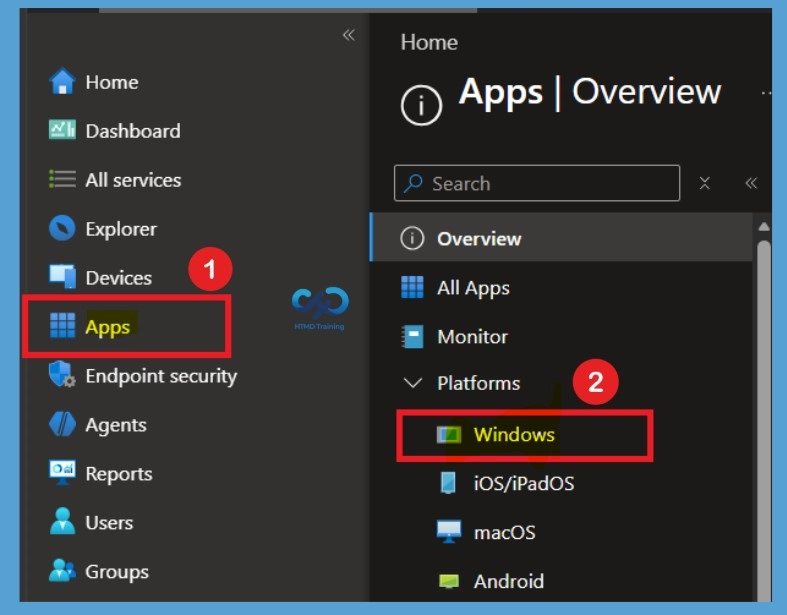
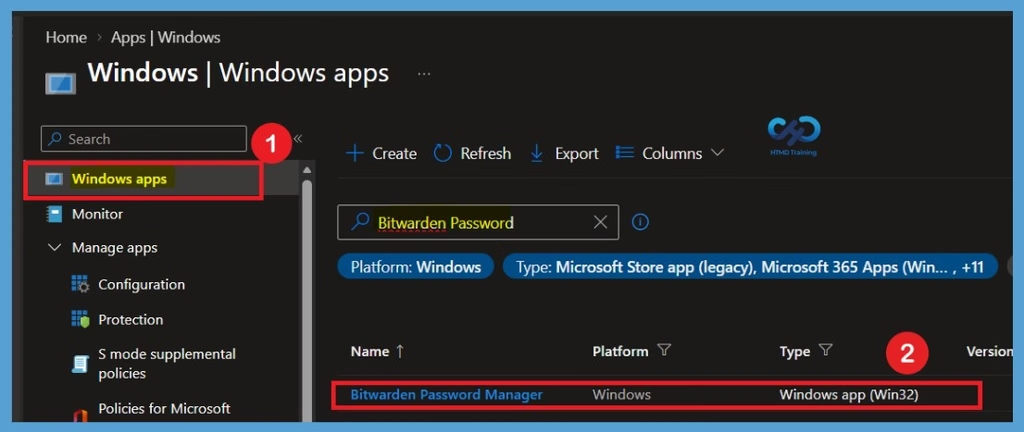
Select the Win32 application that you want users to be able to uninstall from Company Portal. Here I Selected the existing appl from the list, you want to allow the user to uninstall from Company Portal. For Example, I will be selecting Bitwarden Password Manager.
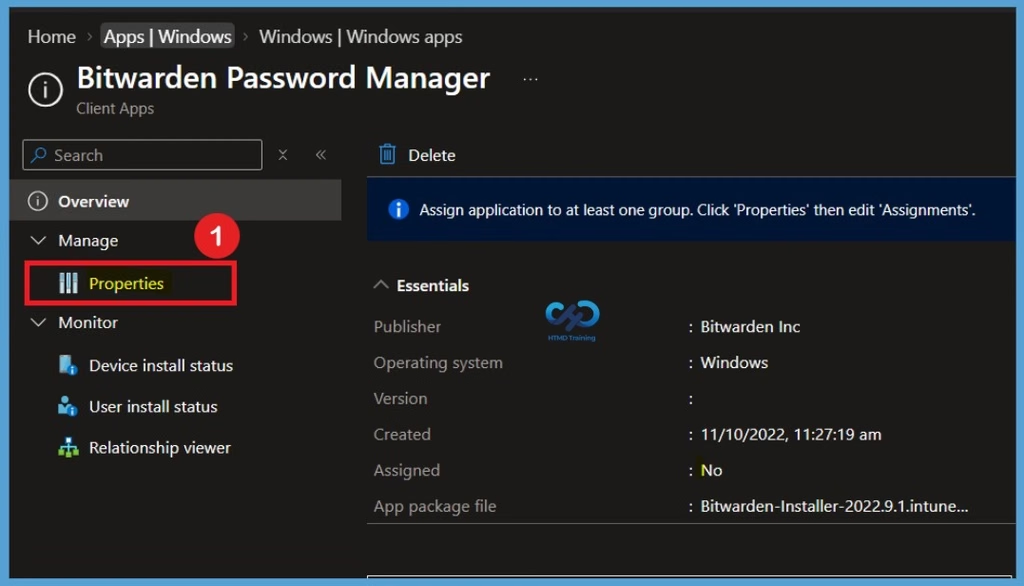
Find the Properties Tab
When you select the application that you want to allow users to uninstall, you will be taken to the application Overview page. Here, you can find several options for managing and monitoring the application, such as Manage, Monitor, and Properties settings. To continue with the configuration, select Properties.
Select Program Page
When you open the Properties section of the application, you can see different configuration details, including App information, Program, and Requirements. Here, we need to review the Program details. Under this section, you can see that Allow available uninstall is currently set to No. To change this setting, click Edit next to the Program section.
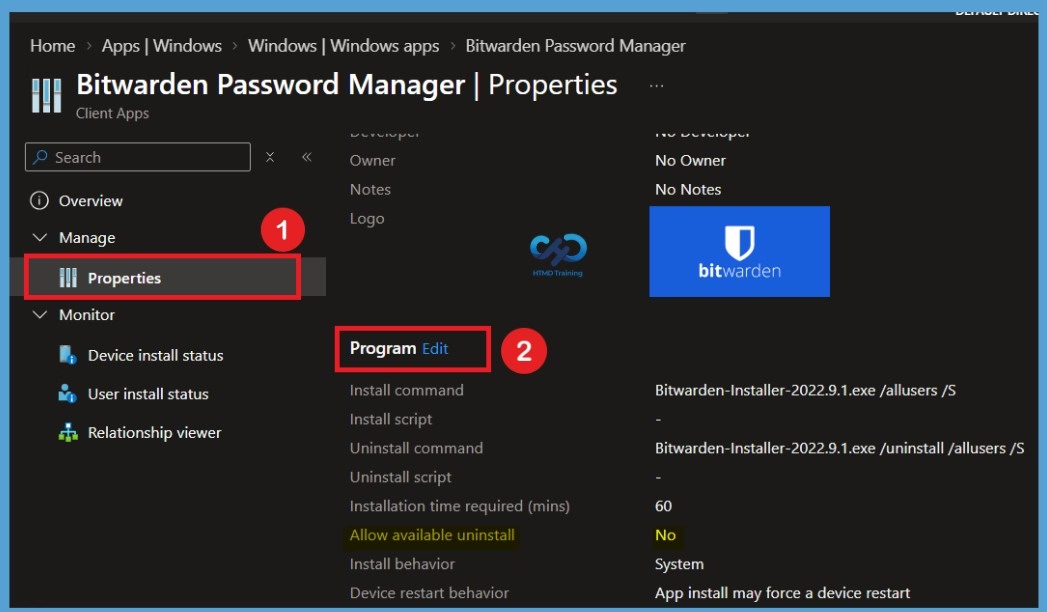
Set Allow Available Uninstall to Yes
Clicking on Edit in Program to modify the app uninstallation method or enable uninstall. In the Allow available uninstall option, select ‘Yes’ to provide the uninstall option for this app for users from the Company Portal. Select ‘No’ to prevent users from uninstalling the app from the Company Portal. Once you have selected the setting for the application, it should appear as shown below. Click Review + save to confirm.
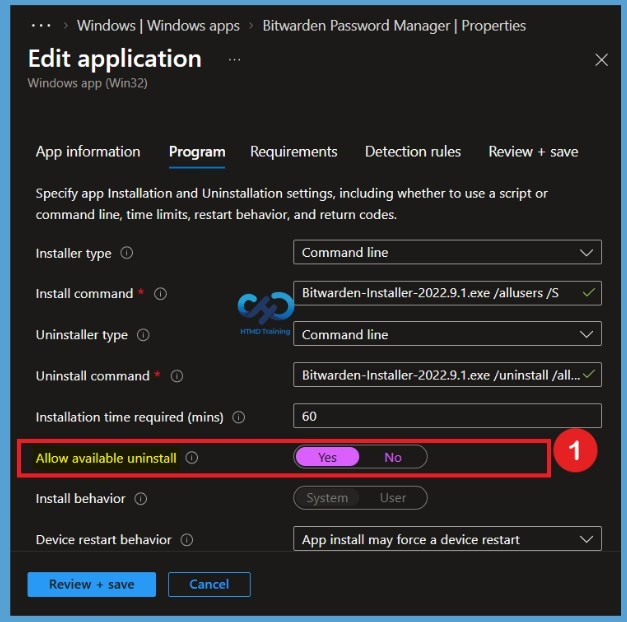
After changing Allow available uninstall to Yes, click Review + Save to proceed with the configuration. You will be taken through the existing application settings, including the Requirements and Detection Rules sections. Continue through the configuration until you reach the final Review + Save page.
Review the settings and click Save to apply the changes. Once the configuration is successfully saved, Intune will display a notification confirming that the application was updated successfully. In the last step of the edit application step, A notification will appear automatically in the top right-hand corner with the message “Application saved successfully.”
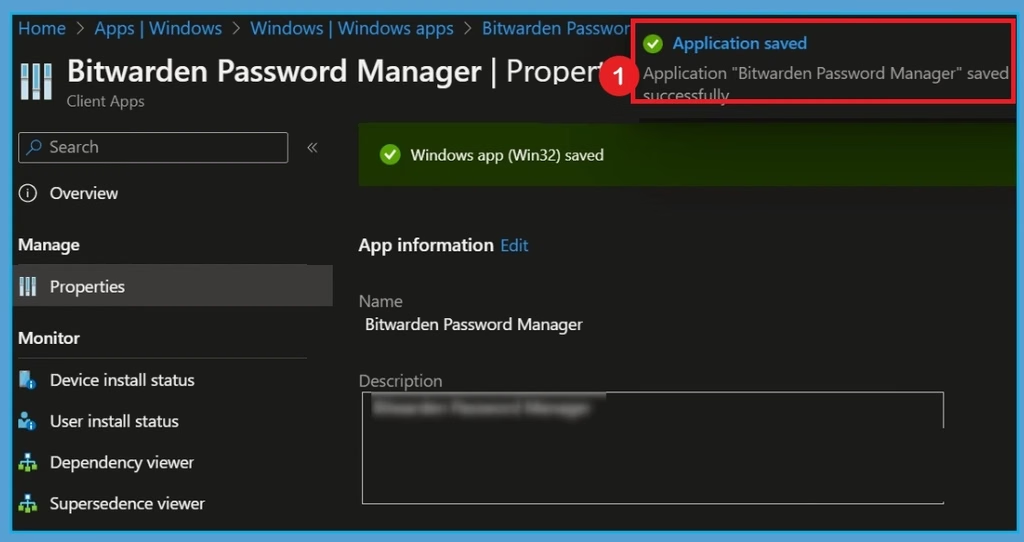
Add Support for Uninstall Apps in Company Portal from Create App Wizard
This proposal aims to enhance user convenience and productivity by adding support for uninstalling apps directly from the Create App wizard and enabling the uninstall option in the Company Portal. Sign in to the Microsoft Intune admin center. You have two options to navigate to the application node either you can navigate to the All Apps or Apps > By Platform.
Select Apps > Windows > Create. On the Select app type pane, under the Other app types, select Windows app (Win32). Click Select. The Add App steps appear. On the App information page, add the details for your app.
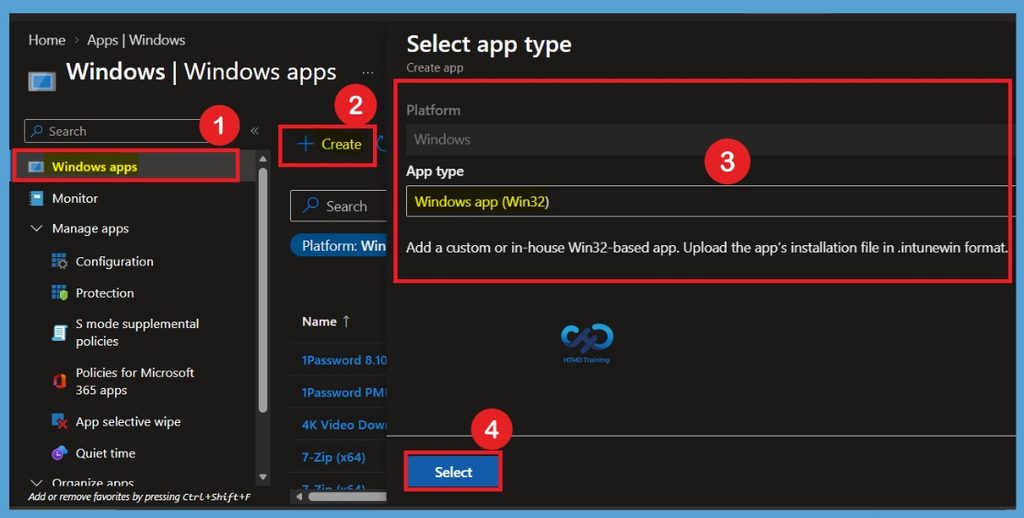
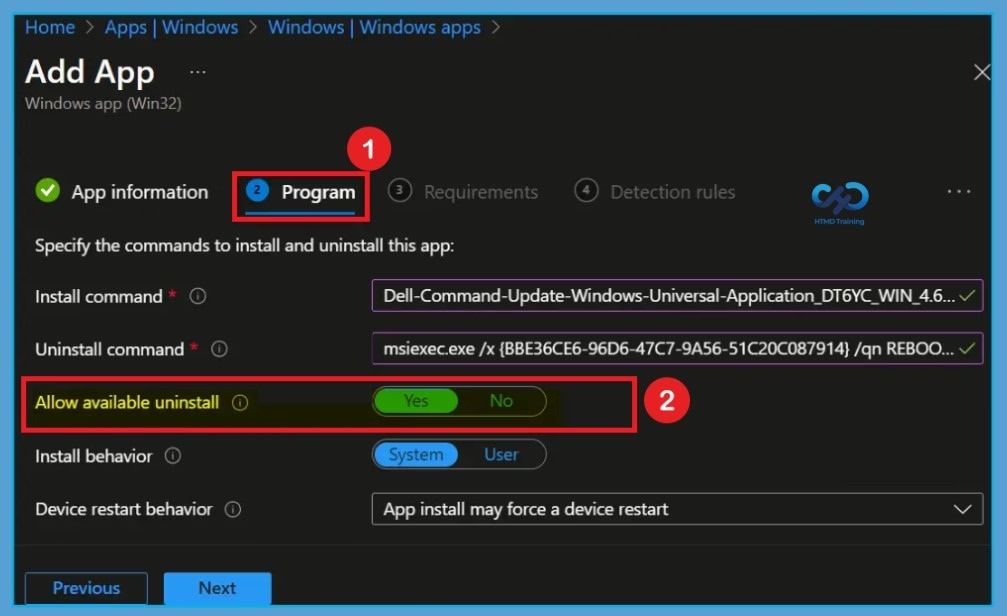
On the Program page, locate the Allow available uninstall option. As configured in the previous section, change this setting from No to Yes to allow users to uninstall the application directly from the Company Portal. The most important part is to specify the commands. On the Program, configure the app installation and uninstall commands for the app below in the table.
| commands for the App | Info |
|---|---|
| Install base | Add the complete installation command line to the silent install app |
| Uninstall command | Add the complete command line to uninstall the app. |
| Allow available uninstall | By default, the option is set to Yes. |
| Install behavior | Set the install behavior to System or User. |
You can also specify the Device restart behavior and Post-installation behavior. Click Next to continue, and complete the steps for the apps assignment.
End User Experience – Uninstall Apps in Company Portal
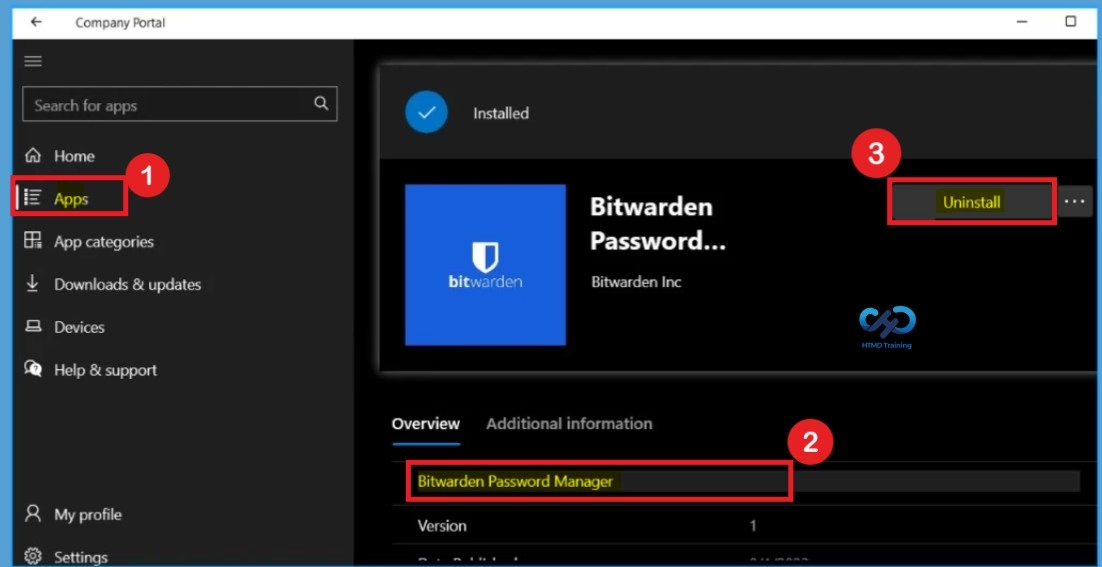
Let’s check the end-user experience of Uninstalling Apps in Company Portal. Identify Installed Apps on the company portal, you will have the option to uninstall the apps based on the configured options as we did already in the above section.
- Latest Method To Install Intune Company Portal App For Windows Devices
- Display Featured Apps In Intune Company Portal
Launch Company Portal on Windows Device that you manage. Here you see the application with the proper icon configured above, providing the best visibility about the application, making it more user-friendly to use from Company Portal – On the client machine, In the Company Portal, you can click on the apps to track the details and check the progress. Here you can see the Bitwarden Password Manager application is installed on the machine, the next step is to proceed with uninstalling apps in the company portal.
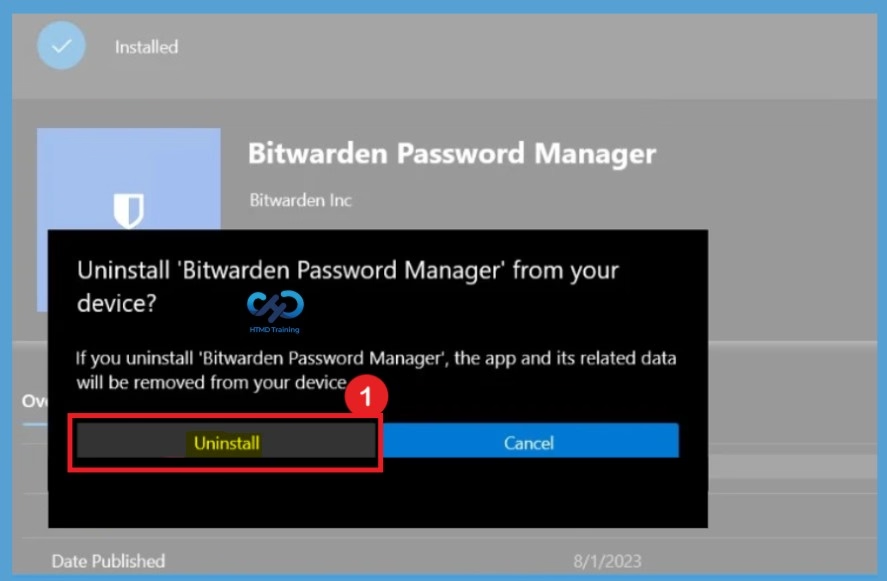
A prompt will appear with the message, Uninstall ‘Bitwarden Password Manager’ from your device? If you uninstall ‘Bitwarden Password Manager’, the app and its related data will be removed from your device. The process would take some time to complete, depending on the application size, it’s important to note if you have the required assignments for the application. You won’t be able to proceed with uninstalling apps.
Note! If the uninstalled failed, You will get an option to Retry Uninstall from the company portal.
Track Details After Uninstallation
Once the application uninstallation starts, checks are performed against the configured rules, and the “Uninstall command” app will be triggered. You can track the details logged at IntuneManagementExtension.log located C:\ProgramData\Microsoft\IntuneManagementExtension\Log for more detailed information. The Intune management extension is the client-side component to manage the MDM Intune Win 32 application deployment. Learn more about Intune Win32 App Issues Troubleshooting Client-Side Process Flow.
Need Further Assistance or Have Technical Questions?
Join the LinkedIn Page and Telegram group to get the latest step-by-step guides and news updates. Join our Meetup Page to participate in User group meetings. Also, join the WhatsApp Community and the Whatsapp channel to get the latest news on Microsoft Technologies. We are there on Reddit as well.
Author
About Author – Jitesh, Microsoft MVP, has over six years of working experience in the IT Industry. He writes and shares his experiences related to Microsoft device management technologies and IT Infrastructure management. His primary focus is Windows 10/11 Deployment solution with Configuration Manager, Microsoft Deployment Toolkit (MDT), and Microsoft Intune.
How do a remove an app from the company portal so its not downloadable/visible