
Key Takeaways
- Windows Autopilot simplifies the deployment of new Windows devices by automating setup and configuration.
- Admins can register devices with Windows Autopilot, create deployment profiles, and automatically enrol devices into Microsoft Intune.
- Devices can be delivered directly to end users with minimal IT involvement, reducing deployment time and effort.
- Windows Autopilot supports Windows PCs and HoloLens 2 devices.
- The deployment process includes:
- Collecting and importing device hardware information.
- Creating and assigning Autopilot deployment profiles.
- Configuring automatic Intune enrollment.
- Provisioning and preparing devices for end users.
Windows Autopilot provides a consistent, secure, and user-friendly Out-of-Box Experience (OOBE) for new Windows devices. It helps organisations reduce traditional imaging, manual configuration, and device staging efforts by automating the deployment process.
Table of Content
Windows AutoPilot Step-by-Step Admin Guide to Provision Windows Devices
Let’s discuss the Windows AutoPilot Step-by-Step Admin Guide to Provision Windows 11 Devices. In this post, I will describe how to provision Windows devices with the AutoPilot service, enrol them on Intune, create a deployment profile, import device information into Intune, and set up Windows devices.
HTMD Community recommends going through 12 hours for a self-learning track to learn Intune. More details on the Intune Training Course 2023. Windows Autopilot PreProvisioning Backend Process- Deep Dive – Post 4, Windows Autopilot Processes from Device Side – Part 3. Windows Autopilot Behind The Scenes Secrets – Admin Side – Part 2.
Windows Autopilot streamlines setting up and configuring new devices for immediate use. It works for deploying Windows PCs and HoloLens 2 devices. If most of you are Microsoft 365 subscribers, you may already have Windows Autopilot included at no additional cost.

- Part 1 Windows Autopilot FAQ Clarifying the General Misconceptions
- Part 2 Windows Autopilot from the perspective of IT Admin setup
- Part 3 Windows Autopilot In-Depth Processes from Device Side
- Part 4 Windows Autopilot WhiteGlove Provisioning Deep Dive (This Post)
Latest Windows Autopilot Troubleshooting v2
The Latest Autopilot Troubleshooting v2 guide provides a comprehensive overview of troubleshooting the Next-Generation Windows Autopilot experience. It helps IT administrators identify and resolve deployment, enrollment, and provisioning issues by covering key prerequisites, licensing requirements, network configurations, and troubleshooting methods.
Read More – Latest Windows Autopilot Troubleshooting v2
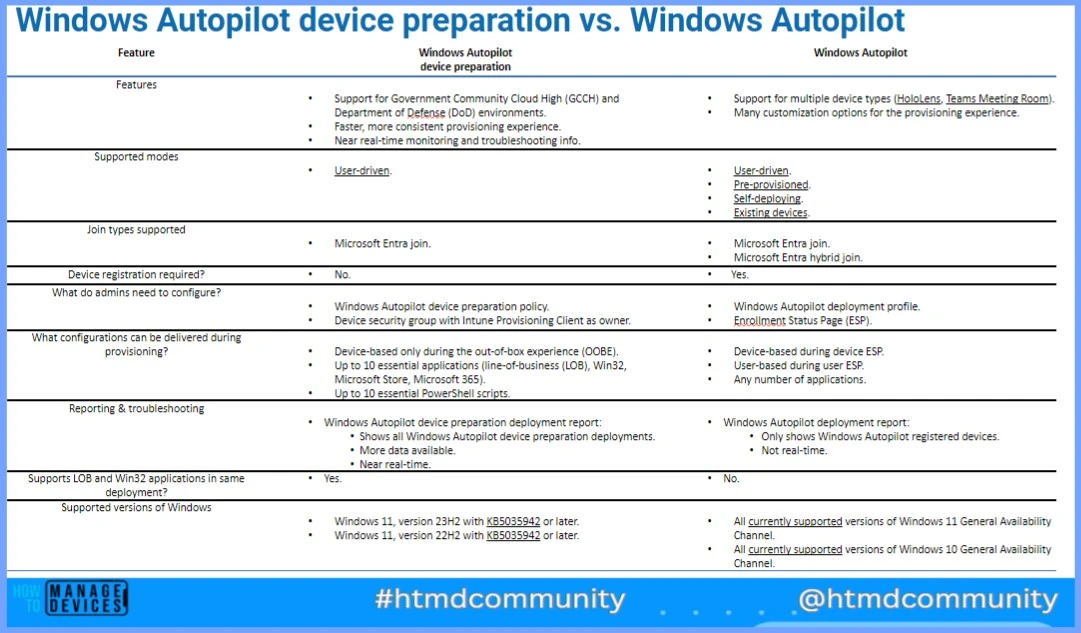
Configure Windows Autopilot Device Preparation Policies Using Intune
Here, we explain how to configure Windows Autopilot Device Preparation policies using Microsoft Intune. Windows Autopilot simplifies the deployment of new devices by providing an easy and user-friendly setup experience. Devices can be pre-configured and prepared for use right out of the box, reducing manual IT effort and improving deployment consistency.
Read More – Guide to Configure Windows Autopilot Next Generation Device Preparation Policy with Intune

New Windows Autopilot Device Preparation Experience using Intune
Learn about the new Windows Autopilot Device Preparation experience (Autopilot v2) with Microsoft Intune. This video guide walks you through configuring the Windows Autopilot Next Generation Device Preparation Policy, explains the available configuration settings, and demonstrates how the policy is deployed and managed through Intune.
Windows AutoPilot Service
The Windows AutoPilot service is a collection of technologies designed to simplify and automate the Windows Out-of-Box Experience (OOBE). It has three (3) scenarios. The Windows AutoPilot Process End-to-end Guide provides more information on the basics of Windows AutoPilot.
Video – Windows Autopilot Training
Joy, a Microsoft MVP, provides the latest Windows Autopilot training. This video covers end-to-end Windows Autopilot scenarios, including Background processes, Real-World Issues, fixes, Tips, and Tricks.
- Get to know Windows Autopilot.
- Compare and contrast Windows Autopilot with Traditional Windows Provisioning.
- Know the benefits of using Windows Autopilot
- Deep dive into how Windows Autopilot works
Windows AutoPilot Admin Guide to Provision Windows Devices
The provision of Windows with AutoPilot is part of modern technology. Everything seems to be moving into the cloud and automation. Building and managing operating systems is time-consuming. Windows Autopilot is the provisioning service.
With the help of Intune and AutoPilot, you can pre-configure, reset, re-purpose, and recover your devices. You can customise and deploy the settings without re-imaging, which saves you a lot of time.
I would not go into details for describing Windows AutoPilot, as much Microsoft Documentation is available. We also have posts from Anoop, Joy, and Vimal about Windows AutoPilot and MS Intune.
- Please go through with Windows AutoPilot.
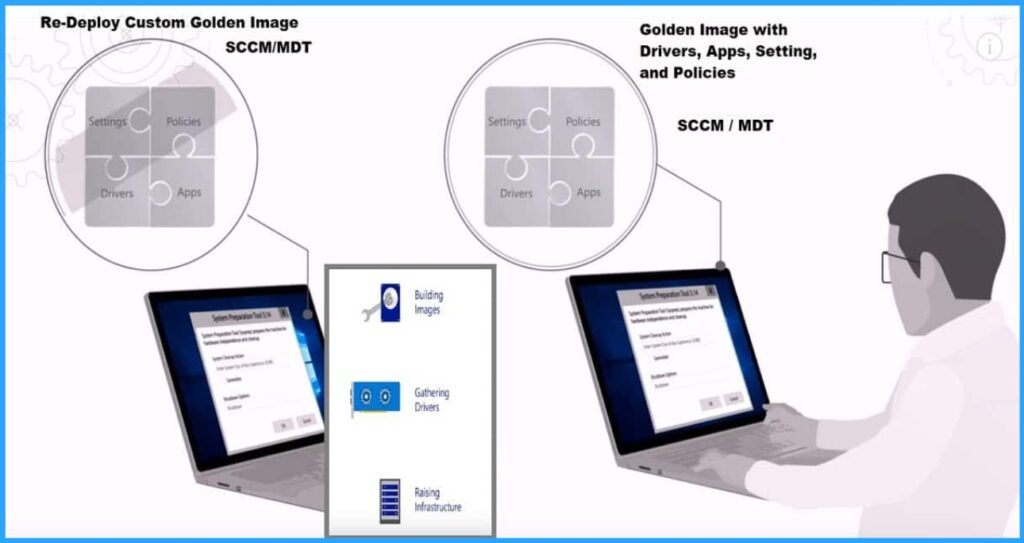
Related Post-Beginners Guide Setup Windows Autopilot Deployment, Windows Autopilot FAQ Clarifying the General Misconceptions Part 1, Windows AutoPilot and Microsoft Documentation
While enrolling Windows devices in Intune, we must configure certain prerequisites as outlined below. I would not detail the licensing and other requirements that information you can get from Microsoft documents.
- Configure Device Setting
- Mobility (MDM and MAM)
- Company Branding
- Deployment Profile
- Create Groups
- Creation of Users
Configure Device Setting – Provision Windows with Windows AutoPilot Step-by-Step Admin Guide
To configure the device settings, you have to go to:
- Log in to Entra admin center
- Navigate via Entra admin center->Devices->Device Settings
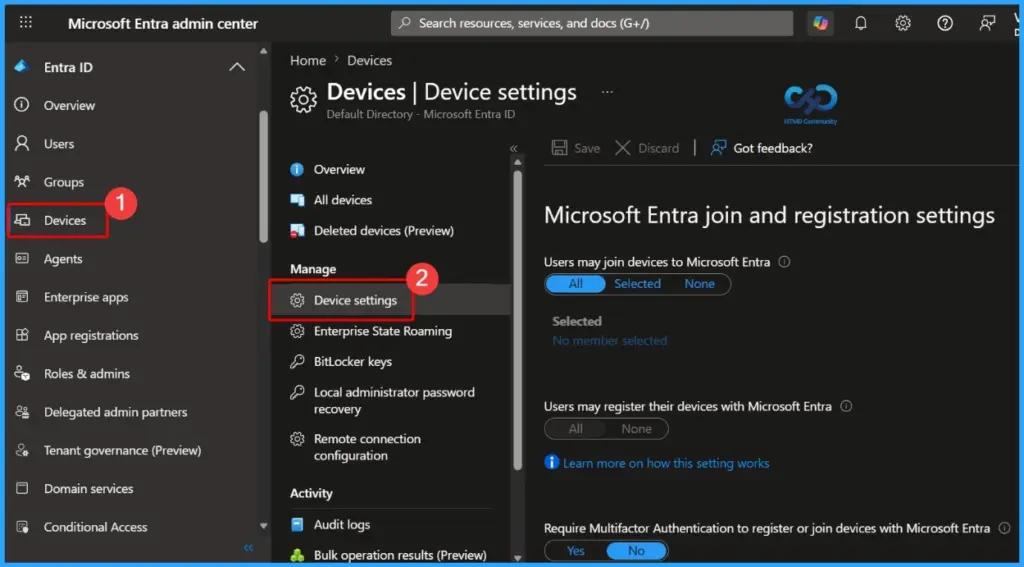
The first option is that users may join devices to Entra ID, which I have selected all. You can choose the desired option, also if you want to have some selected users join the machines to Entra, but in my case, I have set all.
The next option is to create an additional local administrator for Windows Entra ID joined devices.
- Here, you can select which users will have local device admin rights. By default, global administrators and device owners are granted local device admin rights.
- After that, configure the other settings and click save.
Mobility (MDM and MAM)
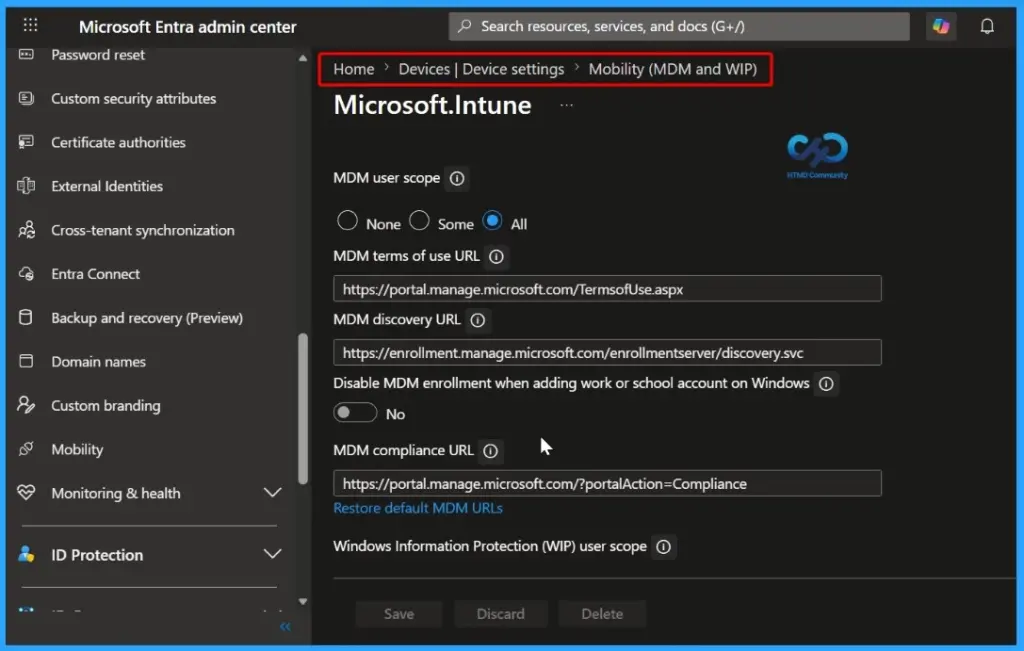
The next step is Mobility (MDM and MAM) configurations:
- Login to Entra admin center
- Navigate to Device > Device Settings
- Open the Mobility (MDM and MAM) blade and click on Microsoft Intune
- Save the settings
Create Azure AD Group for Windows Autopilot
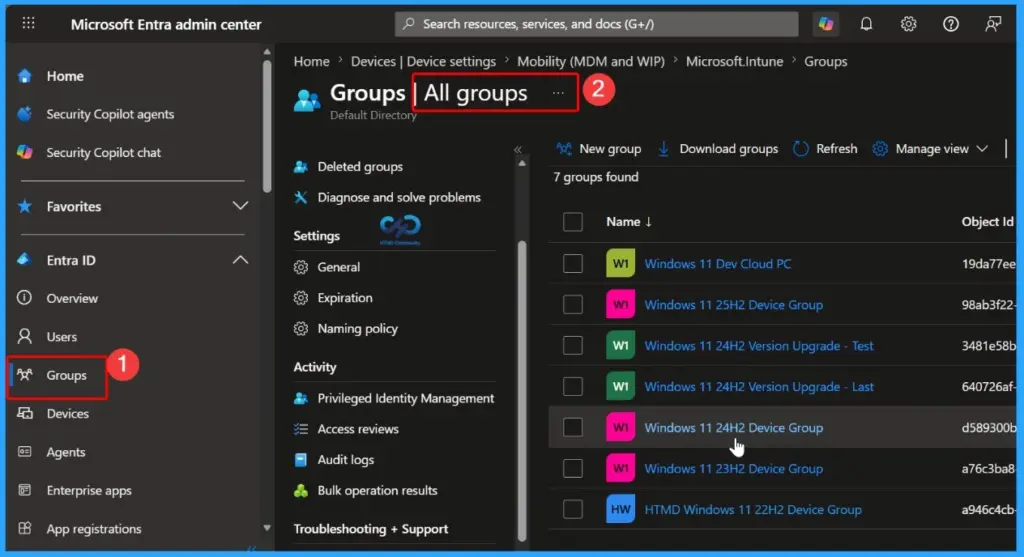
Next, we will create an Entra ID group, which will be dynamic and have rules. You can complete this step either from Intune Blade ->Groups or Entra ID -> Groups.
NOTE! – Another option is to use the Microsoft 365 Device Management portal.
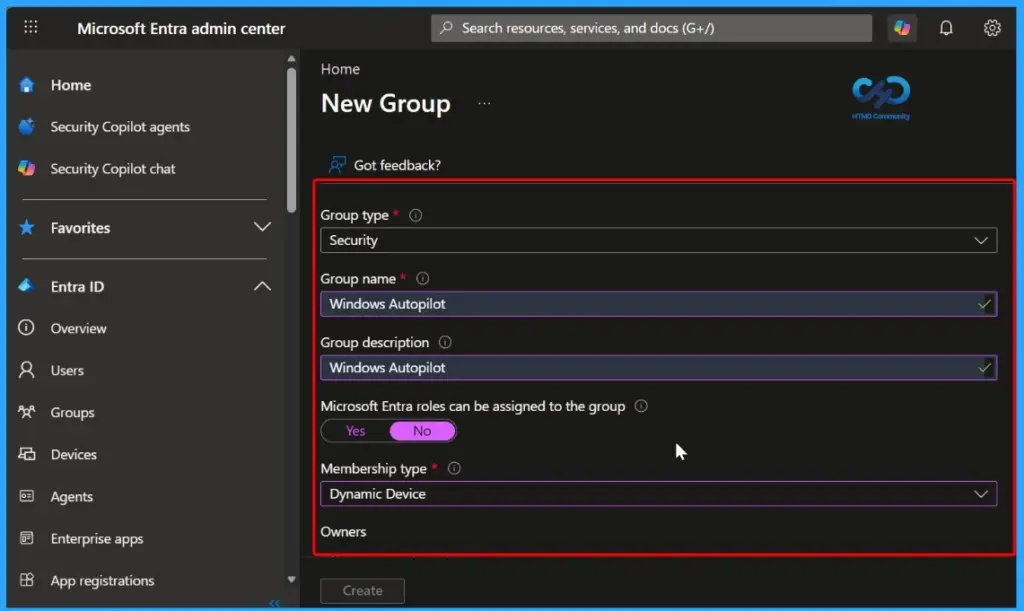
Click on New Group and provide all the information that you want.
Configure Dynamic Query
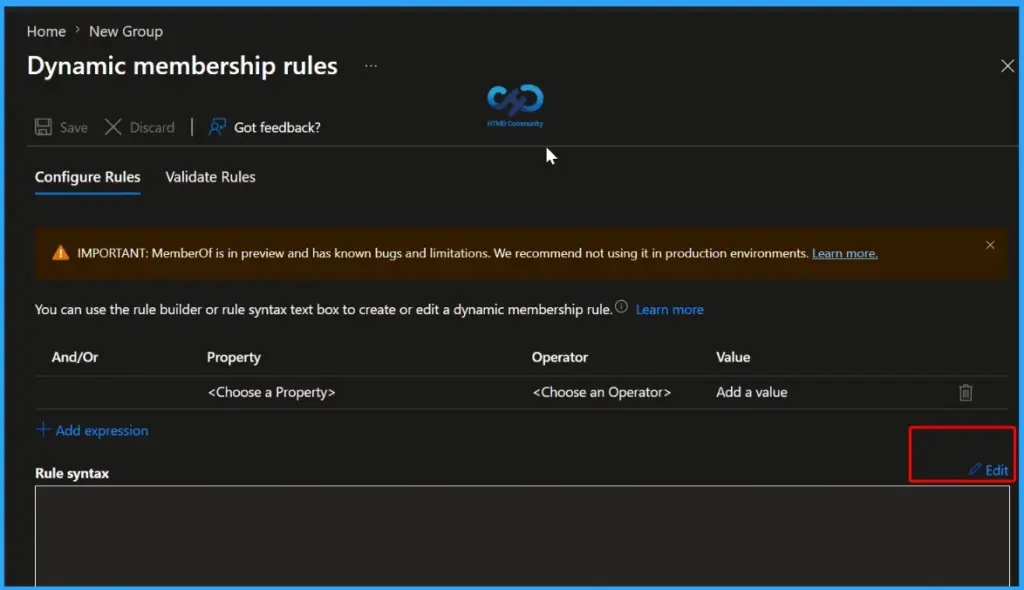
I selected the membership type as dynamic devices (the same as SCCM, where we create query-based collections) and then clicked on ” Add the dynamic query. More Details – Windows AutoPilot Profile AAD Dynamic Device Groups (anoopcnair.com).
Configure Dynamic Membership Rule Syntax for Windows Autopilot Devices
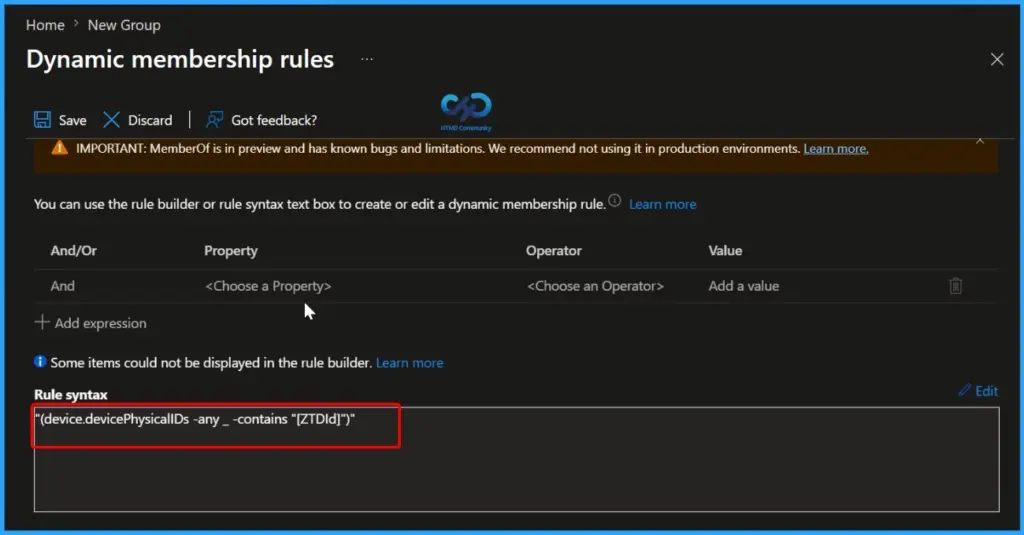
The Rule Syntax option allows you to directly create or edit dynamic membership rules for Microsoft Entra ID groups. In this example, the rule:
(device.devicePhysicalIDs -any (_ -contains “[ZTDId]”))
is used to automatically identify and include Windows Autopilot devices in a dynamic device group. The [ZTDId] attribute is assigned to devices registered with Windows Autopilot, enabling administrators to automatically target policies, applications, and profiles to Autopilot-managed devices without manually adding them to groups.
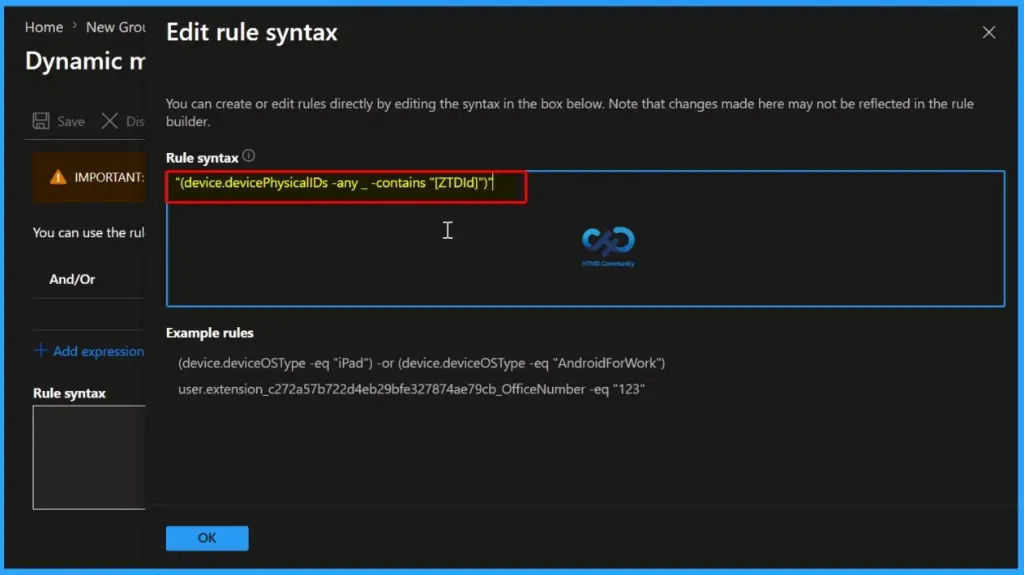
Once you have added the dynamic membership rule, click Save and then select Create to create the Microsoft Entra ID dynamic device group. After the group is created, Microsoft Entra ID continuously evaluates devices against the configured rule. Any device registered with Windows Autopilot and containing the [ZTDId] attribute in its device physical IDs will automatically become a member of this group. This eliminates the need to manually add or remove devices from the group.
Note: Devices registered with Windows Autopilot automatically become members of this dynamic device group when they match the [ZTDId] rule criteria. Once added, any assigned Intune policies, compliance policies, configuration profiles, applications, and Windows Autopilot deployment profiles are automatically targeted to those devices, helping easy deployment and ongoing device management.
Create Deployment Profile
The next step I followed was to create a deployment profile, which will be used for Windows AutoPilot deployment.
- Go to Intune->Device->Enrollment->Windows. On the right side, you will see the Windows autopilot >Deployment Profile program.
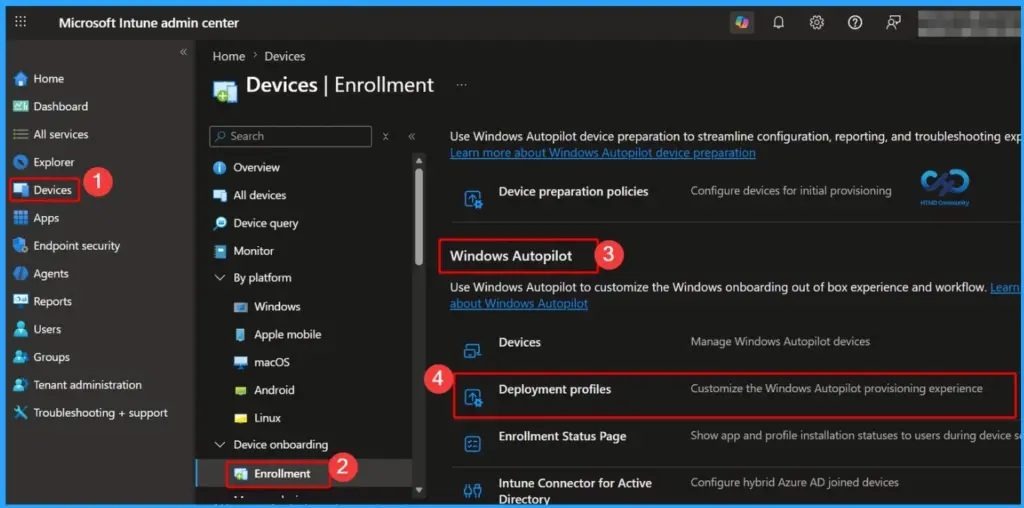
Click on deployment profiles, then click on Create profile. The screenshots below give more details. Click on the NEXT button.
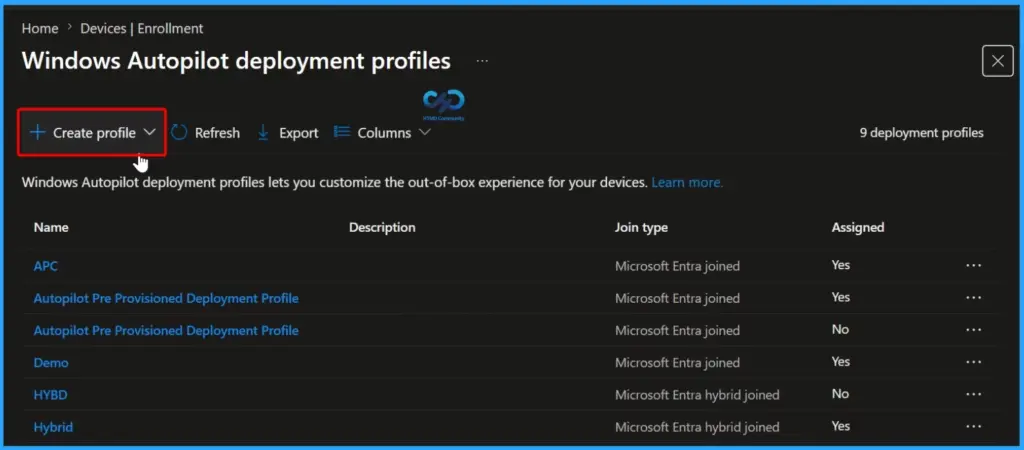
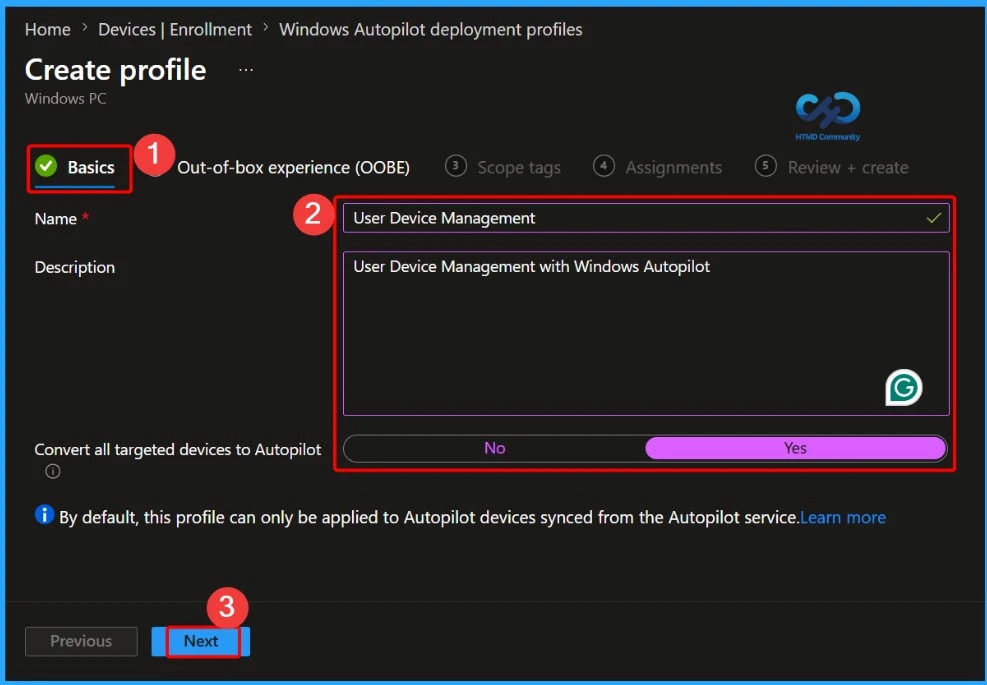
Create a Windows Autopilot Deployment Profile
On the Basics page, provide a meaningful name and description for the profile. You can also enable the Convert all targeted devices to Autopilot option if you want existing Intune-managed devices assigned to the group to be automatically registered with Windows Autopilot.
Configure Out-of-Box Experience (OOBE) Settings for Windows Autopilot
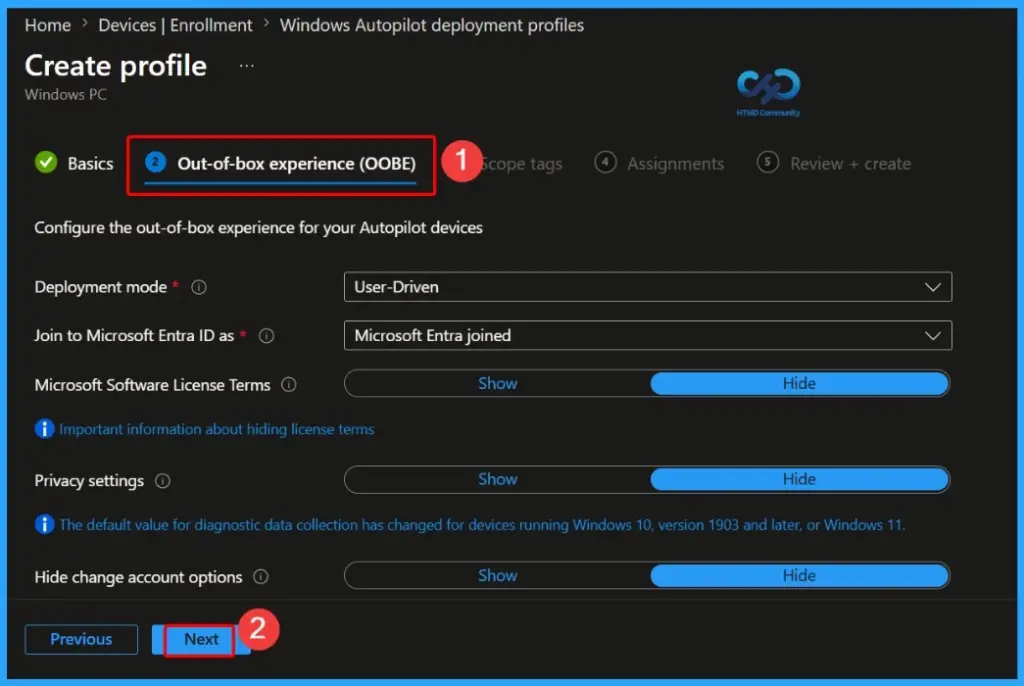
On the Out-of-Box Experience (OOBE) page, configure the deployment settings that users will experience during device setup. These settings help streamline the enrollment process and provide a consistent onboarding experience for Windows devices deployed through Windows Autopilot. Configure the following options and then click Next to continue.
- Deployment Mode: User-driven
- Join to Microsoft Entra ID as: Microsoft Entra joined
- Microsoft Software License Terms: Hide
- Privacy Settings: Hide
- Hide Change Account Options: Hide
- User Account Type: Standard
- Allow Pre-Provisioned Deployment (White Glove): No
- Apply Device Name Template: No
These settings provide a simplified OOBE experience by hiding unnecessary prompts, automatically joining devices to Microsoft Entra ID, and ensuring users are enrolled with standard user privileges. Once the configuration is complete, select Next to proceed with the profile creation.
Note: You can enable Windows Autopilot Pre-provisioning to install applications, policies, certificates, and other configurations on a device before it is handed to the end user. This reduces the setup time during the Out-of-Box Experience (OOBE) and allows users to become productive more quickly after signing in. To use this feature, enable Allow Pre-Provisioned Deployment in the Autopilot deployment profile.
Configure Scope Tags
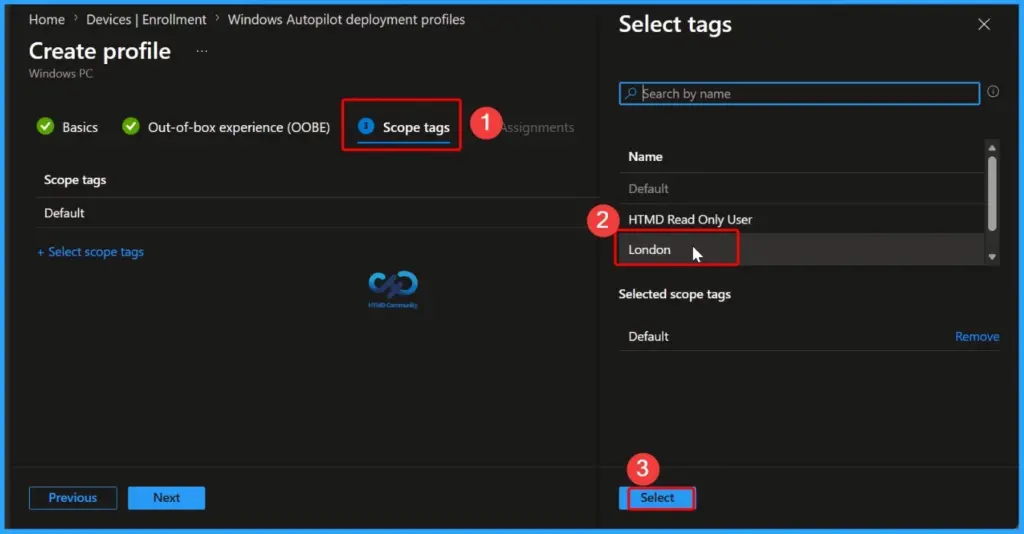
On the Scope Tags page, select the appropriate scope tag for the deployment profile. In this example, choose the London scope tag. Scope tags help administrators implement role-based access control (RBAC) by limiting the visibility and management of Intune objects to specific administrative groups.
Assign the Windows Autopilot Deployment Profile
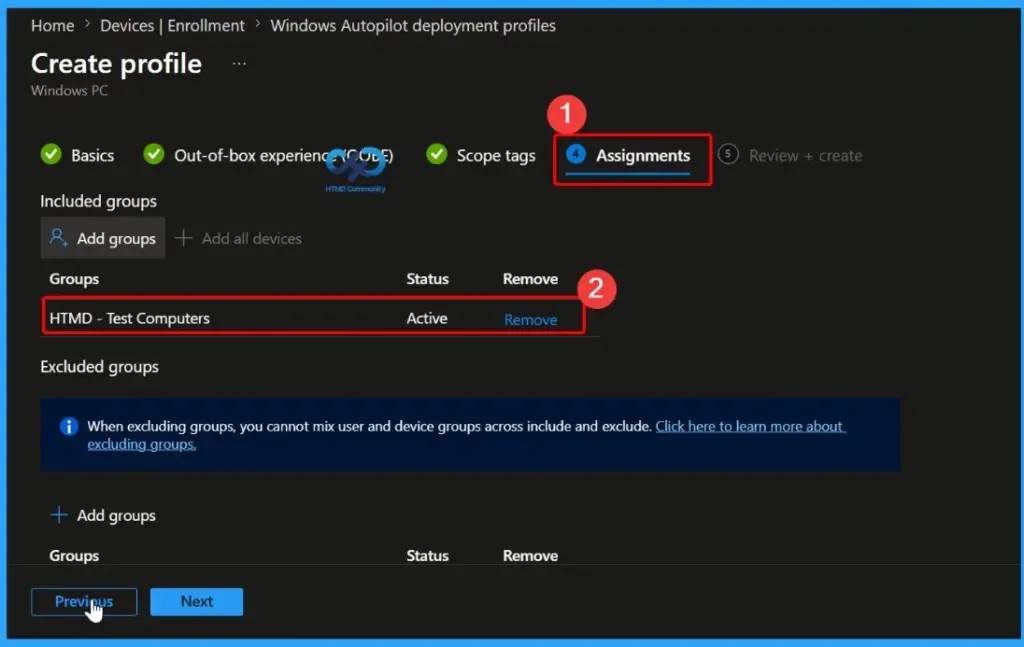
On the Assignments page, select Add groups and choose the Microsoft Entra ID dynamic device group that contains your Windows Autopilot devices. Assigning the deployment profile to this group ensures that all devices matching the group’s membership criteria automatically receive the Autopilot profile.
Review and Create the Windows Autopilot Deployment Profile
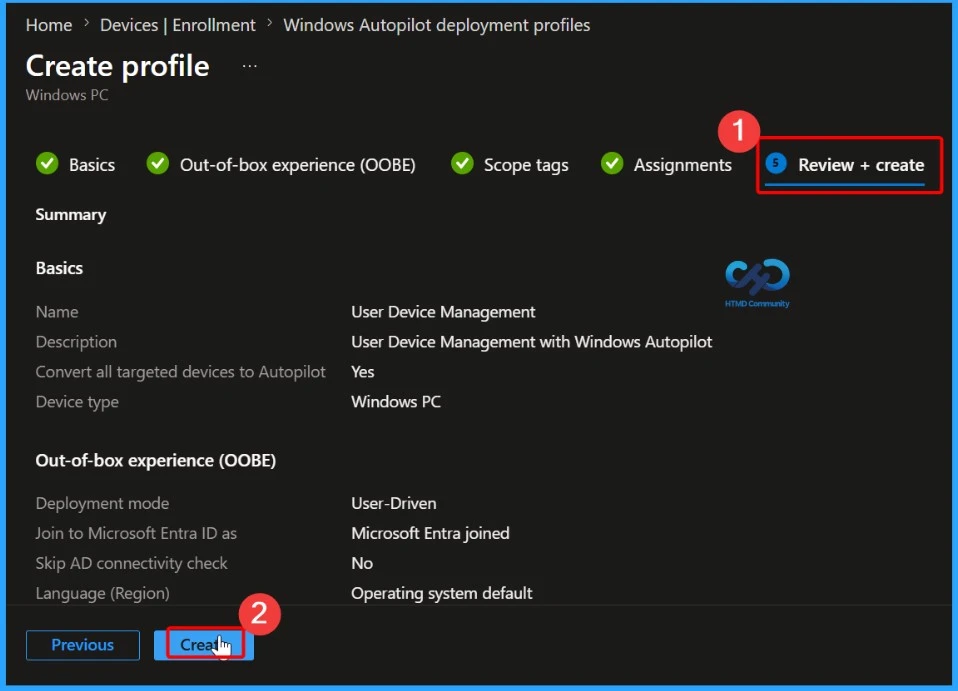
On the Review + Create page, verify all the configuration settings for the Windows Autopilot deployment profile, including the profile name, deployment mode, OOBE settings, scope tags, and group assignments.
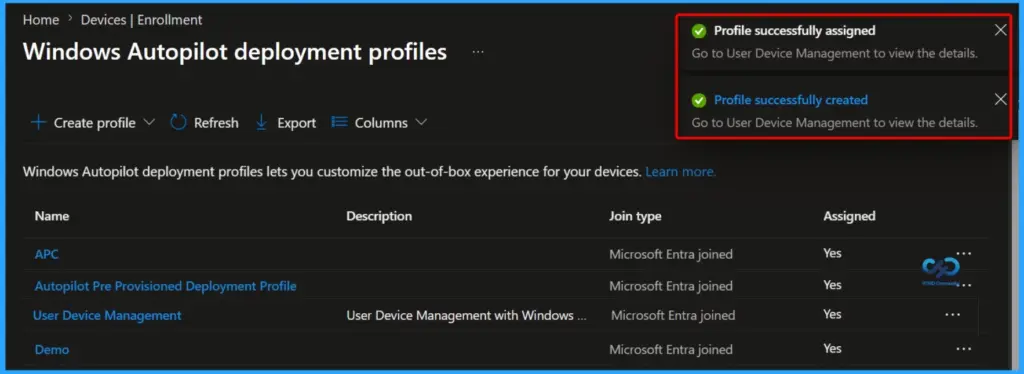
Windows Autopilot Profile Successfully Created and Assigned
After clicking Create, Microsoft Intune displays notifications confirming that the deployment profile has been successfully created and assigned. The first notification indicates that the profile was successfully assigned, and you can select Go to user device management to view the assignment details and monitor targeted devices. The second notification confirms that the profile was successfully created and is now available in the Windows Autopilot deployment profiles list.
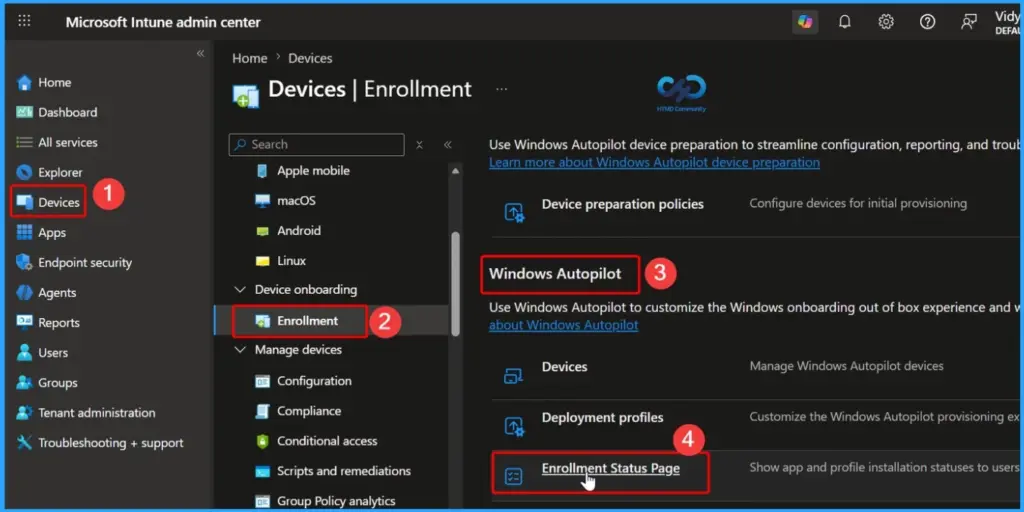
Enrollment Status Page
Microsoft Intune includes a default Enrollment Status Page (ESP) profile that is automatically available for device enrollment. However, organizations often create custom ESP profiles to control the user experience during Windows Autopilot deployments. To create a new Enrollment Status Page profile, navigate to Devices > Enrollment > Windows Autopilot > Enrollment Status Page in the Intune admin center.
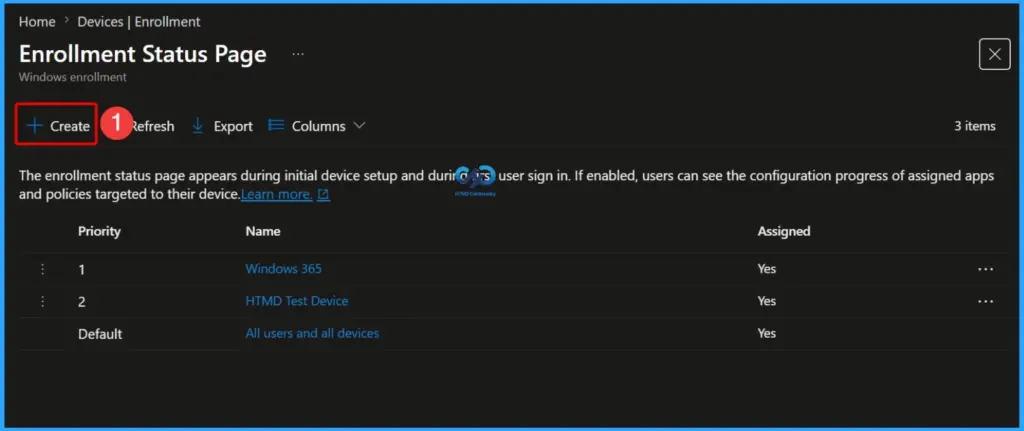
From the above location, you can create and configure a customised ESP profile to manage how device setup, application installation, and policy deployment are presented to users during the enrollment process. Click the Create button.
Create an Enrollment Status Page to track the status of the enrollment of Windows devices. For more details, see Intune Enrollment Status Page (ESP) Troubleshooting (anoopcnair.com).
Configure the Basic Settings for the Enrollment Status Page
On the Basics tab, enter the required details for the new Enrollment Status Page (ESP) profile. Provide a meaningful profile name and description to help identify its purpose in Microsoft Intune. In this example, use Autopilot as the profile name and Enrollment Status Page to track the status of the enrollment of Windows devices as the description.
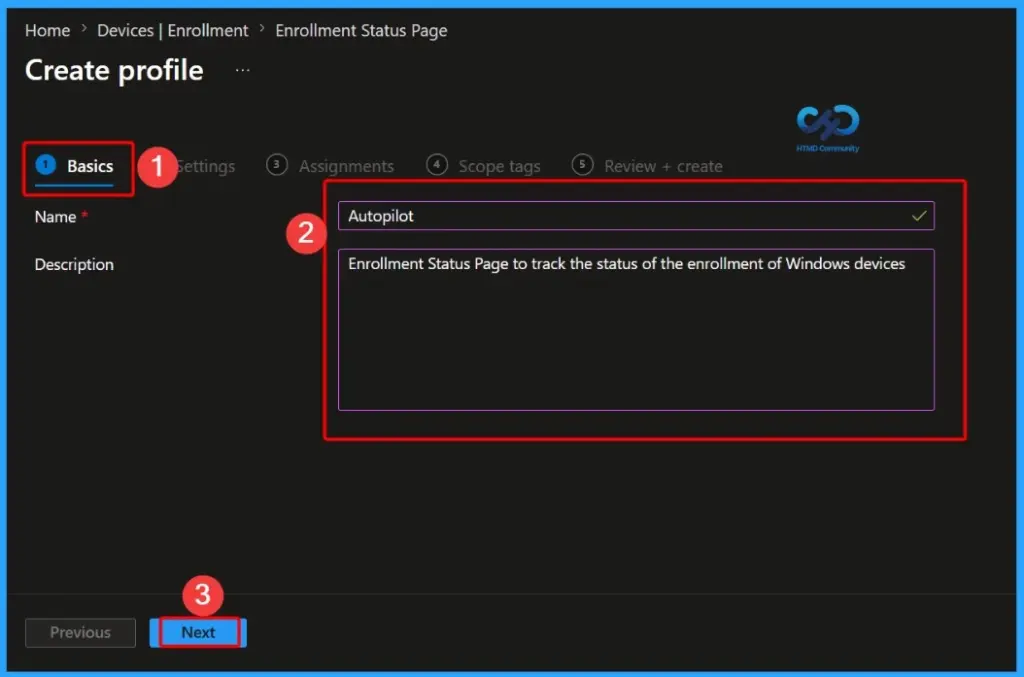
Create and Assign the Enrollment Status Page Profile
After configuring the Enrollment Status Page (ESP) settings, click Save and then Create to create the profile. Once created, assign the ESP profile to the appropriate user groups to ensure it is applied during the Windows Autopilot enrollment process. The Enrollment Status Page helps users track the progress of device setup by displaying the installation status of applications, policies, certificates, and other configurations during enrollment.
Note: Enrollment Status Page (ESP) profiles are assigned to user groups, not device groups. When assigned, the ESP displays the progress of app installations and policy configurations, helping users understand the status of the enrollment process and ensuring required configurations are completed before the device becomes available for use.
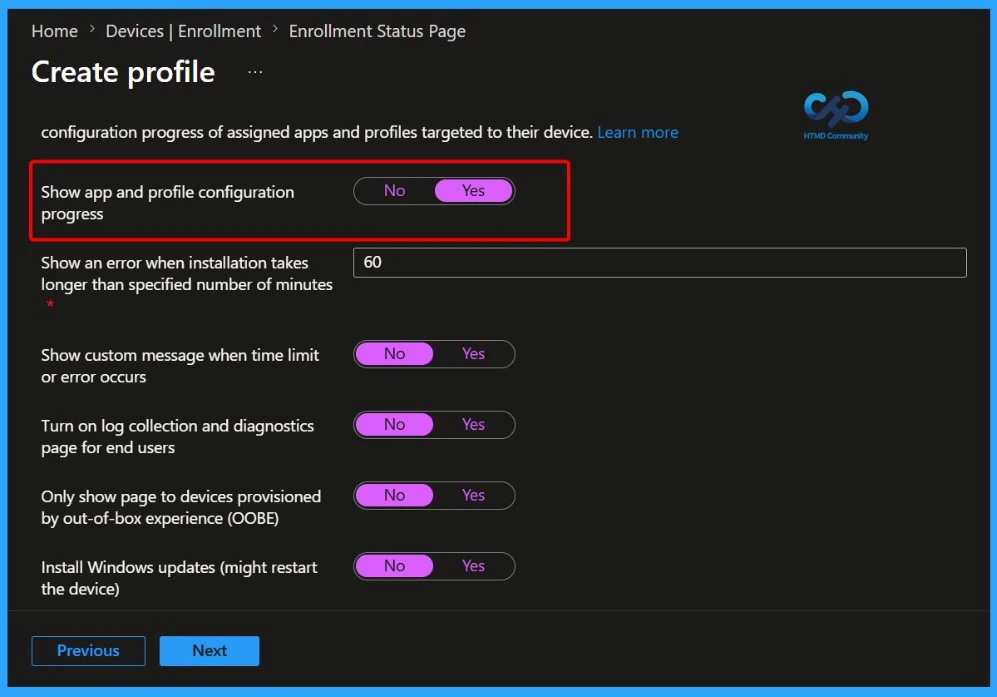
Generate WindowsAutoPilotInfo file
Now we are all set. It’s time to add the existing Windows device to Intune.
- Before adding existing devices, we must run a few power-shell commands on the new greenfield Windows device
- And import the CSV file in Intune. Next, I will log in on my Windows device.
- Open PowerShell with the administrator and run the following command.
CD\
md AutoPilot
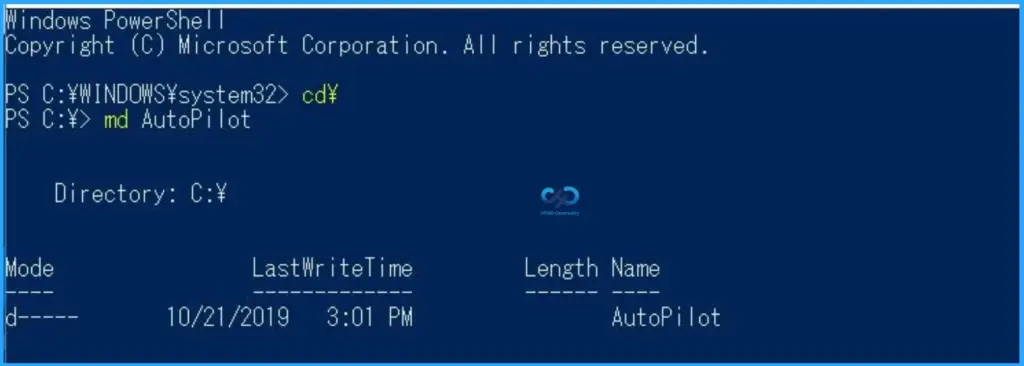
cd AutoPilot Then enter then type the following command
save-script -name get-WindowsAutoPilotInfo -Path C:\AutoPilot\

Now you can see in the directory that one PS file is created with the name of windowsautopilotinfo.
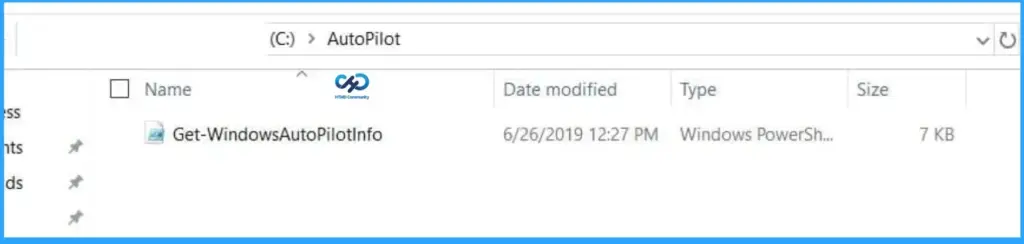
We will get the output file into CSV, which will be used to import it into Intune. Run the command \Get-WindowsAutoPilotInfo.ps1 -outputfile C:\AutoPilot\AutoPilot.csv
You have a CSV file with you with all the information about the device for Windows autopilot. Which will have the knowledge of Device Serial Number, Windows Product ID, and Hardware Hash
Import Windows Autopilot Devices into Intune
After generating the WindowsAutoPilotInfo.csv file, you can import the device directly into Microsoft Intune. Navigate to Devices > Enrollment > Windows > Windows Autopilot > Devices and select Import. Browse to the WindowsAutoPilotInfo.csv file and upload it. Once the import process is complete, the device will appear in the Windows Autopilot devices list.
Note – Microsoft Store for Business has been retired, so Windows Autopilot device imports should now be performed directly in Microsoft Intune.
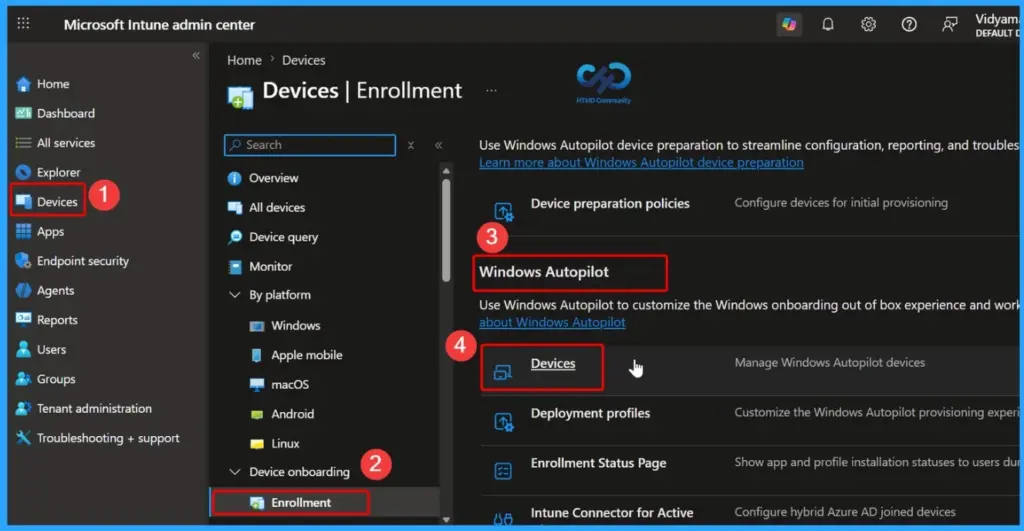
WindowsAutoPilotInfo.csv File
Note: After importing the WindowsAutoPilotInfo.csv file into Intune, the device may not appear immediately in the Windows Autopilot devices list. It can take a few minutes for Intune to process the import and assign the deployment profile. If the profile is not visible right away, wait for the synchronization to complete and refresh the portal. In most cases, the device will automatically receive the assigned Windows Autopilot profile after the import process finishes.
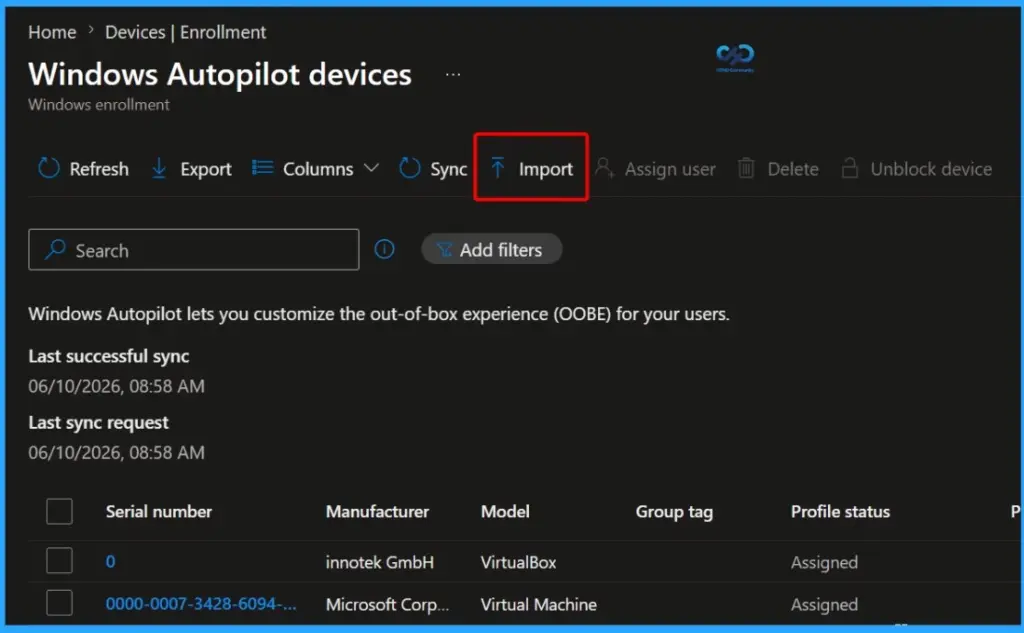
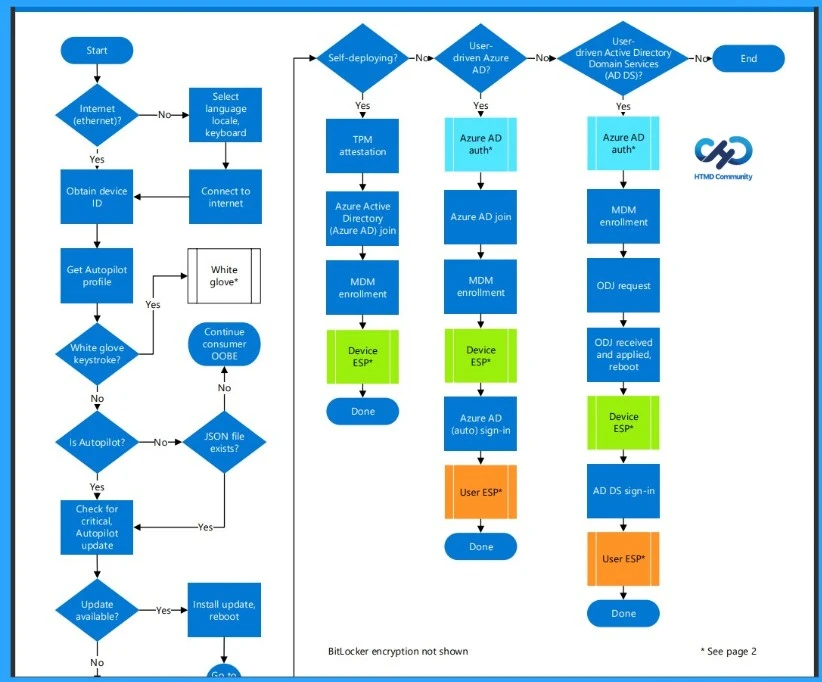
Windows Autopilot Deployment Process
Happy Autopiloting:) Bonus tip: The Windows Autopilot deployment process PDF can be downloaded from the link. You can also download the Windows Autopilot Deployment Flowchart prepared by Michael Niehaus.
End-User Experience – Provision of Windows Experience with Windows Autopilot
After the device has been registered with Windows Autopilot and assigned the appropriate deployment profile, reset the device or start a new Windows Autopilot-enabled device. During the Out-of-Box Experience (OOBE), the device connects to the Windows Autopilot service and retrieves its assigned deployment profile. You will then see organization-specific branding and sign-in prompts, indicating that the device is ready for Windows Autopilot enrollment and provisioning.
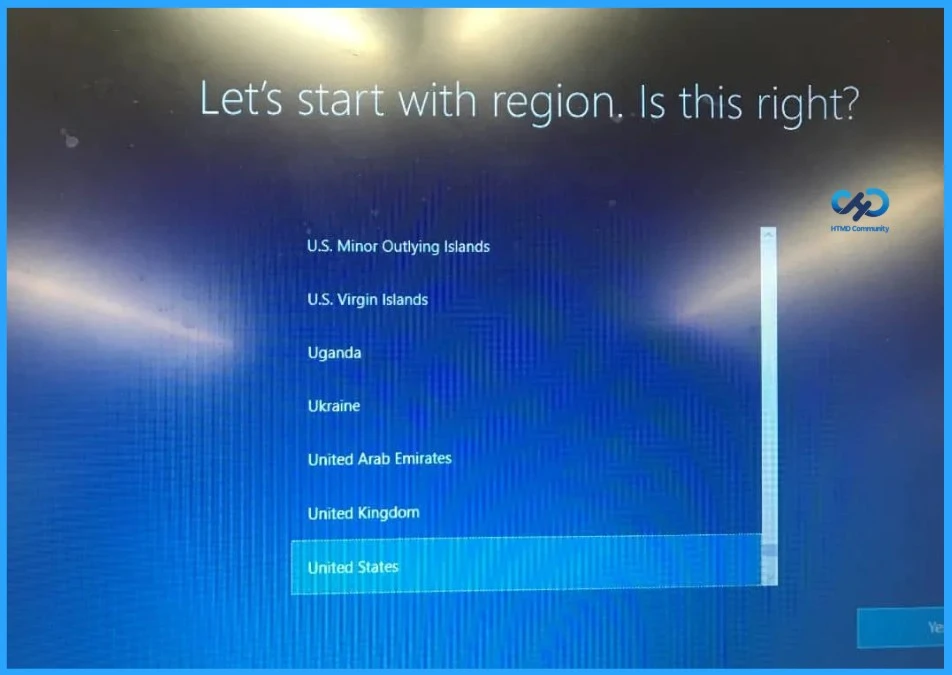
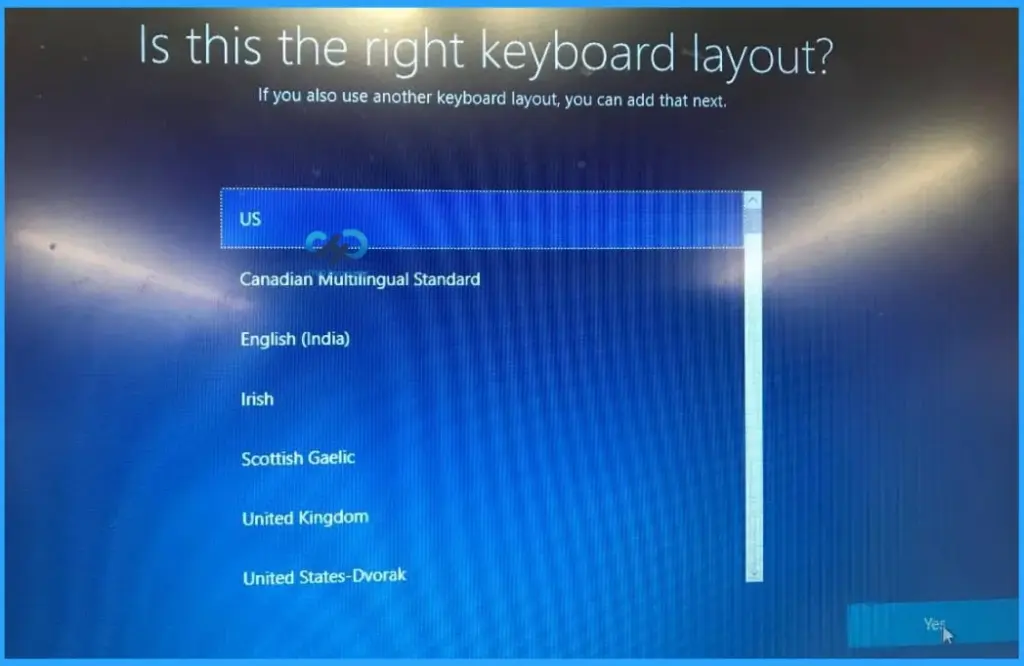
Select the Keyboard Layout During Windows Autopilot Setup
During the Windows Autopilot Out-of-Box Experience (OOBE), users are prompted to confirm their keyboard layout before proceeding with enrollment. On the “Is this the right keyboard layout?” screen, select the appropriate keyboard layout for your region or organization. In this example, the US keyboard layout is selected. After confirming the selection, click Yes to continue.
The following screenshot shows that you now have some important setup to do.
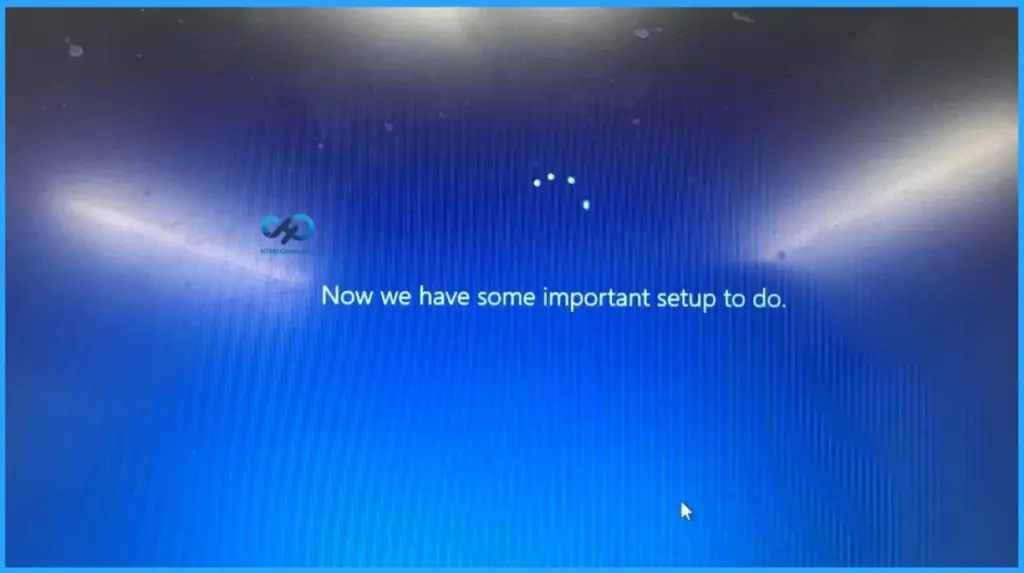
The above picture says you now have some important setup to do. Yes, you will join Windows Autopilot, and you are excited.
- The next screen will tell about the complete form.
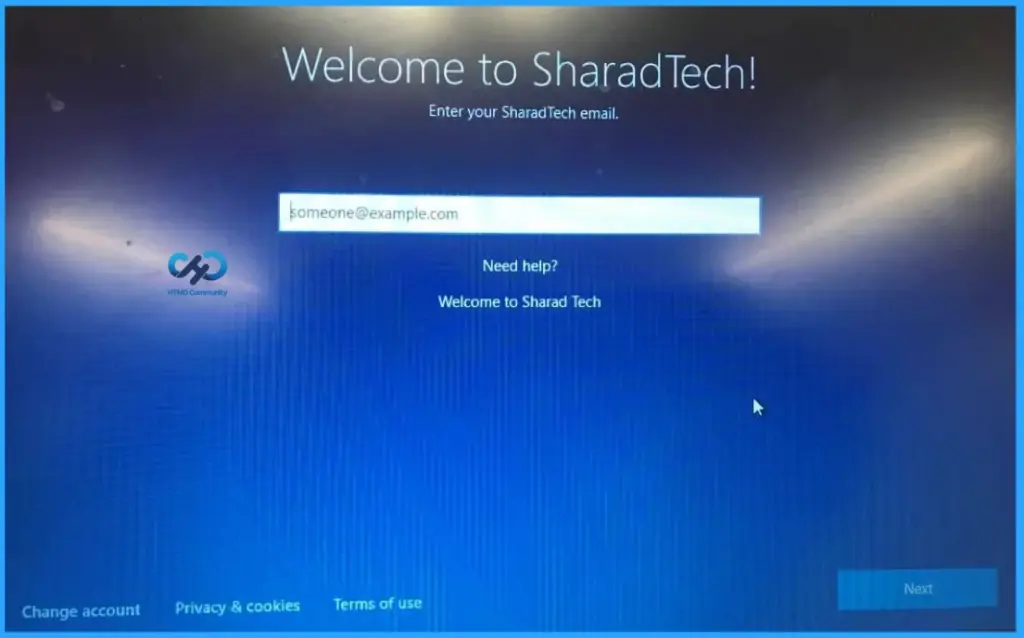
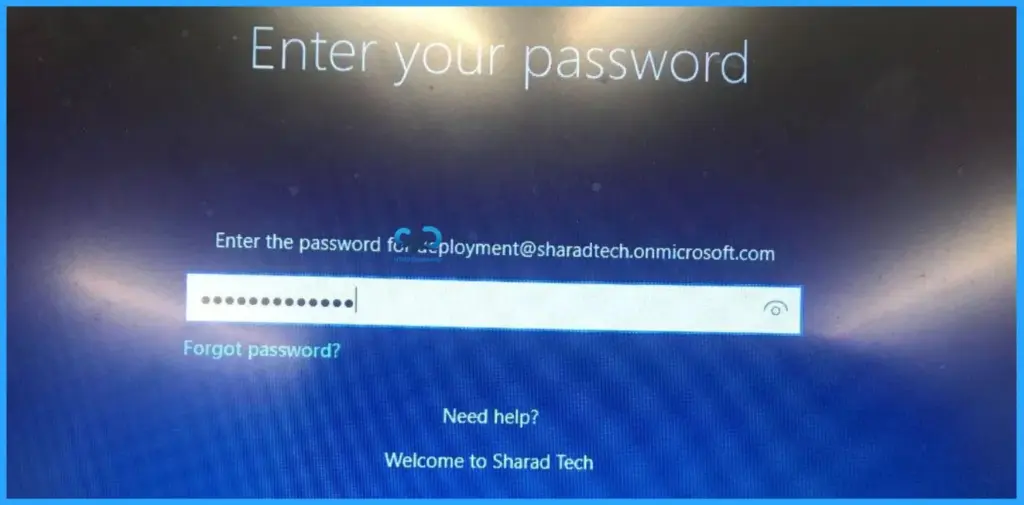
Enter the username and password. Password used for your corp email access.
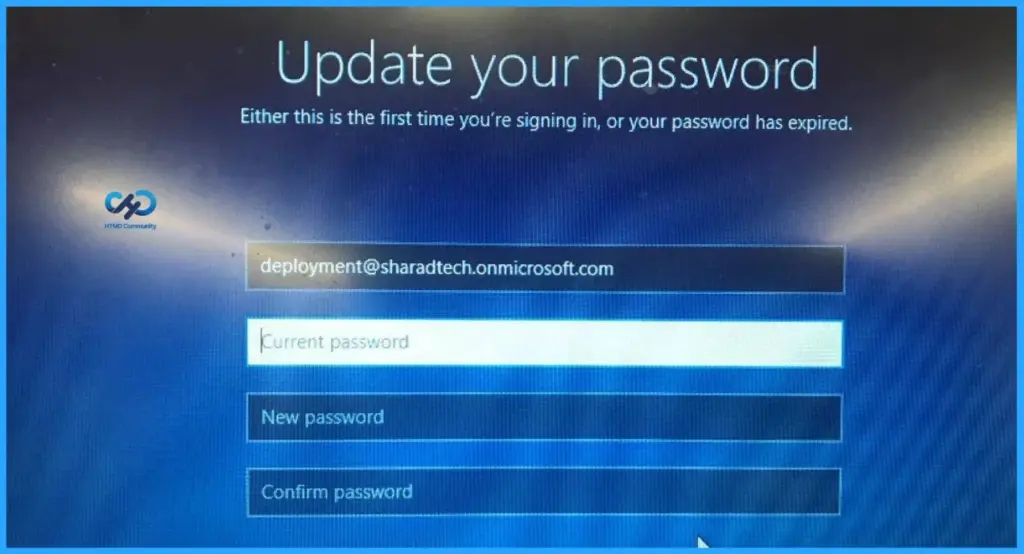
Change Your Password During Windows Autopilot Enrollment
Depending on your organization’s security policies, you may be prompted to change your password during the Windows Autopilot enrollment process. This screen typically appears when the current password has expired or when the organization requires users to set a new password at first sign-in for enhanced security.
Enter the required information, create a new password that meets your organization’s password requirements, and continue with the enrollment process. After the password is successfully updated, Windows Autopilot will proceed with device provisioning and configuration.
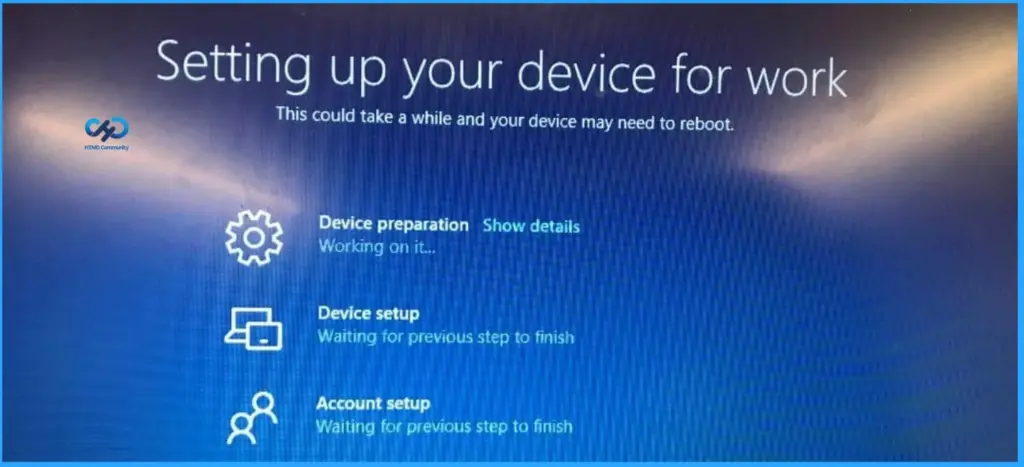
Setting Up Your Device for Work
The Enrollment Status Page (ESP) is now configuring your device for organizational use. During this stage, Windows Autopilot prepares the device, applies policies, installs required applications, and completes account setup. The process may take several minutes, and the device might restart automatically. You can select Show details to view the progress of each setup phase, including Device Preparation, Device Setup, and Account Setup. Once all steps are completed successfully, the user will be taken to the Windows desktop.
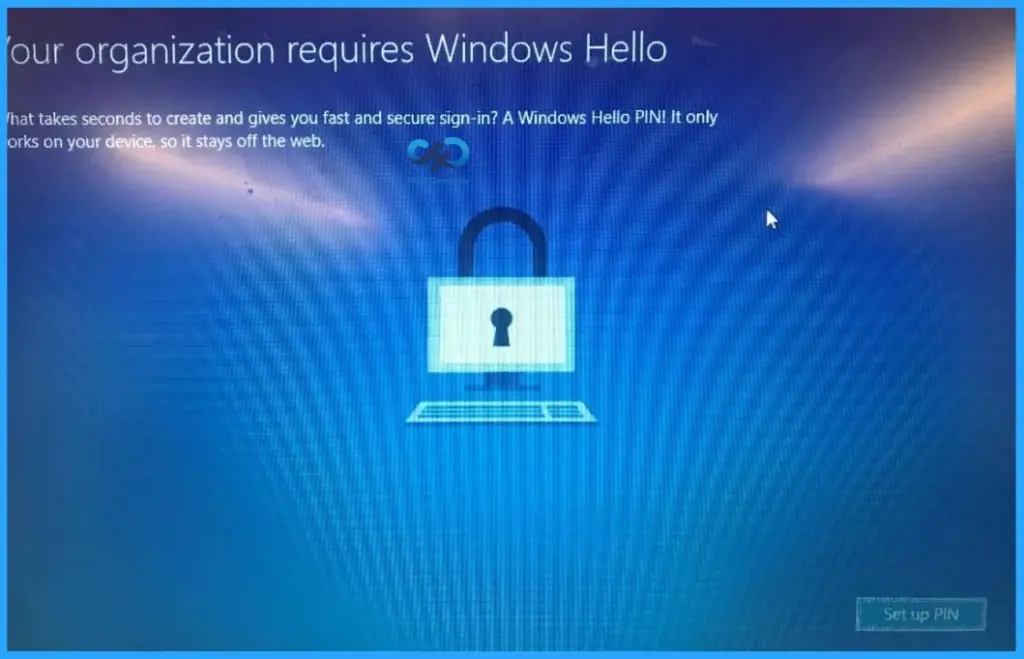
Configure Windows Hello for Business
After the device setup is completed, users may be prompted to configure Windows Hello for Business. This security feature allows users to sign in using a PIN, facial recognition, or fingerprint authentication instead of a traditional password.
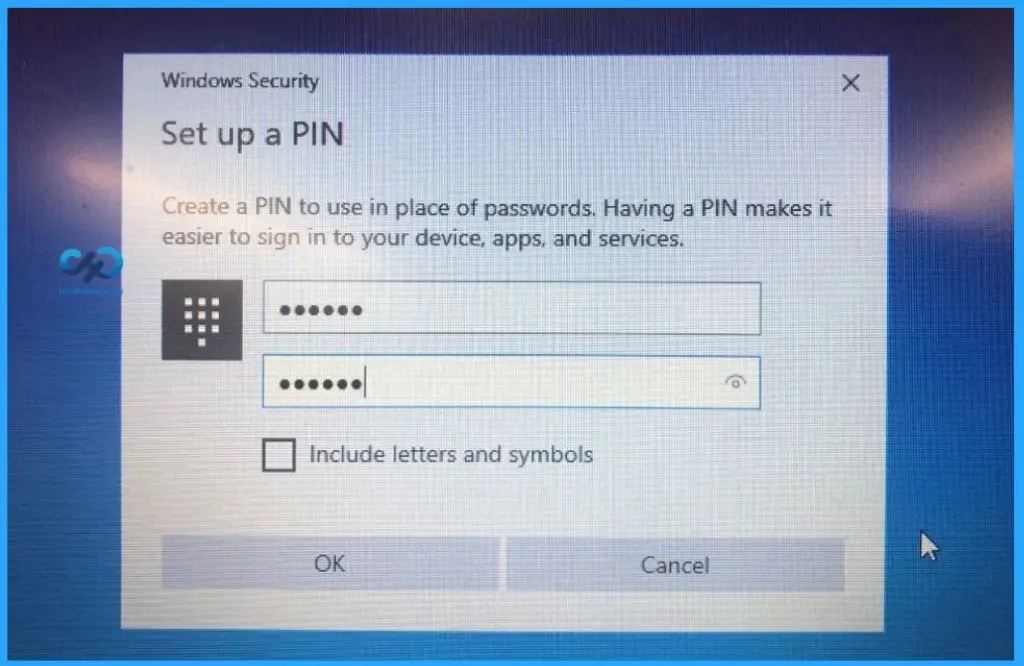
Let you set up the PIN to log in. Create a PIN to use in place of passwords. Having a PIN makes it easier to sign in to your device apps and services.
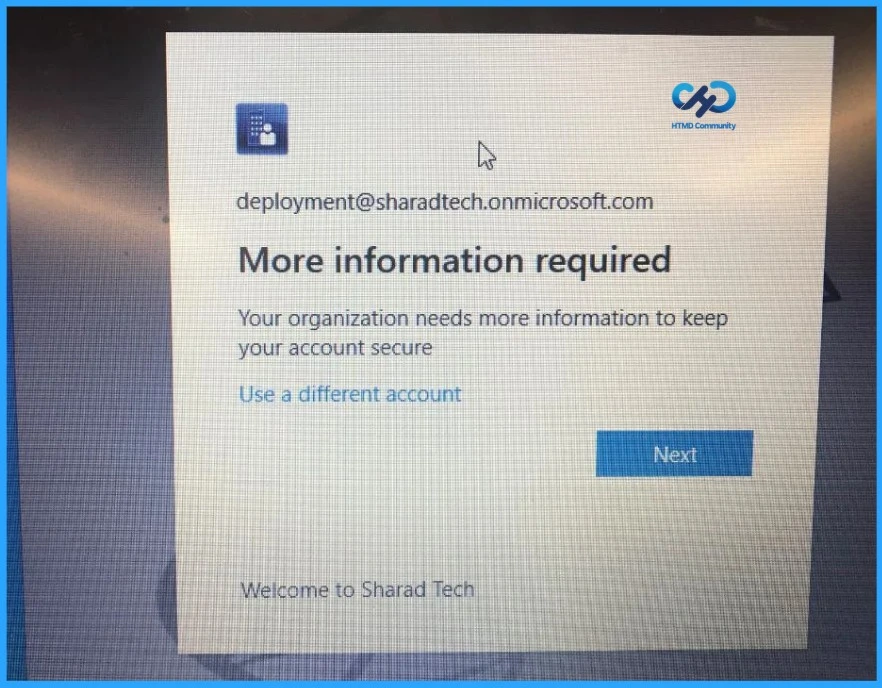
This is the MFA configuration if you have enabled this option as part of Windows Autopilot enrollment. The background and logo, which you can see, are configured during the company branding. Your organisation needs more information to keep your account secure.
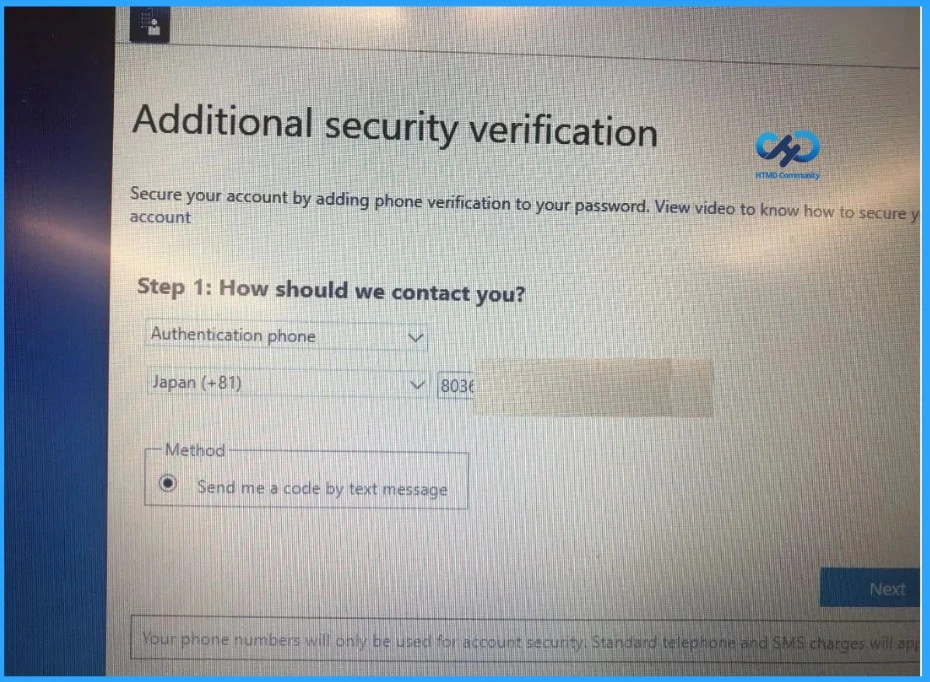
Enter the details for Multi-Factor Authentication (MFA). Secure your account by adding phone verification to your password. View the video to know how to secure your account
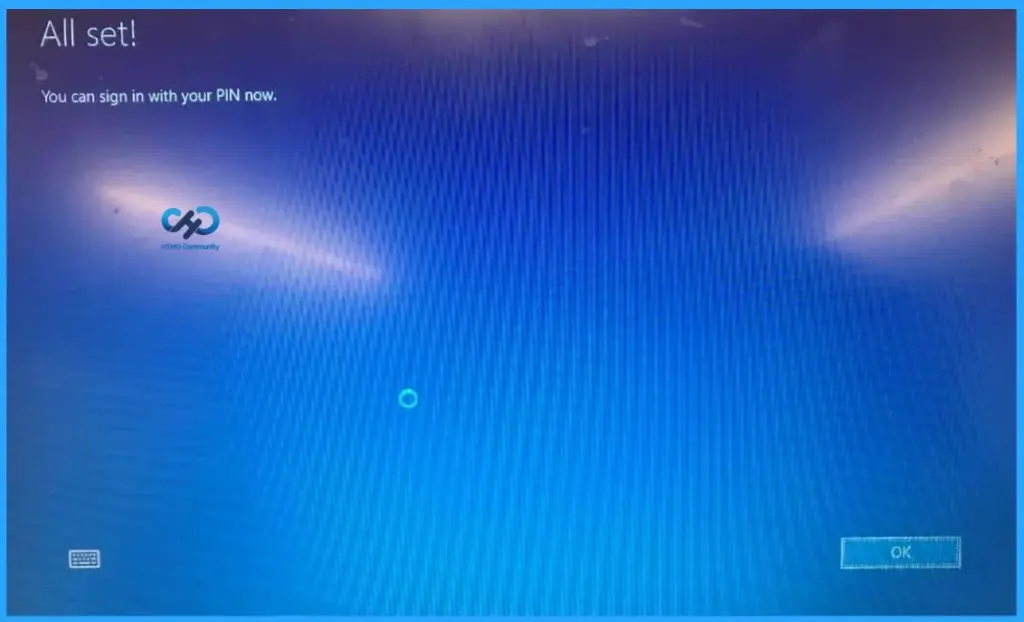
Now it’s time to log in. ESP is completed, and all the apps and policies must be installed on the device before the user can log in. You can sign in with your PIN now.
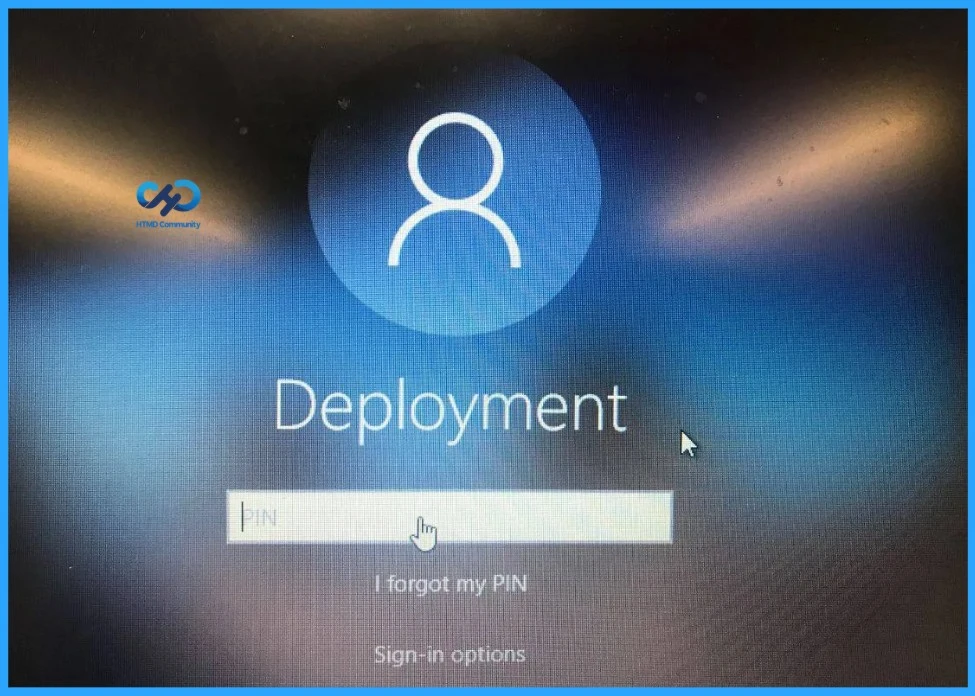
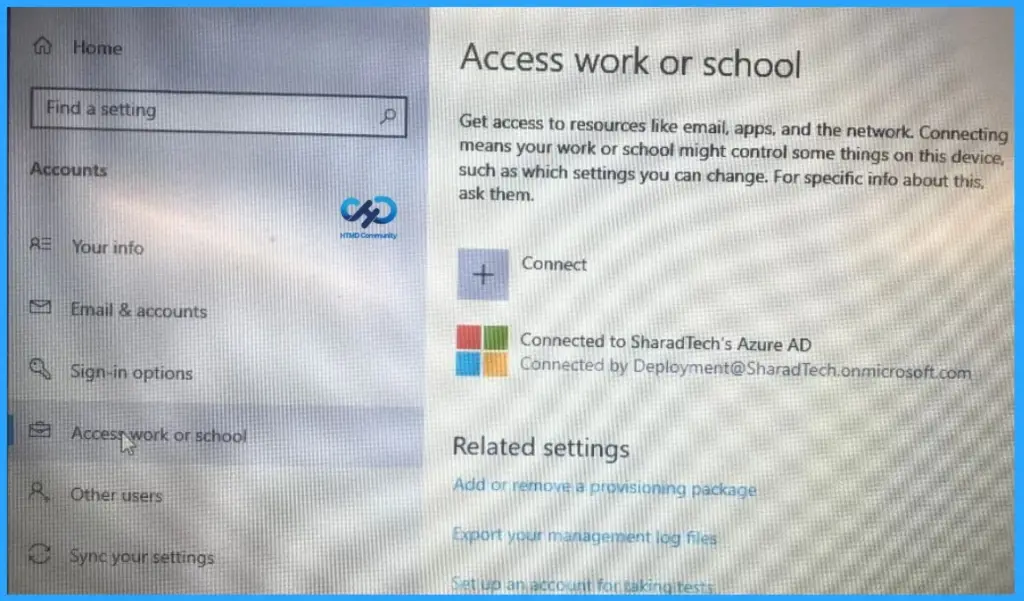
Now log in to the Windows device with the Azure ID and pin you just set. Go to the settings-> accounts-> Access work or school here. You can see your computer is connected to Entra ID.
Verify That the Device Is Managed by Intune
After the Windows Autopilot enrollment process is complete, you can verify that the device is successfully managed by Microsoft Intune. Open Settings > Accounts > Access work or school and review the connected organizational account.
Verify the Enrolled Device in Microsoft Intune
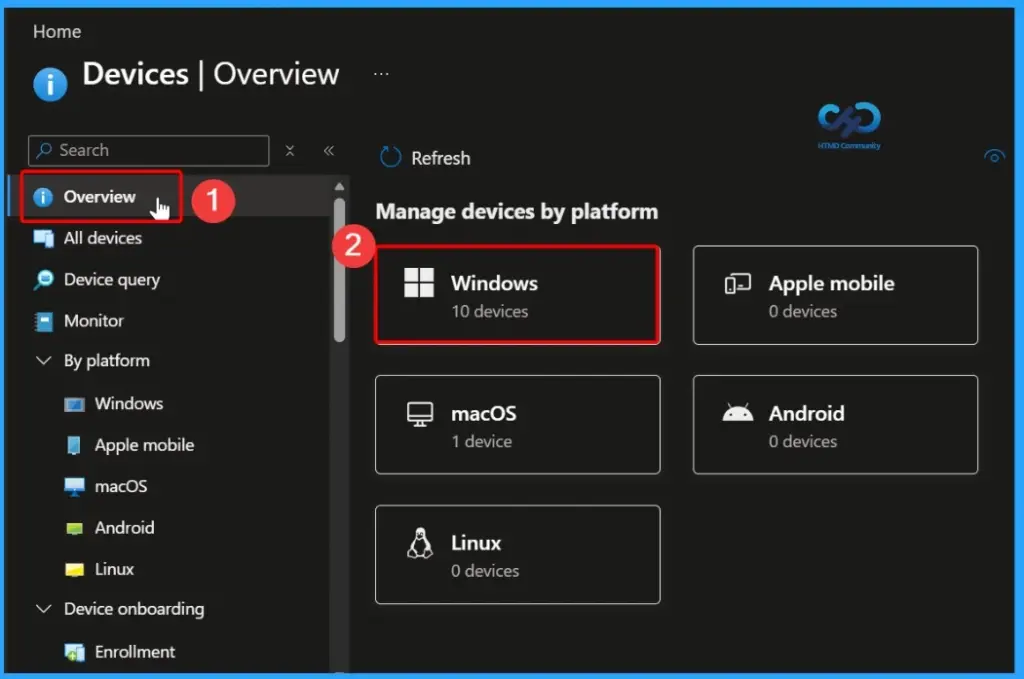
After the device has been successfully enrolled through Windows Autopilot, you can verify its enrollment status in the Microsoft Intune admin center. Navigate to Devices > Overview and review the list of managed devices.
Verify Compliance and Management Status
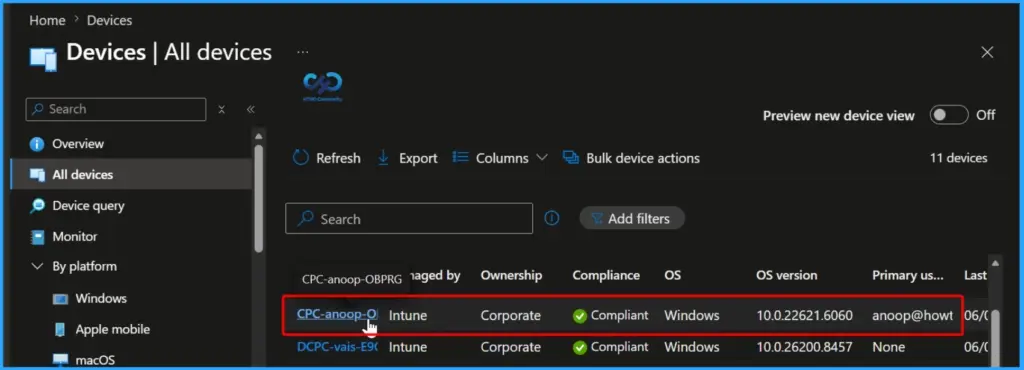
You can confirm that the device has been successfully enrolled by reviewing its status in the Microsoft Intune admin center. If the device meets all assigned compliance policy requirements, it will be displayed as Compliant. The device is now managed by Intune and, if registered with Windows Autopilot, will also appear in the Windows Autopilot devices inventory.
Resources
Need Further Assistance or Have Technical Questions?
Join the LinkedIn Page and Telegram group to get the latest step-by-step guides and news updates. Join our Meetup Page to participate in User group meetings. Also, join the WhatsApp Community and the Whatsapp channel to get the latest news on Microsoft Technologies. We are there on Reddit as well.
Author
Sharad Singh has been working in the industry since 2007. Since then, he’s worked with Active Directory, Group Policy, SCCM SCOM, MS Intune, and PowerShell. Sharad currently works as a Senior consultant in Japan. Most recently, his focus has been on SQL reporting for SCCM, MS Intune, and SCCM migration.
Anoop, will autopilot works for virtual devices? And is autopilot recommended for large complex environment 1.5lks devices.. how about managing legacy devices with intune win7, 8.0, 8.1 etc any options available.. any thoughts on managing server os with intune
I think all these 150000 devices won’t be migrated to Intune and Windows Autopilot in couple of months. So, you shall think about starting the journey towards Autopilot and Intune management for small set of devices like 100 for 1st year and then continue with the deployments.
Its really good explanation about Auto Pilot implementation .Is any thing on MDATP for windows 10 devices with Servers
Some devices will not be having hardware hash. In that case how can I add the device to intune ?
Thank you very much Sir.
This step by step guide was very helpful for Autopiolting.Its really good explanation.
I run into errors “something went wrong” during ESP page after i get prompted for MFA on the third step of ESP. How can avoid the errors or setup MFA so it will only prompt after the ESP page is completed or during company branding. Thank you
kindly share the steps how to export hardware hash file from VM to local host looking steps