
Key Takeaways
- Save your favorites and downloaded files, so you can access them next time you use Microsoft Edge.
- Allow you to access favorites, passwords, and form fill data from the profile used to open the InPrivate window.
- Clear browsing history, download history, cookies and other site data, cached images and files, passwords, autofill form data, site permissions and hosted app data when you close all InPrivate windows.
- Allow you’ve given permission to run while browsing InPrivate.
Let’s learn how to prevent InPrivate Web Browsing in Microsoft Edge using Intune, aka Endpoint Manager. By default, Microsoft Edge allows InPrivate browsing, and after closing all InPrivate tabs, Microsoft Edge deletes the browsing data from the device. InPrivate browsing doesn’t keep you safer from malicious websites or provide additional ad blocking. Websites can still personalize content for you during your InPrivate browsing session because cookies and other site permissions aren’t deleted until you close all InPrivate windows.
Table of Contents
Table of Contents
Prevent InPrivate Web Browsing in Microsoft Edge using Intune
With the policy explained below, you can configure Microsoft Edge to prevent InPrivate web browsing. Do you want to know how to make Microsoft Edge browser your default browser? Here is another post that can help you. Configure Microsoft Edge as Default Browser using Intune. Let’s understand what is InPrivate web browsing? InPrivate browsing is the same as Incognito Windows browsing.
You can perform the basic Microsoft Edge security policy troubleshooting from the MEM admin center portal. One example is given below How To Start Troubleshooting Intune Issues from the server-side. The next level of troubleshooting is with MDM Diagnostics Tool to collect the log and information from the client-side.
- Enable Microsoft Edge Sleeping Tabs using Intune
- Configure Edge Chromium Favorites Using Intune | Endpoint Manager
- Restrict Microsoft Edge Personal Accounts Sync Using Intune
Prevent InPrivate Web Browsing in Microsoft Edge Using Intune
To begin, create a new Settings Catalog profile in Microsoft Intune. This profile will be used to configure Microsoft Edge InPrivate mode settings for targeted users or devices. Let’s follow the below steps to Prevent InPrivate Web Browsing in Microsoft Edge using Intune.

- Sign in to the Intune Admin Center
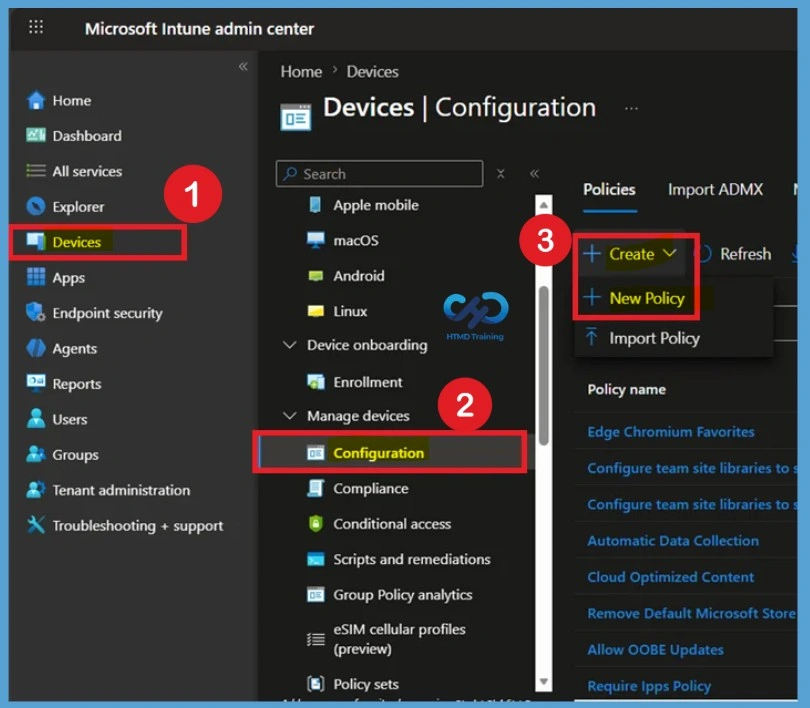
- To create a new Configuration profile, Select Devices > Windows > Configuration profiles > Create profile
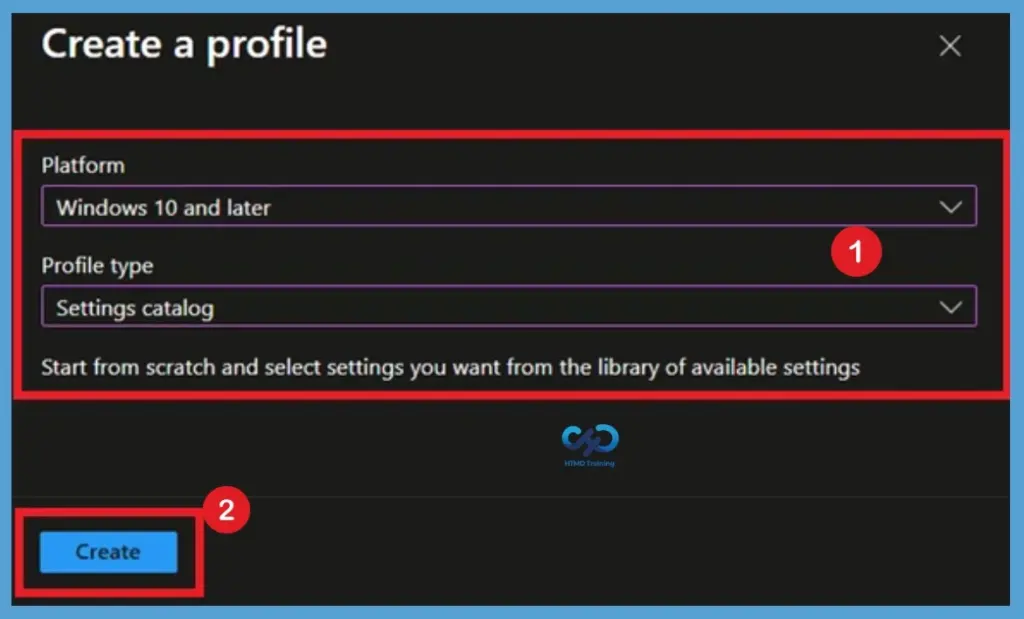
In Create a profile, Select Platform, Windows 10, and later and Profile, Select Profile Type as Settings catalog. Click on Create button.
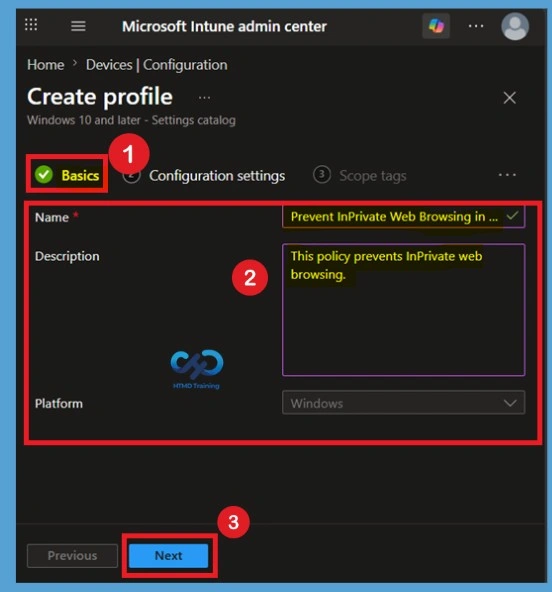
Basic Tab Filling
The Basics page is used to define the identity of the policy. Providing a name and clear explanation helps administrators understand the purpose of the policy during future audits, troubleshooting, or policy reviews. Enter a name such as Configure Microsoft Edge InPrivate Mode Availability Policy and add a suitable description. Review the selected platform information and click Next to continue with the configuration process.
Configuration Step through Settings Picker
To configure the Configure InPrivate mode availability setting, administrators must first add it from the Settings Catalog. The Settings Picker simplifies this process by allowing you to search directly for the required Microsoft Edge policy. Click Add Settings on the Configuration Settings page. Search for Configure InPrivate mode availability, expand the Microsoft Edge category, select the policy, and click Select to add it to your profile.
Note – In policy, use the search box to find specific settings. You can search by category or a keyword, such as InPrivate. It will display the related settings available.
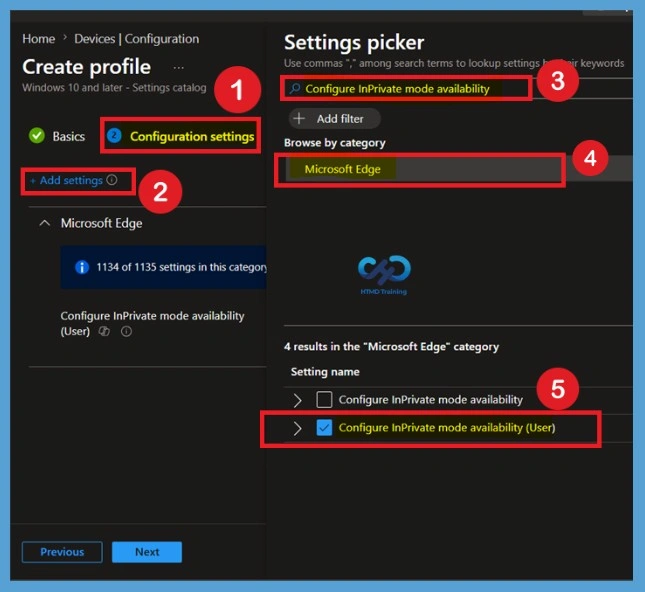
Defaulted State of the Policy
When the Configure InPrivate mode availability policy is left unconfigured or set to InPrivate mode available, Microsoft Edge allows users to open private browsing sessions whenever required. This option maintains the browser’s default behavior. To configure this setting, enable the policy and select InPrivate mode available (0) from the drop-down menu. After selecting the value, click Next to proceed to the remaining configuration pages.
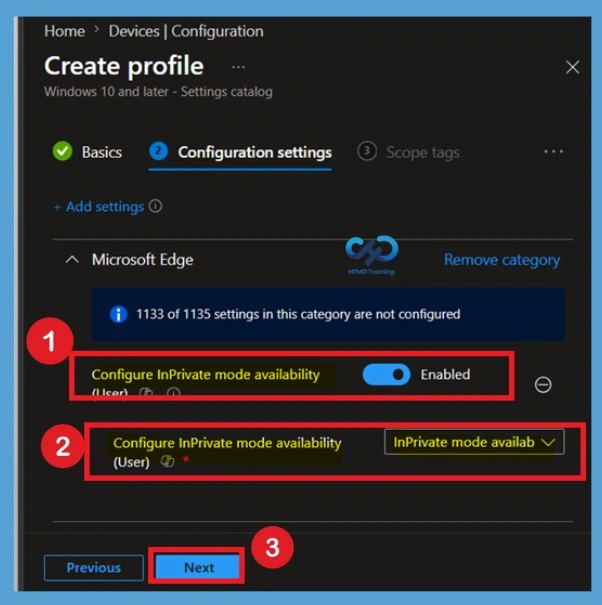
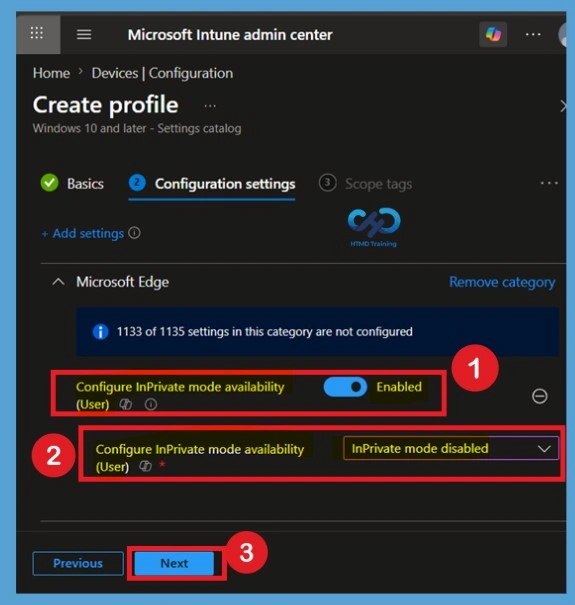
Configure InPrivate Mode Disabled
The setting is shown and configured with a default value of Disabled. Set Configure InPrivate mode availability to Enabled. You can directly configure the option to be disabled if you don’t want users to have flexibility while using an edge browser.
Configure InPrivate mode availability – Specifies whether the user can open pages in InPrivate mode in Microsoft Edge. Set this policy to Disable to stop users from using InPrivate mode. Set this policy to Enable and choose the option from Configure InPrivate mode availability to always use InPrivate mode, InPrivate mode disabled, or InPrivate mode forced.
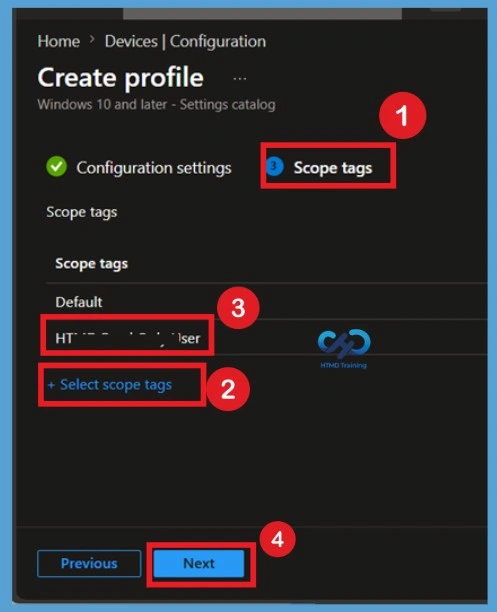
What are Scope Tags
Scope tags are used to control administrative visibility and access to Intune resources. They are particularly useful in environments where multiple administrators manage different departments, regions, or business units. On the Scope Tags page, choose any required scope tags based on your organisation’s administrative model. If scope tags are not being used, retain the default selection and click Next.
Assignment Section
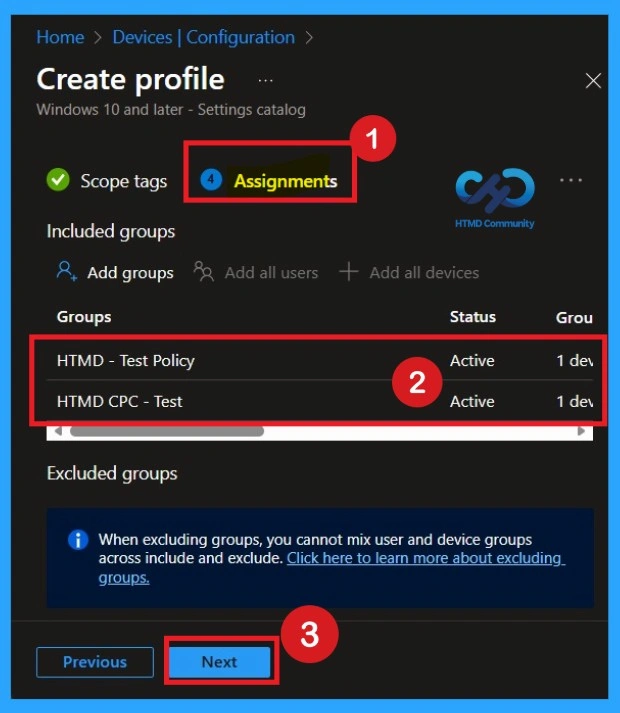
The Assignments section determines which users or devices receive the Configure InPrivate mode availability policy. Careful targeting helps ensure that the policy reaches the intended audience without affecting unrelated groups. Select Add Groups and choose the required Microsoft Entra ID user or device groups. Review the included and excluded groups, then click Next after confirming the assignment configuration.
Final Step – Review + Create
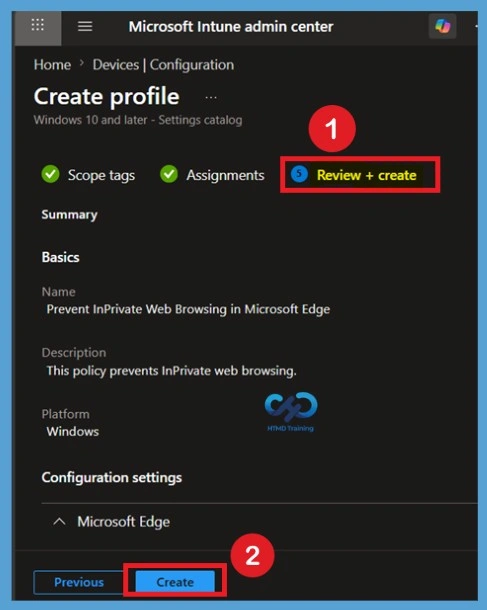
Before the policy is deployed, Intune provides a summary page that displays all selected settings. This final review allows administrators to verify that the correct Microsoft Edge configuration has been applied. Carefully review the policy name, selected configuration value, assignments, and scope tags. Once all settings have been validated, click Create to deploy the policy.
A notification will appear automatically in the top right-hand corner with a message. Here you can see, Policy “Prevent InPrivate Web Browsing in Microsoft Edge” was created successfully. The policy is also shown in the Configuration profiles list.
Monitoring the Status
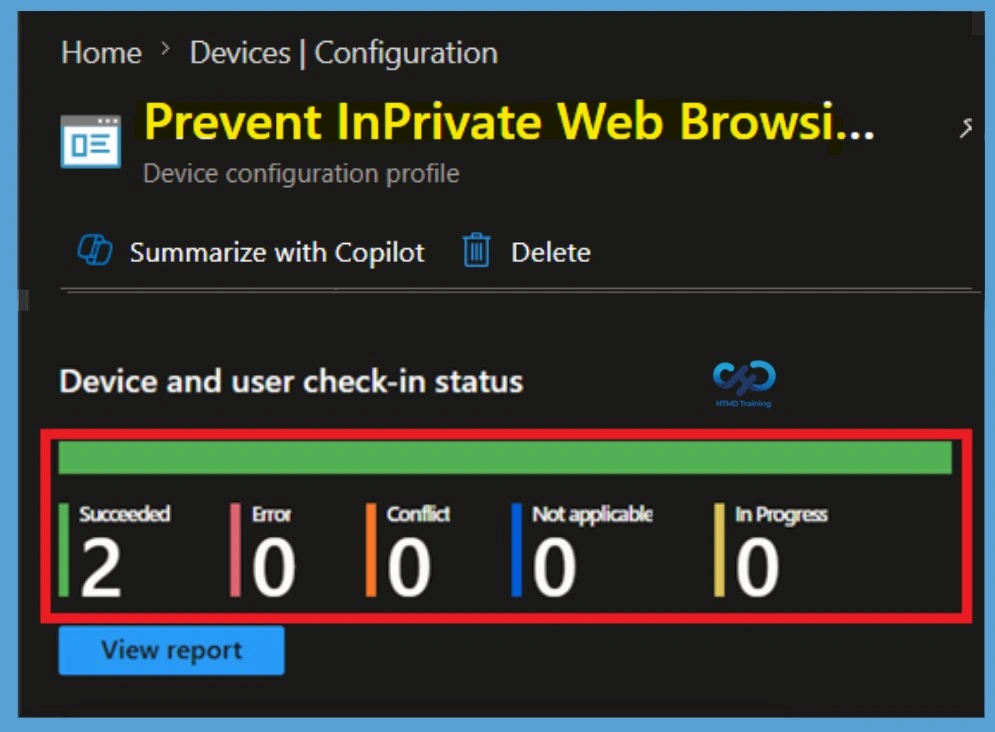
After the policy is created, administrators can track deployment progress directly from the Intune Admin Center. Monitoring helps identify successful deployments as well as any devices experiencing policy application issues. Navigate to Devices > Configuration Profiles and open the Configure Microsoft Edge InPrivate Mode Availability policy. Review the Device Status and reports to confirm successful deployment.
Client-Side Verification
Client-side verification ensures that the Configure InPrivate mode availability policy has been successfully applied to targeted devices. This step helps validate the end-user experience after policy synchronisation.
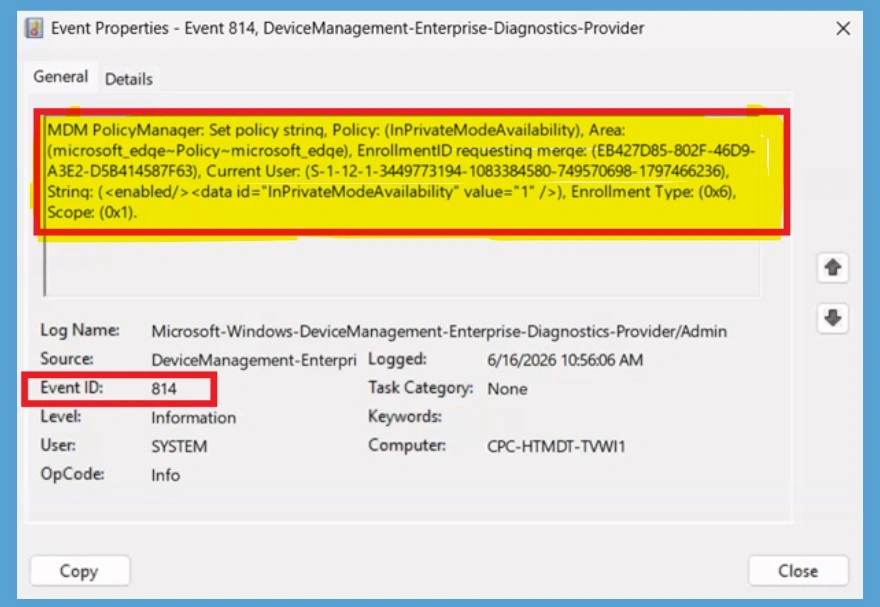
Client-side verification helps confirm that the policy has been successfully applied on the target device. For checking this, go to the Event viewer, go to Applications and Services Logs > Microsoft > Windows > Device Management > Enterprise Diagnostic Provider > Admin. From the list of policies, use the Filter Current Log option and search for Intune event 814.
| Policy Details |
|---|
| MDM PolicyManager: Set policy strinq, Policy: (InPrivateModeAvailability), Area: (microsoft_edqe~Policy~microsoft_edqe), EnrollmentID requesting merqe: (EB427D85-802F-46D9- A3E2-D5B414587F63), Current User: (S-1-12-1-3449773194-1083384580-749570698-1797466236). Strinq: (), Enrollment Type: (0x6), Scope: (0x1). |
Delete Policy from Configure InPrivate Mode Availability
When the Configure InPrivate mode availability policy is no longer required, it can be removed from the Intune environment. Deleting unused policies helps maintain a clean and organised configuration management structure. Navigate to Devices > Configuration Profiles, select the policy, and choose Delete. Confirm the deletion request to permanently remove the policy from Intune management.
For more information, you can refer to our previous post – How to Delete Allow Clipboard History Policy in Intune Step by Step Guide.
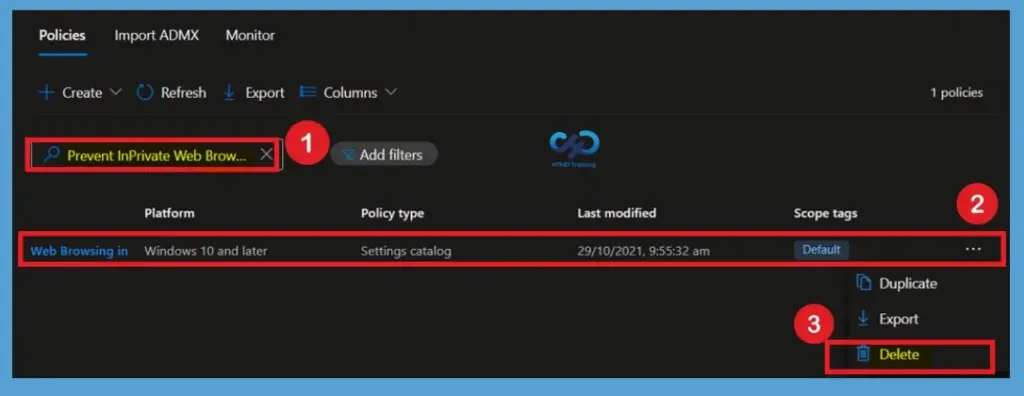
Removal of Assigned Groups
There may be situations where a group no longer requires the policy. Instead of deleting the policy entirely, administrators can remove specific assignments to stop future deployments to selected users or devices. Open the policy and navigate to the Assignments section. Remove the desired group from the included assignments, save the changes, and allow devices to synchronise with Intune.
For detailed information, you can refer to our previous post – Learn How to Delete or Remove App Assignment from Intune using by Step-by-Step Guide.
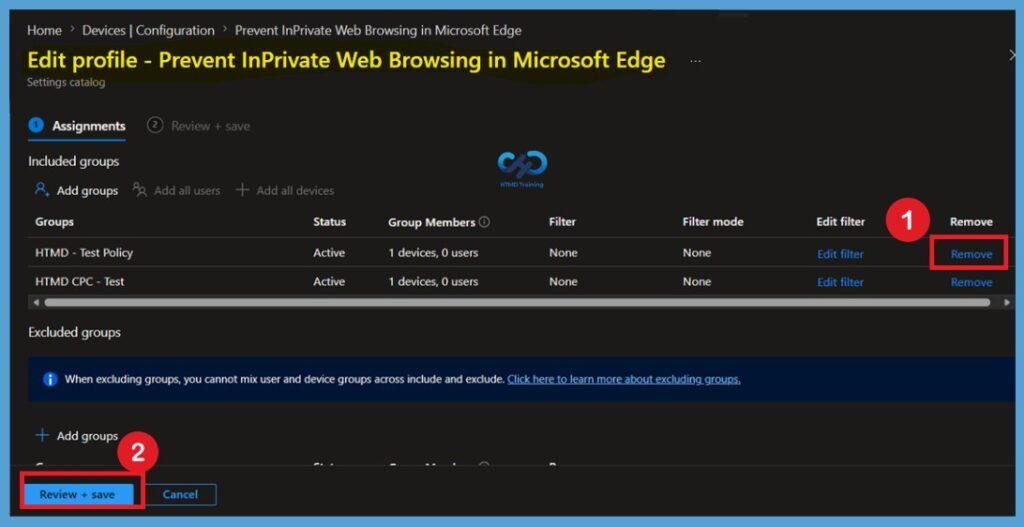
Your groups will receive your profile settings when the devices check-in with the Intune service. Once the policy applies to the devices, users won’t be able to browse in In private windows based on applied settings. The option will usually be seen In Microsoft Edge, select Settings and more > New InPrivate window.
Need Further Assistance or Have Technical Questions?
Join the LinkedIn Page and Telegram group to get the latest step-by-step guides and news updates. Join our Meetup Page to participate in User group meetings. Also, join the WhatsApp Community and the WhatsApp channel to get the latest news on Microsoft Technologies. We are there on Reddit as well
Author
About Author – Jitesh, Microsoft MVP, has over six years of working experience in the IT Industry. He writes and shares his experiences related to Microsoft device management technologies and IT Infrastructure management. His primary focus is Windows 10/11 Deployment solution with Configuration Manager, Microsoft Deployment Toolkit (MDT), and Microsoft Intune.
Hi Anoop,
I configured the same policy using Administrative template and not using setting catalog.
Is there any drawback of using Administrative template, pls let me know.
Microsoft’s recommendation is to use Settings Catalog.