
Azure AWS Beginners Guide for IT Professionals Azure IT Pros Azure Vs AWS. AWS and Azure are the most comprehensive cloud platforms. I recently watched a video explaining the fundamentals of Azure and AWS cloud platforms.
If you are an AWS professional, your knowledge of the AWS platform makes it easier for you to start your journey with Azure. The learning curve is not very huge. In this post, we will see how you can transfer the fundamental knowledge of the Amazon AWS platform to Microsoft Azure.
This post is based on Matt McSpirit’s 5-minute comparison video. In it, he explains how your knowledge as an AWS Professional easily translates to Microsoft Azure.
Get the critical differences between these two comprehensive cloud platforms in the 5-minute video. This post is an Azure Beginners Guide for AWS Professionals.
Table of Contents
Key Concepts of AWS and Azure
The fundamental differences between AWS and Azure are the concepts of subscriptions and accounts. In Azure, account owners can delegate the task of managing subscriptions to application owners. This delegation is essential when paying the bill, not the person operating the technology.
Also, imagine running AWS services in your private data center. With Azure, you can deploy Azure services in your data center with Azure stack. Azure also supports first-party integration between your cloud and on-premises solutions.
- Common Identity
- Management and Security
- Data Platform
- Artificial Development
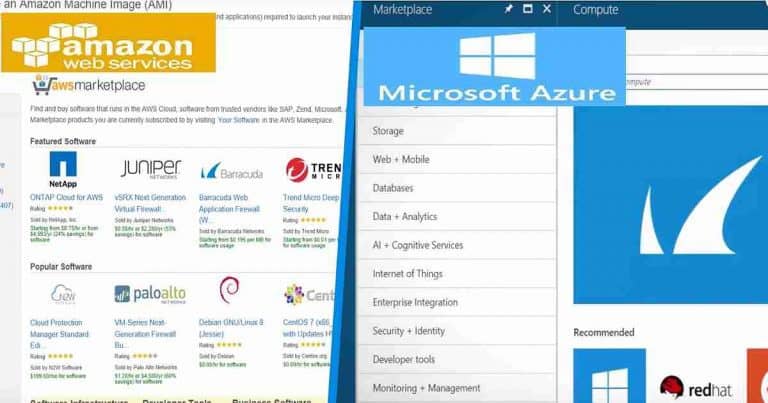
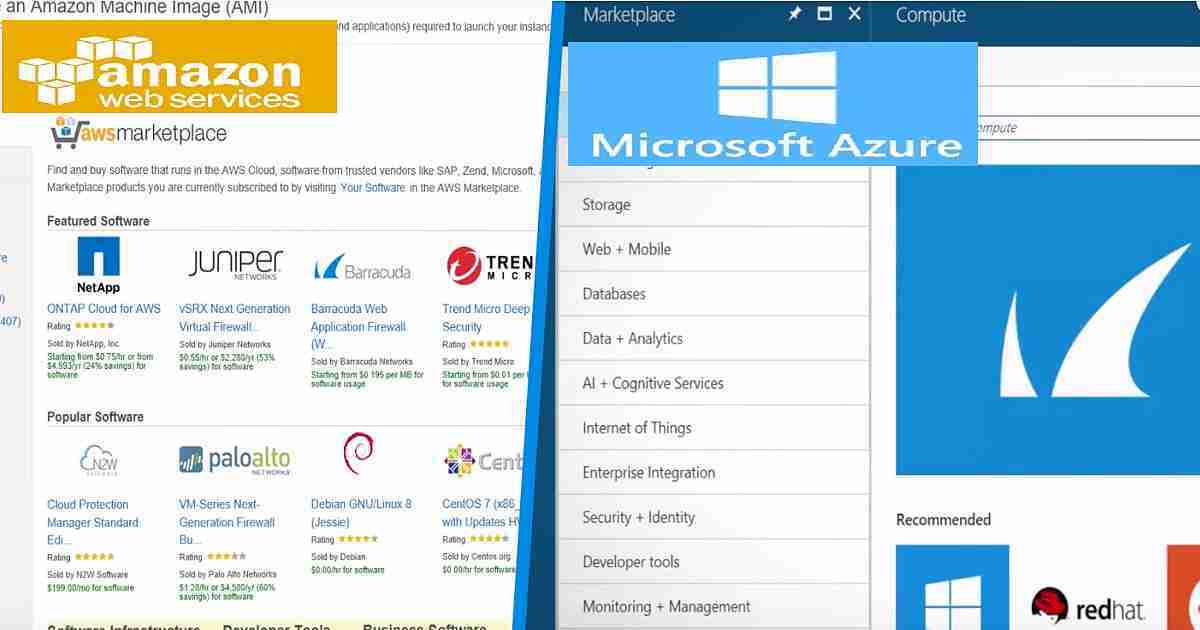
Like AWS, Azure Architecture allows you to build solutions with Windows and Linux. AWS and Azure have a vibrant marketplace of growing 3rd party echo systems of apps and solutions.
- July 2024 Windows 10 KB5040427 Patches and 2 Zero-Day Vulnerabilities 142 Flaws
- 2023 Gartner Magic Quadrant for Container Management Recognize Microsoft Azure Kubernetes Service as Leader
- Top 31 Azure Interview Questions and Answers 2023 for System Admins
- Best way to use Azure Capacity Reservation to Reduce the Azure Cost
Three Pillars of Azure and AWS Cloud Platform
Azure Beginners Guide for AWS Professionals is based on three main pillars of these cloud offerings. There are three core services in AWS and the Azure cloud platform. I will cover each component in this post, as Matt explained above.
| Three Pillars of Azure and AWS Cloud Platform |
|---|
| Compute |
| Data Storage |
| Management |
AWS Vs. Azure Compute Options
Virtual Machine Templates
Compute options are very similar to those of AWS and Azure. You can find the same range of on-demand virtual machine sizes in Azure and various Amazon EC2 instances in AWS. There are some differences in Memory, CPU, and storage options.
You can create AWS instances of virtual machines in the AWS management console. You can create Azure VMs in the Azure portal using APIs or Azure Command-line inter-phase for Windows or Linux. Following are the variety of options I have captured for the Azure Beginners Guide for AWS Professionals.
Azure Virtual Machine Offerings
- Small Workloads (A, Av2, B, D, Dv2)
- General-purpose (Dv3, N)
- Storage workloads (L)
- Database workload (Ev3)
- Enterprise applications (M)
- SAP HANA workloads (SAP)
AWS Virtual Machine Offerings
- Accelerated Graphics (P2, G3)
- Storage Optimized (I3, D2)
- General-purpose (T2, M4)
- Compute Optimized (C4)
- Memory Optimized (X1, R3, and R4)
Automatic Scalability Options
In both AWS and Azure, you can use Auto-Scaling options to dynamically scale your application or service. For most scenarios, this can be done without any downtime.
In Azure, virtual machine scale sets can automatically add or remove VMs based on your defined metrics and threshold. In contrast, in AWS, AWS CloudFormation can scale your application or services automatically.
Application Architecture
In Azure, you can use Azure Resource Manager or ARM templates to define the architecture of your application or service for the multi-tiered workload. Again, you can use AWS CloudFormation templates to architect your application or services.
Containers Options
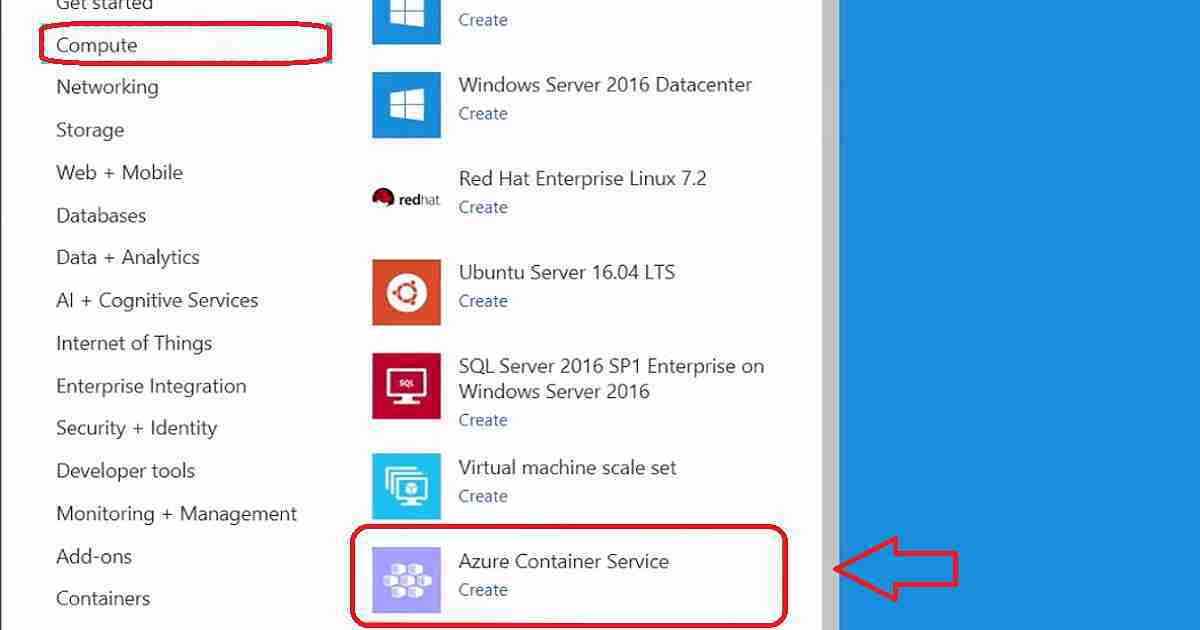
Amazon has AWS Elastic (EC2) Container Service for containers. Azure has Azure Container Service (AKS) to provide you with container service options. Use a fully managed Kubernetes container orchestration service or choose other orchestrators.
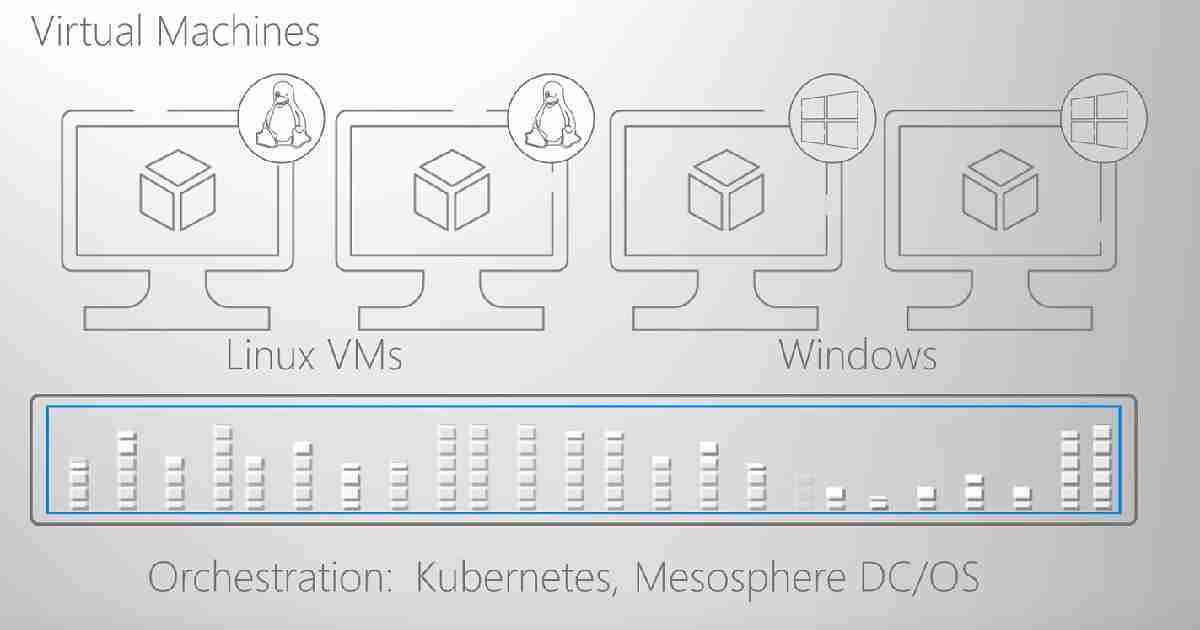
Azure supports Linux and Windows containers and offers a range of orchestration options, including Kubernetes, Mesosphere DC/OS, and Docker Swarm.
Serverless Options
AWS Lambda and AWS API Gateway (plus other services) are the solutions to build and deploy applications in AWS. In Azure, Azure Functions and other platform services are the answers for Serverless platforms.
This includes Azure Logic Apps, which visually model and automate process workflows. Other serverless options in Azure are Azure Database as a Service and Azure Service Fabric Cluster.
AWS Vs. Azure Data Storage Options
Persistent data storage is the heart of many applications. Azure and AWS offer a range of storage options. AWS Simple Storage Service (AWS S3) is the cloud storage solution in AWS.
Where in Azure, you can use Azure Blob Storage as a cloud storage solution for your application and services. Storage speed and performance are important to cover in the Azure Beginners Guide for AWS Professionals.
In AWS, cold storage using AWS S3 Standard IA is an option. Amazon Glacier is archival cold storage in AWS. In Azure, this cold storage maps to Azure storage standard COLD (Access tier) and Azure Archival storage.
Database Options
Relational Database Options
Database options in AWS and Azure are also similar. However, there is an essential difference that IT pros need to understand. Amazon offers a variety of AWS Relational Database (AWS RDS) options. In Azure, Azure Relational Database options are Azure SQL Databases, Azure DB for MySQL, and Azure DB for PostgreSQL.
Non-Relational Database Options
Azure offers Cosmos DB (Azure Cosmos DB) to build a nonrelational Database for your applications and services. Azure Cosmos DB provides additional features like SQL query, unstructured data, low latency, and Geo-replication. AWS offers Amazon DynamoDB to have Fast and flexible nonrelational database service in the cloud.
Traditional Data Warehousing
Traditional Data Warehousing options are available for both AWS and Azure. Amazon AWS offers the AWS Redshift database for traditional data warehousing requirements of your applications and services.
Azure offers you an Azure SQL Data Warehouse solution to meet your application requirements. Like AWS Redshift, Azure SQL Data Warehouse is a fast, fully managed, and petabyte-scale data warehouse.
Big Data Offerings
Amazon and Azure offer big data analysis as part of their cloud services. AWS offers Amazon Elastic MapReduce (Amazon EMR) for big data analytics, including the Hadoop framework. Azure offers Azure HDInsights as a big data analytics option.
HDInsight provides a fully managed, full-spectrum open-source analytics service for enterprises. Azure offers an additional offer for Big Data: Azure Data Lake Store. This store allows you to store massive unstructured or structured data sets and enables analysis of all your data from one place.
AWS Vs Azure Management Options
Management is an important topic. Azure and AWS offer various options for managing your cloud resources. You can start with the AWS management console.
Azure provides management options through the Azure management portal. Management options for both platforms are essential with Azure Beginners Guide for AWS Professionals.
Troubleshooting
Azure Cloud Shell is an interactive, browser-accessible shell for managing Azure resources. You can also use Azure Cloud Shell for custom troubleshooting. Azure Cloud Shell supports Bash Shell for Linux and PowerShell for Windows workloads.
Other options are available, including CloudWatch, CloudTrail, and X-Ray. There are many other third-party solutions for AWS cloud management.
Monitoring
AWS and Azure offer different monitoring options. In AWS, you can use 3rd party analytics engine like Splunk. Azure’s built-in monitoring options are log analytics, Azure application insights, etc.
Proactive Resource Optimization
Azure and AWS provide proactive resource optimization tools to help you. AWS comes with an AWS Trusted Advisor Dashboard. Trusted Advisor allows you to observe best practices for using AWS by inspecting your AWS environment and providing proactive resource optimization.
Azure provides a complementary tool called Azure Advisor for proactive resource optimization for your Azure environment.
We are on WhatsApp now. To get the latest step-by-step guides, news, and updates, Join our Channel. Click here. HTMD WhatsApp.
Author
Anoop C Nair is Microsoft MVP from 2015 onwards for consecutive 10 years! He is a Workplace Solution Architect with more than 22+ years of experience in Workplace technologies. He is a Blogger, Speaker, and Local User Group Community leader. His main focus is on Device Management technologies like SCCM and Intune. He writes about technologies like Intune, SCCM, Windows, Cloud PC, Windows, Entra, Microsoft Security, Career etc…