

Reassign DPs Offset Days Phased Deployments

Reassign DPs Offset Days Phased Deployments with SCCM 1801

Let us learn Reassign DPs Offset Days Phased Deployments with SCCM 1801. Microsoft SCCM product group released SCCM CB preview 1801 with many new features. I think they are getting all set for the big bang SCCM CB 1802 production release with loads of new features.

The video tutorial “Reassign DPs Offset Days Phased Deployments” here can give you a visual experience of all of my favorite features of 1801.

This post covers everything you need to know about adjusting the offset days for phased deployments using SCCM 1801.

We will break down how to reassign these settings in simple steps, making it easier to manage your deployment schedule effectively. Whether you are new to SCCM or need a refresher, this guide will help you navigate the process smoothly.

My Favorite Features of SCCM 1801 Preview

Reassign DPs and Phased deployment features are limited to the SCCM admin console experience. The SCCM CB 1801 client side is NOT ready to test these features. The table below provides more details.

My Favorite Features of SCCM 1801 Preview
Reassign DPs
ADR Offset Days schedule
Phased Deployments for Task Sequences
Software Center Live Preview
Reassign DPs Offset Days Phased Deployments with SCCM 1801 – Table 1

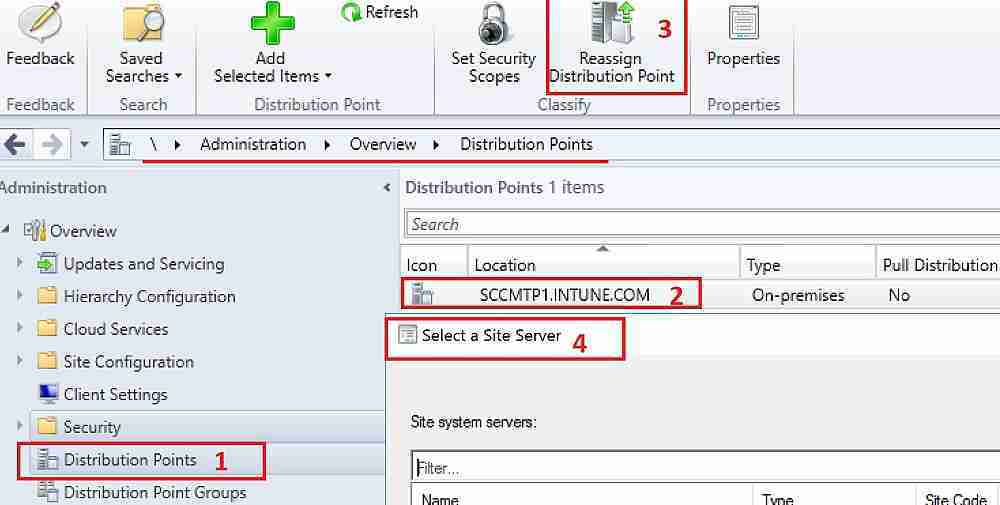
How to Reassign DPs in SCCM?

Reassigning DPs is my favorite feature of SCCM 1801. I know that SCCM admins have struggled for ages to migrate TBs of content from one DP server to another DP server. In most cases, this could be because of changes or redesigns of SCCM hierarchies.

Reassign DPs Offset Days Phased Deployments with SCCM 1801 - Fig.1
Reassign DPs Offset Days Phased Deployments with SCCM 1801 – Fig.1

SCCM 1801 has additional functionality to move a distribution point (DP) from a primary site to another primary site or from under a secondary spot to a primary site.

  • \Administration\Overview\Distribution Points

SCCM ADR Challenge of 2nd Tuesday

Creating ADRs when part of Asia and Australia is always a challenge. Microsoft releases patches every second Tuesday, but for some parts of the world (the Asia continent), it won’t be Tuesday.

Hence, a special script of manual intervention is required for patch Tuesday ADR to work correctly.

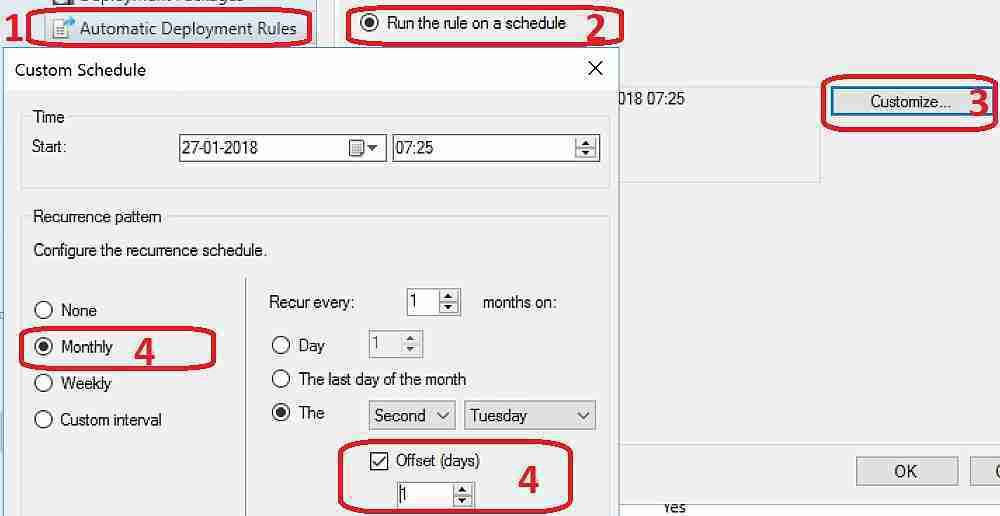
Offset Days option in custom Automatic Deployment Rule (ADR) schedule. As I mentioned above, improvements to the Automatic Deployment Rule evaluation schedule are helpful. You can now schedule an ADR evaluation to be offset from a base day.

Check if a custom schedule that deploys updates offset from a base day has been created. The video tutorial “Reassign DPs Offset Days Phased Deployments” provides more details.

\Software Library\Overview\Software Updates\Automatic Deployment Rules
Custom – Monthly – 2nd Tuesday – Offset (days)

Reassign DPs Offset Days Phased Deployments with SCCM 1801 - Fig.2
Reassign DPs Offset Days Phased Deployments with SCCM 1801 – Fig.2

Software Center “Live Preview” from SCCM Client Settings

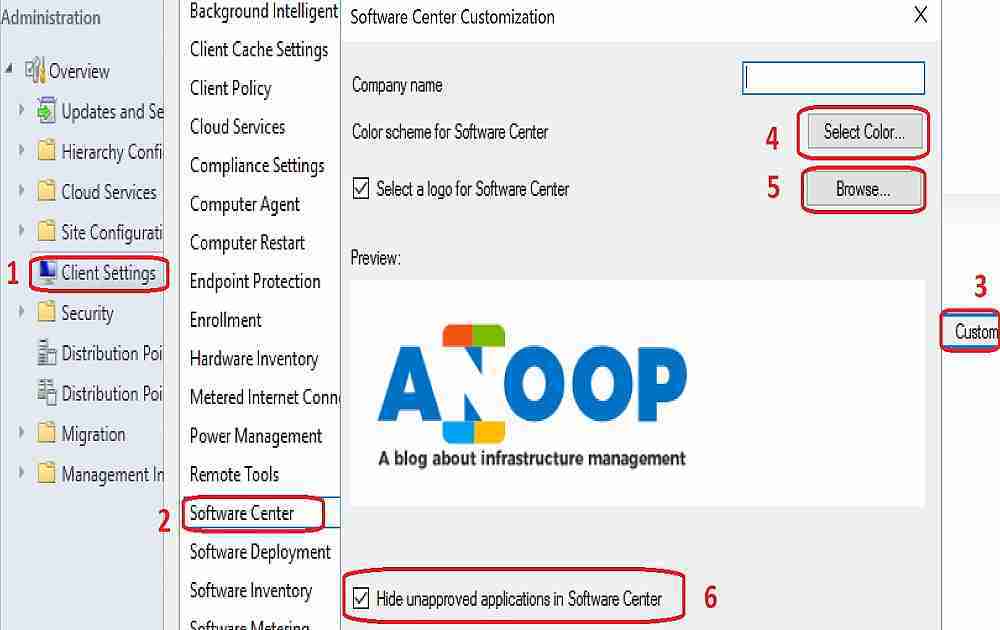
Improvements to Client Settings for the Software Center are really modern stuff from the SCCM team. You don’t need to deploy NEW software center client settings to devices and test changes.

Instead, you can see the live preview on the SCCM console. Thank you for making the SCCM admin’s life easier!!

The video tutorial “Reassign DPs Offset Days Phased Deployments” provides more details of the software center customization live experience.

Enabling the ‘Hide unapproved applications in the Software Center’ setting in the new Software Center client settings is another option. 

The client settings for Software Center now have a Customise button where users can preview their customization before deploying them to machines. Users can also hide unapproved applications in the Software Center.

  • \Administration\Overview\Client Settings
Reassign DPs Offset Days Phased Deployments with SCCM 1801 - Fig.3
Reassign DPs Offset Days Phased Deployments with SCCM 1801 – Fig.3

Phased Deployments for SCCM Task Sequences

SCCM Phased deployments automate a coordinated, sequenced rollout of software without creating multiple implementations. This feature is available only for Task Sequences in this version of SCCM. I hope it will be useful for Windows 10 servicing models.

I assume phased deployments are getting input from status filtering rules. Status filter rules will check the criteria for phased rollout, and if the deployment failure is more than 5% (this % can be customized), it will automatically STOP the deployment.

  • \Software Library\Overview\Operating Systems\Task Sequences

In this Technical Preview version, the phased deployment wizard can be completed for task sequences in the admin console. However, deployments are not created. Following is the example of phased deployment from my lab environment. 

More details are available in the video tutorialReassign DPs Offset Days Phased Deployments“.

Phased Deployment Configuration
• Phased Deployment Name: Phase Deployment
• Phased Deployment Description:
Collections in this Phased Deployment
• Collection(s): TP100017
• Collection(s): SMSDM003

Resources

Capabilities in Technical Preview 1801 for System Center Configuration Manager

We are on WhatsApp now. To get the latest step-by-step guides, news, and updates, Join our Channel. Click here. HTMD WhatsApp.

Author

Anoop C Nair is Microsoft MVP from 2015 onwards for consecutive 10 years! He is a Workplace Solution Architect with more than 22+ years of experience in Workplace technologies. He is a Blogger, Speaker, and Local User Group Community leader. His main focus is on Device Management technologies like SCCM and Intune. He writes about technologies like Intune, SCCM, Windows, Cloud PC, Windows, Entra, Microsoft Security, Career etc…

SCCM Status Summerizers and Health Monitoring Details

SCCM Site Component Status Summarizers Troubleshoot Issues Configuration Manager ConfigMgr

Let’s discuss the SCCM Site Component Status Summarizers Troubleshoot Issues Configuration Manager ConfigMgr. SCCM ConfigMgr CB health monitoring is well-connected with SCCM Status Summarizers.

All monitoring solutions, such as custom scripts and SCOM management packs for SCCM, use SCCM Status Summarizers to get the detailed health status of your SCCM infra. This post will provide details on SCCM status summarizers and health monitoring.

I uploaded a video to YouTube that explains “SCCM Site Status Summarizers Health Details WMI class and Data via SQL Tables and Views“. The following link has a script and solution I used back in SMS 2003 SCCM MP Health Check Script and Automatic Mail.

Do you know how to Reset the SCCM CB Critical Site Component Status Summarizer Counter? The previous blog post will help you understand the process.

You may Subscribe to the YouTube channel

What are SCCM Status Summarizers?

The summary class (SMS_SummarizerStatus) within WMI helps you determine the health or status of different aspects of SCCM/ConfigMgr CB Infrastructure.

The SCCM status summarizers get input from status messages, states, and counts. This status gives us a real-time (Almost?) view of the health of

  • SCCM CB sites
  • Site components
  • Packages
  • Applications
  • Deployments
SCCM Site Component Status Summarizers Troubleshoot Issues Configuration Manager ConfigMgr - Fig.1
SCCM Site Component Status Summarizers Troubleshoot Issues Configuration Manager ConfigMgr – Fig.1

List of SCCM CB Status Summarizers

The current branch version of SCCM/ConfigMgr has four status summarizers. These summarizer classes summarize the status and state message data. The table below provides more details of the SCCM CB status summarizers list.

List of SCCM CB Status Summarizers
Application Deployment Summarizer
Application Statistics Summarizer
Component Status Summarizer
Site System Status Summarizer
SCCM Site Component Status Summarizers Troubleshoot Issues Configuration Manager ConfigMgr – Table 1

From the SCCM health check monitoring perspective, the main ones are the SCCM component status summarizer and site system summarizer.

The deployment status of applications, Task Sequences, and packages will be displayed as part of the application deployment summarizer.

The application statistics summarizer helps configure how often application statistics should be updated.

Health Details of SCCM Site via WMI Class

The WMI class “SMS_SummarizerSiteStatus” can help us determine the overall health or status of an SCCM CB site. If the SMS_SummarizerSiteStatus object’s Status property value is “0,” then the SCCM site is healthy.

More details about SMS_SummarizerSiteStatus

The following are other WMI classes that you can refer to for more details about SCCM status summaries.

  • SMS_SUMDeploymentStatistics
  • SMS_SUMDeploymentStatus
  • SMS_SummarizationInterval
  • SMS_SummarizationSettings
  • SMS_SummarizerSiteStatus
  • SMS_SummarizerStatus
SCCM Site Component Status Summarizers Troubleshoot Issues Configuration Manager ConfigMgr - Fig.2
SCCM Site Component Status Summarizers Troubleshoot Issues Configuration Manager ConfigMgr – Fig.2

The WMI class SMS_SummarizerRootStatus provides different colour indications in the SCCM CB console. SCCM Status Summarizers and Health Monitoring are interlinked.

One example MOF file is given below.

[Description(“This class contains a rollup Green/Yellow/Red status about the current site, and all its child sites. “), dynamic: ToInstance, provider(“ExtnProv”), read, DisplayName(“Summarizer – Root Status”)]
class SMS_SummarizerRootStatus : SMS_BaseClass
{
[Description(“”), key, enumeration(“GREEN(0),YELLOW(1),RED(2)”)] uint32 Status;
[Description(“This method will take the SiteCode and the Component as the input paramters, and return an arrays of strings: the TallyIntervals, and also the default interval.”), static, implemented] sint32 GetTallyIntervals([in, SizeLimit(“3”)] string SiteCode, [in] string ComponentName, [out] string TallyIntervals[], [out] string DefaultInterval);
};

The following WMI query will contain information, warnings, and error messages since Monday. TallyInterval value “00011280001A2000” = Monday.

More details about Tally Interval

  • SELECT Infos, Warnings, Errors
  • FROM SMS_SiteDetailSummarizer
  • WHERE TallyInterval = “00011280001A2000”

Results of the above WMI query

instance of SMS_SiteDetailSummarizer
{
Errors = 129;
Infos = 368;
Warnings = 51;
};

Health Details of SCCM Site via SQL Views

SCCM Status Summarizers and Health Monitoring details will help streamline and fine-tune your SCCM infra’s monitoring efforts. The SCCM site health data is stored in four SQL views.

We can query the following SQL views for more details on the SCCM status summarizer. Component status summarizer lists summary status information for all SCCM components at different intervals.

  • v_ComponentSummarizer = Component Summary
  • v_SiteDetailSummarizer = Overview
  • v_SiteSystemSummarizer = Site System Summary
  • v_SummarizerSiteStatus = Site Server Summary
SCCM Site Component Status Summarizers Troubleshoot Issues Configuration Manager ConfigMgr - Fig.3
SCCM Site Component Status Summarizers Troubleshoot Issues Configuration Manager ConfigMgr – Fig.3

References

We are on WhatsApp now. To get the latest step-by-step guides, news, and updates, Join our Channel. Click here. HTMD WhatsApp.

Author

Anoop C Nair is Microsoft MVP from 2015 onwards for consecutive 10 years! He is a Workplace Solution Architect with more than 22+ years of experience in Workplace technologies. He is a Blogger, Speaker, and Local User Group Community leader. His main focus is on Device Management technologies like SCCM and Intune. He writes about technologies like Intune, SCCM, Windows, Cloud PC, Windows, Entra, Microsoft Security, Career etc…

Install Hotfix KB4057517 of SCCM CB 1710

To Fix 13 Issues Install Hotfix KB4057517 of SCCM CB 1710 Configuration Manager ConfigMgr

SCCM Product Group released the long-awaited rollup hotfix KB4057517 for SCCM CB 1710. You need not download the hotfix KB 40575517 separately; it will be available within your SCCM CB 1710 console.

This fix won’t be visible on the servers if you have not upgraded to the 1710 version of SCCM. From my perspective, this must install a hotfix for SCCM.

This fixes 13 documented issues with the current production version of SCCM. I completed the upgrade on my LAB environment and uploaded it.

One of our posts shows the List of Issues Fixed with SCCM 2403 KB26186448. The update addresses several key issues, enhancing the SCCM’s functionality and reliability.

Subscribe to the YouTube channel for more Videos

Install Fix for SCCM CB 1710 Rollup KB4057517 – Windows Server 2008

HotFix Rollup KB4057517 is available to download for all online and connected SCCM 1710 site servers. HotFix Rollup KB4057517 is downloaded and started the installation process. This is not going to take a long time to install.

To Fix 13 Issues Install Hotfix KB4057517 of SCCM CB 1710 Configuration Manager ConfigMgr – Video 1

I recommend testing the rollup hotfix KB4057517 installation on your pre-prod or staging environment before installing it on production SCCM servers. Read the rollup hotfix KB4057517 release note here.

To Fix 13 Issues Install Hotfix KB4057517 of SCCM CB 1710 Configuration Manager ConfigMgr
Console Version 5.00.8577.1108
Site Version 5.0.8577.1000
To Fix 13 Issues Install Hotfix KB4057517 of SCCM CB 1710 Configuration Manager ConfigMgr – Table 1
To Fix 13 Issues Install Hotfix KB4057517 of SCCM CB 1710 Configuration Manager ConfigMgr - Fig.1
To Fix 13 Issues Install Hotfix KB4057517 of SCCM CB 1710 Configuration Manager ConfigMgr – Fig.1

13 Fixes Included in SCCM CB 1710 in KB4057517

Let’s discuss the 13 Fixes Included in SCCM CB 1710 in KB4057517. The list below helps you see them.

  1. Azure AD Authentication with SCCM MP issue
  2. SCCM clients fall back faster than the time that is a specified issue
  3. Retrying a large single-file download – Office 365 update files
  4. Download failures-Office 365 Application Installation Wizard
  5. Persist content in the client cache related issues
  6. SCCM Client Notification Restart request is processed incorrectly
  7. Decommission-related State message – CO-Management incorrectly
  8. State messages sent by Azure AD users issues
  9. Windows Server 2008 SP2 – SCCM Clients are not upgraded issues
  10. The client restarts the issues process of retrying a TS policy download
  11. Conditional Access Policy Issues for Domain Joined machines
  12. The download of express updates may fail for Windows 10
  13. Office 365 Client Installation wizard-related issues

How to Install Hotfix KB4057517 on SCCM Secondary Servers

I don’t have secondary servers in my lab environment. But I recommend you follow the instructions in the release notes of rollup hotfix KB4057517. After installing this update on a primary site, pre-existing secondary sites must be manually updated.

To update a secondary site in the Configuration Manager console, click Administration, click Site Configuration, click Sites, click Recover Secondary Site, and select the secondary location. The primary site then reinstalls that secondary site by using the updated files.

This reinstallation will not affect the secondary site’s configurations and settings. The new, upgraded, and reinstalled secondary sites under that primary site automatically receive this update.

Please run the following SQL Server command on the site database to check whether the updated version of a secondary site matches that of its primary parent site.

dbo.fnGetSecondarySiteCMUpdateStatus (‘SiteCode_of_secondary_site’)

We are on WhatsApp now. To get the latest step-by-step guides, news, and updates, Join our Channel. Click here. HTMD WhatsApp.

Author

Anoop C Nair is Microsoft MVP from 2015 onwards for consecutive 10 years! He is a Workplace Solution Architect with more than 22+ years of experience in Workplace technologies. He is a Blogger, Speaker, and Local User Group Community leader. His main focus is on Device Management technologies like SCCM and Intune. He writes about technologies like Intune, SCCM, Windows, Cloud PC, Windows, Entra, Microsoft Security, Career etc…