SCCM (A.K.A ConfigMgr) Explained
SCCM is Microsoft Microsoft Endpoint Manager Configuration Manager. This solution is used by most of the organizations in the world to manage their enterprise devices. This is the best resource to Learn and troubleshoot on issues.
How is SCCM (A.K.A ConfigMgr) Used?
SCCM solution is mainly used to manage Windows devices. But it has rich capability to manage and Mac OS devices as well. As per Microsoft, this tool is managing more than 75% of enterprise devices of the world. Linux and Unix devices are not supported by MEMCM (A.K.A Microsoft Endpoint Manager Configuration Manager)
How CAN SCCM Be Applied to Your Organization?
This solution can be used to install the application within your organization. OS deployment is another feature of this solution used within most of the enterprises. Another important use of this solution is to deploy patches across the enterprise and secure those devices.
There are 1000000 devices managed by this solution around the world. And SCCM device management solution is used within organizations to deploy millions of applications.
Server Client Application
This solution is a server-client application. All the managed clients’ inventory is stored in the CM SQL database.
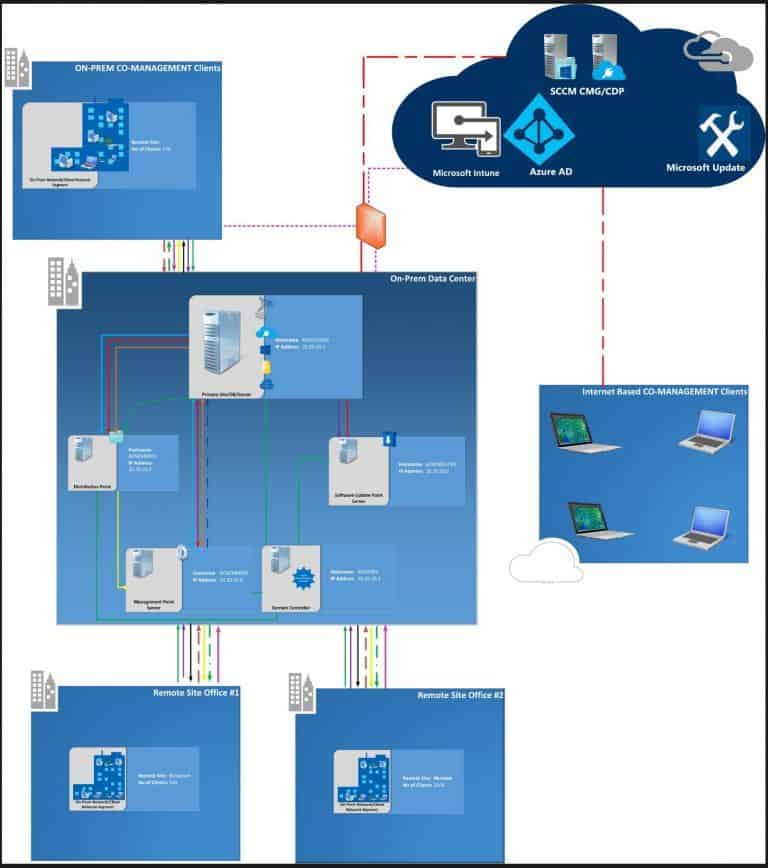
SCCM Core infrastructure, Updates for Configuration Manager, Supported configurations for Configuration Manager, Cloud-attached management of CM, Co-management for Windows 10,
Manage clients on the internet, Windows as a service, CMPivot, Application management.
Other Uses for SCCM
SCCM can used for Manage apps from the Microsoft Store for Business, OS deployment, Introduction to OS deployment, Upgrade to Windows 10, Phased deployments, Software update management, Introduction to software updates management, Manage Office 365 ProPlus updates.
SCCM MVP community group is one of the known community groups in the IT Industry.
In this post, we will see a video tutorial that explains how to download, Import, and deploy the configuration baseline for Microsoft Security Advisory ADV180002.
I tested the CAB file import process on the SCCM CB 1710 production version. However, I’m not sure whether this will work for the previous version of the SCCM (SCCM 2012 R2) environment.
It may not work as it has the latest OS versions selected as Supported platforms (Server 2016 etc..)
Table of Contents
Monitor Meltdown Spectre Vulnerabilities with SCCM Configuration Manager ConfigMgr – Video 1
Monitor Meltdown Spectre Vulnerabilities with SCCM Configuration Manager ConfigMgr
This Compliance Settings configuration baseline confirms whether Windows 10, Windows 7, Server 2008, Server 2012, and Server 2016 have enabled the protections needed to protect against the Meltdown Spectre Vulnerabilities.
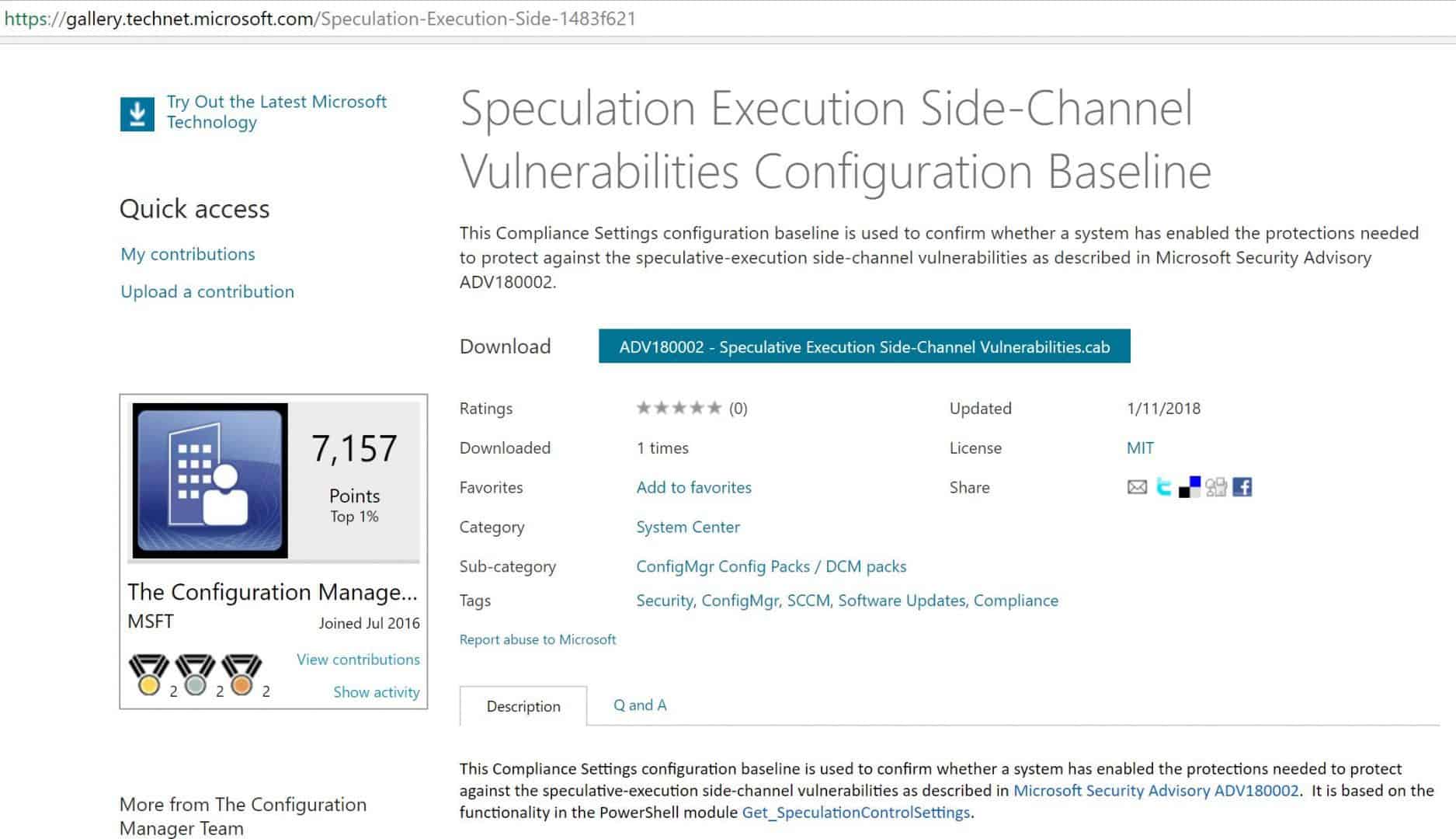
Download the Microsoft Signed CAB file from the TechNet Gallery. Import a configuration Data CAB file to check whether SCCM-managed machines are safe from Meltdown and Spectre.
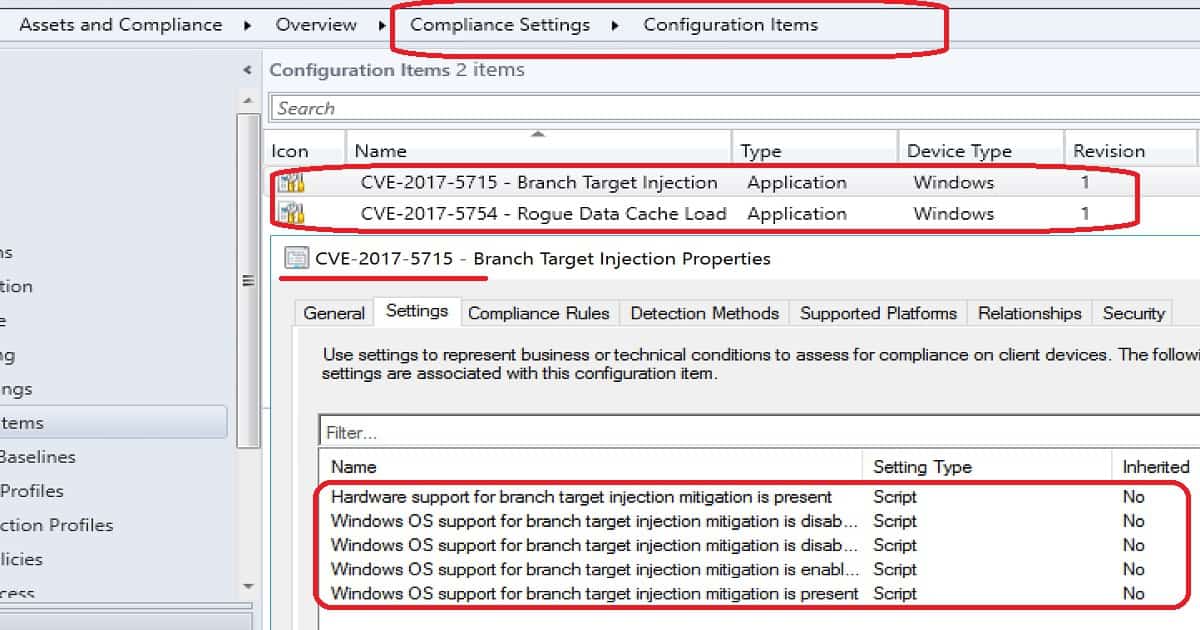
Check Meltdown CI properties. The PowerShell script is used to confirm whether the systems are vulnerable or not.
Check Spectre CI properties. The PowerShell script is used to confirm whether the system is vulnerable or not.
Check and confirm the baseline properties before deploying it to devices.
Monitor compliance report for Meltdown Spectre Vulnerabilities
Microsoft has released a Microsoft-signed CAB file here to check and monitor Meltdown Spectre Vulnerabilities. In this post, we will see a video tutorial that explains how to download, Import, and deploy the configuration baseline for Microsoft Security Advisory ADV180002.
Monitor Meltdown Spectre Vulnerabilities with SCCM Configuration Manager ConfigMgr – Video 2
We are on WhatsApp now. To get the latest step-by-step guides, news, and updates, Join our Channel. Click here. HTMD WhatsApp.
Author
Anoop C Nair is Microsoft MVP from 2015 onwards for consecutive 10 years! He is a Workplace Solution Architect with more than 22+ years of experience in Workplace technologies. He is a Blogger, Speaker, and Local User Group Community leader. His main focus is on Device Management technologies like SCCM and Intune. He writes about technologies like Intune, SCCM, Windows, Cloud PC, Windows, Entra, Microsoft Security, Career etc…
Let’s discuss the Intune SCCM Free Virtual Labs to Get Hands-On Experience. Acquire the SCCM, Intune, Windows 10, and Azure cloud skills at your own pace. As I mentioned in the “Future of SCCM Admin Jobs” post, these new skills are essential for our job security.
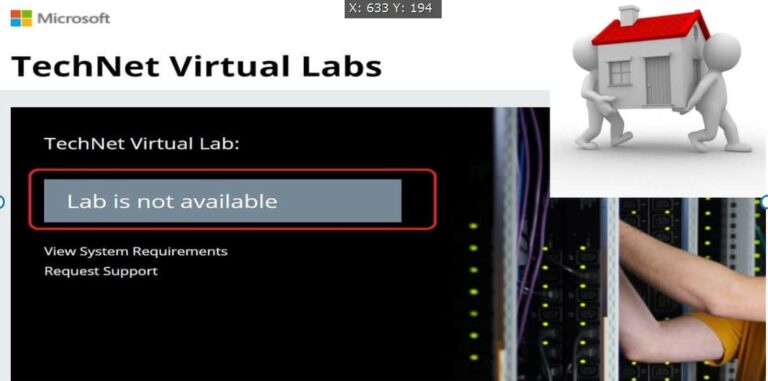
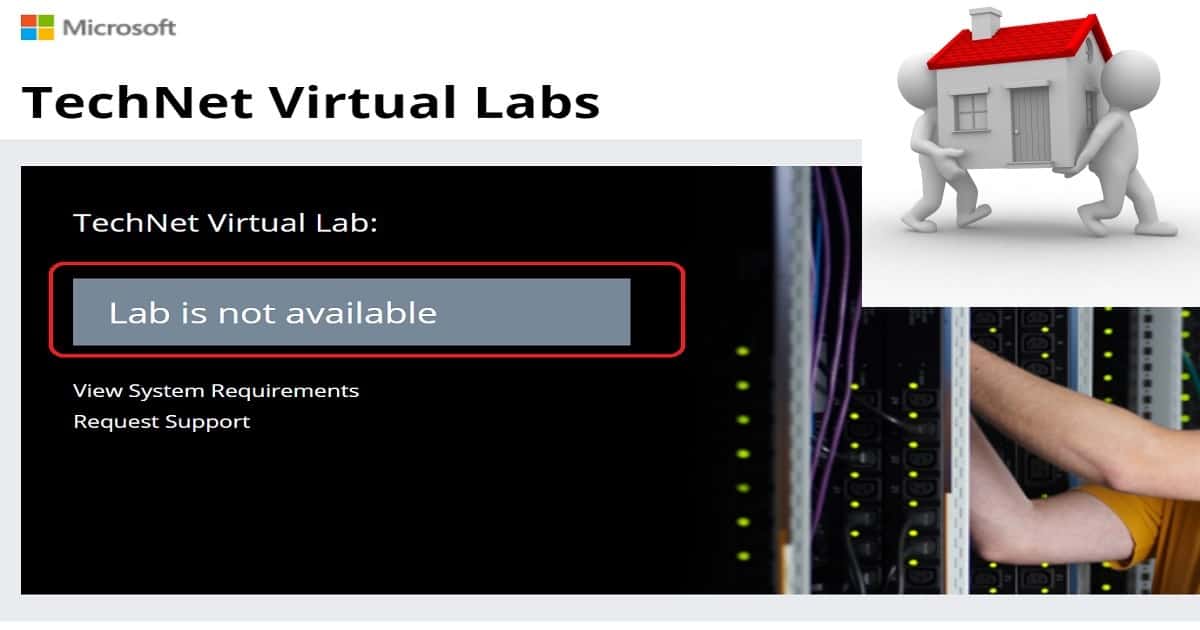
Microsoft provides free SCCM Virtual Labs to help IT Admins and Developers learn new technologies. The old links to SCCM and Intune TechNet Virtual Labs are NOT working.
Intune SCCM Free Virtual Labs to Get Hands On Experience – Have TechNet Virtual Labs been migrated to the Azure platform?
It seems that the TechNet virtual labs have been migrated to the Azure platform. From the jump host server detail, virtual labs have been migrated to Azure Cloud Apps.
The new virtual LABs platform requires a Remote Desktop Protocol (RDP) client. This will work when you have an RDP client on MacOS machines.
However, I couldn’t find any communication or announcement from Microsoft. Two previous posts contain information about SCCM and Intune TechNet virtual labs.
There were 36 hands-on labs available for SCCM and Intune. However, none of these hands-on labs are accessible at the moment. I only saw a Microsoft Excel hands-on lab in the TechNet virtual lab portal.
Intune SCCM Free Virtual Labs to Get Hands On Experience – Fig.1
Microsoft technologies are getting changed frequently. The IT pros struggle to get their private labs updated at the same pace as Microsoft is releasing new features.
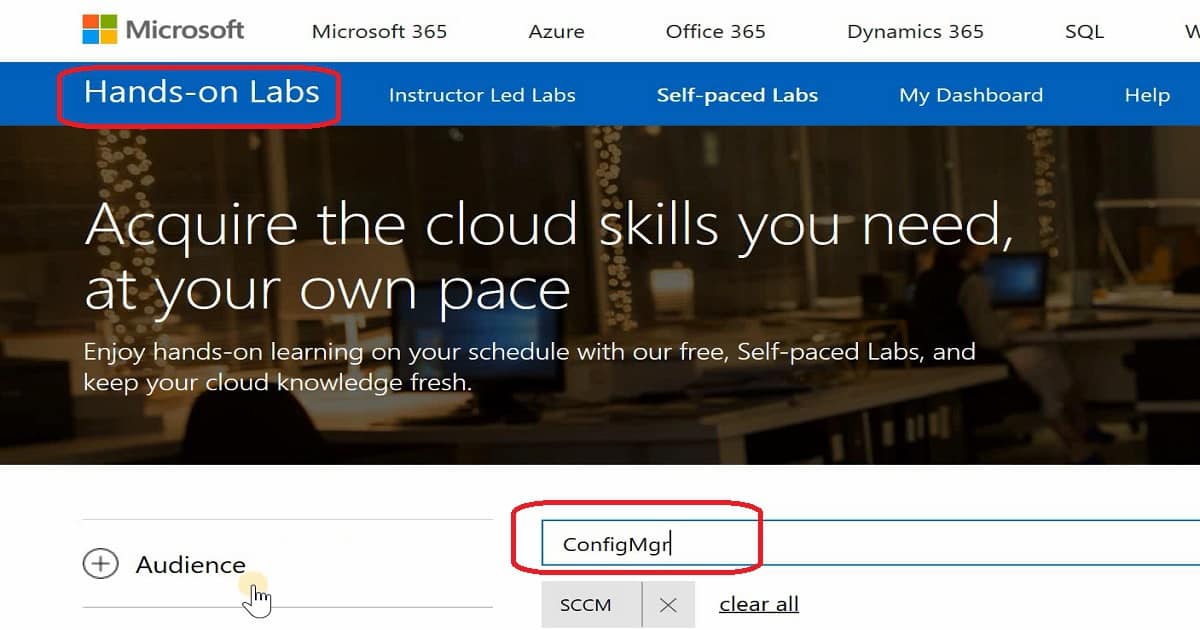
Microsoft self-paced labs ( Free SCCM Virtual Labs) can help IT Pros get hands-on experience with new technology features. As of 08-Jan-2017, only 289 Self-paced Labs were available.
The migration to Azure CloudApps suits IT admins who want to learn new technologies using an agile method. The new platform does not depend on browsers or OSs.
These SCCM Intune Windows 10 Hands-On Labs training will run on Chrome, Firefox, Safari, Mac-OS, etc. Microsoft Azure, Intune, SCCM, etc., and hands-on labs (Free SCCM Virtual Labs) are readily available for IT pros to get the experience.
Microsoft self-paced hands-on labs enable IT Pros to experience a software product or technology using a cloud-based private virtual environment.
IT Pros or SCCM admins will be given instructions and access to one or more SCCM SQL virtual servers. No additional software or setup is required. We need to complete these instructions within 120 minutes or less.
Enjoy hands-on learning according to your schedule with Microsoft’s free, Self-paced Labs. This will surely help keep your cloud knowledge fresh.
Intune SCCM Free Virtual Labs to Get Hands On Experience – Fig.2
SCCM Intune and Windows 10 Virtual Labs
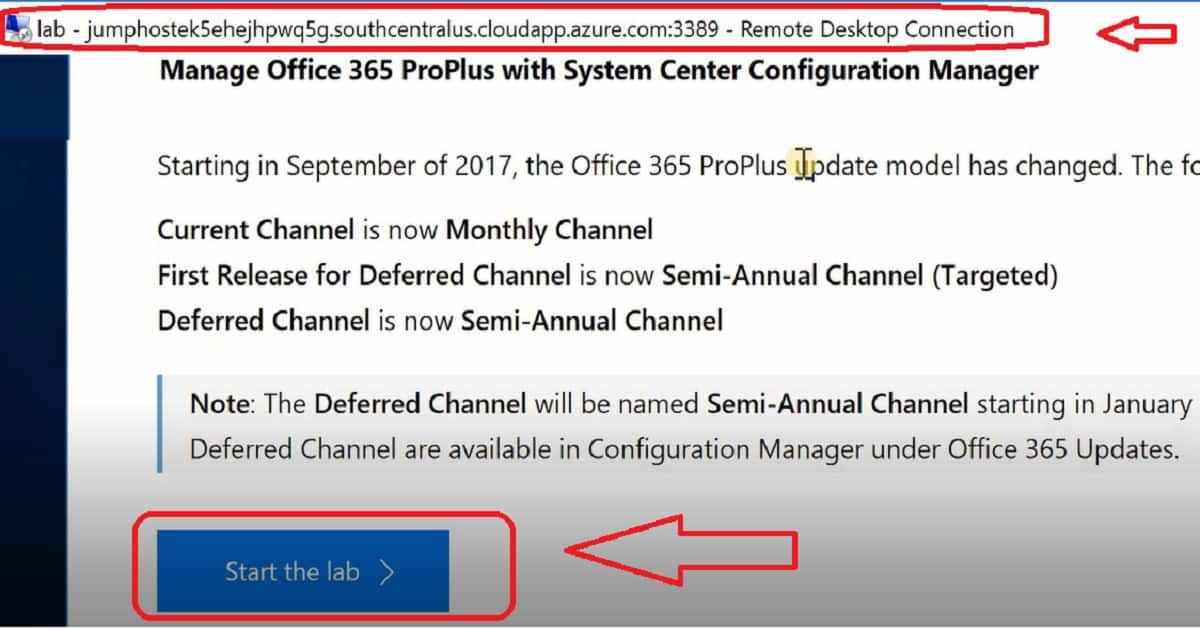
Following are the links to get access to Hands-on virtual labs. There are only 5 Self-paced Labs for SCCM. As I explained in the video tutorial here, you need to download the RDP file into your machine.
Once the RDP file is downloaded, launch the file to connect to the Jump host server in the Azure cloud. This jump host server will have all the instructions and details to complete the hands-on training activities. These guidelines could vary depending on technology like Intune, SCCM, Azure, or Windows 10.
SCCM Hands-On Labs Training
NOTE—As of 14 May 2019, only two labs are available for SCCM. Start searching with the keyword “Configuration Manager.”
SCCM CO-Management Lab
Getting Started with Co-Management and System Center Configuration Manager and Intune – SC00116.
Intune SCCM Free Virtual Labs to Get Hands On Experience – Fig.3
List of SCCM Intune Windows 10 Hands-On Labs Training
Free SCCM Virtual Labs – Most labs are unavailable, but Microsoft promised to work on this topic to provide more virtual labs.
Intune Hands-On Labs Training
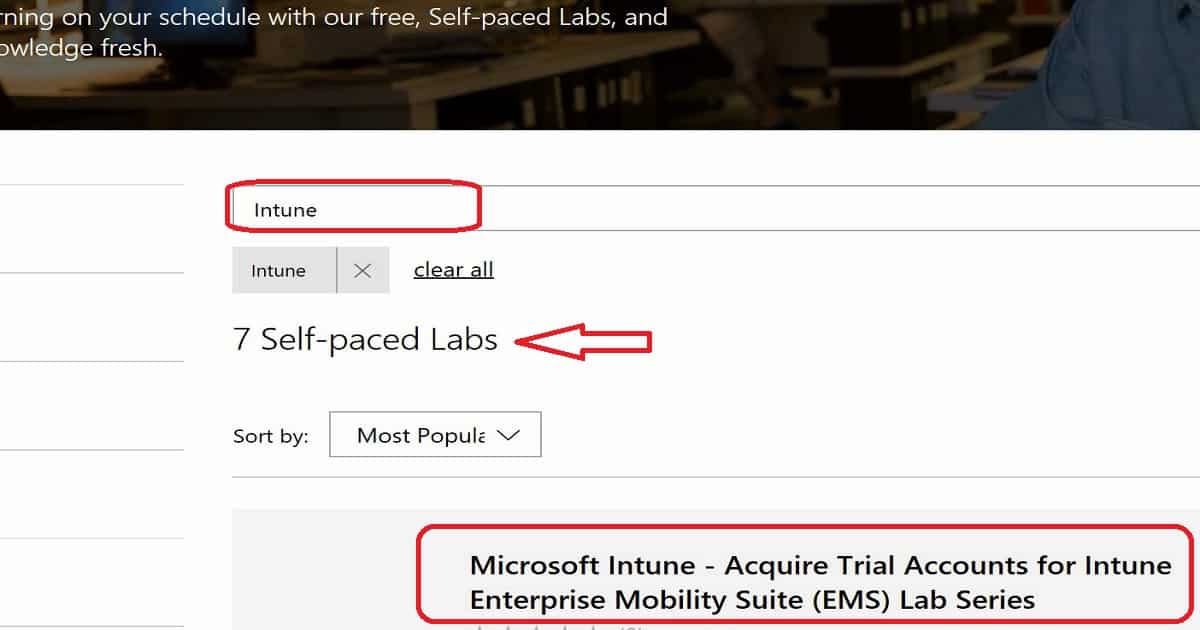
Let’s discuss the Intune Hands-On Labs Training. The list below helps you to show it.
Intune Hands-On Labs Training
Acquire Trial Accounts for Intune Enterprise Mobility Suite (EMS) Lab Series
Configure Conditional Access to Exchange Online
Configure ActiveSync Email Profiles
Configure Mobile Application Management (MAM) Without Enrolling Devices
Configure Mobile Application Management (MAM)
Deploy MSI Applications to Windows 10 Using Intune and Mobile Device Management (MDM)
Configure Multi-Factor Authentication for Mobile Device Management (MDM)
Intune SCCM Free Virtual Labs to Get Hands On Experience – Table 1
Microsoft Intune – Acquire Trial Accounts for Intune Enterprise Mobility Suite (EMS) Lab Series
Microsoft Intune – Configure Conditional Access to Exchange Online
Microsoft Intune – Configure ActiveSync Email Profiles
Microsoft Intune – Configure Mobile Application Management (MAM) Without Enrolling Devices
Microsoft Intune – Configure Mobile Application Management (MAM)
Microsoft Intune – Deploy MSI Applications to Windows 10 Using Intune and Mobile Device Management (MDM)
Microsoft Intune – Configure Multi-Factor Authentication for Mobile Device Management (MDM)
Windows 10 Hands-On Labs Training
Let’s discuss the Windows 10 Hands-On Labs Training. The section below helps you to demonstrate it.
Upgrade to Windows 10 with System Center Configuration Manager Microsoft Intune – Deploy MSI Applications to Windows 10 Using Intune and Mobile Device Management (MDM). Upgrade to Windows 10 using the Microsoft Deployment Toolkit or System Center Configuration Manager. Customize the Windows 10 start menu and taskbar during deployment. Troubleshoot device management in Windows 10. Simplify Windows 10 deployment by using provisioning packages Exploring Virtualization on Windows 10 and Windows Server 2016, Upgrade to Windows 10 by using the Microsoft Deployment Toolkit or System Center Configuration Manager Enable and secure a remote workforce by joining Windows 10 to Azure Active Directory Windows 10 and Enterprise Mobility Windows 10 and Enterprise Mobility – Move between Servicing Rings using a Group Policy Object Windows 10 and Enterprise Mobility – Deploying Windows 10 using Microsoft Deployment Toolkit.
SCCM Hands-On Labs Training
Let’s discuss the SCCM Hands-On Labs Training. The screenshot below helps you provide it.
Intune SCCM Free Virtual Labs to Get Hands On Experience – Fig.4
Upgrade to Windows 10 with System Center Configuration Manager
Manage Office 365 ProPlus with System Center Configuration Manager
Upgrade to Windows 10 using the Microsoft Deployment Toolkit or System Center Configuration Manager
Upgrade to Windows 10 by using the Microsoft Deployment Toolkit or System Center Configuration Manager
Deploying Windows 8.1 with ConfigMgr 2012 R2 and MDT 2013
We are on WhatsApp now. To get the latest step-by-step guides, news, and updates, Join our Channel. Click here. HTMD WhatsApp.
Author
Anoop C Nair is Microsoft MVP from 2015 onwards for consecutive 10 years! He is a Workplace Solution Architect with more than 22+ years of experience in Workplace technologies. He is Blogger, Speaker, and Local User Group Community leader. His main focus is on Device Management technologies like SCCM and Intune. He writes about technologies like Intune, SCCM, Windows, Cloud PC, Windows, Entra, Microsoft Security, Career etc…
Let’s FIX the SCCM CB Redist Files Download Issue. In this post, you will see how to Fix the SCCM CB Download Issue. In this post, we will see the Fix to SCCM CB Redist Download Issue and the walkthrough of the new features.
In my scenario, REDIST prerequisite files were not downloading. The ConfigMgrSetup.log showed errors related to the REDIST file download. If you have problems downloading redist files, the ConfigMgrSetup.log is the best place to find the issue’s root.
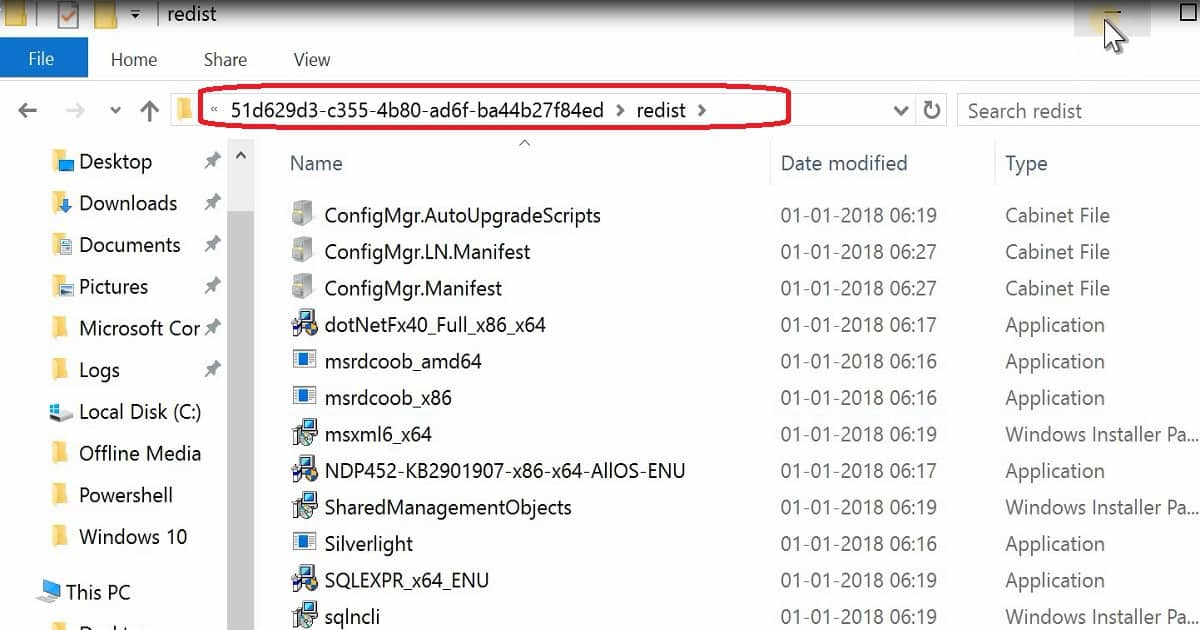
Once the prerequisite files are downloaded, then copy those files to D:\Program Files \Microsoft Configuration Manager\EasySetupPayload\<Update PackageGUID >\Redist folder.
I don’t recommend doing this in your production environment. Robert Marshall’s tip helped me resolve the issue, and Imentioned this in the tweet.
I am having trouble downloading the SCCM CB version in my test lab. I have gone through my previous posts to fix the download issue.
The following post, “CMUpdateReset.exe Tool Fixes SCCM CB Update Download Issue,” provides more details. However, it didn’t work for me this time. I got the following error in the DMPDownloader.log.
I could see that the SCCM 1712 update had been downloaded on the following path: “D: Program FilesMicrosoft Configuration ManagerEasySetupPayload.”
But the status does not change from Downloading to Ready to Install. The fix for the SCCM CB preview 1712 Redist download issue has been explained below.
ERROR: Failed to download redist for 51d629d3-c355-4b80-ad6f-ba44b27f84ed with command /RedistUrl http://go.microsoft.com/fwlink/?LinkID=860262 /LnManifestUrl http://go.microsoft.com/fwlink/?LinkID=860266 /RedistVersion 201712 /NoUI “\\SCCMTP1.INTUNE.COM\EasySetupPayload\51d629d3-c355-4b80-ad6f-ba44b27f84ed\redist”
Failed to download redist for 51d629d3-c355-4b80-ad6f-ba44b27f84ed.
FIX SCCM CB Redist Files Download Issue – Fig.2
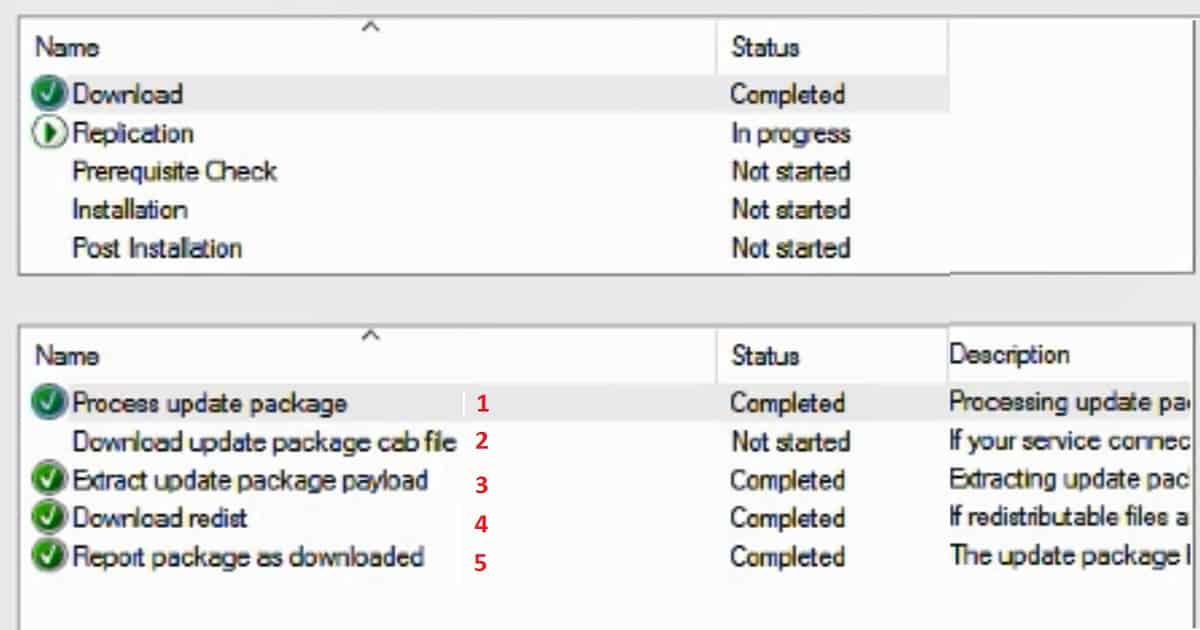
The following are the 5 high-level processes that happen in the background when the SCCM CB updates are downloaded to your server.
5 High-Level Processes that Happen in the Background when the SCCM CB Updates
Process update package
Download the updated package cab file
Extract update package payload
Download redist
Report package as downloaded
FIX SCCM CB Redist Files Download Issue – Table 1
We are on WhatsApp now. To get the latest step-by-step guides, news, and updates, Join our Channel. Click here. HTMD WhatsApp.
Author
Anoop C Nair is Microsoft MVP from 2015 onwards for consecutive 10 years! He is a Workplace Solution Architect with more than 22+ years of experience in Workplace technologies. He is a Blogger, Speaker, and Local User Group Community leader. His main focus is on Device Management technologies like SCCM and Intune. He writes about technologies like Intune, SCCM, Windows, Cloud PC, Windows, Entra, Microsoft Security, Career etc…

There have been 12 Tech Preview releases of SCCM CB, hundreds of new features, 14k code check-ins, and bug fixes, and now managing more than 100 million endpoints. In this post, we will learn more about the 2017 SCCM ConfigMgr Intune community around me.
I can see that Microsoft Intune releases new features every week. More details are available in “What’s new in Microsoft Intune.” Also, the Intune community is growing strong worldwide and in India.
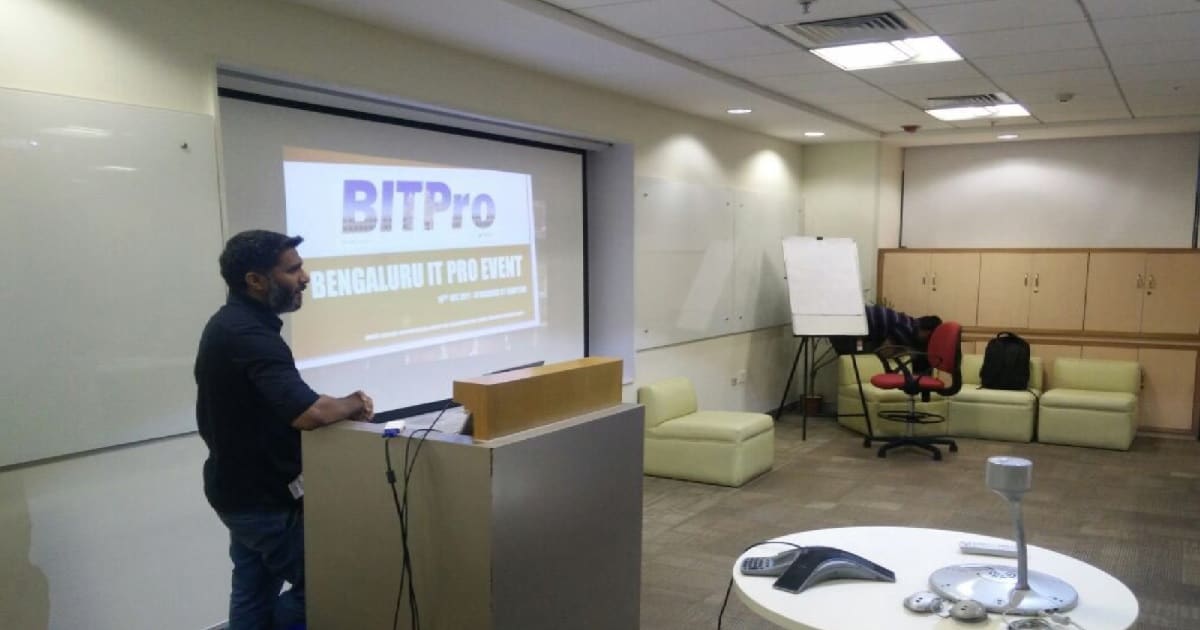
During the Bangalore IT Pro event, I learned that 99% of SCCM admins (who attended the event) realized they had to learn Intune, and they started to learn Intune.
We recently conducted an in-person event for SCCM/Intune professionals all around India. This event was conducted at the Microsoft office in Bangalore. We had more than 80 SCCM professionals from different parts of India, like Chennai, Hyderabad, Delhi, and Bangalore.
I started blogging in 2010, and I have more than 900 posts. 2017 was a very successful year for me in sharing my knowledge through my blog.
SCCM Intune Community Around Me – Fig.1
I started working on video tutorials for almost all the technical posts. How-to video guides are included for Intune, SCCM, and Windows 10. Thank you all for your great support over the years.
I’m working with other IT Pro colleagues to improve the blog experience and provide more valuable content to the SCCM/Intune community. More news about this will be available in 2018. I’m excited about next year for the SCCM/Intune community.
Subscribe to Anoop’s newsletter through the SUBSCRIBE button on the blog. Like the Facebook page to get updated on new posts of AnoopCNair.com. We have loads of SCCM Intune-related videos on the Facebook page below.
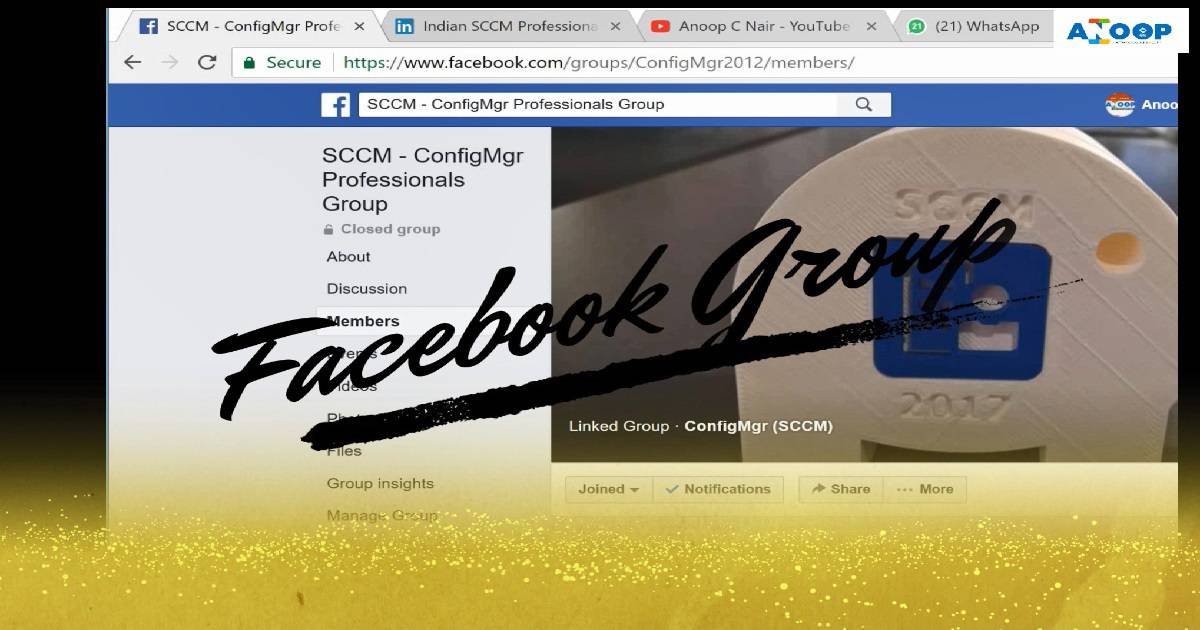
We have a great SCCM professional community available on Facebook. We have more than 11,200 members in this SCCM professional Facebook group. If you want to join the SCCM, Intune, and Desktop Facebook community, please enter them with the following links.
I have a YouTube channel with more than 830 subscribers, 156,360 views, and 160 video tutorials. I started concentrating on my YouTube channel in 2017, and 90% of my subscribers are from 2017. Most of the videos are on SCCM, Intune, and Windows 10.
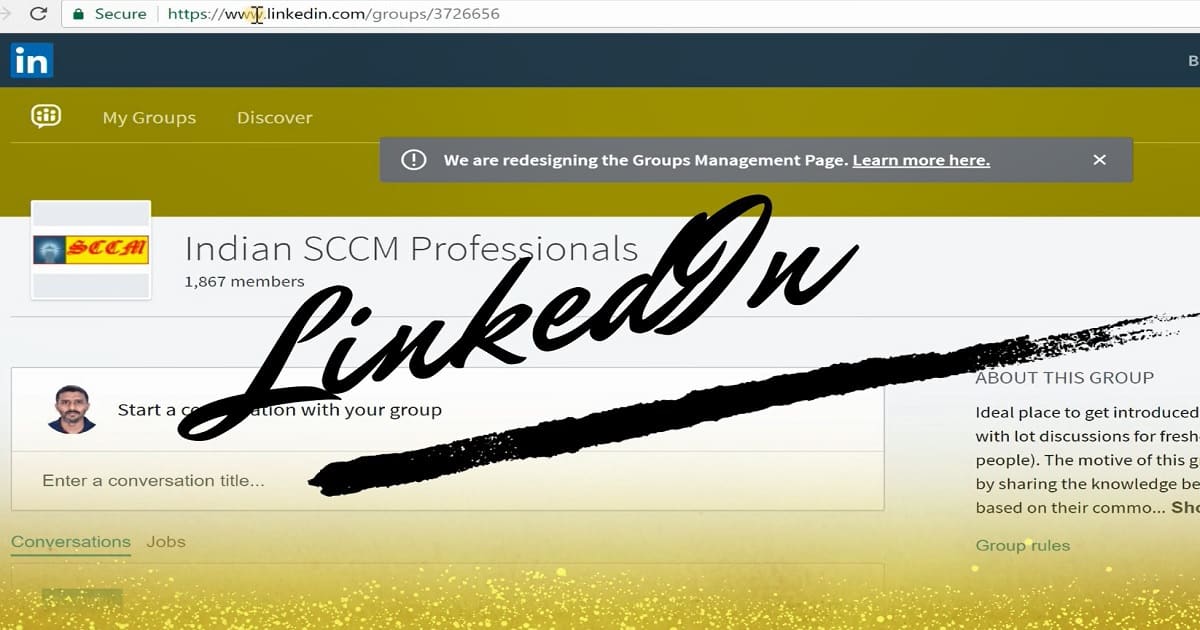
This is one of my old SCCM LinkedIn groups that started in 2010. At that time, Facebook groups were not there and were famous. Several different SCCM groups on LinkedIn, so I created this one for the Indian SCCM community.
We have more than 1900 members in this group. Some of them are still active. We announce Bangalore IT Pro events in this Indian SCCM Professionals LinkedIn group. This is for the people who don’t like Facebook or consider Facebook as a personal social media site.
I created a WhatsApp group for SCCM/Intune Professionals back in 2015. This is mainly to avoid people creating different WhatsApp groups in our Facebook SCCM group. I have created an official WhatsApp group for SCCM professionals after many discussions.
We have several admins in that WhatsApp group, and we don’t allow any spam/forwarded messages in that group apart from the Job/Opening of SCCM/Intune professionals. This is to help others get a better opportunity in their SCCM career.
Join #2 SCCM Professional GRP HERE
Happy New Year and Best Wishes for 2018
We already crossed the maximum limit of a WhatsApp group (#1 SCCM Professional GRP – 256 members). After many thoughts, discussions, and market analysis, we decided to create another WhatsApp group (#2 SCCM Professional GRP ), and we already have more than 100 members.
SCCM Intune Community Around Me – Fig.4
We are on WhatsApp now. To get the latest step-by-step guides, news, and updates, Join our Channel. Click here. HTMD WhatsApp.
Author
Anoop C Nair is Microsoft MVP! He is a Device Management Admin with more than 20 years of experience (calculation done in 2021) in IT. He is a Blogger, Speaker, and Local User Group HTMD Community leader. His main focus is on Device Management technologies like SCCM 2012, Current Branch, and Intune. He writes about ConfigMgr, Windows 11, Windows 10, Azure AD, Microsoft Intune, Windows 365, AVD, etc.
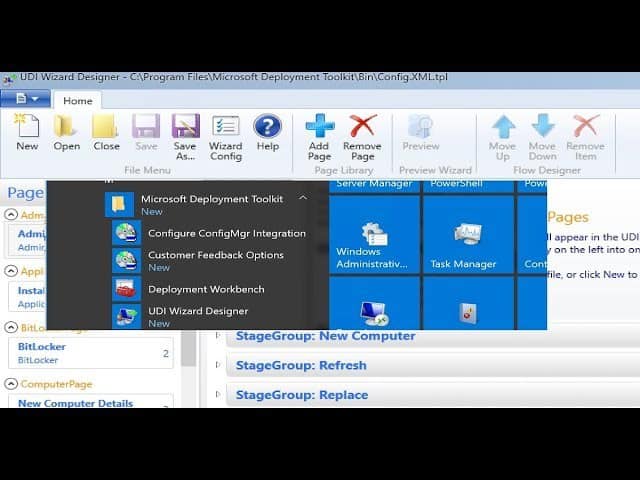
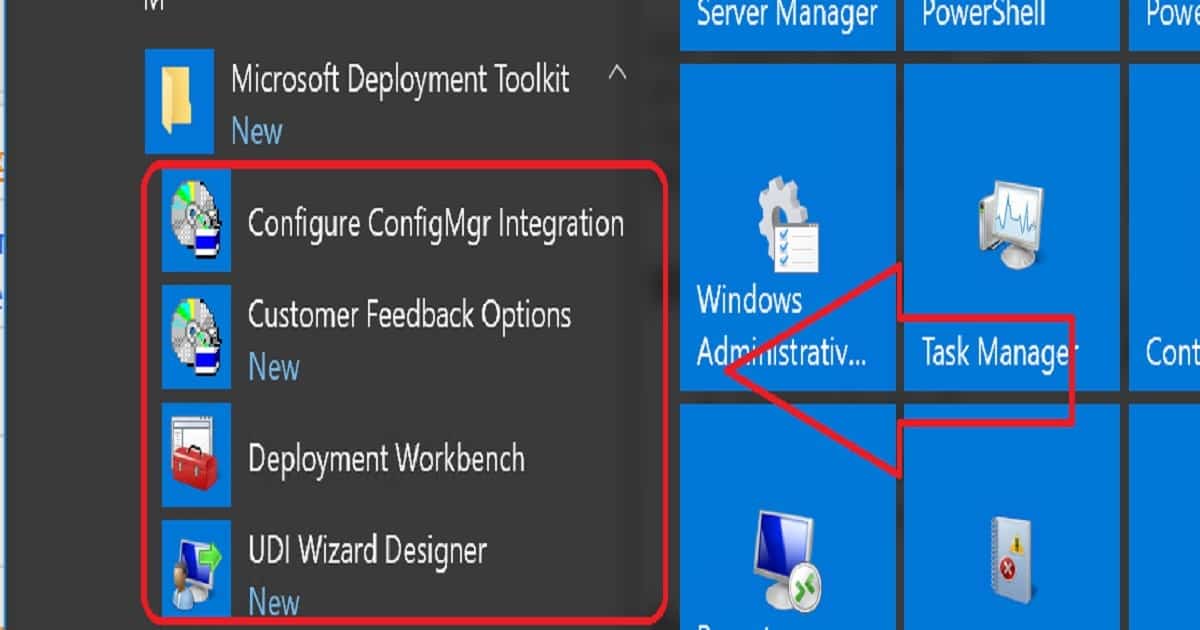
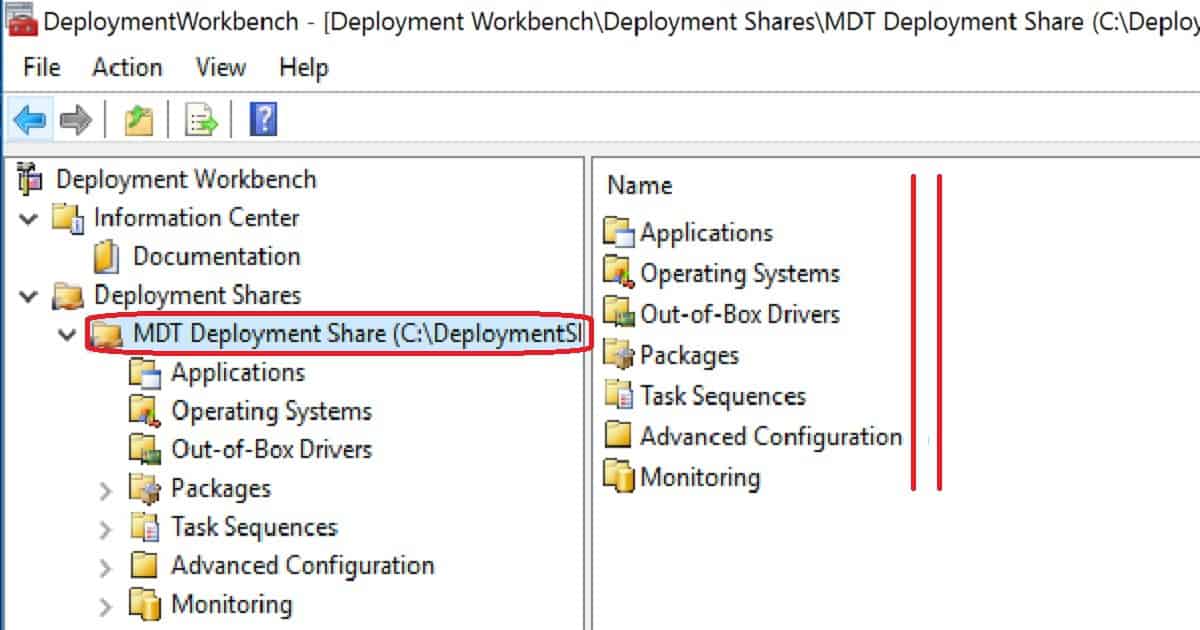
Let’s discuss how to Download, Install, and Configure MDT 8450 SCCM Configuration Manager ConfigMgr. I downloaded Microsoft DeploymentToolkit_x64.MSI and installed it on the SCCM CB lab environment. MDT 8450 is available in 32—and 64-bit versions.
This version (build 6.3.8450.1000) of the Microsoft Deployment Toolkit requires a Windows 10 ADK build. This post will show you how to Download, Install, and Configure MDT 8450.
Microsoft Deployment Toolkit (MDT) is formerly Business Desktop Deployment (BDD). MDT is an application that provides network deployment capabilities for Microsoft Windows operating systems.
In this post, you will find all the details on how to Download and Install and Configure MDT 8450 SCCM Configuration Manager ConfigMgr. MDT is a free tool for automating Windows and Windows Server operating system deployment.
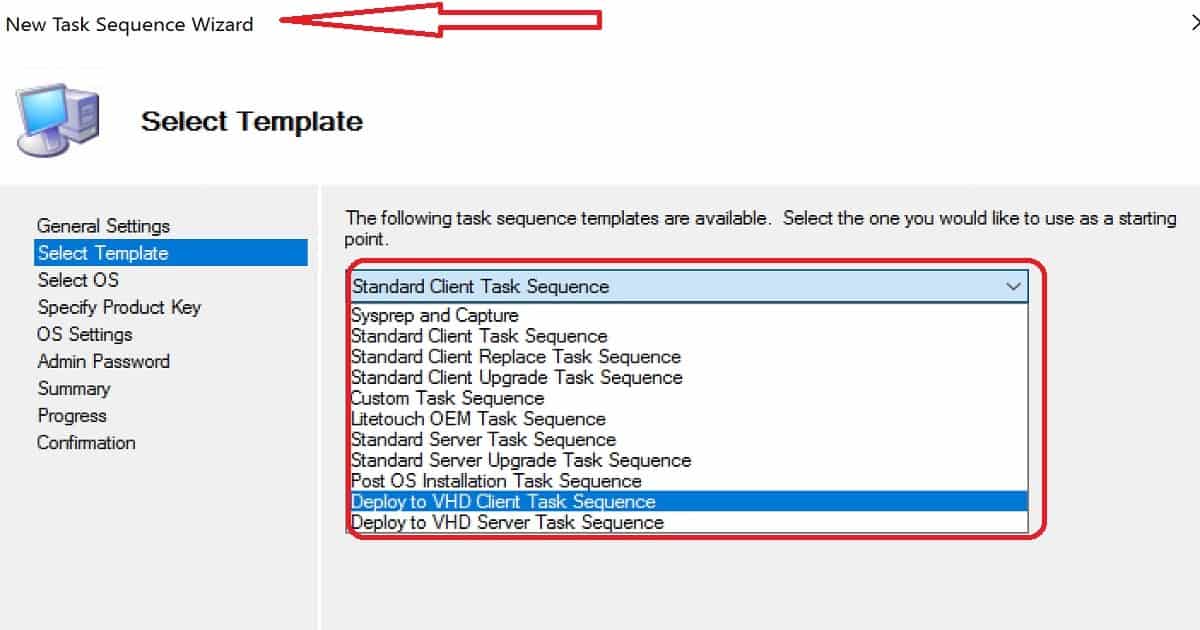
If you have an SCCMenvironment, you can integrate SCCM with MDT to provide enhanced features (UDI and ZTI) to your OS deployment process.
The Microsoft Deployment Toolkit (MDT) is a free tool for automating Windows and Windows Server operating system deployment, leveraging the Windows Assessment and Deployment Kit (ADK) for Windows 10.
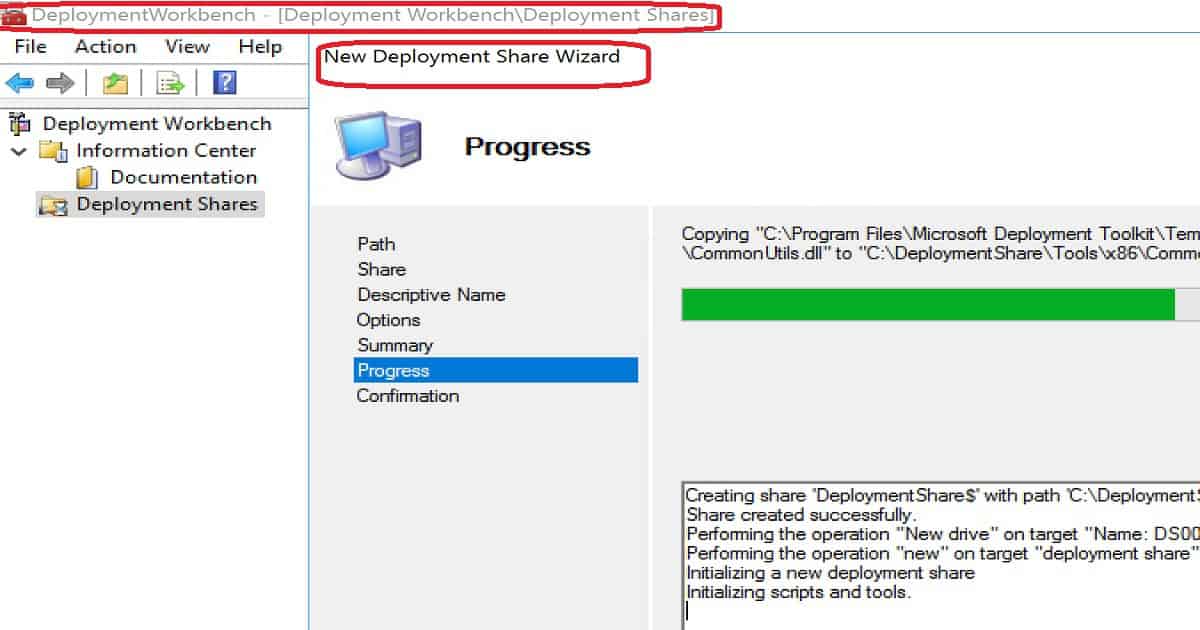
The following information is copied from the MDT deployment Workbench. The Microsoft Deployment Toolkit (MDT) provides a unified collection of tools, processes, and guidance for automating desktop and server deployments.
In addition to reducing deployment time and standardizing desktop and server images, MDT offers improved security and ongoing configuration management.
MDT supports deploying Windows 10 through Windows 7 and the associated server and embedded operating systems.
Features such as Windows 10 in-place upgrade, flexible driver management, optimized user interface workflow, and Windows PowerShell scripting can simplify deployment and simplify your job. Deploy faster and easier with MDT.
For example, if your organization doesn’t have an SCCM infra to perform OS deployments, you can use MDT.
Following are the supported OS to install the latest version of MDT. It can be installed on the client’s OS versions of Windows. Other Requirements of MDT are Windows ADK for Windows 10, version 1709 or later, which is required for all deployment scenarios.
SCCM version 1710 or later is required for zero-touch installation (ZTI) and user-driven installation (UDI) scenarios.
When using ZTI and/or UDI, you can add the MDT SQL database to any version of SCCM with SQL Technology; if you are using LTI, you must use a separately licensed SQL Server product to host your MDT SQL database.
We are on WhatsApp now. To get the latest step-by-step guides, news, and updates, Join our Channel. Click here. HTMD WhatsApp.
Author
Anoop C Nair is Microsoft MVP! He is a Device Management Admin with more than 20 years of experience (calculation done in 2021) in IT. He is a Blogger, Speaker, and Local User Group HTMD Community leader. His main focus is on Device Management technologies like SCCM 2012, Current Branch, and Intune. He writes about ConfigMgr, Windows 11, Windows 10, Azure AD, Microsoft Intune, Windows 365, AVD, etc.
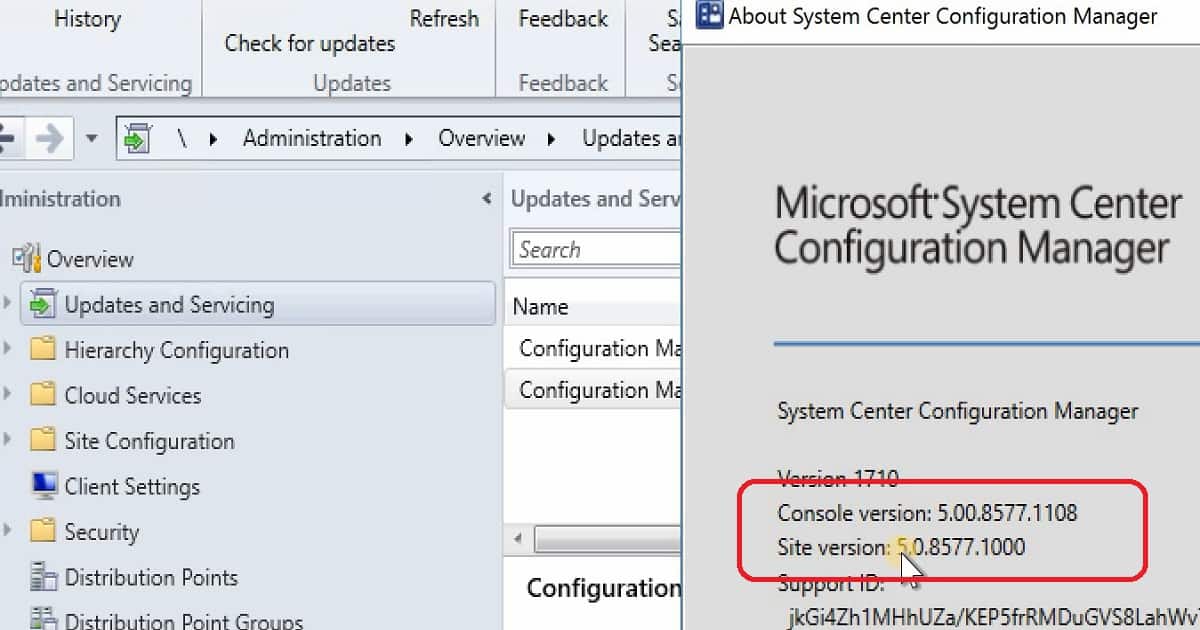
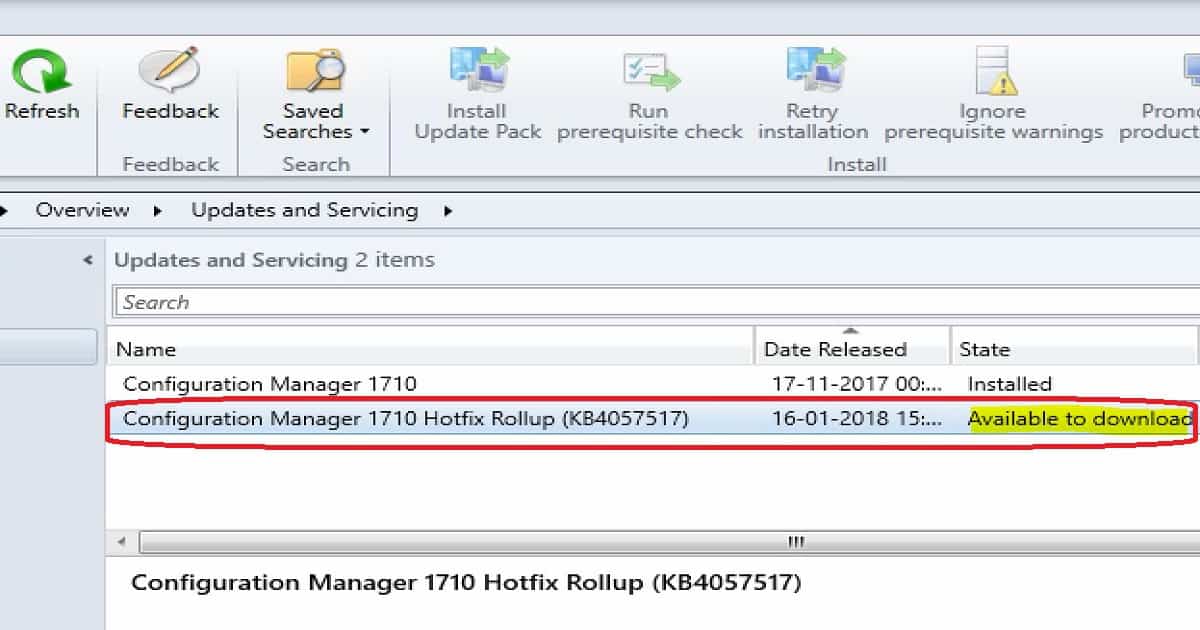
Microsoft SCCM team released the latest production version 1710 of SCCM/ConfigMgr. The version is published as an opt-in option. This SCCM 1710 production version release won’t show automatically in your SCCM console.
This release is called the Fast Ring production release of SCCM 1710. This post will see “SCCM 1710 New Features Overview Plus Upgrade Guide.”
Before upgrading, it would be interesting to check out the differences between the 1706 and 1710 versions. I have a video post titled “Differences Between SCCM ConfigMgr CB 1710 and 1706.”
SCCM/ConfigMgr CB 1710 production update is applicable only for the SCCM CB 1610 and later. For example, if your SCCM environment is running with the SCCM CB 1606 version, this 1710 version won’t be visible to your environment.
To access the SCCM CB 1710 production version, you need to upgrade from 1606 to 1610. Once you have completed that upgrade and are in the 1610 version of SCCM CB, you can update it to the 1710 version.
Video Tutorial SCCM 1710 New Features Overview Plus Upgrade Guide – Fig.1
How to Get the Opt-in Version of SCCM 1710?
The SCCM 1710 update will be rolled out globally in the coming weeks and will be automatically downloaded. Once this update is rolled out globally, you don’t need to run the PowerShell script. Moreover, when it is ready to install, SCCM admins will be notified from the “Updates and Servicing” node.
Video Tutorial SCCM 1710 New Features Overview Plus Upgrade Guide – Fig.2
New Features of SCCM 1710 Production Version
The SCCM CB 1710 Production version has 7 pre-release features and 20 Release Features. The video tutorial provides more details about the upgrade and new features.
Video Tutorial SCCM 1710 New Features Overview Plus Upgrade Guide – Fig.3
SCCM CB 1710 Software center can have your organization logo and other branding options without an Intune subscription, which is very useful for organizations. To configure these branding options, navigate to client settings, open custom client Policy settings, and click on the software center.
Peer cache is not pre-release feature
Cloud DP supports Azure Govt Cloud
Co-Management
Identify the devices that require a restart and restart using the client notification channel.
Improvements in Run Script option – Security Scope, Real-time monitoring, and parameter
Software Center 250×250 icon
OSD – Parent-Child nested Task Sequence
Software Center – Enterprise Branding
Software Update – Surface Driver Update is no longer a pre-release feature
Telemetry level setting in Client settings
Limited support for Cryptography: Next Generation (CNG) certificates
Exploit Guard policies
Windows Defender Application Guard policy
Device Guard policy changes
Video Tutorial SCCM 1710 New Features Overview Plus Upgrade Guide – Fig.4
SCCM Software Center Branding without Intune subscription
The software center has many more granular options to collect the Windows 10 telemetry data from SCCM client machines. This option is available under the Windows Analytics tab in the SCCM software center.
Video Tutorial SCCM 1710 New Features Overview Plus Upgrade Guide – Fig.5
What is New in SCCM 1710 Scripts Options?
The above two points are improvements in SCCM 1710 script options. You can scope the scripts in and out depending on your requirements.
We are on WhatsApp now. To get the latest step-by-step guides, news, and updates, Join our Channel. Click here. HTMD WhatsApp.
Author
Anoop C Nair is Microsoft MVP! He is a Device Management Admin with more than 20 years of experience (calculation done in 2021) in IT. He is a Blogger, Speaker, and Local User Group HTMD Community leader. His main focus is on Device Management technologies like SCCM 2012, Current Branch, and Intune. He writes about ConfigMgr, Windows 11, Windows 10, Azure AD, Microsoft Intune, Windows 365, AVD, etc.
This post and video tutorial will cover the SCCM CB preview 1711 upgrade and new features. This is not a production version of SCCM CB.
Hence, we are not supposed to install this version in production environments. SCCM CB 1711 is the preview version and should be installed only in a lab environment.
The preview version does not allow us to install CAS and secondary servers, and the prerequisite for installing the SCCM CB 1711 preview version has not changed.
The SCCM CB update and servicing process are the same as before. Once the latest version of the preview is released, the update will be available in the SCCM console.
The SCCM CB preview version is similar to the Windows Insiders program, which helps SCCM admins test the new SCCM CB features. Before installing this technical preview, you can review the limitations of the SCCM CB version.
Configuration Manager SCCM CB Preview 1711 Upgrade New Features ConfigMgr
When all features from a technical preview release are available in the minimum supported version of the current branch details or that preview version is removed from the following table, shown in the screenshot below.
Configuration Manager SCCM CB Preview 1711 Upgrade New Features ConfigMgr – Fig.1
How to Create an SCCM CB Preview Version Lab Environment?
Have you installed an SCCM CB preview version? If not, you can download the latest baseline version of ConfigMgr SCCM CB Technical Preview. One version of the SCCM preview has a maximum validity of only 3 months (90 days).
Configuration Manager SCCM CB Preview 1711 Upgrade New Features ConfigMgr – Fig.2
New Features of SCCM CB 1711 Preview Version
Following are the three highlighted features of the SCCM CB 1711 preview version. But, Ronni has blogged about another exciting feature in his blog post. More details about that “SCCM: Enable Desktop Clients as PXE Servers.”
Improvements to run task sequence step
Allow user interaction when installing an application
New compliance policies for Windows 10
Nesting of Task Sequence In the task sequence editor, click Add, select General, and click Run Task Sequence. Click Browse to choose the child task sequence.
Allow user interaction when installing an application. You can allow an end-user to interact with an application installation while running the task sequence.
During the task sequence progress, the application installation interface appears on the target end-user device. The task sequence progress pauses until the end-user completes the application installation workflow.
New compliance policy options for Windows 10: You can check whether the Firewall software is enabled on Windows 10 machines. If not enabled, you can block access to company resources. You can also check whether UAC is enabled on Windows machines.
If not enabled, you can block access to company resources. Defender verification is also possible via Windows 10 compliance policies through the SCCM console.
We are on WhatsApp now. To get the latest step-by-step guides, news, and updates, Join our Channel. Click here. HTMD WhatsApp.
Author
Anoop C Nair is Microsoft MVP! He is a Device Management Admin with more than 20 years of experience (calculation done in 2021) in IT. He is a Blogger, Speaker, and Local User Group HTMD Community leader. His main focus is on Device Management technologies like SCCM 2012, Current Branch, and Intune. He writes about ConfigMgr, Windows 11, Windows 10, Azure AD, Microsoft Intune, Windows 365, AVD, etc.
Let’s learn how to set up SCCM Azure AD User Discovery ConfigMgr. The Azure Active Directory user discovery feature was added to SCCM in 1706 and later versions.
Azure AD user discovery helps deploy applications to Azure AD users. It enables the deployment of apps to AAD users in a co-management scenario.
Azure AD User Discovery can be configured from the Administration workspace – Cloud Management. This post will see “Video Tutorial on How to Setup SCCM Azure AD User Discovery.”
SCCM Azure AD user discovery involves discovering specific users from Azure AD. The details of these users will be stored in SCCM DB.
How to Setup SCCM Azure AD User Discovery ConfigMgr – Video 1
What is SCCM Azure AD User Discovery?
This provides deeper visibility of Azure AD user properties, which SCCM could use to target Azure AD users’ applications.
Where are Azure AD User Discovery Configurations?
In the SCCM console, navigate through Administration- Cloud Services – Azure Services – Cloud Management. You don’t have to use the Azure portal to create server and client applications.
Instead, the following SCCM Azure service Wizard helps create apps in Azure and schedule the Azure AD User Discovery configurations.
How to Setup SCCM Azure AD User Discovery ConfigMgr – Fig.1
How Do You Create Azure Server and Client Apps from the SCCM Console?
As part of the Azure AD user discovery process, we must create connectivity between the on-prem SCCM CB server and Azure AD. This is done through Azure server-side and client-side applications (more details in the section below). We can create these apps using the Azure Services Wizard in the SCCM console.
We need to create Azure Apps using Azure AD admin credentials. Once successfully authenticatedwith Azure AD, SCCM helps you create the two apps mentioned in the screenshot below.
Creating applications is straightforward, as seen in the video tutorial. Enter the Application Name, Home Page URL, and APP ID URI—any URL is OK. You don’t want a proper working URL; any URL will be OK. The secret critical Validity period is one year, and the Azure AD admin account signs in.
Azure AD tenant names will automatically populate when you authenticate with Azure AD. It would help to have an internet connection on the SCCM console’s server.
How Do You Configure Azure AD User Discovery Settings?
Unlike SCCM Active Directory discovery, configuring SCCM Azure AD user discovery does not allow you to select a particular OU. Instead, the discovery runs for the entire tenant.
The Azure Services Wizard offers the option to Enable Azure AD discovery settings. Configure the settings to discover resources in Azure AD. When the resources are discovered, SCCM CB creates records in its Database. The SCCM Azure AD user discovery Schedule has two options.
The default settings for complete Azure AD user discovery occur every 7 days. The delta discovery interval is 5 minutes. Delta discovery finds resources in Azure AD that have been new or modified since the last discovery cycle.
Full Azure AD User Discovery
Delta Azure AD User Discovery
Permission Required for SCCM Azure AD User Discovery
We have created two Azure apps (Server and Client) in the Azure App Registration blade. Select the server application and client application – click on Settings and select the Required Permission button.
Click on Grant Permissions to provide SCCM access to discover the Azure AD users. Repeat the same steps for the Client application.
How to Setup SCCM Azure AD User Discovery ConfigMgr – Fig.2
Troubleshooting – SCCM Azure AD User Discovery – Issues
SMS_AZUREAD_DISCOVERY_AGENT.log is where you can trace the details of Azure AD User Discovery.
Full Azure AD User Discovery Sync – Details
Full discovery sync details of Azure AD user discovery are recorded in the log file called SMS_AZUREAD_DISCOVERY_AGENT.log.
Initializing Task Execution Manager instance as SMS_AZUREAD_DISCOVERY_AGENT. $<SMS_AZUREAD_DISCOVERY_AGENT><11-13-2017 10:24:22.056-330><thread=4184 (0x1058)> Starting component SMS_AZUREAD_DISCOVERY_AGENT~~ $<SMS_AZUREAD_DISCOVERY_AGENT><11-13-2017 10:24:22.165-330><thread=4184 (0x1058)> Component SMS_AZUREAD_DISCOVERY_AGENT started successfully.~~ $<SMS_AZUREAD_DISCOVERY_AGENT><11-13-2017 10:24:22.712-330><thread=4184 (0x1058)> Azure AD Discovery Worker starts.~~ $<SMS_AZUREAD_DISCOVERY_AGENT><11-13-2017 10:24:27.353-330><thread=4204 (0x106C)> Subscribing to Registry Hive: LocalMachine, KeyPath: SOFTWARE\Microsoft\SMS\COMPONENTS\SMS_AZUREAD_DISCOVERY_AGENT, FilterType: ValueChange, WatchSubTree: False~~ $<SMS_AZUREAD_DISCOVERY_AGENT><11-13-2017 10:24:27.369-330><thread=4204 (0x106C)> Registry Watcher started~~ $<SMS_AZUREAD_DISCOVERY_AGENT><11-13-2017 10:24:27.385-330><thread=4204 (0x106C)> Successfully subscribed listener to registry key.~~ $<SMS_AZUREAD_DISCOVERY_AGENT><11-13-2017 10:24:27.385-330><thread=4204 (0x106C)> AAD sync manager for cloud service ID=16777217 started. ~~ $<SMS_AZUREAD_DISCOVERY_AGENT><11-13-2017 10:24:44.541-330><thread=4204 (0x106C)> Full sync for cloud service ID=16777217 will start immediately. ~~ $<SMS_AZUREAD_DISCOVERY_AGENT><11-13-2017 10:24:44.604-330><thread=4204 (0x106C)> Graph API version changed to 1.6~~ $<SMS_AZUREAD_DISCOVERY_AGENT><11-13-2017 10:24:45.510-330><thread=4204 (0x106C)> Query batch size changed to 100~~ $<SMS_AZUREAD_DISCOVERY_AGENT><11-13-2017 10:24:45.526-330><thread=4204 (0x106C)> Max Json length changed to 33554432~~ $<SMS_AZUREAD_DISCOVERY_AGENT><11-13-2017 10:24:45.572-330><thread=4204 (0x106C)> AAD full sync initialized for tenant 67bb8c6d-7266-4faa-a290-5edd572c2210, with server app 7f81b297-e94e-4767-b44a-b0a191f32989.~~ $<SMS_AZUREAD_DISCOVERY_AGENT><11-13-2017 10:24:46.416-330><thread=4204 (0x106C)> ERROR: Sync request failed. Error: Microsoft.IdentityModel.Clients.ActiveDirectory.AdalServiceException: Service returned error. Check
Delta Azure AD User Discovery sync – Details
Let’s find out more details from the log files SMS_AZUREAD_DISCOVERY_AGENT.log.
INFO: UDX was written for user TESTSyc@anoopc.onmicrosoft.com - C:\Program Files\Microsoft Configuration Manager\inboxes\auth\ddm.box\userddrsonly\___mrxm4stp.UDX at 06-11-2017 16:10:11.~~ $<SMS_AZUREAD_DISCOVERY_AGENT><11-06-2017 16:10:11.412-330><thread=2552 (0x9F8)>
Successfully published UDX for Azure Active Directory users.~~ $<SMS_AZUREAD_DISCOVERY_AGENT><11-06-2017 16:10:11.453-330><thread=2552 (0x9F8)>
Total AAD Users Found: 1. Total AAD User Record Created: 1~~ $<SMS_AZUREAD_DISCOVERY_AGENT><11-06-2017 16:10:11.536-330><thread=2552 (0x9F8)>
AAD delta sync completed successfully at 16:10:11. ~~ $<SMS_AZUREAD_DISCOVERY_AGENT><11-06-2017 16:10:11.612-330><thread=2552 (0x9F8)>
Next DELTA sync for cloud service 16777217 will start at 11/06/2017 16:15:11.~~ $<SMS_AZUREAD_DISCOVERY_AGENT><11-06-2017 16:10:11.665-330><thread=2552 (0x9F8)>
AAD delta sync initialized for tenant 67bb8c6d-7266-4faa-a290-5edd572c2210, with server app 7f81b297-e94e-4767-b44a-b0a191f32989.~~ $<SMS_AZUREAD_DISCOVERY_AGENT><11-06-2017 16:15:11.763-330><thread=2552 (0x9F8)>
Successfully acquired access token for server app. ~~ $<SMS_AZUREAD_DISCOVERY_AGENT><11-06-2017 16:15:11.866-330><thread=2552 (0x9F8)>
We are on WhatsApp now. To get the latest step-by-step guides, news, and updates, Join our Channel. Click here. HTMD WhatsApp.
Author
Anoop C Nair is Microsoft MVP! He is a Device Management Admin with more than 20 years of experience (calculation done in 2021) in IT. He is a Blogger, Speaker, and Local User Group HTMD Community leader. His main focus is on Device Management technologies like SCCM 2012, Current Branch, and Intune. He writes about ConfigMgr, Windows 11, Windows 10, Azure AD, Microsoft Intune, Windows 365, AVD, etc.