SCCM (A.K.A ConfigMgr) Explained
SCCM is Microsoft Microsoft Endpoint Manager Configuration Manager. This solution is used by most of the organizations in the world to manage their enterprise devices. This is the best resource to Learn and troubleshoot on issues.
How is SCCM (A.K.A ConfigMgr) Used?
SCCM solution is mainly used to manage Windows devices. But it has rich capability to manage and Mac OS devices as well. As per Microsoft, this tool is managing more than 75% of enterprise devices of the world. Linux and Unix devices are not supported by MEMCM (A.K.A Microsoft Endpoint Manager Configuration Manager)
How CAN SCCM Be Applied to Your Organization?
This solution can be used to install the application within your organization. OS deployment is another feature of this solution used within most of the enterprises. Another important use of this solution is to deploy patches across the enterprise and secure those devices.
There are 1000000 devices managed by this solution around the world. And SCCM device management solution is used within organizations to deploy millions of applications.
Server Client Application
This solution is a server-client application. All the managed clients’ inventory is stored in the CM SQL database.
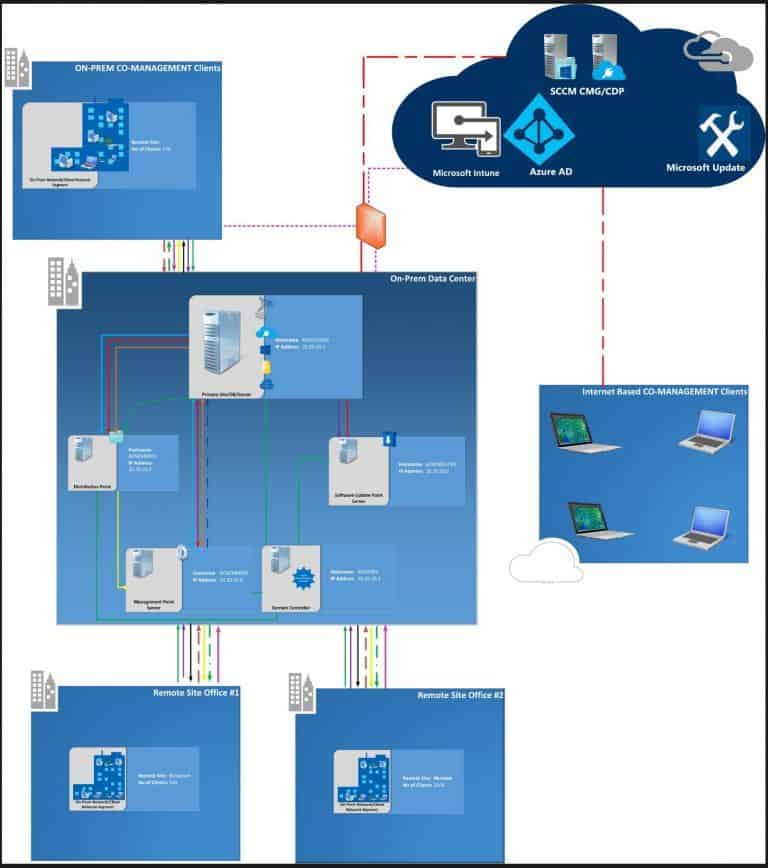
SCCM Core infrastructure, Updates for Configuration Manager, Supported configurations for Configuration Manager, Cloud-attached management of CM, Co-management for Windows 10,
Manage clients on the internet, Windows as a service, CMPivot, Application management.
Other Uses for SCCM
SCCM can used for Manage apps from the Microsoft Store for Business, OS deployment, Introduction to OS deployment, Upgrade to Windows 10, Phased deployments, Software update management, Introduction to software updates management, Manage Office 365 ProPlus updates.
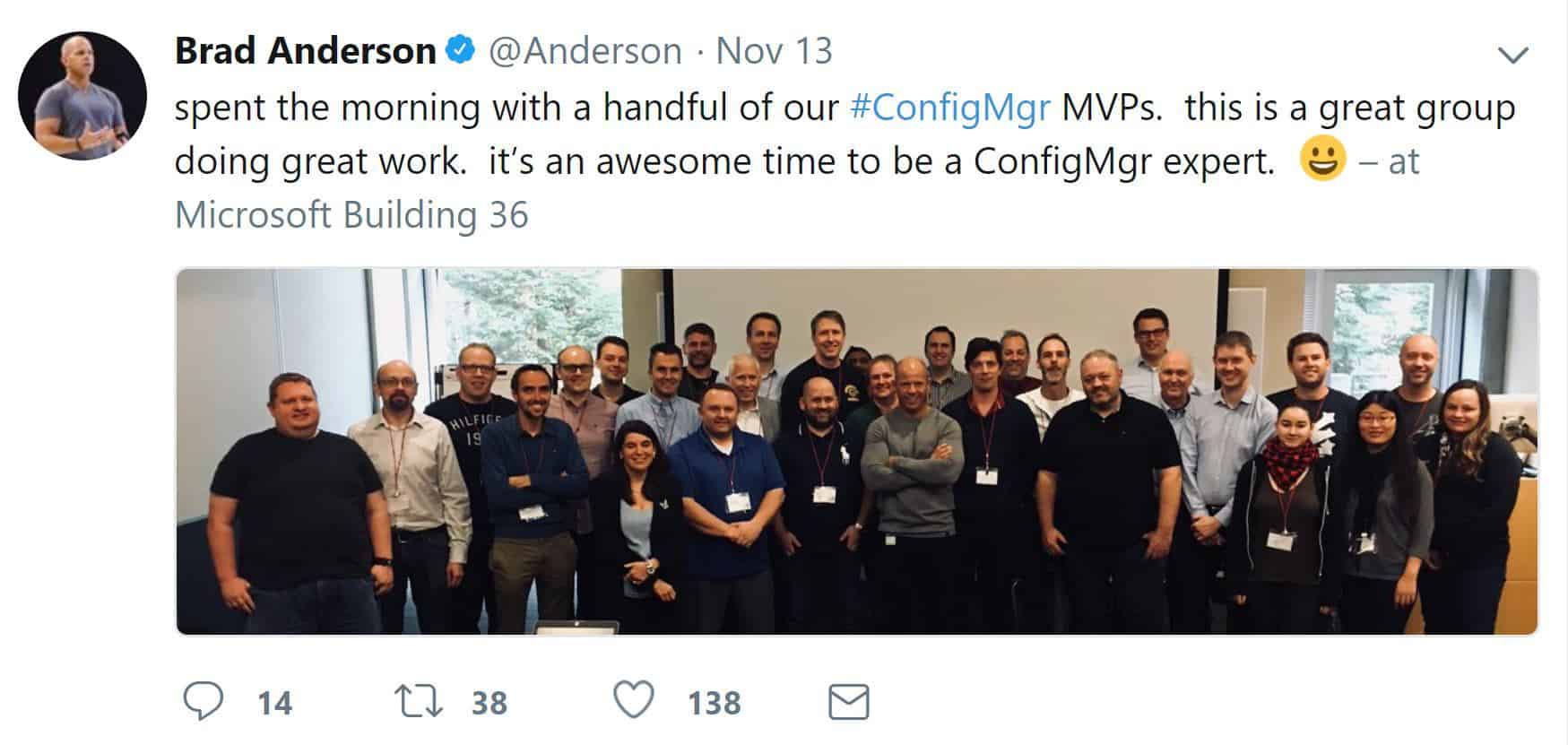
SCCM MVP community group is one of the known community groups in the IT Industry.
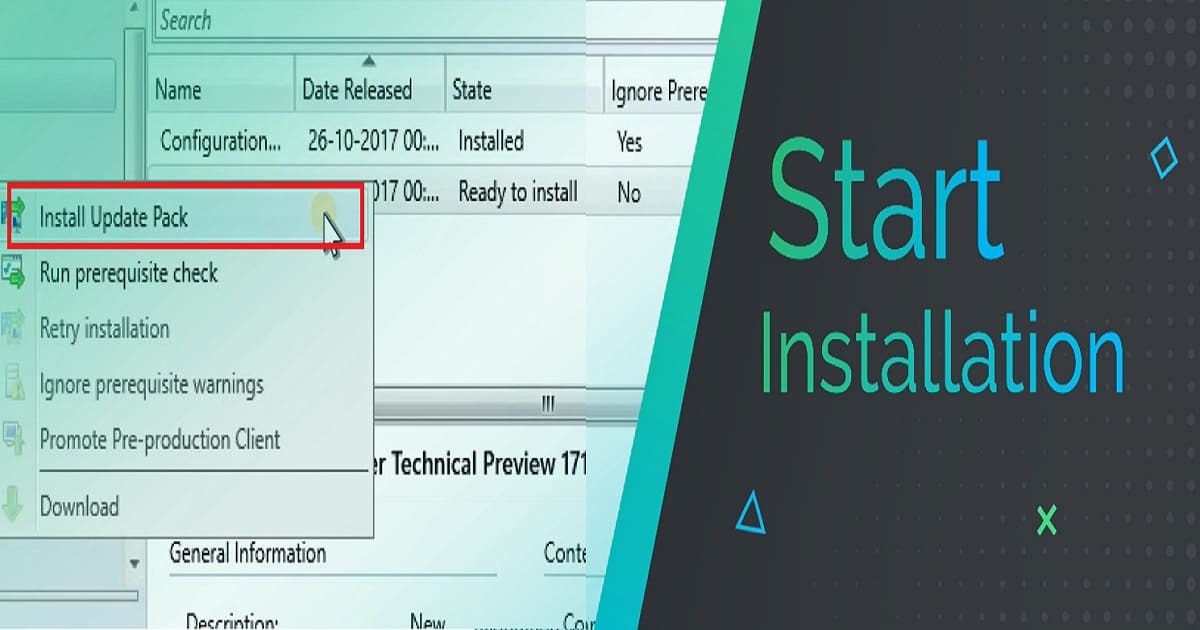
Microsoft SCCM team released the latest production version 1710 of SCCM/ConfigMgr. The version is published as an opt-in option. This SCCM 1710 production version release won’t show automatically in your SCCM console.
This release is called the Fast Ring production release of SCCM 1710. This post will see “SCCM 1710 New Features Overview Plus Upgrade Guide.”
Before upgrading, it would be interesting to check out the differences between the 1706 and 1710 versions. I have a video post titled “Differences Between SCCM ConfigMgr CB 1710 and 1706.”
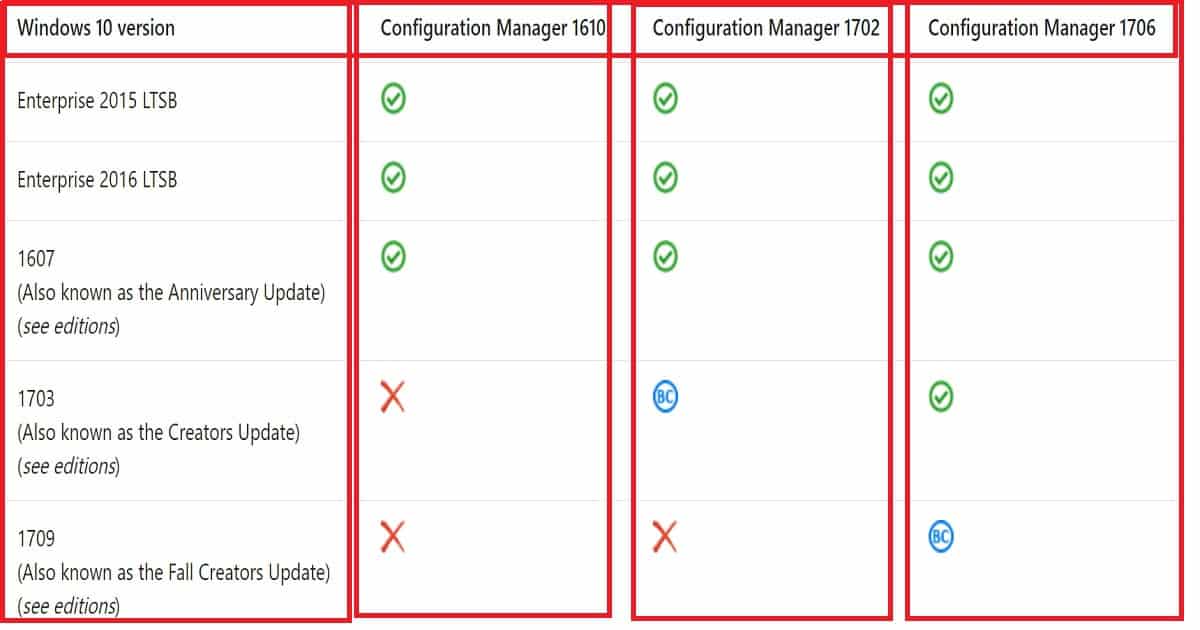
SCCM/ConfigMgr CB 1710 production update is applicable only for the SCCM CB 1610 and later. For example, if your SCCM environment is running with the SCCM CB 1606 version, this 1710 version won’t be visible to your environment.
To access the SCCM CB 1710 production version, you need to upgrade from 1606 to 1610. Once you have completed that upgrade and are in the 1610 version of SCCM CB, you can update it to the 1710 version.
Video Tutorial SCCM 1710 New Features Overview Plus Upgrade Guide – Fig.1
How to Get the Opt-in Version of SCCM 1710?
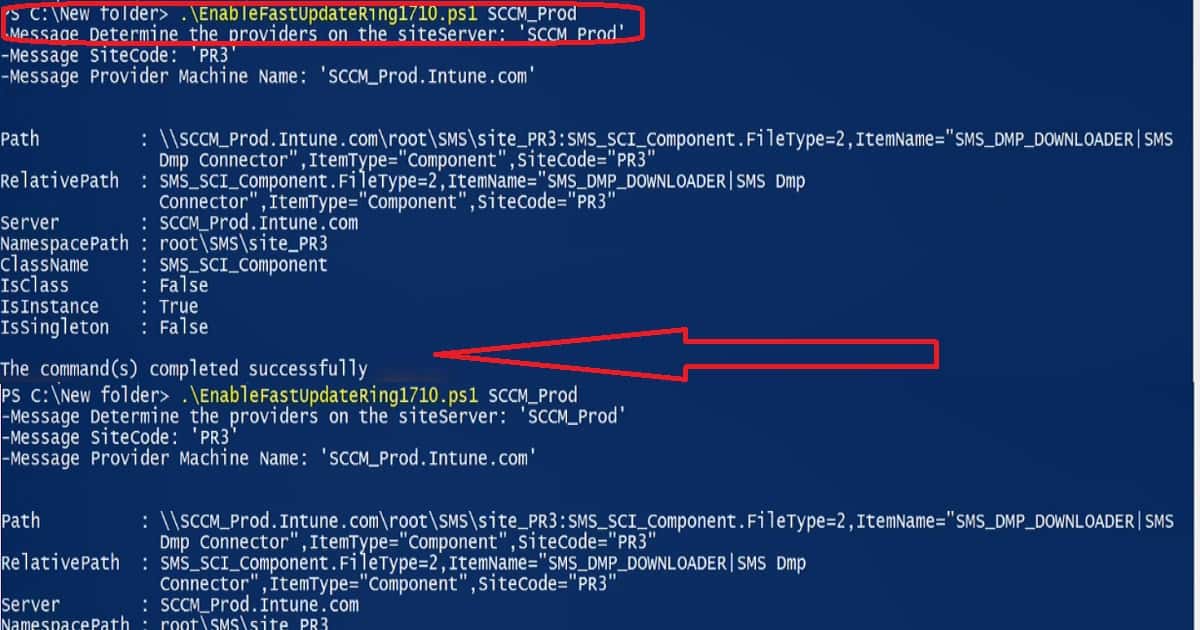
The SCCM 1710 update will be rolled out globally in the coming weeks and will be automatically downloaded. Once this update is rolled out globally, you don’t need to run the PowerShell script. Moreover, when it is ready to install, SCCM admins will be notified from the “Updates and Servicing” node.
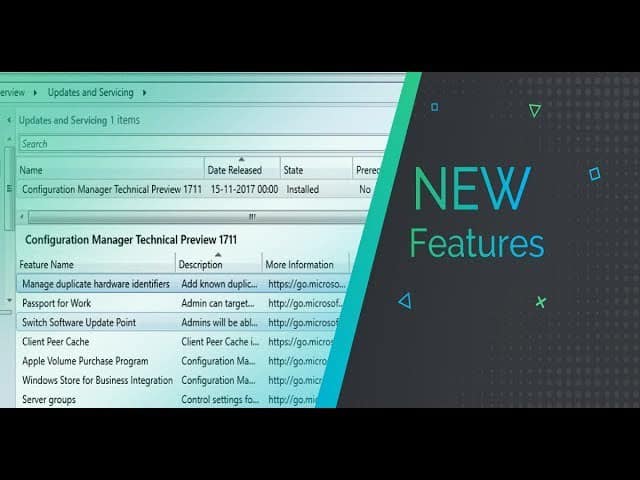
Video Tutorial SCCM 1710 New Features Overview Plus Upgrade Guide – Fig.2
New Features of SCCM 1710 Production Version
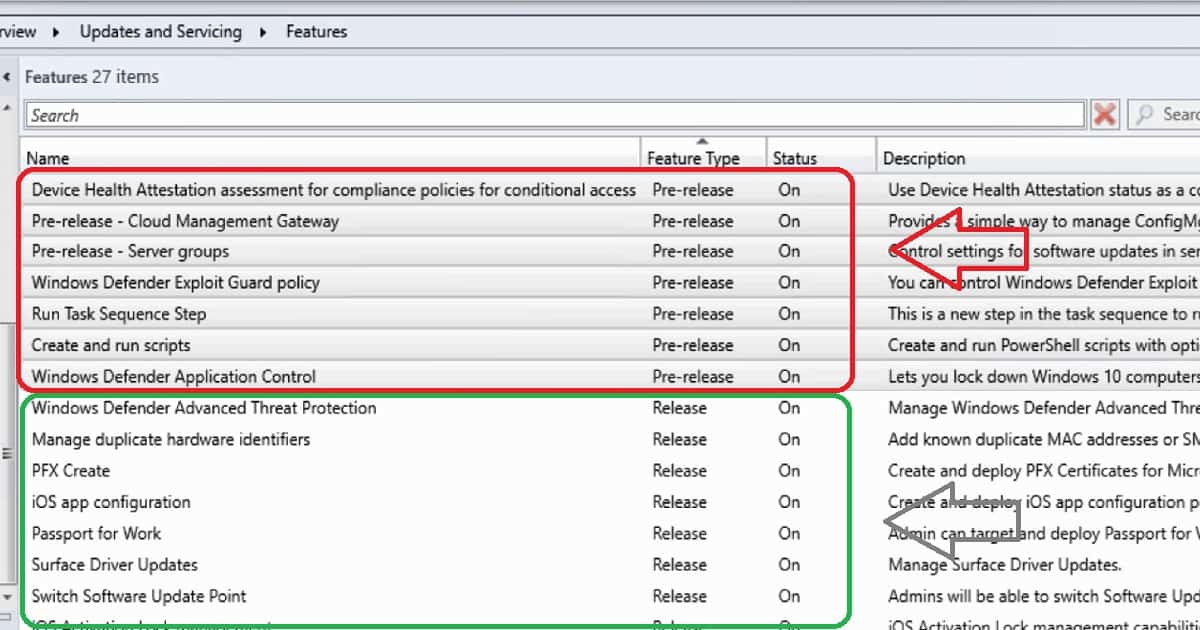
The SCCM CB 1710 Production version has 7 pre-release features and 20 Release Features. The video tutorial provides more details about the upgrade and new features.
Video Tutorial SCCM 1710 New Features Overview Plus Upgrade Guide – Fig.3
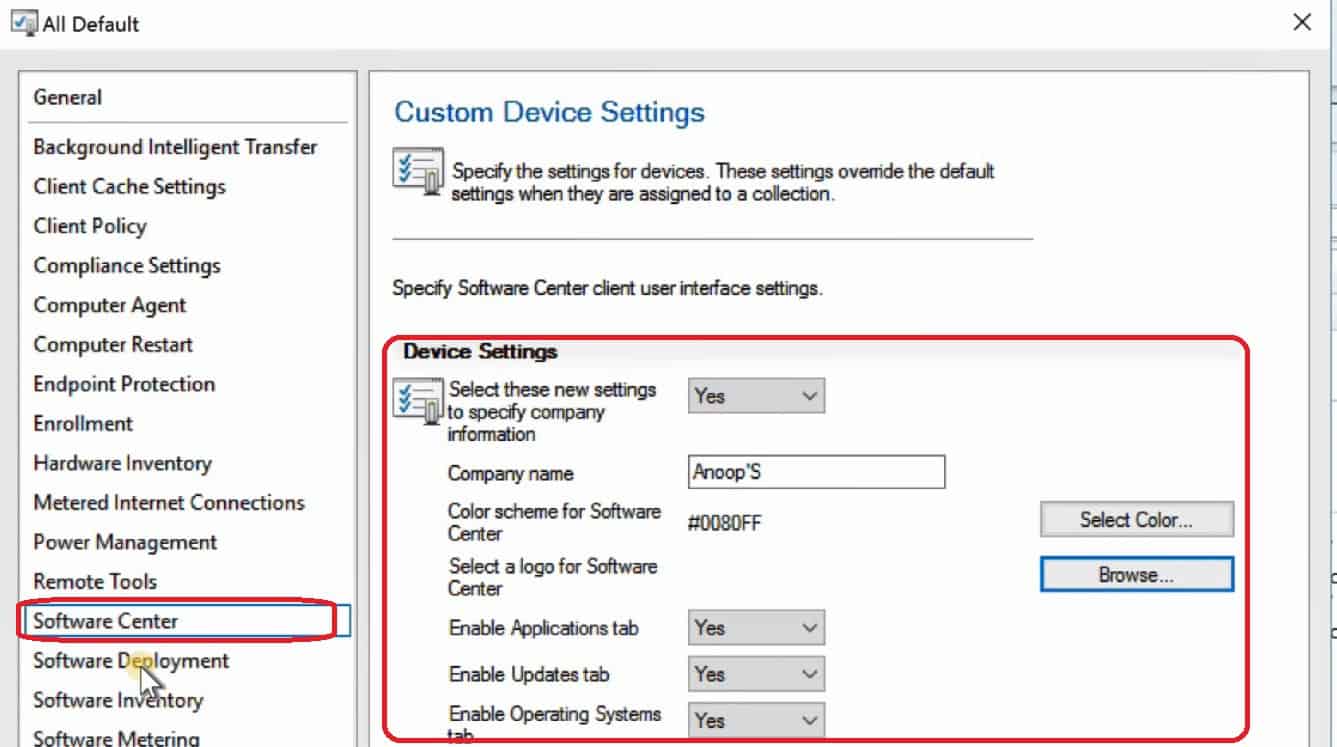
SCCM CB 1710 Software center can have your organization logo and other branding options without an Intune subscription, which is very useful for organizations. To configure these branding options, navigate to client settings, open custom client Policy settings, and click on the software center.
Peer cache is not pre-release feature
Cloud DP supports Azure Govt Cloud
Co-Management
Identify the devices that require a restart and restart using the client notification channel.
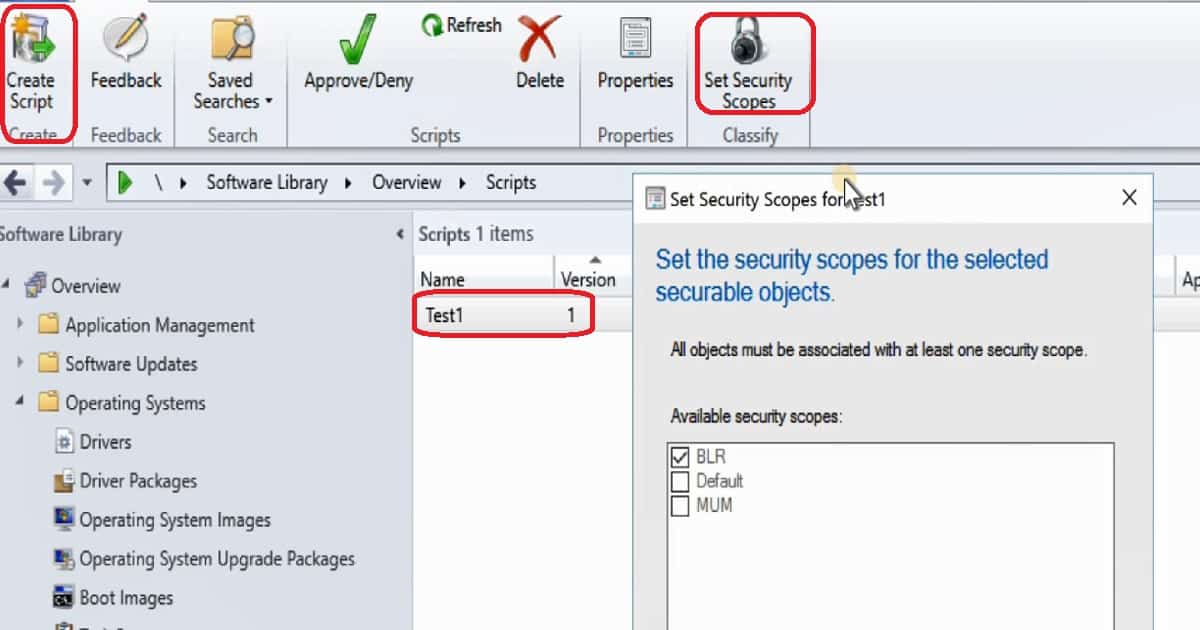
Improvements in Run Script option – Security Scope, Real-time monitoring, and parameter
Software Center 250×250 icon
OSD – Parent-Child nested Task Sequence
Software Center – Enterprise Branding
Software Update – Surface Driver Update is no longer a pre-release feature
Telemetry level setting in Client settings
Limited support for Cryptography: Next Generation (CNG) certificates
Exploit Guard policies
Windows Defender Application Guard policy
Device Guard policy changes
Video Tutorial SCCM 1710 New Features Overview Plus Upgrade Guide – Fig.4
SCCM Software Center Branding without Intune subscription
The software center has many more granular options to collect the Windows 10 telemetry data from SCCM client machines. This option is available under the Windows Analytics tab in the SCCM software center.
Video Tutorial SCCM 1710 New Features Overview Plus Upgrade Guide – Fig.5
What is New in SCCM 1710 Scripts Options?
The above two points are improvements in SCCM 1710 script options. You can scope the scripts in and out depending on your requirements.
We are on WhatsApp now. To get the latest step-by-step guides, news, and updates, Join our Channel. Click here. HTMD WhatsApp.
Author
Anoop C Nair is Workplace Technology solution architect with 25+ years of experience in global enterprise organizations such as JP Morgan, Capgemini, etc. He is Microsoft Certified Trainer. Microsoft MVP from 2015 onwards for consecutive 11 years! He also conducts Intune and modern workplace tech training for enterprise organizations. He is Blogger, Speaker, and Founder of HTMD Community and HTMD Conference. His focus is on Device Management technologies such as Intune, Windows, Cloud PC, He writes about technologies like Intune, SCCM, Windows, Cloud PC, Windows, Entra, Microsoft Security.
This post and video tutorial will cover the SCCM CB preview 1711 upgrade and new features. This is not a production version of SCCM CB.
Hence, we are not supposed to install this version in production environments. SCCM CB 1711 is the preview version and should be installed only in a lab environment.
The preview version does not allow us to install CAS and secondary servers, and the prerequisite for installing the SCCM CB 1711 preview version has not changed.
The SCCM CB update and servicing process are the same as before. Once the latest version of the preview is released, the update will be available in the SCCM console.
The SCCM CB preview version is similar to the Windows Insiders program, which helps SCCM admins test the new SCCM CB features. Before installing this technical preview, you can review the limitations of the SCCM CB version.
Configuration Manager SCCM CB Preview 1711 Upgrade New Features ConfigMgr
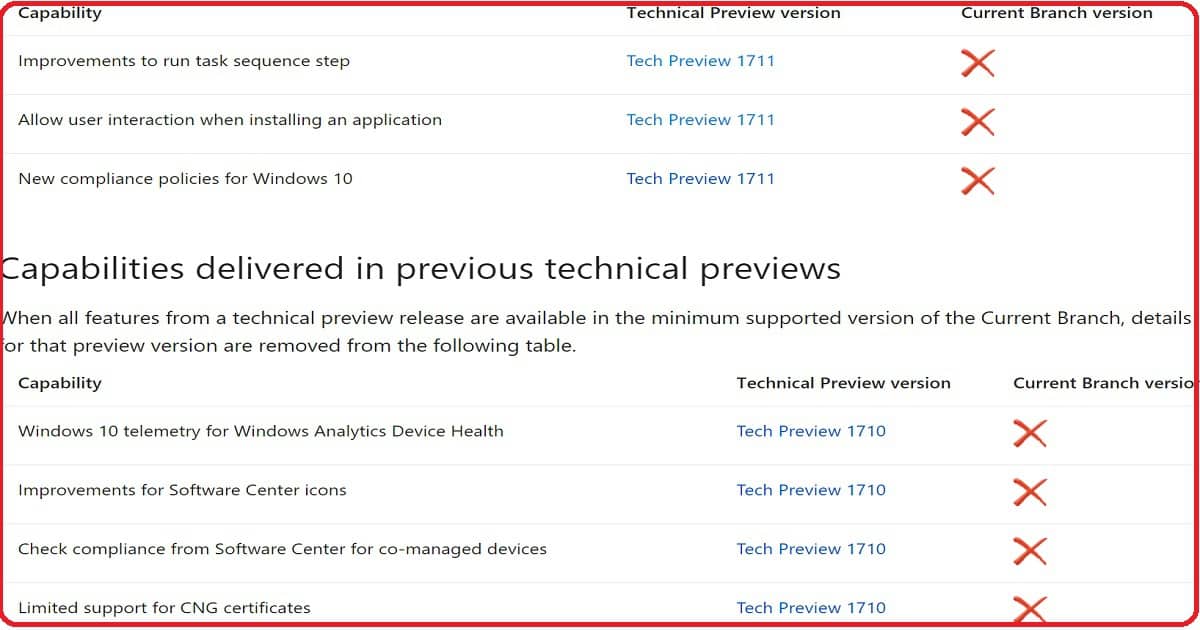
When all features from a technical preview release are available in the minimum supported version of the current branch details or that preview version is removed from the following table, shown in the screenshot below.
Configuration Manager SCCM CB Preview 1711 Upgrade New Features ConfigMgr – Fig.1
How to Create an SCCM CB Preview Version Lab Environment?
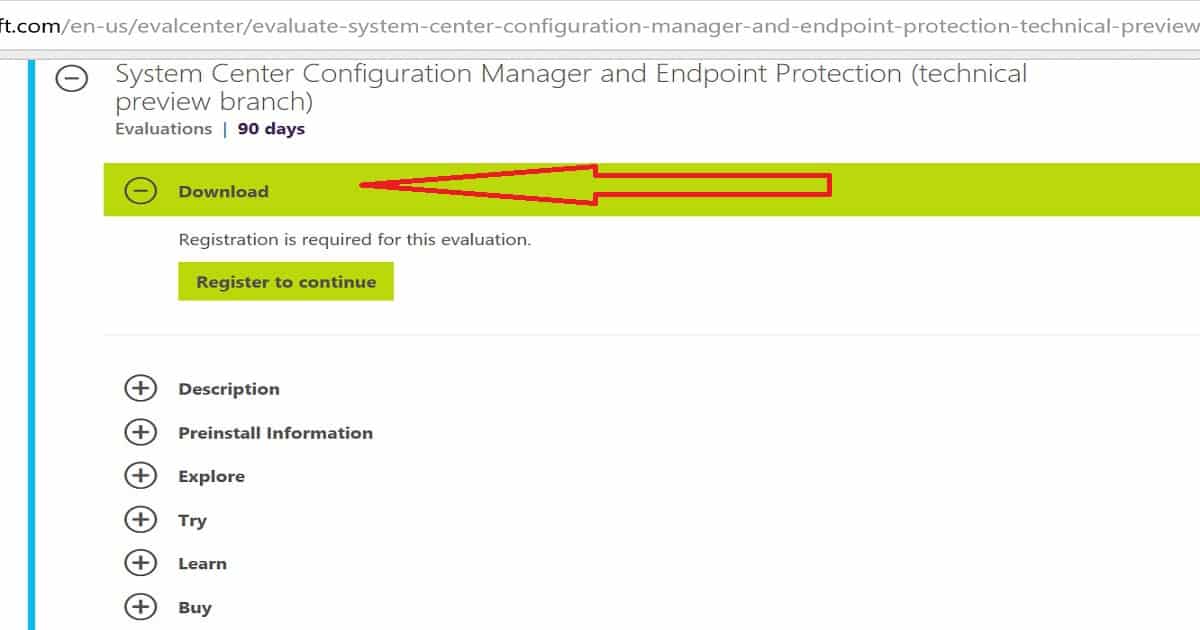
Have you installed an SCCM CB preview version? If not, you can download the latest baseline version of ConfigMgr SCCM CB Technical Preview. One version of the SCCM preview has a maximum validity of only 3 months (90 days).
Configuration Manager SCCM CB Preview 1711 Upgrade New Features ConfigMgr – Fig.2
New Features of SCCM CB 1711 Preview Version
Following are the three highlighted features of the SCCM CB 1711 preview version. But, Ronni has blogged about another exciting feature in his blog post. More details about that “SCCM: Enable Desktop Clients as PXE Servers.”
Improvements to run task sequence step
Allow user interaction when installing an application
New compliance policies for Windows 10
Nesting of Task Sequence In the task sequence editor, click Add, select General, and click Run Task Sequence. Click Browse to choose the child task sequence.
Allow user interaction when installing an application. You can allow an end-user to interact with an application installation while running the task sequence.
During the task sequence progress, the application installation interface appears on the target end-user device. The task sequence progress pauses until the end-user completes the application installation workflow.
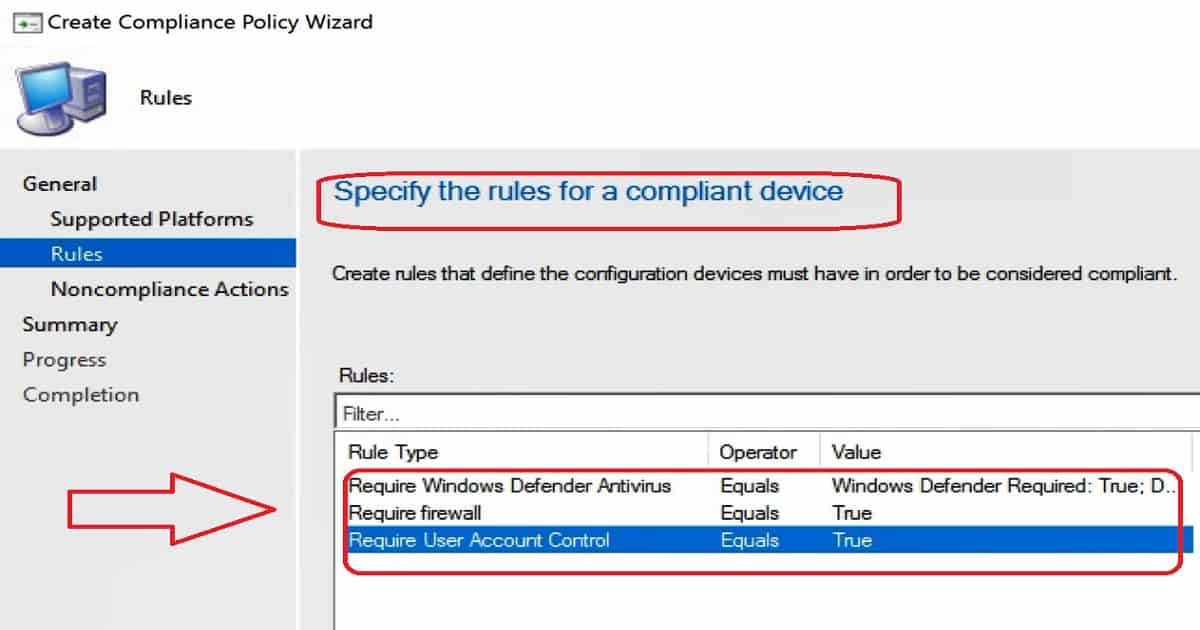
New compliance policy options for Windows 10: You can check whether the Firewall software is enabled on Windows 10 machines. If not enabled, you can block access to company resources. You can also check whether UAC is enabled on Windows machines.
If not enabled, you can block access to company resources. Defender verification is also possible via Windows 10 compliance policies through the SCCM console.
We are on WhatsApp now. To get the latest step-by-step guides, news, and updates, Join our Channel. Click here. HTMD WhatsApp.
Author
Anoop C Nair is Workplace Technology solution architect with 25+ years of experience in global enterprise organizations such as JP Morgan, Capgemini, etc. He is Microsoft Certified Trainer. Microsoft MVP from 2015 onwards for consecutive 11 years! He also conducts Intune and modern workplace tech training for enterprise organizations. He is Blogger, Speaker, and Founder of HTMD Community and HTMD Conference. His focus is on Device Management technologies such as Intune, Windows, Cloud PC, He writes about technologies like Intune, SCCM, Windows, Cloud PC, Windows, Entra, Microsoft Security.
Let’s learn how to set up SCCM Azure AD User Discovery ConfigMgr. The Azure Active Directory user discovery feature was added to SCCM in 1706 and later versions.
Azure AD user discovery helps deploy applications to Azure AD users. It enables the deployment of apps to AAD users in a co-management scenario.
Azure AD User Discovery can be configured from the Administration workspace – Cloud Management. This post will see “Video Tutorial on How to Setup SCCM Azure AD User Discovery.”
SCCM Azure AD user discovery involves discovering specific users from Azure AD. The details of these users will be stored in SCCM DB.
How to Setup SCCM Azure AD User Discovery ConfigMgr – Video 1
What is SCCM Azure AD User Discovery?
This provides deeper visibility of Azure AD user properties, which SCCM could use to target Azure AD users’ applications.
Where are Azure AD User Discovery Configurations?
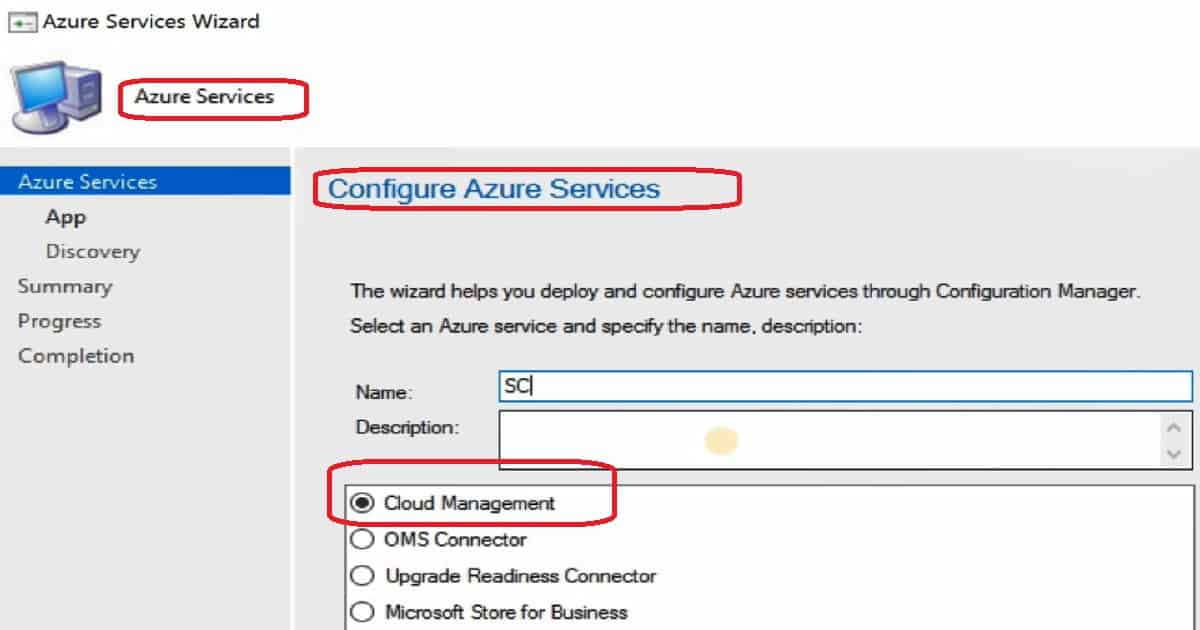
In the SCCM console, navigate through Administration- Cloud Services – Azure Services – Cloud Management. You don’t have to use the Azure portal to create server and client applications.
Instead, the following SCCM Azure service Wizard helps create apps in Azure and schedule the Azure AD User Discovery configurations.
How to Setup SCCM Azure AD User Discovery ConfigMgr – Fig.1
How Do You Create Azure Server and Client Apps from the SCCM Console?
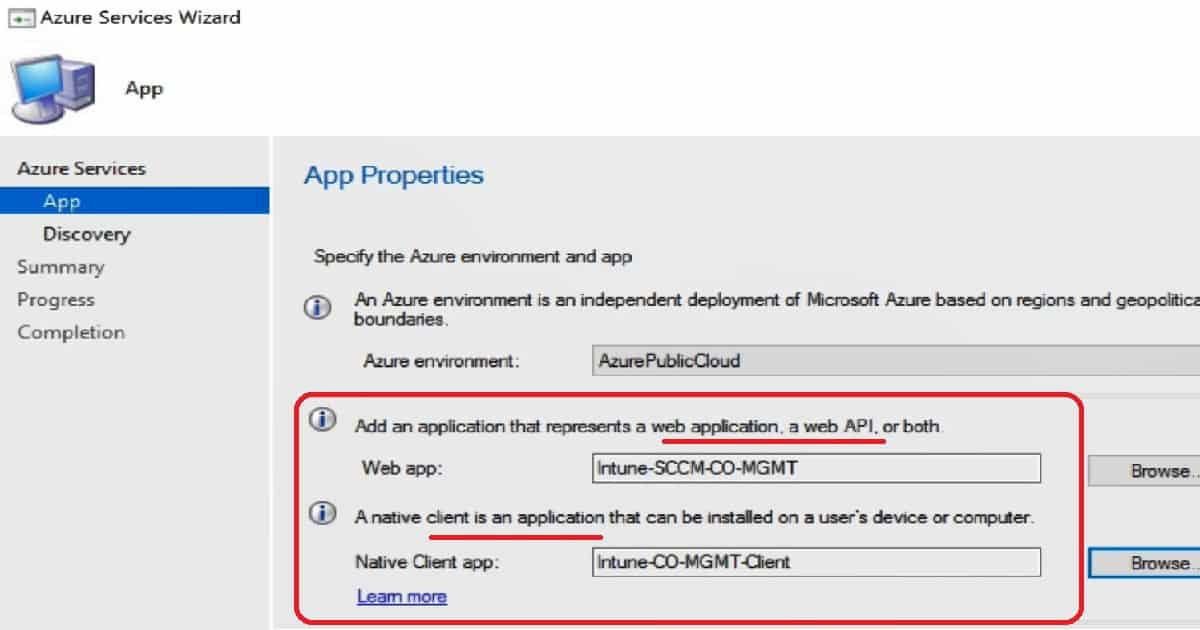
As part of the Azure AD user discovery process, we must create connectivity between the on-prem SCCM CB server and Azure AD. This is done through Azure server-side and client-side applications (more details in the section below). We can create these apps using the Azure Services Wizard in the SCCM console.
We need to create Azure Apps using Azure AD admin credentials. Once successfully authenticatedwith Azure AD, SCCM helps you create the two apps mentioned in the screenshot below.
Creating applications is straightforward, as seen in the video tutorial. Enter the Application Name, Home Page URL, and APP ID URI—any URL is OK. You don’t want a proper working URL; any URL will be OK. The secret critical Validity period is one year, and the Azure AD admin account signs in.
Azure AD tenant names will automatically populate when you authenticate with Azure AD. It would help to have an internet connection on the SCCM console’s server.
How Do You Configure Azure AD User Discovery Settings?
Unlike SCCM Active Directory discovery, configuring SCCM Azure AD user discovery does not allow you to select a particular OU. Instead, the discovery runs for the entire tenant.
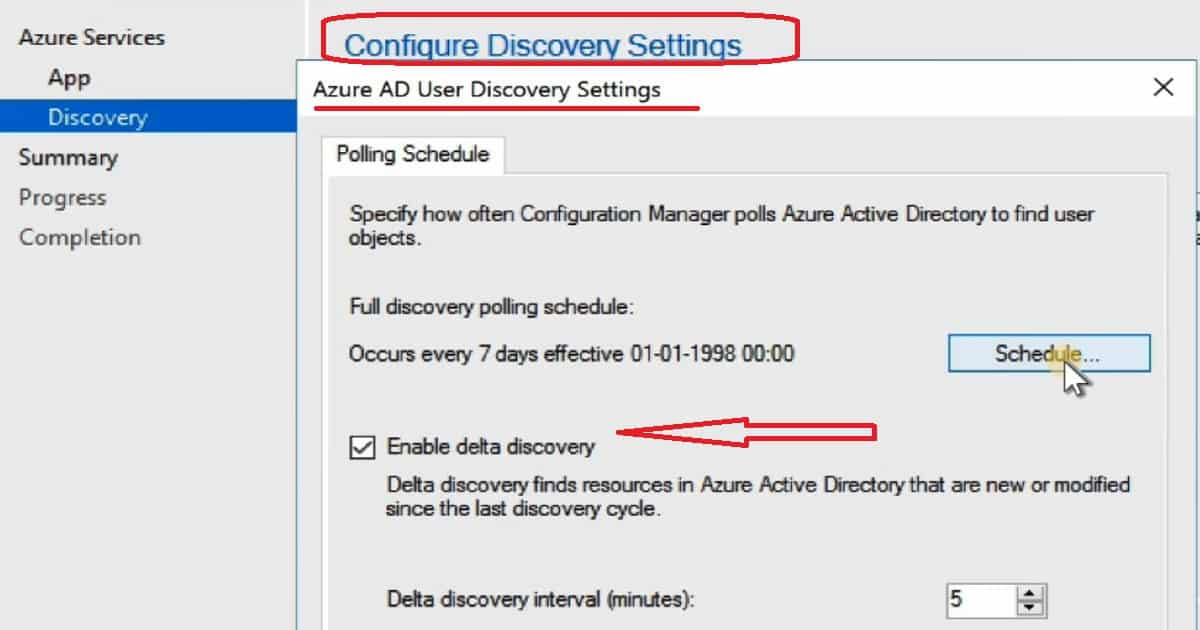
The Azure Services Wizard offers the option to Enable Azure AD discovery settings. Configure the settings to discover resources in Azure AD. When the resources are discovered, SCCM CB creates records in its Database. The SCCM Azure AD user discovery Schedule has two options.
The default settings for complete Azure AD user discovery occur every 7 days. The delta discovery interval is 5 minutes. Delta discovery finds resources in Azure AD that have been new or modified since the last discovery cycle.
Full Azure AD User Discovery
Delta Azure AD User Discovery
Permission Required for SCCM Azure AD User Discovery
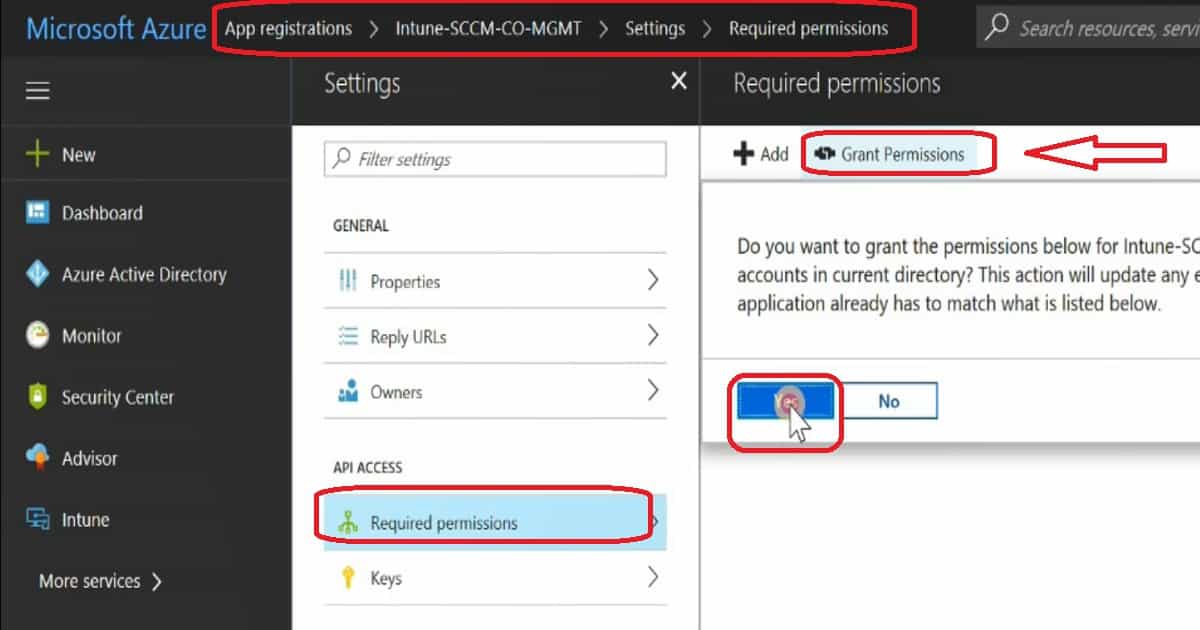
We have created two Azure apps (Server and Client) in the Azure App Registration blade. Select the server application and client application – click on Settings and select the Required Permission button.
Click on Grant Permissions to provide SCCM access to discover the Azure AD users. Repeat the same steps for the Client application.
How to Setup SCCM Azure AD User Discovery ConfigMgr – Fig.2
Troubleshooting – SCCM Azure AD User Discovery – Issues
SMS_AZUREAD_DISCOVERY_AGENT.log is where you can trace the details of Azure AD User Discovery.
Full Azure AD User Discovery Sync – Details
Full discovery sync details of Azure AD user discovery are recorded in the log file called SMS_AZUREAD_DISCOVERY_AGENT.log.
Initializing Task Execution Manager instance as SMS_AZUREAD_DISCOVERY_AGENT. $<SMS_AZUREAD_DISCOVERY_AGENT><11-13-2017 10:24:22.056-330><thread=4184 (0x1058)>
Starting component SMS_AZUREAD_DISCOVERY_AGENT~~ $<SMS_AZUREAD_DISCOVERY_AGENT><11-13-2017 10:24:22.165-330><thread=4184 (0x1058)>
Component SMS_AZUREAD_DISCOVERY_AGENT started successfully.~~ $<SMS_AZUREAD_DISCOVERY_AGENT><11-13-2017 10:24:22.712-330><thread=4184 (0x1058)>
Azure AD Discovery Worker starts.~~ $<SMS_AZUREAD_DISCOVERY_AGENT><11-13-2017 10:24:27.353-330><thread=4204 (0x106C)>
Subscribing to Registry Hive: LocalMachine, KeyPath: SOFTWARE\Microsoft\SMS\COMPONENTS\SMS_AZUREAD_DISCOVERY_AGENT, FilterType: ValueChange, WatchSubTree: False~~ $<SMS_AZUREAD_DISCOVERY_AGENT><11-13-2017 10:24:27.369-330><thread=4204 (0x106C)>
Registry Watcher started~~ $<SMS_AZUREAD_DISCOVERY_AGENT><11-13-2017 10:24:27.385-330><thread=4204 (0x106C)>
Successfully subscribed listener to registry key.~~ $<SMS_AZUREAD_DISCOVERY_AGENT><11-13-2017 10:24:27.385-330><thread=4204 (0x106C)>
AAD sync manager for cloud service ID=16777217 started. ~~ $<SMS_AZUREAD_DISCOVERY_AGENT><11-13-2017 10:24:44.541-330><thread=4204 (0x106C)>
Full sync for cloud service ID=16777217 will start immediately. ~~ $<SMS_AZUREAD_DISCOVERY_AGENT><11-13-2017 10:24:44.604-330><thread=4204 (0x106C)>
Graph API version changed to 1.6~~ $<SMS_AZUREAD_DISCOVERY_AGENT><11-13-2017 10:24:45.510-330><thread=4204 (0x106C)>
Query batch size changed to 100~~ $<SMS_AZUREAD_DISCOVERY_AGENT><11-13-2017 10:24:45.526-330><thread=4204 (0x106C)>
Max Json length changed to 33554432~~ $<SMS_AZUREAD_DISCOVERY_AGENT><11-13-2017 10:24:45.572-330><thread=4204 (0x106C)>
AAD full sync initialized for tenant 67bb8c6d-7266-4faa-a290-5edd572c2210, with server app 7f81b297-e94e-4767-b44a-b0a191f32989.~~ $<SMS_AZUREAD_DISCOVERY_AGENT><11-13-2017 10:24:46.416-330><thread=4204 (0x106C)>
ERROR: Sync request failed. Error: Microsoft.IdentityModel.Clients.ActiveDirectory.AdalServiceException: Service returned error. Check
Delta Azure AD User Discovery sync – Details
Let’s find out more details from the log files SMS_AZUREAD_DISCOVERY_AGENT.log.
INFO: UDX was written for user TESTSyc@anoopc.onmicrosoft.com - C:\Program Files\Microsoft Configuration Manager\inboxes\auth\ddm.box\userddrsonly\___mrxm4stp.UDX at 06-11-2017 16:10:11.~~ $<SMS_AZUREAD_DISCOVERY_AGENT><11-06-2017 16:10:11.412-330><thread=2552 (0x9F8)>
Successfully published UDX for Azure Active Directory users.~~ $<SMS_AZUREAD_DISCOVERY_AGENT><11-06-2017 16:10:11.453-330><thread=2552 (0x9F8)>
Total AAD Users Found: 1. Total AAD User Record Created: 1~~ $<SMS_AZUREAD_DISCOVERY_AGENT><11-06-2017 16:10:11.536-330><thread=2552 (0x9F8)>
AAD delta sync completed successfully at 16:10:11. ~~ $<SMS_AZUREAD_DISCOVERY_AGENT><11-06-2017 16:10:11.612-330><thread=2552 (0x9F8)>
Next DELTA sync for cloud service 16777217 will start at 11/06/2017 16:15:11.~~ $<SMS_AZUREAD_DISCOVERY_AGENT><11-06-2017 16:10:11.665-330><thread=2552 (0x9F8)>
AAD delta sync initialized for tenant 67bb8c6d-7266-4faa-a290-5edd572c2210, with server app 7f81b297-e94e-4767-b44a-b0a191f32989.~~ $<SMS_AZUREAD_DISCOVERY_AGENT><11-06-2017 16:15:11.763-330><thread=2552 (0x9F8)>
Successfully acquired access token for server app. ~~ $<SMS_AZUREAD_DISCOVERY_AGENT><11-06-2017 16:15:11.866-330><thread=2552 (0x9F8)>
We are on WhatsApp now. To get the latest step-by-step guides, news, and updates, Join our Channel. Click here. HTMD WhatsApp.
Author
Anoop C Nair is Workplace Technology solution architect with 25+ years of experience in global enterprise organizations such as JP Morgan, Capgemini, etc. He is Microsoft Certified Trainer. Microsoft MVP from 2015 onwards for consecutive 11 years! He also conducts Intune and modern workplace tech training for enterprise organizations. He is Blogger, Speaker, and Founder of HTMD Community and HTMD Conference. His focus is on Device Management technologies such as Intune, Windows, Cloud PC, He writes about technologies like Intune, SCCM, Windows, Cloud PC, Windows, Entra, Microsoft Security.
Anoop C Nair is Workplace Technology solution architect with 25+ years of experience in global enterprise organizations such as JP Morgan, Capgemini, etc. He is Microsoft Certified Trainer. Microsoft MVP from 2015 onwards for consecutive 11 years! He also conducts Intune and modern workplace tech training for enterprise organizations. He is Blogger, Speaker, and Founder of HTMD Community and HTMD Conference. His focus is on Device Management technologies such as Intune, Windows, Cloud PC. He writes about technologies like Intune, SCCM, Windows, Cloud PC, Windows, Entra, Microsoft Security.
25 Years ConfigMgr Special Microsoft MVP Summit at Redmond SCCM Configuration Manager. It’s a great experience to work with the Microsoft SCCM product group and fellow MVPs to brainstorm and enhance SCCM/ConfigMgr. Microsoft MVP Summit 2017 is special for SCCM MVPs because ConfigMgr reached its 25th anniversary.
SMS’s (the previous version of SCCM) device management journey started in 1992. This post will give us more details about the “25 Years ConfigMgr and Special Microsoft MVP Summit at Redmond.”
I started working with SMS 2003 back in 2005, which was the early stages of my IT career. I enjoyed my career as an SCCM admin, which changed my life.
SCCM has evolved over the years, and so has my career. I switched cities and jobs, but not the product I love.
25 Years ConfigMgr Special Microsoft MVP Summit at Redmond SCCM Configuration Manager
It’s a great experience working very closely with the SCCM product group (developers) and understanding their side of the story. The SCCM product team is developing new, exciting features and getting ready for the next SCCM CB preview release. Loads of innovations are also planned for the SCCM CB 1802 release.
25 Years ConfigMgr Special Microsoft MVP Summit at Redmond SCCM Configuration Manager – Fig.1
This is my third trip to Redmond, and it’s always exciting to learn more about the insides of SCCM products. It was also great to participate in brainstorming sessions with the SCCM product group. The SCCM product team is always ready to listen to MVPs’ real-world challenges and provide solutions for those challenges.
We are on WhatsApp now. To get the latest step-by-step guides, news, and updates, Join our Channel. Click here. HTMD WhatsApp.
Author
Anoop C Nair is Microsoft MVP! He is a Device Management Admin with more than 20 years of experience (calculation done in 2021) in IT. He is a Blogger, Speaker, and Local User Group HTMD Community leader. His main focus is on Device Management technologies like SCCM 2012, Current Branch, and Intune. He writes a
Windows 10 Upgrade Using SCCM Task Sequence. In the previous post, I explained how to Create a Windows 10 1709 Upgrade Task Sequence in SCCM CB.
I didn’t provide details about distributing the Windows 10 1709 content to DPs, Deploying the Task Sequence, or describing the end-user experience of this type of upgrade.
In this post, we will experience the Windows 10 1709 upgrade using the SCCM Task Sequence in video form. The SCCM admin should ensure that the Windows 10 1709 upgrade package is distributed to all the required DPs and that all the contents referenced in the task sequence are replicated to DPs.
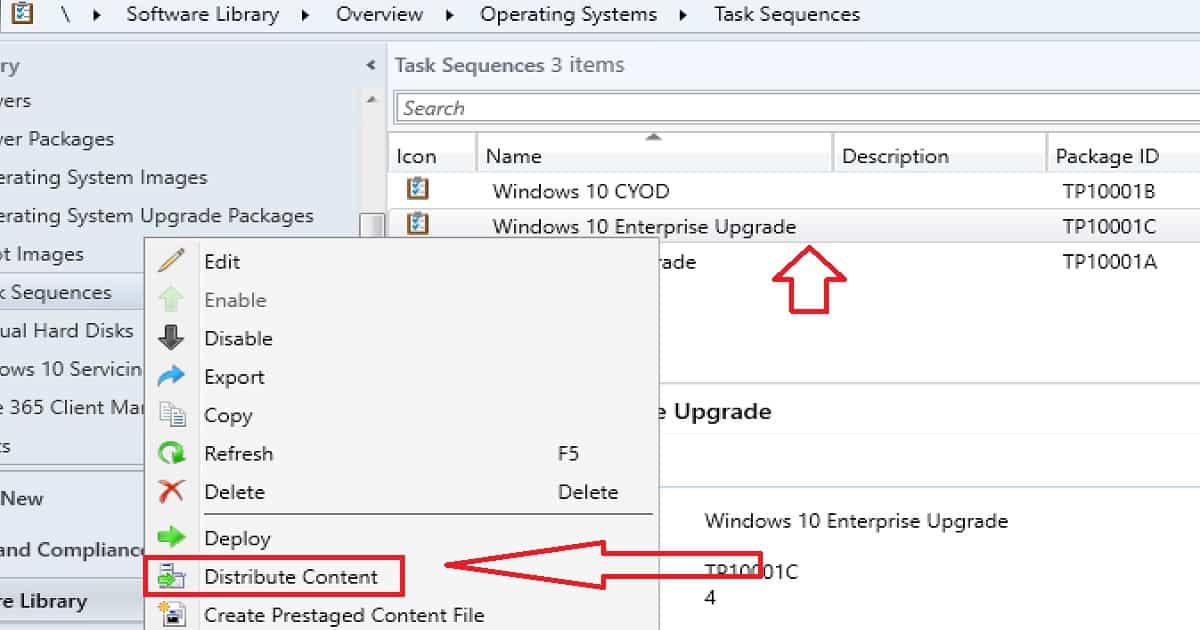
We can start the content distribution from the Windows 10 1709 upgrade task sequence. Right-click on the Task Sequence and click on Distribute Content. This action will initiate the content distribution of all the pending packages.
Learn How to Windows 10 1709 Upgrade Using SCCM Task Sequence– Windows 10 Upgrade Using SCCM Task Sequence
Ensure all the referenced packages in the task sequence are successfully replicated to your DPs. Otherwise, the Windows 10 1709 upgrade will fail.
Windows 10 Upgrade Using SCCM Task Sequence – Video 1
SCCM CB Server Side Preparation for Windows 10 1709 Upgrade – Distribute Required Contents to DPs
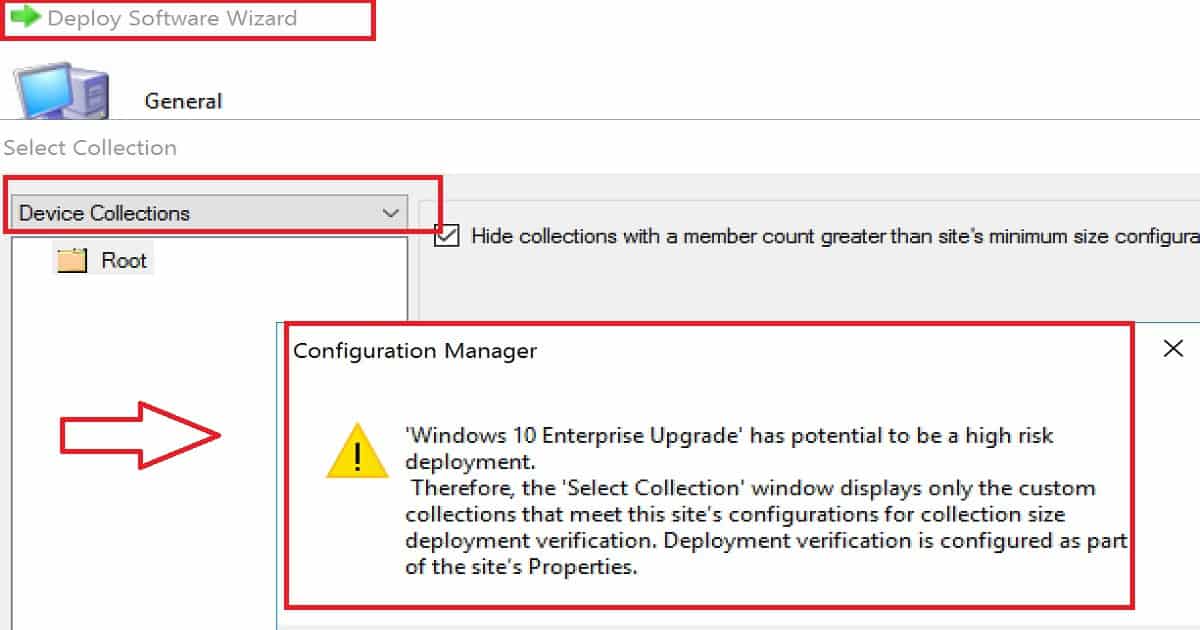
Once the content of all the required applications, packages, and OS upgrade packages have been replicated to DPs, then we can create a deployment. The Task Sequence should be deployed to your environment’s required Windows 10 machines.
Windows 10 Upgrade Using SCCM Task Sequence – Fig.1
Deploy the Task Sequence to Windows 10 1703 Machines
But, don’t deploy the Windows 10 upgrade task sequence to all the Windows 10 1703 machines. The upgrade should be a phase-wise approach. Initially, we should deploy this upgrade task sequence to a couple of Windows 10 machines.
Once those two deployments are successful, we can deploy the task sequence to the next set of test devices. In my opinion, we should start the Windows 10 upgrade deployment as “Available.” The optional task sequence empowers users to upgrade their machines to 1709 whenever they want to.
Windows 10 Upgrade Using SCCM Task Sequence – Fig.2
Windows 10 Client-Side Experience of Upgrade Process
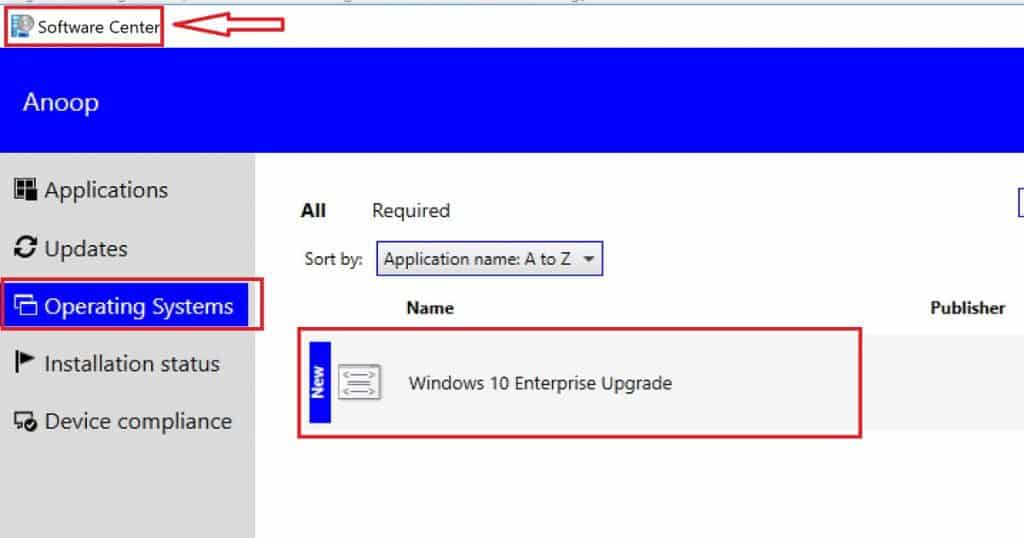
Windows 10 1709 upgrade task sequence will be available in the Software Center. We have created the Windows 10 1709 upgrade task sequence as an optional deployment.
The user must open the Software Center and start the upgrade process. As the video shows, this can be done by clicking on the “Install” button.
Windows 10 Client-Side Experience of Upgrade Process
Software Center
Operating Systems
Windows 10 Enterprise Upgrade
Windows 10 Upgrade Using SCCM Task Sequence – Table 1
Windows 10 Upgrade Using SCCM Task Sequence – Fig.3
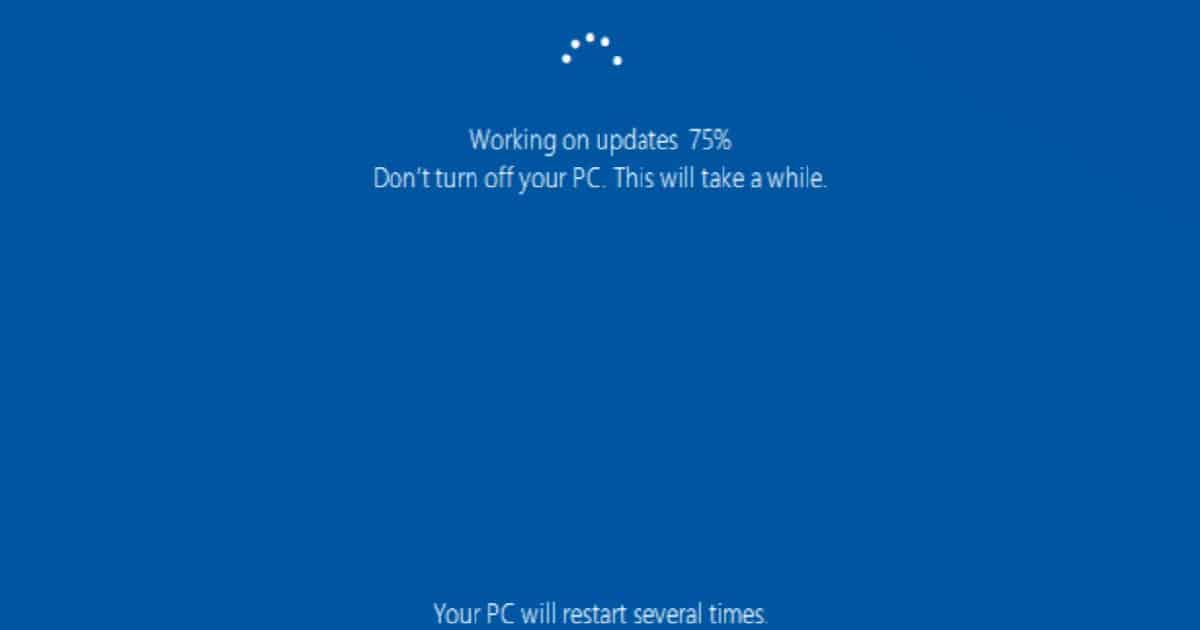
All the task sequence steps explained in my previous post are performed as part of the Windows 10 1709 upgrade. The SCCM Windows 10 1709 Upgrade Task Sequence provides more details about the steps.
Windows 10 Upgrade Using SCCM Task Sequence – Fig.4
We are on WhatsApp now. To get the latest step-by-step guides, news, and updates, Join our Channel. Click here. HTMD WhatsApp.
Author
Anoop C Nair is Workplace Technology solution architect with 25+ years of experience in global enterprise organizations such as JP Morgan, Capgemini, etc. He is Microsoft Certified Trainer. Microsoft MVP from 2015 onwards for consecutive 11 years! He also conducts Intune and modern workplace tech training for enterprise organizations. He is Blogger, Speaker, and Founder of HTMD Community and HTMD Conference. His focus is on Device Management technologies such as Intune, Windows, Cloud PC, He writes about technologies like Intune, SCCM, Windows, Cloud PC, Windows, Entra, Microsoft Security.
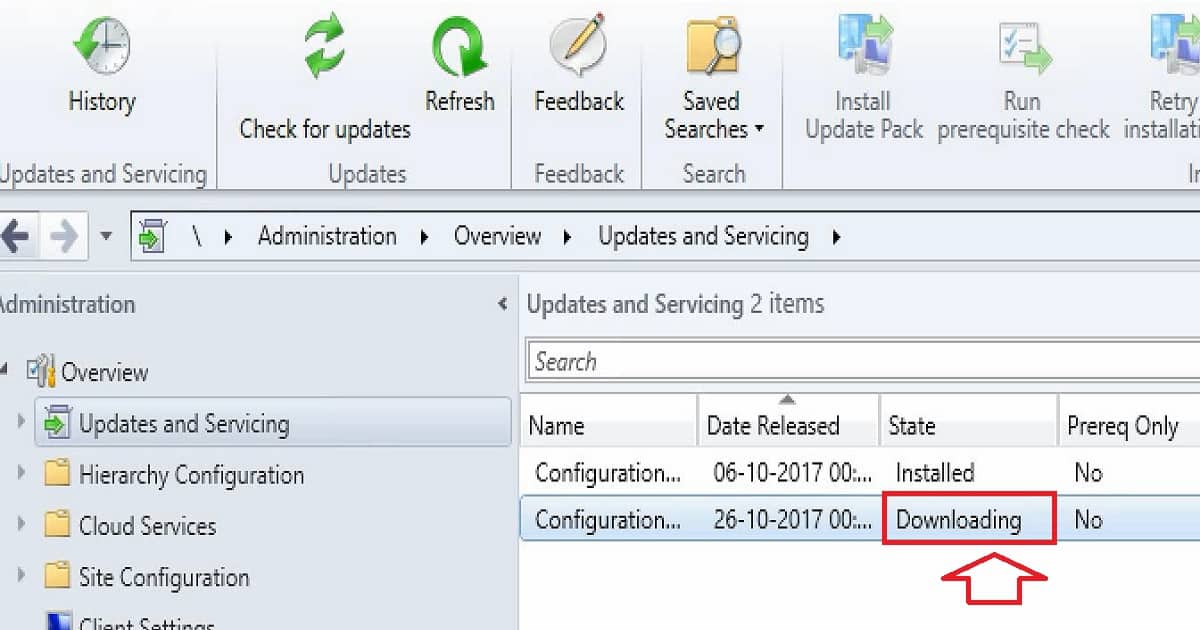
Let’s try to fix the SCCM Update Download Issue using the Update Reset Tool. Have you faced the SCCM CB update getting stuck in the “Downloading” state?
I have seen SCCM CB updates get stuck in the downloading stage. However, in most scenarios, a service restart resolves this issue. This post will see “CM Update Reset Tool Fixes SCCM CB Update Download Issue.”
The other issue I encountered was that the REDIST prerequisite files were not getting downloaded. I could see errors related to the REDIST file download in the ConfigMgrSetup.log. I was getting the error: I failed to download Redist, as discussed in the following section of the post.
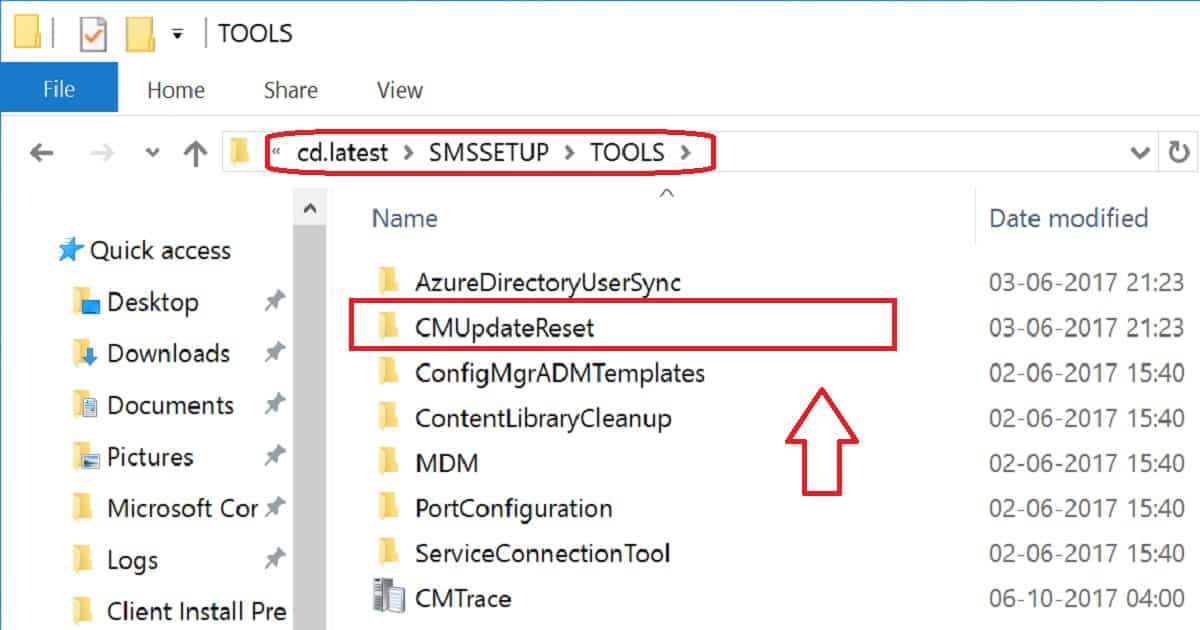
Beginning with version 1706, SCCM primary sites and CAS include the Configuration Manager Update Reset Tool and CMUpdateReset.exe. The tool is used to fix issues when in-console updates have problems downloading or replicating. The device is found in the \cd.latest\SMSSETUP\TOOLS folder of the site server.
Issue Statement – SCCM CB Update Stuck in Downloading State– FIX SCCM Update Download Issue with Update Reset Tool
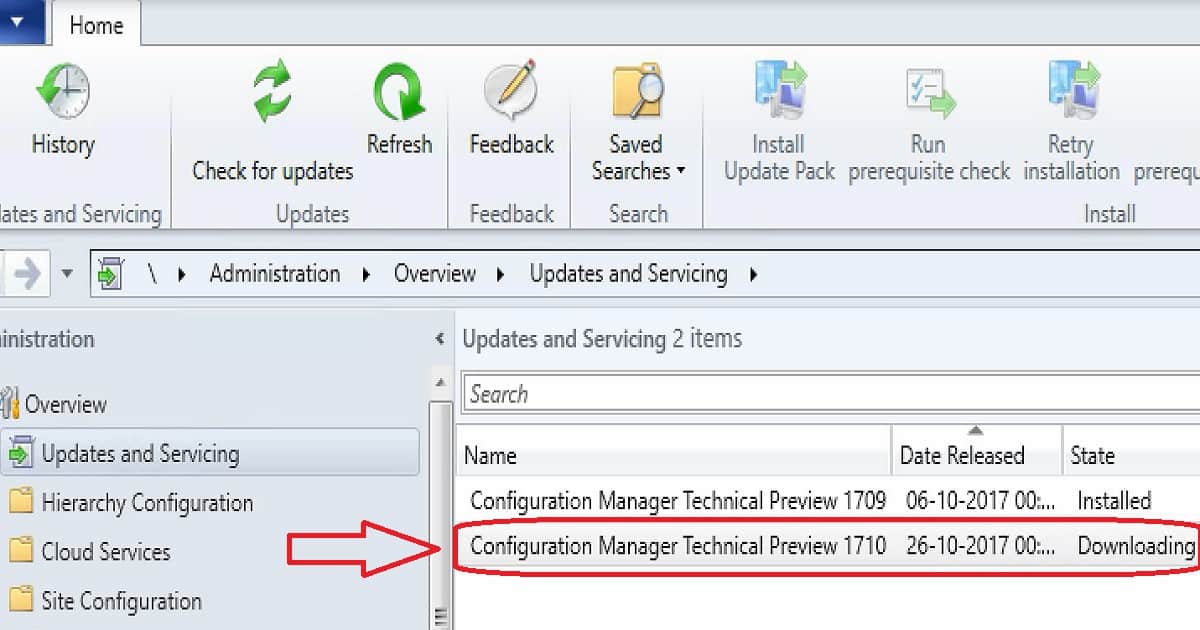
Let’s check the Issue Statement here. The SCCM CB Update is Stuck in Downloading state, and I’m trying to find a solution to fix the issue.
I checked the size of the folder C:\Program Files\Microsoft Configuration Manager\EasySetupPayload. And the size was over 1 GB. I tried to restart the SMS Executive service a couple of times without any luck.
DMPDownloader.log
Let’s quickly check the log files to understand the FIX SCCM Update Download Issue.
ERROR: HasIntuneSubscription has failed to run query fn_HasIntuneSubscription with following exception : System.Data.SqlClient.SqlException (0x80131904): Connection Timeout Expired. The timeout period elapsed while attempting to consume the pre-login handshake acknowledgement. This could be because the pre-login handshake failed or the server was unable to respond back in time. The duration spent while attempting to connect to this server was – [Pre-Login] initialization=4997; handshake=15872; —> System.ComponentModel.Win32Exception (0x80004005): The wait operation timed out~~ at System.Data.SqlClient.SqlInternalConnectionTds..ctor(DbConnectionPoolIdentity identity ERROR: Failed to download redist for c410f586-cf7a-4279-b963-139606fc25be with command /RedistUrl http://go.microsoft.com/fwlink/?LinkID=855656 /LnManifestUrl http://go.microsoft.com/fwlink/?LinkID=855641 /RedistVersion 201710 /NoUI “\\SCCMTP1.INTUNE.COM\EasySetupPayload\c410f586-cf7a-4279-b963-139606fc25be\redist”
What is a CMUpdateReset.exe Tool?CM Update Reset Tool
CMUpdateReset.exe is the Configuration Manager Update and Reset Tool. Microsoft provides this free tool for SCCM customers. It is part of the CD’s Latest folder and Tools folder.
The CM Update Reset Tool is a command-line tool that should be run from the topmost server in the SCCM hierarchy. This tool helps SCCM admins fix issues when SCCM CB in-console updates have problems downloading or replicating.
The CM Update Reset tool is in the following folder \cd.latest\SMSSETUP\TOOLS. We should run this tool from CAS or a standalone primary SQL server. More details Video Tutorial to Fix SCCM CB updates stuck in Downloading.
FIX SCCM Update Download Issue with Update Reset Tool – Video 1
Prerequisites – FIX SCCM Update Download Issue with CM Update Reset Tool
The account you use to run the tool (CM Update Reset Tool) requires the following permissions:
Read and Write permissions to the site database of the central administration site and each primary site in your hierarchy. To set these permissions, you can add the user account as a member of the db_datawriter and db_datareaderfixed database roles on the Configuration Manager database of each site. The tool does not interact with secondary sites.
Local Administrator on the top-level site of your hierarchy.
Local Administrator on the computer that hosts the service connection point.
The tool (CM Update Reset Tool) must be run on the top-level site of the hierarchy. When you run the tool, use command-line parameters to specify.
CM Update Reset Tool
The SQL Server is at the top-tier site of the hierarchy.
From where can you run this Configuration Manager Update, Reset Tool?
CAS/SQL server
standalone primary/SQL server
The SCCM download reset tool (CMUpdateReset.exe) must be run on the hierarchy’s top-level site (CAS or standalone primary). When you run the tool, use the CM Update Reset tool command-line parameters to specify:
The CAS/Primary SQL Server at the top-tier site of the hierarchy
The CAS/Primary site database name at the top-tier site
The GUID of the update package you want to reset
What are the SCCM Update Reset Options?
There are two options to fix SCCM Updates and Servicing Issues using the CMUpdateReset.exe tool.
Reset an update and restart the download
Force deletion of the problematic update package
What is the Use Case for the CM Update Reset Tool?
Let’s understand the scenarios in which you must use the CM Update Reset Tool to fix the SCCM Update Download issue.
The update has been stuck in a downloading state for more than an hour
The update is stuck, and the EasySetupPayload folder size is not increasing at all
Update package replication to SCCM child primary sites are stuck for a long time
Update package replication to the child primary server has failed
If you want to reset an update with download problems, you can run the following command from the topmost SQL server.
In the background, the tool will reset some SQL table entries to remove the update entry from the console. But this action won’t delete the folders and files in C:\Program Files\Microsoft Configuration Manager\ EasySetupPayload.
The above command didn’t resolve my issue in the scenario explained in this post. When I ran the command, the update of SCCM CB 1710 was removed from the SCCM console. I restarted the SMS Executive service, and the update appeared again in the console. However, it was again stuck in the downloading stage.
SCCM Update Reset Force Delete Option
Once the above command line doesn’t resolve the download or replication issue, we must force delete the updates. This is an extreme scenario; you want to force the deletion of the problematic update package.
High-Level Process of CMUpdateReset.EXE -FDELETE
Let’s discuss the High-Level Process of CMUpdateReset.EXE -FDELETE. The list below helps you to show it.
Add all activities stored in the CM_UpdatePackageSiteStatus_HIST table
Delete the Package distribution list for update package
Delete the update package from the EasySetupSettings table
Delete the update package from the cm_updatepackageSiteStatus table
Delete the update package from the CM_UpdatePackage_MonitoringStatus table
Delete update package from cm_updatepackages table
Verify the table entries for the package are deleted from CM_UpdatePackage_MonitoringStatus
Delete the CAB files from \SCCMTP1.Intune.com\sms_TP1\EasySetupPayLoad\ folder
Delete the folders from \\SCCMTP1.Intune.com\sms_TP1\EasySetupPayLoad\ folder
Another Example – In a typical scenario, you want to reset an update with download problems. Your SQL Servers FQDN is server1.htmd.com; the site database is CM_MEM and the package GUID is 61F16B3C-F1F6-4F9F-8647-2A524B0C802C. You run: CMUpdateReset.exe -S server1.htmd.com -D CM_MEM -P 61F16B3C-F1F6-4F9F-8647-2A524B0C802C
Results of Command Line
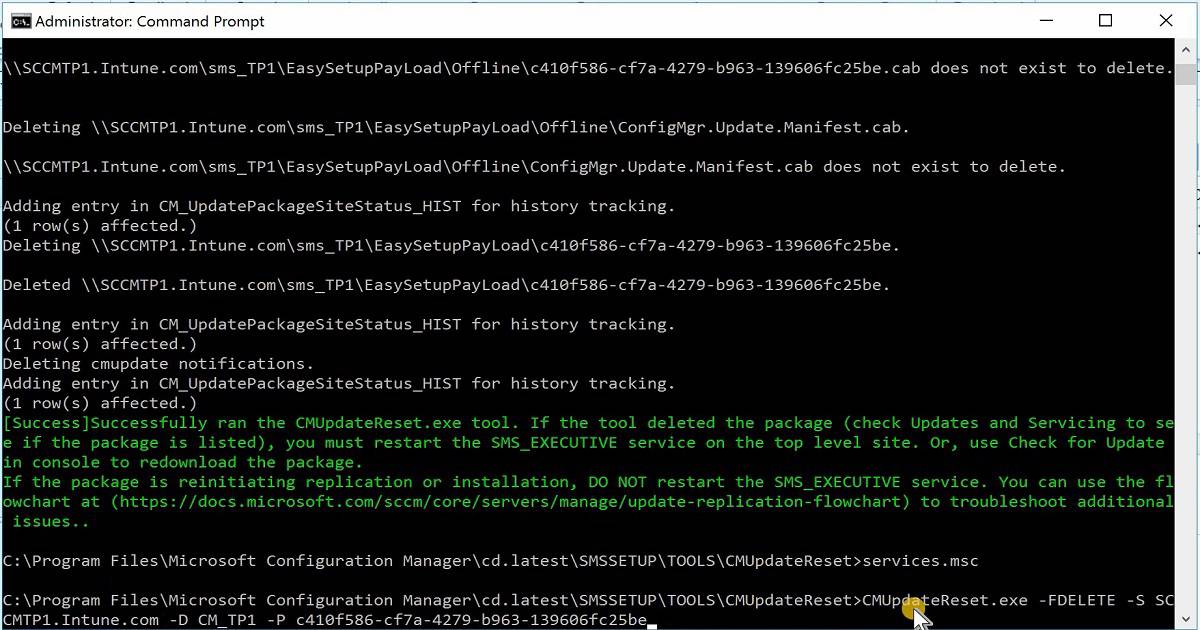
FIX SCCM Update Download Issue with Update Reset Tool results are given below.
C:\Program Files\Microsoft Configuration Manager\cd.latest\SMSSETUP\TOOLS\CMUpdateReset>CMUpdateReset.exe -FDELETE -S SCCMTP1.Intune.com -D CM_TP1 -P c410f586-cf7a-4279-b963-139606fc25be
[Warning]
You can use this tool when an in-console update has not yet installed and is in a failed state. A failed state can mean the update download remains in progress but is stuck and taking an excessively long time, perhaps hours longer than your historical expectations for update packages of similar size. It can also be a failure to replicate the update to child primary sites. When you run the tool, it runs against the update that you specify. If the package is in pre-installation state, it will delete it. If package is in replicating state, it will reinitiate replication. Are you sure you want to run the tool? Enter Y for Yes and N for No.
Y
Running CMUpdateReset.exe tool ...
Verified that the SQL server FQDN belongs to the top level site.
Verified that the site servers run version 1606 or later.
Verified that replication is active.
Package is in pre-installation state. Attempting to clean up the package.
Verified that the service connection point is installed on the top level site.
Verified that the account has permission to service connection point share.
Verified that the account has permission to the inboxes\hman.box folder.
Service SMS_EXECUTIVE is Running on machine SCCMTP1.Intune.com.
Verified that service SMS_EXECUTIVE is running on machine SCCMTP1.Intune.com.
Service CONFIGURATION_MANAGER_UPDATE is Running on machine SCCMTP1.Intune.com.
Verified that service CONFIGURATION_MANAGER_UPDATE is running on machine SCCMTP1.Intune.com.
Verified that the package is not in post-replication state for all the child sites (if any).
Marking package in the package distribution list as deleted.
(0 row(s) affected.)
Adding entry in CM_UpdatePackageSiteStatus_HIST for history tracking.
(1 row(s) affected.)
Marked package in the package distribution list as deleted.
Deleting update package c410f586-cf7a-4279-b963-139606fc25be from EasySetupSettings table on site server SCCMTP1.Intune.com.
(0 row(s) affected.)
Adding entry in CM_UpdatePackageSiteStatus_HIST for history tracking.
(1 row(s) affected.)
Update package is deleted from EasySetupSettings table.
Deleting update package c410f586-cf7a-4279-b963-139606fc25be from cm_updatepackageSiteStatus table on site server SCCMTP1.Intune.com.
(0 row(s) affected.)
Adding entry in CM_UpdatePackageSiteStatus_HIST for history tracking.
(1 row(s) affected.)
Update package is deleted from cm_updatepackageSiteStatus table.
Deleting update package c410f586-cf7a-4279-b963-139606fc25be from CM_UpdatePackage_MonitoringStatus table on site server SCCMTP1.Intune.com.
(0 row(s) affected.)
Adding entry in CM_UpdatePackageSiteStatus_HIST for history tracking.
(1 row(s) affected.)
Update package is deleted from cm_updatepackageSiteStatus table.
Deleting update package c410f586-cf7a-4279-b963-139606fc25be from cm_updatepackages table on site server SCCMTP1.Intune.com.
(1 row(s) affected.)
Adding entry in CM_UpdatePackageSiteStatus_HIST for history tracking.
(1 row(s) affected.)
Update package is deleted from CM_UpdatePackage_MonitoringStatus table.
Verifying whether the table entries for package c410f586-cf7a-4279-b963-139606fc25be is deleted on site server SCCMTP1.Intune.com.
Adding entry in CM_UpdatePackageSiteStatus_HIST for history tracking.
(1 row(s) affected.)
Deleting \\SCCMTP1.Intune.com\sms_TP1\EasySetupPayLoad\c410f586-cf7a-4279-b963-139606fc25be.cab.
Deleted \\SCCMTP1.Intune.com\sms_TP1\EasySetupPayLoad\c410f586-cf7a-4279-b963-139606fc25be.cab.
Adding entry in CM_UpdatePackageSiteStatus_HIST for history tracking.
(1 row(s) affected.)
Deleting \\SCCMTP1.Intune.com\sms_TP1\EasySetupPayLoad\Offline\c410f586-cf7a-4279-b963-139606fc25be.cab.
\\SCCMTP1.Intune.com\sms_TP1\EasySetupPayLoad\Offline\c410f586-cf7a-4279-b963-139606fc25be.cab does not exist to delete.
Deleting \\SCCMTP1.Intune.com\sms_TP1\EasySetupPayLoad\Offline\ConfigMgr.Update.Manifest.cab
\\SCCMTP1.Intune.com\sms_TP1\EasySetupPayLoad\Offline\ConfigMgr.Update.Manifest.cab does not exist to delete.
Adding entry in CM_UpdatePackageSiteStatus_HIST for history tracking.
(1 row(s) affected.)
Deleting \\SCCMTP1.Intune.com\sms_TP1\EasySetupPayLoad\c410f586-cf7a-4279-b963-139606fc25be.
Deleted \\SCCMTP1.Intune.com\sms_TP1\EasySetupPayLoad\c410f586-cf7a-4279-b963-139606fc25be.
Adding entry in CM_UpdatePackageSiteStatus_HIST for history tracking.
(1 row(s) affected.)
Deleting cmupdate notifications.
Adding entry in CM_UpdatePackageSiteStatus_HIST for history tracking.
(1 row(s) affected.)
[Success]Successfully ran the CMUpdateReset.exe tool. If the tool deleted the package (check Updates and Servicing to see if the package is listed), you must restart the SMS_EXECUTIVE service on the top level site. Or, use Check for Update in console to redownload the package.
If the package is reinitiating replication or installation, DO NOT restart the SMS_EXECUTIVE service. You can use the flowchart at (https://docs.microsoft.com/sccm/core/servers/manage/update-replication-flowchart) to troubleshoot additional issues..
Success – SCCM CB Update Downloaded
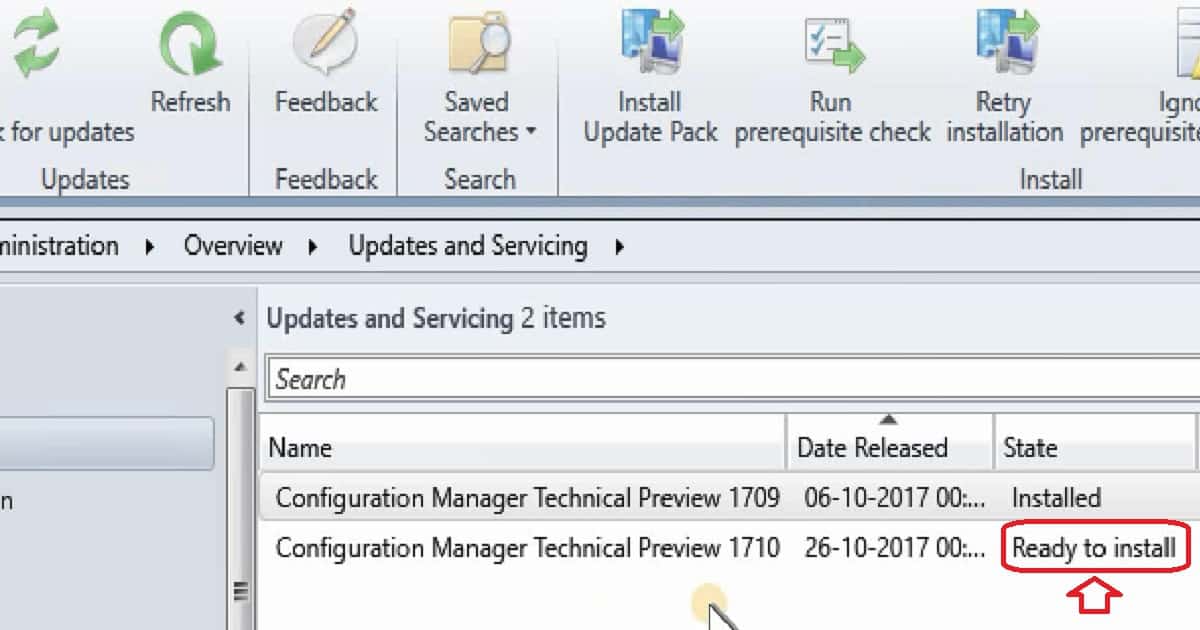
After running the tool, I restarted the SMS Executive service. The updated entry for SCCM 1710 has been created and is ready in the “Available to Download” state. I started the download, and it finished downloading the update. Now, the update state is “Ready to Install.”
Log Entries of Successful Completion of SCCM CB Update Download
Let’s discuss the Log Entries of Successful Completion of SCCM CB Update Download.
EasySetupDownloadSinglePackage finishes downloading c410f586-cf7a-4279-b963-139606fc25be.
Successfully Dropped the state message 13
Generating state message: 13 for package c410f586-cf7a-4279-b963-139606fc25be
Generating state message: 13 for package c410f586-cf7a-4279-b963-139606fc25be~~ $<SMS_DMP_DOWNLOADER><11-05-2017 11:40:30.480-330><thread=5984 (0x1760)>
Write the state message in C:\Program Files\Microsoft Configuration Manager\inboxes\auth\statesys.box\incoming\high\___CMUvx2u44jq.SMX~~ $<SMS_DMP_DOWNLOADER><11-05-2017 11:40:30.500-330><thread=5984 (0x1760)>
Successfully Dropped the state message 13~~ $<SMS_DMP_DOWNLOADER><11-05-2017 11:40:30.533-330><thread=5984 (0x1760)>
EasySetupDownloadSinglePackage finishes downloading c410f586-cf7a-4279-b963-139606fc25be. ~~ $<SMS_DMP_DOWNLOADER><11-05-2017 11:40:30.557-330><thread=5984 (0x1760)>
Get Easy Setup installed Packages to delete payload~~ $<SMS_DMP_DOWNLOADER><11-05-2017 11:40:30.577-330><thread=5984 (0x1760)>
SCCM Update Download Issues Not Fixed by CM Update Reset Tool?
What if the CM Update Reset Tool doesn’t fix SCCM Update Download Issues? The following are the steps to download SCCM updates. If the command-line tool CMUpdateReset.exe doesn’t help fix it, what next?
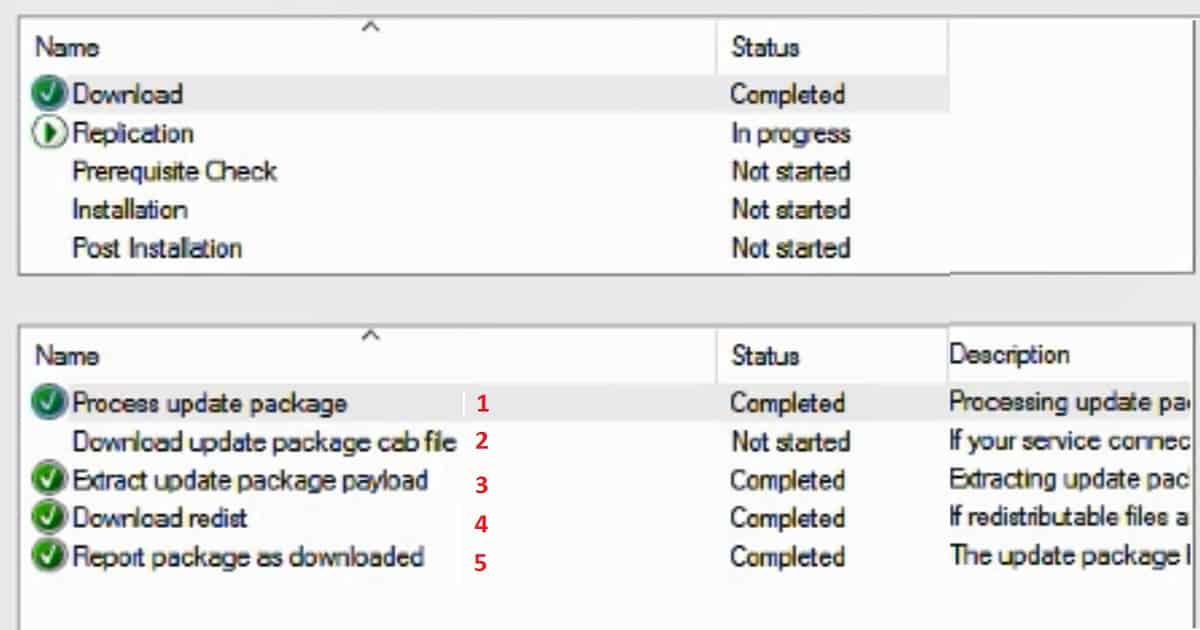
You can check this download status from the SCCM monitoring workspace. More details are in the log file ConfigMgrSetup.log.
Process update package
Download the updated package cab file
Extract update package payload
Download redist
Report package as downloaded
FIX SCCM CB Download Stuck at REDIST Prerequisite Files
In my scenario, REDIST prerequisite files were not getting downloaded. I could see errors related to the REDIST file download in the ConfigMgrSetup.log. If you have problems downloading redist files, then ConfigMgrSetup.log is the best place to get to the root of the issue.
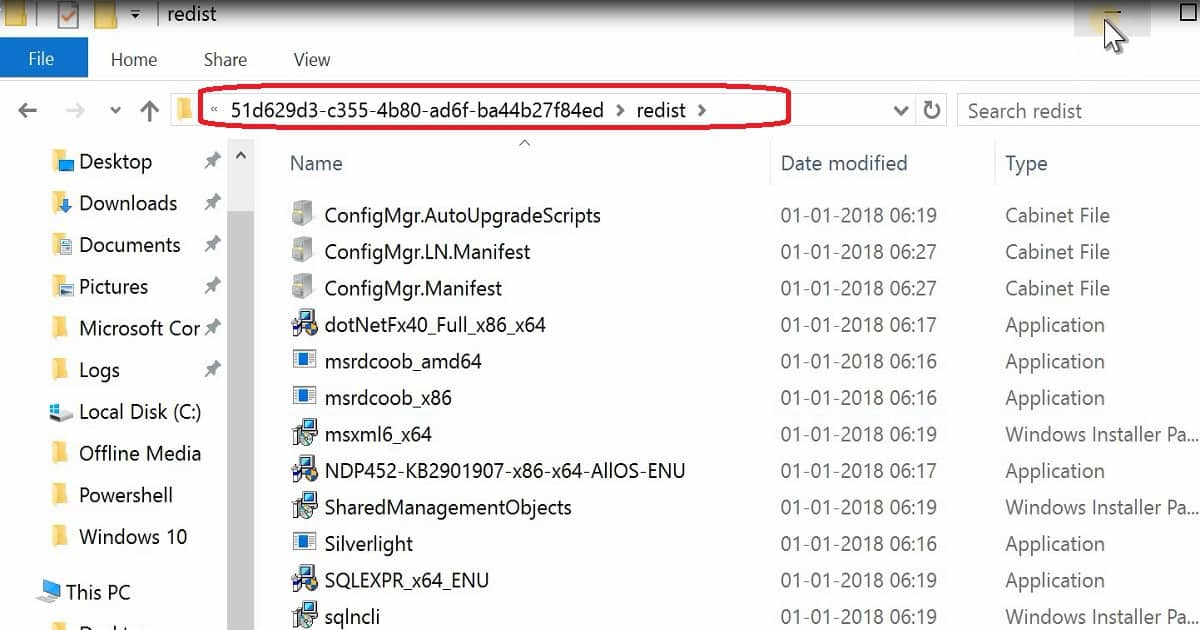
Once the prerequisite files are downloaded then, copy those files to D:\Program Files \Microsoft Configuration Manager\EasySetupPayload\<Update PackageGUID >\Redist folder.
I don’t recommend doing this in your production environment. Thanks to Robert Marshall’s tip, which helped me to resolve the issue. I have mentioned this in the tweet.
The above section of the post “CMUpdateReset.exe Tool Fixes SCCM CB Update Download Issue” has more details. But it didn’t work for me this time. I was getting the following error in the DMPDownloader.log.
I struggle to download the SCCM CB version in my test lab. I have gone through my previous posts to fix the download issue.
ERROR: Failed to download redist for 51d629d3-c355-4b80-ad6f-ba44b27f84ed with command /RedistUrl http://go.microsoft.com/fwlink/?LinkID=860262 /LnManifestUrl http://go.microsoft.com/fwlink/?LinkID=860266 /RedistVersion 201712 /NoUI “\SCCMTP1.INTUNE.COM\EasySetupPayload\51d629d3-c355-4b80-ad6f-ba44b27f84ed\redist”
Failed to download redist for 51d629d3-c355-4b80-ad6f-ba44b27f84ed.
I could see the actual download of the SCCM update had happened on the following path “D:\Program Files\Microsoft Configuration Manager\EasySetupPayload“.
But the status does not change from Downloading to Ready to Install. The fix for the SCCM Redist download issue has been explained below.
We are on WhatsApp now. To get the latest step-by-step guides, news, and updates, Join our Channel. Click here. HTMD WhatsApp.
Author
Anoop C Nair is Workplace Technology solution architect with 25+ years of experience in global enterprise organizations such as JP Morgan, Capgemini, etc. He is Microsoft Certified Trainer. Microsoft MVP from 2015 onwards for consecutive 11 years! He also conducts Intune and modern workplace tech training for enterprise organizations. He is Blogger, Speaker, and Founder of HTMD Community and HTMD Conference. His focus is on Device Management technologies such as Intune, Windows, Cloud PC, He writes about technologies like Intune, SCCM, Windows, Cloud PC, Windows, Entra, Microsoft Security.
Anoop C Nair is Workplace Technology solution architect with 25+ years of experience in global enterprise organizations such as JP Morgan, Capgemini, etc. He is Microsoft Certified Trainer. Microsoft MVP from 2015 onwards for consecutive 11 years! He also conducts Intune and modern workplace tech training for enterprise organizations. He is Blogger, Speaker, and Founder of HTMD Community and HTMD Conference. His focus is on Device Management technologies such as Intune, Windows, Cloud PC. He writes about technologies like Intune, SCCM, Windows, Cloud PC, Windows, Entra, Microsoft Security.
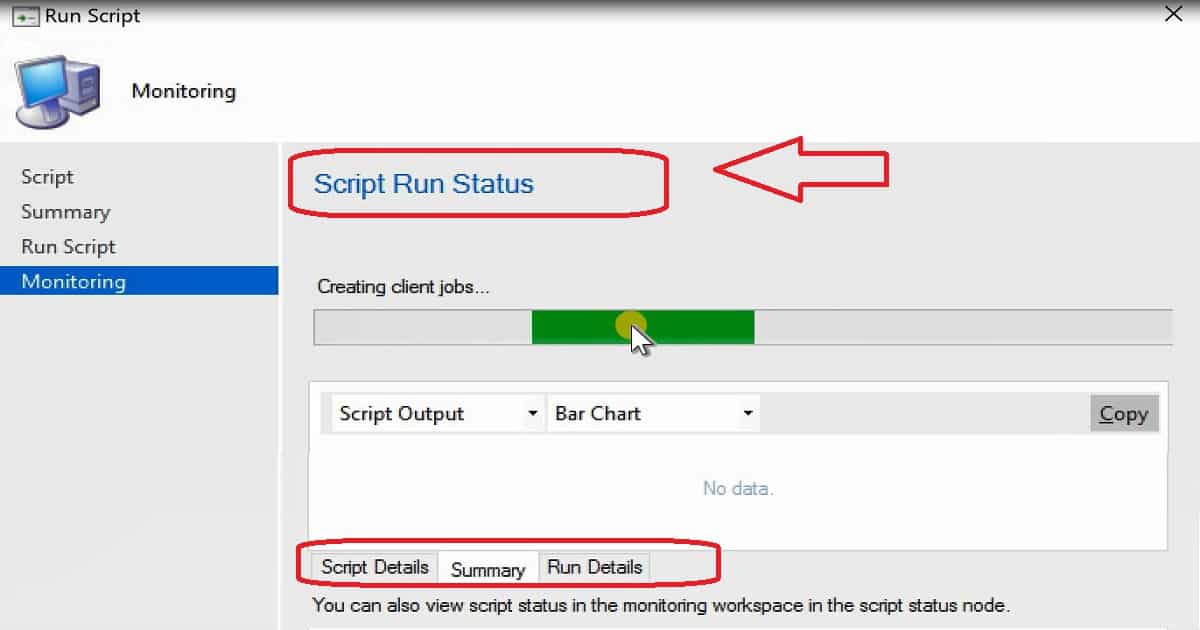
Let’s discuss the SCCM Run Script Results Configuration Manager ConfigMgr Real-Time Graphical Representation. The most exciting feature introduced in the SCCM 1710 version is the real-time graphical representation of RUN SCRIPTS results. This post explains SCCM-run script deployments.
The SCCM Run Script option uses a fast-channel method to get script results from end-user devices. The SCCM CB version can get script results from end-user machines in almost real-time.
This feature’s added advantage is that the results can be graphically represented quickly. The SCCM team enabled this feature out of the box for the SCCM CB version.
Real-Time Graphical Representation of SCCM Run Script Results
Real-Time Graphical Representation of SCCM Run Script. The SCCM CB 1710 Preview version was released a couple of weeks back. The most exciting feature introduced in the SCCM 1710 version is the real-time graphical representation of RUN SCRIPTS.
SCCM Run Script Results Configuration Manager ConfigMgr Real-Time Graphical Representation – Video 1
What is a Real-Time Graphical Representation of SCCM Run Script?SCCM Run Script Results
The SCCM product team added the ability to configure security scopes for the Run Scripts feature. This is an exciting option, as most corporate organizations don’t want their SCCM admins to push PowerShell scripts to all the machines. Also, this is almost real-time script deployment through the fast-channel push method.
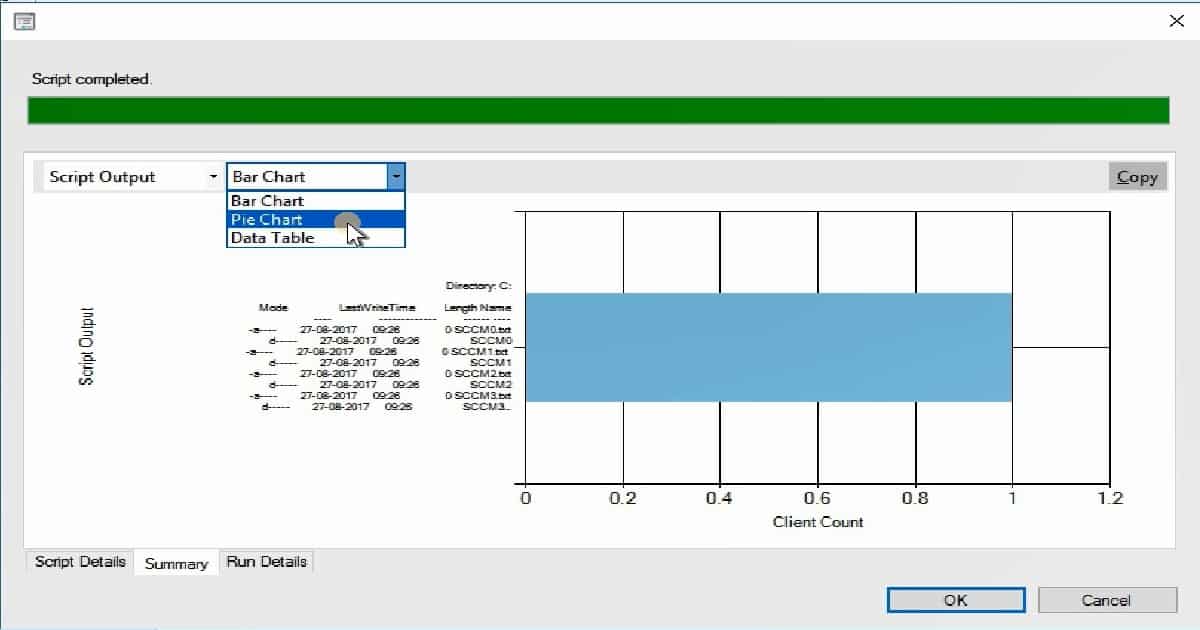
Do you want to know more about the fast-channel push notification method? I have a post that explains this: “Video SCCM CB Run PowerShell Script via Fast Channel PUSH Notification.” The monitoring improvement of “Run Scripts” is an excellent feature of SCCM CB 1710. The Run Scripts wizard includes a graphical representation of results.
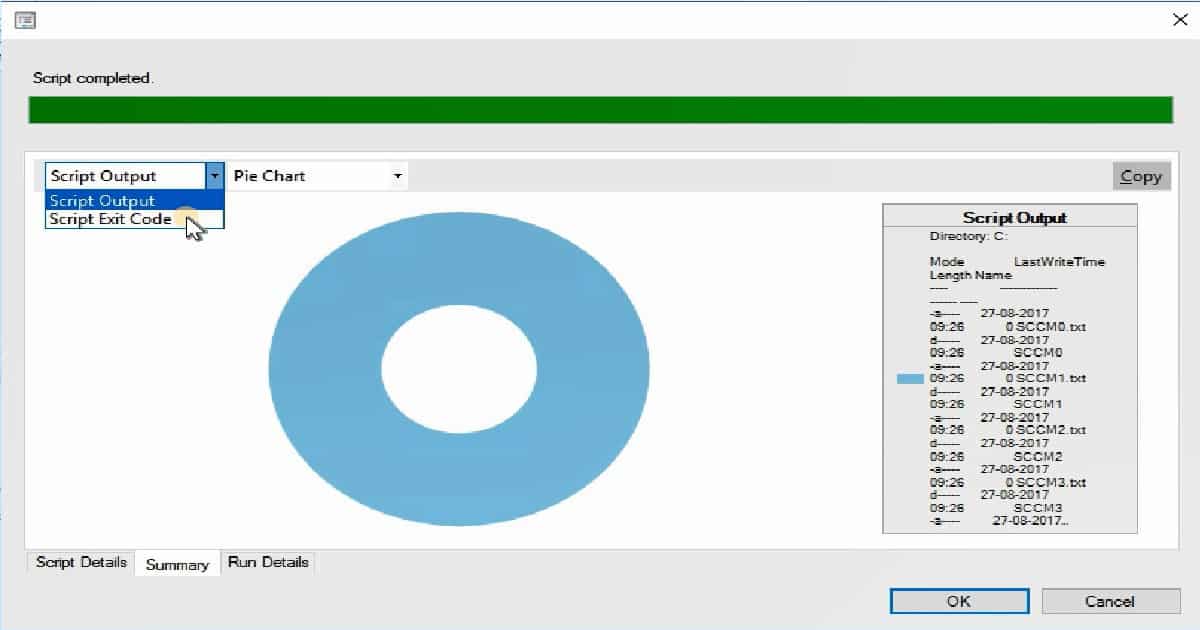
Another option to get the graphical representation of Run Script results is in the SCCM console monitoring workspace.
The two other options for showing the results of Run Script are Script Output and Script Exit Code. Script output gives you the details of Mode, Last Write Time, Directory, and Length name.
All these details are coming to the SCCM server in almost real-time through the fast channel push notification method.
We are on WhatsApp now. To get the latest step-by-step guides, news, and updates, Join our Channel. Click here. HTMD WhatsApp.
Author
Anoop C Nair is Workplace Technology solution architect with 25+ years of experience in global enterprise organizations such as JP Morgan, Capgemini, etc. He is Microsoft Certified Trainer. Microsoft MVP from 2015 onwards for consecutive 11 years! He also conducts Intune and modern workplace tech training for enterprise organizations. He is Blogger, Speaker, and Founder of HTMD Community and HTMD Conference. His focus is on Device Management technologies such as Intune, Windows, Cloud PC, He writes about technologies like Intune, SCCM, Windows, Cloud PC, Windows, Entra, Microsoft Security.
Let’s discuss troubleshooting SCCM Issues with SuperFlow: A Newbie Guide Configuration Manager ConfigMgr. I have a post about troubleshooting steps for newbies using flowcharts. SCCM flowcharts are the best way to understand the workflow/data flow/process of each SCCM component.
The SuperFlow is an interactive content model. The SCCM SuperFlow provides an interactive content model structured for viewing documentation.
In this post, you will find all the information you need to troubleshoot SCCM issues using SuperFlow. This guide is perfect for newbies navigating Configuration Manager (ConfigMgr).
Learn the SCCM Client Installation process with SuperFlow
Learn the SCCM Client Assignment Process with SuperFlow
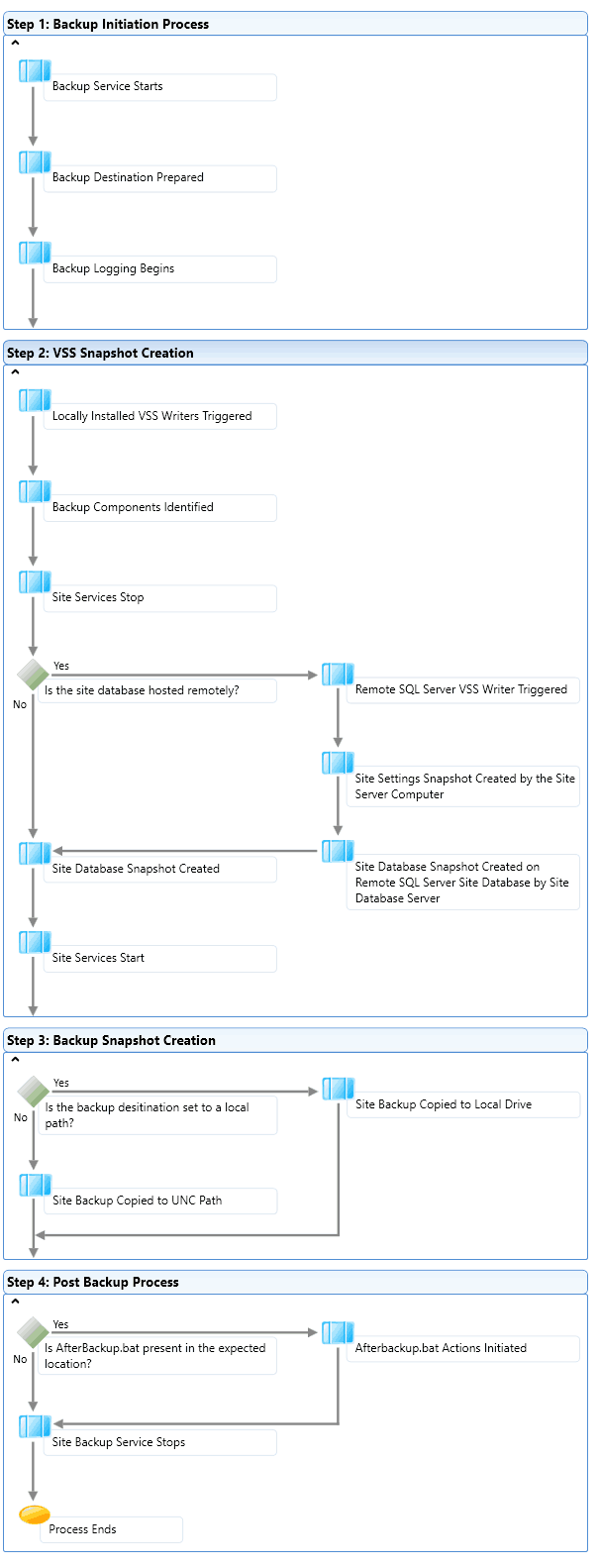
Learn the SCCM Backup Process with SuperFlow
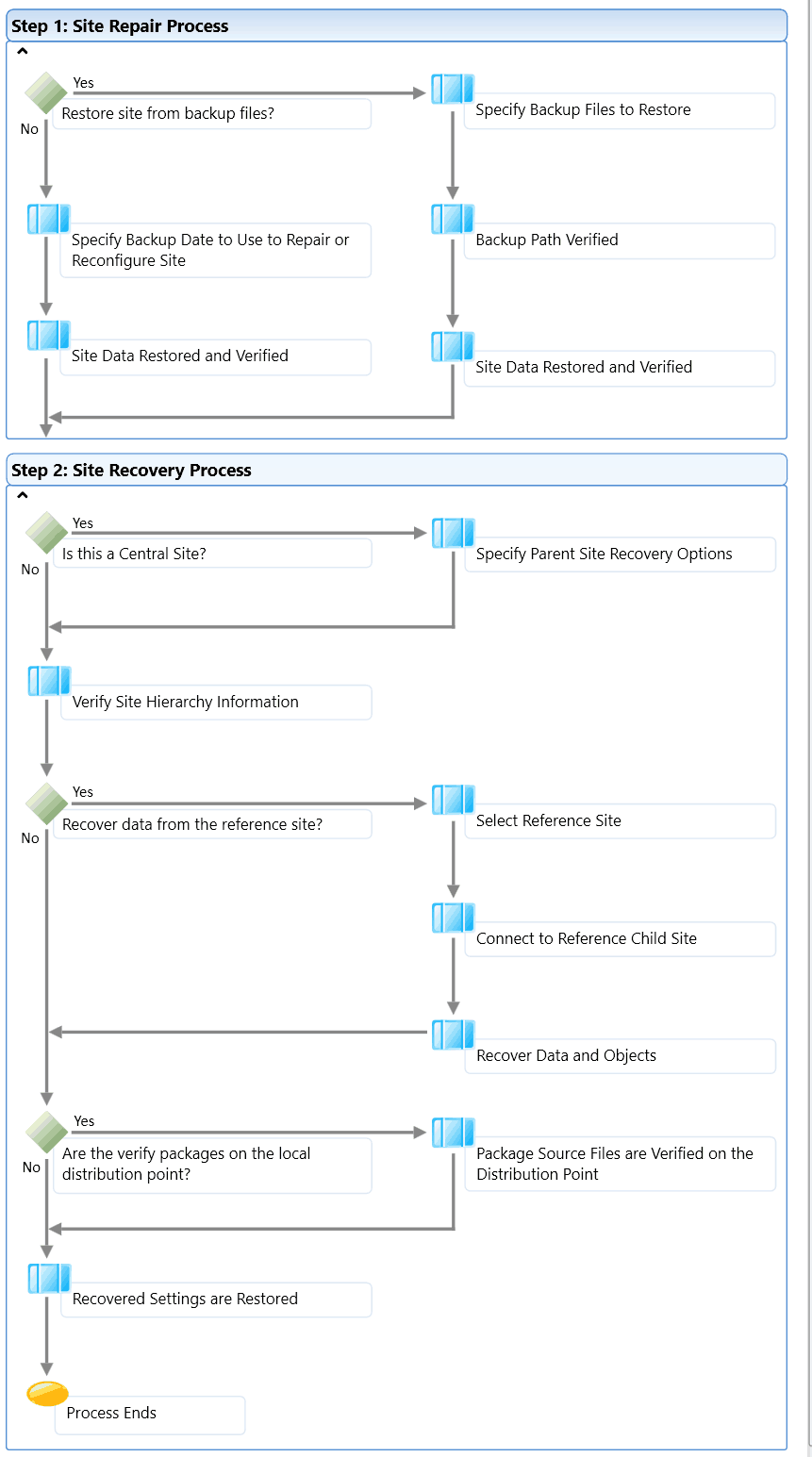
Learn the SCCM Restore Process with SuperFlow
Download SCCM SuperFlows
Troubleshoot SCCM Issues with SuperFlow A Newbie Guide Configuration Manager ConfigMgr – Table 1
What are SCCM SuperFlows? SCCM Troubleshooting Guide for Newbies with SuperFlow
I have a YouTube channel. Subscribe here to watch and learn about SCCM with the video tutorials about SCCM-related issues and installations. I also have a Facebook page here. This is also where I usually upload the SCCM/Intune-related videos.
Troubleshoot SCCM Issues with SuperFlow A Newbie Guide Configuration Manager ConfigMgr – Video 1
What is SCCM SuperFlow?– Troubleshoot SCCM Issues with SuperFlow A Newbie Guide Configuration Manager ConfigMgr
Each SuperFlow includes comprehensive information about a specific SCCM data flow, workflow, or process. The SCCM SuperFlow Contains the following.
Detailed Information
Procedures
Sample Log entries
Best practices
Real-world scenarios
Troubleshooting information
Security information
Animations
Learn the SCCM Client Installation Process
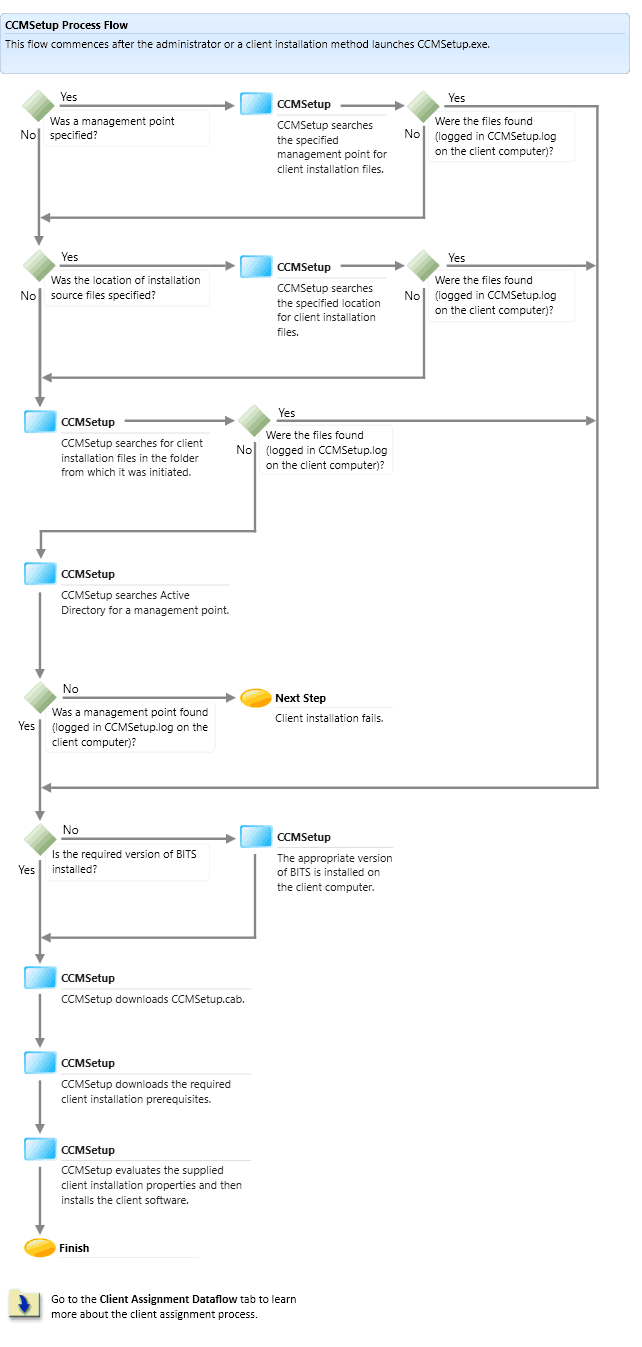
The CCMSetup process superflow explains how CCMSetup installs the SCCM clients.
Troubleshoot SCCM Issues with SuperFlow A Newbie Guide Configuration Manager ConfigMgr – Fig.1
The CCMSetup client installs flow for the SCCM CB version has not been updated. However, it is better to get the basics right about installing the SCCM Client. When you have a problem with SCCM client installation, this superflow will help you troubleshoot and resolve the issue.
Two log files are associated with this CCMSetup superflow and SCCM client installation process. SCCM client setup file “CCMSetup.exe” searches for the SCCM Management Point (then Distribution Point) server for the rest of the client installation and prerequisite files.
CCMSetup.log
Client.MSI.log
Learn the SCCM Client Assignment Process with SuperFlow
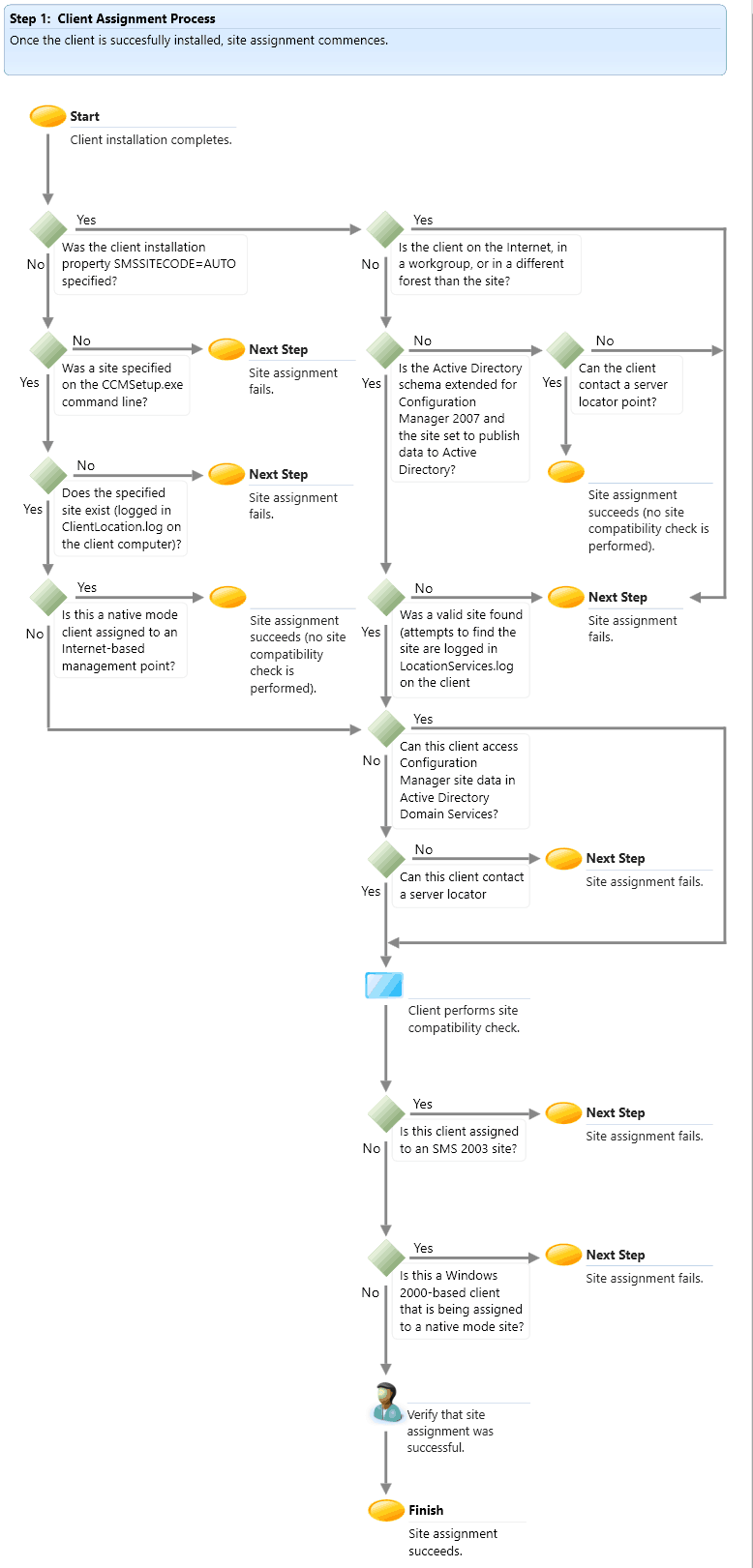
The client assignment starts once the SCCM client is installed successfully on a workstation. The client will be able to receive the policies from the server after the client is assigned to a particular SCCM site.
When the SCCM client is installed successfully, it is considered an unmanaged device but not assigned to a site. There are two methods for assigning clients: manual and auto-site. The SCCM client superflow explains these two methods.
Troubleshoot SCCM Issues with SuperFlow A Newbie Guide Configuration Manager ConfigMgr – Fig.2
Learn the SCCM Backup Process with SuperFlow
The SCCM backup process is changed in SCCM CB. Microsoft fully supports SQL backup, so there is no need to take a full SCCM backup. However, in some scenarios, we still need one. SCCM backup SuperFlow helps to understand the process of SCCM full backup.
SCCM backup is initiated by a scheduled maintenance task or manually starting the SCCM backup service. Once the backup service is created, the backup snapshot destination is prepared, and backup logging starts.
The SMS VSS writer (SMS_SITE_VSS_WRITTER) and SQL server VSS writer (SMS_SITE_SQL_BACKUP) services will be triggered as part of the SCCM backup. These two services will help start VSS snapshots for site settings and databases. The Smswriter.log file provides more troubleshooting details.
Troubleshoot SCCM Issues with SuperFlow A Newbie Guide Configuration Manager ConfigMgr – Fig.3
The first step is to specify the backup files to restore. SCCM will verify the backup patch to determine whether you have a valid backup. Site data and the SQL database will then be verified and restored.
Troubleshoot SCCM Issues with SuperFlow A Newbie Guide Configuration Manager ConfigMgr – Fig.4
We are on WhatsApp now. To get the latest step-by-step guides, news, and updates, Join our Channel. Click here. HTMD WhatsApp.
Author
Anoop C Nair is Workplace Technology solution architect with 25+ years of experience in global enterprise organizations such as JP Morgan, Capgemini, etc. He is Microsoft Certified Trainer. Microsoft MVP from 2015 onwards for consecutive 11 years! He also conducts Intune and modern workplace tech training for enterprise organizations. He is Blogger, Speaker, and Founder of HTMD Community and HTMD Conference. His focus is on Device Management technologies such as Intune, Windows, Cloud PC, He writes about technologies like Intune, SCCM, Windows, Cloud PC, Windows, Entra, Microsoft Security.
Download SCCM ConfigMgr PREVIEW Version Configuration Manager ConfigMgr. SCCM Product Group released the newest version of ConfigMgr CB Preview 1710. This is not the production version of SCCM CB 1710.
I hope the production version 1710 will be released somewhere in November 1710. This post will see “How to Download SCCM ConfigMgr 1710 PREVIEW Version.”
The download link below should be used ONLY when the SCCM preview version is not installed in your LAB environment or has expired. The SCCM CB Preview version is valid only for 90 days or 3 months.
For example, if you have installed SCCM CB preview 1708 and skipped 1709 and 1710, you won’t be able to upgrade the 1708 version to 1711. In the above example, you need to build a new SCCM CB preview infra with the latest baseline build of the preview version.
Download SCCM ConfigMgr PREVIEW Version Configuration Manager ConfigMgr
If you already have a preview version and it’s working fine, the latest SCCM CB 1710 update will automatically appear in the console. You should NOT install this version of SCCM in a production environment. Technical preview versions of SCCM CB will be released every month.
Download SCCM ConfigMgr PREVIEW Version Configuration Manager ConfigMgr – Fig.1
High-level View SCCM 1710 Preview Upgrade
I recommend that SCCM admins install the preview version of SCCM CB in their lab environment. This will help them keep up with the new features enabled in every preview release.
SCCM ConfigMgr CB 1710 Preview – Download the content
SCCM ConfigMgr CB 1710 Preview – Available to Install
SCCM ConfigMgr CB 1710 Preview – Installation Process
SCCM ConfigMgr CB 1710 Preview – Post Installation Steps
SCCM ConfigMgr CB 1710 Preview – Console Upgrade
What are the Known Issues of SCCM 1710 Preview?
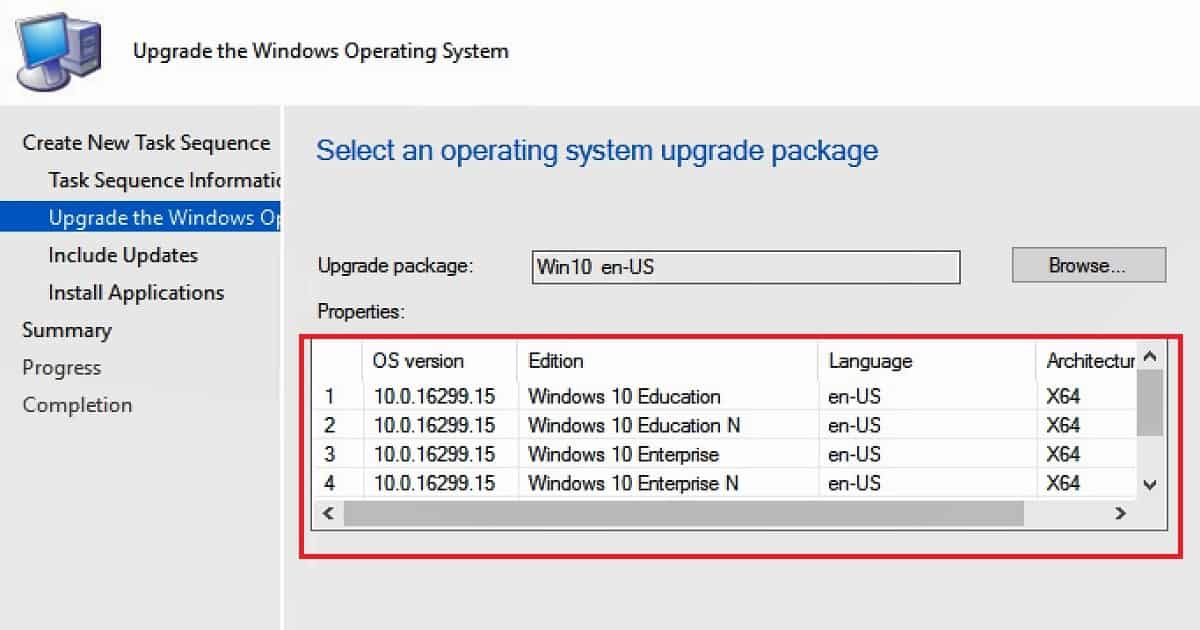
When configuring a task sequence, we must carefully use an operating system upgrade package or image. This is because Windows 10 1709 fall creators update media includes multiple editions, so we need to select the one SCCM/ConfigMgr supports. More details are available
I have a post and video tutorial about creating Windows 10 1709 upgrade TS and operating system upgrade package. You can look at the post from the following link “How to Create SCCM Windows 10 1709 Upgrade Task Sequence.” More details about the known issues of the 1710 preview version are available
Download SCCM ConfigMgr PREVIEW Version Configuration Manager ConfigMgr – Fig.3
We are on WhatsApp now. To get the latest step-by-step guides, news, and updates, Join our Channel. Click here. HTMD WhatsApp.
Author
Anoop C Nair is Workplace Technology solution architect with 25+ years of experience in global enterprise organizations such as JP Morgan, Capgemini, etc. He is Microsoft Certified Trainer. Microsoft MVP from 2015 onwards for consecutive 11 years! He also conducts Intune and modern workplace tech training for enterprise organizations. He is Blogger, Speaker, and Founder of HTMD Community and HTMD Conference. His focus is on Device Management technologies such as Intune, Windows, Cloud PC, He writes about technologies like Intune, SCCM, Windows, Cloud PC, Windows, Entra, Microsoft Security.
How to Create SCCM Windows 10 Upgrade Task Sequence Configuration Manager ConfigMgr. SCCM offers methods for upgrading existing Windows 10 devices to the newest version of Windows 10 1709, the Windows 10 Fall Creators Update.
One way to upgrade Windows 10 is using the “Windows 10 servicing” option in SCCM CB 1706. The other way is using the method I will explain in this post. This post will see “How to Create SCCM Windows 10 1709 In-Place Upgrade Task Sequence.”
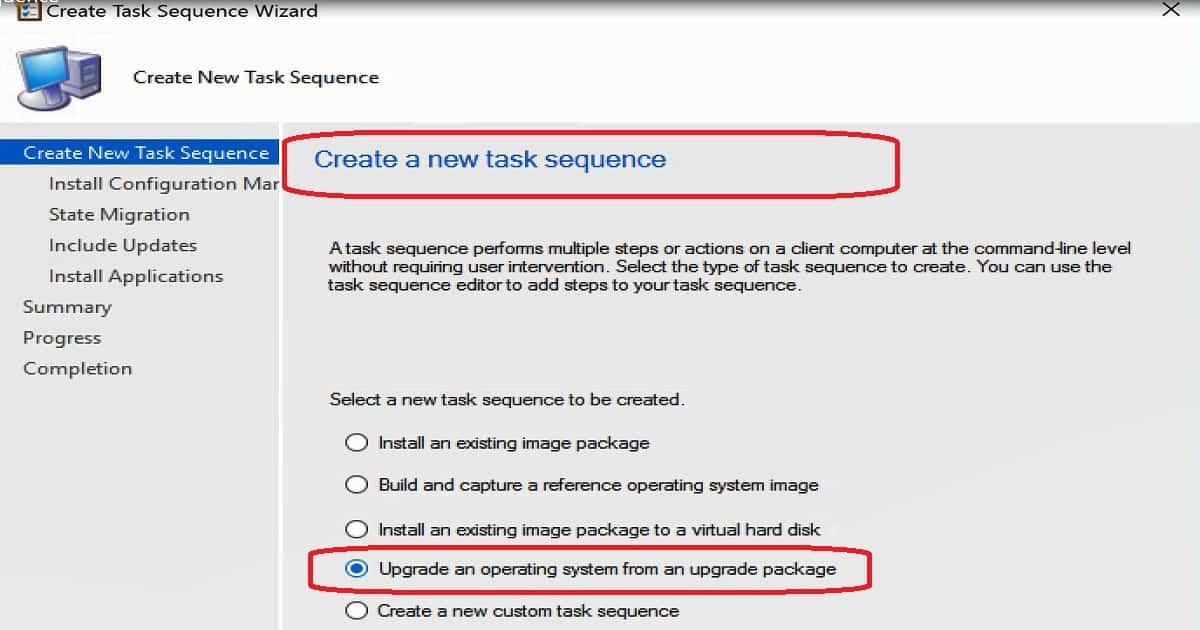
Let’s understand what an SCCM Task Sequence is. A task sequence performs multiple steps or actions on a client computer at the command line level without user intervention.
Select the type of task sequence to create. A task sequence template (provided by default) is offered to upgrade the Windows 10 operating system to the latest version.
How to Create SCCM Windows 10 Upgrade Task Sequence Configuration Manager ConfigMgr
How to Create SCCM CB Task Sequence to Upgrade Windows 10 1709. There are methods in SCCM to upgrade existing Windows 10 devices to the newest version of Windows 10 1709.
The latest version of Windows 10 1709 is called Windows 10 Fall Creators Update. One way to upgrade Windows 10 is using the “Windows 10 servicing” option in SCCM CB 1706.
How to Create SCCM Windows 10 Upgrade Task Sequence Configuration Manager ConfigMgr – Video 1
How Do You Create a Windows 10 OS Upgrade Package in SCCM?
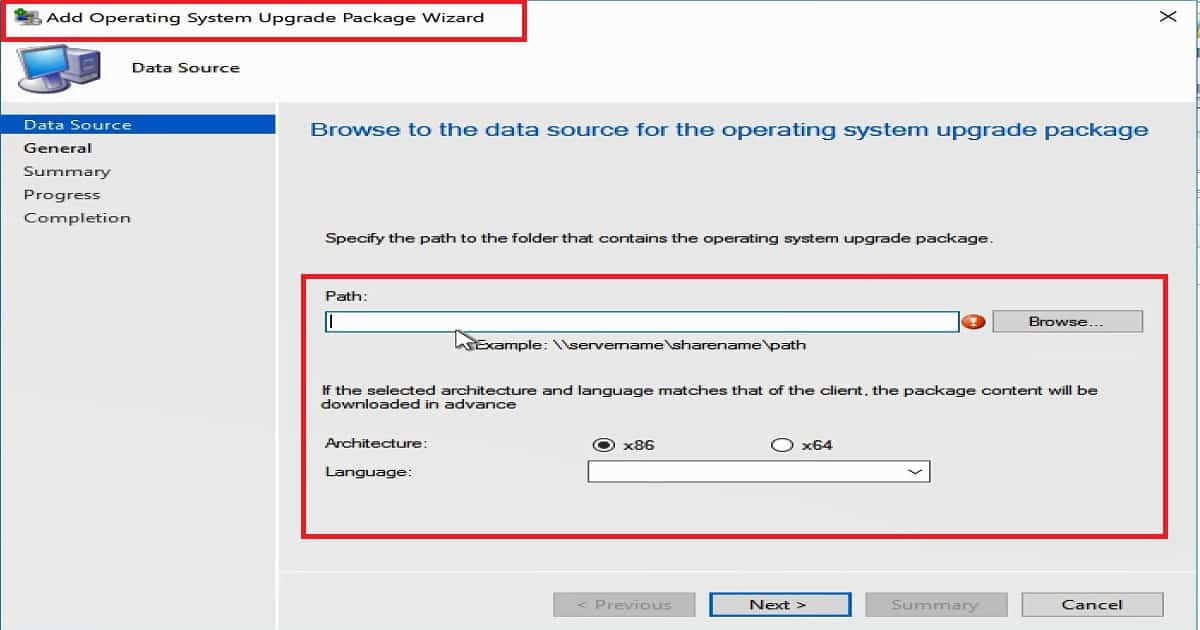
Before creating the Windows 10 upgrade task sequence, let’s complete the prerequisite: create a Windows 10 operating system upgrade package. Navigate via SCCM CB console—Software Library workspace, right-click the Operating System Upgrade Packages node, and select Add Operating System Upgrade Package.
Browse the data source for the operating system upgrade package. Specify the operating system upgrade package. Provide the Windows 10 1709 Enterprise x86 or x64 binary network share location. Select the Windows 10 architecture and the base language.
On the next page, enter the name of the Windows 10 1709 upgrade package. That’s it; you’re done.
How to Create SCCM Windows 10 Upgrade Task Sequence Configuration Manager ConfigMgr – Fig.1
How to Create Windows 10 in-place Upgrade Task Sequence
Navigate via SCCM CB console – Software Library workspace – right-click the Task Sequences node, then select Create Task Sequence. On the Create a new task sequence page, select Upgrade an operating system from the upgrade package and click Next.
Enter the name of the Task sequence—Windows 10 1709 Enterprise Upgrade. Upgrade the wizard’s Windows operating system page. As a first step, you must select the Windows 10 1709 upgrade package we created. The wizard will list all the available Windows 10 editions as part of the upgrade package.
How to Create SCCM Windows 10 Upgrade Task Sequence Configuration Manager ConfigMgr – Fig.2
Select the Windows 10 1709 Edition – Enterprise x64
With this upgrade task sequence, I plan to upgrade the Windows 10 Enterprise version to the latest one called Fall Creators Update (1709 – RS3). Also, you can enter licensing details if you have any. Otherwise, you can use the KMS server to activate Windows after the upgrade (Whenever required).
Select the Software Updates that Should Be Installed
If you already have an enterprise version of Windows 10 1703, it won’t ask for activation again (after the 1709 upgrade). In the “Include software updates” page of Create Task Sequence, we have 3 options.
Select the Software Updates that Should Be Installed
Details
Required for installation
Mandatory software updates only
Available for installation
All Software Updates
How to Create SCCM Windows 10 Upgrade Task Sequence Configuration Manager ConfigMgr – Table 1
Required for installation – Mandatory software updates only
Available for installation – All Software Updates
Do not install any software updates.
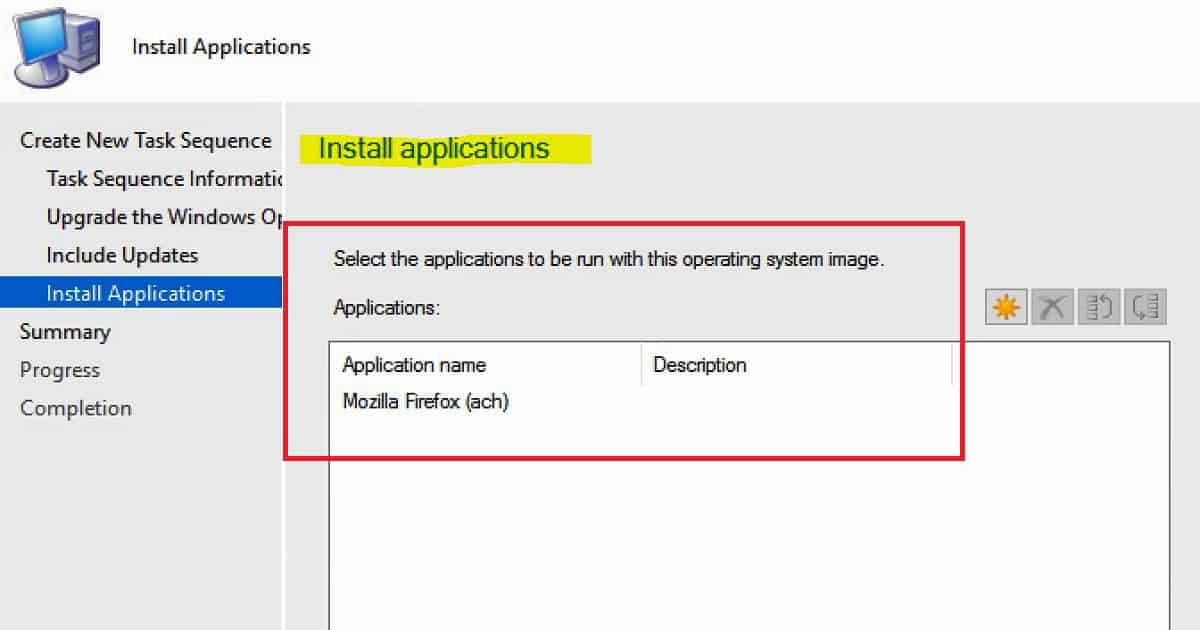
On the next page, we can select the applications to be installed as part of the Windows 10 1709 upgrade process. I have added Mozilla Forex to the Windows 10 1709 in-place upgrade.
How to Create SCCM Windows 10 Upgrade Task Sequence Configuration Manager ConfigMgr – Fig.3
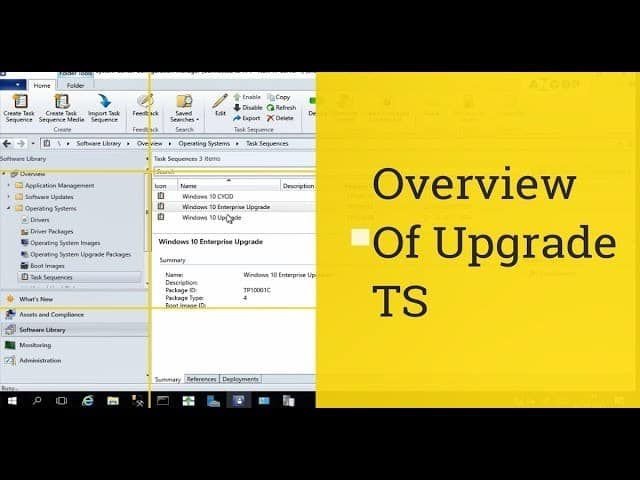
Overview SCCM CB Windows 10 in-Place Upgrade Task Sequence
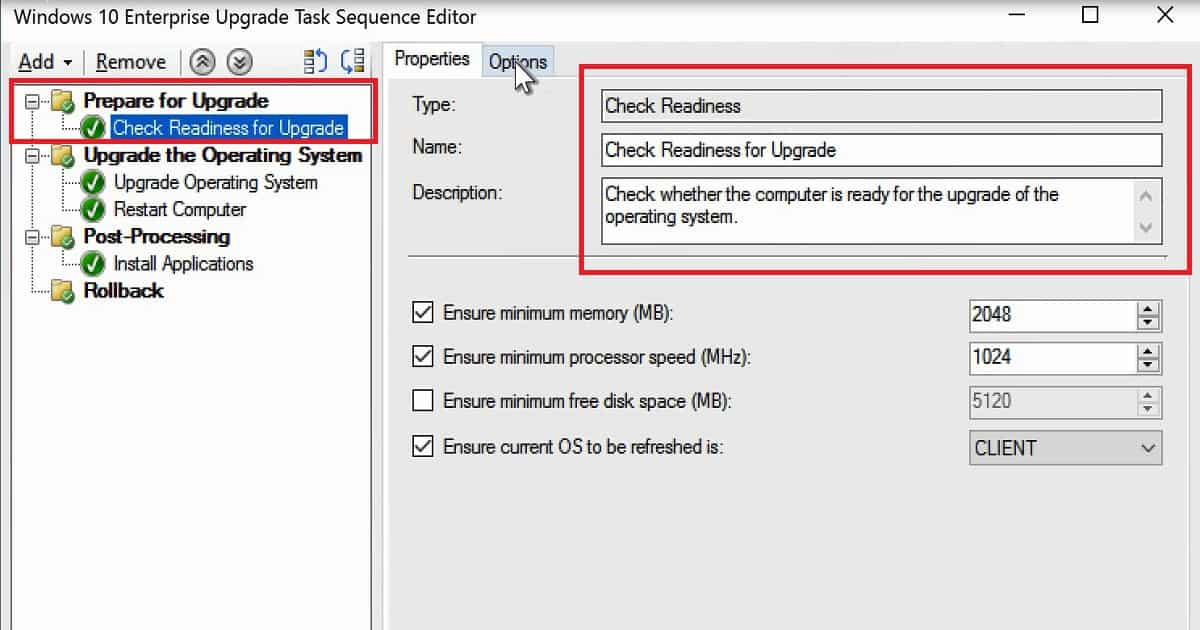
There are 5 groups in the Windows 10 Enterprise 1709 Upgrade task sequence. Prepare for Upgrade is the first stage, where it will analyze the machine to determine whether it’s eligible for a Windows 10 1709 upgrade. Enough disk space and memory are available on the device.
Upgrade the operating system is the task sequence group where the actual in-place upgrade of Windows 10 1709 will happen. Post-installation is the stage where we set the installation of the packages or applications.
One group missing in the video tutorial is the Software Update group or task. The last and final group of this Windows 10 1709 upgrade task sequence is for rollback. This action will take place when the upgrade is failed.
Success: The task sequence has been created successfully.
Success: Create a new task sequence – • Name: Windows 10 Enterprise Upgrade
Success: Upgrade the Windows operating system – • Installation source media: Win10 en-US• Edition index: 3
Success: Include software updates• Install software updates: Do not install any software updates
Success: Install applications• Install the application: Mozilla Firefox (ach)• If an application installation fails, continue installing other applications in the list: No
How to Create SCCM Windows 10 Upgrade Task Sequence Configuration Manager ConfigMgr – Fig.4
We are on WhatsApp now. To get the latest step-by-step guides, news, and updates, Join our Channel. Click here. HTMD WhatsApp.
Author
Anoop C Nair is Workplace Technology solution architect with 25+ years of experience in global enterprise organizations such as JP Morgan, Capgemini, etc. He is Microsoft Certified Trainer. Microsoft MVP from 2015 onwards for consecutive 11 years! He also conducts Intune and modern workplace tech training for enterprise organizations. He is Blogger, Speaker, and Founder of HTMD Community and HTMD Conference. His focus is on Device Management technologies such as Intune, Windows, Cloud PC, He writes about technologies like Intune, SCCM, Windows, Cloud PC, Windows, Entra, Microsoft Security.
Install Dynamic Applications using SCCM CB Full Standalone Media Configuration Manager. The SCCM CB standalone media wizard helps the admin create an ISO file (.iso). This ISO file helps build machines that are not connected to the network.
Standalone media in SCCM contains everything required to deploy the operating system on a computer. The machine should not be connected to an SCCM CB site or the network. This post will see whether we could “Install Dynamic Applications using SCCM CB Full Standalone Media.”
This post will also discuss creating SCCM CB offline standalone media with applications, collection variables, etc.
SCCM Standalone media contains everything required to build a machine’s operating system. However, the applications and packages referenced in the Task Sequence will not be automatically installed as part of this offline media process.
Check Out the Offline Build Standalone Media Video – Install Dynamic Applications using SCCM CB Full Standalone Media Configuration Manager
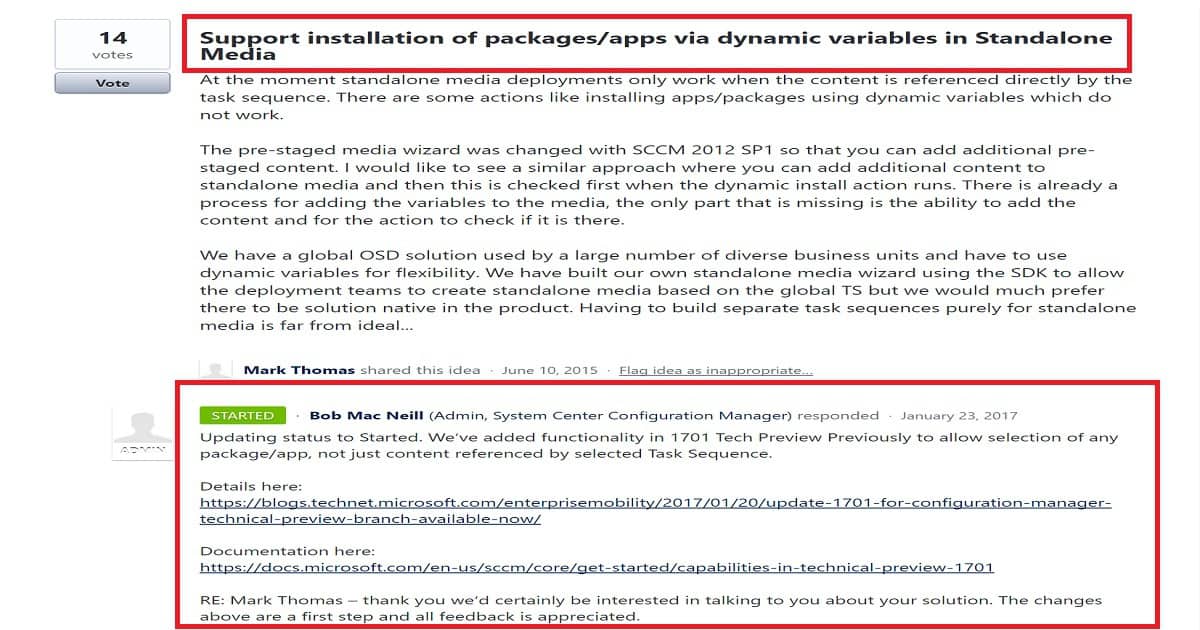
Is this true for all the SCCM CB builds? Yes, indeed, the dynamic apps or packages won’t get installed automatically. But, we have a user voice item to include these features in offline standalone media. You can check out the User Voice item from here.
Install Dynamic Applications using SCCM CB Full Standalone Media Configuration Manager – Video 1
As you can see in the above picture, development work has already started on this User Voice item. The latest version of SCCM CB 1709 does not include the installation of dynamic applications and packages. However, the SCCM CB standalone media wizard can consist of the content of dynamic applications referenced in the Task Sequence.
We can use SCCM SDK to build offline standalone media solutions and include dynamic application installation features as part of SCCM standalone media. But it would be great to have this option as a native feature of SCCM.
I think the apps/packages referenced in the original task sequence will get installed automatically.
Install Dynamic Applications using SCCM CB Full Standalone Media Configuration Manager – Fig.1
How to Create SCCM CB Standalone Media?
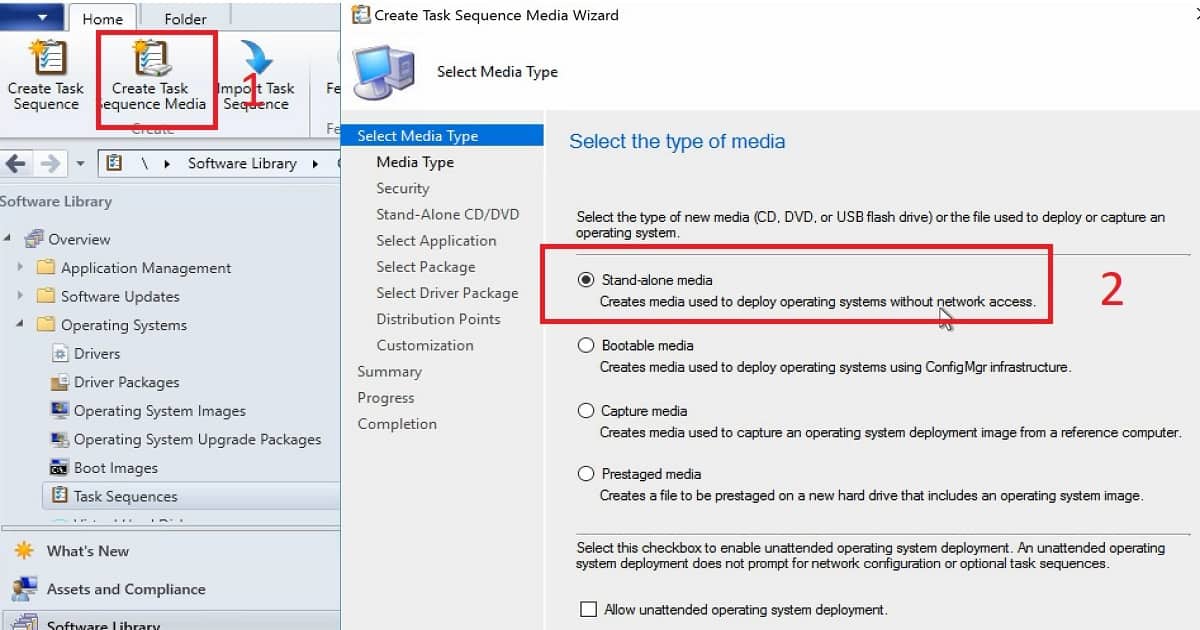
Navigate via the SCCM Console Software Library work space—Operating Systems—Task Sequences. Click on the “Create Task Sequence Media” button from the ribbon menu of the SCCM CB console. The Create Task Sequence Wizard has four media creation options. This post will show how to create standalone media for SCCM CB.
Create SCCM CB Standalone Media
Details
Standalone Media
Creates media used to deploy operating systems without network access.
Bootable Media
Creates media to deploy operating systems using SCCM infra connectivity. This media does not contain OS images and applications.
Capture media
Creates media used to capture operating system deployment images from a reference computer.
Prestaged media
Prestaged media creates a file, including an operating system image, to be prestaged on a new hard drive.
Install Dynamic Applications using SCCM CB Full Standalone Media Configuration Manager – Table 1
Standalone Media – Creates media used to deploy operating systems without network access.
Bootable media—Creates media to deploy operating systems using SCCM infra connectivity. This media does not contain OS images and applications.
Capture Media – Creates media used to capture operating system deployment images from a reference computer.
Prestaged Media creates a file, including an operating system image, to be prestaged on a new hard drive.
More details are available in the video tutorial here Explained above.
Install Dynamic Applications using SCCM CB Full Standalone Media Configuration Manager – Fig.2
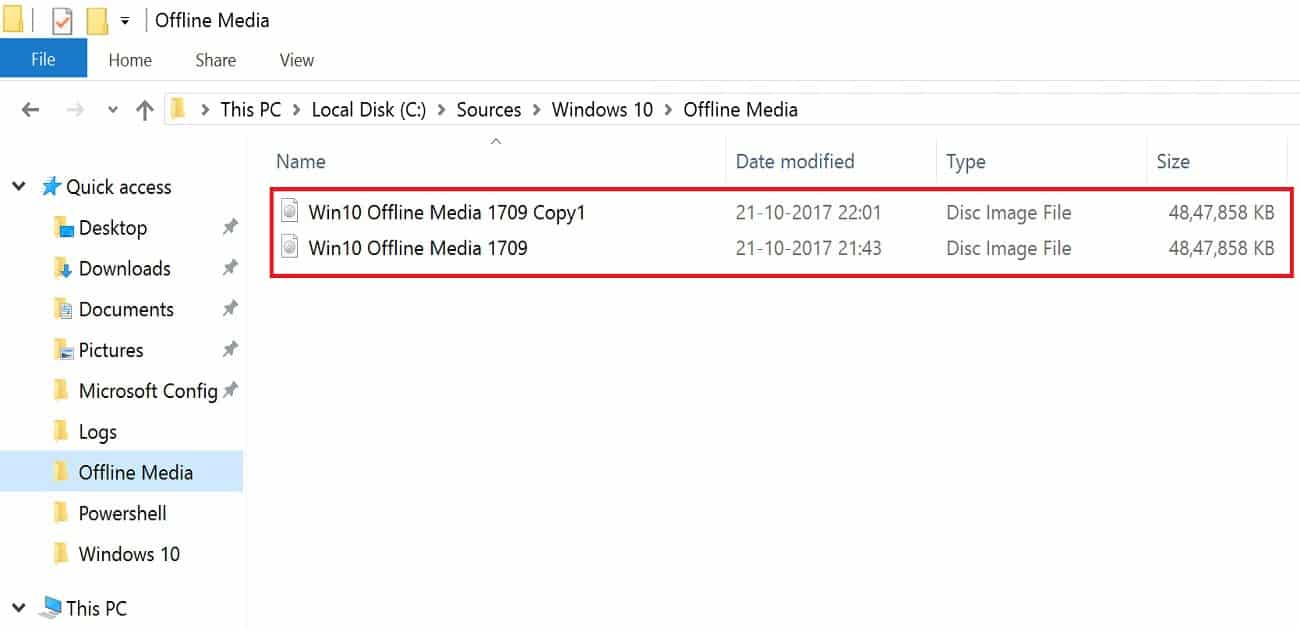
Specify the media type – The media type page has two options. One for removal of media like a USB drive. Another option is a CD/DVD set. You can also specify the media size – 4 GB, Unlimited, etc… You can select the path where you want to save the ISO file of standalone media.
Select security settings for the media—To increase safety and avoid accidental OS re-imaging; we can set a password for standalone media and select an expiration date.
Select the Task Sequence, which will help rebuild the machine. This page will show you the details of the Task Sequence content. On the next page, Select application content to add. You can select the apps you want to be part of Offline standalone media. The content of the selected apps and packages will be available for manual installation on the device.
On the Distribution Points page, specify the distribution points containing the content required by the task sequence, then click Next. You must have Read access rights to the content library on the distribution points. Make sure these contents are distributed to the DP. Otherwise, you won’t be able to create SCCM CB Standalone media.
More Details are Available in the Video Tutorial here
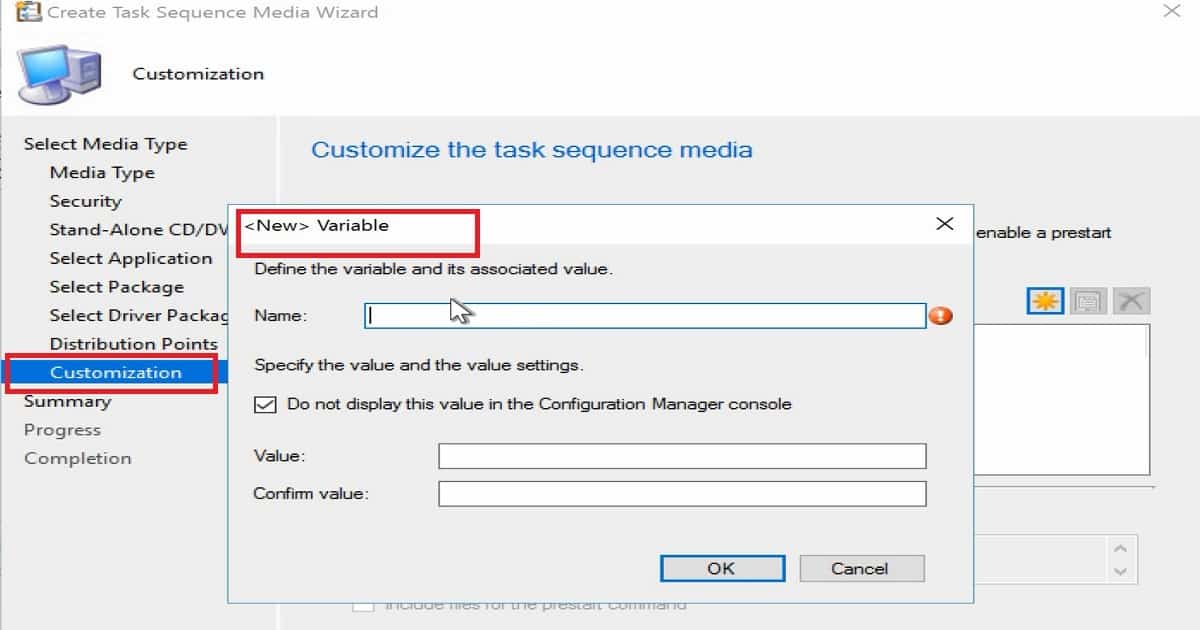
Specify the variables that the task sequence uses to deploy the operating system. This will help customize the Operating system during the build. It could also help with installing the language pack, setting up timezones and regional settings, etc.
You will also have the option to specify any prestart commands you want to run before the task sequence to SCCM standalone media.
Install Dynamic Applications using SCCM CB Full Standalone Media Configuration Manager – Fig.3
How to Troubleshoot SCCM Standalone Media Creation Issues?
Most offline media issues are WMI-related or memory-related. If the machine where you are trying to create offline media doesn’t have enough memory, you could get errors.
Install Dynamic Applications using SCCM CB Full Standalone Media Configuration Manager – Fig.4
Conclusion
Installation of Dynamic Applications using standalone offline media is not supported with SCCM CB 1709. The content of these apps is part of standalone media, which helps to install the apps manually on the machine. I hope SCCM PG will include this feature to improve the experience for SCCM admins/operation teams.
Sample SCCM CB Standalone
Also, we can have a look at the log fileCreateTsMedia.log. This log file will be located in the same location where your SCCM console is installed. C:\Program Files (x86)\Microsoft Configuration Manager\AdminConsole\AdminUILog.
Success: Task sequence media information Success: Task sequence media information• Media type: CD/DVD set• Media size: Unlimited• Output path: \\SCCMTP1\Sources\Windows 10\Offline Media\Win10 Offline Media 1709 Copy1.iso• Allow unattended operating system deployment: No• Protect media with password: No• Task sequence: TP10001B-Windows 10 CYOD• Prestart command: No• Distribution point(s): SCCMTP1.INTUNE.COM• Total size of media content, MB: 4631• SHA256 checksums: \\SCCMTP1\Sources\Windows 10\Offline Media\Win10 Offline Media 1709 Copy1.iso403CB70C4620245E85ACFA735D0C2B64C90DC3AAEC3792A55D8E523039377EC0 Success: Applications:• Mozilla Firefox (ach) Success: Packages:• Microsoft Corporation User State Migration Tool for Windows 10.0.15063.0• Configuration Manager Client Package.
We are on WhatsApp now. To get the latest step-by-step guides, news, and updates, Join our Channel. Click here. HTMD WhatsApp.
Author
Anoop C Nair is Workplace Technology solution architect with 25+ years of experience in global enterprise organizations such as JP Morgan, Capgemini, etc. He is Microsoft Certified Trainer. Microsoft MVP from 2015 onwards for consecutive 11 years! He also conducts Intune and modern workplace tech training for enterprise organizations. He is Blogger, Speaker, and Founder of HTMD Community and HTMD Conference. His focus is on Device Management technologies such as Intune, Windows, Cloud PC, He writes about technologies like Intune, SCCM, Windows, Cloud PC, Windows, Entra, Microsoft Security.
How to Setup SCCM CB Intune Co-Management Configuration Manager ConfigMgr. Many organizations are looking for more simplified management options for Windows devices.
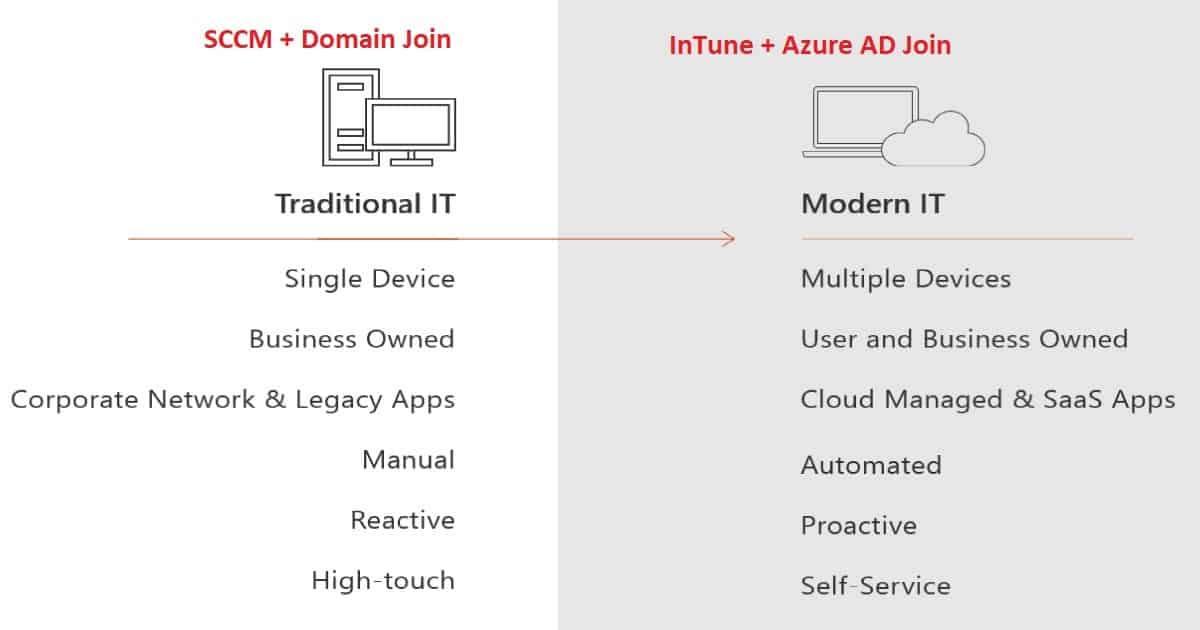
There are two ways of managing: the traditional way of control and the Modern way of governance. Both are explained in detail below.
They also want an easier transition from SCCM and Domain Join devices (Traditional) to a modern management approach with Intune and Azure AD Join devices (Modern). This post will show How to set up SCCM CB and InTune Co-Management.
In this video, you will learn all the details about setting up SCCM CB Intune Co-Management. Below is more information about the SCCM CB 1709 upgrade and Co-Management setup viaVideo Tutorial.
How to Setup SCCM CB Intune Co-Management Configuration Manager ConfigMgr – Video 1
How to Setup SCCM CB Intune Co-Management Configuration Manager ConfigMgr
The co-management option is available only on a Preview release of SCCM CB 1709. I don’t know whether it will make it to the SCCM CB 1710 Production release in a few months. However, Co-Management will be available in the SCCM CB 1710 production release.
Modern IT
Multiple Devices
User and Business Owned
Cloud Managed & SaaS Apps
Automated
Proactive
Self Service
How to Setup SCCM CB Intune Co-Management Configuration Manager ConfigMgr – Table 1
How to Setup SCCM CB Intune Co-Management Configuration Manager ConfigMgr – Fig.1
What is Co-Management?
In simple terms, SCCM CB co-management is a dual management capability offered for Windows 10 1709 (Fall Creators Update) devices. InTune and SCCM can manage Windows 10 1709 devices simultaneously.
For example, eligible Windows 10 devices will be managed via the SCCM client, and the Intune MDM channel will handle other workloads. The section below this post provides more details about the Workloads.
This co-management is only available for the Intune subscriptions; set INTUNE as MDM authority.
How to Setup SCCM CB Intune Co-Management Configuration Manager ConfigMgr – Fig.2
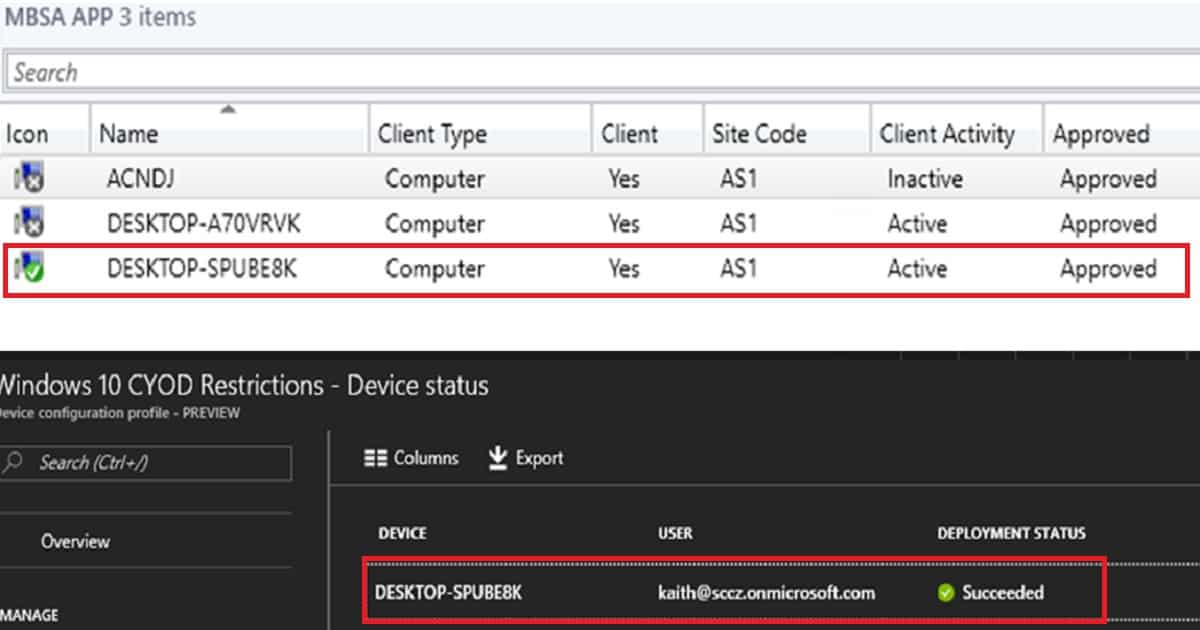
You might wonder how we can handle policy conflicts in the SCCMCo-Management scenario. Yeah, disputes regarding configuration/compliance policies will be controlled via Co-Management Configuration policies in SCCM CB.
You can select which workloads can be managed via Intune. All other SCCM workloads will be handled through the SCCM management method.
Where Can We Set up SCCM Co-Management Policies?
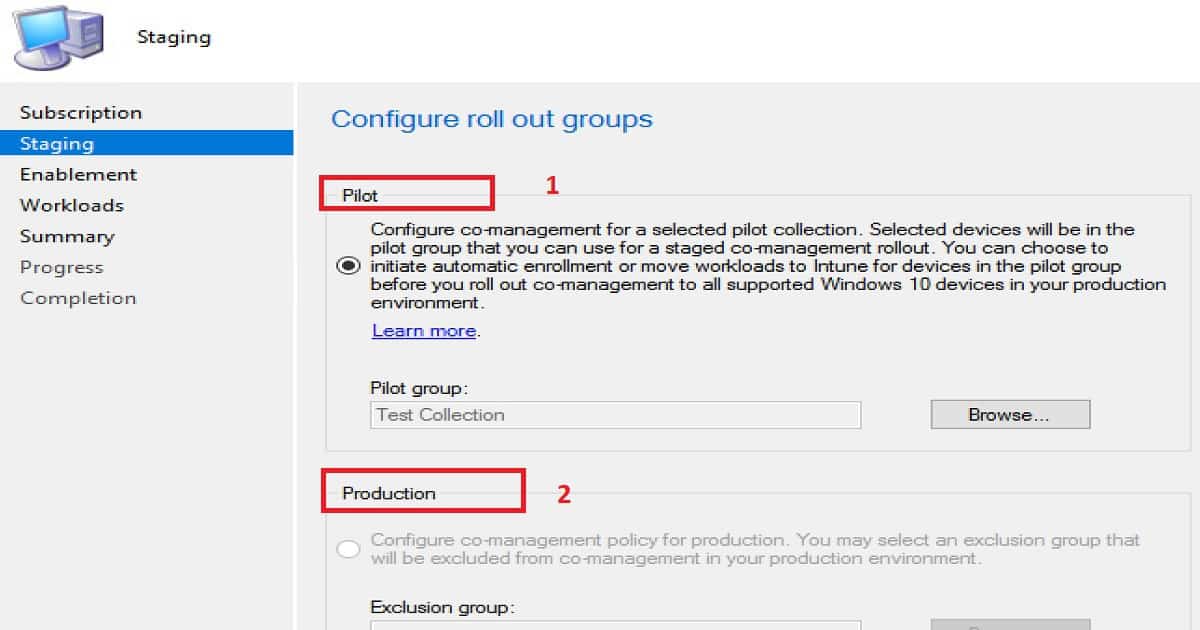
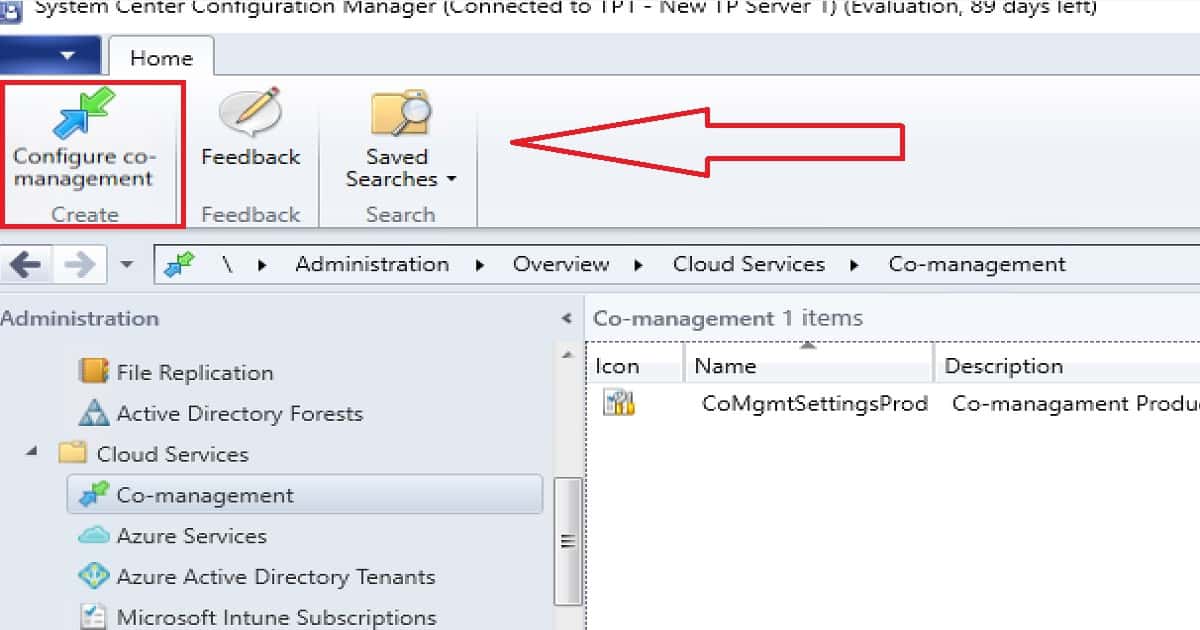
Install or Upgrade SCCM CB 1709 or a later version of SCCM. Navigate the SCCM CB 1709 (or later) console via \Administration\ Overview\ Cloud Services\Co-management. Click on the button “Configure Co-Management” to create Co-management Production or Co-Management Pilot policies.
There are 2 staging options available in SCCM CB co-management. Following are the 2 options:-
Co-Management Production Policies (CoMgmtSettingsProd)
Co-Management Pilot Policies (CoMgmtSettingsPilot)
Configure Roll-out Groups – Pilot Collection
Configuring co-management will only be enabled for a selected pilot collection. Selected Window 10 1709 or later devices will be in the pilot group for Co-Management. This pilot group of this collection can be used for a staged co-management roll-out.
We can initiate automatic enrollment or move workloads to InTune for devices in the pilot group before you roll out co-management to all supported Windows 10 devices in your production environment.
Configure Co-management for Production Collection with Exclusion Collection
Configure co-management policy for production. You may select an exclusion group that will be excluded from co-management in your production environment. Exclusion groups can be any collection of Windows 10 devices.
How to Setup SCCM CB Intune Co-Management Configuration Manager ConfigMgr – Fig.3
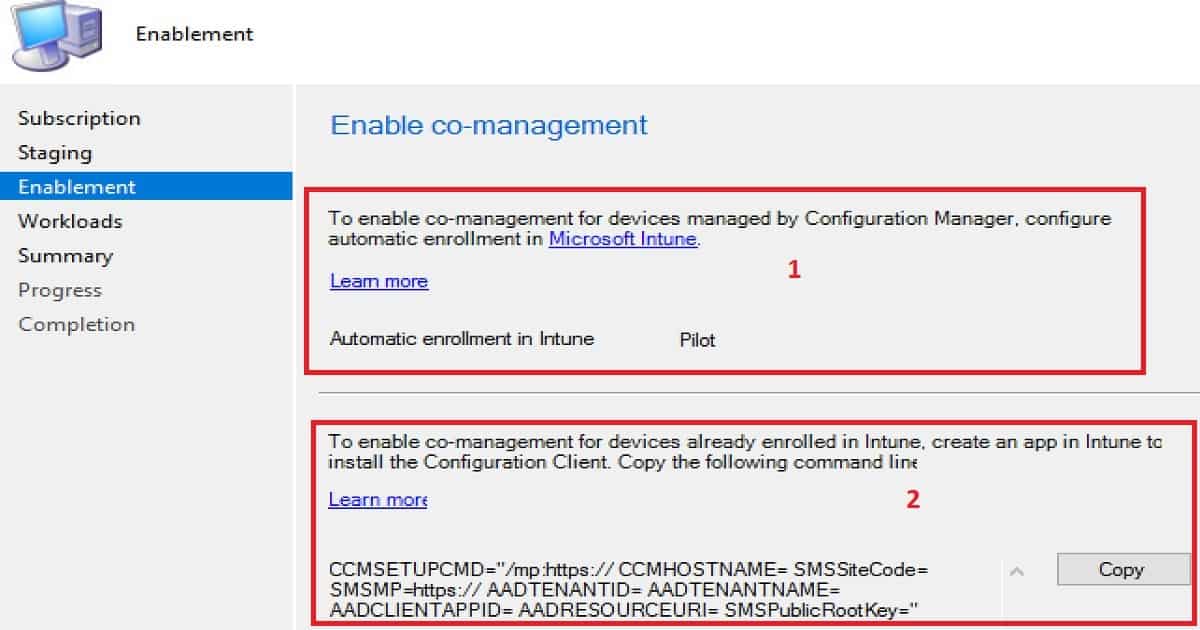
How Can SCCM Co-Management for SCCM Clients and Intune Managed Devices be Enabled?
There are two ways to enable SCCM co-management for Windows 10 1709 devices.
Enable Co-management for SCCM Clients
Enable Co-management for Intune-managed devices
Enable Co-management for SCCM Clients
You must select the following option to enable co-management for SCCM-managed devices with Intune: To enable co-management for devices managed by SCCM and configured, select ALL or Pilot from the drop-down menu to manage all/pilot SCCM clients via Intune.
Enable Co-management for Intune Managed Devices
You must create an Intune application to enable co-management for Intune-managed devices with SCCM. This application will install the SCCM client onto Intune-managed devices.
The SCCM team provided a sample command line to install the SCCM client. Following is the sample command line provided in the wizard
How to Setup SCCM CB Intune Co-Management Configuration Manager ConfigMgr – Fig.4
What are SCCM Co-Management Workloads?
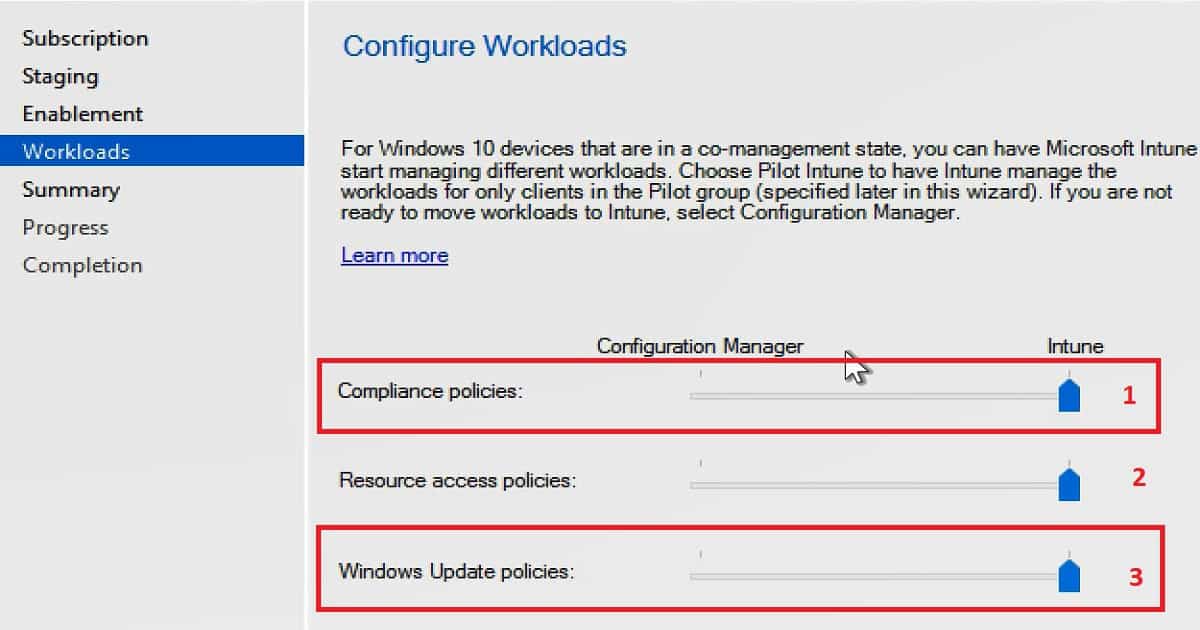
SCCM Co-Management workloads are functionalities/features of device management. For example, the Compliance policies, Configuration Policies, Software Updates, Resource Access policies (WiFi Profiles/VPN Profiles, etc..), Application deployment, etc., are co-management workloads.
How Do You Configure/Select Workloads for Co-management?
SCCM continues to manage all device management workload functionalities even after enabling the co-management option. When you decide you are ready for co-management, you can use Intune to manage available workloads.
Co-Management Configuration Wizard provides the ability to select these functionalities /features. Following are the 3 features enabled for co-management
Compliance Policies (this will work with Conditional Access)
Resource Access Policies (WiFi, SCEP, etc..Anything comes under the SCCM console Company Resource Access node)
Windows Update Policies (Patching without on-prem WSUS/SUP)
For Windows 10 devices that are in a co-management state. You can have Microsoft Intune start managing different workloads/features. Choose pilot Intune to have Microsoft Intune start managing different workloads.
Choose Pilot Intune to have Intune manage the workloads for only clients in the pilot groups. If you want to manage these workloads with SCCM, select ConfigMgr/SCCM. If you’re going to manage these workloads with Intune, select Intune.
How to Setup SCCM CB Intune Co-Management Configuration Manager ConfigMgr – Fig.5
Resources
Co-management for Windows 10 devices – SCCM 1709 Preview – here
Migrate hybrid MDM users and devices to Intune standalone – here
Microsoft 365 and SCCM Windows 10 Co-Management – here
We are on WhatsApp now. To get the latest step-by-step guides, news, and updates, Join our Channel. Click here. HTMD WhatsApp.
Author
Anoop C Nair is Microsoft MVP! He is a Device Management Admin with more than 20 years of experience (calculation done in 2021) in IT. He is a Blogger, Speaker, and Local User Group HTMD Community leader. His main focus is Device Management technologies like SCCM 2012, Current Branch, and Intune. He writes about ConfigMgr, Windows 11, Windows 10, Azure AD, Microsoft Intune, Windows 365, AVD, etc.