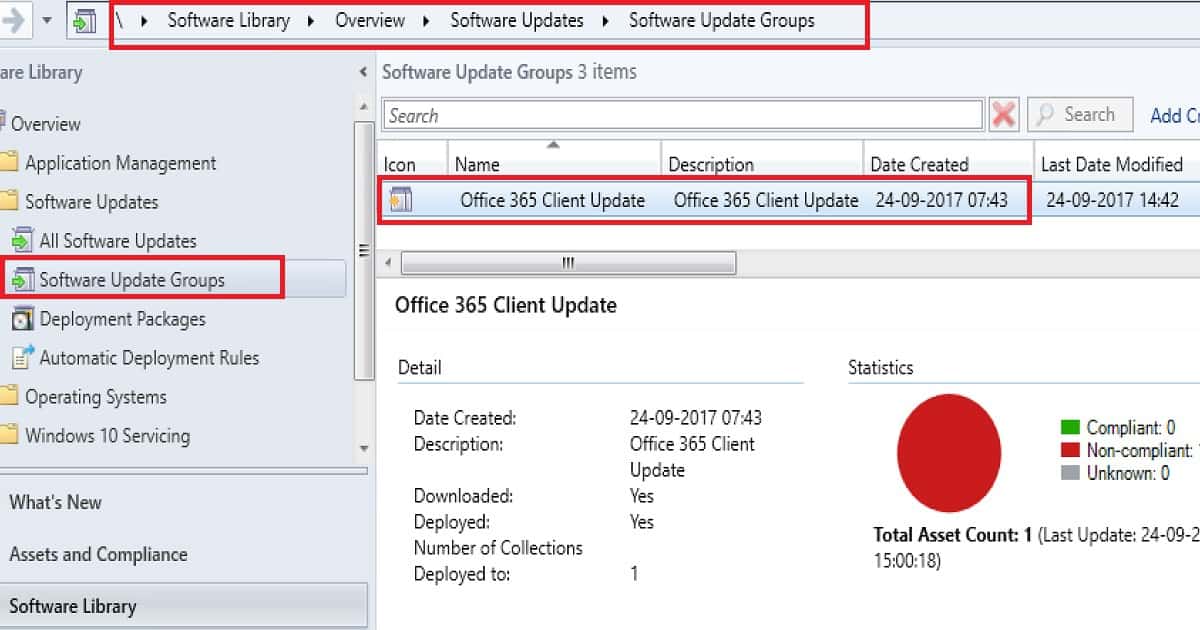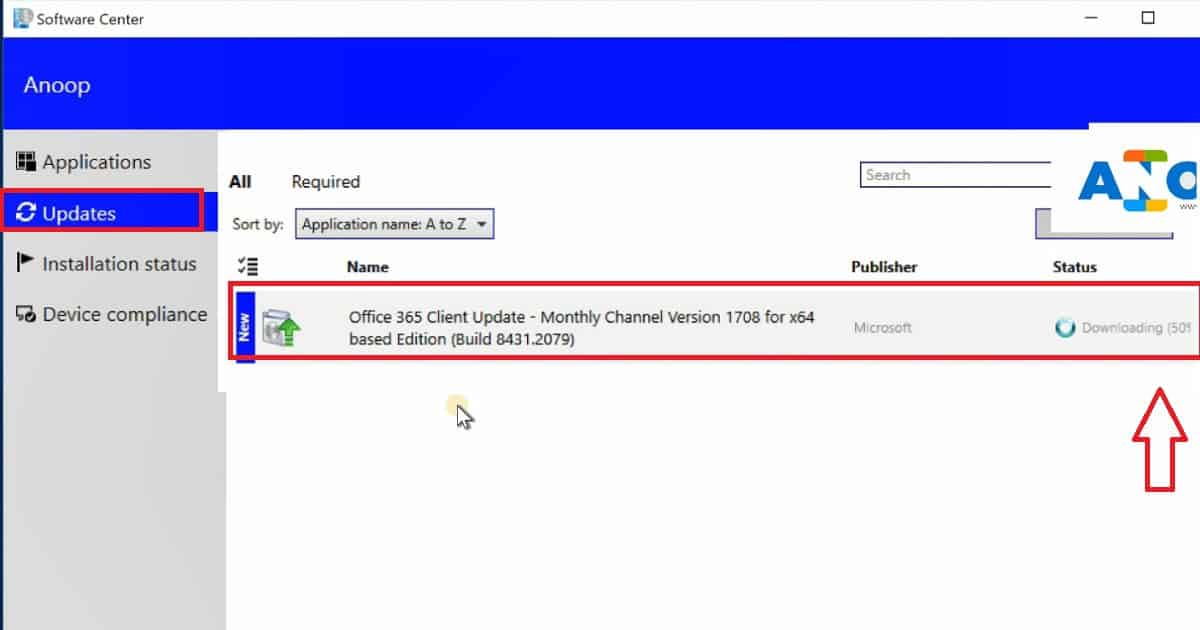
SCCM Package Vs Application 32 Vs 64 Context 1

SCCM Package Vs Application 32 Vs 64 Context

Let’s understand the differences between SCCM Package Vs Application 32 Vs 64 Context. Discussing the differences between SCCM CB packages and the application model is not new.

I have seen several posts and discussions about the advantages of using an application model rather than “classic” packages. Let’s see more details about the SCCM Package Vs. Application.

I recommend using applications rather than packages for several reasons. I’m not getting into the details of the advantages of using the SCCM CB application model.

In this post, we will see a video experience of the SCCM CB package running in 32-bit and the application running in a 64-bit context. SCCM 2007 was a 32-bit application, and if I understand correctly, SCCM 2007 packages always run in a 32-bit context.

SCCM CB Package Runs in 32 Bit Context and Application in 64-bit – SCCM Package Vs Application 32 Vs 64 Context

In this video, you will get all the details about the SCCM CB Package Runs in 32 Bit Context and Application in 64 Bit. Create and RUN Powershell script almost in real-time through the SCCM CB version. Real-time example scenarios are explained in the video.

SCCM Package Vs Application 32 Vs 64 Context – Video 1

History of SCCM Packages?

This could be because the package implementation is simply a 32-bit code. The packages can’t run in a 64-bit context. Is this true for SCCM CB as well?

SCCM Package Vs Application
SCCM Package Vs Application 32 Vs 64 Context – Fig.1

Per my testing and video tutorial here, the packages in SCCM CB always run in a 32-bit context. This statement is true for Windows 10 32-bit and 64-bit machines. It won’t be easy to understand and reproduce this scenario when deploying MSI or EXE applications as a package.

The MSI/EXE applications, packaged to run only with 32-bit, will work fine with SCCM CB packages. However, these apps will fail when trying to convert these 32-bit packages into a new application model.

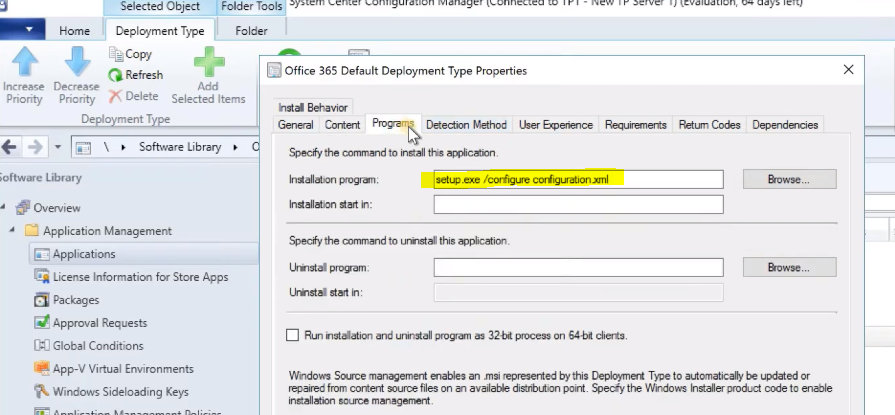
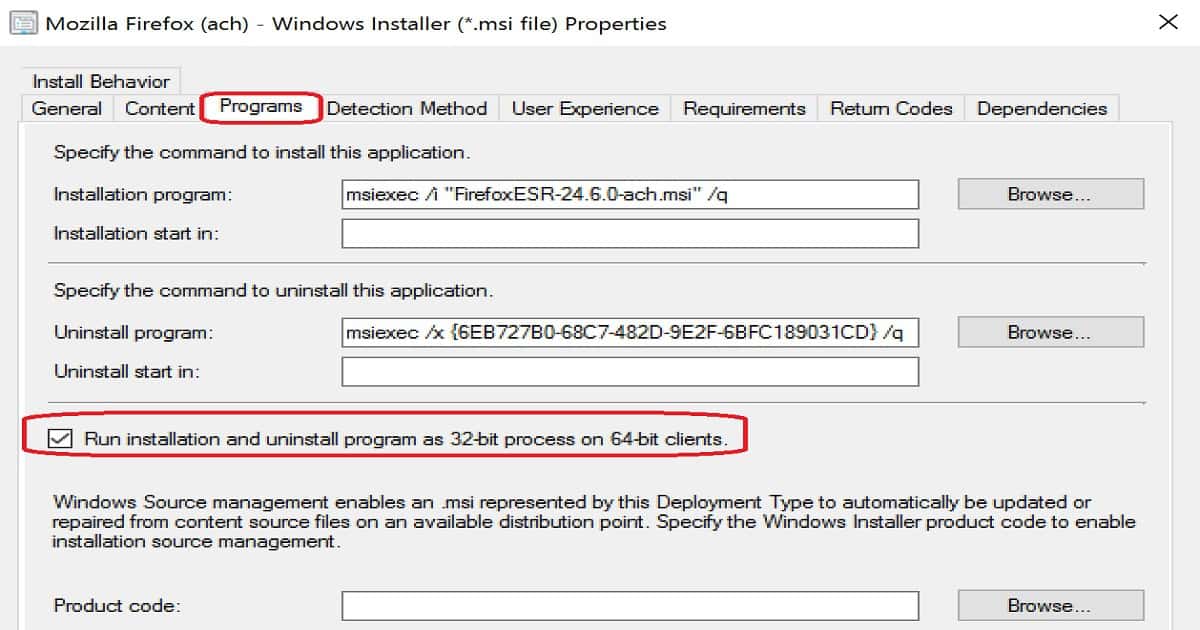
To fix this issue, we need to enable an option in the SCCM app model (Deployment type properties) called “Run installation and uninstall the program as 32-bit process on 64-bit clients“.

Programs
Run installation and uninstall the program as 32-bit process on 64-bit clients
SCCM Package Vs Application 32 Vs 64 Context – Table 1
SCCM Package Vs Application 32 Vs 64 Context - Fig.2
SCCM Package Vs Application 32 Vs 64 Context – Fig.2

How to Confirm SCCM Packages Run with a 32bit Code?

I created a PowerShell script to use package options in SCCM CB. Navigate \ Software Library \ Overview\Application Management\Packages” and right-click and create a package with the PowerShell script. Deploy the script to a Windows 10 64bit machine.

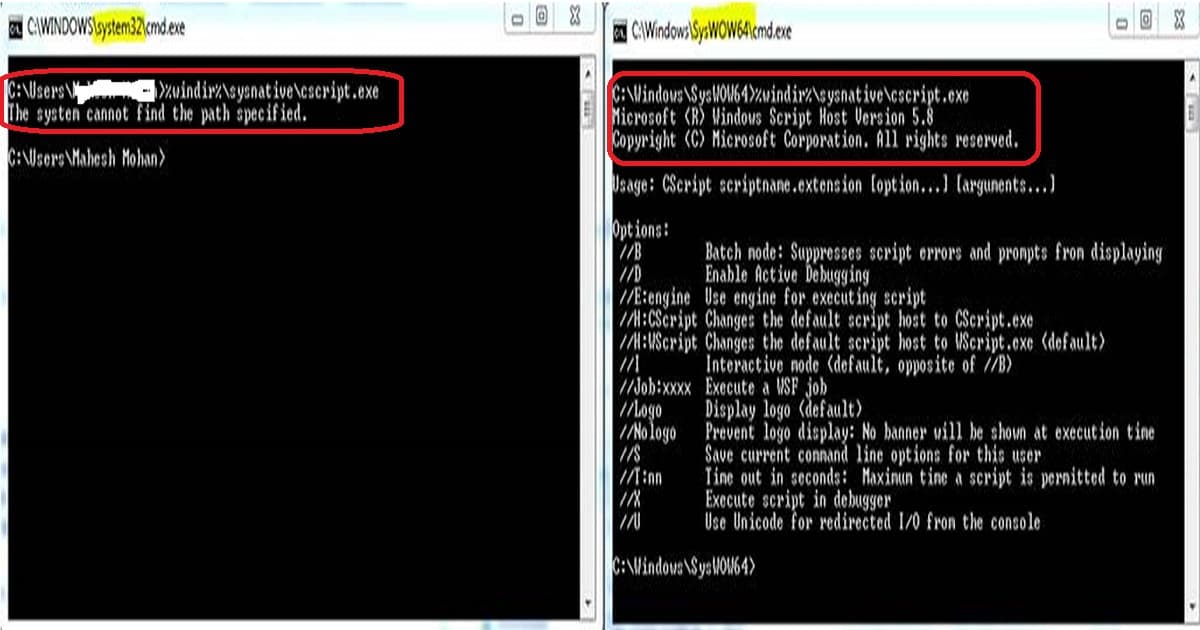
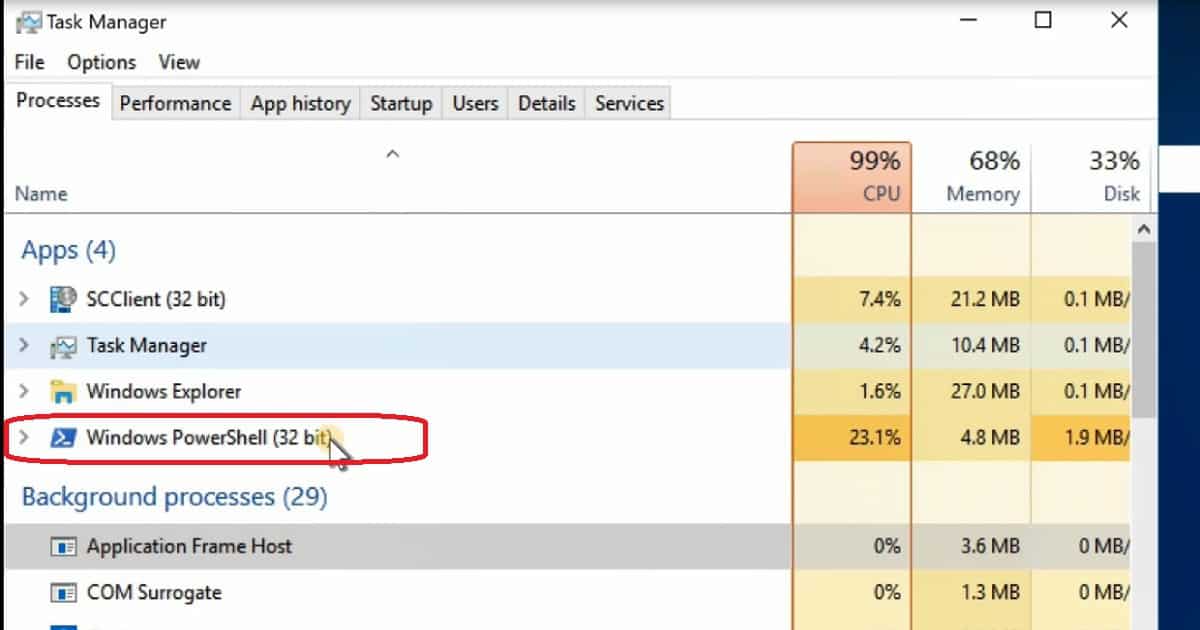
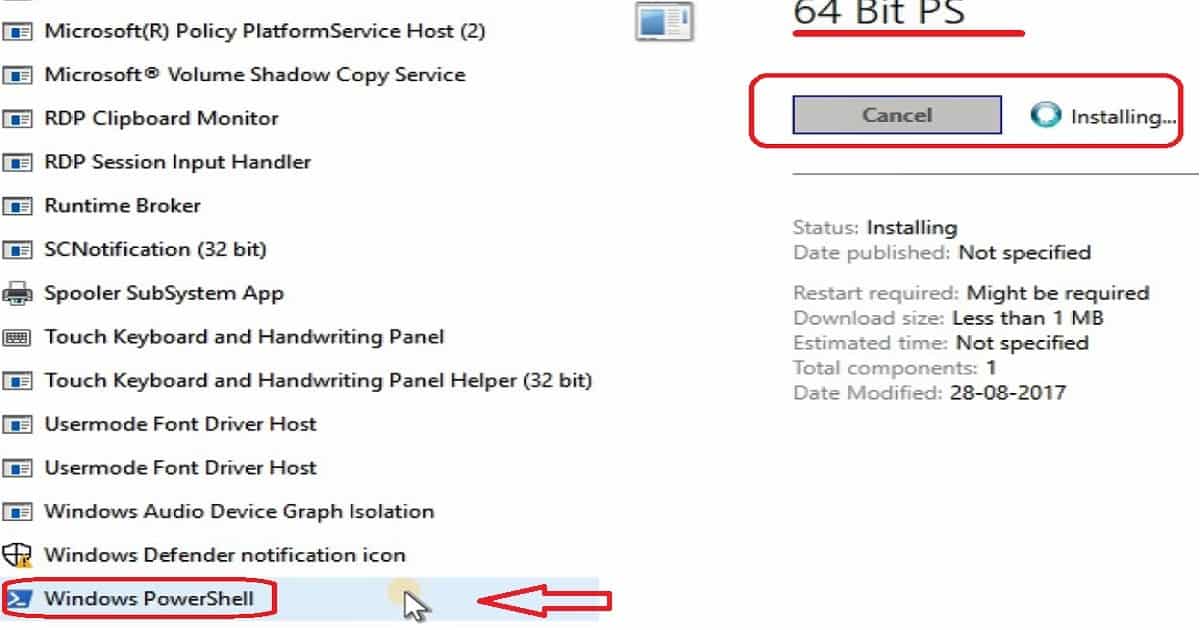
When we deploy the PowerShell script to a Windows 10 64-bit machine, the Windows PowerShell 32-bit application is executed, as shown in the video above. This proves that the SCCM CB package uses 32-bit code, which can’t run in a 64-bit context.

You can deploy 64-bit MSI/EXE/Scripts using SCCM packages. The best method is to run the package from the SysNative context. Sysnative is a virtual folder that will help us access the 64-bit System32 folder from a 32-bit application or script.

SCCM Package Vs Application 32 Vs 64 Context - Fig.3
SCCM Package Vs Application 32 Vs 64 Context – Fig.3

SCCM CB Software Center client is still a 32-bit application. The app SCClient(32-bit) is visible in the above picture. This proves that the new software center is a 32-bit client on a Windows 10 64-bit machine.

How to Confirm SCCM Applications Run with 64-bit Code?

SCCM CB application always runs in a 64-bit context. By default, all the applications created using the SCCM CB app model use 64-bit context to start the execution. Your 32-bit application will fail if you create and deploy an SCCM application to clients.

When a specific requirement to run within a 32-bit context exists, you need to enable the following option: “Run installation and uninstall the program as a 32-bit process on 64-bit clients.” You can find this option in Application—deployment type properties.

To prove SCCM applications use 64bit context to run MSI/EXE/Scripts, I have created an application via \Software Library\Overview\Application Management\Applications. I used the same PowerShell script (which I used to develop the SCCM package). Deployed application to Windows 10 device.

As you can see in the video here, I initiated the PowerShell execution from the software center. The PowerShell script (Windows PowerShell) runs within a 64-bit context. When deployed as an SCCM package, the same PowerShell script ran in a 32-bit context.

SCCM CB Task Sequence Runs within a 64bit Context

The Task Sequence in SCCM CB runs within a 64-bit context. However, the SCCM CB TS engine provides a similar option for applications to run 32-bit applications/scripts.

The option is to enable the following: “Run installation and uninstall the program as 32-bit process on 64-bit clients“.

References – SCCM Package Vs. Application

  • SCCM Application Versus Package – here
  • ConfigMgr 2012 and 32-bit Application Installers – here
  • PowerShell App Deployment Toolkit – here

We are on WhatsApp now. To get the latest step-by-step guides, news, and updates, Join our Channel. Click here. HTMD WhatsApp.

Author

Anoop C Nair is Microsoft MVP! He is a Device Management Admin with more than 20 years of experience (calculation done in 2021) in IT. He is a Blogger, Speaker, and Local User Group HTMD Community leader. His main focus is on Device Management technologies like SCCM 2012, Current Branch, and Intune. He writes about ConfigMgr, Windows 11, Windows 10, Azure AD, Microsoft Intune, Windows 365, AVD, etc.

SCCM CB Run PowerShell Script Directly from Collection Configuration Manager ConfigMgr 2

SCCM CB Run PowerShell Script Directly from Collection Configuration Manager ConfigMgr

Let’s discuss the SCCM CB Run PowerShell Script Directly from Collection Configuration Manager ConfigMgr. SCCM CB fast channel has an option to push PowerShell scripts to devices. These PowerShell scripts can be pushed almost in real time.

The video tutorial attached above explains this real-time push of the RUN PowerShell script. This post will see “SCCM Run Scripts options and architecture“.

For more details about the run PowerShell script option, refer to SCCM CB Run PowerShell Script Directly from the Collection post.

Post PowerShell script deployment feature architecture and troubleshooting guide. The new communication channel between SCCM server components and clients. More details about Real-Time Graphical Representation SCCM Run Script Results.

SCCM 1810 Updates – Improvements in SCCM Run Scripts

There have been many improvements to SCCM run script deployment in recent releases. One of the latest releases is SCCM 1810, and the following are some upgrades that Microsoft brought in.

With SCCM 1810,  you can view detailed script output in raw or structured JSON format. The following SCCM script performance and troubleshooting improvements apply from the SCCM 1810 version onwards:

  • Updated SCCM 1810, clients return output of less than 80 KB to the site over a fast communication channel. This change increases the performance of viewing script or query output.
  • Additional logs for troubleshooting, as I mentioned in the CMPivot post.
SCCM CB Run PowerShell Script Directly from Collection Configuration Manager ConfigMgr - Fig.1
SCCM CB Run PowerShell Script Directly from Collection Configuration Manager ConfigMgr – Fig.1

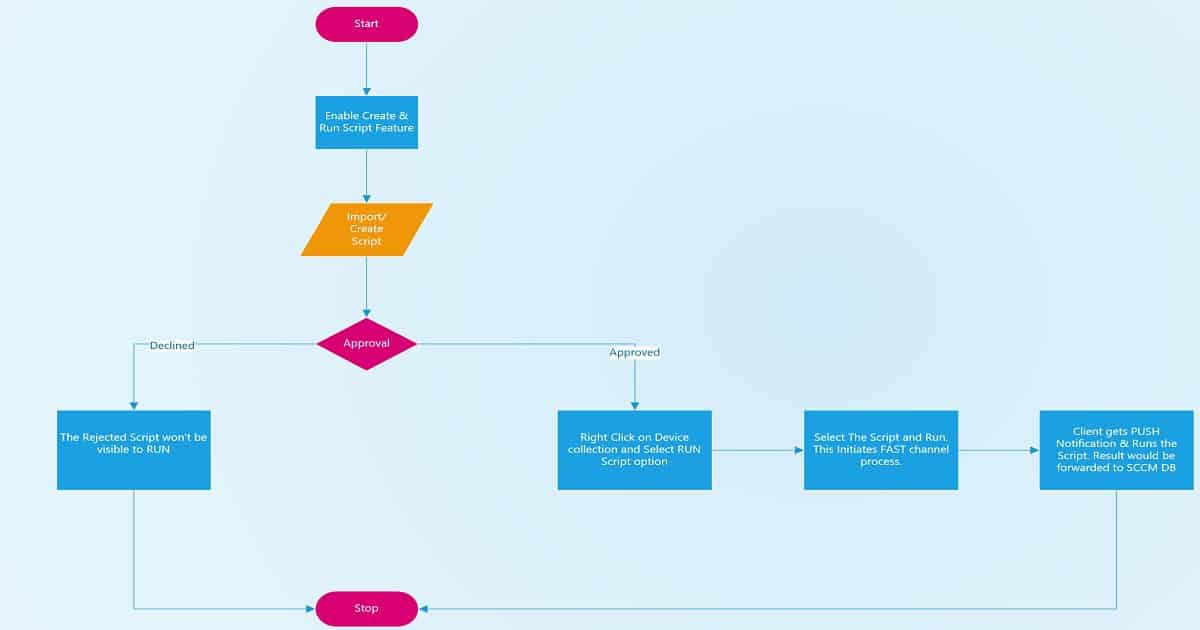
What is the Process of Pushing PowerShell Scripts using the SCCM Right Click Option?

SCCM CB 1706 supports pushing normal PowerShell scripts using this method. However, the SCCM team included two new features in the Run Script option in SCCM CB preview releases. The architecture details of SCCM Run Scripts are explained.

  1. Enable the Create and Run Script feature
  2. Import PowerShell Script
  3. Approve or Decline the PowerShell Script
  4. Right-click on Device Collection and run the script
  5. Get the status of PowerShell script execution via the Monitoring workspace
  • Read parameters from the PowerShell script.
  • The capabilities of PowerShell script parameters have been improved. They now detect mandatory and optional parameters and prompt you to enter mandatory and optional parameters.
SCCM CB Run PowerShell Script Directly from Collection Configuration Manager ConfigMgr - Fig.2
SCCM CB Run PowerShell Script Directly from Collection Configuration Manager ConfigMgr – Fig.2

Why is the “Script” Node Not Visible in the SCCM CB Console?

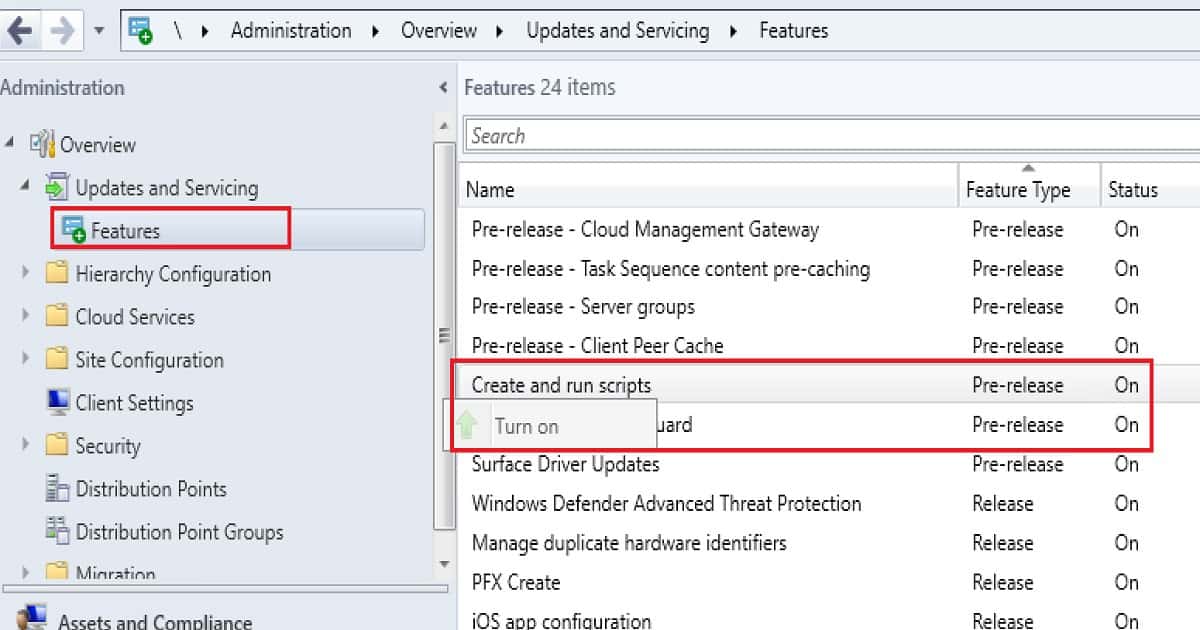
Create and Run Script is a pre-release feature of SCCM CB 1706. The script node is visible in the Software Library workspace. So, if you have not enabled this feature from “Administration – Updates & Servicing – Features, “Navigate through the console path \Administration\ Overview\Updates and Servicing\Features. Right-click on the “Create and Run Script” feature and select Turn On.

SCCM CB Run PowerShell Script Directly from Collection Configuration Manager ConfigMgr - Fig.3
SCCM CB Run PowerShell Script Directly from Collection Configuration Manager ConfigMgr – Fig.3

How to Import PowerShell Script to SCCM CB?

As I explained in the video, navigate the SCCM console Software Library workspace (“\Software Library\Overview\Scripts”) and click on the Scripts node. Right-click on the script node and select the Create Script option. Script wizard will guide you through importing PowerShell script to SCCM CB.

Provide the appropriate Script name, “Create Files and Folders.” The supported script language is ONLY PowerShell now. We may soon have some other supported options. Don’t expect SCCM to check the PowerShell script syntax errors before importing.

SCCM CB Run PowerShell Script Directly from Collection Configuration Manager ConfigMgr - Fig.4
SCCM CB Run PowerShell Script Directly from Collection Configuration Manager ConfigMgr – Fig.4

How to Approve PowerShell Script via Fast Channel Push Method?

The SCCM team included an approval flow into the Run Script engine to avoid accidental PowerShell script pushes to devices. By default, you can’t approve your PowerShell script.

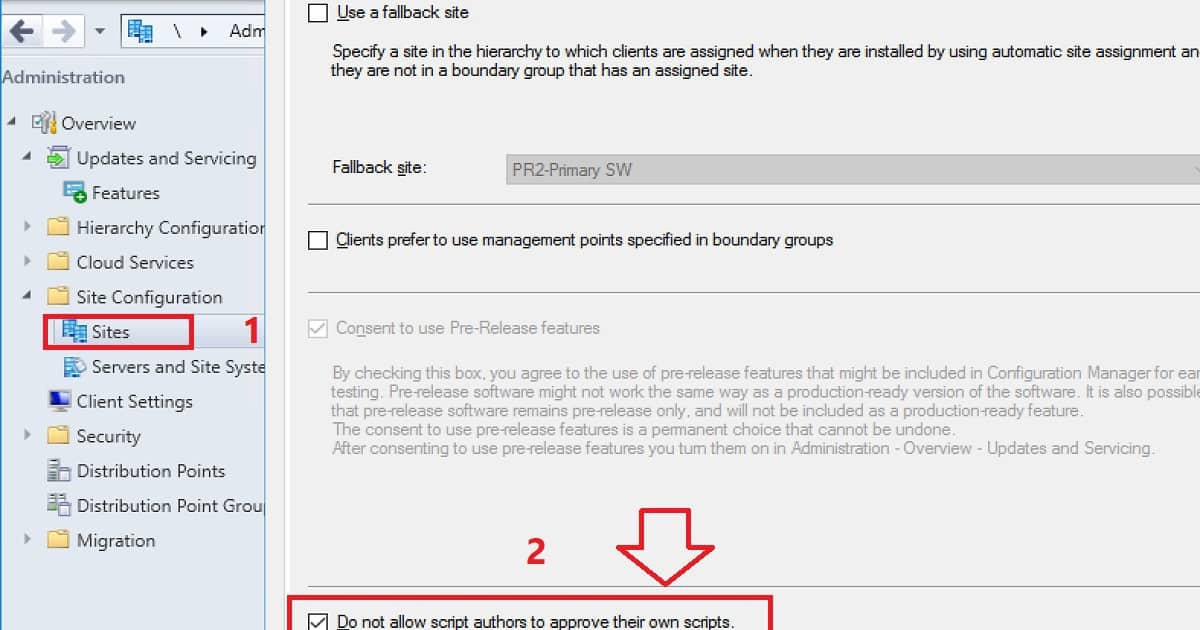
To enable the approval script option to yourself, you must disable the following option from Hierarchy settings properties “Do Not Allow Script authors to approve their scripts“.

You can right-click on the script you want to execute and select the Approve/Deny button. The Approve or Deny script wizard will walk you through the script Approval process. The video guide has more details.

SCCM CB Run PowerShell Script Directly from Collection Configuration Manager ConfigMgr - Fig.5
SCCM CB Run PowerShell Script Directly from Collection Configuration Manager ConfigMgr – Fig.5

How to Execute the PowerShell Script via SCCM CB Fast Channel using the Push Method? SCCM Run Scripts?

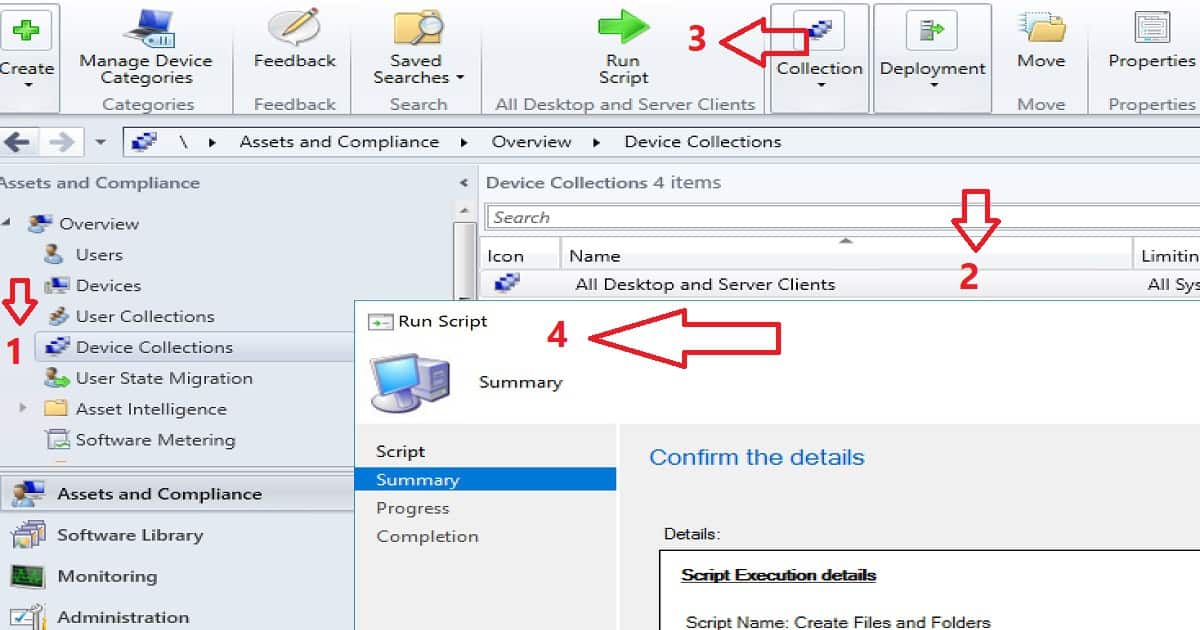
Once SCCM approves the Script, that script will be available for execution. The PowerShell script is initiated from “\Assets and Compliance\Overview \Device Collections” in the SCCM CB console.

Select the device collection you want to target to execute the PowerShell script and right-click on the group – select the Run Script  (SCCM Run Scripts) option.

The Run Script wizard will not show all the PowerShell scripts imported into SCCM. It will only show the scripts that admins have approved. You can select one approved script at a time from the SCCM Console.

How to Execute the PowerShell Script via SCCM CB Fast Channel
Device Collections
All Desktop and Server Clients
Run Script
Confirm the Script Execution Details
SCCM CB Run PowerShell Script Directly from Collection Configuration Manager ConfigMgr – Table 1
SCCM CB Run PowerShell Script Directly from Collection Configuration Manager ConfigMgr
SCCM CB Run PowerShell Script Directly from Collection Configuration Manager ConfigMgr – Fig.6

End-User Experience of Run PowerShell Script via Fast Channel Push Method?

Once the script is initiated for a collection, all the devices with the correct SCCM client version (SCCM CB 1706 and above) will get a push notification to execute a script (SCCM Run Scripts). The SCCM client Windows 10 devices will immediately execute the script on the device.

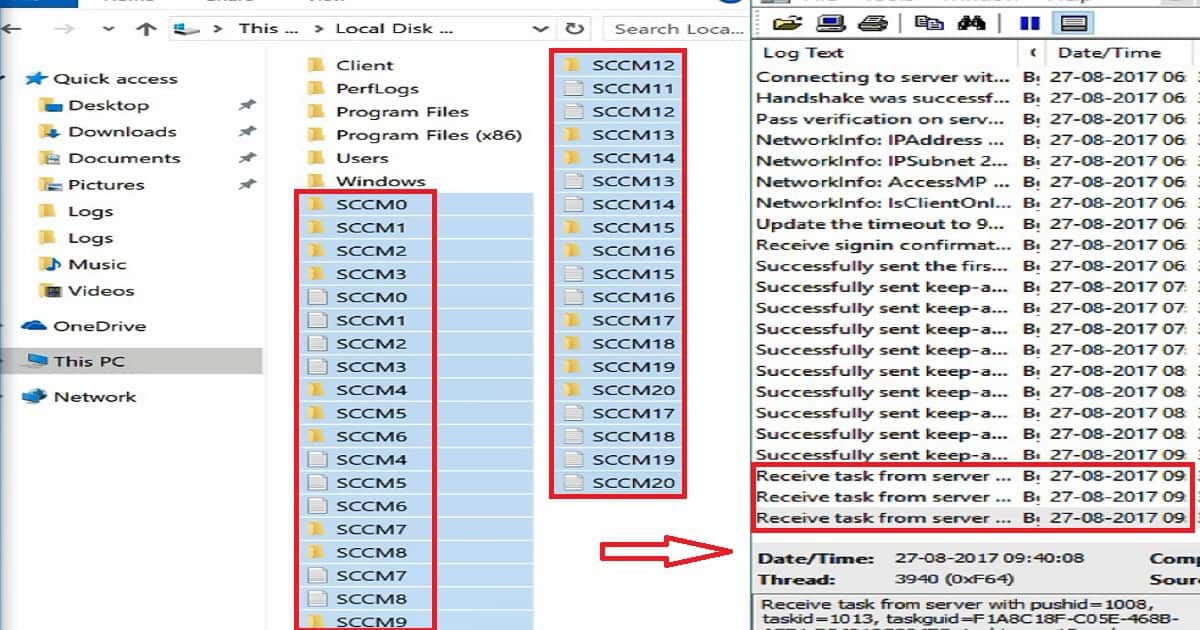
As you can see in the video here, I initiated a file and Folder creation script for Windows 10 devices. The SCCM client received a notification from the notification server and immediately executed the script on the Windows 10 machine.

The script created 20 files and folders in the C drive root of the Windows 10 device.  I have another post explaining troubleshooting of running a script, “What is Fast channel push notification“.

SCCM CB Run PowerShell Script Directly from Collection Configuration Manager ConfigMgr - Fig.7
SCCM CB Run PowerShell Script Directly from Collection Configuration Manager ConfigMgr – Fig.7

How to Monitor the Execution of PowerShell Scripts through Push channel?

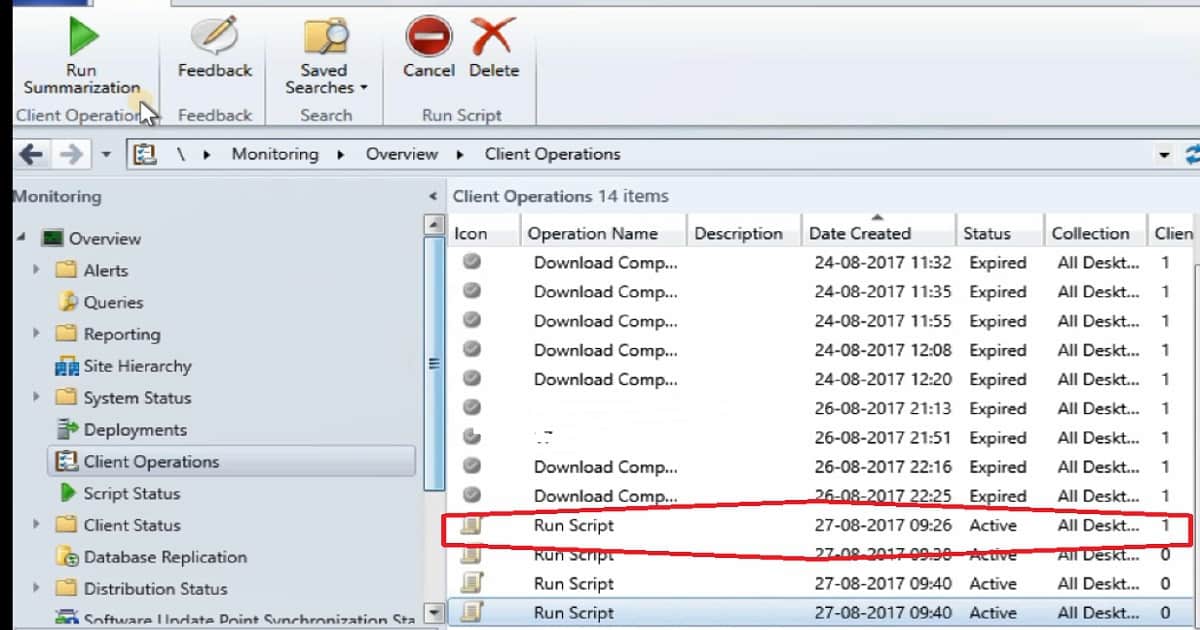
Once the PowerShell script is executed on a Windows 10 machine, the client will send the result to the SCCM notification server. You can see the results in “\Monitoring \Overview\ Client Operations”. If I’m not wrong, the operation Name is “Run Script (SCCM Run Scripts)”, and each task will be active for 1 hour.

SCCM CB Run PowerShell Script Directly from Collection Configuration Manager ConfigMgr - Fig.8
SCCM CB Run PowerShell Script Directly from Collection Configuration Manager ConfigMgr – Fig.8

References

  • Video Guide to Troubleshoot SCCM CB Fast Channel Push Notification Issues – here
  • Fast Channel Client Notification in SCCM  – Here
  • Fast channel notification and MP replica issues – Here
  • What’s New With ConfigMgr’s Client Notification Feature – Here

We are on WhatsApp now. To get the latest step-by-step guides, news, and updates, Join our Channel. Click here. HTMD WhatsApp.

Author

Anoop C Nair is Microsoft MVP! He is a Device Management Admin with more than 20 years of experience (calculation done in 2021) in IT. He is a Blogger, Speaker, and Local User Group HTMD Community leader. His main focus is on Device Management technologies like SCCM 2012, Current Branch, and Intune. He writes about ConfigMgr, Windows 11, Windows 10, Azure AD, Microsoft Intune, Windows 365, AVD, etc.

SCCM How to Hide Tabs in New Software Center Customization 3

SCCM How to Hide Tabs in New Software Center Customization

SCCM How do you hide tabs in New Software Center Customization? SCCM CB 1708 has introduced new features into software center customization. Earlier, enterprise-level customization of software centers was possible only with Intune subscription.

With the new software center feature, you can customize the software center without an Intune subscription. This post will show SCCM CB How to Hide Tabs in the New Software Center.

In the future version of SCCM CB, the Software center can be customized according to your enterprise customer requirements. The first step toward using new customization features is to enable a new software center policy in client settings.

Also, you must know that “Application Catalog” website support ends with the first update released after June 1, 2018.

SCCM How to Hide Tabs in New Software Center Customization

SCCM Admins can add enterprise branding elements to the software center, which will help specify each tab’s visibility. In the video below, you will get all the details on hiding tabs in New Software Center Customization.
Read More DetailsCustomize ConfigMgr Software Center Appearance | Best Branding Options

SCCM How to Hide Tabs in New Software Center Customization – Video 1

The First Step to Getting New Customization Options in the Software Center?

Ensure you enable the client setting policy for the “New Software Center”. The SCCM team already documented that the previous version of Software Center will no longer be available.

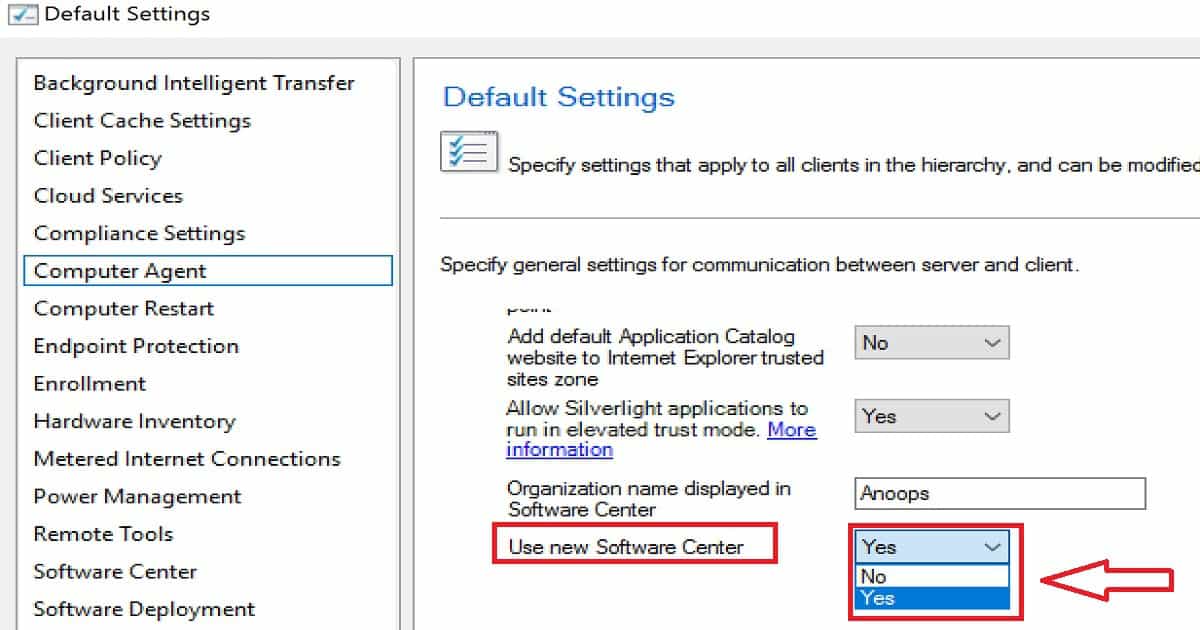
  • The new policy can be enabled via client settings, Computer Agent > Use new Software Center.
SCCM How to Hide Tabs in New Software Center Customization - Fig.1
SCCM How to Hide Tabs in New Software Center Customization – Fig.1

What are the New Features Coming up in the SCCM CB Software Center?

These options are available only with the preview version of SCCM CB 1708. I assume that these features (even more) will be available in the next production release of SCCM CB 1710.

  • Set Software Center-specific company name
  • Change/Set a Software Center color theme
  • Set a company logo
  • Hide/Disable tabs on Software Center for SCCM client devices
SCCM How to Hide Tabs in New Software Center Customization - Fig.2
SCCM How to Hide Tabs in New Software Center Customization – Fig.2

What is the Recommendation for Implementing Software Center Changes?

The Recommendation is NOT to change default client setting policies. It’s better to create a new custom client setting policy to test new software centre features and deploy it to pilot client devices. Once you have tried and confirmed that everything is OK with testing new software centre features, you can deploy it to all SCCM CB client devices.

More Details about Logo Setting in SCCM CB New Software Center

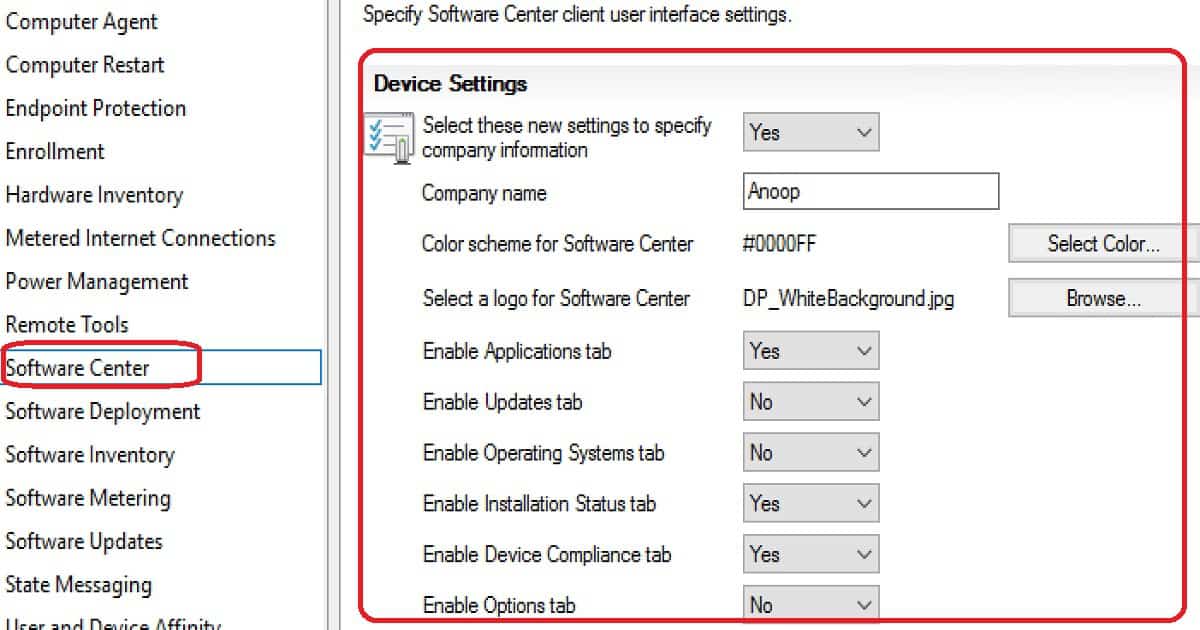
Specify settings that apply to all clients in the hierarchy and can be modified by custom settings. You may disable new features for some client devices. You must say NO for the following location: “Select these new settings to specify company information.”

I could see that the following 3 settings of the new software center are disabled when I set NO to the “Select these new settings to specify company information” policy. When you put this policy to YES, you can set Company Name, color Scheme for the Software center can be selected from this option.
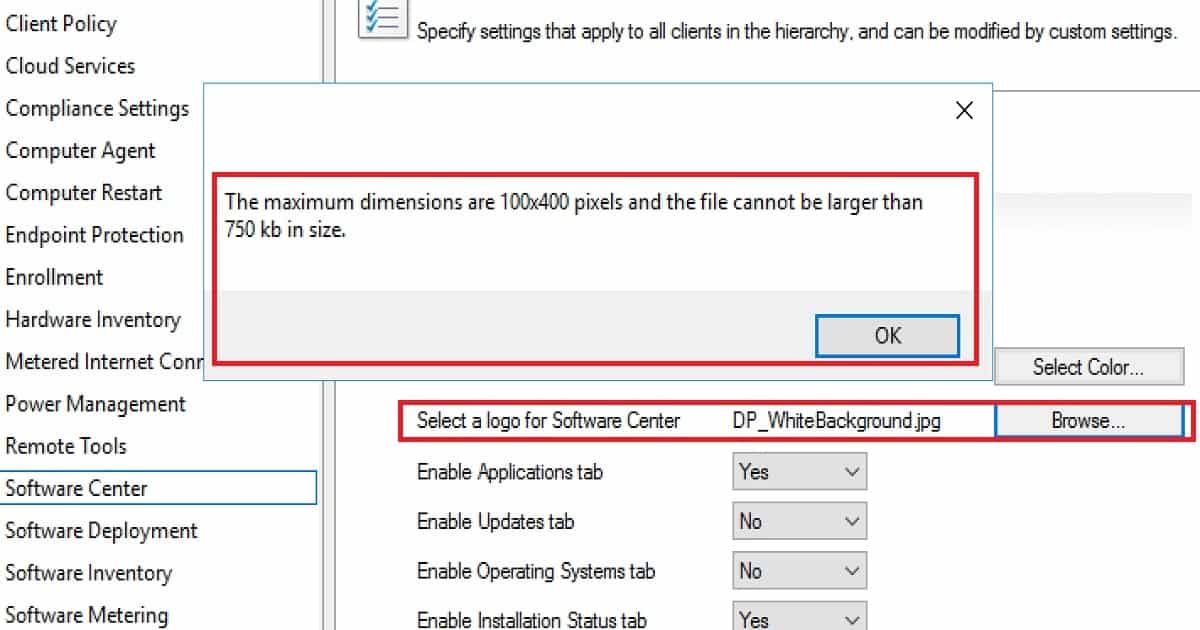
Ensure you have the correct logo dimension and size per the following description. Select a logo for the software center. The Maximum dimensions are 100×400 pixels, and the file cannot be larger than 750 kb. This is the information for the 1708 preview version of SCCM CB.

SCCM How to Hide Tabs in New Software Center Customization - Fig.3
SCCM How to Hide Tabs in New Software Center Customization – Fig.3

How to Hide/Disable Options Tab in the SCCM Software Center

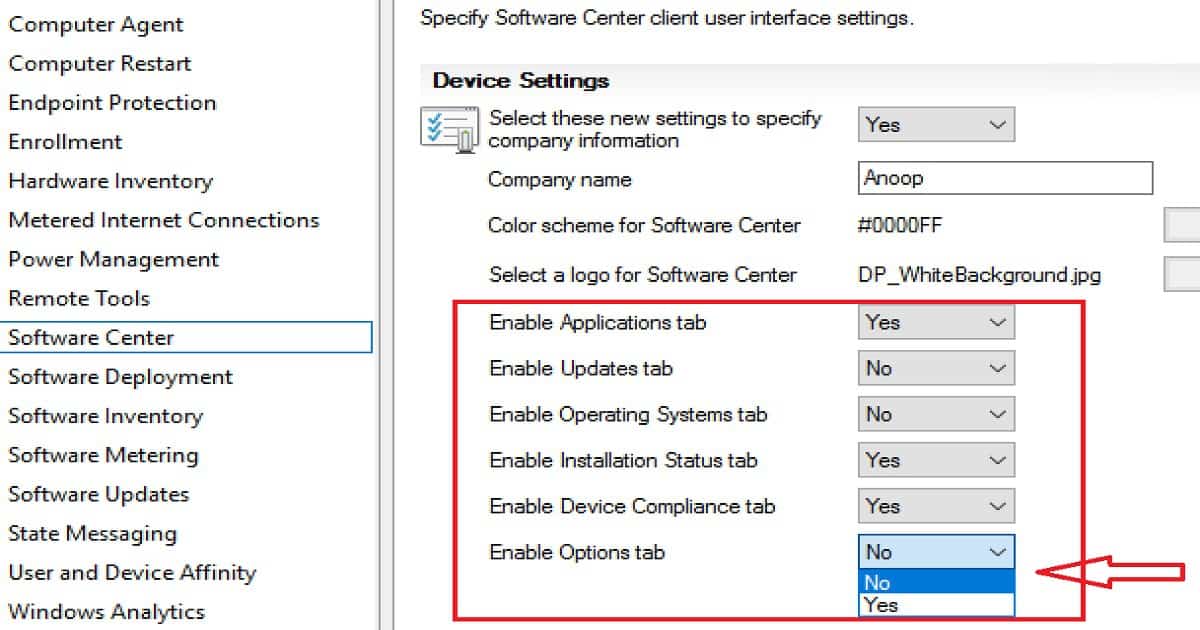
Disabling or hiding the options tab in SCCM CB’s new software center is easy. This option is part of the client-setting policy. It’s better to disable or hide the software center options tab from client devices when you don’t want to allow users to change their work hours settings.

You can disable or hide other tabs of the software center as per your requirements. For example, if you don’t want a user to see the Software update installations, you can turn off the UPDATES tab in the software center and all the tabs mentioned in the list below.

Select NO to disable or hide tabs in the new Software Center for SCCM CB client devices. At least one tab must be set to be visible or should be enabled.

  • Disable Applications tab
  • Disable Updates tab
  • Disable the Operating Systems tab
  • Disable the Installation Status tab
  • Disable the Device Compliance tab
  • Disable Options tab
SCCM How to Hide Tabs in New Software Center Customization - Fig.4
SCCM How to Hide Tabs in New Software Center Customization – Fig.4

End-User Experience of New Software Center in Windows 10

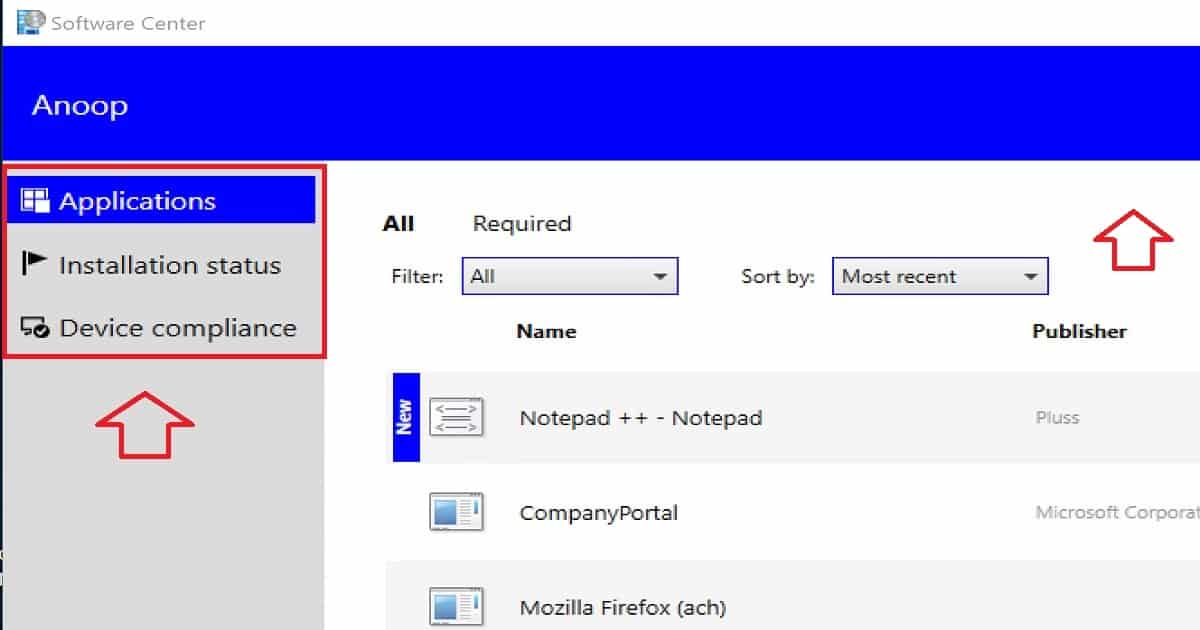
I have disabled the Updates, Operating System, and Options tabs for my testing. Also, I have changed the colour theme of the new software center and deployed the client setting policies to Windows 10 devices.

The user on that device can see only three tabs in the Software Center: Applications, Installation Status, and Device Compliance. 

The user on that device can see only three tabs in the Software Center
Applications
Installation Status
Device Compliance
SCCM How to Hide Tabs in New Software Center Customization – Table 1
SCCM How to Hide Tabs in New Software Center Customization - Fig.5
SCCM How to Hide Tabs in New Software Center Customization – Fig.5

References

  • SCCM CB Software Center customization Preview – here
  • Future of old version of Software Center – here

We are on WhatsApp now. To get the latest step-by-step guides, news, and updates, Join our Channel. Click here. HTMD WhatsApp.

Author

Anoop C Nair is Microsoft MVP! He is a Device Management Admin with more than 20 years of experience (calculation done in 2021) in IT. He is a Blogger, Speaker, and Local User Group HTMD Community leader. His main focus is on Device Management technologies like SCCM 2012, Current Branch, and Intune. He writes about ConfigMgr, Windows 11, Windows 10, Azure AD, Microsoft Intune, Windows 365, AVD, etc.

SCCM Reboot Task for Collection of Devices via Fast Channel Push Notification 4

SCCM Reboot Task for Collection of Devices via Fast Channel Push Notification

Let’s discuss the SCCM Reboot Task for Collection of Devices via Fast Channel Push Notification. SCCM CB 1708 version added a new feature called the “Reboot” action to the fast channel push client notification. 

SCCM CB preview version 1708 has been released. I have the pleasure of upgrading my lab environment to this preview version

We can use the SCCM console to identify client devices that are pending reboot. Once identified, the devices can be restarted using a client notification action.

This post will show the Video Experience of the SCCM Reboot Task for the Collection of Devices via Fast Channel Push Notification. The YouTube video tutorial is here.

Reboot Task via Fast Channel SCCM CB 1708

This video provides all the details of the Reboot Task via Fast Channel SCCM CB 1708. The video details are shown below.

SCCM Reboot Task for Collection of Devices via Fast Channel Push Notification – Video 1

How to Restart Computers from the SCCM Console – SCCM Reboot Task for Collection of Devices via Fast Channel Push Notification

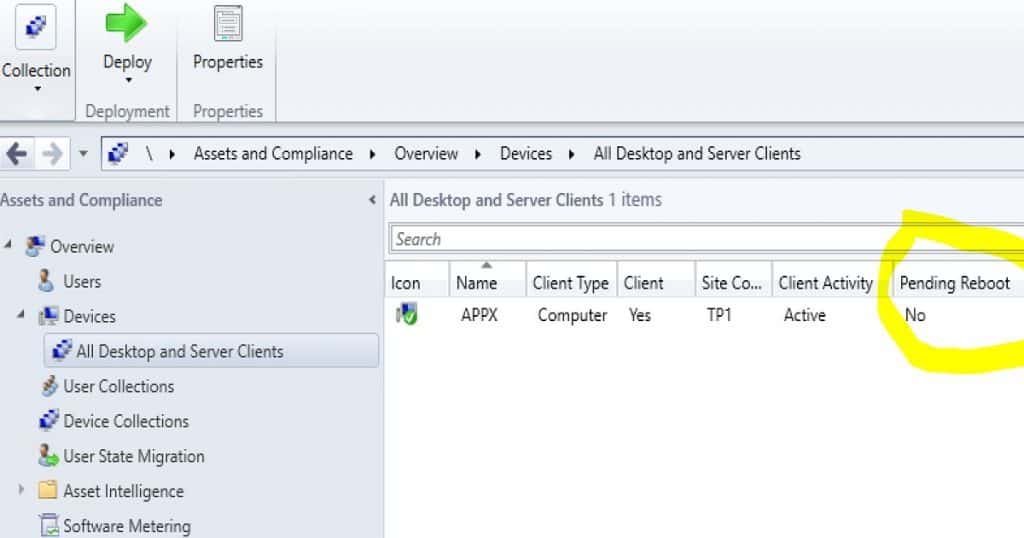
Using the SCCM CB 1708 preview version, you can restart the computers in a device collection. The first step is to identify the computers in a “pending restart” state.

How Do you Find Out the Restart/Reboot of Pending Devices?

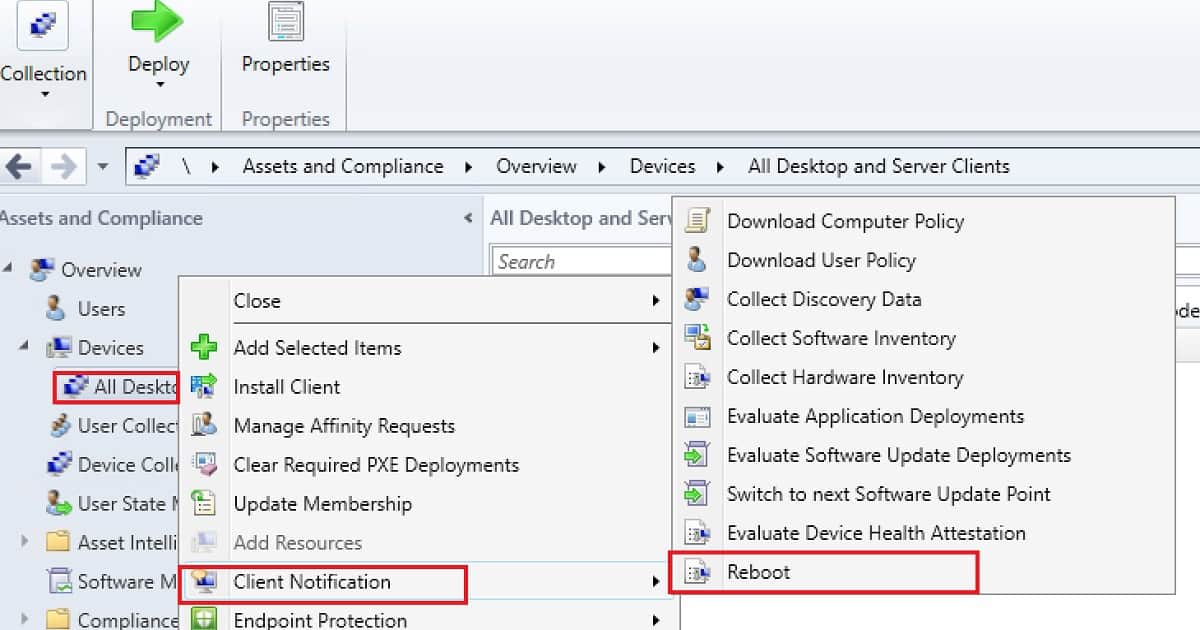
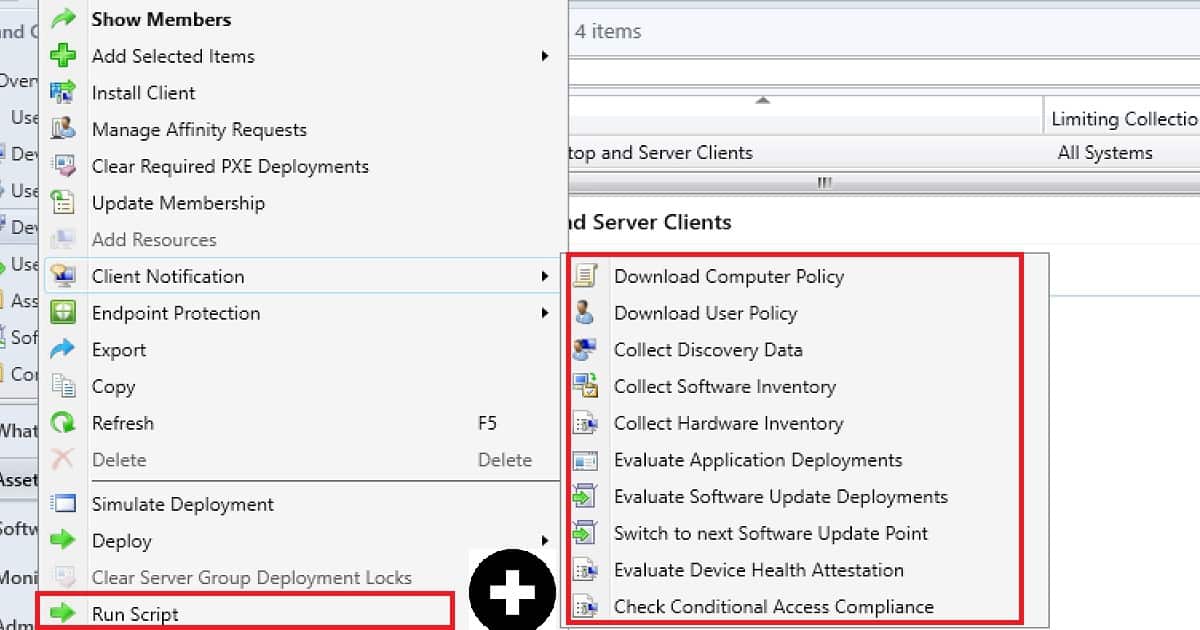
Once restart pending devices are identified, right-click on collection or device to initiate the REBOOT action. This reboot action is created via the FAST client notification channel.

SCCM Reboot Task for Collection of Devices via Fast Channel Push Notification - Fig.1
SCCM Reboot Task for Collection of Devices via Fast Channel Push Notification – Fig.1

We don’t have a reboot script that can be deployed to machines. Most importantly, this “REBOOT” action is triggered via the PUSH channel of SCCM CB client notification.

SCCM Reboot Task for Collection of Devices
Assets and Compliance
Overview
Devices
All Desktop and server clients
Client Notification
Reboot
SCCM Reboot Task for Collection of Devices via Fast Channel Push Notification – Table 1
SCCM Reboot Task for Collection of Devices via Fast Channel Push Notification - Fig.2
SCCM Reboot Task for Collection of Devices via Fast Channel Push Notification – Fig.2

Restart Action Failed on a Client Device?

I initiated a reboot action for the Pending reboot machine, and it didn’t work. Why? I checked the log files and ConfigMgr applet on a Windows 10 machine.

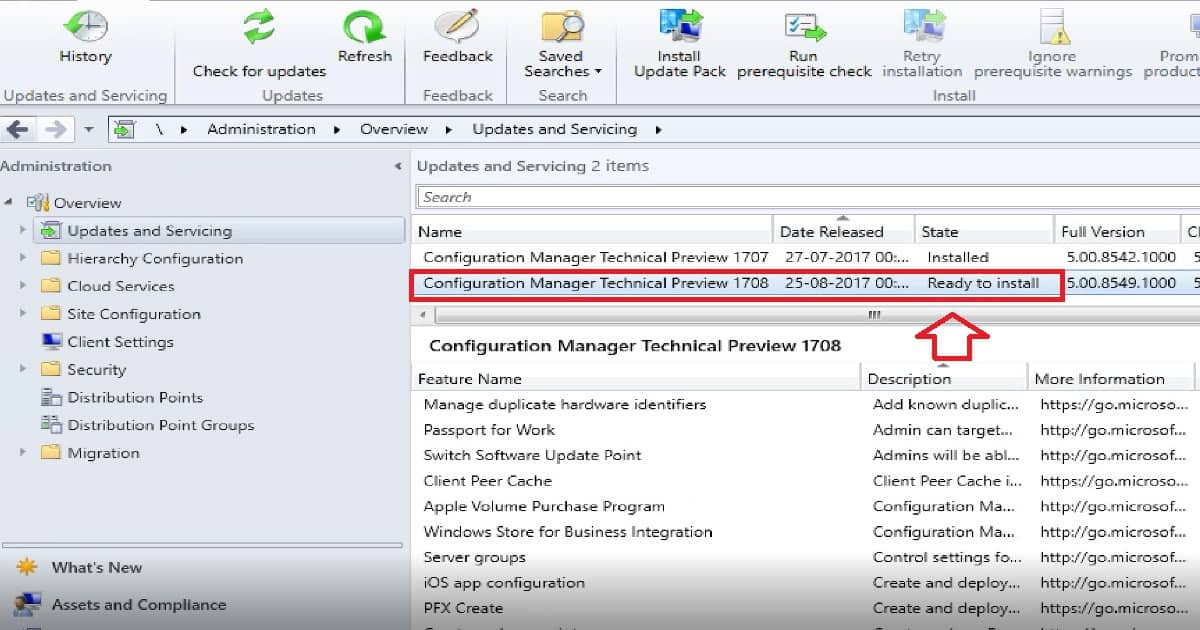
I realized that I had upgraded the SCCM CB server version (5.00.8549.1000) to 1708, but we didn’t upgrade the Windows 10 machine’s SCCM client version (5.00.8542.1000) to 1708.

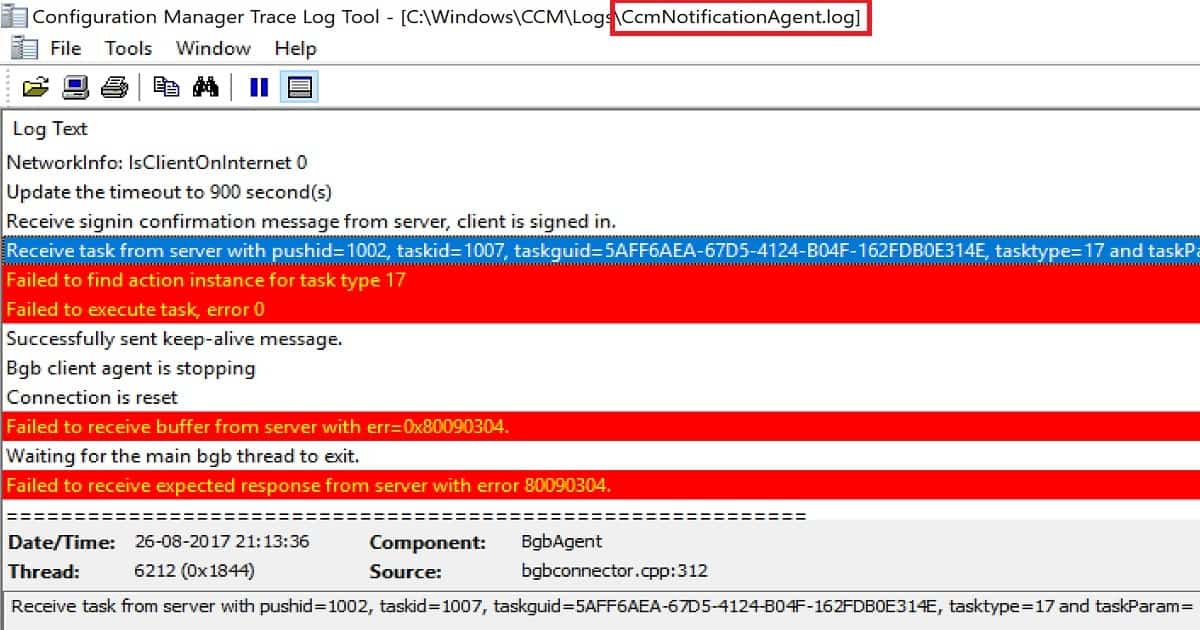
CcmNotificationAgent.log is the best log to check for troubleshooting fast-channel push notification tasks.

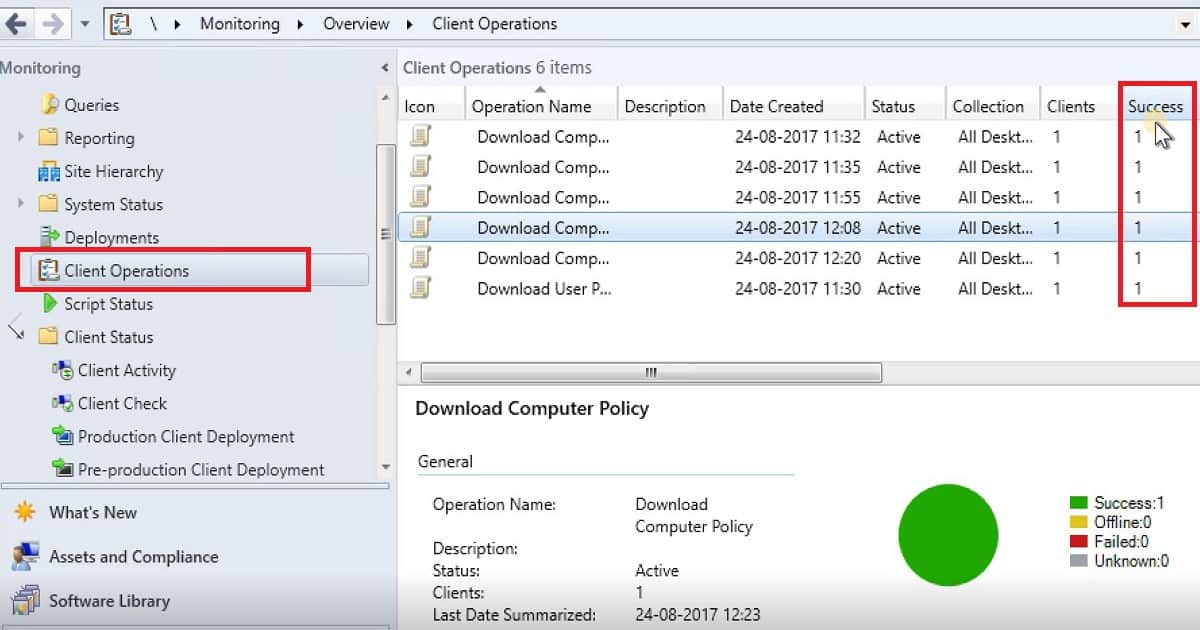
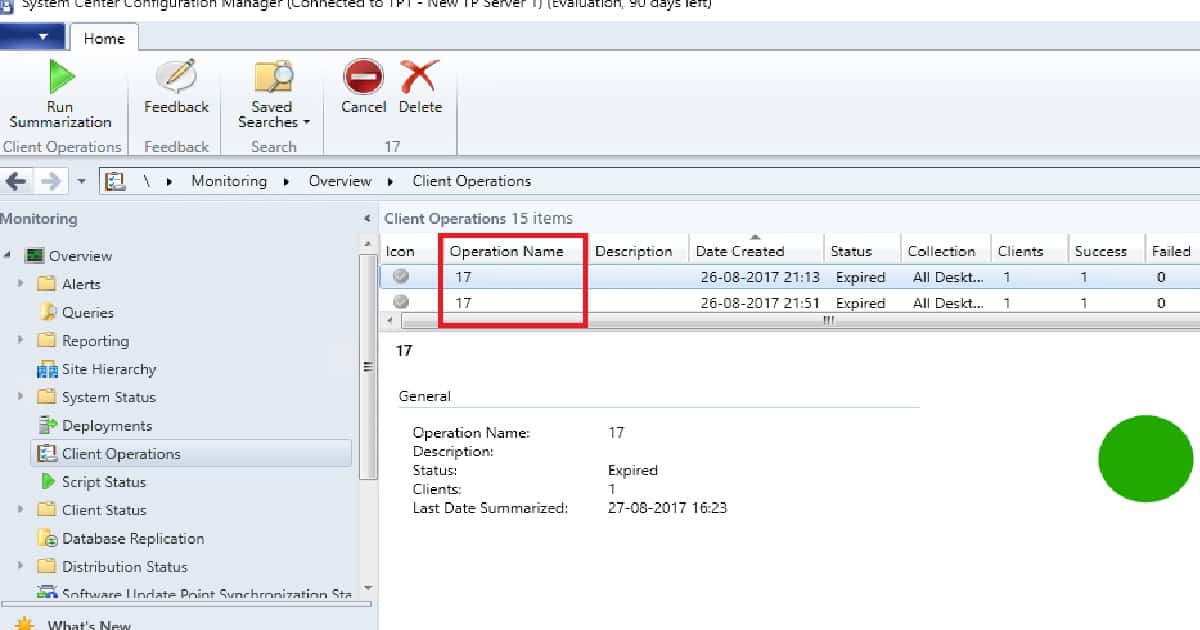
You can check the status of the REBOOT action in the monitoring workspace, the “Client Operations” node in the SCCM console.

The operation name for the REBOOT action is Task 17! But I’m sure this will be changed in the production version of the release. The error logging can be improved because the error message was “Failed to execute task, error 0.”

CcmNotificationAgent LOG with Errors

<![LOG[NetworkInfo: IPAddress 20.20.20.23,fe80::b09e:95a3:172a:4212]LOG]!><time="21:07:18.726-330" date="08-26-2017" component="BgbAgent" context="" type="1" thread="6212" file="bgbconnector.cpp:124">
<![LOG[NetworkInfo: IPSubnet 255.0.0.0,64]LOG]!><time="21:07:18.726-330" date="08-26-2017" component="BgbAgent" context="" type="1" thread="6212" file="bgbconnector.cpp:147">
<![LOG[NetworkInfo: AccessMP SCCMTP1.Intune.com]LOG]!><time="21:07:18.757-330" date="08-26-2017" component="BgbAgent" context="" type="1" thread="6212" file="bgbconnector.cpp:155">
<![LOG[NetworkInfo: IsClientOnInternet 0]LOG]!><time="21:07:18.757-330" date="08-26-2017" component="BgbAgent" context="" type="1" thread="6212" file="bgbconnector.cpp:159">
<![LOG[Update the timeout to 900 second(s)]LOG]!><time="21:07:18.757-330" date="08-26-2017" component="BgbAgent" context="" type="1" thread="6212" file="bgbtcpclient.cpp:916">
<![LOG[Receive signin confirmation message from server, client is signed in.]LOG]!><time="21:07:18.851-330" date="08-26-2017" component="BgbAgent" context="" type="1" thread="6212" file="bgbconnector.cpp:221">
<![LOG[Receive task from server with pushid=1002, taskid=1007, taskguid=5AFF6AEA-67D5-4124-B04F-162FDB0E314E, tasktype=17 and taskParam=]LOG]!><time="21:13:36.115-330" date="08-26-2017" component="BgbAgent" context="" type="1" thread="6212" file="bgbconnector.cpp:312">
<![LOG[Failed to find action instance for task type 17]LOG]!><time="21:13:36.115-330" date="08-26-2017" component="BgbAgent" context="" type="3" thread="6212" file="bgbcontroller.cpp:682">
<![LOG[Failed to execute task, error 0]LOG]!><time="21:13:36.115-330" date="08-26-2017" component="BgbAgent" context="" type="3" thread="6212" file="bgbcontroller.cpp:646">

Results of Successful REBOOT PUSH Task

Upgraded the client version to 5.00.8549.1000 and reinitiated the REBOOT task by right-clicking on a collection – Client Notification – Reboot. This action created a new task for the devices (pending reboot) in that collection through SCCM PUSH fast channel notification.

What is the architecture flow of SCCM CB Fast channel push notification? I have explained fast channel architecture flow in the post here.

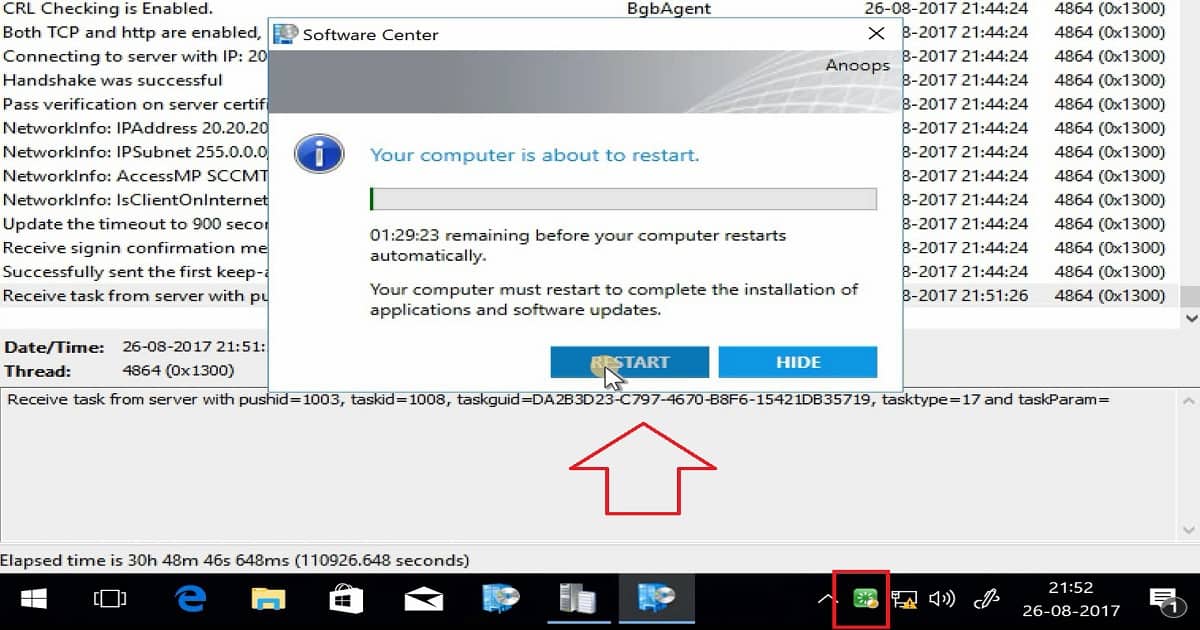
The SCCM fast channel push client notification service will immediately notify the client about the task assigned. However, the client won’t be restarted immediately after receiving the task from the notification server component. The SCCM client will check the policy settings for “Computer Restart”  and schedule the restart per the policy.

The computer restart policy is 90 minutes by default, and you can customize this policy from the client settings tab. The reboot or restart notification is very well integrated with the “Software Center” experience, which is a great advantage of this feature.

SCCM Reboot Task for Collection of Devices via Fast Channel Push Notification - Fig.3
SCCM Reboot Task for Collection of Devices via Fast Channel Push Notification – Fig.3

Resources

  • Update 1708 for Configuration Manager Technical Preview Branch – Available Now! – here
  • Capabilities in Technical Preview 1708 for System Center Configuration Manager – here
  • Video Guide to Troubleshoot SCCM CB Fast Channel Notification Issues – here

We are on WhatsApp now. To get the latest step-by-step guides, news, and updates, Join our Channel. Click here. HTMD WhatsApp.

Author

Anoop C Nair is Microsoft MVP! He is a Device Management Admin with more than 20 years of experience (calculation done in 2021) in IT. He is a Blogger, Speaker, and Local User Group HTMD Community leader. His main focus is on Device Management technologies like SCCM 2012, Current Branch, and Intune. He writes about ConfigMgr, Windows 11, Windows 10, Azure AD, Microsoft Intune, Windows 365, AVD, etc.

Troubleshoot SCCM Fast Channel Push Notification Issues 5

Troubleshoot SCCM Fast Channel Push Notification Issues

Let’s discuss how to Troubleshoot SCCM Fast Channel Push Notification Issues. The fast channel notification feature has been in SCCM products since 2012 SP1. SCCM fast channel notification was mainly used to notify clients about vital policies, collect inventories, etc.

For more details about the run PowerShell script option, refer to the SCCM CB Run PowerShell Script Directly from the Collection post.

SCCM CB 1706 introduced the “RUN Script” option through the fast channel push notification. This post will use a video guide to troubleshoot SCCM CB fast channel push notification issues. A video tutorial about SCCM CB fast channel push notification is here.

Let’s understand Fast channel notifications for clients. SCCM Fast channel notification is a “PUSH” method of notifying clients about the new policies. This communication channel for SCCM client fast notification is TCP (port 10123) or HTTP (port 80).

How to Troubleshoot SCCM CB Fast Channel Notification Issues

In the video, you’ll find comprehensive details on troubleshooting SCCM CB Fast Channel Notification issues. This guide will cover scenarios where Fast Channel Notifications may fail or encounter issues within the SCCM environment.

Troubleshoot SCCM Fast Channel Push Notification Issues – Video 1

What is SCCM Fast Channel Push Notification? – Troubleshoot SCCM Fast Channel Push Notification Issues

The SCCM client communicates to its MP every 15 minutes to confirm that it’s still online. When your client does not show as ONLINE in the SCCM console, we may have a problem with the fast notification communication channel.

SCCM Push Vs. Pull

Historically, SCCM uses the PULL method, expecting the client to ask for new policies regularly. But, the fast channel uses the PUSH method. What is BGB in SCCM? BGB = Fast Channel Notification related components. I don’t know whether this notification channel was codenamed “Big Green Button” or not 😉

Troubleshoot SCCM Fast Channel Push Notification Issues - Fig.1
Troubleshoot SCCM Fast Channel Push Notification Issues – Fig.1

What are the Components of SCCM CB Fast Channel Notification?

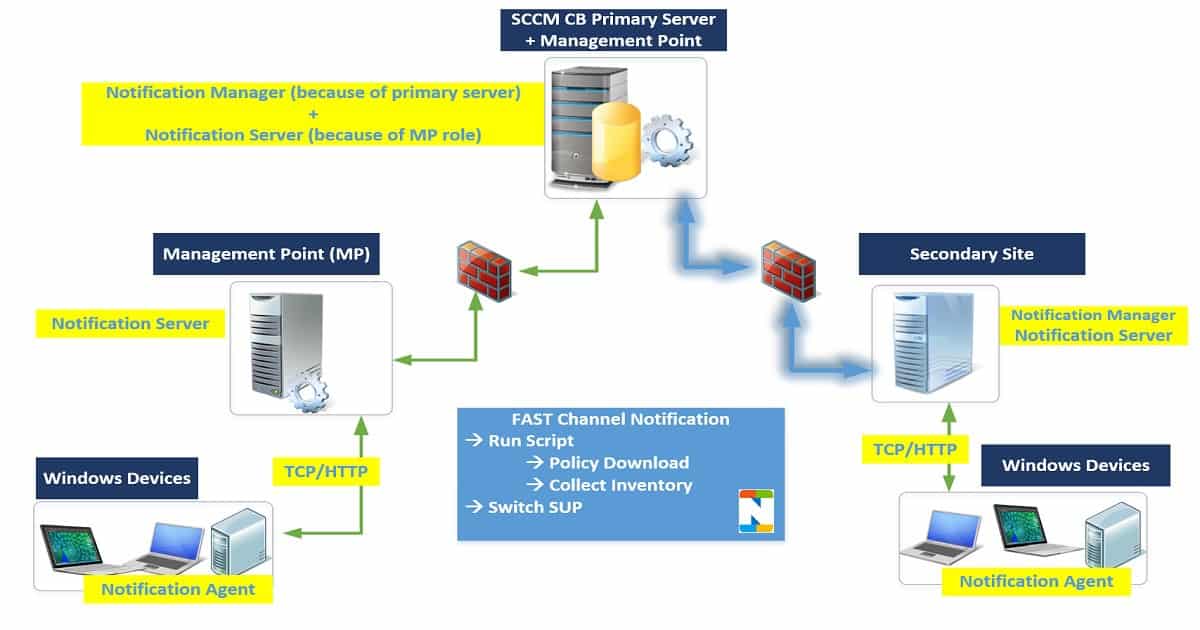
SCCM CB fast channel notification has three components. The notification manager will be located along with site servers (Primary/Secondary). It generates “push messages” for clients, sends notifications to the BGB server (MP), and stores the results. 

The notification manager initiates push notifications from the site server. The log file BGBmgr.log provides more details about the notification manager. Notification files (*.BOS files) are stored in the INBOX/BGB.box folder. The video tutorial here shows the BOS file being created.

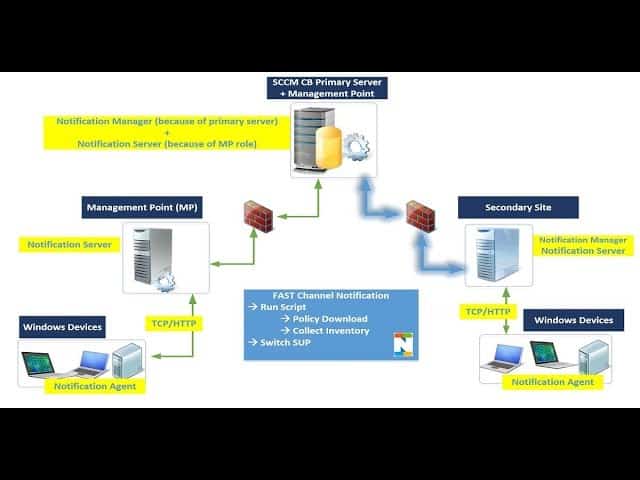
As you can see in the following fast channel notification architecture diagram, when the primary server has an MP component, the notification manager and notification server are also on that primary server.

The notification server will be located along with the Management Point (MP) and secondary sites. It will have TCP and HTTP listeners. These will help listen to the notification manager (DB) push notifications and confirm the client’s online status.

The notification manager pushes result files (*.BTS) from clients. BGBServer.log is the file on the MP setup or site server setup directory.

The Notification Agent is a fast-channel notification component at the SCCM client end. It’s part of the SMS agent (CCMEXEC). The agent establishes a persistent connection with its notification server.

This will receive the PUSH messages from MP. CcmNotificationAgent.log is the log file on the SCCM client device. The log can note MP/Notification server communication errors.

What is the architecture flow of SCCM CB Fast channel push notification?

Troubleshoot SCCM Fast Channel Push Notification Issues - Fig.2
Troubleshoot SCCM Fast Channel Push Notification Issues – Fig.2

Why is the SCCM CB Client NOT Showing as ONLINE?

The problem is that the SCCM CB client is not showing as ONLINE in the console. Instead, it always stays offline. The problem is ONLY with FAST notification channel communication; normal deployments and policies are working fine.

Troubleshooting of SCCM CB Fast Channel Notification

First, you must ensure all the notification components are installed correctly on the server and client sides. The following log files can confirm this for installation issues and troubleshooting.

Installation Issues and Troubleshooting
SCCM CB Notification Server/Manager
BGBServer.log
BgbHttpProxy.log
BgbSetup.log
BGBisapiMSI.log
Troubleshoot SCCM Fast Channel Push Notification Issues – Table 1

Fast Channel Notification – Server-Side Troubleshooting

I checked the log files on my primary and MP (both are on the same server), and BGBServer.log shows a warning all the time: “WARNING: Notification Server (% systemroot%system32dllhost. exe) with TCP port 10123 is NOT allowed by Windows Firewall on all interfaces I.” But I thought it should work with the port 80 HTTP channel. It was not working as expected.

Following are the extracts of troublesome logs on the BGB notification serverBGBServer.log

  • Starting SMS Notification Server…~~
  • lt;SMS_NOTIFICATION_SERVER><08-15-2017 01:16:02.005-330> Server GC is OFF~~
  • lt;SMS_NOTIFICATION_SERVER><08-15-2017 01:16:02.006-330> Trigger to start TCP listener~~
  • lt;SMS_NOTIFICATION_SERVER><08-15-2017 01:16:02.022-330> The HTTP listener is started~~
  • lt;SMS_NOTIFICATION_SERVER><08-15-2017 01:16:02.030-330> Listening connections on port 10123. Waiting for clients to connect…~~
  • lt;SMS_NOTIFICATION_SERVER><08-15-2017 01:16:02.051-330> STATMSG: ID=9807 SEV=I LEV=M SOURCE=”SMS Server” COMP=”SMS_NOTIFICATION_SERVER” SYS=SCCMTP1.INTUNE.COM SITE=TP1 PID=3280 TID=1968 GMTDATE=Mon Aug 14 19:46:02.059 2017 ISTR0=”SCCMTP1.INTUNE.COM” ISTR1=”10123″ ISTR2=”” ISTR3=”” ISTR4=”” ISTR5=”” ISTR6=”” ISTR7=”” ISTR8=”” ISTR9=”” NUMATTRS=0
  • lt;SMS_NOTIFICATION_SERVER><08-15-2017 01:16:02.061-330> WARNING: Notification Server (%systemroot%\system32\dllhost.exe) with TCP port 10123 is NOT allowed by Windows Firewall on all interfaces.~~
  • lt;SMS_NOTIFICATION_SERVER><08-15-2017 01:16:02.062-330> Total online clients: 0 (TCP: 0 HTTP: 0)~~
  • lt;SMS_NOTIFICATION_SERVER><08-15-2017 01:21:02.039-330> Generated BGB online status FULL report C:\Program Files\Microsoft Configuration Manager\inboxes\bgb.box\Bgb72ul2.BOS (version: 0) at 08/15/2017 01:21:02~~
  • lt;SMS_NOTIFICATION_SERVER><08-15-2017 01:21:02.055-330> WARNING: Notification Server (%systemroot%\system32\dllhost.exe) with TCP port 10123 is NOT allowed by Windows Firewall on all interfaces.~~
  • lt;SMS_NOTIFICATION_SERVER><08-15-2017 01:21:02.067-330> Wait 300 seconds for notifications…
  • lt;SMS_NOTIFICATION_SERVER><08-15-2017 01:21:02.276-330>

Client-Side Troubleshooting Fast Channel Notification Component

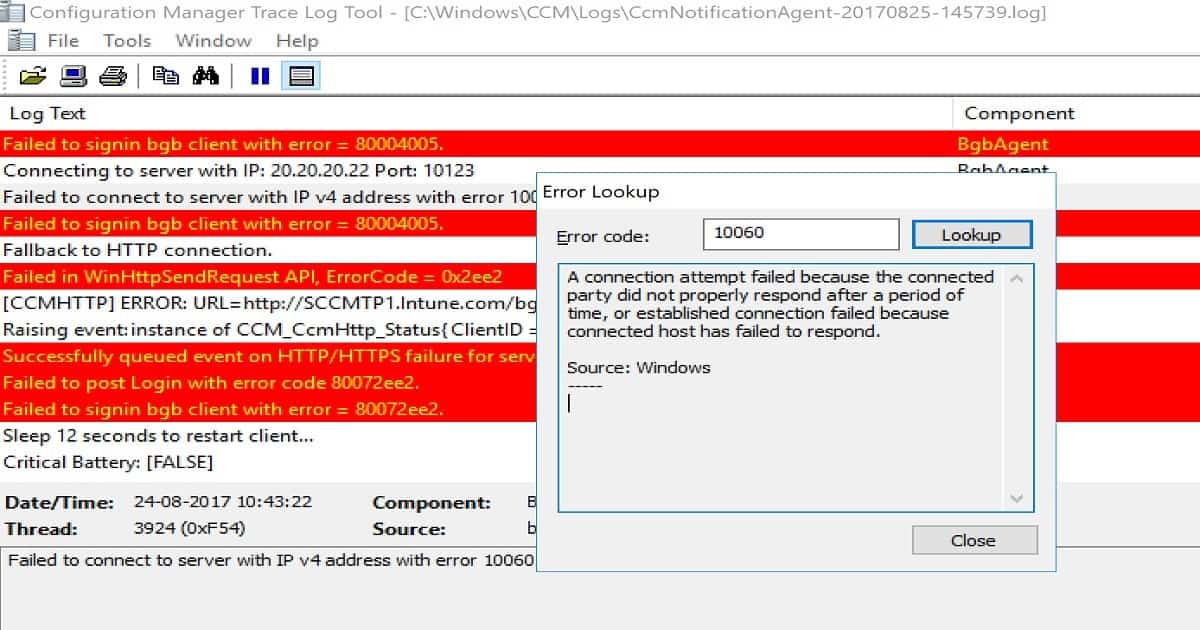
The notification agent was running. But, the  CcmNotificationAgent.log log showed loads of errors. One of the errors indicated that there could be a communication issue between the server and the client.

Troubleshoot SCCM Fast Channel Push Notification Issues - Fig.3
Troubleshoot SCCM Fast Channel Push Notification Issues – Fig.3

Error 10060 means ==> A connection attempt failed because the connected party did not appropriately respond after a period, or an established connection failed because the connected host could not respond. BGBAgent component log :-

<![LOG[Bgb client agent is starting...]LOG]!><time="01:23:55.212-330" date="08-15-2017" component="BgbAgent" context="" type="1" thread="6372" file="agentendpoint.cpp:238">
<![LOG[BgbController main thread is started with settings: {bgb enable = 1}, {tcp enabled = 1}, {tcp port = 10123} and {http enabled = 1}.]LOG]!><time="01:23:55.259-330" date="08-15-2017" component="BgbAgent" context="" type="1" thread="6372" file="bgbcontroller.cpp:126">
<![LOG[Startup random sleep for 1 seconds.]LOG]!><time="01:23:55.290-330" date="08-15-2017" component="BgbAgent" context="" type="1" thread="5200" file="bgbcontroller.cpp:416">
<![LOG[Critical Battery: [FALSE]]LOG]!><time="01:23:56.306-330" date="08-15-2017" component="BgbAgent" context="" type="1" thread="5200" file="bgbcommon.cpp:60">
<![LOG[Connection Standy: [FALSE]]LOG]!><time="01:23:56.306-330" date="08-15-2017" component="BgbAgent" context="" type="1" thread="5200" file="bgbcommon.cpp:61">
<![LOG[Network allowed to use: [TRUE]]LOG]!><time="01:23:56.306-330" date="08-15-2017" component="BgbAgent" context="" type="1" thread="5200" file="bgbcommon.cpp:62">
<![LOG[Access point is SCCMTP1.INTUNE.COM. (SSLEnabled = 0)]LOG]!><time="01:23:56.415-330" date="08-15-2017" component="BgbAgent" context="" type="1" thread="5200" file="bgbcontroller.cpp:276">
<![LOG[CRL Checking is Enabled.]LOG]!><time="01:23:56.431-330" date="08-15-2017" component="BgbAgent" context="" type="1" thread="5200" file="bgbcontroller.cpp:284">
<![LOG[Both TCP and http are enabled, let's try TCP connection first.]LOG]!><time="01:23:56.431-330" date="08-15-2017" component="BgbAgent" context="" type="1" thread="5200" file="bgbcontroller.cpp:792">
<![LOG[Connecting to server with IP: 20.20.20.22 Port: 10123 
]LOG]!><time="01:23:56.447-330" date="08-15-2017" component="BgbAgent" context="" type="1" thread="5200" file="bgbtcpclient.cpp:699">
<![LOG[Failed to connect to server with IP v4 address with error 10060. Try next IP...
]LOG]!><time="01:24:17.468-330" date="08-15-2017" component="BgbAgent" context="" type="1" thread="5200" file="bgbtcpclient.cpp:703">
<![LOG[Failed to signin bgb client with error = 80004005.]LOG]!><time="01:24:17.468-330" date="08-15-2017" component="BgbAgent" context="" type="3" thread="5200" file="bgbcontroller.cpp:635">
<![LOG[Connecting to server with IP: 20.20.20.22 Port: 10123 
]LOG]!><time="01:25:17.482-330" date="08-15-2017" component="BgbAgent" context="" type="1" thread="5200" file="bgbtcpclient.cpp:699">
<![LOG[Failed to connect to server with IP v4 address with error 10060. Try next IP...
]LOG]!><time="01:25:38.501-330" date="08-15-2017" component="BgbAgent" context="" type="1" thread="5200" file="bgbtcpclient.cpp:703">
<![LOG[Failed to signin bgb client with error = 80004005.]LOG]!><time="01:25:38.501-330" date="08-15-2017" component="BgbAgent" context="" type="3" thread="5200" file="bgbcontroller.cpp:635">
<![LOG[Fallback to HTTP connection.]LOG]!><time="01:25:38.501-330" date="08-15-2017" component="BgbAgent" context="" type="1" thread="5200" file="bgbcontroller.cpp:828">
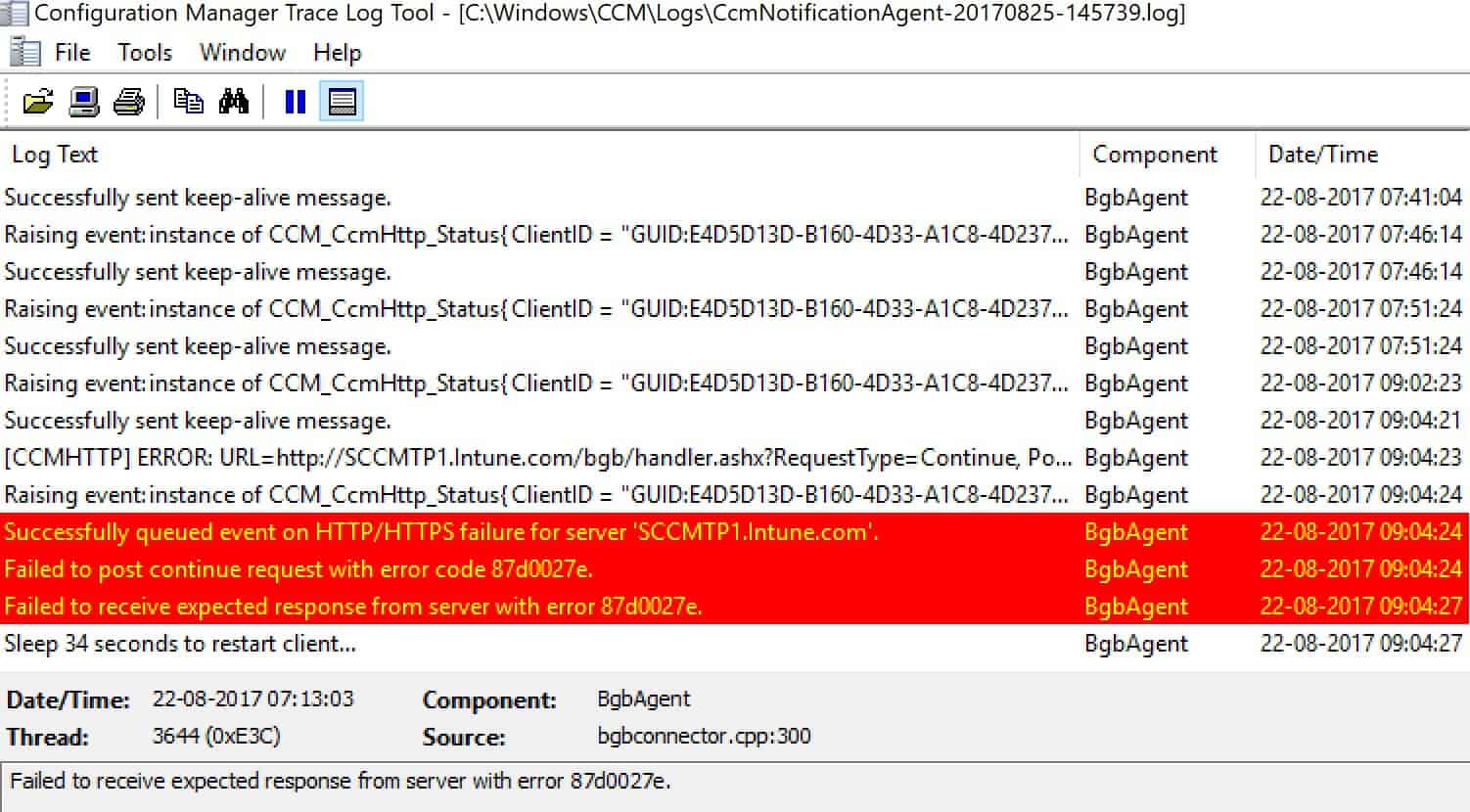
[CCMHTTP] ERROR: URL=http://SCCMTP1.Intune.com/bgb/handler.ashx?RequestType=Continue, Port=80, Options=224, Code=0, Text=CCM_E_BAD_HTTP_STATUS_CODE
Successfully queued event on HTTP/HTTPS failure for server 'SCCMTP1.Intune.com'.
Failed to post continue request with error code 87d0027e.
Troubleshoot SCCM Fast Channel Push Notification Issues - Fig.4
Troubleshoot SCCM Fast Channel Push Notification Issues – Fig.4

Fix for SCCM CB Fast Channel Notification Issues

The Firewall port 10123 was not opened between the SCCM client and the primary BGB server. I ran the following command from the client, “Telnet 10123,” and it didn’t work (the port was not opened).

I checked the software and hardware firewalls on the server side and discovered that Windows Firewall was blocking the port communication 10123.

Disabled the Windows Firewall on the notification server for testing and restarted the client agent services (SMS Agent) on the client machine. This helped to resolve the fast channel notification issue with the SCCM CB environment.

In an ideal world, you should exclude/exempt port 10123/80 from the hardware and software firewall between the fast channel notification server and agent. This will help to resolve the issue.

More details are available in the video tutorial here

Troubleshoot SCCM Fast Channel Push Notification Issues - Fig.5
Troubleshoot SCCM Fast Channel Push Notification Issues – Fig.5

Server Side Logs After Successful Actions on Fast Channel Notification

I finished sending push tasks (PushID: 1 TaskID: 3) to 1 client and generated the BGB online status DELTA report, two critical lines of SCCM CB fast notification channel server log BGBServer.log.

C:\Program Files\Microsoft Configuration Manager\inboxes\bgb.box\Bgb7cbzg.BOS

  • Receiving a message from queue timeout.~~
  • lt;SMS_NOTIFICATION_SERVER><08-24-2017 12:07:50.411-330> Retrieving push tasks from database…~~
  • lt;SMS_NOTIFICATION_SERVER><08-24-2017 12:07:50.412-330> Retrieving online resync flag from database…~~
  • lt;SMS_NOTIFICATION_SERVER><08-24-2017 12:11:50.914-330> Total online clients: 1 (TCP: 1 HTTP: 0)~~
  • lt;SMS_NOTIFICATION_SERVER><08-24-2017 12:11:50.916-330> Online/Offline clients since last successful report: 1~~
  • lt;SMS_NOTIFICATION_SERVER><08-24-2017 12:11:50.919-330> Generated BGB online status DELTA report C:\Program Files\Microsoft Configuration Manager\inboxes\bgb.box\Bgb7cbzg.BOS (version: 18) at 08/24/2017 12:11:50~~
  • lt;SMS_NOTIFICATION_SERVER><08-24-2017 12:11:50.940-330> Get one push message from database.~~
  • lt;SMS_NOTIFICATION_SERVER><08-24-2017 12:11:52.184-330> Starting to send push task (PushID: 1 TaskID: 3 TaskGUID: 3700E17A-4BDC-45C7-990E-EA26FF92E5BF TaskType: 4 TaskParam: ) to 1 clients with throttling (strategy: 1 param: 42)~~
  • lt;SMS_NOTIFICATION_SERVER><08-24-2017 12:11:52.209-330> Finished sending push task (PushID: 1 TaskID: 3) to 1 clients~~
  • lt;SMS_NOTIFICATION_SERVER><08-24-2017 12:11:52.214-330> Starting to send push task (PushID: 1 TaskID: 4 TaskGUID: FD80647D-9748-4C96-AFC8-8BC71E00C235 TaskType: 1 TaskParam: ) to 1 clients with throttling (strategy: 1 param: 42)~~
  • lt;SMS_NOTIFICATION_SERVER><08-24-2017 12:11:52.216-330> Finished sending push task (PushID: 1 TaskID: 4) to 1 clients~~
  • lt;SMS_NOTIFICATION_SERVER><08-24-2017 12:11:52.237-330> Starting to send push task (PushID: 1 TaskID: 5 TaskGUID: 9D2B274B-F6E3-452F-A1C3-C1C166523EC8 TaskType: 1 TaskParam: ) to 1 clients with throttling (strategy: 1 param: 42)~~
  • lt;SMS_NOTIFICATION_SERVER><08-24-2017 12:11:52.238-330> Finished sending push task (PushID: 1 TaskID: 5) to 1 clients~~
  • lt;SMS_NOTIFICATION_SERVER><08-24-2017 12:11:52.261-330> Starting to send push task (PushID: 1 TaskID: 6 TaskGUID: CFB76FC4-BCC5-4525-AA53-80BCD4393E46 TaskType: 1 TaskParam: ) to 1 clients with throttling (strategy: 1 param: 42)~~
  • lt;SMS_NOTIFICATION_SERVER><08-24-2017 12:11:52.262-330> Finished sending push task (PushID: 1 TaskID: 6) to 1 clients~~
  • lt;SMS_NOTIFICATION_SERVER><08-24-2017 12:11:52.285-330> Starting to send push task (PushID: 1 TaskID: 7 TaskGUID: 1ED88E07-5E52-44FD-AF07-73769EDD7FA6 TaskType: 1 TaskParam: ) to 1 clients with throttling (strategy: 1 param: 42)~~
  • lt;SMS_NOTIFICATION_SERVER><08-24-2017 12:11:52.286-330> Finished sending push task (PushID: 1 TaskID: 7) to 1 clients~~
  • lt;SMS_NOTIFICATION_SERVER><08-24-2017 12:11:52.309-330>

Client BGB Agent Fast Notification:- Log files details of successful operations

After the firewall ports had been changed, the client notification agent started working fine. Following are some of the important log file snippets.

<![LOG[Bgb client agent is starting...]LOG]!><time="12:07:25.115-330" date="08-24-2017" component="BgbAgent" context="" type="1" thread="5368" file="agentendpoint.cpp:238">
<![LOG[BgbController main thread is started with settings: {bgb enable = 1}, {tcp enabled = 1}, {tcp port = 10123} and {http enabled = 1}.]LOG]!><time="12:07:25.162-330" date="08-24-2017" component="BgbAgent" context="" type="1" thread="5368" file="bgbcontroller.cpp:126">
<![LOG[Startup random sleep for 23 seconds.]LOG]!><time="12:07:25.178-330" date="08-24-2017" component="BgbAgent" context="" type="1" thread="3864" file="bgbcontroller.cpp:416">
<![LOG[Critical Battery: [FALSE]]LOG]!><time="12:07:48.178-330" date="08-24-2017" component="BgbAgent" context="" type="1" thread="3864" file="bgbcommon.cpp:60">
<![LOG[Connection Standy: [FALSE]]LOG]!><time="12:07:48.178-330" date="08-24-2017" component="BgbAgent" context="" type="1" thread="3864" file="bgbcommon.cpp:61">
<![LOG[Network allowed to use: [TRUE]]LOG]!><time="12:07:48.178-330" date="08-24-2017" component="BgbAgent" context="" type="1" thread="3864" file="bgbcommon.cpp:62">
<![LOG[Access point is SCCMTP1.Intune.com. (SSLEnabled = 0)]LOG]!><time="12:07:48.178-330" date="08-24-2017" component="BgbAgent" context="" type="1" thread="3864" file="bgbcontroller.cpp:276">
<![LOG[CRL Checking is Enabled.]LOG]!><time="12:07:48.178-330" date="08-24-2017" component="BgbAgent" context="" type="1" thread="3864" file="bgbcontroller.cpp:284">
<![LOG[Both TCP and http are enabled, let's try TCP connection first.]LOG]!><time="12:07:48.178-330" date="08-24-2017" component="BgbAgent" context="" type="1" thread="3864" file="bgbcontroller.cpp:792">
<![LOG[Connecting to server with IP: 20.20.20.22 Port: 10123 
]LOG]!><time="12:07:48.194-330" date="08-24-2017" component="BgbAgent" context="" type="1" thread="3864" file="bgbtcpclient.cpp:699">
<![LOG[Handshake was successful
]LOG]!><time="12:07:49.270-330" date="08-24-2017" component="BgbAgent" context="" type="1" thread="3864" file="bgbtcpclient.cpp:495">
<![LOG[Pass verification on server certificate.]LOG]!><time="12:07:49.329-330" date="08-24-2017" component="BgbAgent" context="" type="1" thread="3864" file="bgbtcpclient.cpp:823">
<![LOG[NetworkInfo: IPAddress 20.20.20.23,fe80::b09e:95a3:172a:4212]LOG]!><time="12:07:49.438-330" date="08-24-2017" component="BgbAgent" context="" type="1" thread="3864" file="bgbconnector.cpp:124">
<![LOG[NetworkInfo: IPSubnet 255.0.0.0,64]LOG]!><time="12:07:49.438-330" date="08-24-2017" component="BgbAgent" context="" type="1" thread="3864" file="bgbconnector.cpp:147">
<![LOG[NetworkInfo: AccessMP SCCMTP1.Intune.com]LOG]!><time="12:07:49.471-330" date="08-24-2017" component="BgbAgent" context="" type="1" thread="3864" file="bgbconnector.cpp:155">
<![LOG[NetworkInfo: IsClientOnInternet 0]LOG]!><time="12:07:49.471-330" date="08-24-2017" component="BgbAgent" context="" type="1" thread="3864" file="bgbconnector.cpp:159">
<![LOG[Update the timeout to 900 second(s)]LOG]!><time="12:07:49.471-330" date="08-24-2017" component="BgbAgent" context="" type="1" thread="3864" file="bgbtcpclient.cpp:916">
<![LOG[Receive signin confirmation message from server, client is signed in.]LOG]!><time="12:08:01.062-330" date="08-24-2017" component="BgbAgent" context="" type="1" thread="3864" file="bgbconnector.cpp:221">
<![LOG[Receive task from server with pushid=1, taskid=3, taskguid=3700E17A-4BDC-45C7-990E-EA26FF92E5BF, tasktype=4 and taskParam=]LOG]!><time="12:11:52.227-330" date="08-24-2017" component="BgbAgent" context="" type="1" thread="3864" file="bgbconnector.cpp:312">
<![LOG[Receive task from server with pushid=1, taskid=4, taskguid=FD80647D-9748-4C96-AFC8-8BC71E00C235, tasktype=1 and taskParam=]LOG]!><time="12:11:52.248-330" date="08-24-2017" component="BgbAgent" context="" type="1" thread="3864" file="bgbconnector.cpp:312">
<![LOG[Receive task from server with pushid=1, taskid=5, taskguid=9D2B274B-F6E3-452F-A1C3-C1C166523EC8, tasktype=1 and taskParam=]LOG]!><time="12:11:52.264-330" date="08-24-2017" component="BgbAgent" context="" type="1" thread="3864" file="bgbconnector.cpp:312">
<![LOG[Successfully sent keep-alive message.]LOG]!><time="12:35:51.339-330" date="08-24-2017" component="BgbAgent" context="" type="1" thread="3864" file="bgbconnector.cpp:290">
<![LOG[Successfully sent keep-alive message.]LOG]!><time="12:50:51.356-330" date="08-24-2017" component="BgbAgent" context="" type="1" thread="3864" file="bgbconnector.cpp:290">

References

  • Fast Channel Client Notification in SCCM  – Here
  • Fast channel notification and MP replica issues – Here
  • What’s New With ConfigMgr’s Client Notification Feature – Here

We are on WhatsApp now. To get the latest step-by-step guides, news, and updates, Join our Channel. Click here. HTMD WhatsApp.

Author

Anoop C Nair is Microsoft MVP! He is a Device Management Admin with more than 20 years of experience (calculation done in 2021) in IT. He is a Blogger, Speaker, and Local User Group HTMD Community leader. His main focus is on Device Management technologies like SCCM 2012, Current Branch, and Intune. He writes about ConfigMgr, Windows 11, Windows 10, Azure AD, Microsoft Intune, Windows 365, AVD, etc.

SCCM CB 1708 Preview Upgrade Video Guide New Features 6

SCCM CB 1708 Preview Upgrade Video Guide New Features

Let’s discuss the SCCM CB 1708 Preview Upgrade Video Guide New Features. SCCM CB preview version 1708 has been released.

I enjoy upgrading my lab environment to the SCCM CB 1708 preview version. However, upgrading to SCCM CB preview version 1708 will fail if you have an SCCM primary server in passive mode. 

It would help if you remembered that the SCCM ConfigMgr CB technical preview version should not be deployed to a production environment. This post will see the SCCM CB 1708 Preview Upgrade Video Guide. You can find the YouTube video tutorial here.

The SCCM CB preview version is similar to the Windows Insiders program, which helps SCCM admins test the new features of SCCM CB. Before installing this technical preview, you can review the limitations of the SCCM CB version here.

What is the Importance of SCCM Preview Releases?

We can’t install the CAS version of SCCM CB with the preview version. The prerequisite for installing the SCCM CB 1708 preview version has not changed.

SCCM CB 1708 Preview Upgrade Video Guide New Features - Fig.1
SCCM CB 1708 Preview Upgrade Video Guide New Features – Fig.1

How to Download SCCM CB Preview Version

The upgrade process is explained in the video tutorial here. Have you installed an SCCM CB preview version? If not, you can download the latest baseline version of ConfigMgr SCCM CB Technical Preview from here. One particular version of the SCCM preview has a maximum validity of only 3 months (90 days).

How to Upgrade from SCCM CB 1707 to 1708?

The SCCM CB update and servicing process are the same as before. Once the latest version of the preview is released, the update will be available in the SCCM console.

The update will automatically download to your server. This behavior depends on the Service connection point (SCP) mode. There are two modes for SCP: ONLINE and OFFLINE.

The next upgrade process step is the replication of new content to secondary servers. Once replication is completed successfully, the update component will start the prerequisite checks on the SCCM CB hierarchy. The prerequisite checks will run on all the site servers and site systems.

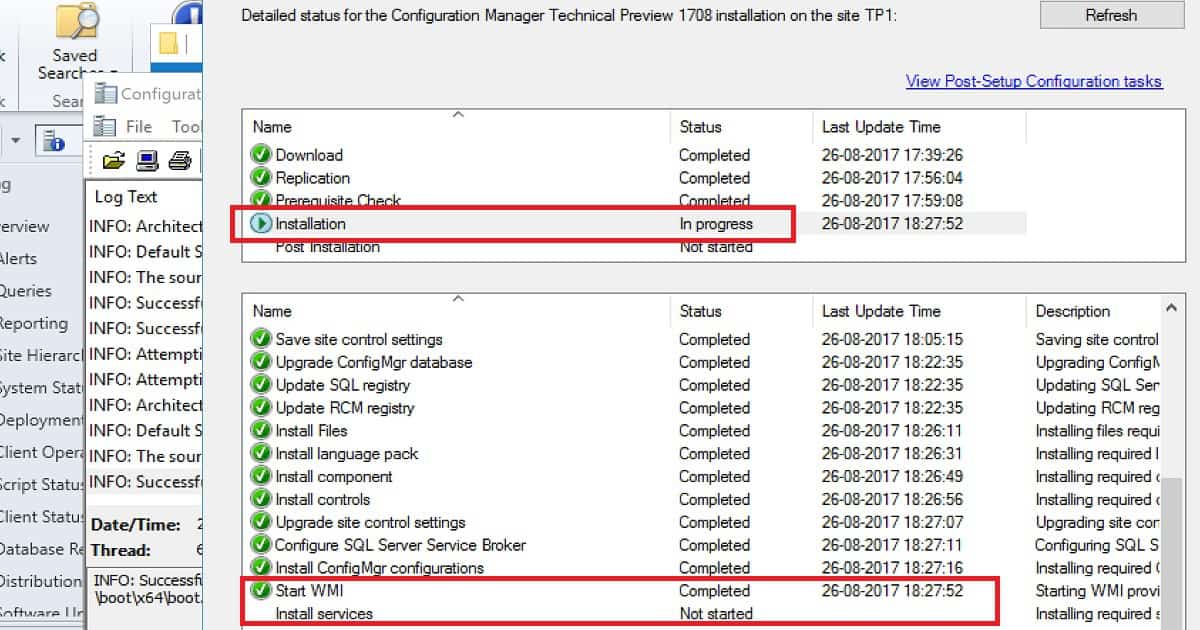
Detailed Status for the SCCM Technical Preview 1708Details
InstallationIn progress
Start WMICompleted
Install ServicesNot Started
SCCM CB 1708 Preview Upgrade Video Guide New Features – Table 1
SCCM CB 1708 Preview Upgrade Video Guide New Features - Fig.2
SCCM CB 1708 Preview Upgrade Video Guide New Features – Fig.2

Once prerequisite checks have been completed, the update component will start the actual upgrade/installation process of SCCM CB 1708. After the upgrade process, the post-installation or upgrade process will begin. All these are explained in the video tutorial here.

New Features of SCCM CB 1708 Preview Version

One of the newest features added to SCCM CB 1708 is the ability to create and run scripts with optional parameters. This script deployment is done through SCCM CB’s new fast channel.

Supported Scenarios of Run Script Option Scenarios

There is no need to deploy the script as a package or application; rather, you can directly import the PowerShell script. This Script can be targeted to collections or devices without creating any deployment.

  • Create and run PowerShell scripts on collections of devices from the Configuration Manager console.
  • Create and run PowerShell scripts with parameters to devices and collections from the Configuration Manager console.
  • Create and run PowerShell scripts with optional parameters to devices and collections from the Configuration Manager console.

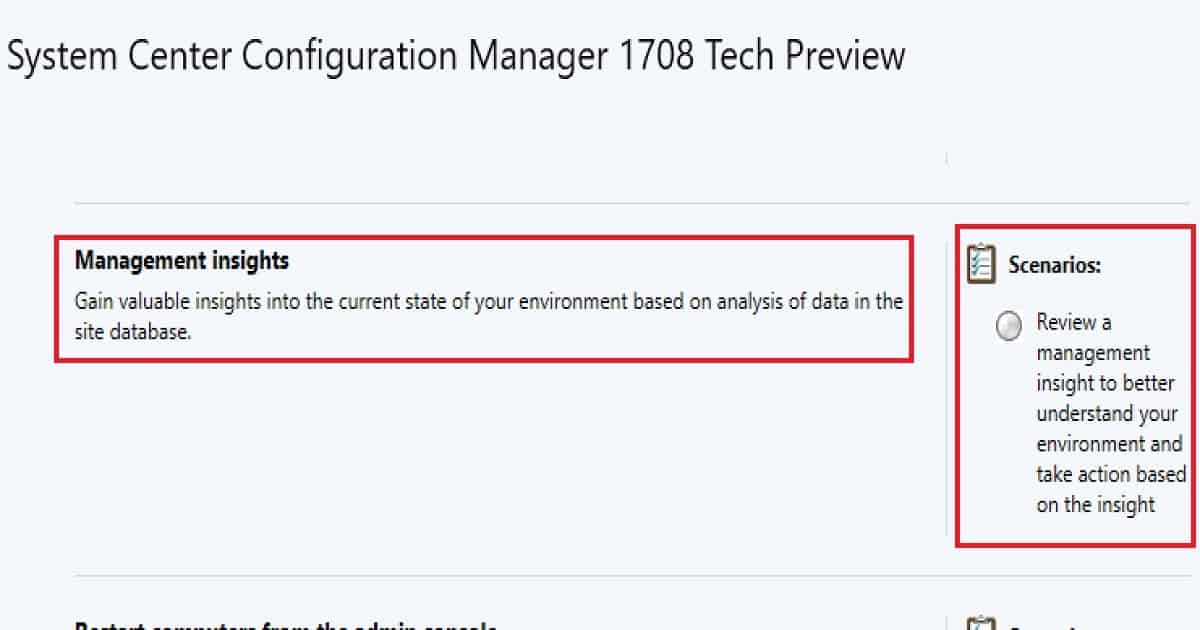
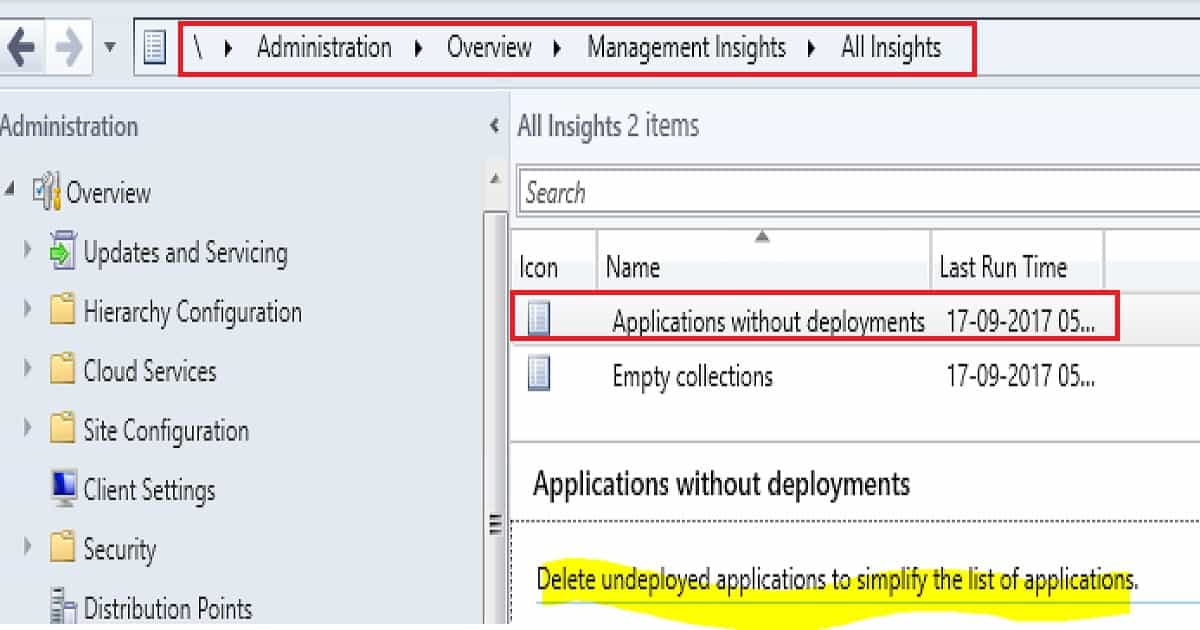
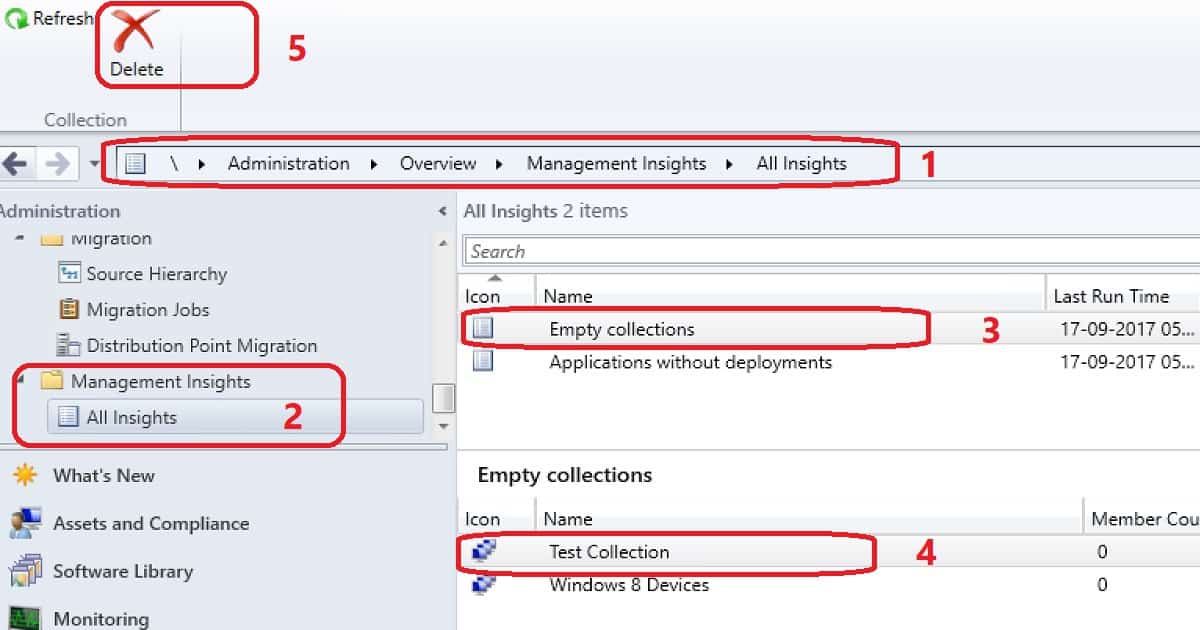
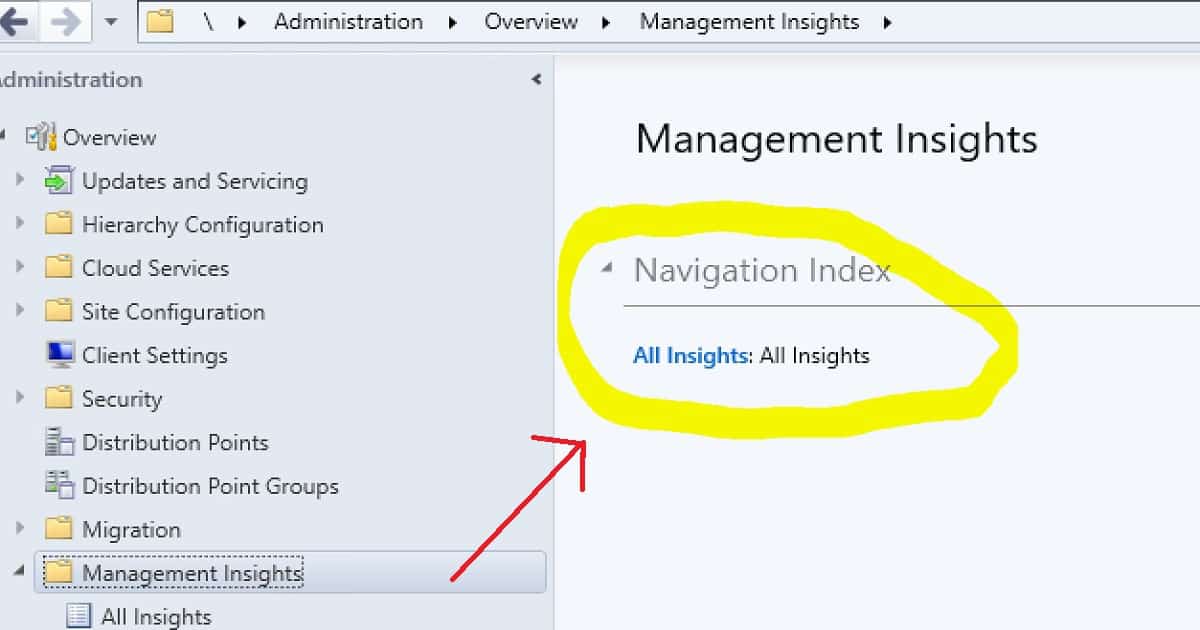
SCCM Infra Management insights is another option in SCCM CB 1708. This will give you valuable insights into your environment’s current state based on the data analysis in the site database. This will provide the details of EMPTY collections and applications without deploying your environment.

  • You can view the management insights below – \Administration\Overview\Management Insights.
  • Scenarios: Review a management insight to understand your environment better and take action based on the insight
SCCM CB 1708 Preview Upgrade Video Guide New Features - Fig.3
SCCM CB 1708 Preview Upgrade Video Guide New Features – Fig.3

The two new features added to SCCM CB 1708 are initiating restarting computers from the admin console and the pending restart column. The restart computer action is also performed through SCCM fast channel notification.

The monitoring workspace in the SCCM CB 1708 console shows a different name for the Restart computer action: Operation Name #17.

SCCM CB 1708 Preview Upgrade Video Guide New Features - Fig.4
SCCM CB 1708 Preview Upgrade Video Guide New Features – Fig.4

References

  • Update 1708 for Configuration Manager Technical Preview Branch – Available Now! – here.
  • Capabilities in Technical Preview 1708 for System Center Configuration Manager – here
  • What is SCCM CB Management Insights – here

We are on WhatsApp now. To get the latest step-by-step guides, news, and updates, Join our Channel. Click here. HTMD WhatsApp.

Author

Anoop C Nair is Microsoft MVP! He is a Device Management Admin with more than 20 years of experience (calculation done in 2021) in IT. He is a Blogger, Speaker, and Local User Group HTMD Community leader. His main focus is on Device Management technologies like SCCM 2012, Current Branch, and Intune. He writes about ConfigMgr, Windows 11, Windows 10, Azure AD, Microsoft Intune, Windows 365, AVD, etc.

Feature Comparison Video SCCM ConfigMgr CB 1702 VS 1706 9

Feature Comparison Video SCCM ConfigMgr CB 1702 VS 1706

Let’s discuss the Feature Comparison Video SCCM ConfigMgr CB 1702 VS 1706. I continue to produce comparison videos with every production release of SCCM CB.

This post helps you go through the “Feature Comparison Video SCCM ConfigMgr CB 1702 VS 1706.” The previous week was busy because of the SCCM CB preview and production version release.

Being on a business trip didn’t stop me from upgrading my LAB environment to the SCCM CB 1706 production version. In this post, you will find all the details of the Feature Comparison Video between SCCM ConfigMgr CB 1702 and 1706.

The post provides a look at the differences and improvements between the two versions, helping you understand what has changed and how the updates can benefit your system management.

Feature Comparison Video SCCM ConfigMgr CB 1702 VS 1706

In the comparison video tutorial, we see the SCCM console GUI changes. What are the new nodes added to the 1706 console? We also see some deep dives into new features, tools, and settings introduced in the SCCM CB 1706 version.

Feature Comparison Video SCCM ConfigMgr CB 1702 VS 1706
ConsoleSCCM CB 1706
Version1706
Console version5:00.8540.1300
Site Version5.0.8540.1000
Feature Comparison Video SCCM ConfigMgr CB 1702 VS 1706 – Table 1
  • Console – SCCM CB 1706 = Version 1706
  • Console version: 5:00.8540.1300
  • Site Version: 5.0.8540.1000
Feature Comparison Video SCCM ConfigMgr CB 1702 VS 1706 - Fig.1
Feature Comparison Video SCCM ConfigMgr CB 1702 VS 1706 – Fig.1

Feature Comparison Video SCCM ConfigMgr CB 1702 VS 1706

There are 24 Features in SCCM CB 1706, whereas only 21 in 1702. 3 new features were added in SCCM CB 1706 production release. The important point to note here is some pre-release features are still not ready for production release.

These are Cloud Management Gateway, Server Groups, TS Pre-Caching Device Guard, and Client Peer Cache, which are still in pre-release.

The new features introduced in SCCM CB 1706 are Create and Run Scripts, Surface Driver Updates, and PFX Create.

Feature Comparison Video SCCM ConfigMgr CB 1702 VS 1706 - Fig.2
Feature Comparison Video SCCM ConfigMgr CB 1702 VS 1706 – Fig.2

Compare the New Tools and Features of SCCM CB 1706

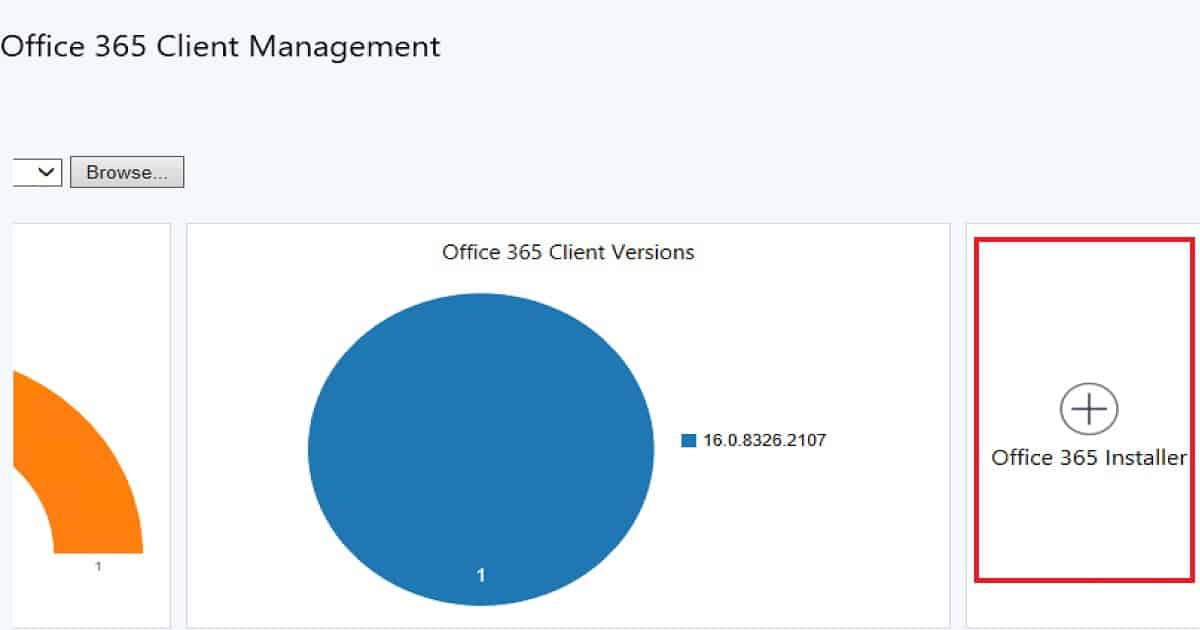
Client Peer Cache support for express installation files for Windows 10 and Office 365.  There are improvements for SQL Server Always On Availability Groups.

Update Reset tool is released with the SCCM CB 1706 production version. The CMUpdateReset.exe tool helps to fix issues when in-console updates have problems downloading or replicating content to primary servers.

The SCCM CB 1706 production release includes improvements for software update points working with boundary groups.

Feature Comparison Video SCCM ConfigMgr CB 1702 VS 1706 - Fig.3
Feature Comparison Video SCCM ConfigMgr CB 1702 VS 1706 – Fig.3

You have improved the integration of SCCM and Azure AD (AAD). These improvements streamline how you configure the Azure services you use with SCCM and help you manage clients and users who authenticate through Azure AD.

There are some new Compliance Settings (Configuration Items) for Windows 10 Intune-managed clients. The updated/improved categories are Password, Device, Store, and Microsoft Edge.

Android for Work configuration items for the Allow data sharing between work and personal profile settings descriptions have been updated.

NEW Compliance Policy Rules in SCCM CB 1706 Production Version

The following are very important compliance policies available in the SCCM CB 1706 version. Required Password Type—Either Alphanumeric or Numeric is supported for Windows phones, Windows devices, and iOS.

Block USB debugging on Devices, Block apps from unknown sources, and Require threat scan on apps. Compliance policies are supported for Android Devices.

Feature Comparison Video SCCM ConfigMgr CB 1702 VS 1706 - Fig.4
Feature Comparison Video SCCM ConfigMgr CB 1702 VS 1706 – Fig.4

New Additions in Application Management – SCCM CB 1706

We can deploy PowerShell Scripts from the SCCM CB 1706 console. Run scripts on collections of Windows client PCs and on-premises managed Windows PCs. The script runs in nearly REAL TIME on client devices.

NEW MAM Policy setting in SCCM CB 1706 – Block Screen Capture (only for Android), Disable contact sync, and Disable printing.  Software Updates – Manage Microsoft Surface driver updates, which is ONLY possible when your SUPs are on SERVER 2016.

SCCM CB 1706 Security Improvement

SCCM CB 1706 can deploy Device Guard policy management. Device Guard is a group of Windows 10 features designed to protect PCs against malware and other untrusted software.

References

What’s new in version 1706 of SCCM CB

We are on WhatsApp now. To get the latest step-by-step guides, news, and updates, Join our Channel. Click here. HTMD WhatsApp.

Author

Anoop C Nair is Microsoft MVP! He is a Device Management Admin with more than 20 years of experience (calculation done in 2021) in IT. He is a Blogger, Speaker, and Local User Group HTMD Community leader. His main focus is on Device Management technologies like SCCM 2012, Current Branch, and Intune. He writes about ConfigMgr, Windows 11, Windows 10, Azure AD, Microsoft Intune, Windows 365, AVD, etc.

SCCM ConfigMgr CB 1707 Preview Upgrade Video Tutorial 10

SCCM ConfigMgr CB 1707 Preview Upgrade Video Tutorial

Let’s discuss the SCCM ConfigMgr CB 1707 Preview Upgrade Video Tutorial. The SCCM/ConfigMgr CB 1707 preview version was released last week. I enjoyed upgrading my SCCM CB 1706 preview version to 1707.

As expected, this was a straightforward process for me. I didn’t see any issues during the upgrade process of SCCM CB 1707. We see the SCCM ConfigMgr CB 1707 Preview Upgrade Video Tutorial in this post.

Preview versions of SCCM CB should NOT be deployed to a production environment. This is similar to the Windows Insiders program, which helps SCCM admins test the new features of SCCM CB.

Before installing this technical preview version, you can review the limitations of the SCCM CB version.

SCCM 1707 Preview Guide Upgrade Process and New Feature Overview

In this video, you will find all the details about the SCCM 1707 Preview Guide Upgrade process and an overview of the new features. The guide will walk you through each step of the upgrade process, ensuring you understand how to implement it smoothly.

SCCM ConfigMgr CB 1707 Preview Upgrade Video Tutorial – Video 1

SCCM ConfigMgr CB 1707 Preview Upgrade Video Tutorial

The screenshot below provides a comprehensive look at the new features introduced in SCCM 1707, helping you make the most of the latest updates and improvements.

SCCM ConfigMgr CB 1707 Preview Upgrade Video Tutorial - Fig.1
SCCM ConfigMgr CB 1707 Preview Upgrade Video Tutorial – Fig.1

What are the New Features Introduced in the SCCM CB 1707 Preview?

My favorite features of the SCCM CB 1707 preview version are Windows Defender application guard policies for Windows 10 RS3 and PowerShell Script parameter investments.

  • Client Peer Cache support for express installation files for Windows 10 and Office 365
  • Surface Device dashboard
  • Percent of Surfaces
  • Percent of Surface models
  • Top five operating system versions
  • Configure and deploy Windows Defender Application Guard policies for Windows 10 RS3
  • Add parameters when you deploy PowerShell scripts

Known Issues with SCCM CB 1707 Upgrade

SCCM CB 1707 upgrade process has not changed much. It’s the same as the preview SCCM CB preview upgrades. New features have been introduced in this preview version. There are some known issues with an upgrade when you install a passive primary server. 

The issue is the only application for the SCCM environment with 1706 TP and used the site server always-on, a feature that means the passive site server was configured.

We are on WhatsApp now. To get the latest step-by-step guides, news, and updates, Join our Channel. Click here. HTMD WhatsApp.

Author

Anoop C Nair is Microsoft MVP! He is a Device Management Admin with more than 20 years of experience (calculation done in 2021) in IT. He is a Blogger, Speaker, and Local User Group HTMD Community leader. His main focus is on Device Management technologies like SCCM 2012, Current Branch, and Intune. He writes about ConfigMgr, Windows 11, Windows 10, Azure AD, Microsoft Intune, Windows 365, AVD, etc.

SCCM Upgrade Guide Updates and Servicing Configuration Manager 11

SCCM Upgrade Guide Updates and Servicing Configuration Manager

Let’s discuss the SCCM Upgrade Guide Updates and Servicing Configuration Manager. Microsoft SCCM team released the production version of SCCM 1706. The SCCM 1706 updates are available as an in-console update for previously installed sites that run SCCM CB versions 1606, 1610, or 1702.

In this post, we see the SCCM 1706 in-place upgrade video tutorial and the secret behind the success of SCCM CB Updates and Servicing. The SCCM 1706 upgrade step-by-step video guide is here. This provides more details about the replication, pre-requisite checks, SCCM CB 1702 to 1706 upgrade process, how to enable pre-released Features, etc.

Also, I have another post, “Feature Comparison Video SCCM ConfigMgr CB 1702 VS 1706,” – (published later this week).

The secret is the continuous improvements that Microsoft SCCM PG (Product Group) implemented in SCCM CB. There are loads of things involved in a constant improvement story.

Step by Step Guide Upgrade Process of SCCM CB 1702 to 1706

In this video, you will learn everything you need about upgrading the SCCM Current Branch from version 1702 to 1706. The guide breaks down the process into easy-to-follow steps. You’ll get clear instructions on preparing for the upgrade, running the upgrade, and verifying the upgrade’s success.

SCCM Upgrade Guide Updates and Servicing Configuration Manager – Video 1

What is the Secret of the SCCM Updates and Servicing Model?

This post will examine prerequisite checks during the console update and servicing process. SCCM PG uses feedback and telemetry data to improve prerequisite checks.

SCCM Upgrade Guide Updates and Servicing Configuration Manager - Fig.1
SCCM Upgrade Guide Updates and Servicing Configuration Manager – Fig.1

Why are the Prerequisite Checks Important in the Updates & Servicing Model?

Prerequisite checks are essential parts of the SCCM CB updates and servicing framework. Do you know how many prerequisite checks there are in this framework? SCCM CB updates and serves as a prerequisite checker that validates whether the entire SCCM CB infra is ready for an in-place upgrade. Hence, it can ensure a 99% success rate in the promotion.

The release of SCCM CB 1706 includes 62 prerequisite checks. I never knew that the SCCM CB upgrade process involves 62 reviews to ensure that everything is OK before starting the upgrade.

I have listed all the checks included in the production version of SCCM CB 1706. The prerequisite checks cover CAS, Primary servers, and remote site systems servers.

It also includes SQL version, Collation settings, and Replication link verification. SCCM CB prerequisite checks consist of unsupported configurations (NAP, System Health Validation Point) with an SCCM CB environment.

List of SCCM 1706 Prerequisites

Let’s discuss the list of SCCM 1706 Prerequisites. The list below helps you understand the SCCM Prerequisites.

  • Upgrade Assessment Toolkit is no longer supported
  • Administrative rights on-site system
  • Administrative rights on the central administration site
  • Connection to SQL server on CAS
  • Check Server Service is Running
  • Domain Membership
  • Active Directory Domain Functional Level Checks
  • Free Disk space on-site server
  • Pending System Restart
  • Read-Only Domain Controller
  • Site Server FQDN Length
  • Microsoft XML Core Services 6.0(MSXML6.0)
  • Windows Server 2003-based channel hotfix
  • Microsoft Remote Differential Compression (RDC) library is registered on the computer specified for SCCM site server installation.
  • Microsoft Windows Installer
  • Existing SCCM server component installed on target site server
  • Firewall Exceptions for SQL Server
  • Firewall Exception for SQL server (Standalone primary)
  • SQL server service running account
  • Dedicated SQL Server Instance
  • Parent/Child database collation
  • Minimum .NET Framework version for SCCM
  • Windows Deployment Tools Installed
  • User State Migration Tool (USMT) installed
  • Primary FQDN
  • Site Code in Use
  • Verify CAS version
  • Required SQL Server Collation
  • Backlogged Inboxes
  • DP package version
  • SQL Server Database collation
  • Share Name in Package
  • Software Update Point in NLB configuration
  • Migration active source hierarchy
  • Unsupported upgrade path
  • Active Replica MP
  • Parent Site replication status
  • Unsupported site system role “Out of band service point.”
  • The System health Validation point site system role is NO longer supported
  • Network Access Protection (NAP) is no longer supported
  • Verify Database Consistency
  • SQL Server Sysadmin rights
  • SQL server admin rights for reference site
  • Site Server computer account administrative rights
  • SQL Server Version
  • SQL Server Edition
  • SQL Server TCP port
  • Case-insensitive collation on SQL server
  • Validate FQDN of SQL server computer
  • Windows Failover Cluster
  • Windows PE Installed
  • SMS Provider machine has the same domain as the site server
  • Custom Client Agent Settings have NAP enabled
  • Default Client Agent Settings have NAP enabled
  • SQL Availability group configured for the readable secondary server
  • SQL Availability group configured for manual failover
  • SQL Availability group configured on the default instance
  • SQL Index creates Memory Option
  • SQL Server Supported version
  • Unsupported site server operating system version for setup
  • Unsupported Operating System version for Site System Role
  • SUP using a Load Balancer(NLB/HLB)is no longer supported

We are on WhatsApp now. To get the latest step-by-step guides, news, and updates, Join our Channel. Click here. HTMD WhatsApp.

Author

Anoop C Nair is Microsoft MVP! He is a Device Management Admin with more than 20 years of experience (calculation done in 2021) in IT. He is a Blogger, Speaker, and Local User Group HTMD Community leader. His main focus is on Device Management technologies like SCCM 2012, Current Branch, and Intune. He writes about ConfigMgr, Windows 11, Windows 10, Azure AD, Microsoft Intune, Windows 365, AVD, etc.