
Key Takeaways
- Manage Windows 365 Cloud PCs directly from the Microsoft Intune admin center
- Perform essential remote actions such as Restart, Sync, Resize, Restore, Reprovision, and Rename to efficiently manage and troubleshoot Cloud PCs.
- Windows 365 includes exclusive remote actions like Resize, Restore, and Reprovision, which are not available for physical Windows devices.
- Remote device actions reduce downtime, simplify troubleshooting, and help administrators quickly resolve issues without requiring physical access to the Cloud PC.
- Windows 365 and Microsoft Intune work together to provide secure device management, policy enforcement, compliance monitoring, and streamlined Cloud PC lifecycle management from a unified platform.
Windows 365 Cloud PC Remote Actions in Microsoft Intune | A Complete Guide! Microsoft Intune provides a comprehensive set of Windows 365 Cloud PC remote device actions that enable administrators to manage Cloud PCs without requiring physical access. From the Intune admin center, you can perform actions such as Restart, Sync, Resize, Restore, Reprovision, Rename, and other administrative tasks to maintain and troubleshoot Cloud PCs efficiently.
Table of Content
Table of Contents
Windows 365 Cloud PC Remote Actions in Microsoft Intune | A Complete Guide
Microsoft continues to enhance the Windows 365 administration experience with new management capabilities, improved reporting, and expanded remote actions in the Intune admin center. These updates make it easier for organisations to deploy, secure, maintain, and troubleshoot Cloud PCs while delivering a seamless experience for both IT administrators and end users.
- Windows 365 Cloud PC New Features from Microsoft Ignite 2021
- Windows 365 Enterprise Cloud PC Web Client End User Experience Walkthrough
- Business Edition Windows 365 Cloud PC End User Provisioning Experience Walkthrough
- Cloud PC Windows 365 FAQs Frequently Asked
15 Windows 365 Cloud PC Remote Actions in Microsoft Intune
Microsoft Intune provides 15 powerful remote actions to help administrators efficiently manage and troubleshoot Windows 365 Cloud PCs. These actions enable IT admins to remotely synchronize policies, restart devices, restore Cloud PCs to an earlier point, etc.
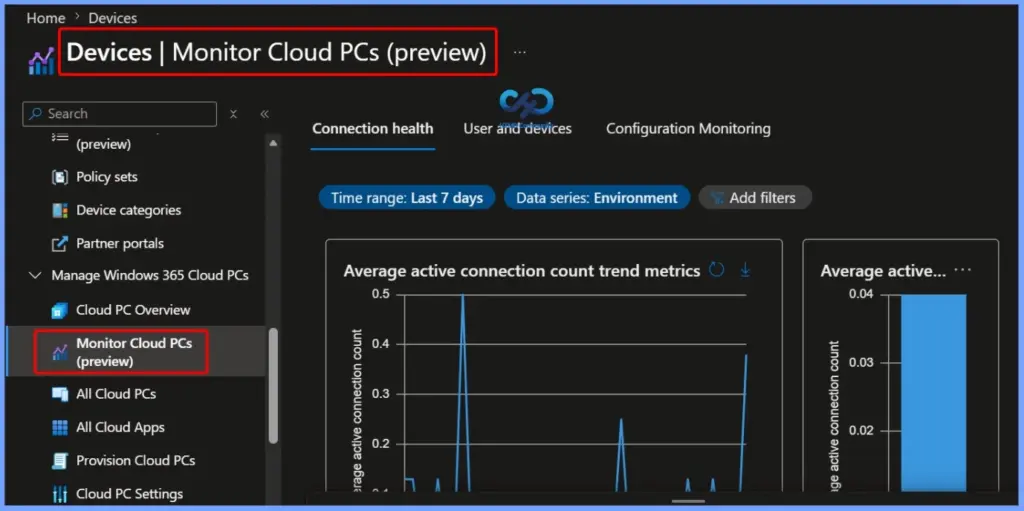
Monitor Windows 365 Cloud PCs in Microsoft Intune
The Monitor Cloud PCs (Preview) page in the Microsoft Intune admin center provides administrators with a centralized view to monitor the health, status, and operational insights of Windows 365 Cloud PCs. From this section, IT admins can quickly identify Cloud PC issues, review device health information, and track the status of managed Cloud PCs to ensure a reliable end-user experience.

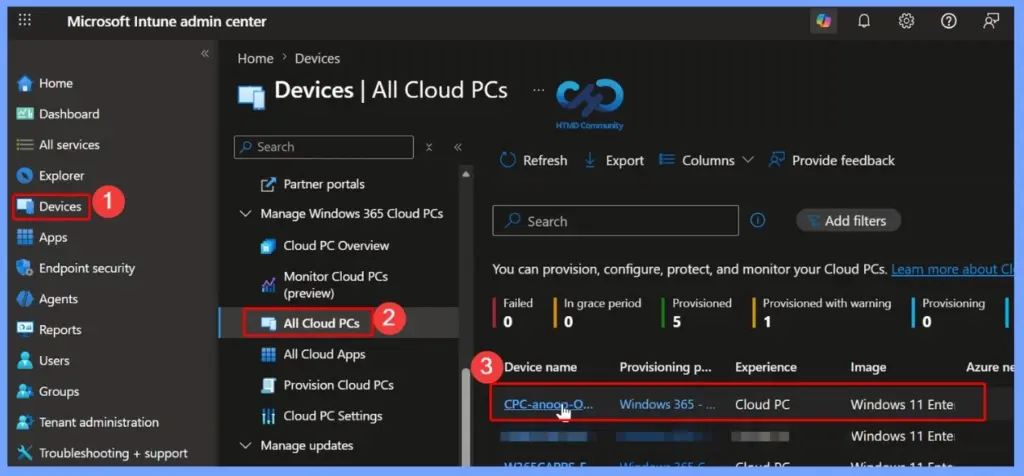
- Launch Microsoft Intune Admin Center -> https://intune.microsoft.com/
- Navigate to Devices -> Manage Windows 365 Cloud PCs
From the Windows 365 node, you can click on the All Cloud PCs tab to view all the available cloud PCs. Click on the Cloud PC name that you want to initiate remote action -> CPC-anoop-OBPRG.
Note – The All Cloud PCs page displays a summary and list view detailing the state information for each cloud PC in your organisation. If users have multiple Windows 365 SKUs assigned to them, they’ll get multiple Cloud PCs.
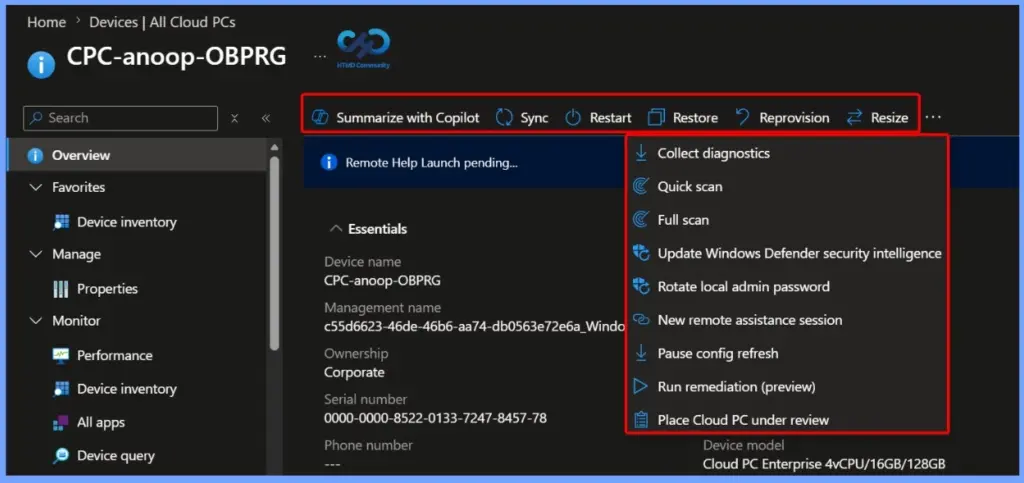
Cloud PC Enterprise Edition supports the following remote management actions –
- Summarize with Copilot – Get a quick AI summary of the Cloud PC.
- Sync – Check for the latest Intune policies and updates.
- Restart – Restart the Cloud PC remotely.
- Restore – Restore the Cloud PC to an earlier restore point.
- Reprovision – Reset the Cloud PC and create it again with a fresh Windows installation.
- Resize – Increase or decrease the Cloud PC’s CPU, RAM, or storage.
- Collect diagnostics – Collect logs to help find and fix problems.
- Quick scan – Run a quick Microsoft Defender virus scan.
- Full scan – Run a complete Microsoft Defender virus scan.
- Update Windows Defender security intelligence – Update Microsoft Defender to the latest virus definitions.
- Rotate local admin password – Create a new local administrator password.
- New remote assistance session – Start a remote support session with the user.
- Pause config refresh – Temporarily stop Intune from applying configuration changes.
- Run remediation (Preview) – Run a script to fix known issues automatically.
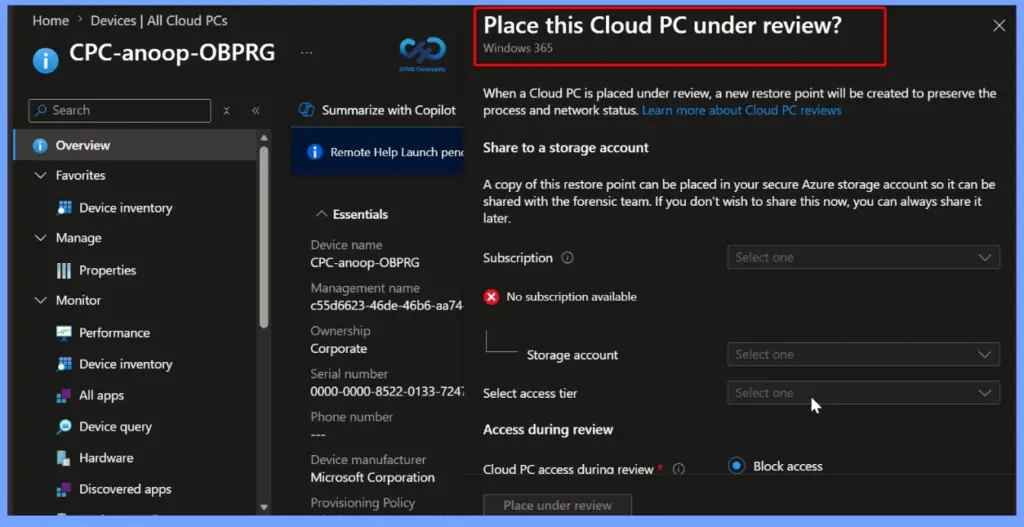
- Place Cloud PC under review – Mark the Cloud PC for investigation while you review an issue.
Note: The user should be assigned the appropriate license to perform all remote action activities from MEM Admin Center.
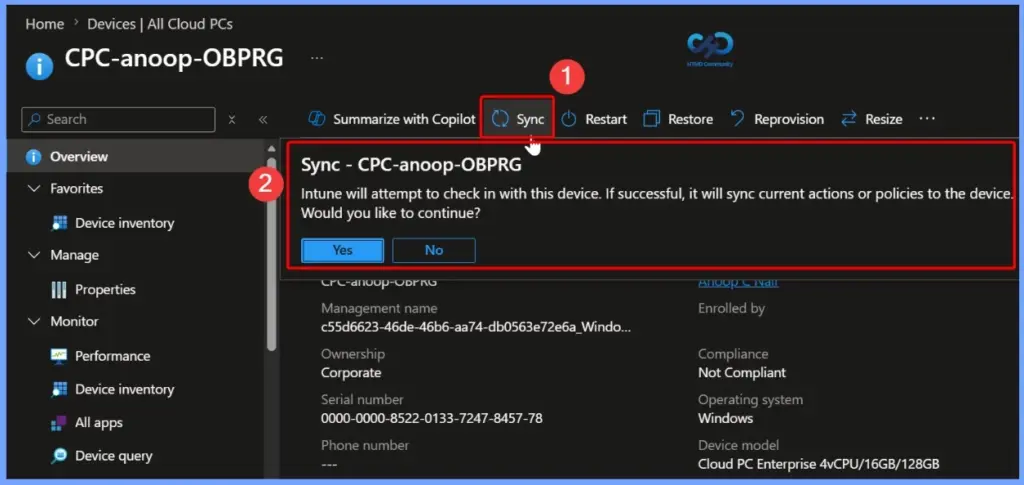
Sync a Windows 365 Cloud PC
The Sync remote action forces a Windows 365 Cloud PC to check in with Microsoft Intune immediately. The Cloud PC downloads and applies any pending policies, apps, and configuration changes.
Reprovision a Windows 365 Cloud PC
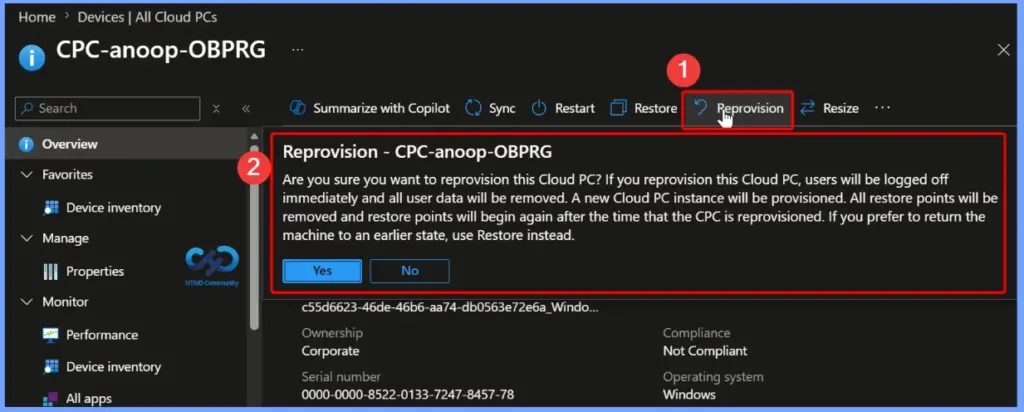
The Reprovision remote action deletes the existing Windows 365 Cloud PC and creates a new Cloud PC for the same user. When the process starts, the user is signed out immediately, and all local data, installed apps, settings, and customizations are permanently removed. After you confirm the action by clicking Yes, Windows 365 provisions a fresh Cloud PC with the assigned configuration.
Let’s learn – how to reprovision Cloud PC from the Microsoft Endpoint Manager Admin Center portal.
Resize a Windows 365 Cloud PC
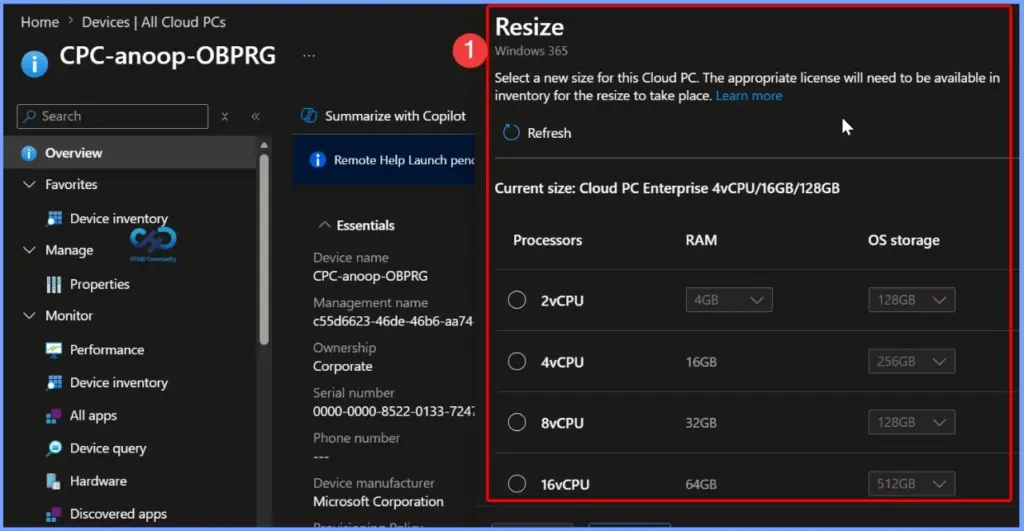
The Resize remote action lets administrators change the CPU, RAM, and storage of a Windows 365 Cloud PC to meet changing user needs. This action is available only for provisioned Cloud PCs and requires the appropriate administrative permissions. Select the Cloud PC, choose Resize, select the new Cloud PC size (SKU), and click Resize. The Cloud PC restarts automatically to apply the new configuration.
Let’s learn how to resize Cloud PC Windows 365 from the MEM admin center.
Collect Diagnostics from a Windows 365 Cloud PC
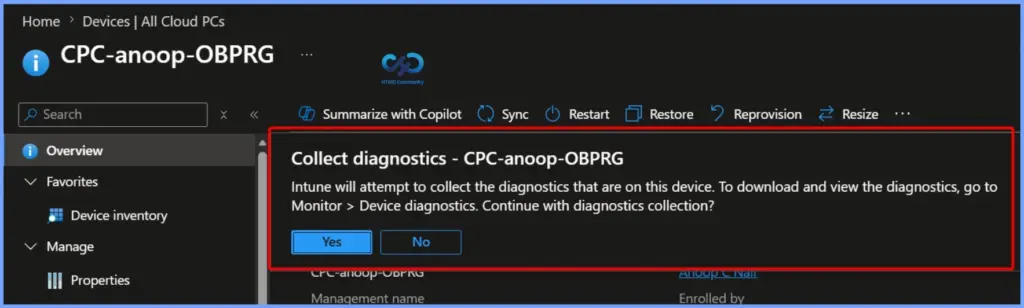
The Collect diagnostics remote action gathers diagnostic logs from a Windows 365 Cloud PC to help troubleshoot issues. These logs include MDM logs, Intune Management Extension (IME) logs, event logs, and other device information that can help administrators identify and resolve problems.
Select the Cloud PC, click Collect diagnostics, and then click Yes to start the collection. After the process is complete, you can download the logs from Monitor > Device diagnostics in the Microsoft Intune admin center.
Learn more details about how to collect Intune logs using the MEM portal. This helps collect Intune logs from Windows 10 and Windows 11
Place Windows 365 Cloud PC Under Review
By placing a Windows 365 Enterprise Cloud PC under review, organisations can rest assured that their data is secure and easily accessible in the event of an investigation. To use this feature, your organisation must have Windows 365 Enterprise licenses, and an Azure Storage account configured in the same Microsoft Entra tenant to securely store the preserved Cloud PC data.
By placing a Windows 365 Enterprise Cloud PC under review, organizations can rest assured that their data is secure and easily accessible in case of an investigation. In this post, you will learn how to Place Windows 365 Cloud PC Under Review.
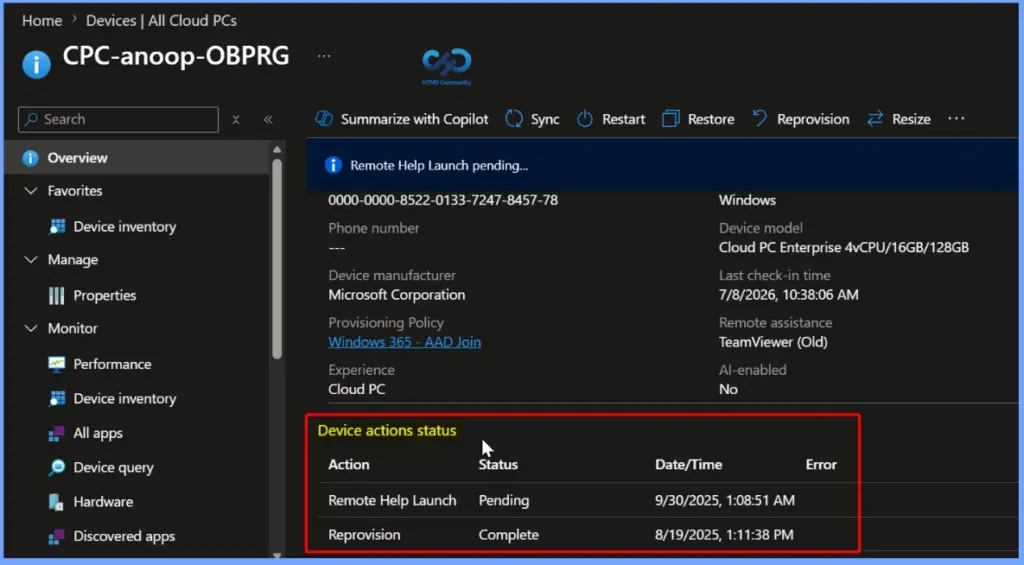
Device Actions Status – Cloud PC
When the selective process is completed based on user action, you will get an updated status under Device actions status for all performed actions. For example, here you can see the action status Collect diagnostics pending. Once the action is completed successfully, the status will show as complete.
Remote Actions bug known issue with Windows 10 or Windows 11
Let’s check remote action bugs and known issues with Windows 11 or Windows 10. Make sure that you install the July 2021 Windows Update, or a later Windows update is installed on Windows 11 or Windows 10 devices to get the remote action to work properly.
Otherwise, Intune remote actions in the Microsoft Intune admin center, like remote sync, won’t work correctly. This means you need to wait for a default policy sync of 8 hours to get policies applied.
Need Further Assistance or Have Technical Questions?
Join the LinkedIn Page and Telegram group to get the latest step-by-step guides and news updates. Join our Meetup Page to participate in User group meetings. Also, join the WhatsApp Community and the Whatsapp channel to get the latest news on Microsoft Technologies. We are there on Reddit as well.
Author
Jitesh, Microsoft MVP, has over six years of working experience in the IT Industry. He writes and shares his experiences related to Microsoft device management technologies and IT Infrastructure management. His primary focus is Windows 10/11 Deployment solution with Configuration Manager, Microsoft Deployment Toolkit (MDT), and Microsoft Intune.