





Configure Password Policies for Android Enterprise Work Profile using Intune 4

Configure Password Policies for Android Enterprise Work Profile using Intune

Key Takeaways

  • Secure Android Enterprise devices with Device Restrictions policies.
  • Protect corporate data by controlling device features and settings.
  • Restrict data sharing between work and personal profiles.
  • Manage work profile behavior to improve security.

Let’s learn Configure Password Policies for Android Enterprise Work Profile using Intune. Android for Work Device Restriction Policies Deployment is the Security Policy for Android Devices. Security policies are important to secure the corporate data and applications on those devices. Microsoft Intune provides Device Restrictions policies to help organizations secure Android Enterprise devices by controlling device features and restricting user actions.

Table of Contents

Configure Password Policies for Android Enterprise Work Profile using Intune

In this guide, you’ll learn how to create and deploy an Android Enterprise Device Restrictions policy using the Microsoft Intune admin center. We’ll walk through the policy creation process, configure the available restriction settings, and assign the policy to Microsoft Entra ID groups.

By implementing Device Restrictions policies, administrators can control work profile behavior, limit data sharing, manage hardware features, and enhance the overall security of Android Enterprise devices. Following these best practices helps organizations maintain a secure and compliant mobile environment.

Get Start the Profile Creation

To begin, sign in to the Microsoft Intune admin center with an account that has the required administrative permissions. From the left navigation pane, select Devices, and then click Configuration to access the list of device configuration policies.

  • On the Configuration page, click + Create, and then select + New policy.
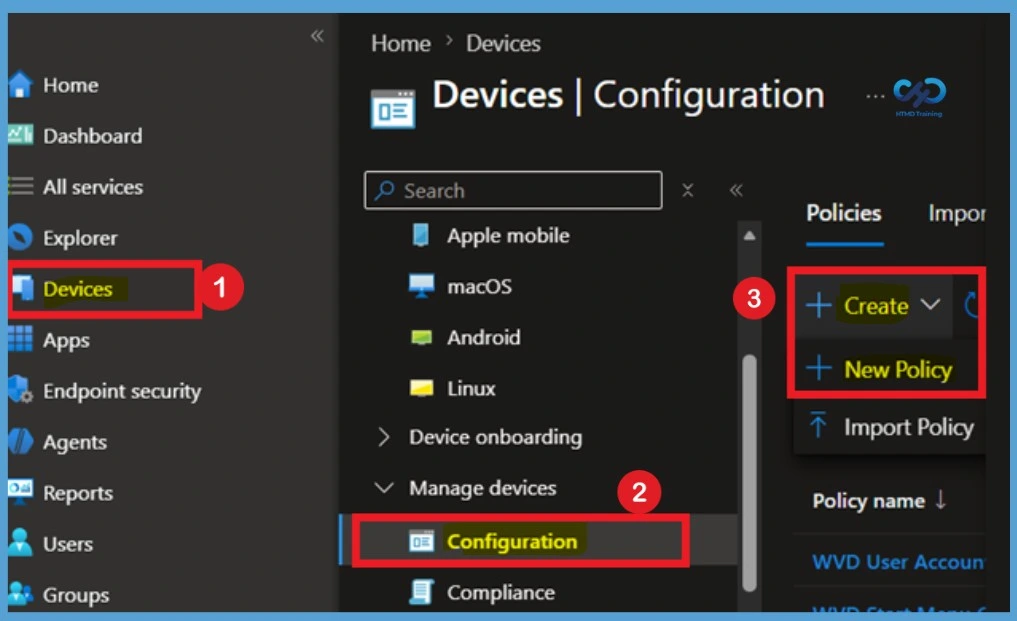
Configure Password Policies for Android Enterprise Work Profile using Intune - Fig.1
Configure Password Policies for Android Enterprise Work Profile using Intune – Fig.1

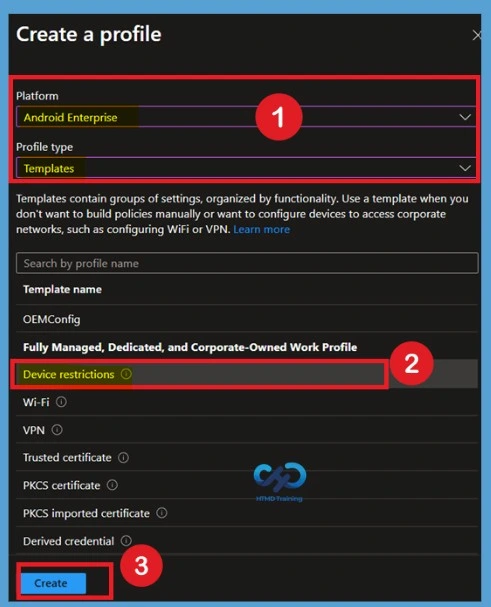
When you select + New policy, the Create a profile window opens. Here, choose Android Enterprise as the Platform, Templates as the Profile type, and then select Device restrictions from the list of available templates. Templates provide a preconfigured collection of settings organized by functionality, making it easier to create policies without manually selecting individual settings.

They help administrators quickly configure common device management and security settings for managed devices. After selecting Device restrictions, click Create to begin configuring the policy.

PlatformProfile Type
Android Enterprise Device Restrictions
Configure Password Policies for Android Enterprise Work Profile using Intune – Table 1
Configure Password Policies for Android Enterprise Work Profile using Intune - Fig.2
Configure Password Policies for Android Enterprise Work Profile using Intune – Fig.2

Basic Tab

On the Basics page, provide a meaningful Name and an optional Description for the Device Restrictions policy. Using a descriptive policy name makes it easier to identify and manage the policy in the Microsoft Intune admin center, especially when multiple configuration profiles are deployed.

For this example, enter Android Enterprise Device Restrictions as the policy name and Configures device restriction settings for Android Enterprise devices as the description. Verify that the Platform is set to Android Enterprise and the Profile type is Device restrictions, then click Next to continue.
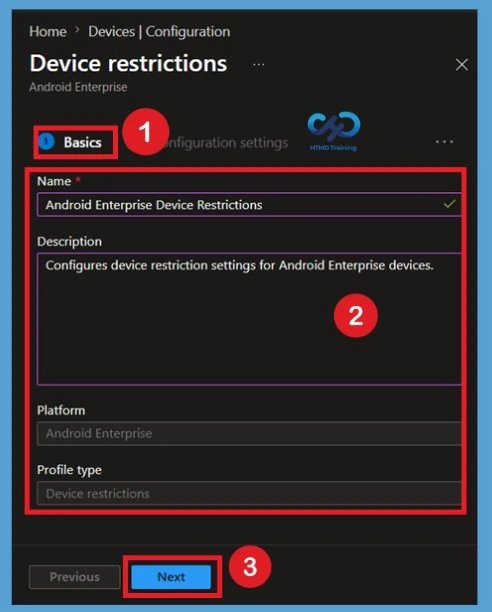
Configure Password Policies for Android Enterprise Work Profile using Intune - Fig.3
Configure Password Policies for Android Enterprise Work Profile using Intune – Fig.3

Configuration Settings

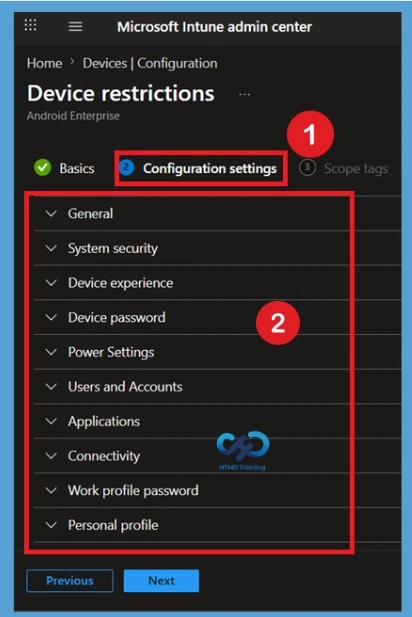
On the Configuration settings page, you’ll find several categories of device restriction settings, including General, System security, Device experience, Device password, Power Settings, Users and Accounts, Applications, Connectivity, Work profile password, and Personal profile. These categories allow you to configure security and device management settings based on your organization’s requirements.

CategoryPurpose
GeneralControls core device behaviors such as screen capture, camera access, date or time changes, and roaming data
System securityDefines encryption, certificate, and security patch requirements. Strengthens device integrity and compliance.
Device experienceManages user interface and experience settings like status bar visibility, notifications, and accessibility features. Ideal for kiosk or frontline devices.
Power SettingsControls power menu access, sleep behavior, and battery optimization. Prevents unauthorized shutdowns or tampering.
Users and AccountsRestricts account additions, sync settings, and user management.
ApplicationsManages app installation permissions, updates, and restrictions. Supports app whitelisting or blacklisting for compliance.
ConnectivityControls Bluetooth, Wi‑Fi, USB, and hotspot access. Prevents data leakage and enforces secure network usage.
Work profile passwordEnforces password rules specifically for corporate‑owned work profiles, expiry, and wipe thresholds. Protects enterprise data within work containers.
Personal profileControl camera, screen capture, and app installation from unknown sources. Balances privacy and control.
Custom support informationDisplays IT helpdesk contact or support portal details on the device. Improves user self‑service and compliance.
Configure Password Policies for Android Enterprise Work Profile using Intune – Table.2
Configure Password Policies for Android Enterprise Work Profile using Intune - Fig.4
Configure Password Policies for Android Enterprise Work Profile using Intune – Fig.4

Configure Work Profile Device Restriction Settings

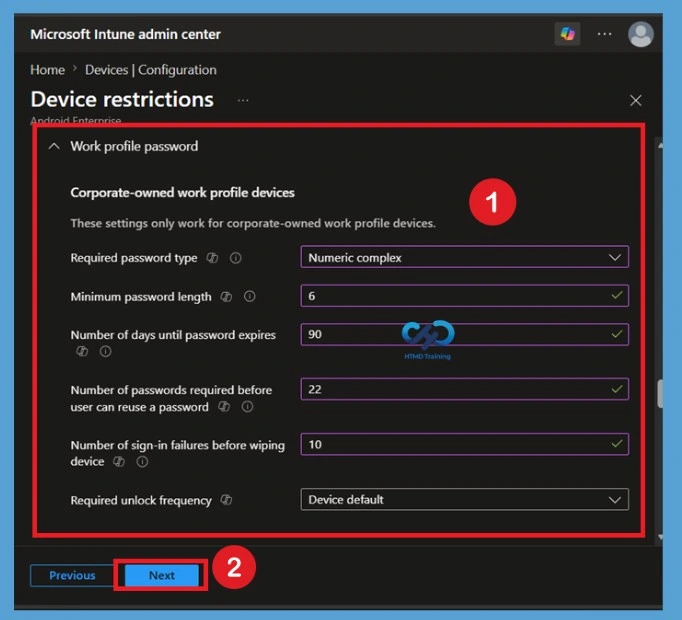
Expand the required category to configure its available settings. In this example, the Work profile password section is used to define password requirements for corporate-owned work profile devices, including the required password type, minimum password length, password expiration period, password history, sign-in failure threshold, and unlock frequency.

  • Expand each category and configure the appropriate settings for your Android Enterprise devices.
  • Review the configured options carefully before proceeding. After completing the required configurations, click Next to continue to the next step.
SettingInfo
Required password typeNumeric complex
Minimum password length6
Number of days until password expires90
Number of passwords required before reuse22
Number of sign‑in failures before wiping device10
Required unlock frequencyDevice default
Configure Password Policies for Android Enterprise Work Profile using Intune – Table 3
Configure Password Policies for Android Enterprise Work Profile using Intune - Fig.5
Configure Password Policies for Android Enterprise Work Profile using Intune – Fig.5

Scope Tags Settings

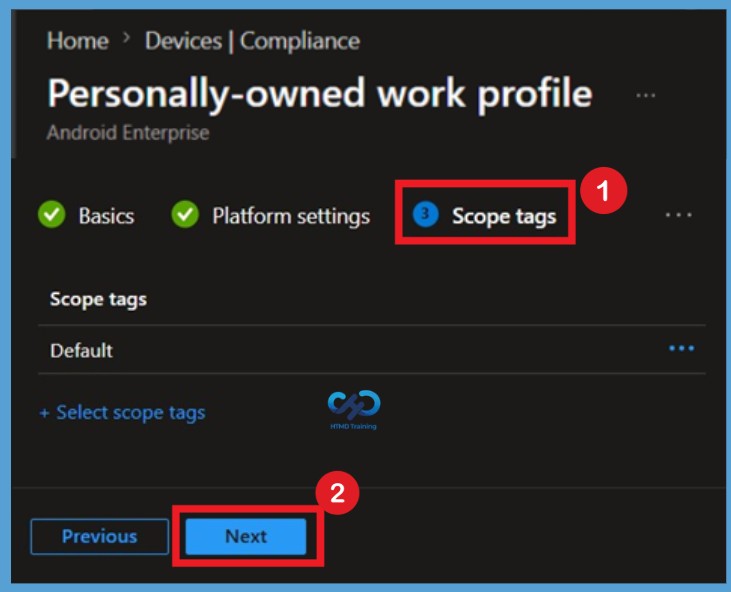
Scope tags help limit which administrators can view and manage this Device Restrictions policy based on their assigned roles. Click Select scope tags to choose one or more scope tags, or leave the default configuration if your organization doesn’t use RBAC. After completing this step, click Next to continue.
Configure Password Policies for Android Enterprise Work Profile using Intune - Fig.6
Configure Password Policies for Android Enterprise Work Profile using Intune – Fig.6

Importance of Assignments

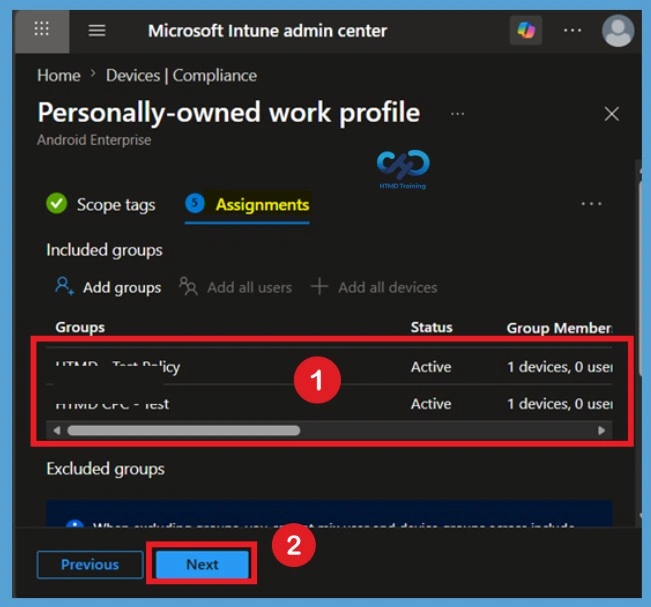
The Assignments page determines which users or devices receive the Android Enterprise Device Restrictions policy. Under Included groups, click Add groups and select the Microsoft Entra ID user or device groups that should receive the policy. If necessary, you can also configure Excluded groups to prevent the policy from applying to specific users or devices.

  • After selecting the appropriate groups, review the assignment configuration and click Next.
Configure Password Policies for Android Enterprise Work Profile using Intune - Fig.7
Configure Password Policies for Android Enterprise Work Profile using Intune – Fig.7

Review + Create Options

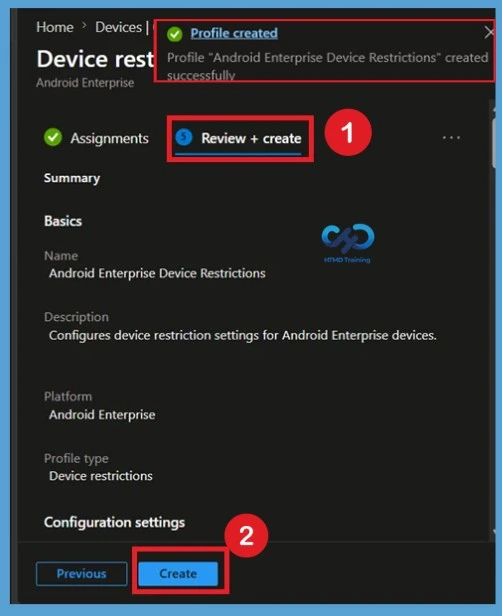
The Review + create page displays a summary of the policy configuration, including the platform, profile template, configured device restriction settings, scope tags, and assignments. Carefully review all settings to ensure they match your organization’s security requirements before creating the policy.

If you need to make any changes, click Previous to return to the relevant step. When you’re satisfied with the configuration, click Create to deploy the Android Enterprise Device Restrictions policy.
Configure Password Policies for Android Enterprise Work Profile using Intune - Fig.8
Configure Password Policies for Android Enterprise Work Profile using Intune – Fig.8

Monitor Device Restrictions Policy Deployment Status

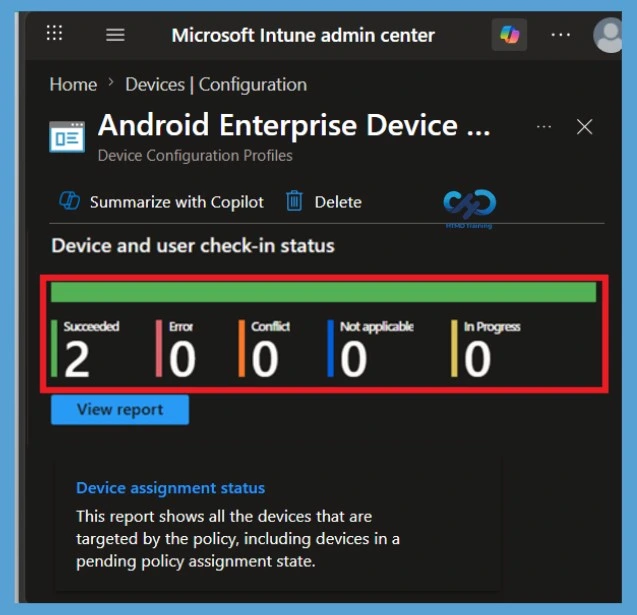
After creating the Android Enterprise Device Restrictions policy, you can monitor its deployment status from the Microsoft Intune admin center. Navigate to Devices > Configuration, and then select the Android Enterprise Device Restrictions policy you created.

Open the Device and user check-in status or Overview page to review the deployment results. Here, you can verify whether the policy was successfully applied to the targeted devices and identify any devices with Pending, Error, Conflict, or Not applicable statuses. This information helps troubleshoot deployment issues and confirm that the policy is being enforced correctly.
Configure Password Policies for Android Enterprise Work Profile using Intune - Fig.9
Configure Password Policies for Android Enterprise Work Profile using Intune – Fig.9

Delete the Device Restrictions Policy

If the Device Restrictions policy is no longer required, you can permanently delete it from Microsoft Intune. Go to Devices > Configuration, locate the Android Enterprise Device Restrictions policy, and select it.

Click the 3-dot (More) menu or Delete option from the command bar, and then confirm the deletion when prompted. Once deleted, the policy is permanently removed from Intune and will no longer be applied to managed Android Enterprise devices.

For detailed information, you can refer to our previous post – Learn How to Delete or Remove App Assignment from Intune using by Step-by-Step Guide.
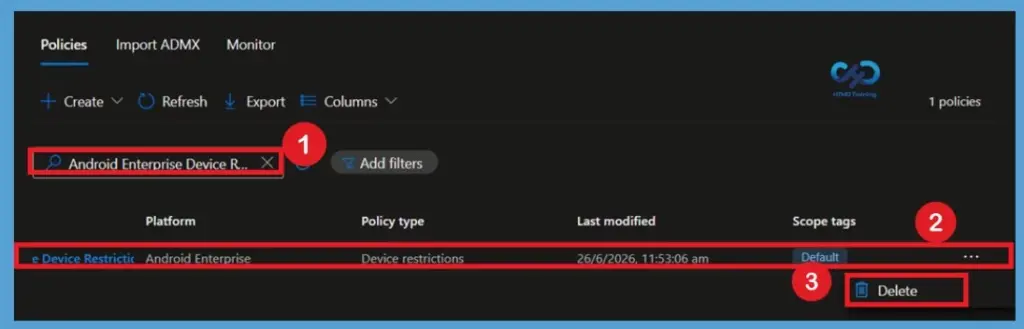
Configure Password Policies for Android Enterprise Work Profile using Intune - Fig.10
Configure Password Policies for Android Enterprise Work Profile using Intune – Fig.10

Remove Assigned Groups from the Device Restrictions Policy

If you no longer want the Device Restrictions policy to apply to specific users or devices, you can remove the assigned groups from the policy. Open the policy, select Properties, and click Edit next to Assignments.

Under Included groups, remove the Microsoft Entra ID groups that are currently assigned to the policy. Review the updated assignments and click Review + save, After the policy is updated, it will no longer be deployed to the removed groups.

For detailed information, you can refer to our previous post – How to Delete Allow Clipboard History Policy in Intune Step by Step Guide.
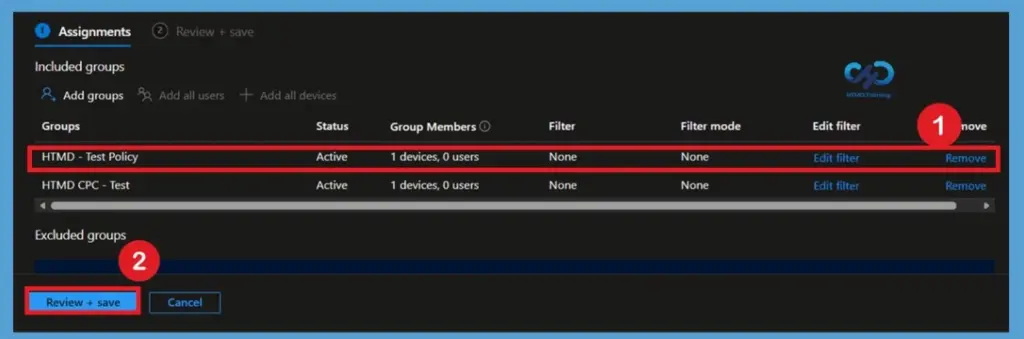
Configure Password Policies for Android Enterprise Work Profile using Intune - Fig.11
Configure Password Policies for Android Enterprise Work Profile using Intune – Fig.11

User Experience of Security Policy for Android Devices

The user experience of Android for Work devices can vary depending on the manufacturer of the devices. As mentioned in the previous post, Samsung and Nexus are the best-experienced devices I have tested.

But I would admit the user experience of Android for Work is far better than that of an Android device! As Android devices have different variants, it’s better to ensure that all the security policies for the Android device experience are excellent for all manufacturers.

Configure Password Policies for Android Enterprise Work Profile using Intune – Video 1

Need Further Assistance or Have Technical Questions?

Join the LinkedIn Page and Telegram group to get the latest step-by-step guides and news updates. Join our Meetup Page to participate in User group meetings. Also, Join the WhatsApp Community and WhatsApp Channel to get the latest news on Microsoft Technologies. We are there on Reddit as well.

Author

Anoop C Nair has been Microsoft MVP from 2015 onwards for 10 consecutive years! He is a Workplace Solution Architect with more than 22+ years of experience in Workplace technologies. He is also a Blogger, Speaker, and Local User Group Community leader. His primary focus is on Device Management technologies like SCCM and Intune. He writes about technologies like Intune, SCCM,  Windows,  Cloud PC, Windows, Entra, Microsoft Security, Career, etc.

Anoop C Nair is Workplace Technology solution architect with 25+ years of experience in global enterprise organizations such as JP Morgan, Capgemini, etc. He is Microsoft Certified Trainer. Microsoft MVP from 2015 onwards for consecutive 11 years! He also conducts Intune and modern workplace tech training for enterprise organizations. He is Blogger, Speaker, and Founder of HTMD Community and HTMD Conference. His focus is on Device Management technologies such as Intune, Windows, Cloud PC. He writes about technologies like Intune, SCCM, Windows, Cloud PC, Windows, Entra, Microsoft Security.
Android-compliance-policies

How to Configure Android Compliance Policies in Microsoft Intune

Key Takeaways

  • Strengthen organizational security by ensuring only compliant Android devices can access corporate resources.
  • Enforce password, encryption, and device security requirements to protect sensitive business data.
  • Improve endpoint compliance by defining operating system, security patch, and device health requirements.
  • Monitor compliance status and quickly identify noncompliant devices for faster remediation.

Let’s discuss How to Configure Android Compliance Policies in Microsoft Intune. This post will provide more details about planning and implementing the policy. Intune compliance policies are the first step of the protection before giving access to corporate apps and data. Planning and designing compliance policies for Android devices is essential as Android is more vulnerable than other operating systems. 

Table of Contents

How to Configure Android Compliance Policies in Microsoft Intune

Microsoft Intune compliance policies help organizations ensure that Android devices meet predefined security and compliance requirements before they can access corporate apps, services, and organizational data. These policies evaluate device settings against configured rules and identify whether a device is compliant or noncompliant.

Creating Android compliance policy is an essential part of endpoint security. Administrators can enforce requirements such as password complexity, operating system versions, encryption, security patch levels, and device health checks to reduce security risks and maintain compliance across managed Android devices.

Get Started to Configure Android Compliance Policies

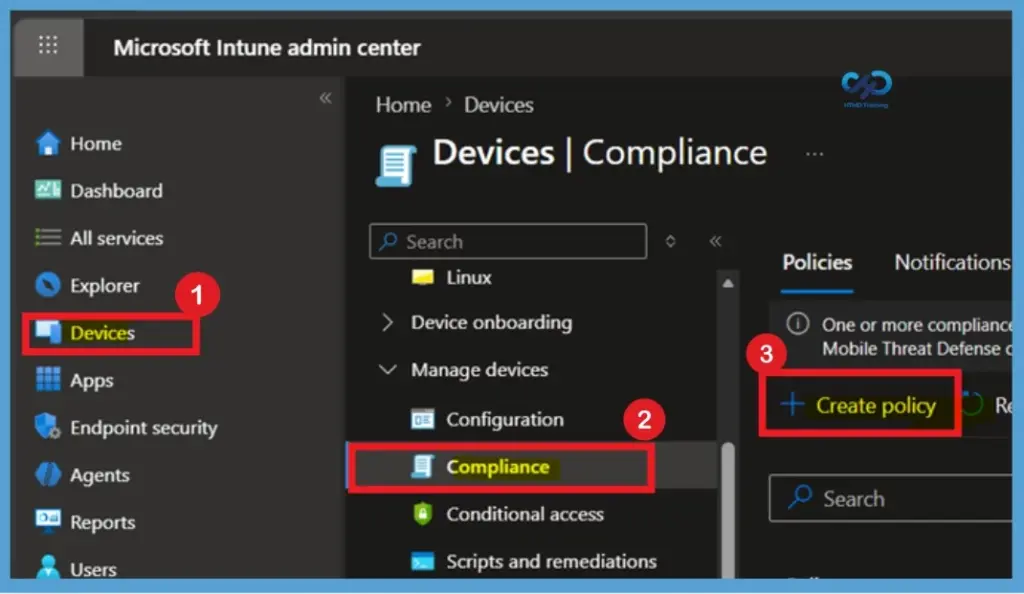
Sign in to the Microsoft Intune admin center using an account with your credentials. From the left navigation pane, select Devices, expand Compliance policies, and then click Create Policies. This page displays all existing compliance policies configured in your Intune tenant.

How to Configure Android Compliance Policies in Microsoft Intune - Fig.1
How to Configure Android Compliance Policies in Microsoft Intune – Fig.1

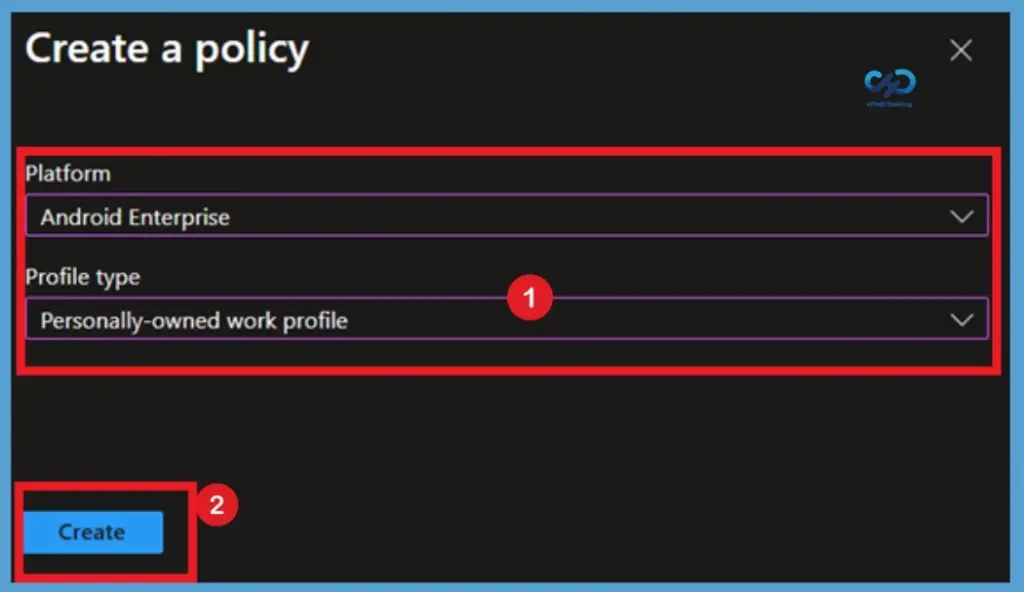
In the Create a policy window, select Android Enterprise as the Platform, choose the appropriate Profile type (such as Personally-owned work profile), and then click Create to begin configuring the policy.

How to Configure Android Compliance Policies in Microsoft Intune - Fig.2
How to Configure Android Compliance Policies in Microsoft Intune – Fig.2

Start With Bascis

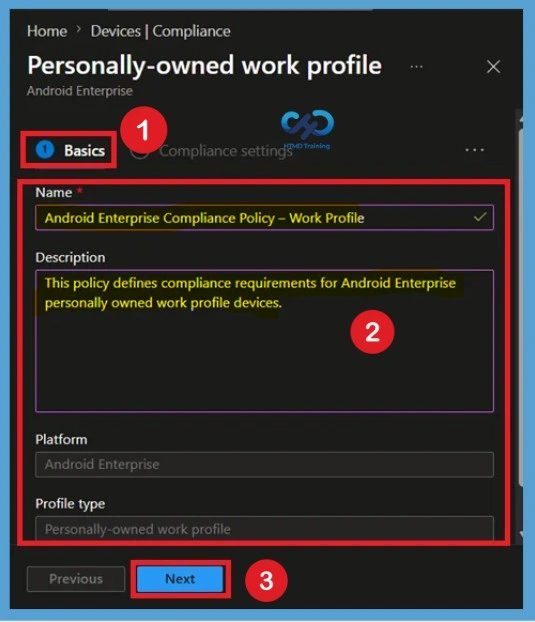
On the Basics page, enter a descriptive Name and an optional Description for the compliance policy to help identify its purpose. For example, use Android Enterprise Compliance Policy as the policy name and This policy defines compliance requirements for Android Enterprise personally owned work profile devices to ensure they meet organizational security standards before accessing corporate resources as the description. After entering the required information, click Next to continue to the Compliance settings page.

How to Configure Android Compliance Policies in Microsoft Intune - Fig.3
How to Configure Android Compliance Policies in Microsoft Intune – Fig.3

Compliance Settings

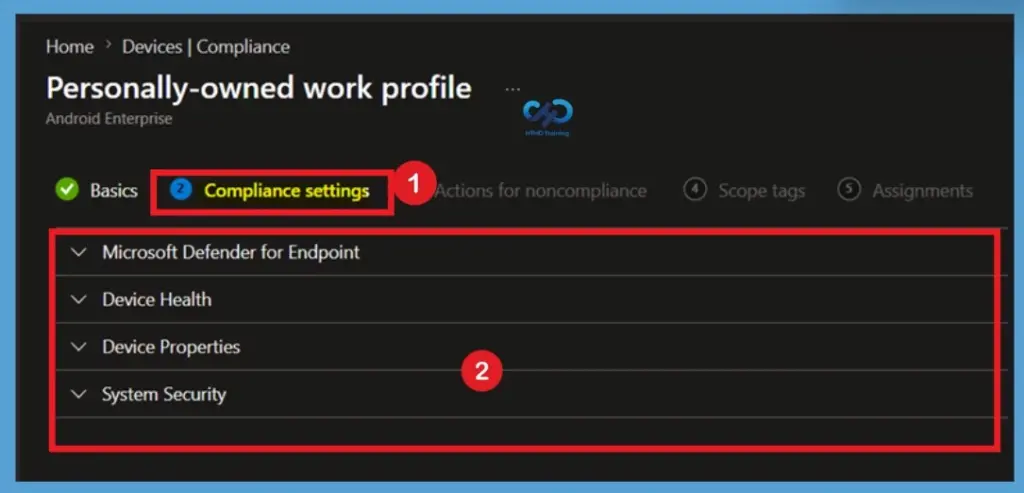
The Device Health section contains settings that evaluate the health and integrity of Android devices. Configure the available options according to your organization’s security requirements. The Compliance settings page includes four configuration categories: Microsoft Defender for Endpoint, Device Health, Device Properties, and System Security. Each category provides different options to evaluate the security and compliance status of Android devices.

CategorySetting
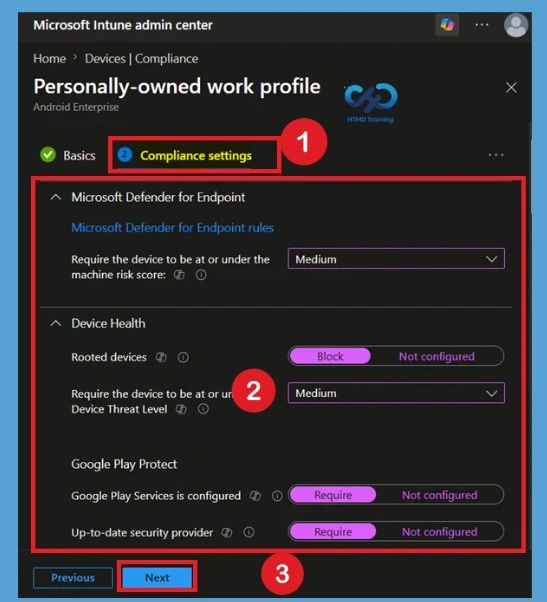
Microsoft Defender for EndpointRequire device at or under machine risk score
Device Health: Rooted devicesRooted devices
Require device at or under Device Threat Level– Medium
Google Play ProtectGoogle Play Services configured –Require
Up‑to‑date security provider-Require
Play Integrity Verdict –Check basic integrity & device integrity
Device PropertiesMinimum OS version -6.0
System Security – EncryptionRequire encryption of data storage-Require
System Security – Device SecurityBlock apps from unknown sources – Block
Company Portal app runtime integrity- Require
How to Configure Android Compliance Policies in Microsoft Intune – Table.1
How to Configure Android Compliance Policies in Microsoft Intune - Fig.4
How to Configure Android Compliance Policies in Microsoft Intune – Fig.4

Expand the Microsoft Defender for Endpoint section by clicking the drop-down arrow to view the available settings. For this example, configure Require the device to be at or under the machine risk score and set the value to Medium. This setting helps ensure that only devices with an acceptable Microsoft Defender for Endpoint risk level are considered compliant.

  • Device Health is where the compliance engine checks whether Android devices should be reported. The device health attestation service has many checks, including TPM 2.0 and BitLocker encryption.
  • Device Properties is where Intune Admins define minimum and maximum versions of operating system details for corporate application access. I would keep the minimum version as Android version 6 wherever possible.
    • Operating System Version
    • Minimum Android OS version
    • Maximum Android OS version
  • System Security is the setting where Intune Admins define password policies for Windows devices. These settings have three sections: Password, Encryption, and Device Security.
Password Compliance Policy for Android
Require a password to unlock mobile devices.
Minimum password length
Required password type
Maximum minutes of inactivity before the password is required
Password expiration (days)
Number of previous passwords to prevent reuse
How to Configure Android Compliance Policies in Microsoft Intune – – Table 2
How to Configure Android Compliance Policies in Microsoft Intune - Fig.5
How to Configure Android Compliance Policies in Microsoft Intune – Fig.5

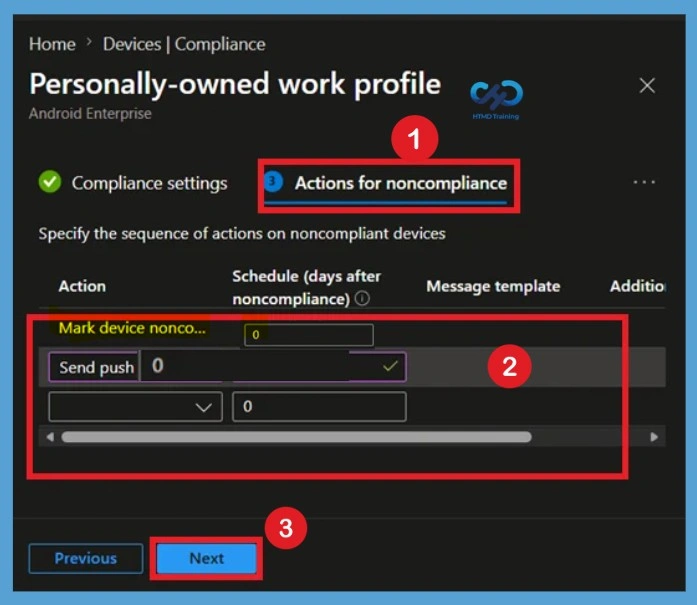
The Actions for noncompliance page allow you to define what happens when an Android device fails to meet the configured compliance requirements. By default, Intune marks a device as noncompliant immediately (0 days), but you can modify the schedule based on your organization’s security policies.

  • The recommended setup is to mark the device noncompliant immediately (0 days) and send a push notification at 0 days, ensuring instant enforcement and user awareness.
How to Configure Android Compliance Policies in Microsoft Intune - Fig.6
How to Configure Android Compliance Policies in Microsoft Intune – Fig.6

Scope Tags

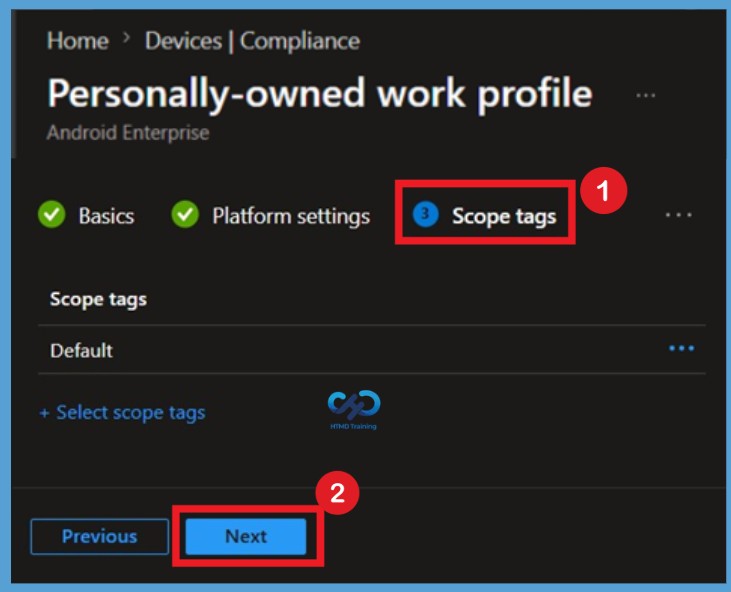
The Scope tags page is optional and is used to control which administrators can view and manage the compliance policy. If your organization does not use custom scope tags, leave the Default scope tag selected and click Next to continue

How to Configure Android Compliance Policies in Microsoft Intune - Fig.7
How to Configure Android Compliance Policies in Microsoft Intune – Fig.7

Assignments for the Compliance Policy

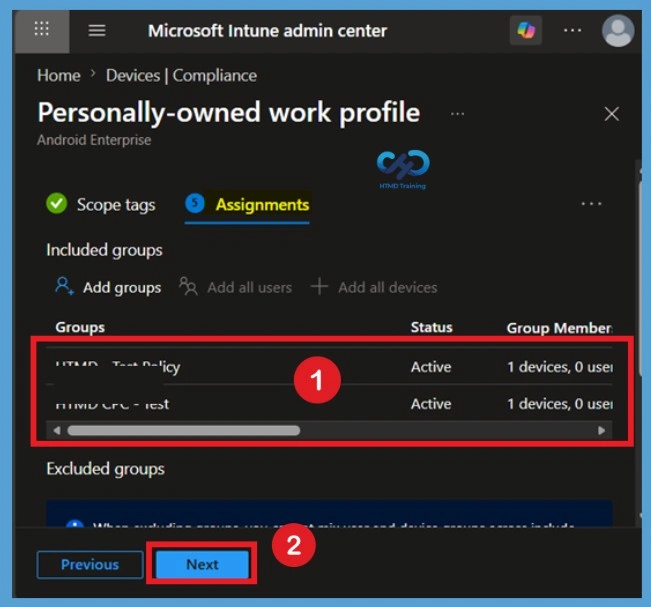
In the Assignments step of your Intune compliance policy, you specify which users or device groups the policy applies to, and the best practice for personally‑owned Android Enterprise. You can also configure exclusion groups if specific users should not receive the policy.

How to Configure Android Compliance Policies in Microsoft Intune - Fig.8
How to Configure Android Compliance Policies in Microsoft Intune – Fig.8

Review + Create Option

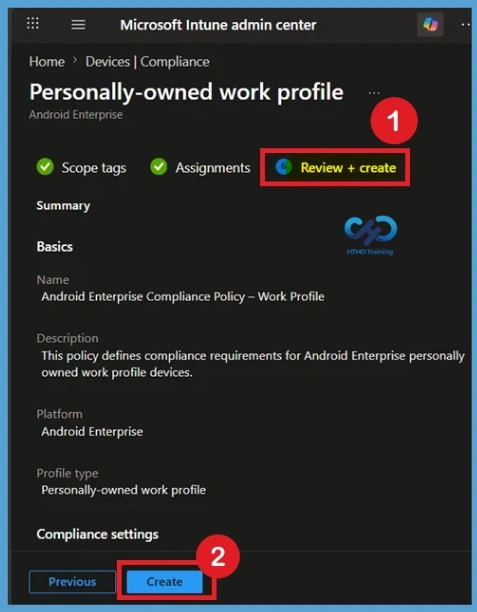
Review all configured settings on the Review + Create page to verify that they meet your organization’s compliance requirements. If necessary, return to previous pages to make changes. Once you’ve confirmed the configuration, click Create to deploy the Android compliance policy.

How to Configure Android Compliance Policies in Microsoft Intune - Fig.9
How to Configure Android Compliance Policies in Microsoft Intune – Fig.9

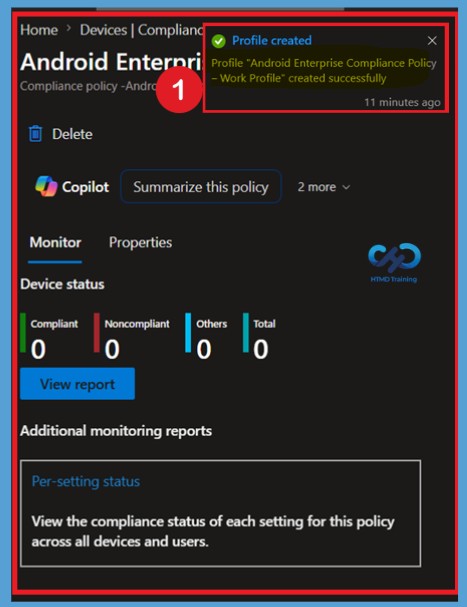
After the policy is successfully created, Microsoft Intune displays a notification confirming that the Android Enterprise compliance policy has been created successfully. You are then redirected to the policy’s Overview or Monitoring page, where you can review the policy details and monitor its compliance status.

How to Configure Android Compliance Policies in Microsoft Intune - Fig.10
How to Configure Android Compliance Policies in Microsoft Intune – Fig.10

Review the Policy Status

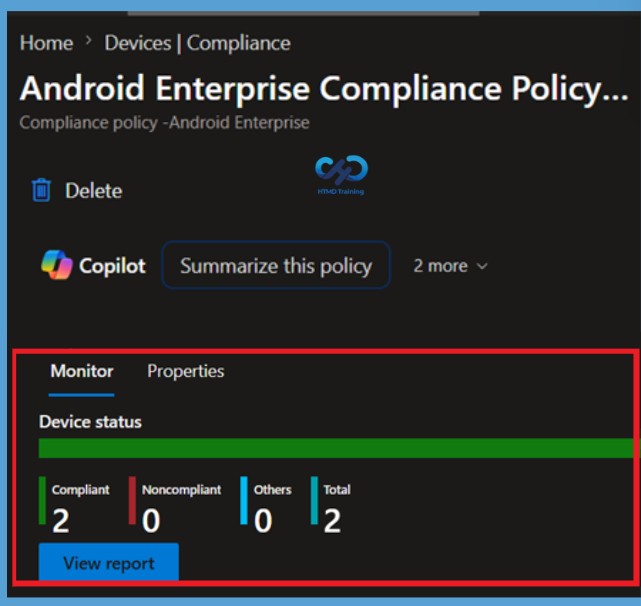
After the policy is created, open the newly created compliance policy to review its status. The Monitor tab displays the deployment and compliance status of the policy. Administrators can view the number of compliant, noncompliant, and not evaluated devices, and select the available reports to access detailed compliance information for individual Android devices.

  • Here you can see that the policy Assigned to the groups successfully.
How to Configure Android Compliance Policies in Microsoft Intune - Fig.11
How to Configure Android Compliance Policies in Microsoft Intune – Fig.11

Delete the Android Enterprise Compliance Policy

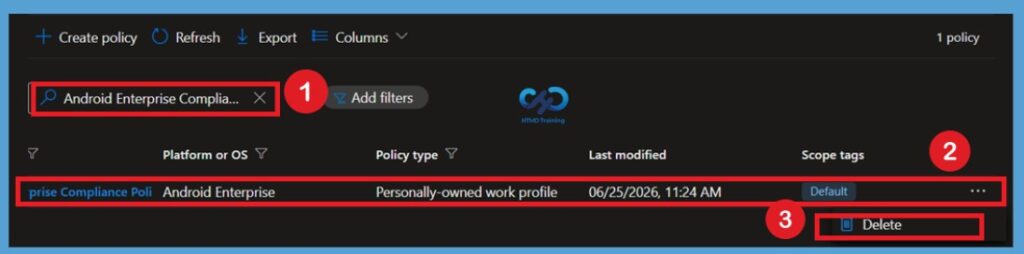
To delete an Android Enterprise compliance policy, sign in to the Microsoft Intune admin center and navigate to Devices > Compliance policies > Policies. Search for the Android Enterprise compliance policy you want to remove and select it from the list. Click the 3-dot (More) menu next to the policy, and then select Delete. When prompted, confirm the deletion to permanently remove the compliance policy from Microsoft Intune.

How to Configure Android Compliance Policies in Microsoft Intune - Fig.12
How to Configure Android Compliance Policies in Microsoft Intune – Fig.12

How to Setup Intune Compliance Policies for Android

This video guide shows you how to set up Intune compliance policies for Android devices. It provides easy-to-follow instructions for creating policies that ensure your devices meet security standards before accessing company apps and data.

Anoop C Nair is Workplace Technology solution architect with 25+ years of experience in global enterprise organizations such as JP Morgan, Capgemini, etc. He is Microsoft Certified Trainer. Microsoft MVP from 2015 onwards for consecutive 11 years! He also conducts Intune and modern workplace tech training for enterprise organizations. He is Blogger, Speaker, and Founder of HTMD Community and HTMD Conference. His focus is on Device Management technologies such as Intune, Windows, Cloud PC. He writes about technologies like Intune, SCCM, Windows, Cloud PC, Windows, Entra, Microsoft Security.
How to Plan Design Intune Compliance Policy for Android Devices – Video 1

Need Further Assistance or Have Technical Questions?

Join the LinkedIn Page and Telegram group to get the latest step-by-step guides and news updates. Join our Meetup Page to participate in User group meetings. Also, Join the WhatsApp Community and WhatsApp Channel to get the latest news on Microsoft Technologies. We are there on Reddit as well.

Author

Anoop C Nair has been Microsoft MVP from 2015 onwards for 10 consecutive years! He is a Workplace Solution Architect with more than 22+ years of experience in Workplace technologies. He is also a Blogger, Speaker, and Local User Group Community leader. His primary focus is on Device Management technologies like SCCM and Intune. He writes about technologies like Intune, SCCM,  Windows,  Cloud PC, Windows, Entra, Microsoft Security, Career, etc

Step-by-Step Guide to Configuring Intune Compliance Policies for iOS 5

Step-by-Step Guide to Configuring Intune Compliance Policies for iOS

Key Takeaways

  • Understand the purpose and benefits of Intune Compliance Policies for iOS devices.
  • Learn how to create and configure an iOS compliance policy in Microsoft Intune.
  • Configure compliance settings, including password requirements, device health, OS version, and system security.
  • Deploy the compliance policy to the appropriate Microsoft Entra user groups.

Let’s discuss setting up an Intune Compliance Policy for iOS Devices. This post will explain how to do so. An Intune Compliance Policy ensures that iOS devices accessing company data meet specific security standards. Enforcing these policies can help protect your organization’s data from unauthorized access and potential security threats. The organization must ensure that the devices that access company apps and data comply with specific rules.

Table of Contents

Step-by-Step Guide to Configuring Intune Compliance Policies for iOS

These rules might include using a password/PIN to access devices and encrypting data stored on devices. This set of such rules is called a compliance policy. The best option is to use a compliance policy with Intune Conditional Access. A compliance policy is a set of guidelines that devices must meet to access organizational resources. It ensures that only secure and compliant devices can access company data, reducing the risk of data breaches or unauthorized access.

How to Setup Intune Compliance Policies for iOS

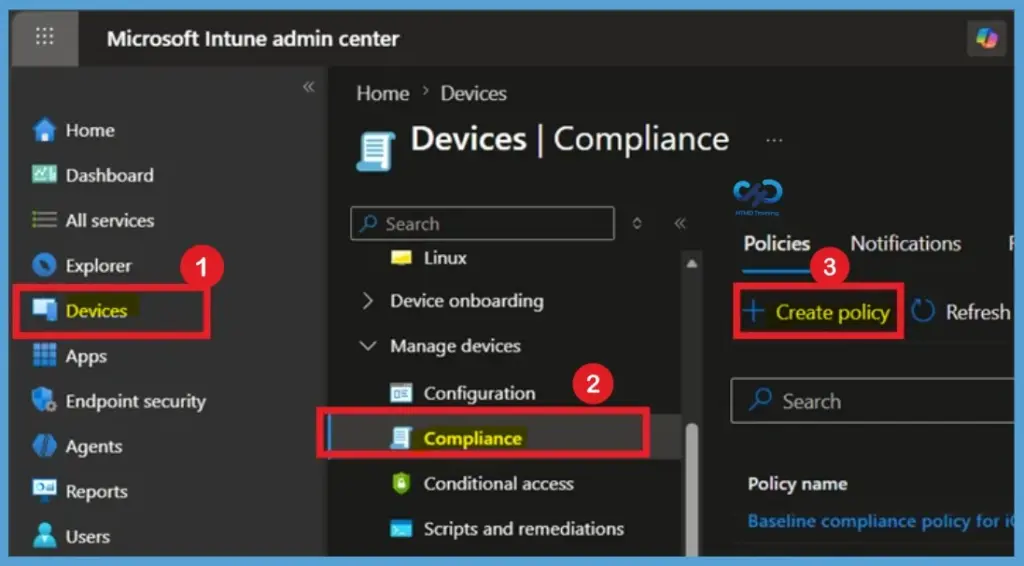
Sign in to the Microsoft Intune admin center and navigate to Devices > Compliance > Policies. Click + Create Policy to create a new compliance policy.

Step-by-Step Guide to Configuring Intune Compliance Policies for iOS - Fig.1
Step-by-Step Guide to Configuring Intune Compliance Policies for iOS – Fig.1

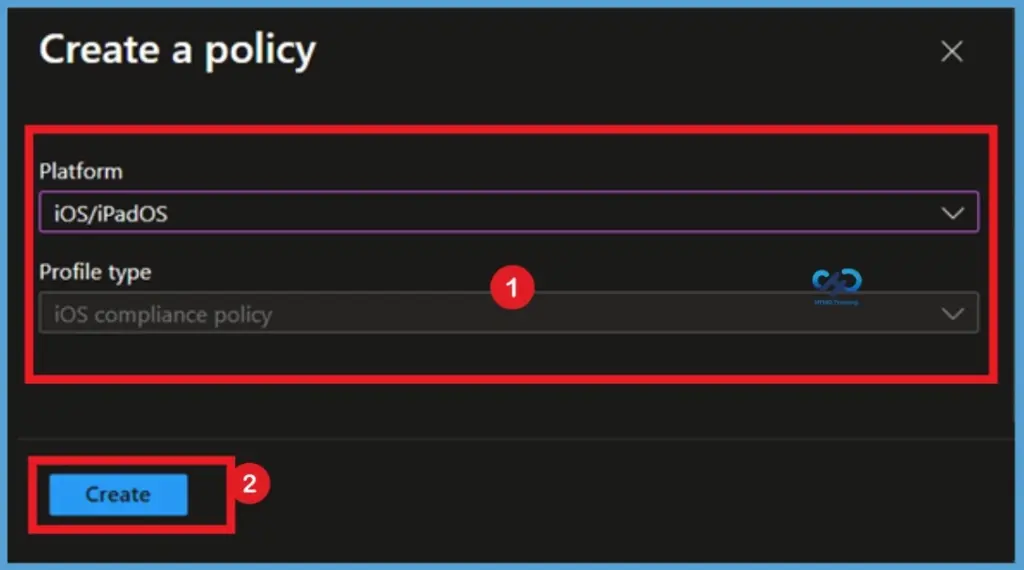
Select iOS/iPadOS as the platform, and then click Create. This opens the policy creation wizard, where you can define the compliance requirements that iOS devices must satisfy before accessing organizational resources.

Step-by-Step Guide to Configuring Intune Compliance Policies for iOS - Fig.2
Step-by-Step Guide to Configuring Intune Compliance Policies for iOS – Fig.2

Start with Basic Tab

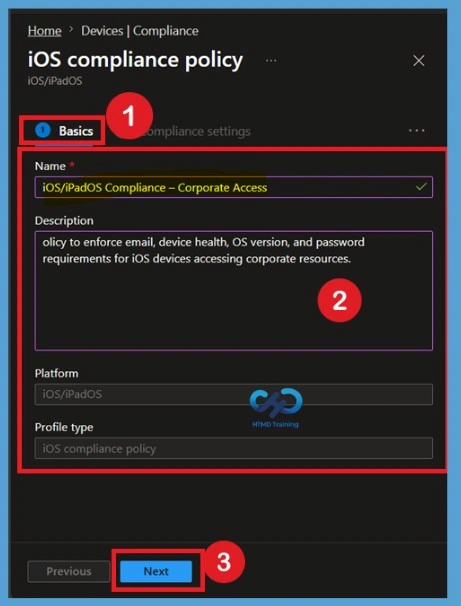
On the Basics page, enter a descriptive Name and an optional Description for the compliance policy. Using a meaningful name, such as iOS Compliance Policy – Corporate Devices, makes it easier to identify and manage the policy in environments with multiple compliance policies. After entering the required information, click Next.

Step-by-Step Guide to Configuring Intune Compliance Policies for iOS - Fig.3
Step-by-Step Guide to Configuring Intune Compliance Policies for iOS – Fig.3

How Do you Set up the Intune Compliance Policy for iOS?

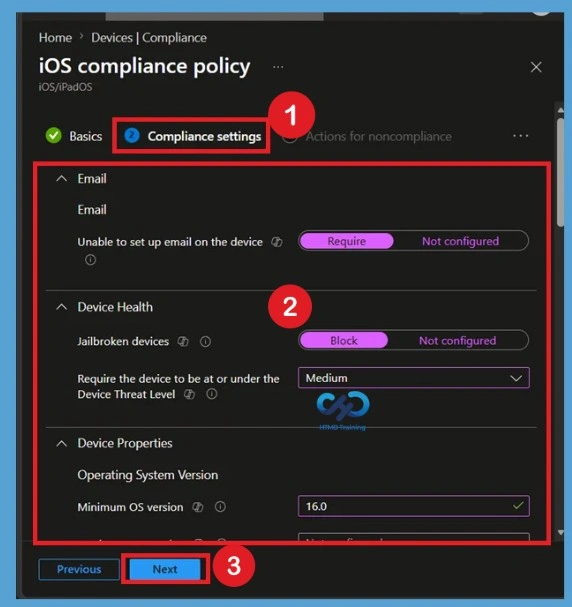
The Compliance Settings page allows you to define the security requirements that iOS and iPadOS devices must meet to be considered compliant. Configure the settings according to your organization’s security policies. The available categories include:

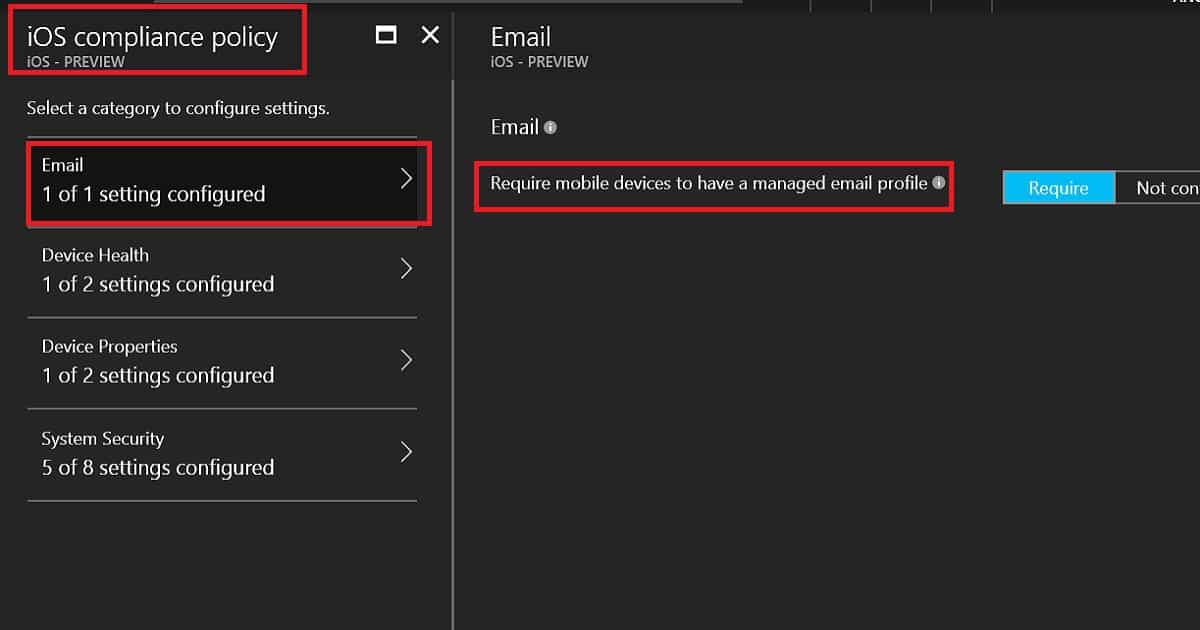
  1. iOS compliance policies have 4 categories: Email, Device Health, Device Properties, and System Security.
  2. Email settings require mobile devices to have a managed email profile to access corporate resources.
  3. The device Health setting will check whether the device is jailbroken or not. If the iOS device is Jailbroken, it won’t provide mail access to that device.
  4. The device Properties setting will check the OS version of the device and the minimum version of the iOS OS.
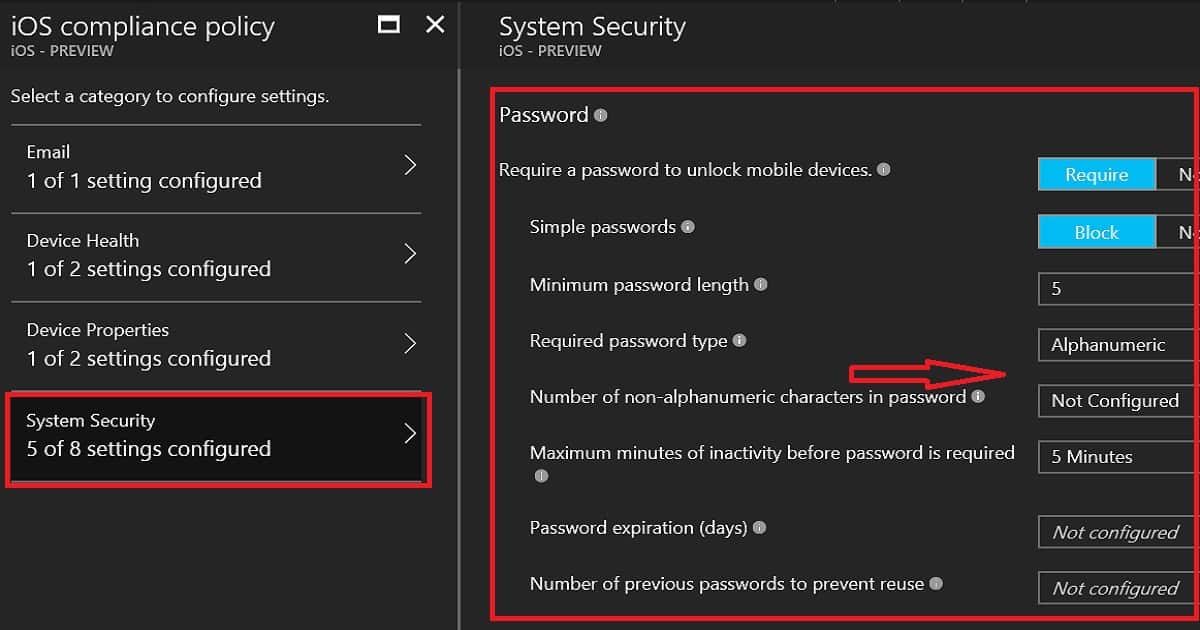
  5. The System Security setting is based mainly on password settings. There are some improvements over the Intune Silverlight portal here. We can have the option not to configure some of the settings, like “Number of non-alphanumeric characters in password.” This was not possible with the Intune Silverlight portal.
How to Setup Intune Compliance Policy for iOS?
Require a password to unlock mobile devices.
Simple passwords
Minimum password length
Not ConfiguredAlphanumericNumeric
Number of non-alphanumeric characters in the password
Maximum minutes of inactivity before a password is required
Password expiration (days)
Number of previous passwords to prevent reuse
HStep-by-Step Guide to Configuring Intune Compliance Policies for iOS – Table 1
Step-by-Step Guide to Configuring Intune Compliance Policies for iOS - Fig.4
Step-by-Step Guide to Configuring Intune Compliance Policies for iOS – Fig.4

Actions for Noncompliance

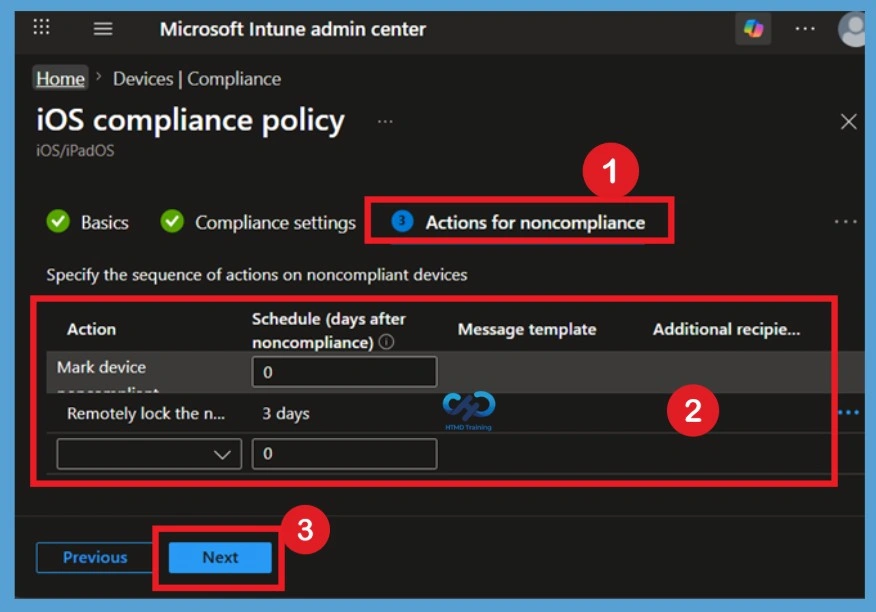
On the Actions for Noncompliance page, specify what happens when a device fails to meet the compliance requirements. By default, Intune marks the device as non-compliant immediately, which can be used together with Microsoft Entra Conditional Access to block access to corporate resources.

The first action, Mark device noncompliant (0 days), flags the device immediately so Conditional Access can restrict corporate access. The second action, remotely lock the noncompliant device (3 days), automatically locks the device if it remains noncompliant for three days, forcing the user to re‑enter their passcode before regaining access.

  • This combination gives users time to fix issues while maintaining security. Once these actions are configured, click Next
Step-by-Step Guide to Configuring Intune Compliance Policies for iOS - Fig.5
Step-by-Step Guide to Configuring Intune Compliance Policies for iOS – Fig.5

Scope Tags

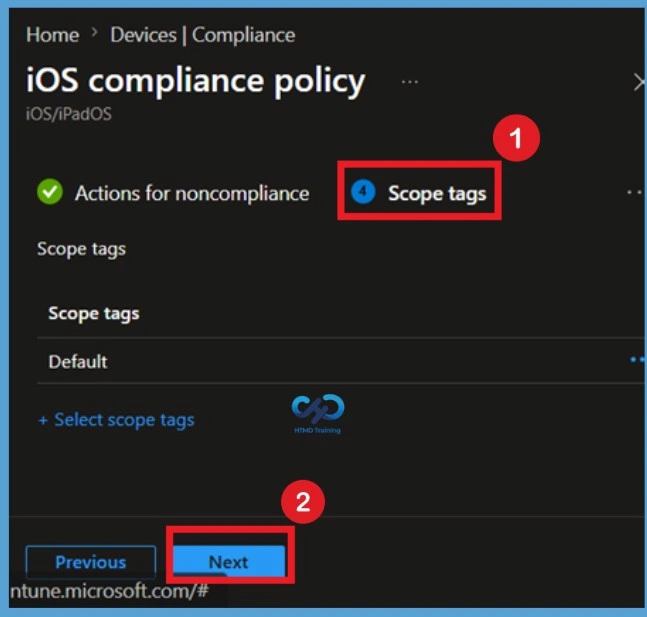
The Scope tags page is optional and is used to control which administrators can view and manage the compliance policy. If your organization does not use custom scope tags, leave the Default scope tag selected and click Next to continue.

Step-by-Step Guide to Configuring Intune Compliance Policies for iOS - Fig.6
Step-by-Step Guide to Configuring Intune Compliance Policies for iOS – Fig.6

Assignment Section

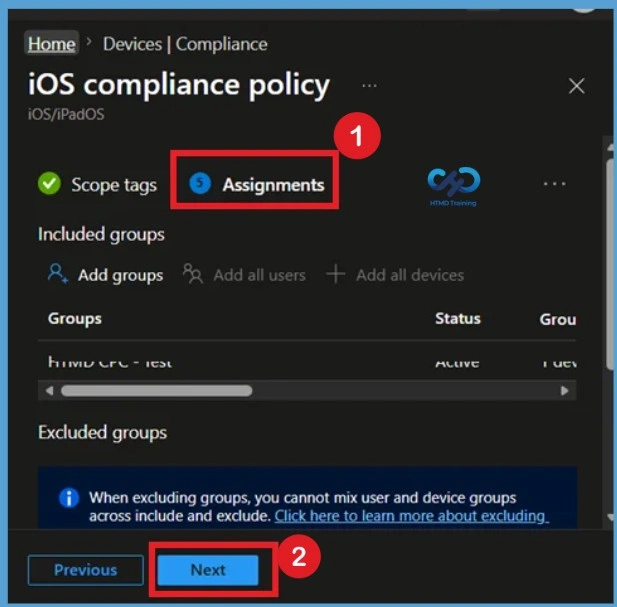
On the Assignments page, select the Microsoft Entra user groups that will receive the compliance policy. Assigning the policy to user groups ensures that all eligible iOS devices enrolled by those users are evaluated against the configured compliance settings.

  • Review the selected groups carefully before proceeding, and then click Next.
Step-by-Step Guide to Configuring Intune Compliance Policies for iOS - Fig.7
Step-by-Step Guide to Configuring Intune Compliance Policies for iOS – Fig.7

Review + Create

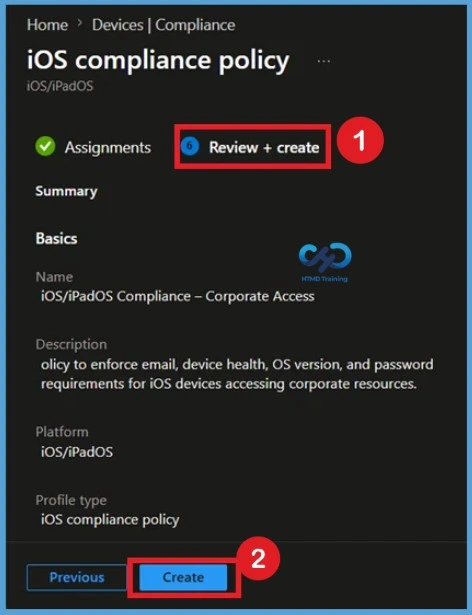
The Review + Create page displays a summary of all configured settings, including the policy name, compliance rules, noncompliance actions, and assignments. Review the configuration to verify that it matches your organization’s security requirements. Once you have confirmed that everything is configured correctly, click Create to deploy the compliance policy. Intune will begin applying the policy to the targeted users.

Step-by-Step Guide to Configuring Intune Compliance Policies for iOS - Fig.8
Step-by-Step Guide to Configuring Intune Compliance Policies for iOS – Fig.8

How to Find Out the Compliance Policy

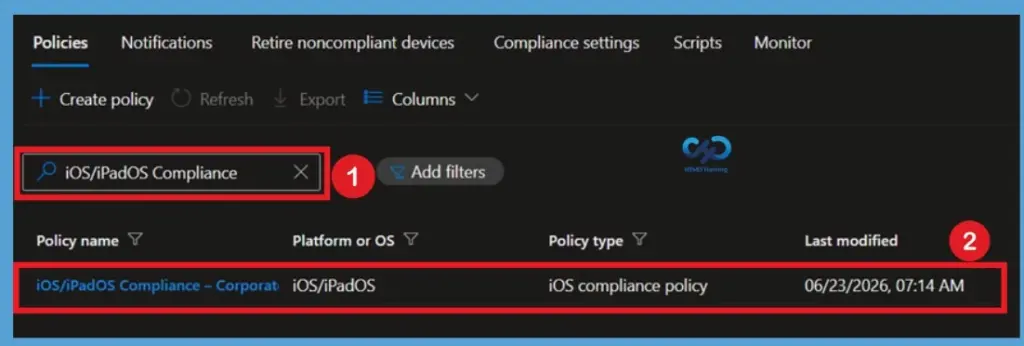
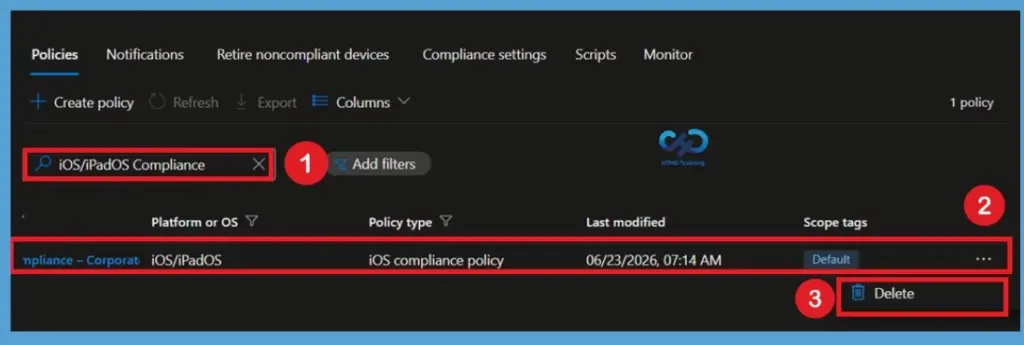
Navigate to Devices > Compliance in the Intune Admin Center. Use the search box to locate the required iOS/iPadOS Compliance policy by entering its name. Once the policy appears in the list, select it to open the policy details.

Step-by-Step Guide to Configuring Intune Compliance Policies for iOS - Fig.9
Step-by-Step Guide to Configuring Intune Compliance Policies for iOS – Fig.9

Review the Policy Status

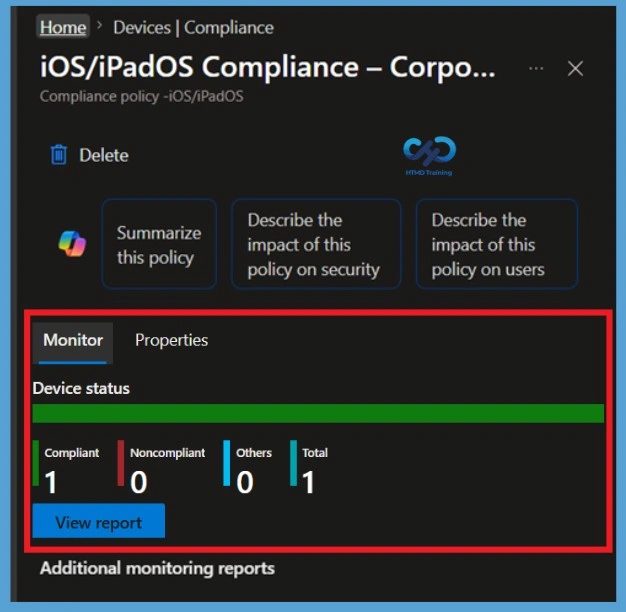
After opening the compliance policy, the Monitor tab displays the deployment status. Here, administrators can review the number of Compliant, Noncompliant, and Other devices assigned to the policy. Select View report to access detailed compliance information for individual devices.

Step-by-Step Guide to Configuring Intune Compliance Policies for iOS - Fig.10
Step-by-Step Guide to Configuring Intune Compliance Policies for iOS – Fig.10

Delete the Compliance Policy

Go to Devices > Compliance and search for the compliance policy. From the policy list, locate the required policy, select the 3-dot (More) menu next to it, and choose Delete. Confirm the deletion when prompted to permanently remove the compliance policy from Intune.

Step-by-Step Guide to Configuring Intune Compliance Policies for iOS - Fig.11
Step-by-Step Guide to Configuring Intune Compliance Policies for iOS – Fig.11

Video

In this video, you will learn all the details on how to set up Intune compliance policies for iOS devices. We’ll guide you through creating and configuring these policies to ensure your company’s data remains secure.

How to Setup Intune Compliance Policy for iOS Devices – Video 1

Need Further Assistance or Have Technical Questions?

Join the LinkedIn Page and Telegram group to get the latest step-by-step guides and news updates. Join our Meetup Page to participate in User group meetings. Also, Join the WhatsApp Community and WhatsApp Channel to get the latest news on Microsoft Technologies. We are there on Reddit as well.

Author

Anoop C Nair has been Microsoft MVP from 2015 onwards for 10 consecutive years! He is a Workplace Solution Architect with more than 22+ years of experience in Workplace technologies. He is also a Blogger, Speaker, and Local User Group Community leader. His primary focus is on Device Management technologies like SCCM and Intune. He writes about technologies like Intune, SCCM,  Windows,   Cloud PC, Windows, Entra, Microsoft Security, Career, etc.

Anoop C Nair is Workplace Technology solution architect with 25+ years of experience in global enterprise organizations such as JP Morgan, Capgemini, etc. He is Microsoft Certified Trainer. Microsoft MVP from 2015 onwards for consecutive 11 years! He also conducts Intune and modern workplace tech training for enterprise organizations. He is Blogger, Speaker, and Founder of HTMD Community and HTMD Conference. His focus is on Device Management technologies such as Intune, Windows, Cloud PC. He writes about technologies like Intune, SCCM, Windows, Cloud PC, Windows, Entra, Microsoft Security.