
Nakivo Hyper-V Backup

Walk Through of NAKIVO Hyper-V Backup – Installation

Walkthrough of NAKIVO Hyper-V Backup—Installation. I have a Hyper-V server 2016 with SCCM, AD servers, and Windows 10 virtual machines. In this post, I will share my experience installing the NAKIVO Hyper-V backup solution.

NAKIVO Backup & Replication supports Microsoft Hyper-V 2016, 2012(R2), and 2012 hypervisors. The installation was straightforward and took less than 5 minutes for me.

Download NAKIVO backup and replication solution from https://goo.gl/3Tb7D2

NAKIVO Backup & Replication provides integration with Microsoft Active Directory. You can easily map Active Directory groups to NAKIVO Backup & Replication user roles.

I plan to cover the BACKUP and RESTORE guide in future blog posts. IE is missing from the recommended browsers list of NAKIVO. I don’t know the exact reason for this. In this post, I will cover the following.

Walk Through of NAKIVO Hyper-V Backup – Installation

Prerequisites for NAKIVO Microsoft Hyper-V backup How to Install NAKIVO Backup and Replication Solution What is a Transporter? NAKIVO troubleshooting Logs How to Perform NAKIVO Configurations How to Create a New Backup Repository for NAKIVO Hyper-V Video Tutorial of NAKIVO Backup & Replication Installation.

Prerequisites for NAKIVO Microsoft Hyper-V backup

Let’s discuss the Prerequisites for NAKIVO Microsoft Hyper-V backup. The list below provides more details.

  • Full administrative permissions are required
  • Default administrative shares must be enabled on Hyper-V hosts
  • The “File server” role must be enabled on Hyper-V hosts
  • The SMB v1 protocol should be allowed on Hyper-V hosts

NAKIVO Backup & Replication can be installed on the following operating systems.

  • Windows Server 2012 R2 Standard (x64)
  • Windows Server 2012 Standard (x64)
  • Windows Server 2008 R2 Standard (x64)
  • Windows 10 Professional (x64)
  • Windows 8 Professional (x64)
  • Windows 7 Professional (x64)
NAKIVO Backup & Replication can be accessed from the following Web browsers
Google Chrome v26 or later
Mozilla Firefox v21 or later
Walk Through of NAKIVO Hyper-V Backup – Installation – Table 1

How to Install NAKIVO Backup and Replication Solution

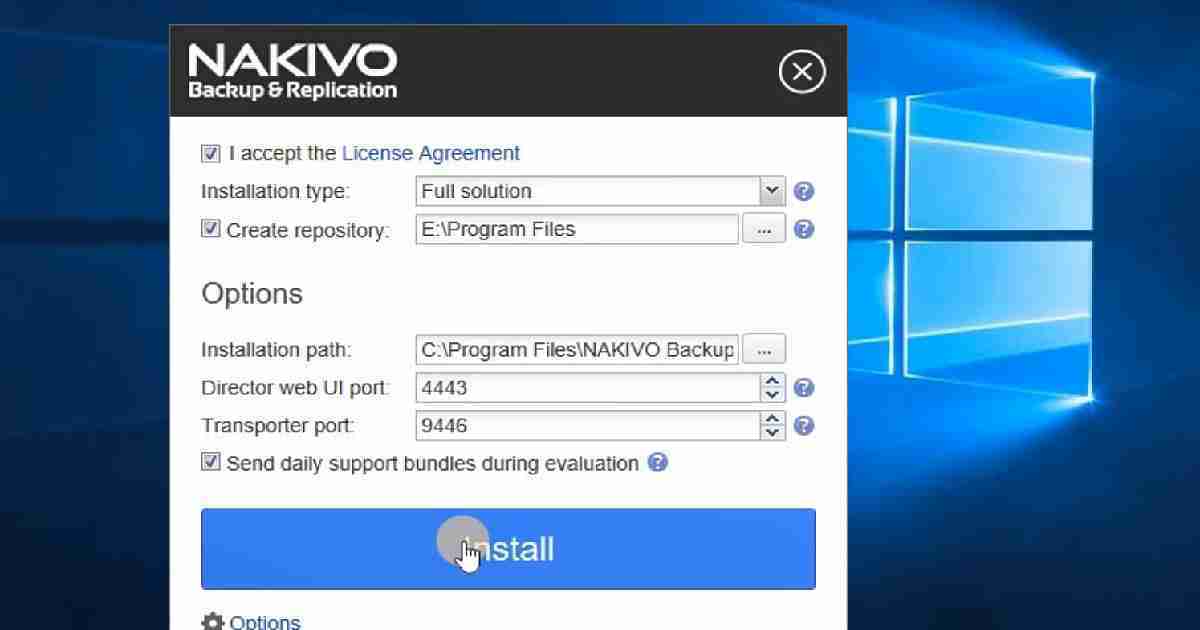
NAKIVO can be installed on Windows, Linux, and NAS. To install NAKIVO Backup & Replication on the Windows platform, run the NAKIVO Backup & Replication installer and click Install. This is explained in the video tutorial here.

NAKIVO has three main components: Director, Transporter, and Backup Repository. When you select FULL Installation, all three parts will automatically be installed. I chose the following configurations for installation.

  • Installation Type:        Full solution
  • Create Repository:        E:\Program Files
  • Installation Path:        C:\Program Files\NAKIVO Backup & Replication
  • Director Web UI port:    4443
  • Transporter Port:         9446
Walk Through of NAKIVO Hyper-V Backup - Installation - Fig.1
Walk Through of NAKIVO Hyper-V Backup – Installation – Fig.1

What is a NAKIVO Transporter?

A Transporter is a service running backup, replication, and recovery tasks. These components are also responsible for managing backup repositories. 

Do I Need a Transporter? Your installation already includes one transporter, the “Onboard transporter.” However, if you run a large environment or have multiple sites, you may need additional transporters.

NAKIVO Logs Location for Troubleshooting

C:\Program Files\NAKIVO Backup & Replication\logs\0

How to Perform NAKIVO Configurations

The configuration steps are General, Inventory, Transporters, Repositories, Events, and Licensing. From my perspective, inventory and backup repository configurations are the most important settings.

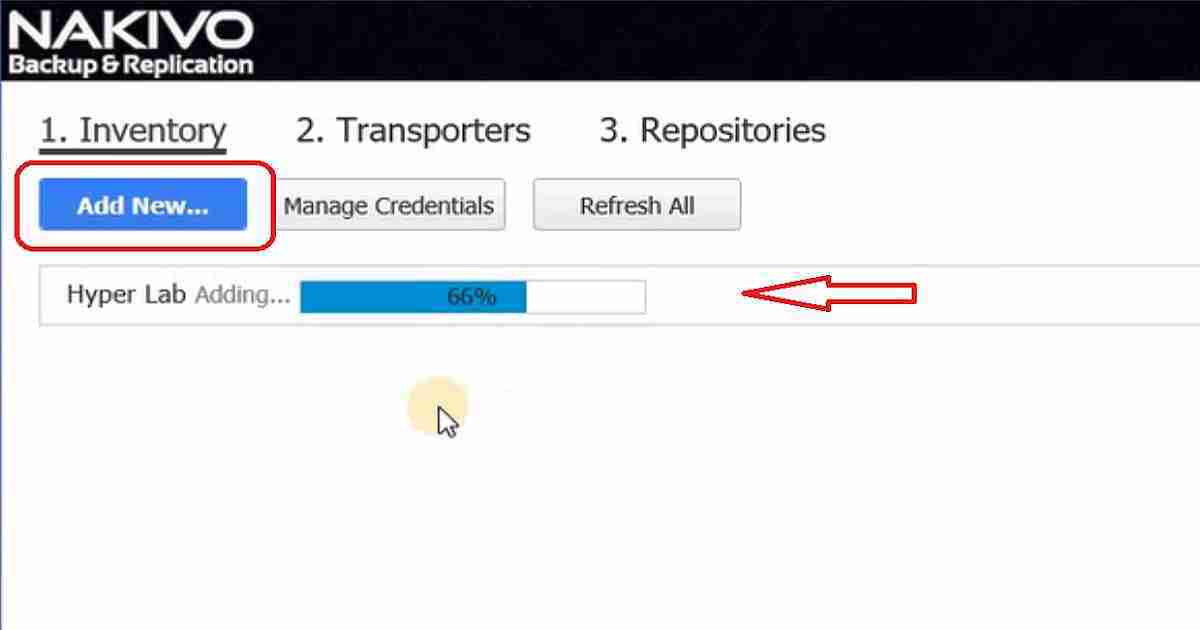
Inventory is the place where you add the hypervisor connectivity details and inventory of that infrastructure.
Walk Through of NAKIVO Hyper-V Backup - Installation - Fig.2
Walk Through of NAKIVO Hyper-V Backup – Installation – Fig.2

I tested the NAKIVO inventory option by Adding Hyper-V Servers to connect my SCCM Hyper-V lab infrastructure with NAKIVO. 

Display Name: Type: select whether you want to add a standalone Hyper-V server Hostname or IP: Specify the hostname or IP address of the Hyper-V server Username and Password: Specify credentials of the Hyper-V server that you want to add to the inventory. The credentials you specify should have full administrative privileges to the Hyper-V server WS MAN port: 5986 – Specify the port number for WS MAN.

How to Create a New Backup Repository for NAKIVO Hyper-V

To create a new Backup Repository, follow the steps below

  1. Click Configuration in the upper right corner of the product.
  2. Go to the Repositories tab and click Add Backup Repository
  3. Click Create a new backup repository
  4. Fill out the fields as described below:
    Name, the target (Assigned transporter), Type (forever incremental, Incremental with full backups), Location (Local folder on assigned transporter), etc.
  5. To specify advanced options, click More Options and perform the following options Storage Savings & Encryption
Walk Through of NAKIVO Hyper-V Backup – Installation – Video 1

Reference

https://helpcenter.nakivo.com/

We are on WhatsApp now. To get the latest step-by-step guides, news, and updates, Join our Channel. Click here. HTMD WhatsApp.

Author

Anoop C Nair is Microsoft MVP from 2015 onwards for consecutive 10 years! He is a Workplace Solution Architect with more than 22+ years of experience in Workplace technologies. He is a Blogger, Speaker, and Local User Group Community leader. His main focus is on Device Management technologies like SCCM and Intune. He writes about technologies like Intune, SCCM, Windows, Cloud PC, Windows, Entra, Microsoft Security, Career etc…

SCCM 1802 New Features

SCCM 1802 Preview CMG Supports Azure ARM – PXE without WDS

Let us learn about SCCM 1802 Preview CMG Supports Azure ARM – PXE without WDS. Microsoft SCCM product group released a new preview version 1802.

I believe SCCM 1802 is the feature-rich version preview version since TP 1706. SCCM TP 1706 had 20 new features, whereas TP 1802 had 21 new features or improvements.

First, this 1802 version is a technical preview (TP) of SCCM. I hope the production SCCM CB 1802 will be released in March. But I don’t expect all the features released in the 1802 TP version will be available in the production version.

The above video explains the new features of the SCCM CB 1802 preview version. You can subscribe to the YouTube channel to learn more about SCCM/Intune/Windows 10. The video tutorial explains most of the features and improvements.

SCCM 1802 Preview CMG Supports Azure ARM – PXE without WDS – Video 1

Delivery Optimization (DO) for Enterprises

SCCM integration with Windows 10 DO is one of the best ways to improve enterprises’ caching solutions. I think SCCM peer cache features will also be integrated with Windows DO in the future.

There is no need for two caching solutions, such as SCCM peer cache and Windows 10 DO. I know the SCCM peer cache would be useful for backward compatibility.

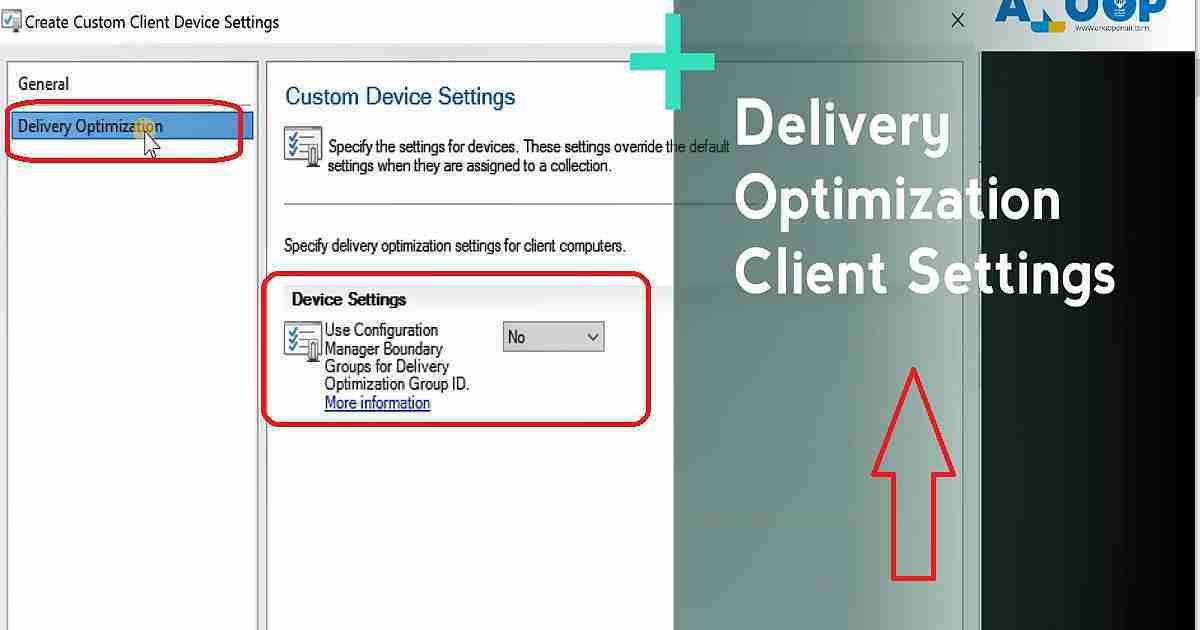
In this SCCM 1802 preview release, you have new client settings to configure and control  DO with SCCM boundary group IDs. More details about Delivery Optimisation.

SCCM 1802 Preview CMG Supports Azure ARM - PXE without WDS - Fig.1
SCCM 1802 Preview CMG Supports Azure ARM – PXE without WDS – Fig.1

SCCM CMG Supports Azure Resource Manager (ARM)

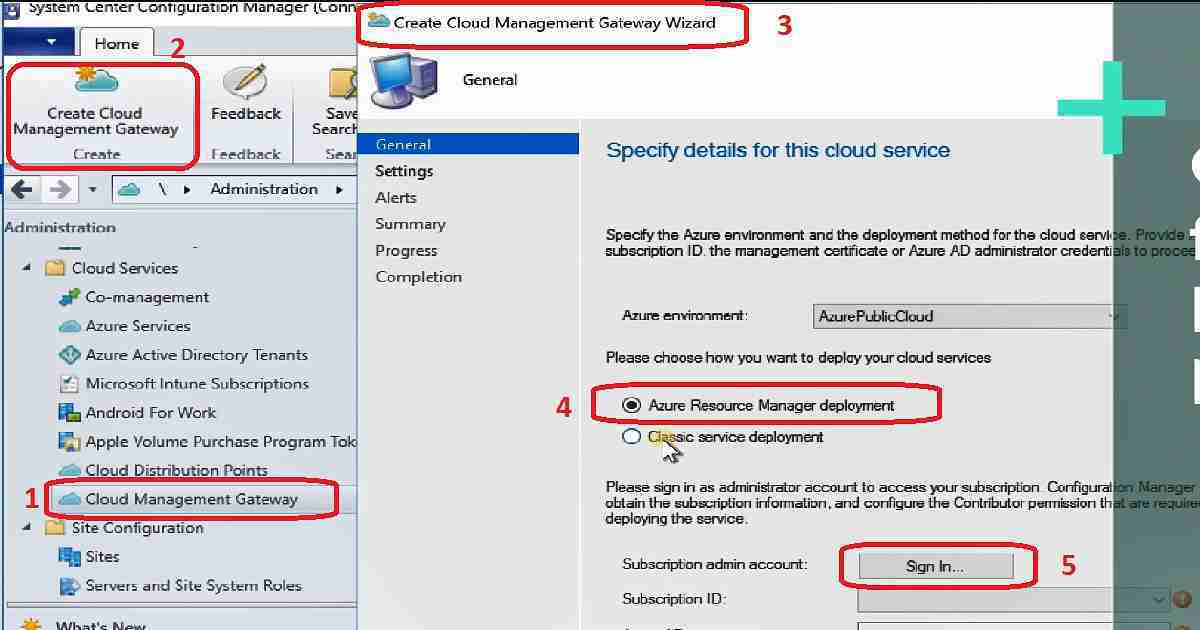
The SCCM 1802 (preview) release supports Azure ARM deployment. In previous versions of SCCM, CMG support was available only with cert-based authentication. The SCCM CMG Azure PaaS servers are deployed via Azure Classic Service Deployment.

Azure Resource Manager Deployment is better from a role segregation perspective. You don’t need to use certificate-based authentication for an ARM. Instead, we can use user-based authentication.

The SCCM Cloud Management Gateway wizard still provides a classic service deployment option using an Azure management certificate.

Microsoft recommends using the Azure Resource Manager deployment model for all new CMG instances to simplify resource implementation and management. If possible, redeploy existing CMG instances through Resource Manager.

The Azure AWS Beginners Guide for IT Professionals post will help you understand Azure solutions.

SCCM 1802 Preview CMG Supports Azure ARM - PXE without WDS - Fig.2
SCCM 1802 Preview CMG Supports Azure ARM – PXE without WDS – Fig.2

21 Features and Improvements of SCCM 1802

SCCM is integrating more with Azure Active Directory and other Azure IaaS and PaaS solutions. I recommend that the SCCM admin have basic knowledge of these solutions. 

21 Features and Improvements of SCCM 1802
Transition Endpoint Protection workload to Intune using CO-MGMT
Configure Windows Delivery Optimization (DO) to use SCCM boundary groups
Windows 10 in-place upgrade TS via CMG
Improvements to Windows 10 in-place upgrade TS
Improvements to PXE-enabled DP without WDS
Deployment Templates for TS
Product Lifecycle dashboard
Improvements to Reporting
Hide Installed apps in the Software Center
Jason supports Run Scripts
Boundary group Fallback periods in minutes for MPs
Improved support for CNG certificates
CMG support for Azure Resource Manager
Approve application requests for users per device
Use Software Center to browse & install user-available applications on AADJ devices.
Report on Windows AutoPilot device information
Improvements to SCCM Policies for Windows Device Exploit Guard
Microsoft Edge browser policies
Report for default browser counts
Support for Windows 10 ARM64 devices
Changes to Phased Deployments
SCCM 1802 Preview CMG Supports Azure ARM – PXE without WDS – Table 1

References

Capabilities in Technical Preview 1802 for SCCM

We are on WhatsApp now. To get the latest step-by-step guides, news, and updates, Join our Channel. Click here. HTMD WhatsApp.

Author

Anoop C Nair is Microsoft MVP from 2015 onwards for consecutive 10 years! He is a Workplace Solution Architect with more than 22+ years of experience in Workplace technologies. He is a Blogger, Speaker, and Local User Group Community leader. His main focus is on Device Management technologies like SCCM and Intune. He writes about technologies like Intune, SCCM, Windows, Cloud PC, Windows, Entra, Microsoft Security, Career etc…
Azure Beginners Guide for AWS Professionals

Azure AWS Beginners Guide for IT Professionals Azure IT Pros Azure Vs AWS

Azure AWS Beginners Guide for IT Professionals Azure IT Pros Azure Vs AWS. AWS and Azure are the most comprehensive cloud platforms. I recently watched a video explaining the fundamentals of Azure and AWS cloud platforms.

If you are an AWS professional, your knowledge of the AWS platform makes it easier for you to start your journey with Azure. The learning curve is not very huge. In this post, we will see how you can transfer the fundamental knowledge of the Amazon AWS platform to Microsoft Azure.

This post is based on Matt McSpirit’s 5-minute comparison video. In it, he explains how your knowledge as an AWS Professional easily translates to Microsoft Azure.

Get the critical differences between these two comprehensive cloud platforms in the 5-minute video. This post is an Azure Beginners Guide for AWS Professionals.

Key Concepts of AWS and Azure

The fundamental differences between AWS and Azure are the concepts of subscriptions and accounts. In Azure, account owners can delegate the task of managing subscriptions to application owners. This delegation is essential when paying the bill, not the person operating the technology.

Also, imagine running AWS services in your private data center. With Azure, you can deploy Azure services in your data center with Azure stack. Azure also supports first-party integration between your cloud and on-premises solutions.

  • Common Identity
  • Management and Security
  • Data Platform
  • Artificial Development

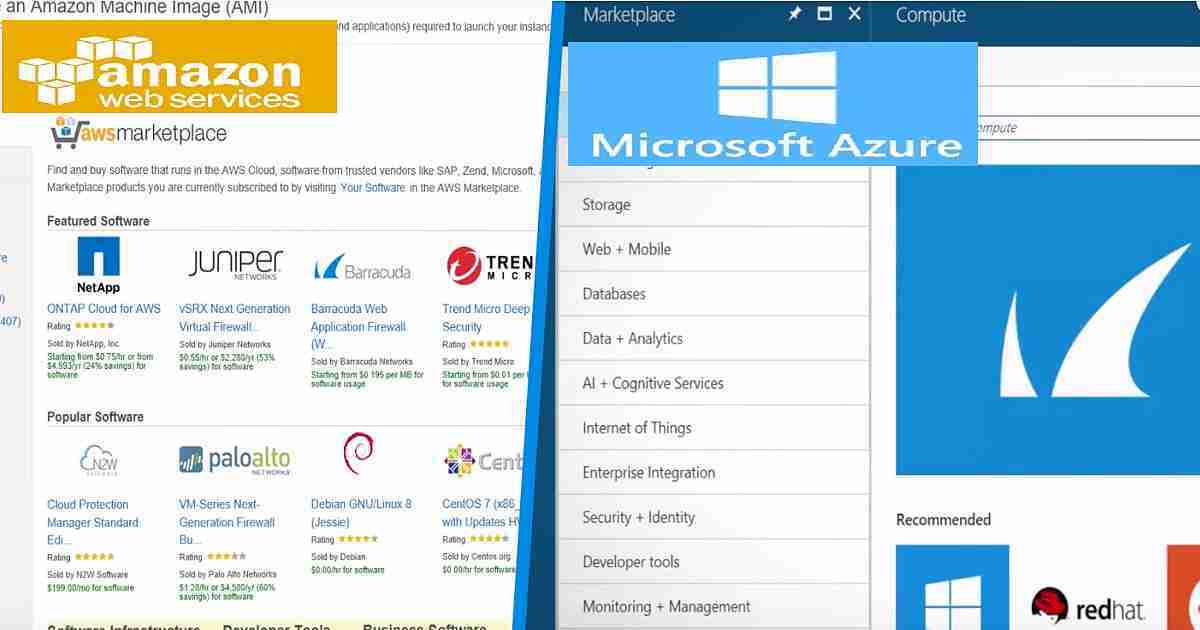
Like AWS, Azure Architecture allows you to build solutions with Windows and Linux. AWS and Azure have a vibrant marketplace of growing 3rd party echo systems of apps and solutions.

Azure AWS Beginners Guide for IT Professionals Azure IT Pros Azure Vs AWS - Fig.1
Azure AWS Beginners Guide for IT Professionals Azure IT Pros Azure Vs AWS – Fig.1

Three Pillars of Azure and AWS Cloud Platform 

Azure Beginners Guide for AWS Professionals is based on three main pillars of these cloud offerings. There are three core services in AWS and the Azure cloud platform. I will cover each component in this post, as Matt explained above.

Three Pillars of Azure and AWS Cloud Platform 
Compute
Data Storage
Management
Azure AWS Beginners Guide for IT Professionals Azure IT Pros Azure Vs AWS – Table 1

AWS Vs. Azure Compute Options

Virtual Machine Templates

Compute options are very similar to those of AWS and Azure. You can find the same range of on-demand virtual machine sizes in Azure and various Amazon EC2 instances in AWS. There are some differences in Memory, CPU, and storage options.

You can create AWS instances of virtual machines in the AWS management console. You can create Azure VMs in the Azure portal using APIs or Azure Command-line inter-phase for Windows or Linux. Following are the variety of options I have captured for the Azure Beginners Guide for AWS Professionals.

Azure Virtual Machine Offerings

  • Small Workloads (A, Av2, B, D, Dv2)
  • General-purpose (Dv3, N)
  • Storage workloads (L)
  • Database workload (Ev3)
  • Enterprise applications (M)
  • SAP HANA workloads (SAP)

AWS Virtual Machine Offerings

  • Accelerated Graphics (P2, G3)
  • Storage Optimized (I3, D2)
  • General-purpose (T2, M4)
  • Compute Optimized (C4)
  • Memory Optimized (X1, R3, and R4)

Automatic Scalability Options

In both AWS and Azure, you can use Auto-Scaling options to dynamically scale your application or service. For most scenarios, this can be done without any downtime.

In Azure, virtual machine scale sets can automatically add or remove VMs based on your defined metrics and threshold. In contrast, in AWS, AWS CloudFormation can scale your application or services automatically.

Application Architecture

In Azure, you can use Azure Resource Manager or ARM templates to define the architecture of your application or service for the multi-tiered workload. Again, you can use AWS CloudFormation templates to architect your application or services.

Containers Options

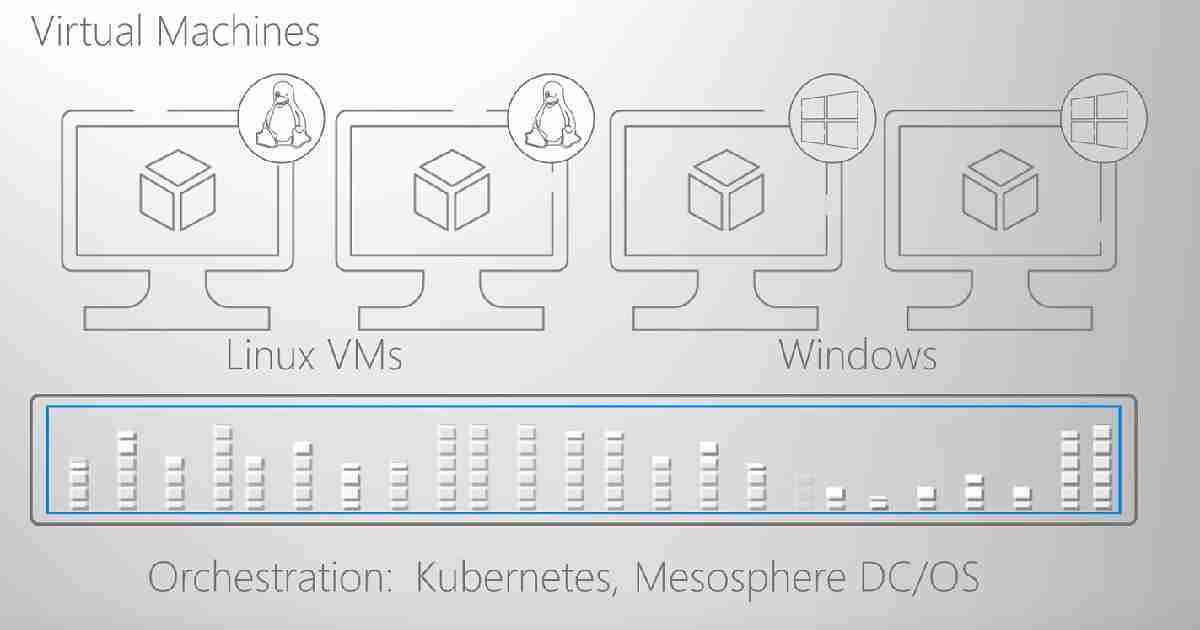
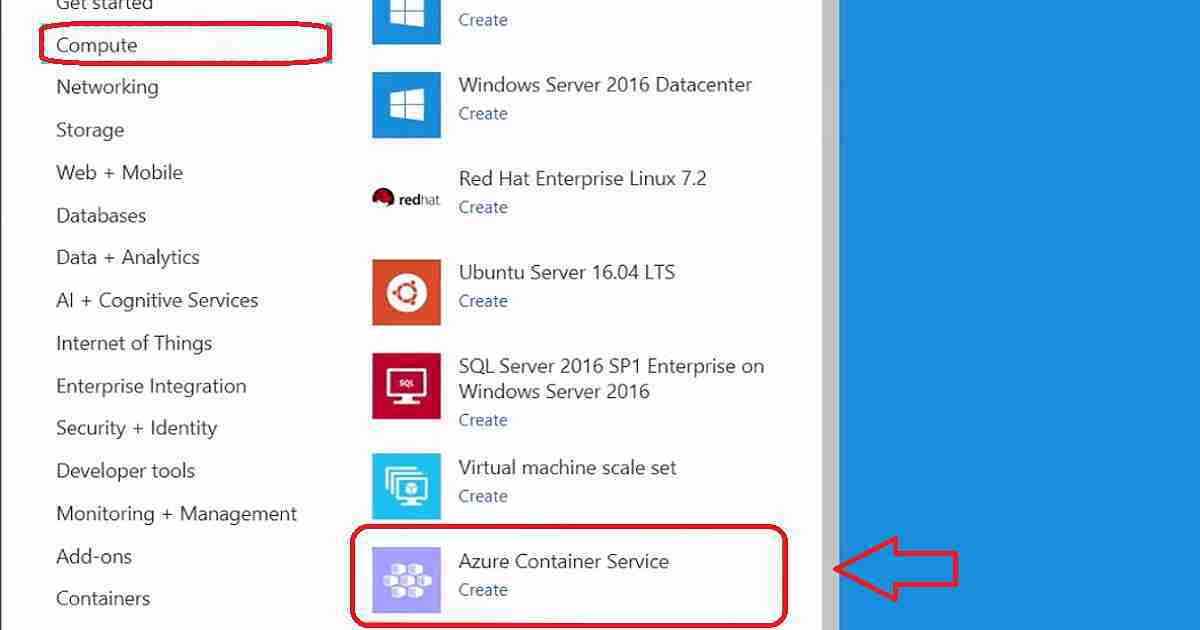
Amazon has AWS Elastic (EC2) Container Service for containers. Azure has Azure Container Service (AKS) to provide you with container service options. Use a fully managed Kubernetes container orchestration service or choose other orchestrators.

Azure supports Linux and Windows containers and offers a range of orchestration options, including Kubernetes, Mesosphere DC/OS, and Docker Swarm.

Serverless Options

AWS Lambda and AWS API Gateway (plus other services) are the solutions to build and deploy applications in AWS. In Azure, Azure Functions and other platform services are the answers for Serverless platforms.

This includes Azure Logic Apps, which visually model and automate process workflows. Other serverless options in Azure are Azure Database as a Service and Azure Service Fabric Cluster.

Azure AWS Beginners Guide for IT Professionals Azure IT Pros Azure Vs AWS - Fig.2
Azure AWS Beginners Guide for IT Professionals Azure IT Pros Azure Vs AWS – Fig.2

AWS Vs. Azure Data Storage Options

Persistent data storage is the heart of many applications. Azure and AWS offer a range of storage options. AWS Simple Storage Service (AWS S3) is the cloud storage solution in AWS.

Where in Azure, you can use Azure Blob Storage as a cloud storage solution for your application and services. Storage speed and performance are important to cover in the Azure Beginners Guide for AWS Professionals.

In AWS, cold storage using AWS S3 Standard IA is an option. Amazon Glacier is archival cold storage in AWS. In Azure, this cold storage maps to Azure storage standard COLD (Access tier) and Azure Archival storage.

Database Options

Relational Database Options

Database options in AWS and Azure are also similar. However, there is an essential difference that IT pros need to understand. Amazon offers a variety of AWS Relational Database (AWS RDS) options. In Azure, Azure Relational Database options are Azure SQL Databases, Azure DB for MySQL, and Azure DB for PostgreSQL.

Non-Relational Database Options

Azure offers Cosmos DB (Azure Cosmos DB) to build a nonrelational Database for your applications and services. Azure Cosmos DB provides additional features like SQL query, unstructured data, low latency, and Geo-replication. AWS offers Amazon DynamoDB to have Fast and flexible nonrelational database service in the cloud.

Traditional Data Warehousing

Traditional Data Warehousing options are available for both AWS and Azure. Amazon AWS offers the AWS Redshift database for traditional data warehousing requirements of your applications and services.

Azure offers you an Azure SQL Data Warehouse solution to meet your application requirements. Like AWS Redshift, Azure SQL Data Warehouse is a fast, fully managed, and petabyte-scale data warehouse.

Big Data Offerings

Amazon and Azure offer big data analysis as part of their cloud services. AWS offers Amazon Elastic MapReduce (Amazon EMR) for big data analytics, including the Hadoop framework. Azure offers Azure HDInsights as a big data analytics option. 

HDInsight provides a fully managed, full-spectrum open-source analytics service for enterprises. Azure offers an additional offer for Big Data: Azure Data Lake Store. This store allows you to store massive unstructured or structured data sets and enables analysis of all your data from one place.

Azure AWS Beginners Guide for IT Professionals Azure IT Pros Azure Vs AWS - Fig.3
Azure AWS Beginners Guide for IT Professionals Azure IT Pros Azure Vs AWS – Fig.3

AWS Vs Azure Management Options

Management is an important topic. Azure and AWS offer various options for managing your cloud resources. You can start with the AWS management console.

Azure provides management options through the Azure management portal. Management options for both platforms are essential with Azure Beginners Guide for AWS Professionals.

Troubleshooting

Azure Cloud Shell is an interactive, browser-accessible shell for managing Azure resources. You can also use Azure Cloud Shell for custom troubleshooting. Azure Cloud Shell supports Bash Shell for Linux and PowerShell for Windows workloads. 

Other options are available, including CloudWatch, CloudTrail, and X-Ray. There are many other third-party solutions for AWS cloud management.

Monitoring

AWS and Azure offer different monitoring options. In AWS, you can use 3rd party analytics engine like Splunk. Azure’s built-in monitoring options are log analytics, Azure application insights, etc.

Proactive Resource Optimization

Azure and AWS provide proactive resource optimization tools to help you. AWS comes with an AWS Trusted Advisor Dashboard. Trusted Advisor allows you to observe best practices for using AWS by inspecting your AWS environment and providing proactive resource optimization.

Azure provides a complementary tool called Azure Advisor for proactive resource optimization for your Azure environment.

We are on WhatsApp now. To get the latest step-by-step guides, news, and updates, Join our Channel. Click here. HTMD WhatsApp.

Author

Anoop C Nair is Microsoft MVP from 2015 onwards for consecutive 10 years! He is a Workplace Solution Architect with more than 22+ years of experience in Workplace technologies. He is a Blogger, Speaker, and Local User Group Community leader. His main focus is on Device Management technologies like SCCM and Intune. He writes about technologies like Intune, SCCM, Windows, Cloud PC, Windows, Entra, Microsoft Security, Career etc…
Intune Mobile App Assignment Exclude AAD Group Option

Intune App Assignment Include Exclude Azure AD Groups Microsoft Intune

Intune App Assignment Include Exclude Azure AD Groups Microsoft Intune. The Microsoft Intune team depreciated the application assignment type “Not Applicable for good reasons. So, you do not need to worry when you don’t see the “Not Applicable” assignment type for your Intune tenant.

“Not Applicable” will no longer be an option in the console but will be replaced by “Excluded Groups.” The Exclude Group option was already available for Configuration policies and is useful.

Do you remember the Groups in the Intune Silverlight portal? There was exclusion logic used in Intune groups in the Silverlight portal. I think the excluded Azure AD groups used in-app assignments do not use nested group logic (Implicit Exclusion Groups). 

I’m trying to explain two application assignment scenarios using Intune’s “Excluded Groups” logic in this post.

What are the New Features of Intune’s “Excluded Groups”

New app assignment process in Intune with an “Excluded Groups” option. Using the unique ” Excluded Groups ” option, you can now easily manage app assignments to groups with overlapping members or targeted with conflicting app assignment types by using the new “Excluded Groups” option.

How does the depreciation of “Not Applicable” effect?

Previously, the app assignment process in the Intune on Azure console allowed targeting groups with the “Not Applicable” assignment type. This will no longer be the case. The “Not Applicable” option will replace the “Excluded Groups” option.

This new feature manages app assignments, allowing an app to target a large group of users or devices while restricting it to a subset of the same group.

  • https://blogs.technet.microsoft.com/intunesupport/2018/02/02/new-feature-new-app-assignment-process-in-intune-with-an-excluded-groups-option/

What Do I Need to Do to Prepare for this Change?

Start using the new app assignment process and update your documentation if needed. Click on Additional Information to see screenshots and to read about different scenarios where this new feature can help you manage your app assignments.

I will try briefly explaining the new feature of excluded groups in Intune using the following two scenarios. I also have a video tutorial that explains both of these scenarios.

What Do I Need to Do to Prepare for this Change?
Scenario A – Facebook is available for All Users Except “Mumbai Users”
Scenario B – WhatsApp is available for All Bangalore Users Except the “L1 Team”
Intune App Assignment Include Exclude Azure AD Groups Microsoft Intune – Table 1

Scenario A

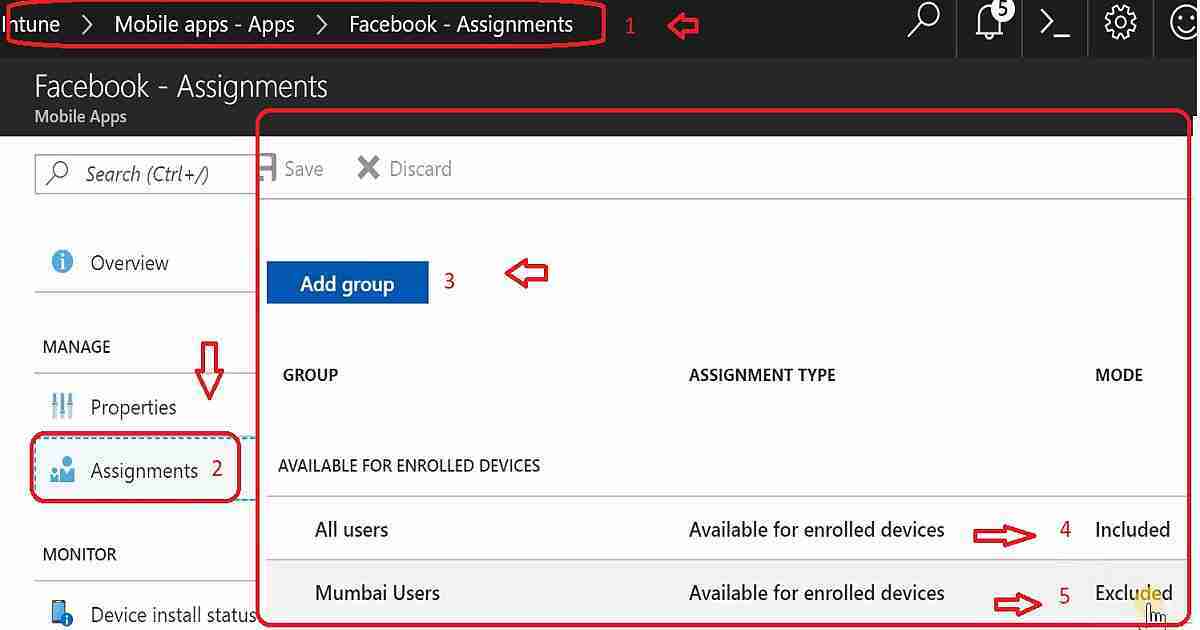
I want to make the Facebook application available to “All Users” in the organization, but it should not be available for “Mumbai Users.”

Intune App Assignment Include Exclude Azure AD Groups Microsoft Intune – Video 1

Launch Azure Portal and navigate to Microsoft Intune—Mobile Apps—Apps. Select the Facebook app that you want to assign. A dashboard related to the app is displayed.

  1. Select Assignments under the Manage section.
  2. Select Add Group to add the groups of users who are assigned the app.
  3. Select an Assignment type from the available types on the Add group blade. The available app assignments are “Available for enrolled devices,” “Available with or without enrollment,” and “Required.”
  4. Select “Available for enrolled devices” as the assignment type.
  5. Select Included Groups to select the group of users you want to make the Facebook app available.
  6. Select Yes to make “this app available to all users with enrolled devices”.
  7. Click OK to set the group to include.
  8. Select Excluded Groups to select the groups of users you want to make the Facebook app unavailable.
  9. Select the groups “Mumbai Users” to exclude, which makes this Facebook app unavailable for the users in Mumbai Users Azure AD groups.
  10. Click OK on the Add group blade. The app Assignments list is displayed.
  11. Click Save to make your group assignments active for the Facebook app.
Intune App Assignment Include Exclude Azure AD Groups Microsoft Intune - Fig.1
Intune App Assignment Include Exclude Azure AD Groups Microsoft Intune – Fig.1

Scenario B

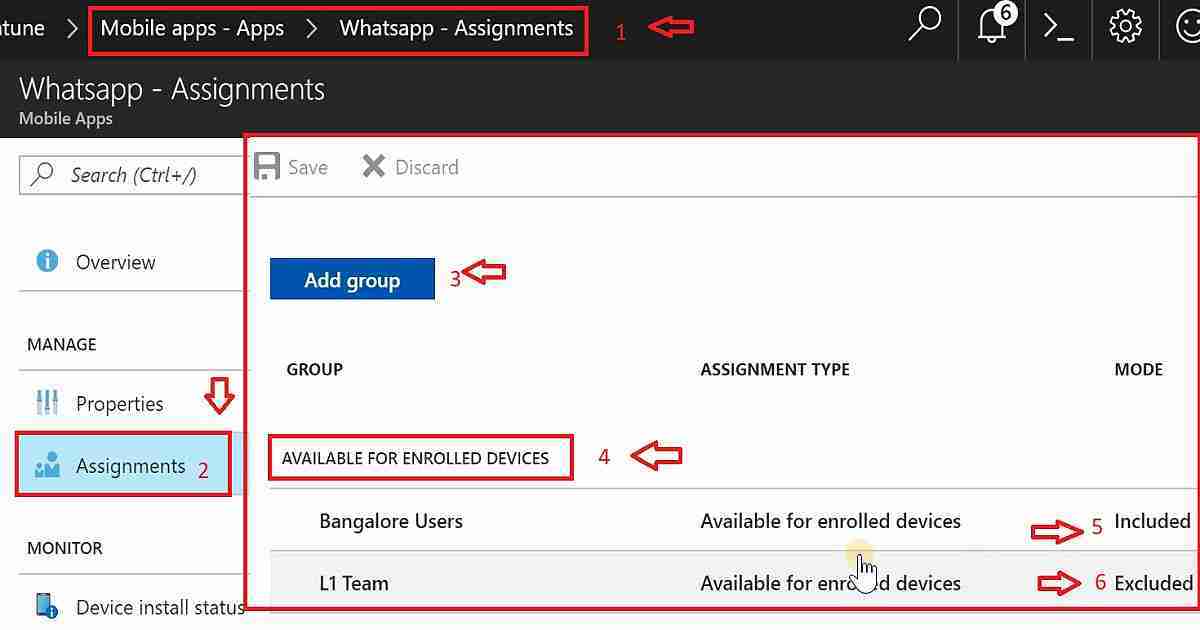
I want to make the WhatsApp application available to “All Bangalore Users” in the organization, but it should not be available for the “L1 Team.” The video tutorial Intune App Assignment includes more details: Include Exclude Azure AD Groups.

  1. We need to follow the above steps from 1 to 7.
  2. Select Included Groups to select the groups of users that you want to make the WhatsApp application available.
  3. Select the “All Bangalore Users” Azure AD group to include, making this WhatsApp app available to users in that group.
  4. Click OK on the Add group blade to include the users. The app Assignments list is displayed to All Bangalore Users.
  5. Select Excluded Groups to select the groups of users that you want to make the WhatsApp app unavailable.
  6. Select the “L1 Team” group to exclude, making this WhatApps app unavailable for the L1 Team Azure AD group users.
  7. Click OK on the Add group blade. The app Assignments list is displayed.
  8. Click Save to activate your group assignments for the WhatApps app.
Intune App Assignment Include Exclude Azure AD Groups Microsoft Intune - Fig.2
Intune App Assignment Include Exclude Azure AD Groups Microsoft Intune – Fig.2

Resources

We are on WhatsApp now. To get the latest step-by-step guides, news, and updates, Join our Channel. Click here. HTMD WhatsApp.

Author

Anoop C Nair is Microsoft MVP from 2015 onwards for consecutive 10 years! He is a Workplace Solution Architect with more than 22+ years of experience in Workplace technologies. He is a Blogger, Speaker, and Local User Group Community leader. His main focus is on Device Management technologies like SCCM and Intune. He writes about technologies like Intune, SCCM, Windows, Cloud PC, Windows, Entra, Microsoft Security, Career etc…