Bangalore IT Pro Full Day User Group Event on Intune and SCCM 1

Bangalore IT Pro Full Day User Group Event on Intune and SCCM

Bangalore IT Pro Full Day User Group Event on Intune and SCCM? On March 18th, 2017, the BLR IT Pro group conducted a free full-day Bangalore IT Pro User Group event. At this event, we covered Intune’s new Azure portal features.

We also covered the newest additions to SCCM/ConfigMgr CB 1702 TP. Ninety per cent of the sessions were demos, and attendees had some hands-on experience with Android for Work devices.

Bangalore IT Pro Full Day User Group Event on Intune and SCCM?

  • Join the SCCM/ConfigMgr Professional Group for updates about future events – here.
  • Follow the Facebook page to get notified about similar events – here

I had a great experience interacting with and sharing knowledge with more than 40 attendees. Most of them are SCCM admins planning to move to the Intune world. Some already have significant experience with Intune iOS management, Application wrapping, the Apple DEP program, etc. Some others are Airwatch admins and have had good new experiences with Intune features.

Full Day BLR ITPro Device Management UG Meet

I have created a quick video of some lively moments of the event. The Full Day BLR ITPro Device Management UG Meet is an engaging event for IT professionals specializing in device management. This comprehensive gathering allows attendees to immerse themselves in the latest industry trends, best practices, and emerging technologies.

Bangalore IT Pro Full Day User Group Event on Intune and SCCM – Video 1

Bangalore IT Pro Full Day User Group Event on Intune and SCCM Configuration Manager Endpoint Manager

The full-day free event covered a wide range of topics relevant to IT professionals and device management. These topics included the latest advancements in device management technologies, best practices for ensuring security and compliance, and strategies for optimizing device performance and lifecycle management.

Topics

The following are the topics I covered during the free full-day event. You can get the presentation link below.

Modern Device Management (MDM) is an advanced approach to managing and securing devices within an organization. It uses cloud-based technologies to provide comprehensive management of a wide range of devices, including desktops, laptops, tablets, and smartphones.

Key Components of Modern Device Management
Cloud-Based Management
Unified Endpoint Management (UEM)
Security and Compliance
Device Enrollment and Configuration
Application Management
Monitoring and Reporting
Bangalore IT Pro Full Day User Group Event on Intune and SCCM – Table 1
What is Modern Device Management?
Basic Understanding Intune
Azure Active Directory AAD Overview
Create AAD Dynamic Device/User Groups
Intune Silverlight Portal Overview
Intune Azure Portal Overview
What is Conditional Access?
Configure Conditional Access
Configure Compliance, Configuration Policies
Table - Compliance Policies – Remediated/Quarantined
Windows 10 Modern Device Management
iOS/MAC OS Management
Android for Work Management
Troubleshooting?
SCCM CB 1702 TP New Features

Bangalore IT Pro Full Day User Group Event on Intune and SCCM Configuration Manager Endpoint Manager
Bangalore IT Pro Full Day User Group Event on Intune and SCCM – Fig.1

https://www.slideshare.net/slideshow/embed_code/key/4t1BmahfsEu3Tc

Bangalore IT Pro Full Day Event on Intune and SCCM from Anoop Nair

We are on WhatsApp now. To get the latest step-by-step guides, news, and updates, Join our Channel. Click here. HTMD WhatsApp.

Author

Anoop C Nair is Microsoft MVP! He is a Device Management Admin with more than 20 years of experience (calculation done in 2021) in IT. He is a Blogger, Speaker, and Local User Group HTMD Community leader. His main focus is on Device Management technologies like SCCM 2012, Current Branch, and Intune. He writes about ConfigMgr, Windows 11, Windows 10, Azure AD, Microsoft Intune, Windows 365, AVD, etc.

How to Restrict Personal Android Devices from Enrolling into Intune 2

How to Restrict Personal Android Devices from Enrolling into Intune

How can I restrict Personal Android Devices from Enrolling in Intune? Are you still waiting to migrate from Intune Silverlight to the Azure portal?

The video post provides a quick overview and comparison between the Intune Azure and Intune Silverlight portals. It highlights the differences and improvements in the new Intune experience within the Microsoft Endpoint Manager (MEM) portal, showcasing the enhanced features and user interface of the Azure-based Intune portal compared to the older Silverlight version.

The new Intune portal allows for more granular restrictions for MDM enrollments. It’s amazing to see new features in the MEM Intune portal. One month ago, I blogged about restricting personal iOS devices from enrolling in Intune via enrollment restriction rules.

This post provides detailed instructions on restricting personal Android devices from enrolling into Intune using Endpoint Manager (MEM). It covers the steps necessary to configure enrollment restrictions, ensuring that only corporate-owned devices can be enrolled and managed through Intune.

How to Restrict Personal Android Devices from Intune Enrollment

Let’s discuss how to restrict personal Android devices from enrolling in Intune. This video provides a detailed guide on configuring Intune settings to ensure that only corporate-owned devices can be enrolled, helping you maintain control over device management within your organization.

How to Restrict Personal Android Devices from Enrolling into Intune – Video 1

How to Restrict Personal Android Devices from Enrolling into Intune

iOS personal devices can be restricted from enrolling in Intune MDM. However, there was no option to restrict personal Android devices from enrolling into Intune MDM. The Intune team has lighted up the feature to restrict personal Android devices from enrolling into Intune.

This was one of the features I was looking for to appear in the Azure portal. So, can we allow only Android devices for work-supported enrollment in Intune MDM? With this enrollment or device type restriction option, the answer is NO. So, what is the difference between company-owned Android devices and personally-owned Android devices?

FeaturesCompany-owned devicePersonal device
Opt-out of Device Owner modeNoYes
With device approvals enabled, the administrator must approve the deviceNoYes
Administrators can receive an inactivity report every 30 daysYesNo
Factory resets that users initiate block device re-enrollmentYesNo
Account wipe availableNoYes
How to Restrict Personal Android Devices from Enrolling into Intune – Table 1

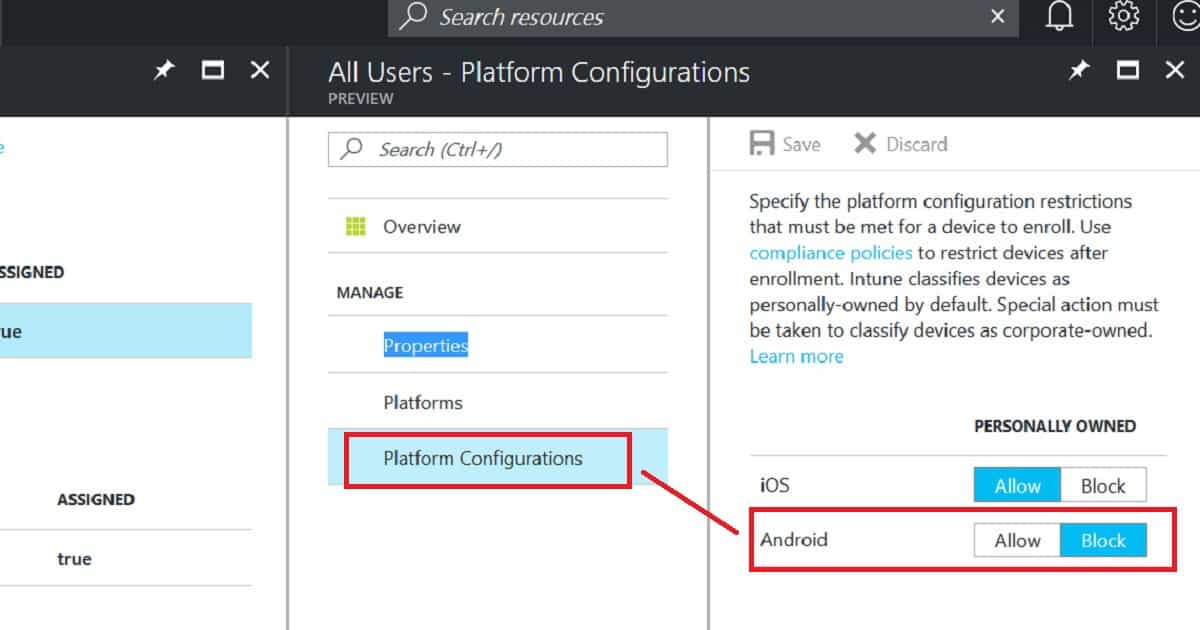
All personal Android devices will be blocked from enrollment when you turn on the “Block Android Personal Device” option from Intune Blade in the Azure portal. Personal Android devices can be Android for Work (AfW) supported devices and non-Android for Work devices.

Initially, I thought Android for Work would not be treated as a personal device but as a corporate-owned device. But I was wrong. For corporate-owned devices, Android for Work can be deployed in a Work Managed mode, which provides full device management.

How to Restrict Personal Android Devices from Enrolling into Intune - Fig.1
How to Restrict Personal Android Devices from Enrolling into Intune – Fig.1

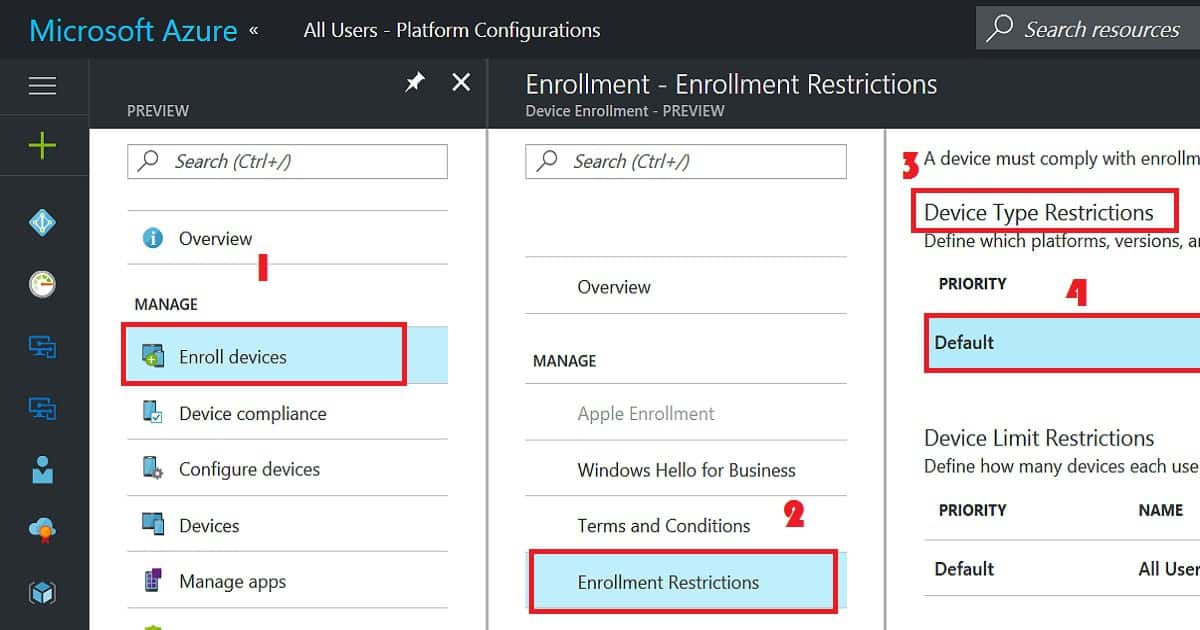
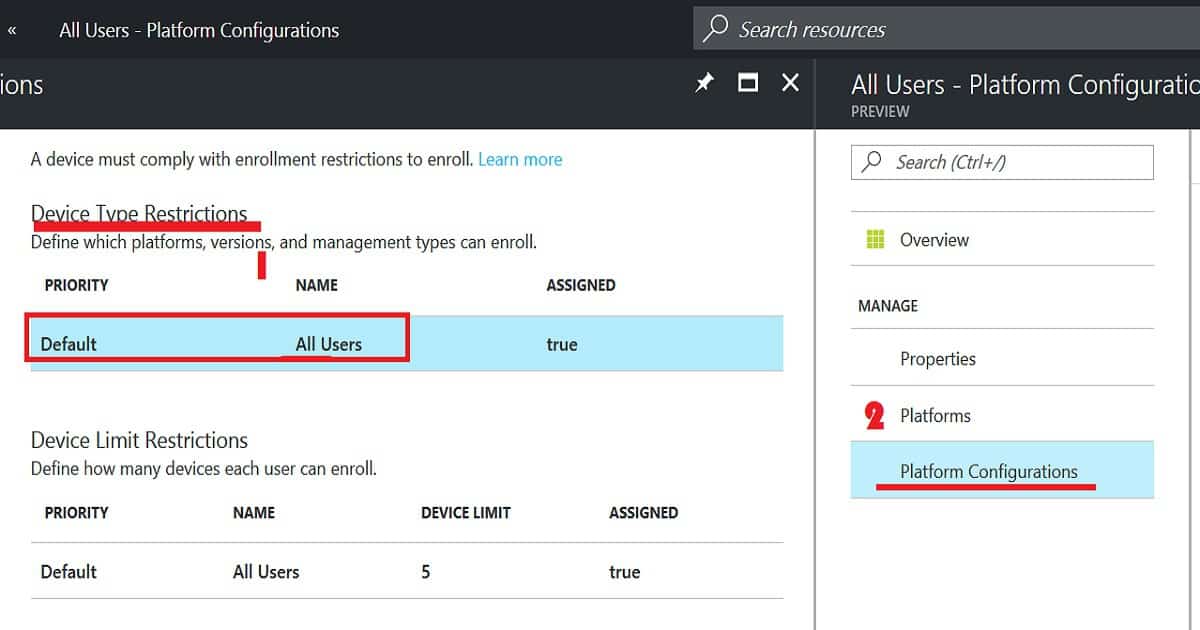
The Enroll Devices node is the place in the Intune Azure portal where you can set up a restriction policy for personally owned Android devices. Within enrolment restrictions rules, we can have two types of restrictions: Device Type restrictions and Device Limit restrictions.

In this scenario, we want to restrict personal Android devices. We need to create an enrollment type policy to allow the Android platform to enroll in Intune. Once the Android platform has enabled enrollment, go to Platform Configurations and then BLOCK personally owned iOS devices.

How to Restrict Personal Android Devices from Enrolling into Intune - Fig.2
How to Restrict Personal Android Devices from Enrolling into Intune – Fig.2

Conclusion

Ideally, when you block personally owned Android devices from enrollment, all the Android devices enrolled via a non-corporate method should also be blocked

As per my testing, this is not working. After enabling the “block Android personally owned devices” policy, I enrolled a couple of Android devices, and those devices got enrolled without any issues.

How to Restrict Personal Android Devices from Enrolling into Intune - Fig.3
How to Restrict Personal Android Devices from Enrolling into Intune – Fig.3

In the screenshot below, I have enrolled two Android devices into Intune and the Intune console, and Intune detects those as personal devices. I’m not sure why they are not blocked.

How to Restrict Personal Android Devices from Enrolling into Intune - Fig.4
How to Restrict Personal Android Devices from Enrolling into Intune – Fig.4

References:-

We are on WhatsApp now. To get the latest step-by-step guides, news, and updates, Join our Channel. Click here. HTMD WhatsApp.

Author

Anoop C Nair is Microsoft MVP! He is a Device Management Admin with more than 20 years of experience (calculation done in 2021) in IT. He is a Blogger, Speaker, and Local User Group HTMD Community leader. His main focus is on Device Management technologies like SCCM 2012, Current Branch, and Intune. He writes about ConfigMgr, Windows 11, Windows 10, Azure AD, Microsoft Intune, Windows 365, AVD, etc.
How to Integrate ConfigMgr SCCM CB with Azure AD 3

How to Integrate ConfigMgr SCCM CB with Azure AD

How do I integrate ConfigMgr SCCM CB with Azure AD? The SCCM ConfigMgr 1702 Technical Preview version was released a few weeks before.

For more details about the SCCM 1702 Technical Preview version, refer to the article “SCCM ConfigMgr Comes with Azure AD Domain Services Support.” This article provides information on the new features and enhancements in Configuration Manager and Endpoint Manager, including Azure AD Domain Services support.

Last weekend, I got to look at the SCCM 1702 TP version. My SCCM/ConfigMgr TP lab expired as I haven’t upgraded it since last November (1611). The technical preview versions are accumulated, but if you don’t upgrade to the latest version within 90 days, it will expire, and you will need to build one from scratch.

How do we know whether your SCCM CB TP lab has expired? You can see the expiry duration on the top tab of your SCCM console (evaluation 10 days left), or SMS executive and other services will start getting stopped every hour (I’m not sure whether it’s every hour or less).

Apart from the abovementioned points, it won’t get the latest TP updates/build version. If your SCCM TP lab expires, enjoy installing the new one!

How to Integrate ConfigMgr SCCM CB 1702 TP Azure AD Integration

Let’s discuss integrating ConfigMgr SCCM CB 1702 Technical Preview with Azure AD. The video provides detailed instructions on the integration process, showing how to connect ConfigMgr SCCM with Azure AD in this version.

How to Integrate ConfigMgr SCCM CB with Azure AD – Video 1

SCCM CB 1702 TP Console View – Integrate ConfigMgr SCCM CB with Azure AD

In the SCCM CB 1702 Technical Preview console, you can view and manage the integration of ConfigMgr SCCM CB with Azure AD. The console provides a straightforward interface for setting up and configuring the integration, making it easier to manage and secure your devices and applications.

Add Azure Active Directory
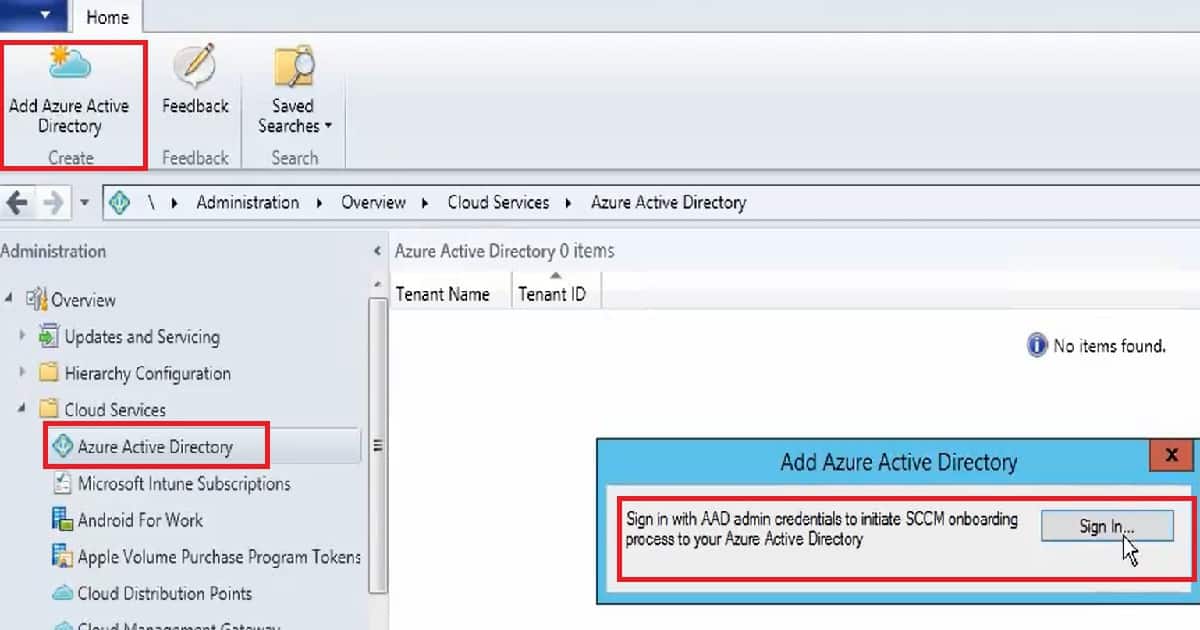
Sign in with AAD admin credentials to initiate SCCM onboarding
How to Integrate ConfigMgr SCCM CB with Azure AD – Table 1
How to Integrate ConfigMgr SCCM CB with Azure AD - Fig.1
How to Integrate ConfigMgr SCCM CB with Azure AD – Fig.1

So, returning to the topic “How to integrate Azure AD with SCCM/ConfigMgr?” This is a very straightforward process if you already have an Azure subscription and are a global admin.

The add Azure Active Directory button has been made available in the SCCM CB 1702 TP console ribbon menu under the Cloud services section, as shown in the above picture. Click the sign-in button and enter your Azure subscription (probably with global admin access).

How to Integrate ConfigMgr SCCM CB with Azure AD - Fig.2
How to Integrate ConfigMgr SCCM CB with Azure AD – Fig.2

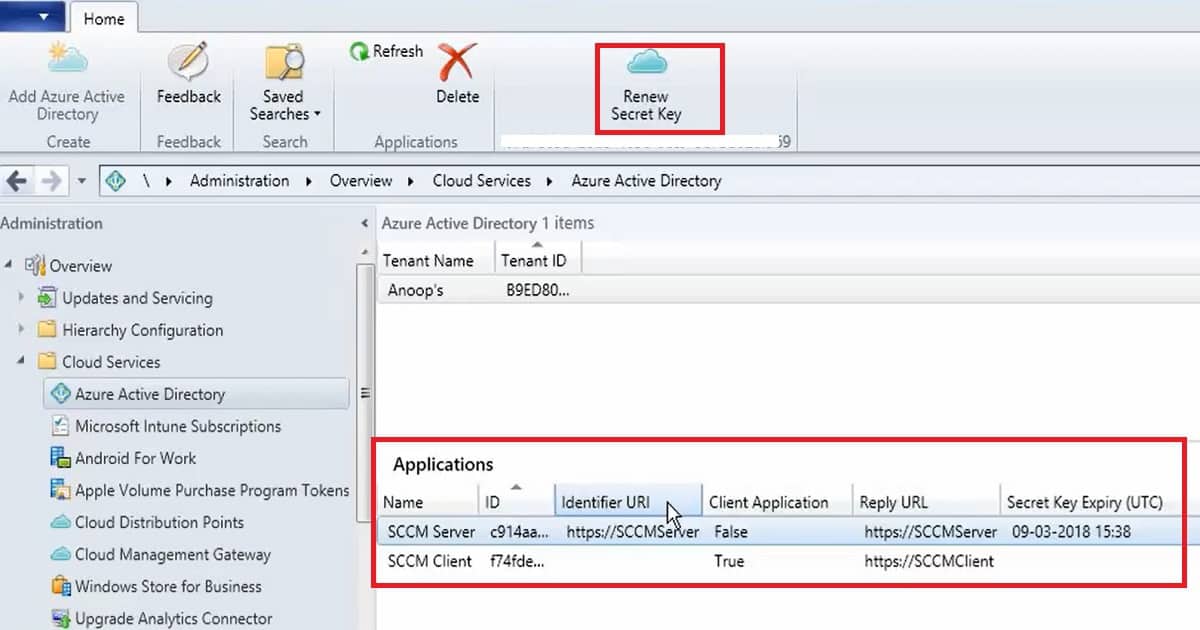
Once the above step has been completed, two Azure Applications appear in the SCCM console. These apps are registered during the Azure AD integration path SCCM/ConfigMgr CB. The first app you can see is the SCCM server app, and the second is the SCCM client app.

Another option in the SCCM console is to renew the secret key to register the app in Azure. By default, the secret key has one-year validity.

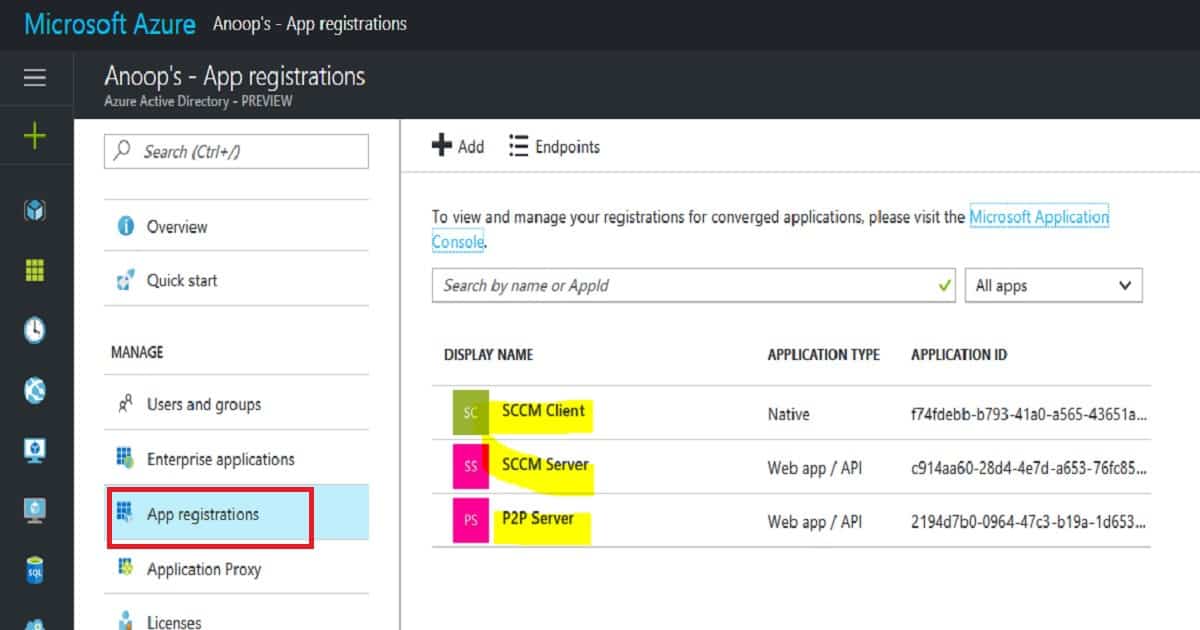
Azure AD – App Registration View

I could see two apps created in the Azure portal as part of AAD integration with SCCM CB 1702 TP. My Azure Active Directory has three apps—App Registration: the SCCM client, the SCCM server, and the P2P server.

I’m unsure whether the P2P server was created during the Azure AD integration process with SCCM CB. I can confirm that it was not made during SCCM and AAD integration. Also, I’ve not tested the end-to-end scenario of Azure AD domain services integration.

With the SCCM CB 1702 technical preview version, you can manage devices joined to an Azure Active Directory (AAD) Domain Services managed domain. You can also discover devices, users, and groups in that domain with various SCCM Discovery methods.

How to Integrate ConfigMgr SCCM CB with Azure AD - Fig.3
How to Integrate ConfigMgr SCCM CB with Azure AD – Fig.3

Conclusion

Is this actual integration with Azure AD and SCCM in all terms? Would SCCM be able to discover the devices and users from Azure AD? The answer to both questions is NO. This feature enables the discovery of Azure AD domain services-managed devices. Azure AD (SaaS identity solution) devices and Azure AD domain services are “Domain Domain Controller installed inside a virtual server hosted in Azure.”

References

We are on WhatsApp now. To get the latest step-by-step guides, news, and updates, Join our Channel. Click here. HTMD WhatsApp.

Author

Anoop C Nair is Microsoft MVP! He is a Device Management Admin with more than 20 years of experience (calculation done in 2021) in IT. He is a Blogger, Speaker, and Local User Group HTMD Community leader. His main focus is on Device Management technologies like SCCM 2012, Current Branch, and Intune. He writes about ConfigMgr, Windows 11, Windows 10, Azure AD, Microsoft Intune, Windows 365, AVD, etc.
How to Remove Work Profile from Intune Managed Android Devices 6

How to Remove Work Profile from Intune Managed Android Devices

How to Remove Work Profile from Intune Managed Android Devices? This quick post will help you understand how to remove a work profile from an Android device.

If you’re curious about how work profiles are created, my previous post, “Intune: How to Enroll Android for Work Supported Devices for Management | Google Play Store for Work,” provides a comprehensive guide.

The work profile is created when the Android for Work (A4W) supported device is enrolled in the Intune environment, which is enabled to support A4W. There are more than two ways to remove the Work profile from Android devices. We will cover three of them in this post.

This post will show you how to remove the work profile from Intune-managed Android devices using Endpoint Manager. The detailed steps are explained below.

Intune Android for Work How to Remove Work profile -Post with Android Device Admin Method

This video clearly demonstrates how to remove the work profile from Intune-managed Android devices using the Android Device Admin method. The step-by-step process is explained thoroughly, making it easy to follow along and understand.

How to Remove Work Profile from Intune Managed Android Devices – Video 1

How to Remove Work Profile from Intune Managed Android Devices

As per Google documentation, the following is the method to remove the work profile, but I won’t recommend this approach if your device has enrolled in Intune. On Android 5.0+ devices, you can delete your work profile in Settings > Accounts > Remove work profile. Touch Delete to confirm the removal of all apps and data within the work profile. 

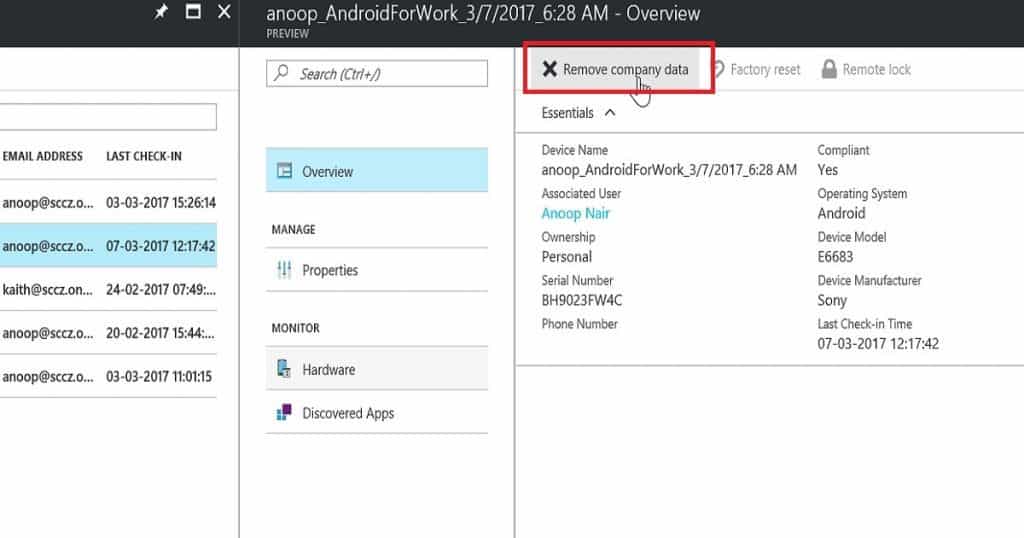
  • The first proper way to remove a work profile or unenroll a device is to go to the Intune portal -> Devices and groups -> All devices.
  • Select the device you want to remove or unenroll, then click the “Remove Company Data” button. This will initiate the unenrollment process from Intune.
Remove a Work Profile or Unenroll a Device
Go to the Intune portal
Click on the “Devices and Groups” section in the Intune portal
Choose “All devices” to view a list of enrolled devices
Locate and select the device that you wish to remove or unenroll from Intune
After selecting the device, find and click on the “Remove Company Data” button. This initiates the unenrollment process from Intune
How to Remove Work Profile from Intune Managed Android Devices – Table 1
How to Remove Work Profile from Intune Managed Android Devices - Fig.1
How to Remove Work Profile from Intune Managed Android Devices – Fig.1

How to Remove Work Profile from Intune Managed Android Devices

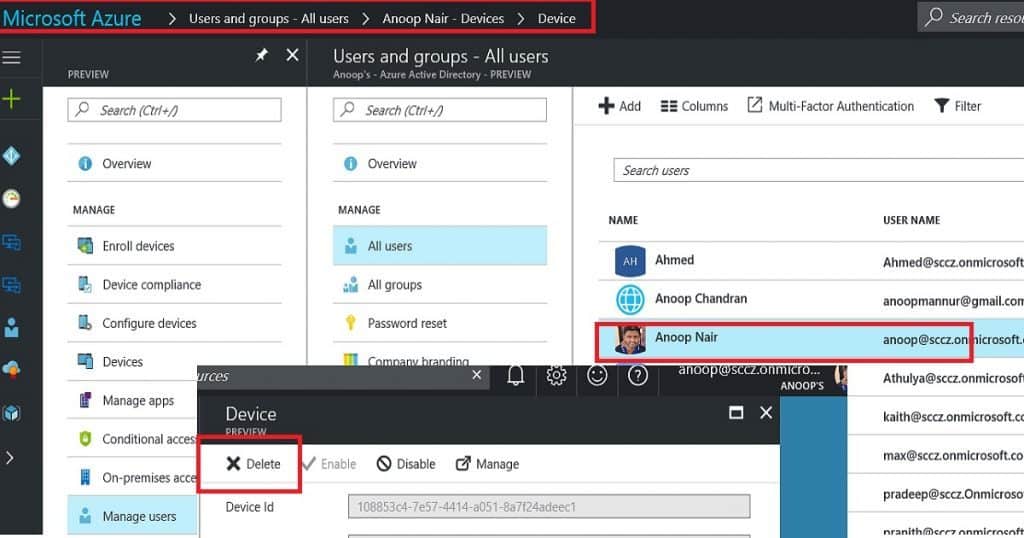
Another option is to remove the work profile or unenroll the Android device. You can also go to your user profile and choose the device you want to delete/remove from the following blade path from the Azure portal “Users and Groups – All users – Anoop Nair (username) – Devices – Device.”

As you can see in the following picture, click on the delete button to remove the device from Intune or to remove the work profile.

How to Remove Work Profile from Intune Managed Android Devices - Fig.2
How to Remove Work Profile from Intune Managed Android Devices – Fig.2

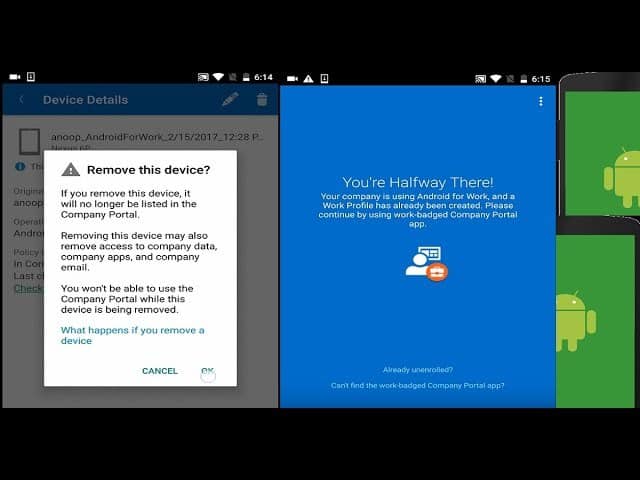
The second option to remove the work profile must be initiated from the end-user device. The user must initiate this process from the Intune company portal application (for more details about the company portal, read my previous post – Intune How to Enroll Android for Work Supported Devices for Management | Google Play Store for Work.

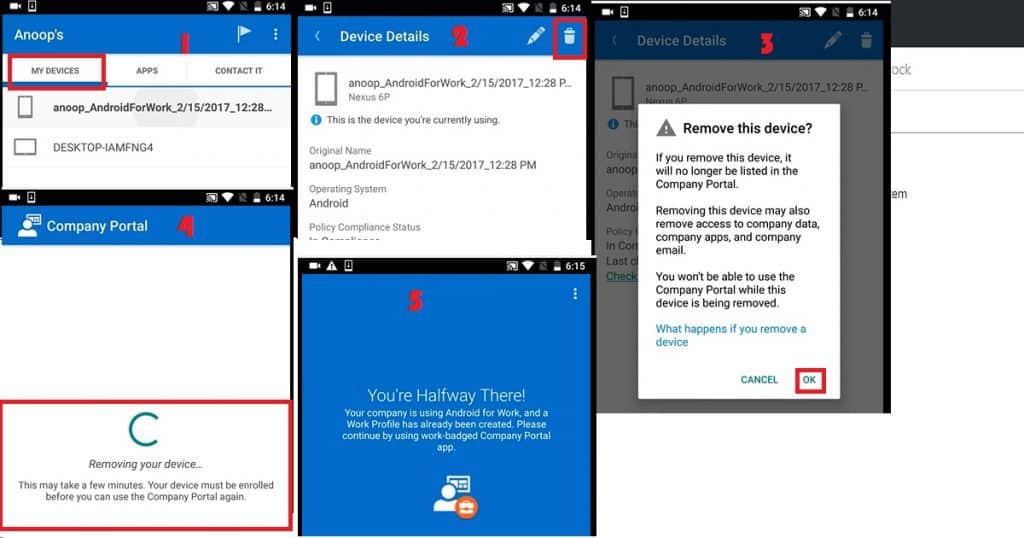
Launch the company portal app from your Android device, tap on the “My Devices” tab, and select the user’s device. In the following picture, tap on the recycle bin button to remove the device’s work profile.

  • The Android device unenrollment process will remove company data from your mobile, the work profile created during A4W enrollment, and all the applications deployed through the work profile.
  • However, as shown in the above picture (#5), the company portal application will stay on the device.
  • It won’t allow you to enroll the device again with the same instance of the company portal.
  • If you want to re-enrol the Android device for Intune management, you need to uninstall the existing company portal and install it again.
How to Remove Work Profile from Intune Managed Android Devices - Fig.3
How to Remove Work Profile from Intune Managed Android Devices – Fig.3

We are on WhatsApp now. To get the latest step-by-step guides, news, and updates, Join our Channel. Click here. HTMD WhatsApp.

Author

Anoop C Nair is Microsoft MVP! He is a Device Management Admin with more than 20 years of experience (calculation done in 2021) in IT. He is a Blogger, Speaker, and Local User Group HTMD Community leader. His main focus is on Device Management technologies like SCCM 2012, Current Branch, and Intune. He writes about ConfigMgr, Windows 11, Windows 10, Azure AD, Microsoft Intune, Windows 365, AVD, etc.

Why Available Action is Disabled from Android for Work App Deployment in Intune 8

Why Available Action is Disabled from Android for Work App Deployment in Intune

Why is the available action disabled from Android for Work App Deployment in Intune? Configuring Android for Work in Intune is not very difficult. However, there are some restrictions when you deploy a volume-purchased application to Android for Work devices.

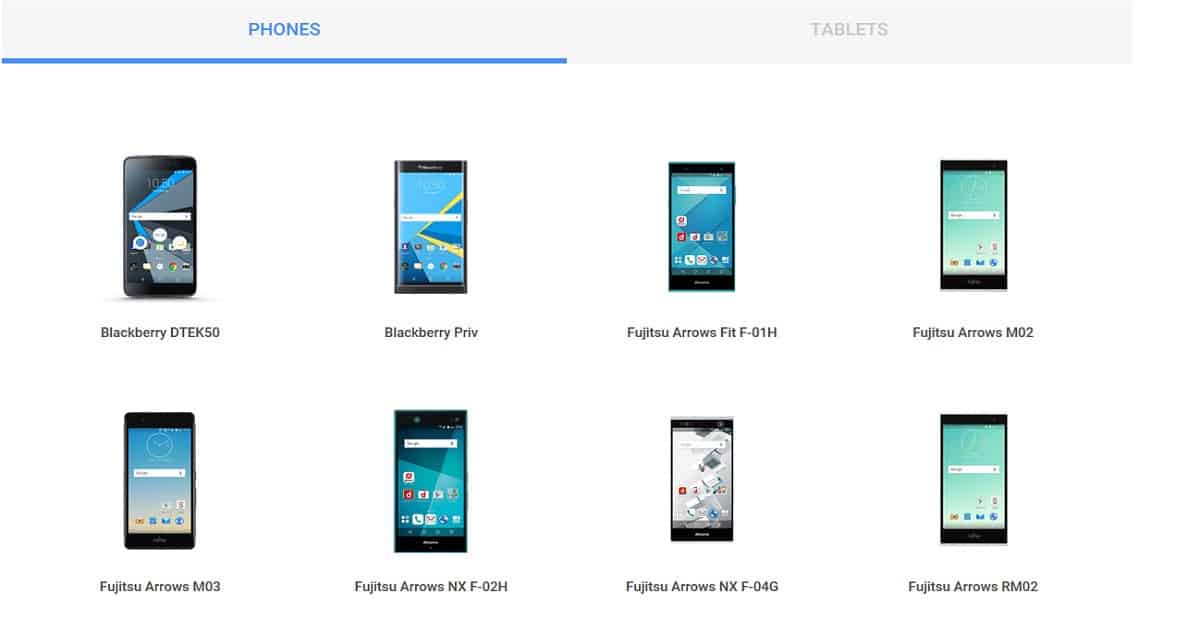
Microsoft recently announced support for Android for Work (A4W) in Intune, and I’ve been eagerly anticipating the arrival of an A4W-supported device. However, it’s important to note that not all Android devices are compatible with A4W. For those interested, Google has provided a comprehensive list of devices supported by Android for Work.

The Android work profile feature enables users to use a single device for personal and work purposes. Our guide breaks down the steps to help you efficiently manage these devices through Intune, ensuring seamless work and personal data integration.

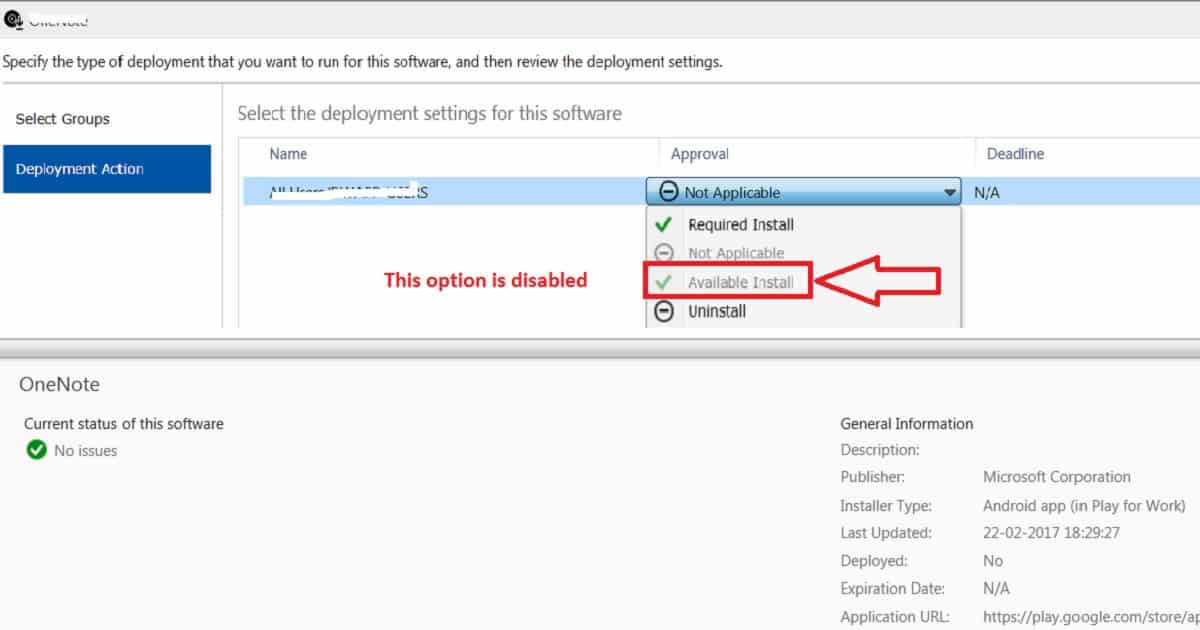
We can deploy Android for Work Volume Licensed apps only to user groups. The ONLY deployment actions/options enabled in the drop-down list are Not Applicable, Required, and Uninstall actions. The “available” deployment Action/option is DISABLE for Android for Work applications.

Android For Work App Deployment Options Available Required

Let’s explore the possibilities for deploying Android for Work apps, including “Available” and “Required” deployment types. The following video provides a detailed overview of these deployment options, demonstrating how to manage app distribution within your organization effectively.

Why Available Action is Disabled from Android for Work App Deployment in Intune – Video 1

Why Available Action is Disabled from Android for Work App Deployment in Intune

In the screenshot below, you need to specify the type of deployment you want to execute for this software and review the corresponding deployment settings. Choose the appropriate deployment settings for the software. Note that the “Available” install option is disabled, as shown in the window.

Why Available Action is Disabled from Android for Work App Deployment in Intune - Fig.1
Why Available Action is Disabled from Android for Work App Deployment in Intune – Fig.1

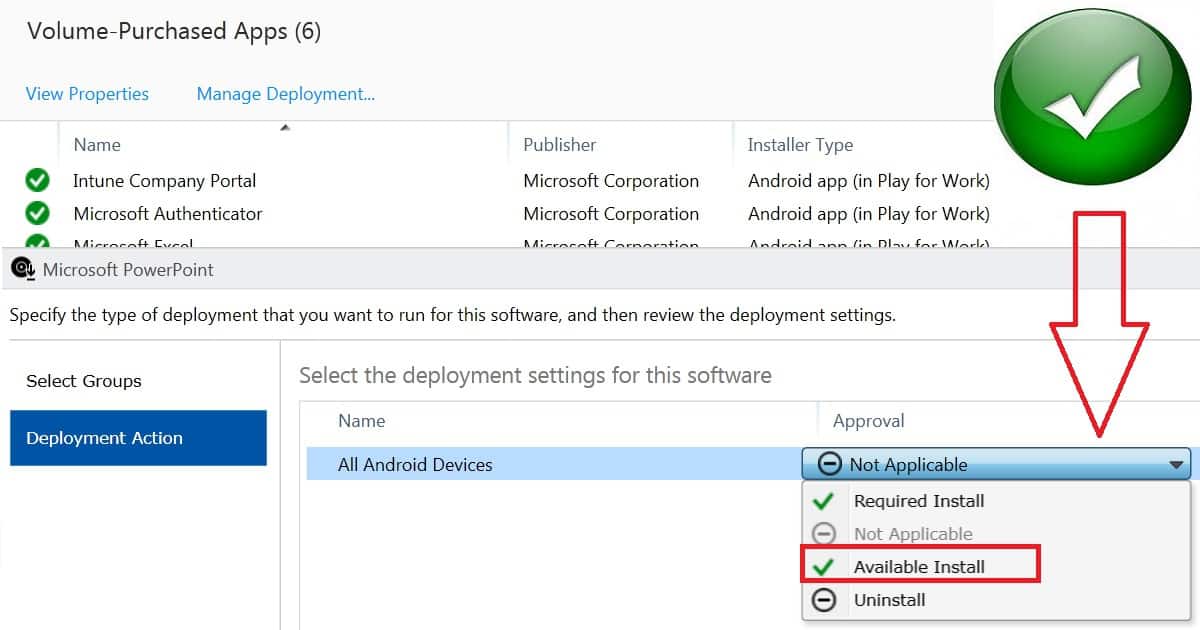
Recently, I noticed that the Android for Work Volume-Purchased App deployment action called “Available” has been enabled for some of the tenants. These “Google Play for Work” applications can be deployed to user/device groups in those tenants where the available action is enabled.

Details Why Available Action is Disabled from Android for Work App Deployment in Intune Endpoint Manager

Android for Work Volume-Purchased application deployment option is called “Available,” and volume-purchased app deployment to device groups is ONLY available with new grouping experience in the Azure portal. Hence, this feature is tied to Azure AD group targeting, requiring migration from the Intune Silver Light portal to Azure.

  • You can’t see all the Android for Work apps even when you go to the Google Play for Work app store from your Android for Work-supported devices.
  • It will only list the apps that are deployed from the Intune console. Why Available Action is Disabled from Android for Work App Deployment in Intune Endpoint Manager
  • App deployment action details are well documented in the TechNet article here. When the app is displayed in the Volume-Purchased Apps node of the Apps workspace, you can deploy it just like any other app.
  • You can deploy the app to groups of users only. Currently, you can only select the Required and Uninstall actions. Starting in October 2016, we will begin adding the available deployment action for new tenants.
Why Available Action is Disabled from Android for Work App Deployment in Intune - Fig.2
Why Available Action is Disabled from Android for Work App Deployment in Intune – Fig.2

We are on WhatsApp now. To get the latest step-by-step guides, news, and updates, Join our Channel. Click here. HTMD WhatsApp.

Author

Anoop C Nair is Microsoft MVP! He is a Device Management Admin with more than 20 years of experience (calculation done in 2021) in IT. He is a Blogger, Speaker, and Local User Group HTMD Community leader. His main focus is on Device Management technologies like SCCM 2012, Current Branch, and Intune. He writes about ConfigMgr, Windows 11, Windows 10, Azure AD, Microsoft Intune, Windows 365, AVD, etc.
Intune How to Enroll Android for Work Supported Devices for Management | Google Play Store for Work 9

Intune How to Enroll Android for Work Supported Devices for Management | Google Play Store for Work

Intune: How to Enroll Android for Work Supported Devices for Management | Google Play Store for Work? Android for Work enrollment to an Enterprise Mobility Management (EMM) solution or Intune is slightly different from enrollment for iOS and Windows devices.

This difference is not because of your EMM solution rather. This is the process/framework Google implemented to complete Android for Work enrollment. We need to configure Intune to support Android for Work, and I have a post that explains the prerequisites.

Microsoft announced Intune’s supportability for Android for Work (A4W) a few months back. Since then, I have been waiting for an A4W-supported device. Yes, that means A4W does not support all Android devices. Here is Google’s list of A4W-supported devices.

Our article guides you through configuring the Android Enterprise platform for use with Intune Device Management. You can easily set up Intune Enrollment to manage Android Enterprise devices, and you can easily manage corporate-owned Android Enterprise devices with Microsoft Endpoint Manager Intune.

Intune Android for Work Nexus 6s Enrollment Experience

Let’s talk about the video showing the Intune Android for Work Nexus 6s enrollment experience. This video provides a detailed look at how to enrol a Nexus 6s using Intune for Android for Work, making the process clear and easy to understand.

Intune How to Enroll Android for Work Supported Devices for Management | Google Play Store for Work – Video 1

Details Google Play Store for Work

First, we need to ensure that Android for Work (A4W) is enabled for your Intune tenant, and then we need to configure Intune to support A4W. Do you want to allow only Android for Work-supported devices to enrol in Intune? This option is not available out of the box in Intune.

I’m sure Microsoft will develop a new option in the new Azure portal, as I noted in the previous blog post about the enrollment restriction rule in Intune. Android for Work is currently supported on devices running Android 5.0 Lollipop, which later supports a work profile.

The second step is to ensure you have configured Android for Work configuration policies in Intune and Android configuration policies. Different sets of policies in Intune only support Android for Work.

Intune Compliance policies are the same for “Classic” Android management and Android for Work management. Suppose you plan to deploy VPN and Wi-Fi profiles to Android for Work-supported devices. In that case, Intune supports some custom configuration policies (OMA-URI).

Intune How to Enroll Android for Work Supported Devices for Management | Google Play Store for Work - Fig.1
Intune How to Enroll Android for Work Supported Devices for Management | Google Play Store for Work – Fig.1

Android for Work?

As a third step, you need to confirm whether your device supports “Android for Work” or not. Where is the list of Android-supported Work devices? OK, no worries, Google has already published the list here.

Android for Work?
If your device has not been supported, Intune will automatically enroll it for “classic” Android management.
So you won’t be able to see any work profile being created on your phone.
Intune How to Enroll Android for Work Supported Devices for Management | Google Play Store for Work – Table 1
Intune How to Enroll Android for Work Supported Devices for Management | Google Play Store for Work - Fig.2
Intune How to Enroll Android for Work Supported Devices for Management | Google Play Store for Work – Fig.2

More Details

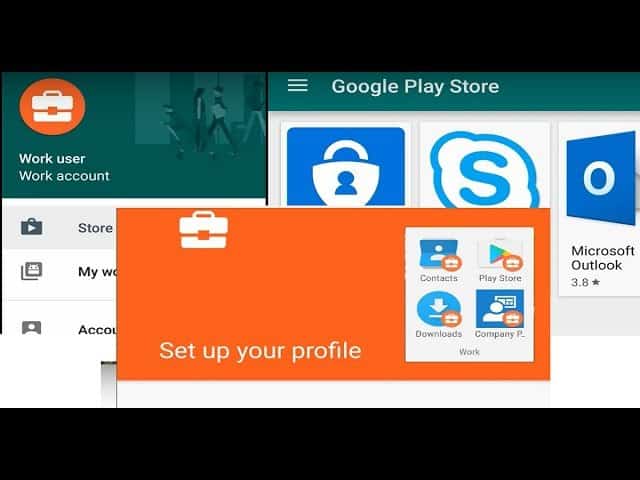
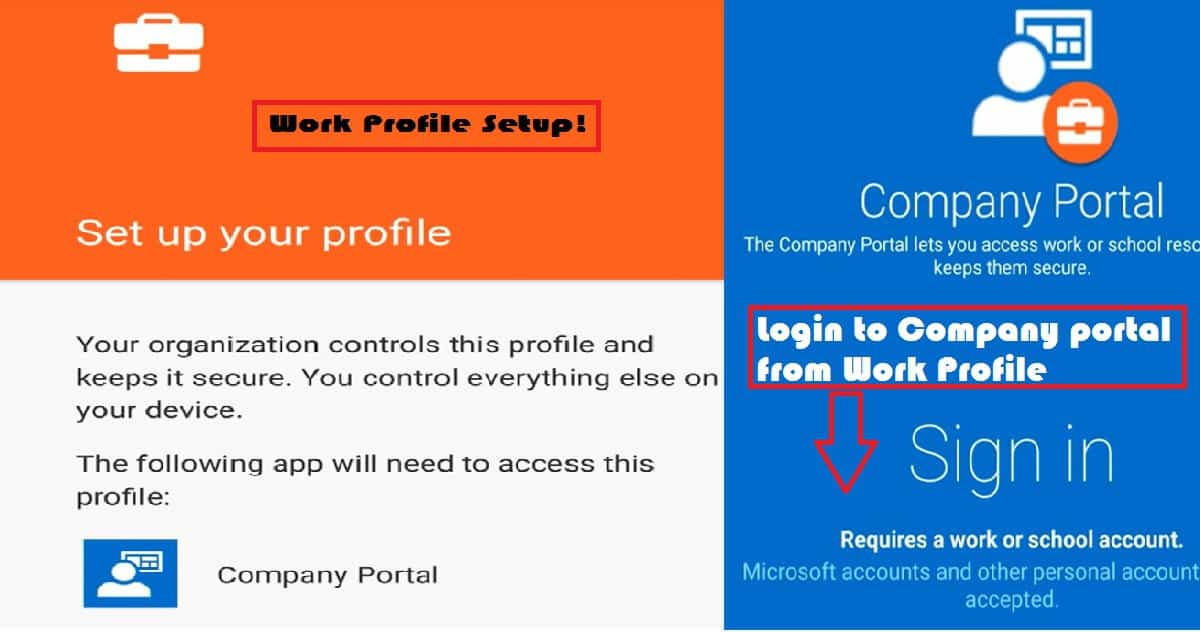
Once you have identified that the device you are trying to enroll in is supported, you should open the “Google Play Store” and Install the Intune company portal. Once the company portal is installed, you can log in with your corporate credentials, and the first phase of the setup will start, creating a Work profile for Android.

Once the Work profile has been created, the company portal application will ask you to go to the Work profile and launch the company portal from the work profile to continue setting up. So, you need to log in to the company portal twice as part of Android for work enrollment.

The work profile will be controlled by an organization you have enrolled in, and the Company Portal app will have access to Work profile-related data.

Intune How to Enroll Android for Work Supported Devices for Management | Google Play Store for Work - Fig.3
Intune How to Enroll Android for Work Supported Devices for Management | Google Play Store for Work – Fig.3

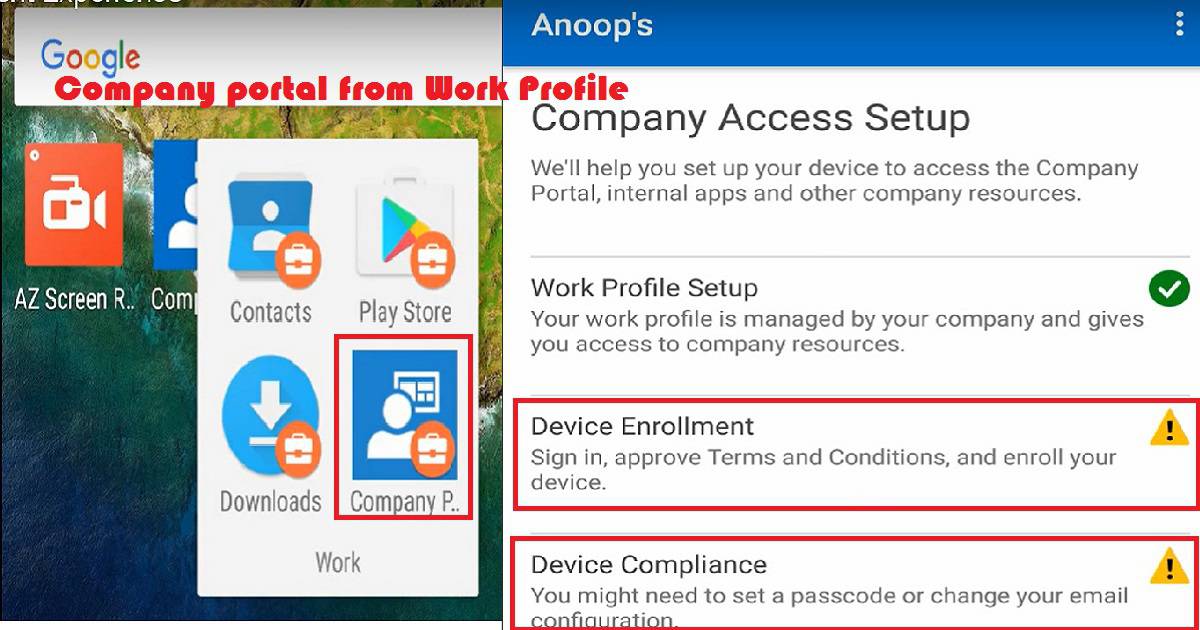
The above step completed half of the enrollment process. The Intune company portal application initiated the creation of the work profile. Once the work profile has been created, you must log in to another instance of the company portal app, which resides in the work profile.

The company portal app in the work profile does the 2nd half of the enrollment process. The company portal helps the device complete Work Place Join, Azure AD Join, and Intune enrollment, as seen in the above video.

Intune How to Enroll Android for Work Supported Devices for Management | Google Play Store for Work - Fig.4
Intune How to Enroll Android for Work Supported Devices for Management | Google Play Store for Work – Fig.4

Google Play Store for Work

Once you complete the Company access setup, you can access company resources and apps depending on the Conditional access, compliance, and configuration policies. The Android device must comply with compliance policies and meet the conditions mentioned in the conditional access policies by the Intune Admin.

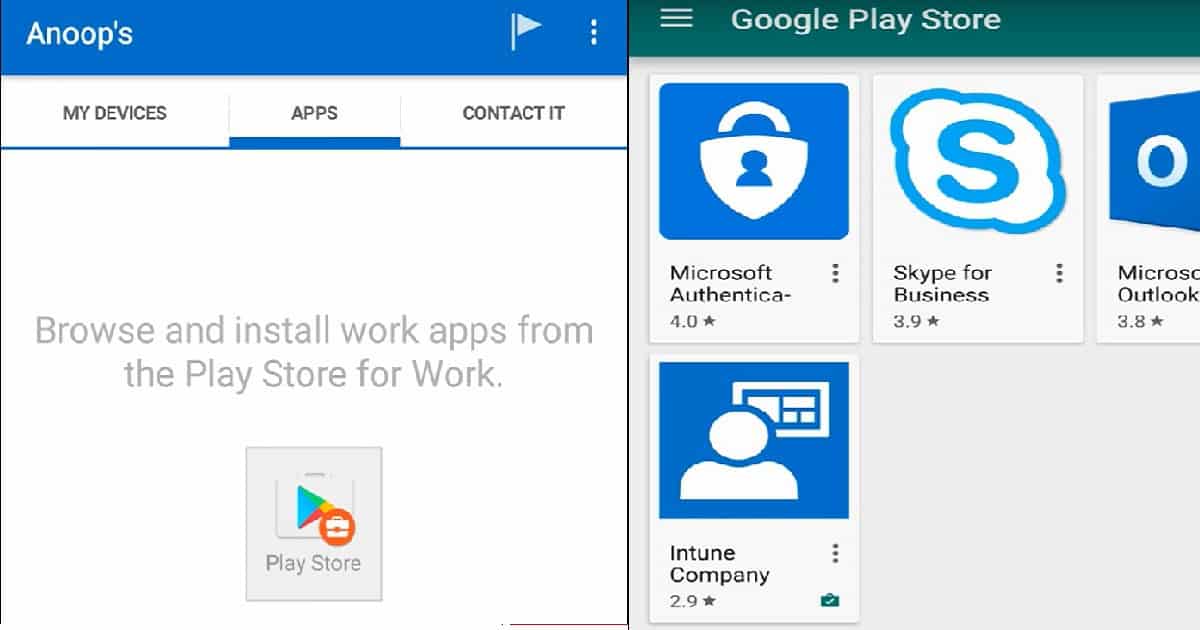
Once everything is okay, you can browse the applications from “Google Play Store for Work“. Browse and install applications from the Google Play Store for work. I will cover the Android application deployment scenarios in an upcoming blog here (coming soon).

Outlook is one of the applications you can directly deploy as “available” or “required” from the Intune portal. Once the Outlook app has been installed, you can directly configure your official mail without any particular configuration. Email profile deployment via Intune is not required for automatic corporate mail configuration.

You need to put in the email ID. No other configuration is required; instead, everything is automatically configured. As I mentioned in the blog post here, you can add applications to the Google Play Store for work with the existing Gmail account. Once these apps are synced with Intune, you can deploy them to groups.

Intune How to Enroll Android for Work Supported Devices for Management | Google Play Store for Work - Fig.5
Intune How to Enroll Android for Work Supported Devices for Management | Google Play Store for Work – Fig.5

We are on WhatsApp now. To get the latest step-by-step guides, news, and updates, Join our Channel. Click here. HTMD WhatsApp.

Author

Anoop C Nair is Microsoft MVP! He is a Device Management Admin with more than 20 years of experience (calculation done in 2021) in IT. He is a Blogger, Speaker, and Local User Group HTMD Community leader. His main focus is on Device Management technologies like SCCM 2012, Current Branch, and Intune. He writes about ConfigMgr, Windows 11, Windows 10, Azure AD, Microsoft Intune, Windows 365, AVD, etc.
How to Enable Bitlocker on HyperV and Handle Error Device Cannot Use a Trusted Platform Module 14

How to Enable Bitlocker on HyperV and Handle Error Device Cannot Use a Trusted Platform Module

How to Enable Bitlocker on HyperV and Handle Error Device Cannot Use a Trusted Platform Module? Do you use virtual Windows 10 machines to test the Intune and SCCM policies?

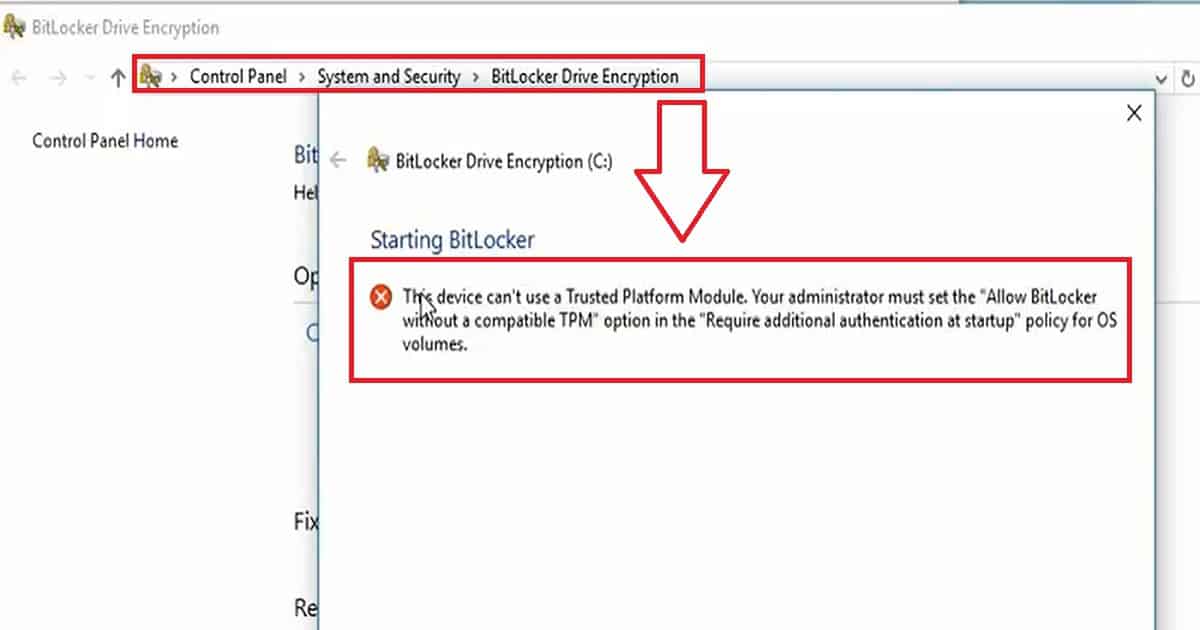
Have you tried to enable BitLocker in a HyperV/VMware virtual machine? Did you ever receive the following error while you tried to enable BitLocker on Windows 10 Virtual Machines?

This Device Can’t Use a Trusted Platform module. Your administrator must set the “Allow Bitlocker without a compatible TPM” option for OS volumes in the “Required additional authentication at startup” policy.

The video below provides a more detailed demonstration. This post helps you show more details about enabling Bitlocker on HyperV and handling error devices that cannot use a trusted platform module.

How to Enable Bitlocker on Hyper V Windows10 Virtual Machine

The video demonstrates resolving the error message “This Device Can’t Use a Trusted Platform Module. Your administrator must set the ‘Allow BitLocker without a compatible TPM’ option in the ‘Require additional authentication at startup’ policy for OS volumes.”

How to Enable Bitlocker on HyperV and Handle Error Device Cannot Use a Trusted Platform Module – Video 1

How to Enable Bitlocker on HyperV and Handle Error Device Cannot Use a Trusted Platform Module

Let’s discuss how to enable Bitlocker on HyperV and handle the error device that cannot use a trusted platform module. The screenshot below shows the error message “This device can’t use a Trusted Platform Module.

Your administrator must set the ‘Allow BitLocker without a compatible TPM‘ option in the ‘Require additional authentication at startup’ policy for OS volumes.”

How to Enable Bitlocker on HyperV and Handle Error Device Cannot Use a Trusted Platform Module - Fig.1
How to Enable Bitlocker on HyperV and Handle Error Device Cannot Use a Trusted Platform Module – Fig.1

How to Enable Bitlocker on HyperV

BitLocker will be automatically enabled on modern instant-go devices like Surface Pro 3, Surface Pro 4, etc. However, for other Windows 10 devices, each user needs to enable BitLocker via another method. BitLocker can be enabled using Windows 10 MDM policies, Group Policies, SCCM Policies, etc.  

All the above BitLocker enablement process is more or less straightforward. However, enabling BitLocker on Windows 10 virtual machines is not straightforward. When we try to enable BitLocker from “This PC” or “Control Panel.” 

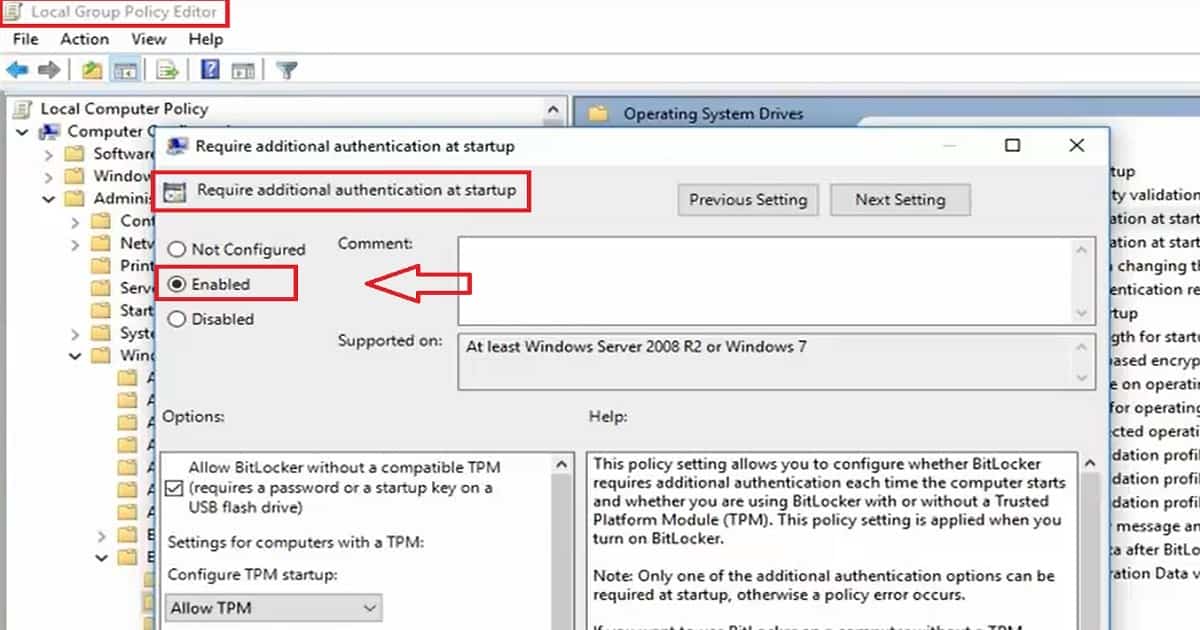
The user needs to enable the following group policy (GPEDIT.MSC) on the Windows 10 VM to eliminate the TPM error while enabling the BitLocker.

Enabling Group Policy to Resolve TPM Error for BitLocker on Windows 10 VM
Local Computer Policy –> Computer Configuration –> Administrative Template –>
Windows Components –> Bitlocker Drive Encryption –> Operating System Drives –> Require additional authentication at startup –> ENABLE
 
How to Enable Bitlocker on HyperV and Handle Error Device Cannot Use a Trusted Platform Module - Fig.2
How to Enable Bitlocker on HyperV and Handle Error Device Cannot Use a Trusted Platform Module – Fig.2

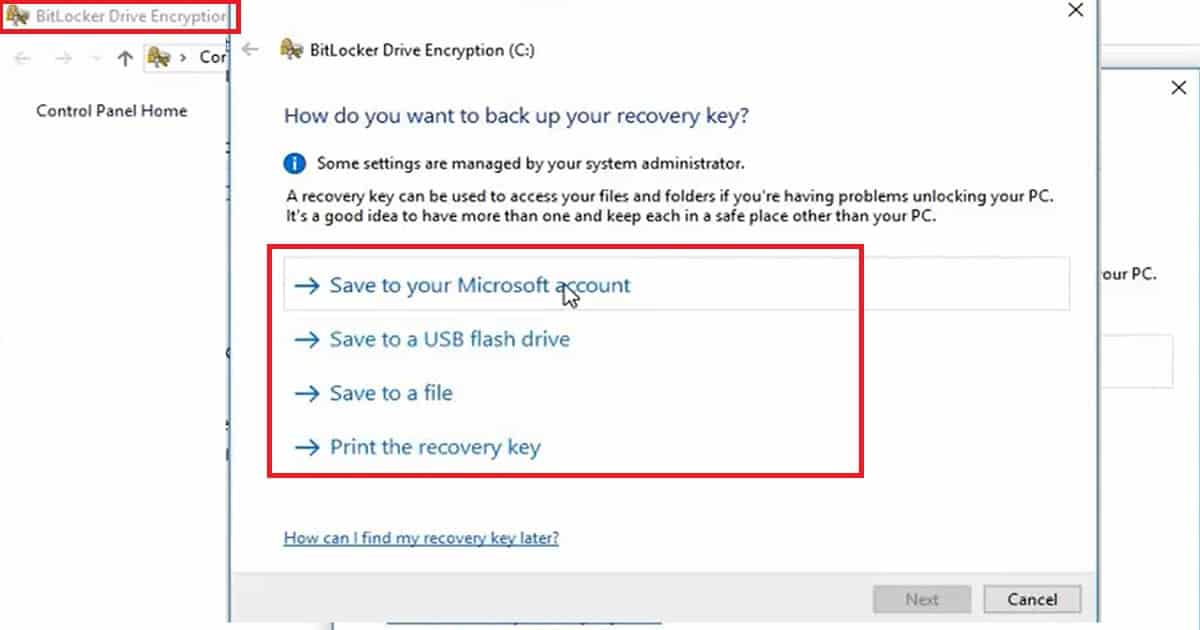
Another important option in the BitLocker enablement process is saving the recovery key. We have four options for saving the BitLocker key: save to your Microsoft accounts, save to a USB flash drive, save to a file, or print the recovery key. How to Enable BitLocker on HyperV and Handle Error Device CanNot Use a Trusted Platform Module.

How to Enable Bitlocker on HyperV and Handle Error Device Cannot Use a Trusted Platform Module - Fig.3
How to Enable Bitlocker on HyperV and Handle Error Device Cannot Use a Trusted Platform Module – Fig.3

We are on WhatsApp now. To get the latest step-by-step guides, news, and updates, Join our Channel. Click here. HTMD WhatsApp.

Author

Anoop C Nair is Microsoft MVP! He is a Device Management Admin with more than 20 years of experience (calculation done in 2021) in IT. He is a Blogger, Speaker, and Local User Group HTMD Community leader. His main focus is on Device Management technologies like SCCM 2012, Current Branch, and Intune. He writes about ConfigMgr, Windows 11, Windows 10, Azure AD, Microsoft Intune, Windows 365, AVD, etc.
Intune Application Policy Manager RBA Controls In MEM Portal | Endpoint Manager Role-Based Access 16

Intune Application Policy Manager RBA Controls In MEM Portal | Endpoint Manager Role-Based Access

Intune Application Policy Manager RBA Controls In MEM Portal | Endpoint Manager Role-Based Access? We will discuss the access rights of the built-in Intune RBA role, Intune Application Manager.

Ideally, this role should have access to Manage mobile apps and read device information, depending on the scope of users/devices assigned to it.

Do you know what the scope is? “The users or devices that a specified person (the member) can manage.” If you are an SCCM admin, the SCOPE option is already in SCCM 2012 and the CB console. I have another post that discusses the details of Configuration Manager RBAC.

This post will examine the permissions associated with the Intune application manager build-in role. According to Microsoft documentation, this role ” Manages and deploys applications and profiles.”

Intune Application Policy Manager RBA Controls In MEM Portal

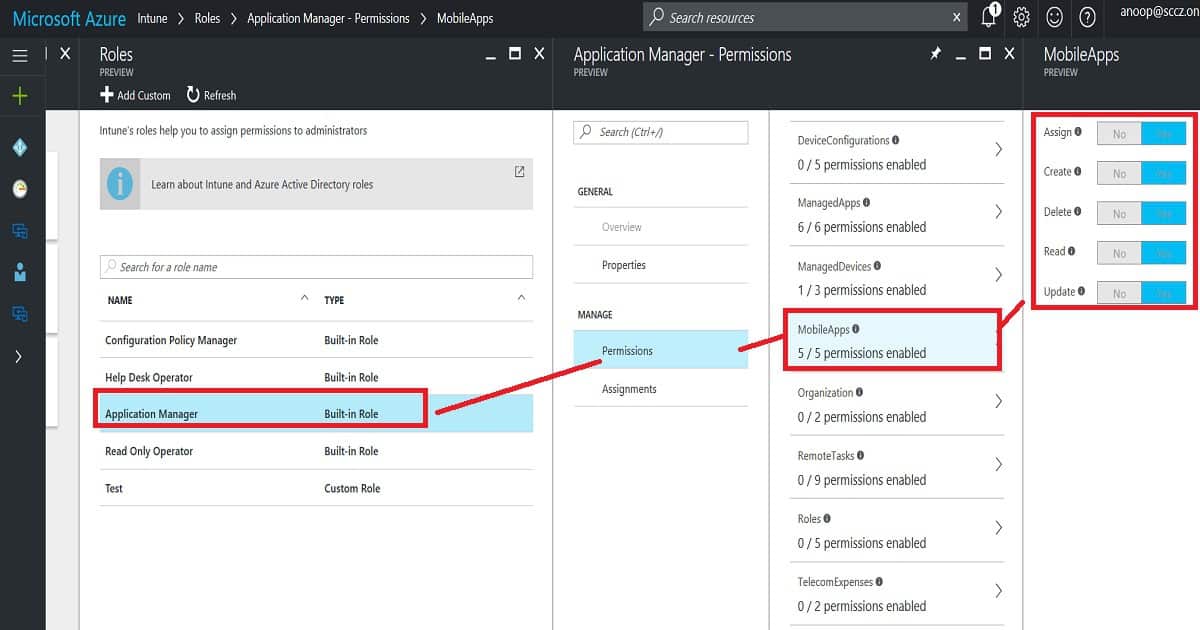
We will dive deeply into this topic and explain the actions an Intune app admin can perform from the MEM portal. Following are the access permissions given to the Intune APP Manager RBAC role.

Intune Application Policy Manager RBA Controls In MEM Portal | Endpoint Manager Role-Based Access - Fig.1
Intune Application Policy Manager RBA Controls In MEM Portal | Endpoint Manager Role-Based Access – Fig.1

Managed Apps – Intune Application Policy Manager RBA Controls In MEM Portal

Managing your organization‘s IT infrastructure is essential to effectively controlling access to various resources. Here’s a breakdown of permissions for managing apps, devices, and mobile apps.

  • Assign managed apps to a security group
  • Create managed apps
  • Delete managed apps
  • Read managed apps
  • Update managed apps
  • Wipe Managed apps Managed Devices
  • No Access to delete devices
  • Access to read device information
  • No Access to update device properties Mobile Apps
  • Assign mobile apps to a security group
  • Create mobile apps
  • Delete mobile apps
  • Read mobile apps
  • Update mobile apps
Mobile Apps
Assign mobile apps to a security group
Create mobile apps
Delete mobile apps
Read mobile apps
Intune Application Policy Manager RBA Controls In MEM Portal | Endpoint Manager Role-Based Access – Table 1

Overall Access Rights of Intune Tiles – Intune Application Policy Manager RBA Controls In MEM Portal

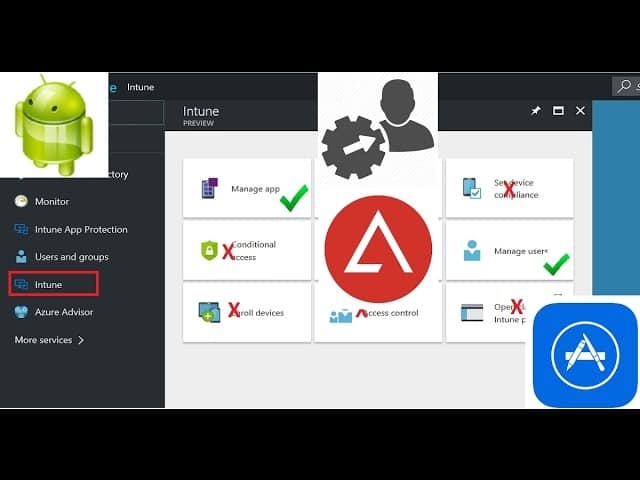
It can administrate some actions in managing apps and configuring device tiles. Access is denied to perform any activities in Conditional Access, Device Enrollment, Access control, and Set device compliance tiles.

  1. You are allowed to set up certificate authority in the Configure devices tile. However, you do not have access to view profiles.
  2. You are allowed to view the device information in the Device and Groups tile.
  3. Access is denied to create/delete new or existing groups or user profiles. It doesn’t matter whether the Intune policy manager is editing the groups in SCOPE. In many places, save and add buttons are enabled, but when we try to save, we get an error.
  4. Access is denied to change device and user settings in the Manage user tile.
  5. Access is denied to the Intune Silverlight console.
  6. Access is denied to the Intune App Protection section, and Intune mobile application management is not allowed for Intune App Managers. These app protection options are probably part of the Azure portal’s Intune—Manage Apps tab.

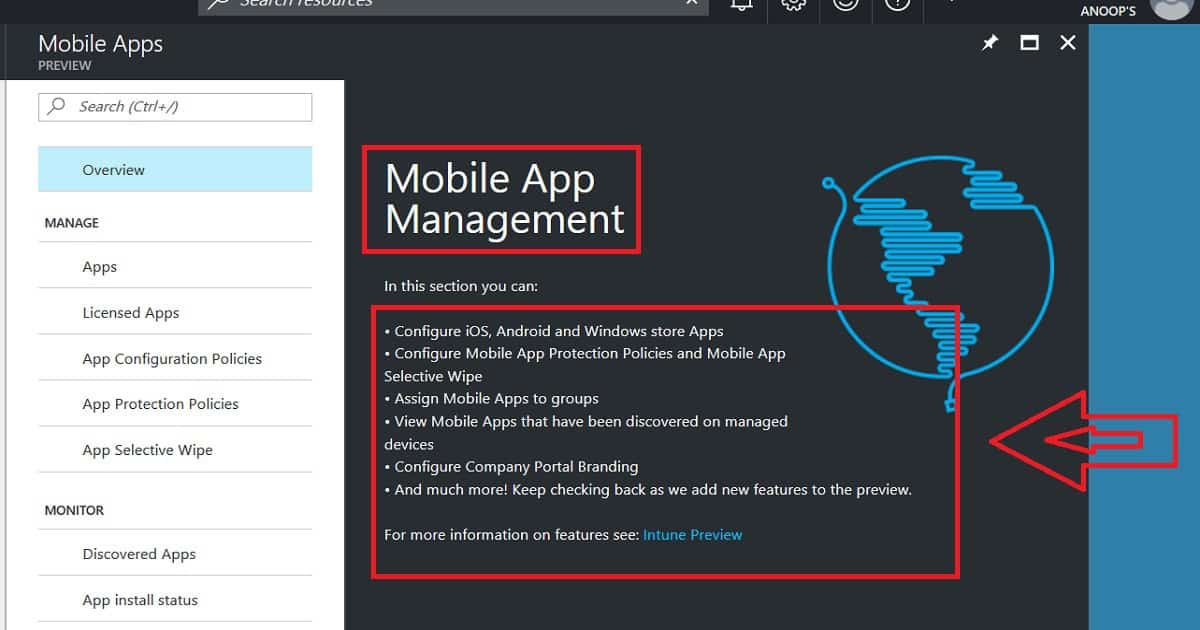
Access Rights – Manage Apps (Manage Apps and Mobile Apps) – Intune Application Policy Manager RBA Controls

You can create new mobile apps and edit mobile apps uploaded by admins. Access is Denied to edit the managed apps, which are automatically uploaded.

  1. Access is denied to remove assignments/deployments to a group outside the Intune application manager’s scope.
  2. Access is denied to remove assignments/deployments from a group in the Intune application manager’s scope. This should be allowed!
  3. If the user group is within the scope of the Intune application manager, you can add an assignment to the mobile/manage app.
  4. Access Denied adding an assignment to mobile/manage app if the user group is out of the scope of Intune application manager.
  5. App Protection Policies are getting hung while trying to edit (or create) existing (or new) app protection policies from the Intune App Manager account.
  6. Allowed to perform App Selective wipe option from Intune app manager account. Allowed to perform app selective wipe only on “in scope users/devices”.
  7. Access is denied to edit Company portal Branding from the Intune app manager account.
Intune Application Policy Manager RBA Controls In MEM Portal | Endpoint Manager Role-Based Access - Fig.2
Intune Application Policy Manager RBA Controls In MEM Portal | Endpoint Manager Role-Based Access – Fig.2

We are on WhatsApp now. To get the latest step-by-step guides, news, and updates, Join our Channel. Click here. HTMD WhatsApp.

Author

Anoop C Nair is Microsoft MVP! He is a Device Management Admin with more than 20 years of experience (calculation done in 2021) in IT. He is a Blogger, Speaker, and Local User Group HTMD Community leader. His main focus is on Device Management technologies like SCCM 2012, Current Branch, and Intune. He writes about ConfigMgr, Windows 11, Windows 10, Azure AD, Microsoft Intune, Windows 365, AVD, etc.