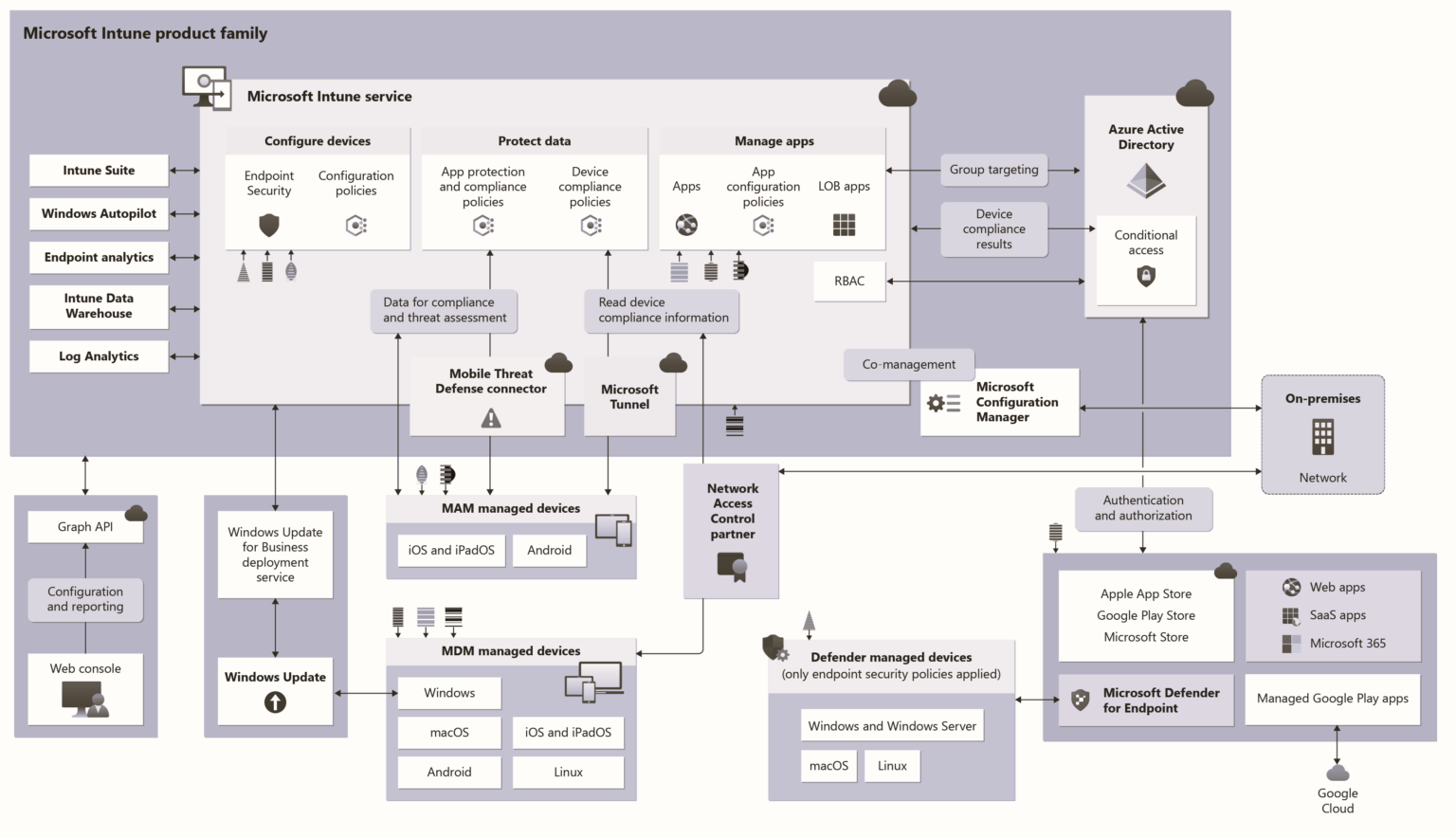
Intune Company Portal App Login Issues with Windows 11 or Windows 10 Devices? Have you tried to Repair or Reset Company Portal App to fix the issue? The Intune company portal application is not allowed to log in when it is installed on Windows 10 or Windows 11.
The issue explained in the post below could be due to either Azure AD authentication issues or proxy issues. It won’t let you log in with your username and password.
The Company Portal app will get redirected to the login page repeatedly. Have you tried to log in to the Intune company portal from a Windows device, and can you reproduce this issue?
Fix Company Portal App Login Error Occurred AAD Auth Proxy Issues. This post also explains the Tenant Restriction Policy and company portal issues.
Table of Contents
- Best Guide to Deploy New Intune Company Portal App on Windows using Intune
- New Appearance for Intune Company Portal App for Windows
- Quick and Easy way to Turn on PowerShell Audit using Intune Policy
- Easier Way to Enable Local Security Authority Protection Mode with Intune
- Easy Way to Remove Microsoft Teams Personal with Intune
Intune Company Portal App Repair Options
Whenever you have an issue with the Intune Company Portal app, it’s better to Reset, Repair, or Reinstall it before trying to do further troubleshooting. Otherwise, this could be another issue if you see the same problems with a more significant number of Windows 11 devices.
Intune Company Portal App Repair options are easy to use, unlike other Win32 or MSI applications. Since the Intune Company portal is a Microsoft Store Application, it has all the Reset, Repair, and Reinstall options.
Read More –> FIX: Microsoft Store Sign In Error 0x800706d9 On Windows 11 Domain Joined Or Azure AD Joined PCs.
To fix Intune Company Portal App Repair Reset Options, you need to follow the steps explained below.
- Navigate to the Apps & Features option by right-clicking on the Start button from Windows 11.
- Use the search function to find the Company Portal application.
- Click on the three (3) vertical dots menu.
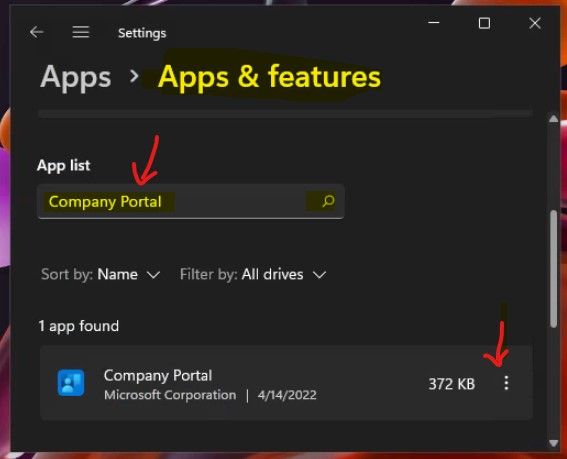
To repair the Company Portal Application on a Windows 11 device, select Advanced options, as shown in the screenshot below.
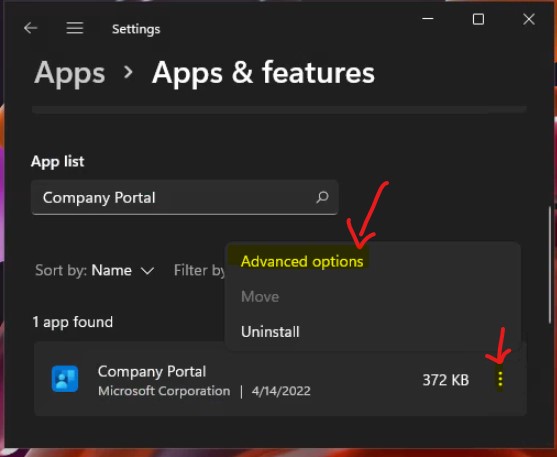
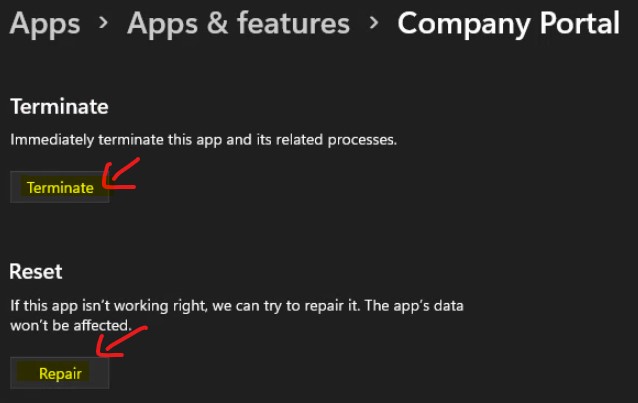
The first step I always recommend is to TERMINATE the company portal app by clicking on the TERMINATE button from Apps -> Apps & Features -> Company Portal Advanced Options.
Intune Company Portal App Repair
Let’s check the next option, the Intune Company Portal app repair option. If this app isn’t working correctly, you can try to repair it. The Company Portal app’s data will not be affected.
Company Portal App Repair Reset and Uninstall
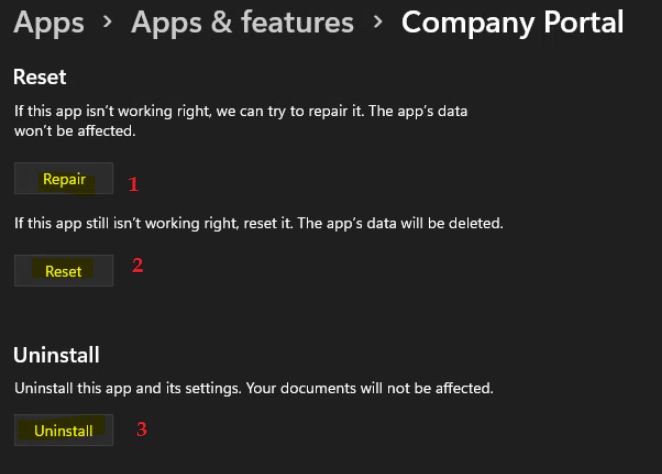
Let’s check the following options to see if the Terminate and Repair options for the Company portal don’t work well. Company Portal App Repair, Reset, and Uninstall are the other options available on Windows 11 devices.
Company Portal REPAIR helps to fix the issue if the app is still not working as expected. The RESET will remove all the app-related data from the Windows 11 PC and give the Company Portal a fresh start.
The UNINSTALL button is the last resource for fixing the Company Portal Application on Windows 11 PC. After uninstalling the app, you can reinstall it from the Microsoft Store.
Fix Company Portal App Login Error Occurred AAD Auth Proxy Issues | Tenant Restriction Policy
Well, this is a weird issue, so stay with me! Let’s learn how to Fix the Company Portal App Login Error that Occurred. This issue is only for the Intune Company portal application. There was no issue accessing the company portal Website. This issue is only applicable to Windows 10/11 devices.
I have a couple of other posts that might be interesting for you. Learn how to install a company portal application on Windows 10 devices. Intune Company Portal Setup for Personal Windows 10/11 Device Intune Enrollment Options.
Also, Read more about Intune Company Portal Branding Customization Options & Intune Different End-User Application Portals for Modern Management.
Problem Statement – Fix Company Portal App Login Error
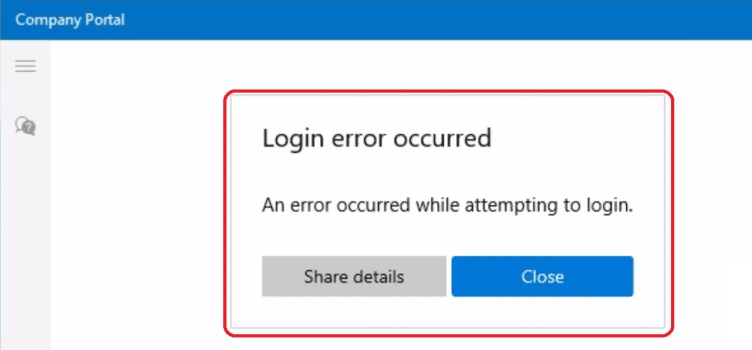
Windows 10 devices started getting error messages when users tried to launch the Company portal app. The error details are given below.
Login error occurred – An error occurred while attempting to log in to Company Portal Login Error.
You get two options:
- Share Details
- Close
Send Company Portal App for Windows 10 Logs
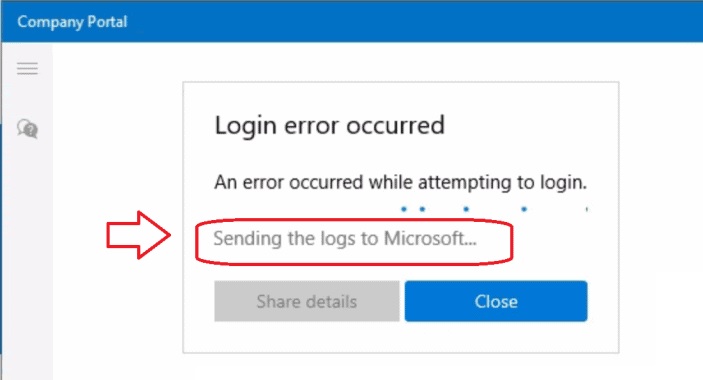
You can try to click on Share details to get the Company portal app log for Windows 10 or 11 devices. The message shows “Sending the Logs to Microsoft.“
Now you can share the details with Microsoft using the Onenote file. Requesting help with the company portal app for Windows 10 or Windows 11.
NOTE! – You can send the company portal app logs for Windows 10 using the following method as well:
- Open the Company Portal app.
- Select Help & support > Get help.
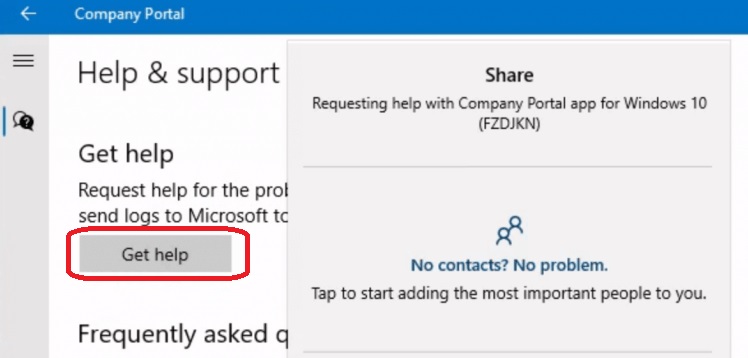
Details of Company Portal App Log
Describe the problem you’re experiencing. The Company Portal has collected your logs (Diagnostics ID: 2WWEWN) and sent them to Microsoft to help troubleshoot. Your description will help us understand what happened and how to fix the problem. After you’ve described the situation, send this email to your company support for more help.
Troubleshooting – Fix Company Portal App Login Error
Now, let’s enter the real troubleshooting scenario of the Company Portal app for Windows 10 devices.
- First, I couldn’t find much information from the Microsoft logs mentioned in the above section.
- I started looking at event logs to get more details.
- Navigate to Microsoft-Windows-AAD/Operational (Azure AD authentication-related errors).
- The following event ID 1098 shows an error that started when I tried to launch the company portal app.
Error: 0xCAA5001C Token broker operation failed. Log: 0xcaa10083 Exception in WinRT wrapper. Log: 0xcaa1007b Acquire token failed. Log: 0xcaa9004b Exception during nonce request.
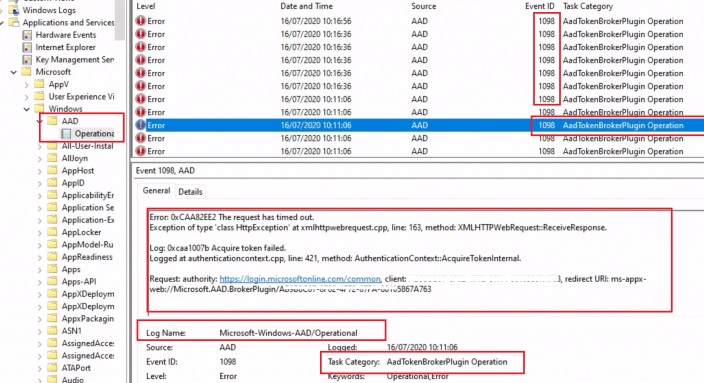
Event Log Details
The following are the company portal login issues with Windows 11/10 devices. As you can see in the paragraphs below, these logs are taken from event logs.
Error: 0xCAA5001C Token broker operation failed.
Log Name: Microsoft-Windows-AAD/Operational
Source: Microsoft-Windows-AAD
Date: 15/07/2020 16:00:58
Event ID: 1098
Task Category: AadTokenBrokerPlugin Operation
Level: Error
Keywords: Operational,Error
User:
Computer:
Description:
Error: 0xCAA5001C Token broker operation failed.
Operation name: GetTokenSilently, Error: -894947614 (0xcaa82ee2), Description: The request has timed out.
Logged at webaccountprocessor.cpp, line: 593, method: AAD::Core::WebAccountProcessor::ReportOperationError.
Error: 0xCAA82EE2 The request has timed out.
Log Name: Microsoft-Windows-AAD/Operational
Source: Microsoft-Windows-AAD
Date: 15/07/2020 16:00:58
Event ID: 1098
Task Category: AadTokenBrokerPlugin Operation
Level: Error
Keywords: Operational,Error
User:
Computer:
Description:
Error: 0xCAA82EE2 The request has timed out.
Exception of type 'class HttpException' at xmlhttpwebrequest.cpp, line: 163, method: XMLHTTPWebRequest::ReceiveResponse.
Log: 0xcaa10083 Exception in WinRT wrapper.
Logged at authorizationclient.cpp, line: 233, method: ADALRT::AuthorizationClient::AcquireToken.
Request: authority: https://login.microsoftonline.com/common, client: 8ba1a5c7-f19a-5de9-a1f1-7178c8d51343, redirect URI: ms-appx-web://Microsoft.AAD.BrokerPlugin/S-1-15-2-2666988183-1750391847-2906264630-3525785777-2857982319-3063633125-1907478113
Log: 0xcaa1007b Acquire token failed.
Log Name: Microsoft-Windows-AAD/Operational
Source: Microsoft-Windows-AAD
Date: 15/07/2020 16:00:58
Event ID: 1098
Task Category: AadTokenBrokerPlugin Operation
Level: Error
Keywords: Operational,Error
User:
Computer:
Description:
Error: 0xCAA82EE2 The request has timed out.
Exception of type 'class HttpException' at xmlhttpwebrequest.cpp, line: 163, method: XMLHTTPWebRequest::ReceiveResponse.
Log: 0xcaa1007b Acquire token failed.
Logged at aggregatedtokenrequest.cpp, line: 70, method: AggregatedTokenRequest::AcquireToken.
Request: authority: https://login.microsoftonline.com/common, client: 8ba1a5c7-f19a-5de9-a1f1-7178c8d51343, redirect URI: ms-appx-web://Microsoft.AAD.BrokerPlugin/S-1-15-2-2666988183-1750391847-2906264630-3525785777-2857982319-3063633125-1907478113, resource: 00000002-0000-0000-c000-000000000000, correlation ID (request): 9d18dbac-d522-4d6e-8d14-c3e7610ec34c
0xcaa9004b Exception during nonce request
Log Name: Microsoft-Windows-AAD/Operational
Source: Microsoft-Windows-AAD
Date: 16/07/2020 10:11:06
Event ID: 1098
Task Category: AadTokenBrokerPlugin Operation
Level: Error
Keywords: Operational,Error
User:
Computer:
Description:
Error: 0xCAA82EE2 The request has timed out.
Exception of type 'class HttpException' at xmlhttpwebrequest.cpp, line: 163, method: XMLHTTPWebRequest::ReceiveResponse.
Log: 0xcaa9004b Exception during nonce request.
Request: authority: https://login.microsoftonline.com/common, client: 8ba1a5c7-f19a-5de9-a1f1-7178c8d51343, redirect URI: ms-appx-web://Microsoft.AAD.BrokerPlugin/S-1-15-2-2666988183-1750391847-2906264630-3525785777-2857982319-3063633125-1907478113, resource: 00000002-0000-0000-c000-000000000000, correlation ID (request): 9d18dbac-d522-4d6e-8d14-c3e7610ec34c
Fix Company Portal App Login Error Occurred
A proxy server tenant restriction was implemented using the following: Use tenant restrictions to manage access to SaaS cloud applications. For more details, see https://docs.microsoft.com/en-us/azure/active-directory/manage-apps/tenant-restrictions.
The company portal app for Windows 10 or Windows 11 requires authentication to Azure AD through https://login.microsoftonline.com. These URLs are available in the above event logs. Tenant restrictions require TLS inspection only on traffic to Azure AD, not to the Office 365 cloud services.
It seems the TLS inspection for the following URL caused the issue. At least one of the following URLs is required:
- https://enterpriseregistration.windows.net
- https://login.microsoftonline.com
- https://device.login.microsoftonline.com
- https://autologon.microsoftazuread-sso.com (If you use or plan to use seamless SSO)
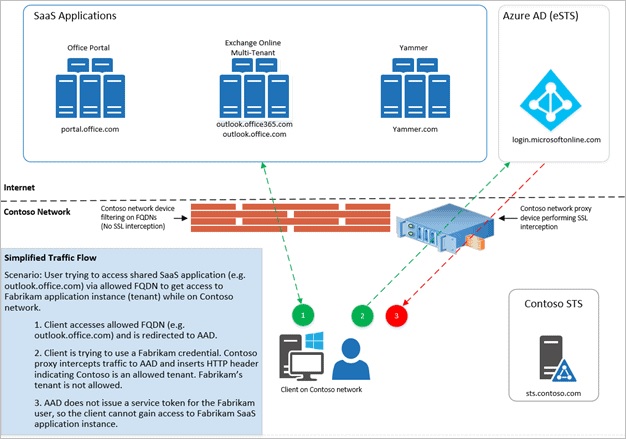
Intune Company Portal Login Issues
After 3 login attempts, the company portal application will show you the following error: “Login error occurred – an error occurred while attempting to login“. You may also get the following details in the error log.
Have you ever seen this? The following scenarios show this issue in different Intune/AAD tenants. The table below helps you show more details.
| The Issue in Different Intune/AAD Tenants |
|---|
| Windows 10 AAD Joined |
| Windows 10 MDM enrolled (Work account) |
| Windows 10 OOBE |
I don’t have any solution for this issue yet. If you can reproduce this issue then please do comment on this post. When I remove add Work or School account from Settings – Accounts – Access work or school, then I’m able to login to the Intune company portal.
However, it will (obviously) say, “You need to add your device before you can install apps.” If you select “Don’t add this device,” the Intune company portal will proceed to the next page, which will show you the “my devices” list, etc., with a note, “It looks like you need to add this device so that you can install apps.”
Log File Details – Intune Company Portal:-
Intune Company Portal Login Issues with Windows 10 Anniversary Update.
Microsoft.Management.Services.SelfServicePortal.CommonViewModels.ServiceLoginPageViewModel.<AuthenticateWithExceptionHandlingAsync>d__36.MoveNext()
2016-09-03T06:03:13.4876367Z WARN Event       None                   400 f67a7f1d-54e3-41e0-a838-e39ec3385ba3 3-0-0 Displaying error dialog
 Title: Login error occurred
 Message:An error occurred while attempting to login.
 Exception: Microsoft.Management.Services.SelfServicePortal.Common.Portable.Authentication.IntuneAuthenticationException: Failed to authenticate with AAD
    at Microsoft.Management.Services.SelfServicePortal.Extensions.AzureAD.Common.Authentication.AuthenticationResultHelper.ThrowIfAuthenticationStatusIsNotSuccess(AuthenticationStatus authenticationStatus)
    at Microsoft.Management.Services.SelfServicePortal.Extensions.AzureAD.Common.Authentication.AzureADAuthenticationService.<AuthenticateAsync>d__0.MoveNext()
Resolution – Proxy Issue
The client app (in this case, Company Portal) should support tenant restrictions. I overlooked this point while writing this post. Microsoft docs already document that client software must request tokens directly from Azure AD so that the proxy infrastructure can intercept traffic.
NOTE! – The company portal (website) works well with tenant restrictions.
The proxy servers removed the OMT feature for TLS inspection for AAD authentication communication, which fixed the Company Portal.
We are on WhatsApp now. To get the latest step-by-step guides, news, and updates, Join our Channel. Click here. HTMD WhatsApp.
Author
Anoop C Nair is Microsoft MVP! He is a Device Management Admin with more than 20 years of experience (calculation done in 2021) in IT. He is a Blogger, Speaker, and Local User Group HTMD Community leader. His primary focus is Device Management technologies like SCCM 2012, Current Branch, and Intune. He writes about ConfigMgr, Windows 11, Windows 10, Azure AD, Microsoft Intune, Windows 365, AVD, etc.