SCCM (A.K.A ConfigMgr) Explained
SCCM is Microsoft Microsoft Endpoint Manager Configuration Manager. This solution is used by most of the organizations in the world to manage their enterprise devices. This is the best resource to Learn and troubleshoot on issues.
How is SCCM (A.K.A ConfigMgr) Used?
SCCM solution is mainly used to manage Windows devices. But it has rich capability to manage and Mac OS devices as well. As per Microsoft, this tool is managing more than 75% of enterprise devices of the world. Linux and Unix devices are not supported by MEMCM (A.K.A Microsoft Endpoint Manager Configuration Manager)
How CAN SCCM Be Applied to Your Organization?
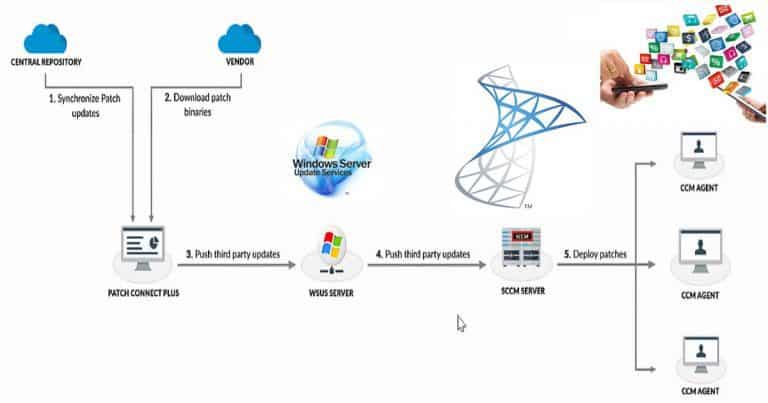
This solution can be used to install the application within your organization. OS deployment is another feature of this solution used within most of the enterprises. Another important use of this solution is to deploy patches across the enterprise and secure those devices.
There are 1000000 devices managed by this solution around the world. And SCCM device management solution is used within organizations to deploy millions of applications.
Server Client Application
This solution is a server-client application. All the managed clients’ inventory is stored in the CM SQL database.
SCCM Core infrastructure, Updates for Configuration Manager, Supported configurations for Configuration Manager, Cloud-attached management of CM, Co-management for Windows 10,
Manage clients on the internet, Windows as a service, CMPivot, Application management.
Other Uses for SCCM
SCCM can used for Manage apps from the Microsoft Store for Business, OS deployment, Introduction to OS deployment, Upgrade to Windows 10, Phased deployments, Software update management, Introduction to software updates management, Manage Office 365 ProPlus updates.
SCCM MVP community group is one of the known community groups in the IT Industry.
Let’s learn about the SCCM Intune Facebook Community Growing Strong Microsoft Intune Facebook. We’ve created SCCM and Intune pages/groups to share knowledge between SCCM and Intune professionals.
Within the SCCM Intune FB Community, we share information about personal experience, the latest updates, tricks, solutions, Hotfixes, and tips from community experts and Microsoft.
SCCM Intune’s Facebook community is always fun and very interactive. Moreover, this type of community gives a personal touch. Real people interact with each other with loads of authenticity.
SCCM Intune Facebook Community groups are the virtual community group for SCCM/ConfigMgr/Intune professionals. Intern, these are the groups where we announce the “SCCM Intune User Group Event” and get feedback from the community.
More than just sharing information, it became a most efficient place for discussions of SCCM and Intune-related topics. This page and its groups have been very helpful to me personally because I don’t want to look at my RSS feed now and then to get updates from the IT world.
SCCM Intune Facebook Community Growing Strong Microsoft Intune Facebook – Fig.1
SCCM Intune Facebook Technical Community Groups Pages
Facebook groups are very interactive, and their design is very well suited for the IT Pro community. I’m a big fan of closed groups, as your posts in a closed group are visible only to the members of that group.
SCCM Intune Facebook Community Growing Strong Microsoft Intune Facebook – Video 1
We are on WhatsApp now. To get the latest step-by-step guides, news, and updates, Join our Channel. Click here. HTMD WhatsApp.
Author
Anoop C Nair is Workplace Technology solution architect with 25+ years of experience in global enterprise organizations such as JP Morgan, Capgemini, etc. He is Microsoft Certified Trainer. Microsoft MVP from 2015 onwards for consecutive 11 years! He also conducts Intune and modern workplace tech training for enterprise organizations. He is Blogger, Speaker, and Founder of HTMD Community and HTMD Conference. His focus is on Device Management technologies such as Intune, Windows, Cloud PC, He writes about technologies like Intune, SCCM, Windows, Cloud PC, Windows, Entra, Microsoft Security.
Anoop C Nair is Workplace Technology solution architect with 25+ years of experience in global enterprise organizations such as JP Morgan, Capgemini, etc. He is Microsoft Certified Trainer. Microsoft MVP from 2015 onwards for consecutive 11 years! He also conducts Intune and modern workplace tech training for enterprise organizations. He is Blogger, Speaker, and Founder of HTMD Community and HTMD Conference. His focus is on Device Management technologies such as Intune, Windows, Cloud PC. He writes about technologies like Intune, SCCM, Windows, Cloud PC, Windows, Entra, Microsoft Security.
Let’s discuss the SCCM Configuration Manager Application Creation Deployment Installation. SCCM CB application creation is the next step after installing SCCM CB 1702 installation, SCCM CB AD discovery, and client installation.
The second step is SCCM CB Application Deployment, and the third step is installing the SCCM CB application on the clients. We will cover all the scenarios in this post. I have documented all these steps in the video tutorial, which details SCCM CB application creation (upload), deployment, and installation.
Application deployment is one feature many corporate organisations use to cater to their business requirements. In SCCM CB, we will have the option to create packages and deploy those SCCM packages. Yes, packages are required in some of the scenarios.
The packages are also used to deploy old Win32 apps that were migrated to the SCCM CB environment from SCCM 2003/2007/2012. I recommend taking advantage of SCCM CB applications rather than still using standard packages.
SCCM CB Application Creation Deployment User Experience
This video comprehensively covers all aspects of SCCM CB (Current Branch) application creation, deployment, and user experience. It provides detailed guidance on creating applications within SCCM, including the necessary configuration steps and considerations for deployment.
SCCM Configuration Manager Application Creation Deployment Installation – Video 1
How to Create/Upload SCCM Application – SCCM Configuration Manager Application Creation Deployment Installation
This guide provides instructions on creating and uploading an application in SCCM and details the steps for developing, deploying, and installing an SCCM application. By following this guide, administrators can effectively manage and distribute applications within their organization’s network using SCCM, ensuring easy and efficient software deployment and maintenance.
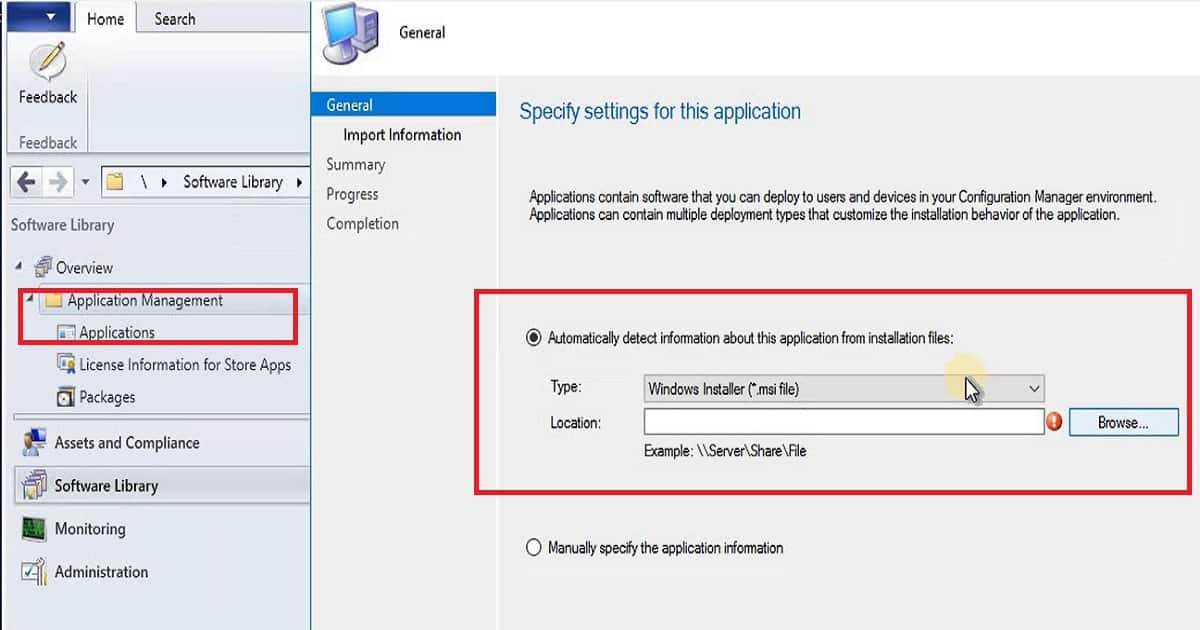
SCCM CB application creation is the first step in this process. The application can be created based on several types of installation files. These installation files range from Win 32 MSI apps to EXE and a wide range of mobile (MDM) apps.
MSI is the most preferred installation type for Windows devices, and this post will cover creating MSI apps.
First, we must ensure that the SCCM CB application source is stored in a UNC path (\\ServerShare\Sources\).
As the video tutorial shows above, the wizard will error if we don’t provide the UNC path as a source location for the MSI app source.
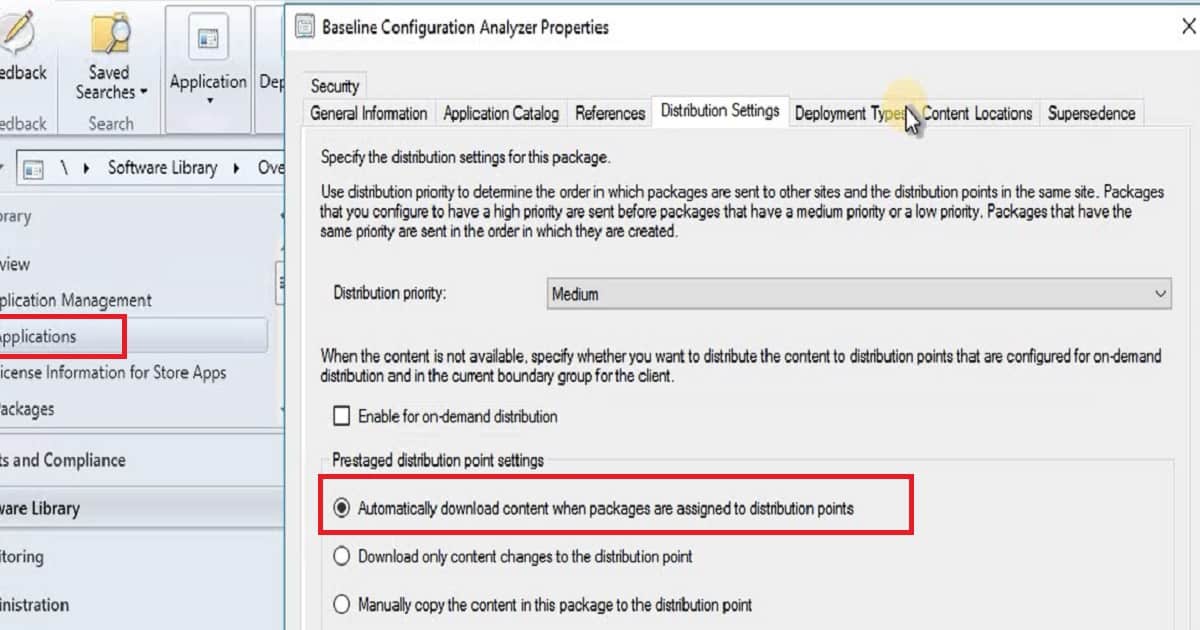
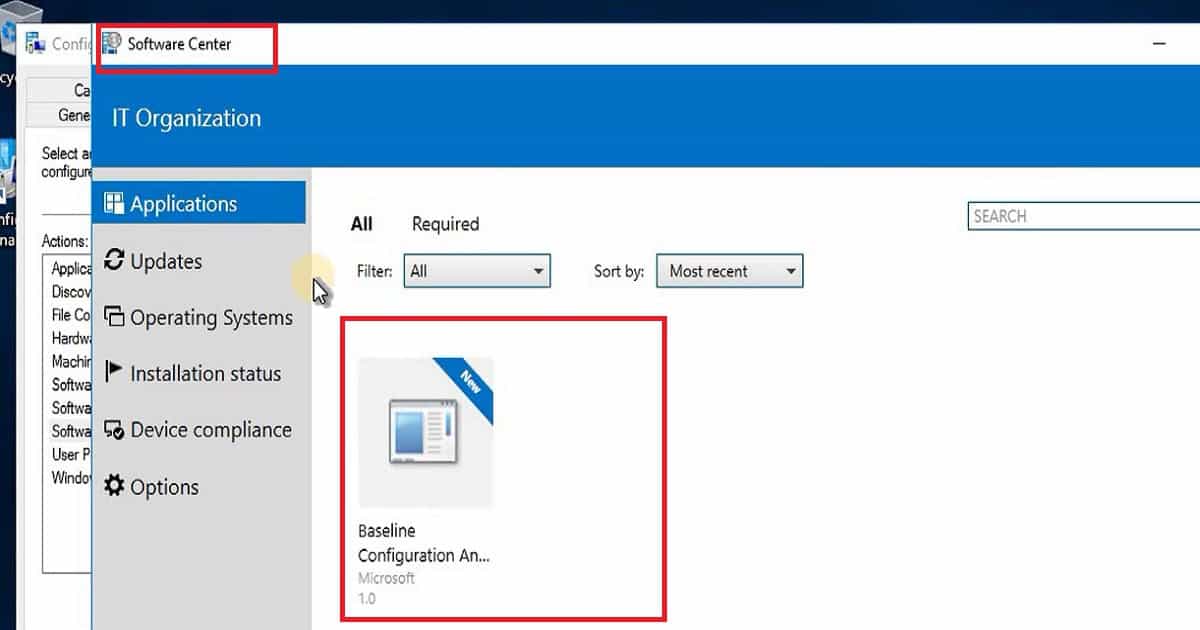
Baseline Configuration Analyzer Properties
Automatically download content when packages are assigned to distribution points
The SCCM CB application creation process creates metadata in the console and related DB entries. It also creates a bundle of files that this MSI installation file requires for the complete application installation.
This bundle of files will be delivered to SCCM contentstores called DPs. The client will download (if the deployment setting is to download the Content from DP) and install it. The video shown above covers this process, and the following sessions will cover it.
How to Deploy SCCM CB Application and Content?
Once the SCCM CB application is created and the app reference is in the console, we can deploy the application content (the source files) to the content store servers (Distribution Points). The entire process is explained in the video tutorial above.
We can initiate a distributed content option to start the application source replication process to remote DPs. SCCM CB application content distribution is mandatory before we deploy the application to SCCM client devices or users.
Once the application content is distributed to the DPs, we can deploy or schedule the application installation to the device or user collection. You want to make some decisions before starting the SCCM CB application deployment process.
The first step is deciding whether we should deploy apps to device collections. If we deploy an application to a device collection, then all the users on that device will get the application, and there could also be some license implications. The second option is to deploy the application to a user collection.
From my perspective, this should be the default deployment practice if you don’t have any specific requirements to deploy apps to devices.
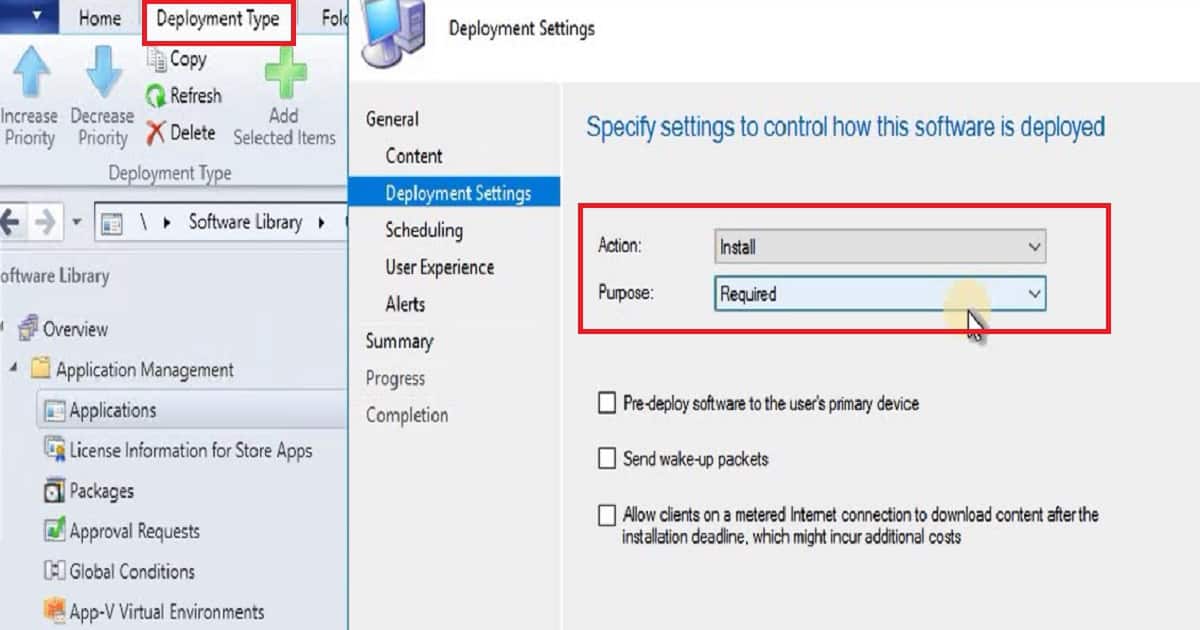
The other important point in SCCM CB application deployment is the behavior of application installation. We have two options in the application installation behavior. The first one empowers the user experience by making the SCCM app available. In the available scenario, the application is deployed to the user and sits in the software center until the user initiates the installation from the software center app.
The second option is to deploy the application as REQUIRED. In this scenario, the application will automatically install on the device without any user intervention.
How to Install Application on End-User Device?
Once you deploy the application to the collection, as mentioned in the video tutorial above, the SCCM client will check for the new policies at the next scheduled interval.
On the schedule, the SCCM client will download the application source download, and installation will automatically start on the Windows device, as seen in the above video tutorial. The installation behavior setting is critical; the actual app install will kick off depending on that behaviour.
We are on WhatsApp now. To get the latest step-by-step guides, news, and updates, Join our Channel. Click here. HTMD WhatsApp.
Author
Anoop C Nair is Workplace Technology solution architect with 25+ years of experience in global enterprise organizations such as JP Morgan, Capgemini, etc. He is Microsoft Certified Trainer. Microsoft MVP from 2015 onwards for consecutive 11 years! He also conducts Intune and modern workplace tech training for enterprise organizations. He is Blogger, Speaker, and Founder of HTMD Community and HTMD Conference. His focus is on Device Management technologies such as Intune, Windows, Cloud PC, He writes about technologies like Intune, SCCM, Windows, Cloud PC, Windows, Entra, Microsoft Security.
Anoop C Nair is Workplace Technology solution architect with 25+ years of experience in global enterprise organizations such as JP Morgan, Capgemini, etc. He is Microsoft Certified Trainer. Microsoft MVP from 2015 onwards for consecutive 11 years! He also conducts Intune and modern workplace tech training for enterprise organizations. He is Blogger, Speaker, and Founder of HTMD Community and HTMD Conference. His focus is on Device Management technologies such as Intune, Windows, Cloud PC. He writes about technologies like Intune, SCCM, Windows, Cloud PC, Windows, Entra, Microsoft Security.
Let’s discuss how to Perform SCCM AD Discovery and Install SCCM Client. In the previous post, I covered the installation of SCCM/ConfigMgr 1702infrastructure. This post will see the following SCCM AD Discovery and SCCM Client installation.
How can we perform SCCM CB AD discovery? Can we discover the devices and users from the on-prem Active Directory? And how can we manage the devices discovered from AD? Discovery Methods: Configure the methods to find resources. Client Push installation requires that resources first be discovered.
NOTE! – I usually use Active Directory System Discovery and Active Directory User Discovery to find the resources (users and systems) from Active Directory.
We must enable Active Directory System Discovery to discover all the devices from on-premise AD. SCCM will collect all the system records from AD and create a record in SCCM CB. SCCM will create the system record only when the SCCM server can find an IP in the DNS record of that system and can ping the system.
How to Perform SCCM CB AD Discovery?How to Perform SCCM AD Discovery Install SCCM Client
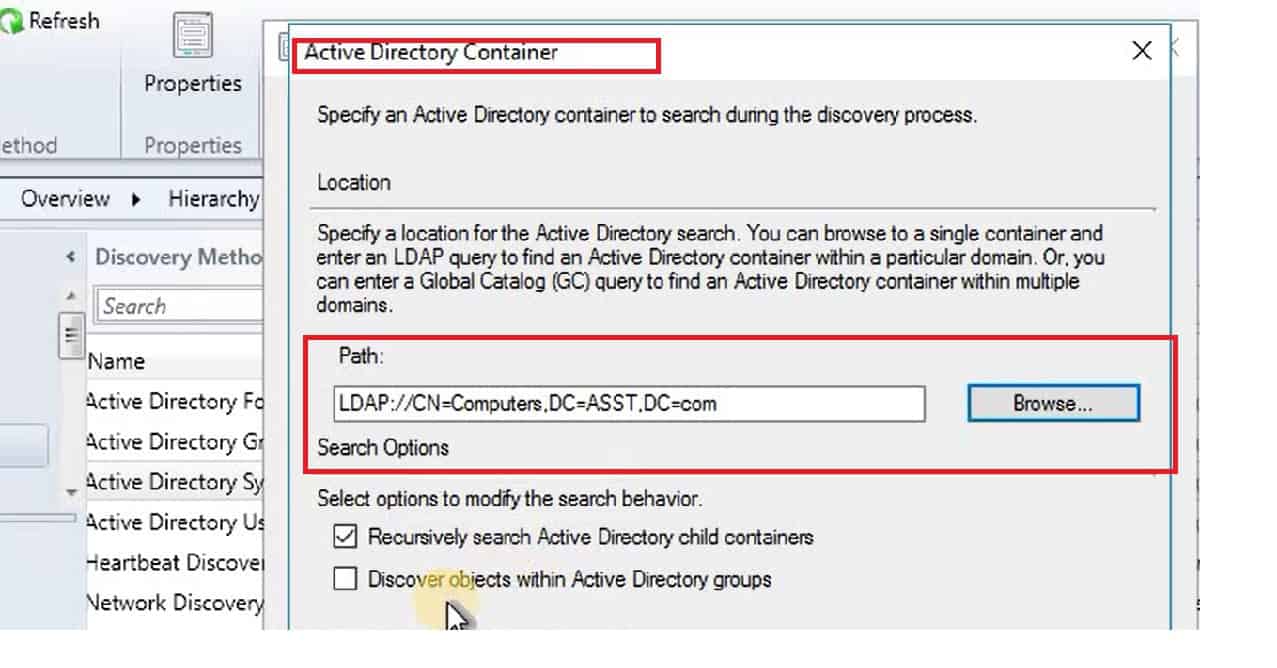
SCCM 2007 AD system discovery Flowchart. Adsysdis.log is the log file where you can find more details about the discovery. You can specify an Active Directory container to search during the discovery process.
How to Perform SCCM AD Discovery Install SCCM Client – Fig.1
SCCM AD User Discovery should be enabled when deploying apps and policies to user-based collections. The log file Adusrdis.log provides more details about SCCM AD User Discovery.
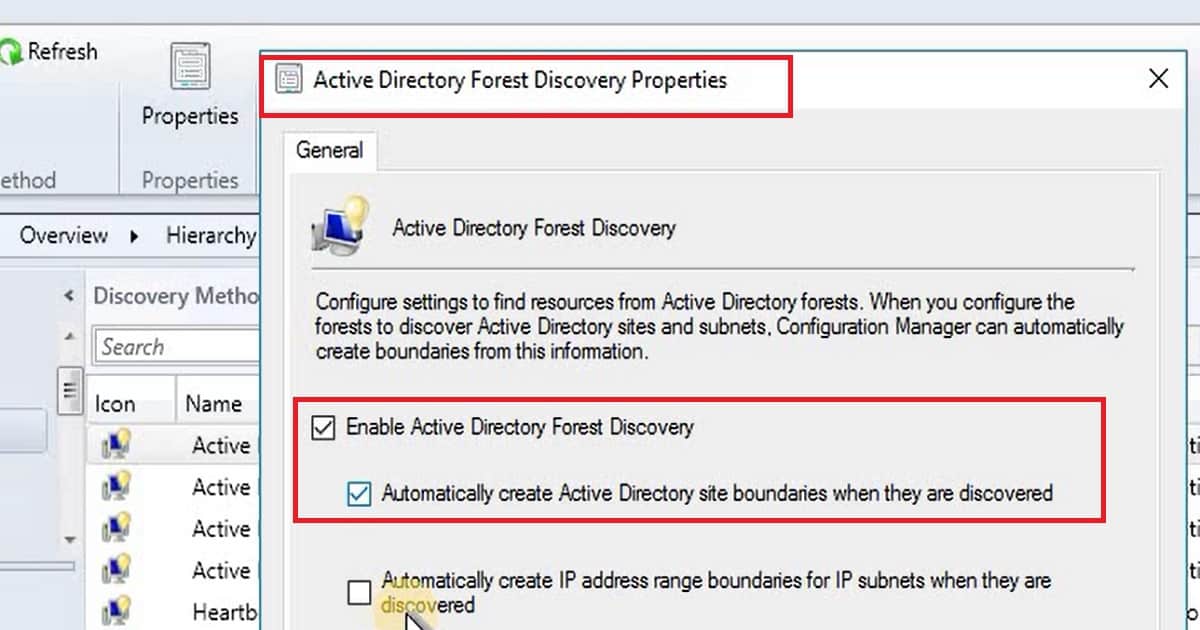
Another Discovery that I enabled in my SCCM LAB environment is “Active Directory Forest Discovery” to create the SCCM CB boundaries in your CB environment.
Active Directory Forest Discovery Properties
Enable Active Directory Forest Discovery
Enable Automatically create Active Directory site Boundaries when they are discovered
How to Perform SCCM AD Discovery Install SCCM Client – Table 1
How to Perform SCCM AD Discovery Install SCCM Client – Fig.2
What are the Prerequisites before Installing SCCM CB Clients on Devices?
So, now you can discover the devices, users, and AD Site Boundaries from on-prem AD. The next step is to manage these devices using SCCM infra.
I would first create an SCCM “Boundary Group” and add the required boundaries to that particular boundary group. The above video tutorial discusses more details about the creation and assignment of Boundary groups.
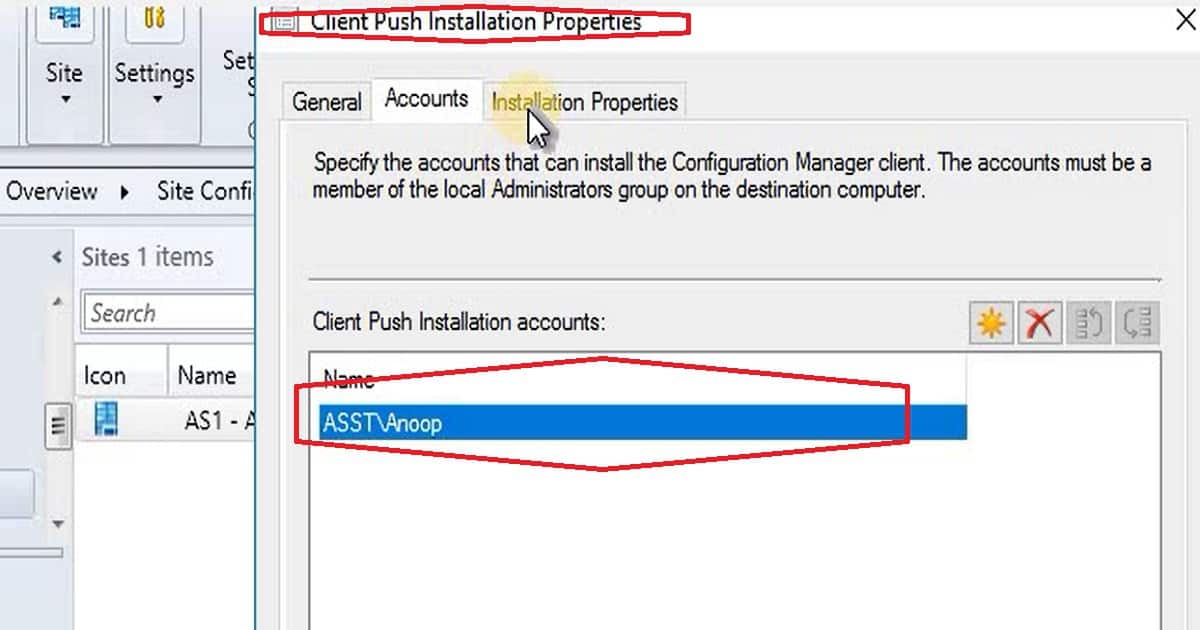
Another vital configuration we need to take care of before installing SCCM CB clients on a discovered system is setting up a “Network Access Account” and “Client Push Installation Account“.
How to Perform SCCM AD Discovery Install SCCM Client – Fig.3
SCCM Client Installation to Manage AD Discovered Systems
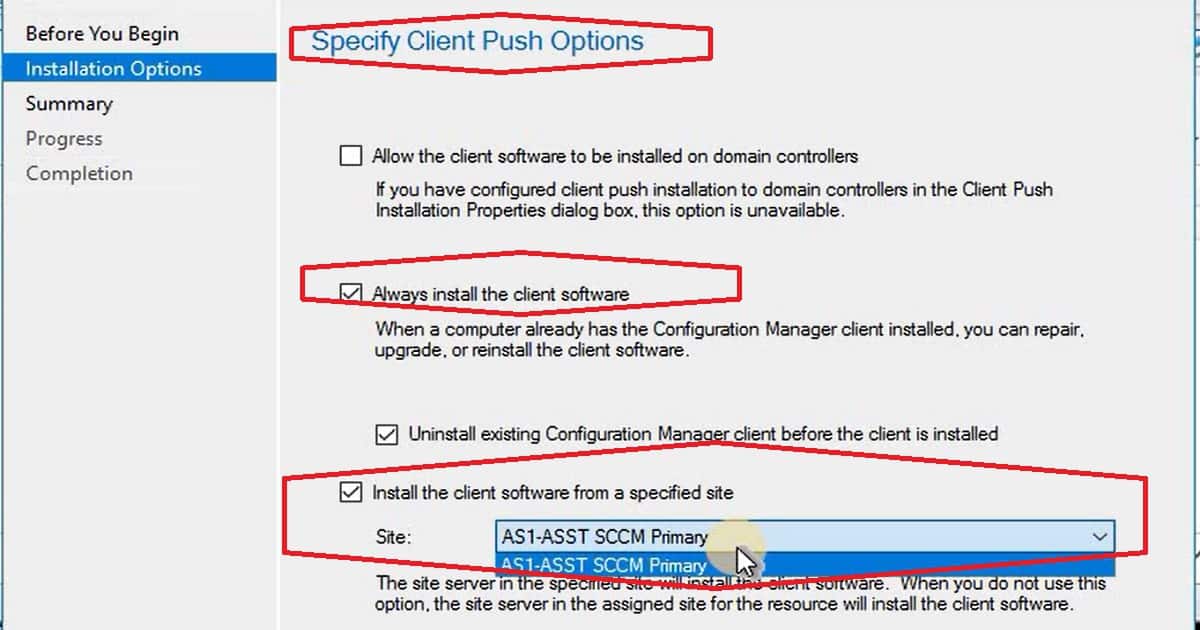
We need to install SCCM Client software to manage discovered systems from AD. There are loads of options for installing the client on the discovered devices. You can use the AD Group policy to install SCCM CB clients; a client can be installed as part of the OSD process, or It can be installed using the Client Push method.
The client push method has some drawbacks, such as the need for Admin$ access. The best option is to use the AD group policy client installation method.
How to Perform SCCM AD Discovery Install SCCM Client – Fig.4
We are on WhatsApp now. To get the latest step-by-step guides, news, and updates, Join our Channel. Click here. HTMD WhatsApp.
Author
Anoop C Nair is Workplace Technology solution architect with 25+ years of experience in global enterprise organizations such as JP Morgan, Capgemini, etc. He is Microsoft Certified Trainer. Microsoft MVP from 2015 onwards for consecutive 11 years! He also conducts Intune and modern workplace tech training for enterprise organizations. He is Blogger, Speaker, and Founder of HTMD Community and HTMD Conference. His focus is on Device Management technologies such as Intune, Windows, Cloud PC, He writes about technologies like Intune, SCCM, Windows, Cloud PC, Windows, Entra, Microsoft Security.
Anoop C Nair is Workplace Technology solution architect with 25+ years of experience in global enterprise organizations such as JP Morgan, Capgemini, etc. He is Microsoft Certified Trainer. Microsoft MVP from 2015 onwards for consecutive 11 years! He also conducts Intune and modern workplace tech training for enterprise organizations. He is Blogger, Speaker, and Founder of HTMD Community and HTMD Conference. His focus is on Device Management technologies such as Intune, Windows, Cloud PC. He writes about technologies like Intune, SCCM, Windows, Cloud PC, Windows, Entra, Microsoft Security.
This post is the New SCCM Server Installation Step-by-Step Guide covering end-to-end scenarios. The SCCM team recently released the latest baseline version of the current branch.
What is the importance of the baseline version? SCCM CB baseline version is the version you can download directly from Eval Center/MSDN/VLSC and install it on a new SCCM server.
Also, the SCCM 1702 version can upgrade the SCCM 2012 infra. SCCM CB versions are updated via in-console servicing to the latest SCCM version.
Pre Requisite – Server Roles and Features
Pre-Requisite – Installation of SQL 2014
Pre Requisite – ADK for Windows 10P
Pre Requisite – AD Schema Extension
Install – SCCM/ConfigMgr Baseline version Standalone Primary
This guide provides simple step-by-step instructions for installing a new SCCM server. First, prepare your environment by ensuring all necessary prerequisites are met, such as installing a supported Windows Server and SQL Server. Next, download the SCCM installation files and run the setup.
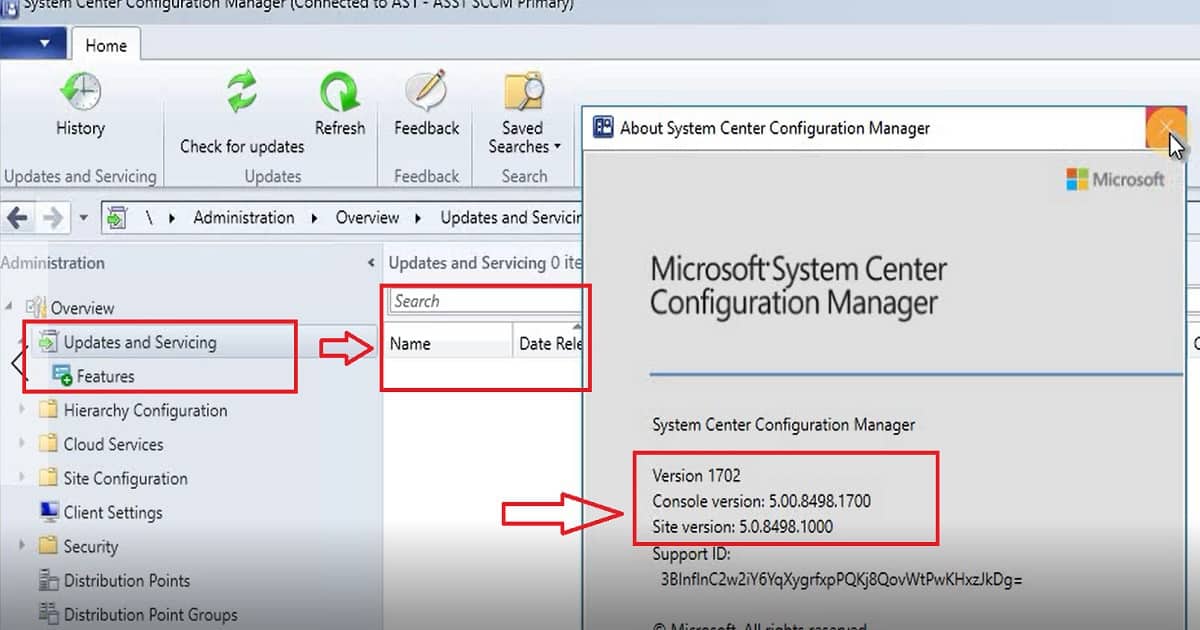
Microsoft System Center Configuration Manager
Version 1702
Console version: 5.00.8498.1700
Site version: 5.0.8498.1000
New SCCM Server Installation Step by Step Guide – Table 1
New SCCM Server Installation Step by Step Guide – Fig.1
Step by Step Video Guide for SCCM CB 1702 Baseline Version Installation
This step-by-step video guide shows you how to install the SCCM Current Branch (CB) 1702 Baseline version. It covers all the necessary prerequisites, including the server roles and features you must set up beforehand.
New SCCM Server Installation Step by Step Guide – Video 1
Prerequisites
You can’t install the SCCM/ConfigMgr baseline version if your server’s OS is Windows 2008 R2. The minimum OS requirement for SCCM server installation is Windows Server 2012 and Later. More details are here.
It would help if you ensured that the server where you plan to install the SCCM baseline version has a supported version of SQL. SQL 2008 R2 SP3 is not supported and should have at least SQL 2012 R2.
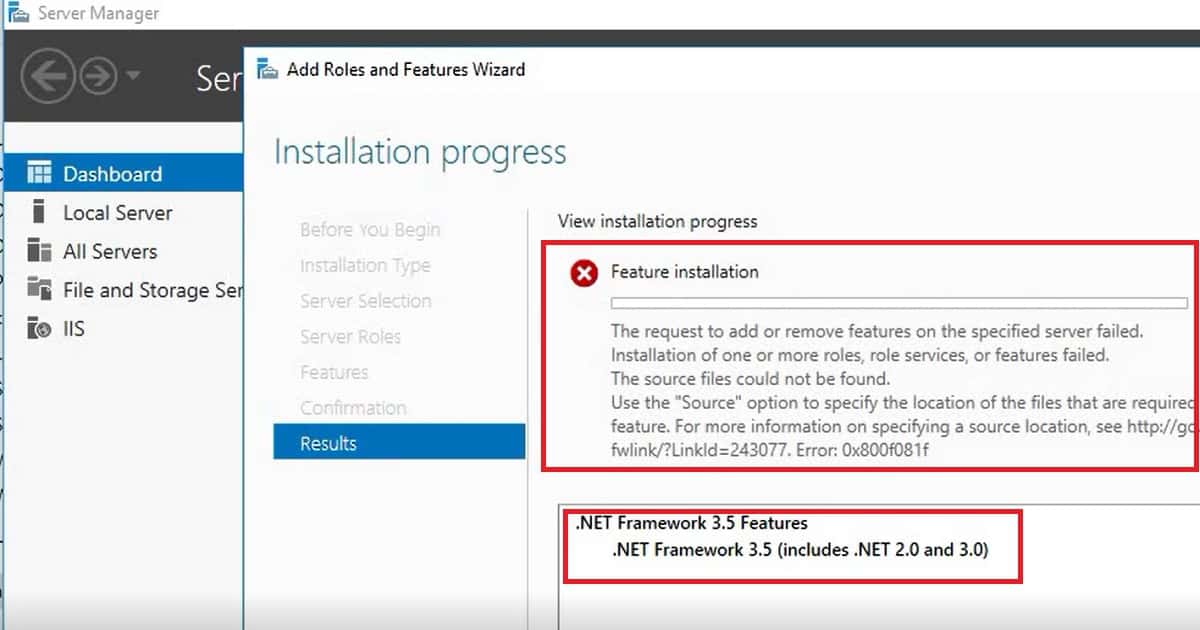
IIS BITs .NET
I have added the following roles and Features – IIS (for MP/DP), BITs (for MP), .NET Framework 3.5, Remote Differential Compression, and AD DS and AD LDS Tools. I didn’t add WSUS because I plan to add the SUP role later. However, I would recommend the WSUS role if you plan to install the SUP role on the primary server itself or install the WSUS console if you plan to install the SUP role on a remote server.
New SCCM Server Installation Step by Step Guide – Fig.2
DotNET Framework 3.5 SP1 is still required? Yes! Specify an alternate path for .Net D:\Sources\sxs for installing .NET on Server 2016. Specify the location of the needed files.
NOTE! – If you get this error, “The request to add or remove features on the specified server failed.” Restart the server and try it with the alternate path “D:\Sources\sxs“, and that is my experience on Windows server 2016.
Install SQL DB for the SCCM Server
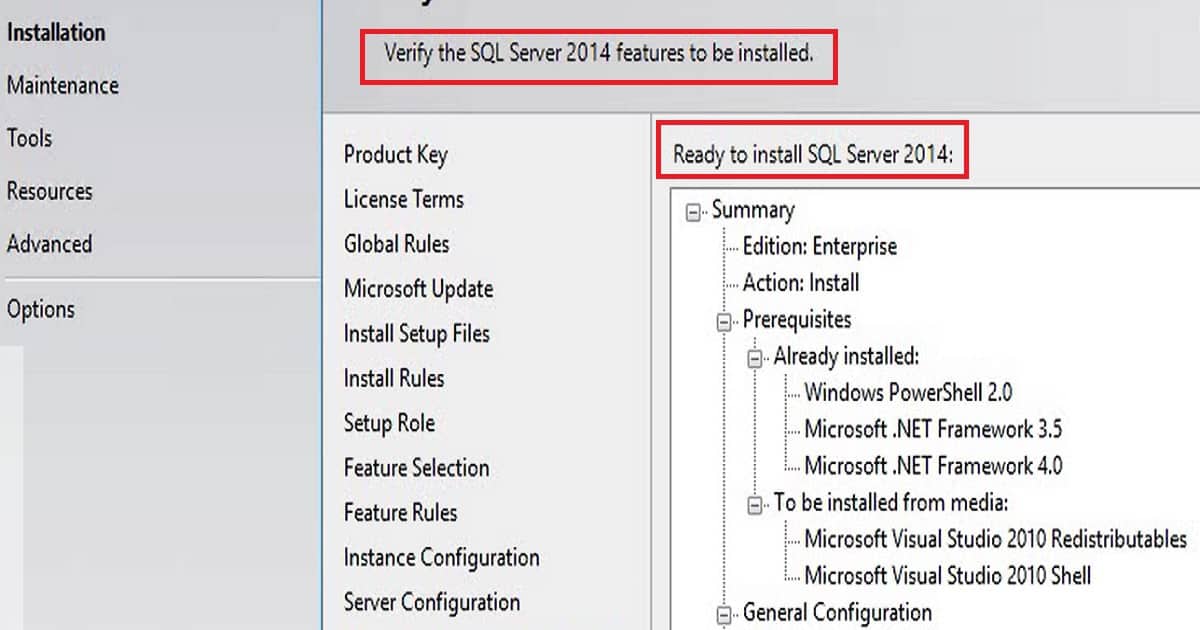
I installed SQL 2014, and you don’t have to worry about those “.Net” warnings. As you can see in the video tutorial for SQL setup, I have selected only the following features, which I think are required for SCCM CB.
I installed SQL on the default Instance and configured the services, as shown in the video tutorial for ConfigMgr SCCM baseline version installation. Microsoft recommends using a separate account for each SQL Server service. However, I used the same account because this is my lab environment.
SQL Server Agent, SQL Server Database Engine, and SQL Server Reporting Services
I selected the required Collation for SCCM|ConfigMgr baseline version:- sql_latin1_general_cp1_ci_as
New SCCM Server Installation Step by Step Guide – Fig.3
Install Windows ADK
I installed ADK for Windows 10, and during the installation, I selected only Deployment Tools, Windows Preinstallation Environment (Windows PE), and User State Migration Tools (USMT).
AD Schema Extension has to be extended if you have not done the extension for the previous versions of SCCM. AD schema extension is not mandatory, but I recommend extending the schema to make SCCM management easy.
New SCCM Server Installation Step by Step Guide – Fig.4
Extend AD Schema
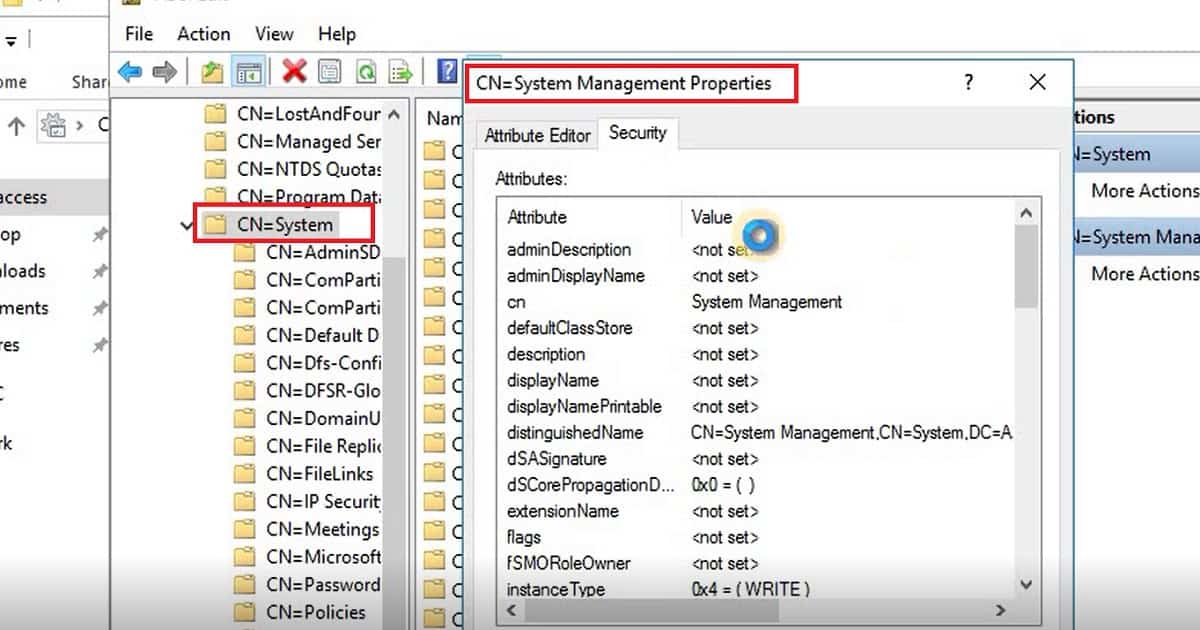
Executed extadsch.exe from SCCM|ConfigMgr baseline version primary server. The user must have schema admin rights to complete the AD SCHEMA extension. In the second part of this update, we need to Create a System Management container under systems using ADSIEDIT. The primary server should have full access to the System Management container.
We are on WhatsApp now. To get the latest step-by-step guides, news, and updates, Join our Channel. Click here. HTMD WhatsApp.
Author
Anoop C Nair is Workplace Technology solution architect with 25+ years of experience in global enterprise organizations such as JP Morgan, Capgemini, etc. He is Microsoft Certified Trainer. Microsoft MVP from 2015 onwards for consecutive 11 years! He also conducts Intune and modern workplace tech training for enterprise organizations. He is Blogger, Speaker, and Founder of HTMD Community and HTMD Conference. His focus is on Device Management technologies such as Intune, Windows, Cloud PC, He writes about technologies like Intune, SCCM, Windows, Cloud PC, Windows, Entra, Microsoft Security.
Anoop C Nair is Workplace Technology solution architect with 25+ years of experience in global enterprise organizations such as JP Morgan, Capgemini, etc. He is Microsoft Certified Trainer. Microsoft MVP from 2015 onwards for consecutive 11 years! He also conducts Intune and modern workplace tech training for enterprise organizations. He is Blogger, Speaker, and Founder of HTMD Community and HTMD Conference. His focus is on Device Management technologies such as Intune, Windows, Cloud PC. He writes about technologies like Intune, SCCM, Windows, Cloud PC, Windows, Entra, Microsoft Security.
Let’s discuss the SCCM CB Nested Task Sequence PS Detection Method. SCCM/ConfigMgr preview release 1704 has many exciting features.
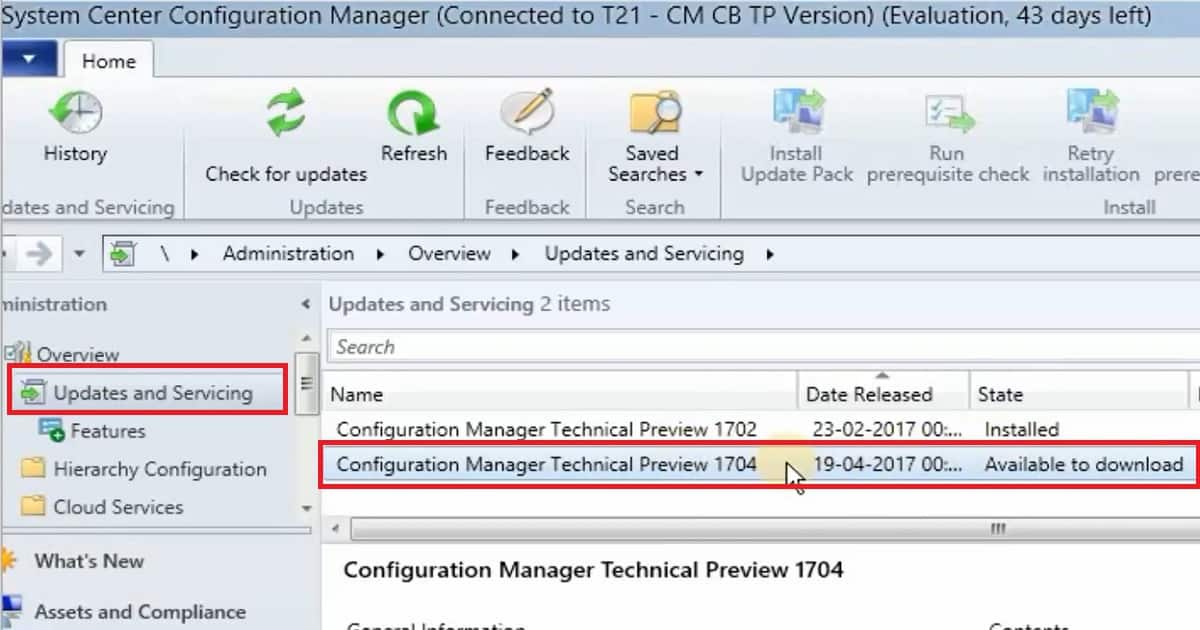
The video embedded in this post covers all the installation steps and new features. First, I could see some differences in the Updates and Servicing of SCCM CB.
The ConfigMgr CB 1704 preview version was available (available to download) in the console, but it didn’t start the download of the 1704 update. I think it may begin to download automatically after 24 hours, but I have not tested it.
This post will provide comprehensive details about the SCCM Current Branch (CB) Nested Task Sequence PowerShell Detection Method. It explains how to effectively use PowerShell scripts to detect and manage nested task sequences within SCCM, ensuring efficient deployment and maintenance of software and updates.
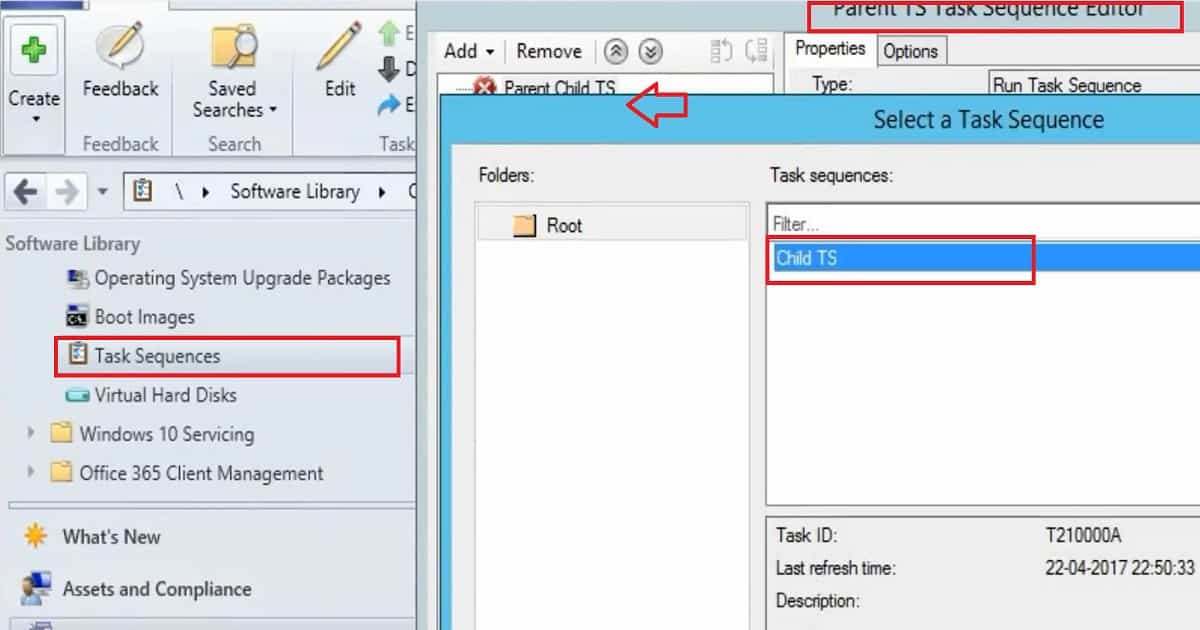
This video guide is about the SCCM Technical Preview 1704, specifically focusing on Parent-Child Task Sequences. It explains how to create and manage these task sequences in simple terms, making organising and executing multiple related tasks easier.
As you can see in the SCCM video tutorial, I started the preview version download by right-clicking on the available update in the console. You can also check the status of the download via the DMPDOWNLOADER.log file.
Follow for the stages of the in-console upgrade of th CB preview.
Available to Download
Downloading
Ready to Install
Checking Prerequisites
Installing
Console Upgrade
Nested Task Sequence PS Detection Method
Most SCCM admins are waiting for a feature called nested Task Sequence. With the latestSCCM preview version 1704, we can create a parent-child relationship within the task sequence. This will help you nest/call a task sequence within another task sequence.
This feature should be used carefully; otherwise, it could become very complex. I wanted to see how complex Task Sequence troubleshooting would evolve with the introduction of TS nesting.
I have also seen that SMSTS.log logging has improved in the SCCM CB preview version.
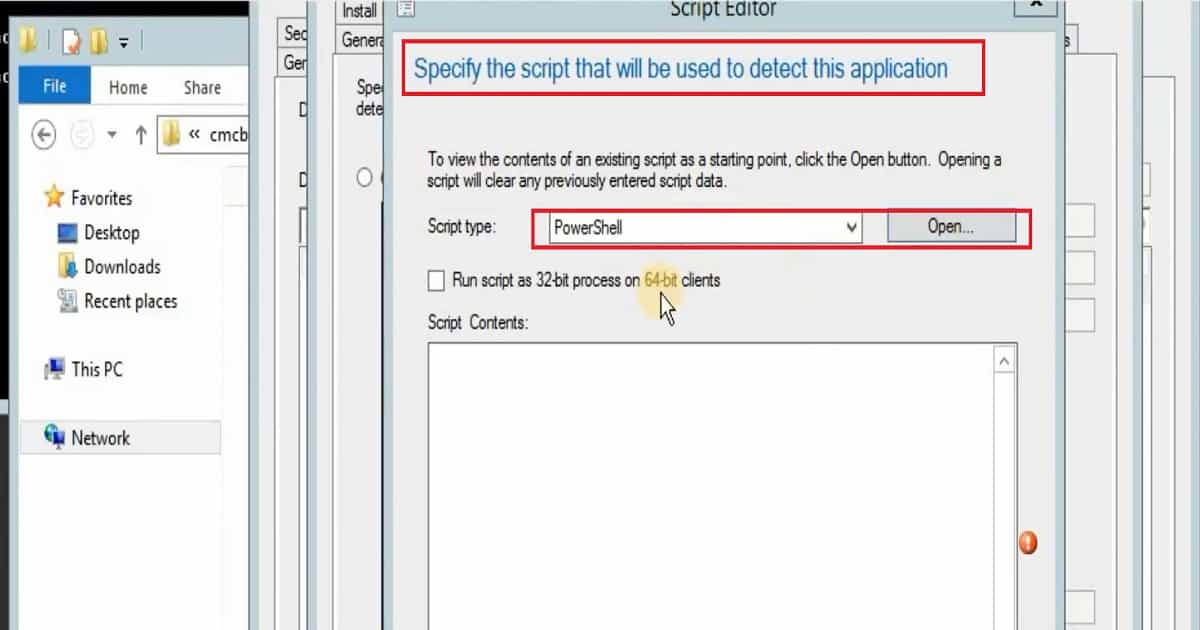
PowerShell script can be the detection method for deployment types with SCCM CB Preview version 1704. It can also detect the application. We have three script types (1. PowerShell, 2.VBScript, and 3. Java Script) for detecting the application as part of the deployment type.
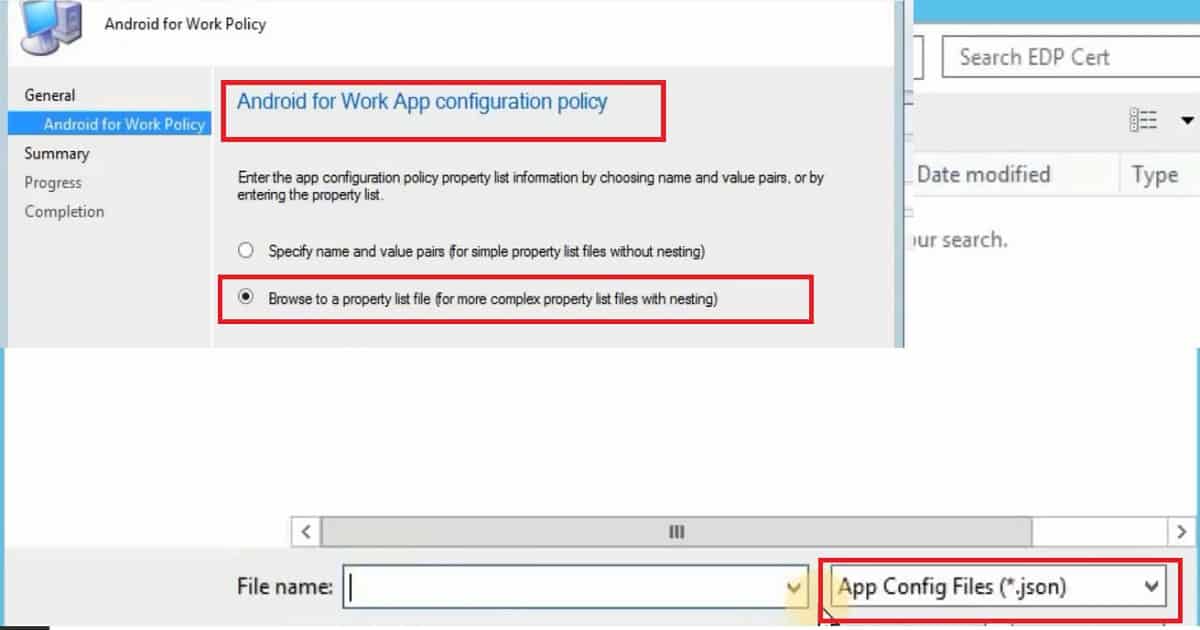
Android for Work applications can be configured automatically with the JSON file upload option in SCCM/ConfigMgr CB preview version 1704. The option of configuring Android for Work apps with a complex property list using a JSON file is very useful for configuring A4W apps.
I have not seen this option in the Intune stand-alone version, so it will be very useful for hybrid customers once it is available in the production version.
SCCM Preview version 1704 comes with loads of new features.
However, I have noticed a few changes in the MDM channel configuration policies for iOS and Android devices.
Moreover, there are a few new additions in terms of compliance policies in SCCM CB Preview version 1704.
We are on WhatsApp now. To get the latest step-by-step guides, news, and updates, Join our Channel. Click here. HTMD WhatsApp.
Author
Anoop C Nair is Workplace Technology solution architect with 25+ years of experience in global enterprise organizations such as JP Morgan, Capgemini, etc. He is Microsoft Certified Trainer. Microsoft MVP from 2015 onwards for consecutive 11 years! He also conducts Intune and modern workplace tech training for enterprise organizations. He is Blogger, Speaker, and Founder of HTMD Community and HTMD Conference. His focus is on Device Management technologies such as Intune, Windows, Cloud PC, He writes about technologies like Intune, SCCM, Windows, Cloud PC, Windows, Entra, Microsoft Security.
Anoop C Nair is Workplace Technology solution architect with 25+ years of experience in global enterprise organizations such as JP Morgan, Capgemini, etc. He is Microsoft Certified Trainer. Microsoft MVP from 2015 onwards for consecutive 11 years! He also conducts Intune and modern workplace tech training for enterprise organizations. He is Blogger, Speaker, and Founder of HTMD Community and HTMD Conference. His focus is on Device Management technologies such as Intune, Windows, Cloud PC. He writes about technologies like Intune, SCCM, Windows, Cloud PC, Windows, Entra, Microsoft Security.
Let’s discuss the SCCM Dynamic Collection Query Update Known Issue. SCCM/ConfigMgr dynamic collection query can be evil in some scenarios. It’s straightforward to make mistakes while editing already existing dynamic queries.
It’s better with device-based dynamic collections (as it gives a warning pop-up, as seen in the above video!) in the SCCM CB environment. Still, it’s not a very good user-based dynamic user collection.
I have created a quick video to demonstrate this issue here. I have Kannan C S to share his experience on this topic. He is a Sr. Infra Architect with several years of SCCM and System Center experience. I will let Kannan C S explain his experience in detail.
I’m Kannan C S, and I work as a Sr. Infra Architect at a leading IT company. I have 15 years of IT experience. I have been with Configuration Manager [Designing, Implementation, Migration, and Support], System Center Orchestrator [Designing and Implementation], and Windows Server support. You can refer to my blog here.
SCCM CB 1702 Dynamic Collection Query Update is or can be Evil?
The video details the SCCM CB 1702 Dynamic Collection Query Update and explores whether it can have negative consequences. It discusses the potential risks and issues associated with using dynamic queries in this version of SCCM, helping you understand how to manage and mitigate any problems effectively.
SCCM Dynamic Collection Query Update Known Issue – Video 1
SCCM Dynamic Collection Query Update Known Issue
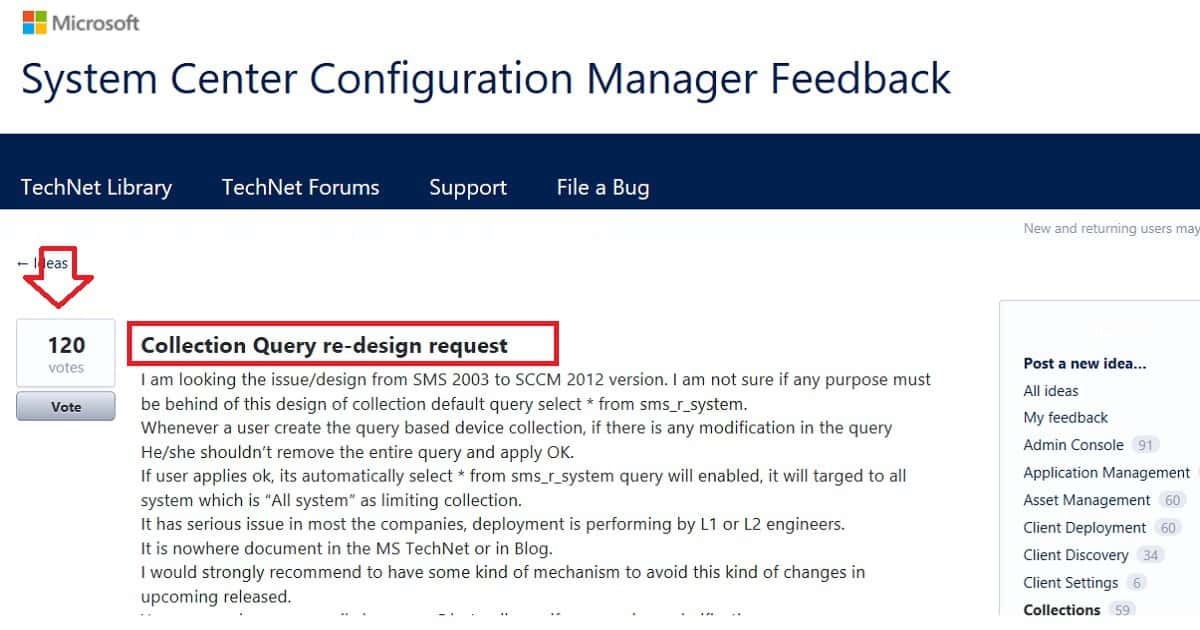
I have seen the dynamic collection query update issues in different organizations, mainly with L1 and L2 teams where we lack real SCCM expertise. I have already created a user voice item. Please vote this upUser Voice – Collection Query.
SCCM Dynamic Collection Query Update Known Issue – Fig.1
Known Issue?
I am looking at the issue/design from SMS 2003 to SCCM 2012 (even SCCM CB) version. I am unsure if any purpose must be behind this design of collection default query select * from sms_r_system/select * from sms_R_User. Suppose a user creates the query-based device or user collection if there is any modification in the query. They should remove the entire query and apply OK.
If a user applies OK, it’s automatically selected * from sms_r_system/select * from sms_R_User query will enable.
It will target all systems, with “All system”/”All Users” as the limiting collection.
It has serious issues in most companies; deployment is performed by L1 or L2 engineers.
It is not documented in the MS TechNet or Blog. I strongly recommend having some mechanism to avoid this kind of change in upcoming releases.
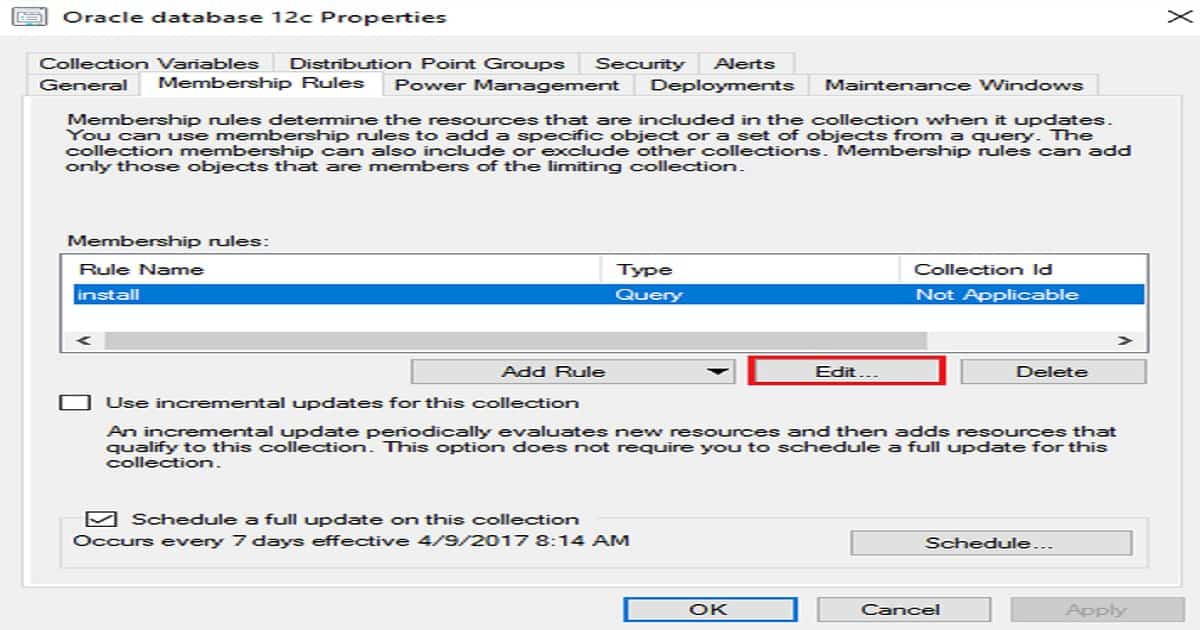
I have provided the impact screenshots below. When modifying the collection query, Click edit.
Membership Rule Name
Type
Collection ID
Install
Query
Not Applicable
SCCM Dynamic Collection Query Update Known Issue – Table 1
SCCM Dynamic Collection Query Update Known Issue – Fig.2
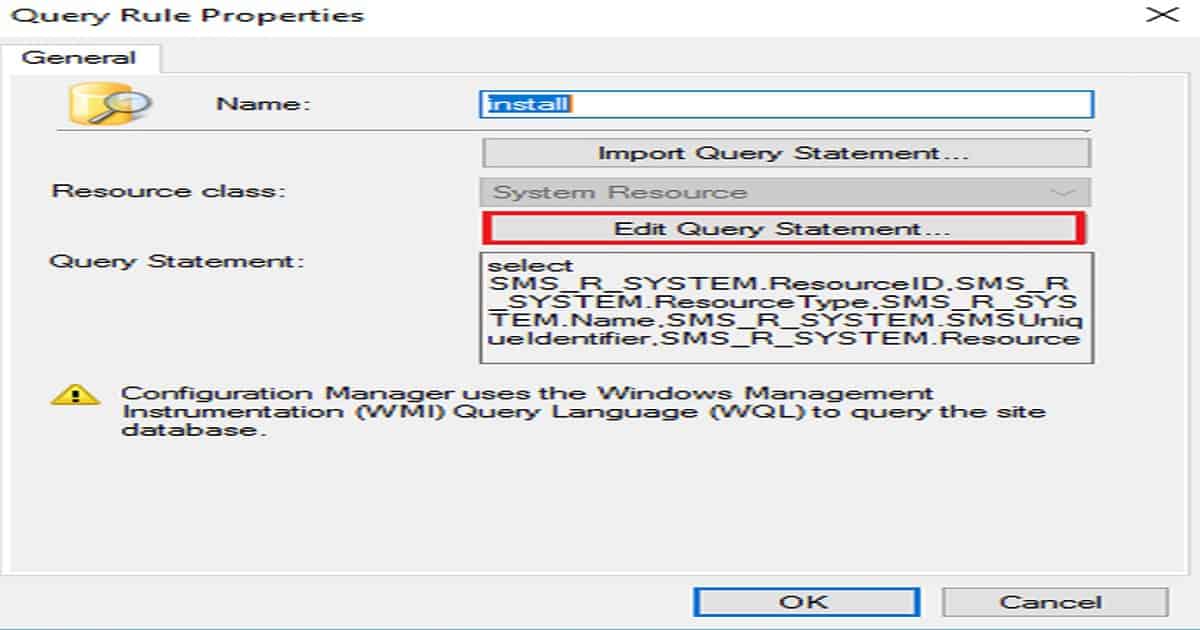
Click Edit Query Statement. SCCM uses the Windows Management Instrumentation (WMI) Query Language (WQL) to query the site database. The screenshot below shows the Edit query statement.
SCCM Dynamic Collection Query Update Known Issue – Fig.3
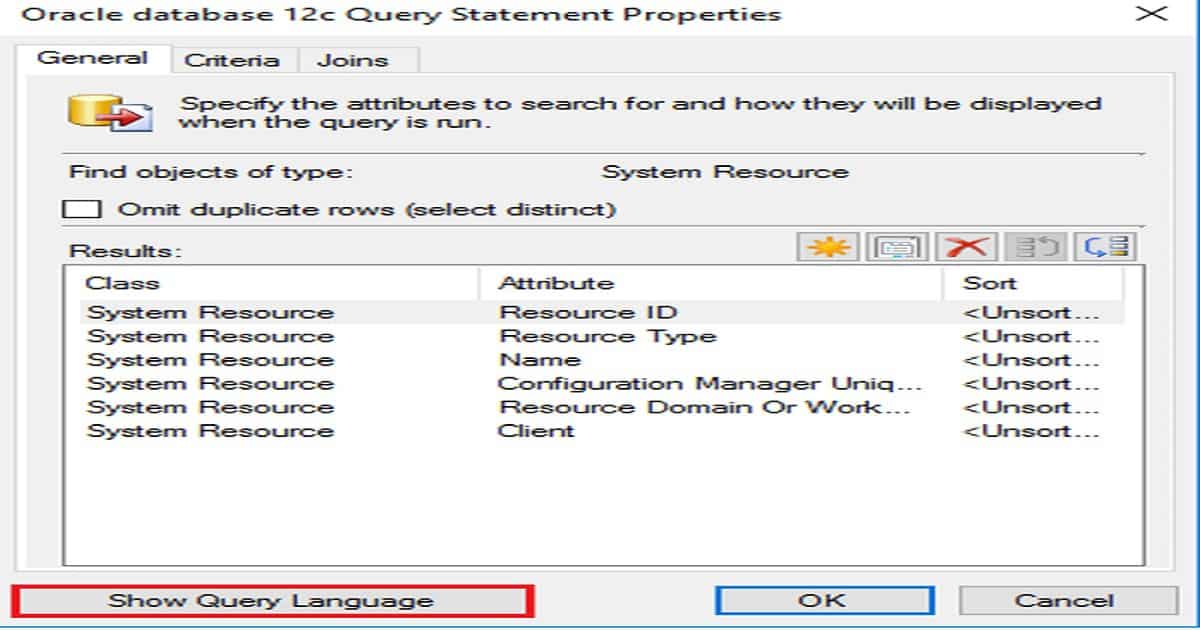
The window below helps you show the General tab of Oracle database 12c Query Statement properties. Click Show Query Language.
SCCM Dynamic Collection Query Update Known Issue – Fig.4
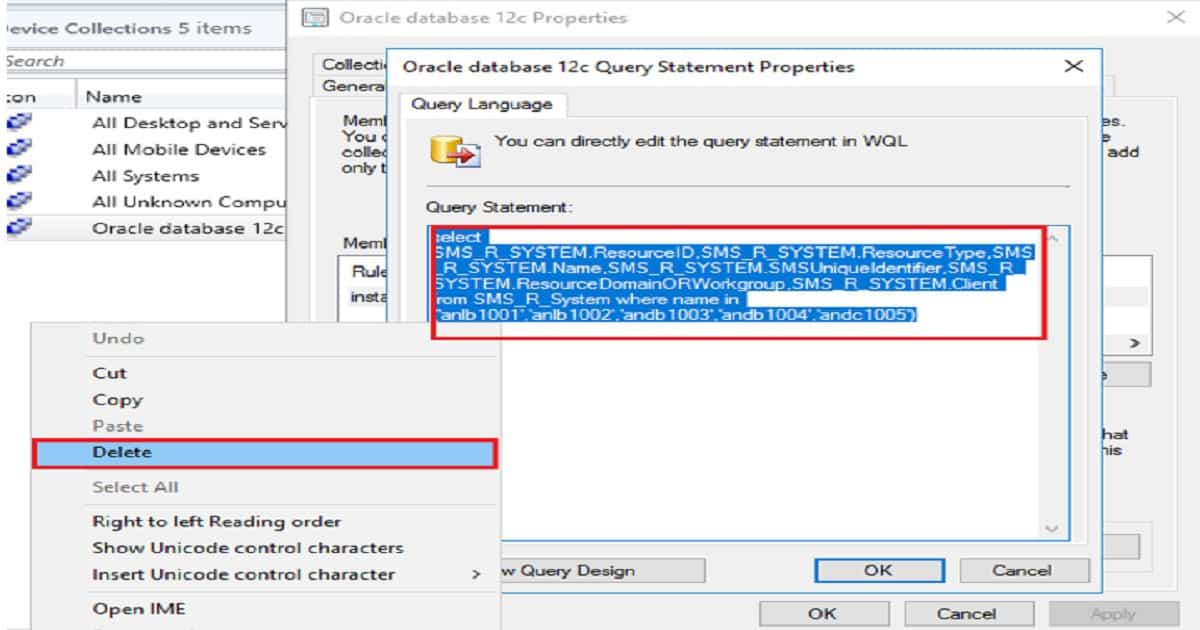
Select the entire query in the Query Statement dialog box. Click Delete
SCCM Dynamic Collection Query Update Known Issue – Fig.5
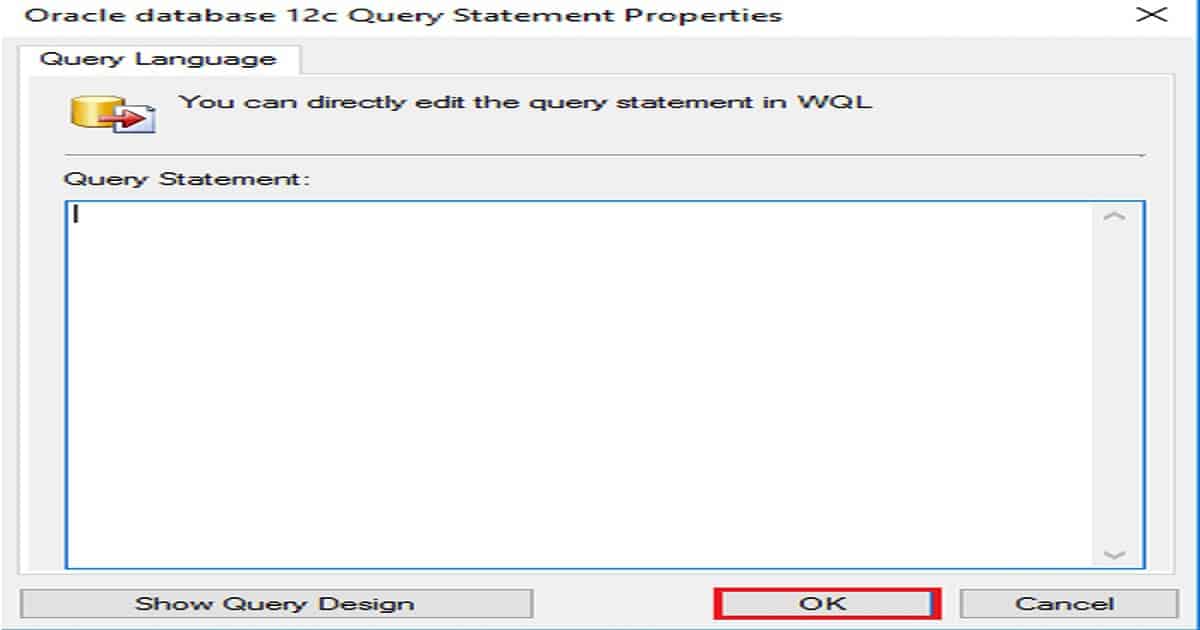
You can see the section for query statements from the below Oracle database 12c Query statement properties,s. You should click OK from the window below.
SCCM Dynamic Collection Query Update Known Issue – Fig.6
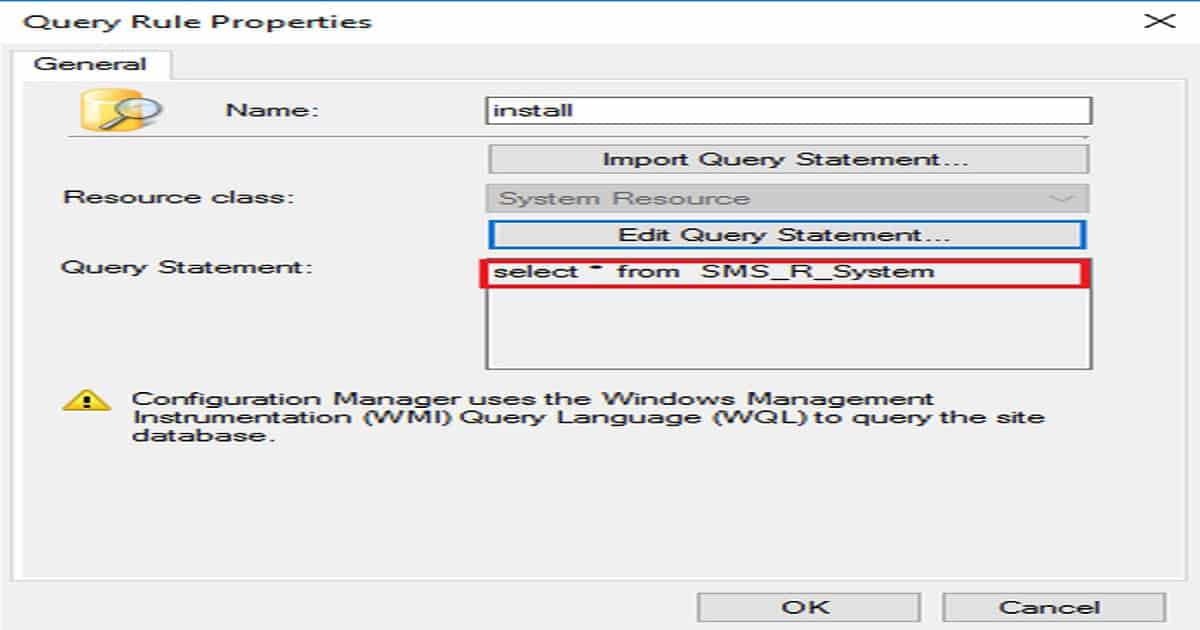
By default, it will return with Select * from SMS_R_System/select * from sms_R_User query. By then, the deployment targeted to a specific collection will be mapped to All devices, including workstations and servers.
SCCM Dynamic Collection Query Update Known Issue – Fig.7
We are on WhatsApp now. To get the latest step-by-step guides, news, and updates, Join our Channel. Click here. HTMD WhatsApp.
Author
Anoop C Nair is Workplace Technology solution architect with 25+ years of experience in global enterprise organizations such as JP Morgan, Capgemini, etc. He is Microsoft Certified Trainer. Microsoft MVP from 2015 onwards for consecutive 11 years! He also conducts Intune and modern workplace tech training for enterprise organizations. He is Blogger, Speaker, and Founder of HTMD Community and HTMD Conference. His focus is on Device Management technologies such as Intune, Windows, Cloud PC, He writes about technologies like Intune, SCCM, Windows, Cloud PC, Windows, Entra, Microsoft Security.
Anoop C Nair is Workplace Technology solution architect with 25+ years of experience in global enterprise organizations such as JP Morgan, Capgemini, etc. He is Microsoft Certified Trainer. Microsoft MVP from 2015 onwards for consecutive 11 years! He also conducts Intune and modern workplace tech training for enterprise organizations. He is Blogger, Speaker, and Founder of HTMD Community and HTMD Conference. His focus is on Device Management technologies such as Intune, Windows, Cloud PC. He writes about technologies like Intune, SCCM, Windows, Cloud PC, Windows, Entra, Microsoft Security.
Let’s discuss the Feature Comparison Video Between SCCM ConfigMgr CB 1610 and 1702 Configuration Manager. What essential improvement can I see in the SCCM CB 1702 production console? Are Feedback Balloons everywhere? Yeah, SCCM/ConfigMgr is an excellent product for device management, and there is no competition! Why?
This is because of the improvements the product team made and the GREAT SCCM/ConfigMgr community we have for this product.
It’s all about the community’s contributions to improving a software product. The SCCM product team is always open to new ideas and feedback, which is one reason why SCCM is so great.
Software developers can’t make an excellent product without great feedback from real-time users of the applications. So, that is the importance of the SCCM/ConfigMgr IT Pro community.
Feature Comparison SCCM ConfigMgr CB Production 1702 vs 1610
The video below explains the differences between SCCM ConfigMgr CB versions 1702 and 1610. It compares the features of both versions, highlighting what has been improved or added in 1702.
The video also helps you show the benefits of upgrading and what new capabilities they can expect. It is helpful for anyone deciding whether to move from version 1610 to 1702.
Feature Comparison Video Between SCCM ConfigMgr CB 1610 and 1702 Configuration Manager – Video 1
Feature Comparison Video Between SCCM ConfigMgr CB 1610 and 1702 Configuration Manager
If you have yet to download and upgrade to the latest version of SCCM CB, here is my previous post, which will help you upgrade SCCM CB to the newest version, Configuration Manager CB 1702.
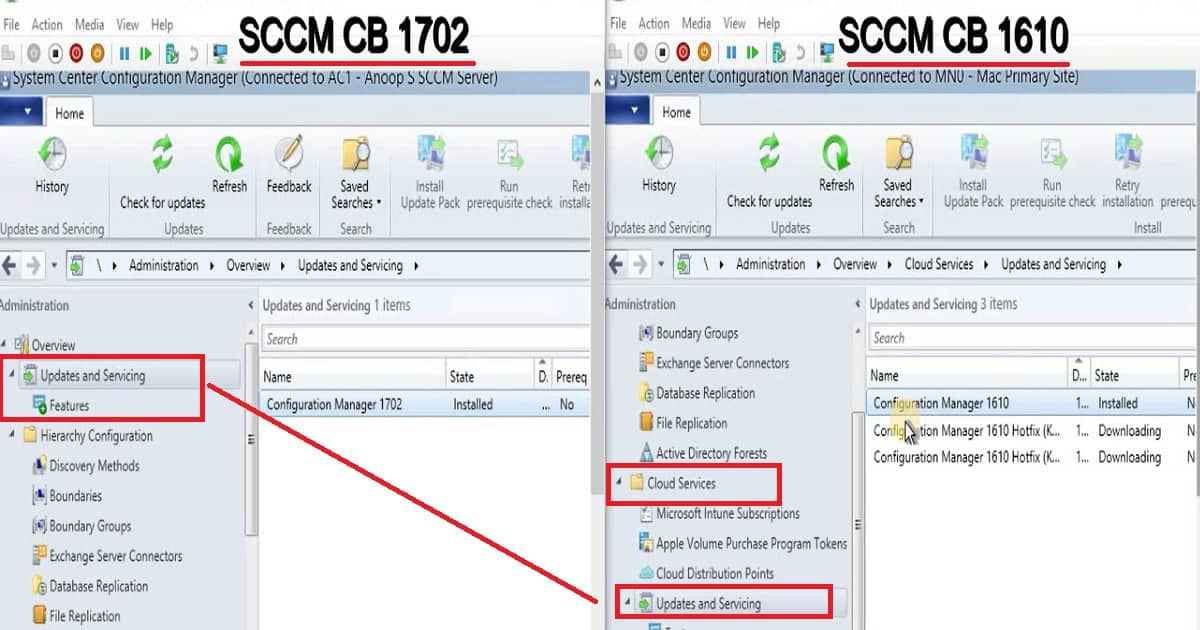
Another significant change is repositioning the “Updates and Servicing” node in the SCCM CB console.
The “Updates and Servicing” node is the topmost node in the Administration workspace of the SCCM CB 1702 production version console. In console increased a lot in SCCM CB 1702 console. SCCM CB 1702 onwards SUP (Software Update points) are boundary aware, similar to MPs and DPs. This is an excellent help for SCCM architects in making better decisions to have SUPs.
Feature Comparison Video Between SCCM ConfigMgr CB 1610 and 1702 Configuration Manager – Fig.1
The biggest and most awaited feature in the SCCM CB hybrid is feature parity between the Intune Standalone and SCCM CB hybrid versions. The SCCM product team achieved feature parity between Intune SA (StandAlone) and the SCCM CB hybrid version.
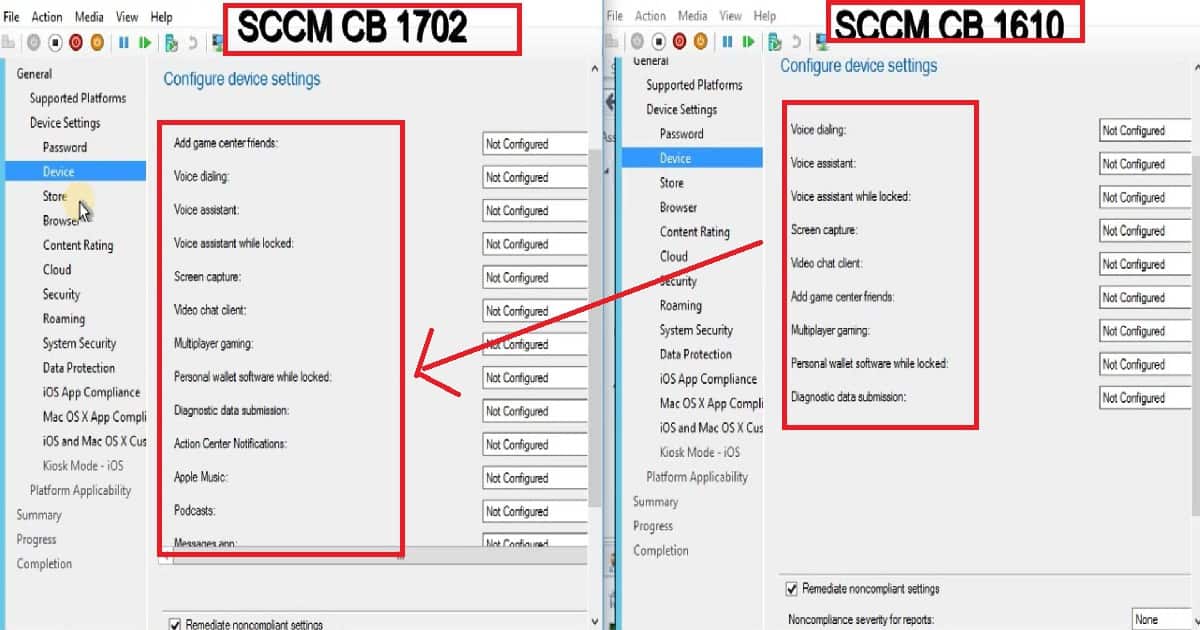
I explained this in the above comparison video. If we review the Configuration Policy for iOS and MAC OS devices via the MDM channel without SCCM Client, you can see HUGE improvements! Some of the changes in numbers are given below.
Password - Passcode Modification
 Device - 9 settings in CB 1610 -- 33 settings in 1702
 Store - 3 settings in CB 1610 --6 settings in 1702
 Content Rating - 5 settings in CB 1610 -- 6 settings in CB 1702
 Cloud - 4 settings in CB 1610 -- 8 settings in CB 1702
 Security - 1 settings in CB 1610 -- 2 settings in CB 1702
 System Security - 5 settings in CB 1610 -- 12 settings in CB 1702
 Data Protection - 2 settings in CB 1610 -- 4  settings in CB 1702
Feature Comparison Video Between SCCM ConfigMgr CB 1610 and 1702 Configuration Manager – Fig.2
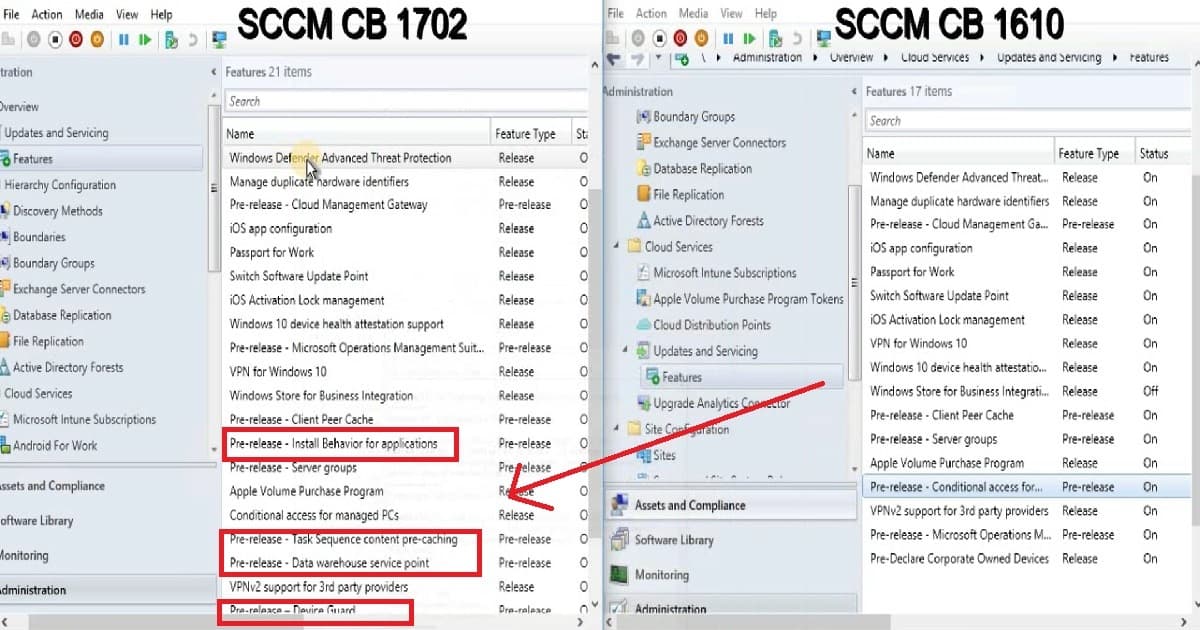
The SCCM CB 1610 version included 17 features, and the SCCM/ConfigMgr Product team added 4 more to the latest release of SCCM CB 1702! Those four new pre-release features are listed below. Only one feature moved from pre-release to production release: Conditional Access for Managed PCS.
Latest Release of SCCM CB 1702
Pre-Release – Install Behaviour of applications
Pre-Release – Data Warehouse Service Point
Pre-Release – Task Sequence content Pre-Caching
Pre-Release –Device Guard
Feature Comparison Video Between SCCM ConfigMgr CB 1610 and 1702 Configuration Manager – Table 1
Feature Comparison Video Between SCCM ConfigMgr CB 1610 and 1702 Configuration Manager – Fig.3
Feature Comparison Video Between SCCM?
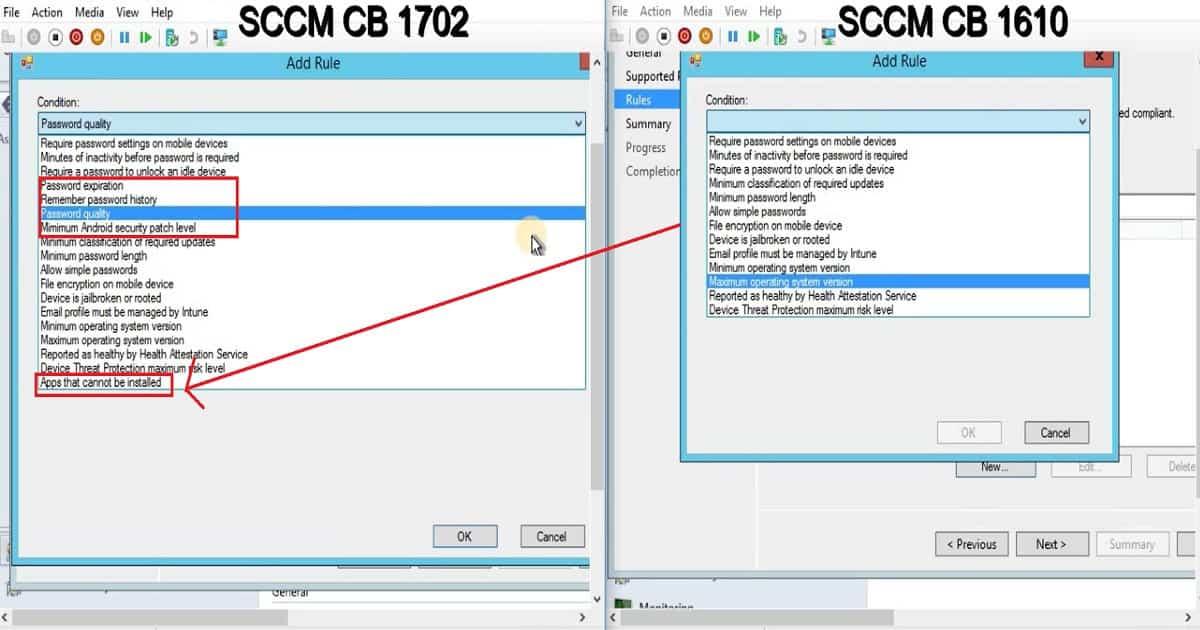
Another excellent news for SCCM CB hybrid customers is that there are some great 5 new additions to Compliance policies! We can’t select the different versions of the Android and iOS platforms anymore while creating a compliance policy or configuration policy with SCCM CB 1702. Granularity in choosing different Android/iOS versions was removed. New compliance policies are.
Apps that cannot installed
Password expiration
Remember password history
Password Quality
Minimum Android Patch Level
Feature Comparison Video Between SCCM ConfigMgr CB 1610 and 1702 Configuration Manager – Fig.4
In SCCM CB 1702, we can create a configuration policy for Android for Work! The configuration policy for AfW (Android for Work) has only 2 policies or configuration settings.
Some improvements or additional settings appeared in ConfigMgr/SCCM CB 1702 regarding Windows 10-related configuration policies in a hybrid environment. Following are some of the high-level changes in Windows 10 Configuration Policies: –
Device - 10 settings in CB 1610 -- 11 settings in CB 1702
System Security - 9 settings in CB 1610 -- 10 settings in CB 1702
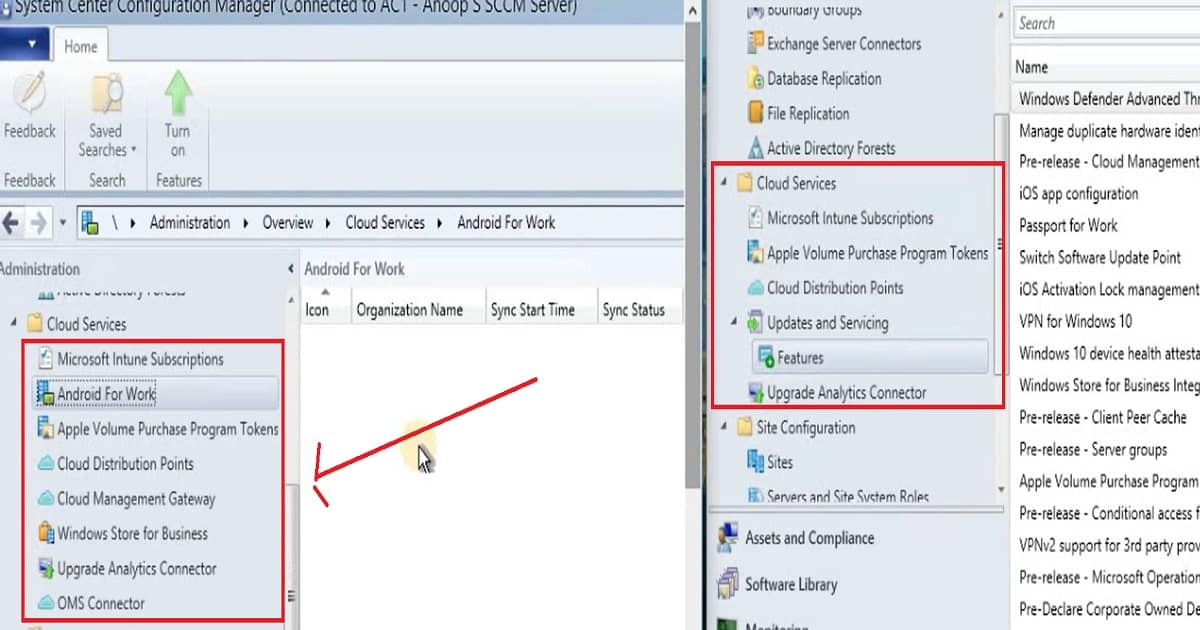
The SCCM product team did excellent work in catching up with Intune SA regarding Cloud Services integration with SCCM CB’s latest version. They have added support for “Android for Work” enrollments and improved the Cloud Management Gateway and OMS connector.
Cloud Services
Android For Work
Cloud Management Gateway
Feature Comparison Video Between SCCM ConfigMgr CB 1610 and 1702 Configuration Manager – Fig.5
We are on WhatsApp now. To get the latest step-by-step guides, news, and updates, Join our Channel. Click here. HTMD WhatsApp.
Author
Anoop C Nair is Workplace Technology solution architect with 25+ years of experience in global enterprise organizations such as JP Morgan, Capgemini, etc. He is Microsoft Certified Trainer. Microsoft MVP from 2015 onwards for consecutive 11 years! He also conducts Intune and modern workplace tech training for enterprise organizations. He is Blogger, Speaker, and Founder of HTMD Community and HTMD Conference. His focus is on Device Management technologies such as Intune, Windows, Cloud PC, He writes about technologies like Intune, SCCM, Windows, Cloud PC, Windows, Entra, Microsoft Security.
Anoop C Nair is Workplace Technology solution architect with 25+ years of experience in global enterprise organizations such as JP Morgan, Capgemini, etc. He is Microsoft Certified Trainer. Microsoft MVP from 2015 onwards for consecutive 11 years! He also conducts Intune and modern workplace tech training for enterprise organizations. He is Blogger, Speaker, and Founder of HTMD Community and HTMD Conference. His focus is on Device Management technologies such as Intune, Windows, Cloud PC. He writes about technologies like Intune, SCCM, Windows, Cloud PC, Windows, Entra, Microsoft Security.
Let’s discuss how to Perform the SCCM ConfigMgr CB Production upgrade to 1702 VideoTutorial Configuration Manager. Microsoft released a new version of SCCM/ConfigMgr CB 1702 here.
If your SCCM infrastructure runs with an ONLINE “service connection” point and your SCCM CB version is 1602 (and later), you will receive the SCCM CB 1702 update in the console.
For SCCM CB infra with an online service connection point, the SCCM CB 1702 update will automatically appear in the console once Microsoft releases it for the “slow ring. ” Microsoft released SCCM CB 1702 updates only for the “fast ring.” I have upgraded the standalone SCCM CB 1610 primary site to SCCM CB 1702. My experience with this upgrade was very smooth and robust.
I didn’t face any hiccups after automatically downloading the SCCM CB 1702 source files to the primary server. The video below will give a step-by-step walkthrough of the SCCM/ConfigMgr CB 1610 and 1702 upgrade process.
How to Perform SCCM ConfigMgr CB Production Upgrade to 1702
The video tutorial on “How to Perform SCCM ConfigMgr CB Production Upgrade to 1702” provides a comprehensive guide for IT administrators upgrading their SCCM Current Branch (CB) to version 1702. The tutorial helps you to cover all essential steps, from the prerequisites and preparatory tasks to the upgrade process and post-upgrade verification.
How to Perform SCCM ConfigMgr CB Production Upgrade to 1702 Video Tutorial Configuration Manager – Video 1
How to Perform SCCM ConfigMgr CB Production Upgrade to 1702 Video Tutorial Configuration Manager
Don’t upgrade to the SCCM/ConfigMgr CB 1702 version if your primary servers/CAS run on a Windows 2008 R2 server. The minimum OS requirement for the SCCM CB 1702 upgrade is Windows Server 2012 and Later.
You must ensure that a supported version of SQL is installed on the primary servers/CAS.SQL 2008 R2 SP3 is not supported, and you should have a minimum of SQL 2012 R2. So, hold on with your SCCM CB 1702 to upgrade if you lack supported SQL and OS versions.
How to Perform SCCM ConfigMgr CB Production Upgrade to 1702 Video Tutorial Configuration Manager – Fig.1
Issues with Getting ConfigMgr SCCM 1702 Updates Available in the SCCM CB Console?
Is the SCCM/ConfigMgr CB 1702 update still unavailable in the SCCM CB console? How do you perform the SCCM ConfigMgr CB Production upgrade to 1702 Video Tutorial Configuration Manager?
Download the PowerShell script to ENABLE the first wave of customers (The script is available at the above link). SKIP THIS STEP, which is NOT required NOW.
Run the PowerShell Launch from an elevated command prompt (local admin access) PS Command – “EnableFastUpdateRing1702.ps1 <SiteServer_Name | SiteServer_IP>” – SKIP THIS STEP – NOT Required NOW
Force a check for the update. Go to \Administration\Overview\Cloud Services\Updates and Servicing and click “Check for Updates.” You may need to try “Check for Updates” more than once if the package is not downloaded on the first try.
Wait for some time. The DMP Downloader component will start the Download via SCCM CB 1606 updates and the Servicing channel (DMPdownloader.log for more details)
SCCM CB 1702 Prerequisites check
Start the installation and wait for the replication of source files to the server in the hierarchy if you have CAS and Primary servers (this is not covered as I don’t have the SCCM CB hierarchy in the lab)
Once installation is completed on the CAS server, the automatic SCCM CB 1702 upgrade process will kick in for child Primary servers per the service windows scheduled on the respective primary server.
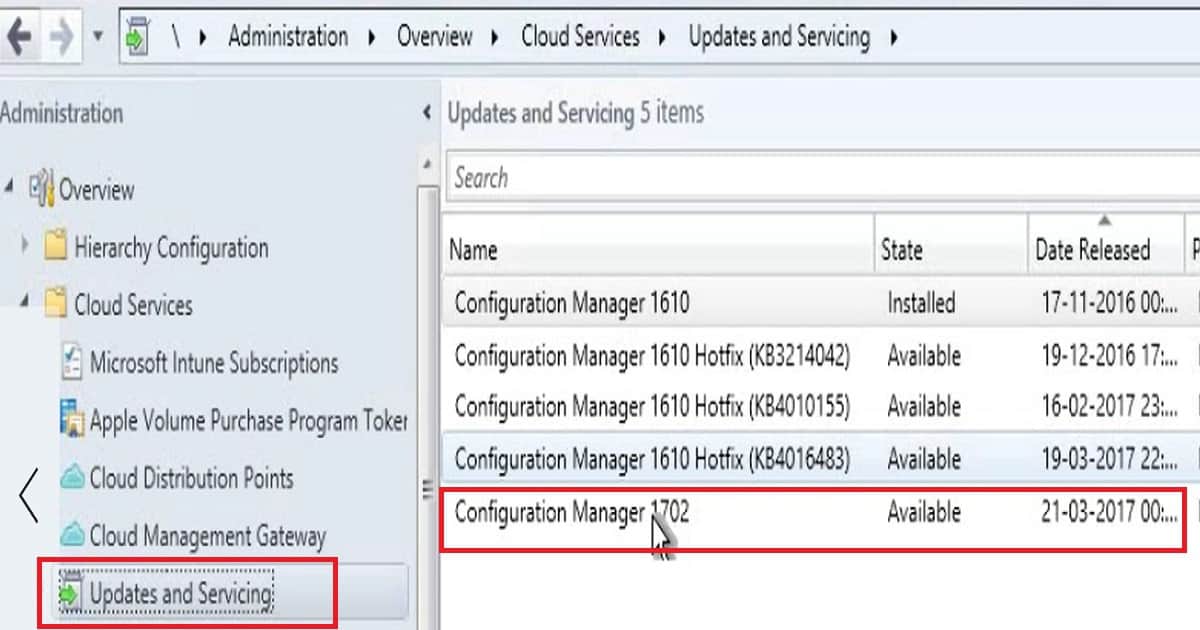
As you can see in the above screen capture, the SCCM/ConfigMgr CB 1702 has already been downloaded and is available for the upgrade process on my SCCM primary server. However, the download process still has some challenges, and there is room for improvement.
The SCCM CB 1702 download was stuck in the downloading state for a long time. I had to restart the SMS Executive service to make the “in-console” 1702 update available. Please right-click on the Configuration Manager 1702 update and Install it.
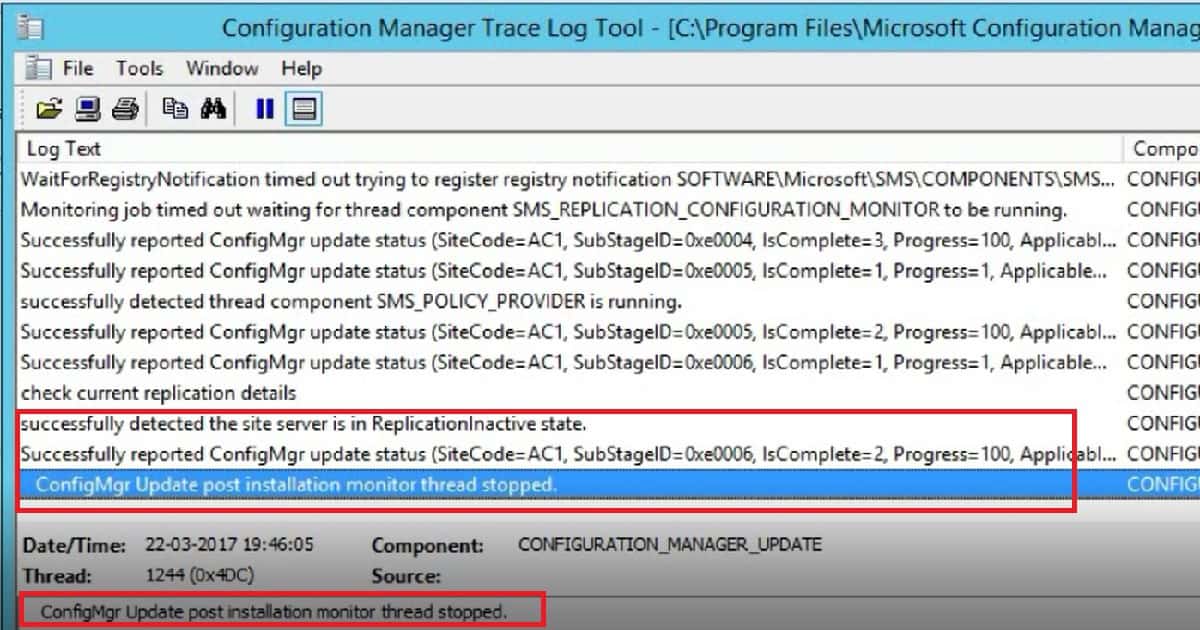
The SCCM/ConfigMgr CB 1702 upgrade experience was very smooth for me. However, the process can take time, depending on factors like server components’ hardware performance and the SQL DB’s size. You can monitor the status of the upgrade from CMUpdate.log.
Also, check the Monitoring workspace for a more standardized status table with the respective log file details for each stage of an upgrade. How do you perform the SCCM ConfigMgr CB Production upgrade to 1702 Video Tutorial Configuration Manager?
Version
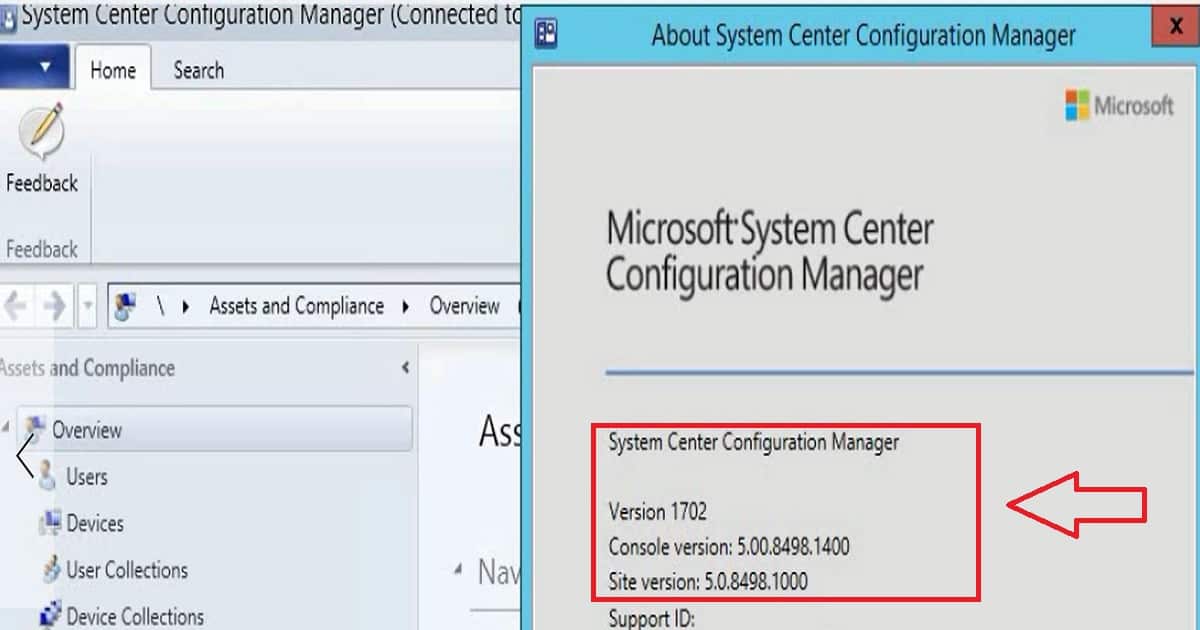
The last stage of the ConfigMgr/SCCM CB 1610 to 1702 upgrade process is the SCCM CB console upgrade. Once the console is upgraded successfully, you can see the latest site server version.
Also, the SCCM CB 1702 version details will be updated in the primary servers or CAS server registry key.
Version 1702
Console Version 5.000.8498.1400
Site Version:5.0.8498.1000
How to Perform SCCM ConfigMgr CB Production Upgrade to 1702 Video Tutorial Configuration Manager – Fig.2
We are on WhatsApp now. To get the latest step-by-step guides, news, and updates, Join our Channel. Click here. HTMD WhatsApp.
Author
Anoop C Nair is Workplace Technology solution architect with 25+ years of experience in global enterprise organizations such as JP Morgan, Capgemini, etc. He is Microsoft Certified Trainer. Microsoft MVP from 2015 onwards for consecutive 11 years! He also conducts Intune and modern workplace tech training for enterprise organizations. He is Blogger, Speaker, and Founder of HTMD Community and HTMD Conference. His focus is on Device Management technologies such as Intune, Windows, Cloud PC, He writes about technologies like Intune, SCCM, Windows, Cloud PC, Windows, Entra, Microsoft Security.
Anoop C Nair is Workplace Technology solution architect with 25+ years of experience in global enterprise organizations such as JP Morgan, Capgemini, etc. He is Microsoft Certified Trainer. Microsoft MVP from 2015 onwards for consecutive 11 years! He also conducts Intune and modern workplace tech training for enterprise organizations. He is Blogger, Speaker, and Founder of HTMD Community and HTMD Conference. His focus is on Device Management technologies such as Intune, Windows, Cloud PC. He writes about technologies like Intune, SCCM, Windows, Cloud PC, Windows, Entra, Microsoft Security.
Bangalore IT Pro Full Day User Group Event on Intune and SCCM? On March 18th, 2017, the BLR IT Pro group conducted a free full-day Bangalore IT Pro User Group event. At this event, we covered Intune’s new Azure portal features.
We also covered the newest additions to SCCM/ConfigMgr CB 1702 TP. Ninety per cent of the sessions were demos, and attendees had some hands-on experience with Android for Work devices.
Bangalore IT Pro Full Day User Group Event on Intune and SCCM?
Join the SCCM/ConfigMgr Professional Group for updates about future events – here.
Follow the Facebook page to get notified about similar events – here
I had a great experience interacting with and sharing knowledge with more than 40 attendees. Most of them are SCCM admins planning to move to the Intune world. Some already have significant experience with Intune iOS management, Application wrapping, the Apple DEP program, etc. Some others are Airwatch admins and have had good new experiences with Intune features.
I have created a quick video of some lively moments of the event. The Full Day BLR ITPro Device Management UG Meet is an engaging event for IT professionals specializing in device management. This comprehensive gathering allows attendees to immerse themselves in the latest industry trends, best practices, and emerging technologies.
Bangalore IT Pro Full Day User Group Event on Intune and SCCM – Video 1
Bangalore IT Pro Full Day User Group Event on Intune and SCCM Configuration Manager Endpoint Manager
The full-day free event covered a wide range of topics relevant to IT professionals and device management. These topics included the latest advancements in device management technologies, best practices for ensuring security and compliance, and strategies for optimizing device performance and lifecycle management.
Topics
The following are the topics I covered during the free full-day event. You can get the presentation link below.
Modern Device Management (MDM) is an advanced approach to managing and securing devices within an organization. It uses cloud-based technologies to provide comprehensive management of a wide range of devices, including desktops, laptops, tablets, and smartphones.
Bangalore IT Pro Full Day User Group Event on Intune and SCCM – Table 1
What is Modern Device Management?
 Basic Understanding Intune
 Azure Active Directory AAD Overview
 Create AAD Dynamic Device/User Groups
 Intune Silverlight Portal Overview
 Intune Azure Portal Overview
 What is Conditional Access?
 Configure Conditional Access
 Configure Compliance, Configuration Policies
 Table - Compliance Policies – Remediated/Quarantined
 Windows 10 Modern Device Management
 iOS/MAC OS Management
 Android for Work Management
 Troubleshooting?
 SCCM CB 1702 TP New Features
Bangalore IT Pro Full Day User Group Event on Intune and SCCM – Fig.1
You can Download the Presentation to Get the Reference Links from the PowerPoint Notes!
We are on WhatsApp now. To get the latest step-by-step guides, news, and updates, Join our Channel. Click here. HTMD WhatsApp.
Author
Anoop C Nair is Workplace Technology solution architect with 25+ years of experience in global enterprise organizations such as JP Morgan, Capgemini, etc. He is Microsoft Certified Trainer. Microsoft MVP from 2015 onwards for consecutive 11 years! He also conducts Intune and modern workplace tech training for enterprise organizations. He is Blogger, Speaker, and Founder of HTMD Community and HTMD Conference. His focus is on Device Management technologies such as Intune, Windows, Cloud PC, He writes about technologies like Intune, SCCM, Windows, Cloud PC, Windows, Entra, Microsoft Security.
Anoop C Nair is Workplace Technology solution architect with 25+ years of experience in global enterprise organizations such as JP Morgan, Capgemini, etc. He is Microsoft Certified Trainer. Microsoft MVP from 2015 onwards for consecutive 11 years! He also conducts Intune and modern workplace tech training for enterprise organizations. He is Blogger, Speaker, and Founder of HTMD Community and HTMD Conference. His focus is on Device Management technologies such as Intune, Windows, Cloud PC. He writes about technologies like Intune, SCCM, Windows, Cloud PC, Windows, Entra, Microsoft Security.
How do I integrate ConfigMgr SCCM CB with Azure AD? The SCCM ConfigMgr 1702 Technical Preview version was released a few weeks before.
For more details about the SCCM 1702 Technical Preview version, refer to the article “SCCM ConfigMgr Comes with Azure AD Domain Services Support.” This article provides information on the new featuresand enhancements in Configuration Manager and Endpoint Manager, including Azure AD Domain Services support.
Last weekend, I got to look at the SCCM 1702 TP version. My SCCM/ConfigMgr TP lab expired as I haven’t upgraded it since last November (1611). The technical preview versions are accumulated, but if you don’t upgrade to the latest version within 90 days, it will expire, and you will need to build one from scratch.
How do we know whether your SCCM CB TP lab has expired? You can see the expiry duration on the top tab of your SCCM console (evaluation 10 days left), or SMS executive and other services will start getting stopped every hour (I’m not sure whether it’s every hour or less).
Apart from the abovementioned points, it won’t get the latest TP updates/build version. If your SCCM TP lab expires, enjoy installing the new one!
How to Integrate ConfigMgr SCCM CB 1702 TP Azure AD Integration
Let’s discuss integrating ConfigMgr SCCM CB 1702 Technical Preview with Azure AD. The video provides detailed instructions on the integration process, showing how to connect ConfigMgr SCCM with Azure AD in this version.
How to Integrate ConfigMgr SCCM CB with Azure AD – Video 1
SCCM CB 1702 TP Console View – Integrate ConfigMgr SCCM CB with Azure AD
In the SCCM CB 1702 Technical Preview console, you can view and manage the integration of ConfigMgr SCCM CB with Azure AD. The console provides a straightforward interface for setting up and configuring the integration, making it easier to manage and secure your devices and applications.
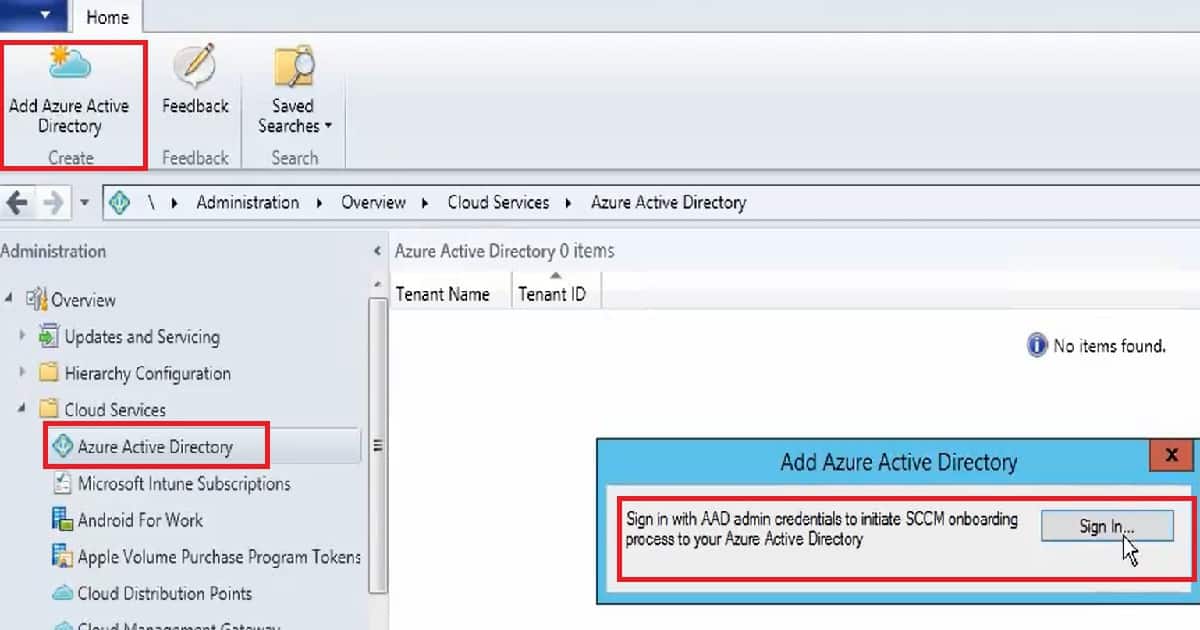
Add Azure Active Directory
Sign in with AAD admin credentials to initiate SCCM onboarding
How to Integrate ConfigMgr SCCM CB with Azure AD – Table 1
How to Integrate ConfigMgr SCCM CB with Azure AD – Fig.1
So, returning to the topic “How to integrate Azure AD with SCCM/ConfigMgr?” This is a very straightforward process if you already have an Azure subscription and are a global admin.
The add Azure Active Directory button has been made available in the SCCM CB 1702 TP console ribbon menu under the Cloud services section, as shown in the above picture. Click the sign-inbutton and enter your Azure subscription (probably with global admin access).
How to Integrate ConfigMgr SCCM CB with Azure AD – Fig.2
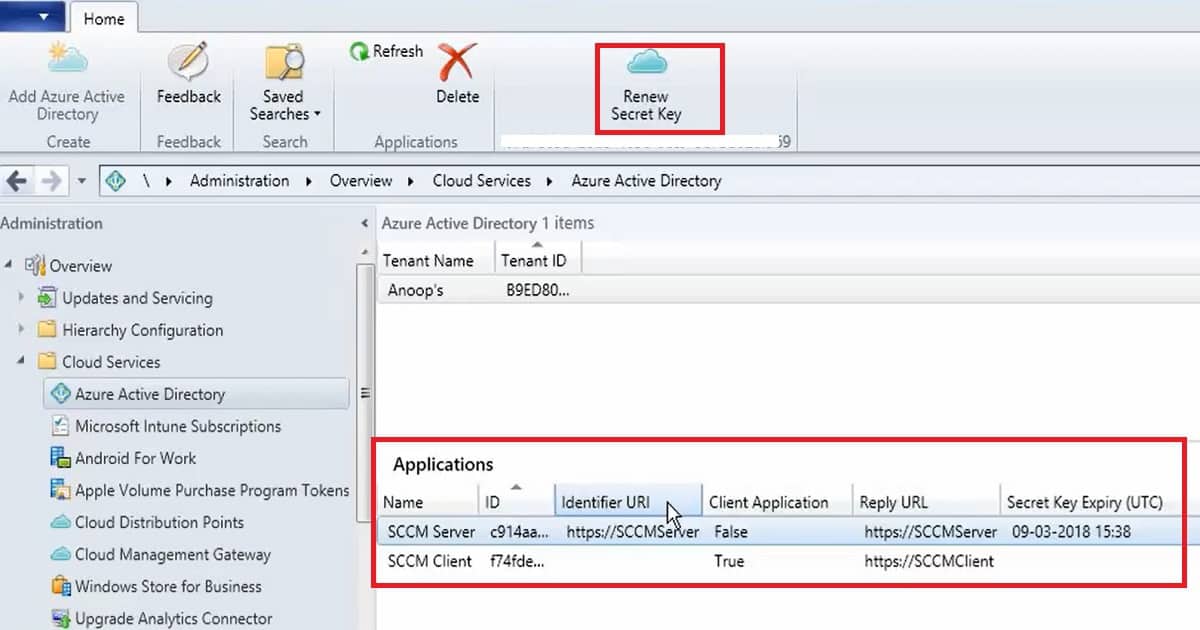
Once the above step has been completed, two Azure Applications appear in the SCCM console. These apps are registered during the Azure AD integration path SCCM/ConfigMgr CB. The first app you can see is the SCCM server app, and the second is the SCCM client app.
Another option in the SCCM console is to renew the secret key to register the app in Azure. By default, the secret key has one-year validity.
Azure AD – App Registration View
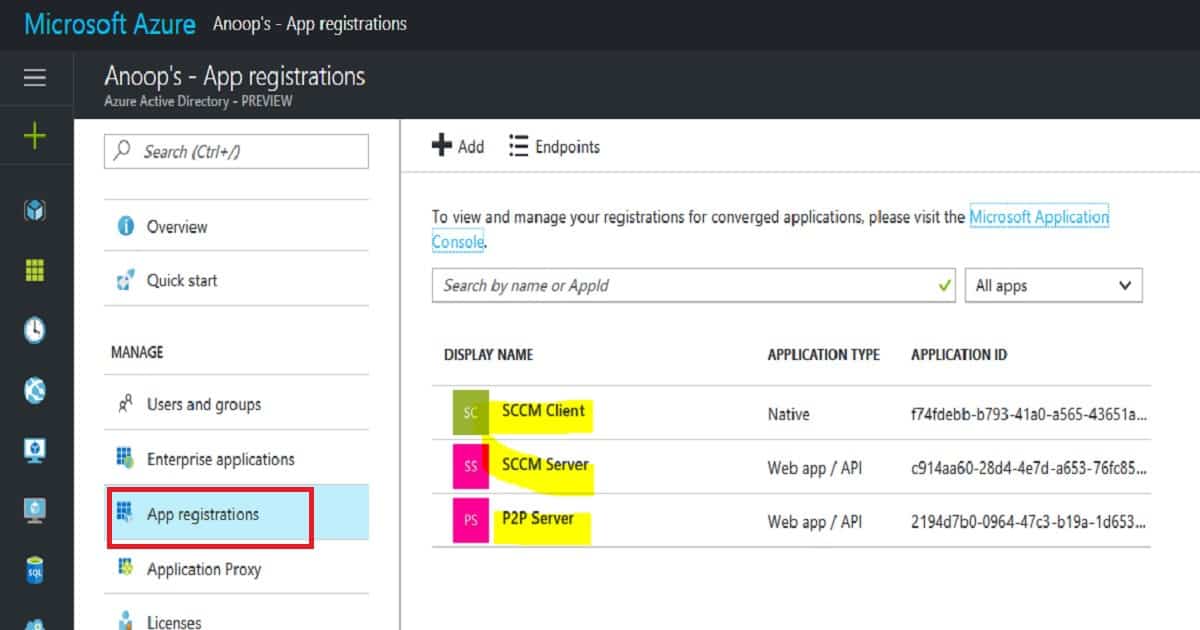
I could see two apps created in the Azure portal as part of AAD integration with SCCM CB 1702 TP. My Azure Active Directory has three apps—App Registration: the SCCM client, the SCCM server, and the P2P server.
I’m unsure whether the P2P server was created during the Azure AD integration process with SCCM CB. I can confirm that it was not made during SCCM and AAD integration. Also, I’ve not tested the end-to-end scenario of Azure AD domain services integration.
With the SCCM CB 1702 technical preview version, you can manage devices joined to an Azure Active Directory (AAD) Domain Services managed domain. You can also discover devices, users, and groups in that domain with various SCCM Discovery methods.
How to Integrate ConfigMgr SCCM CB with Azure AD – Fig.3
Conclusion
Is this actual integration with Azure AD and SCCM in all terms? Would SCCM be able to discover the devices and users from Azure AD? The answer to both questions is NO. This feature enables the discovery of Azure AD domain services-managed devices. Azure AD (SaaS identity solution) devices and Azure AD domain services are “Domain Domain Controller installed inside a virtual server hosted in Azure.”
We are on WhatsApp now. To get the latest step-by-step guides, news, and updates, Join our Channel. Click here. HTMD WhatsApp.
Author
Anoop C Nair is Workplace Technology solution architect with 25+ years of experience in global enterprise organizations such as JP Morgan, Capgemini, etc. He is Microsoft Certified Trainer. Microsoft MVP from 2015 onwards for consecutive 11 years! He also conducts Intune and modern workplace tech training for enterprise organizations. He is Blogger, Speaker, and Founder of HTMD Community and HTMD Conference. His focus is on Device Management technologies such as Intune, Windows, Cloud PC, He writes about technologies like Intune, SCCM, Windows, Cloud PC, Windows, Entra, Microsoft Security.
Anoop C Nair is Workplace Technology solution architect with 25+ years of experience in global enterprise organizations such as JP Morgan, Capgemini, etc. He is Microsoft Certified Trainer. Microsoft MVP from 2015 onwards for consecutive 11 years! He also conducts Intune and modern workplace tech training for enterprise organizations. He is Blogger, Speaker, and Founder of HTMD Community and HTMD Conference. His focus is on Device Management technologies such as Intune, Windows, Cloud PC. He writes about technologies like Intune, SCCM, Windows, Cloud PC, Windows, Entra, Microsoft Security.