
Key Takeaways
- The video guid helps IT admins understand the complete patching workflow using Microsoft SCCM.
- Managing software updates is one of the most critical tasks for SCCM admins to ensure security and compliance.
- SCCM patching involves multiple components (WSUS, SUP, deployment packages), requiring careful planning and configuration.
- Windows Update for Business is easier to manage but offers less granular control, while Microsoft Intune provides modern cloud-based patching approaches.
- Learning how to install WSUS, configure the Software Update Point (SUP), and create/deploy update packages is essential for successful patch management.
The SCCM Patching Software Update Deployment Process Guide is a video-based tutorial designed to help IT professionals understand the complete patching workflow using Microsoft SCCM. It explains how software updates can be efficiently managed to track, deploy, and maintain updates across enterprise devices. Since patching is a critical responsibility for SCCM administrators, this guide simplifies the process and helps ensure systems remain secure, compliant, and up to date.
Table of Content
Table of Contents
Best SCCM Patching Software Update Deployment Process Guide
SCCM patching involves many components and can become very complex if you don’t pay proper attention to the details. Windows Update for Business (WUfB) patching is much easier to set up and manage. However, there is less control over picking and choosing in WUfB. Intune Patch management options are explained in the Software Update Patching Options With Intune Setup Guide.
Let’s understand how to install WSUS for SCCM Software Update Point Role | SUP | SCCM and install the SUP role. Also, learn how to Create and Deploy New Software Update Patch packages using SCCM.
- Windows 10 How To Run Application Or Process From SYSTEM Context Or Account ConfigMgr
- SCCM Patching Issue with Windows 10 KB5003637 June CU | Cumulative Update Confusion | ConfigMgr | WSUS
- ConfigMgr Default Reports Software Updates | SCCM Patching Reports
- SCCM Patching Basics Video Recording Available Now | ConfigMgr
- Enable Microsoft Defender for Endpoint Updates Patching using SCCM and WSUS
NOTE! – Third-Party Patching Best Practices for an Organization guide
What is SCCM Patching?
All software applications and drivers must undergo the software release life cycle, which includes bug fixing and improvements. Each vendor releases a patch to fix bugs in software and drivers. Deploying/installing these patches to one or more systems or devices is called software patching.
Organisations must patch all existing applications. This process helps to keep the environment secure. Software vendors like Microsoft, Adobe, Android, iOS, macOS, Linux, and Unix OS release patches. These patches cover bug fixes for their software.
Why a Patching Guide? – Software Update Deployment Process Explained
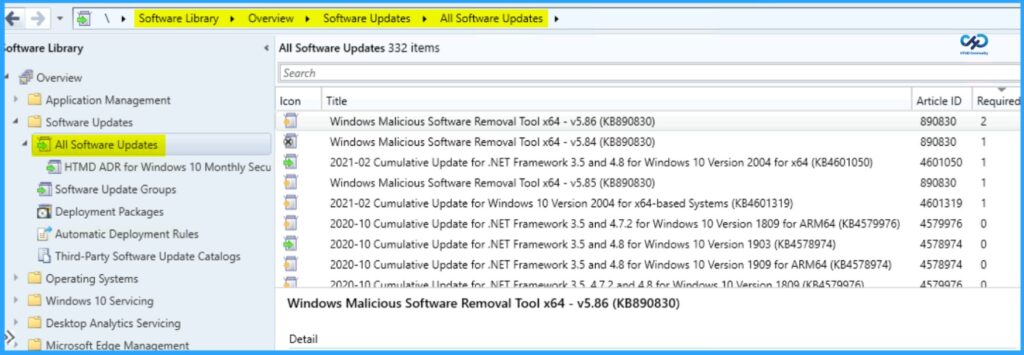
A well-defined patching guide is essential to simplify the software update deployment process and ensure systems remain secure, compliant, and up to date. It helps IT admins standardize patching workflows, reduce risks caused by vulnerabilities, and maintain consistency across devices. By following a structured approach, organizations can efficiently plan, test, deploy, and monitor updates minimizing downtime and improving overall system reliability.
SCCM Patching Infra Setup Videos – SCCM Patching Process is Explained
This updated guide walks you through the end-to-end setup of SCCM patching infrastructure, focusing on key components like Windows Server Update Services (WSUS) and the Software Update Point (SUP) role. The video-based training covers how these components integrate within the SCCM environment and explains the overall patching architecture in a practical, easy-to-follow manner.
You will learn how to install and configure WSUS for SUP, starting from launching Server Manager, selecting the destination server, and enabling required server roles and features. The process includes configuring WSUS role services, defining the content location, selecting the database instance, and setting up IIS role services. It also walks through completing the installation, validating configurations, and skipping the WSUS Configuration Wizard (as it is managed via SCCM). This structured approach helps administrators build a reliable patching foundation for efficient software update deployment.
- Install WSUS for ConfigMgr Software Update Point Role – Install WSUS for ConfigMgr Software Update Point Role.
- The free end-to-end SCCM training is below: Free SCCM Training Part 1 | 17 Hours Of Latest Technical Content | ConfigMgr Lab HTMD Blog (anoopcnair.com).
| Install WSUS for ConfigMgr SUP |
|---|
| Post Installation of WSUS Failed – WSUS service is disabled? |
| WSUS Reinstallation steps explained |
| WSUS post-installation was completed without any issues |
| Install ConfigMgr Software Update Point (SUP) – Install New ConfigMgr Software Update Point Role. |
SCCM Software Update Point (SUP) Configuration – Roles, Sync Settings & WSUS Setup Guide
Add Site Systems Roles, Select a Server to Use as a Site System, Specify Internet Proxy Server, Specify Roles for this Server, Specify Software Update Point Settings, Specify Proxy & Account Settings for Software Update Point, Specify synchronization source settings, Synchronization Settings, Select Behavior for Software Updates are Superseded, Configure WSUS Maintenance Behavior, Configure Maximum Run Time, Specify Configuration for Software Update Content, Select the Software update classifications that you want to Synchronize, Select the Products that You Want to Synchronize, Specify the Language Settings that you want to Synchronize and Confirm the Settings.
- Do Not Set up SUP with Default WSUS Product Selection ConfigMgr SCCM.
- Log files to troubleshoot SUPSetup.log, WsyncMgr.log, WCM.log, and WSUSCtrl.log.
- Initiate WSUS Sync twice. The first step is to update the category–products list for software update components.
- Initiate WSUS Sync second to update the KB articles metadata. This is completed only after the second sync.
The SCCM SUP Product List filtering options are helpful in a scenario where you want to add a new product to the SCCM patching. This SUP product filter option has been added to the 2203 version of SCCM.
Step 2: SCCM Software Update Patching – WSUS & SUP Infrastructure Configuration
This step focuses on configuring the WSUS and Software Update Point (SUP) infrastructure in SCCM. The complete process is demonstrated in the video, covering how patching workflows are built from synchronization to deployment and end-user experience. It also highlights key logs, configurations, and performance tuning techniques required for a smooth software update deployment process.
- Key Components Covered
- WSUS Setup & Integration – Core component for patch synchronization with ConfigMgr
- SUP Installation Log Files – Verify installation using logs like SUPSetup.log
- Software Update Component Configuration – Configure classifications and products
- Software Update Synchronization – Track sync status using WsyncMgr.log
- Patch Selection & SUG Creation – Select updates and create Software Update Groups (SUG)
- Deployment of Software Update Group – Deploy updates to target device collections
- End-User Experience – Understand update behavior on Windows 10 (1511) devices
- WindowsUpdate.log Changes – Learn the new method of generating logs in modern Windows versions
- Improve SCCM Policy Flow – Tips to speed up policy retrieval and deployment cycles
- Client-Side Logs Analysis – Review logs to troubleshoot update installation issues
- Reboot Behavior – Identify when a reboot is required and validate post-update status
I recommend reading Third-Party Patching Best Practices for an Organization guide for the non-Microsoft app patching process.
STEP 3: SCCM Patch Package Creation Process
In this post, let’s check the SCCM patch package creation process. You must complete the following high-level steps in the SCCM patch package or Software Update package creation process.
- Prerequisites – New Software Update Patch Package Using SCCM
- Select Patches & Create a Software Update Group
- Create Software Update Group
- Create a New Software Update Patch Package using SCCM
- Specify the Distribution Points for this Software Update patch package
- Automatically download content when packages are assigned to distribution points
- Specify the updated language for products for the SCCM Patching Guide
- Download Updates from the Internet for the SCCM Patch Package
- Logs PatchDownloader.Log to check the Download
- Results – Software Update Package Creation
- Deploy SCCM Patch Package to Windows 11 or Windows 10 devices
- SCCM Patch Deployment Settings – Available | Required
- SCCM Patch Deployment Schedule Options
- SCCM Patching Guide – Alert Options for the Patch Deployment
- SCCM Patching Process – Download Options
- Results from the SCCM Patch Deployment Process
The blog post below explains the end-to-end SCCM patch package creation process. Refer to the post linked below to get the end-to-end details of the SCCM software update patch package.
➡️How To Create Deploy New Software Update Patch Package Using SCCM | ConfigMgr
The following video explains How to Create an ADR Patching Client-Side Issues Application Creation Process Manual in SCCM.
SCCM Patching Troubleshooting – Start with Understanding the End-to-End Process
Troubleshooting SCCM patching can quickly become complex if you don’t have a clear understanding of how software updates and the overall patching workflow function in SCCM. Before diving into logs and errors, the first and most important step is to understand the complete patching process from WSUS synchronization and SUP configuration to deployment and client-side behavior. A strong foundation in the end-to-end flow helps you identify issues faster, reduce troubleshooting time, and ensure successful update deployments across your environment.
SCCM Patching Troubleshooting Guide – Client Logs, Update States & Flow Insights
Troubleshooting patching issues in SCCM requires a clear understanding of both server-side and client-side operations. While server components handle synchronization and deployment, the client-side logs provide real-time visibility into how updates are processed on devices. These logs help identify exactly where an update is stuck whether during detection, download, installation, or reboot—making them critical for faster and more accurate troubleshooting.
- Key Client Logs & Update Flow (Updated)
- UpdateStore.log
- Shows the update detection and applicability status on the client
- Helps confirm whether updates are scanned, required, or already installed
- UpdatesDeployment.log
- Tracks the complete deployment lifecycle and progress states
- Updated status flow:
- Added to targeted deployment list
- ciStateDownloading – Download initiated (0%, Result = 0x0)
- ciStateWaitInstall – Waiting for install trigger (deadline/user action)
- ciStateInstalling – Installation in progress (16% → 89% → 100%)
- ciStatePendingSoftReboot – Soft reboot required to finalize update
- ciStateInstallComplete – Installation completed successfully
- Job completion received
- CCMSDKProvider.log
- Retrieves client agent and reboot settings
- Confirms whether reboot is shown as user dialog or silent notification
- UpdateStore.log
SCCM Patching Troubleshooting – Key Client Logs for WSUS, Scan, Deployment & Reboot
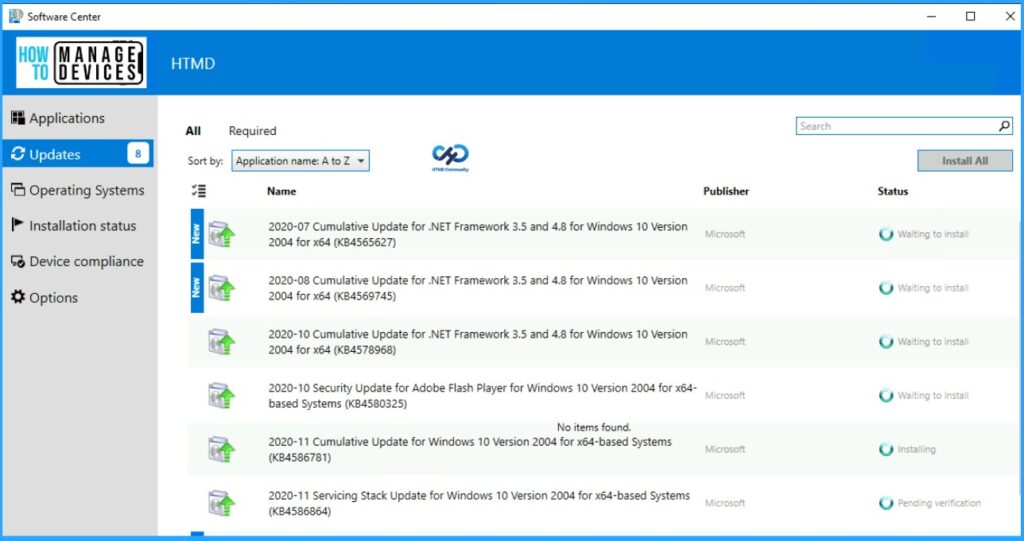
When analyzing patching issues in SCCM, these additional client-side logs provide deeper visibility into content location, scan status, deployment execution, and reboot behavior. Reviewing them together helps pinpoint exactly where the update process is breaking or delayed. Understanding these logs together gives a complete picture of the patching lifecycle, helping you resolve issues faster and ensure successful update deployments.
- Important Logs to Review
- LocationServices.log
- Verifies whether the client can locate the WSUS server path and Distribution Points (DPs)
- Ensures content sources are correctly assigned and reachable
- WUAHandler.log
- Confirms whether the Windows Update scan is triggered and completed successfully
- Helps identify scan failures or communication issues with WSUS
- UpdatesDeployment.log
- Checks assignment deadlines and Software Updates client policy
- Validates:
- DetectJob completion for assignments
- Updates added to deployment (Site_, PercentComplete, etc.)
- Overall deployment progress and state changes
- ExecMgr.log
- Confirms execution of the Software Updates Program
- Indicates whether update installation tasks were successfully triggered
- RebootCoordinator.log
- Tracks all reboot-related activities
- Shows whether a reboot is required, scheduled, or completed
- LocationServices.log

- WSUS Cleanup option | SCCM WSUS Cleanup | Fix SCCM Scan Timeout Errors
- Fix SCCM Troubleshooting Scan Errors Patching Software Update Issues
- Fix SCCM Client-Side Patching Or Software Updates Issues, Troubleshooting
- Fix SCCM Patch Deployment Issue With Windows Cumulative Updates
Resources
- SCCM Video Tutorials For IT Pros – HTMD Blog #2 (howtomanagedevices.com).
- SCCM Related Posts Real World Experiences Of SCCM Admins (anoopcnair.com)
Need Further Assistance or Have Technical Questions?
Join the LinkedIn Page and Telegram group to get the latest step-by-step guides and news updates. Join our Meetup Page to participate in User group meetings. Also, join the WhatsApp Community and the Whatsapp channel to get the latest news on Microsoft Technologies. We are there on Reddit as well.
Author
Anoop C Nair is a Workplace Technology solution architect with 25+ years of experience. Microsoft Certified Trainer. Microsoft MVP from 2015 onwards for consecutive 11+ years! He is a blogger, Speaker, and Founder of HTMD Community and HTMD Conference. His main focus is on Device Management technologies like Intune, Windows, and Cloud PC. He writes about technologies like Intune, SCCM, Windows, Cloud PC, Entra, and Microsoft Security.
Anoop C Nair is Workplace Technology solution architect with 25+ years of experience in global enterprise organizations such as JP Morgan, Capgemini, etc. He is Microsoft Certified Trainer. Microsoft MVP from 2015 onwards for consecutive 11 years! He also conducts Intune and modern workplace tech training for enterprise organizations. He is Blogger, Speaker, and Founder of HTMD Community and HTMD Conference. His focus is on Device Management technologies such as Intune, Windows, Cloud PC. He writes about technologies like Intune, SCCM, Windows, Cloud PC, Windows, Entra, Microsoft Security.