Anoop C Nair is Workplace Technology solution architect with 25+ years of experience in global enterprise organizations such as JP Morgan, Capgemini, etc. Microsoft Certified Trainer (MCT). Microsoft MVP from 2015 onwards for consecutive 11+ years!He also conducts Intune and modern workplace tech training for enterprise organizations.He is Blogger, Speaker, and Founder of HTMD Community and HTMD Conference. His main focus is on Device Management technologies like Intune, Windows, Cloud PC.He writes about technologies like Intune, SCCM, Windows, Cloud PC, Windows, Entra, Microsoft Security.
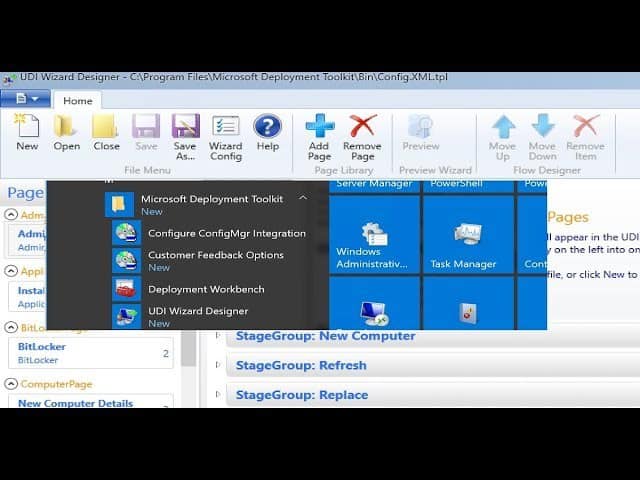
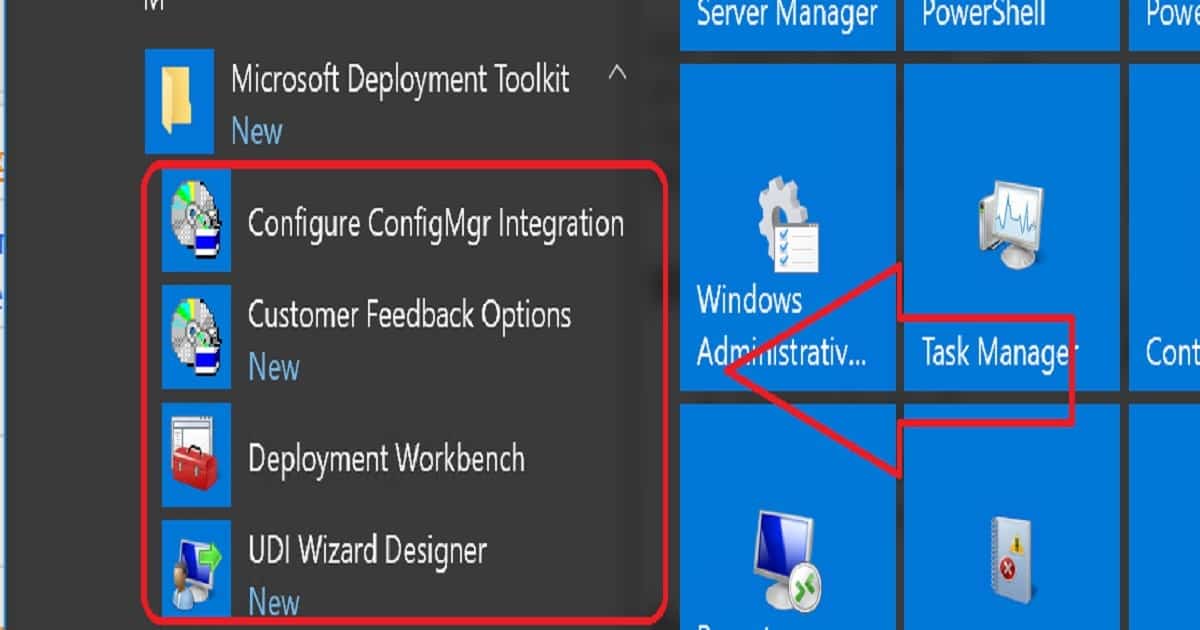
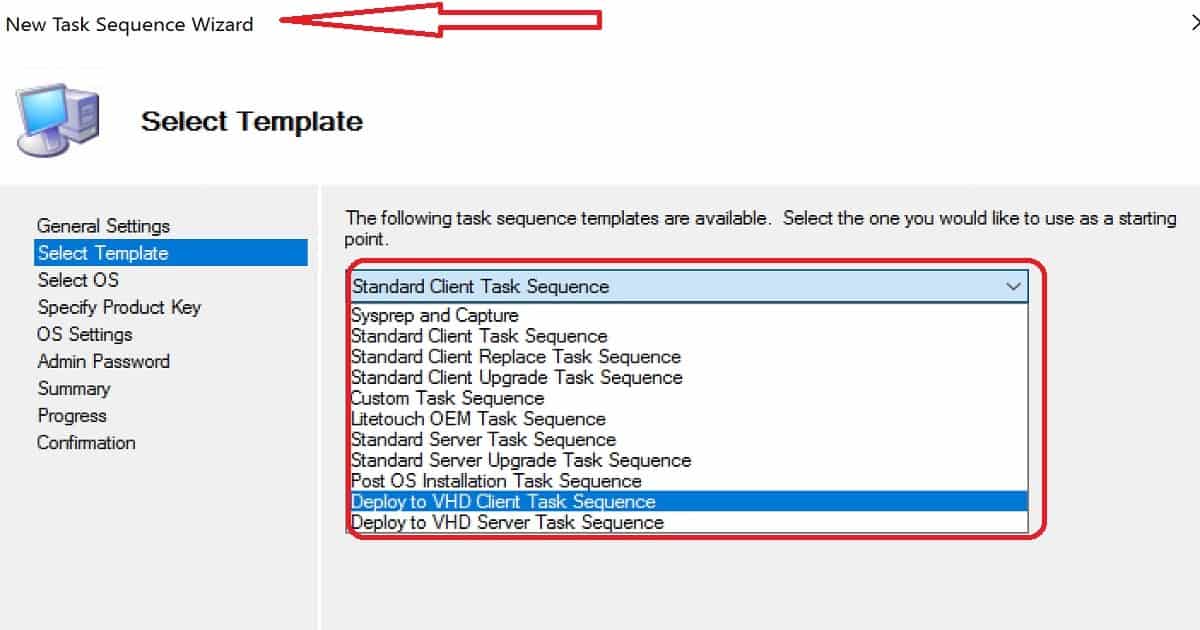
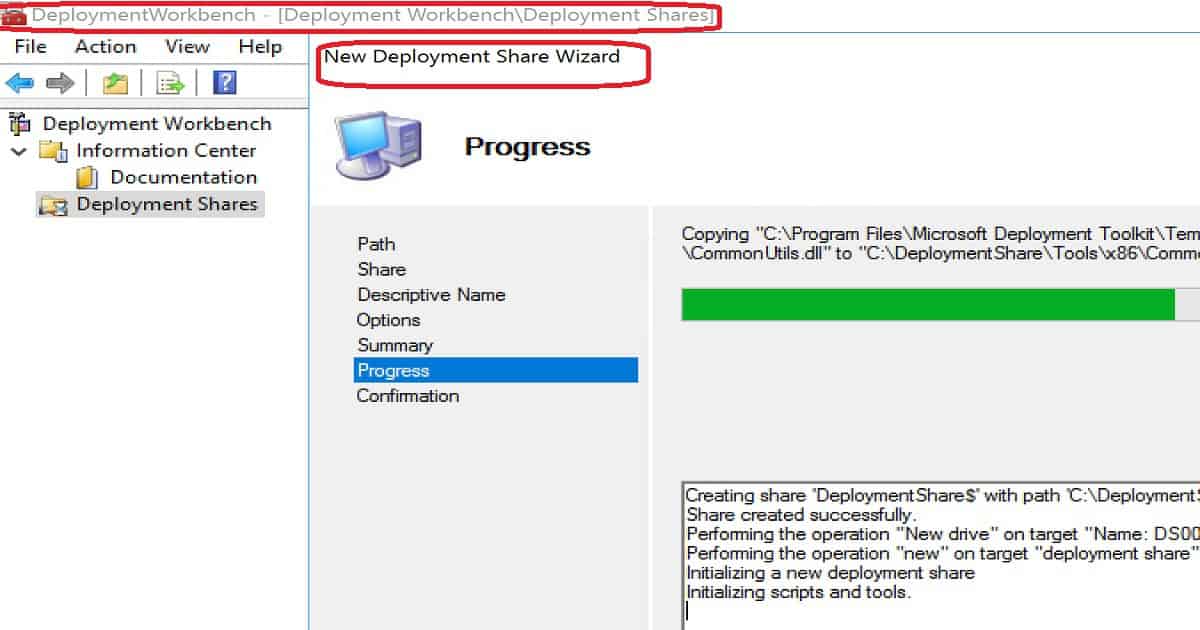
Let’s discuss how to Download, Install, and Configure MDT 8450 SCCM Configuration Manager ConfigMgr. I downloaded Microsoft DeploymentToolkit_x64.MSI and installed it on the SCCM CB lab environment. MDT 8450 is available in 32—and 64-bit versions.
This version (build 6.3.8450.1000) of the Microsoft Deployment Toolkit requires a Windows 10 ADK build. This post will show you how to Download, Install, and Configure MDT 8450.
Microsoft Deployment Toolkit (MDT) is formerly Business Desktop Deployment (BDD). MDT is an application that provides network deployment capabilities for Microsoft Windows operating systems.
In this post, you will find all the details on how to Download and Install and Configure MDT 8450 SCCM Configuration Manager ConfigMgr. MDT is a free tool for automating Windows and Windows Server operating system deployment.
If you have an SCCMenvironment, you can integrate SCCM with MDT to provide enhanced features (UDI and ZTI) to your OS deployment process.
The Microsoft Deployment Toolkit (MDT) is a free tool for automating Windows and Windows Server operating system deployment, leveraging the Windows Assessment and Deployment Kit (ADK) for Windows 10.
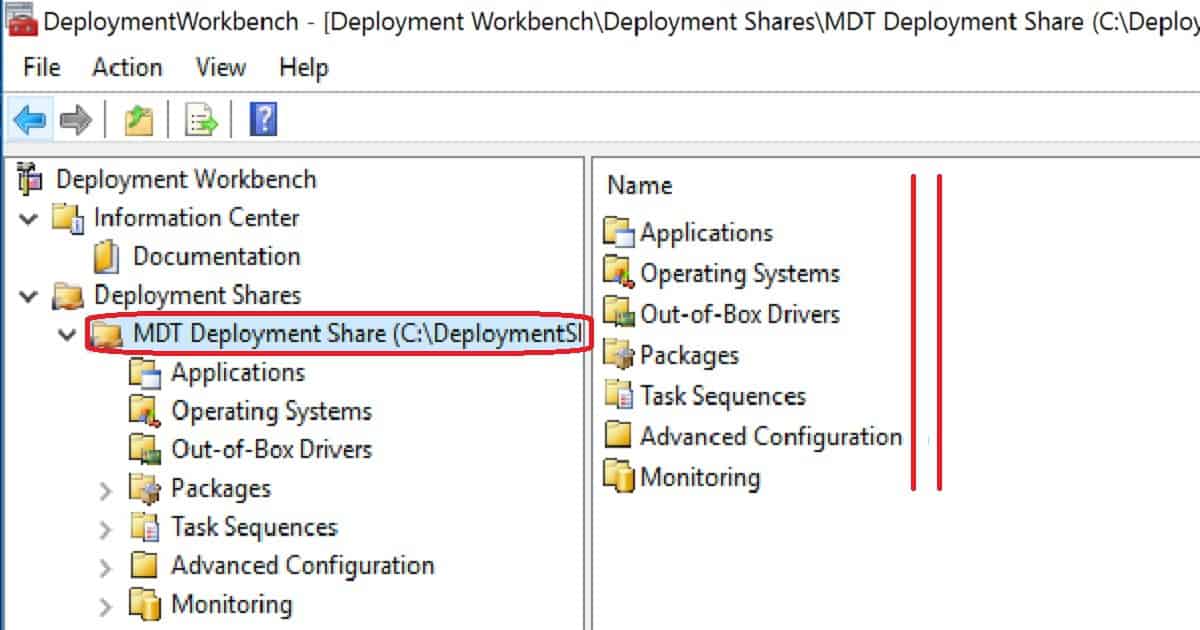
The following information is copied from the MDT deployment Workbench. The Microsoft Deployment Toolkit (MDT) provides a unified collection of tools, processes, and guidance for automating desktop and server deployments.
In addition to reducing deployment time and standardizing desktop and server images, MDT offers improved security and ongoing configuration management.
MDT supports deploying Windows 10 through Windows 7 and the associated server and embedded operating systems.
Features such as Windows 10 in-place upgrade, flexible driver management, optimized user interface workflow, and Windows PowerShell scripting can simplify deployment and simplify your job. Deploy faster and easier with MDT.
For example, if your organization doesn’t have an SCCM infra to perform OS deployments, you can use MDT.
Following are the supported OS to install the latest version of MDT. It can be installed on the client’s OS versions of Windows. Other Requirements of MDT are Windows ADK for Windows 10, version 1709 or later, which is required for all deployment scenarios.
SCCM version 1710 or later is required for zero-touch installation (ZTI) and user-driven installation (UDI) scenarios.
When using ZTI and/or UDI, you can add the MDT SQL database to any version of SCCM with SQL Technology; if you are using LTI, you must use a separately licensed SQL Server product to host your MDT SQL database.
We are on WhatsApp now. To get the latest step-by-step guides, news, and updates, Join our Channel. Click here. HTMD WhatsApp.
Author
Anoop C Nair is Workplace Technology solution architect with 25+ years of experience in global enterprise organizations such as JP Morgan, Capgemini, etc. He is Microsoft Certified Trainer. Microsoft MVP from 2015 onwards for consecutive 11 years! He also conducts Intune and modern workplace tech training for enterprise organizations. He is Blogger, Speaker, and Founder of HTMD Community and HTMD Conference. His focus is on Device Management technologies such as Intune, Windows, Cloud PC, He writes about technologies like Intune, SCCM, Windows, Cloud PC, Windows, Entra, Microsoft Security.
Let’s discuss the Video Guide Windows Server 2016 Backup Solution from Veeam. Veeam offers a backup and restore solution for Microsoft Windows devices.
Veeam Agent for Microsoft Windows can take servers, desktops, and laptop backups. Previously, this solution was known as “Veeam Endpoint Backup“.
This post will show a Video Guide on Veeam’s Windows Server 2016 Backup Solution. The next three posts will cover Veeam’s Windows endpoint backup solution.
Under the post-Veeam Backup for the O365 v4 Community Version Upgrade Guide, you will find all the details of Veeam Backup for the O365 v4 Community Version. Veeam released the latest version of Veeam Backup for Microsoft Office 365 with many enhancements.
Video Guide Windows Server 2016 File & Volume Recovery Solution from Veeam
Veeam has a free backup and restore solution for Microsoft Windows devices. Veeam Agent for Microsoft Windows can take backups of servers, desktops and laptops. Previously, this solution was known as “Veeam Endpoint Backup“.
Video Guide Windows Server 2016 Backup Solution from Veeam – Video 1
Video Guide Windows Server 2016 Backup Solution from Veeam
Veeam Vanguard is a community program by Veeam, and I’m honoured and privileged to be part of this exciting tech community.
Video Guide Windows Server 2016 Backup Solution from Veeam
Installation of Veeam Agent on Microsoft Windows Server 2016
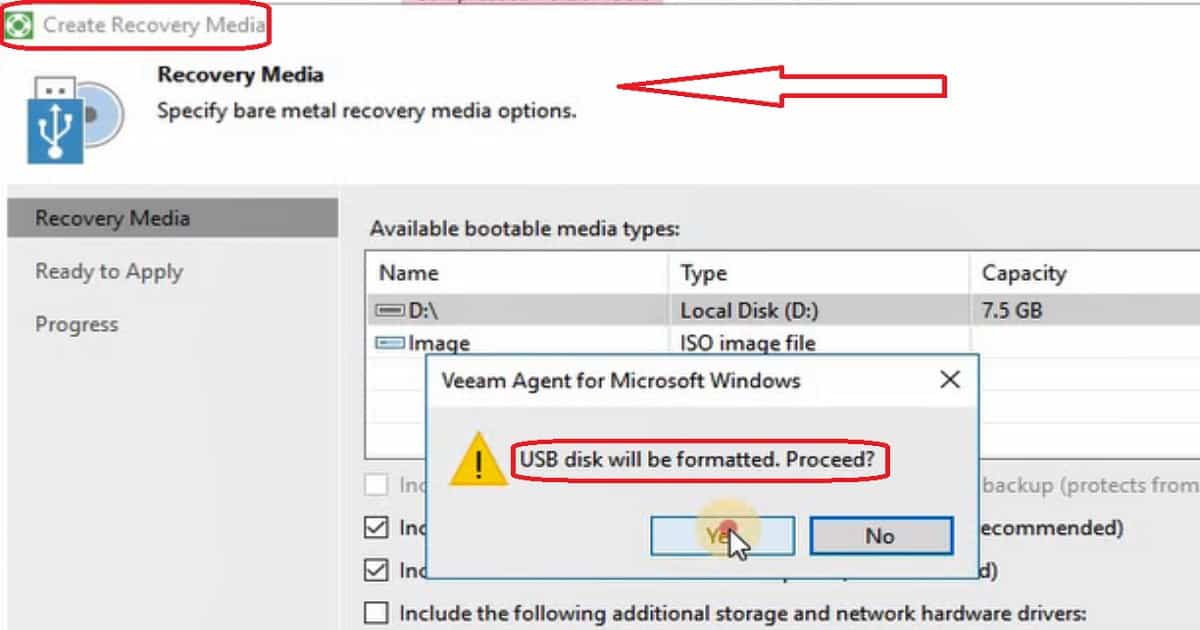
Create Recovery Media
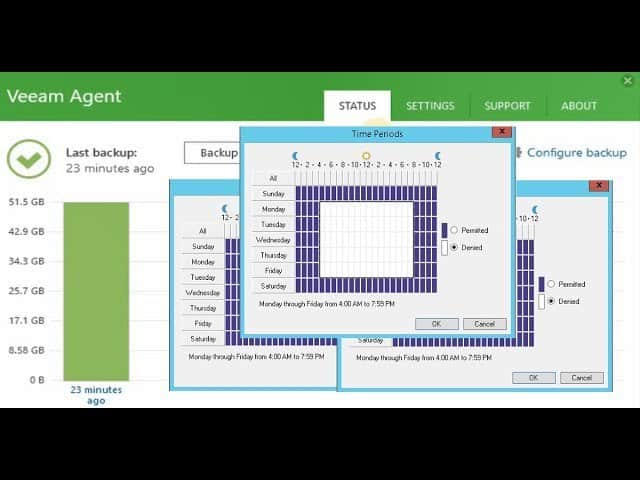
Taking Backup of Server 2016 as per schedule
Video Guide Windows Server 2016 Backup Solution from Veeam – Table 1
Video Guide Windows Server 2016 Backup Solution from Veeam – Fig.1
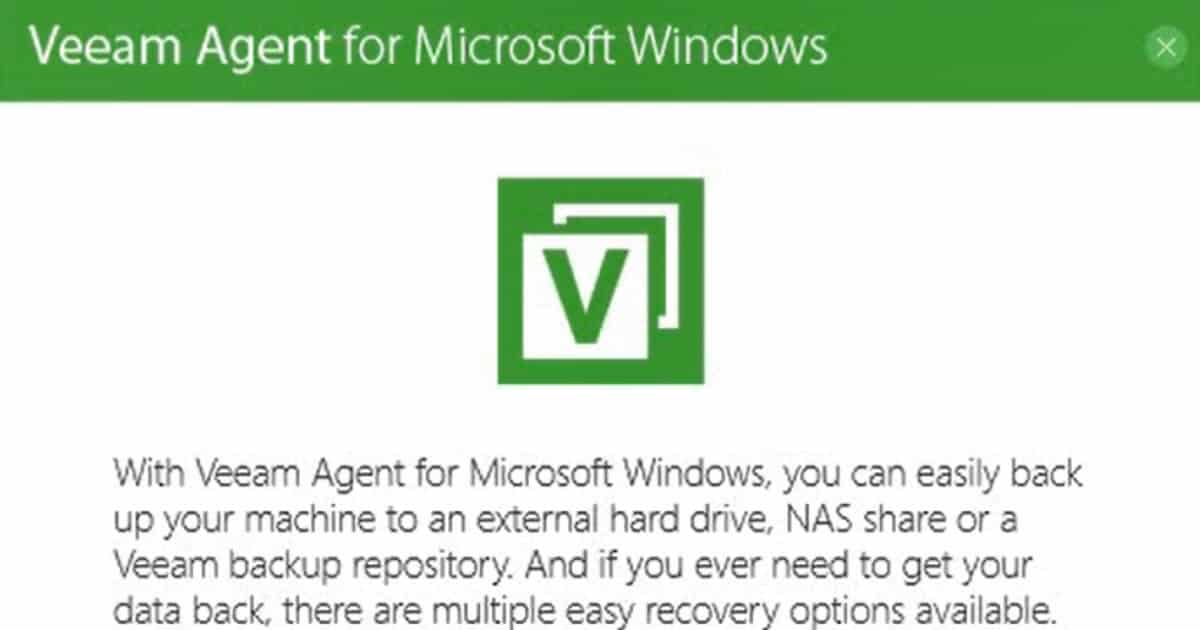
Veeam Agent for Microsoft Windows is a data protection and disaster recovery solution for physical and virtual machines. It can protect different types of computers and devices, including desktops, laptops, and tablets. The solution can be installed on any computer that runs the following OS.
Microsoft Windows 7 SP1 or later
Microsoft Windows 2008 R2 SP1 or later
Video Guide Windows Server 2016 Backup Solution from Veeam – Fig.2
The installation of the Veeam Agent for Windows is straightforward. It will automatically take care of installing prerequisites like SQL Express, etc. After the installation, you will be able to see.
Veeam Agent for Microsoft Windows Service
Veeam Agent Tray
SQL Server 2012 Express LocalDB
How to Create Recovery Media for Server 2016
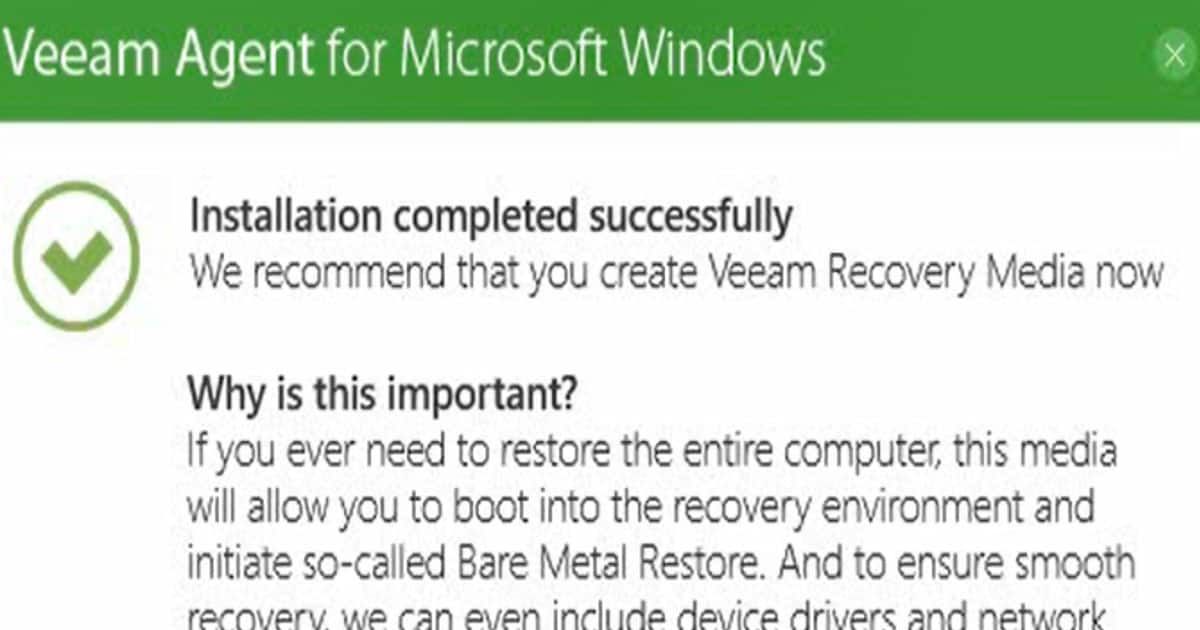
Once the Veeam Agent for Windows is installed, the first step is to create a Veeam Recovery media. Veeam Agent for Microsoft Windows lets us create a Veeam Recovery Media, which is nothing but a recovery image of your computer.
You can boot your computer or server with recovery media, fix the OS system errors on your server 2016, or restore data from the backup. Microsoft Windows RE (Recovery Environment) automatically reboots after 72 hours of continuous use. All data that has not been saved before reboot will be lost.
Video Guide Windows Server 2016 Backup Solution from Veeam – Fig.3
You can launch the recovery media creation wizard from the Veeam Agent for the Windows home page. As the video tutorial shows, media creation is straightforward.
It took nearly 9 minutes to create a recovery media on my server 2016. The wizard will prompt you to format the USB during the media creation. At the high level, the following are the tasks.
Mounting Recovery Environment Image
Copy Veeam Recovery Environment files
Adding .NET framework
Adding system drivers
Copying boot files
Unmounting Recovery Image
Preparing USB disk
Copying data to USB disk
Recovery media has been created
Take Full Backup of Server 2016 using Veeam Agent for Windows
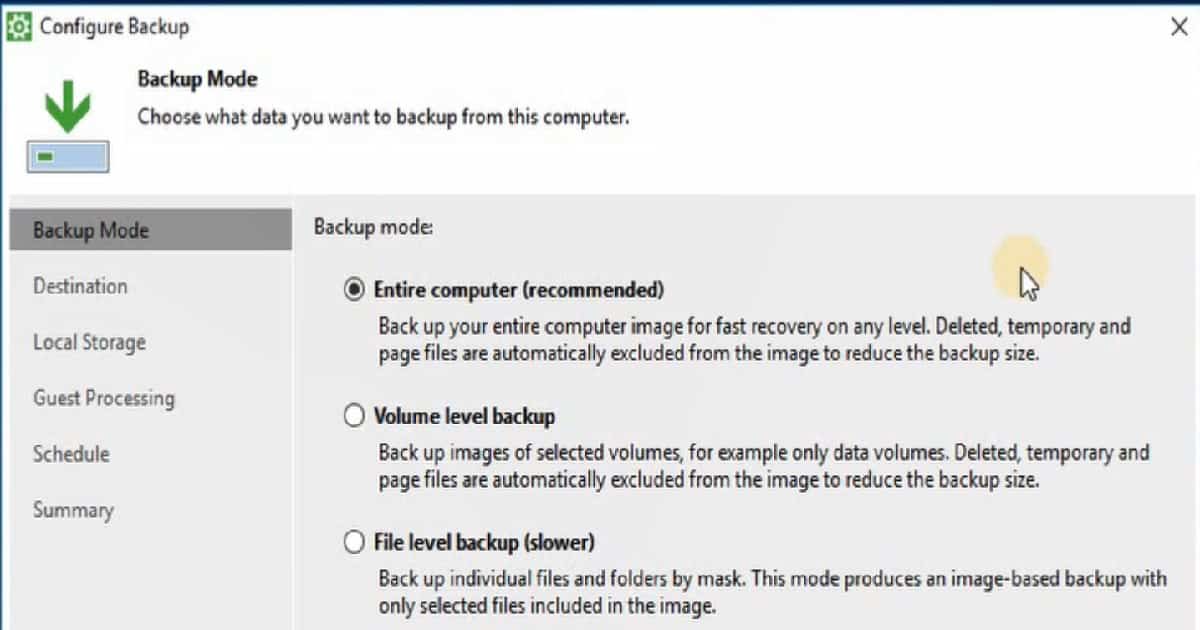
Veeam Agent for Windows offers three backup modes: “Entire computer,” “Volume-level backup,” and “File-Level backup.” Veeam Agent for Windows servers supports five backup options listed below.
Removable storage device
Local computer drive
Network shared folder
A Veeam backup server manages the backup repository
Cloud repository managed by a Veeam Cloud Connect service provider
Video Guide Windows Server 2016 Backup Solution from Veeam – Fig.4
“Configure backup” is the Veeam agent’s option to start configuring and scheduling the backup for the Windows server. The recommended option in the Veeam Agent for Windows is backing up your entire server. This helps with fast recovery on any level.
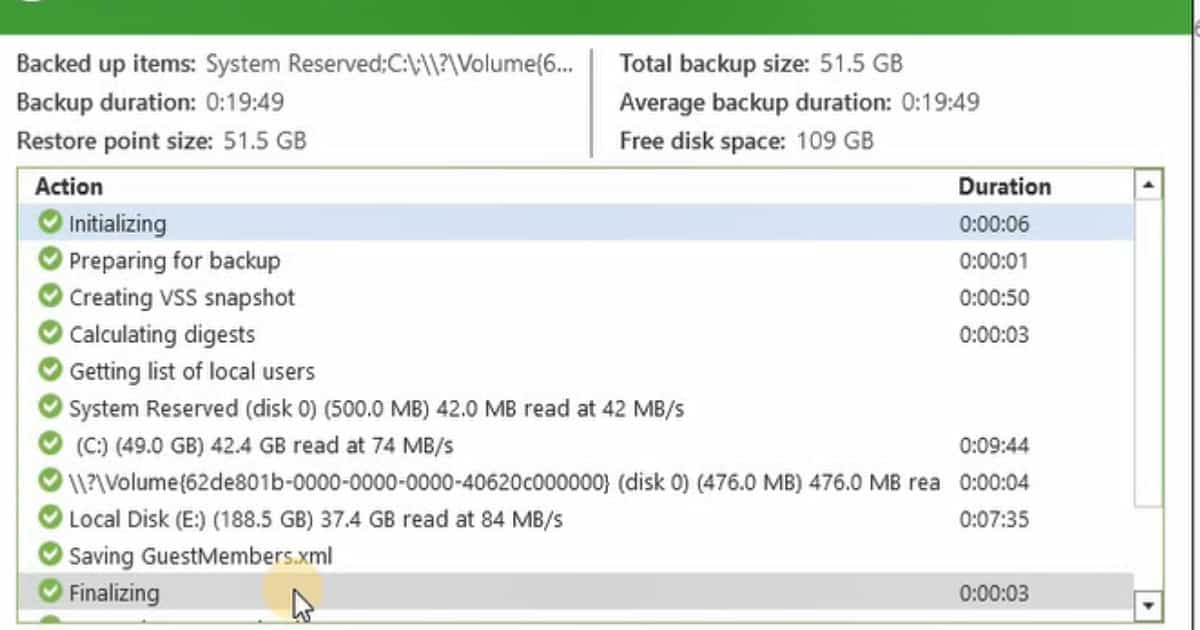
I selected the Entire Computer backup option for my server 2016. I used the external hard disk (local storage) to back up the server in 2016. This is my Hyper-V server in my lab. The video tutorial here provides more details. The following are the tasks that I could see.
Initializing
Preparing for backup
Creating VSS snapshot
Calculating digests
Getting a list of local users
System Reserved (disk 0) (500.0 MB) 42.0 MB read at 42 MB/s
(C:)(49.0 GB)42.4 GB read at 74 MB/s
Local Disk (E:) (188.5 GB) 37.4 GB read at 84 MB/s
Saving GuestMembers.xml
Finalizing
Truncating transaction logs
Truncating SQL server transaction logs
Processing finished
Video Guide Windows Server 2016 Backup Solution from Veeam – Fig.5
We are on WhatsApp now. To get the latest step-by-step guides, news, and updates, Join our Channel. Click here. HTMD WhatsApp.
Author
Anoop C Nair is Workplace Technology solution architect with 25+ years of experience in global enterprise organizations such as JP Morgan, Capgemini, etc. He is Microsoft Certified Trainer. Microsoft MVP from 2015 onwards for consecutive 11 years! He also conducts Intune and modern workplace tech training for enterprise organizations. He is Blogger, Speaker, and Founder of HTMD Community and HTMD Conference. His focus is on Device Management technologies such as Intune, Windows, Cloud PC, He writes about technologies like Intune, SCCM, Windows, Cloud PC, Windows, Entra, Microsoft Security.
Anoop C Nair is Workplace Technology solution architect with 25+ years of experience in global enterprise organizations such as JP Morgan, Capgemini, etc. He is Microsoft Certified Trainer. Microsoft MVP from 2015 onwards for consecutive 11 years! He also conducts Intune and modern workplace tech training for enterprise organizations. He is Blogger, Speaker, and Founder of HTMD Community and HTMD Conference. His focus is on Device Management technologies such as Intune, Windows, Cloud PC. He writes about technologies like Intune, SCCM, Windows, Cloud PC, Windows, Entra, Microsoft Security.
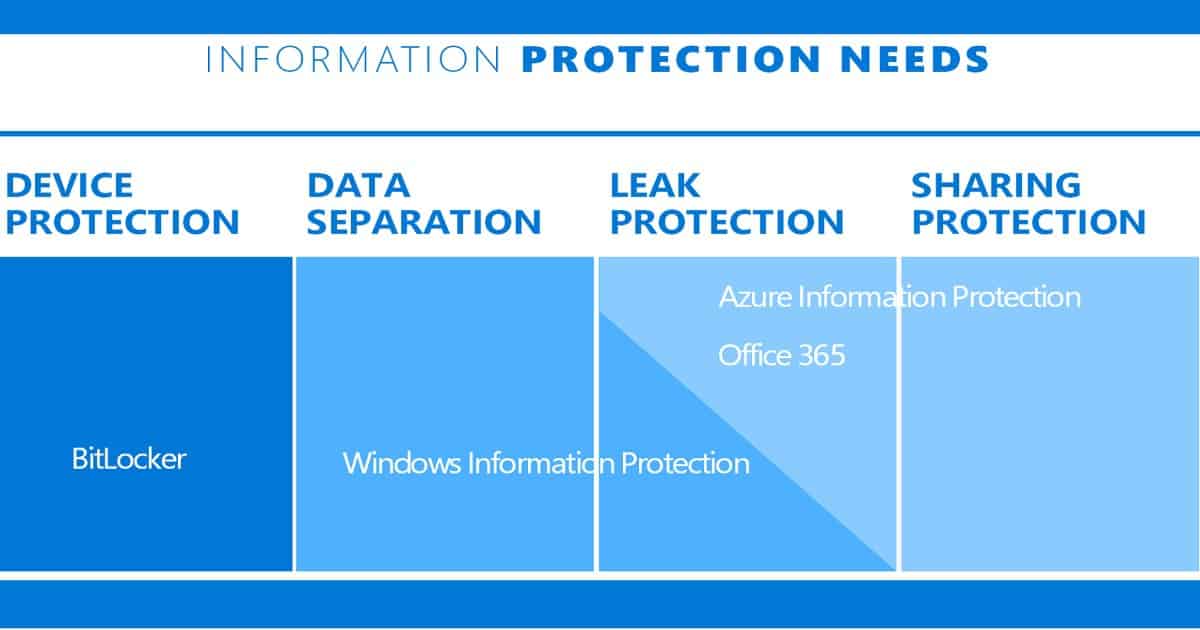
Let’s learn about Intune Decrypt Files Protected by WIP Policy. Windows Information Protection (WIP) is Microsoft’s accidental Data Leakage protection solution. WIP is fully supported in Windows 10 anniversary edition (1607) and later versions. This post will see more details about the Decrypt Files Protected Intune SCCM WIP Policy.
Certificates Details – Intune/SCCM WIP Policies – Encrypting File System (EFS) Data Recovery Agent (DRA) certificate has been created and used in WIP policies. The cipher/r command can be used to create two certificates. The EFSDRA.CER and EFSDRA.PFX files are created.
We may need to go through the migration process towards modern management. This happened during one of the user migrations, and it didn’t go well. The user’s files were encrypted with the WIP policy. The user unenrolled and reenrolled his Windows 10 device as part of troubleshooting.
Intune Decrypt Files Protected by WIP Policy – Fig.1
Issue Statement – Personal Files Encrypted with WIP Policy – Intune Decrypt Files Protected by WIP Policy
Access to the protected files was revoked during troubleshooting and unenrollment from Intune. The user can’t open any files because those files are encrypted using the WIP policy and certificate. The user re-enrolled the device to Intune, but the WIP certificate still locks the protected files.
How to Decrypt WIP-Protected Files
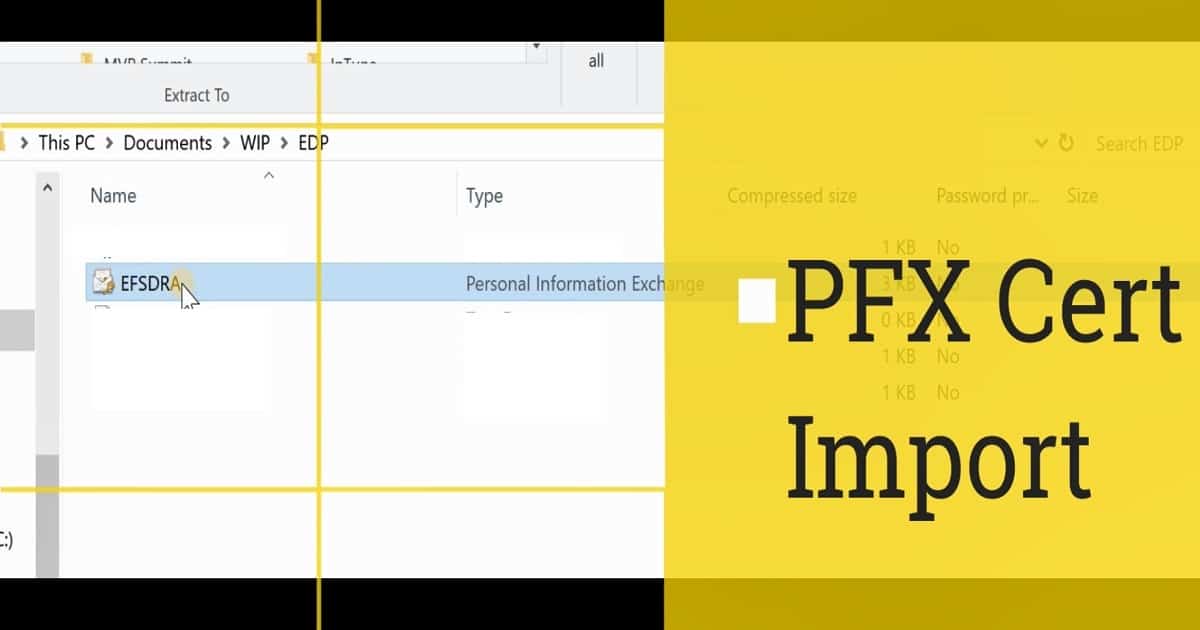
To decrypt the protected files, you need to import the PFX file to the computer where you want to perform the decryption process. You must be very careful because of the private keys in your DRA. The PFX file can be used to decrypt any WIP file.
The PFX file must be stored offline, keeping copies on a smart card with strong protection for regular use. It’s better to keep master copies in a secured physical location.
Import EFSDRA.pfx
Intune Decrypt Files Protected by WIP Policy – Fig.2
Double-click on the EFSDRA.PFX file to start the certificate import wizard. This wizard helps import the certificate to the user’s machine. Make sure you select Store Location as a Current user.
Browse and select the EFSDRA.PFX file to import. The private key PFX is protected with a secure password, which you must enter to proceed with the certificate import wizard. In the import options, make sure you select “Include all extended properties.”
Select the certificate store in the import wizard. The best way to have the default location of the cert store. And it’s “Automatically select the certificate store based on the type of certificate.” Complete the certificate import wizard.
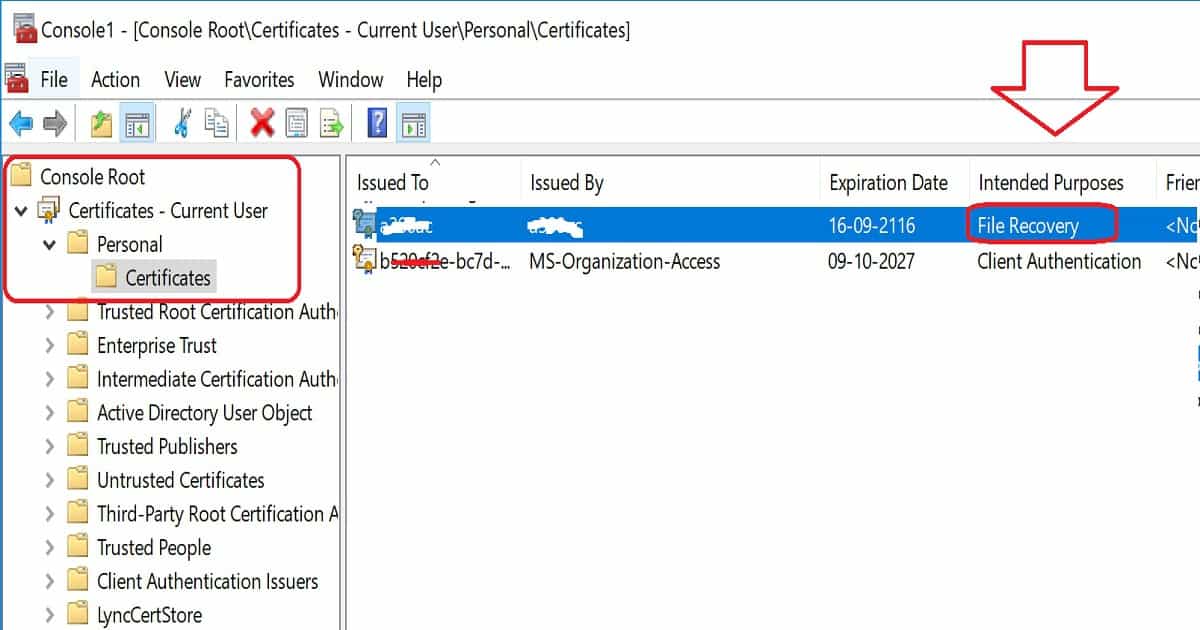
Confirm whether the certificate or private key PFX file is imported successfully to the certificate store—certificates – Current User – Personal – Certificates. Check out the Intended Purposes tab in the console and check whether there is any File Recovery certificate.
Intune Decrypt Files Protected by WIP Policy – Fig.3
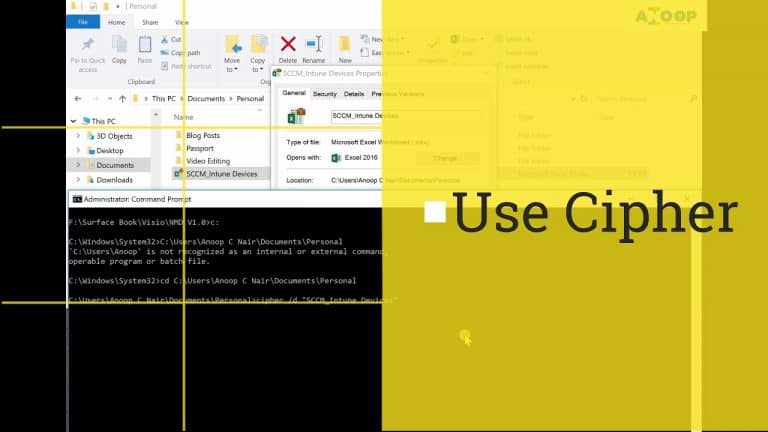
2. Cipher /d Command to Decrypt the Files
Confirm the private file is imported into the machine’s certificate store. The next step is to run the following command cipher /d “File_Name.XXX” from the directory where the protected files are stored.
C:>cipher /d “SCCM Intune.docx”
Decrypting files in C:\WINDOWS\system32\
SCCM Intune.docx [OK]
1 file(s) [or directories(s)] within 1 directories(s) were decrypted.
Troubleshooting – Check the WIP Logs
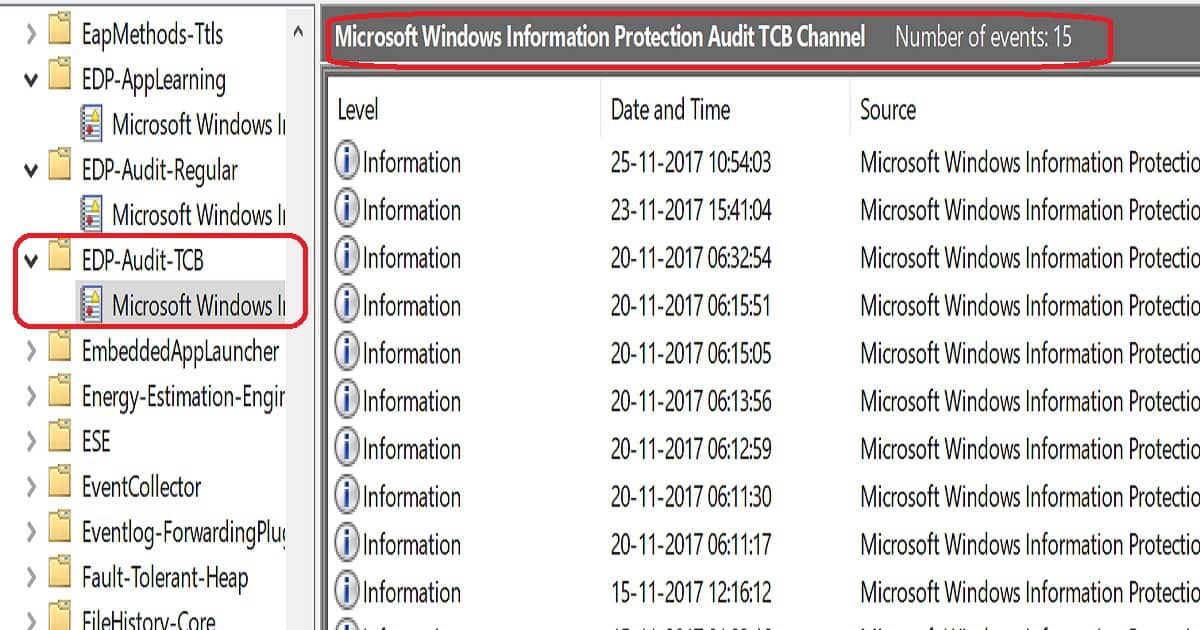
WIP troubleshooting can be done through Windows event logs. Navigate to Application and Services LogsMicrosoftWindows, click EDP-Audit-Regular, and click EDP-Audit-TCB.
Check the WIP Logs
EDP-Audit-TCB
Intune Decrypt Files Protected by WIP Policy – Table 1
Log Name: Microsoft-Windows-EDP-Audit-TCB/Admin
Source: Microsoft-Windows-EDP-Audit-TCB
Date: 25-11-2017 10:54:03
Event ID: 101
Task Category: None
Level: Information
Keywords: Windows Information Protection Audit Protection Removed Keyword
User: ANOOP-SURFACE-B\Anoop C Nair
Computer: Anoop-Surface-Book
Description:
Enterprise ACNS.COM tag has been removed (Protection removed) from the file: C:\Users\Anoop C Nair\Pictures\SCCM 1710\Overview SCCM Co-Mgmt CMG.jpg
Event Xml:
<Event xmlns="http://schemas.microsoft.com/win/2004/08/events/event">
 <System>
 <Provider Name="Microsoft-Windows-EDP-Audit-TCB" Guid="{}" />
 <EventID>101</EventID>
 <Version>0</Version>
 <Level>4</Level>
 <Task>0</Task>
 <Opcode>0</Opcode>
 <Keywords>0x8000000889787810</Keywords>
 <TimeCreated SystemTime="2017-11-25T05:24:03.294238400Z" />
 <EventRecordID>15</EventRecordID>
 <Correlation />
 <Execution ProcessID="876" ThreadID="11836" />
 <Channel>Microsoft-Windows-EDP-Audit-TCB/Admin</Channel>
 <Computer>Anoop-Surface-Book</Computer>
 <Security UserID="" />
 </System>
Intune Decrypt Files Protected by WIP Policy – Fig.4
We are on WhatsApp now. To get the latest step-by-step guides, news, and updates, Join our Channel. Click here. HTMD WhatsApp.
Author
Anoop C Nair is Workplace Technology solution architect with 25+ years of experience in global enterprise organizations such as JP Morgan, Capgemini, etc. He is Microsoft Certified Trainer. Microsoft MVP from 2015 onwards for consecutive 11 years! He also conducts Intune and modern workplace tech training for enterprise organizations. He is Blogger, Speaker, and Founder of HTMD Community and HTMD Conference. His focus is on Device Management technologies such as Intune, Windows, Cloud PC, He writes about technologies like Intune, SCCM, Windows, Cloud PC, Windows, Entra, Microsoft Security.
Microsoft SCCM team released the latest production version 1710 of SCCM/ConfigMgr. The version is published as an opt-in option. This SCCM 1710 production version release won’t show automatically in your SCCM console.
This release is called the Fast Ring production release of SCCM 1710. This post will see “SCCM 1710 New Features Overview Plus Upgrade Guide.”
Before upgrading, it would be interesting to check out the differences between the 1706 and 1710 versions. I have a video post titled “Differences Between SCCM ConfigMgr CB 1710 and 1706.”
SCCM/ConfigMgr CB 1710 production update is applicable only for the SCCM CB 1610 and later. For example, if your SCCM environment is running with the SCCM CB 1606 version, this 1710 version won’t be visible to your environment.
To access the SCCM CB 1710 production version, you need to upgrade from 1606 to 1610. Once you have completed that upgrade and are in the 1610 version of SCCM CB, you can update it to the 1710 version.
Video Tutorial SCCM 1710 New Features Overview Plus Upgrade Guide – Fig.1
How to Get the Opt-in Version of SCCM 1710?
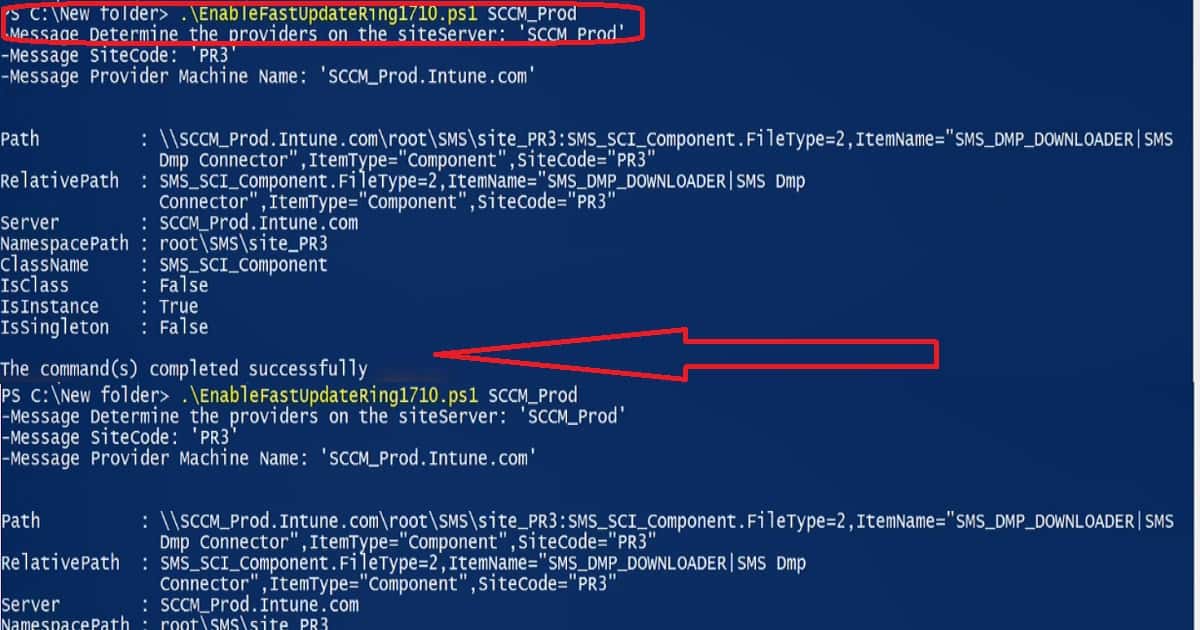
The SCCM 1710 update will be rolled out globally in the coming weeks and will be automatically downloaded. Once this update is rolled out globally, you don’t need to run the PowerShell script. Moreover, when it is ready to install, SCCM admins will be notified from the “Updates and Servicing” node.
Video Tutorial SCCM 1710 New Features Overview Plus Upgrade Guide – Fig.2
New Features of SCCM 1710 Production Version
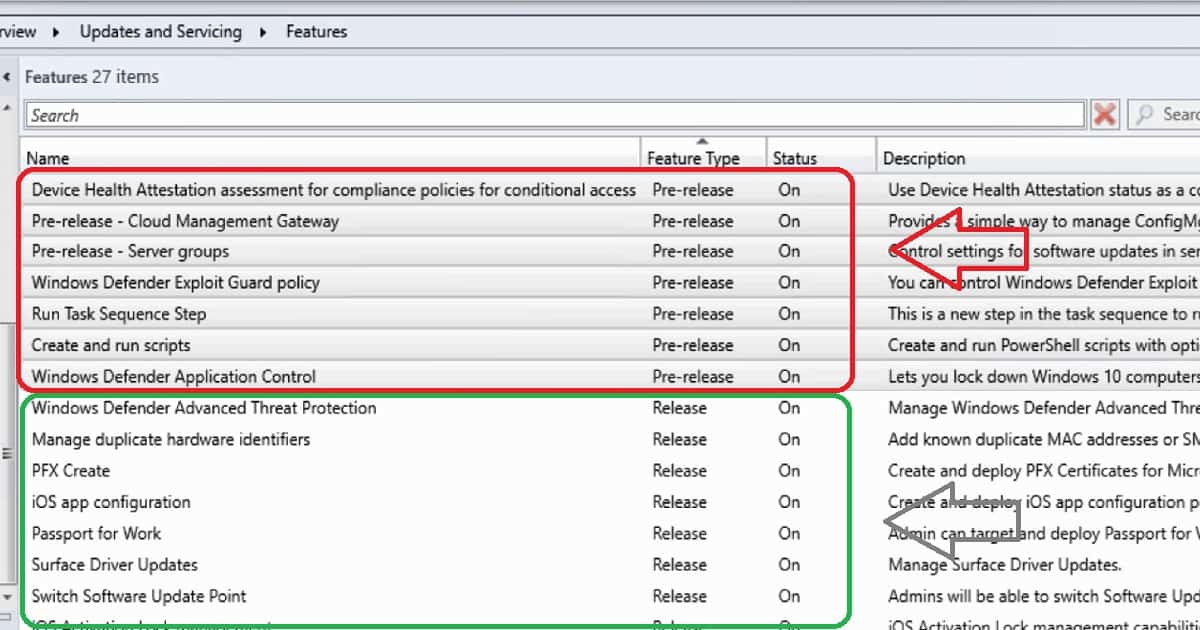
The SCCM CB 1710 Production version has 7 pre-release features and 20 Release Features. The video tutorial provides more details about the upgrade and new features.
Video Tutorial SCCM 1710 New Features Overview Plus Upgrade Guide – Fig.3
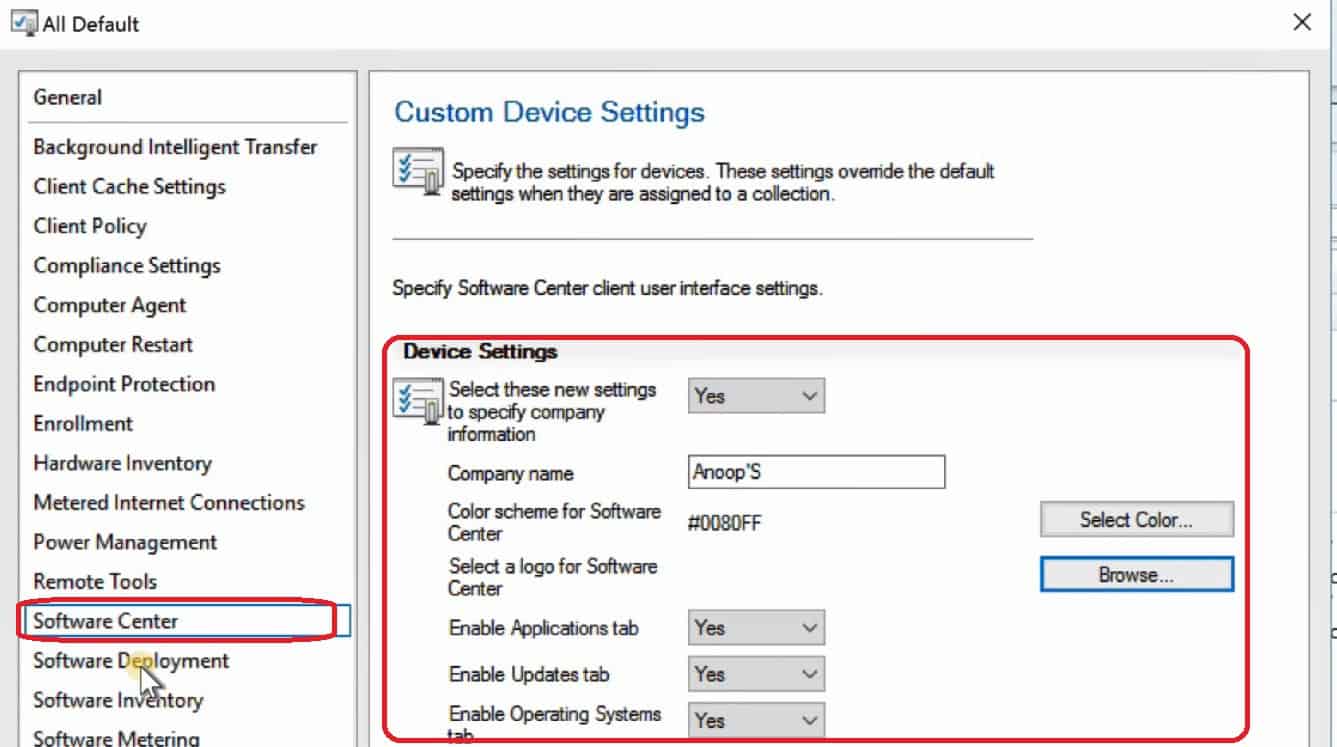
SCCM CB 1710 Software center can have your organization logo and other branding options without an Intune subscription, which is very useful for organizations. To configure these branding options, navigate to client settings, open custom client Policy settings, and click on the software center.
Peer cache is not pre-release feature
Cloud DP supports Azure Govt Cloud
Co-Management
Identify the devices that require a restart and restart using the client notification channel.
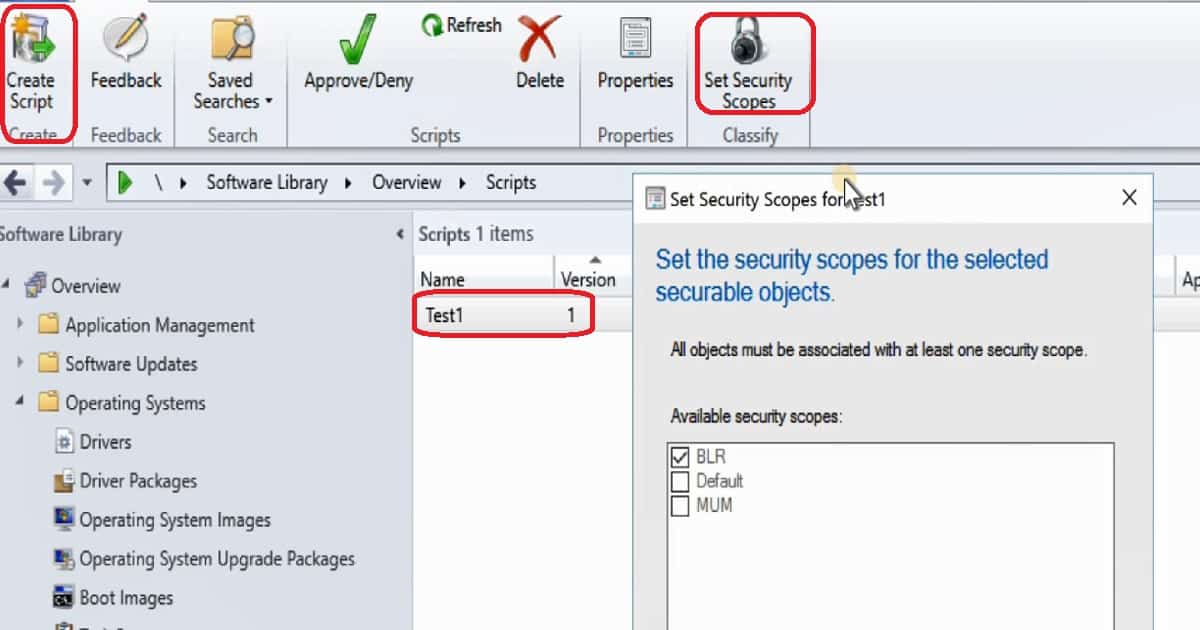
Improvements in Run Script option – Security Scope, Real-time monitoring, and parameter
Software Center 250×250 icon
OSD – Parent-Child nested Task Sequence
Software Center – Enterprise Branding
Software Update – Surface Driver Update is no longer a pre-release feature
Telemetry level setting in Client settings
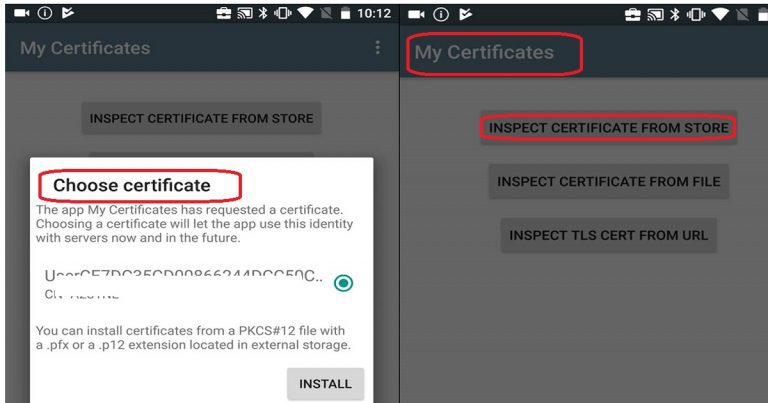
Limited support for Cryptography: Next Generation (CNG) certificates
Exploit Guard policies
Windows Defender Application Guard policy
Device Guard policy changes
Video Tutorial SCCM 1710 New Features Overview Plus Upgrade Guide – Fig.4
SCCM Software Center Branding without Intune subscription
The software center has many more granular options to collect the Windows 10 telemetry data from SCCM client machines. This option is available under the Windows Analytics tab in the SCCM software center.
Video Tutorial SCCM 1710 New Features Overview Plus Upgrade Guide – Fig.5
What is New in SCCM 1710 Scripts Options?
The above two points are improvements in SCCM 1710 script options. You can scope the scripts in and out depending on your requirements.
We are on WhatsApp now. To get the latest step-by-step guides, news, and updates, Join our Channel. Click here. HTMD WhatsApp.
Author
Anoop C Nair is Workplace Technology solution architect with 25+ years of experience in global enterprise organizations such as JP Morgan, Capgemini, etc. He is Microsoft Certified Trainer. Microsoft MVP from 2015 onwards for consecutive 11 years! He also conducts Intune and modern workplace tech training for enterprise organizations. He is Blogger, Speaker, and Founder of HTMD Community and HTMD Conference. His focus is on Device Management technologies such as Intune, Windows, Cloud PC, He writes about technologies like Intune, SCCM, Windows, Cloud PC, Windows, Entra, Microsoft Security.
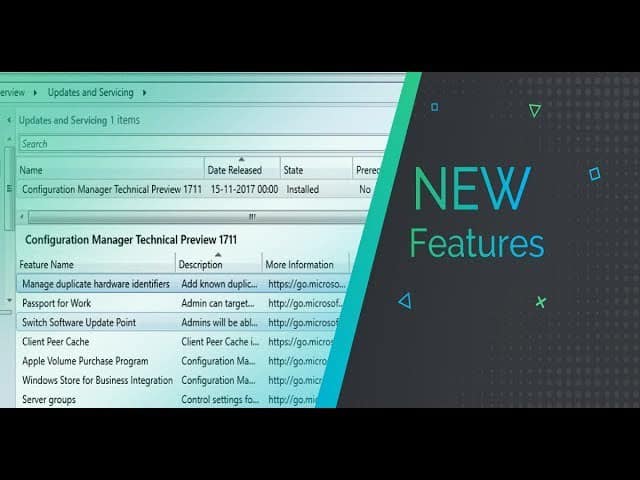
This post and video tutorial will cover the SCCM CB preview 1711 upgrade and new features. This is not a production version of SCCM CB.
Hence, we are not supposed to install this version in production environments. SCCM CB 1711 is the preview version and should be installed only in a lab environment.
The preview version does not allow us to install CAS and secondary servers, and the prerequisite for installing the SCCM CB 1711 preview version has not changed.
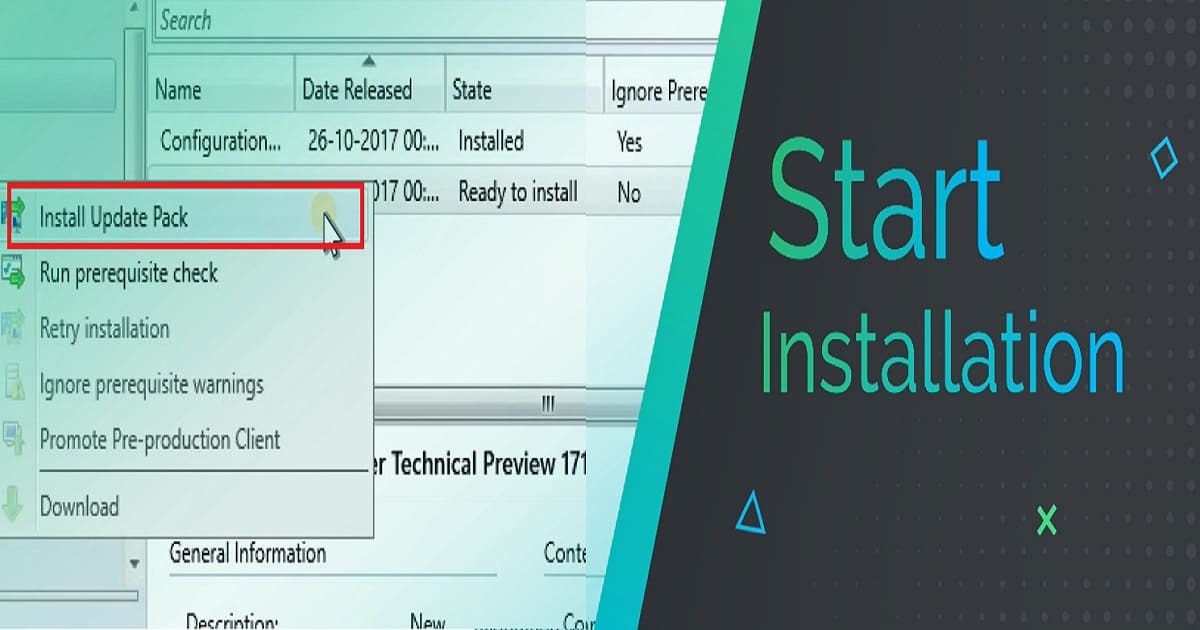
The SCCM CB update and servicing process are the same as before. Once the latest version of the preview is released, the update will be available in the SCCM console.
The SCCM CB preview version is similar to the Windows Insiders program, which helps SCCM admins test the new SCCM CB features. Before installing this technical preview, you can review the limitations of the SCCM CB version.
Configuration Manager SCCM CB Preview 1711 Upgrade New Features ConfigMgr
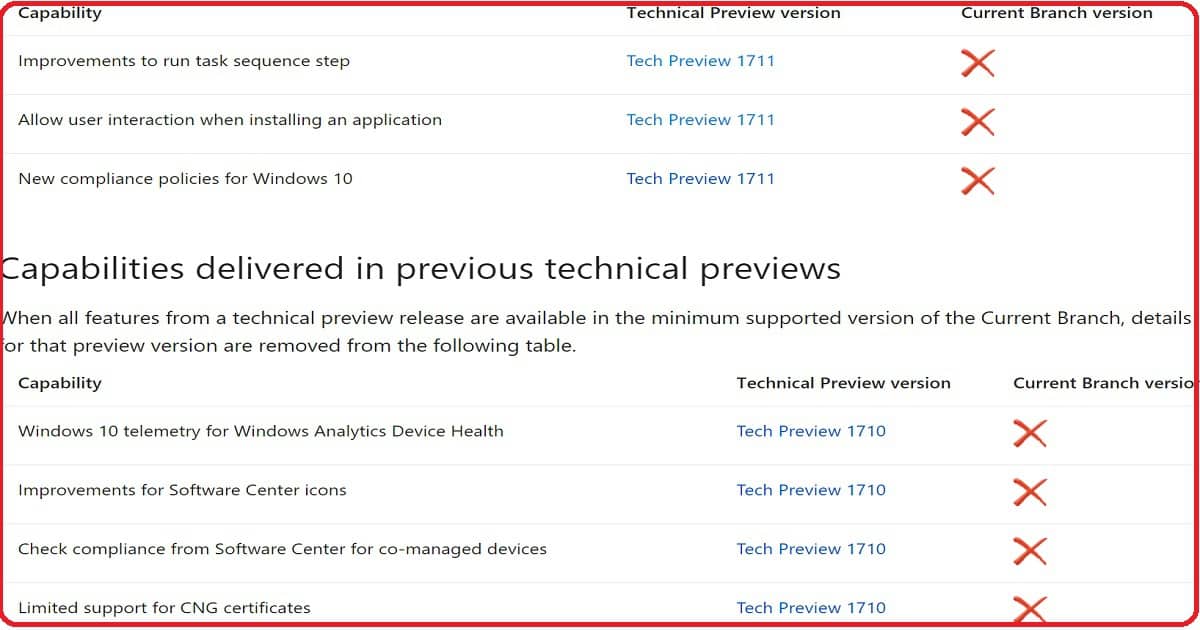
When all features from a technical preview release are available in the minimum supported version of the current branch details or that preview version is removed from the following table, shown in the screenshot below.
Configuration Manager SCCM CB Preview 1711 Upgrade New Features ConfigMgr – Fig.1
How to Create an SCCM CB Preview Version Lab Environment?
Have you installed an SCCM CB preview version? If not, you can download the latest baseline version of ConfigMgr SCCM CB Technical Preview. One version of the SCCM preview has a maximum validity of only 3 months (90 days).
Configuration Manager SCCM CB Preview 1711 Upgrade New Features ConfigMgr – Fig.2
New Features of SCCM CB 1711 Preview Version
Following are the three highlighted features of the SCCM CB 1711 preview version. But, Ronni has blogged about another exciting feature in his blog post. More details about that “SCCM: Enable Desktop Clients as PXE Servers.”
Improvements to run task sequence step
Allow user interaction when installing an application
New compliance policies for Windows 10
Nesting of Task Sequence In the task sequence editor, click Add, select General, and click Run Task Sequence. Click Browse to choose the child task sequence.
Allow user interaction when installing an application. You can allow an end-user to interact with an application installation while running the task sequence.
During the task sequence progress, the application installation interface appears on the target end-user device. The task sequence progress pauses until the end-user completes the application installation workflow.
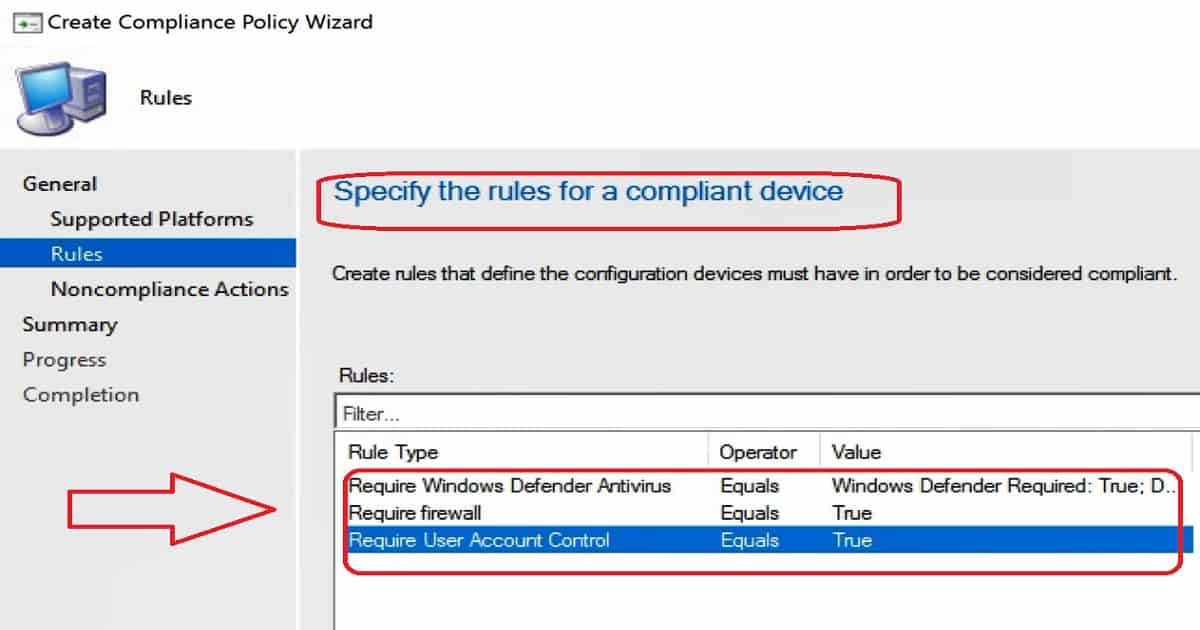
New compliance policy options for Windows 10: You can check whether the Firewall software is enabled on Windows 10 machines. If not enabled, you can block access to company resources. You can also check whether UAC is enabled on Windows machines.
If not enabled, you can block access to company resources. Defender verification is also possible via Windows 10 compliance policies through the SCCM console.
We are on WhatsApp now. To get the latest step-by-step guides, news, and updates, Join our Channel. Click here. HTMD WhatsApp.
Author
Anoop C Nair is Workplace Technology solution architect with 25+ years of experience in global enterprise organizations such as JP Morgan, Capgemini, etc. He is Microsoft Certified Trainer. Microsoft MVP from 2015 onwards for consecutive 11 years! He also conducts Intune and modern workplace tech training for enterprise organizations. He is Blogger, Speaker, and Founder of HTMD Community and HTMD Conference. His focus is on Device Management technologies such as Intune, Windows, Cloud PC, He writes about technologies like Intune, SCCM, Windows, Cloud PC, Windows, Entra, Microsoft Security.
Let’s learn how to set up SCCM Azure AD User Discovery ConfigMgr. The Azure Active Directory user discovery feature was added to SCCM in 1706 and later versions.
Azure AD user discovery helps deploy applications to Azure AD users. It enables the deployment of apps to AAD users in a co-management scenario.
Azure AD User Discovery can be configured from the Administration workspace – Cloud Management. This post will see “Video Tutorial on How to Setup SCCM Azure AD User Discovery.”
SCCM Azure AD user discovery involves discovering specific users from Azure AD. The details of these users will be stored in SCCM DB.
How to Setup SCCM Azure AD User Discovery ConfigMgr – Video 1
What is SCCM Azure AD User Discovery?
This provides deeper visibility of Azure AD user properties, which SCCM could use to target Azure AD users’ applications.
Where are Azure AD User Discovery Configurations?
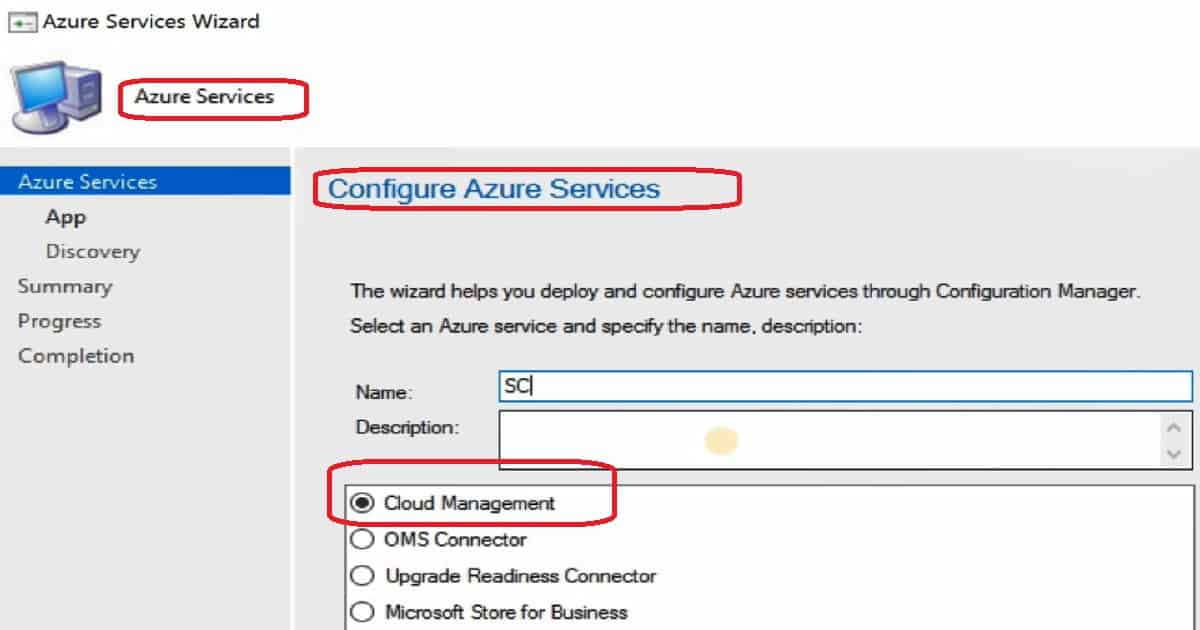
In the SCCM console, navigate through Administration- Cloud Services – Azure Services – Cloud Management. You don’t have to use the Azure portal to create server and client applications.
Instead, the following SCCM Azure service Wizard helps create apps in Azure and schedule the Azure AD User Discovery configurations.
How to Setup SCCM Azure AD User Discovery ConfigMgr – Fig.1
How Do You Create Azure Server and Client Apps from the SCCM Console?
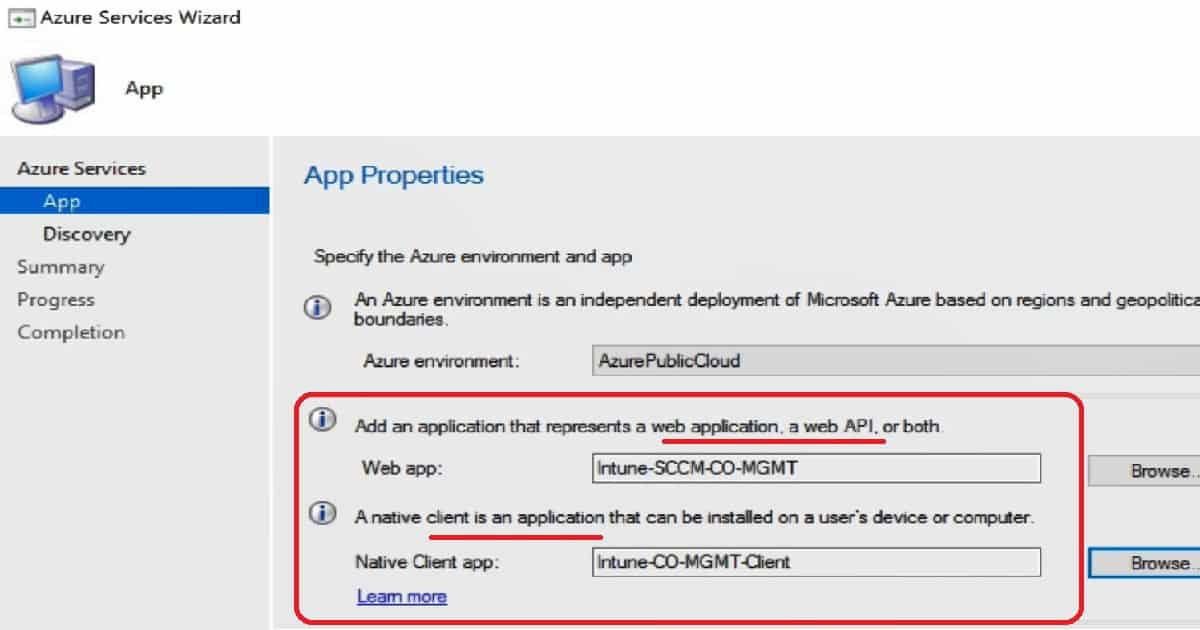
As part of the Azure AD user discovery process, we must create connectivity between the on-prem SCCM CB server and Azure AD. This is done through Azure server-side and client-side applications (more details in the section below). We can create these apps using the Azure Services Wizard in the SCCM console.
We need to create Azure Apps using Azure AD admin credentials. Once successfully authenticatedwith Azure AD, SCCM helps you create the two apps mentioned in the screenshot below.
Creating applications is straightforward, as seen in the video tutorial. Enter the Application Name, Home Page URL, and APP ID URI—any URL is OK. You don’t want a proper working URL; any URL will be OK. The secret critical Validity period is one year, and the Azure AD admin account signs in.
Azure AD tenant names will automatically populate when you authenticate with Azure AD. It would help to have an internet connection on the SCCM console’s server.
How Do You Configure Azure AD User Discovery Settings?
Unlike SCCM Active Directory discovery, configuring SCCM Azure AD user discovery does not allow you to select a particular OU. Instead, the discovery runs for the entire tenant.
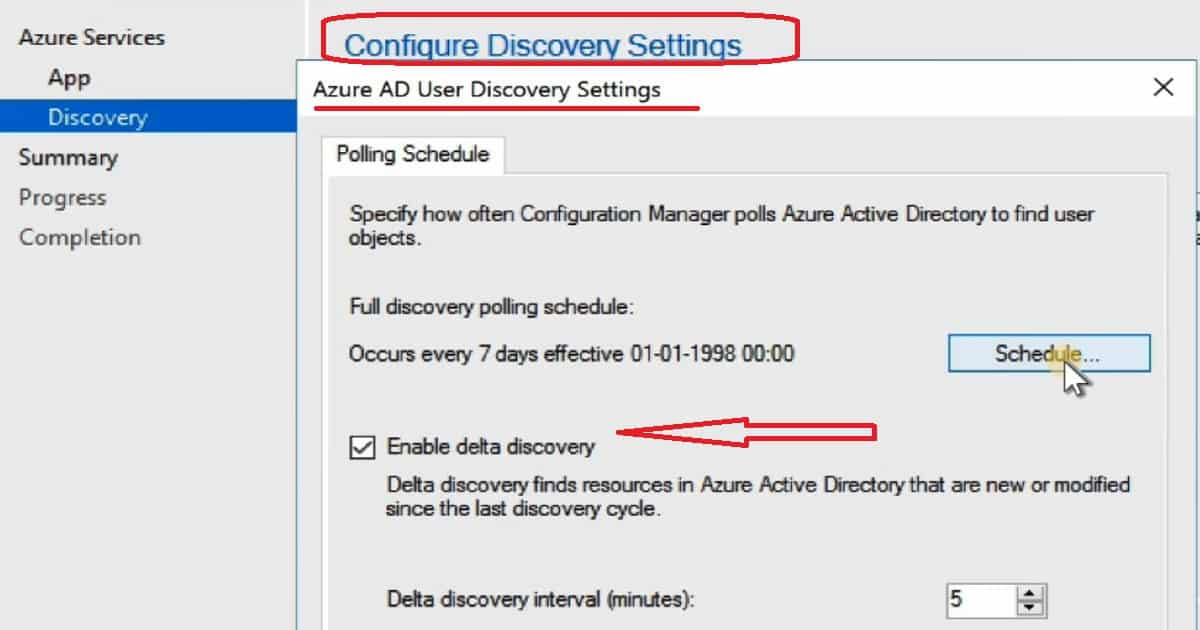
The Azure Services Wizard offers the option to Enable Azure AD discovery settings. Configure the settings to discover resources in Azure AD. When the resources are discovered, SCCM CB creates records in its Database. The SCCM Azure AD user discovery Schedule has two options.
The default settings for complete Azure AD user discovery occur every 7 days. The delta discovery interval is 5 minutes. Delta discovery finds resources in Azure AD that have been new or modified since the last discovery cycle.
Full Azure AD User Discovery
Delta Azure AD User Discovery
Permission Required for SCCM Azure AD User Discovery
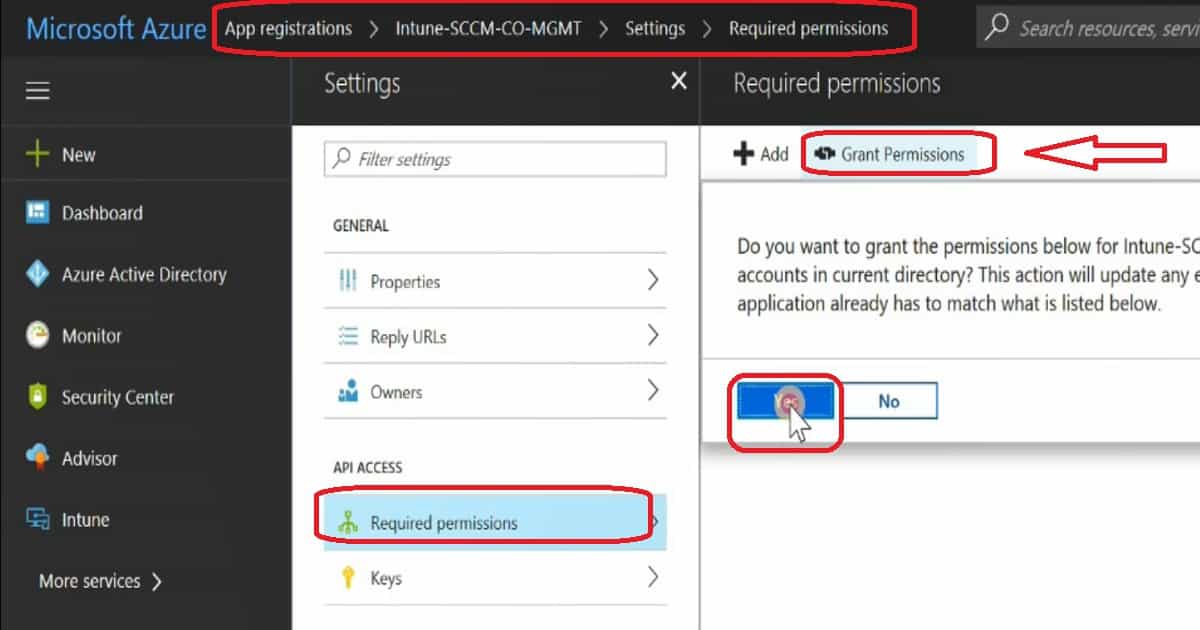
We have created two Azure apps (Server and Client) in the Azure App Registration blade. Select the server application and client application – click on Settings and select the Required Permission button.
Click on Grant Permissions to provide SCCM access to discover the Azure AD users. Repeat the same steps for the Client application.
How to Setup SCCM Azure AD User Discovery ConfigMgr – Fig.2
Troubleshooting – SCCM Azure AD User Discovery – Issues
SMS_AZUREAD_DISCOVERY_AGENT.log is where you can trace the details of Azure AD User Discovery.
Full Azure AD User Discovery Sync – Details
Full discovery sync details of Azure AD user discovery are recorded in the log file called SMS_AZUREAD_DISCOVERY_AGENT.log.
Initializing Task Execution Manager instance as SMS_AZUREAD_DISCOVERY_AGENT. $<SMS_AZUREAD_DISCOVERY_AGENT><11-13-2017 10:24:22.056-330><thread=4184 (0x1058)>
Starting component SMS_AZUREAD_DISCOVERY_AGENT~~ $<SMS_AZUREAD_DISCOVERY_AGENT><11-13-2017 10:24:22.165-330><thread=4184 (0x1058)>
Component SMS_AZUREAD_DISCOVERY_AGENT started successfully.~~ $<SMS_AZUREAD_DISCOVERY_AGENT><11-13-2017 10:24:22.712-330><thread=4184 (0x1058)>
Azure AD Discovery Worker starts.~~ $<SMS_AZUREAD_DISCOVERY_AGENT><11-13-2017 10:24:27.353-330><thread=4204 (0x106C)>
Subscribing to Registry Hive: LocalMachine, KeyPath: SOFTWARE\Microsoft\SMS\COMPONENTS\SMS_AZUREAD_DISCOVERY_AGENT, FilterType: ValueChange, WatchSubTree: False~~ $<SMS_AZUREAD_DISCOVERY_AGENT><11-13-2017 10:24:27.369-330><thread=4204 (0x106C)>
Registry Watcher started~~ $<SMS_AZUREAD_DISCOVERY_AGENT><11-13-2017 10:24:27.385-330><thread=4204 (0x106C)>
Successfully subscribed listener to registry key.~~ $<SMS_AZUREAD_DISCOVERY_AGENT><11-13-2017 10:24:27.385-330><thread=4204 (0x106C)>
AAD sync manager for cloud service ID=16777217 started. ~~ $<SMS_AZUREAD_DISCOVERY_AGENT><11-13-2017 10:24:44.541-330><thread=4204 (0x106C)>
Full sync for cloud service ID=16777217 will start immediately. ~~ $<SMS_AZUREAD_DISCOVERY_AGENT><11-13-2017 10:24:44.604-330><thread=4204 (0x106C)>
Graph API version changed to 1.6~~ $<SMS_AZUREAD_DISCOVERY_AGENT><11-13-2017 10:24:45.510-330><thread=4204 (0x106C)>
Query batch size changed to 100~~ $<SMS_AZUREAD_DISCOVERY_AGENT><11-13-2017 10:24:45.526-330><thread=4204 (0x106C)>
Max Json length changed to 33554432~~ $<SMS_AZUREAD_DISCOVERY_AGENT><11-13-2017 10:24:45.572-330><thread=4204 (0x106C)>
AAD full sync initialized for tenant 67bb8c6d-7266-4faa-a290-5edd572c2210, with server app 7f81b297-e94e-4767-b44a-b0a191f32989.~~ $<SMS_AZUREAD_DISCOVERY_AGENT><11-13-2017 10:24:46.416-330><thread=4204 (0x106C)>
ERROR: Sync request failed. Error: Microsoft.IdentityModel.Clients.ActiveDirectory.AdalServiceException: Service returned error. Check
Delta Azure AD User Discovery sync – Details
Let’s find out more details from the log files SMS_AZUREAD_DISCOVERY_AGENT.log.
INFO: UDX was written for user TESTSyc@anoopc.onmicrosoft.com - C:\Program Files\Microsoft Configuration Manager\inboxes\auth\ddm.box\userddrsonly\___mrxm4stp.UDX at 06-11-2017 16:10:11.~~ $<SMS_AZUREAD_DISCOVERY_AGENT><11-06-2017 16:10:11.412-330><thread=2552 (0x9F8)>
Successfully published UDX for Azure Active Directory users.~~ $<SMS_AZUREAD_DISCOVERY_AGENT><11-06-2017 16:10:11.453-330><thread=2552 (0x9F8)>
Total AAD Users Found: 1. Total AAD User Record Created: 1~~ $<SMS_AZUREAD_DISCOVERY_AGENT><11-06-2017 16:10:11.536-330><thread=2552 (0x9F8)>
AAD delta sync completed successfully at 16:10:11. ~~ $<SMS_AZUREAD_DISCOVERY_AGENT><11-06-2017 16:10:11.612-330><thread=2552 (0x9F8)>
Next DELTA sync for cloud service 16777217 will start at 11/06/2017 16:15:11.~~ $<SMS_AZUREAD_DISCOVERY_AGENT><11-06-2017 16:10:11.665-330><thread=2552 (0x9F8)>
AAD delta sync initialized for tenant 67bb8c6d-7266-4faa-a290-5edd572c2210, with server app 7f81b297-e94e-4767-b44a-b0a191f32989.~~ $<SMS_AZUREAD_DISCOVERY_AGENT><11-06-2017 16:15:11.763-330><thread=2552 (0x9F8)>
Successfully acquired access token for server app. ~~ $<SMS_AZUREAD_DISCOVERY_AGENT><11-06-2017 16:15:11.866-330><thread=2552 (0x9F8)>
We are on WhatsApp now. To get the latest step-by-step guides, news, and updates, Join our Channel. Click here. HTMD WhatsApp.
Author
Anoop C Nair is Workplace Technology solution architect with 25+ years of experience in global enterprise organizations such as JP Morgan, Capgemini, etc. He is Microsoft Certified Trainer. Microsoft MVP from 2015 onwards for consecutive 11 years! He also conducts Intune and modern workplace tech training for enterprise organizations. He is Blogger, Speaker, and Founder of HTMD Community and HTMD Conference. His focus is on Device Management technologies such as Intune, Windows, Cloud PC, He writes about technologies like Intune, SCCM, Windows, Cloud PC, Windows, Entra, Microsoft Security.
Anoop C Nair is Workplace Technology solution architect with 25+ years of experience in global enterprise organizations such as JP Morgan, Capgemini, etc. He is Microsoft Certified Trainer. Microsoft MVP from 2015 onwards for consecutive 11 years! He also conducts Intune and modern workplace tech training for enterprise organizations. He is Blogger, Speaker, and Founder of HTMD Community and HTMD Conference. His focus is on Device Management technologies such as Intune, Windows, Cloud PC. He writes about technologies like Intune, SCCM, Windows, Cloud PC, Windows, Entra, Microsoft Security.
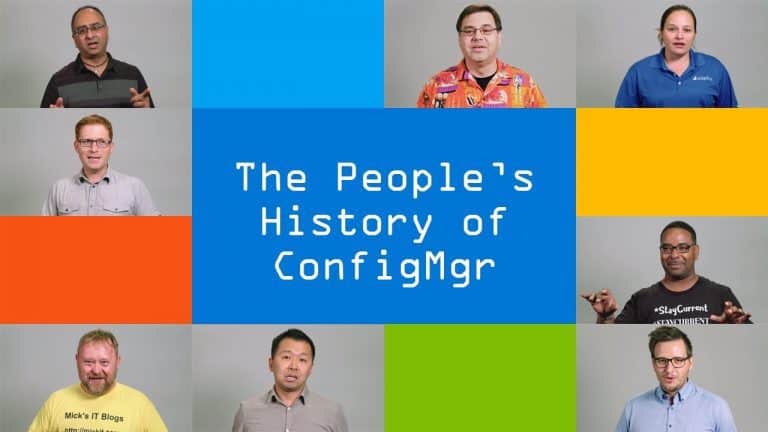
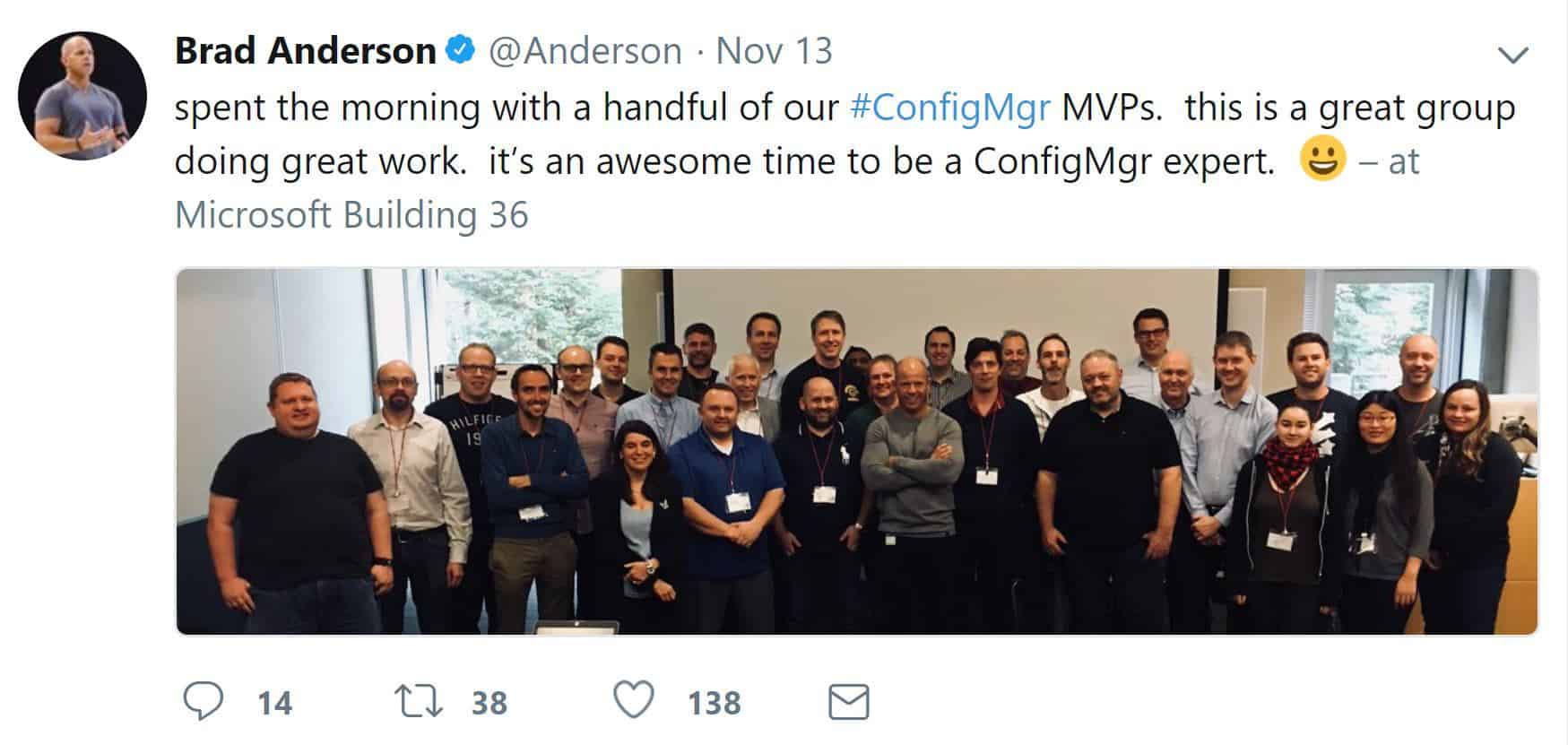
25 Years ConfigMgr Special Microsoft MVP Summit at Redmond SCCM Configuration Manager. It’s a great experience to work with the Microsoft SCCM product group and fellow MVPs to brainstorm and enhance SCCM/ConfigMgr. Microsoft MVP Summit 2017 is special for SCCM MVPs because ConfigMgr reached its 25th anniversary.
SMS’s (the previous version of SCCM) device management journey started in 1992. This post will give us more details about the “25 Years ConfigMgr and Special Microsoft MVP Summit at Redmond.”
I started working with SMS 2003 back in 2005, which was the early stages of my IT career. I enjoyed my career as an SCCM admin, which changed my life.
SCCM has evolved over the years, and so has my career. I switched cities and jobs, but not the product I love.
25 Years ConfigMgr Special Microsoft MVP Summit at Redmond SCCM Configuration Manager
It’s a great experience working very closely with the SCCM product group (developers) and understanding their side of the story. The SCCM product team is developing new, exciting features and getting ready for the next SCCM CB preview release. Loads of innovations are also planned for the SCCM CB 1802 release.
25 Years ConfigMgr Special Microsoft MVP Summit at Redmond SCCM Configuration Manager – Fig.1
This is my third trip to Redmond, and it’s always exciting to learn more about the insides of SCCM products. It was also great to participate in brainstorming sessions with the SCCM product group. The SCCM product team is always ready to listen to MVPs’ real-world challenges and provide solutions for those challenges.
We are on WhatsApp now. To get the latest step-by-step guides, news, and updates, Join our Channel. Click here. HTMD WhatsApp.
Author
Anoop C Nair is Microsoft MVP! He is a Device Management Admin with more than 20 years of experience (calculation done in 2021) in IT. He is a Blogger, Speaker, and Local User Group HTMD Community leader. His main focus is on Device Management technologies like SCCM 2012, Current Branch, and Intune. He writes a
Windows 10 Upgrade Using SCCM Task Sequence. In the previous post, I explained how to Create a Windows 10 1709 Upgrade Task Sequence in SCCM CB.
I didn’t provide details about distributing the Windows 10 1709 content to DPs, Deploying the Task Sequence, or describing the end-user experience of this type of upgrade.
In this post, we will experience the Windows 10 1709 upgrade using the SCCM Task Sequence in video form. The SCCM admin should ensure that the Windows 10 1709 upgrade package is distributed to all the required DPs and that all the contents referenced in the task sequence are replicated to DPs.
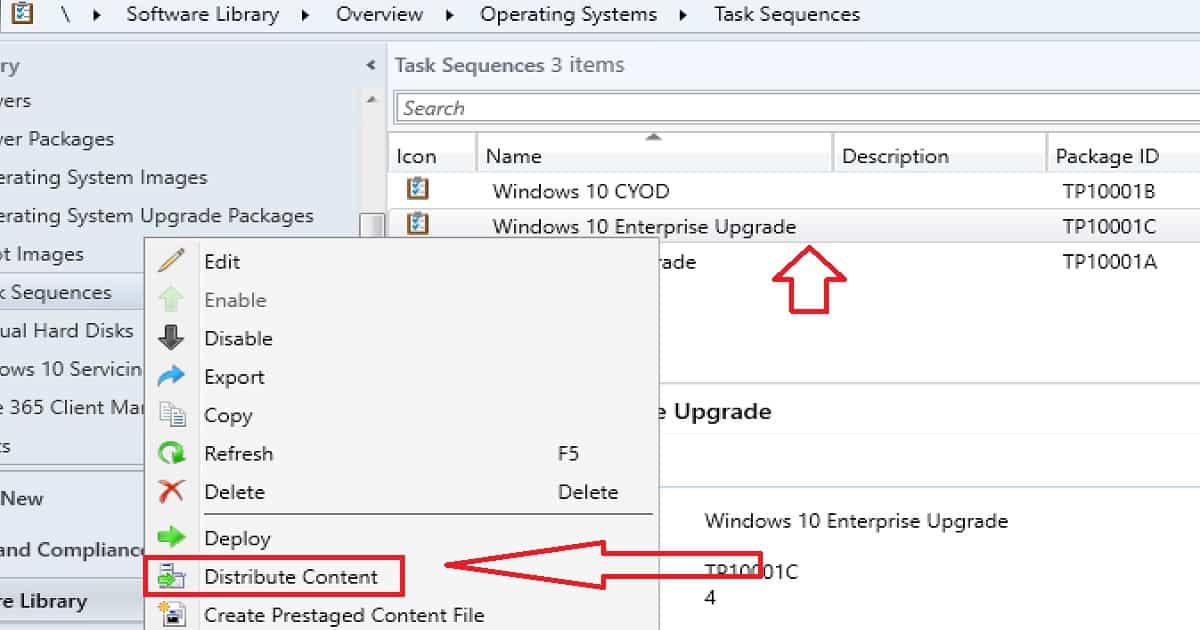
We can start the content distribution from the Windows 10 1709 upgrade task sequence. Right-click on the Task Sequence and click on Distribute Content. This action will initiate the content distribution of all the pending packages.
Learn How to Windows 10 1709 Upgrade Using SCCM Task Sequence– Windows 10 Upgrade Using SCCM Task Sequence
Ensure all the referenced packages in the task sequence are successfully replicated to your DPs. Otherwise, the Windows 10 1709 upgrade will fail.
Windows 10 Upgrade Using SCCM Task Sequence – Video 1
SCCM CB Server Side Preparation for Windows 10 1709 Upgrade – Distribute Required Contents to DPs
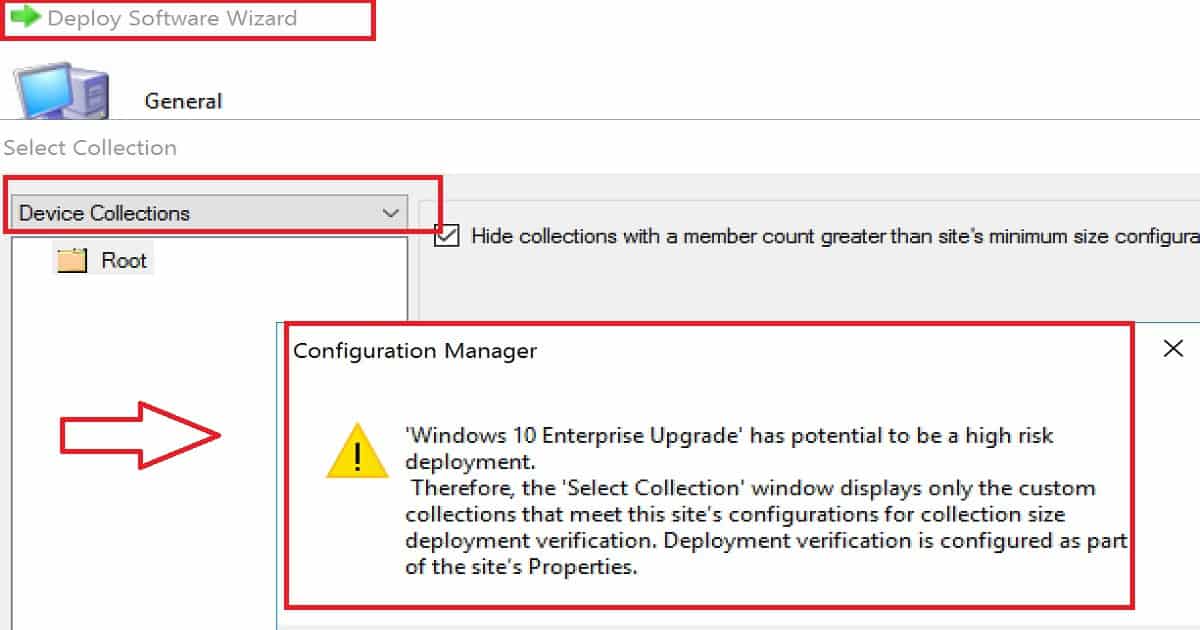
Once the content of all the required applications, packages, and OS upgrade packages have been replicated to DPs, then we can create a deployment. The Task Sequence should be deployed to your environment’s required Windows 10 machines.
Windows 10 Upgrade Using SCCM Task Sequence – Fig.1
Deploy the Task Sequence to Windows 10 1703 Machines
But, don’t deploy the Windows 10 upgrade task sequence to all the Windows 10 1703 machines. The upgrade should be a phase-wise approach. Initially, we should deploy this upgrade task sequence to a couple of Windows 10 machines.
Once those two deployments are successful, we can deploy the task sequence to the next set of test devices. In my opinion, we should start the Windows 10 upgrade deployment as “Available.” The optional task sequence empowers users to upgrade their machines to 1709 whenever they want to.
Windows 10 Upgrade Using SCCM Task Sequence – Fig.2
Windows 10 Client-Side Experience of Upgrade Process
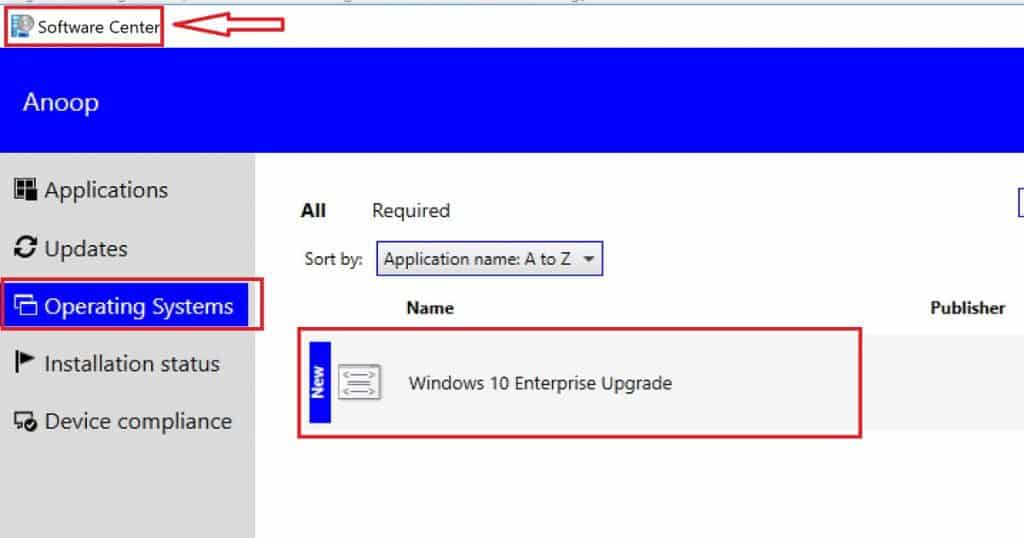
Windows 10 1709 upgrade task sequence will be available in the Software Center. We have created the Windows 10 1709 upgrade task sequence as an optional deployment.
The user must open the Software Center and start the upgrade process. As the video shows, this can be done by clicking on the “Install” button.
Windows 10 Client-Side Experience of Upgrade Process
Software Center
Operating Systems
Windows 10 Enterprise Upgrade
Windows 10 Upgrade Using SCCM Task Sequence – Table 1
Windows 10 Upgrade Using SCCM Task Sequence – Fig.3
All the task sequence steps explained in my previous post are performed as part of the Windows 10 1709 upgrade. The SCCM Windows 10 1709 Upgrade Task Sequence provides more details about the steps.
Windows 10 Upgrade Using SCCM Task Sequence – Fig.4
We are on WhatsApp now. To get the latest step-by-step guides, news, and updates, Join our Channel. Click here. HTMD WhatsApp.
Author
Anoop C Nair is Workplace Technology solution architect with 25+ years of experience in global enterprise organizations such as JP Morgan, Capgemini, etc. He is Microsoft Certified Trainer. Microsoft MVP from 2015 onwards for consecutive 11 years! He also conducts Intune and modern workplace tech training for enterprise organizations. He is Blogger, Speaker, and Founder of HTMD Community and HTMD Conference. His focus is on Device Management technologies such as Intune, Windows, Cloud PC, He writes about technologies like Intune, SCCM, Windows, Cloud PC, Windows, Entra, Microsoft Security.