Let’s discuss how to Schedule iOS Automatic Updates Using Intune Policies. Do you have supervised iOS devices managed through Intune?
If so, you may know that iOS software updates will force installation updates on supervised mode iOS devices. Intune has a new policy to prevent/delay these force updates.
This option will also give more granular control over iOS software updates. This post will discuss how to Prevent iOS Automatic Updates Using Intune Policies.
New options have been added to the automatic iOS and iPad OS updates. The following are the exciting options available for this update.
Table of Contents
- Update policy schedule settings
- Update During the scheduled time
- Updates Outside the scheduled time
If you are looking for Windows 10 update ring policies with Intune, I have a blog post titled “How to Setup Windows 10 Software Update Policy Rings in Intune Azure Portal.”
- How to Block OS Updates on iOS Devices using Intune
- New Intune Settings for iOS iPadOS Web Clip App Deployment
- Intune Compliance Report for Device Settings
How to Create iOS Software Update Policies in Intune? iOS Automatic Updates Using Intune
This Intune policy will help delay iOS automatic updates. iOS devices should be part of the Apple DEP program and managed through supervised mode. Create a profile to force assigned devices to automatically install the latest iOS/iPadOS updates.
These settings determine how and when software updates deploy. This profile doesn’t prevent users from updating the OS manually, which can be controlled for up to 90 days with a device configuration restriction policy. Updates will only apply to devices enrolled through Apple’s Automated Device Enrollment (ABM or ASM).
| How to Create iOS Software Update Policies in Intune |
|---|
| Login to the MEM Admin Center portal |
| Navigate via the Devices – iOS/iPad Update Policies (Update policies for iOS/iPadOS) |
| Click on + Create update policy |
| From the Update Policy Settings page for iOS/iPad OS update – The version of iOS/iPadOS to install on devices at the time of update |
You can create a new policy with a proper name and description of the policy. This policy will prevent iOS Automatic Updates from forcefully getting installed on supervised iOS devices.
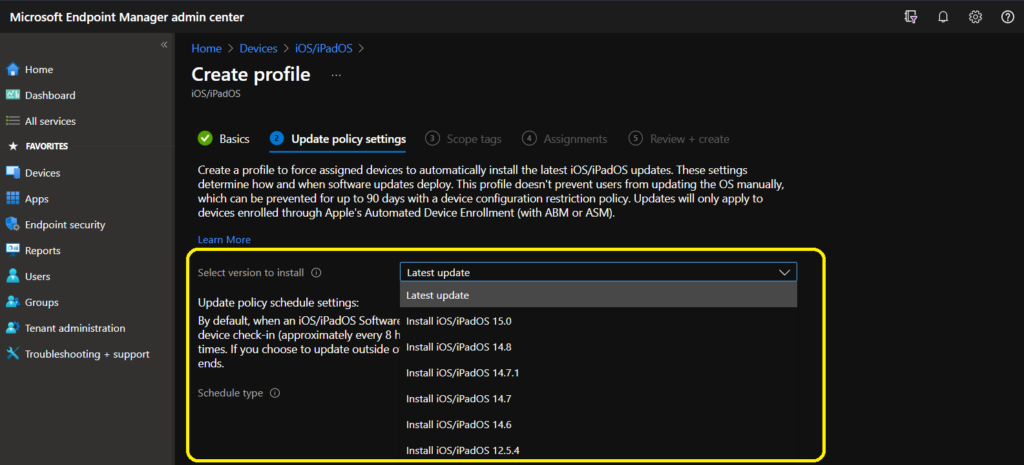
Update Policy Schedule Settings for iOS/iPad OS Devices
Update policy schedule settings: By default, when an iOS/iPadOS Software Updates policy is assigned to a device, Intune deploys the latest updates at device check-in (approximately every 8 hours).
You can instead create a weekly schedule with customized start and end times. If you choose to update outside the scheduled time, Intune won’t deploy updates until the scheduled time ends.
- Select Type and Schedule for iOS update (When the updates will occur. Additional input is required to schedule updates during or outside of scheduled times)
- Update at next check-in
- Update During the scheduled time
- Update Outside of the scheduled time
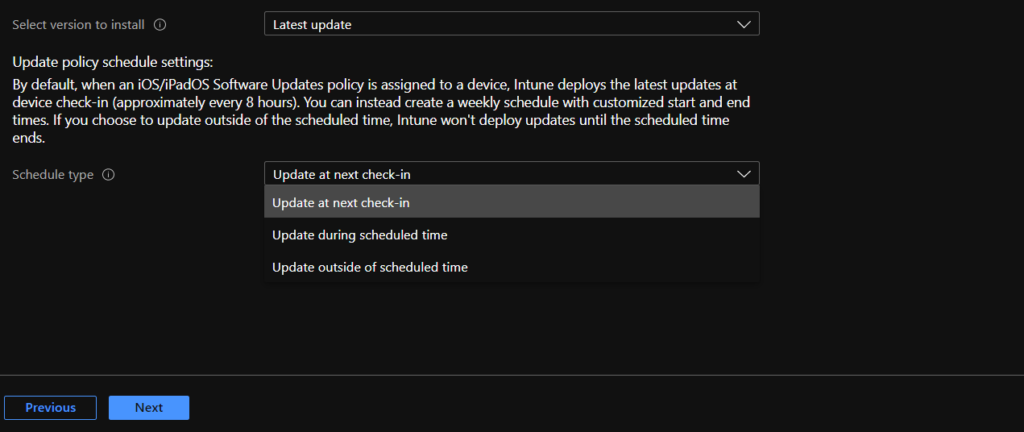
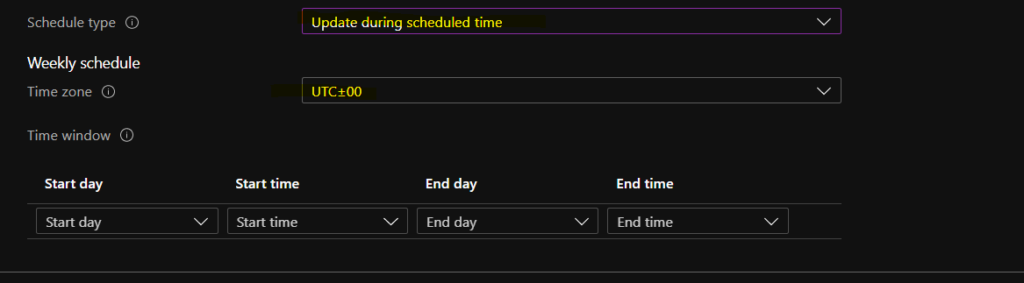
Update During the scheduled time, stop updates from being installed at any random time. By configuring this policy, you can delay the software update (automatic update) of iOS on the device.
Weekly Schedule -> TimeZone, Start Day, Start Time, End Day, End Time
You can select the Time zone, Date, and time for iOS/iPad OS updates. Select the time zone of the targeted devices – In this section, you must select the Time Zone of the devices you want to target for this policy. For the India Time Zone, I selected UTC+5:30.
Start Time—Select the beginning of the interval to stop iOS software updates from Installing on supervised iOS devices. You usually don’t want to install software updates on iOS devices during business hours. This will help you schedule iOS phone updates via Intune policies.
End Time – Select the end of the interval to stop iOS software updates from installing on supervised iOS devices.
Start Day of the update: You can select any day of the week from the start and end day options, from Sunday to Saturday. End the Day of the iOs/iPad OS update by selecting any day between Sunday and Saturday.
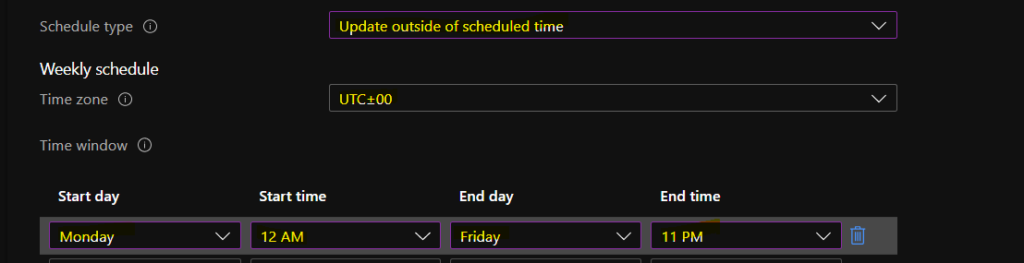
You can select the iOS/iPad updates outside the scheduled time. You must set a scheduled time when you don’t want this update to happen on iOS devices. The update will be initiated outside the scheduled time configured below.
How to Deploy or Assign Intune iOS Software Update Prevention Policy?
Once the Intune iOS Automatic Updates prevention Intune Policy is created, you can start assigning this policy to Azure AD Device groups. Deploy Updates Prevention Policy to iOS Devices.
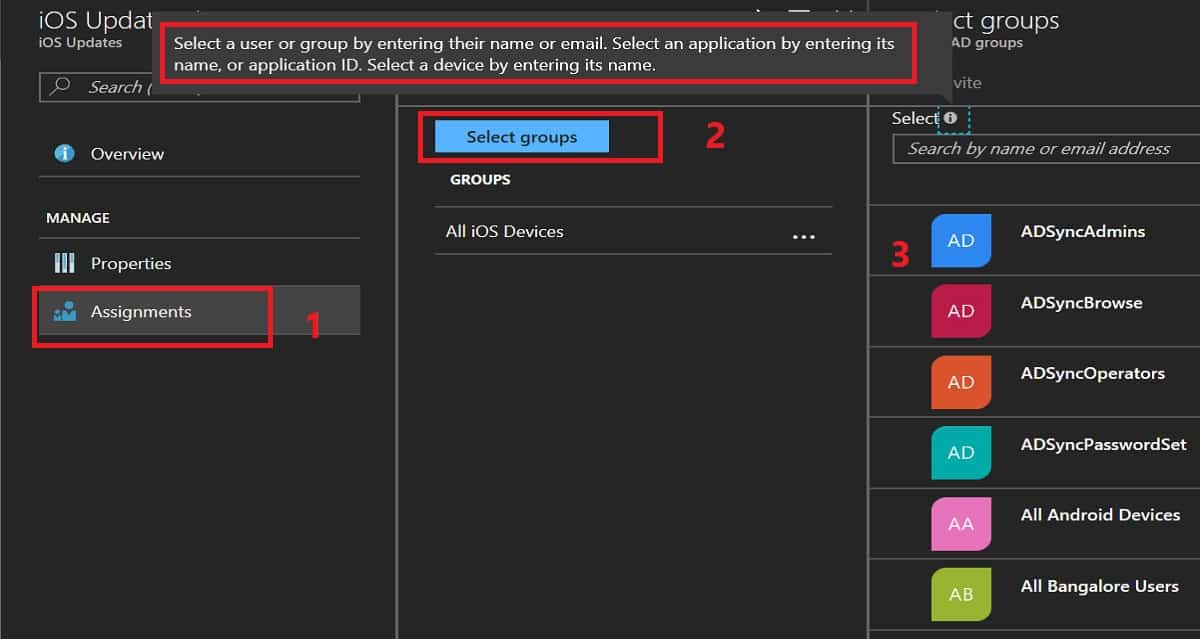
Select Assignments—Click on Select Groups to find the appropriate Azure AD group to target the iOS update prevention policy. Once the policy is deployed to devices, the iOS software update will be postponed.
It would help to be careful about the policy settings while targeting the AAD device groups. In the policy configuration, there is an option to configure the devices’ time zones. Time zone configuration in this policy is a bit tricky.
It seems we need to segregate devices according to their time zones. I have not tested this, but it is my assumption regarding this policy setting. Learn how To Create Azure AD Dynamic Groups For Managing Devices Using Intune.
Reporting options for iOS update policies in Intune are coming soon.
We are on WhatsApp now. To get the latest step-by-step guides, news, and updates, Join our Channel. Click here. HTMD WhatsApp.
Author
Anoop C Nair is Workplace Technology solution architect with 25+ years of experience in global enterprise organizations such as JP Morgan, Capgemini, etc. He is Microsoft Certified Trainer. Microsoft MVP from 2015 onwards for consecutive 11 years! He also conducts Intune and modern workplace tech training for enterprise organizations. He is Blogger, Speaker, and Founder of HTMD Community and HTMD Conference. His focus is on Device Management technologies such as Intune, Windows, Cloud PC, He writes about technologies like Intune, SCCM, Windows, Cloud PC, Windows, Entra, Microsoft Security.
Anoop C Nair is Workplace Technology solution architect with 25+ years of experience in global enterprise organizations such as JP Morgan, Capgemini, etc. He is Microsoft Certified Trainer. Microsoft MVP from 2015 onwards for consecutive 11 years! He also conducts Intune and modern workplace tech training for enterprise organizations. He is Blogger, Speaker, and Founder of HTMD Community and HTMD Conference. His focus is on Device Management technologies such as Intune, Windows, Cloud PC. He writes about technologies like Intune, SCCM, Windows, Cloud PC, Windows, Entra, Microsoft Security.