SCCM (A.K.A ConfigMgr) Explained
SCCM is Microsoft Microsoft Endpoint Manager Configuration Manager. This solution is used by most of the organizations in the world to manage their enterprise devices. This is the best resource to Learn and troubleshoot on issues.
How is SCCM (A.K.A ConfigMgr) Used?
SCCM solution is mainly used to manage Windows devices. But it has rich capability to manage and Mac OS devices as well. As per Microsoft, this tool is managing more than 75% of enterprise devices of the world. Linux and Unix devices are not supported by MEMCM (A.K.A Microsoft Endpoint Manager Configuration Manager)
How CAN SCCM Be Applied to Your Organization?
This solution can be used to install the application within your organization. OS deployment is another feature of this solution used within most of the enterprises. Another important use of this solution is to deploy patches across the enterprise and secure those devices.
There are 1000000 devices managed by this solution around the world. And SCCM device management solution is used within organizations to deploy millions of applications.
Server Client Application
This solution is a server-client application. All the managed clients’ inventory is stored in the CM SQL database.
SCCM Core infrastructure, Updates for Configuration Manager, Supported configurations for Configuration Manager, Cloud-attached management of CM, Co-management for Windows 10,
Manage clients on the internet, Windows as a service, CMPivot, Application management.
Other Uses for SCCM
SCCM can used for Manage apps from the Microsoft Store for Business, OS deployment, Introduction to OS deployment, Upgrade to Windows 10, Phased deployments, Software update management, Introduction to software updates management, Manage Office 365 ProPlus updates.
SCCM MVP community group is one of the known community groups in the IT Industry.
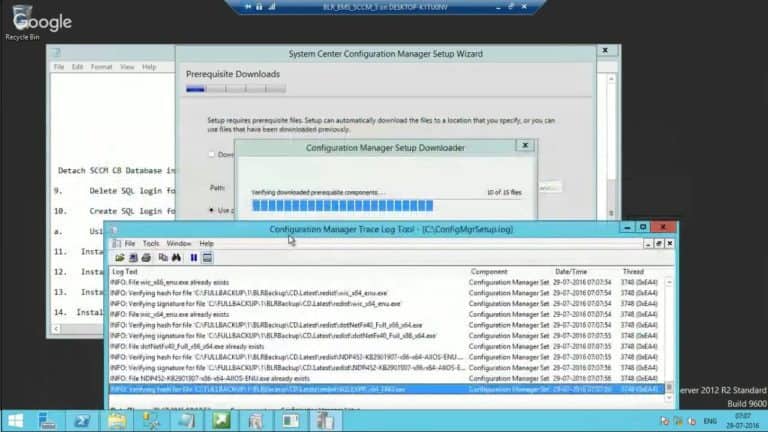
Let’s discuss SCCM ConfigMgr CB: How to Plan Backup Recovery Configuration Manager Best Options. What are the backup and recovery options changes in SCCM ConfigMgr CB 1606? Nothing much changed in terms of backup apart from taking a backup of the CD.Latest folder.
The CD.LATEST folder is also backed up as part of the SCCM CB full backup. Why do we need the CD.LATEST as part of the SCCM CB full backup? This is because it is a source file for when you want to recover an SCCM CB site server!
Why can’t we use the baseline version, which can be downloaded from MSDN/Volume Licensing sites? Those binaries can’t be used because they are not the same version of SCCM CB that is installed in your primary server/CAS.
The baseline version of SCCM CB production is 1511, and if you upgraded/updated the site to SCCM CB 1606 using Updates and Servicing, you can’t use the 1511 version source files to recover the primary site.
When Do You Want to Run SCCM CB Setup from CD.LATEST Folder? – SCCM ConfigMgr CB How to Plan Backup Recovery Configuration Manager Best Options
Only when you are trying to recover a site !! In the following video, I try to explain the process of back and restore. Also, when to select which option during the recovery process.
There is always a question of whether to use SCCM full backup or just SQL backup to restore the functionality of SCCM sites. My answer is, “It depends.”
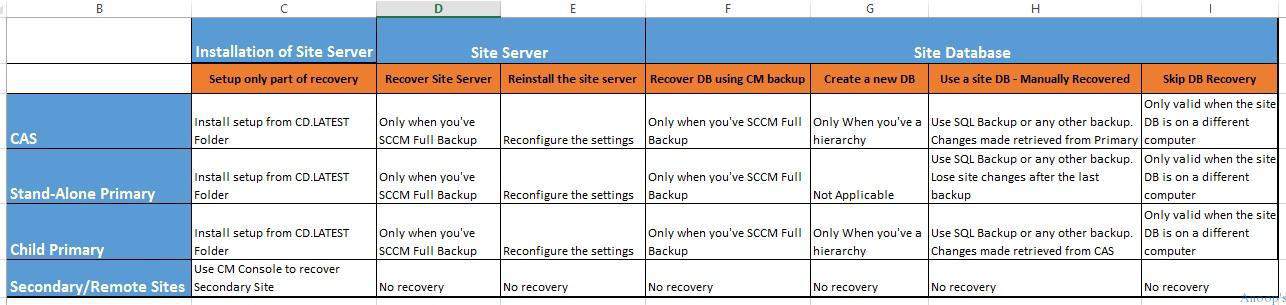
SCCM CB supports both the scenarios mentioned above; however, in some of the scenarios, you may need a full SCCM CB backup to complete the restore. The SCCM restore and recovery come with loads of permutations and combinations, as I explained in the table below and the video above.
SCCM ConfigMgr CB How to Plan Backup Recovery | Configuration Manager Best Options
After watching the video, I hope you will gain some clarity about those scenarios. What are the changes in SCCM CB 1606 Backup and Recovery options—YouTube? SCCM ConfigMgr CB How to Plan Backup Recovery | Configuration Manager Best Options?
SCCM ConfigMgr CB How to Plan Backup Recovery | Configuration Manager Best Options
Table 1: SCCM CB Site Server and Site Database Recovery Options
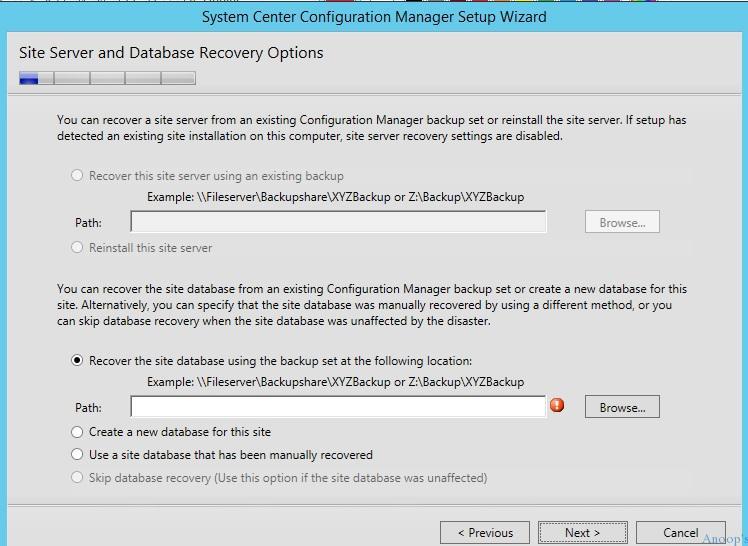
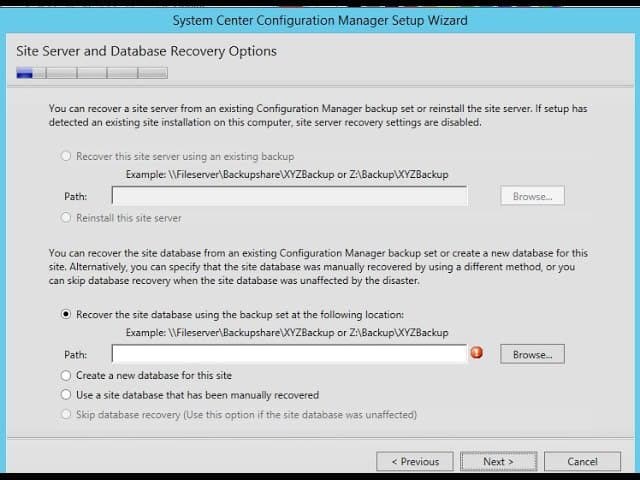
The screenshot below shows the SCCM CB Site Server and Site Database Recovery Options. It shows the SCCM CB Site Server options such as the CAS, Stand-Alone Primary, Child Primary and Secondary Remote Site.
SCCM ConfigMgr CB How to Plan Backup Recovery | Configuration Manager Best Options
Installation
Site Server
Site Database
Setup only part of recovery
Recover Site Server
Reinstall the site server
Recover DB using CM backup
Create a new DB
Manually Recovered DB
Skip DB Recovery
CAS
Install setup from CD.LATEST Folder
Only when you’ve SCCM Full Backup
Reconfigure the settings
Only when you’ve SCCM Full Backup
Only When you’ve a hierarchy
Use SQL Backup or any other backup. Changes made retrieved from Primary
Only valid when the site DB is on a different computer
Stand-Alone Primary
Install setup from CD.LATEST Folder
Only when you’ve SCCM Full Backup
Reconfigure the settings
Only when you’ve SCCM Full Backup
Not Applicable
Use SQL Backup or any other backup. Lose site changes after the last backup
Only valid when the site DB is on a different computer
Child Primary
Install setup from CD.LATEST Folder
Only when you’ve SCCM Full Backup
Reconfigure the settings
Only when you’ve SCCM Full Backup
Only When you’ve a hierarchy
Use SQL Backup or any other backup. Changes made retrieved from CAS
Only valid when the site DB is on a different computer
Secondary
Use CM Console to recover Secondary Site
No recovery
No recovery
No recovery
No recovery
No recovery
No recovery
SCCM ConfigMgr CB How to Plan Backup Recovery | Configuration Manager Best Options
We are on WhatsApp now. To get the latest step-by-step guides, news, and updates, Join our Channel. Click here. HTMD WhatsApp.
Author
Anoop C Nair is Microsoft MVP! He is a Device Management Admin with more than 20 years of experience (calculation done in 2021) in IT. He is a Blogger, Speaker, and Local User Group HTMD Community leader. His main focus is on Device Management technologies like SCCM 2012, Current Branch, and Intune. He writes about ConfigMgr, Windows 11, Windows 10, Azure AD, Microsoft Intune, Windows 365, AVD, etc.
The SCCM Patching Software Update Deployment Process Guide is here for consumption. This guide is, again, a video tutorial to help IT Pros learn the patching (a.k.a. Software Update patching) process using the latest version of SCCM. Patch Software Update Deployment Process Guide.
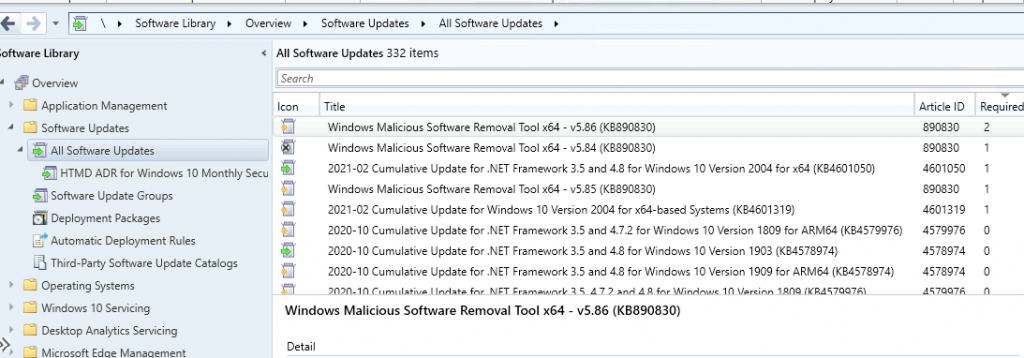
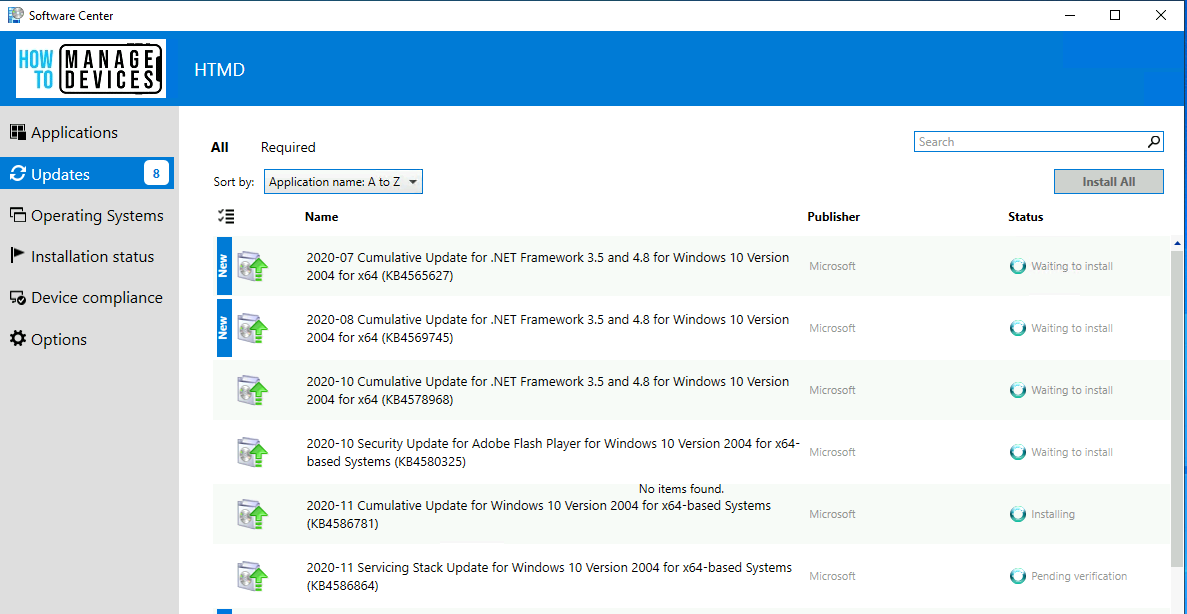
Software updates in SCCM provide tools and resources that can help manage the complex task of tracking and applying software updates to client computers in the enterprise. Patching is one of the essential tasks of SCCM admin.
SCCM patching involves many components and can become very complex if you don’t pay proper attention to the details. Windows Update for Business (WUfB) patching is much easier to set up and manage. However, there is less control over picking and choosing in WUfB. Intune Patch management options are explained in the Software Update Patching Options With Intune Setup Guide.
Best SCCM Patching Software Update Deployment Process Guide
The following video guide is the high-level Patching Guide for SCCM beginners. There is little difference between SCCM 2012 patching and SCCM Current Branch Patching.
I have an old blog post discussing ConfigMgr Patch Management’s Pros and Cons. Some of the points in this post are still valid, so it’s worth reading better to grasp the SCCM patching process and setup scenarios.
In version SCCM 1806, software updates can be deployed to devices without downloading and distributing content to distribution points. This setting is beneficial when dealing with extensively updated content.
What is SCCM Patching?
All software applications and drivers must undergo the software release life cycle, which includes bug fixing and improvements. Each vendor releases a patch to fix bugs in software and drivers. Deploying/installing these patches to one or more systems or devices is called software patching.
Organizations must patch all existing applications. This process helps to keep the environment secure. Software vendors like Microsoft, Adobe, Android, iOS, macOS, Linux, and Unix OS release patches. These patches cover bug fixes for their software.
Best SCCM Patching Software Update Deployment Process Guide – Fig.1
Why a Patching Guide?Patch Software Update Deployment Process
I thought, let me create a quick 25-minute video to cover the software update process in SCCM CB. I tried to briefly overview the end-to-end SCCM Software Update (patching) process.
SCCM Patching Infra Setup Videos – SCCM Patching Process is Explained
This section teaches you how to set up SCCM patching-related infrastructure components such as WSUS and Software Update Point. It also discusses the architecture of SCCM patching infrastructure in the video tutorial below.
Launch Server Manager, Select Destination Server, Select Server Roles, Select Features, Windows Server Update Services, Select Role Services to Install WSUS, Content-Location Selection for WSUS, Database Instance Selection, Web Server Role (IIS), Select Roles Services for IIS, Install & Confirm Installation Selection, Complete WSUS Installation, Cancel WSUS Configuration Wizard, Completion – Install WSUS for ConfigMgr SUP.
Install WSUS for ConfigMgr SUP
Post Installation of WSUS Failed – WSUS service is disabled?
WSUS Reinstallation steps explained
WSUS post-installation was completed without any issues
Best SCCM Patching Software Update Deployment Process Guide – Table 1
Add Site Systems Roles, Select a Server to Use as a Site System, Specify Internet Proxy Server, Specify Roles for this Server, Specify Software Update Point Settings, Specify Proxy & Account Settings for Software Update Point, Specify synchronization source settings, Synchronization Settings, Select Behavior for Software Updates are Superseded, Configure WSUS Maintenance Behavior, Configure Maximum Run Time, Specify Configuration for Software Update Content, Select the Software update classifications that you want to Synchronize, Select the Products that You Want to Synchronize, Specify the Language Settings that you want to Synchronize and Confirm the Settings.
Do Not Set up SUP with Default WSUS Product Selection ConfigMgr SCCM.
Log files to troubleshoot SUPSetup.log, WsyncMgr.log, WCM.log, and WSUSCtrl.log.
Initiate WSUS Sync twice. The first step is to update the category–products list for software update components.
Initiate WSUS Sync second to update the KB articles metadata. This is completed only after the second sync.
The SCCM SUP Product List filtering options are helpful in a scenario where you want to add a new product to the SCCM patching. This SUP product filteroption has been added to the 2203 version of SCCM.
Best SCCM Patching Software Update Deployment Process Guide – Video 2
STEP 3: SCCM Patch Package Creation Process
In this post, let’s check the SCCM patch package creation process. You must complete the following high-level steps in the SCCM patch package or Software Update package creation process.
Prerequisites – New Software Update Patch Package Using SCCM
Select Patches & Create a Software Update Group
Create Software Update Group
Create a New Software Update Patch Package using SCCM
Specify the Distribution Points for this Software Update patch package
Automatically download content when packages are assigned to distribution points
Specify the updated language for products for the SCCM Patching Guide
Download Updates from the Internet for the SCCM Patch Package
Logs PatchDownloader.Log to check the Download
Results – Software Update Package Creation
Deploy SCCM Patch Package to Windows 11 or Windows 10 devices
SCCM Patch Deployment Settings – Available | Required
SCCM Patch Deployment Schedule Options
SCCM Patching Guide – Alert Options for the Patch Deployment
SCCM Patching Process – Download Options
Results from the SCCM Patch Deployment Process
The blog post below explains the end-to-end SCCM patch package creation process. Refer to the post linked below to get the end-to-end details of the SCCM software update patch package.
The following video explains How to Create an ADR Patching Client-Side Issues Application Creation Process Manual in SCCM.
Best SCCM Patching Software Update Deployment Process Guide – Video 3
SCCM patching troubleshooting can also be very complex if you don’t understand the setup of Software Update or SCCM patching. As a first step, you need to understand the entire patching process explained above.
Best SCCM Patching Software Update Deployment Process Guide – Fig.2
Fix SCCM Patching-Related Issues
There could be server-side and client-side issues related to SCCM patching or software updates. You need to check the flows from the client side.
UpdateStore.log to know the status of the updates.
Updatedeployment.log – % of Download completed? Status = ciStateInstalling, PercentComplete = 16,
added to the targeted list of deployment
Progress: Status = ciStateDownloading, PercentComplete = 0, Result = 0x0
Progress: Status = ciStateWaitInstall, PercentComplete = 0, DownloadSize = 0, Result = 0x0
Progress: Status = ciStateInstalling, PercentComplete = 89, DownloadSize = 0, Result = 0x0
Progress: Status = ciStateInstalling, PercentComplete = 100, DownloadSize = 0, Result = 0x0
Progress: Status = ciStatePendingSoftReboot, PercentComplete = 0, DownloadSize = 0, Result = 0x0
Progress: Status = ciStateInstallComplete, PercentComplete = 0, DownloadSize = 0, Result = 0x0
Job completion received.
CCMSDKProvider.log – Get client agent settings…Getting reboot setting whether to show dialog instead of notification
Best SCCM Patching Software Update Deployment Process Guide – Fig.3
Locationservices.log – Check whether it can find WSUS Path= and Distribution Point with patches. WUAHandler.log to check whether the scan is completed or not.
3. Updatedeployment.log—Check for the assignment deadline and Software Updates client configuration policy, DetectJob completion received for assignment, and Added update (Site_, PercentComplete, etc…
4. Execmgr.log – Execution is complete for program Software Updates Program
5. RebootCoordinator.log – Reboot-related things
Best SCCM Patching Software Update Deployment Process Guide – Fig.4
We are on WhatsApp now. To get the latest step-by-step guides, news, and updates, Join our Channel. Click here. HTMD WhatsApp.
Author
Anoop C Nair is Microsoft MVP! He is a Device Management Admin with more than 20 years of experience (calculation done in 2021) in IT. He is a Blogger, Speaker, and Local User Group HTMD Community leader. His main focus is on Device Management technologies like SCCM 2012, Current Branch, and Intune. He writes about ConfigMgr, Windows 11, Windows 10, Azure AD, Microsoft Intune, Windows 365, AVD, etc.
Let’s learn the Video Tutorial on Installing SCCM CB Update Rollup via New Updates and Servicing Channel ConfigMgr. This video tutorial helps you understand the SCCM/ConfigMgr CB Update and Servicing process. Learn how to Install SCCM CB 1602 Update Rollup KB 3155482 via the New Updates and Servicing channel.
Today, Microsoft released a new Update Rollup, KB3155482, for SCCM CB 1602. As seen in the video, it is already available in my LAB setup.
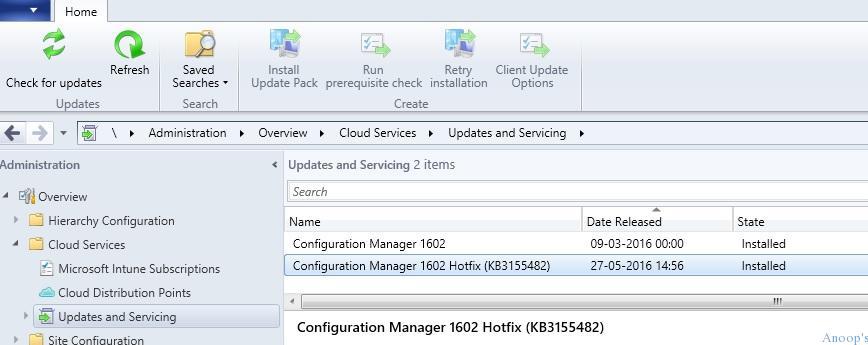
This is available under “\Administration\Overview\Cloud Services\Updates and Servicing“. There are no features in this Update rollup for SCCM 1602 !!!
How to install the Rollup? Right-click on the available update and complete the Wizard !! The update has already been downloaded to C:\Program Files\Microsoft Configuration Manager\EasySetupPayload\59bca34e-df87-4041-b9b7-f53395849e81.
Table of Contents
Video Tutorial How to Install SCCM CB Update Rollup via New Updates and Servicing Channel ConfigMgr – Fig.1
How to Install SCCM CB 1602 Update Rollup via New Updates and Servicing Channel
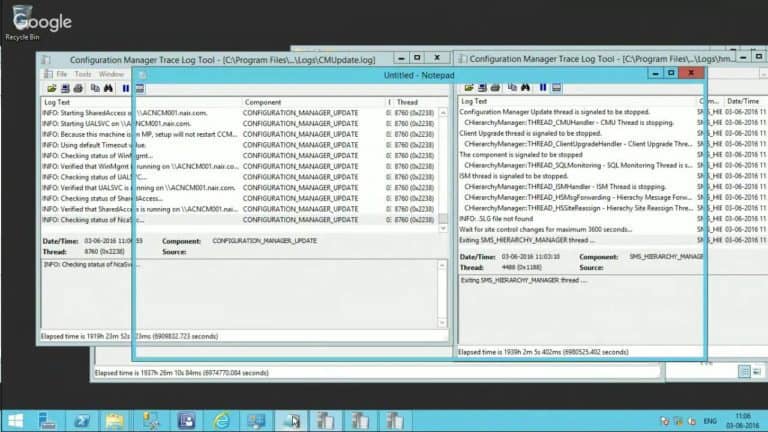
Following are the 3 logs you must keep watching while updating the hotfix. 1) dmpdownloader.log, 2) CMUpdate.log, and 3) hman.log.
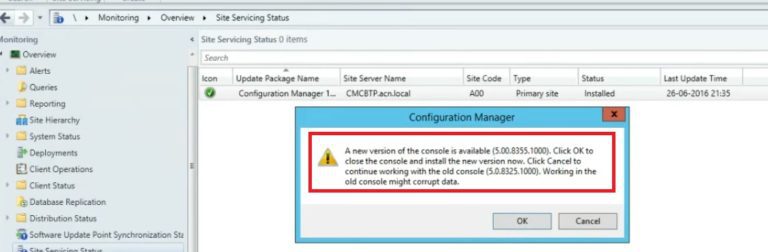
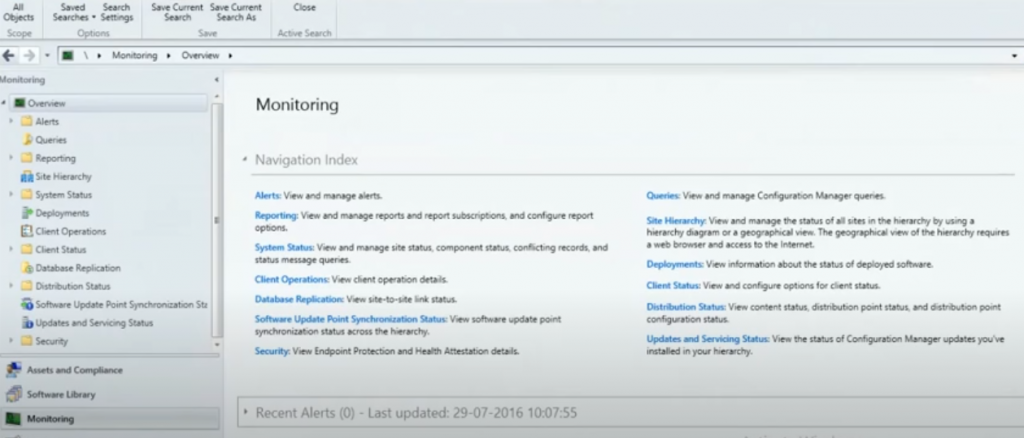
You can also check the status via the SCCM CB console “\Monitoring\Overview\Site Servicing Status“. This video shows an error in the HMAN.log because it could not contact the local AD, which is very specific to my lab. You can safely ignore that 😉
Install SCCM CB Update Rollup
I disabled my internet connection, which resolved the issue of AD connectivity. Video Tutorial: How do I install the SCCM CB Update Rollup via the New Updates and Servicing channel ConfigMgr?
Name
State
Configuration Manager 1602 Hotfix KB3155482
Installed
Video Tutorial How to Install SCCM CB Update Rollup via New Updates and Servicing Channel ConfigMgr – Table 1
Video Tutorial How to Install SCCM CB Update Rollup via New Updates and Servicing Channel ConfigMgr – Fig.2
As you can see in the video, the updated Rollup has been installed successfully. Thank you for watching !!!!
We are on WhatsApp now. To get the latest step-by-step guides, news, and updates, Join our Channel. Click here. HTMD WhatsApp.
Author
Anoop C Nair is Microsoft MVP! He is a Device Management Admin with more than 20 years of experience (calculation done in 2021) in IT. He is a Blogger, Speaker, and Local User Group HTMD Community leader. His main focus is on Device Management technologies like SCCM 2012, Current Branch, and Intune. He writes about ConfigMgr, Windows 11, Windows 10, Azure AD, Microsoft Intune, Windows 365, AVD, etc.
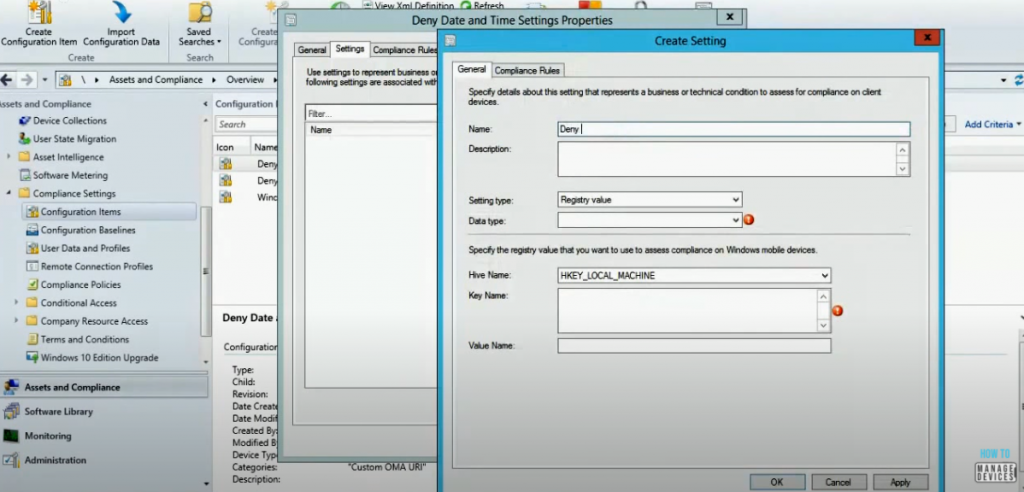
SCCM CB Hybrid Video Tutorial: How to Create and Deploy Custom Policies Using OMA URI? I have created a Video tutorial to help SCCM admins create custom policies in the SCCM/ConfigMgr Current Branch using OMA DM/OMA URI.
The video “How to Create and Deploy Custom Policies using OMA URI and SCCM CB Hybrid” covers the following topics: How to Create and Deploy Custom Policies using OMA URI Configuration Manager.
SCCM is a device management tool for Windows devices. This is a client server application by Microsoft. How to manage devices with this tool for Windows devices? 90% of corporate Windows devices are managed by this tool.
This post provides all the details for creating and deploying custom Policies using OMA URI Configuration Manager SCCM ConfigMgr.
Table of Contents
How to Create Deploy Custom Policies using OMA URI Configuration Manager SCCM ConfigMgr – Fig.1
We are on WhatsApp now. To get the latest step-by-step guides, news, and updates, Join our Channel. Click here. HTMD WhatsApp.
Author
Anoop C Nair is Microsoft MVP! He is a Device Management Admin with more than 20 years of experience (calculation done in 2021) in IT. He is a Blogger, Speaker, and Local User Group HTMD Community leader. His main focus is on Device Management technologies like SCCM 2012, Current Branch, and Intune. He writes about ConfigMgr, Windows 11, Windows 10, Azure AD, Microsoft Intune, Windows 365, AVD, etc.