How to Enable Bitlocker on HyperV and Handle Error Device Cannot Use a Trusted Platform Module? Do you use virtual Windows 10 machines to test the Intune and SCCM policies?
Have you tried to enable BitLocker in a HyperV/VMware virtual machine? Did you ever receive the following error while you tried to enable BitLocker on Windows 10 Virtual Machines?
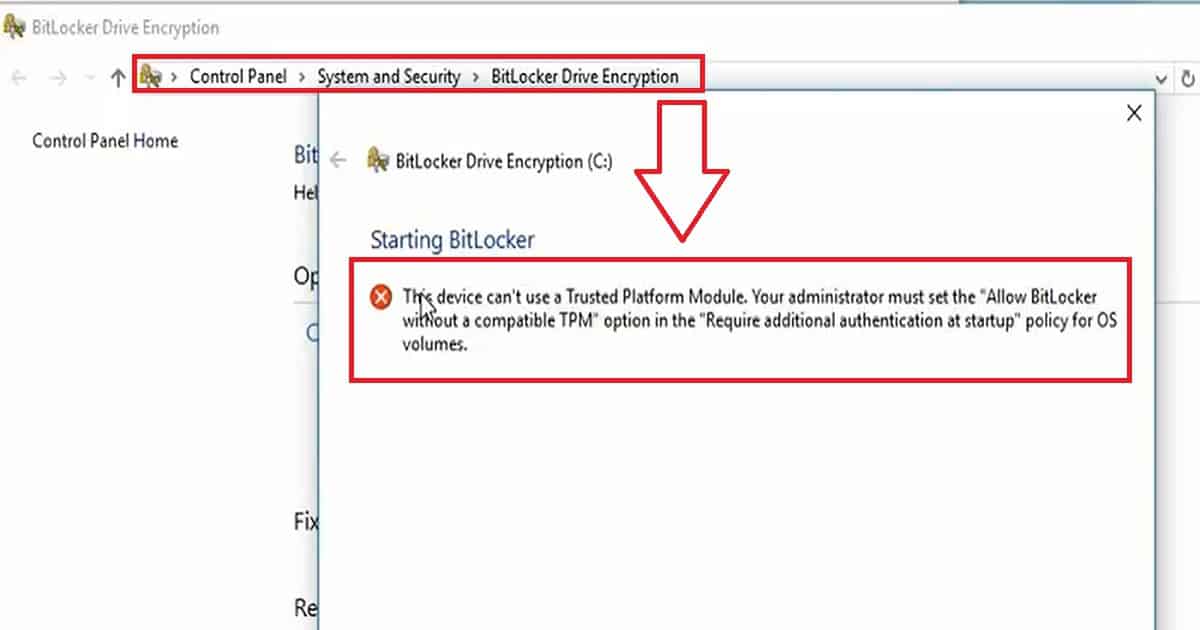
This Device Can’t Use a Trusted Platform module. Your administrator must set the “Allow Bitlocker without a compatible TPM” option for OS volumes in the “Required additional authentication at startup” policy.
The video below provides a more detailed demonstration. This post helps you show more details about enabling Bitlocker on HyperV and handling error devices that cannot use a trusted platform module.
How to Enable Bitlocker on Hyper V Windows10 Virtual Machine
The video demonstrates resolving the error message “This Device Can’t Use a Trusted Platform Module. Your administrator must set the ‘Allow BitLocker without a compatible TPM’ option in the ‘Require additional authentication at startup’ policy for OS volumes.”
How to Enable Bitlocker on HyperV and Handle Error Device Cannot Use a Trusted Platform Module – Video 1
How to Enable Bitlocker on HyperV and Handle Error Device Cannot Use a Trusted Platform Module
Let’s discuss how to enable Bitlocker on HyperV and handle the error device that cannot use a trusted platform module. The screenshot below shows the error message “This device can’t use a Trusted Platform Module.
Your administrator must set the ‘Allow BitLocker without a compatible TPM‘ option in the ‘Require additional authentication at startup’ policy for OS volumes.”
How to Enable Bitlocker on HyperV and Handle Error Device Cannot Use a Trusted Platform Module – Fig.1
How to Enable Bitlocker on HyperV
BitLocker will be automatically enabled on modern instant-go devices like Surface Pro 3, Surface Pro 4, etc. However, for other Windows 10 devices, each user needs to enable BitLocker via another method. BitLocker can be enabled using Windows 10 MDM policies, Group Policies, SCCM Policies, etc.
All the above BitLocker enablement process is more or less straightforward. However, enabling BitLocker on Windows 10 virtual machines is not straightforward. When we try to enable BitLocker from “This PC” or “Control Panel.”
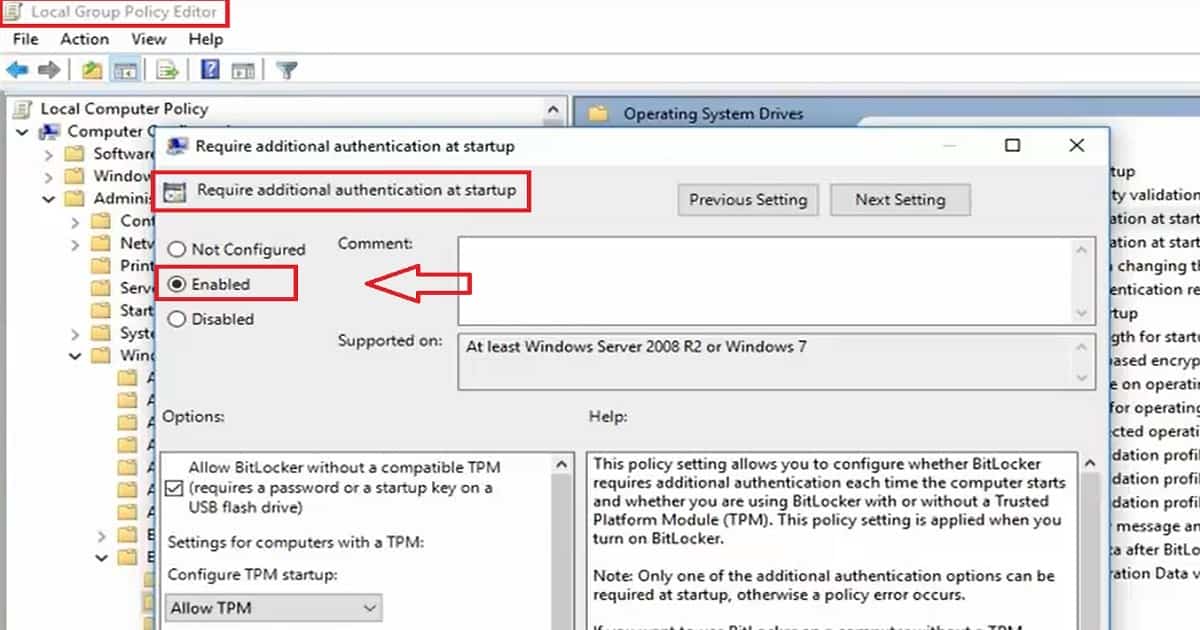
The user needs to enable the following group policy (GPEDIT.MSC) on the Windows 10 VM to eliminate the TPM error while enabling the BitLocker.
Enabling Group Policy to Resolve TPM Error for BitLocker on Windows 10 VM
Local Computer Policy –> Computer Configuration –> Administrative Template –> Windows Components –> Bitlocker Drive Encryption –> Operating System Drives –> Require additional authentication at startup –> ENABLE
How to Enable Bitlocker on HyperV and Handle Error Device Cannot Use a Trusted Platform Module – Fig.2
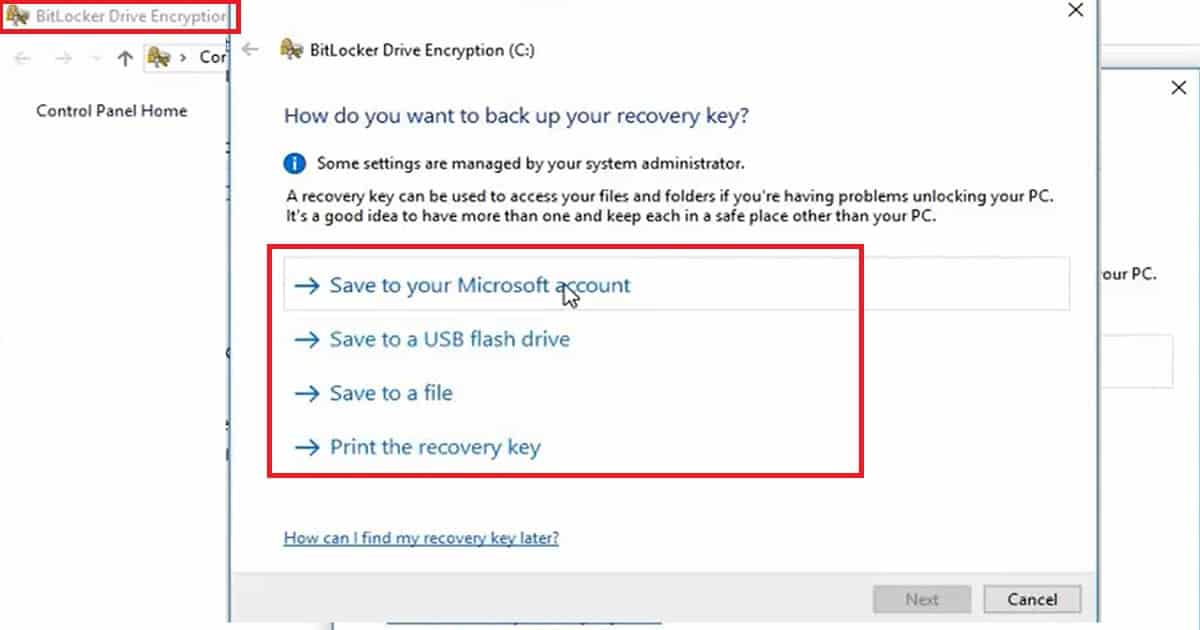
Another important option in the BitLocker enablement process is saving the recovery key. We have four options for saving the BitLocker key: save to your Microsoft accounts, save to a USB flash drive, save to a file, or print the recovery key. How to Enable BitLocker on HyperV and Handle Error Device CanNot Use a Trusted Platform Module.
How to Enable Bitlocker on HyperV and Handle Error Device Cannot Use a Trusted Platform Module – Fig.3
We are on WhatsApp now. To get the latest step-by-step guides, news, and updates, Join our Channel. Click here. HTMD WhatsApp.
Author
Anoop C Nair is Microsoft MVP! He is a Device Management Admin with more than 20 years of experience (calculation done in 2021) in IT. He is a Blogger, Speaker, and Local User Group HTMD Community leader. His main focus is on Device Management technologies like SCCM 2012, Current Branch, and Intune. He writes about ConfigMgr, Windows 11, Windows 10, Azure AD, Microsoft Intune, Windows 365, AVD, etc.
Anoop C Nair is Workplace Technology solution architect with 25+ years of experience in global enterprise organizations such as JP Morgan, Capgemini, etc. He is Microsoft Certified Trainer. Microsoft MVP from 2015 onwards for consecutive 11 years! He also conducts Intune and modern workplace tech training for enterprise organizations. He is Blogger, Speaker, and Founder of HTMD Community and HTMD Conference. His focus is on Device Management technologies such as Intune, Windows, Cloud PC. He writes about technologies like Intune, SCCM, Windows, Cloud PC, Windows, Entra, Microsoft Security.
Intune Application Policy Manager RBA Controls In MEM Portal | Endpoint Manager Role-Based Access? We will discuss the access rights of the built-in Intune RBA role, Intune Application Manager.
Ideally, this role should have access to Manage mobile apps and read device information, depending on the scope of users/devices assigned to it.
Do you know what the scope is? “The users or devices that a specified person (the member) can manage.” If you are an SCCM admin, the SCOPE option is already in SCCM 2012 and the CB console. I have another post that discusses the details of Configuration Manager RBAC.
This post will examine the permissions associated with the Intune application manager build-in role. According to Microsoft documentation, this role ” Manages and deploys applications and profiles.”
Intune Application Policy Manager RBA Controls In MEM Portal
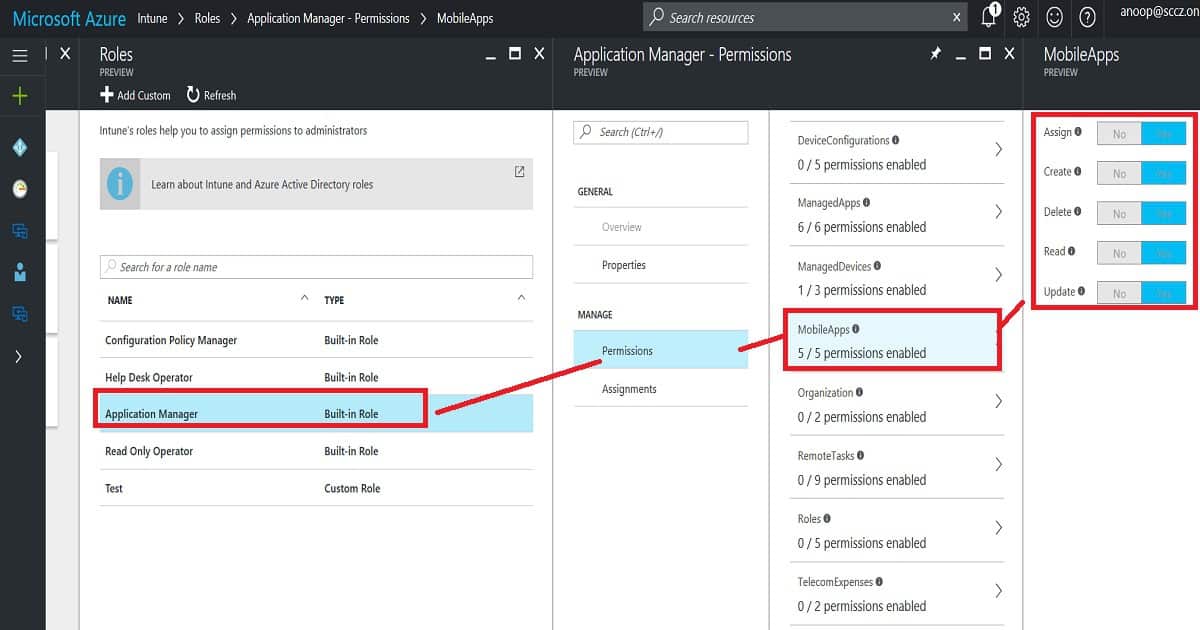
We will dive deeply into this topic and explain the actions an Intune app admin can perform from the MEM portal. Following are the access permissions given to the Intune APP Manager RBAC role.
Intune Application Policy Manager RBA Controls In MEM Portal | Endpoint Manager Role-Based Access – Fig.1
Managed Apps– Intune Application Policy Manager RBA Controls In MEM Portal
Managing your organization‘s IT infrastructure is essential to effectively controlling access to various resources. Here’s a breakdown of permissions for managing apps, devices, and mobile apps.
Assign managed apps to a security group
Create managed apps
Delete managed apps
Read managed apps
Update managed apps
Wipe Managed apps Managed Devices
No Access to delete devices
Access to read device information
No Access to update device properties Mobile Apps
Assign mobile apps to a security group
Create mobile apps
Delete mobile apps
Read mobile apps
Update mobile apps
Mobile Apps
Assign mobile apps to a security group
Create mobile apps
Delete mobile apps
Read mobile apps
Intune Application Policy Manager RBA Controls In MEM Portal | Endpoint Manager Role-Based Access – Table 1
Overall Access Rights of Intune Tiles– Intune Application Policy Manager RBA Controls In MEM Portal
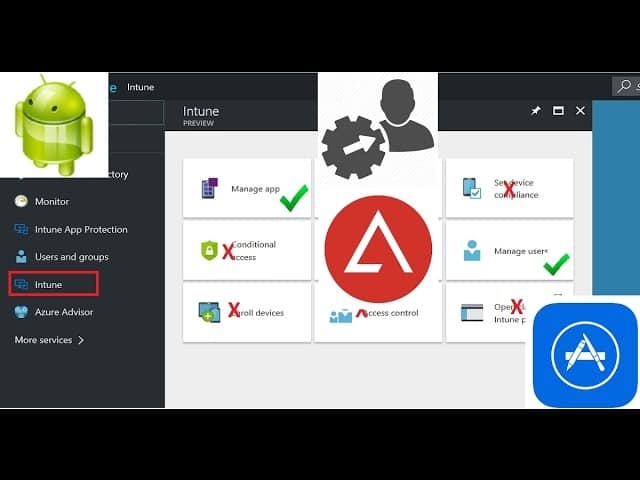
It can administrate some actions in managing apps and configuring device tiles. Access is denied to perform any activities in Conditional Access, Device Enrollment, Access control, and Set device compliance tiles.
You are allowed to set up certificate authority in the Configure devices tile. However, you do not have access to view profiles.
You are allowed to view the device information in the Device and Groups tile.
Access is denied to create/delete new or existing groups or user profiles. It doesn’t matter whether the Intune policy manager is editing the groups in SCOPE. In many places, save and add buttons are enabled, but when we try to save, we get an error.
Access is denied to change device and user settings in the Manage user tile.
Access is denied to the Intune Silverlight console.
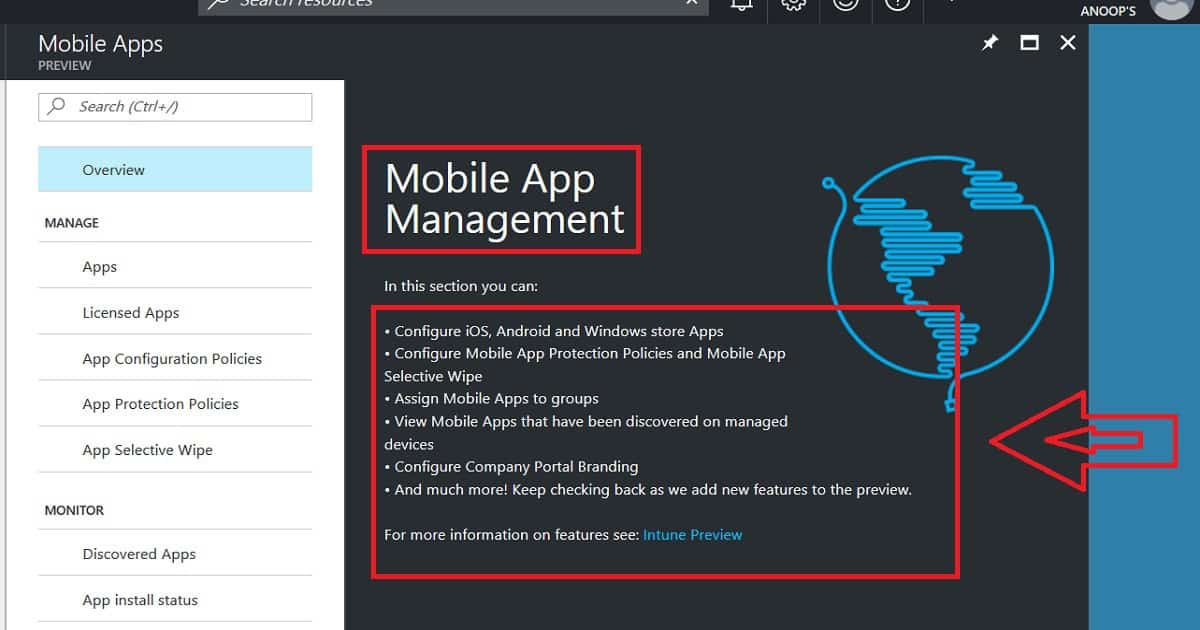
Access is denied to the Intune App Protection section, and Intune mobile application management is not allowed for Intune App Managers. These app protection options are probably part of the Azure portal’s Intune—Manage Apps tab.
Access Rights – Manage Apps (Manage Apps and Mobile Apps) – Intune Application Policy Manager RBA Controls
You can create new mobile apps and edit mobile apps uploaded by admins. Access is Denied to edit the managed apps, which are automatically uploaded.
Access is denied to remove assignments/deployments to a group outside the Intune application manager’s scope.
Access is denied to remove assignments/deployments from a group in the Intune application manager’s scope. This should be allowed!
If the user group is within the scope of the Intune application manager, you can add an assignment to the mobile/manage app.
Access Denied adding an assignment to mobile/manage app if the user group is out of the scope of Intune application manager.
App Protection Policies are getting hung while trying to edit (or create) existing (or new) app protection policies from the Intune App Manager account.
Allowed to perform App Selective wipe option from Intune app manager account. Allowed to perform app selective wipe only on “in scope users/devices”.
Access is denied to edit Company portal Branding from the Intune app manager account.
Intune Application Policy Manager RBA Controls In MEM Portal | Endpoint Manager Role-Based Access – Fig.2
We are on WhatsApp now. To get the latest step-by-step guides, news, and updates, Join our Channel. Click here. HTMD WhatsApp.
Author
Anoop C Nair is Microsoft MVP! He is a Device Management Admin with more than 20 years of experience (calculation done in 2021) in IT. He is a Blogger, Speaker, and Local User Group HTMD Community leader. His main focus is on Device Management technologies like SCCM 2012, Current Branch, and Intune. He writes about ConfigMgr, Windows 11, Windows 10, Azure AD, Microsoft Intune, Windows 365, AVD, etc.
Anoop C Nair is Workplace Technology solution architect with 25+ years of experience in global enterprise organizations such as JP Morgan, Capgemini, etc. He is Microsoft Certified Trainer. Microsoft MVP from 2015 onwards for consecutive 11 years! He also conducts Intune and modern workplace tech training for enterprise organizations. He is Blogger, Speaker, and Founder of HTMD Community and HTMD Conference. His focus is on Device Management technologies such as Intune, Windows, Cloud PC. He writes about technologies like Intune, SCCM, Windows, Cloud PC, Windows, Entra, Microsoft Security.
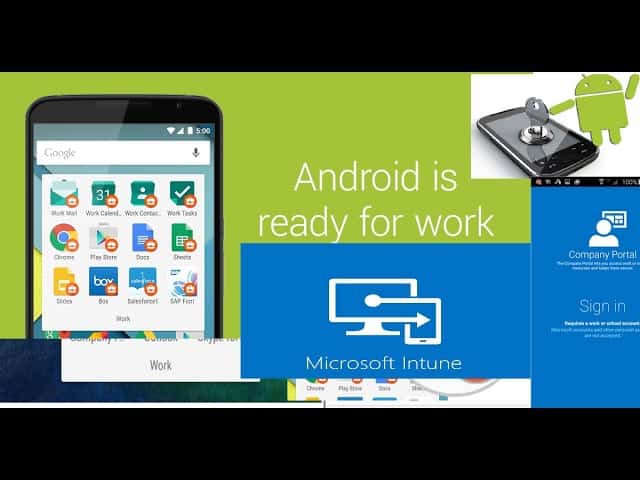
Beginners Guide Intune Android for Work Google Play for Work Setup? Android for work has always been an exciting topic for me. I’m a fanboy of Android devices 🙂 I started testing Intune + SCCM MDM management with Android devices in 2014. I was eagerly waiting for “Android for Work” support with Intune.
Microsoft announced Intune’s supportability for Android for Work (A4W) a few months back. Since then, I have been waiting for an A4W-supported device. Yes, that means all Android devices are not supported by A4W. Here is Google’s list of A4W-supported devices.
The Android work profile feature allows users to have a single device for personal and work purposes. Our guide simplifies the process so that you can efficiently manage these devices using Intune.
Intune Android for Work MDM – Admin Config Enrollment Removal
Let’s talk about managing Intune Android for Work MDM (Mobile Device Management) and how to configure enrollment removal for administrators. The video below explains all the details about Intune Android for Work MDM.
Beginners Guide Intune Android for Work Google Play for Work Setup – Video 1
Beginners Guide Intune Android for Work Google Play for Work Setup
In this post, I will try to cover the prerequisites of Android for Work, Intune portal admin configurations, Adding Google Play apps to Google for Work, Android for Work Device enrollment, Work profile creation, and Removal of Android for the work profile.
First of all, you need to create a baseline of Android devices that you want to support in your environment. Following are some of the points that we need to take care of as part of the Android for Work implementation:-
Beginners Guide Intune Android for Work Google Play for Work Setup – Fig.1
Preparation Work – Android for Work Admin Configurations
Devices with Android 5.0 Lollipop will later only have a work profile and Android for work support as per Google. This has nothing to do with Microsoft and Intune. Some Android for Work settings are available only for Android 6.0 and later.
It’s essential to understand Android for Work does NOT support all android devices in the market- a list of supported devices -is here.
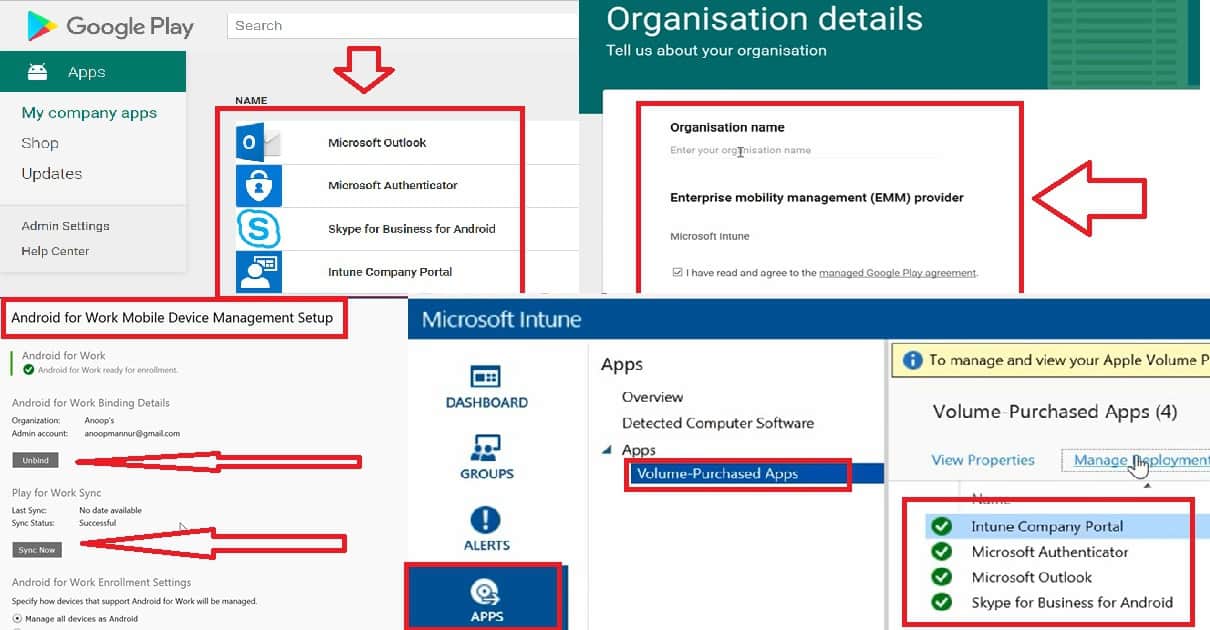
Bind your Intune and Google for Work accounts from the Silverlight Intune portal because this feature is not yet enabled in the Azure Intune blade.
Create a Google account or use an existing account to sign up for Android for Work with the EMM provider.
Add applications from Google Play to the Google for Work store and then sync these apps to Intune. To initiate a new sync between Intune and the Google for Work store, click on the Sync button in the Intune console.
Sync the apps from the Intune console – Admin > Mobile Device Management > Android for Work. After Sync, the apps will be visible under – Intune console – Apps – Volume Purchased app
I recommend using the following option after the pilot testing in your production environment. Enable the option “Manage supported devices as Android for Work – (Enabled) All devices that support Android for Work are enrolled as Android for Work devices. Any Android device not supporting Android for Work is enrolled as a conventional Android device”.
The only caveat is that we don’t have the option to restrict the devices that are NOT supported by Android for Work from enrolling into Intune. Beginners Guide Intune Android for Work Google Play for Work Setup Endpoint Manager | MEM?
Beginners Guide Intune Android for Work Google Play for Work Setup – Fig.2
Notes from the Field – Android for Work Security Policies
As an initial release, Intune is out of the box: “Security and Work profile policies are very limited for A4W”. I suppose you have to combine A4W and Android policies to support Android devices in your organization.
OMA URI custom policies are supported with A4W. However, custom policies, along with Intune, support only a few options. I know only 2 policies supported by this feature, which are WiFi and VPN profiles.
Beginners Guide Intune Android for Work Google Play for Work Setup – Fig.3
End-User Experience – Android for Work
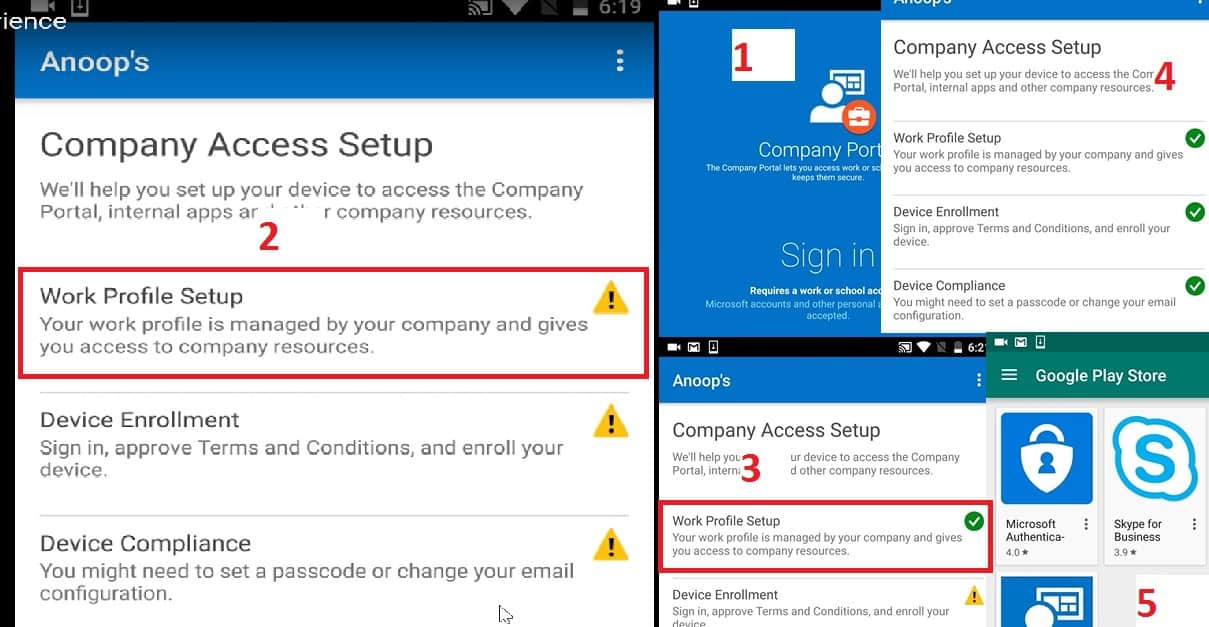
Enrollment of Android for work devices is as straightforward as the normal Android device enrollment for the first part of it. The second part is more towards logging into the Intune company portal from the Android for Work context and continuing the enrollment process.
End-User Experience – Android for Work
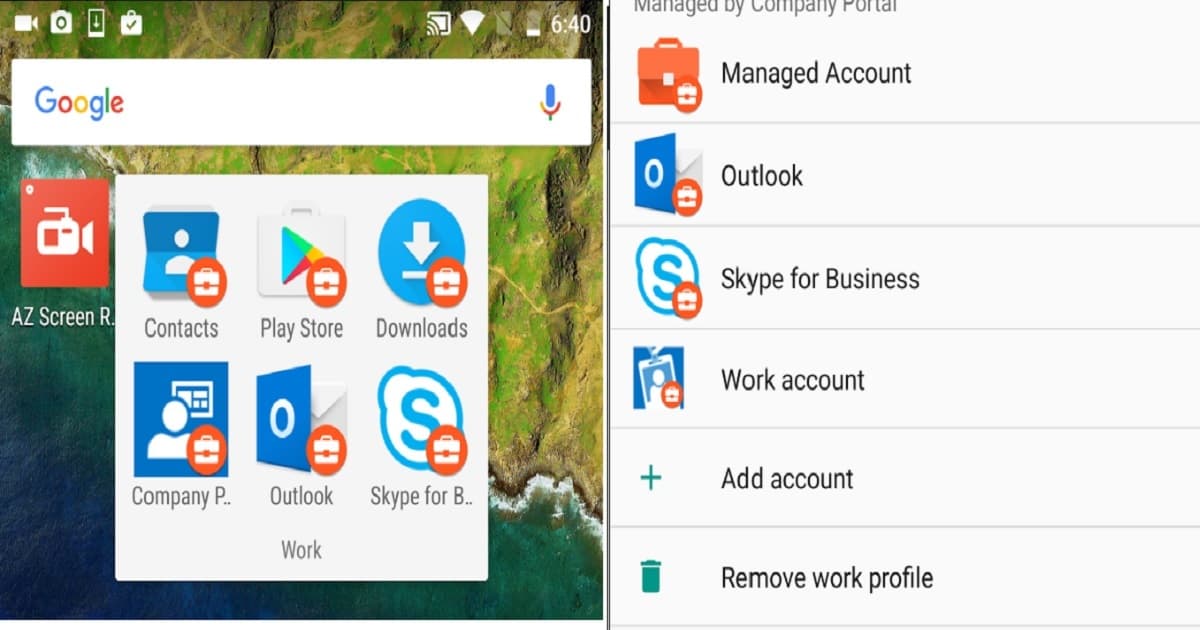
Work profiles on Android devices will get be created via Intune company portal enrollment.
This will happen only for Android for Work supported devices.
If you have a device that is not supported for Android for Work by Google, then the enrollment won’t create a work profile, etc… it will be normal enrollment.
Beginners Guide Intune Android for Work Google Play for Work Setup – Table 1
We are on WhatsApp now. To get the latest step-by-step guides, news, and updates, Join our Channel. Click here. HTMD WhatsApp.
Author
Anoop C Nair is Microsoft MVP! He is a Device Management Admin with more than 20 years of experience (calculation done in 2021) in IT. He is a Blogger, Speaker, and Local User Group HTMD Community leader. His main focus is on Device Management technologies like SCCM 2012, Current Branch, and Intune. He writes about ConfigMgr, Windows 11, Windows 10, Azure AD, Microsoft Intune, Windows 365, AVD, etc.
Anoop C Nair is Workplace Technology solution architect with 25+ years of experience in global enterprise organizations such as JP Morgan, Capgemini, etc. He is Microsoft Certified Trainer. Microsoft MVP from 2015 onwards for consecutive 11 years! He also conducts Intune and modern workplace tech training for enterprise organizations. He is Blogger, Speaker, and Founder of HTMD Community and HTMD Conference. His focus is on Device Management technologies such as Intune, Windows, Cloud PC. He writes about technologies like Intune, SCCM, Windows, Cloud PC, Windows, Entra, Microsoft Security.
This post explains Intune RBAC roles and permissions in the Intune Admin Center Portal. We will discuss the access rights of the built-in Intune RBAC role and Configuration policy manager.
Ideally, this role should have access to Manage and deploy configuration settings and profiles, depending on the scope. Before going into details, let me explain the scope.
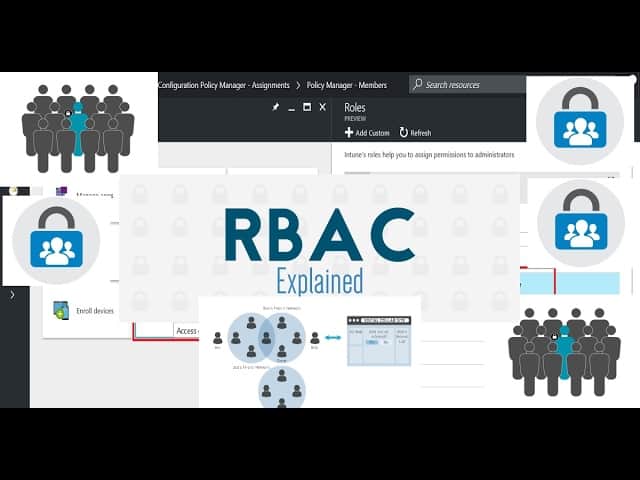
Intune RBAC (Role-Based Access Controls) is the workflow that helps organizations segregate the roles and responsibilities of different support teams by providing them with limited access to specific resources. “The users or devices that a specified person (the member) can manage.” If you are an SCCM admin, the SCOPE option exists in SCCM 2012 and the CB console.
Granular control delegates permissions to Level 1, 2, and 3 Intune teams from different operating groups (entities/opcos). Intune admins’ assigned permissions are limited to specific user or device groups. View permissions of Intune objects can be controlled/managed using RBAC.
This video will explain Intune RBAC Strategic Options, Role-Based Access Controls, Scope Groups, Intune Objects, and Roles.
Intune RBAC Roles Permissions in the Intune Admin Center Portal – Video 1
What is Intune RBAC?
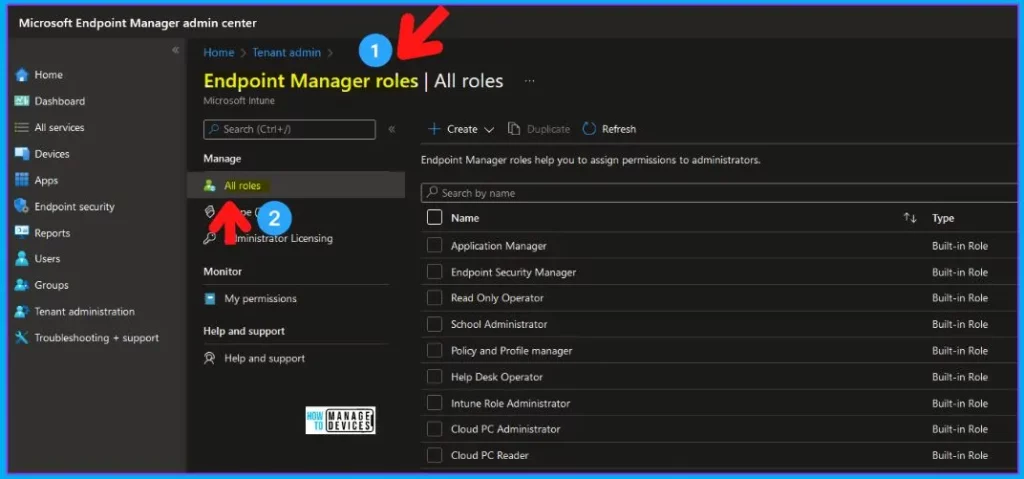
RBAC helps Intune Admins to control who can perform various Intune tasks within your enterprise. There are nine (9) built-in Intune roles (RBAC roles). The list of Intune RBAC built-in roles is updated in the table.
In this post, I will explain the access rights of Intune’s default role, Configuration Policy Manager. I have created a user named Kaith in the Azure Active Directory. This user is assigned Configuration policy manager access, and the scope is set to the group “All Bangalore Users.”
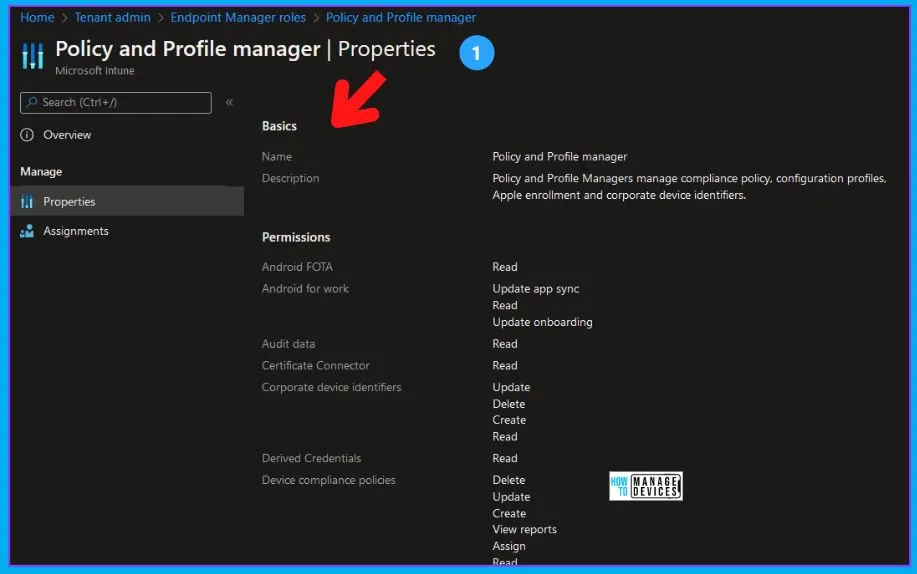
The Intune configuration policy manager can access Assign, Create, Delete, Read, and Update profiles. However, we will conduct a deep dive to understand more details about the access rights for this role.
Intune RBAC Roles Permissions in the Intune Admin Center Portal Fig. 1
Intune RBAC – Tired Hierarchy
Azure AD is the primary identity repository for Intune! The Intune Full Admin permissions—Azure AD. This means that user identities and access rights are managed through Azure AD, which integrates easily with Intune. For Intune Full Admin permissions, users need corresponding permissions in Azure AD.
Global Admin Role (Tier 1)
Intune Service Admin Role (Tier 2)
Intune RBAC Permissions – Intune Portal
Tier 3 Roles – App Admin, Helpdesk Admin, etc…
Updated Built-In Inutune RBAC Roles
Let’s check the built-in Intune RABC roles (endpoint manager roles) available in the MEM admin center portal. The permissions in Azure AD are crucial for managing users, devices, and policies effectively within Intune.
Updated Built-In Inutune RBAC Roles
Details
Application Manager
Built-in Role
Endpoint Security Manager
Built-in Role
Read-Only Operator
Built-in Role
School Administrator
Built-in Role
Policy and Profile manager
Built-in Role
Help Desk Operator
Built-in Role
Intune Role Administrator
Built-in Role
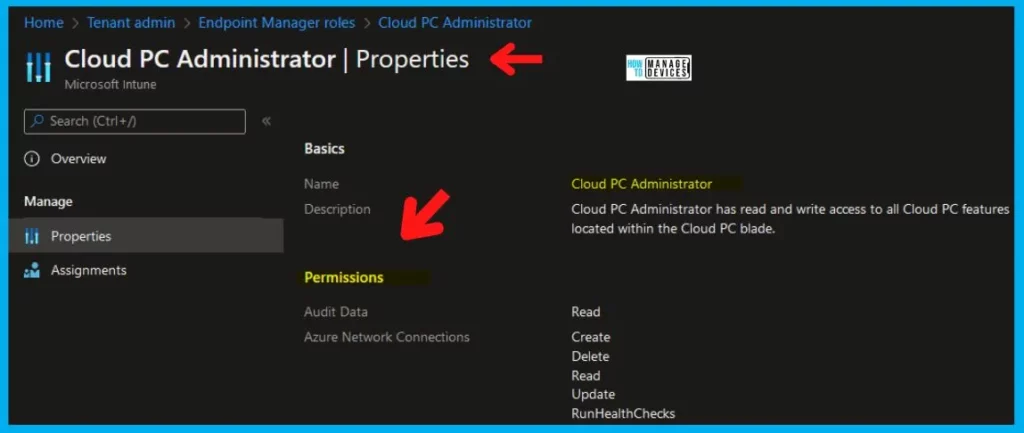
Cloud PC Administrator
Built-in Role
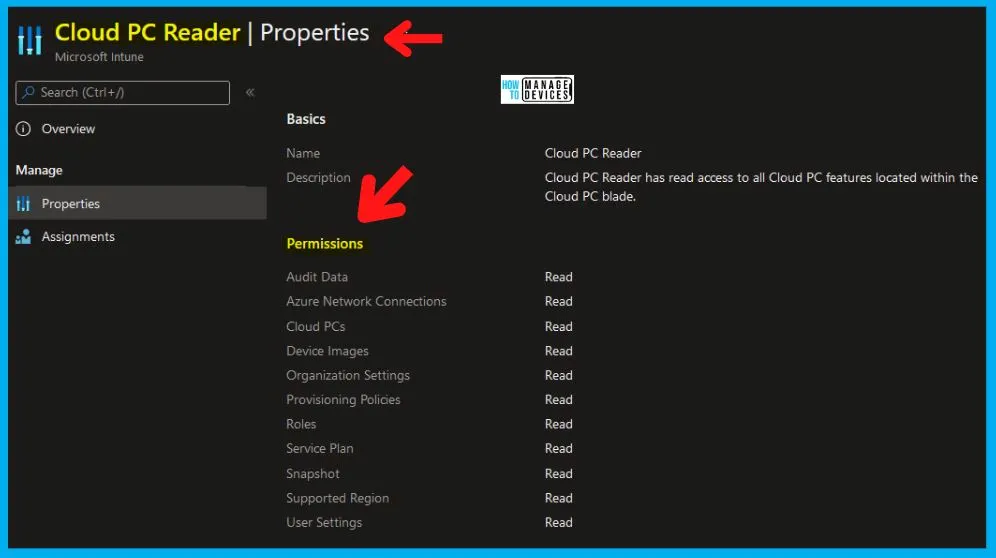
Cloud PC Reader
Built-in Role
Intune RBAC Roles Permissions in the Intune Admin Center Portal Table 1
Endpoint Manager Roles
Let’s understand the different types of roles available within Intune RBAC workflow. There are built-in roles and custom roles, which I have given examples of in previous posts.
Assign administrators to Endpoint Manager Roles. Create and configure custom Endpoint Manager Roles. You are allowed to edit the Intune Policy and Profile Manager.
Even the profile is ONLY deployed to out-of-scope users/groups.
Intune Role-Based Access (RBA) rules don’t respect the scope of the editing profile.
This should NOT be allowed. Editing should be allowed only to profiles assigned ONLY to the Intune policy manager’s scope of users or devices (Intune policy manager = Kaith). Intune RBAC roles are still in development.
Access is denied to remove and add assignments to a profile already deployed to users outside the scope. However, if the admin tries to deploy profiles to users in the scope, the addition and removal of assignments should be allowed.
Access is denied to remove assignments to profiles targeted to the users or groups in scope. This should be allowed!
They can delete all the profiles, even if they target out-of-scope users. This should NOT be allowed! If the profile is assigned only to in-scope users, then the deletion of the profile should be allowed.
They can enable/disable certificate authority connectors for SCEP or PFX profile deployment. Intune RBAC roles are still in development.
Login to MEM Admin Center (Intune).
Navigate to tenant admin -> Roles -> Endpoint Manager Roles.
Intune RBAC Roles Permissions in the Intune Admin Center Portal Fig. 2
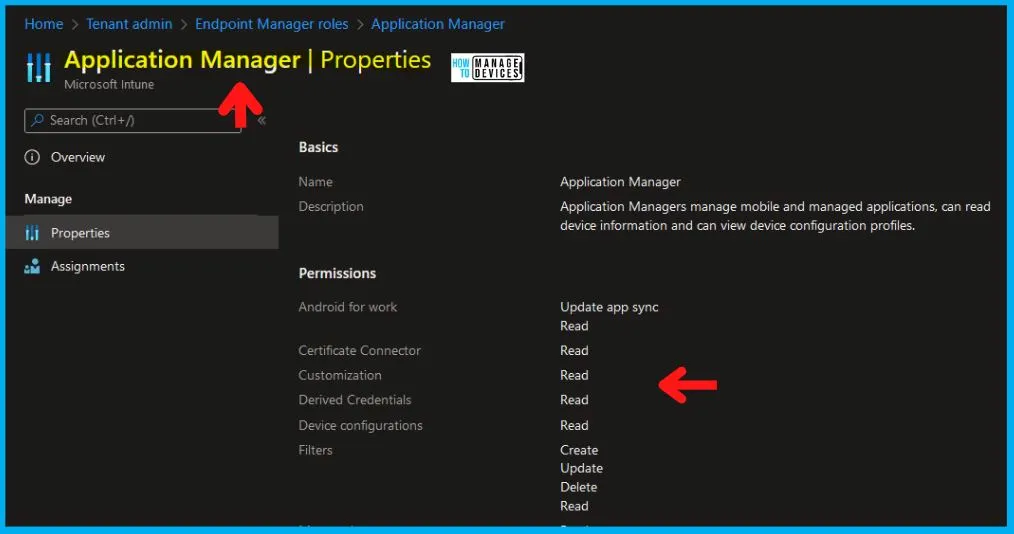
Intune RBAC Access Rights – Application Manager
It is allowed to remove assignments of applications that are already targeted to users outside the scope of an Intune Application Manager. This should NOT be allowed. If the application is deployed/assigned to users who are in scope, then removal of the assignment should be allowed.
Allowed to add assignments to the application, even if the user’s Intune application manager is targeting is out of scope for them. This should NOT be allowed. Assign administrators to Endpoint Manager Roles and Create and configure custom Endpoint Manager Roles.
Assignments should be added to the Application policy only when the targeted users are within the scope of an Intune application manager.
Intune RBAC Roles Permissions in the Intune Admin Center Portal Fig. 3
Intune RBAC – Endpoint Security Manager
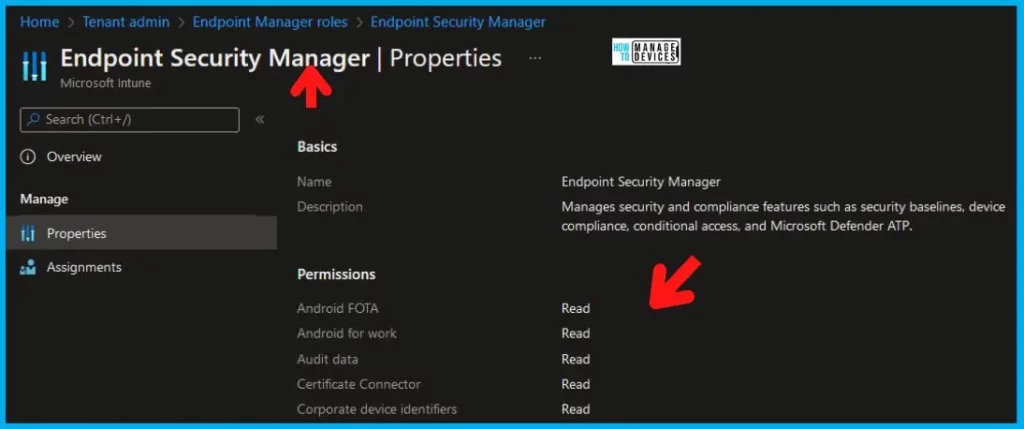
Let’s discuss Intune RBAC—Endpoint Security Manager. You can assign administrators to Endpoint Manager Roles and create and configure custom Endpoint Manager Roles.
Intune RBAC Roles Permissions in the Intune Admin Center Portal Fig. 4
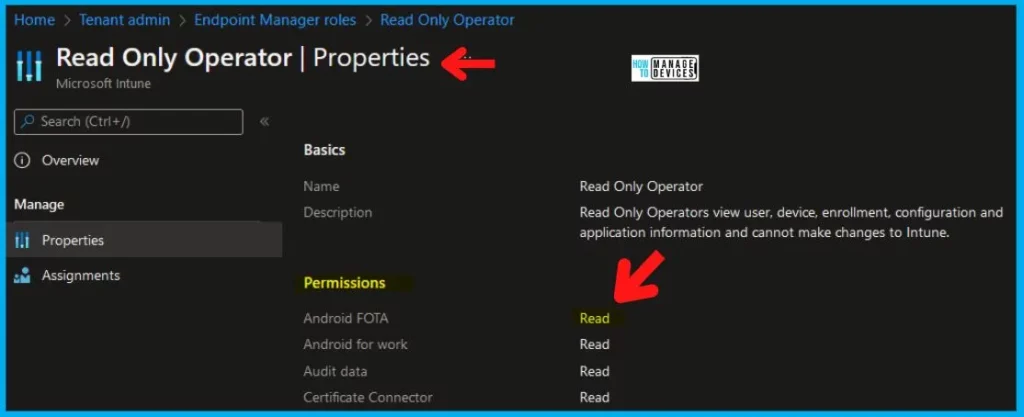
Intune Read-Only Operator
Name – Read-Only Operator. Description – Read-Only Operators view user, device, enrollment, configuration, and application information and cannot change Intune.
Intune RBAC Roles Permissions in the Intune Admin Center Portal Fig. 5
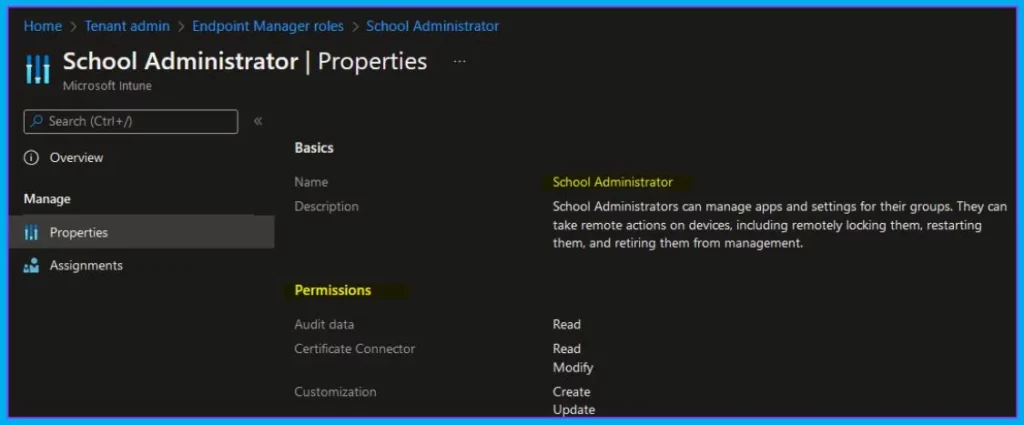
Intune School Administrator
Name—School Administrator. Description—School Administrators can manage apps and settings for their groups. They can also remotely manage devices, including locking, restarting, and retiring them from management.
Intune RBAC Roles Permissions in the Intune Admin Center Portal Fig. 6
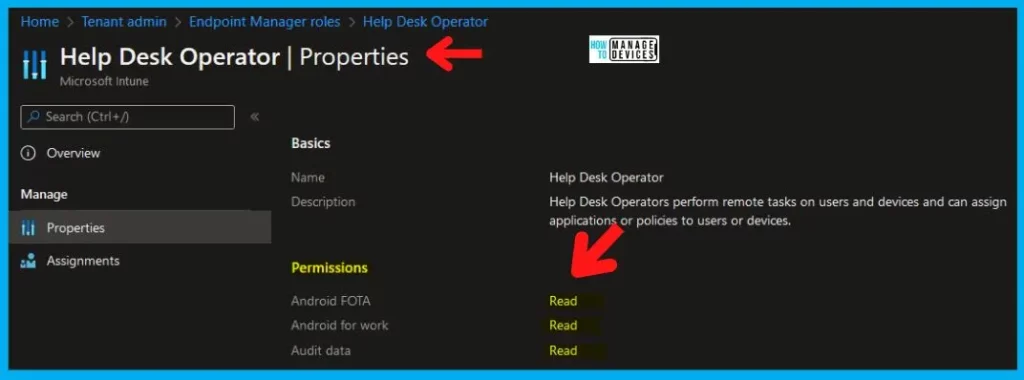
Intune RBAC – Help Desk Operator
Name – Help Desk Operator. Description – Help Desk Operators perform remote tasks on users and devices and can assign applications or policies to users or devices.
Intune RBAC Roles Permissions in the Intune Admin Center Portal Fig. 7
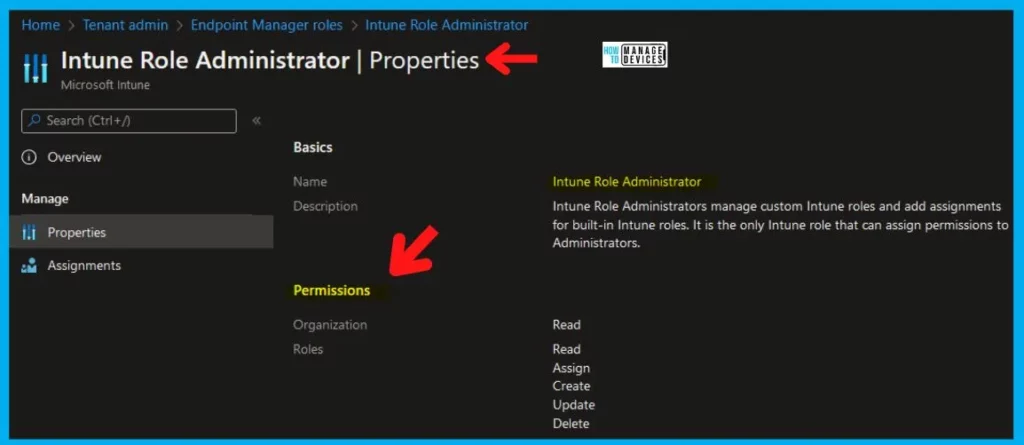
Intune Role Administrator
Name – Intune Role Administrator. Description – Intune Role Administrators manage custom Intune roles and add assignments for built-in Intune roles. It is the only Intune role that can assign permissions to Administrators.
Intune RBAC Roles Permissions in the Intune Admin Center Portal Fig. 8
Cloud PC Administrator
Name: Cloud PC Administrator. Description: The Cloud PC Administrator has read and write access to all Cloud PC features within the Cloud PC blade.
Discuss the Intune Admin Configuration Policy Manager and Intune RBA Permissions Issues. The video below explains all the details about these topics.
Intune RBAC Roles Permissions in the Intune Admin Center Portal – Video 2
Overall Access Rights of Intune Tiles
Allowed to perform administrative activities in configuring devices and Setting device compliance tiles. Allowed to view details about users and groups in managing users’ tile.
Access is denied to perform any activities in Manage Apps, Conditional Access, Device Enrollment, Device and Groups, and Access control tiles.
You can view objects in the Manage Users tile – Users and Groups.
Access is denied to create/delete new or existing groups. It doesn’t matter if the Intune policy manager is editing the groups in SCOPE.
Access is denied to change device and user settings in the Manage user tile.
Access is denied to the Intune Silverlight console.
Intune Administrator Role Permissions
Let’s check Intune administratorRole permissions from the following table. The table below helps you show the Actions and their corresponding details. Read, Delete, Wipe, Assign, Create, and Update are Intune permissions that can be assigned for each Intune object.
Admin Groups – Admin group users are the administrators assigned to this role
Scope Groups – Administrators in this role assignment can target policies, applications, and remote tasks to Azure AD Device/User Groups
We are on WhatsApp now. To get the latest step-by-step guides, news, and updates, Join our Channel. Click here. HTMD WhatsApp.
Author
Anoop C Nair is Microsoft MVP! He is a Device Management Admin with more than 20 years of experience (calculation done in 2021) in IT. He is a Blogger, Speaker, and Local User Group HTMD Community leader. His main focus is on Device Management technologies like SCCM 2012, Current Branch, and Intune. He writes about ConfigMgr, Windows 11, Windows 10, Azure AD, Microsoft Intune, Windows 365, AVD, etc.
Anoop C Nair is Workplace Technology solution architect with 25+ years of experience in global enterprise organizations such as JP Morgan, Capgemini, etc. He is Microsoft Certified Trainer. Microsoft MVP from 2015 onwards for consecutive 11 years! He also conducts Intune and modern workplace tech training for enterprise organizations. He is Blogger, Speaker, and Founder of HTMD Community and HTMD Conference. His focus is on Device Management technologies such as Intune, Windows, Cloud PC. He writes about technologies like Intune, SCCM, Windows, Cloud PC, Windows, Entra, Microsoft Security.
Let’s discuss how to Fetch Intune Azure AD Details from Graph API Intune PowerShell Scripts. Now, Microsoft Graph API is the buzzword. How can Microsoft Graph API fetch the details from Azure Active Directory (Azure AD/AAD) and Microsoft Intune? And a list of Intune PowerShell Scripts samples. I won’t provide any Graph API scripts to fetch details in this post.
APIs have always been an alien term for me. The rest of the API was everywhere; now it’s Graph API. Have you ever tried Facebook Graph API? So, the entire industry is taking the path of Graph API!
In one of our articles, we provide a detailed guide on using Microsoft Graph Explorer, emphasizing its utility for beginners. This tool is pivotal for understanding Graph API queries, particularly for those starting. We walk users through the initial steps of accessing and utilizing the Graph Explorer, focusing on its simplicity and user-friendly interface.
The blog post “Configuring Intune Bitlocker grace period“ illustrates a real-world example of using Intune Graph Explorer. This scenario involves setting up a grace period for BitLocker, a feature not configurable through the MEM Admin Center portal.
Fetch Intune Azure AD Details from Graph API Intune PowerShell Scripts
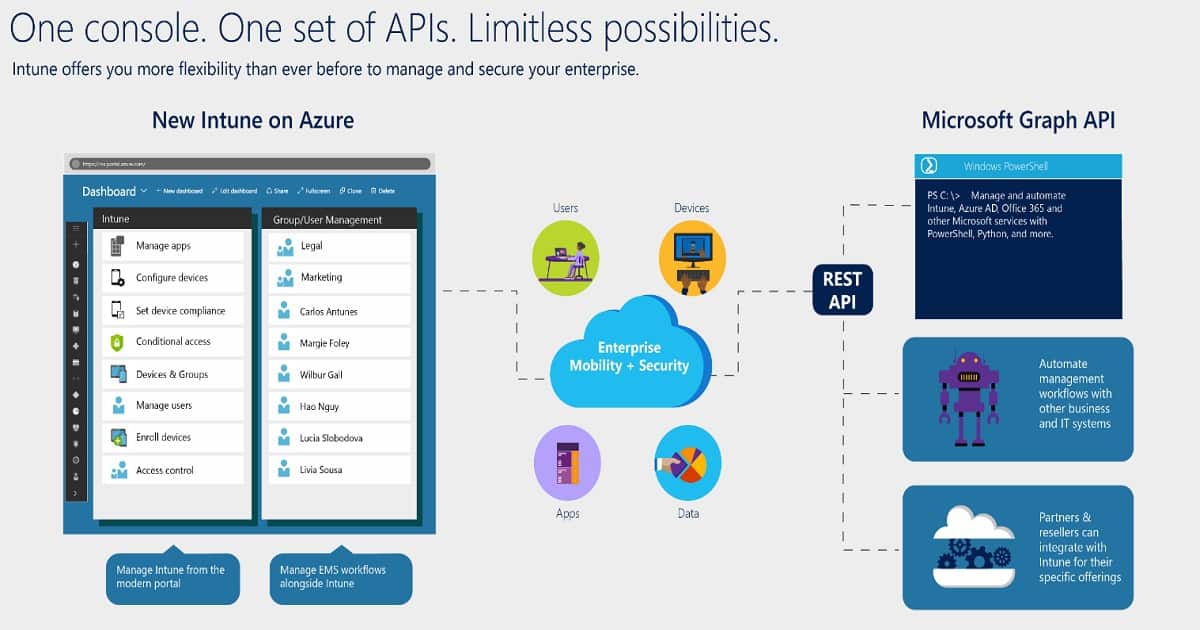
Microsoft Graph is a versatile Application Programming Interface (API) offering a unified endpoint, https://graph.microsoft.com, to access a wealth of data, intelligence, and insights across Microsoft 365 and other Microsoft Cloud services.
Fetch Intune Azure AD Details from Graph API Intune PowerShell Scripts – Fig.1
In this post, I would like to help by providing basic details of the Microsoft Graph API. I will explain how to start using Graph API graphically (not programmatically) and how Graph API would be helpful for IT Pros in their day-to-day lives. Microsoft Intune admins can analyze a device’s or user’s details from Graph API.
We can only get limited details of objects from the Azure AD portal; however, loads of more information can be fetched from Graph API via Web browsers. You can perform all the GET and other supported operations from the following URL. Remember to sign in to thetenant.
This video guide teaches you how to use Intune Graph Query and some sample queries. It’s a beginner’s guide, so it starts with the basics. Microsoft Graph Explorer is a special tool for system admins and developers. With it, you can talk to Intune and ask it to fetch, change, or remove information.
Fetch Intune Azure AD Details from Graph API Intune PowerShell Scripts – Video 1
Microsoft Graph
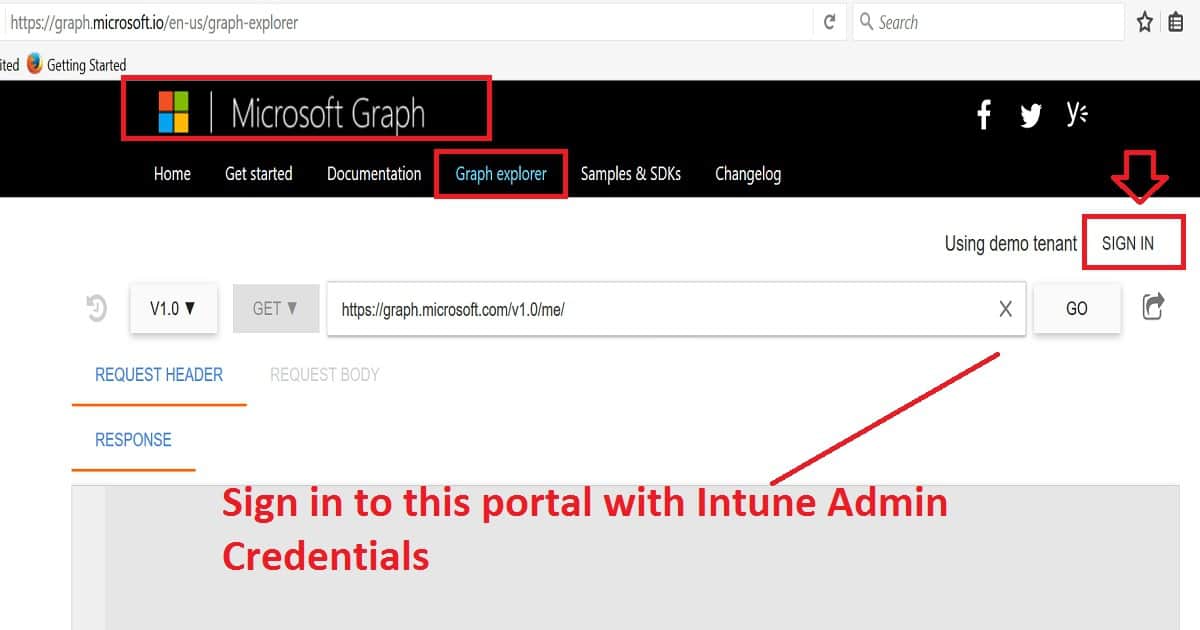
Graph Explorer is one way to fetch, change, or remove data or configurations from Intune services. You can quickly sign in to the graph—microsoft portal with Intune Admin credentials.
Launch Microsoft Graph - URL --> https://graph.microsoft.io/en-us/graph-explorer

https://developer.microsoft.com/en-us/graph/graph-explorer
Fetch Intune Azure AD Details from Graph API Intune PowerShell Scripts – Fig.2
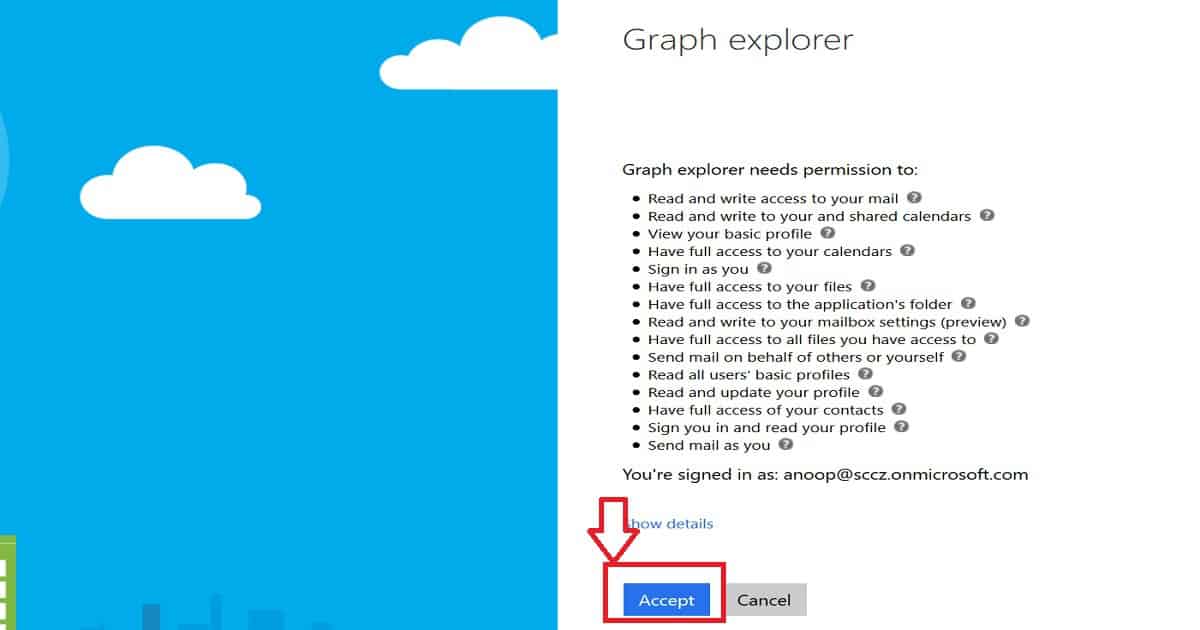
When you sign in for the first time, you need to agree to give Graph Explorer the following permissions. Click on the Agree button to proceed.
Fetch Intune Azure AD Details from Graph API Intune PowerShell Scripts – Fig.3
There are two versions of Graph Explorer available at the moment: 1.0 and Beta. I was having a hard time connecting to the Graph API, but it was okay when I wanted to retrieve my user information.
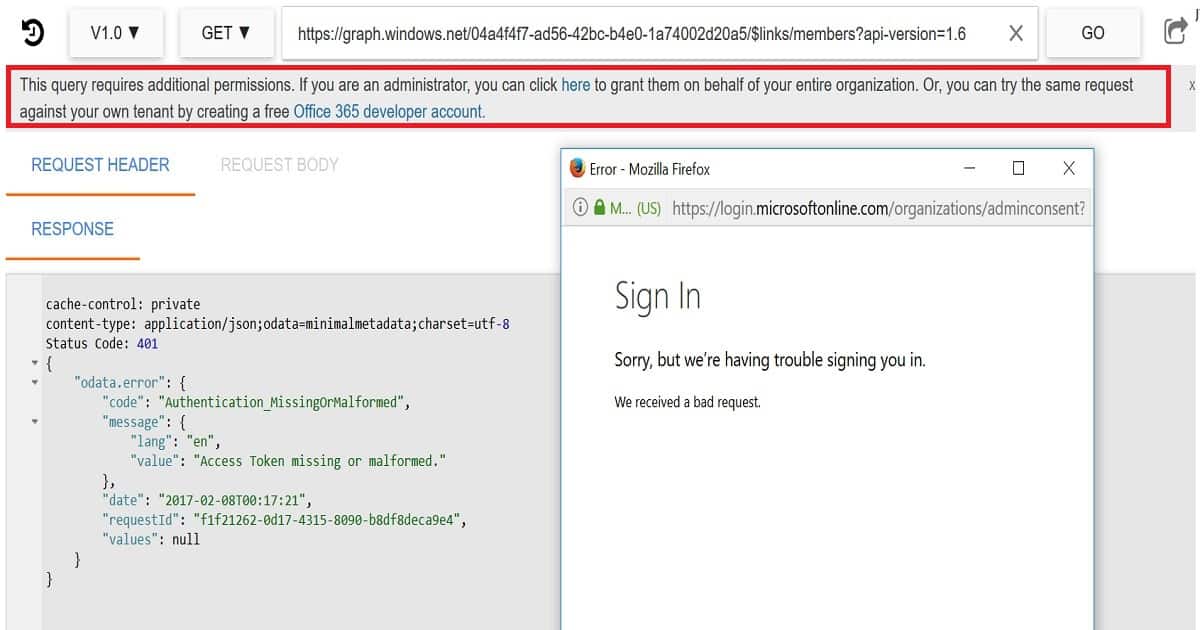
But when I tried to fetch the details for the entire tenant, it was asked to agree or accept new Admin consent, as you can see in the following paragraph.
This query requires additional permissions. If you are an administrator, you can click here to grant them for your entire organization. You can also try the same request against your tenant by creating a free Office 365 developer account.
When I tried to click on the “HERE” button to accept the consent, it gave me an odd error: “AADSTS90002: No service namespace named ‘organizations‘ was found in the data store.” Ryan and Panu helped me get rid of this error.
To accept this admin consent, you don’t have to create manual applications or run any PowerShell scripts! It’s already available in your enterprise applications blade in the Azure console.
Fetch Intune Azure AD Details from Graph API Intune PowerShell Scripts – Fig.4
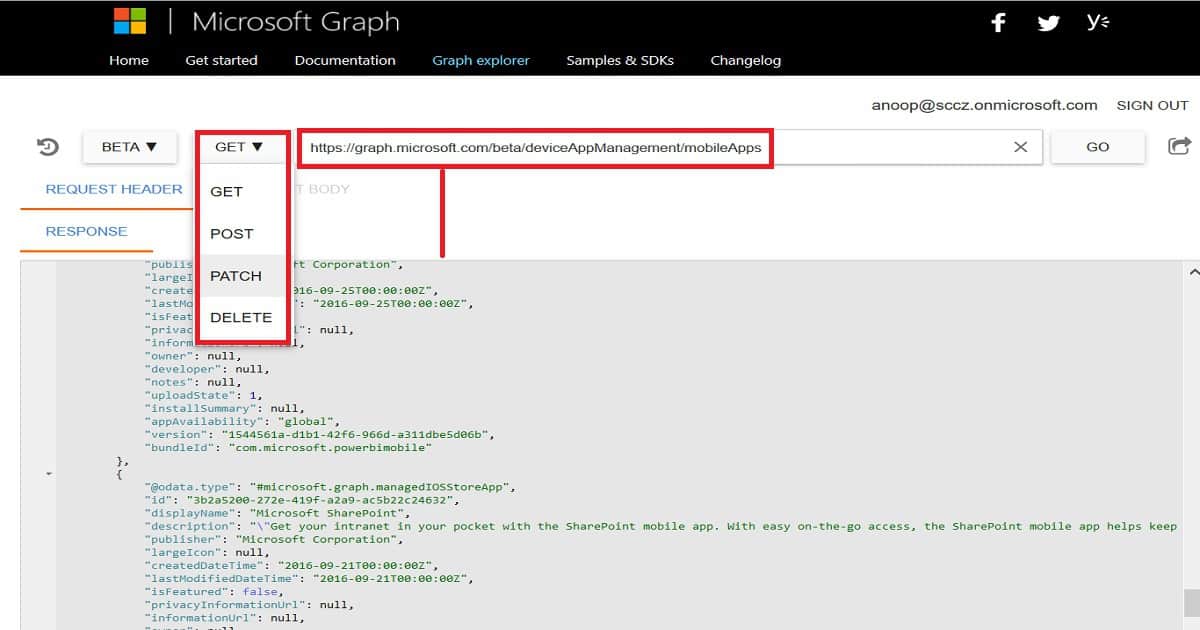
The following are some samples of graph API GET queries to retrieve details from Intune and Azure Active Directory (AAD). Graph API also allows for the following three types of actions: POST, PATCH, and DELETE.
https://graph.microsoft.com/beta/users/anp@SCZ.onmicrosoft.com/ownedDeviceshttps://graph.microsoft.com/beta/deviceAppManagement/mobileAppshttps://graph.microsoft.com/beta/users/https://graph.microsoft.com/beta/applications Following is some of the extracts of device management mobile app.
WhatsApp is one of the applications at “https://graph.microsoft.com/beta/deviceAppManagement/mobileApps.” Similarly, we can retrieve a user’s owned devices and device status through Graph API GET commands. Some of these details are available ONLY through Graph API. This will be an excellent help for Intune admins when troubleshooting issues.
Graph AP Actions
POST
PATCH
DELETE
Fetch Intune Azure AD Details from Graph API Intune PowerShell Scripts – Table 1
cache-control: private
content-type: application/json;odata.metadata=minimal;odata.streaming=true;
request-id: 604557b1-409b-4749-8w32d-d754844b2181
client-request-id: 6se357b1-409b-4349-864d-d754844b2181
Status Code: 200
{
"@odata.context": "https://graph.microsoft.com/beta/$metadata#deviceAppManagement/mobileApps",
"value": [
{
"@odata.type": "#microsoft.graph.iosStoreApp",
"id": "ab8a5364-887d-44e7-a6cd-9684d2f279c3",
"displayName": "WhatsApp Messenger",
"description": "WhatsApp Messenger is a FREE messaging app available for iPhone and other smartphones. WhatsApp uses your phone's Internet connection (4G/3G/2G/EDGE or Wi-Fi, as available) to let you message and call friends and family. Switch from SMS to WhatsApp to send and receive messages, calls, photos, videos, and Voice Messages. \n\nWHY USE WHATSAPP:  \n\n• NO FEES: WhatsApp uses your phone's
"publisher": "WhatsApp Inc.",
"largeIcon": null,
"createdDateTime": "2017-01-22T06:40:24.696692Z",
"lastModifiedDateTime": "2017-01-22T06:40:24.696692Z",
"isFeatured": false,
"privacyInformationUrl": null,
"informationUrl": null,
"owner": "",
"developer": "",
"notes": "",
"uploadState": 1,
"installSummary": null,
"bundleId": "net.whatsapp.WhatsApp",
"appStoreUrl": "https://itunes.apple.com/us/app/whatsapp-messenger/id310633997?mt=8&uo=4",
"applicableDeviceType": {
"iPad": false,
"iPhoneAndIPod": true
},
"minimumSupportedOperatingSystem": {
"v8_0": true,
"v9_0": false,
"v10_0": false
}
},
Fetch Intune Azure AD Details from Graph API Intune PowerShell Scripts – Fig.5
We are on WhatsApp now. To get the latest step-by-step guides, news, and updates, Join our Channel. Click here. HTMD WhatsApp.
Author
Anoop C Nair is Microsoft MVP! He is a Device Management Admin with more than 20 years of experience (calculation done in 2021) in IT. He is a Blogger, Speaker, and Local User Group HTMD Community leader. His main focus is on Device Management technologies like SCCM 2012, Current Branch, and Intune. He writes about ConfigMgr, Windows 11, Windows 10, Azure AD, Microsoft Intune, Windows 365, AVD, etc.
Anoop C Nair is Workplace Technology solution architect with 25+ years of experience in global enterprise organizations such as JP Morgan, Capgemini, etc. He is Microsoft Certified Trainer. Microsoft MVP from 2015 onwards for consecutive 11 years! He also conducts Intune and modern workplace tech training for enterprise organizations. He is Blogger, Speaker, and Founder of HTMD Community and HTMD Conference. His focus is on Device Management technologies such as Intune, Windows, Cloud PC. He writes about technologies like Intune, SCCM, Windows, Cloud PC, Windows, Entra, Microsoft Security.
How do you organize the Endpoint Manager Portal Neat Clean for Intune Activities? The MEM portal is a one-stop shop for all the services in the Microsoft cloud. When users log in to a MEM portal for the first time, they can see all these services, which are already selected as favorite services by default.
The selection of favorite services in the MEM portal for individual users is not based on the user’s profile or access rights of the user. This is not good for new users in the Intune portal. They will struggle to find out their role-related services.
One of our articles helps you by showing the Intune Admin Portal walkthrough guide. It is one of the first things you have to learn. From this post, you understand what is where in the Intune admin portal (aka Microsoft Intune Admin Center).
How to Make Your Azure Intune Console Look Better – Video
The video guide on improving the look of your Azure Intune console is really helpful. It explains all the details step by step and provides easy-to-follow tips for making your console more visually appealing and user-friendly.
It’s an excellent resource for anyone who wants to enhance their Intune console’s visual experience and usability, whether they’re new to Intune or already using it.
How to Organize Endpoint Manager Portal Neat Clean for Intune Activities | Microsoft Intune – Video 1
How to Organize Endpoint Manager Portal Neat Clean for Intune Activities
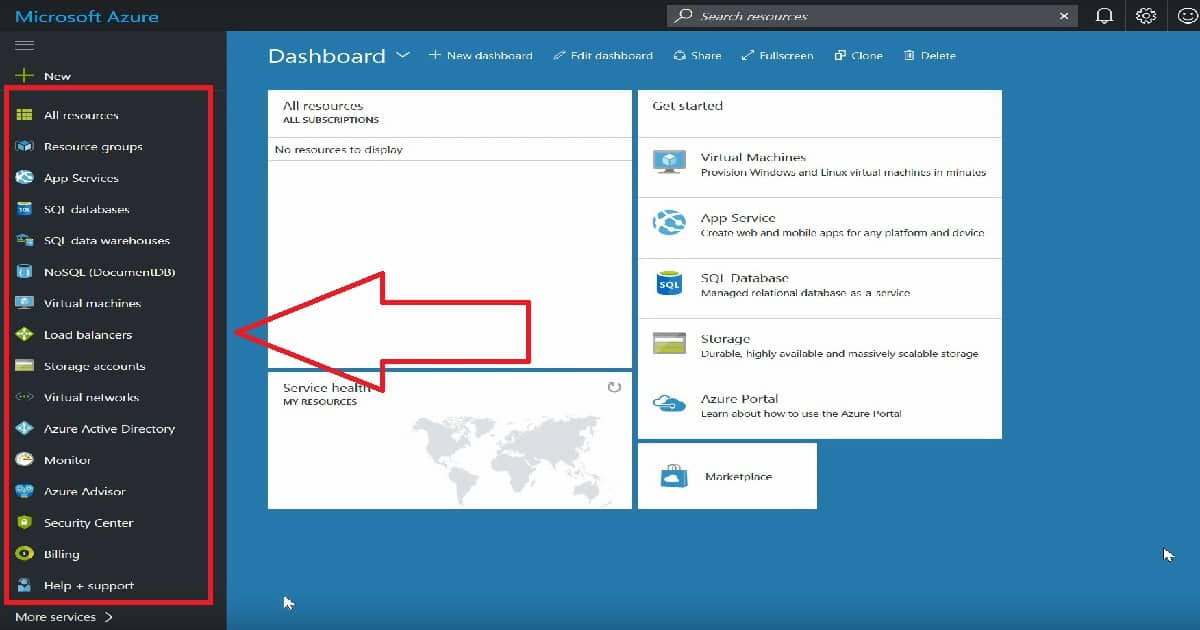
For example, you are an Intune admin and can only access Intune and Azure AD users and groups. But if you log into the MEM portal, you will see loads of services that make no sense. You will also find it messy, and I’m sure you will get lost in the portal until you find the search button or Intune services.
Microsoft Azure Features
Create a resource
Home
Dashboard
All services
FAVORITES
SOL
All resources
Resource groups
App Services
Function App
SQL databases
Azure Cosmos DB
Virtual machines
Load balancers
Storage accounts
Virtual networks
Microsoft Entra ID
Monitor
Advisor
Microsoft Defender for Cloud
Cost Management + Billing
Help + support
How to Organize Endpoint Manager Portal Neat Clean for Intune Activities | Microsoft Intune – Table 1
How to Organize Endpoint Manager Portal Neat Clean for Intune Activities | Microsoft Intune – Fig.1
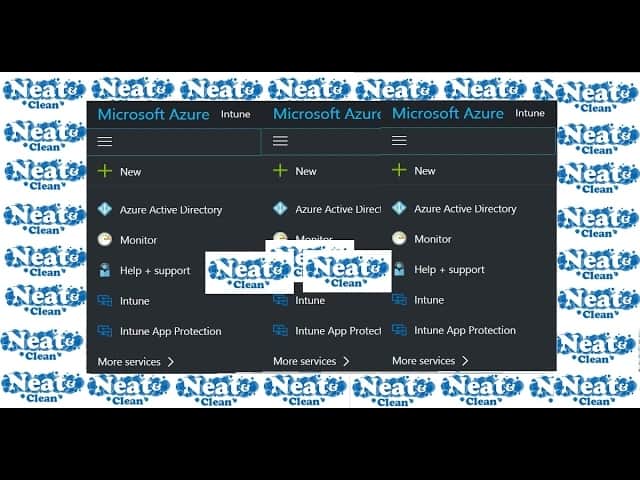
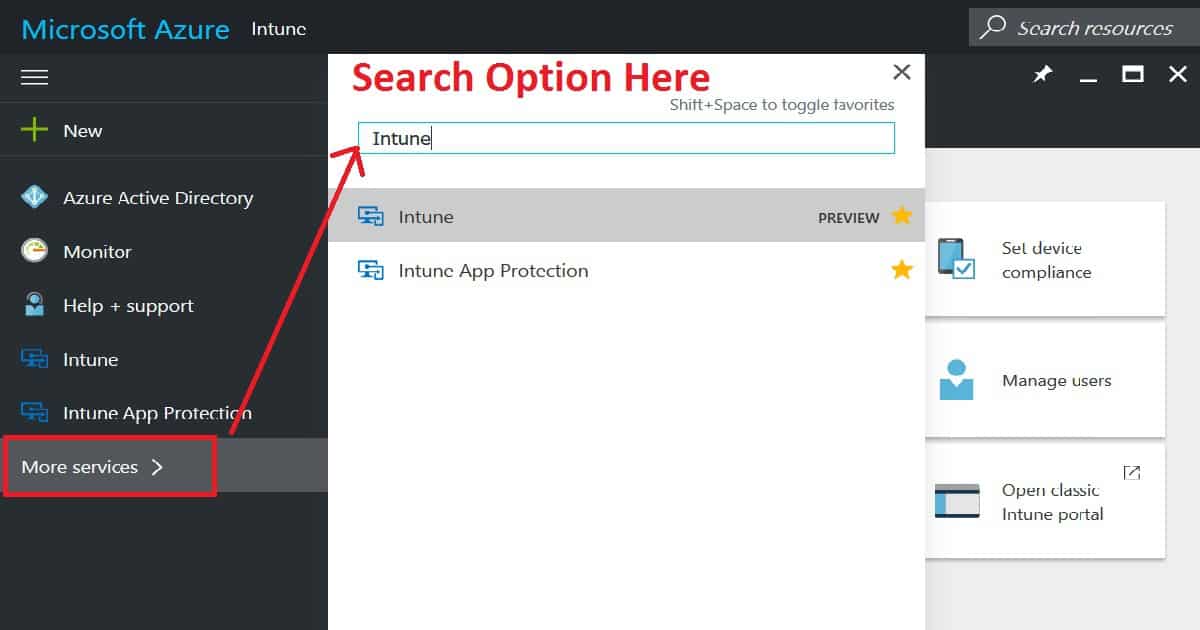
Don’t worry—a very friendly search option is available in the Azure portal. If you are an Intune admin, click on more services and type “Intune” in the search menu. You can see two Intune services: one for Intune (MDM) and the second for Intune App Protection (MAM without enrollment).
How to Organize Endpoint Manager Portal Neat Clean for Intune Activities | Microsoft Intune – Fig.2
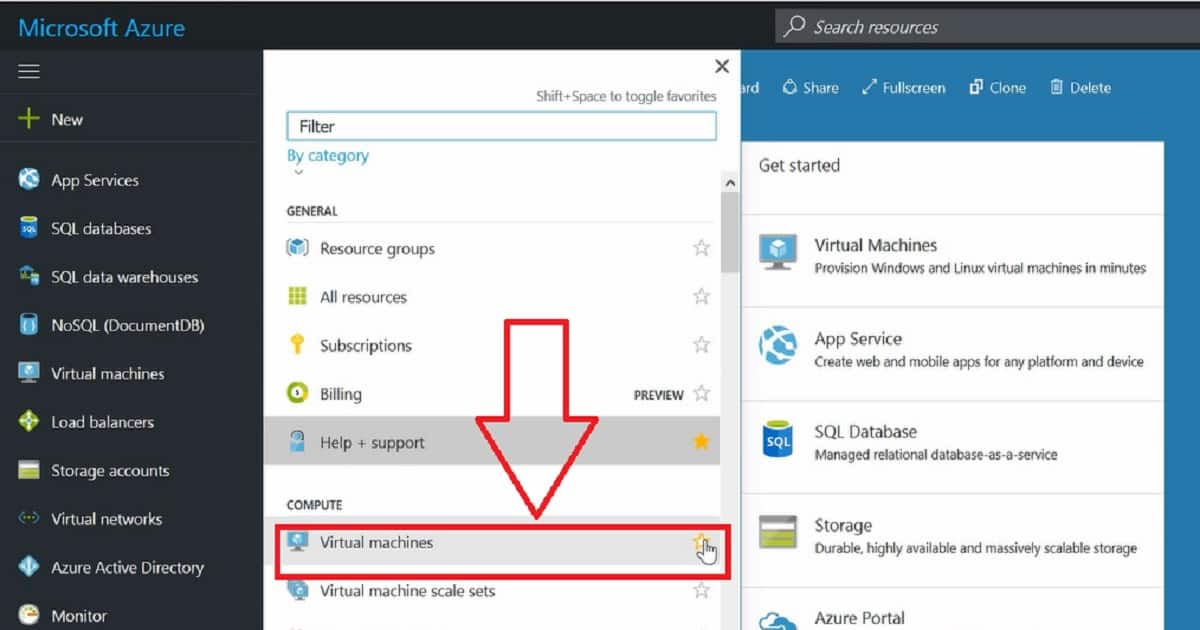
To keep your Azure portal well organized, you must spend only 2-3 minutes when logging in for the first time. What do we need to do to get a neatly organized Azure portal? You log in to the Azure portal, click on the More services button, and then remove the services that are not relevant to you.
For example, Intune admins have nothing to do with “Virtual Machines,” so you can remove the Virtual machine service from your favorite menu. This will help you remove the Virtual machine shortcut from the left-side menu of the MEM portal.
How to Organize Endpoint Manager Portal Neat Clean for Intune Activities | Microsoft Intune – Fig.3
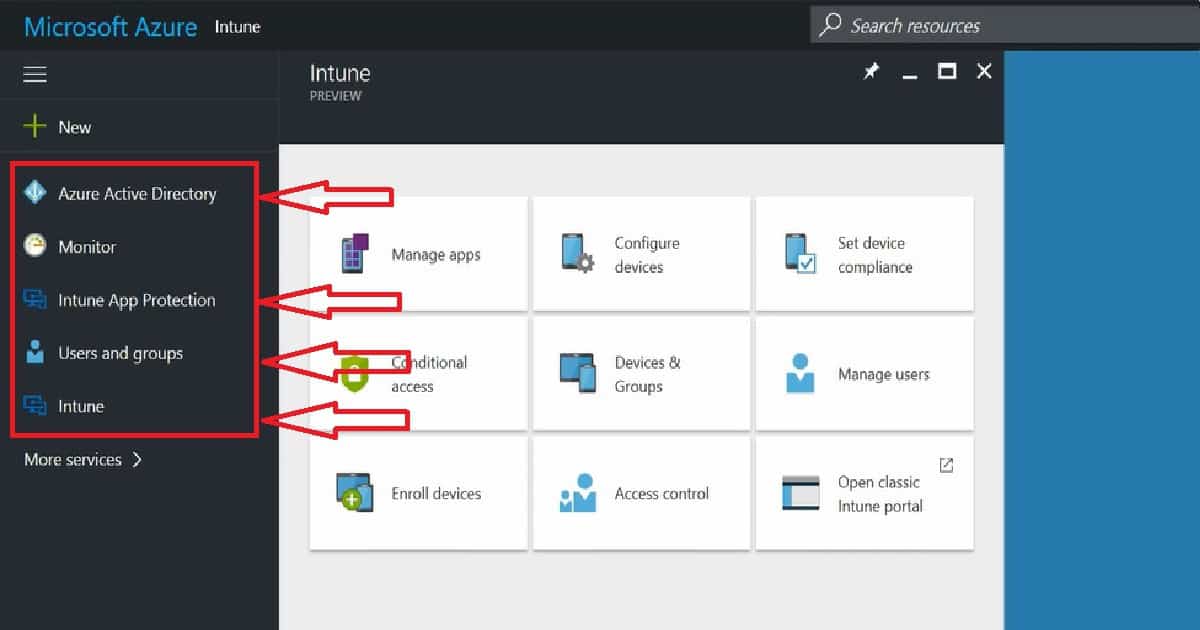
END Result:- Clean and Tidy Azure portal for Intune Admins. Remove all the services from the Azure portal except Azure Active Directory, Users and Groups, Intune, and Intune protection services.
How to Organize Endpoint Manager Portal Neat Clean for Intune Activities | Microsoft Intune – Fig.4
We are on WhatsApp now. To get the latest step-by-step guides, news, and updates, Join our Channel. Click here. HTMD WhatsApp.
Author
Anoop C Nair is Microsoft MVP! He is a Device Management Admin with more than 20 years of experience (calculation done in 2021) in IT. He is a Blogger, Speaker, and Local User Group HTMD Community leader. His main focus is on Device Management technologies like SCCM 2012, Current Branch, and Intune. He writes about ConfigMgr, Windows 11, Windows 10, Azure AD, Microsoft Intune, Windows 365, AVD, etc.
Anoop C Nair is Workplace Technology solution architect with 25+ years of experience in global enterprise organizations such as JP Morgan, Capgemini, etc. He is Microsoft Certified Trainer. Microsoft MVP from 2015 onwards for consecutive 11 years! He also conducts Intune and modern workplace tech training for enterprise organizations. He is Blogger, Speaker, and Founder of HTMD Community and HTMD Conference. His focus is on Device Management technologies such as Intune, Windows, Cloud PC. He writes about technologies like Intune, SCCM, Windows, Cloud PC, Windows, Entra, Microsoft Security.
Dynamic device security groups automatically manage Windows devices in Microsoft Entra ID.
Devices are grouped based on ownership type (Personal for BYOD, Company for CYOD).
No manual device addition is required – membership is fully automated.
Device attributes are assigned automatically during Intune enrollment.
Creating an Entra ID Dynamic Device Security Group for Windows BYOD and CYOD devices using Microsoft Intune means that it automatically groups Windows devices based on how they are owned and enrolled, without adding devices manually. BYOD (Bring Your Own Device) refers to personal devices owned by users, while CYOD (Choose Your Own Device) usually means company-approved devices that are controlled by the organization.
Table of Content
Table of Contents
Create Entra ID Dynamic Device Security Group for Windows BYOD and CYOD Devices using Microsoft Intune
In Microsoft Intune, when a Windows device is enrolled, Entra ID automatically assigns device attributes such as ownership type (personal or company). A dynamic device security group uses these attributes to decide which devices belong to the group.
In this grouping personal Windows devices can be automatically added to a BYOD group, and company-owned Windows devices can be added to a CYOD group. These groups are then used in Intune to assign policies, apps, or restrictions, ensuring the right settings are applied to the right type of device without manual effort.
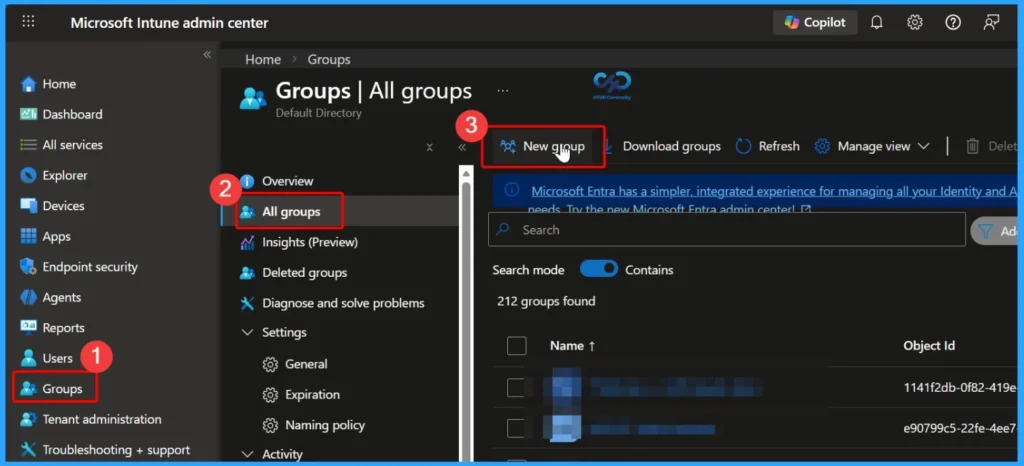
You can easily create the Create Entra ID Dynamic Device Security Group for Windows BYOD and CYOD Devices by following the below steps.
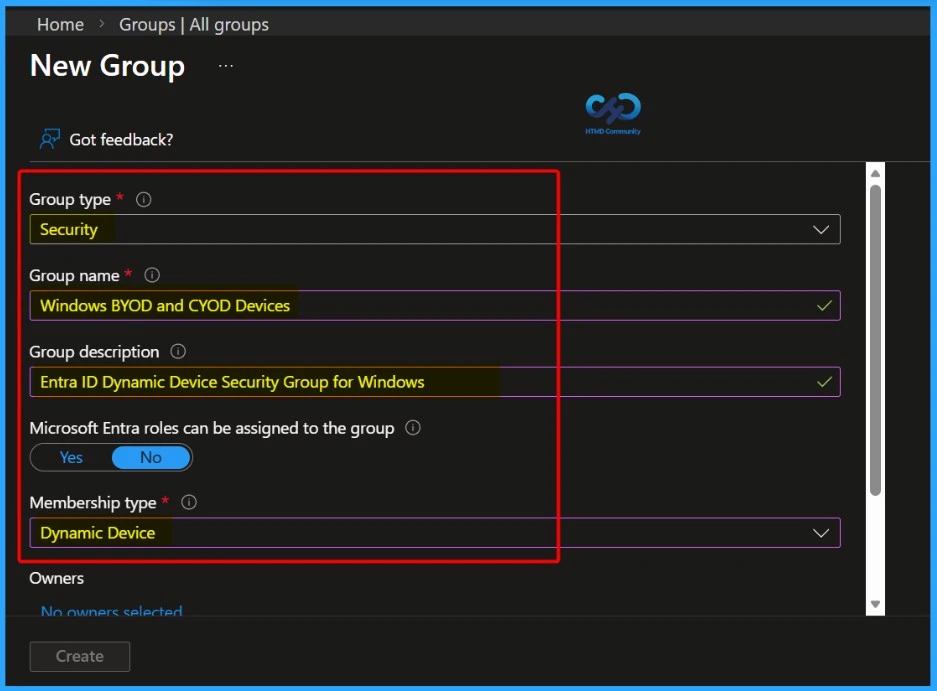
In the New group window, you need to fill in the basic information required to create the group. This includes selecting the Group type, entering a clear Group name, adding a meaningful Group description, and choosing the appropriate Membership type (such as Dynamic device).
Group Type
Group Name
Group Description
Membership type
Security
Windows BYOD and CYOD Devices
Entra ID Dynamic Device Security Group for Windows
Dynamic Device
Create Entra ID Dynamic Device Security Group for Windows BYOD and CYOD Devices using Microsoft Intune – Table 1
Create Entra ID Dynamic Device Security Group for Windows BYOD and CYOD Devices using Microsoft Intune – Fig.2
Easily Add a Dynamic Device Query
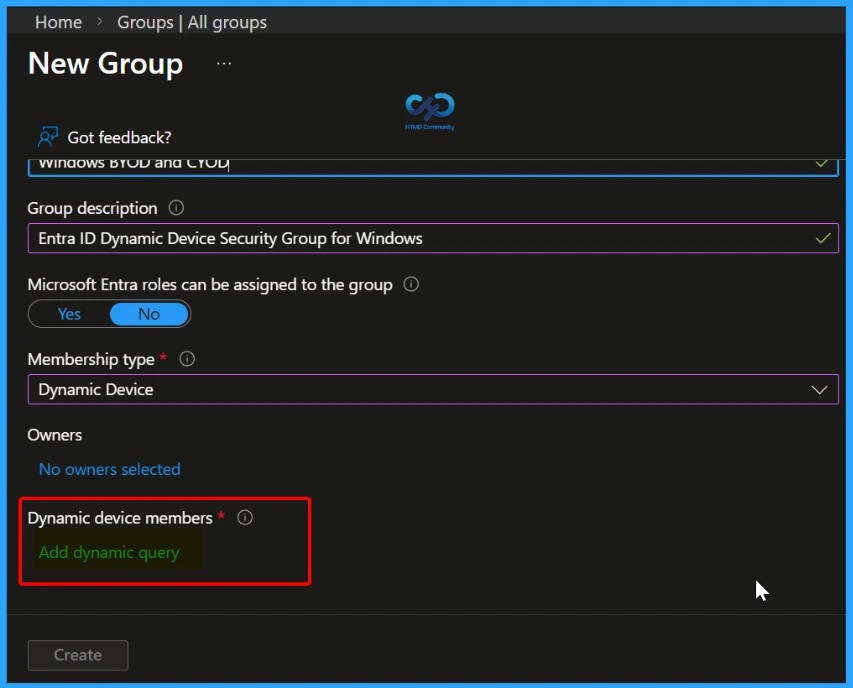
In the New Group window, select Dynamic device as the membership type. Once this is selected, the Add dynamic query option becomes available. Click Add dynamic query to define the rule that determines which devices are automatically added to the group based on their attributes.
Create Entra ID Dynamic Device Security Group for Windows BYOD and CYOD Devices using Microsoft Intune – Fig.3
Create Dynamic Membership Rules
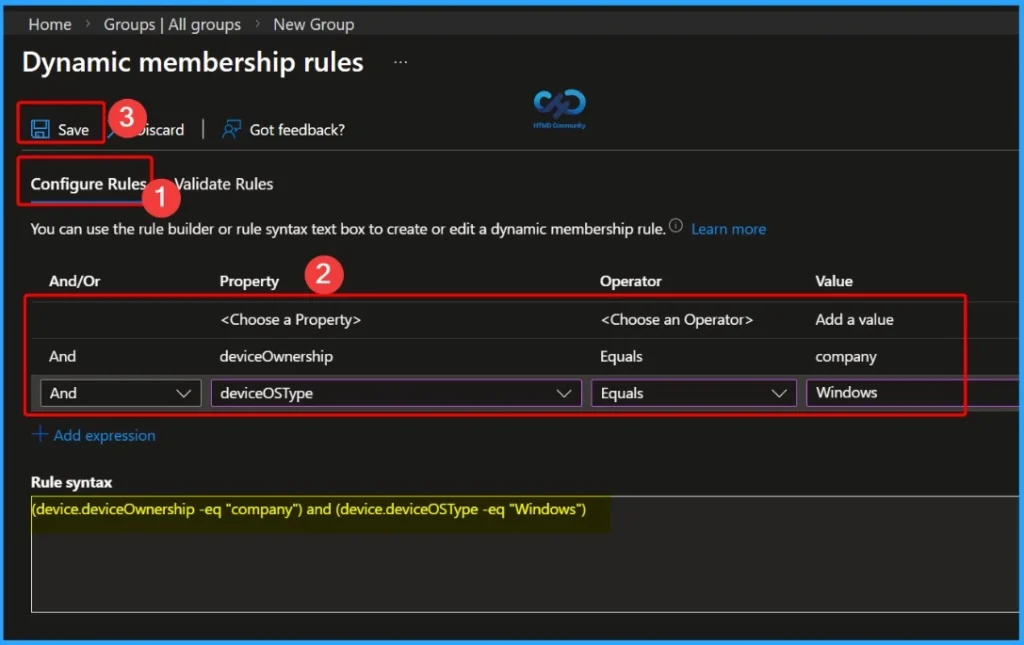
On the Configure Rule tab, add the dynamic membership expressions that define which devices should be included in the group. First, select the Property as deviceOwnership, set the Operator to Equals, and choose the Value as Company. Next, add another expression by selecting the Property DeviceOSType, set the Operator to Equals, and choose Windows as the value.
Rule Syntax – (device.deviceOwnership -eq “Company“) and (device.deviceOSType -eq “Windows”)
Create Entra ID Dynamic Device Security Group for Windows BYOD and CYOD Devices using Microsoft Intune – Fig.4
Notification – Dynamic Device Group Created Successfully
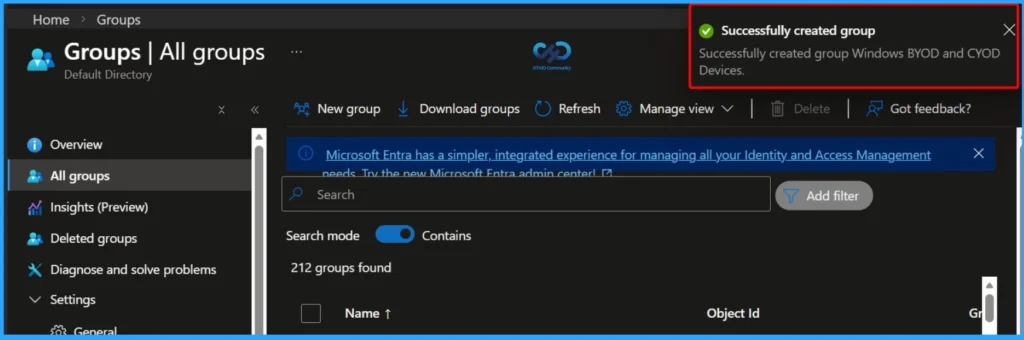
After clicking the Create button, a notification appears confirming that the group Windows BYOD and CYOD Devices has been created successfully. This message indicates that the dynamic device security group is now available in Microsoft Entra ID and will start automatically adding eligible Windows devices based on the configured rules.
Create Entra ID Dynamic Device Security Group for Windows BYOD and CYOD Devices using Microsoft Intune – Fig.5
Verify the Created Dynamic Device Group
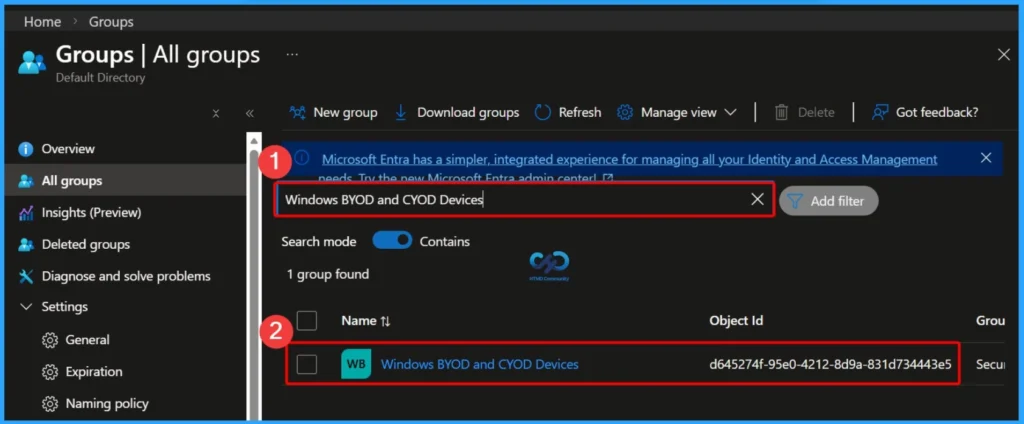
After creating the group, go to Groups > All groups in the Microsoft Entra ID portal. Use the search box to find the newly created group by name. Once you open the group, you can view important details, including the group name, Object ID, group type, membership type (Dynamic device), and related information. This confirms that the group has been created correctly and is ready for use.
Name
Object ID
Group Type
Membership Type
Windows BYOD and CYOD Devices
d645274f-95e0-4212-8d9a-831d7
Security
Dynamic
Create Entra ID Dynamic Device Security Group for Windows BYOD and CYOD Devices using Microsoft Intune – Table 2
Create Entra ID Dynamic Device Security Group for Windows BYOD and CYOD Devices using Microsoft Intune – Fig.6
View Dynamic Group Details and Membership Status
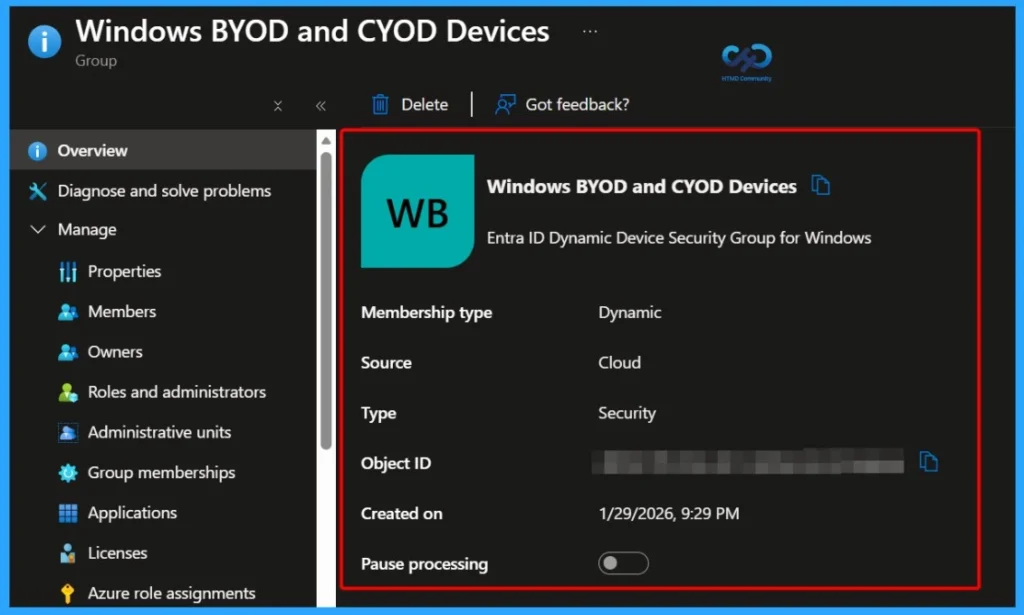
After selecting the group, you can view all the important details on the group overview page. This includes the Membership type, Source, Type, Object ID, Created on date, and the option to Pause processing. These details help you confirm the group configuration and manage how dynamic membership updates are processed.
Membership type
Type
Object ID
Created on
Dynamic
Security
d645274f-95e0-4212-8d9a-831d7
1/29/2026, 9:29 PM
Create Entra ID Dynamic Device Security Group for Windows BYOD and CYOD Devices using Microsoft Intune – Table 3
Create Entra ID Dynamic Device Security Group for Windows BYOD and CYOD Devices using Microsoft Intune – Fig.7
View End Result and Membership Summary
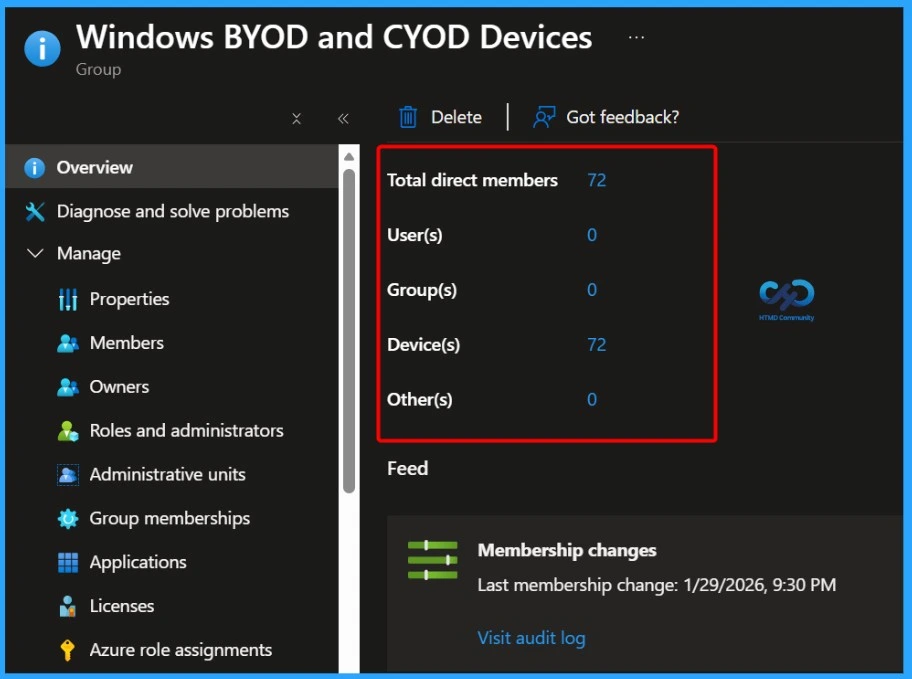
In the end result, you can see other important details about the group, such as the total direct members, users, groups, and devices, along with additional membership-related information. These details help you understand how many objects are currently included in the group and confirm that the dynamic membership rule is working as expected.
Create Entra ID Dynamic Device Security Group for Windows BYOD and CYOD Devices using Microsoft Intune – Fig.8
Need Further Assistance or Have Technical Questions?
Anoop C Nair has been Microsoft MVP for 10 consecutive years from 2015 onwards. He is a Workplace Solution Architect with more than 22+ years of experience in Workplace technologies. He is a Blogger, Speaker, and Local User Group Community leader. His primary focus is on Device Management technologies like SCCM and Intune. He writes about technologies like Intune, SCCM, Windows, Cloud PC, Windows, Entra, Microsoft Security, Career, etc.
Anoop C Nair is Workplace Technology solution architect with 25+ years of experience in global enterprise organizations such as JP Morgan, Capgemini, etc. He is Microsoft Certified Trainer. Microsoft MVP from 2015 onwards for consecutive 11 years! He also conducts Intune and modern workplace tech training for enterprise organizations. He is Blogger, Speaker, and Founder of HTMD Community and HTMD Conference. His focus is on Device Management technologies such as Intune, Windows, Cloud PC. He writes about technologies like Intune, SCCM, Windows, Cloud PC, Windows, Entra, Microsoft Security.
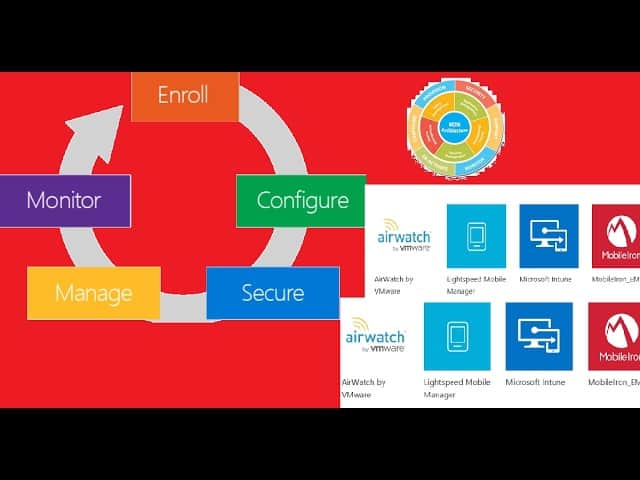
Microsoft Intune will automatically enroll CYO or BYO devices. You can scope automatic enrollment to some Azure AD users, all users, or none. This is an old post, but the concepts are still the same.
The old classic Azure portal offers an option to set up Automatic Intune MDM enrollment for Windows 10 devices. A similar option is available in the new Azure portal, which has new names and a new look. This post explains more details about the Windows 10 Intune Auto Enrollment Process.
One of the first things you must learn is how to use the Intune Admin Portal. This post will help you understand where the Intune admin portal is, officially known as the Microsoft Intune Admin Center.
The Intune Auto Enrollment option will help you perform two (2) things, as explained in the video below. It’s an old video now; the patch to configure auto-enrollment has changed a bit, and I have described it in the new Intune portal walkthrough video below.
First, whenever a Windows 10 device is joined to Azure AD, it will automatically enroll in Intune for MDM Management. Second, only the allowed users in the MDM user scope group can enroll devices in Intune.
Table of Contents
How to Configure Automatic Intune MDM Enrollment | Auto Enrollment – Intune Portal Walkthrough | MEM Admin Center | Training
The Intune Admin Portal, officially known as the Microsoft Endpoint Manager (MEM) Admin Center, is a crucial tool for managing devices and applications within an organization. IT administrators must effectively navigate this portal to oversee and control various aspects of their endpoints.
How to Configure Automatic Intune MDM Enrollment | Auto Enrollment – Video 1
NOTE! – For Windows 10 BYOD devices, the MAM user scope takes precedence if both the MAM user scope and MDM user scope (automatic MDM enrollment) are enabled for all users (or the same groups of users). The device will use Windows Information Protection (WIP) Policies (if you configure them) rather than being enrolled by MDM.
The following is where you can set the MDM enrollment configuration in the new Azure portal. When your MDM User scope is set to None, none of the enrolled devices get the proper policies, and those devices won’t work as expected.
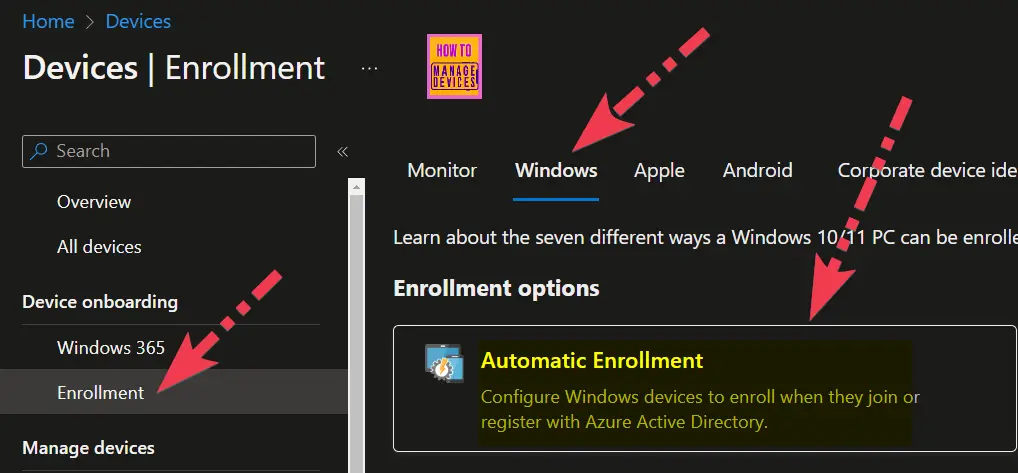
Choose Devices -> Device Onboarding – Enrollment -> Windows in the Microsoft Intune admin centre.
Click on the Automatic Enrollment button.
How to Configure Automatic Intune MDM Enrollment | Auto Enrollment – Fig.1
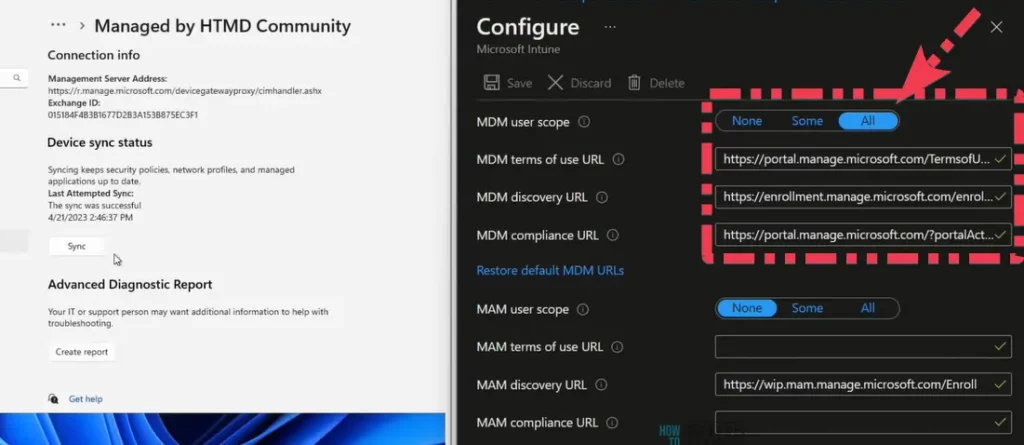
Select the MDM user Scope to All or Custom Azure AD group per your requirement. If it is set to None, users won’t be able to enroll the devices into Intune management.
The simplest option is to specify “all users” in the MDM user scope so that all the users in your organization can enroll their devices into Intune. Windows 10 devices will automatically enroll in Intune when the users perform Azure AD Join.
User groups can manage this option. When you want to allow a specific group of users to enroll their devices into MDM/Intune, this is the place to configure that user group. Click on the SOME option in the MDM User scope and select the user group to which you want to provide access.
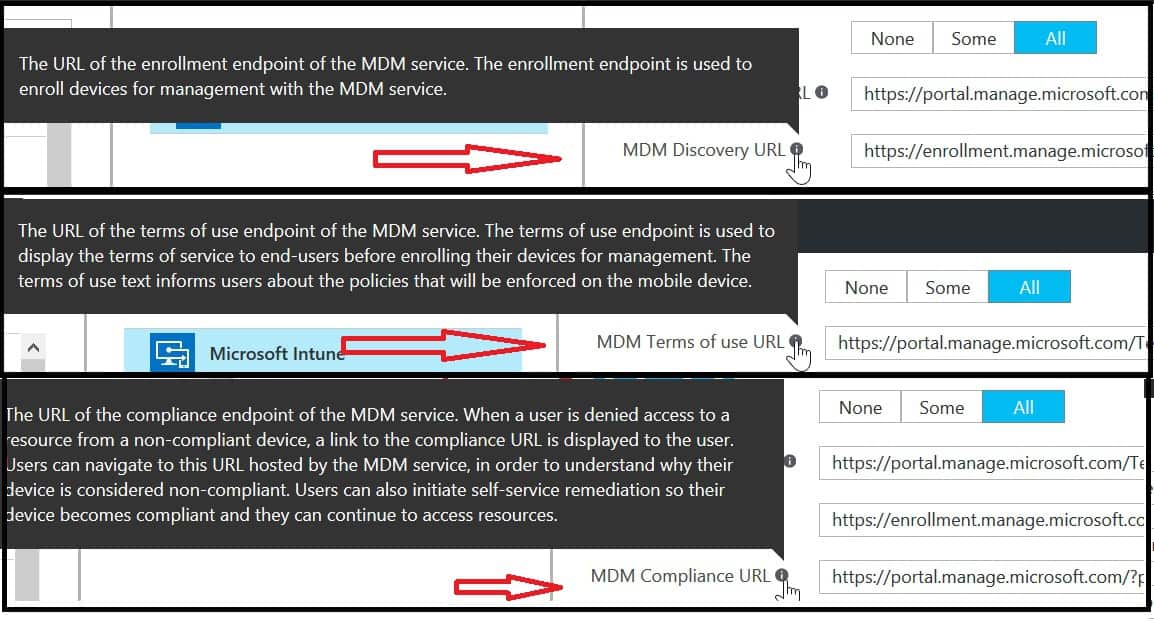
From the same place, you can perform a granular or phase-wise approach to moving users to new MDM management from the same place. This blade has 3 URL options; you can configure these URLs according to your MDM vendor.
How to Configure Automatic Intune MDM Enrollment | Auto Enrollment – Fig.2
Video Windows 10 Intune Auto Enrollment Process
This is an old video recorded using the Azure portal UI. The concept is the same, but the new portal UI has different options.
How to Configure Automatic Intune MDM Enrollment | Auto Enrollment – Video 1
Windows 10 Airwatch Mobileiron Auto Enrollment Process?
If Airwatch or Mobileiron manages your devices, you can specify those. The new Azure portal for Intune automatically configures all the URLs in MDM. This blade has three different URLs.
New Azure Portal for Intune MDM
Description
Link
MDM Terms of use URL
The URL of the terms of use endpoint of the MDM service
This is the URL of the enrollment endpoint of the MDM service. The enrollment endpoint is used to enroll devices for management with the MDM service. The URL given below is the Intune enrollment endpoint URL.
This is the URL of the compliance endpoint of the MDM service. When a user is denied access to a resource from a non-compliance device.URL can navigate to this URL hosted by Intune service in order to understand why their device is considered noncompliant. Users can also initiate self-service remediation so their devices become compliant and they can continue to access resources.
How to Configure Automatic Intune MDM Enrollment | Auto Enrollment – Table 1
How to Configure Automatic Intune MDM Enrollment | Auto Enrollment – Fig.3
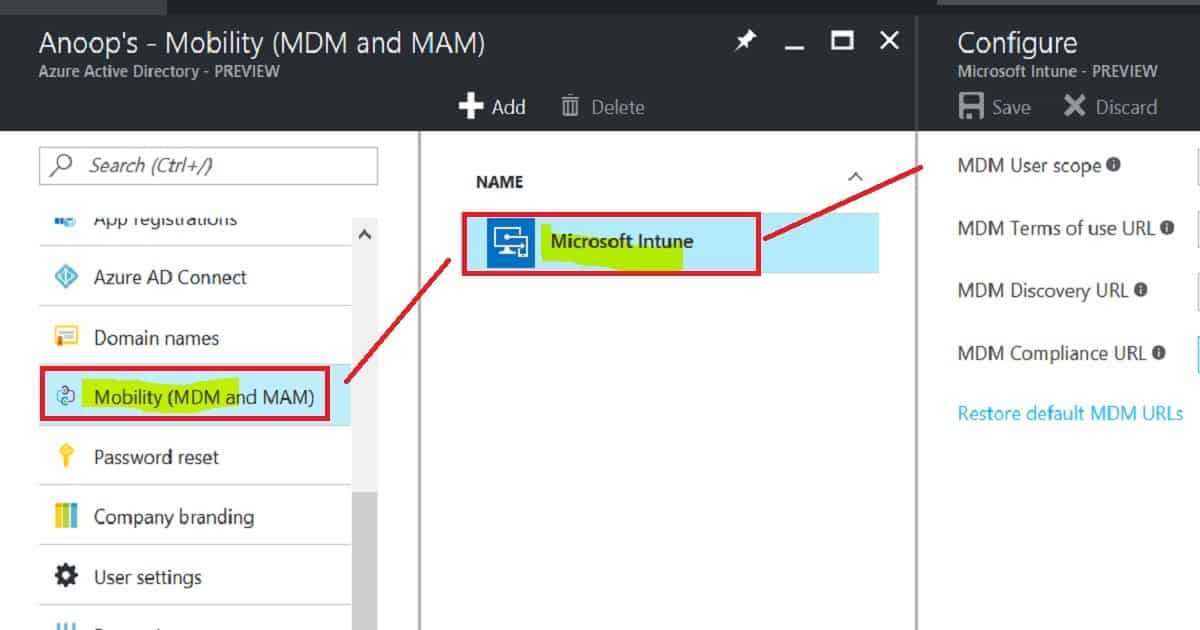
So, where is the option in the new Azure portal to configure the MDM auto-enrollment setting for Windows 10 devices and MDM enrollment for the rest of the devices (Android, iOS, and macOS)? The following is where you can configure the Intune MDM enrollment option: Microsoft Azure—Mobility (MDM and MAM).
Windows 10 Intune Auto Enrollment Process Screen capture.
How to Configure Automatic Intune MDM Enrollment | Auto Enrollment – Fig.4
We are on WhatsApp now. To get the latest step-by-step guides, news, and updates, Join our Channel. Click here. HTMD WhatsApp.
Author
Anoop C Nair is Microsoft MVP! He is a Device Management Admin with more than 20 years of experience (calculation done in 2021) in IT. He is a Blogger, Speaker, and Local User Group HTMD Community leader. His main focus is on Device Management technologies like SCCM 2012, Current Branch, and Intune. He writes about ConfigMgr, Windows 11, Windows 10, Azure AD, Microsoft Intune, Windows 365, AVD, etc.
Anoop C Nair is Workplace Technology solution architect with 25+ years of experience in global enterprise organizations such as JP Morgan, Capgemini, etc. He is Microsoft Certified Trainer. Microsoft MVP from 2015 onwards for consecutive 11 years! He also conducts Intune and modern workplace tech training for enterprise organizations. He is Blogger, Speaker, and Founder of HTMD Community and HTMD Conference. His focus is on Device Management technologies such as Intune, Windows, Cloud PC. He writes about technologies like Intune, SCCM, Windows, Cloud PC, Windows, Entra, Microsoft Security.
Let’s discuss how to Reset the MFA Contact Details of an Azure AD User. In this post, we will see the different types of users in the Azure Active Directory (Azure AD or AAD) and how to delete a user’s existing contact details and request the user to fill in new contact details.
We can easily reset the contact details used for MFA (Multi-Factor Authentication) from the Azure AD portal. This is very useful when the user gets an internal transfer within the organization to another country and wants to change the number.
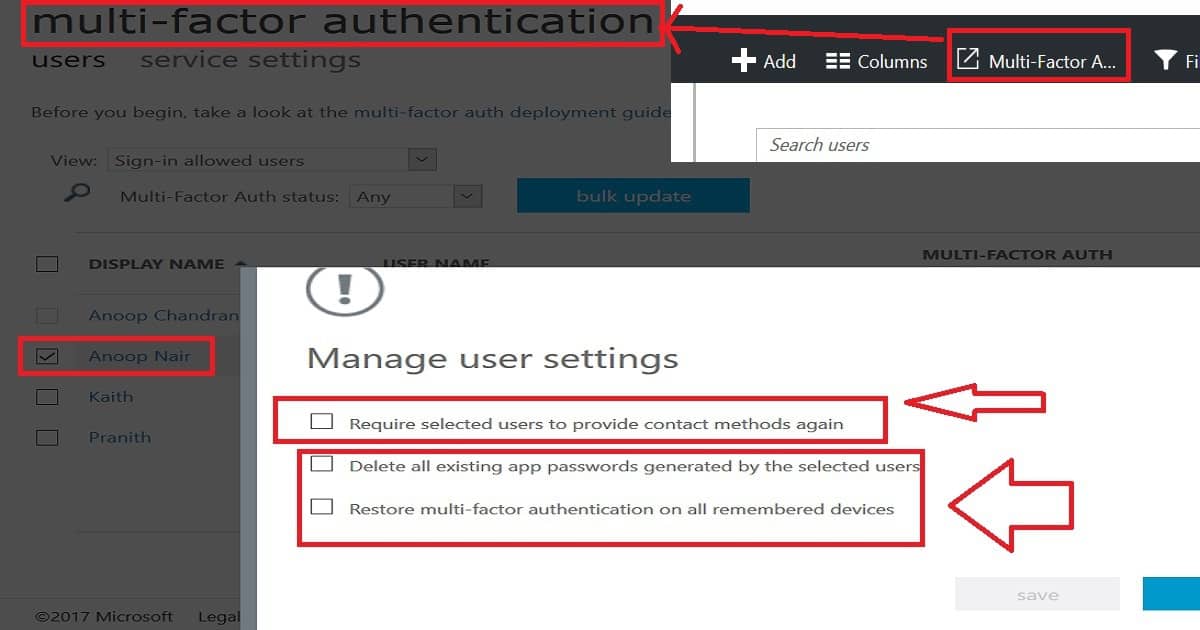
Also, there are options to “Delete all existing app passwords generated by the selected users” and “Restore multi-factor authentication on all remembered devices”.
Reset MFA Contact Details – MFA Mobile Contact Number Reset from Azure Portal with Admin Access?
Let’s talk about resetting the Multi-Factor Authentication (MFA) contacts of an Azure Active Directory (AD) user. The video below will guide you through the process, showing all the necessary details step by step. It’s a straightforward way to ensure that the MFA contacts for your Azure AD user are updated correctly.
How to Reset MFA Contact Details of Azure AD User – Video 1
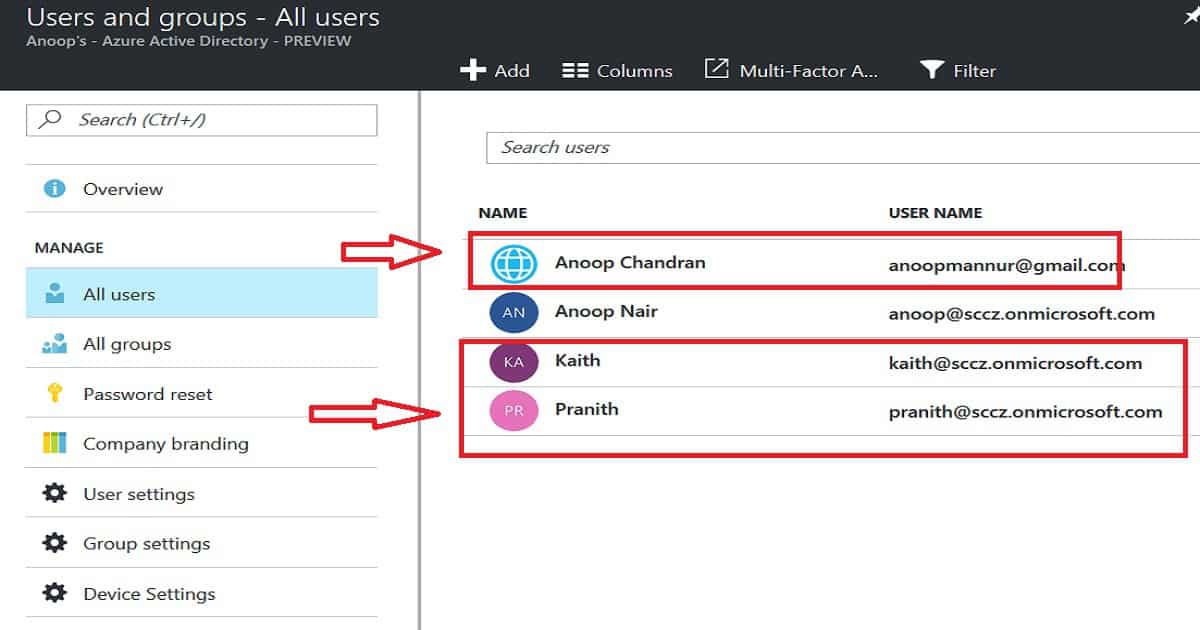
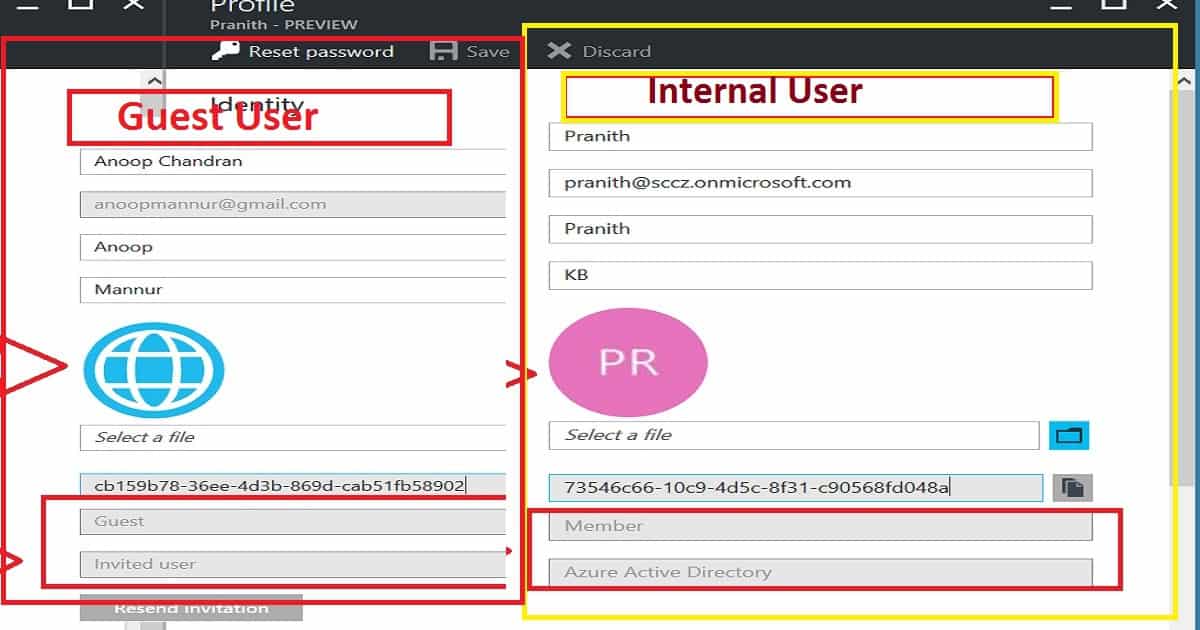
As you can see in the picture, two types of symbols are near user accounts. The one with external email IDs like Gmail and those kinds of users are guest users in Azure AD.
How to Reset MFA Contact Details of Azure AD User – Fig.1
Using the Guest user option, you can temporarily grant external contractors access to your organization’s apps. Internal users with your organization’s email IDs are another type of user.
How to Reset MFA Contact Details of Azure AD User – Fig.2
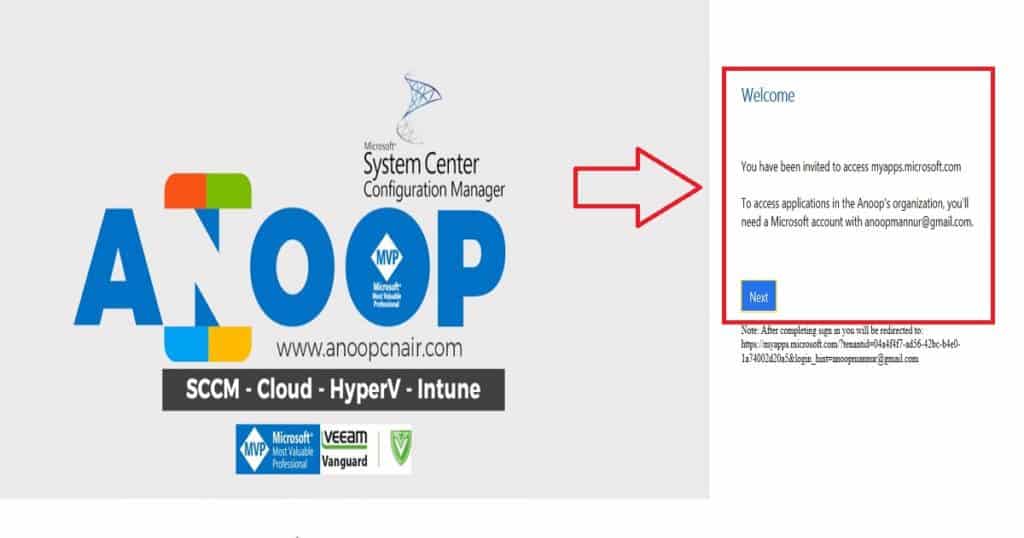
To access the organisation’s resources, Guest users should go through a secure onboarding process with MFA (Multi-Factor Authentication). Guest users will receive an invitation mail on the external email ID, and the email subject will be “You’re invited to the {Anoop’s} organization“.
The user has to click on the “Get Started” link from the mail, and they will be guided through the onboarding process with MFA. As you can see in the welcome screen (below picture), you will access the MyApps.microsoft.com portal, where guest users can access internal applications allocated to that user.
How to Reset MFA Contact Details of Azure AD User – Fig.3
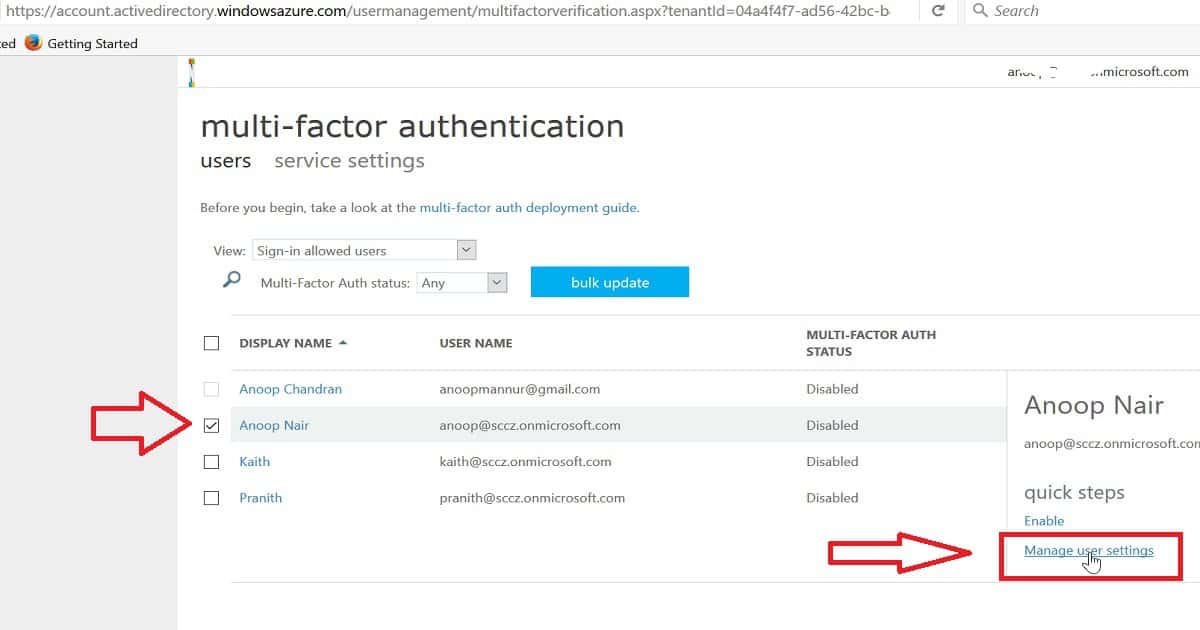
So, coming back to the main topic, “How to Reset the MFA Contact Details of an Azure AD User,” this option is available in the Azure portal: “Microsoft Azure Active Directory –> Users and groups—All users.” Click on “Multi-Factor Authentication.” In the new tab, you will see the option to reset the AAD user’s contact details.
This blade will allow you to reset all app passwords the selected users generate and ask users to perform MFA on all existing devices.
Select the user ID and click “Manage user setting” to reset the AAD user’s MFA contacts.
How to Reset the MFA Contact Details of an Azure AD User
Microsoft Azure Active Directory
Users and groups
All users
Multi-Factor Authentication
How to Reset MFA Contact Details of Azure AD User – Table 1
How to Reset MFA Contact Details of Azure AD User – Fig.4
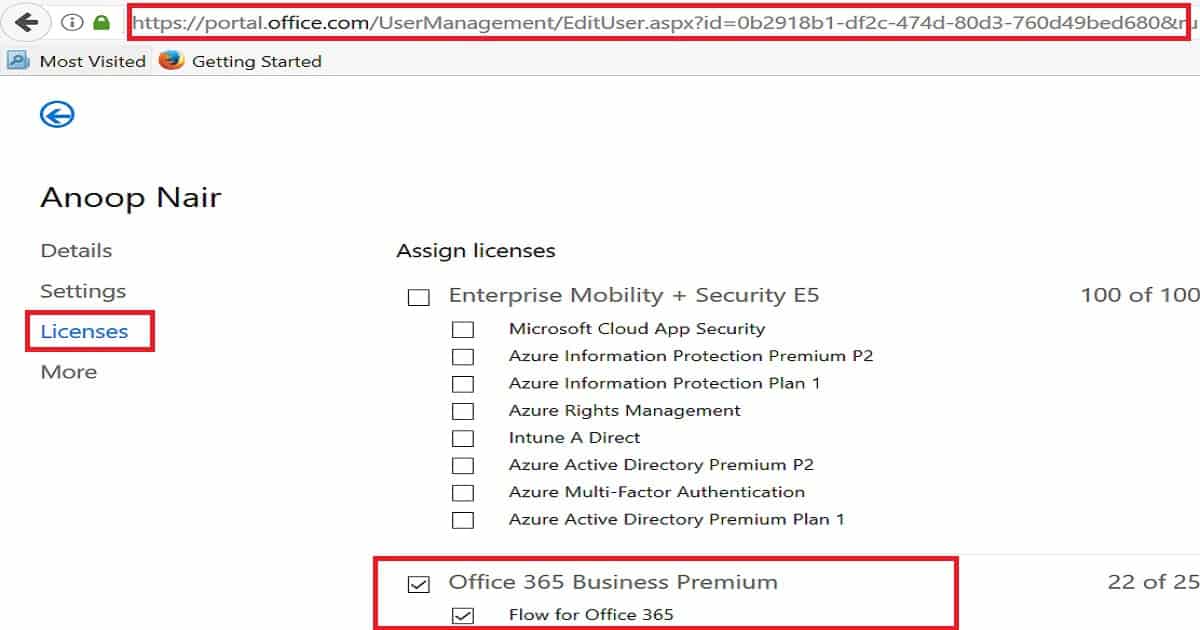
When you click on any user account from the above place (as seen in the above pic), it will take you to the Office 365 licensing portal. So, there is no need to log into the Office portal separately to assign user licenses. This is handy stuff.
How to Reset MFA Contact Details of Azure AD User – Fig.5
Once you click on “Manage User Settings,” you will see the following options: The first one requires selected users to provide contact methods again, and the second one deletes all existing app passwords generated by the selected users.
3. Restore Multi-factor authentication on all remembered devices. To reset an Azure AD user’s MFA contact details, select option one, “Require selected users to provide contact methods again,” and click save. The next time a user logs into a device, AAD will prompt the user to provide contact details again.
How to Reset MFA Contact Details of Azure AD User – Fig.6
We are on WhatsApp now. To get the latest step-by-step guides, news, and updates, Join our Channel. Click here. HTMD WhatsApp.
Author
Anoop C Nair is Microsoft MVP! He is a Device Management Admin with more than 20 years of experience (calculation done in 2021) in IT. He is a Blogger, Speaker, and Local User Group HTMD Community leader. His main focus is on Device Management technologies like SCCM 2012, Current Branch, and Intune. He writes about ConfigMgr, Windows 11, Windows 10, Azure AD, Microsoft Intune, Windows 365, AVD, etc.
Anoop C Nair is Workplace Technology solution architect with 25+ years of experience in global enterprise organizations such as JP Morgan, Capgemini, etc. He is Microsoft Certified Trainer. Microsoft MVP from 2015 onwards for consecutive 11 years! He also conducts Intune and modern workplace tech training for enterprise organizations. He is Blogger, Speaker, and Founder of HTMD Community and HTMD Conference. His focus is on Device Management technologies such as Intune, Windows, Cloud PC. He writes about technologies like Intune, SCCM, Windows, Cloud PC, Windows, Entra, Microsoft Security.
Let’s look at the SCCM Server Hardware Migration Step by Step Guide. Moving an SCCM/ConfigMgr server from one hardware to another is a common scenario in the enterprise world.
There could be several reasons for this kind of SCCM/ConfigMgr server hardware migration. Server OS upgrade is one of the most common scenarios. Yes, SCCM CB 1606 and later versions support the in-place upgrade of server OS. However, I’ve seen that most of our server teams don’t want to perform a place OS upgrade.
This post provides a step-by-step guide for migrating ConfigMgr SCCM server hardware. It provides all the details you need to perform this migration smoothly and efficiently.
The Migration Process is into 5 Phases– ConfigMgr SCCM Server Hardware Migration Step by Step Guide to Perform
I have completed similar migration activities many times in my career. Following these steps is crucial when migrating or server hardware changes to your SCCM server.
I’m not covering SQL migration in this post. In this scenario, SQL is on the remote box. If the SQL is on the same box, things will be easier. I’ve divided the migration process into 5 phases:-
Pre-SCCM Migration Activities
Start of SCCM Migration Activities – Downtime starts from here
SCCM Installation activities on the new server
SCCM/ConfigMgr Recovery/Restore activities
Post SCCM/ConfigMgr Repair/Recovery activities
ConfigMgr SCCM Server Hardware Migration Step by Step Guide to Perform – Fig.1
Pre-SCCM Migration Activities
Create new servers with new names – check whether the SCCM version you will install supports the OS version of the servers.
Make sure new servers are created in the same VLAN, making life much easier.
Ensure the drive letters of newly provisioned servers are the same as those of existing ones.
You can request a storage extension to keep 3 or 4 copies of the SCCM full backup on the new server.
Document the SMS Groups and security settings of existing servers and configurations of the SCCM console.
SCCM Site backup and store remotely (confirm success) – Probably a day before the actual migration schedule.
4 to 5 days before actual SCCM server migration, replicate all the Data SCCM Package folders, drivers, etc (all data except those NOT covered as part of SCCM Full backup) to the Newly provisioned server.
Make sure the copy of SCCM source files and prerequisites are already copied to new SCCM servers.
Perform a differential copy of Data SCCM Package folders, drivers, etc., to newly provisioned servers (maybe a few hours before, depending on the data size).
Document current servers, AD membership in groups, OU, etc., and IP information.
Remove remote site system roles like SUP/RP. Make sure the site system details are removed from the SCCM console.
Please take a couple of extra Site backup copies and store them on the newly provisioned SCCM server.
Take a Snapshot of existing SCCM servers (include the drive where SCCM is installed).
ConfigMgr SCCM Server Hardware Migration Step by Step Guide to Perform – Fig.2
Start of SCCM Migration Activities – Downtime Starts from Here
Remove existing SCCM servers from the domain, ensuring you know local admin account details.
Shut down existing SCCM servers.
Rename existing SCCM servers in Vcenter or HyperV to old.
Rename the new SCCM server in Vcenter/HyperV to the existing SCCM server names.
Delete existing SCCM servers from AD.
Remove new SCCM/ConfigMgr servers from the domain and reboot, ensuring you have local admin account details.
Log onto new SCCM/ConfigMgr servers using the local admin account.
Change IPs of new SCCM servers to reflect old SCCM server IP details.
Change new SCCM server names to existing SCCM server names and reboot.
Log on to new SCCM servers using the local admin account.
Add new SCCM servers to the domain and reboot.
Verify the OU, System Management Access, and AD membership information for the new SCCM/ConfigMgr servers. If you have made any changes above, reboot.
Storage migrates any back-end storage in VMware/HyperV to ensure that vmdk and vmx/VHDX files are named correctly.
Take a full backup of the Remote SQL Database (confirm success).
Archive this SQL backup so the old server can be reinstated as a backup plan if the site is not working correctly.
Delete SCCM Databases (SCCM and SUSDB) from the remote SQL server.
Delete SQL logins for existing SCCM computer objects using SQL Management Studio.
ConfigMgr SCCM Server Hardware Migration Step by Step Guide to Perform – Fig.3
SCCM Installation Activities on the New Server
Ensure all security permissions and security groups/computers are added to the new SCCM servers.
Install the WSUS admin console.
Depending on the SCCM version, install WAIK 2.0 (SCCM 2007) or ADK (SCCM 2012 or CB).
Install all the prerequisites like IIS, Bits, etc…on new servers.
Install WSUS on the remote WSUS server.
Install SCCM/ConfigMgr Software on the new SCCM server – Make sure you install the exact version of the existing SCCM server. For SCCM CB versions, source files are part of the SCCM Full backup.
Ensure that everything works fine after installing SCCM/ConfigMgr on new servers.
Take a copy of the SRVACCT folder from the new installation (<Install Path>\Microsoft Configuration Manager\SRVAcct) N.B. This is a hidden folder.
Re-populate the local SMS group memberships as they were (not all site roles may be installed, so repeat the task at the end).
Take a Snapshot of the server pre-site recovery.
ConfigMgr SCCM Server Hardware Migration Step by Step Guide to Perform – Fig.4
Restore/attach databases (SCCM and SUSDB) from backup (use SQL to restore if it is a remote SQL box).
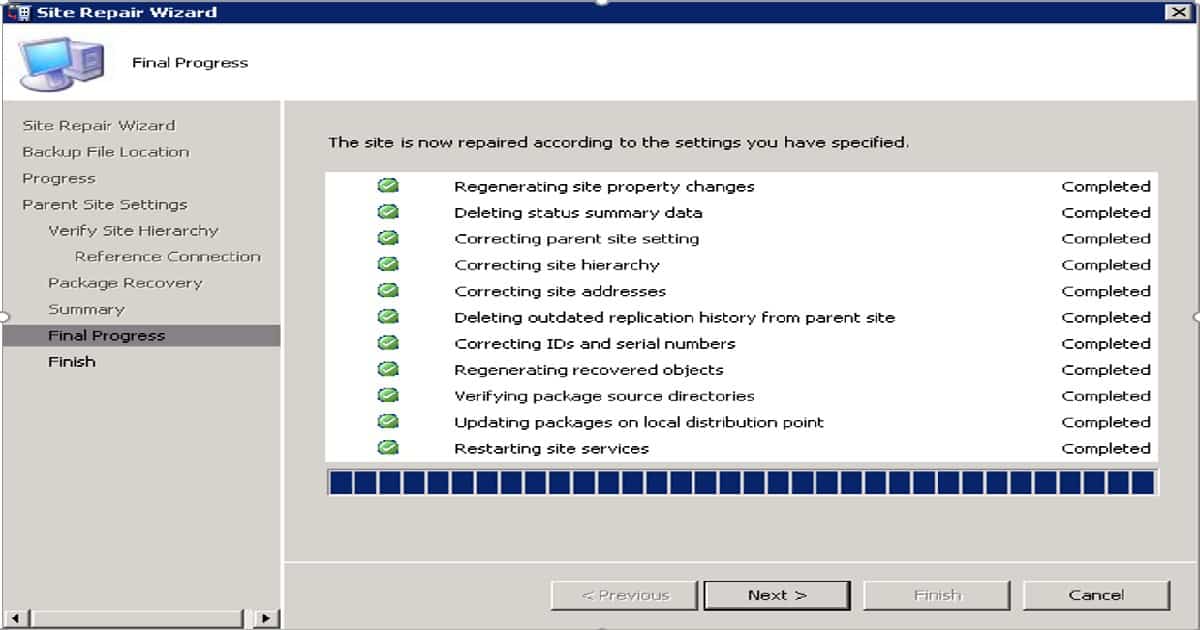
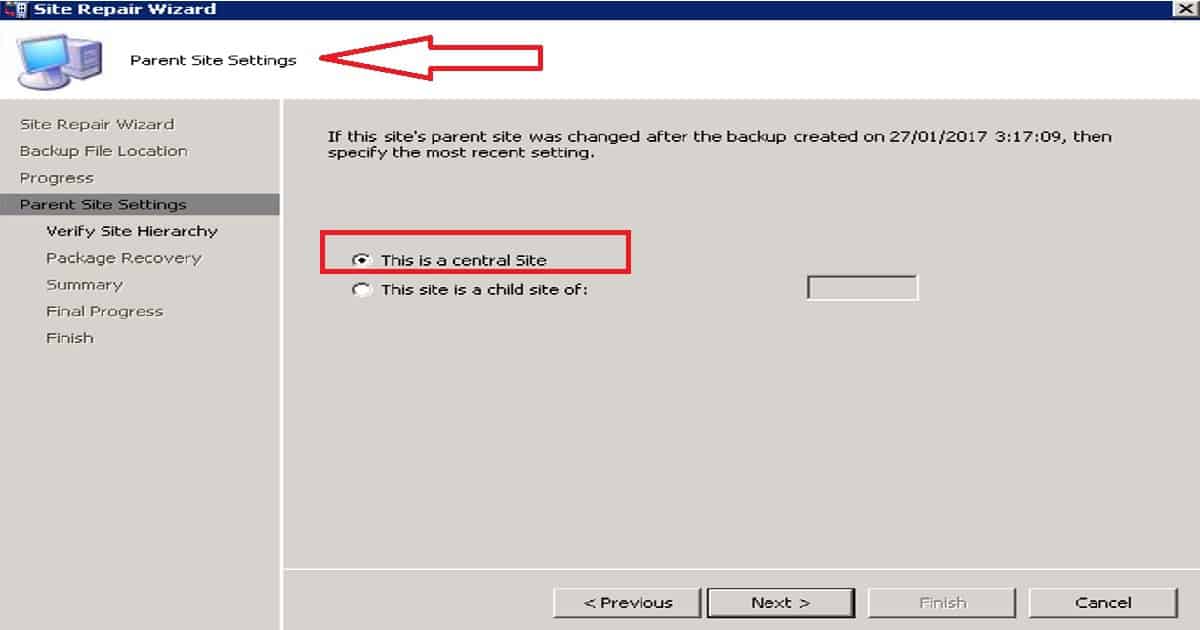
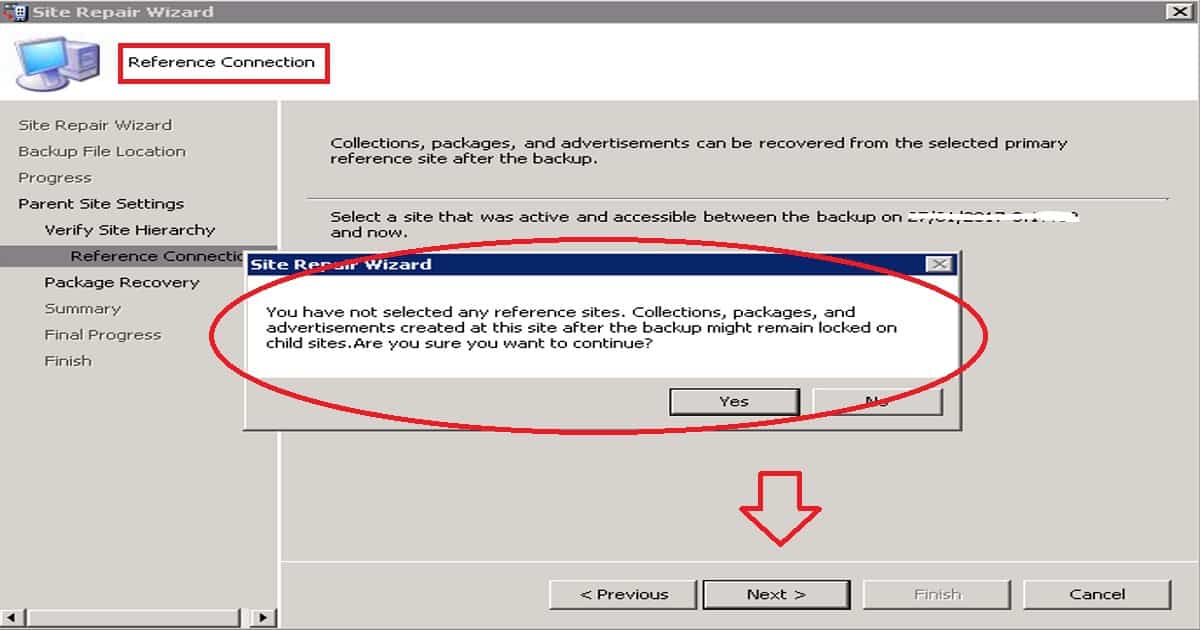
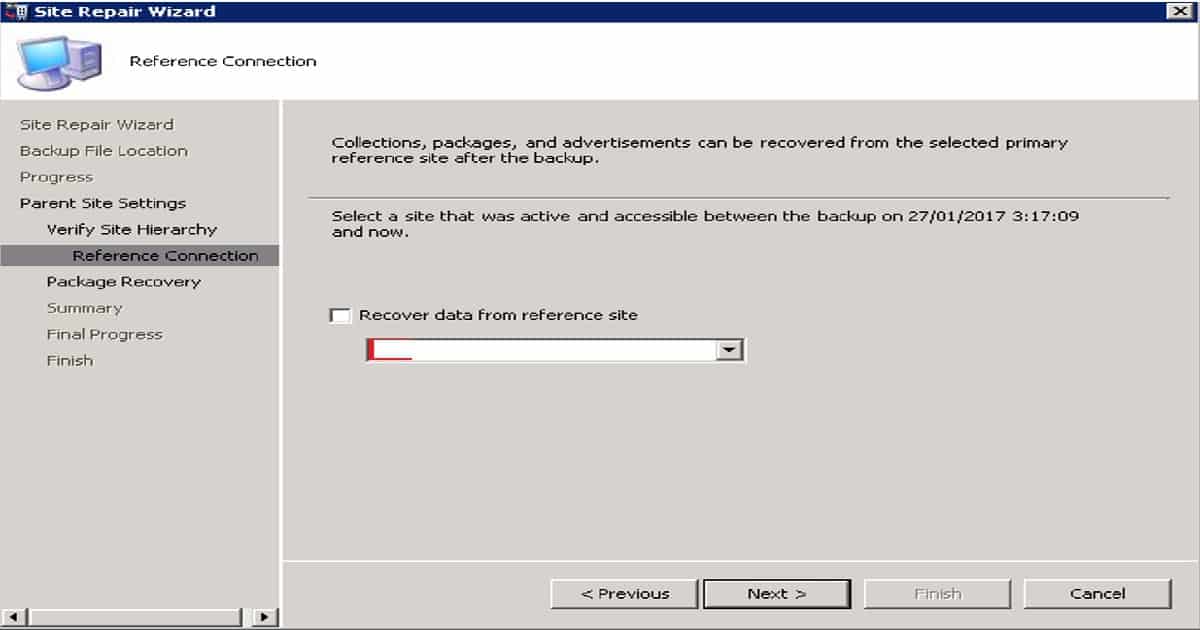
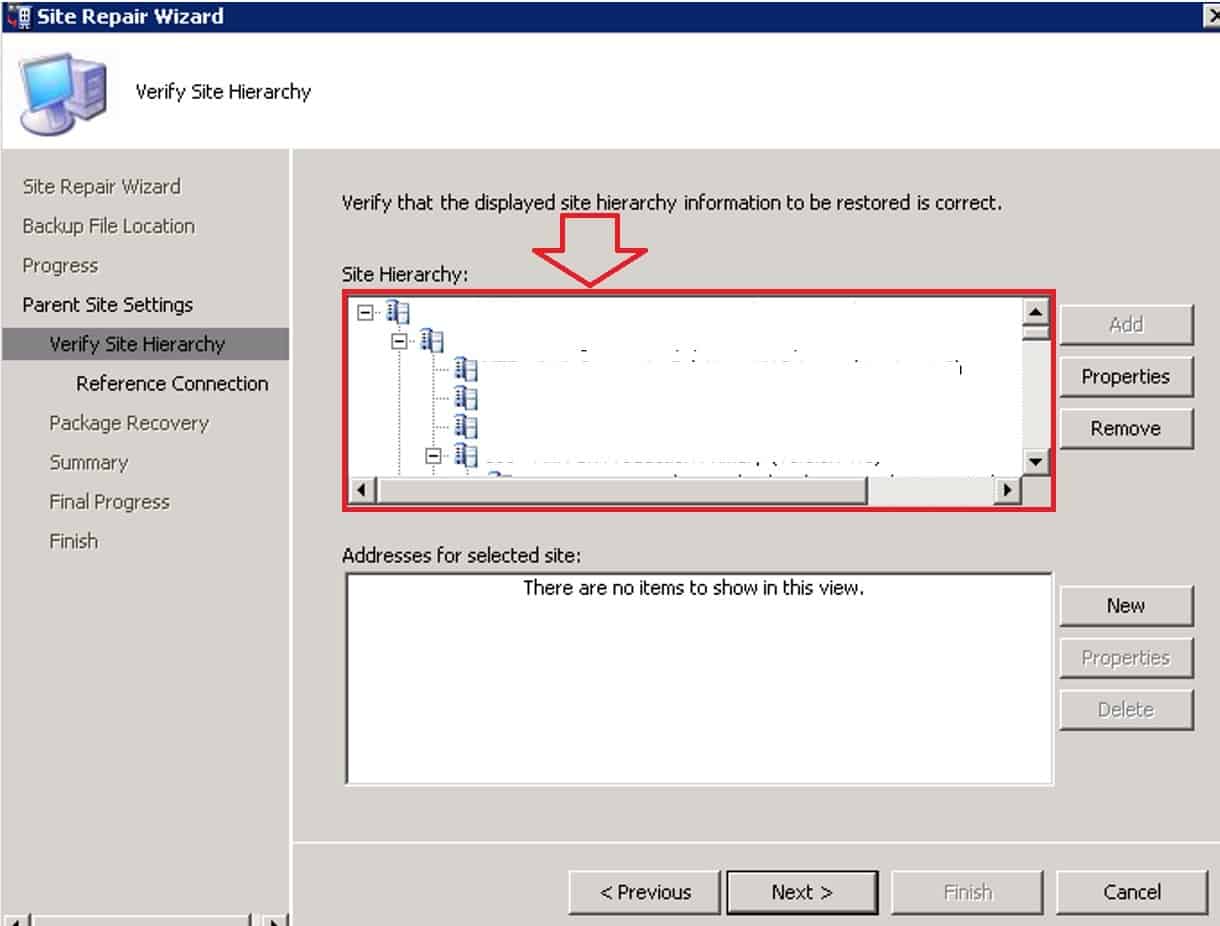
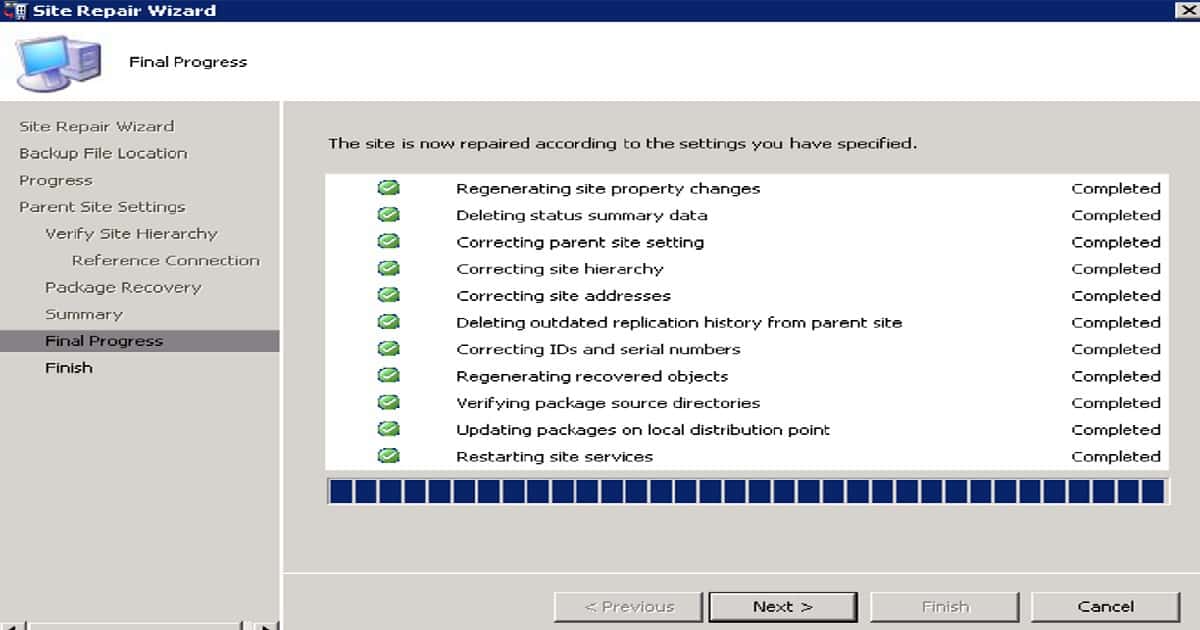
Run the SCCM/ConfigMgr site REPAIR wizard. Select the “Do not restore database” check box to skip the database restoration.
Please ensure you have started the REPAIR wizard with administrator access and provide the exact path of the SCCM backup folder.
Stop the SCCM services and copy the previously archived SRVACCCT folder back over.
Start SCCM services and monitor the sitecomp.log as components are re-installed.
Once sitecomp.log is complete, perform a site reset to repair file and registry permissions.
Install SCCM RP.
Install SCCM SUP on a remote server.
ConfigMgr SCCM Server Hardware Migration Step by Step Guide to Perform – Fig.5
Post SCCM/ConfigMgr Repair/Recovery Activities
Ensure all package sources, including classic and software update packages, are restored with the same share names and permissions. Repopulate the local security groups on SCCM servers.
Check the sender.log to ensure the restored SCCM servers can communicate with the child’s primary sites. Sometimes, we need to delete the addresses from the SCCM console and recreate it.
Post SCCM/ConfigMgr Repair/Recovery activities
Ensure all accounts with passwords in the SCCM console have been removed and recreated.
Please create a new package or collection and replicate it to downstream servers.
Please start a new WSUS Sync and check whether it works fine. You may need to wait for hours before completing the sync.
Make sure the replication of old and OSD-related packages is replicated OK or not.
ConfigMgr SCCM Server Hardware Migration Step by Step Guide to Perform – Table 1
ConfigMgr SCCM Server Hardware Migration Step by Step Guide to Perform – Fig.6
We are on WhatsApp now. To get the latest step-by-step guides, news, and updates, Join our Channel. Click here. HTMD WhatsApp.
Author
Anoop C Nair is Microsoft MVP! He is a Device Management Admin with more than 20 years of experience (calculation done in 2021) in IT. He is Blogger, Speaker, and Local User Group HTMD Community leader. His main focus is on Device Management technologies like SCCM 2012, Current Branch, and Intune. He writes about ConfigMgr, Windows 11, Windows 10, Azure AD, Microsoft Intune, Windows 365, AVD, etc.
Enrollment Restrictions help control which devices can enroll into Intune.
Setting Personally owned devices to Block prevents users from enrolling personal iPhones and iPads.
Keeping MDM set to Allow ensures that corporate-owned iOS/iPadOS devices can still enrol and be managed through Intune.
Enrollment restrictions are evaluated before the device enrollment process begins.
Let’s Discuss How to Restrict Personal iOS Devices from Enrolling on Intune. Microsoft Intune provides Enrollment Restrictions that help administrators control which devices can be enrolled into the organization. By using these restrictions, organizations can improve security and ensure that only approved devices are managed through Intune. In this guide, we will walk through the steps to create an Enrollment Restriction policy in Intune that blocks personally owned iOS/iPadOS devices while allowing corporate-owned devices to enroll successfully.
Table of Contents
Table of Contents
How to Restrict Personal iOS Devices from Enrolling on Intune
Blocking personal iPhones and iPads helps prevent unmanaged devices from accessing organizational data and applications. Enrollment restriction policies help us restrict/block a set of devices from enrolling in Intune. This post explains how to Restrict Personal iOS Devices from Enrolling in Intune Endpoint Manager.
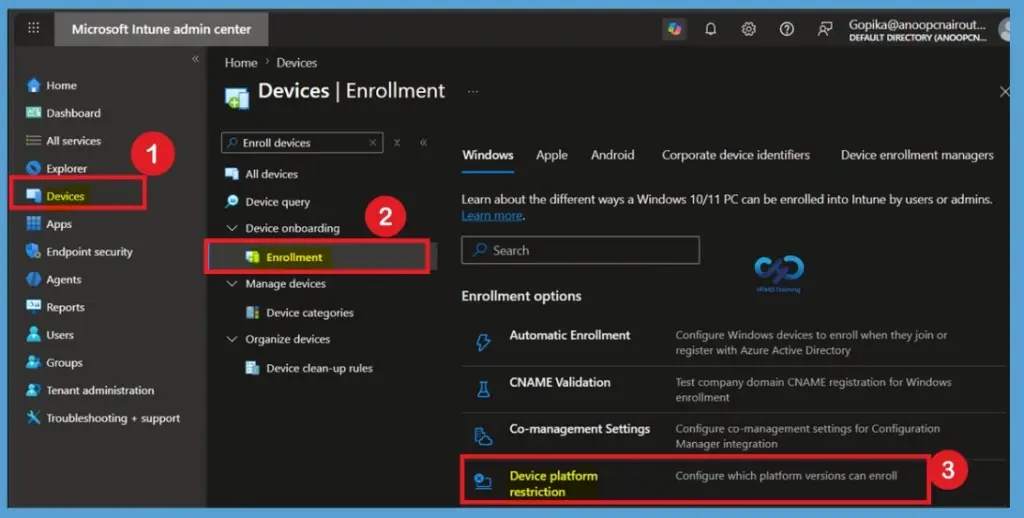
Sign in to the Microsoft Intune Admin Center and navigate to Devices > Device Onboarding > Enrollment > Enrollment Restrictions. Under Device Platform Restrictions, select Create Restriction and provide a suitable name and description for the policy.
How to Restrict Personal iOS Devices from Enrolling on Intune – Fig.1
Configure the Enrollment Restriction
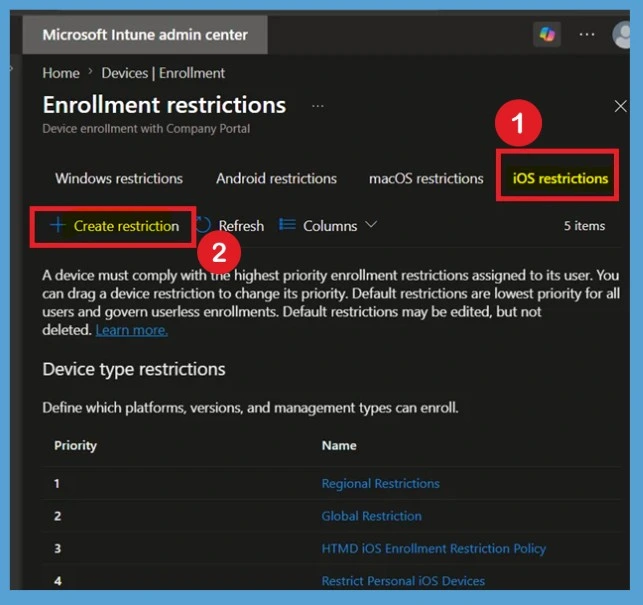
When you click on the Device Platform Restriction, you will be able to select the platform. Here, I selected iOS restriction and click on the Create Restriction. Creating a dedicated enrollment restriction policy allows administrators to control which devices can be enrolled on Intune. This helps organisations enforce security requirements and manage device enrollment more effectively.
How to Restrict Personal iOS Devices from Enrolling on Intune – Fig.2
Basics Tab
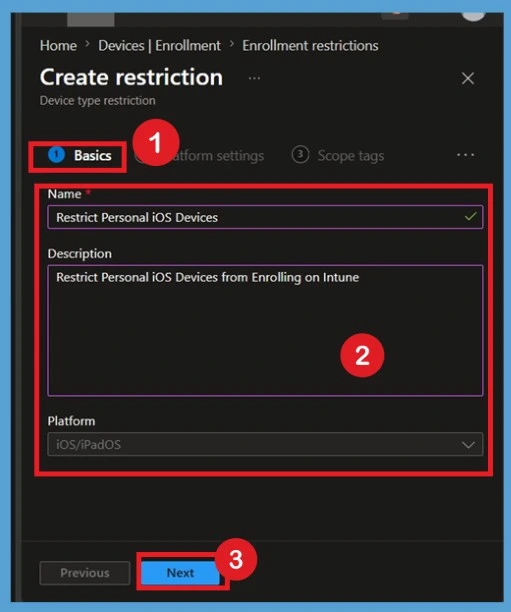
In the Basics tab, provide a meaningful Name and Description for the enrollment restriction policy. This helps administrators easily identify the purpose of the policy in the Intune portal. In this example, the policy is named Restrict PersonaliOS Devices, and the description clearly indicates that personal iOS devices will be prevented from enrolling in Intune.
After entering the required details, verify that the Platform is set to iOS/iPadOS.
Once the information is reviewed, click Next to proceed to the Platform Settings page.
How to Restrict Personal iOS Devices from Enrolling on Intune – Fig.3
Know the Platform Settings
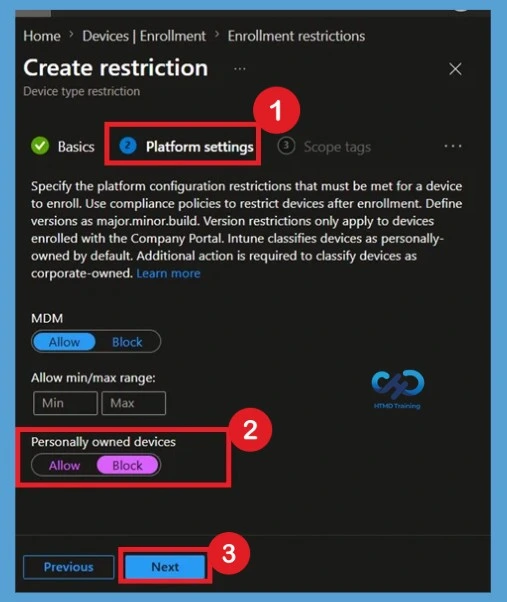
The Platform Settings page allows administrators to configure enrollment restrictions for the selected platform. Here, keep MDM set to Allow so that iOS/iPadOS devices can enrol in Intune management.
How to Restrict Personal iOS Devices from Enrolling on Intune – Fig.4
To block personal devices, change the Personally owned devices setting from Allow to Block. This configuration prevents users from enrolling personal iPhones and iPads while still allowing enrollment of corporate-owned Apple devices. After configuring the settings, click Next to continue. k. Intune treats devices as personally owned by default unless they are identified as corporate-owned through supported enrollment methods.
The device type restriction policy is very helpful if you want to restrict Windows Mobile/Phone devices from enrolling on Intune. At the same time, you can allow Windows devices (desktops, laptops, surfaces, etc) to enrol on Intune.
How to Restrict Personal iOS Devices from Enrolling on Intune – Fig.5
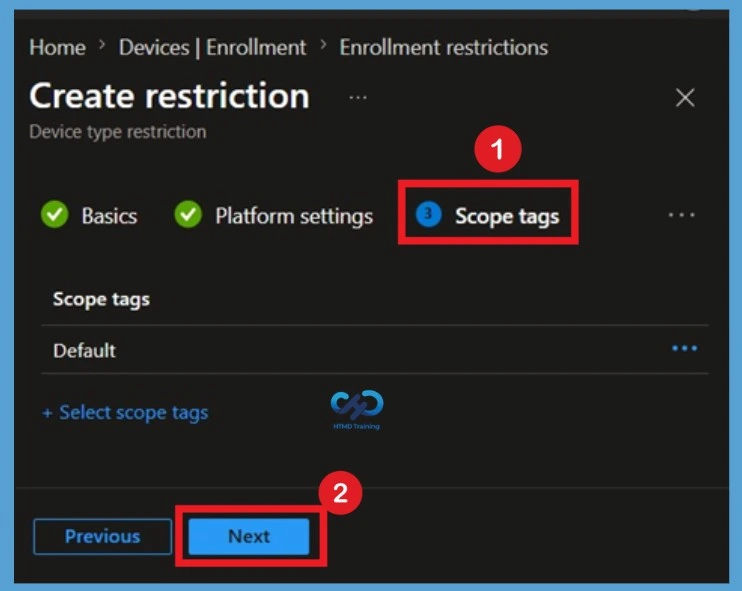
Scope Tags
On the Scope Tags page, assign the required scope tags if your organisation uses role-based administration. Scope tags help administrators control access to Intune resources and policies. If scope tags are not required in your environment, you can proceed with the default configuration. This step helps delegate administrative responsibilities without affecting the policy’s functionality.
How to Restrict Personal iOS Devices from Enrolling on Intune – Fig.6
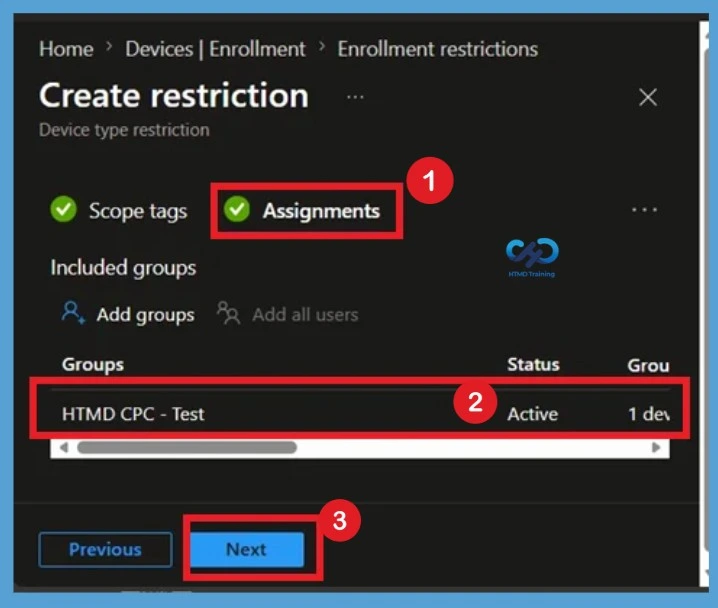
Assign the Policy
In the Assignments section, select the Microsoft Entra groups that should receive the enrollment restriction policy. Only users included in the assigned groups will be affected by the restriction. Proper assignment ensures that the policy is applied to the intended users. Administrators can initially target a test group before deploying the restriction to a larger user population.
How to Restrict Personal iOS Devices from Enrolling on Intune – Fig.7
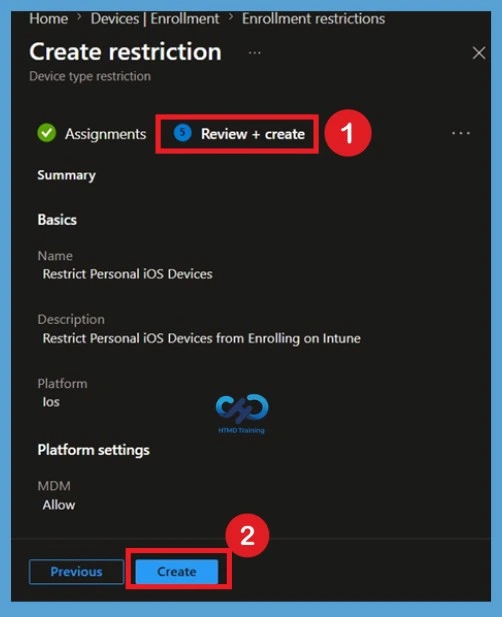
Review and Create
Review the configured settings to verify that the policy meets your organisation’s requirements. Once confirmed, click Create to deploy the enrollment restriction policy. After the policy is created, Intune will begin applying the restriction to the assigned users. The policy will be enforced whenever targeted users attempt to enrol a device.
How to Restrict Personal iOS Devices from Enrolling on Intune – Fig.8
Intune Home Page Redesign
The newly redesigned Intune Admin Portal Home Pagecomprehensively reviews the changes and the updated Intune Admin Portal Journey. The dynamic Home Page is used for Intune Administrators, and spotlight options highlight premium features, ensuring easy access to key functionalities.
How to Restrict Personal iOS Devices from Enrolling on Intune – Video 1
MEM Admin Portal
Below is a video on the Intune Admin Center Walkthrough for the latest updates. The Intune Admin Portal is one of the first things you must learn. This post explains where the Intune admin portal (aka Endpoint Manager) is. The official name of the Intune admin portal is the MEM Admin Center.
How to Restrict Personal iOS Devices from Enrolling on Intune – Video 2
Anoop C Nair is Workplace Technology solution architect with 25+ years of experience in global enterprise organizations such as JP Morgan, Capgemini, etc. He is Microsoft Certified Trainer. Microsoft MVP from 2015 onwards for consecutive 11 years! He also conducts Intune and modern workplace tech training for enterprise organizations. He is Blogger, Speaker, and Founder of HTMD Community and HTMD Conference. His focus is on Device Management technologies such as Intune, Windows, Cloud PC. He writes about technologies like Intune, SCCM, Windows, Cloud PC, Windows, Entra, Microsoft Security.
Need Further Assistance or Have Technical Questions?
Anoop C Nair has been Microsoft MVP from 2015 onwards for 10 consecutive years! He is a Workplace Solution Architect with more than 22+ years of experience in Workplace technologies. He is also a Blogger, Speaker, and Local User Group Community leader. His primary focus is on Device Management technologies like SCCM and Intune. He writes about technologies like Intune, SCCM, Windows, Cloud PC, Windows, Entra, Microsoft Security, Career, etc
WOW! I am Privileged to have been part of Veeam Vanguard for 3 Years. It’s a great pleasure to inform you all that I received an invitation from the Veeam Vanguard team to be part of an elite group of Techies called “Veeam Vanguards 2017.”
This is my 3rd Veeam Vanguard award in a row! Veeam Vanguard is a community program by Veeam, and I’m honoured and privileged to be part of this exciting tech community.
As Rick Vanover explains in the above video, the Veeam Vanguard program was created to connect different communities. This Veeam Vanguard community is there to connect different echo systems of the IT world.
This is also to help IT Pros worldwide gain more knowledge about the new technologies and trends in the IT market and gain real-world experience. More details about the Veeam Vanguard program are available at the following link.
Privileged to be Part of Veeam Vanguard for 3 Years in a Row | Three Years – Fig.1
Privileged to be Part of Veeam Vanguard for 3 Years in a Row | Three Years
We are a small group, and being part of a very diversified tech community is always a pleasure. The natural world experts from Backup, Hyper-V, VMware, Storage, Servers, Cloud, etc… Privileged to be Part of Veeam Vanguard are 3 Years in a Row | Three Years?
Am I privileged to be part of Veeam Vanguard for 3 Years in a Row | Three Years?
The Veeam Vanguard Program is a prestigious community of top influencers recognized for their expertise, feedback, and commitment to mutual success within the Veeam technology ecosystem.
Vanguard members come from diverse backgrounds and excel in various technical disciplines, serving as thought leaders in their respective communities.
They are selected for their exceptional knowledge, active engagement, and impactful presence both online and offline. They represent the Veeam brand at the highest level across multiple technology platforms.
Privileged to be Part of Veeam Vanguard for 3 Years in a Row | Three Years – Fig.2
We are on WhatsApp now. To get the latest step-by-step guides, news, and updates, Join our Channel. Click here. HTMD WhatsApp.
Author
Anoop C Nair is Microsoft MVP! He is a Device Management Admin with more than 20 years of experience (calculation done in 2021) in IT. He is a Blogger, Speaker, and Local User Group HTMD Community leader. His main focus is on Device Management technologies like SCCM 2012, Current Branch, and Intune. He writes about ConfigMgr, Windows 11, Windows 10, Azure AD, Microsoft Intune, Windows 365, AVD, etc.
Anoop C Nair is Workplace Technology solution architect with 25+ years of experience in global enterprise organizations such as JP Morgan, Capgemini, etc. He is Microsoft Certified Trainer. Microsoft MVP from 2015 onwards for consecutive 11 years! He also conducts Intune and modern workplace tech training for enterprise organizations. He is Blogger, Speaker, and Founder of HTMD Community and HTMD Conference. His focus is on Device Management technologies such as Intune, Windows, Cloud PC. He writes about technologies like Intune, SCCM, Windows, Cloud PC, Windows, Entra, Microsoft Security.