Let’s find the best way to Deploy Office 365 ProPlus Microsoft 365 Apps using SCCM. This is the best and easiest method to deploy and install all the Microsoft 365 apps to Windows 11 or 10 devices.
The latest version of SCCM makes creating Office 365 ProPlus client packages accessible. In this post, you will learn how to create an Office 365 ProPlus client application. I have already created a video tutorial to explain the wizard’s process (Install Office 365 ProPlus).
SCCM Learn How to Deploy Install Office 365 ProPlus Applications Configuration Manager ConfigMgr. We can deploy Office 365 ProPlus apps (Word, Excel, PowerPoint, Outlook, etc..) to clients using SCCM CB.
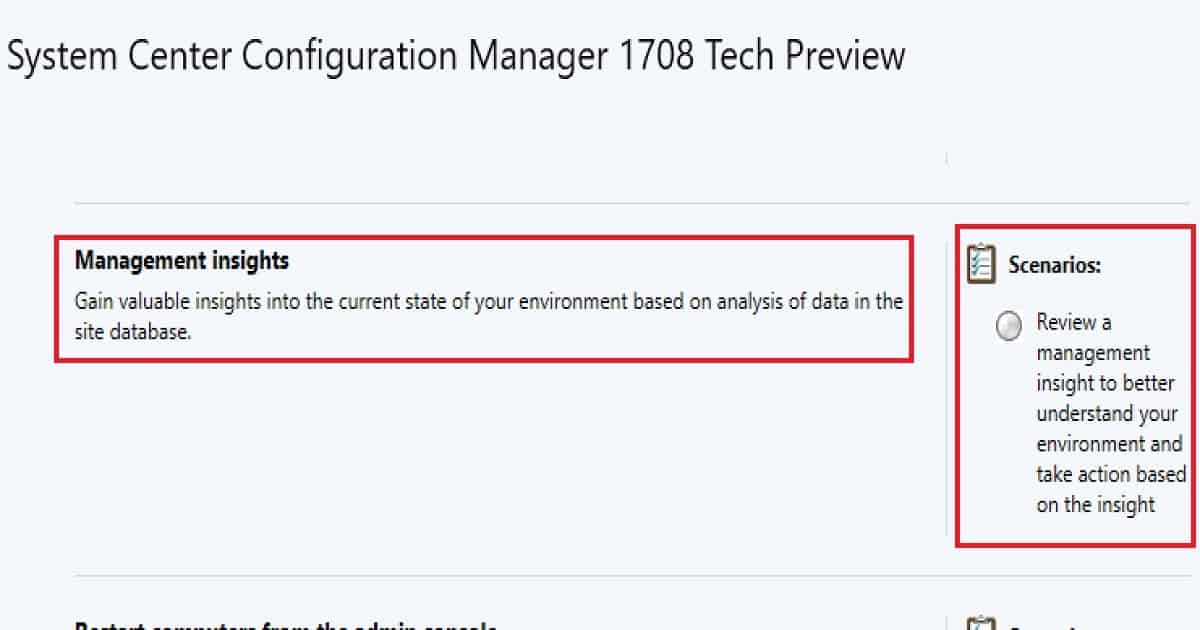
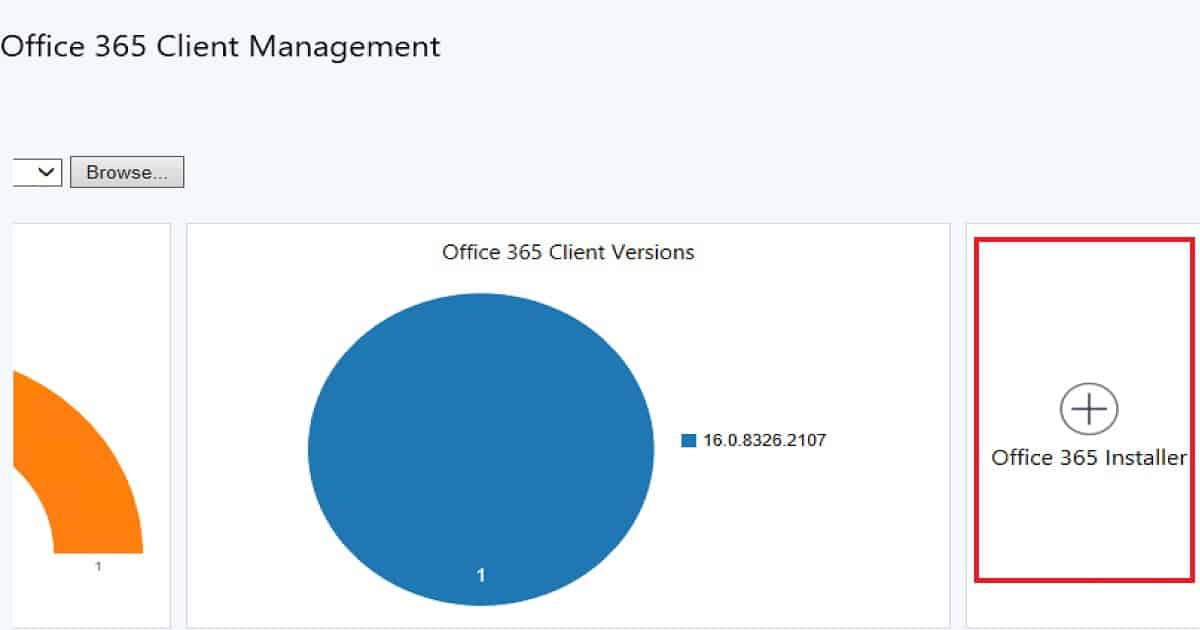
You can start the Office 365 ProPlus application Installer from SCCM version 1702, starting from the Office 365 ProPlus Client Management dashboard.
The new feature will let us configure Office 365 ProPlus installation settings, download files from Office Content Delivery Networks (CDNs), and deploy the files as an application.
This post will show the greenfield approach to deploying and installing O365 ProPlus applications. I have another post that explains “How to Deploy and Install Office 365 ProPlus Software Updates (patches) with SCCM CB ADR“.
Table of Contents
- Deploy Microsoft 365 Apps MS Teams Using Intune MEM HTMD Blog (anoopcnair.com)
- Per User Vs Per Device SCCM App Deployment Options | User Experience Settings
- How To Deploy Zoom Application Using SCCM
- SCCM CMPivot Standalone App Installation Guide
- How to Install Office 365 ProPlus Client Package
- How to Disable SCCM Application Deployment
**Update – How to Deploy MS Teams Using ConfigMgr Step by Step Guide|SCCM
IMP – Office 365 ProPlus Bandwidth Consideration Posts – Lean/Hybrid – Building dynamic, lean & universal packages for Office 365 ProPlus & Office 365 ProPlus Deployment and Proxy Server Guidance!
What is Office 365 ProPlus Microsoft 365 Apps Client Installer?
The Office 365 client installer is nothing but an installer for Office 365 client applications. Is that a bit clearer? So, which are those Office 365 Client applications? Word, Excel, PowerPoint, OneDrive, Outlook, etc.
OFFICE 365 ProPlus or Microsoft 365 Apps Client installer will help install all these applications to end-user devices like Windows 11, Windows 10, Windows 8, and Windows 7.
Deploy Office 365 ProPlus Microsoft 365 Apps using SCCM
Start the Office 365 client installation wizard from the SCCM console – \Software Library\Overview\Office 365 Client Management dashboard. Click on the + Office 365 Installer to launch the Office 365 installer from the SCCM CB console.
Office 365 client installation files will be downloaded to this location if they do not already exist. Without the internet, you can’t proceed to the 2nd page of this wizard. This is in case you have not downloaded the Office 365 configuration files.
Application Settings
• Application name: Office 365 Client Install
• Administrator comments:
• Content-Location: \\DC1\Sources\Office365\Client Install Pre Prod
You can set up all the client settings using the “Import Client settings” option in Office 365 Client Installation Wizard. You can import the configuration.xml file to automatically configure all the Word, Excel, PowerPoint, Outlook settings, etc.
Otherwise, you can select the option to manually configure all the settings via the Office 365 or Microsoft 365 apps installation wizard.
Select the List of Office 365 Applications You Want to Install
Select the Office Suite as part of the O365 or Microsoft 365 apps installation wizard. There are four office suites available as part of the installation wizard.
| Four Office Suites Available as Part of the Installation Wizard |
|---|
| Microsoft 365 Business Basic |
| Microsoft 365 Business Standard. |
| Microsoft 365 Business Premium |
| Microsoft 365 Apps |
You will also get an option to select Office 365 ProPlus or Microsoft 365 Applications, including installation. I don’t want to install OneDrive for Business (Groove) application as it’s the old sync client.
The rest of the apps will be installed on the Windows device based on the application selected from the wizard.
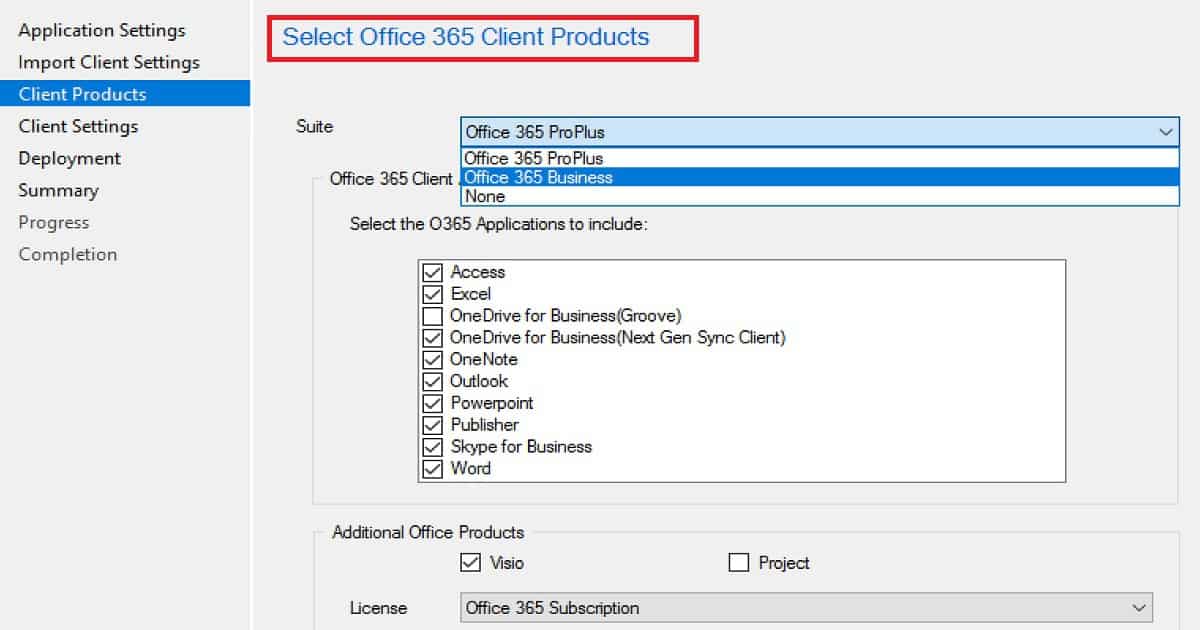
- Access
- Excel
- OneDrive for Business
- OneNote
- Outlook
- PowerPoint
- Publisher
- Skype for Business
- Word
You have an option to select additional office products like Visio and Project. For those two products, there is a special licensing option.
Those license options are available in Office 365 Subscription Standard Edition—Volume License and Professional Edition —Volume License. The video tutorial provides more details.
Office 365 Settings
• Suite: Office 365 ProPlus
• Excluded Applications: Groove
• Additional Office Products: None
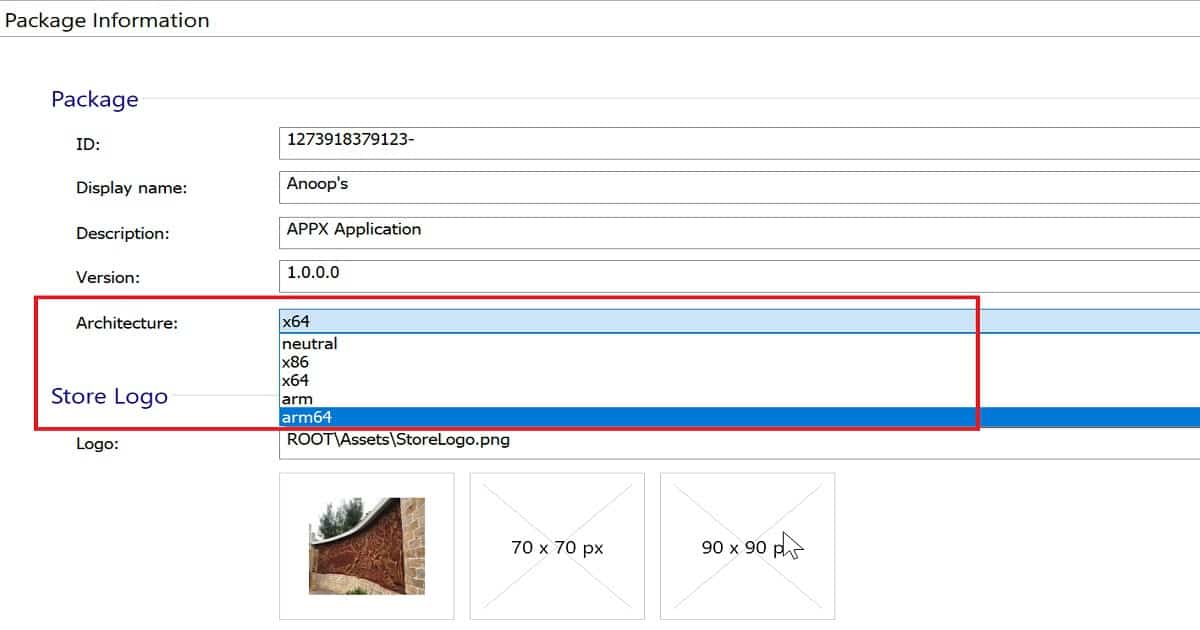
• Edition: 64-Bit
• Channel: Current
• Languages: English (United States) default, Hindi (India), Malayalam (India)
• Version: 16.0.8326.2107
• Shared Computer Activation: False
• Pin Icons To Taskbar: True
• Autoactivate: False
• Accept EULA: True
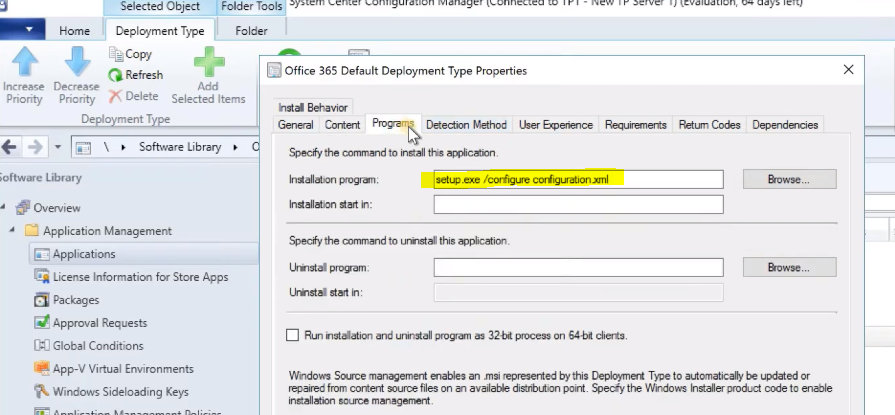
Select Office 365 ProPlus Microsoft 365 Apps Architecture using SCCM
Select the Architecture for Office 365 applications like Word, Excel, PowerPoint, etc. There are two versions: 32bit Vs. 64bit. There are 4 update channels available in the SCCM Office 365 client to install the wizard.
However, these updated models have recently changed. The following are the latest Office365 update models: Monthly Channel (formerly Current Channel), Monthly Channel (Targeted), Semi-Annual Channel (Differed Channel), and Semi-Annual Targeted (formerly First Release for Deferred Channel).
You can select different languages for Office 365 applications. You can choose the language of applications depending on your preference or region. This wizard will help you download the languages that will be downloaded for Office 365.
You can also configure it to “Accept EULA” and auto-activate the applications. You can also have Pin Icons in the Windows 8 and Windows 7 taskbar. The pin option is not applicable for Windows 10 devices. More details are provided in the video tutorial here.
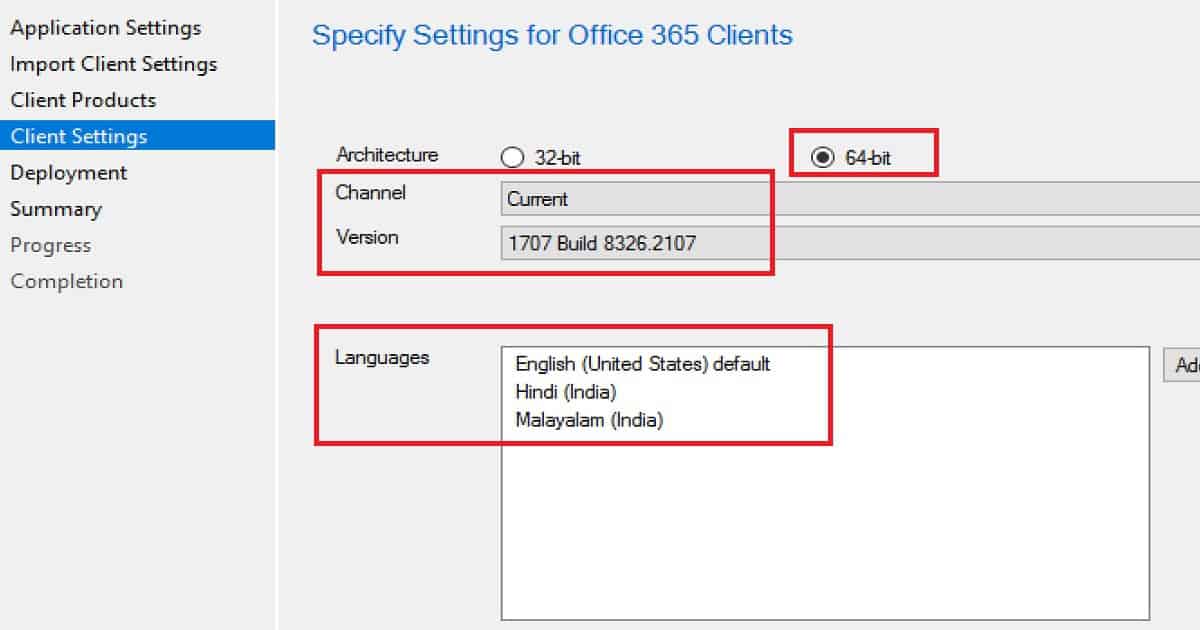
Deployment and Scheduling Options for Office 365 ProPlus Microsoft 365 Apps using SCCM
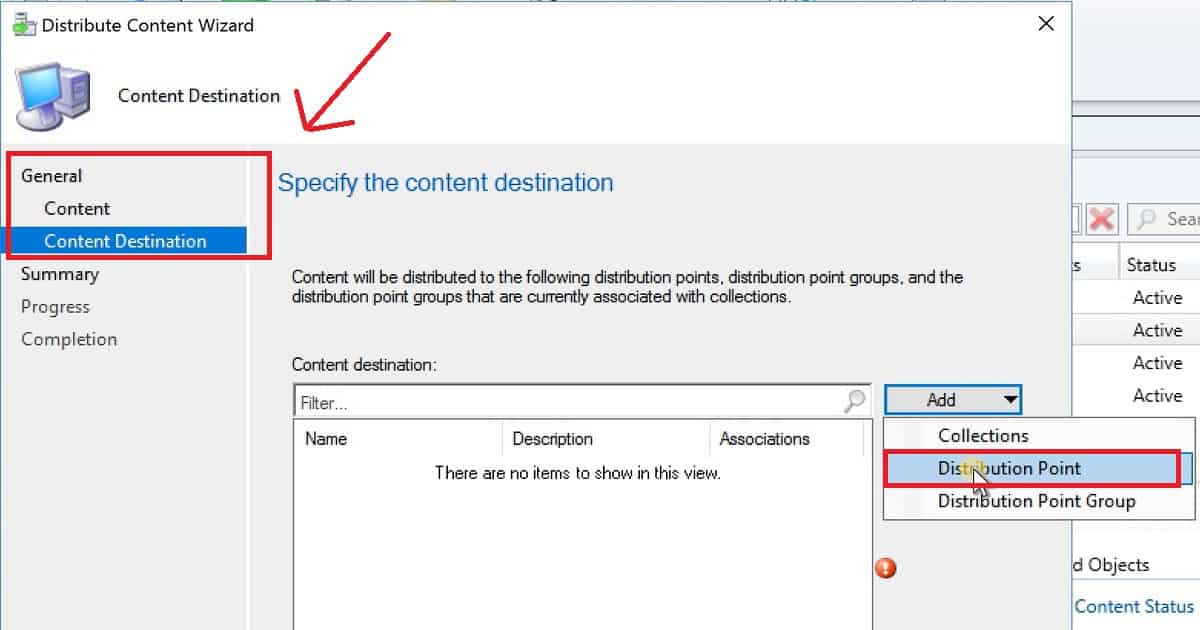
Deployment options/settings are also part of the Office 365 Client Installation Wizard. You must select the collection you want to deploy the Office 365 client on your SCCM CB environment. Select the content locations or DPs from the Content page.
There are two Office 365 client installation options: mandatory and Optional deployments. You can schedule the deployment according to your organization’s requirements.
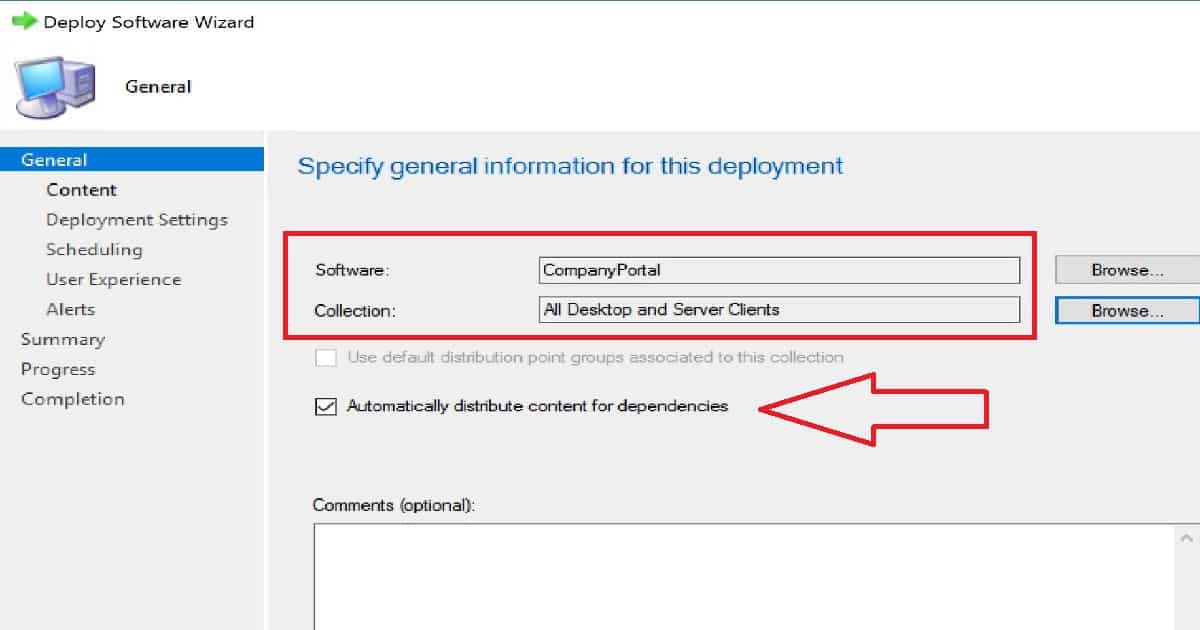
General
• Collection: All Desktop and Server Clients
• Use default distribution point groups associated with this collection: False
• Automatically distribute content for dependencies: True
Success: Content (1):
• SCCMTP1.INTUNE.COM
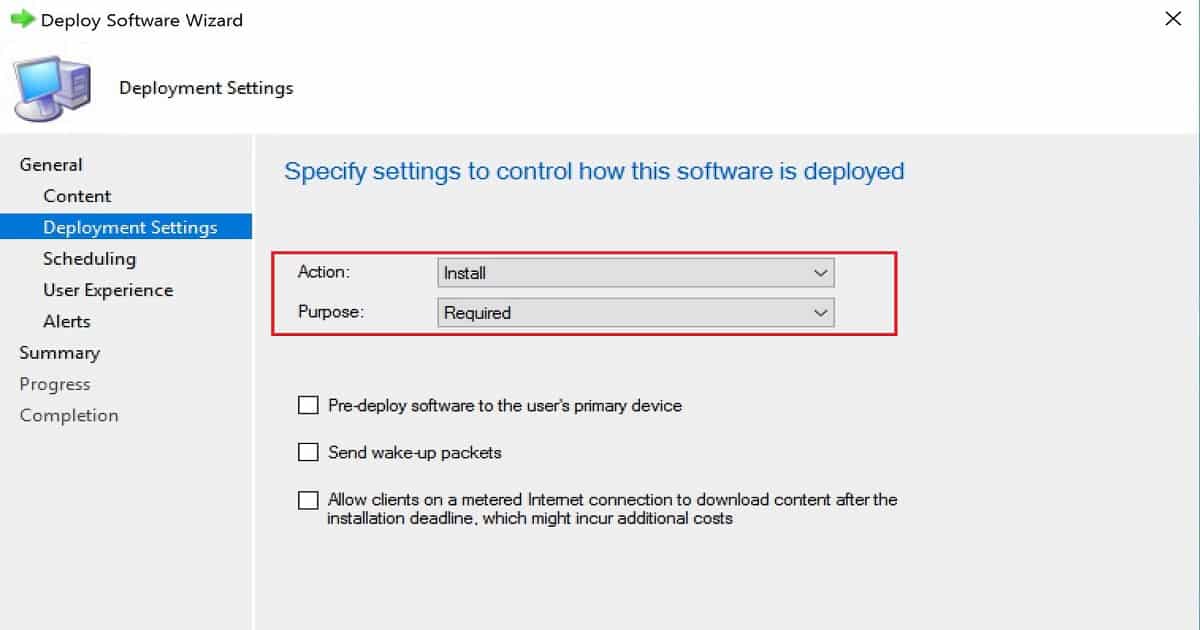
Deployment Settings
• Action: Install
• Purpose: Required
• Pre-deploy software to the user’s primary device: False
• Send wake-up packets: False
• Allow clients to use a metered Internet connection to download content: False
Scheduling
• Time based on: UTC
• Available Time: As soon as possible
• Deadline Time: Disabled
• Delayed enforcement on deployment Disabled
End-User Experience of Office 365 App on Windows 10 Devices
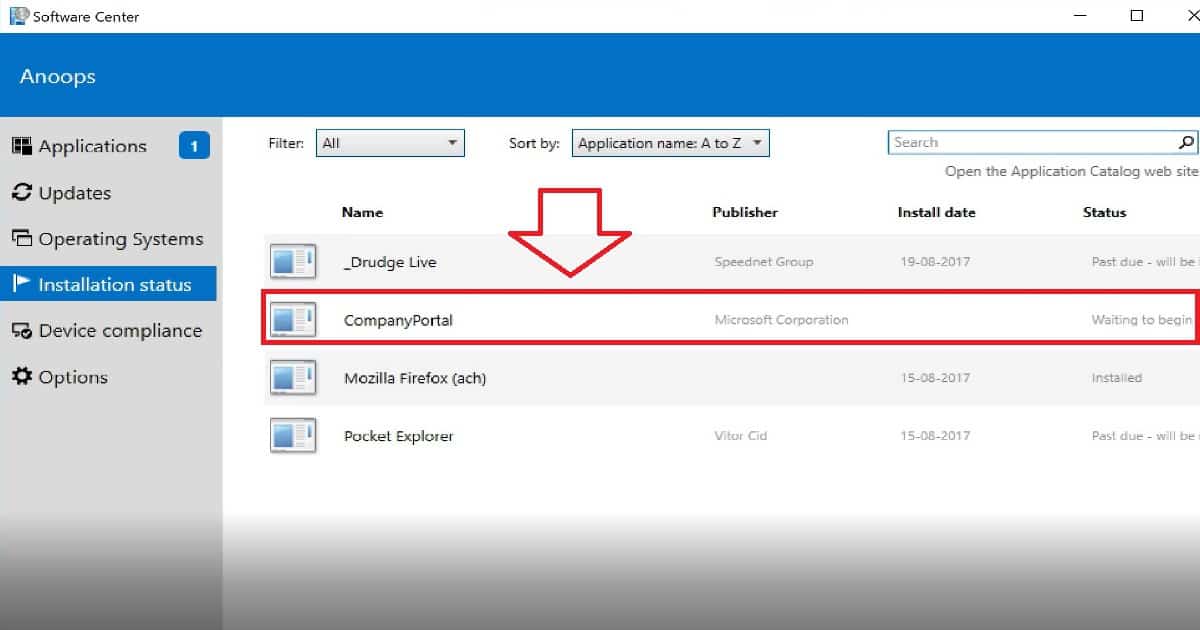
You can see the Office 365 app listed in the Software Center. It was a mandatory deployment and was automatically installed on Windows 10.
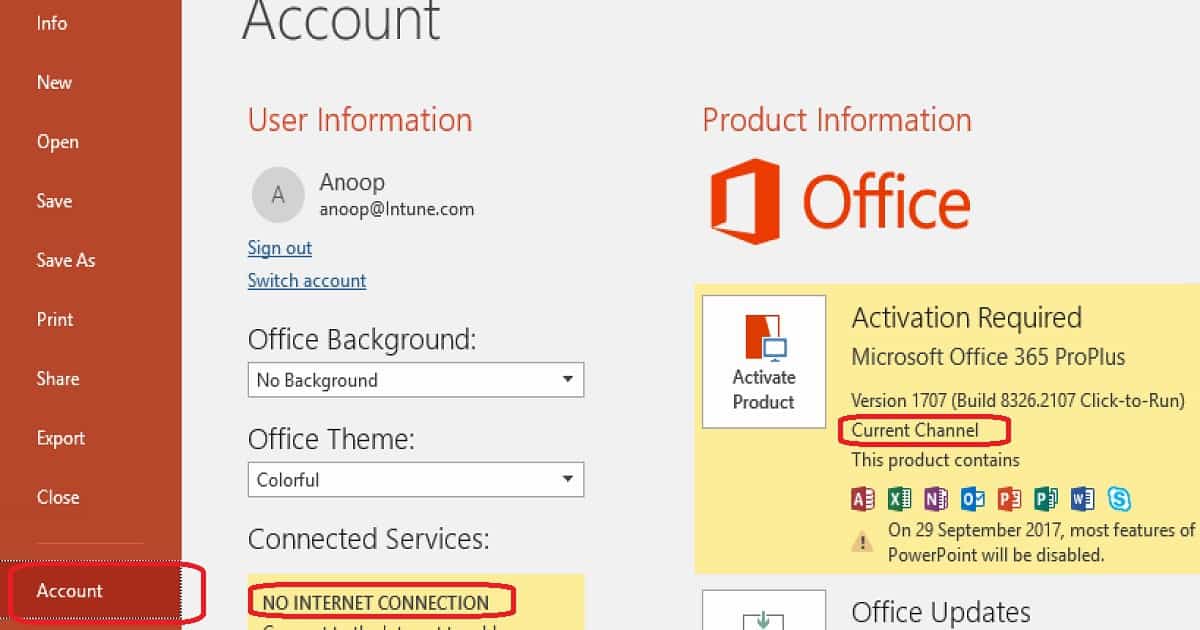
All O365 Applications were installed on Windows 10 or Windows 11 Devices. The Office365 update channel is the Current Channel (Monthly channel).
Excel, PowerPoint, Outlook, etc., apps are installed successfully on Windows 10 or 11 devices. However, the Windows 10 device had no internet connection, so the activation didn’t happen automatically.
The License will automatically be assigned according to the user’s subscription. After the installation, you can launch all the applications (Word, Excel, PowerPoint, OneDrive, etc.) from your Windows 10 machine.
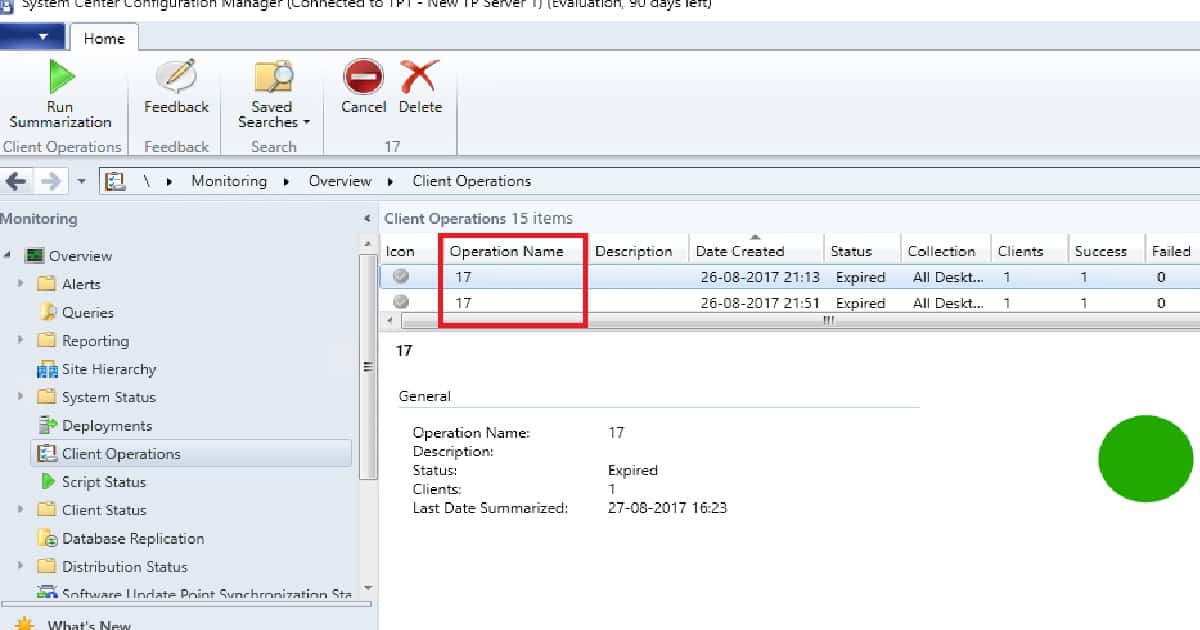
The Office 365 Client Management dashboard details the number of managed O365 clients in your SCCM CB hierarchy. The video tutorial provides more details on creating an Office 365 ADR and deploying Office 365 Software Updates.
Example of Office 365 Microsoft 365 Client Installation Wizard Configuration –
Now, let’s learn how to Deploy and Install Office 365 ProPlus or Microsoft 365 Apps using SCCM or Configuration Manager.
User Experience
• User notifications: Display in the Software Center and show all notifications
• Ignore Maintenance Windows: False
• System restart (if required to complete the installation): False
• Commit changes at the deadline or during a maintenance win&dow (requires restarts): True
Alerts
• Enable System Center Operations Manager maintenance mode: False
• Generate System Center Operations Manager alert when a software installation fails: False
• Create a deployment alert when the threshold is lower than the following: False
• Create a deployment alert when the threshold is higher than the following: False
Sample Configuration.XML file configuration for Office 365
- <Configuration>
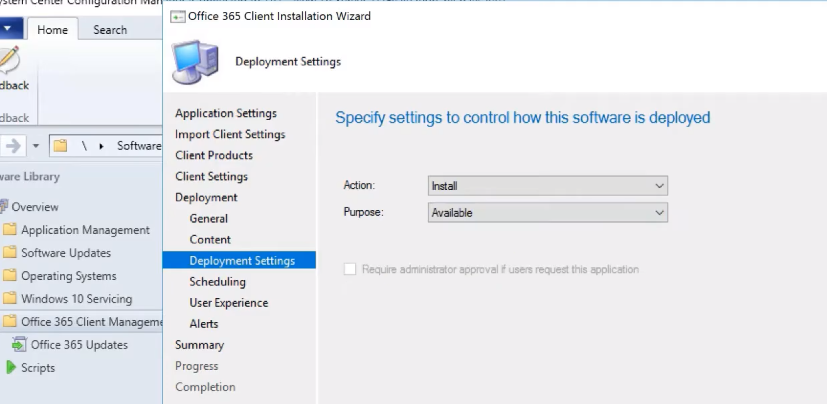
- <Add OfficeClientEdition=”64” Channel=”Current” Version=”16.0.8326.2107″ OfficeMgmtCOM=”True“> <Product ID=”O365ProPlusRetail”>
- <Language ID=”en-US” />
- <Language ID=”hi-IN” />
- <Language ID=”ml-IN” />
- <ExcludeApp ID=”Groove” />
- </Product>
- </Add>
- <Display AcceptEULA=”TRUE” />
- <Property Name=”SharedComputerLicensing” Value=”0″ />
- <Property Name=”PinIconsToTaskbar” Value=”TRUE” />
- <Property Name=”AUTOACTIVATE” Value=”0″ />
- </Configuration>
New Application Installation Technologies
There are a few new application installations, maintenance, and removal technologies. In this post, we are going to see more about Click-to-Run technologies.
Click-to-Run is an alternative to the traditional Windows Installer-based (MSI) method. It uses virtualization technology to run an Office product in a self-contained environment. Click-to-run virtualization capabilities are taken from APP-V.
The UWP application comes with various installation options, the most prominent of which are web-based and Windows store-based. Both use the App Streaming Install method to install the application. Office has a UWP app version, which will be available in the Microsoft store.
UWP is dead? This was one of the news spread on Twitter. And the reason for that Twitter news was because of the information about Progressive Web Applications (PWA).
PWA are Web pages designed to work as applications. PWA is supported by Chrome, Edge, and Safari (Apple has also started working on it). PWA is one of the new app technology which I’m excited about.
Office Click-to-Run Installation Options with SCCM
I have a post that explains the step-by-step method for installing Office using Click to Run technology: “How to Deploy and Install Office 365 Applications via SCCM CB.”
This click-to-run installation technology used in SCCM CB is an alternative to traditional MSI installation. Click-to-run Office client installation is independent of SCCM SUP and WSUS software updates.
As mentioned above, the SCCM console requires an internet connection to download the latest updates from Office CDN. More details about creating a Click to Run Office App in SCCM are available.
Office updates via SCCM SUP and WSUS depend on Click-to-Run client installations. If the office is installed using a click to run the installation, you can have office updates or upgrades through SCCM/SUP.
Software update component requirements are explained in the following step-by-step guide. “How to Deploy and Install Office 365 Software Updates (patches) with SCCM CB ADR“.
Best Practices – Office 365 ProPlus Updates (Install Office 365 ProPlus)
#1 – You should have the latest version of SCCM Current Branch to get a better experience and integration of Office 365 client package creation and Office 365 patches/updates.
#2—You must build two Office 365 ProPlus installation packages in SCCM. One is a Semi-Annual channel, and the other is a Semi-Annual Channel (Targeted).
#3 – Deploy to two deployment groups: a pilot group that receives the Semi-Annual Channel (Targeted) and a broad group that receives the Semi-Annual Channel.
Prerequisites of Office 365 ProPlus Client Package (Install Office 365 ProPlus)
#1 – You should have SCCM 1806 or later to create Office 365 proplus package with an office customization tool. If you have not upgraded to the 1806 version, I recommend reading my previous post, “How to Deploy and Install Office 365 Applications via SCCM CB“.
#2 – The SCCM client Application installation wizard has integrated with the Office Customization Tool. This tool needs an internet connection on the machine where the console is running. This office customization tool renders the online website in the background to create a Configuration.XML file.
#3 – You should have required RBAC permissions on the SCCM console to perform Office 365 ProPlus client package creation.
Video Tutorial – Office 365 ProPlus Client Package Creation
The video below provides more details about creating the Office 365 ProPlus package. You can also learn SCCM, Intune, and other device management topics via videos from my new Video Blog website, https://howtomanagedevices.com/.
How to Create Office 365 ProPlus Client Package (Install Office 365 ProPlus)
The following steps will help you create your organisation’s Office 365 Proplus client package. As recommended above, it would be great to create two packages (Semi-Annual and Semi-Annual Targeted) for the Office 365 ProPlus client package.
- Launch the SCCM console from an internet-connected machine
- Navigate to \SoftwareLibrary\Overview\Office 365 Client Management dashboard
- Click on the + Office 365 Installer from the Office 365 Client Management Dashboard
- Give the NAME of the Office 365 ProPlus Client Package and the Description of the package
- Browse to a location mainly on the file server or SCCM server package source folder
This is the primary step in the Office 365 proplus client configuration. Click on the Office Customization tool (More details about the tool are in the section below this post) to customize and import your XML to the SCCM application engine.
As you can see in the screenshot above, you must complete all the above sections to create a configuration.xml file for the Office 365 proplus client package.
Ensure you have a tick mark symbol for all the sections in the Office Customization tool; otherwise, it won’t be able to create the XML file. The video tutorial above provides more details.
In the General section, you need to give a name and Organization details and click the Next button to go to the next section.
You can select the Office 365 product and architecture (x64) you want to deploy in the Product and Releases section. I selected Office ProPlus and Clicked on the Add button. You must also choose which update channel and Version you wish to use for your Office 365 clients. I selected the Semi-Anual Channel for updates.
Select the Language of the Office 365 ProPlus Client you want to deploy. You also need to select the installation options, such as shortcut behavior. Click on NEXT to proceed to the next section of the wizard.
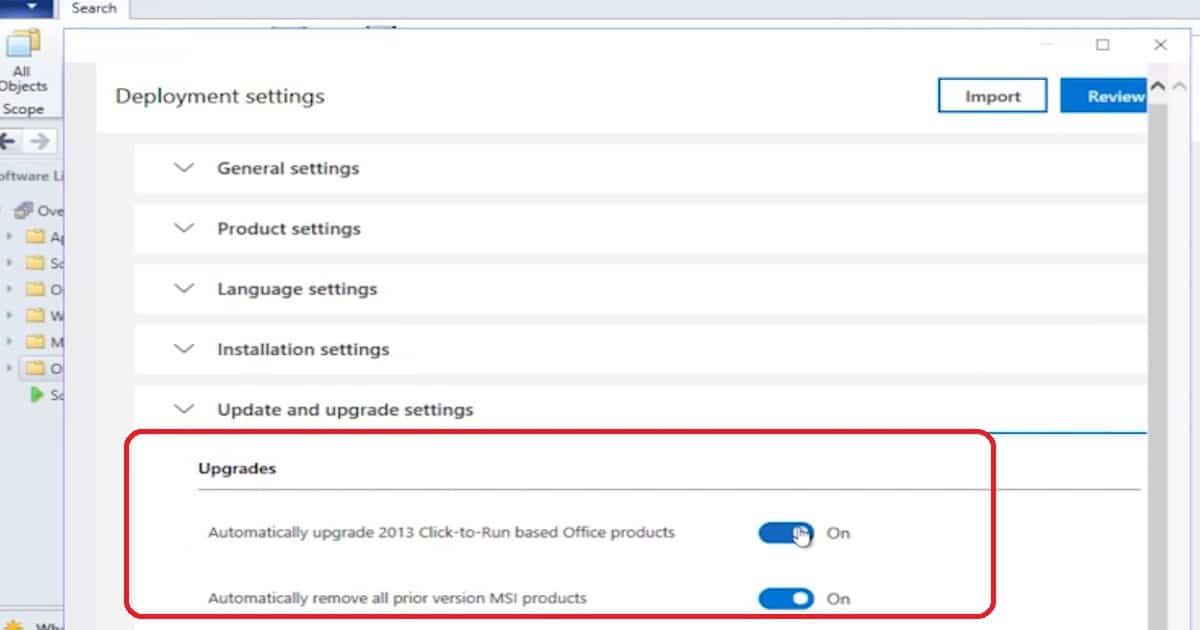
Select the upgrade options from the Update and Upgrade section of the office customization tool. I have enabled the toggle for the Upgrade Office Click-to-run products. Also allows options to Uninstall any MSI versions of the office including visio and project. Click on NEXT.
- Complete the Licensing and Activation settings and click on NEXT.
- Application Preferences gives IT pros a wide range of customization options for each office product, such as Word and Excel.
- Click the Finish button to complete and Review the Office 365 ProPlus client.
- Click on the SUBMIT button to IMPORT configuration.xml to the application package.
- Click the NEXT, NEXT, NEXT, and CLOSE buttons to finish the Microsoft Office 365 Client Installation Wizard. This wizard takes 30-40 minutes to complete depending on the internet connection.
- Deploy this Office 365 ProPlus client package to test machines.
Learn More about The Office Customization Tool
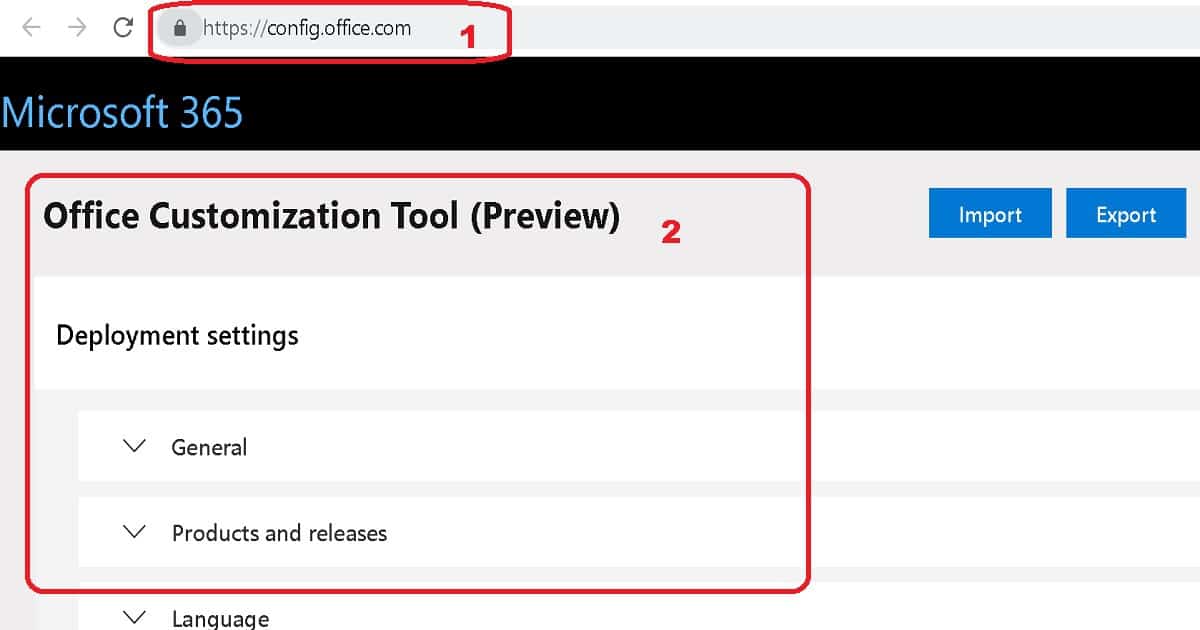
The Office Customization Tool for creating a configuration.XML file that controls Office 365 Proplus client behavior. This tool is an Azure-based cloud service that allows you to create XML configuration files that are used with the Office Deployment Tool. Install Office 365 ProPlus.
Previously, you needed to create the configuration files in Notepad or another text editor. The Office Customization Tool makes this part of the deployment process more accessible and less likely to introduce errors. Now, this tool is also integrated with SCCM version 1806 or later.
Review – https://config.office.com/
How to Update or Patch Office 365 ProPlus Client
If you are looking for a solution to update the Office 365 ProPlus client with the latest patches, the following post will help. I also have another post that explains “How to Deploy and Install Office 365 Software Updates (patches) with SCCM ADR. ” Install Office 365 ProPlus.
References
- Out Of Support Versions Of Microsoft 365 Apps Monthly Enterprise Channel SCCM HTMD Blog (anoopcnair.com)
- How to Change Office 365 Update Channel with SCCM Run Script
- SCCM to Change Office365 ProPlus Architecture from 32 bit to 64 bit
We are on WhatsApp now. To get the latest step-by-step guides, news, and updates, Join our Channel. Click here. HTMD WhatsApp.
Author
Anoop C Nair is Workplace Technology solution architect with 25+ years of experience in global enterprise organizations such as JP Morgan, Capgemini, etc. He is Microsoft Certified Trainer. Microsoft MVP from 2015 onwards for consecutive 11 years! He also conducts Intune and modern workplace tech training for enterprise organizations. He is Blogger, Speaker, and Founder of HTMD Community and HTMD Conference. His focus is on Device Management technologies such as Intune, Windows, Cloud PC, He writes about technologies like Intune, SCCM, Windows, Cloud PC, Windows, Entra, Microsoft Security.